

How to use CIBC Online Banking®
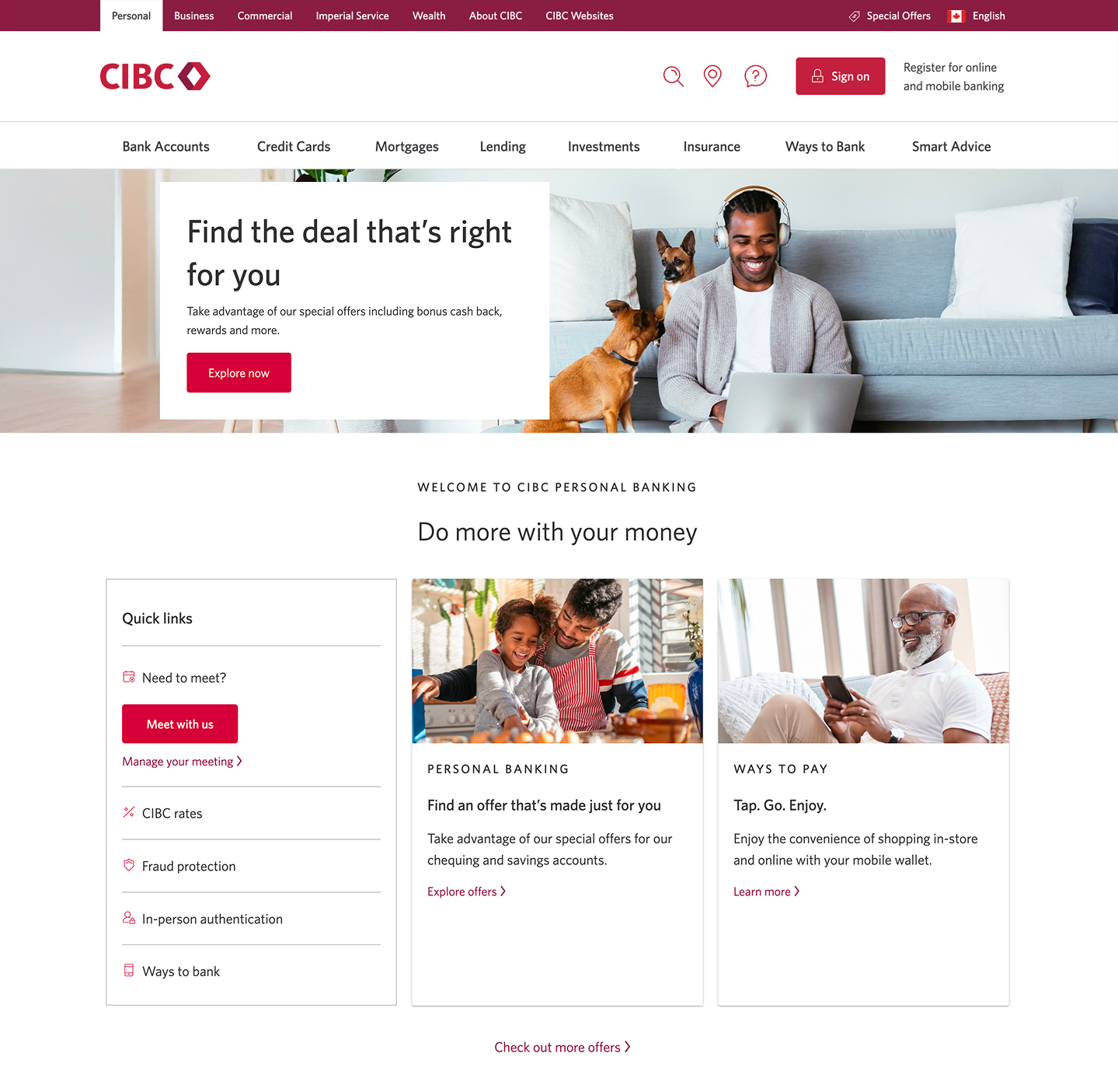
Step 1 : Let's get started on your web browser
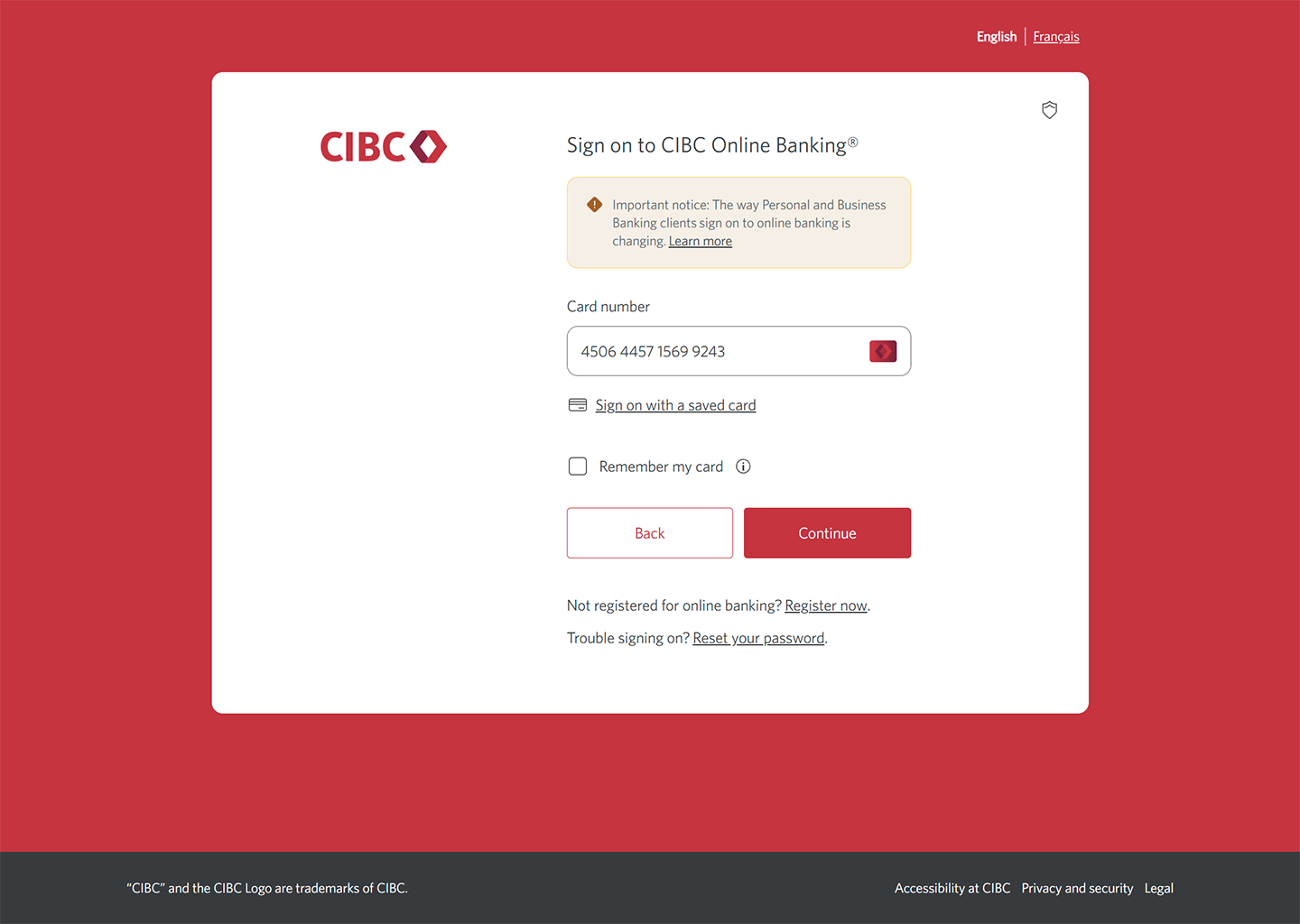
Step 2 : Enter your card number
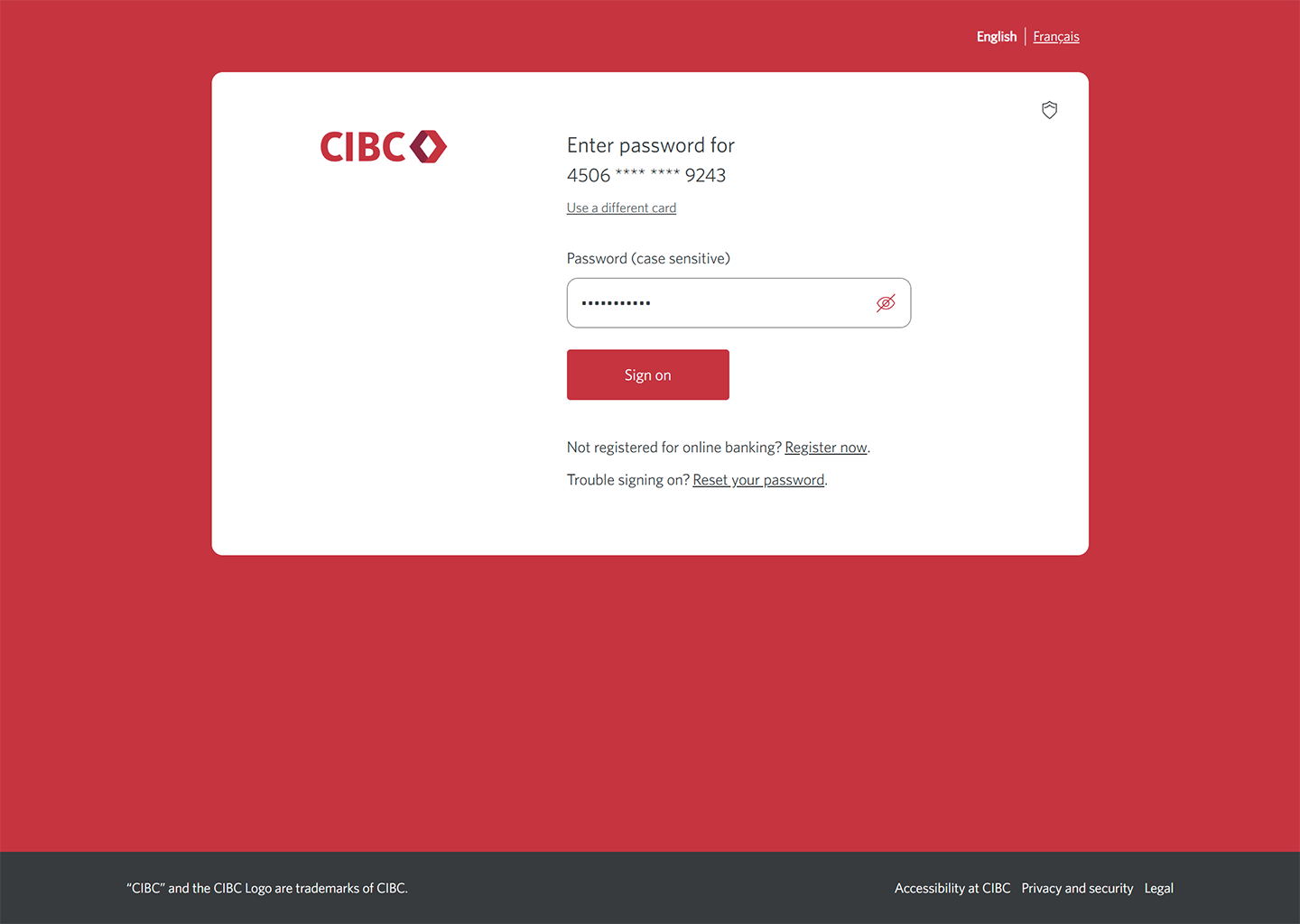
Step 3 : Enter your password
In the password field, enter your password.
If you're not registered for online banking, follow the "Register now" link on the page to sign up. Once you've done that, return to this demo and enter your password to continue learning how to use CIBC Online Banking.
Once you've entered your password, select the "Sign on" button to continue.
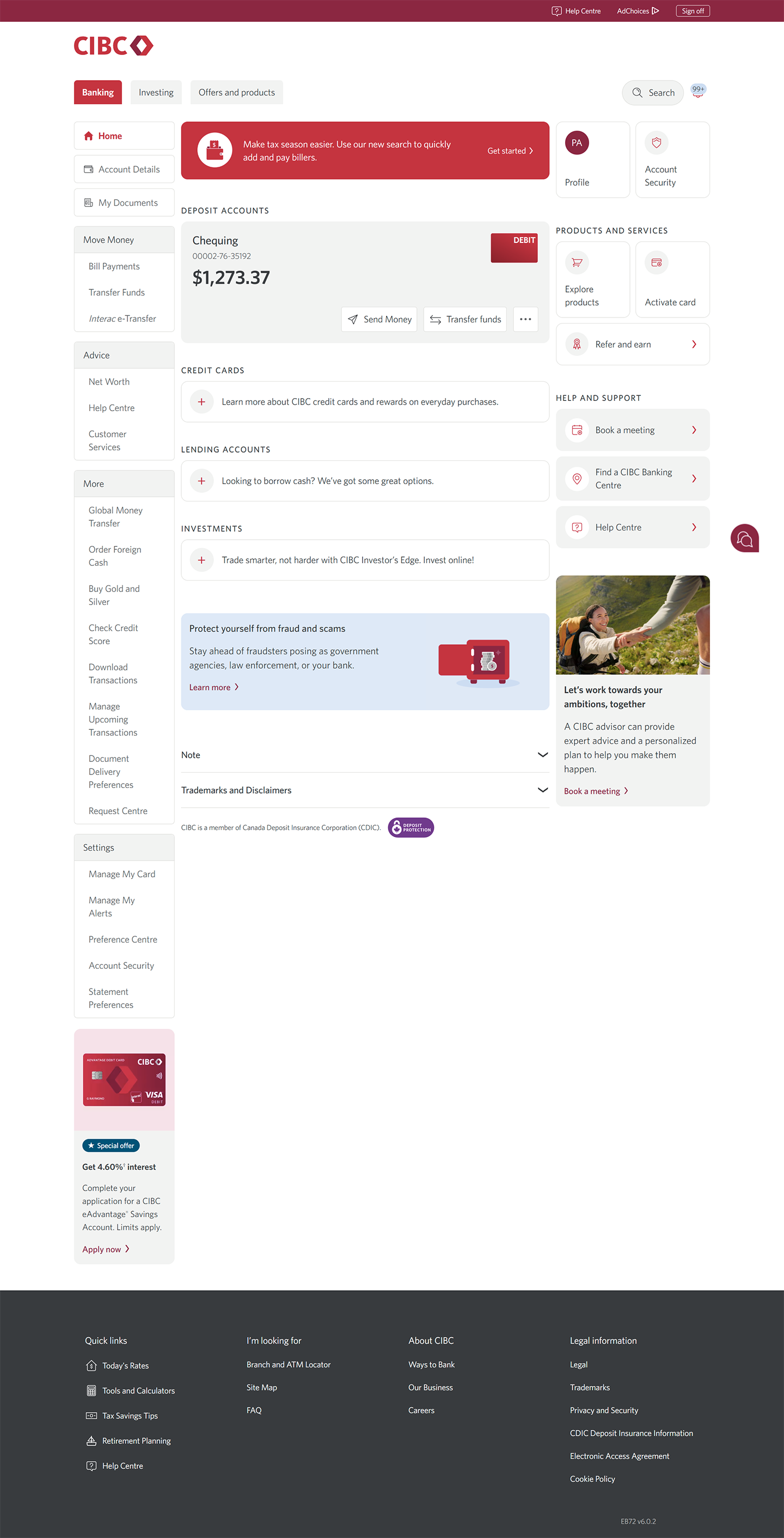
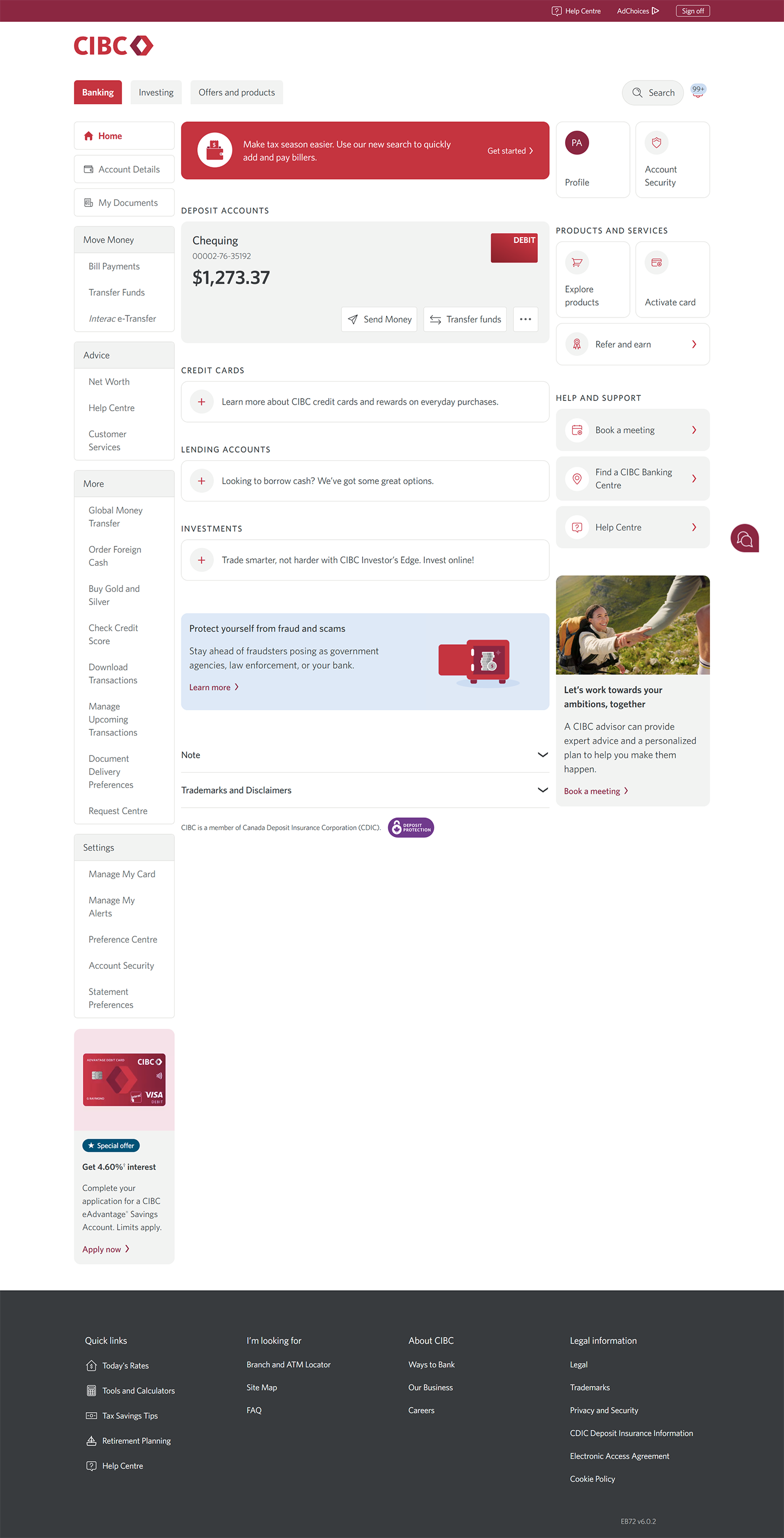
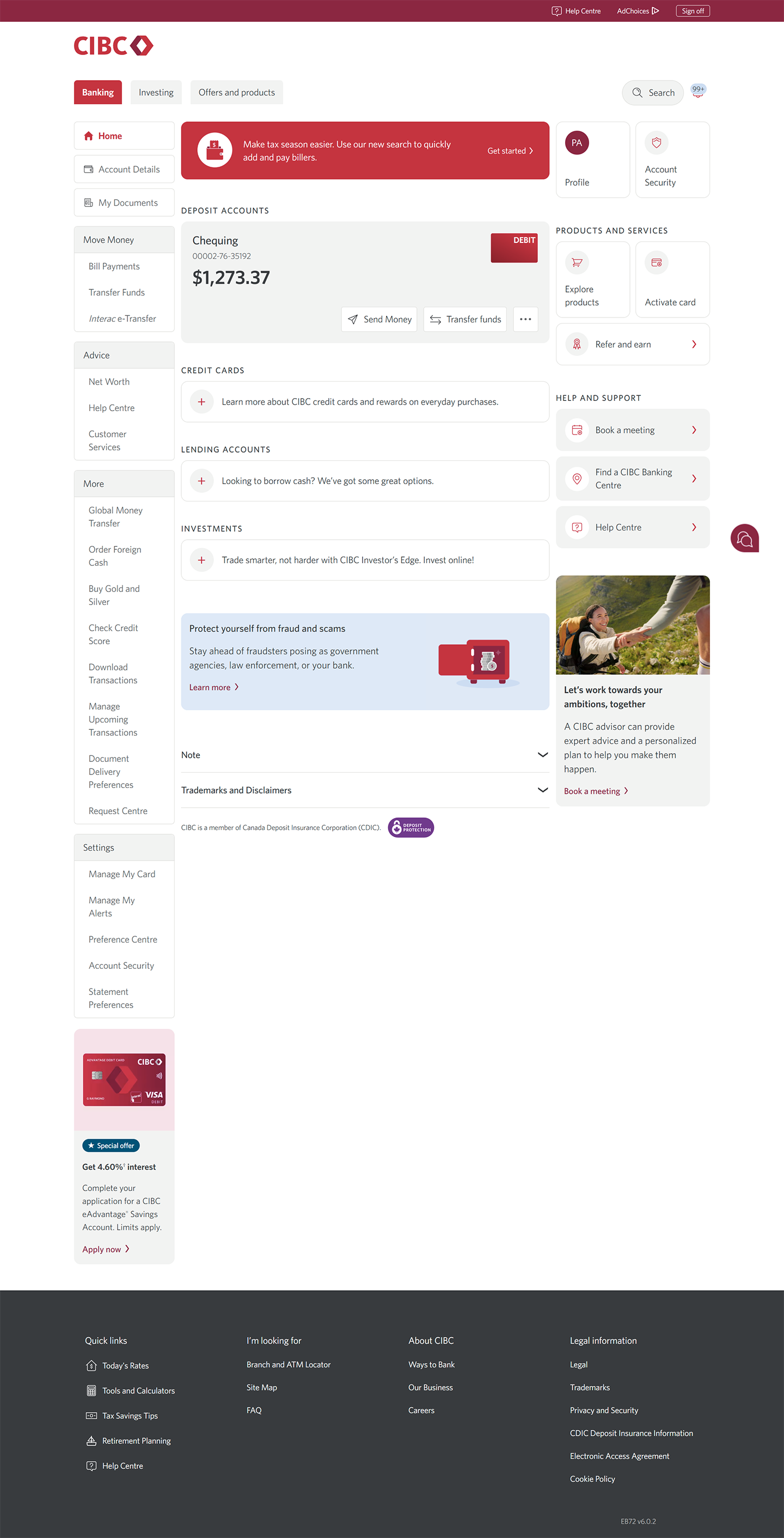
Step 4 : Navigate to "Account Details"
Step 5 : Choose an account to review
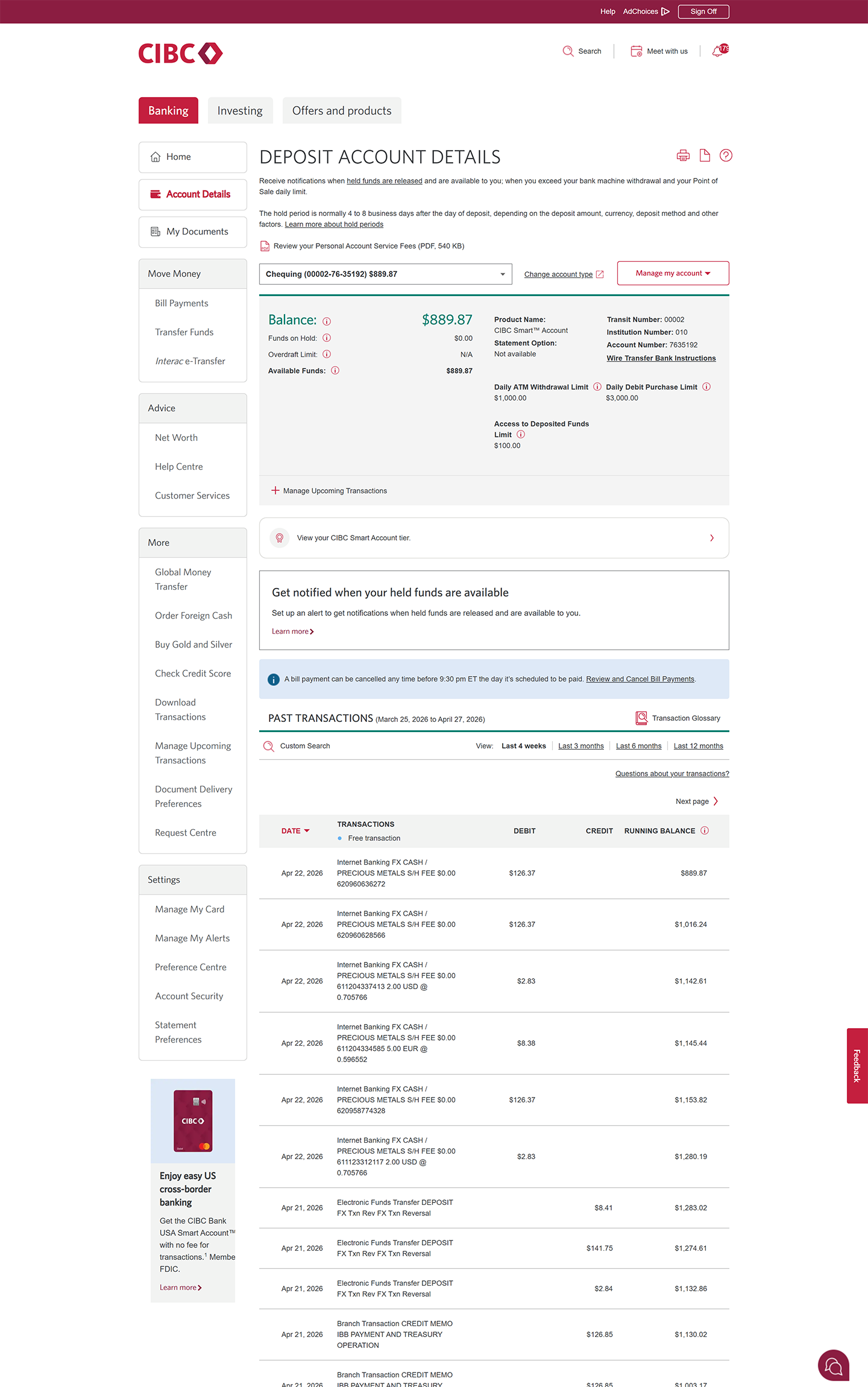
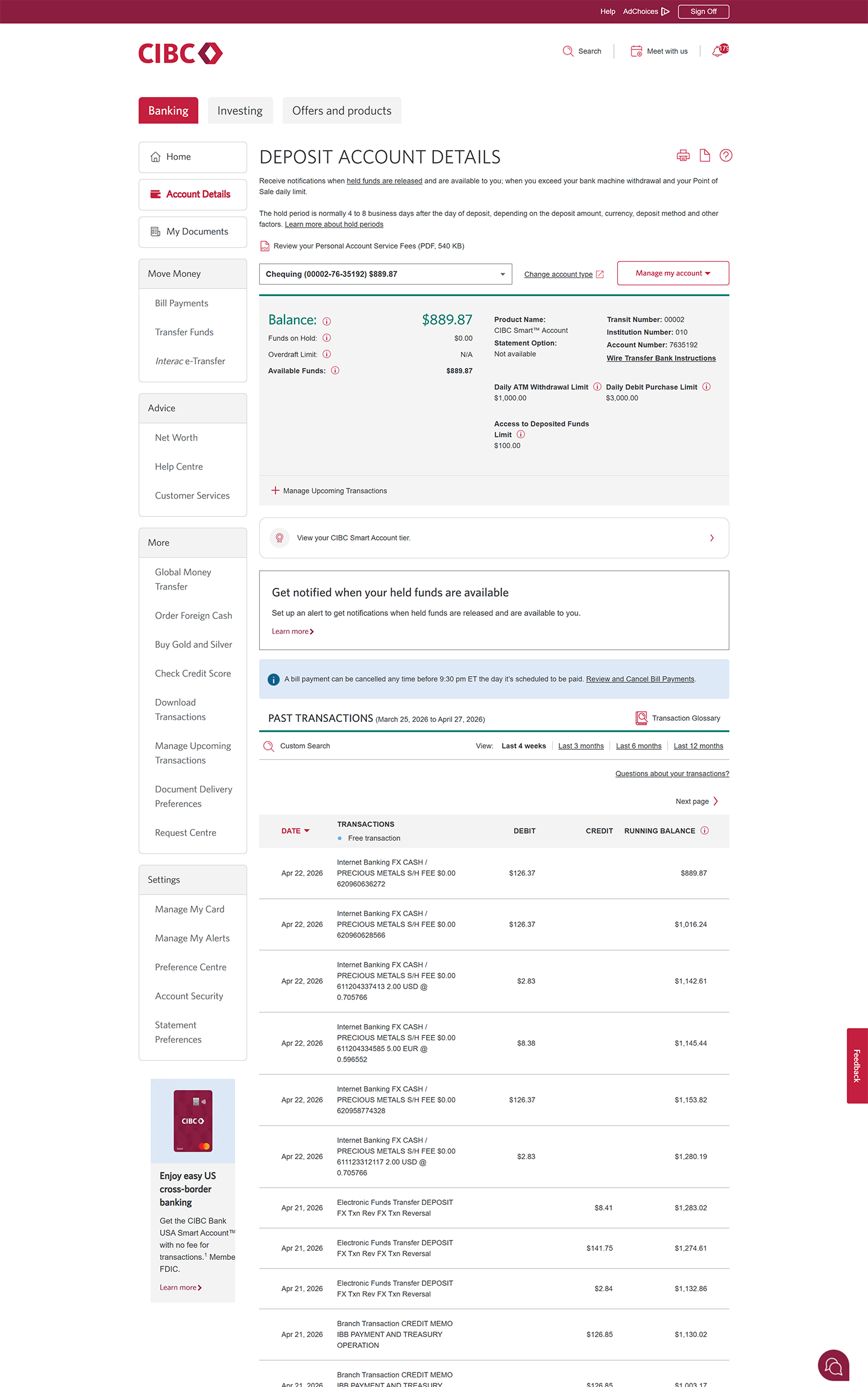
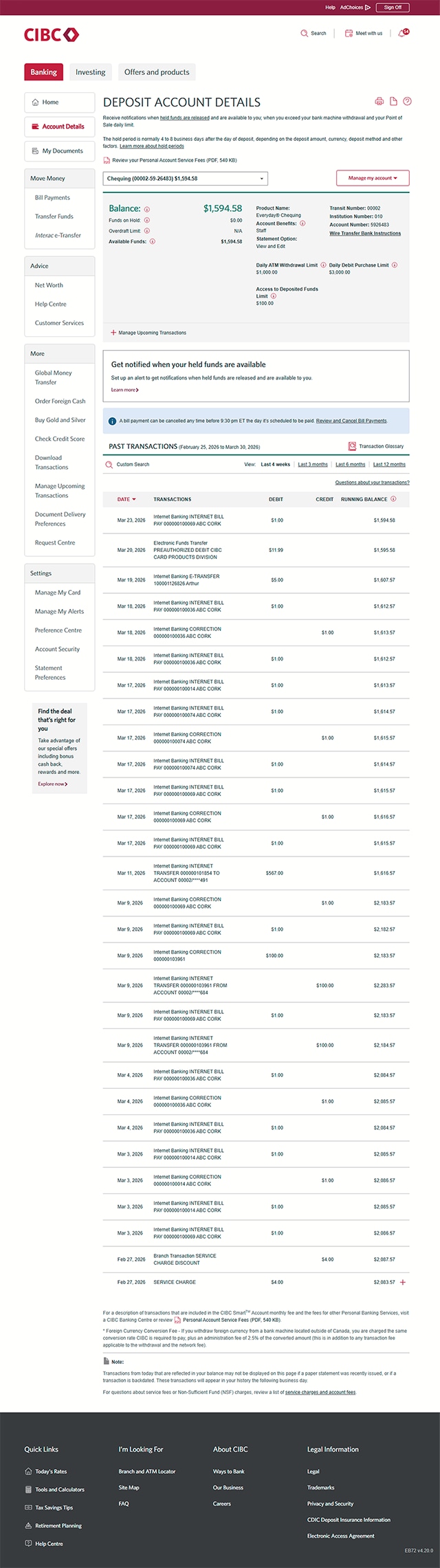
On the Deposit Account Details page, select the dropdown menu to choose the account you'd like to review in detail.
You'll find information such as your account name, account balance and limits, as well as the branch information associated with your account. To switch to other accounts, use the same account dropdown you first selected.
Step 6 : Review your transactions
On the Deposit Account Details page, you can scroll to review recent transaction information.
You'll find details for each transaction like the payee, payment amount, and transaction status.
Step 7 : Navigate to the "My Documents" page
Step 8 : Review your documents
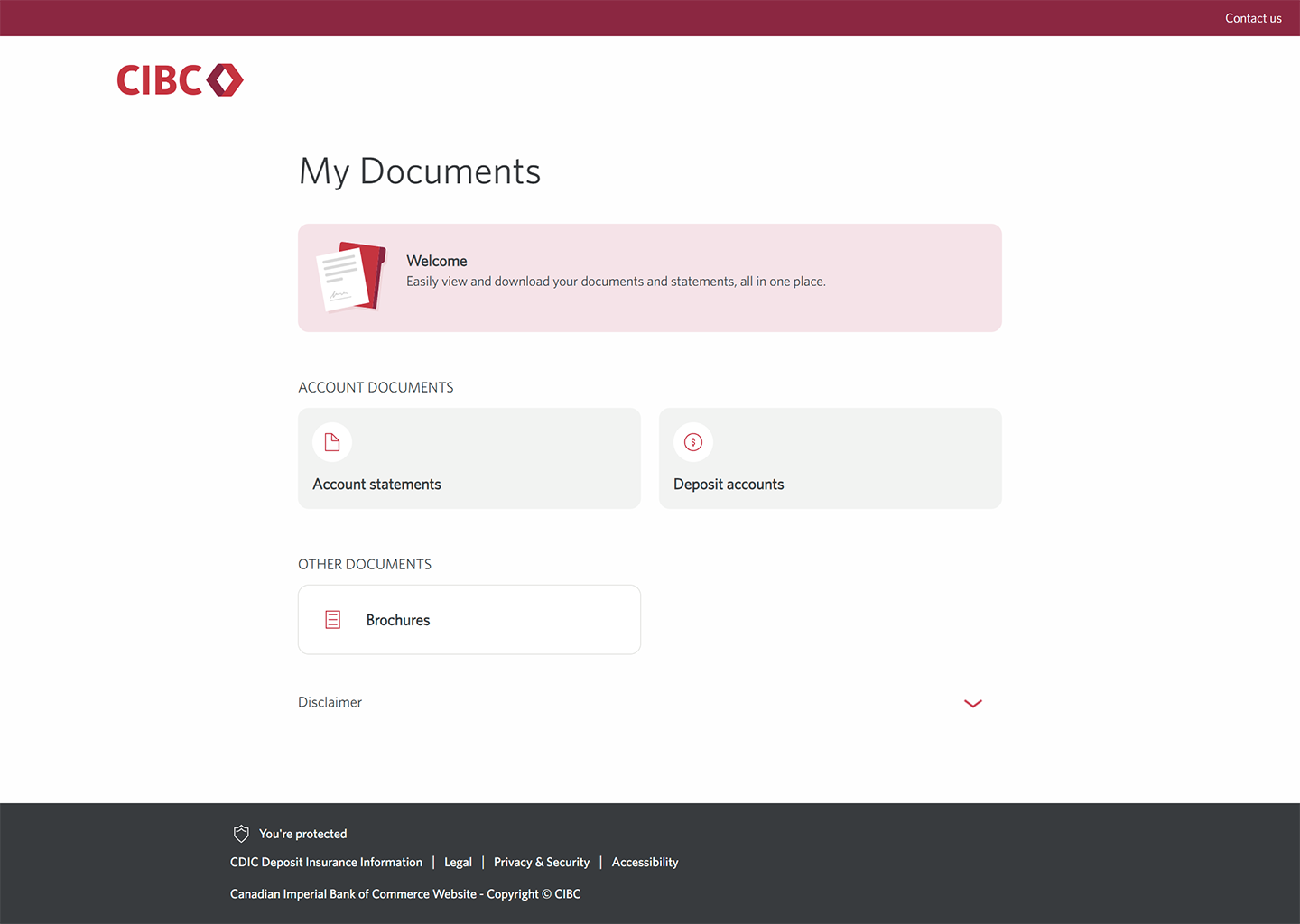
On the My Documents page, you'll be able to review and download your documents, including account statements and brochures.
When you're finished, select the pulsing icon to return to the CIBC Online Banking homepage.
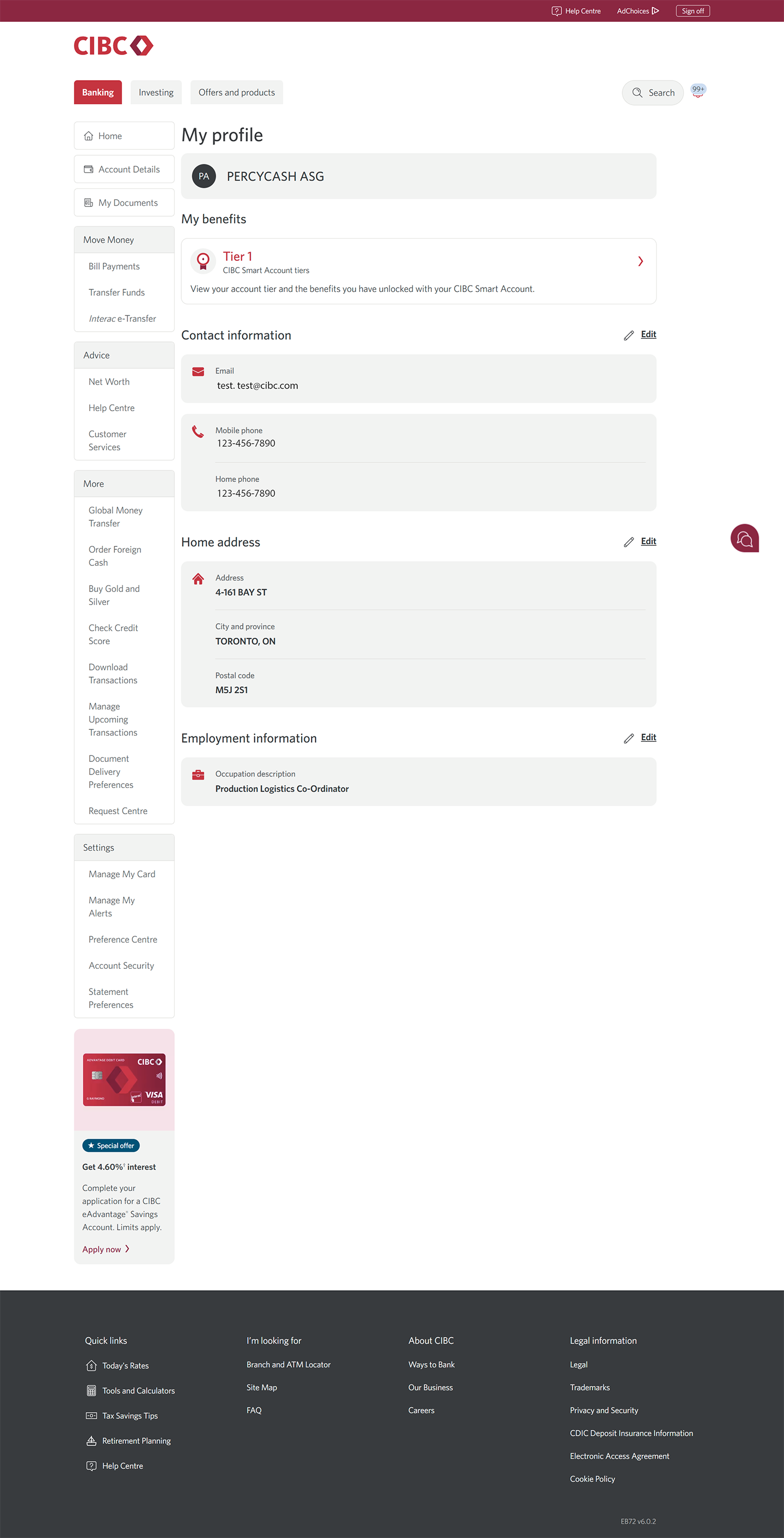
Step 9 : Navigate to your profile
Step 10 : Review your profile details
On the My Profile page, you'll find options to review, add and edit your contact and address information.
When you're finished, select the "Home" link to return to the CIBC Online Banking homepage.
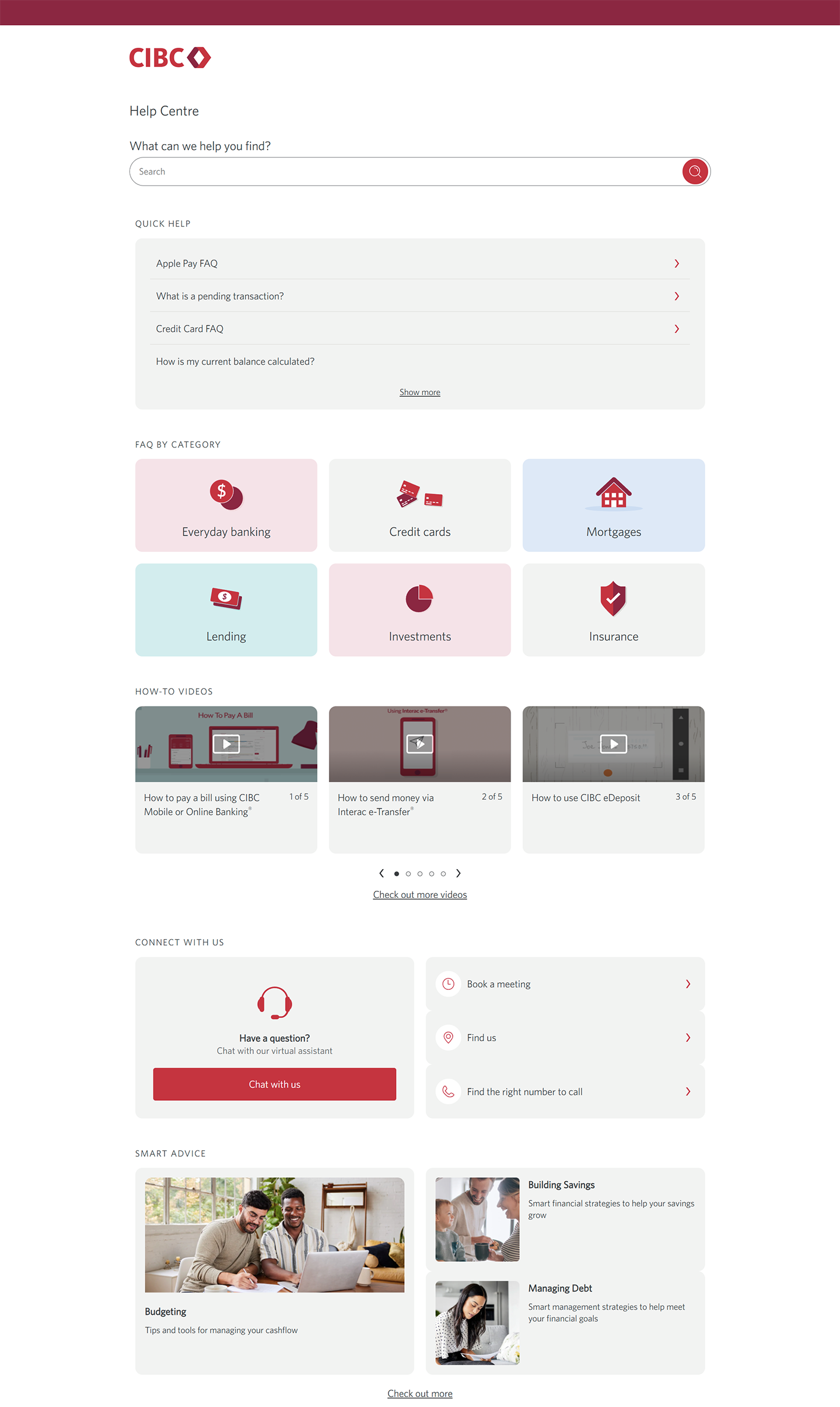
Step 11 : Find the Help Centre
On the CIBC Online Banking homepage, go to the "Advice" menu and select the "Help Centre" link.
The Help Centre provides additional support for online banking. You can find quick answers to common questions, frequently asked questions by category and how-to tutorials. You can also connect with us through our virtual chat, by phone, or with in-person meeting options.
Step 12 : Great job!
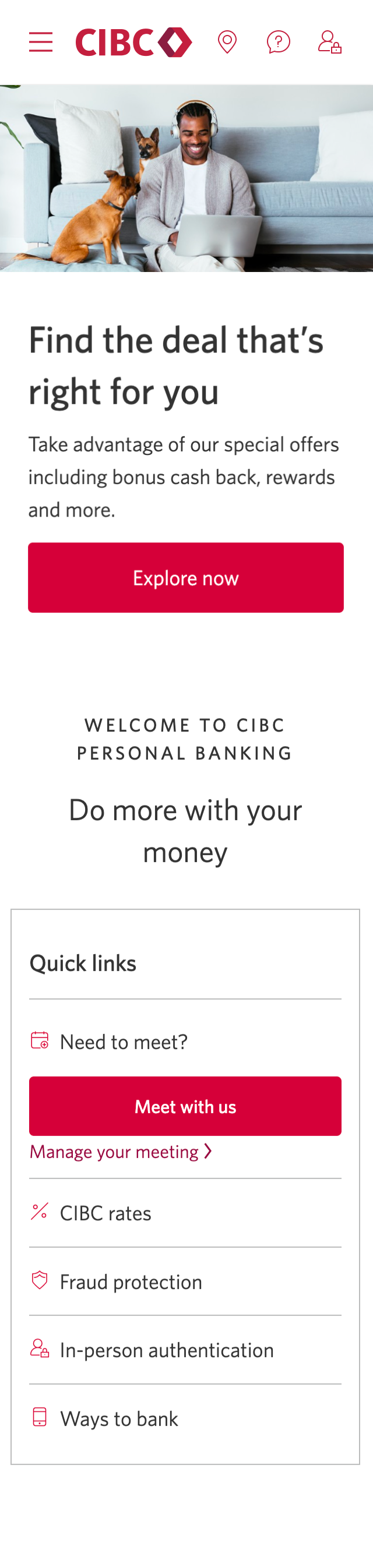





Step 1 : Let's get started on your web browser
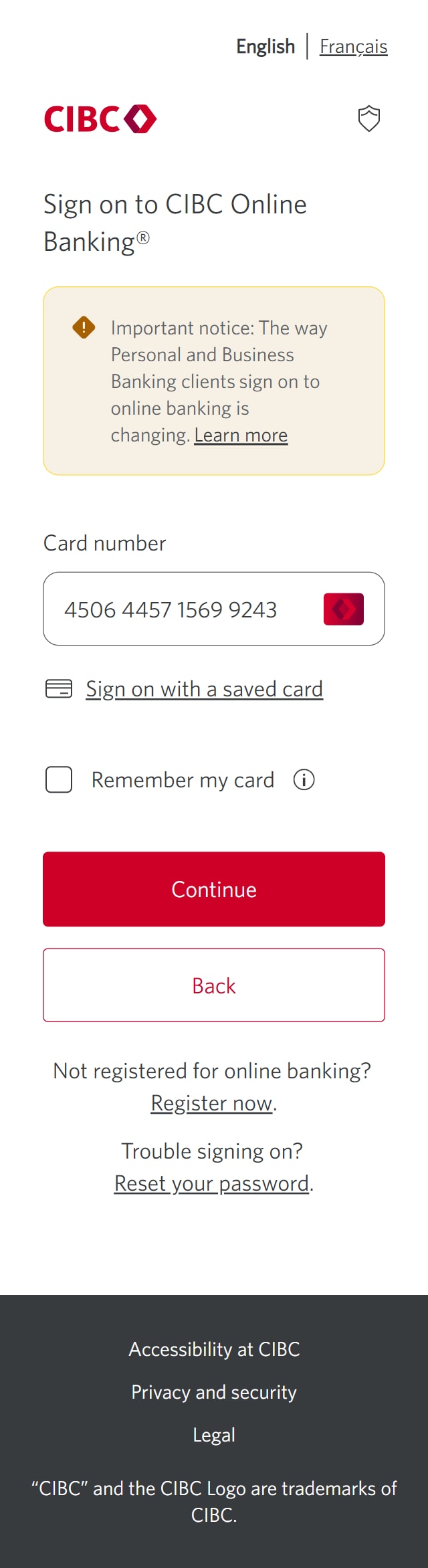
Step 2 : Enter your card number
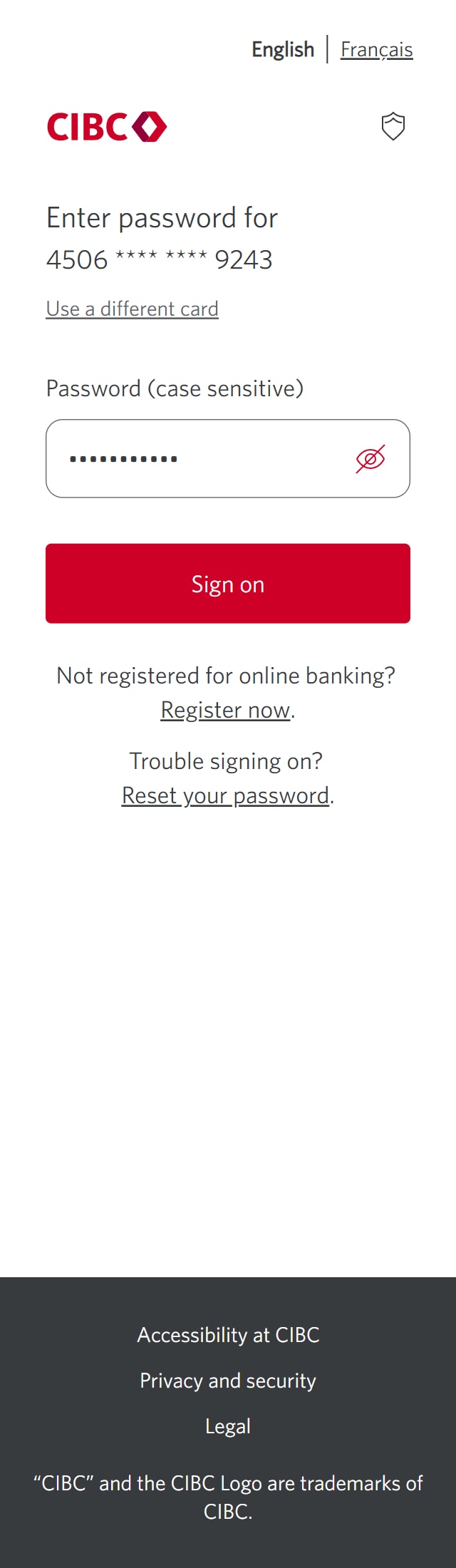
Step 3 : Enter your password
In the password field, enter your password.
If you're not registered for online banking, follow the "Register now" link on the page to sign up. Once you've done that, return to this demo and enter your password to continue learning how to use CIBC Online Banking.
Once you've entered your password, select the "Sign on" button to continue.
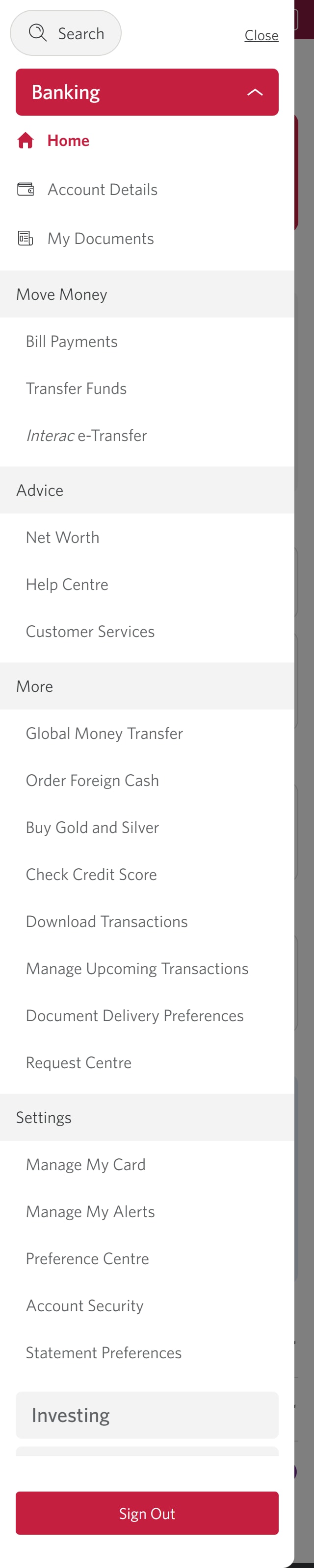
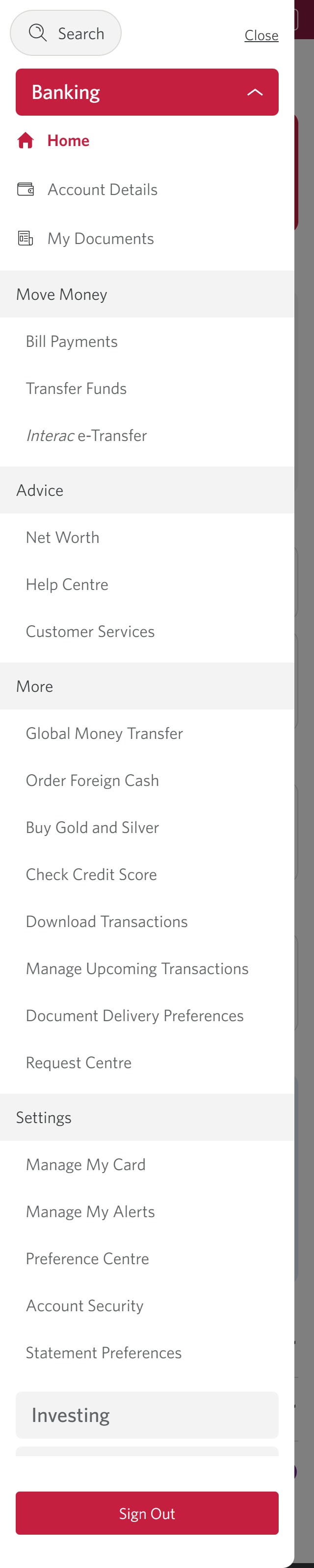
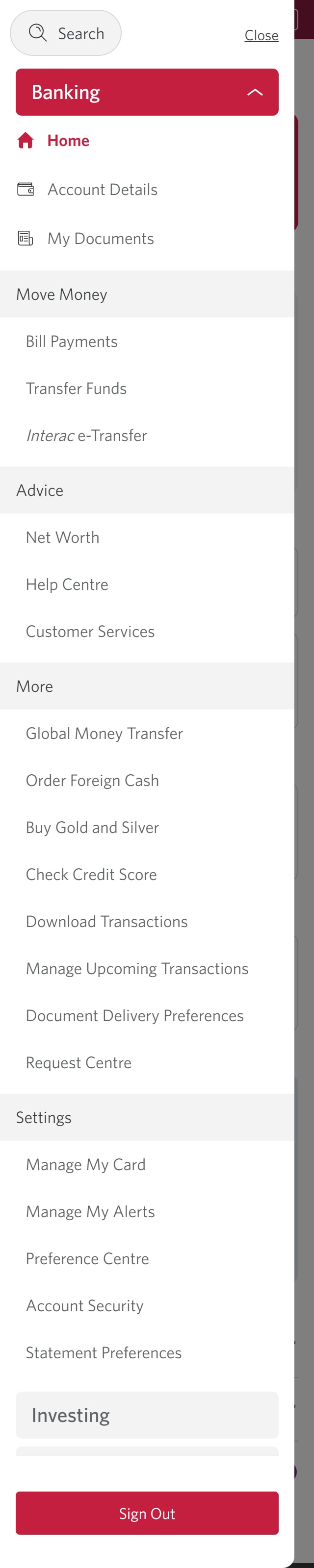
Step 4 : Select the three-line menu icon to open the navigation bar
Step 5 : Navigate to "Account Details"
Step 6 : Choose an account to review
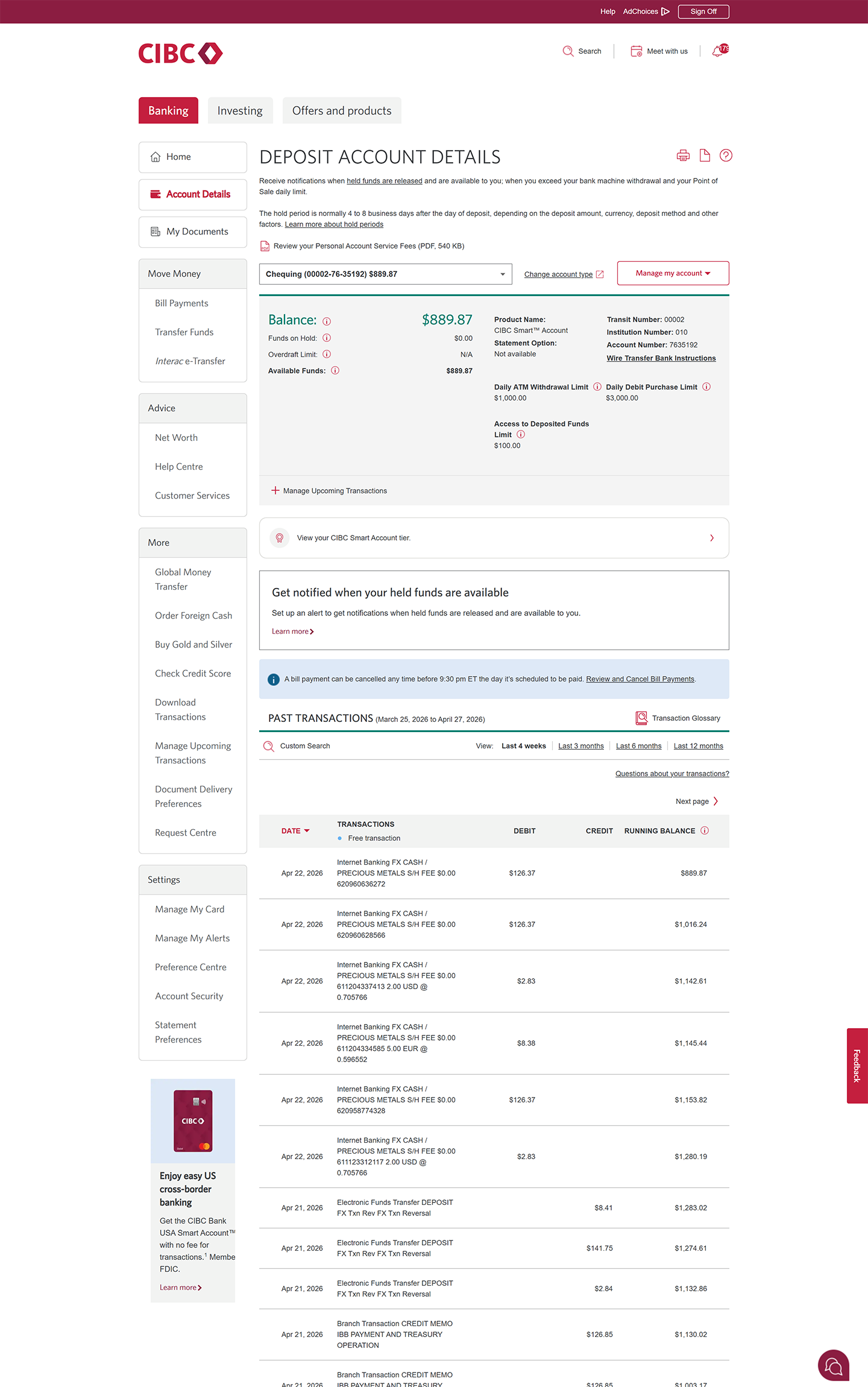
On the Deposit Account Details page, select the dropdown menu to choose the account you'd like to review in detail.
You'll find information such as your account name, account balance and limits, as well as the branch information associated with your account. To switch to other accounts, use the same account dropdown you first selected.
Step 7 : Review your transactions
On the Deposit Account Details page, you can scroll to review recent transaction information.
You'll find details for each transaction like the payee, payment amount, and transaction status.
Step 8 : Navigate to the "My Documents" page
Step 9 : Review your documents
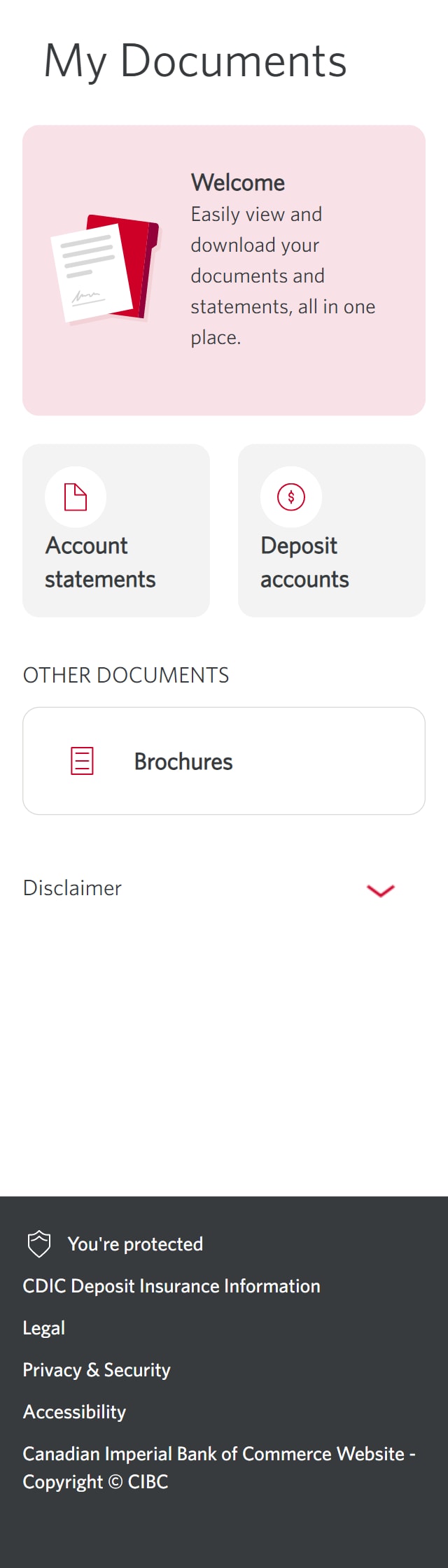
On the My Documents page, you'll be able to review and download your documents, including account statements and brochures.
When you're finished, select the pulsing icon to return to the CIBC Online Banking homepage.
Step 10 : Navigate to your profile
Step 11 : Review your profile details
On the My Profile page, you'll find options to review, add and edit your contact and address information.
When you're finished, find and select the three-line menu icon to open the navigation bar with more options.
Step 12 : Return to the CIBC Online Banking homepage
Step 13 : Select the three-line menu icon to open the navigation bar
Step 14 : Go to the Help Centre
From the menu options, select the "Help Centre" link to navigate to the Help Centre.
The Help Centre provides additional support for online banking. You can find quick answers to common questions, frequently asked questions by category and how-to tutorials. You can also connect with us through our virtual chat, by phone, or with in-person meeting options.
Step 15 : Great job!
Want an overview of all the steps?
For full instructions on how to use CIBC Online Banking, check out the step-by-step process all in one place.
Hardware and software security
Important tips to protect yourself when banking online
- When you're travelling, always use a trusted computer whenever possible
- Receive one-time verification codes on your phone by setting up push notifications
- Never leave your computer unattended once you've signed on to CIBC Online Banking
- After completing your transactions, ensure that you sign out of CIBC Online Banking, clear your cache and close your browser
- If you're using an older version of an internet browser, we recommend that you upgrade to the most recent browser release
Recommended digital banking demos

How to register for CIBC Online and Mobile Banking
Start demo on how to register for CIBC Online and Mobile Banking.
How to use the CIBC Mobile Banking® App

How to review and confirm your information
How to reset your password
Get started
CIBC Online Banking®
Discover digital banking features that can help you bank easily online.
CIBC Mobile Banking® App
Stay connected to your finances on your mobile device, no matter where you are.

