

How to use the CIBC Mobile Banking App®
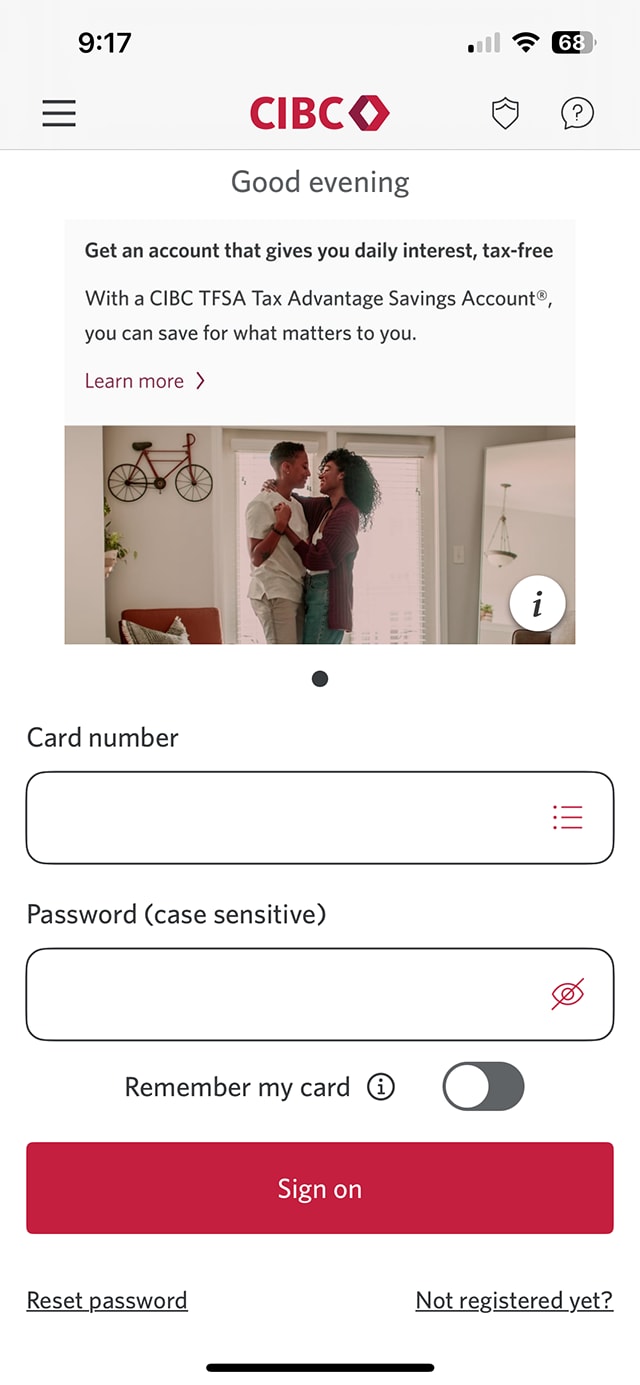
Step 1 : Let's get started on the mobile app
Enter your card details and your password.
Then, select the "Sign on" button in the demo to continue.
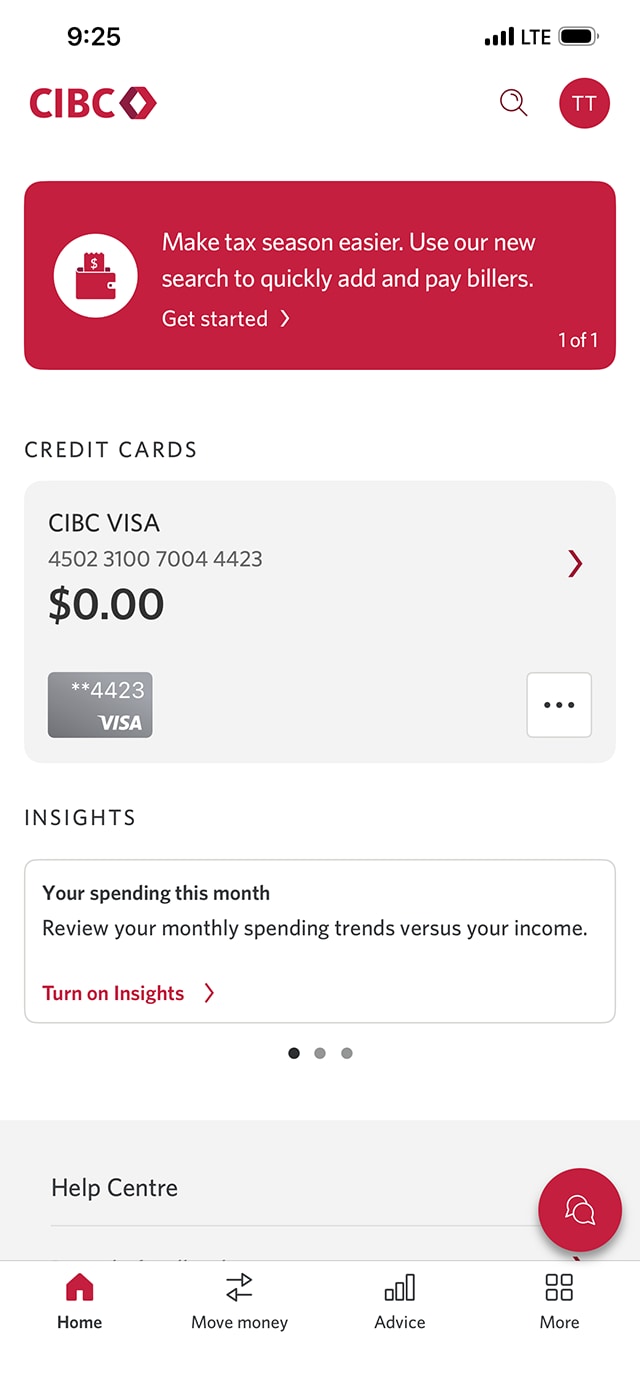
Step 2 : Select the chat icon
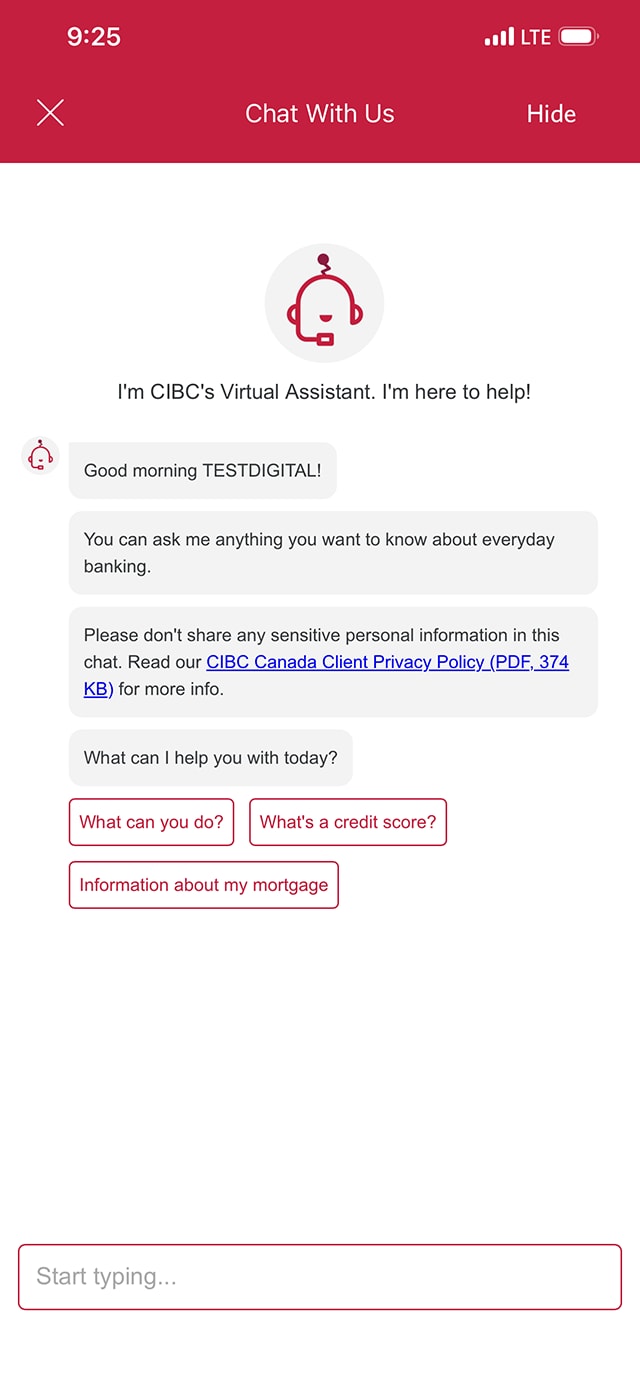
Step 3 : Type a question to get an answer from CIBC's Virtual Assistant
CIBC's Virtual Assistant can answer your questions about everyday banking and help you with simple transactions. Start a chat by typing a question in the field box.
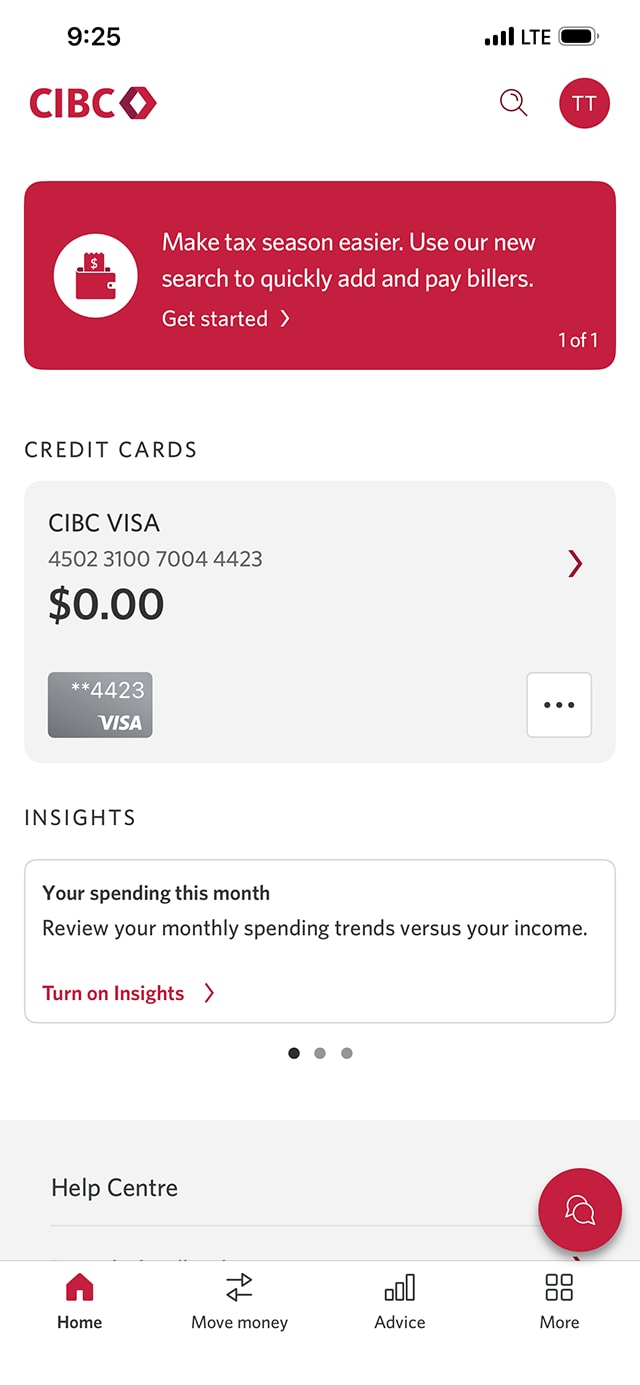
When you're finished, select the "X" to close the virtual assistant window and return to the homepage.
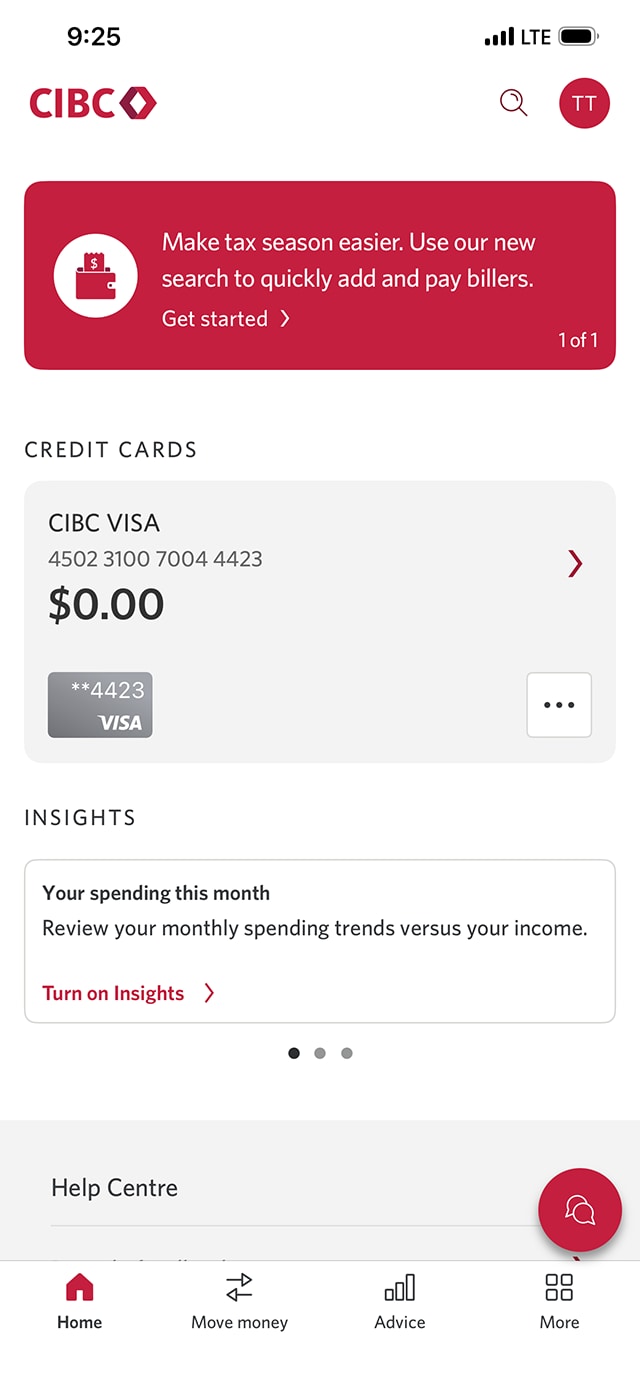
Step 4 : Explore the homepage
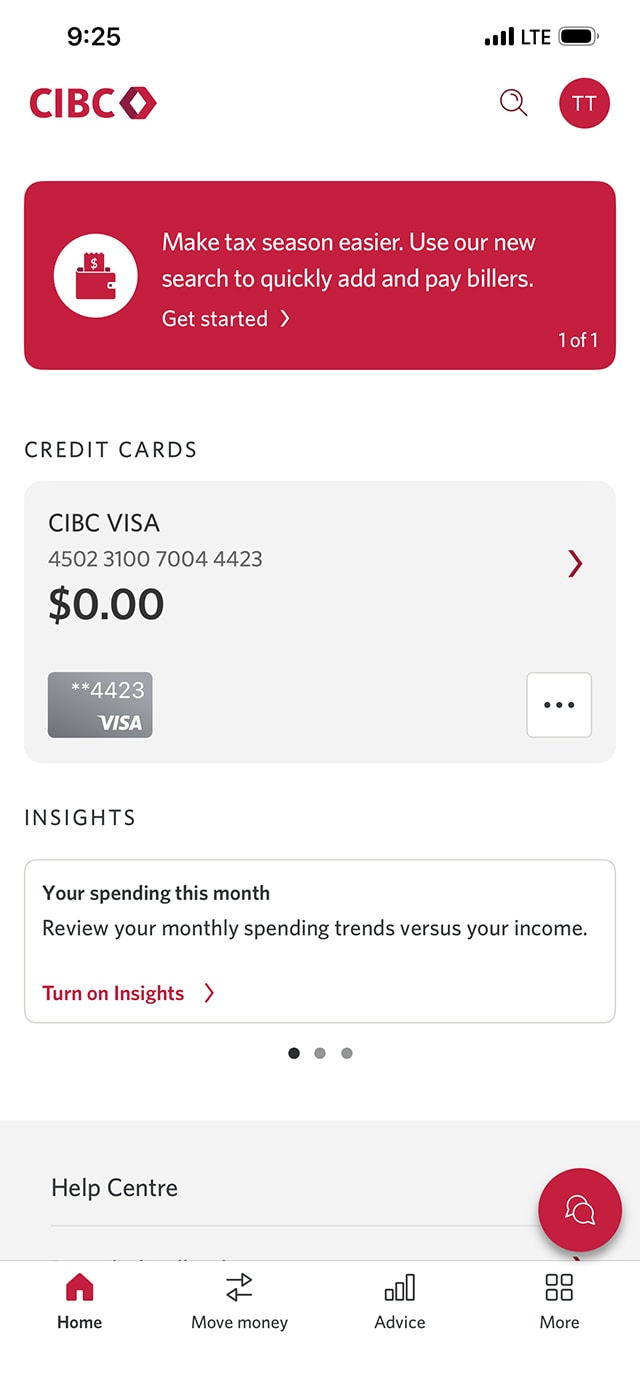
On the CIBC Mobile App homepage, you can easily review a summary of your deposit accounts, credit cards, lending accounts and investment accounts, along with the balance of each account.
For this demo, we'll review the CIBC Visa* account. Select the arrow on the card to review more information.
Step 5 : Explore account information
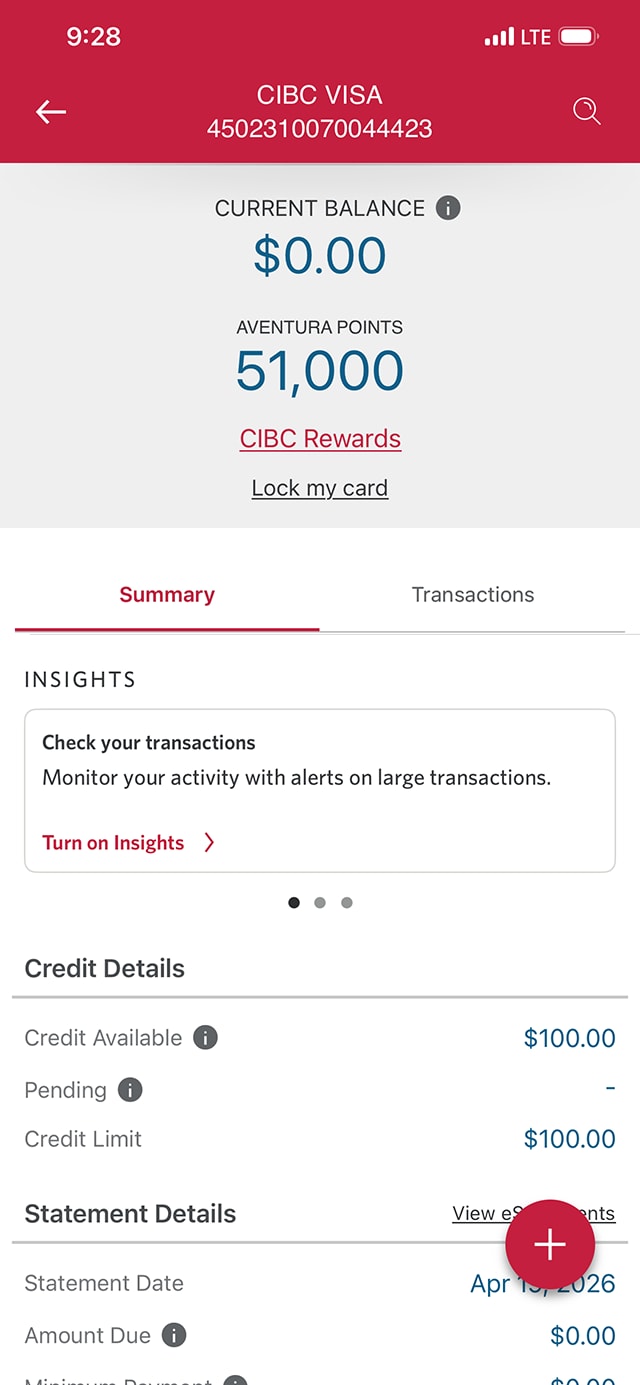
On the CIBC Visa account summary page, you'll be able to review information, such as:
- The current balance on your credit card
- Available Aventura Points
- The "lock my card" option in case you lose or misplace your card
After reviewing, select the "Transactions" tab to find a history of transactions for this account.
Step 6 : Review transaction history
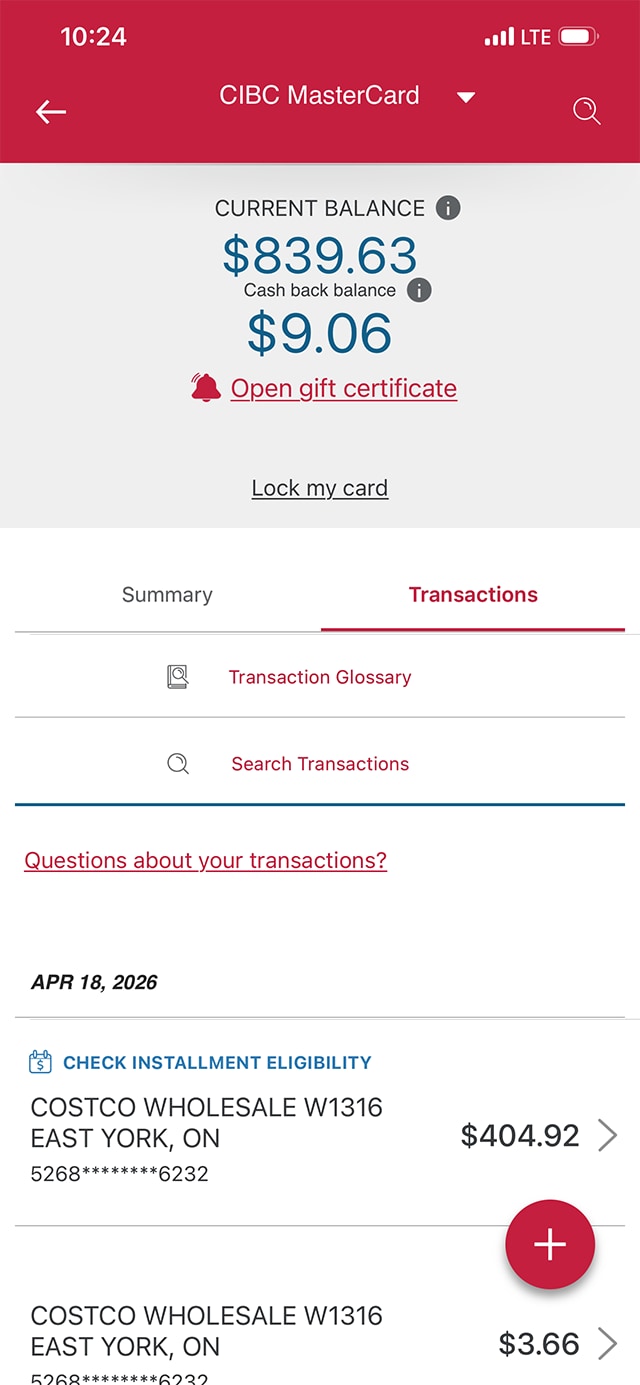
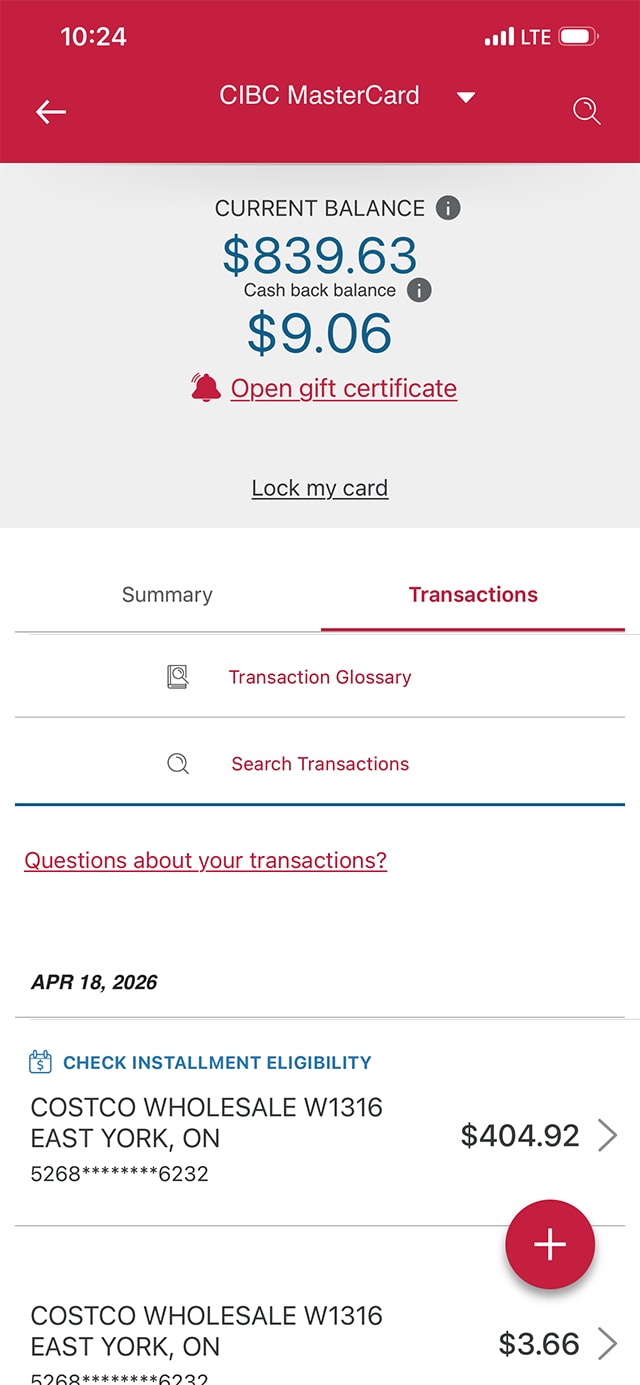
Review your transaction history for this account, organized by date.
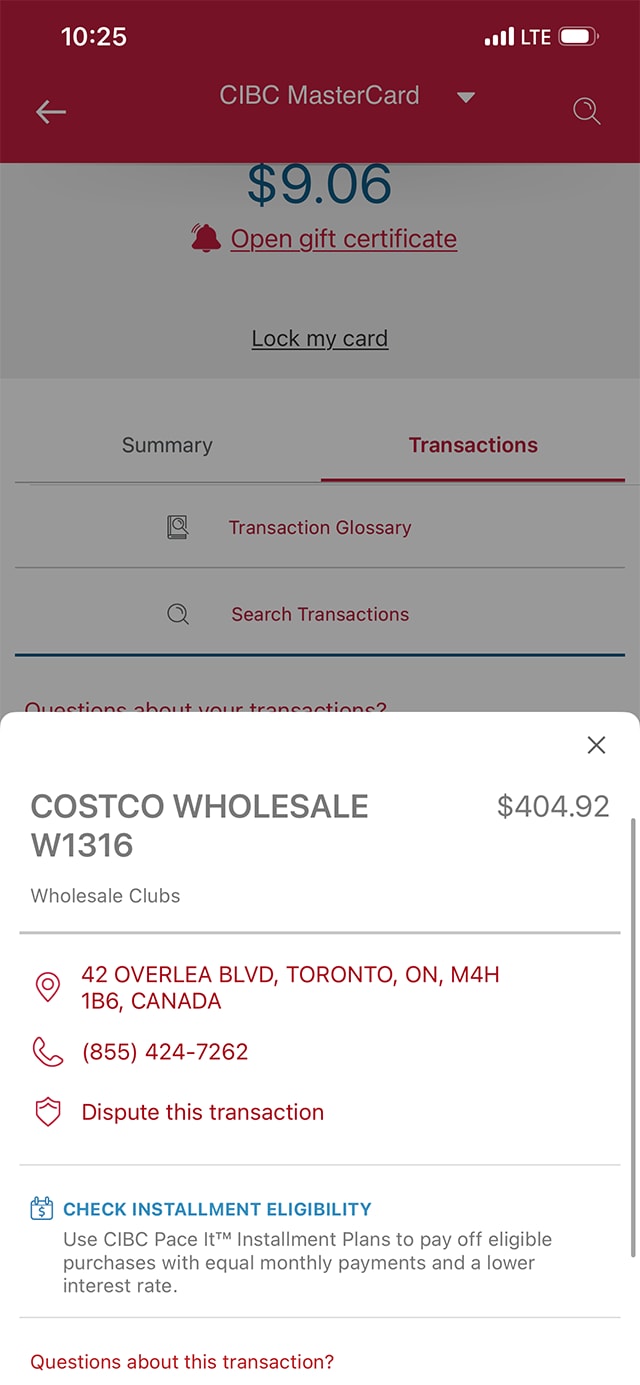
For this demo, we're selecting the "Costco Wholesale" transaction to learn additional details.
Step 7 : Review individual transaction details
Step 8 : Return to the homepage
Step 9 : Select "Move money"
Step 10 : Explore options in the "Move money" menu
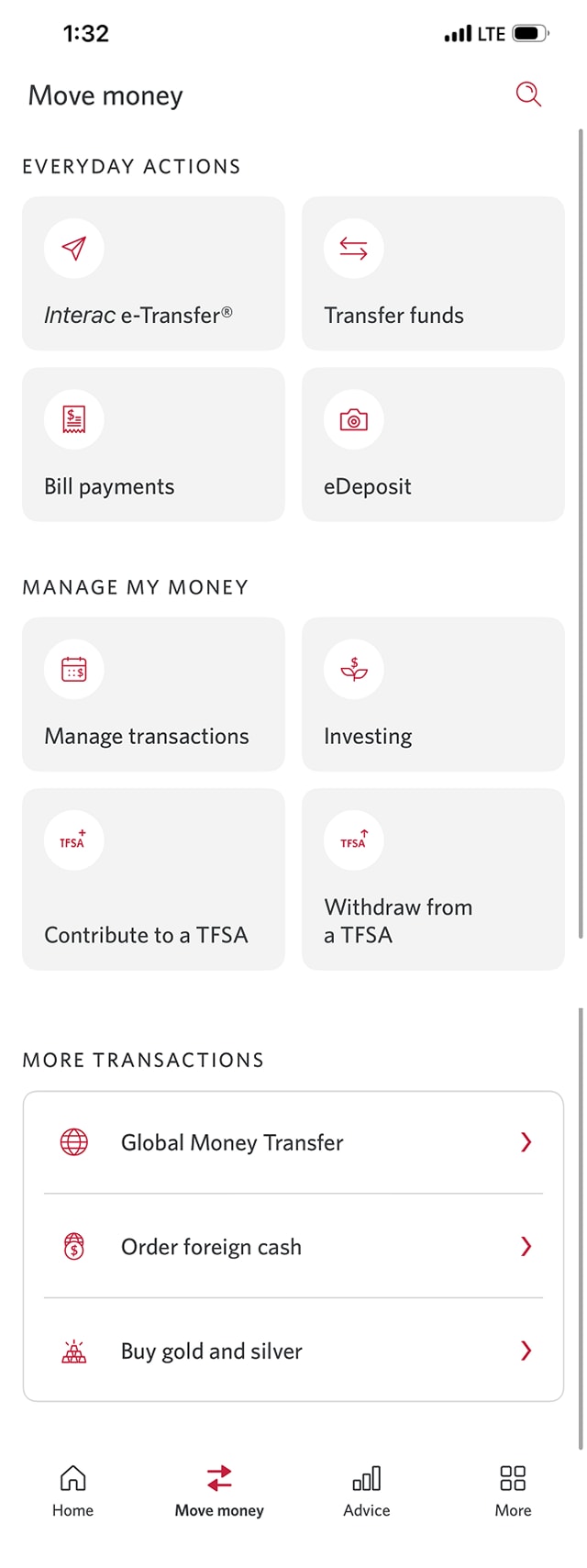
From the Move money menu, you can complete common transactions, such as:
Everyday actions:
- Interac e-Transfer® payments
- Transfer funds between accounts
- Pay bills
- Deposit a cheque
Manage your money:
- Manage transactions
- Invest
- Contribute or withdraw from a TFSA
More transactions:
- Global Money Transfer™
- Order foreign cash
- Buy gold or silver
When you're finished, go to the menu bar and select "More" to continue.
Step 11 : Explore the "More" menu options
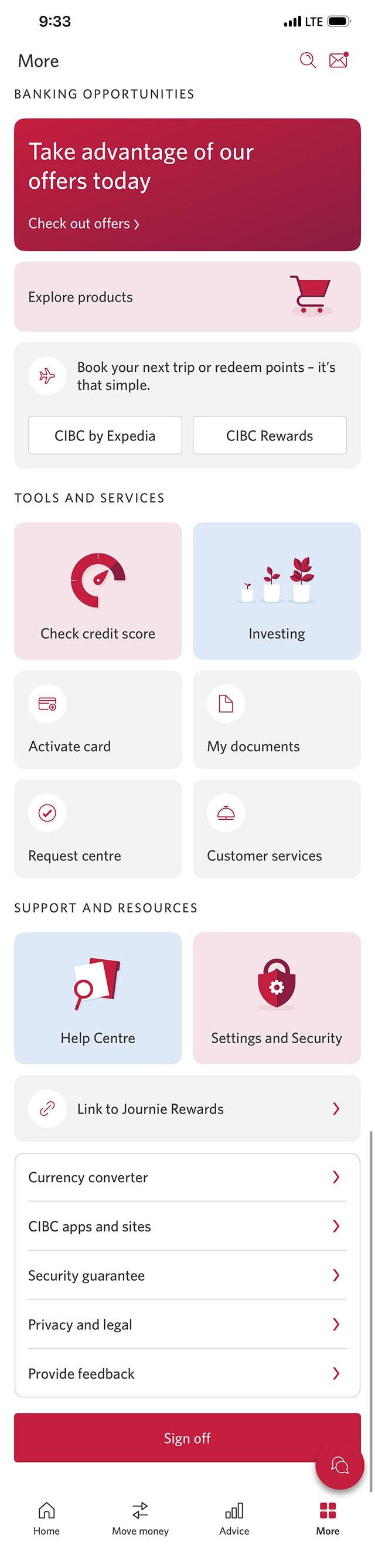
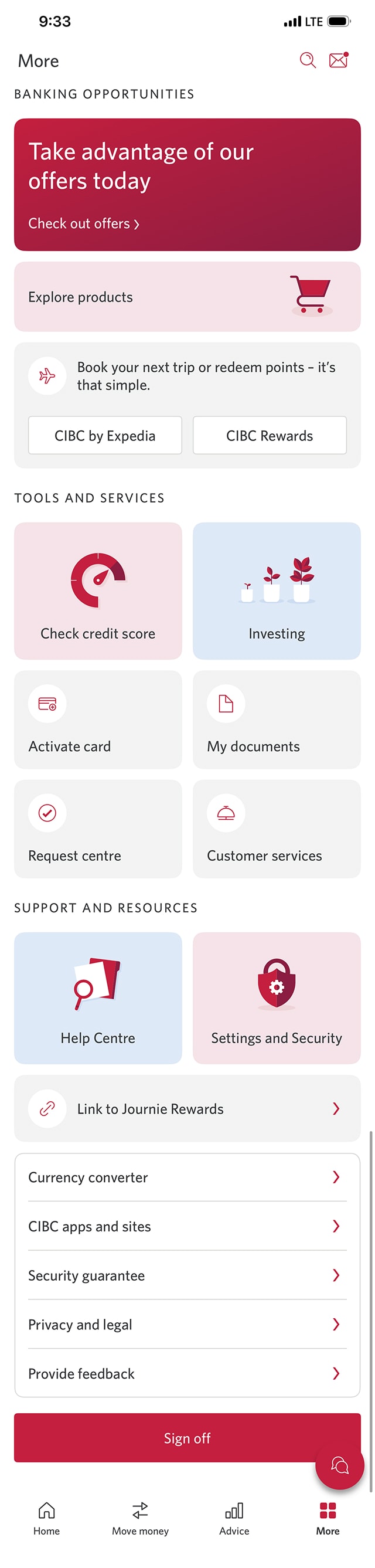
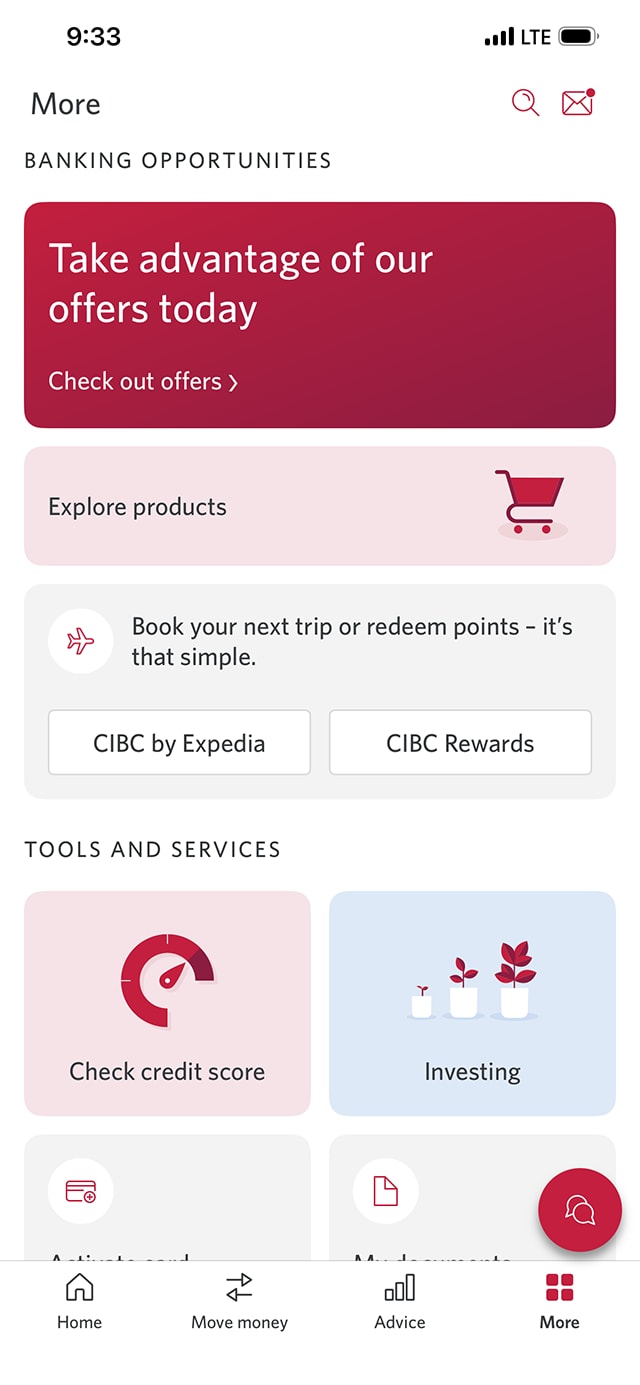
On the "More" menu page, find more support and resources. You'll be able to:
- Explore CIBC products
- Check your credit score
- Activate your credit card
- Access the Help Centre
When you're finished, select the "Help Centre" to continue the demo.
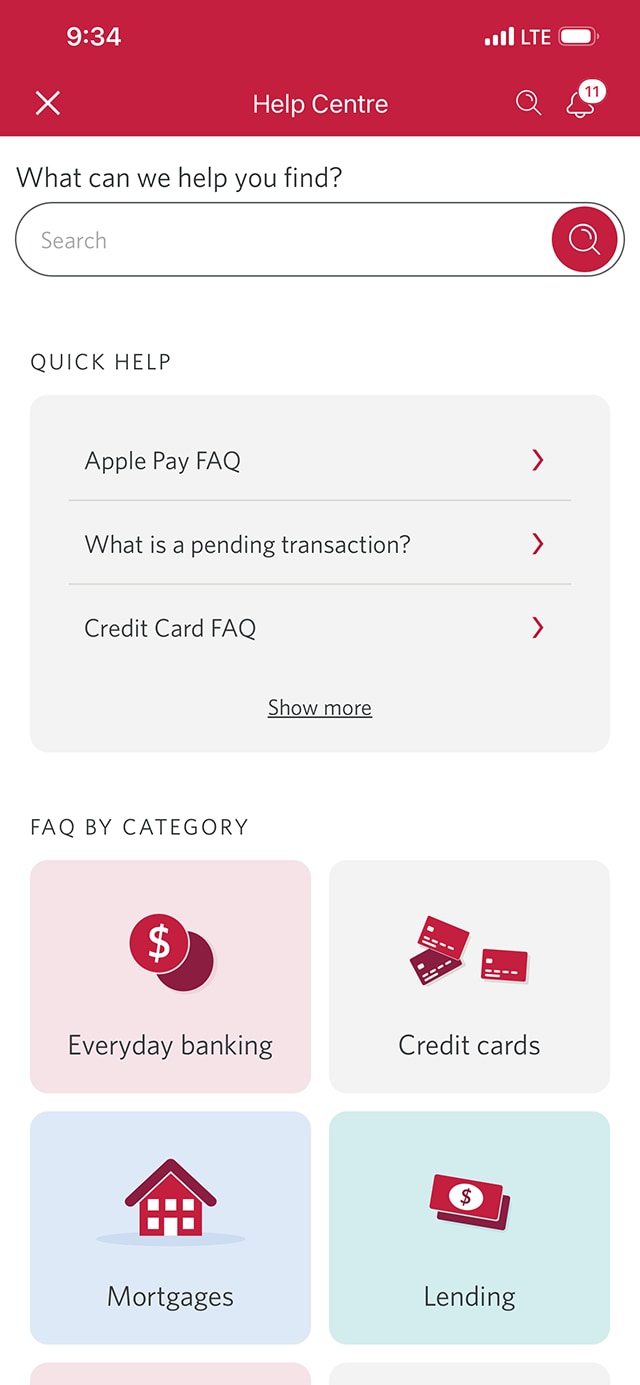
Step 12 : Explore the Help Centre
In the Help Centre, you can find answers and help to frequently asked questions by banking category.
When you're finished, select the "X" to close the window and return to the "More" page.
Step 13 : Select "Settings and Security"
Step 14 : Explore the "Settings and Security" options
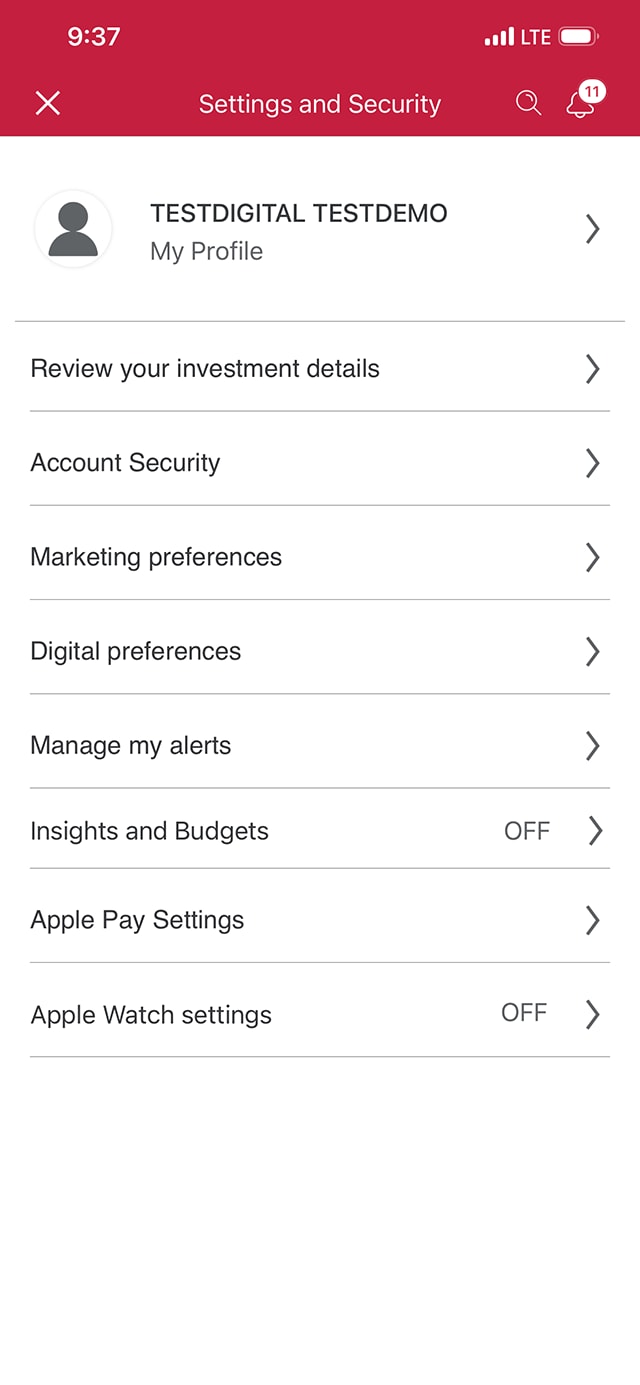
On the "Settings and Security" page, you can manage your account security. You'll be able to:
- Review and update your security settings
- Control which alerts you receive
- Add your cards to Apple Pay®
When you're finished, select "My Profile".
Step 15 : Explore "My Profile"
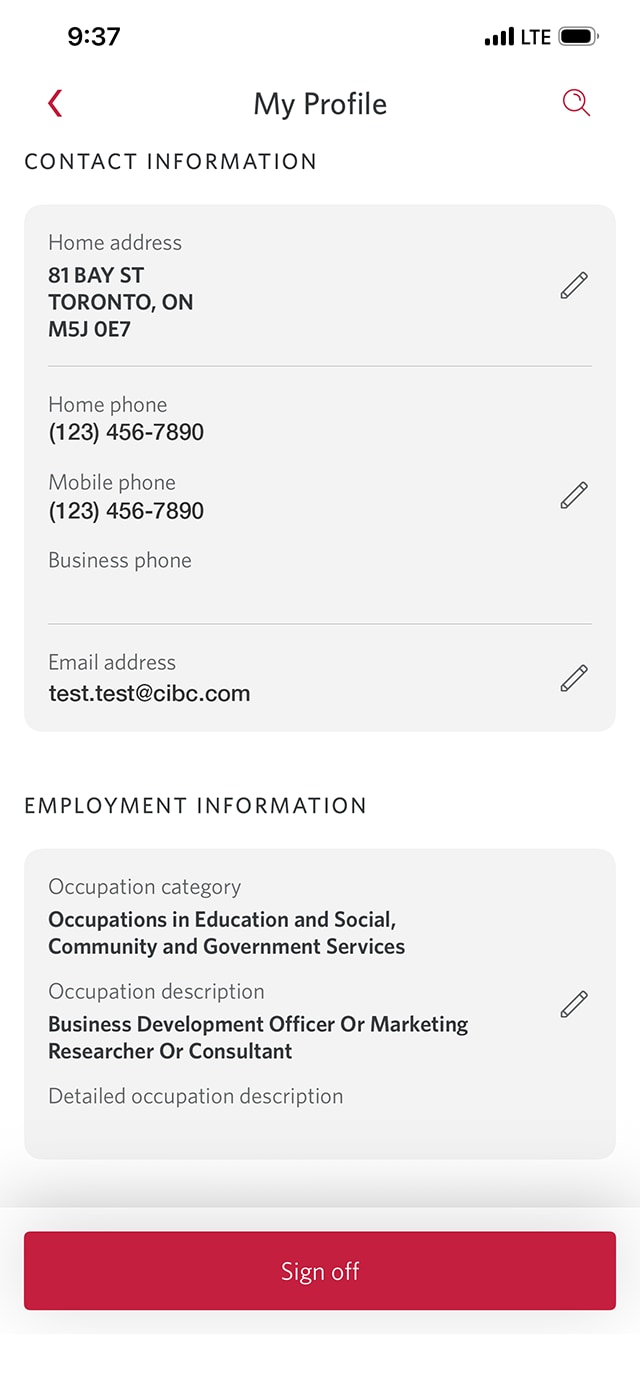
On your profile settings page, you can review and update your contact information or employment information.
Select the back arrow to return to the "Settings and Security" page and continue the demo.
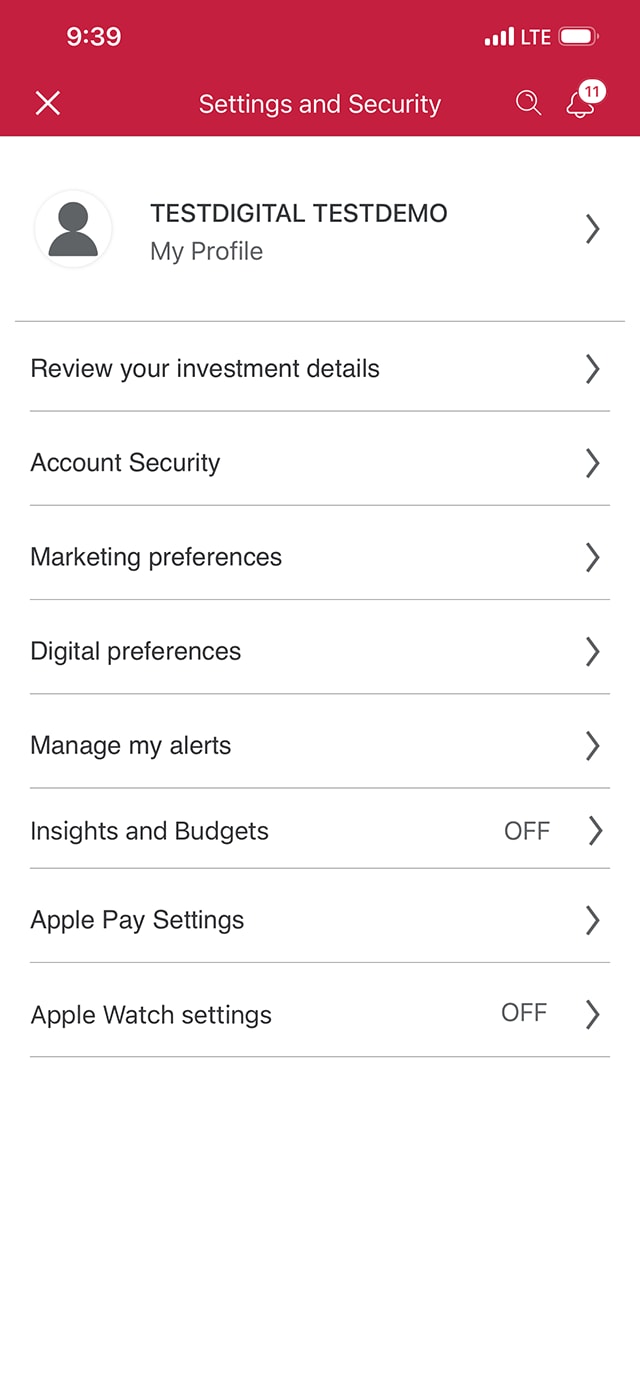
Step 16 : Close "Settings and Security"
Step 17 : Select the message icon
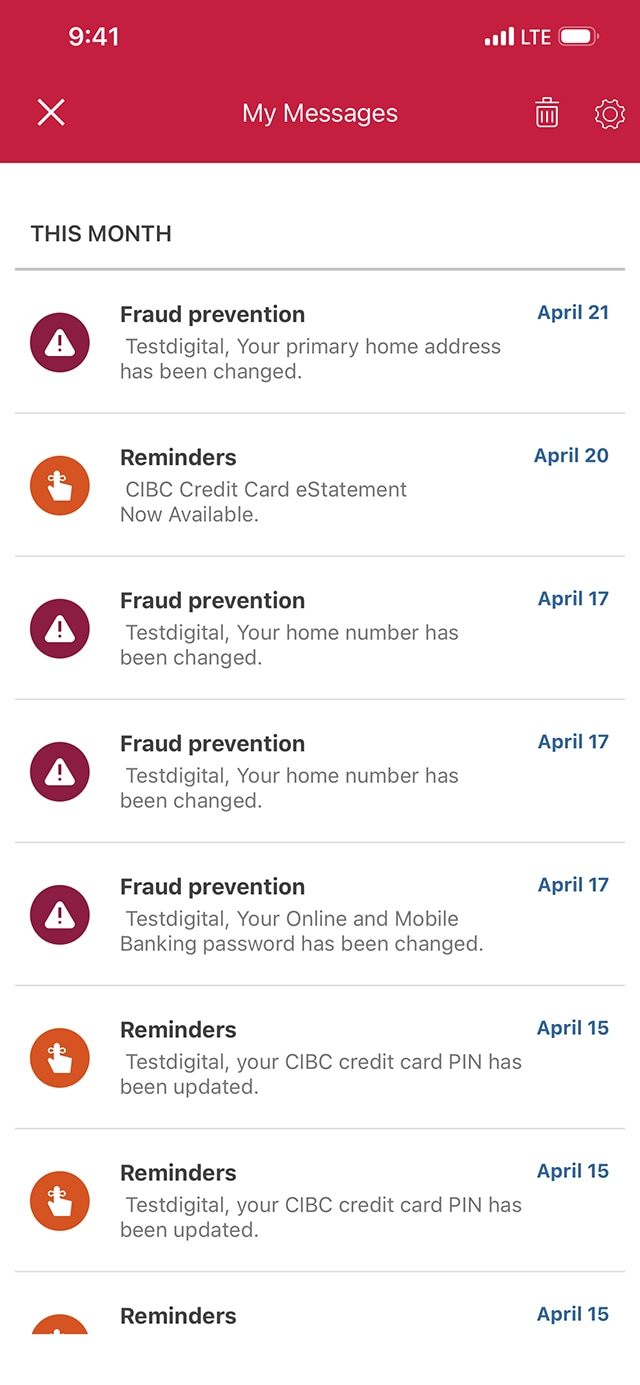
Step 18 : Explore the Communications Hub
On the Communications Hub page, you can review messages and reminders from CIBC.
Select the "X" icon twice to return to the homepage.
Step 19 : Great job!
Want an overview of all the steps?
For full instructions on how to how to use the CIBC Mobile Banking App, check out the step-by-step process all in one place.
Recommended digital banking demos

How to understand and use CIBC Rewards

How to reset your password

How to add a card to your mobile wallet

How to set up push notifications
Get started
CIBC Online Banking®
Discover digital banking features that can help you bank easily online.
CIBC Mobile Banking® App
Stay connected to your finances on your mobile device, no matter where you are.

