

How to reset your password
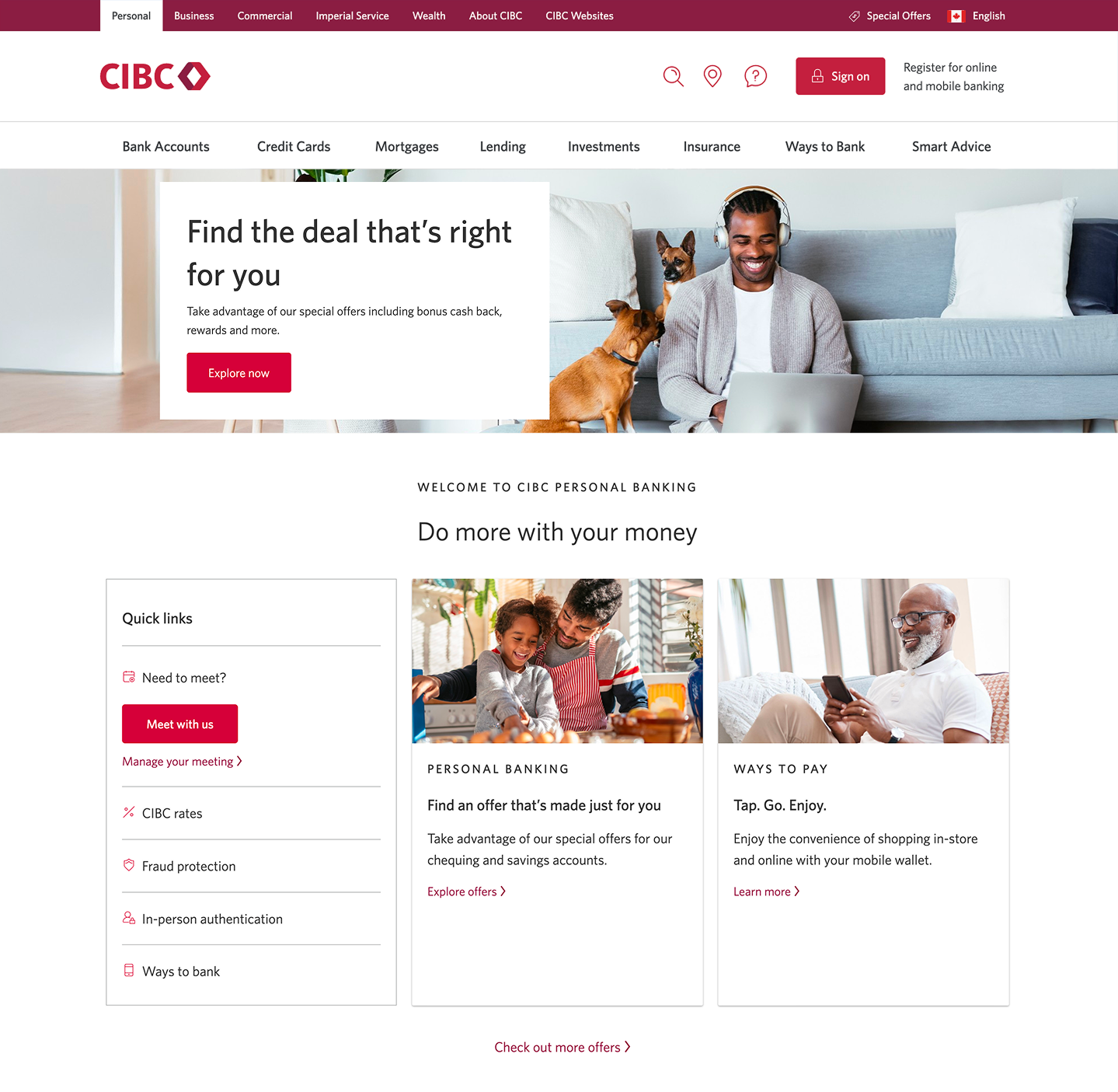
Step 1 : Let's get started on your web browser
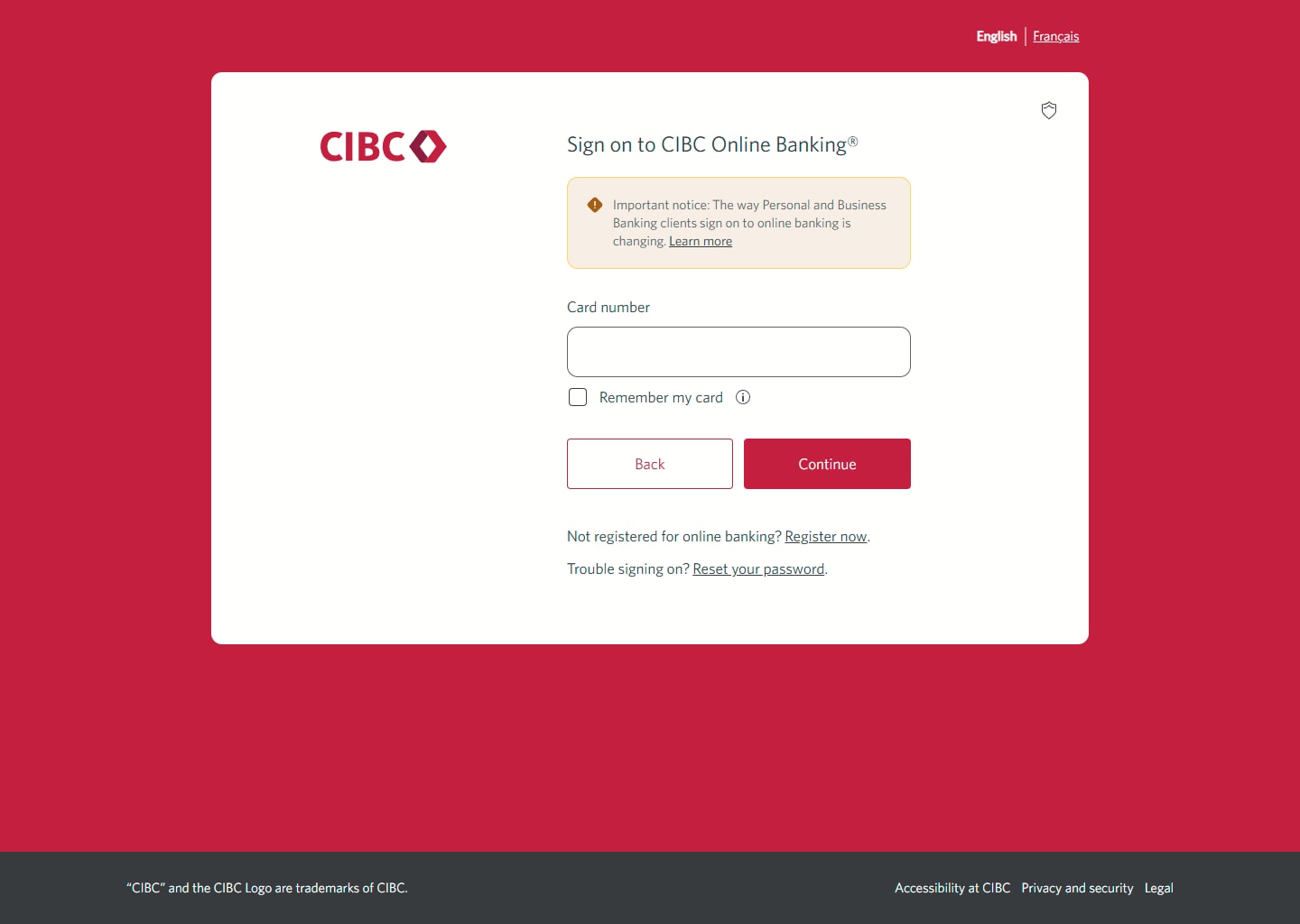
Step 2 : Select the link to reset password
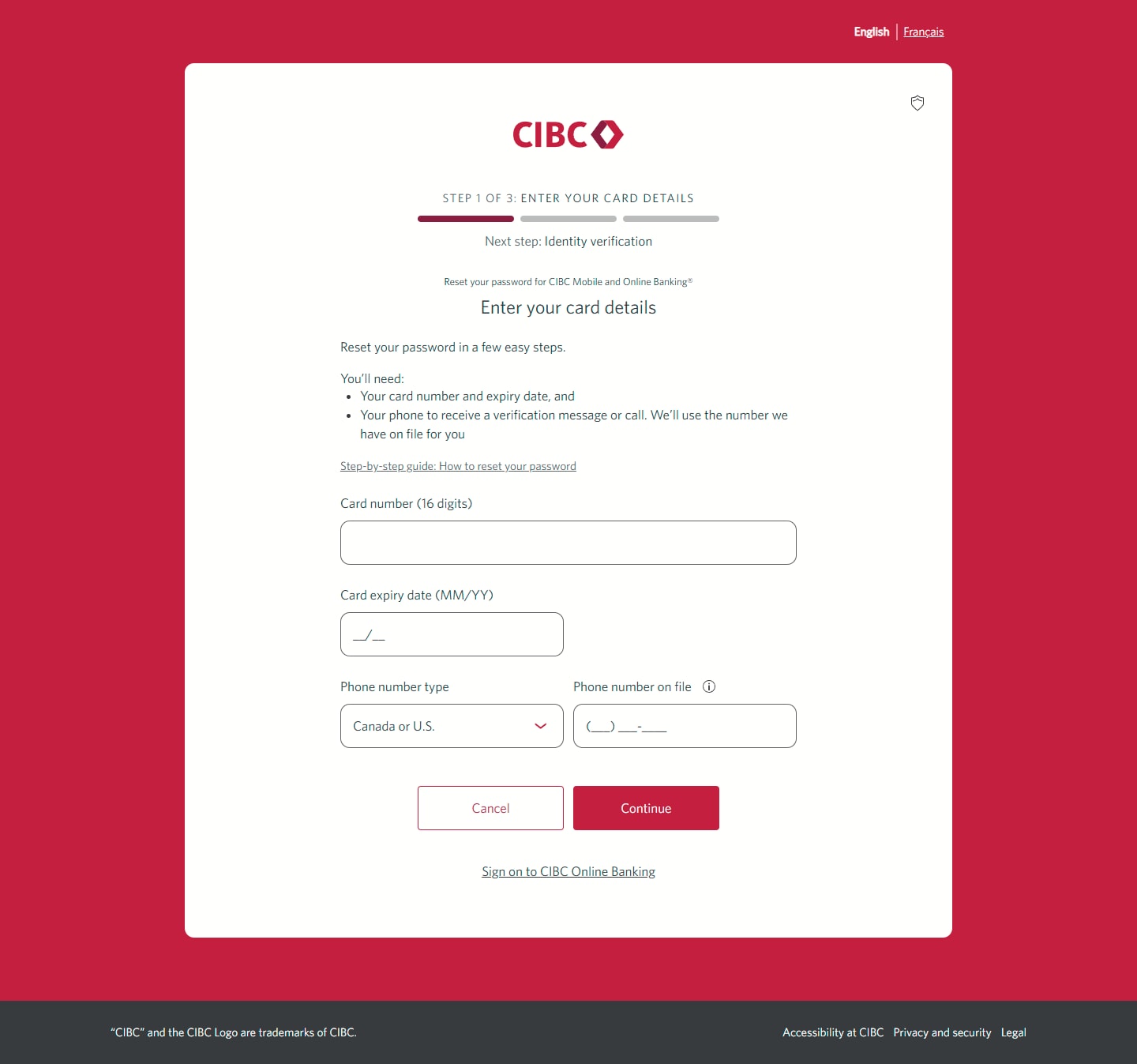
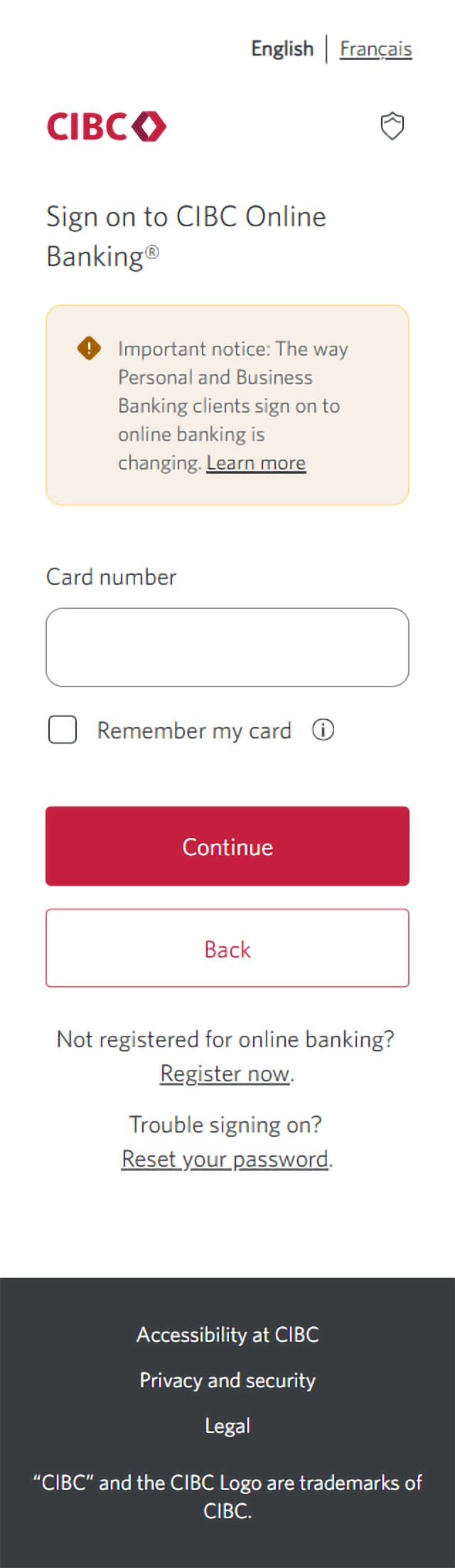
Step 3 : Provide your card details
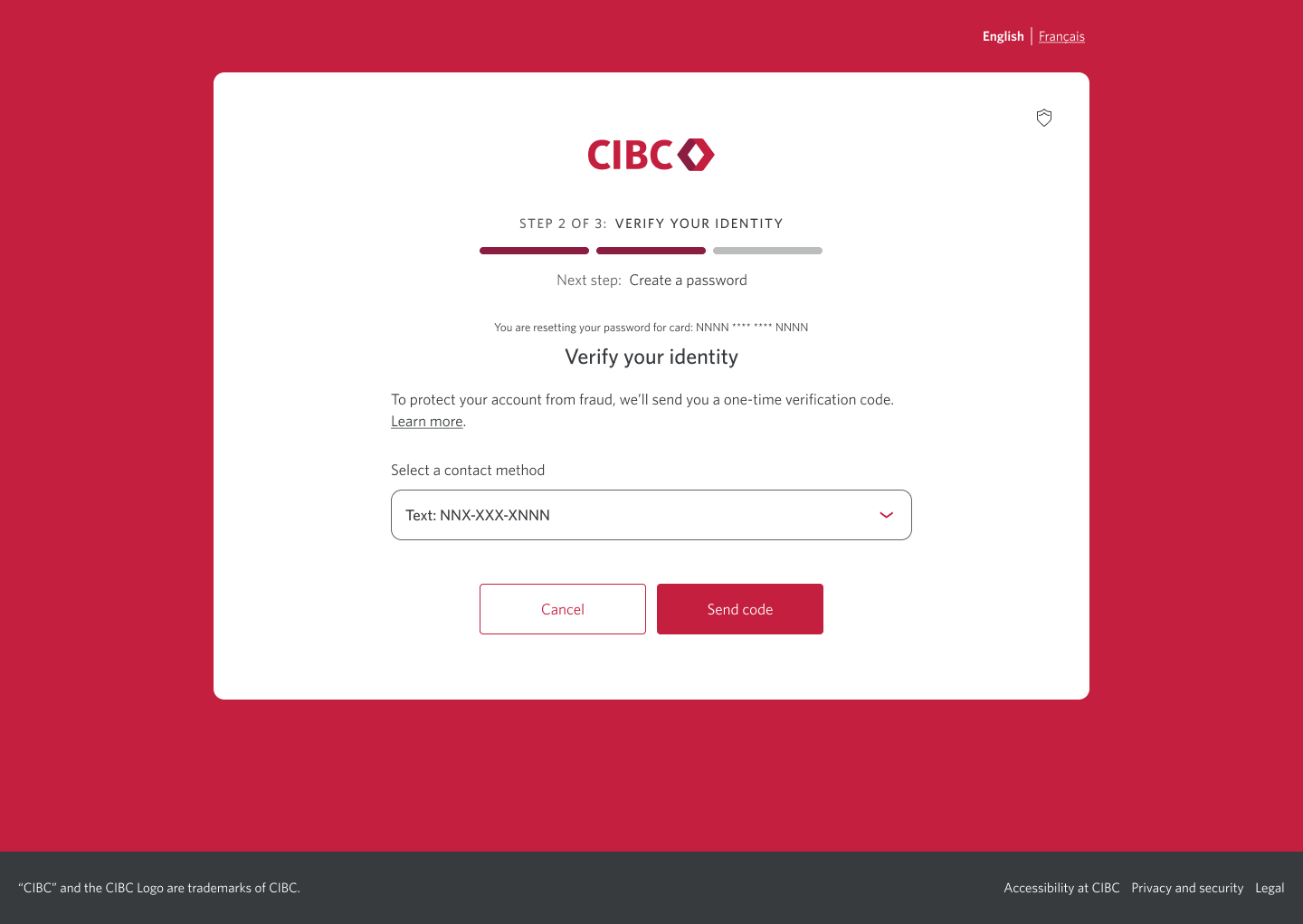
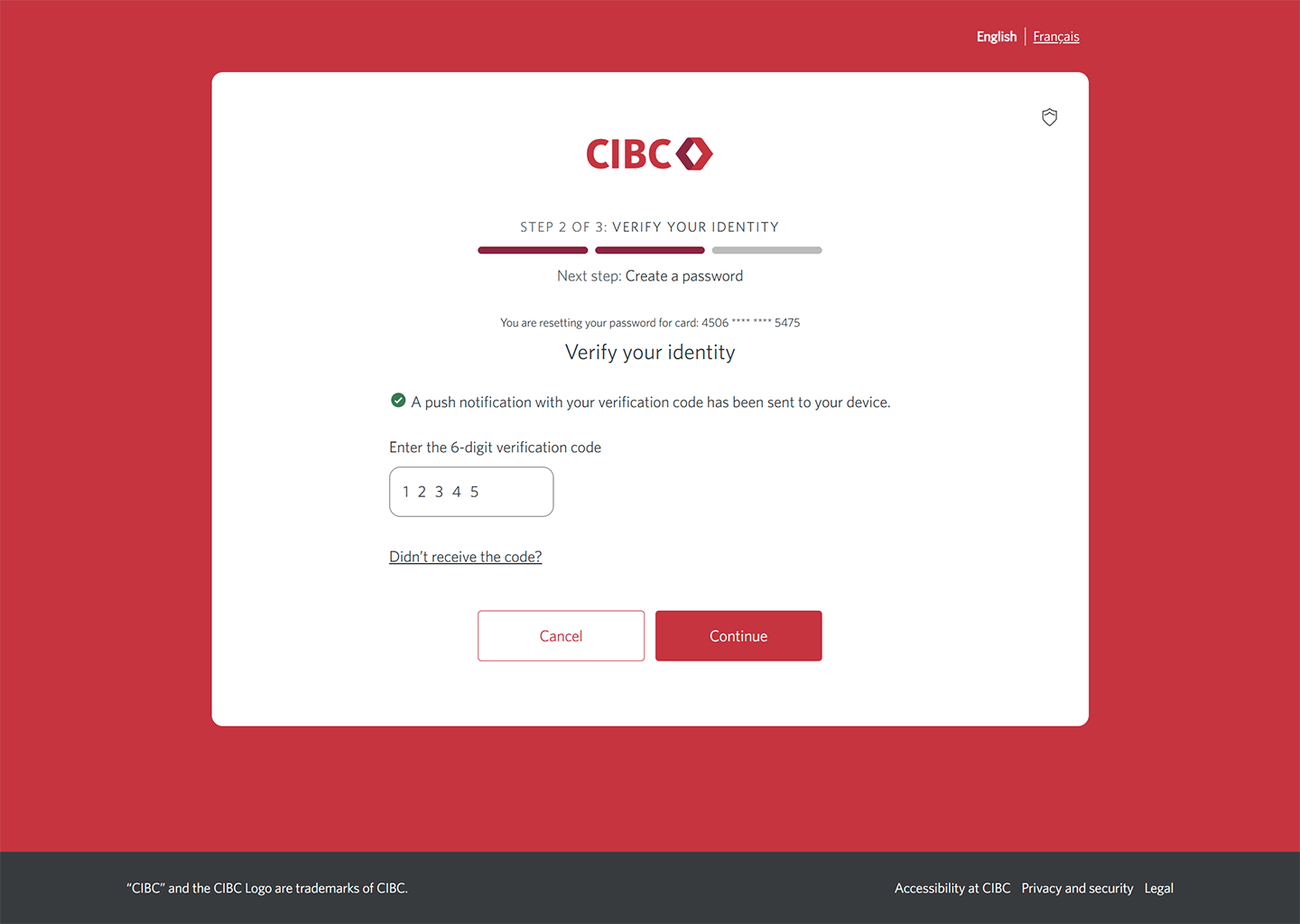
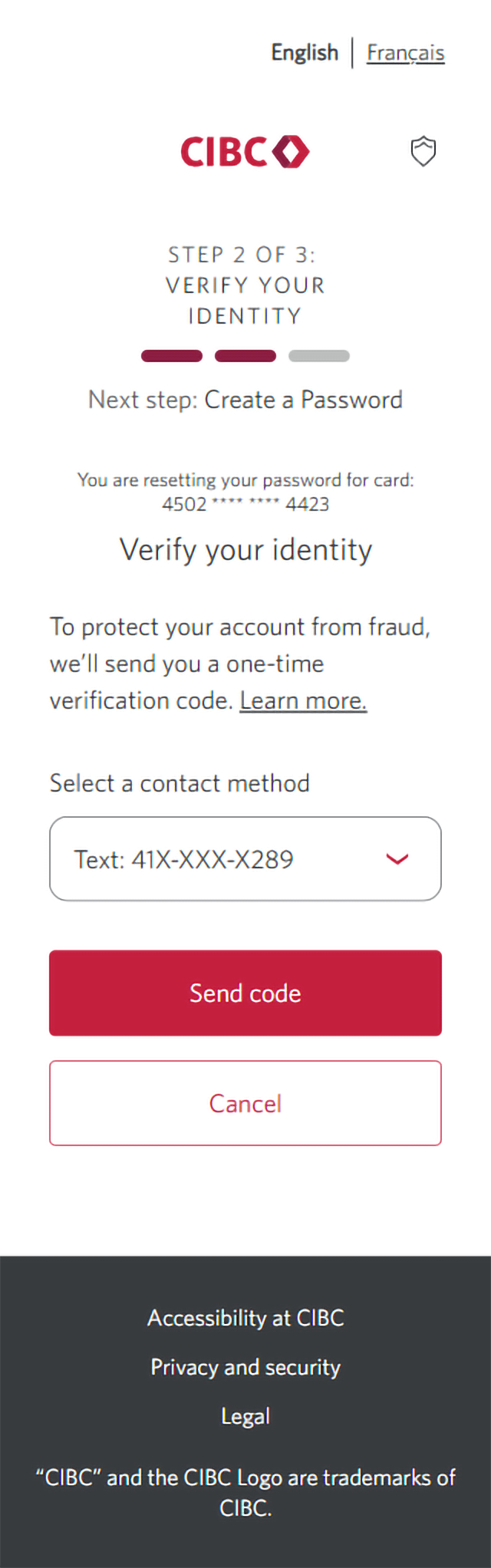
Step 4 : Verify your identity
You'll be sent a one-time verification code to protect your account against fraud. Choose your preferred contact method to receive the code and select the "Send code" button.
Make sure you've signed on to CIBC Online Banking yourself and not through a link. Don't share one-time verification codes with anyone unless you've visited a CIBC Banking Centre or have called CIBC telephone banking and have been asked for a code.
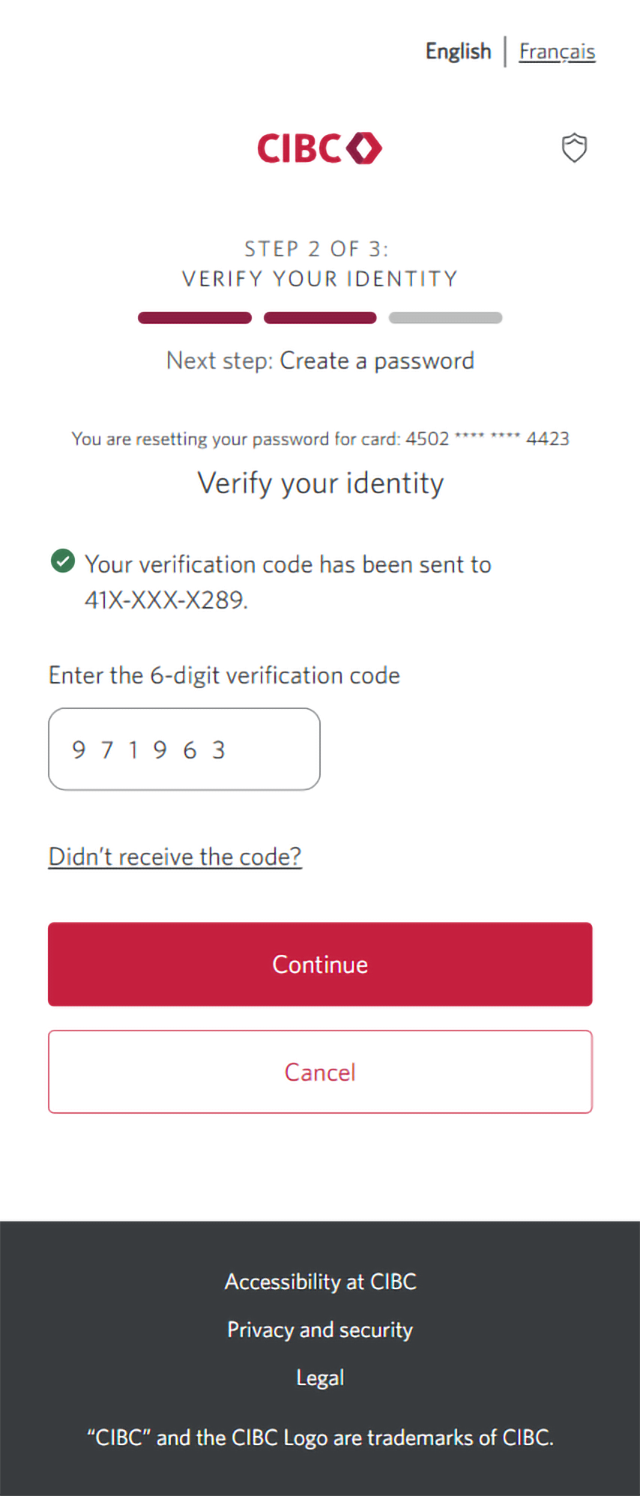
Step 5 : Enter the code
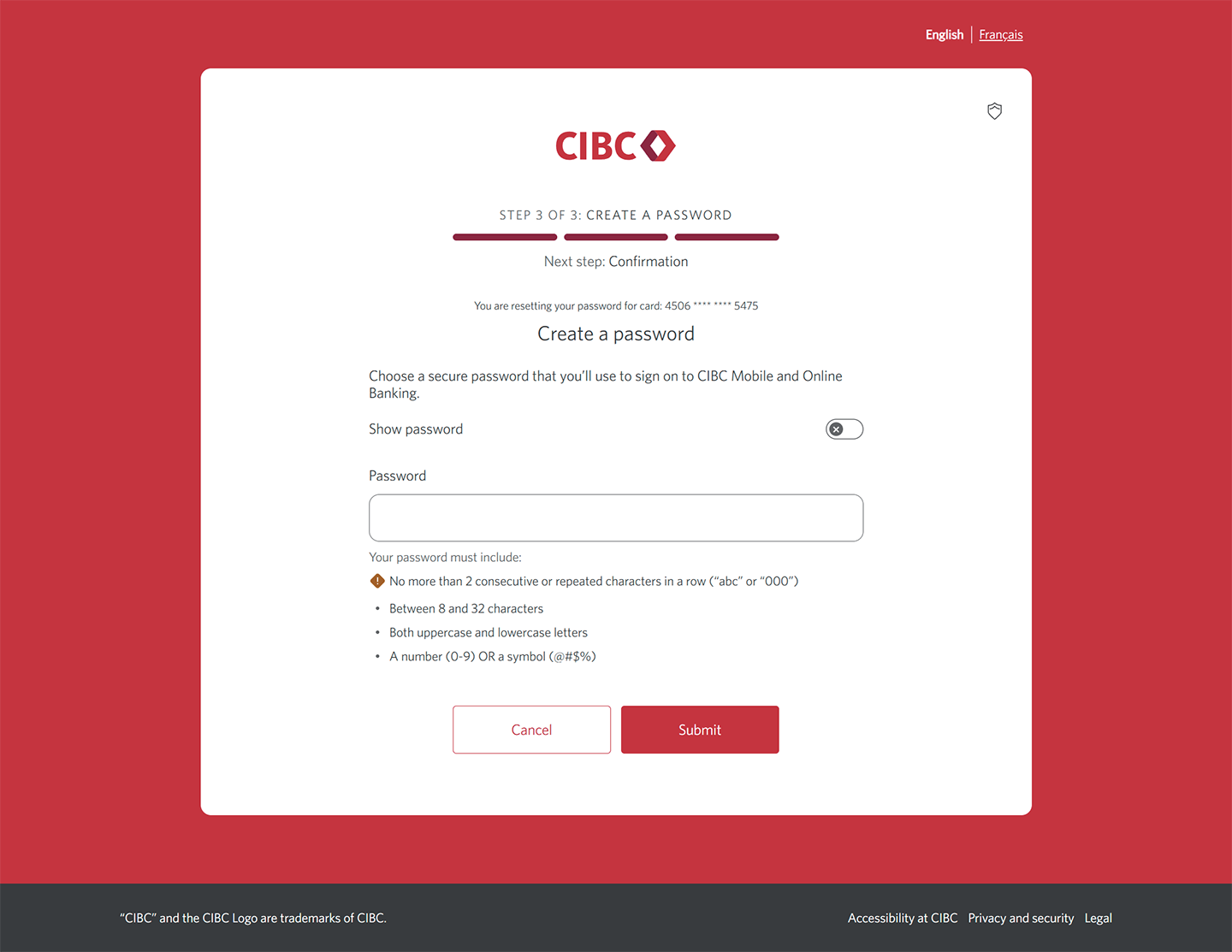
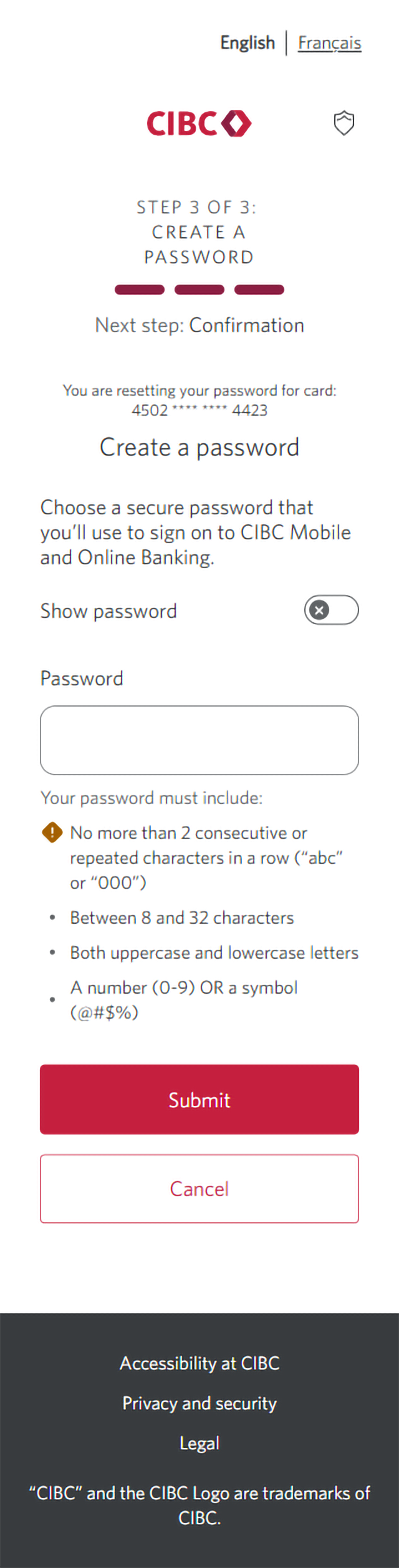
Step 6 : Create a new password
Enter a new password that you'll use to sign on to CIBC Online Banking and the CIBC Mobile Banking App.
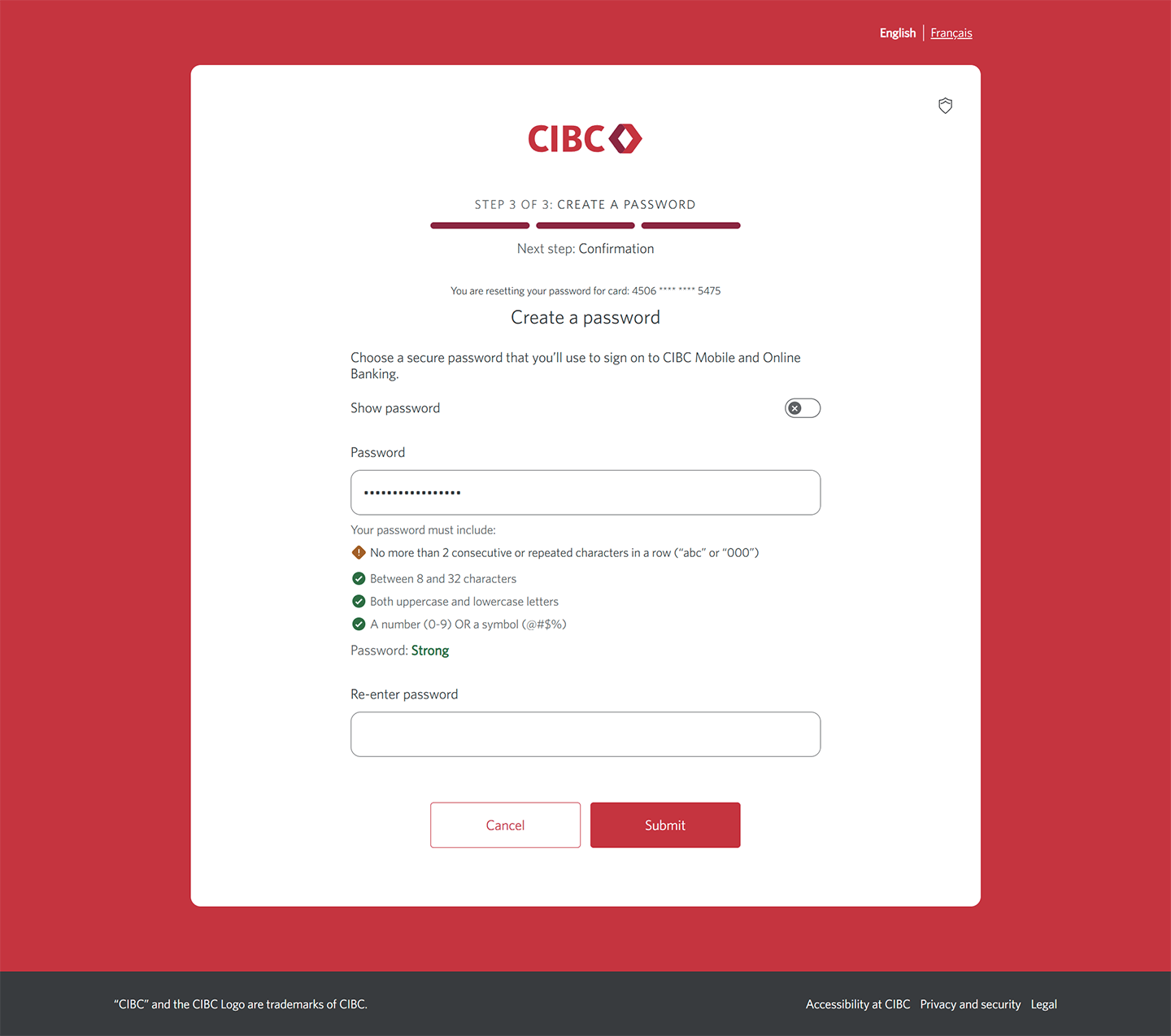
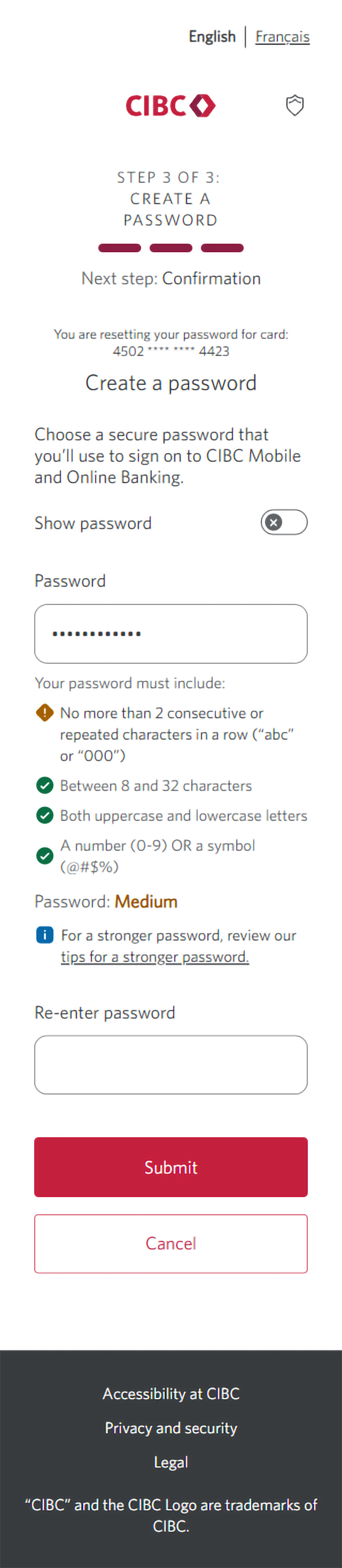
You'll need to follow the secure password requirements specified on-screen when creating your new password. Once you've entered the new password, select the "Submit" button to continue.
Step 7 : Re-enter the password to confirm it
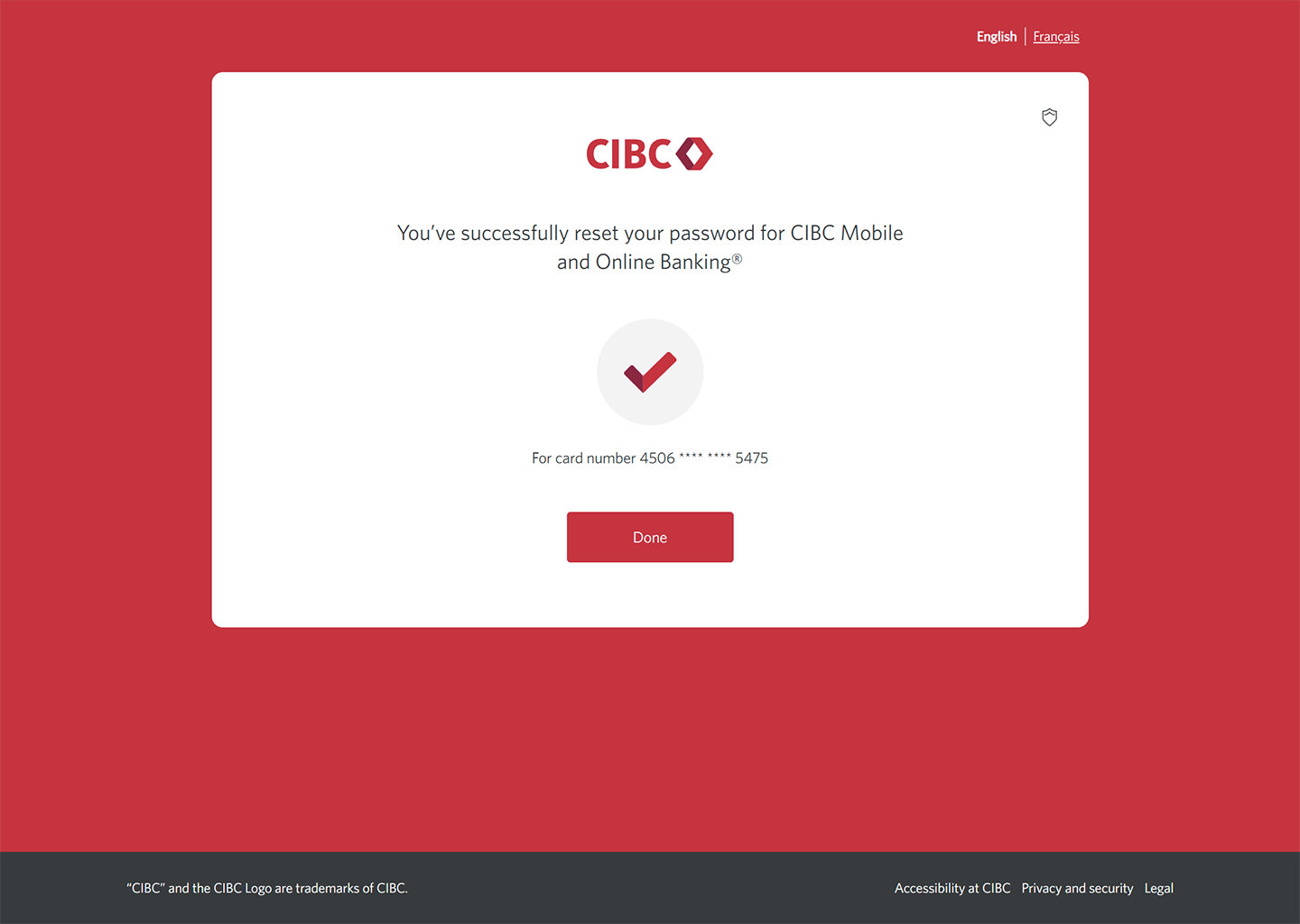
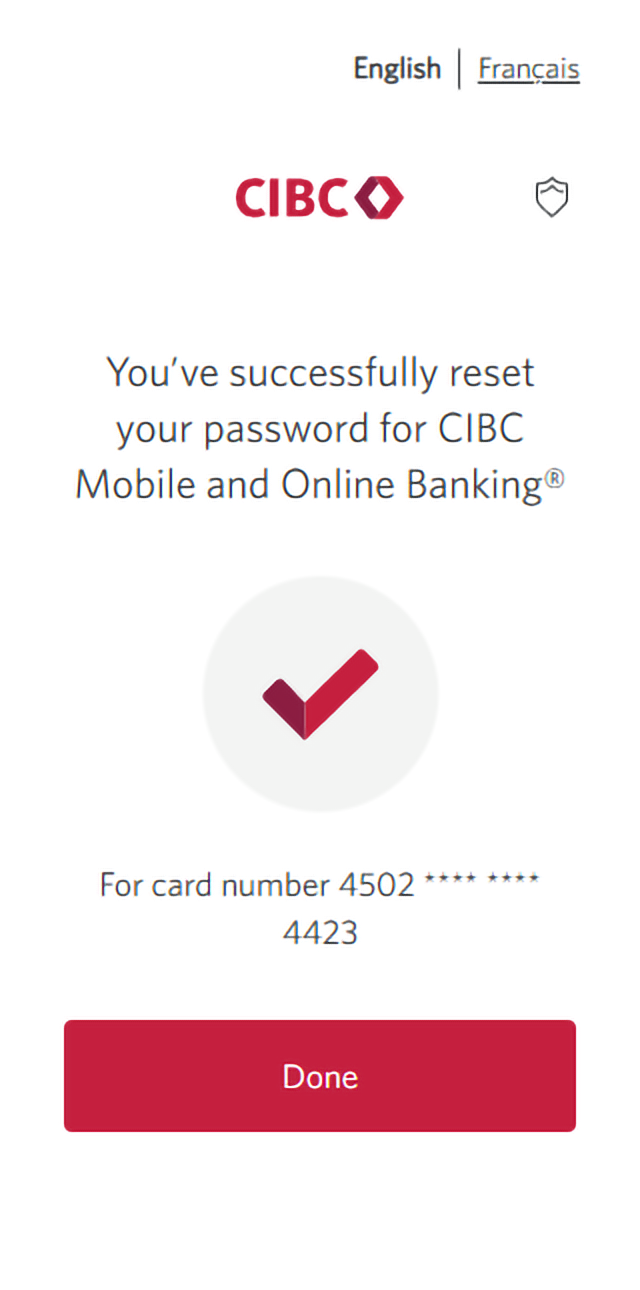
Step 8 : Great job!
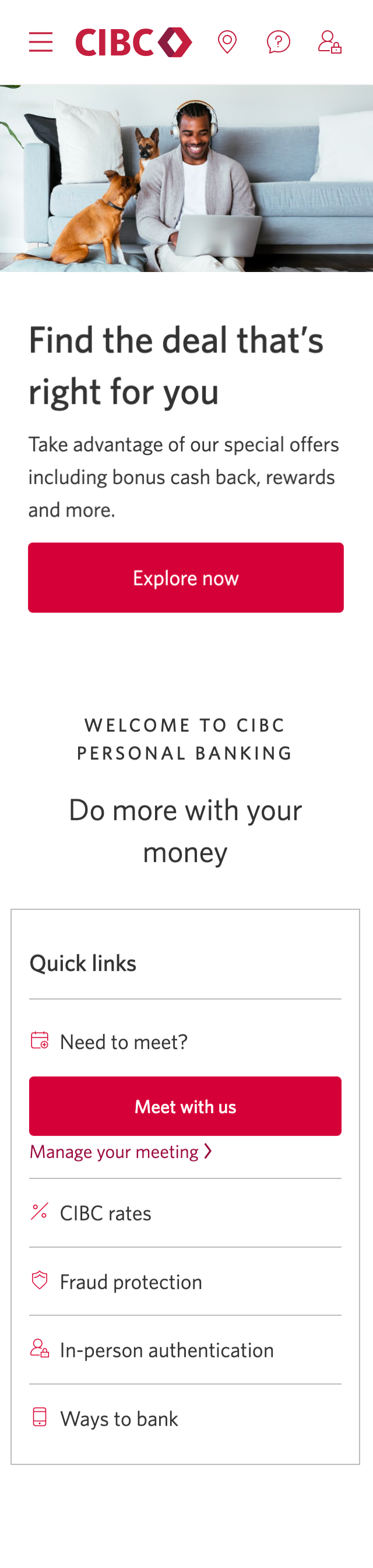

Step 1 : Let's get started on your web browser
Step 2 : Select the link to reset password
Step 3 : Provide your card details
Step 4 : Verify your identity
You'll be sent a one-time verification code to protect your account against fraud. Choose your preferred contact method to receive the code and select the "Send code" button.
Make sure you've signed on to CIBC Online Banking yourself and not through a link. Don't share one-time verification codes with anyone unless you've visited a CIBC Banking Centre or have called CIBC telephone banking and have been asked for a code.
Step 5 : Enter the code
Step 6 : Create a new password
Enter a new password that you'll use to sign on to CIBC Online Banking and the CIBC Mobile Banking App.
You'll need to follow the secure password requirements specified on-screen when creating your new password. Once you've entered the new password, select the "Submit" button to continue.
Step 7 : Re-enter the password to confirm it
Step 8 : Great job!
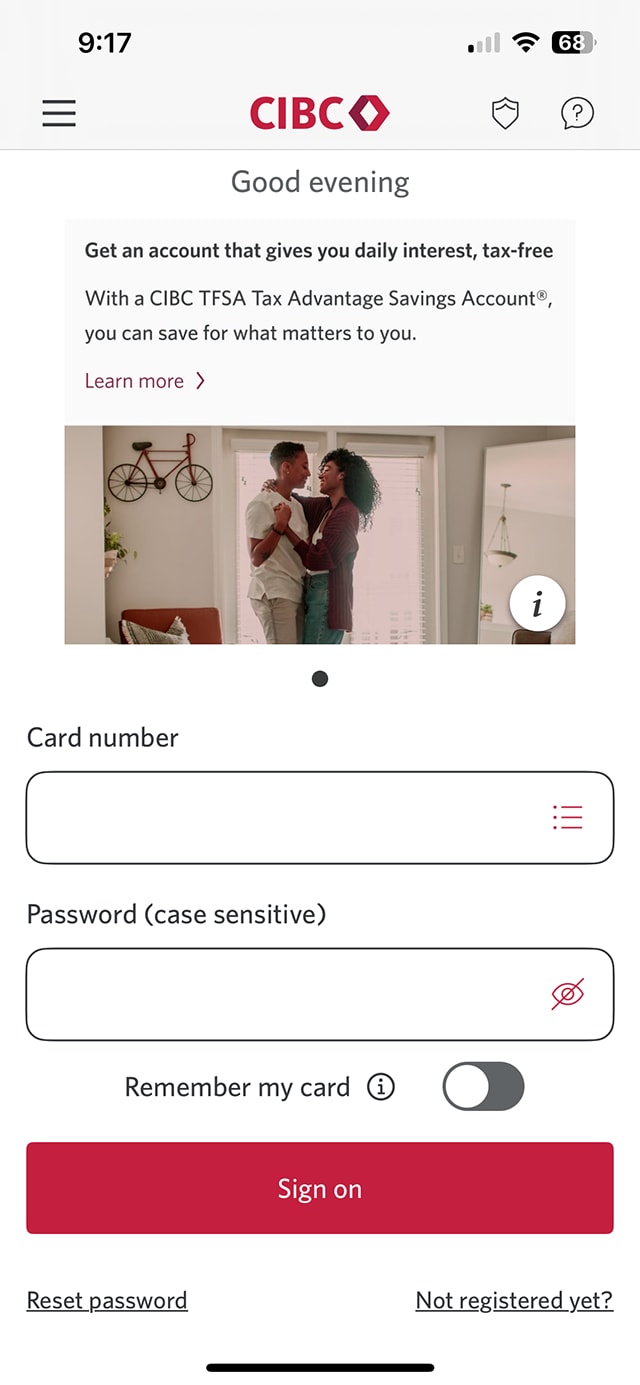
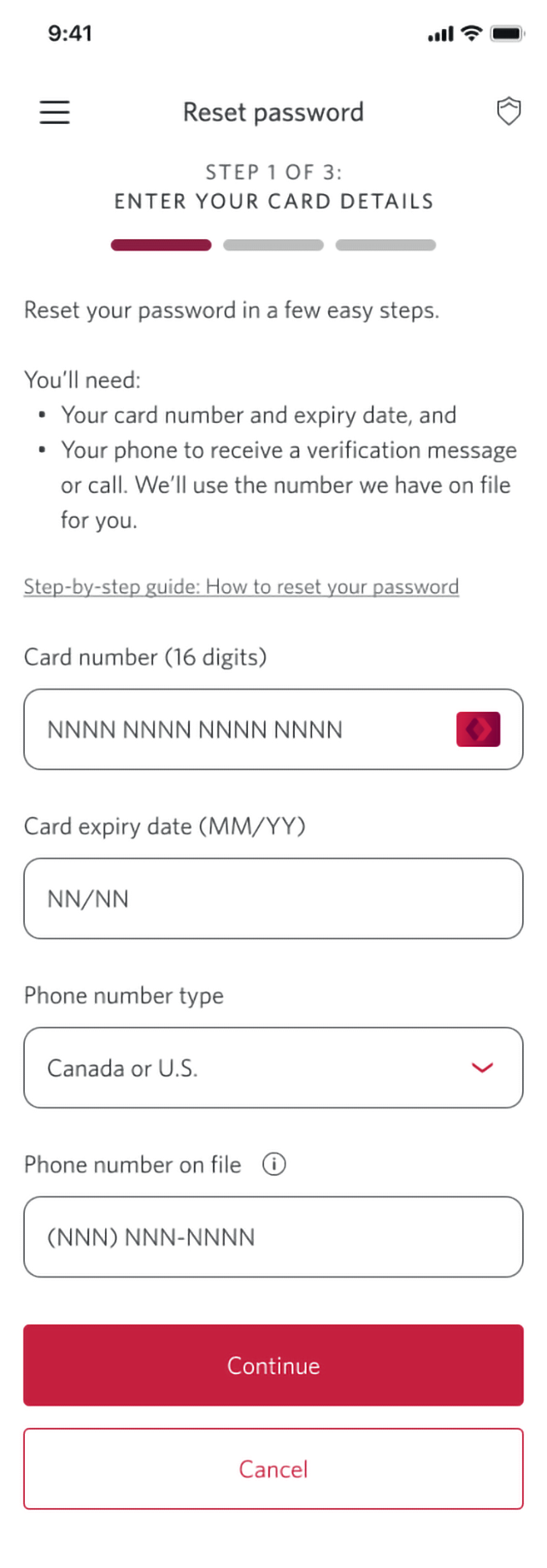
Step 1 : Let's get started on the mobile app
Step 2 : Provide your card details
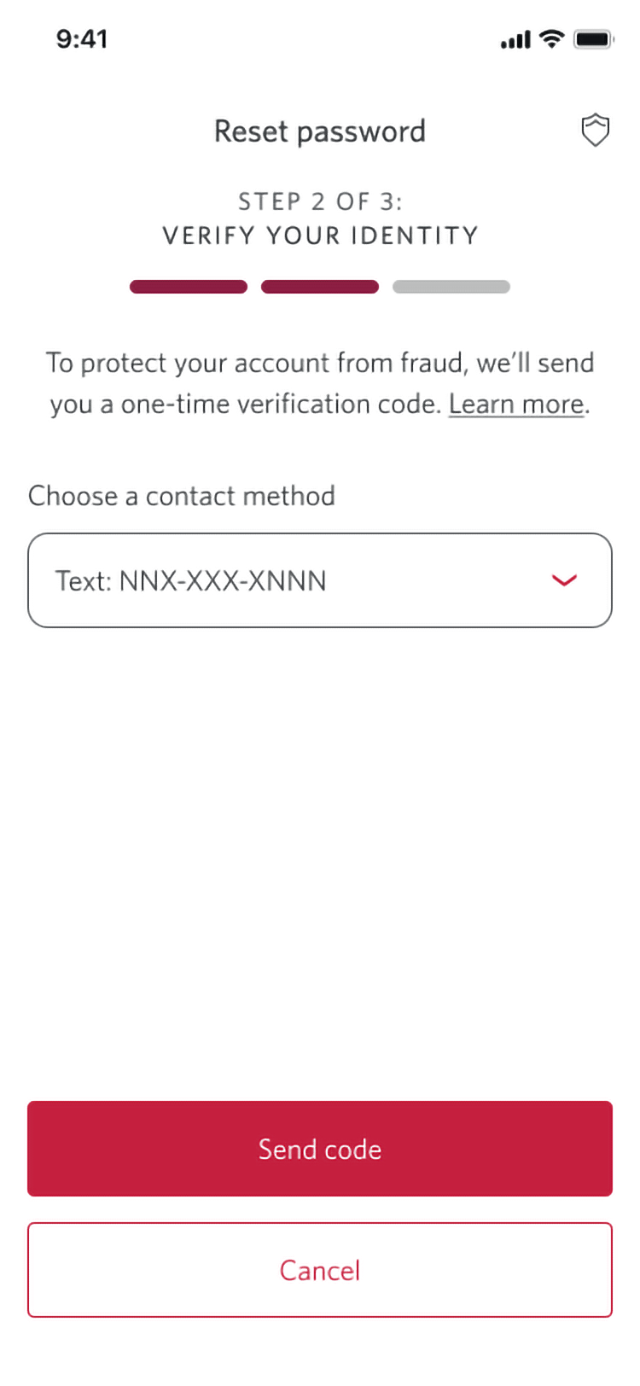
Step 3 : Verify your identity
You'll be sent a one-time verification code to protect your account against fraud. Choose your preferred contact method to receive the code and select the "Send code" button.
Make sure you've signed on to the CIBC Mobile Banking App yourself and not through a link. Don't share one-time verification codes with anyone unless you've visited a CIBC Banking Centre or have called CIBC telephone banking and have been asked for a code.
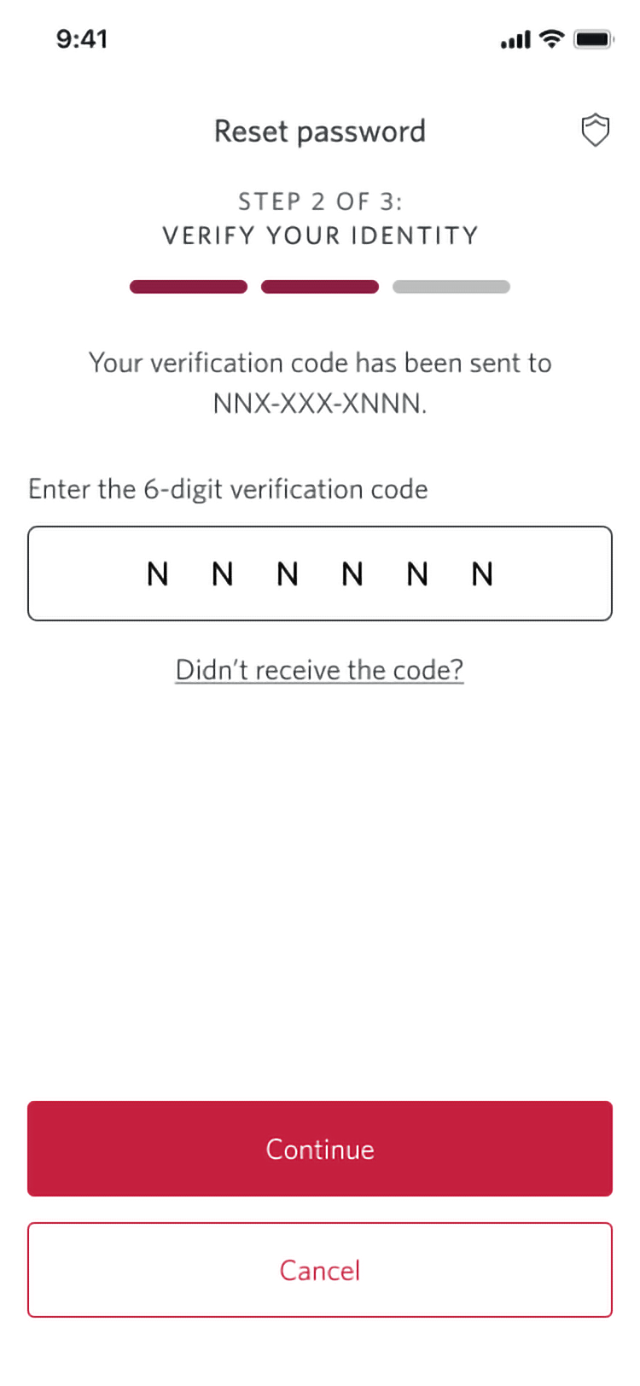
Step 4 : Enter the code
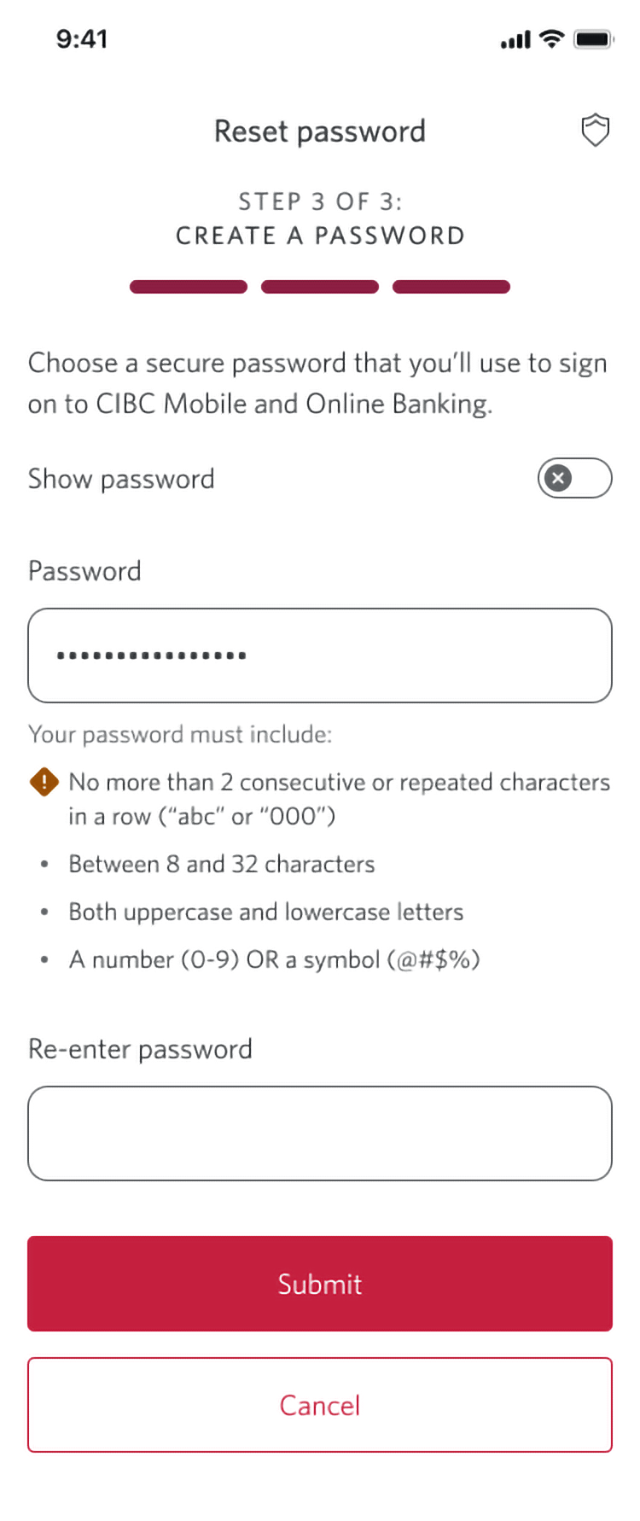
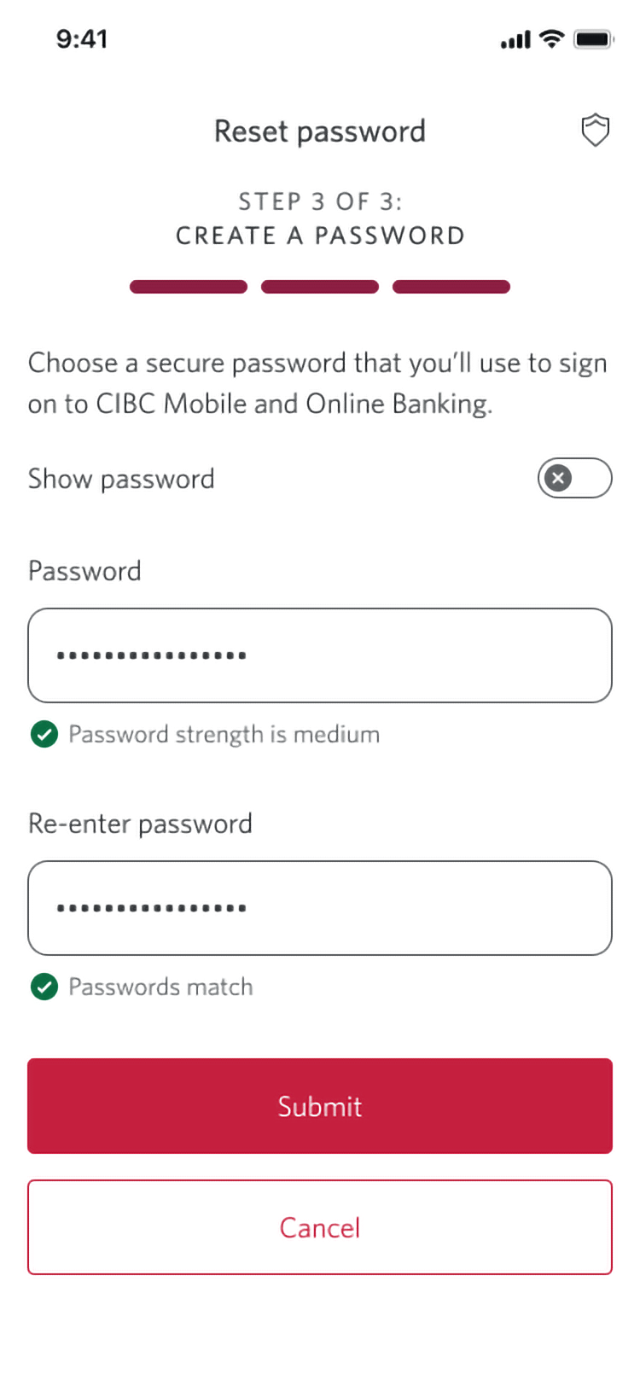
Step 5 : Create a new password
Enter a new password that you'll use to sign on to CIBC Online Banking and the CIBC Mobile Banking App.
You'll need to follow the secure password requirements specified on-screen when creating your new password. Once you've entered the new password, select the "Submit" button to continue.
Step 6 : Re-enter the password to confirm it
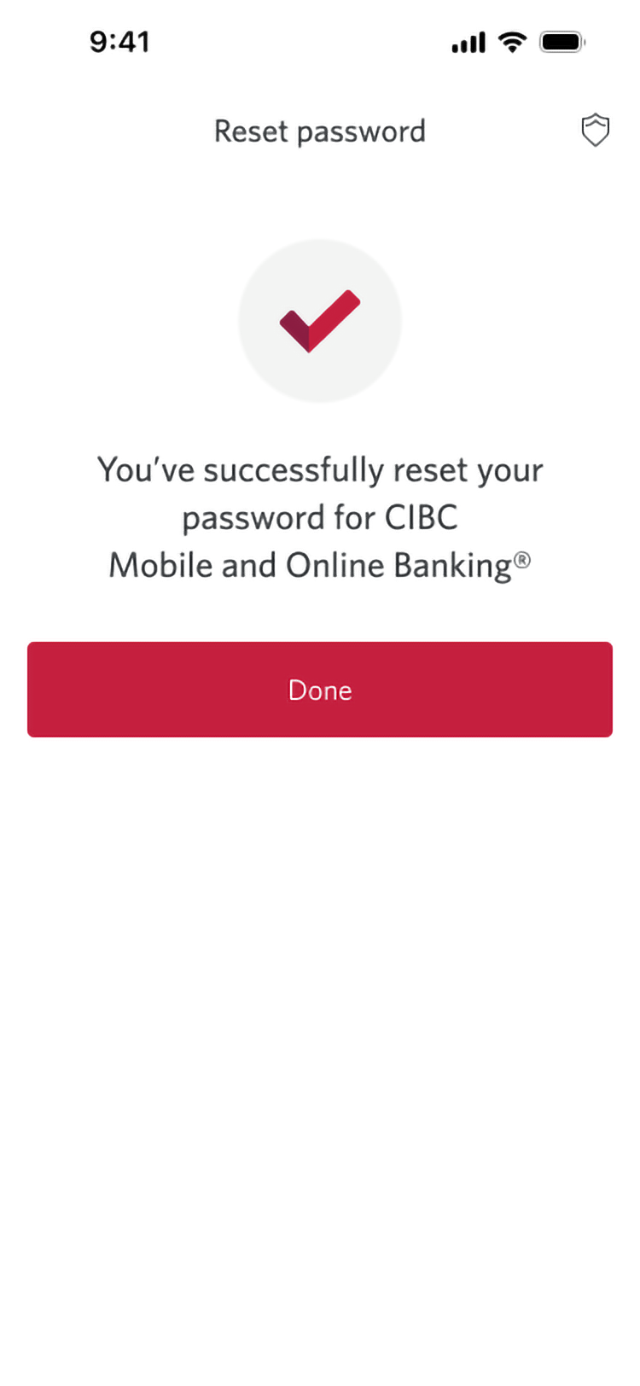
Step 7 : Great job!
Want an overview of all the steps?
For full instructions on how to reset your password, check out the step-by-step process all in one place.
Tips to prevent being locked out of your account
Make sure you're entering the right password
On the mobile app, review what you’re typing by selecting the eye icon after the password field
Keep your files up-to-date
- Make sure you have all relevant phone numbers on file with us, including any international numbers
- Check which international numbers Opens a new window. we can send verification codes to
Recommended digital banking demos

How to register for CIBC Online and Mobile Banking
Start demo on how to register for CIBC Online and Mobile Banking.

How to set up alerts for account activity

How to update your contact information
How to review and confirm your information
Get started
CIBC Online Banking®
Discover digital banking features that can help you bank easily online.
CIBC Mobile Banking® App
Stay connected to your finances on your mobile device, no matter where you are.

