

How to review and confirm your information
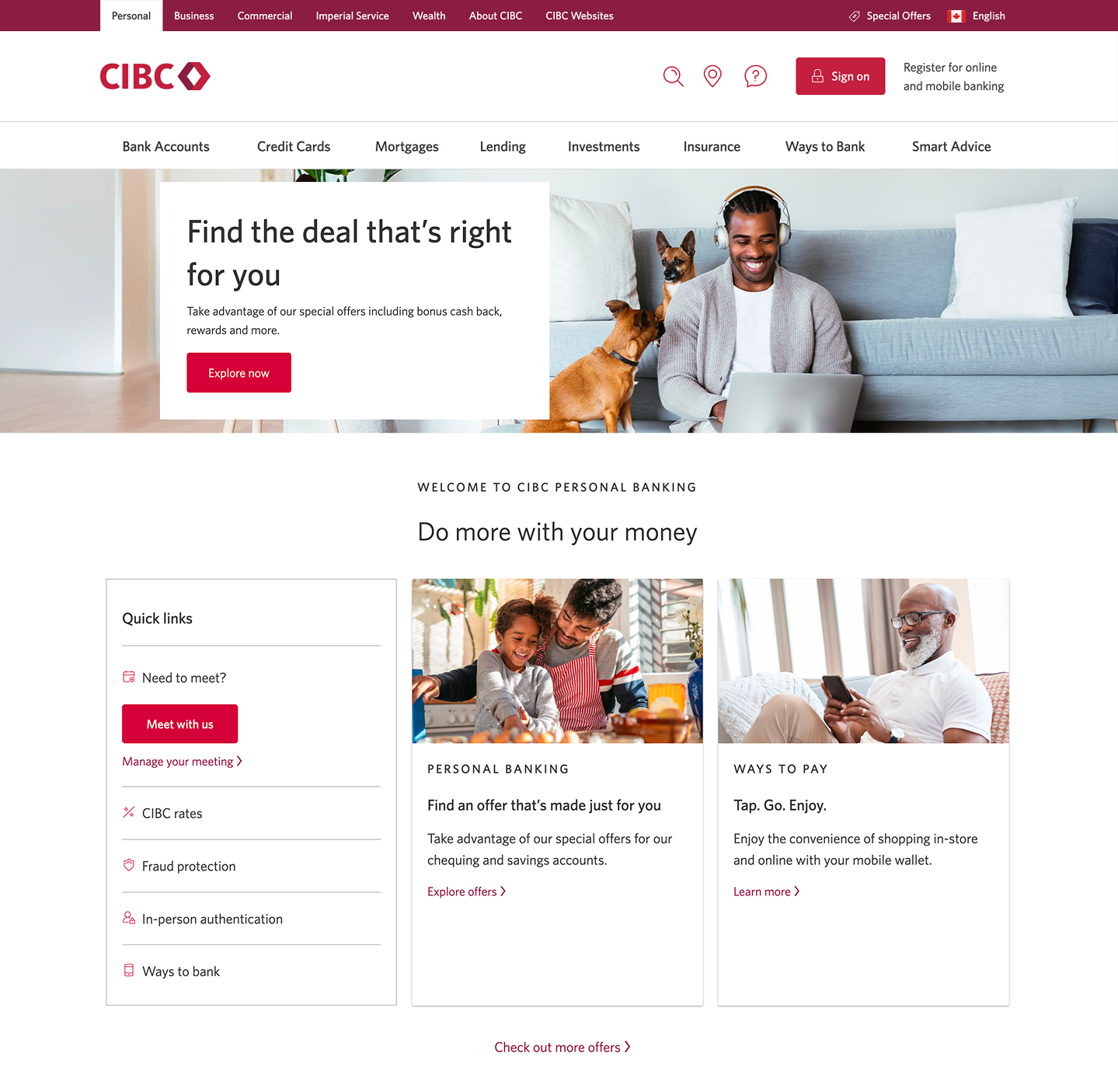
Step 1 : Let's get started on your web browser
Step 2 : Update your information
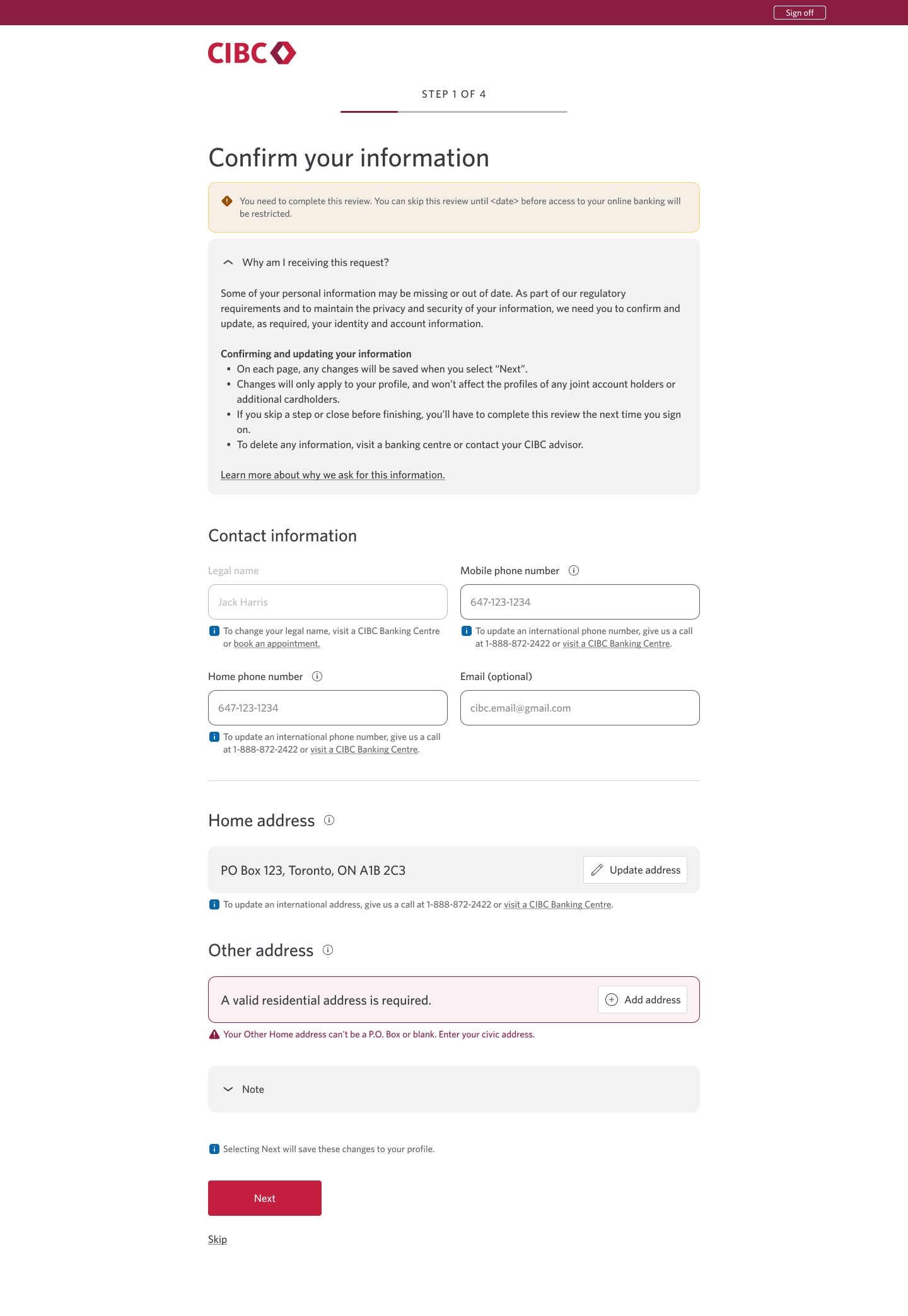
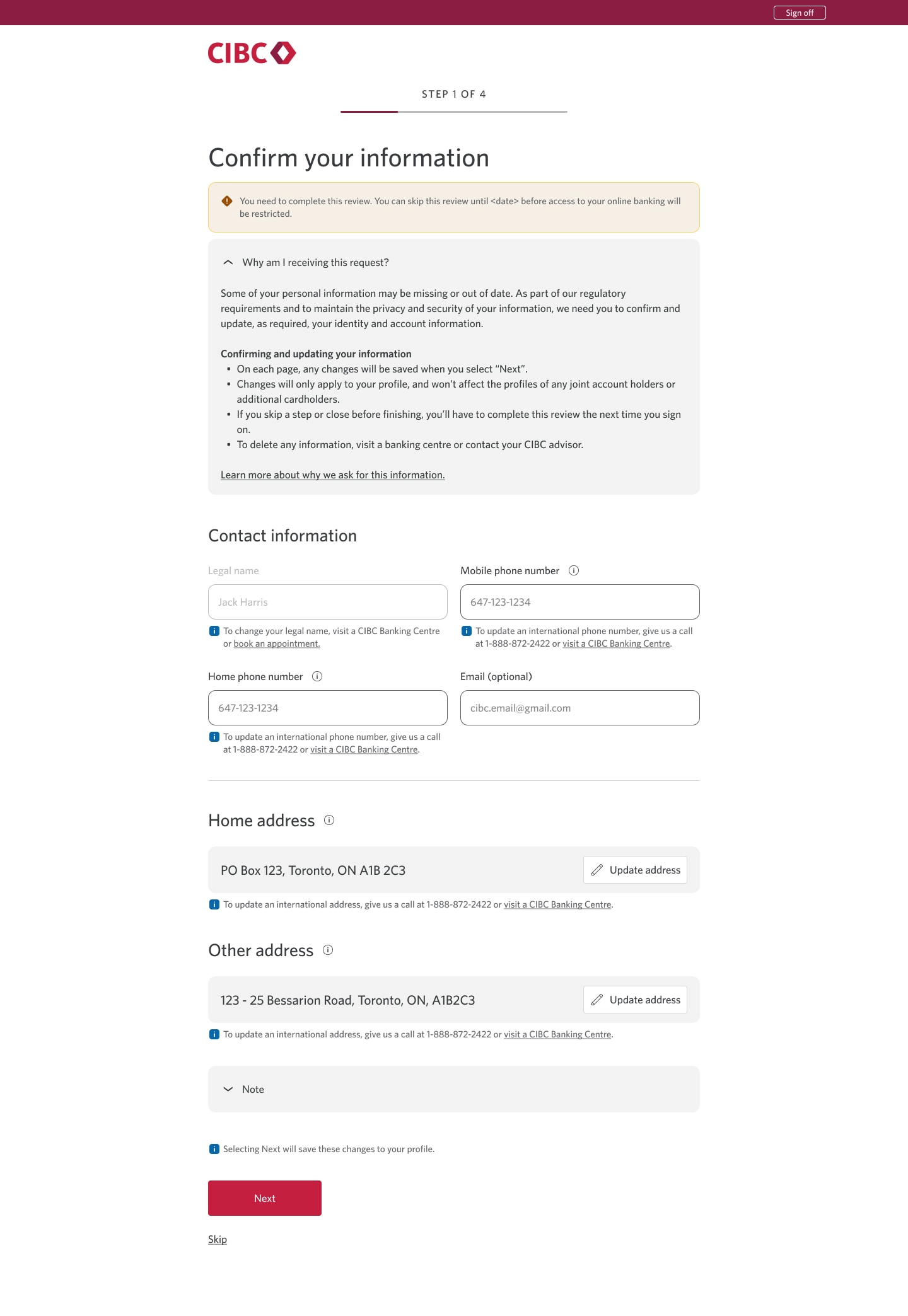
When you sign on to CIBC Online Banking, you may be prompted to review and confirm your contact information to ensure that it's correct.
For this demo, we've been prompted to update the "Other address" information.
Select the "Add address" button to continue.
Step 3 : Enter your other address
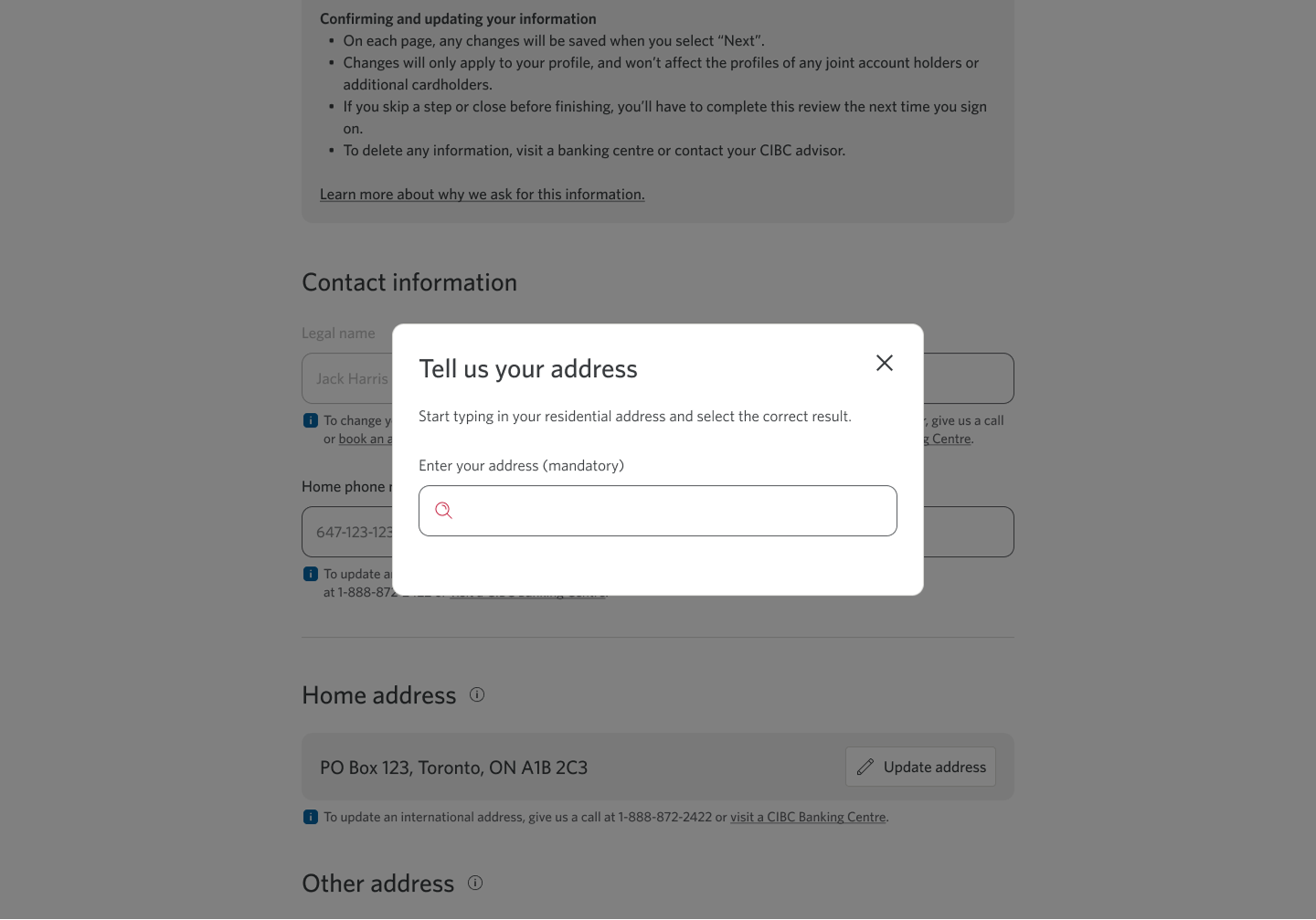
It's mandatory to provide at least one civic address. Your only address can’t be a P.O Box or be left blank.
To perform a search, start entering your civic address into the field.
Step 4 : Select the correct address
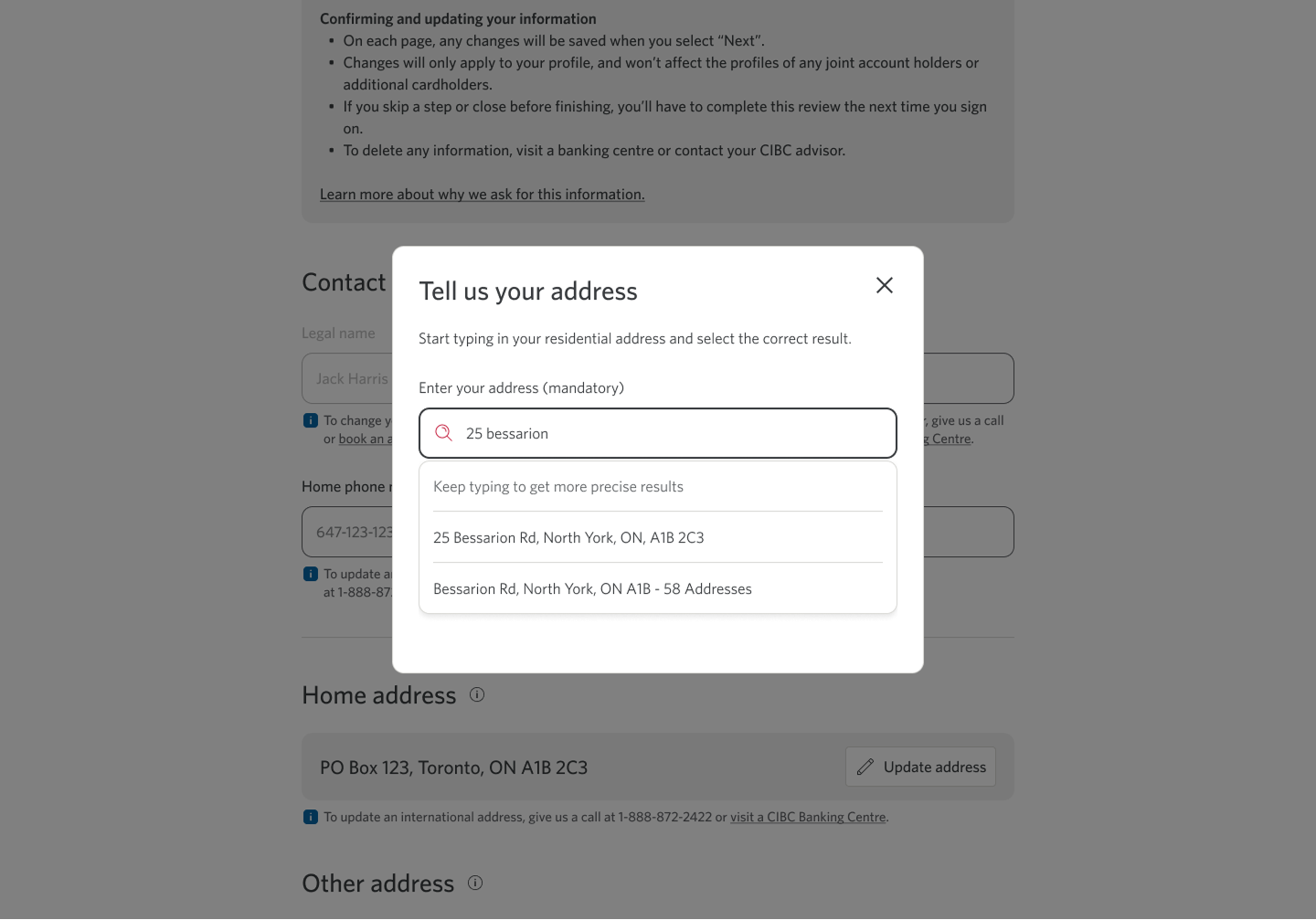
After you start entering your civic address into the field, results will populate in the dropdown menu.
Select the correct address to continue.
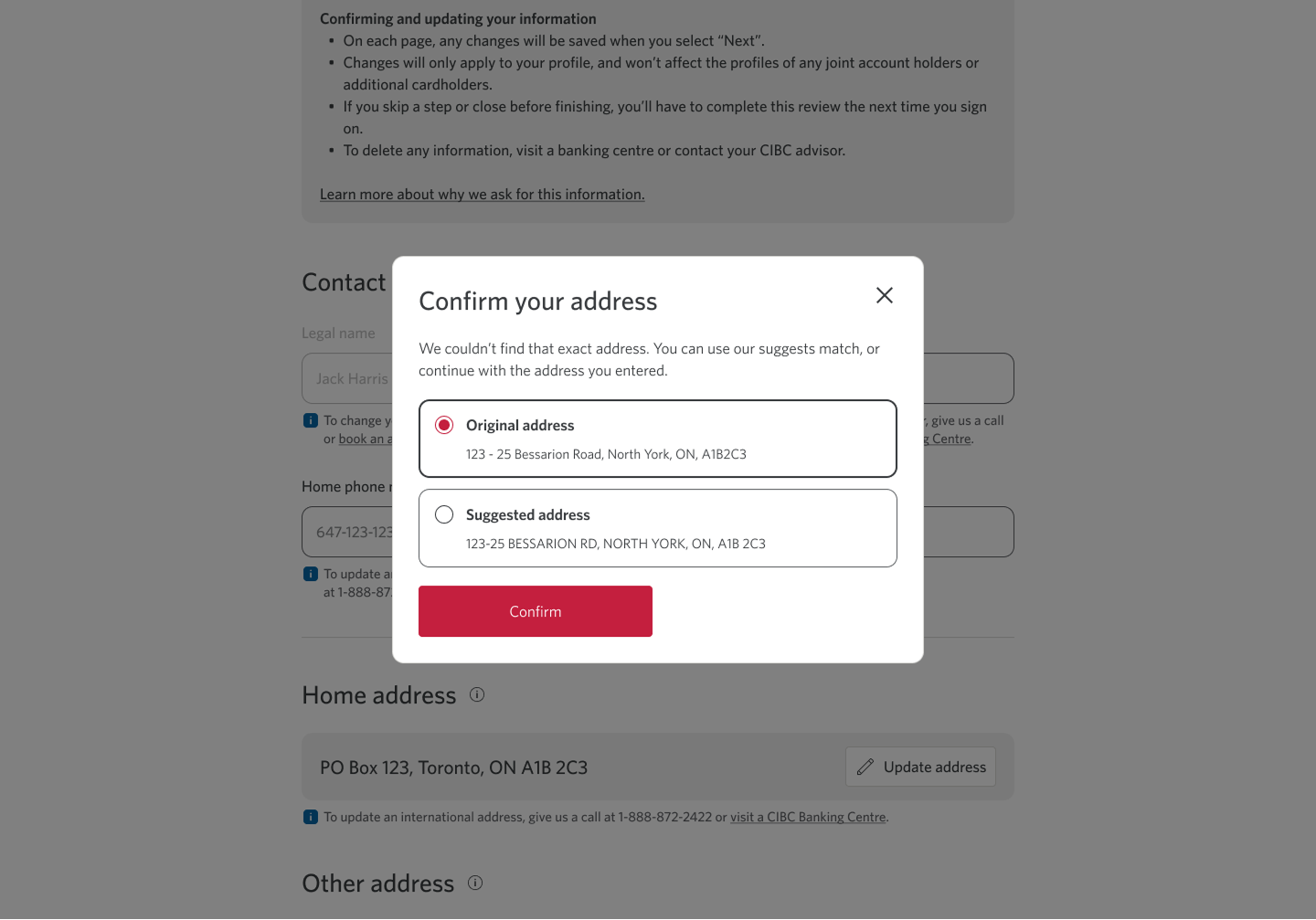
Step 5 : Confirm your address
Step 6 : Select "Next"
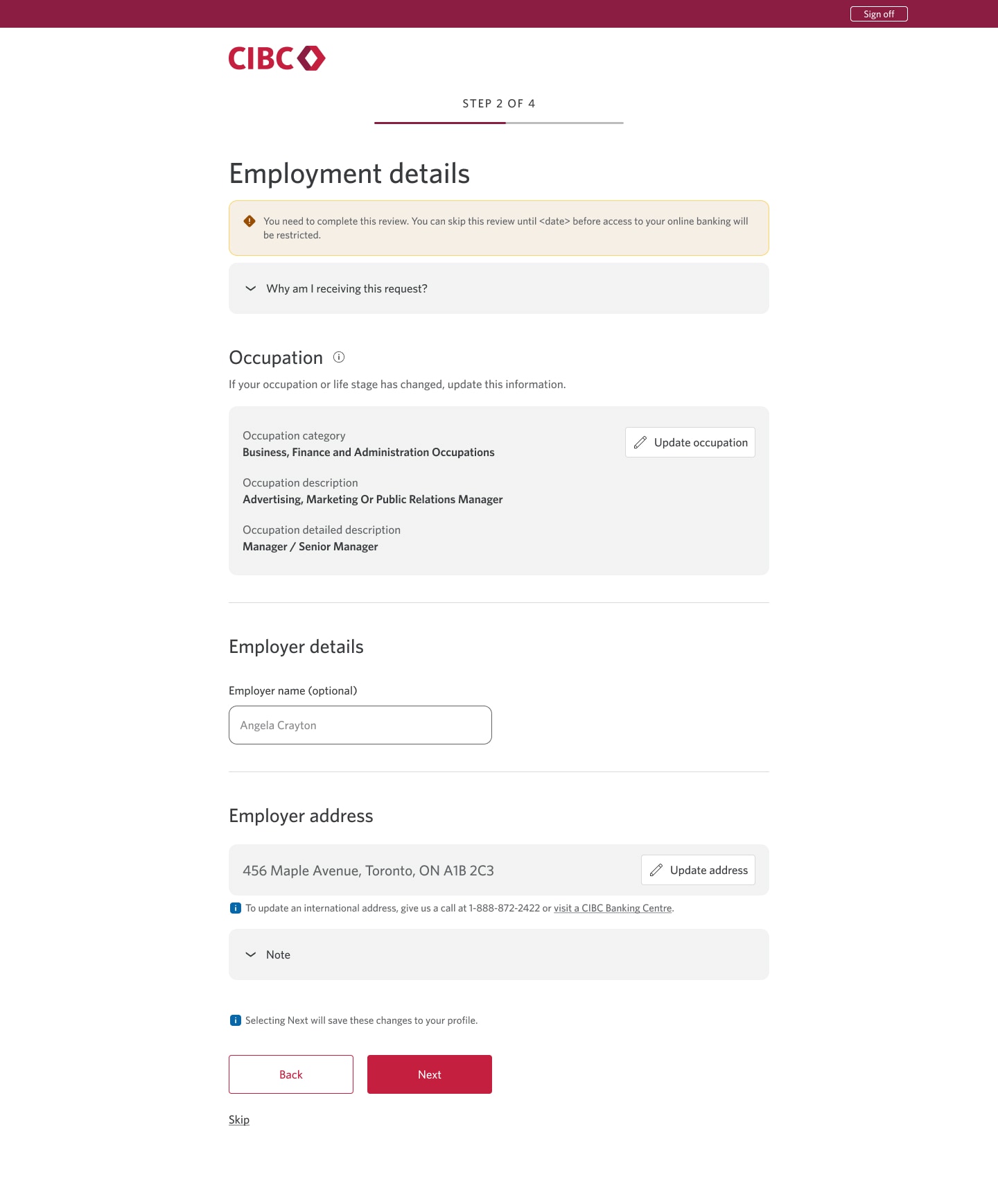
Step 7 : Review and confirm your employer details
If updates to your employer information are required, update the name and address.
Once you've confirmed your employer details are correct, select the "Next" button.
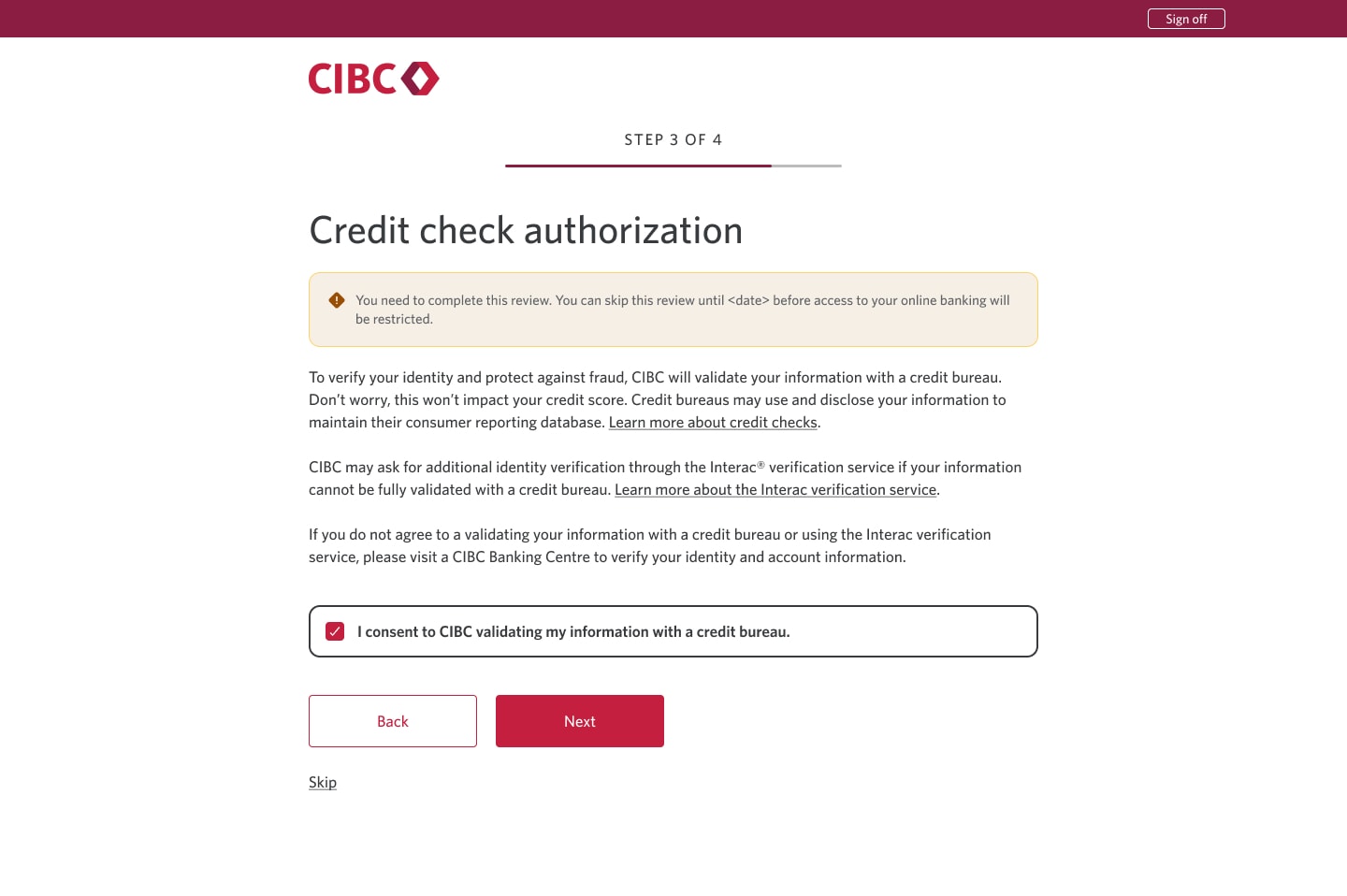
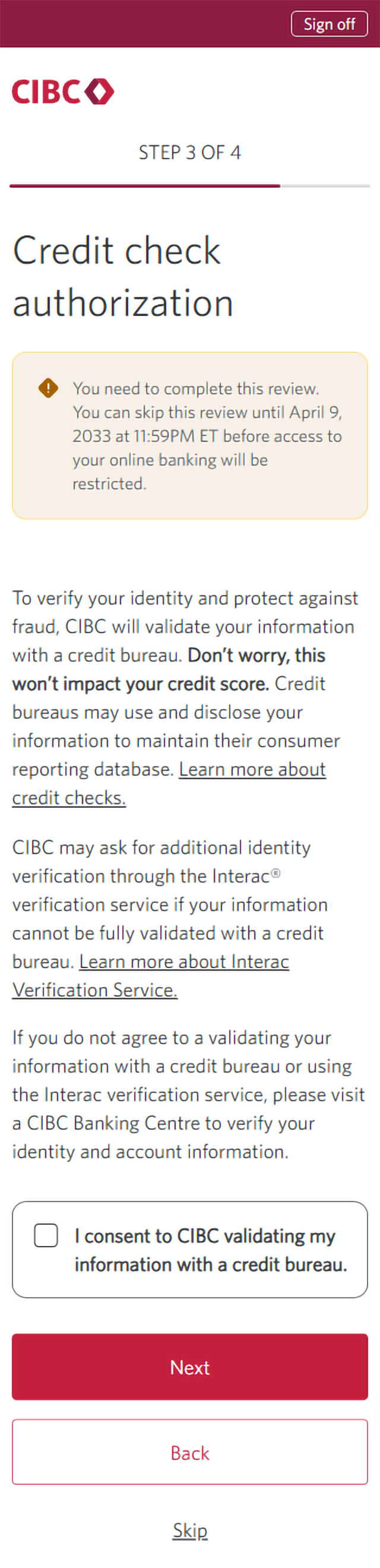
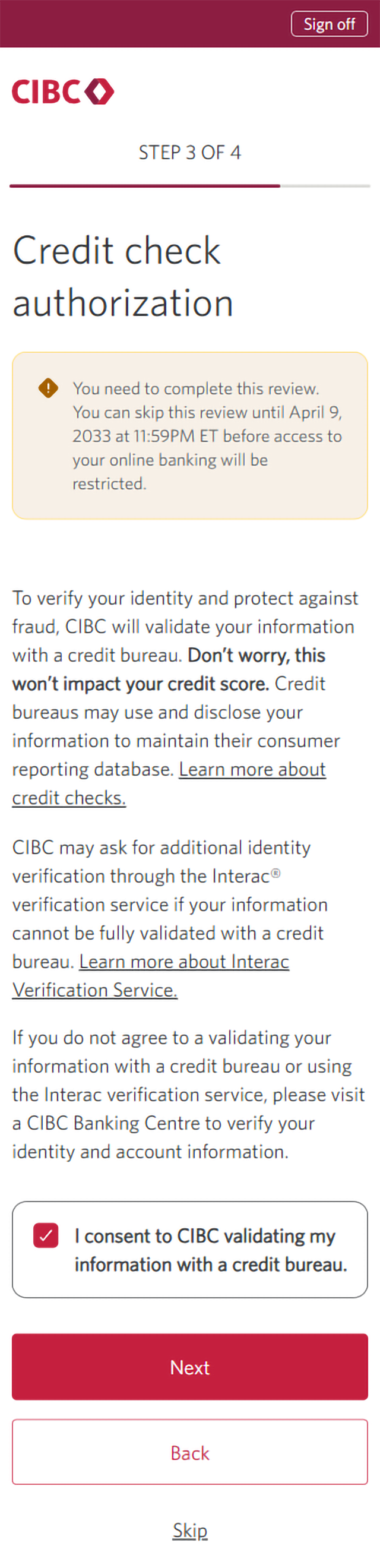
Step 8 : Consent to CIBC validating your information
Select the checkbox for "I consent to CIBC validating my information with a credit bureau".
Clients with missing or invalid identification are required to complete the credit check authorization step. This won't impact your credit score.
Once you've given your consent, select the "Next" button to continue.
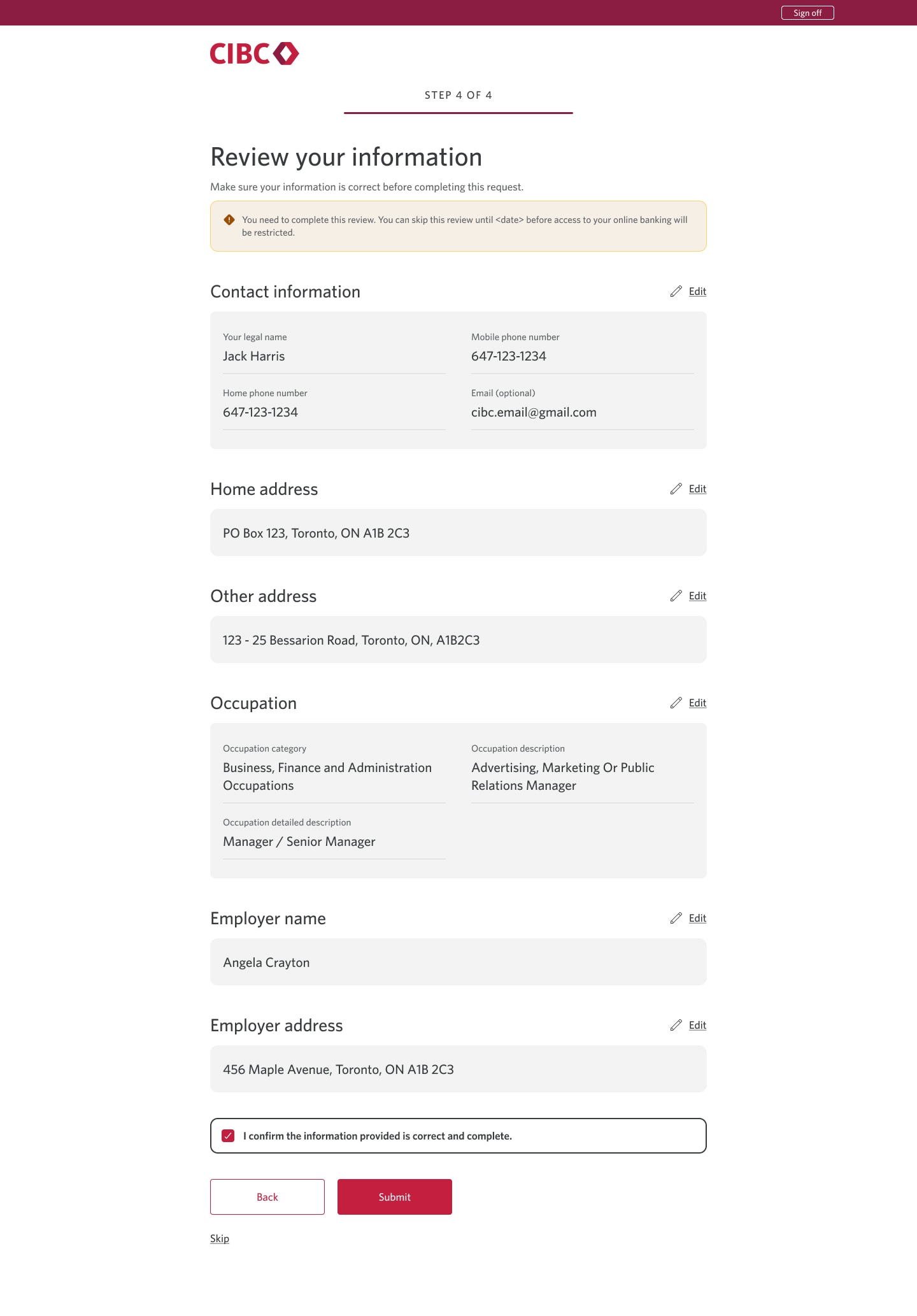
Step 9 : Review your information before submitting
Check all the information you've updated is correct and complete.
When you're ready, select the "Submit" button.
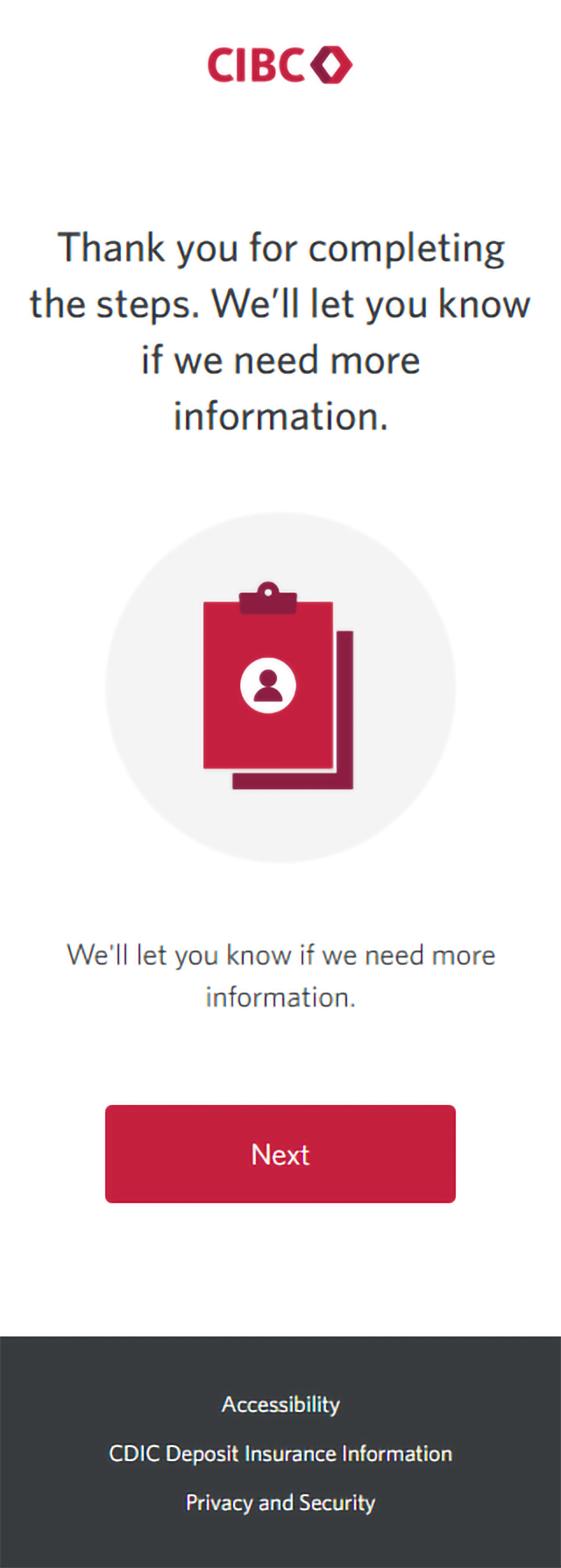
Step 10 : Great job!
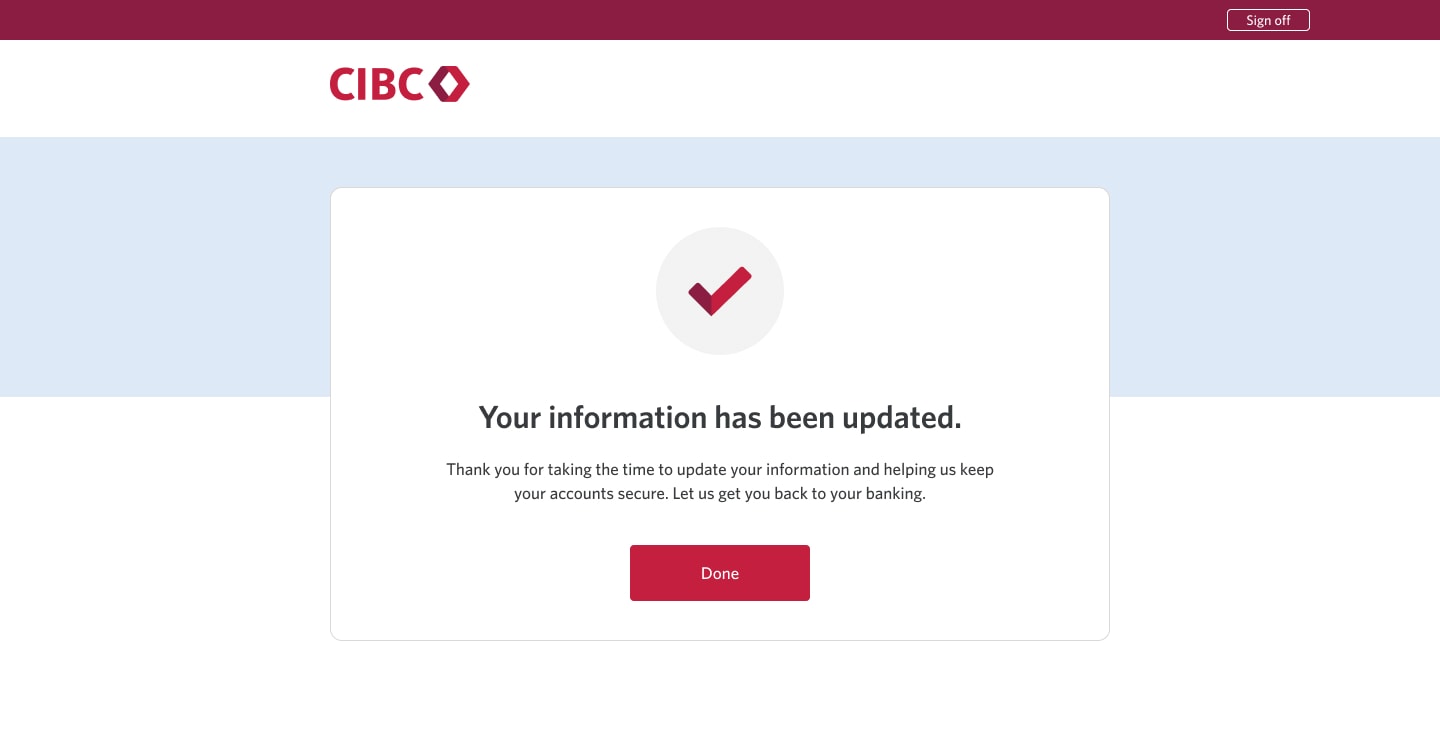
You've successfully reviewed and confirmed your information on CIBC Online Banking.
An on-screen message will let you know that your information has been updated. Select the "Done" button to return to the homepage.
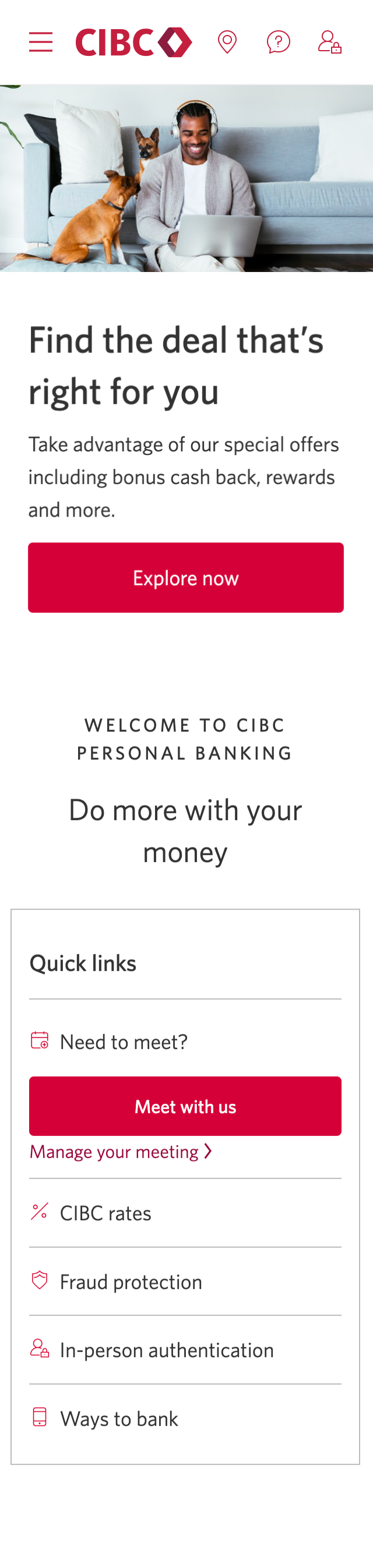

Step 1 : Let's get started on your web browser
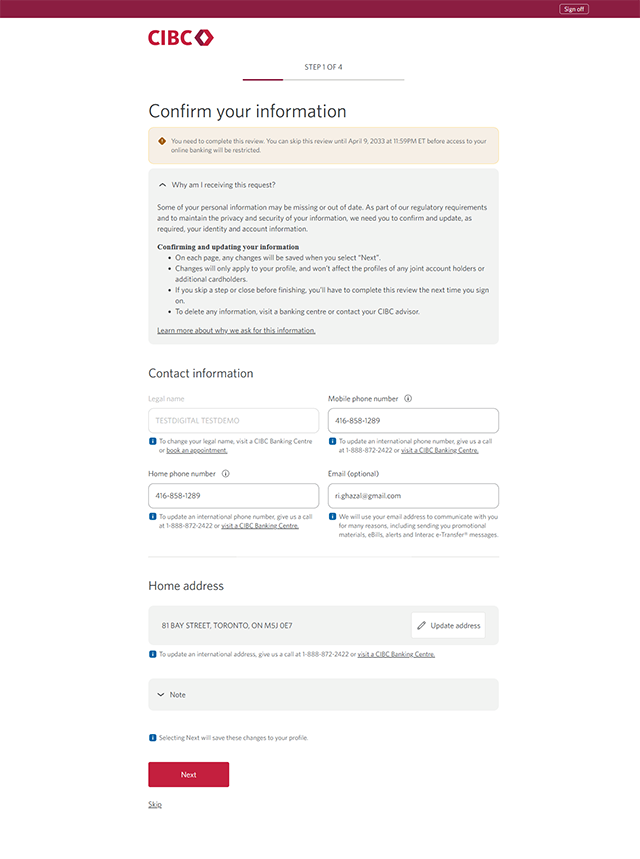
Step 2 : Update your information
When you sign on to CIBC Online Banking, you may be prompted to review and confirm your contact information to ensure that it's correct.
For this demo, we've been prompted to update the "Other address" information.
Select the "Add address" button to continue.
Step 3 : Enter your other address
It's mandatory to provide at least one civic address. Your only address can’t be a P.O Box or be left blank.
To perform a search, start entering your civic address into the field.
Step 4 : Select the correct address
After you start entering your civic address into the field, results will populate in the dropdown menu.
Select the correct address to continue.
Step 5 : Confirm your address
Step 6 : Select "Next"
Step 7 : Review and confirm your employer details
If updates to your employer information are required, update the name and address.
Once you've confirmed your employer details are correct, select the "Next" button.
Step 8 : Consent to CIBC validating your information
Select the checkbox for "I consent to CIBC validating my information with a credit bureau".
Clients with missing or invalid identification are required to complete the credit check authorization step. This won't impact your credit score.
Once you've given your consent, select the "Next" button to continue.
Step 9 : Review your information before submitting
Check all the information you've updated is correct and complete.
When you're ready, select the "Submit" button.
Step 10 : Great job!
You've successfully reviewed and confirmed your information on CIBC Online Banking.
An on-screen message will let you know that your information has been updated. Select the "Done" button to return to the homepage.
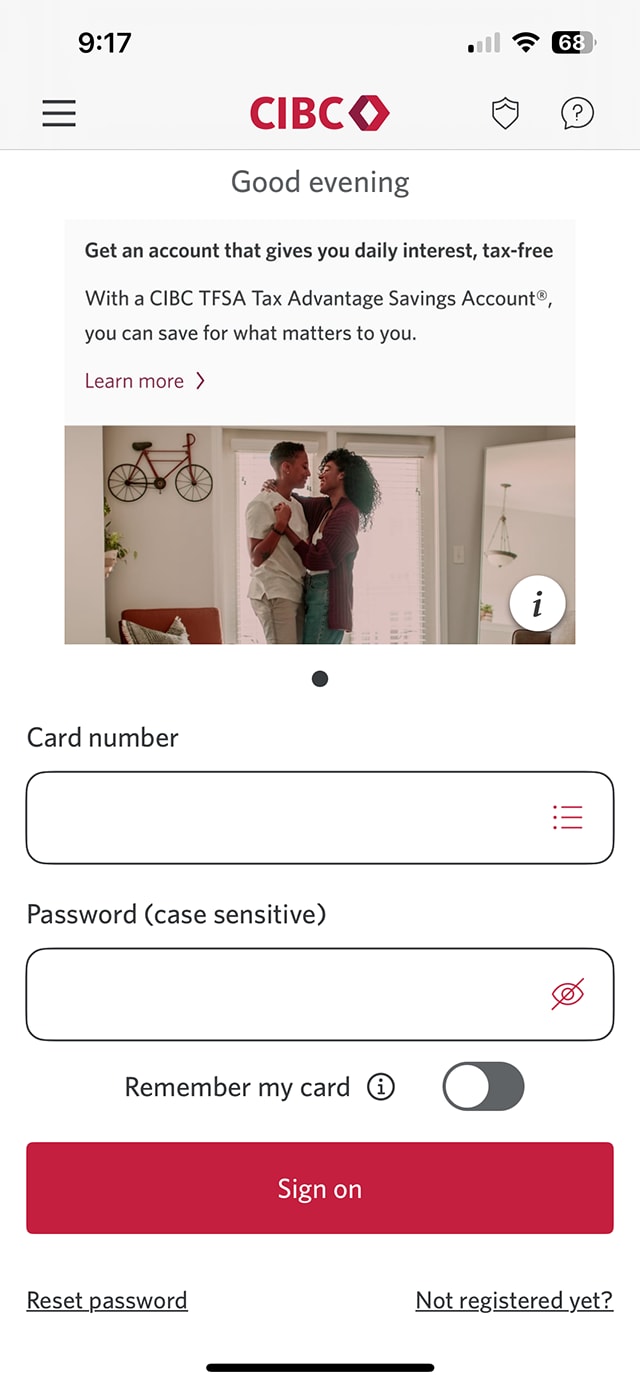

Step 1 : Let's get started on the mobile app
Step 2 : Update your information
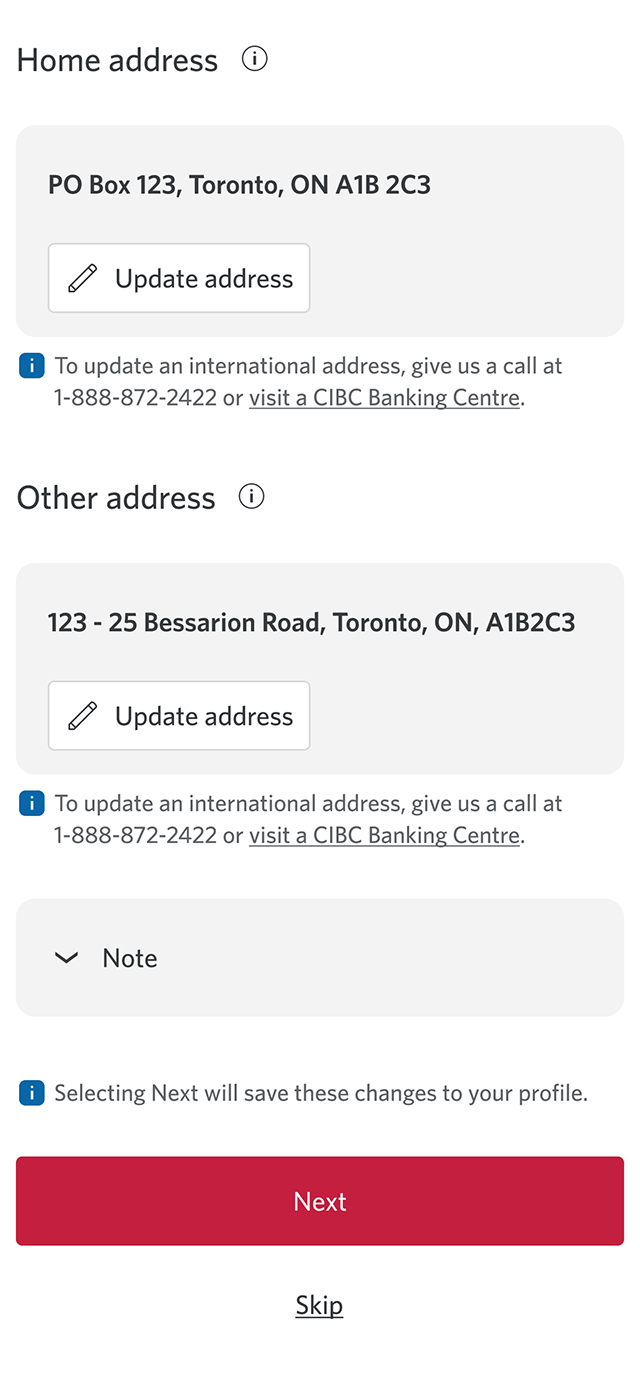
When you sign on to the CIBC Mobile Banking App, you may be prompted to review and confirm your information to ensure that it's correct.
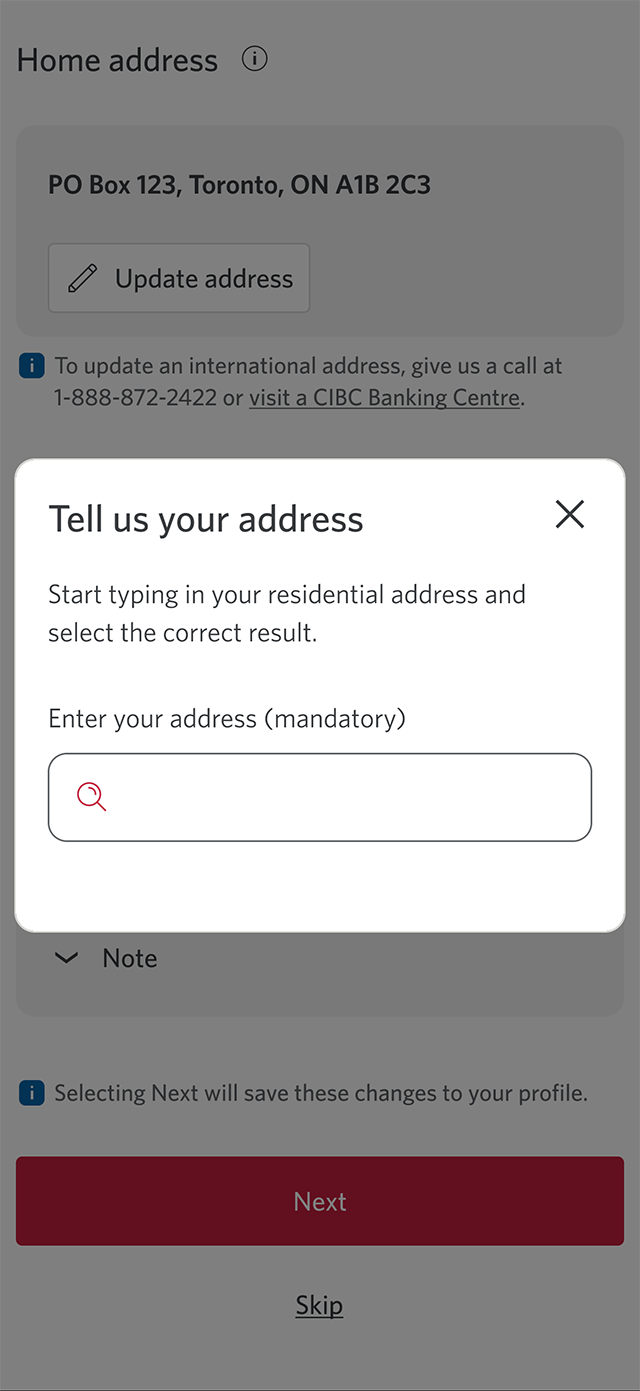
For this demo, we've been prompted to update the "Other address" information. Select the "Add address" button to continue.
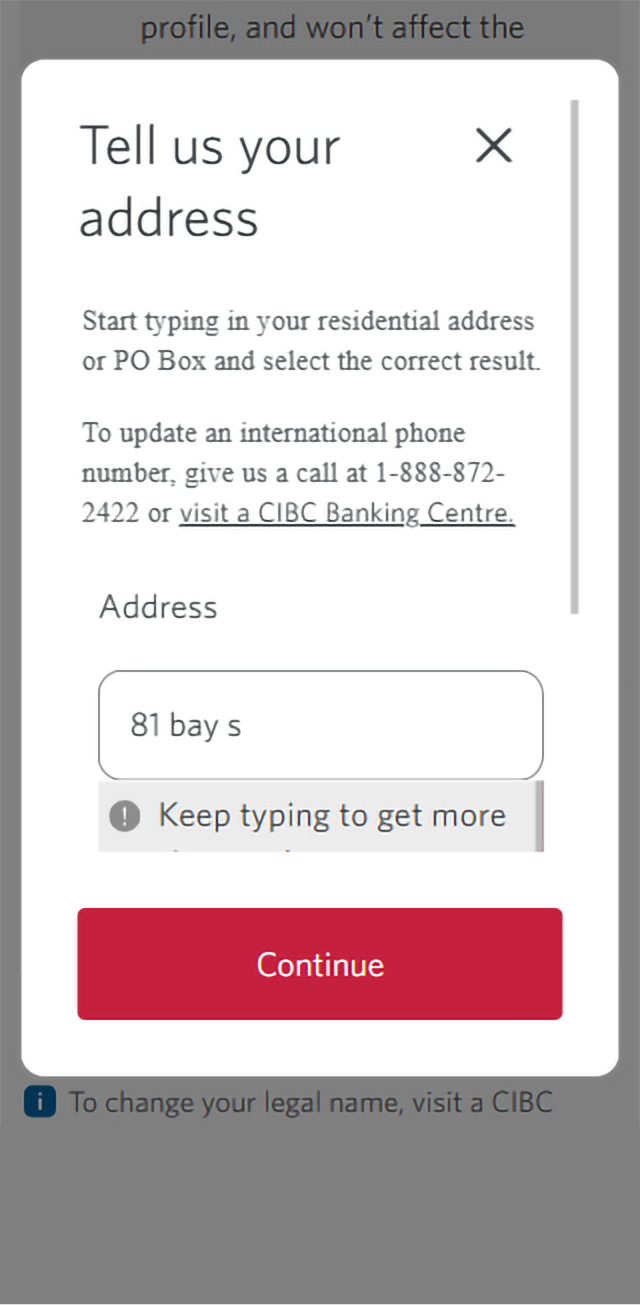
Step 3 : Enter your other address
It's mandatory to provide at least one civic address. Your only address can’t be a P.O Box or be left blank.
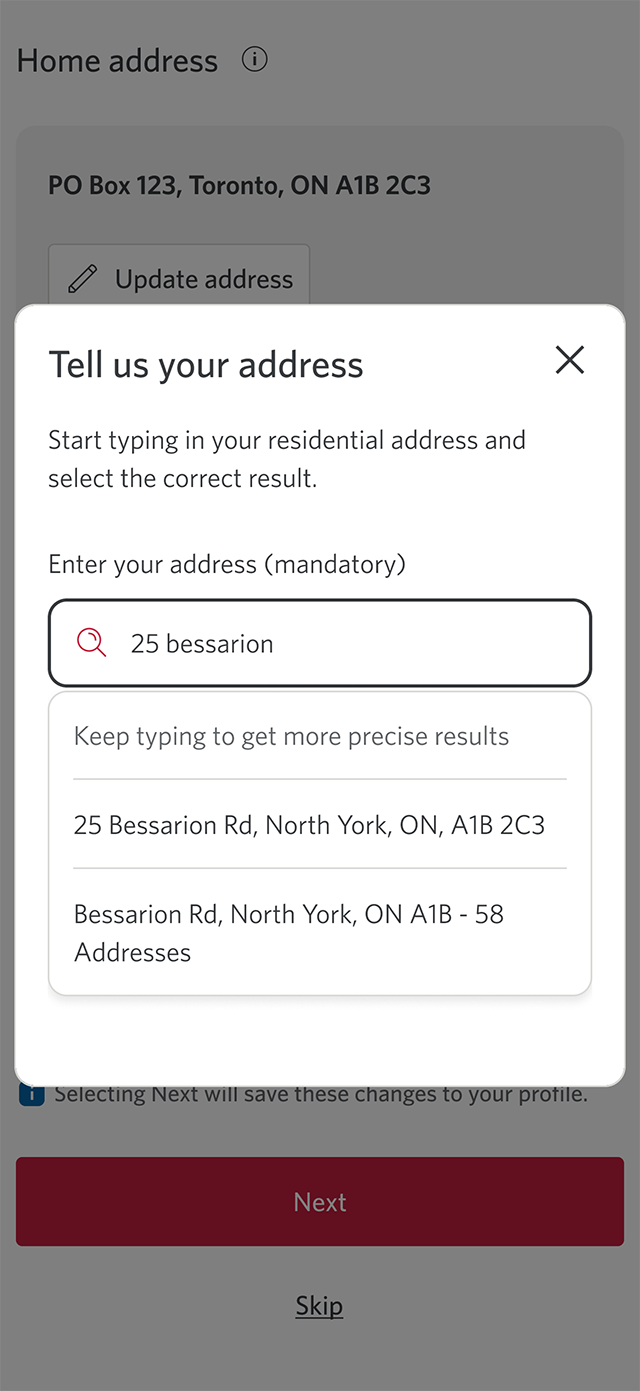
To perform a search, start typing your civic address into the field.
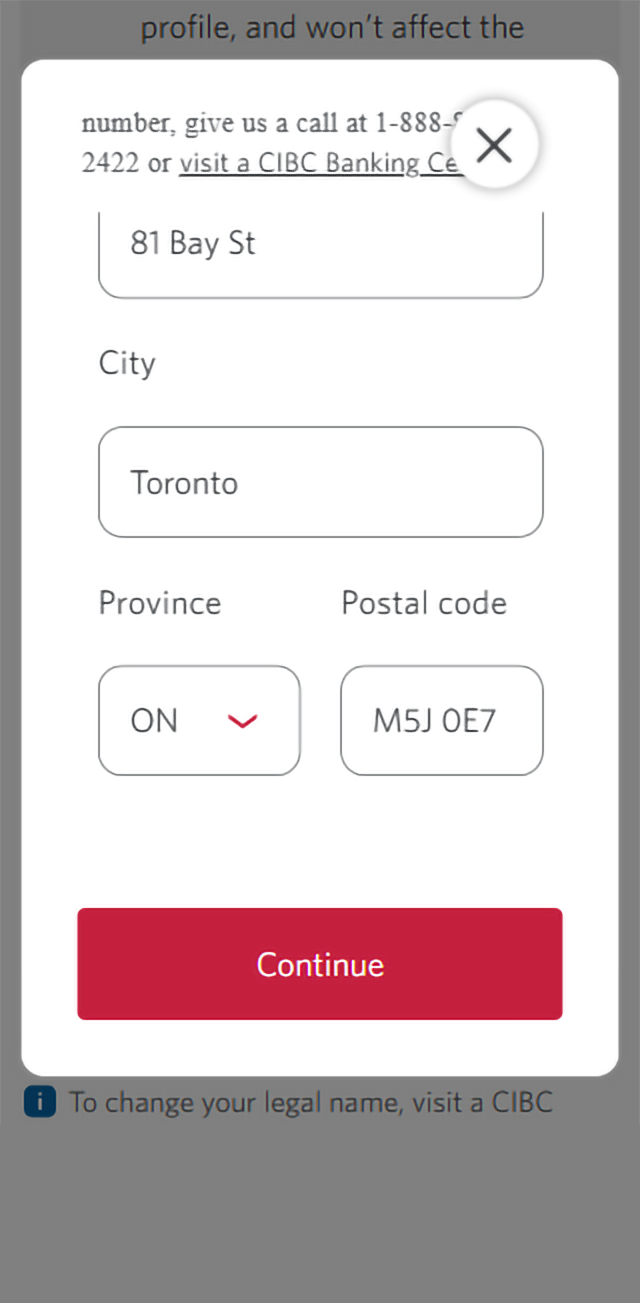
Step 4 : Select the correct address
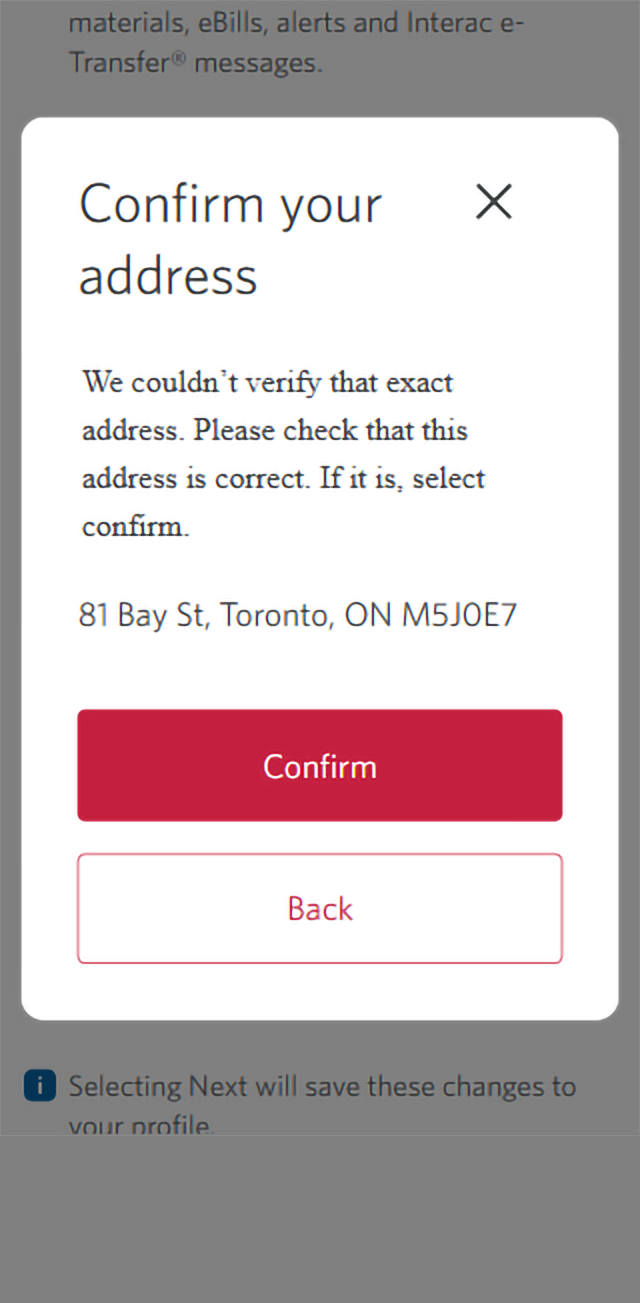
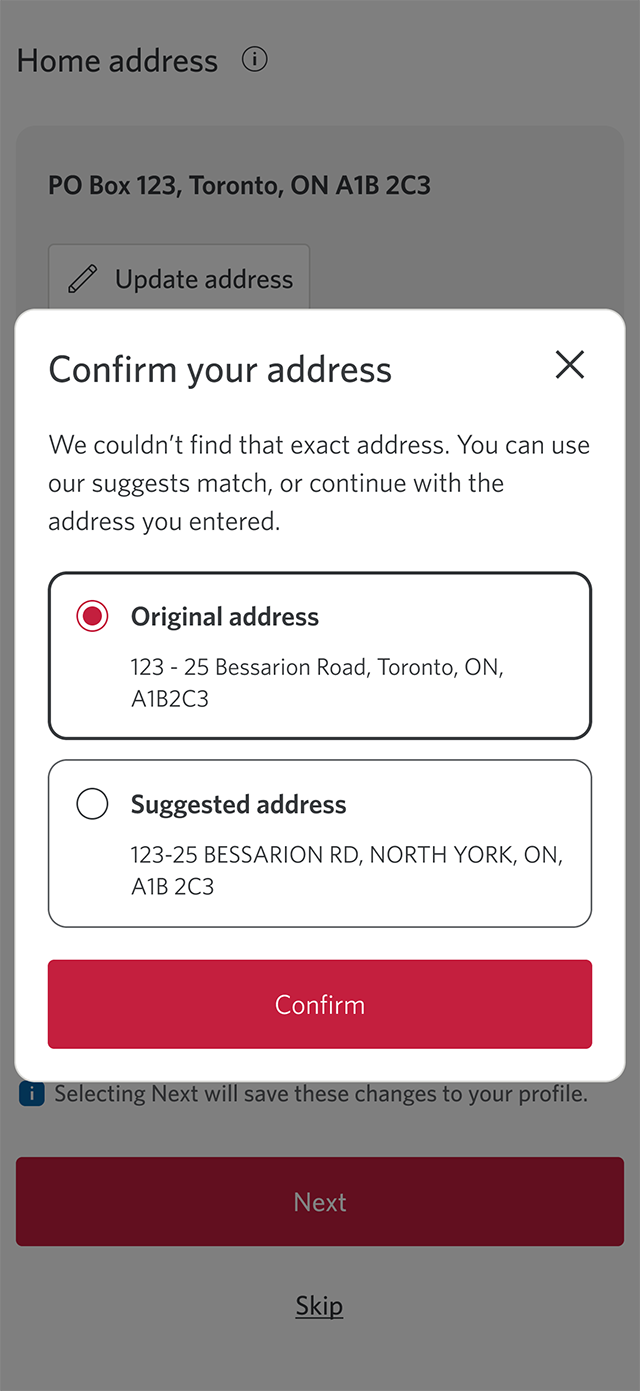
Step 5 : Confirm your address
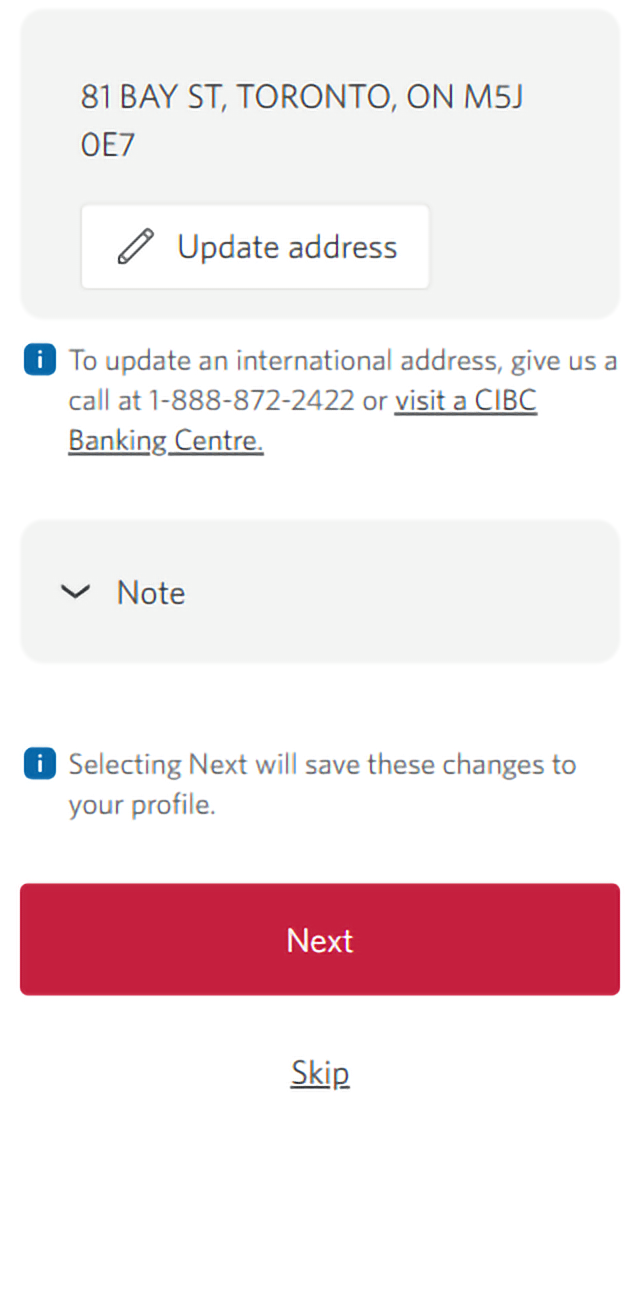
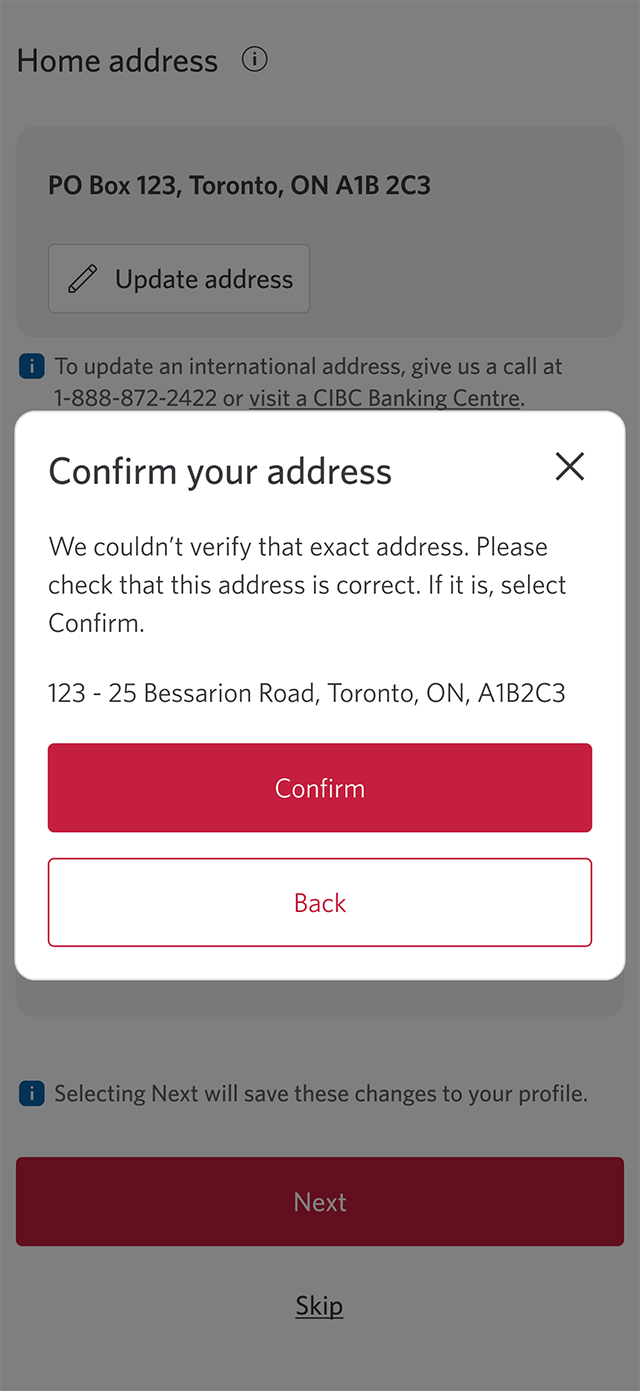
Step 6 : Review address
Step 7 : Select "Next"
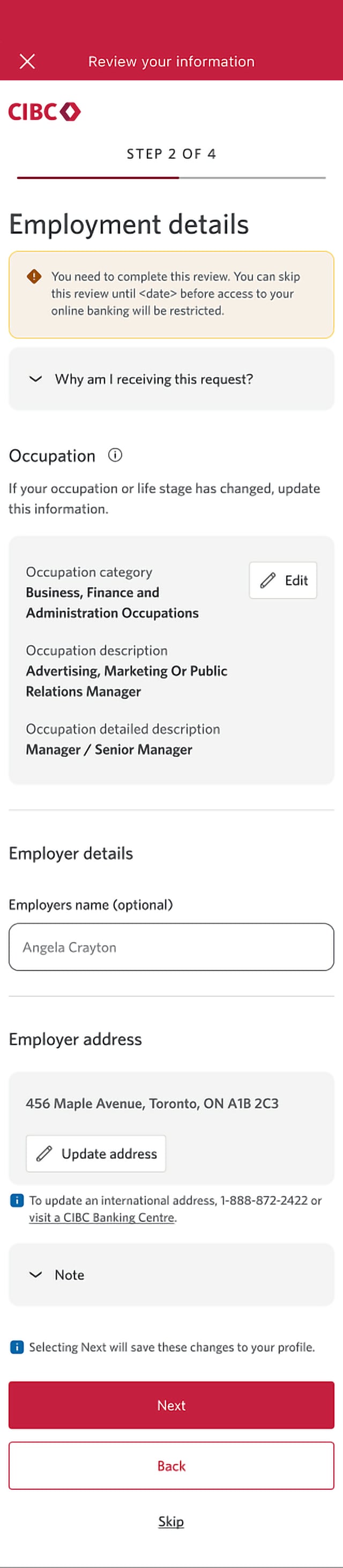
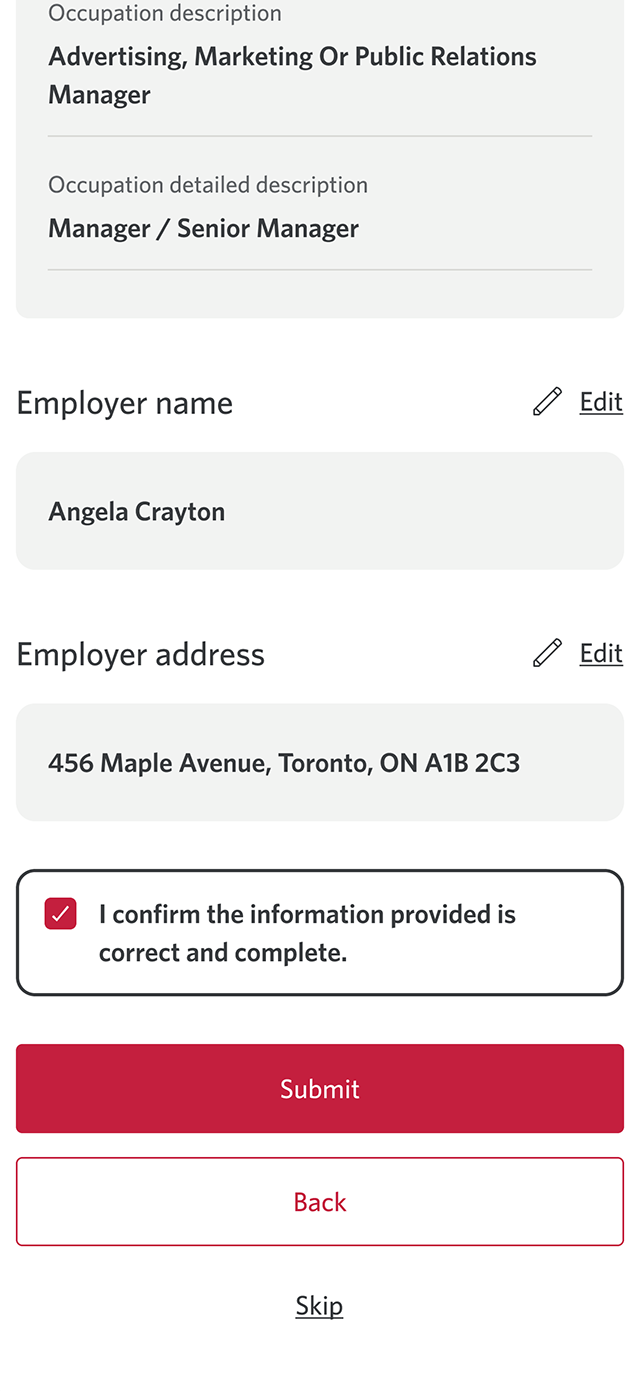
Step 8 : Review and confirm your employer details
If updates to your employer information are required, update the name and address.
Once you've confirmed your employer details are correct, select the "Next" button.
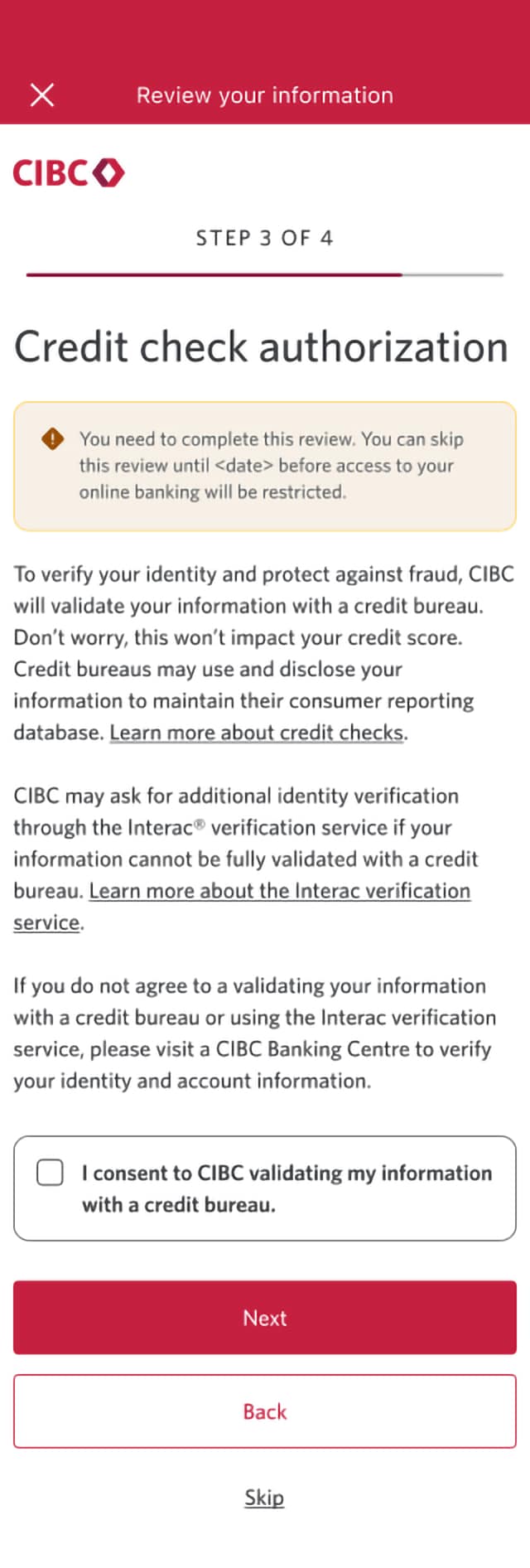
Step 9 : Consent to CIBC validating your information
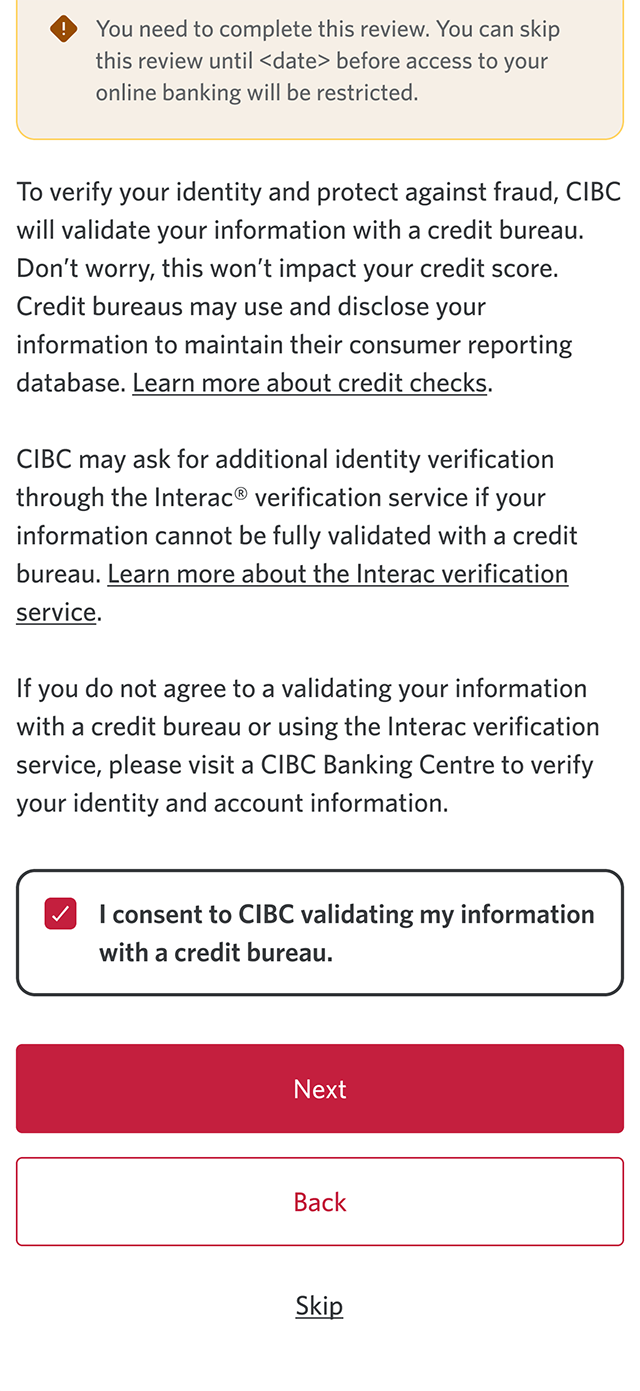
Select the checkbox for "I consent to CIBC validating my information with a credit bureau".
Clients with missing or invalid identification are required to complete the credit check authorization step. This won't impact your credit score.
Step 10 : Select "Next"
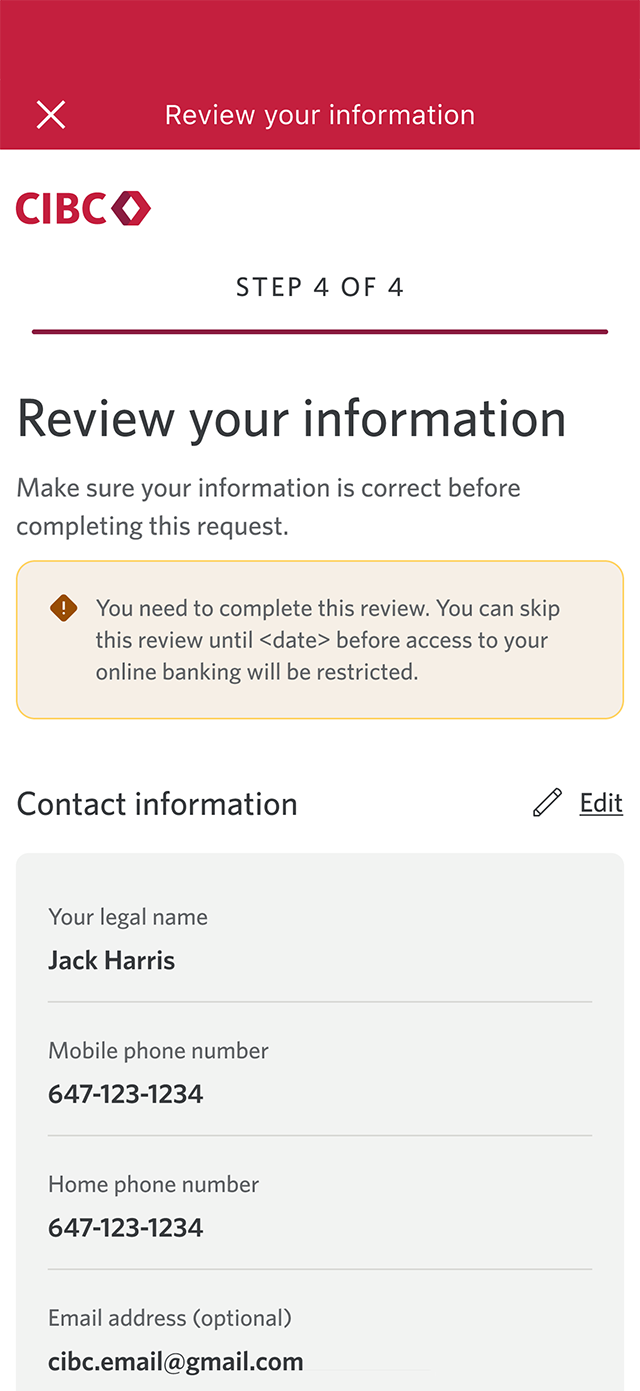
Step 11 : Review your information
Step 12 : Confirm and select "Submit"
When you're ready, select the "I confirm the information provided is correct and complete" checkbox.
Next, select the "Submit" button to proceed.
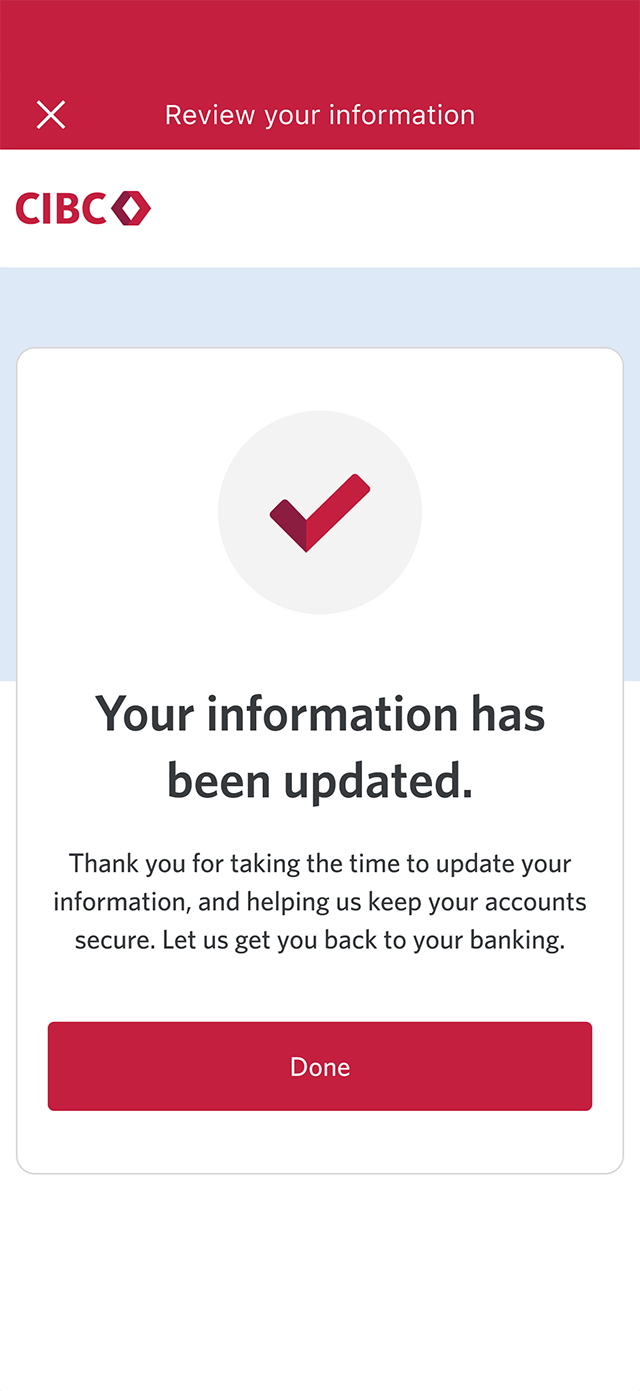
Step 13 : Great job!
You've successfully reviewed and confirmed your information on the CIBC Mobile Banking App.
An on-screen message will let you know that your information has been updated. Select the "Done" button to return to the app homepage.
Want an overview of all the steps?
For full instructions on how to review and confirm your information, check out the step-by-step process all in one place.
Recommended digital banking demos

How to update your contact information
How to reset your password

How to set up push notifications

How to manage your credit card
Get started

CIBC Online Banking®
Discover digital banking features that can help you bank easily online.
CIBC Mobile Banking® App
Stay connected to your finances on your mobile device, no matter where you are.

