
Digital banking tutorials

 How to manage your card
Learn how to manage your card with smart online features, such as setting a PIN and replacing a damaged card, available on CIBC Online Banking® and the CIBC Mobile Banking® App.
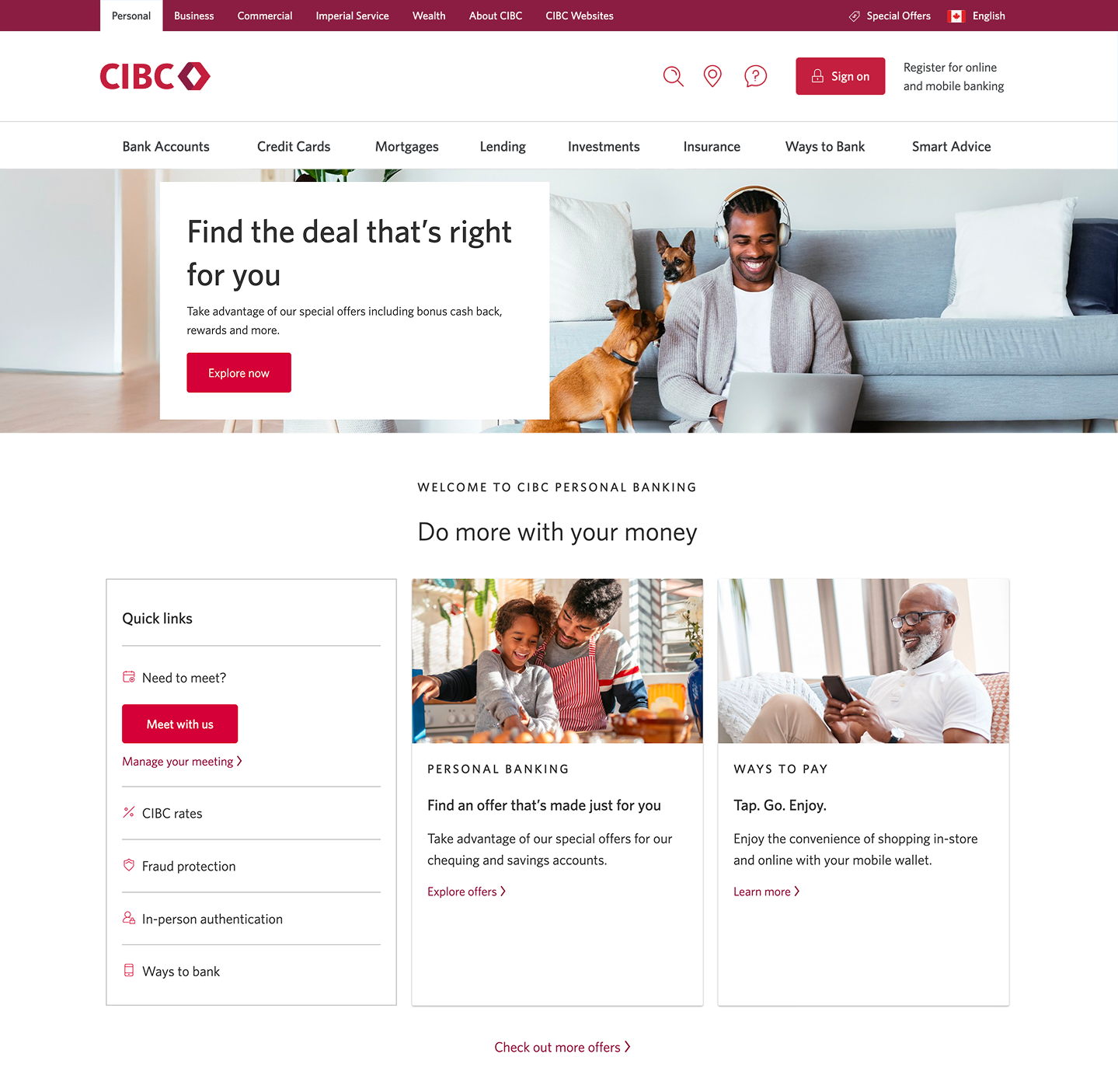
Demo screen 1: CIBC homepage. A pulsing animation highlights the "Sign on" button.
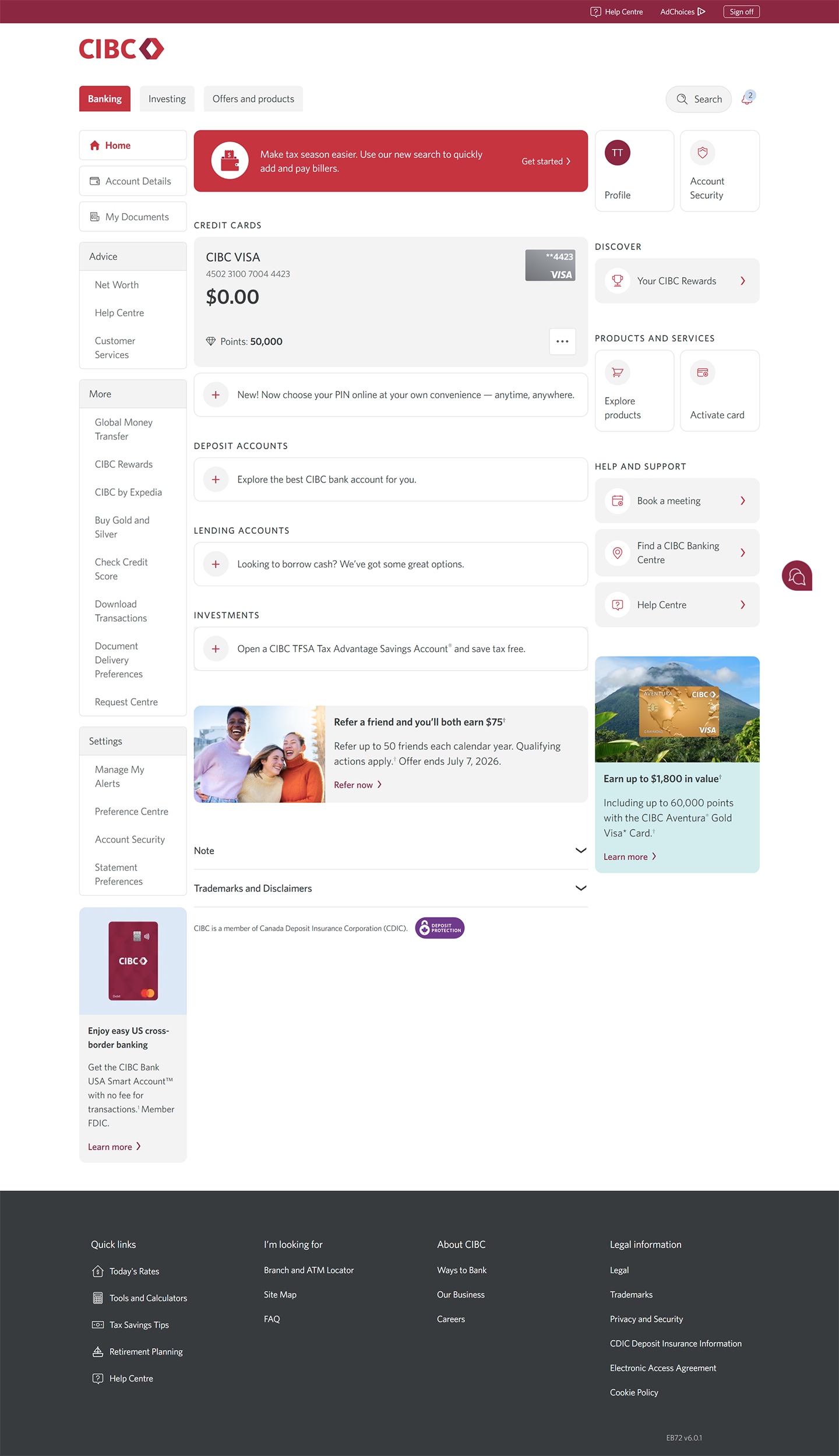
Demo screen 2: CIBC Online Banking homepage. A pulsing animation highlights the "More options" button for a credit card.
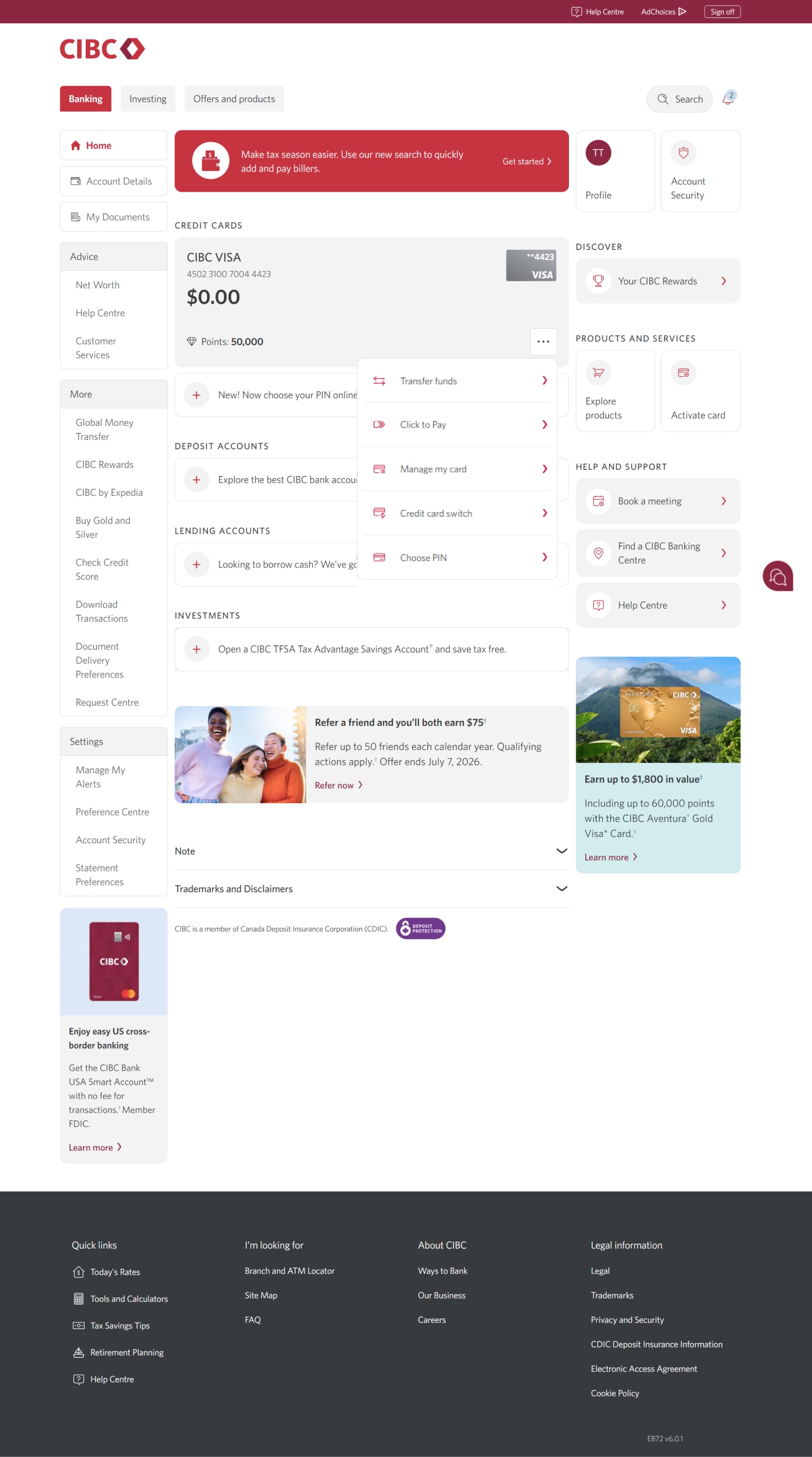
Demo screen 3: CIBC Online Banking homepage with a dropdown menu. A pulsing animation highlights the "Manage my card" link.
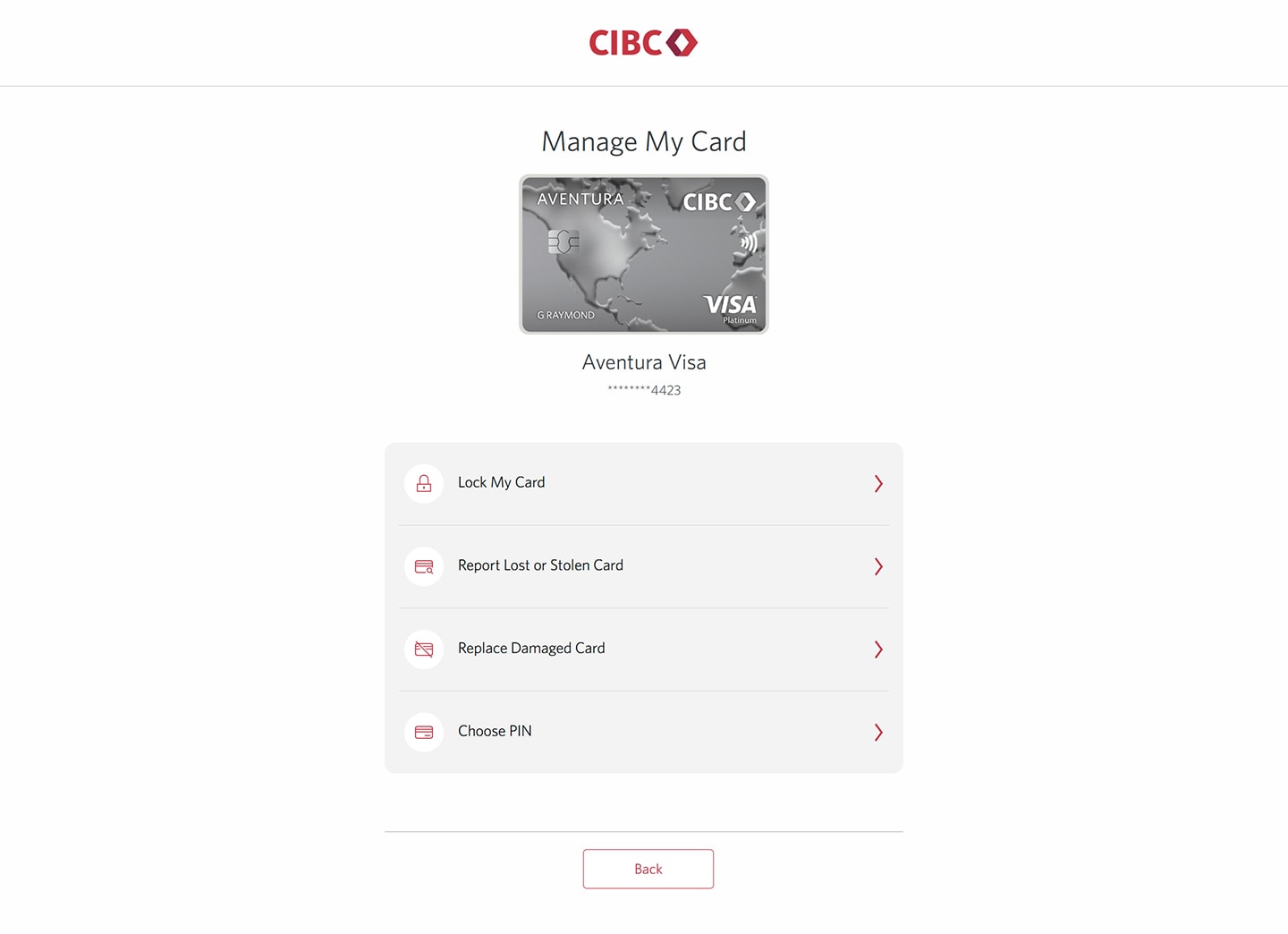
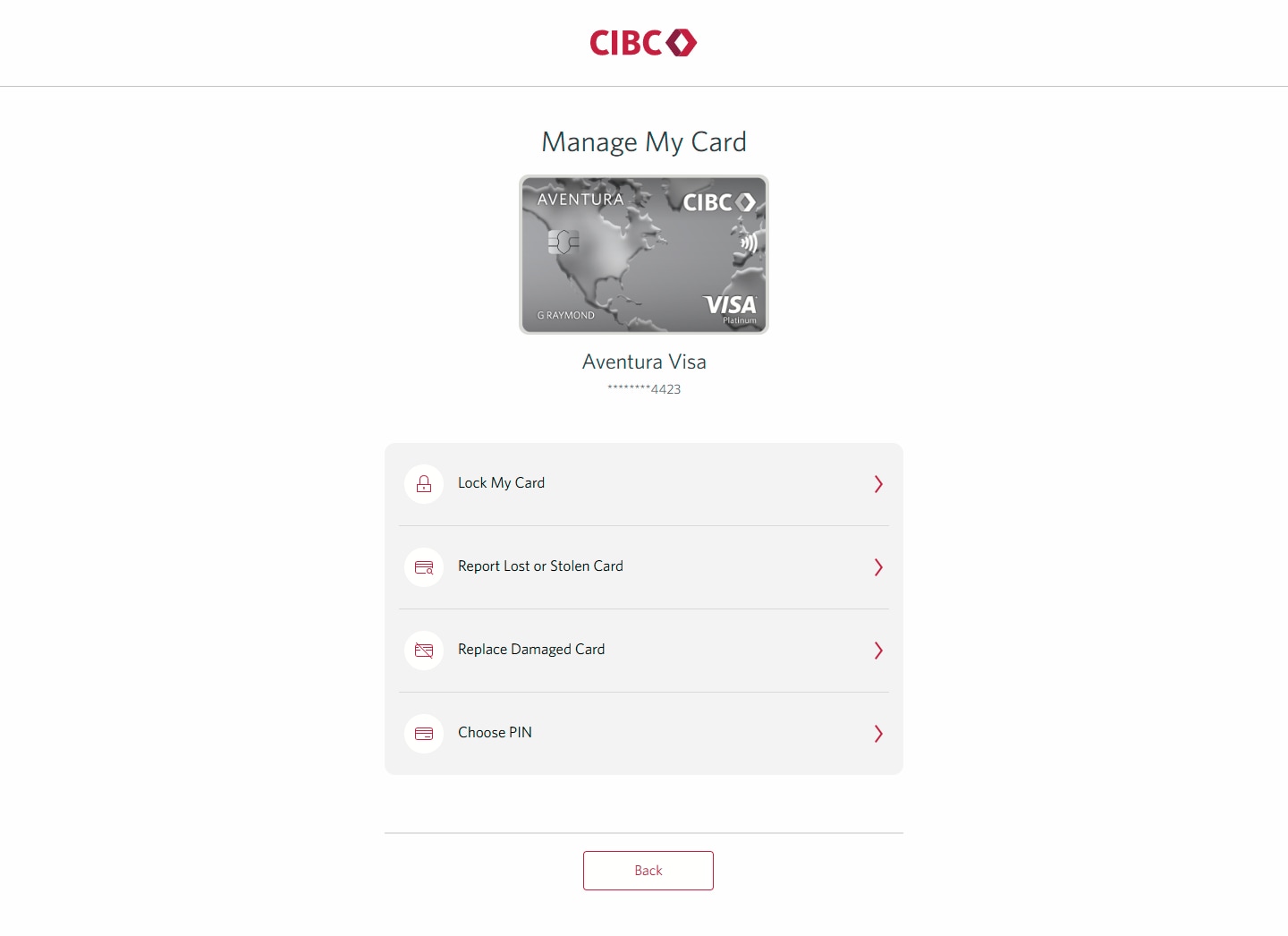
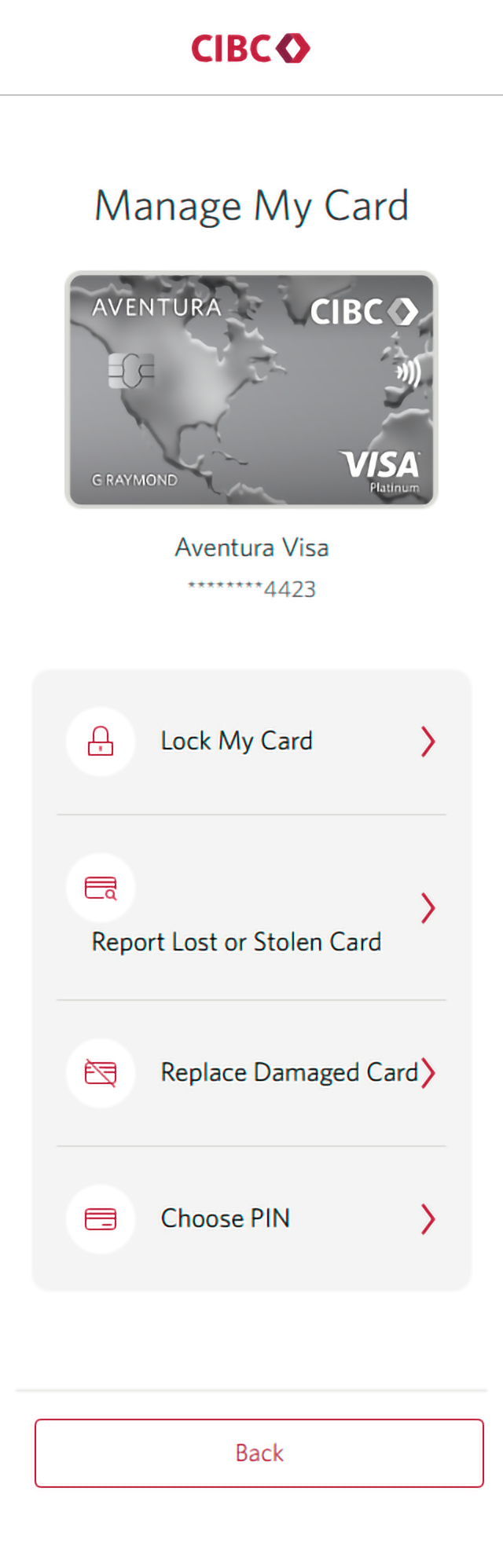
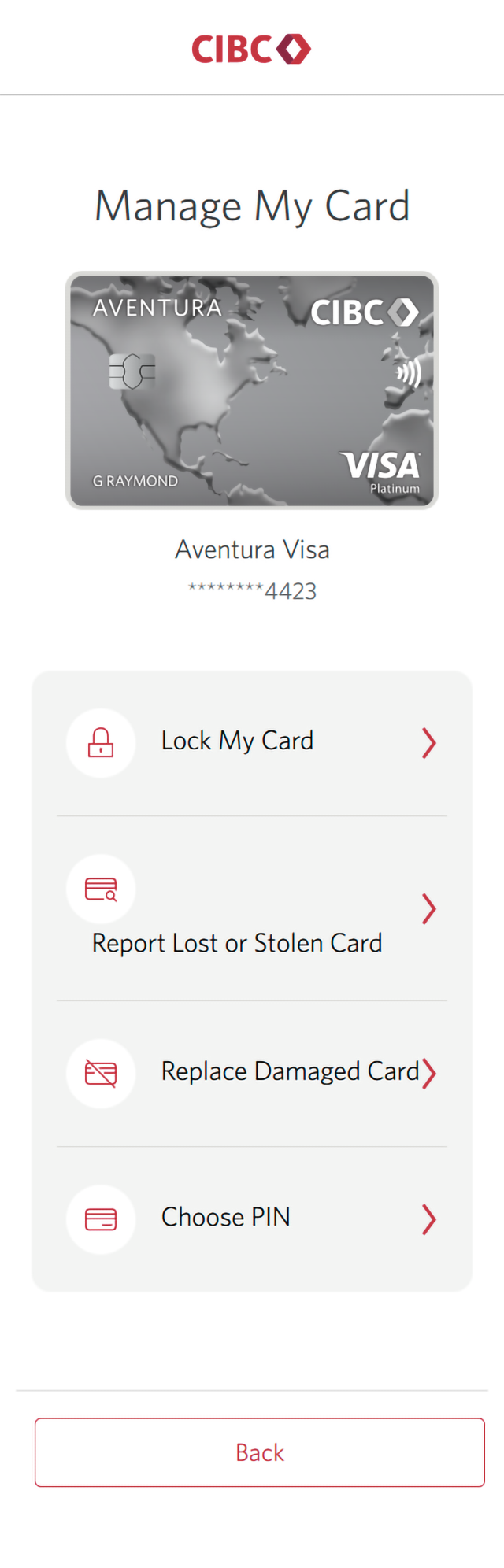
Demo screen 4: Manage My Card page for a card. A pulsing animation highlights the "Choose PIN" button on a list of actions.
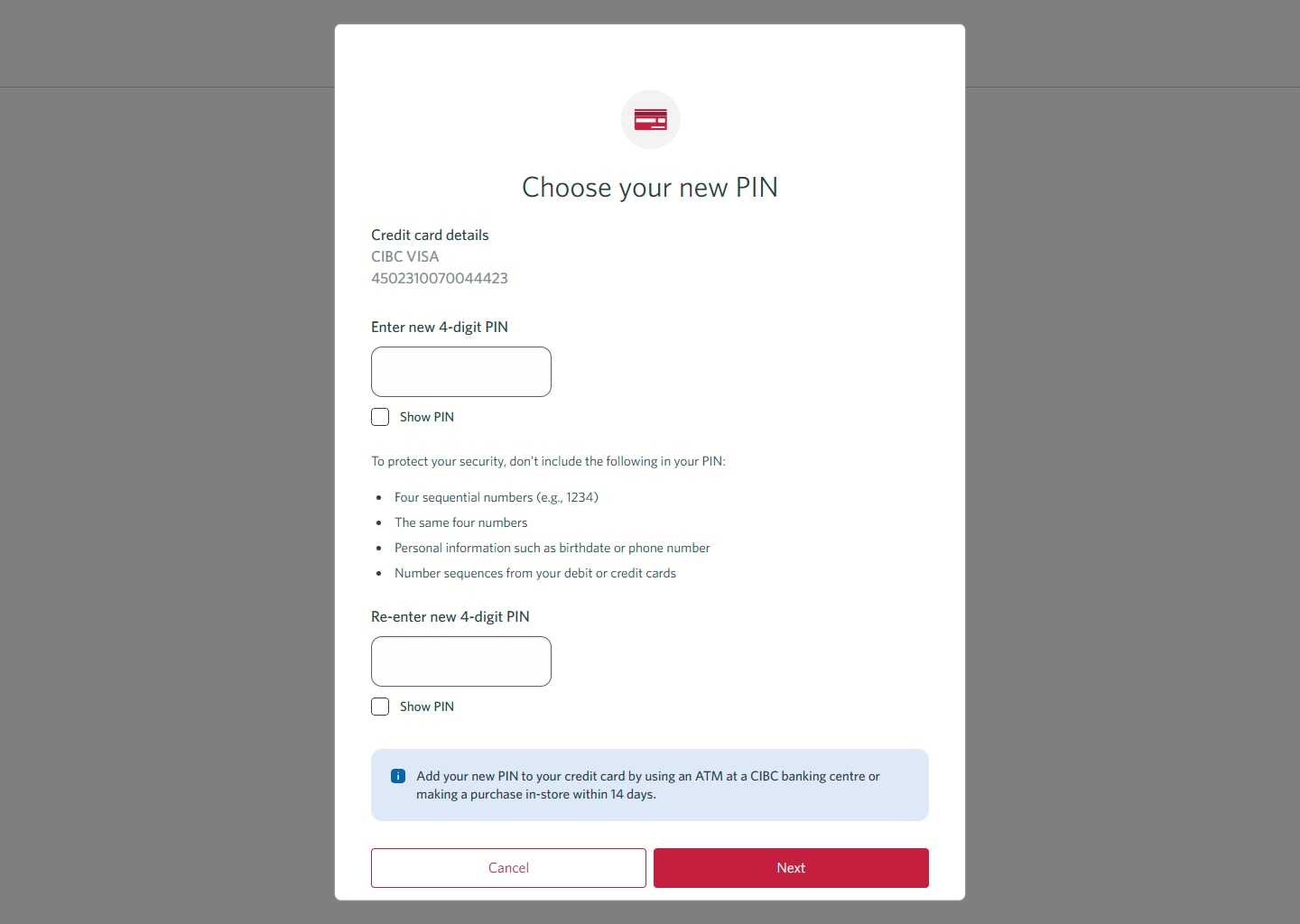
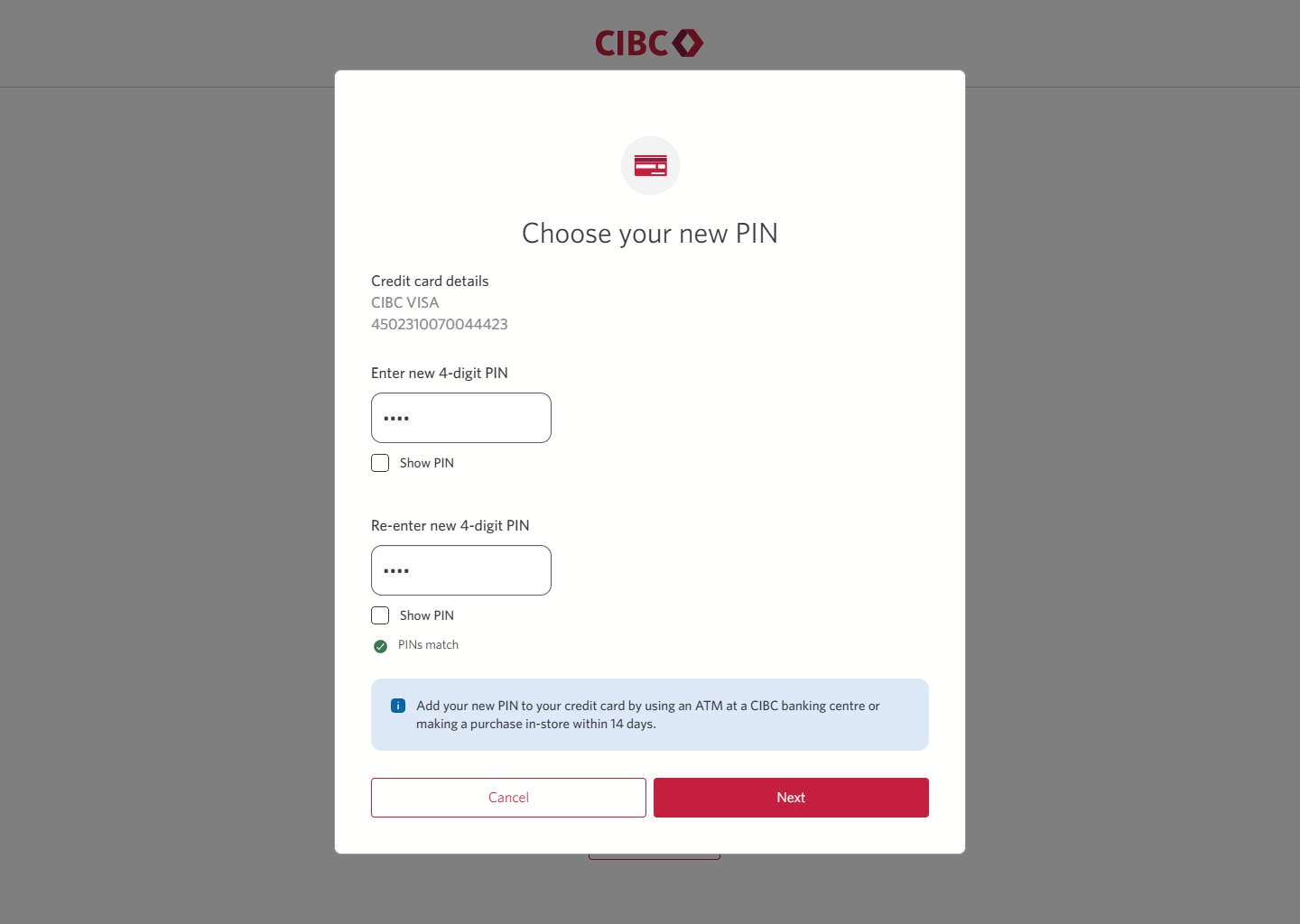
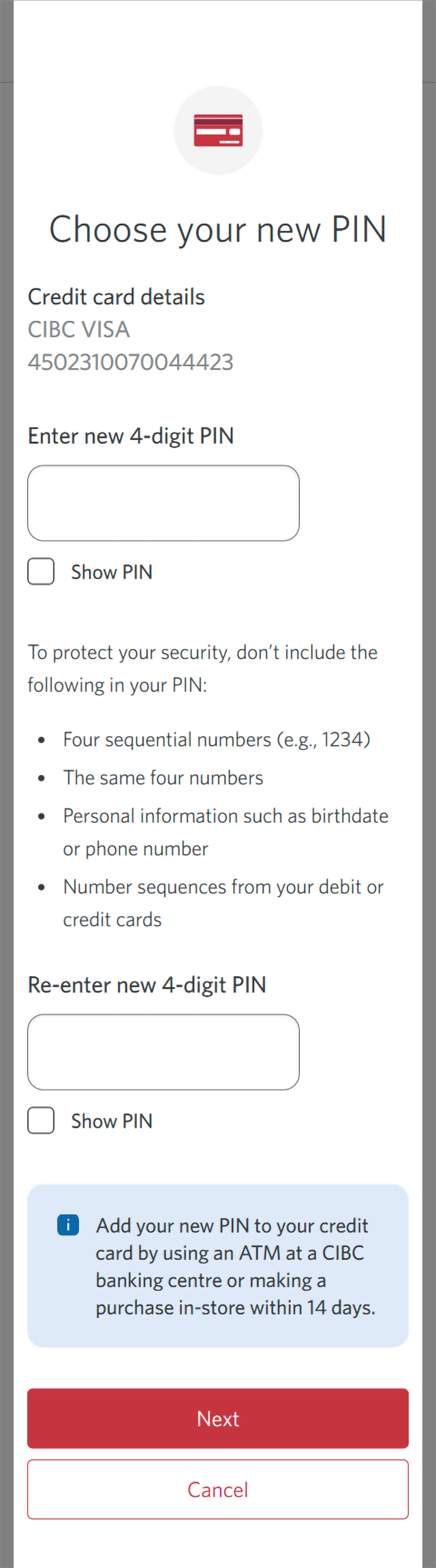
Demo screen 5: Dialog overlay to choose your new PIN. A pulsing animation highlights the "Enter a new 4-digit PIN" edit field.
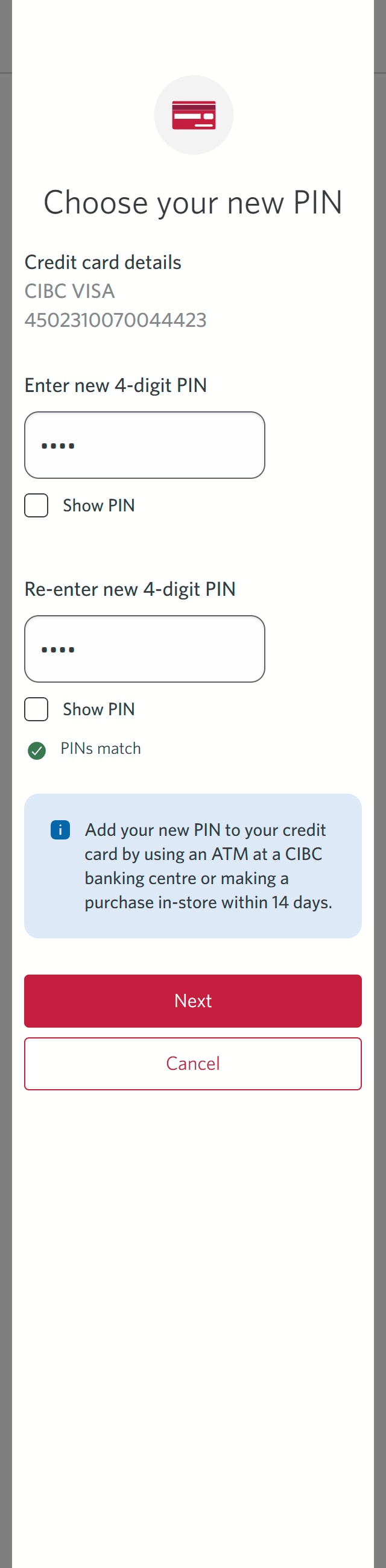
Demo screen 6: Dialog overlay to choose your new PIN. A pulsing animation highlights the "Next" button.
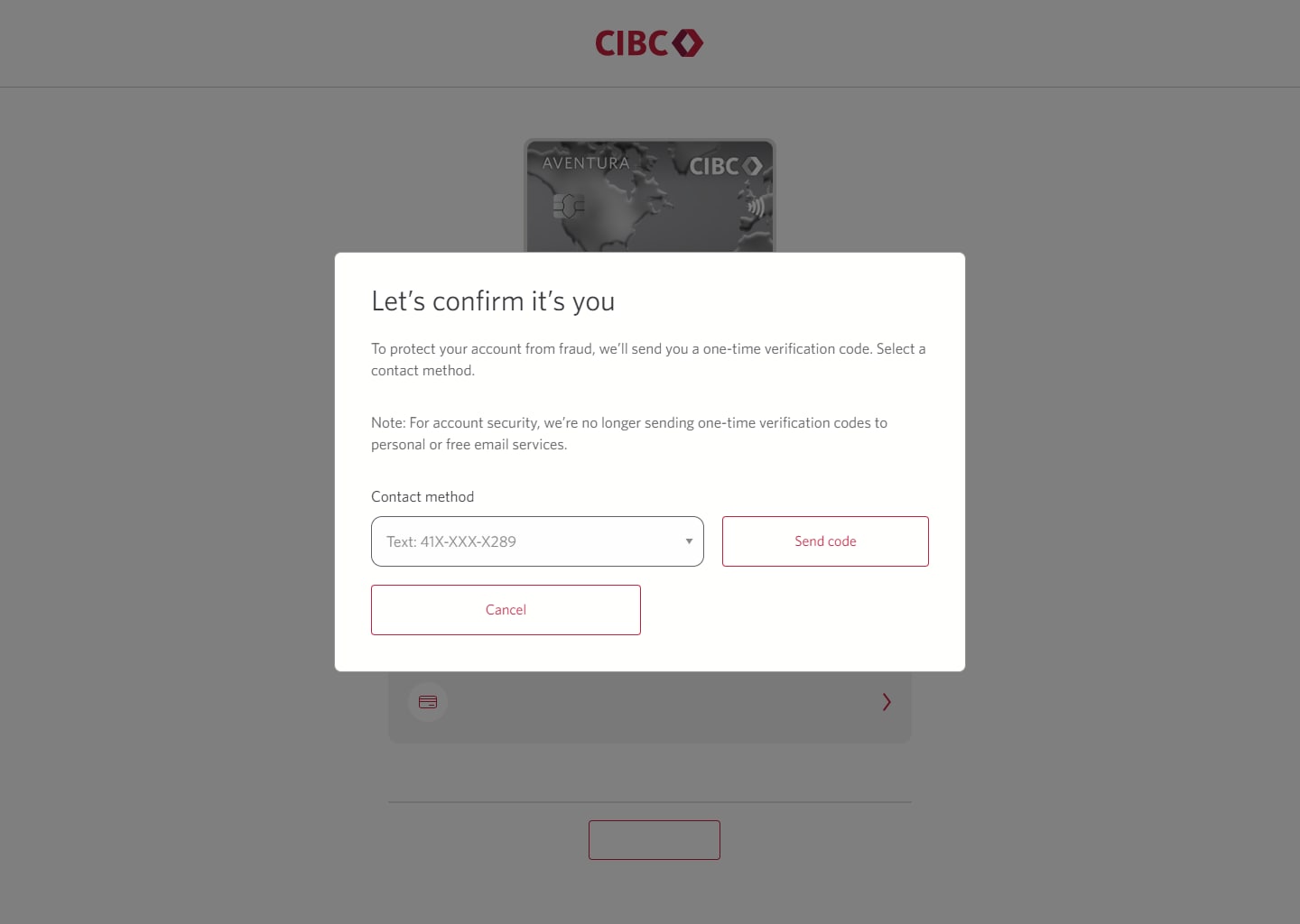
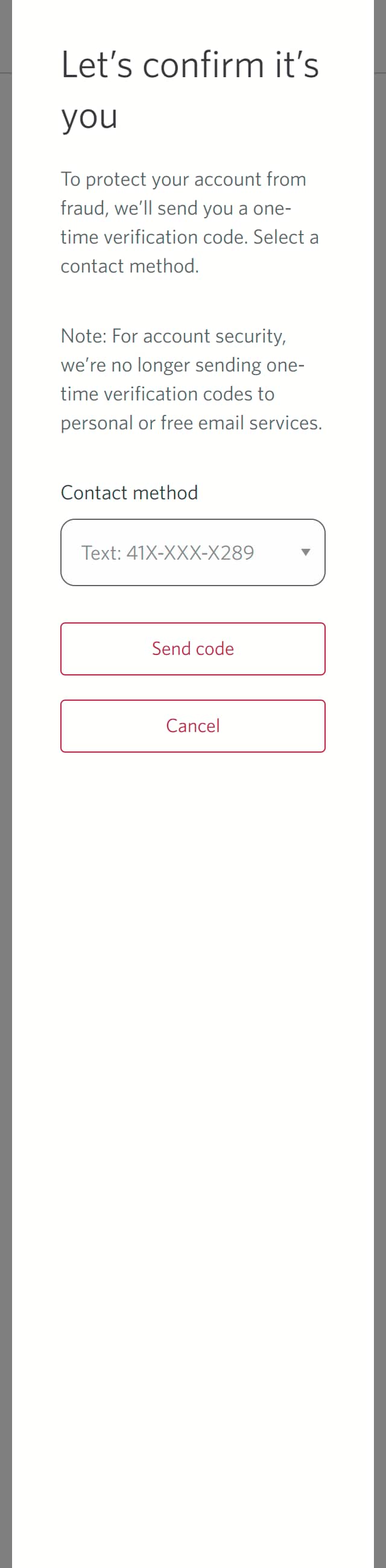
Demo screen 7: Dialog overlay with a form to confirm identity. A pulsing animation highlights the "Send code" button.
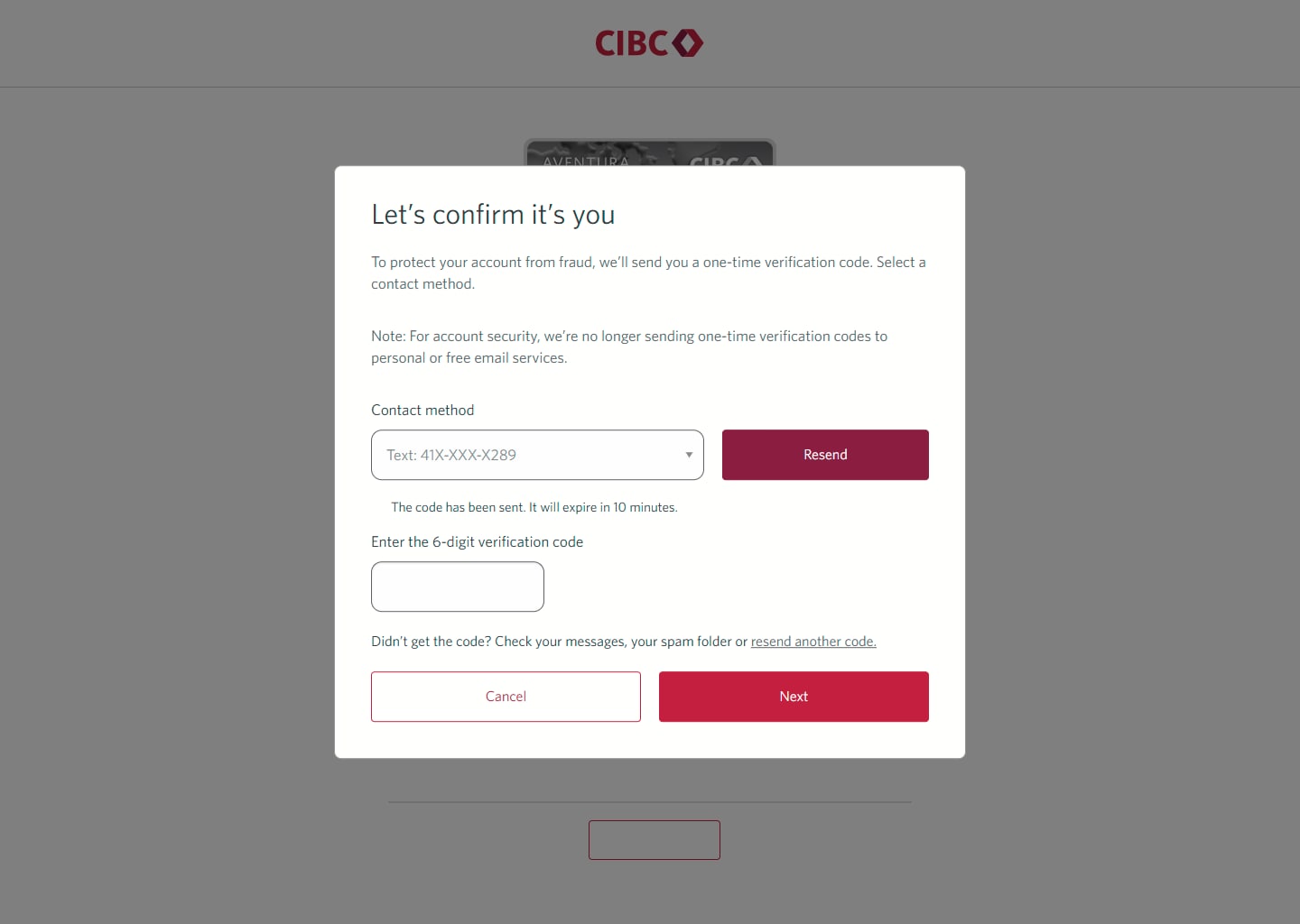
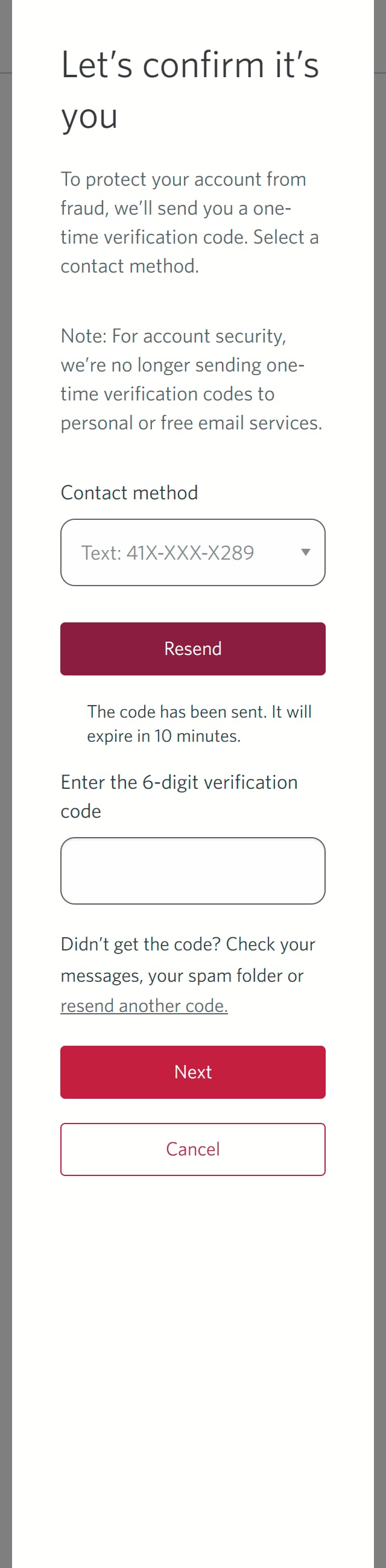
Demo screen 8: Dialog overlay with a form to confirm identity. A pulsing animation highlights the "Next" button.
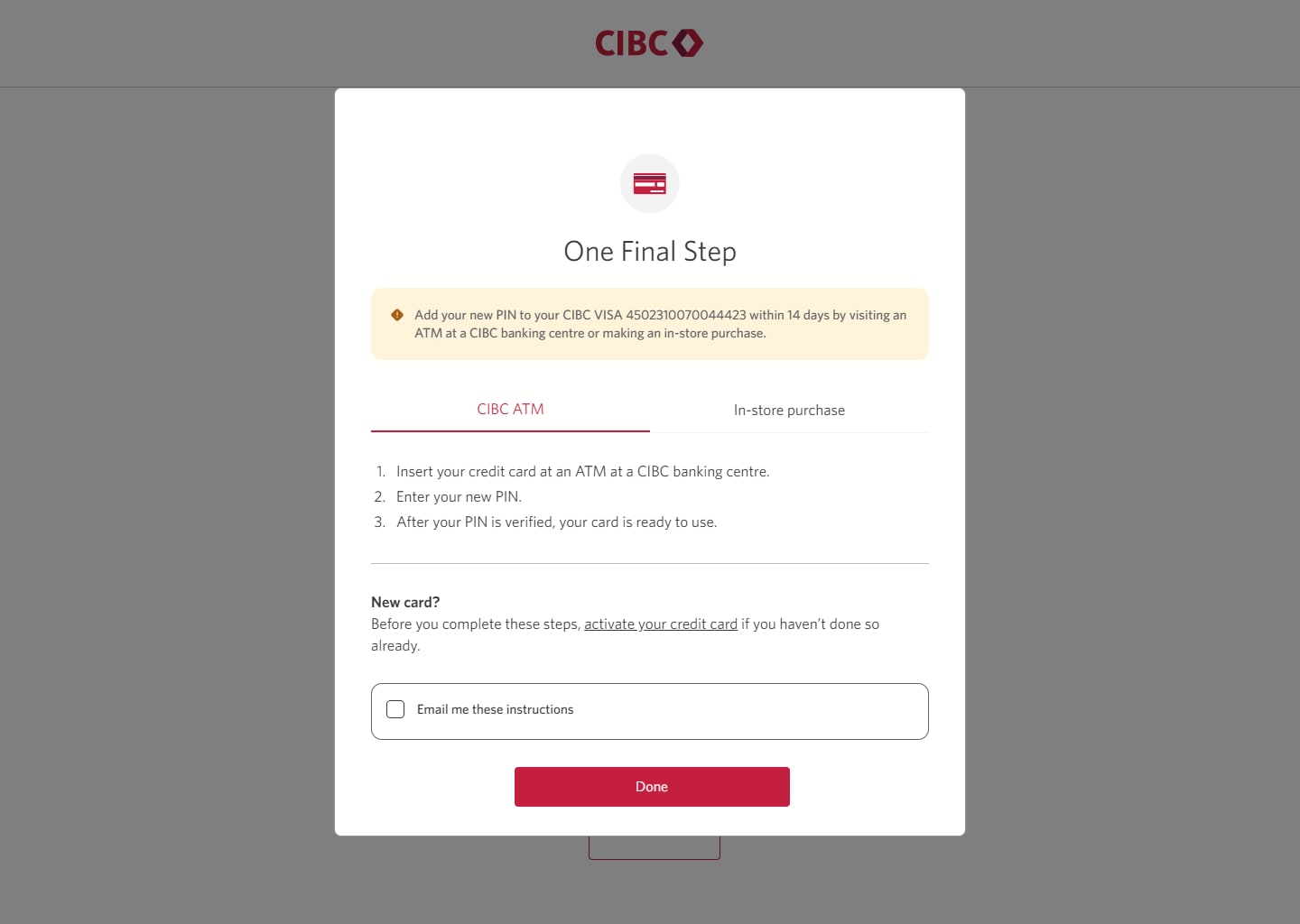
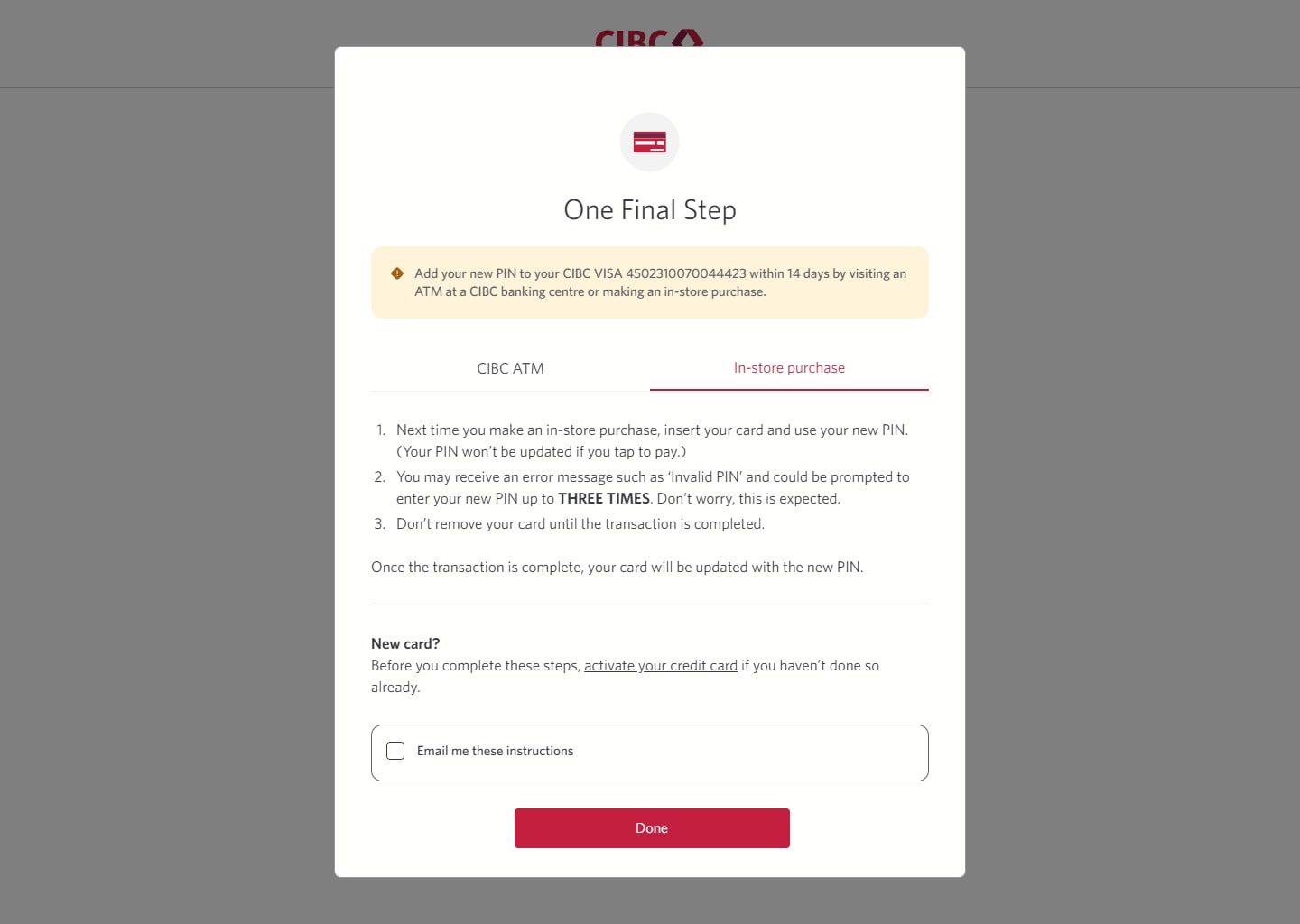
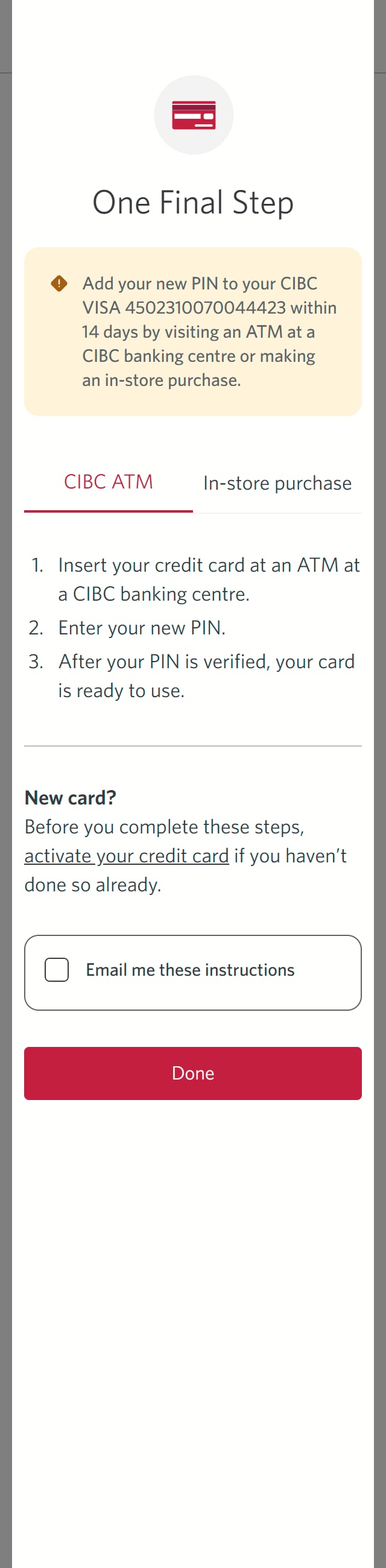
Demo screen 9: Dialog overlay with instructions to confirm your PIN in-person. A pulsing animation highlights the "In-store purchase" tab.
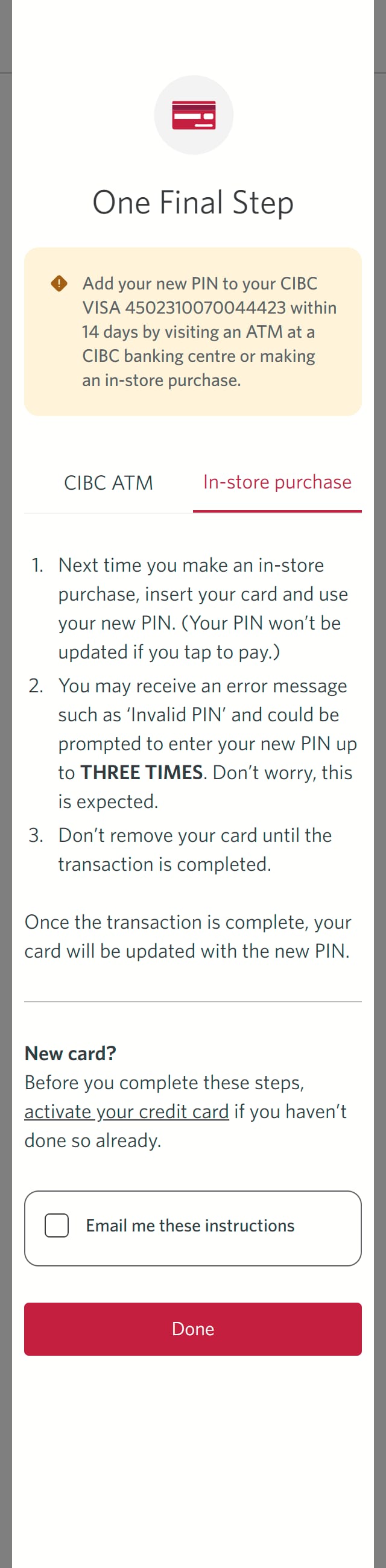
Demo screen 10: Dialog overlay with instructions to confirm your PIN in-person. A pulsing animation highlights the "Done" button.
Demo screen 11: Manage My Card page for a card. A pulsing animation highlights the "Replace Damaged Card" button on a list of actions.
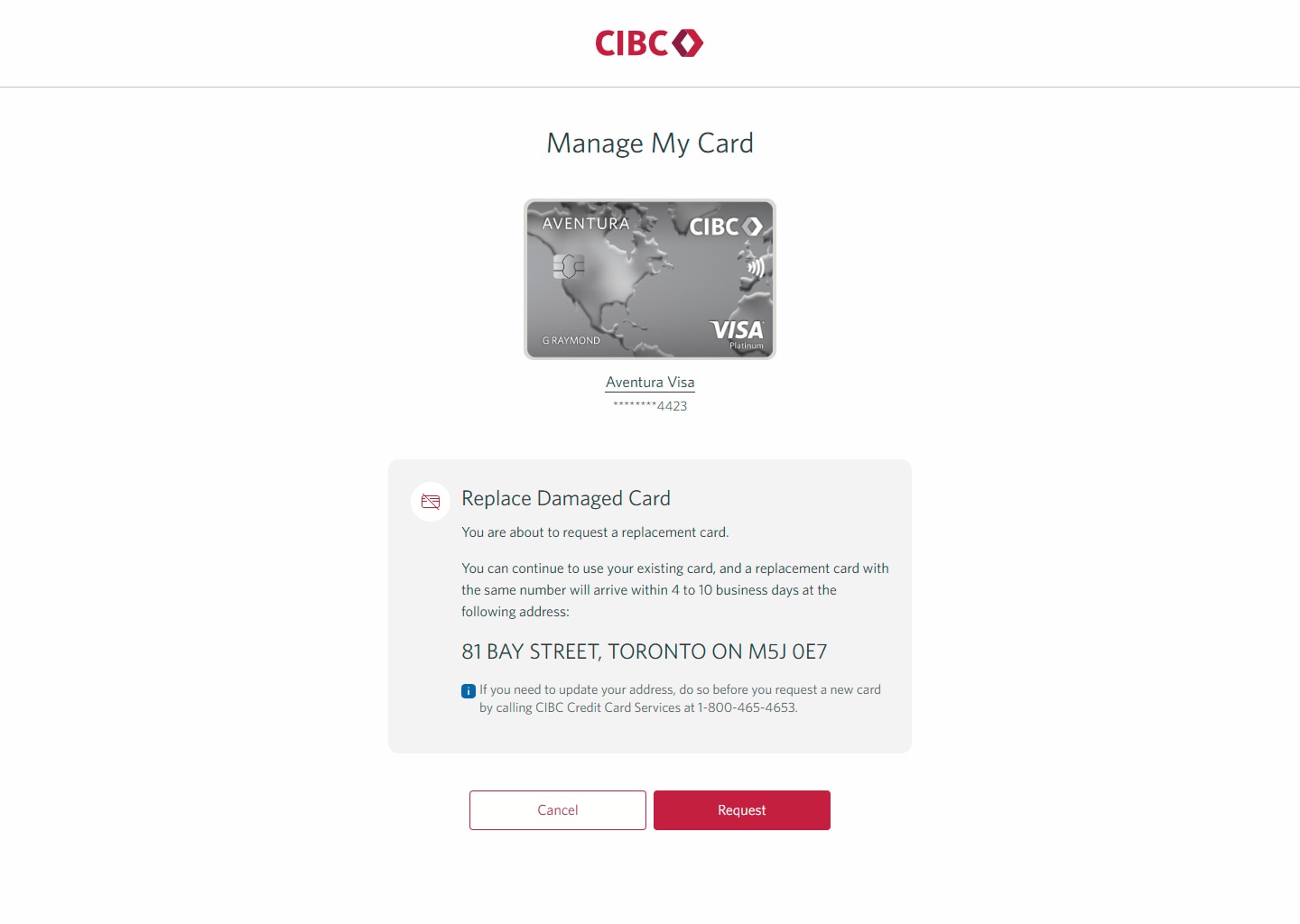
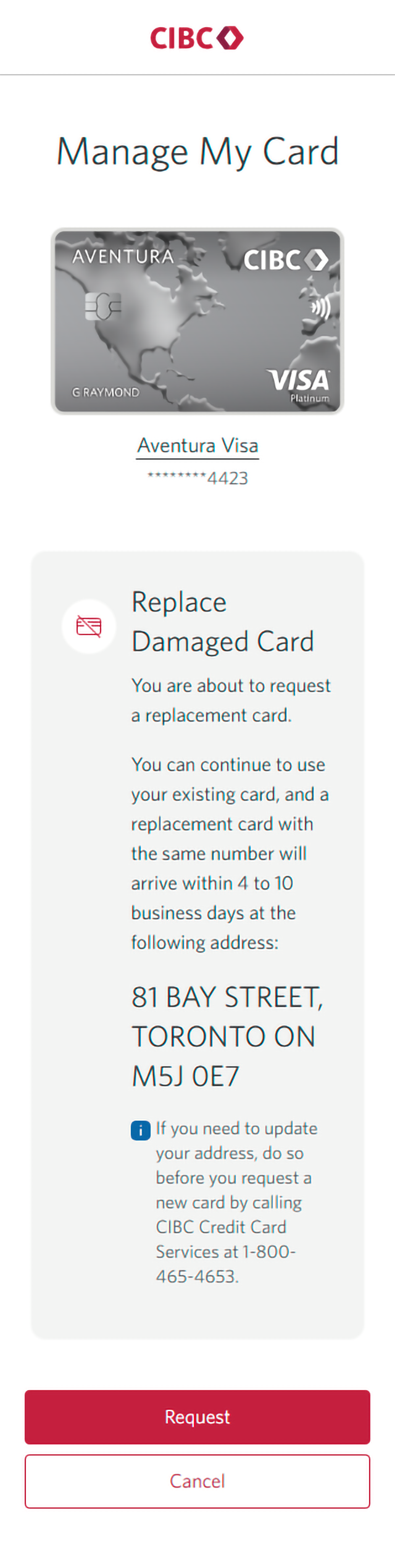
Demo screen 12: Manage My Card page for a card. A pulsing animation highlights the "Request" button.
Demo screen 13: Confirmation message that demo is complete. No pulsing animation.
Your progress 1 of

Step 1 : Let's get started on your web browser

Select the "Sign on" button in the demo to continue.

Step 2 : Choose which card to manage

On the CIBC Online Banking homepage, select the three-dot menu for the card you want to manage.

Step 3 : Manage your card

On the dropdown menu that opens, select "Manage my card" from the options.

First, we'll explore how to choose a new PIN for your card.

If you'd like to learn how to order a replacement for a damaged card, go to step 11.

Step 4 : Choose a PIN for your card

On the specific Manage My Card page for the credit card you chose, select "Choose PIN" from the menu.

Step 5 : Enter a 4-digit PIN

On the dialog box, enter a new 4-digit PIN.

Step 6 : Re-enter the PIN

Enter the PIN a second time to ensure both PIN entries match. Once you're done, select the "Next" button.

Step 7 : Verify your identity

You may be prompted to confirm your identity with a one-time verification code.

From the dropdown menu for "Contact method", choose your preferred method to receive the code and select the "Send code" button.

If you aren't prompted to enter a code, go to the next step.

Step 8 : Enter your verification code

Once the code has been sent to you, there will be a field to enter it.

Enter the verification code and select the "Next" button.

Step 9 : Validate your PIN with your card in-person

Once you've provided the verification code to confirm your PIN, you'll also need to verify it in-person.

Within 14 days of saving this new PIN, visit a CIBC ATM or complete an in-store purchase using the PIN to ensure the PIN is validated and saved.

Review the instructions for how to validate your PIN at a CIBC ATM. When you're finished, select the "In-store purchase" tab.

Step 10 : Find out how to validate your PIN in-store

Review the instructions for validating your PIN in-store by making a purchase with your card. Once you're finished, select the "Done" button to continue.

Step 11 : Select the option to replace a damaged card

On the Manage My Card page, select the "Replace Damaged Card" option.

Step 12 : Request a new card

To replace a damaged card, ensure the delivery address where you'd like to receive the replacement card is correct. Then, select the "Request" button.

Step 13 : Great job!

You've successfully learned how to manage your credit card. 

If you requested a replacement card, there will be a message on-screen confirming the expected delivery time and delivery address you specified.

Demo screen 1: CIBC homepage. A pulsing animation highlights the "Sign on" button.
Demo screen 2: CIBC Online Banking homepage. A pulsing animation highlights the "More options" button for a credit card.
Demo screen 3: CIBC Online Banking homepage with a dropdown menu. A pulsing animation highlights the "Manage my card" link.
Demo screen 4: Manage My Card page for a card. A pulsing animation highlights the "Choose PIN" button on a list of actions.
Demo screen 5: Dialog overlay to choose your new PIN. A pulsing animation highlights the "Enter a new 4-digit PIN" edit field.
Demo screen 6: Dialog overlay to choose your new PIN. A pulsing animation highlights the "Next" button.
Demo screen 7: Dialog overlay with a form to confirm identity. A pulsing animation highlights the "Send code" button.
Demo screen 8: Dialog overlay with a form to confirm identity. A pulsing animation highlights the "Next" button.
Demo screen 9: Dialog overlay with instructions to confirm your PIN in-person. A pulsing animation highlights the "In-store purchase" tab.
Demo screen 10: Dialog overlay with instructions to confirm your PIN in-person. A pulsing animation highlights the "Done" button.
Demo screen 11: Manage My Card page for a card. A pulsing animation highlights the "Replace Damaged Card" button on a list of actions.
Demo screen 12: Manage My Card page for a card. A pulsing animation highlights the "Request" button.
Demo screen 13: Confirmation message that demo is complete. No pulsing animation.
Your progress 1 of

Step 1 : Let's get started on your web browser

Select the "Sign on" button in the demo to continue. 

Step 2 : Choose which card to manage

On the CIBC Online Banking homepage, select the three-dot menu for the card you want to manage.

Step 3 : Manage your card

On the dropdown menu that opens, select "Manage my card" from the options.

First, we'll explore how to choose a new PIN for your card.

If you'd like to learn how to order a replacement for a damaged card, go to step 11.

Step 4 : Choose a PIN for your card

On the specific Manage My Card page for the credit card you chose, select "Choose PIN" from the menu.

Step 5 : Enter a 4-digit PIN

On the dialog box, enter a new 4-digit PIN.

Step 6 : Re-enter the PIN

Enter the PIN a second time to ensure both PIN entries match. Once you're done, select the "Next" button.

Step 7 : Verify your identity

You may be prompted to confirm your identity with a one-time verification code.

From the dropdown menu for "Contact method", choose your preferred method to receive the code and select the "Send code" button.

If you aren't prompted to enter a code, go to the next step.

Step 8 : Enter your verification code

Once the code has been sent to you, there will be a field to enter it. 

Enter the verification code and select the "Next" button.

Step 9 : Validate your PIN with your card in-person

Once you've provided the verification code to confirm your PIN, you'll also need to verify it in-person. 

Within 14 days of saving this new PIN, visit a CIBC ATM or complete an in-store purchase using the PIN to ensure the PIN is validated and saved. 

Review the instructions for how to validate your PIN at a CIBC ATM. When you're finished, select the "In-store purchase" tab.

Step 10 : Find out how to validate your PIN in-store

Review the instructions for validating your PIN in-store by making a purchase with your card. Once you're finished, select the "Done" button to continue.

Step 11 : Select the option to replace a damaged card

On the Manage My Card page, select the "Replace Damaged Card" option.

Step 12 : Request a new card

To replace a damaged card, ensure the delivery address where you'd like to receive the replacement card is correct. Then, select the "Request" button.

Step 13 : Great job!

You've successfully learned how to manage your credit card.

If you requested a replacement card, there will be a message on-screen confirming the expected delivery time and delivery address you specified.

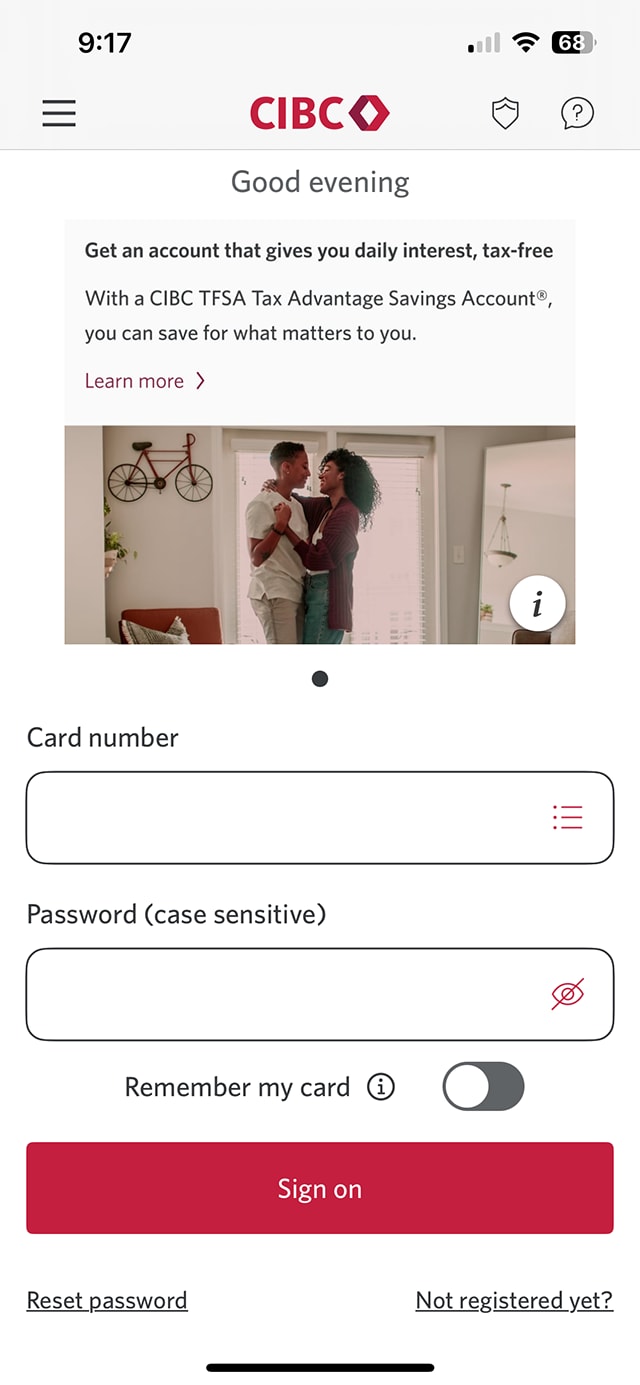
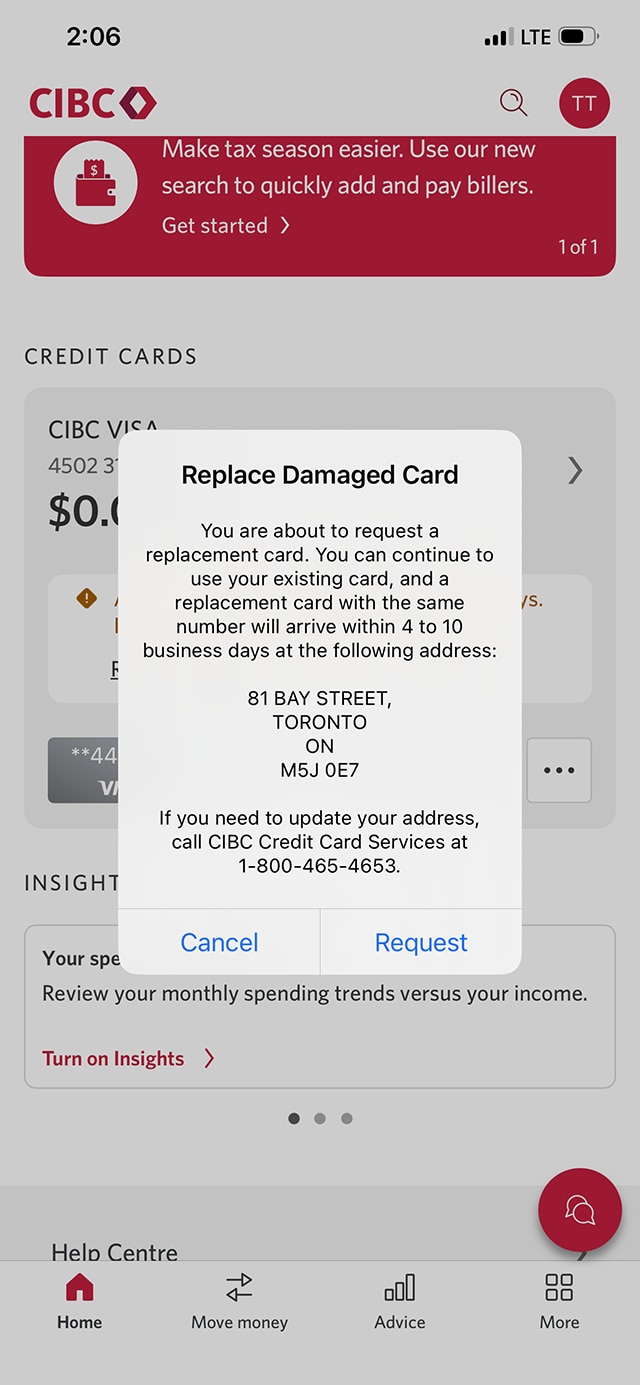
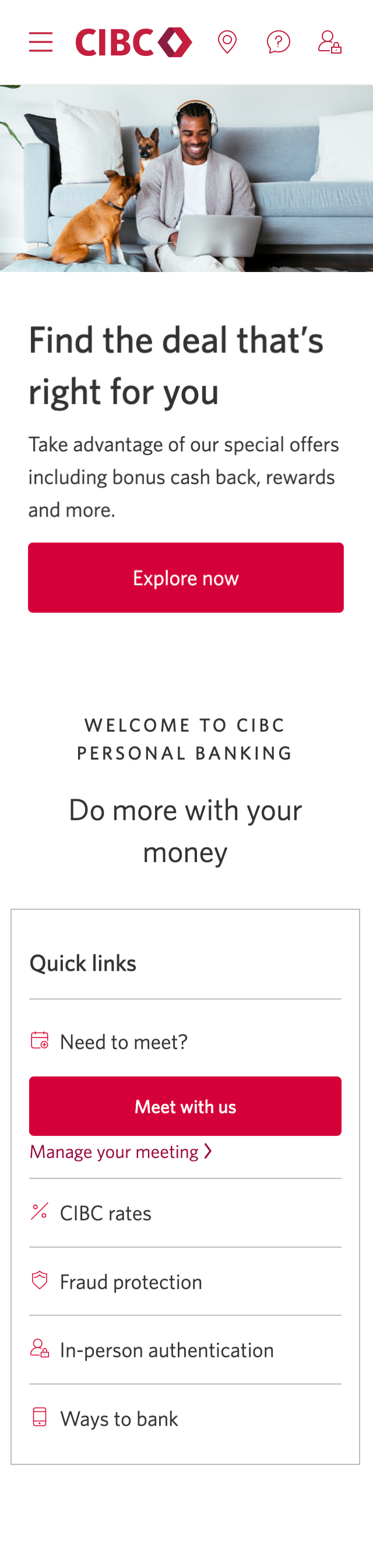
Demo screen 1: CIBC Mobile Banking App sign on screen. A pulsing animation highlights the "Sign on" button.
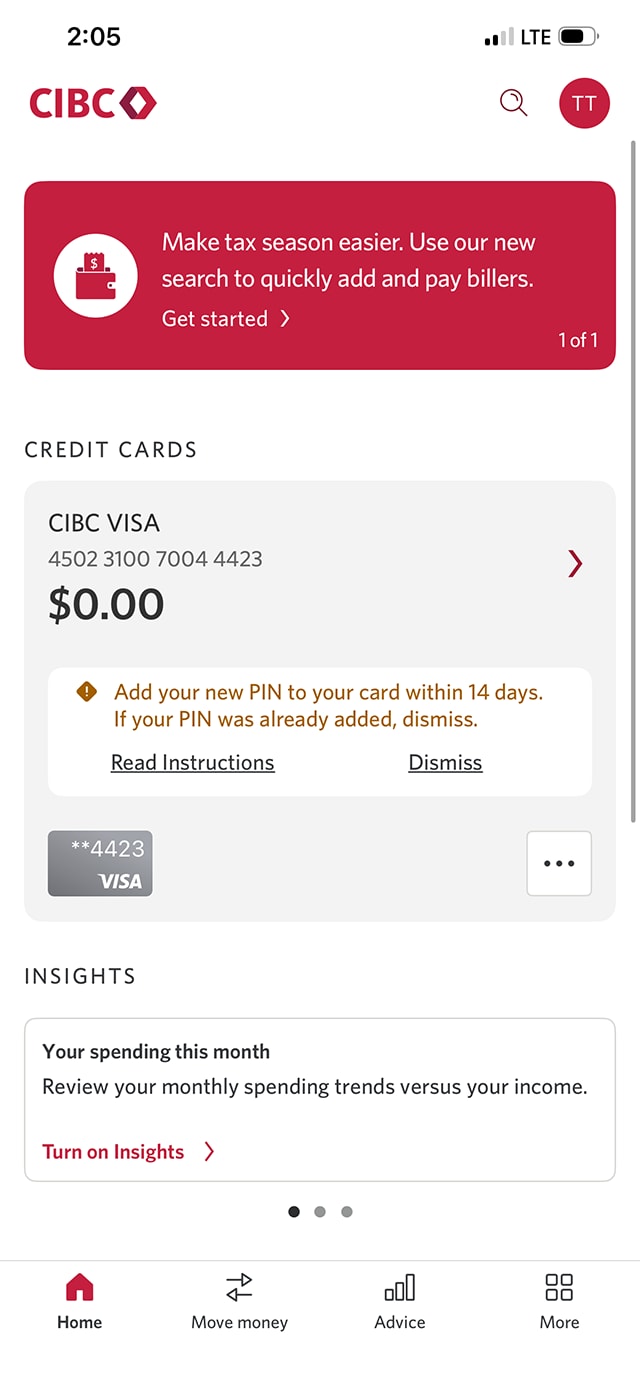
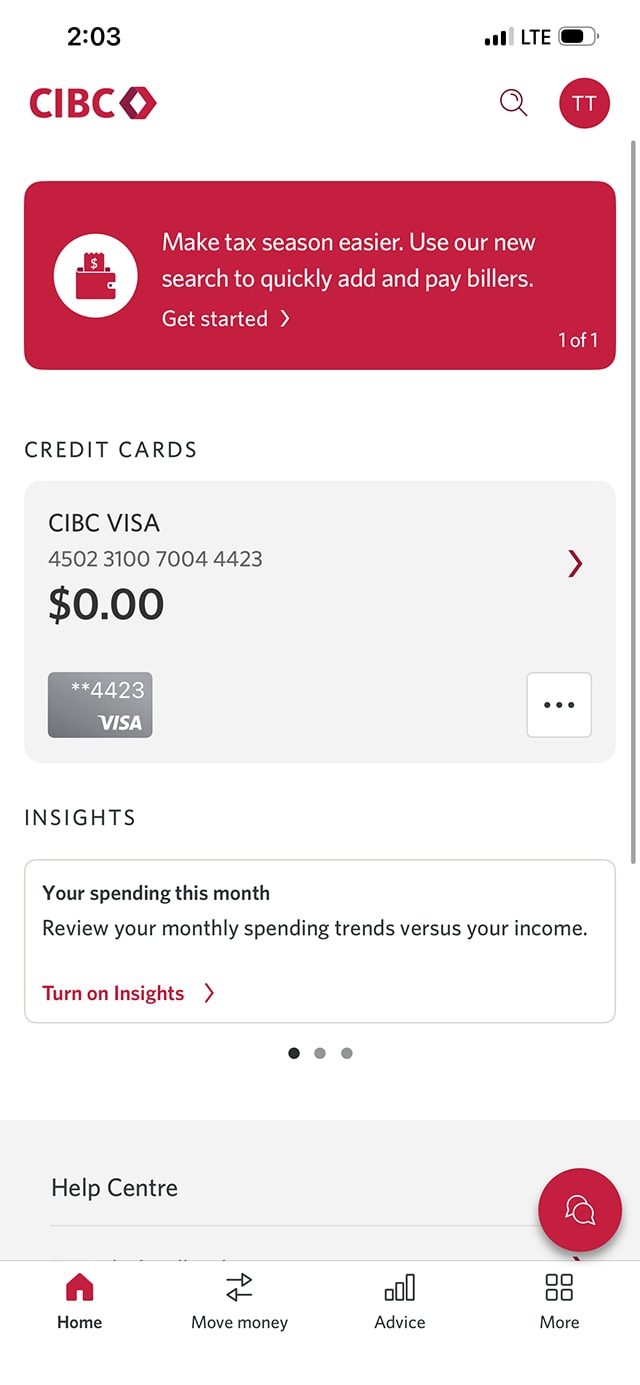
Demo screen 2: CIBC Mobile Banking App homepage. A pulsing animation highlights the three-dot menu for a credit card.
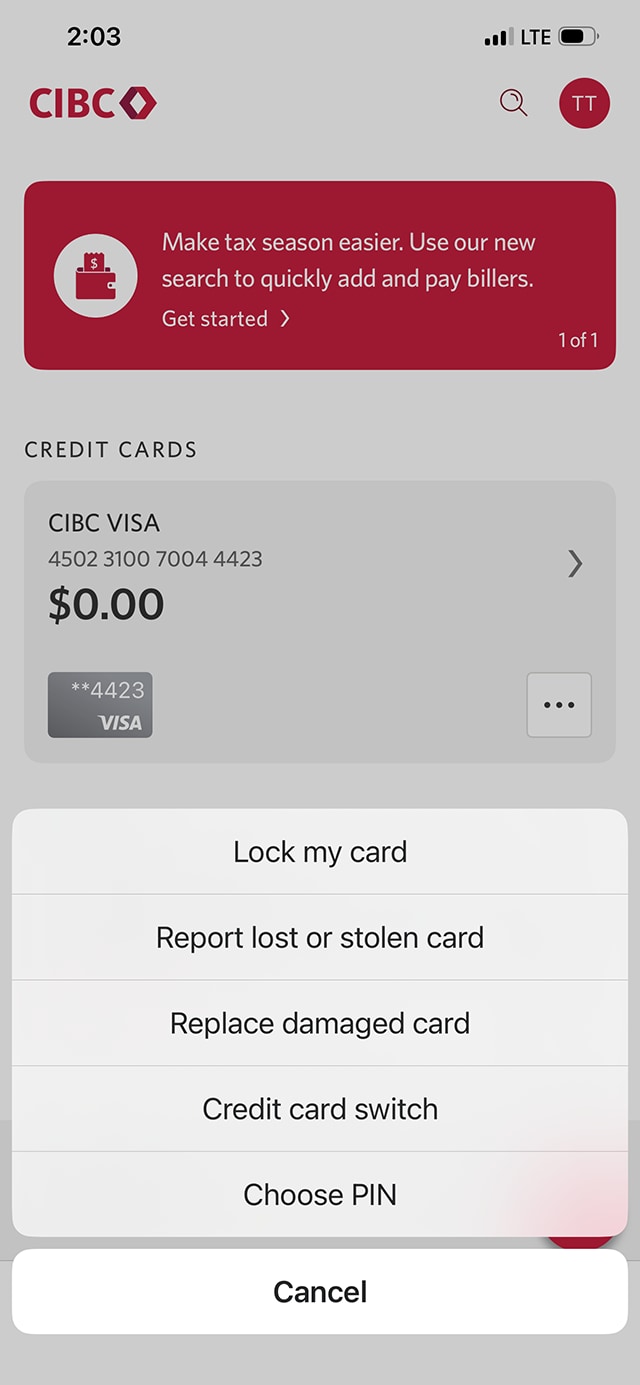
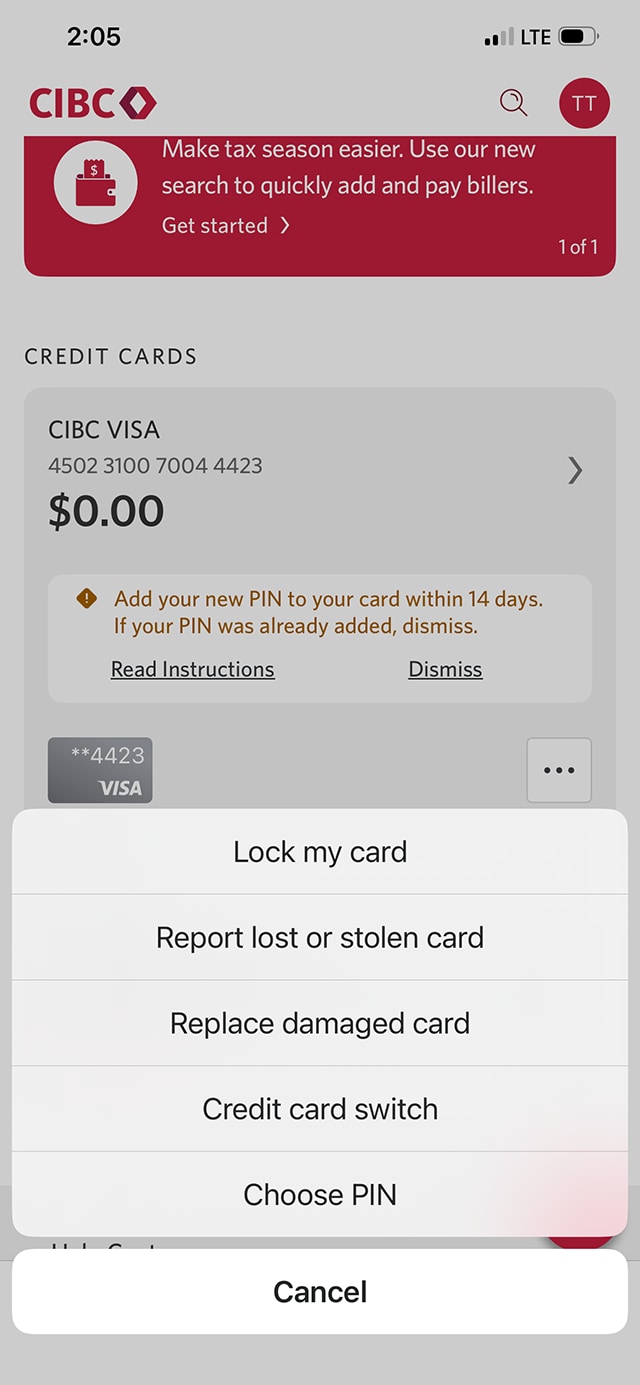
Demo screen 3: CIBC Mobile Banking App homepage with a dropdown menu overlay. A pulsing animation highlights the "Choose PIN" button.
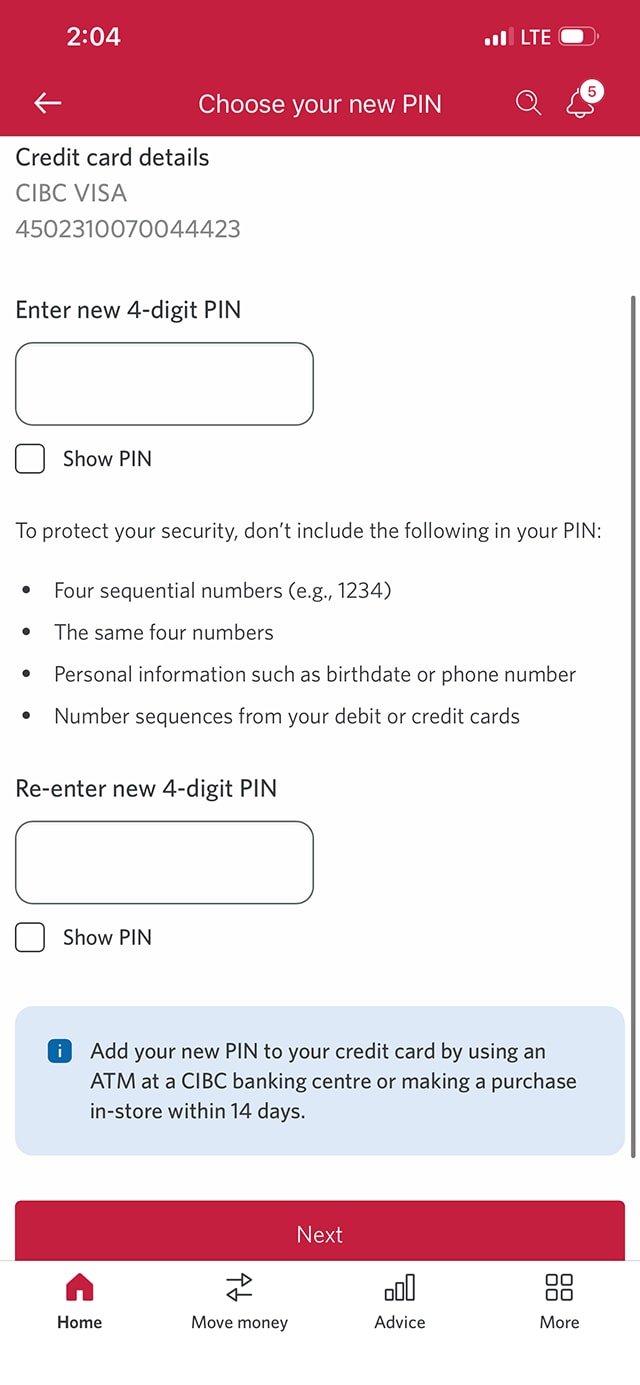
Demo screen 4: Dialog overlay to choose your new PIN. A pulsing animation highlights the "Enter a new 4-digit PIN" edit field.
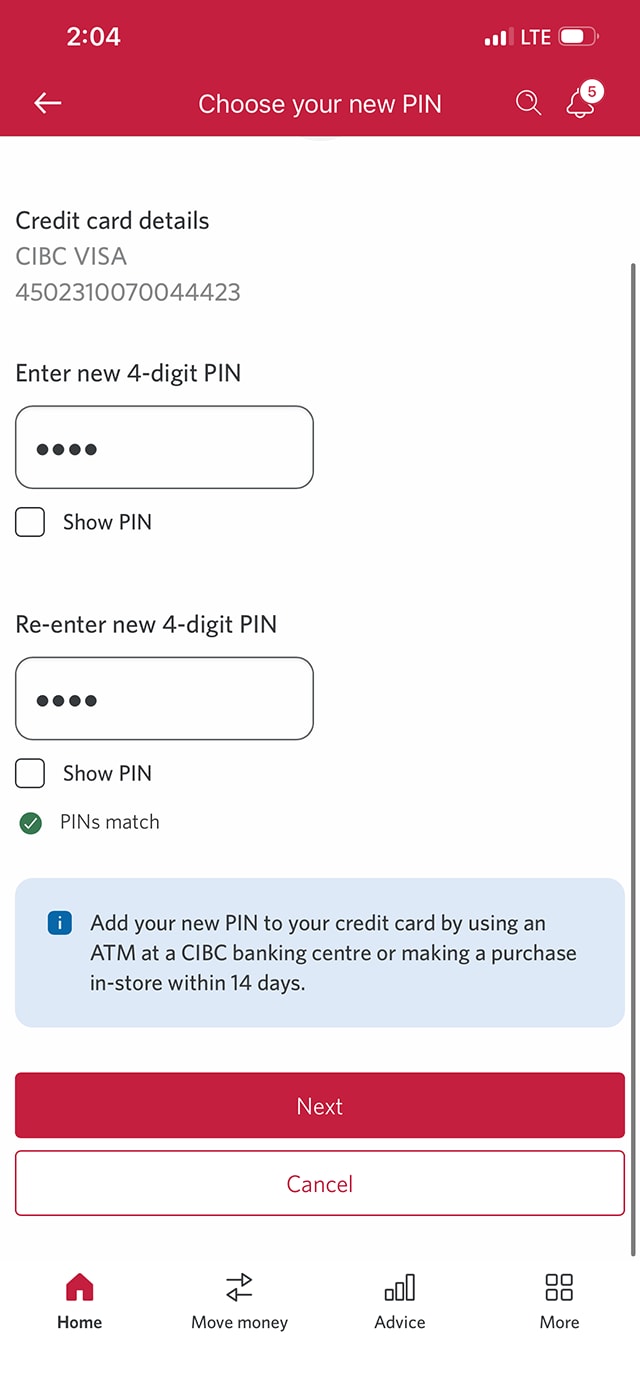
Demo screen 5: Dialog overlay to choose your new PIN. A pulsing animation highlights the "Next" button.
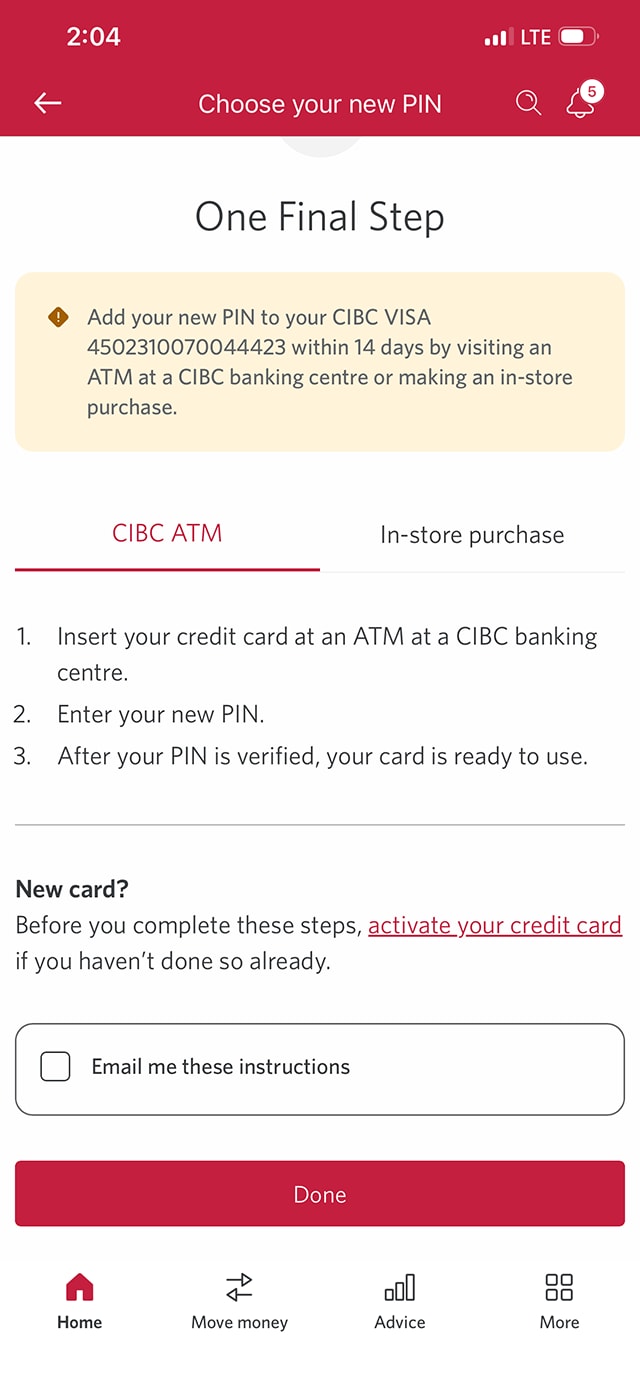
Demo screen 6: Choose your new PIN page with instructions to confirm your PIN in-person. A pulsing animation highlights the "In-store purchase" tab.
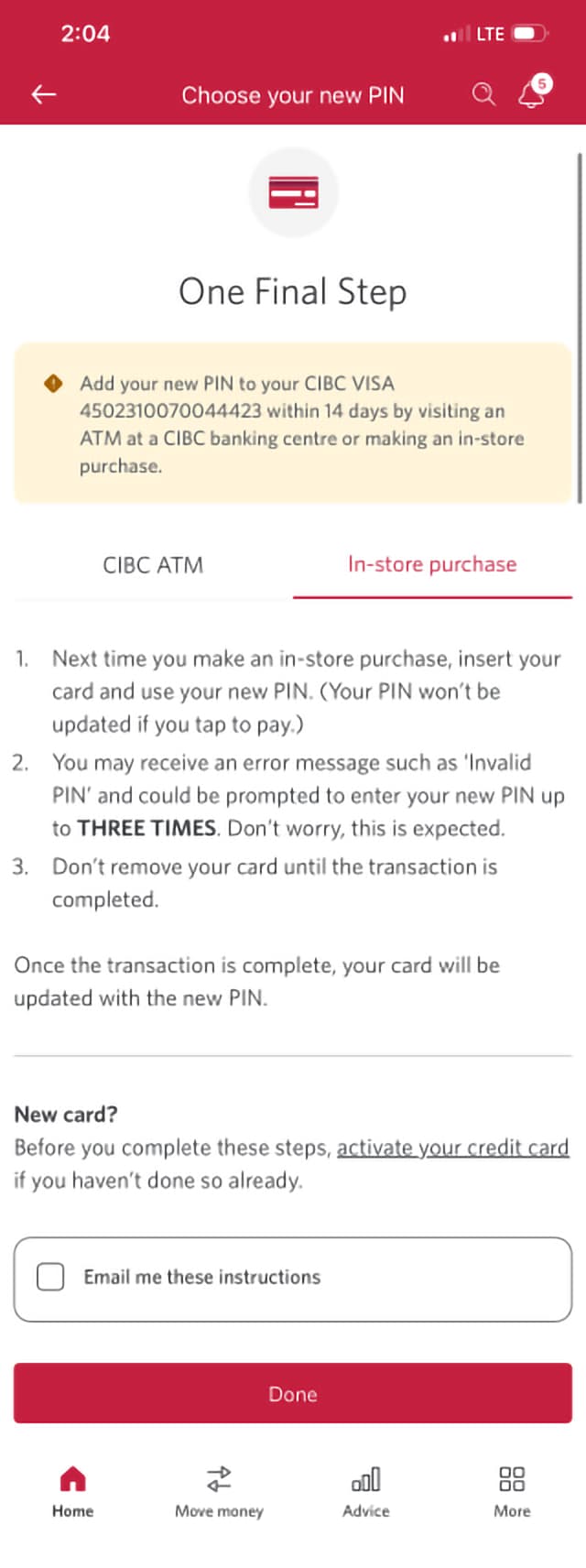
Demo screen 7: Choose your new PIN page with instructions to confirm your PIN in-person. A pulsing animation highlights the "Done" button.
Demo screen 8: CIBC Online Banking homepage. A pulsing animation highlights the three-dot menu for a credit card.
Demo screen 9: Manage My Card page for a card. A pulsing animation highlights the "Replace damaged card" button on a list of actions.
Demo screen 10: Manage My Card page with overlay to replace a card. A pulsing animation highlights the "Request" button.
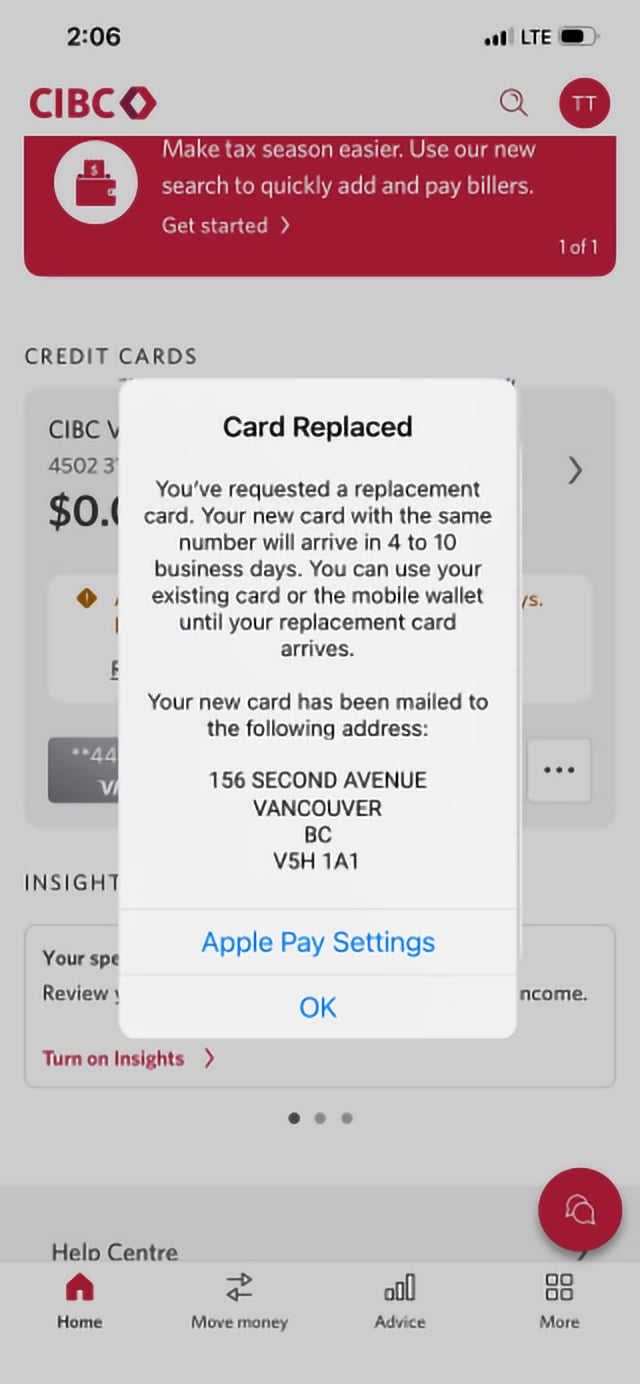
Demo screen 11: Confirmation message stating that a replacement card has been requested. No pulsing animation.
Your progress 1 of

Step 1 : Let's get started on the mobile app

Select the "Sign on" button in the demo to continue.

Step 2 : Choose which card to manage

On the CIBC Mobile Banking App homepage, select the three-dot menu for the card you want to manage.

First, we'll explore how to choose a new PIN for your card.

If you'd like to learn how to order a replacement for a damaged card, go to step 9.

Step 3 : Select "Choose PIN"

On the dropdown menu, select "Choose PIN" from the options.

Step 4 : Enter a 4-digit PIN

In the field provided, enter a new 4-digit PIN.

Step 5 : Re-enter the PIN

Enter the PIN a second time to ensure both PIN entries match. Once you're done, select the "Next" button.

As part of this step, you may be prompted to confirm your identity with a one-time verification code.

If you aren't prompted to enter a code, go to the next step.

If you do get asked for a code, open the dropdown menu for "Contact method", choose your preferred method to receive the code and select the "Send code" button.

Once the code has been sent to you, there will be a field to enter it. Enter the code and select the "Next" button to continue.

Step 6 : Validate your PIN with your card in-person

Once you've provided the verification code to confirm your PIN, you'll also need to verify it in-person.

Within 14 days of saving this new PIN, visit a CIBC ATM or complete an in-store purchase using the PIN to ensure the PIN is validated and saved.

Review the instructions for how to validate your PIN at a CIBC ATM. When you're finished, select the "In-store purchase" tab.

Step 7 : Find out how to validate your PIN in-store

Review the instructions for validating your PIN in-store by making a purchase with your card. Once you're finished, select the "Done" button to continue.

Step 8 : Learn how to replace a damaged card

On the CIBC Mobile Banking App homepage, select the three-dot menu for the card you want to manage.

Step 9 : Select the option to "Replace damaged card"

On the Manage My Card page, select the "Replace damaged card" option.

Step 10 : Request a new card

To replace a damaged card, ensure the delivery address where you'd like to receive the replacement card is correct. Then, select the "Request" button.

Step 11 : Great job!

You've successfully learned how to manage your credit card. 

If you requested a replacement card, there will be a message on-screen confirming the expected delivery time and delivery address you specified.
Want an overview of all the steps?

For full instructions on how to manage your card, check out the step-by-step process all in one place.

What to expect when locking your card

When should you lock your card?

When you’ve misplaced your card, you should lock it to prevent unauthorized transactions while searching for the card.

What can you still do with a locked card?

You won’t be able to use the card for new transactions, but you’ll still be able to access your account information through CIBC Online Banking, the mobile app and CIBC ATMs. You’ll also be able to manage and redeem points associated with your credit card.
Recommended digital banking demos

How to pay a bill with CIBC Online or Mobile Banking

Start demo on how to pay a bill with CIBC Online or Mobile Banking.

How to lock or unlock your credit card

Start demo on how to lock or unlock your credit card.

How to replace a lost or stolen credit card

Start demo on how to replace a lost or stolen credit card.

How to dispute a credit card transaction

Start demo on how to dispute a credit card transaction.

Get started

CIBC Online Banking®

Discover digital banking features that can help you bank easily online.
CIBC Mobile Banking® App

Stay connected to your finances on your mobile device, no matter where you are.