
Digital banking tutorials

How to pay a bill

Learn how to manage your payees and schedule future bill payments in just a few steps with CIBC Online Banking® and the CIBC Mobile Banking App®.
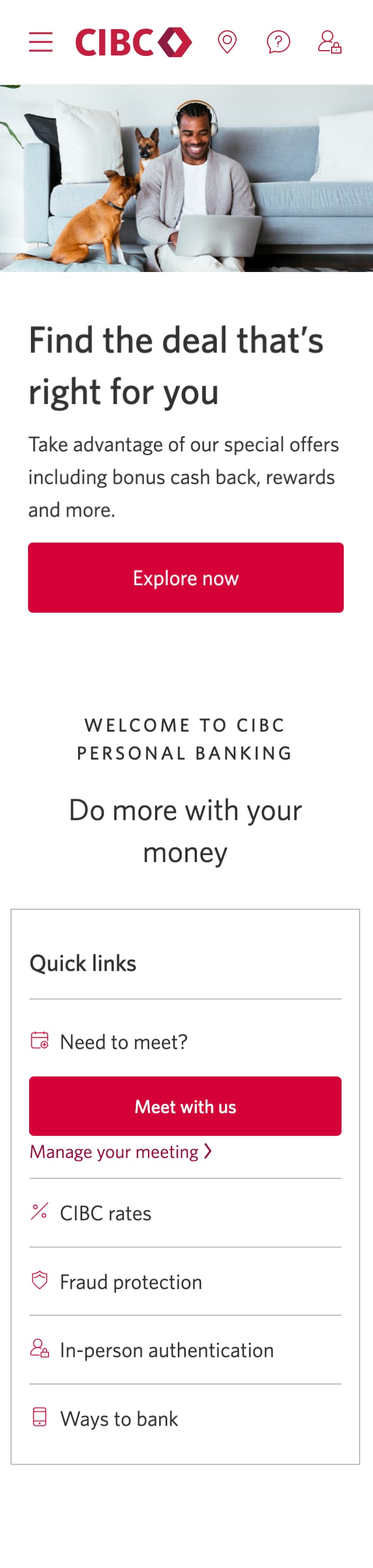
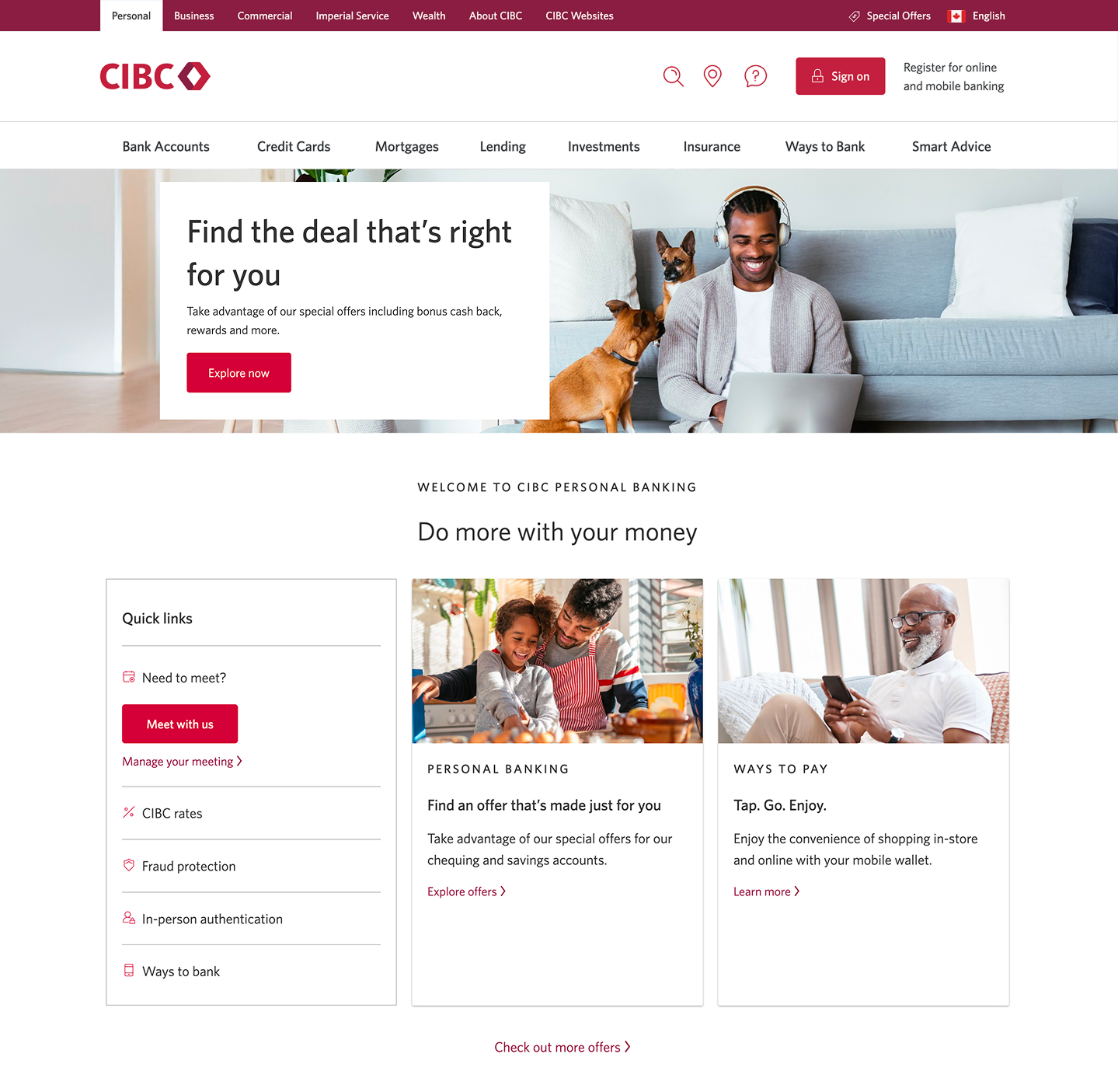
Demo screen 1: CIBC homepage. A pulsing animation highlights the "Sign on" button.
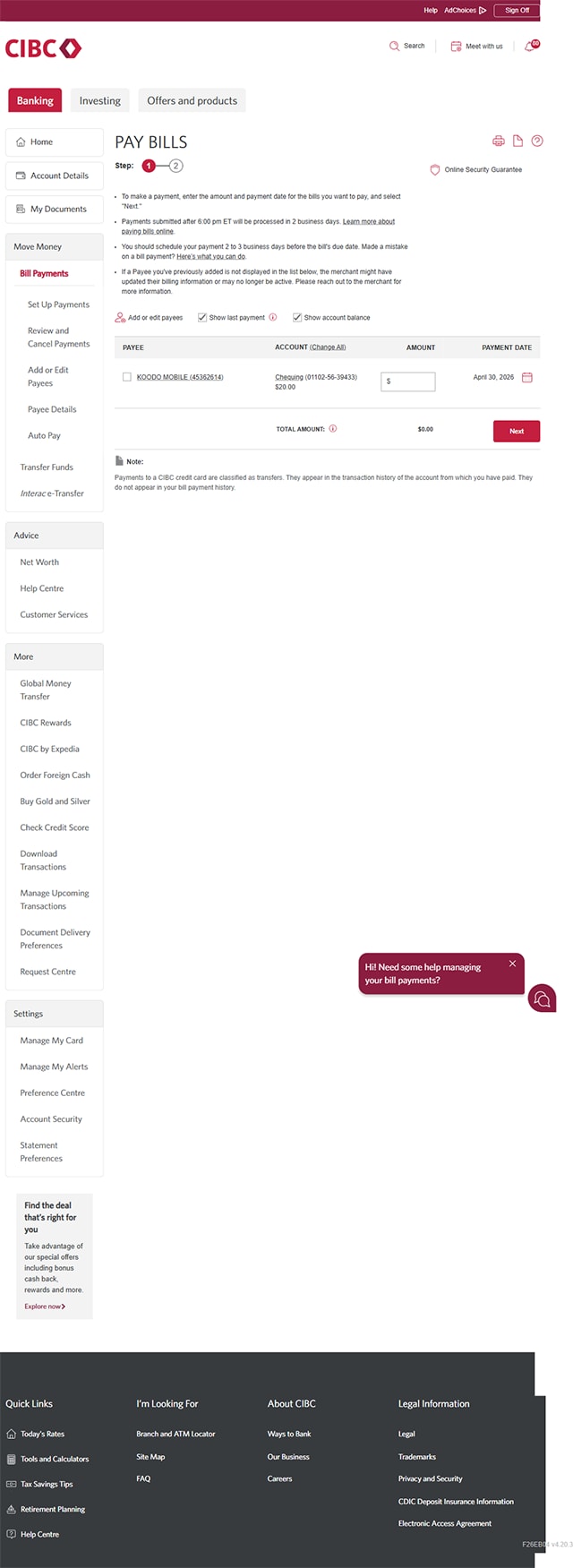
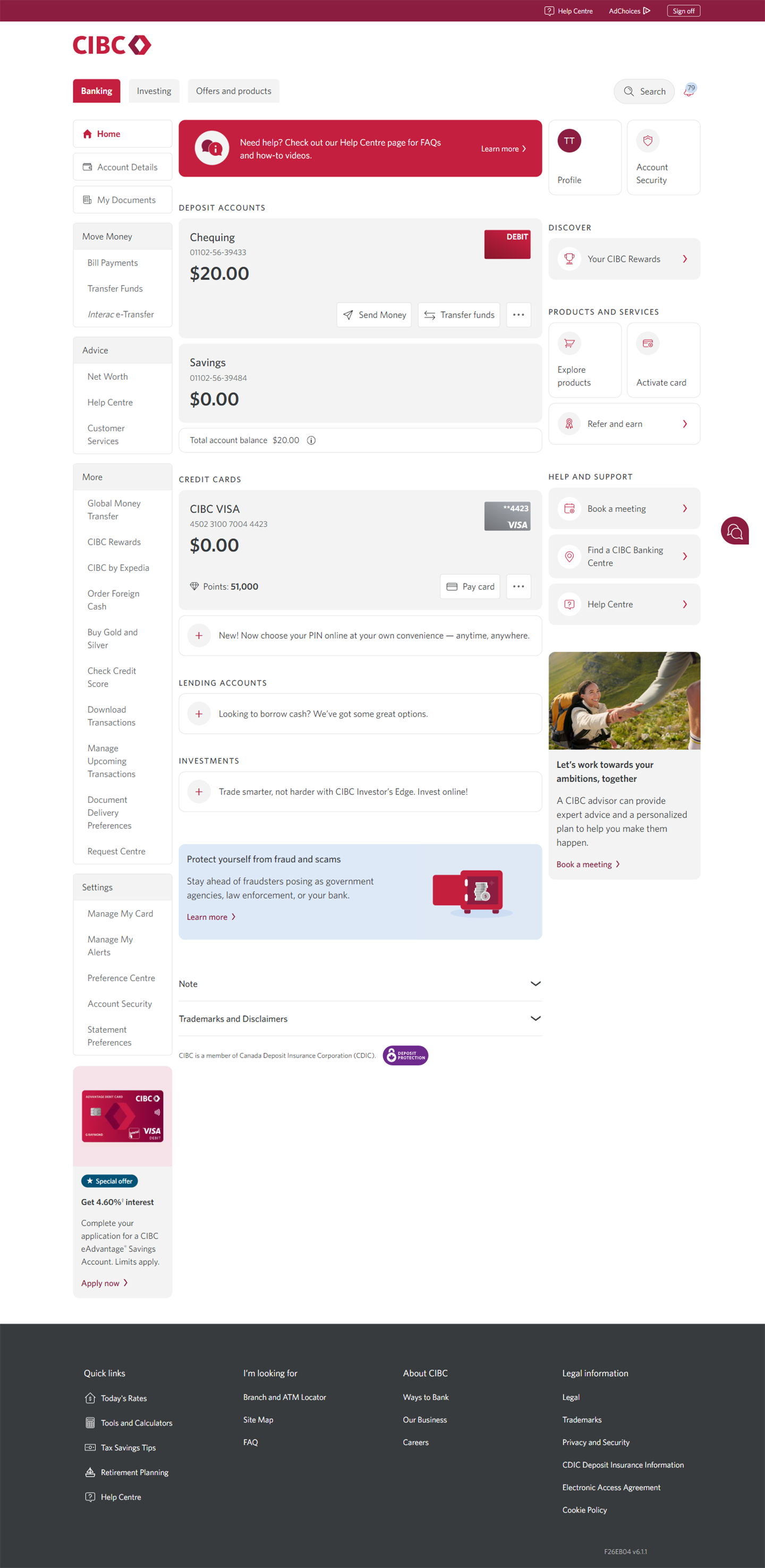
Demo screen 2: CIBC Online Banking homepage. A pulsing animation highlights the "Bill Payments" link.
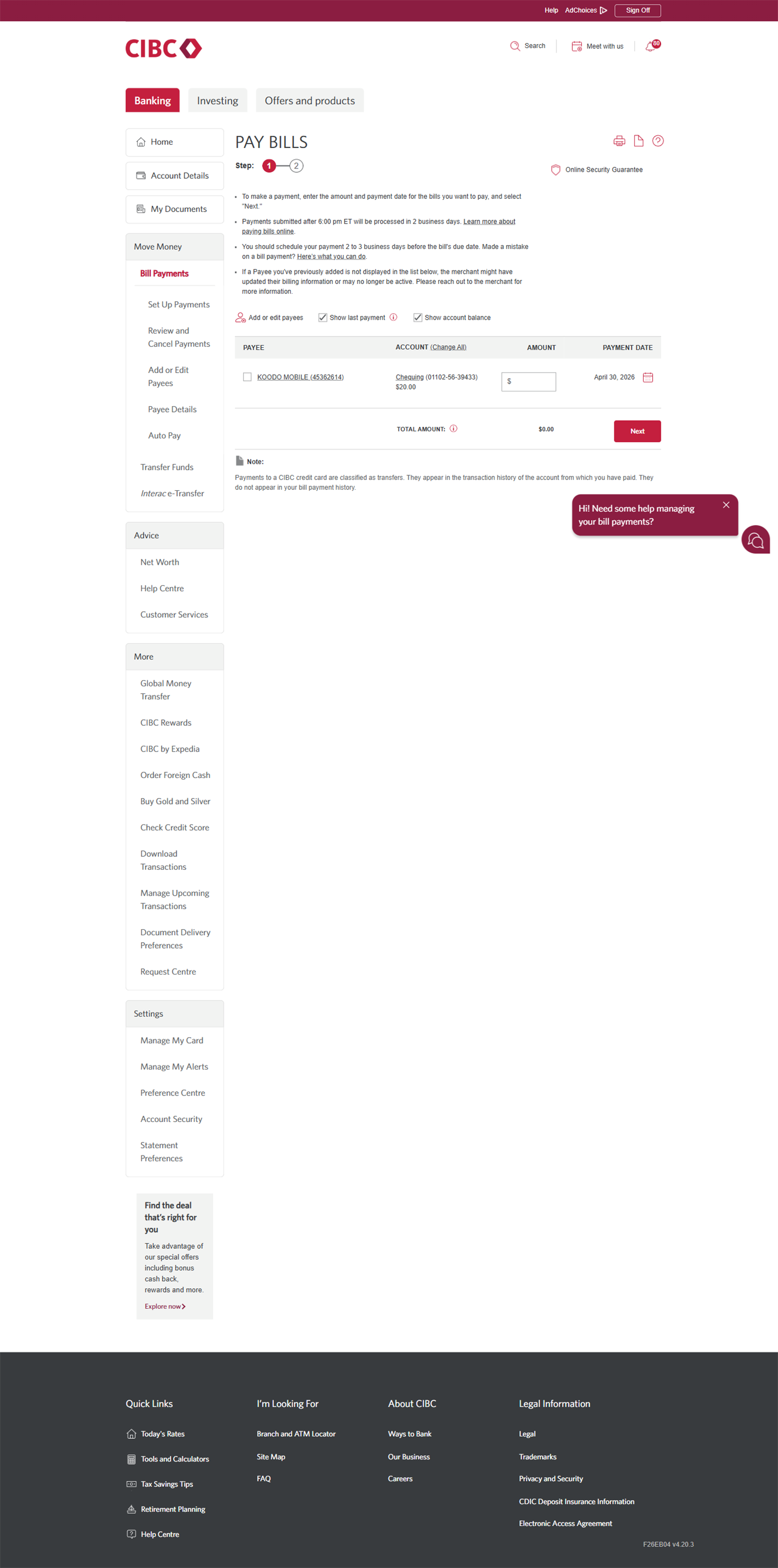
Demo screen 3: CIBC Online Banking pay bills page. A pulsing animation highlights the "Add or Edit Payees" link.
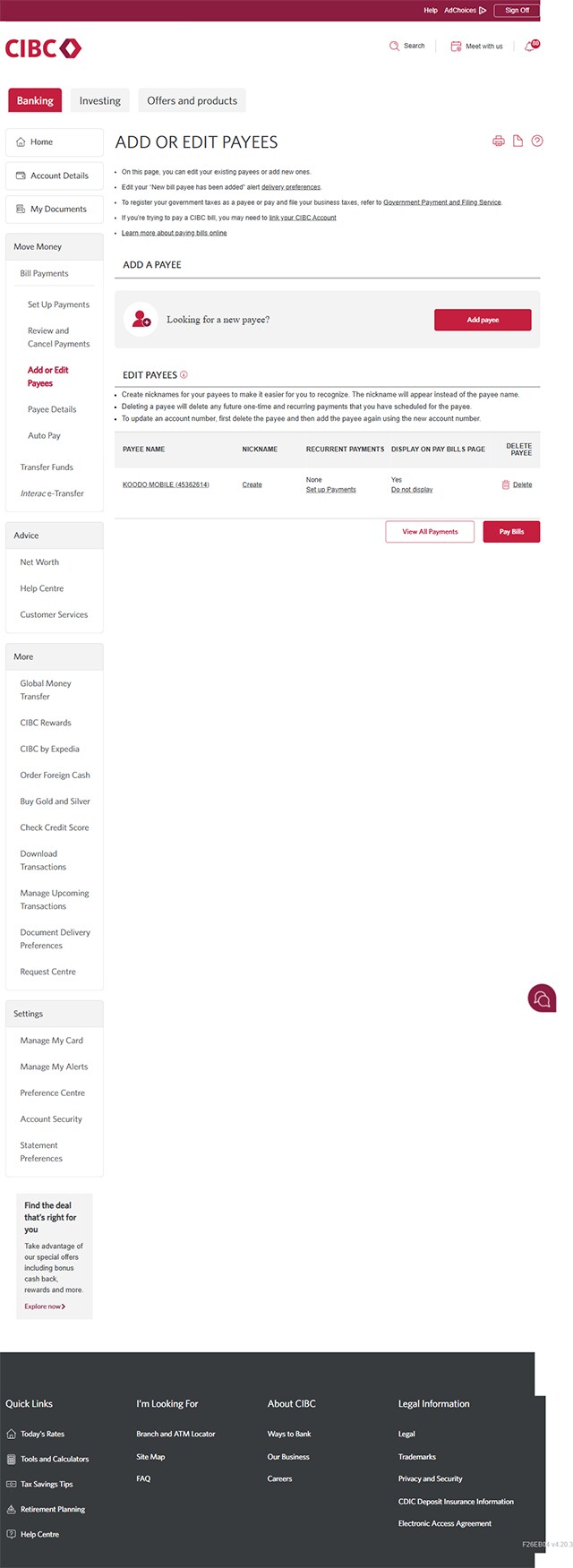
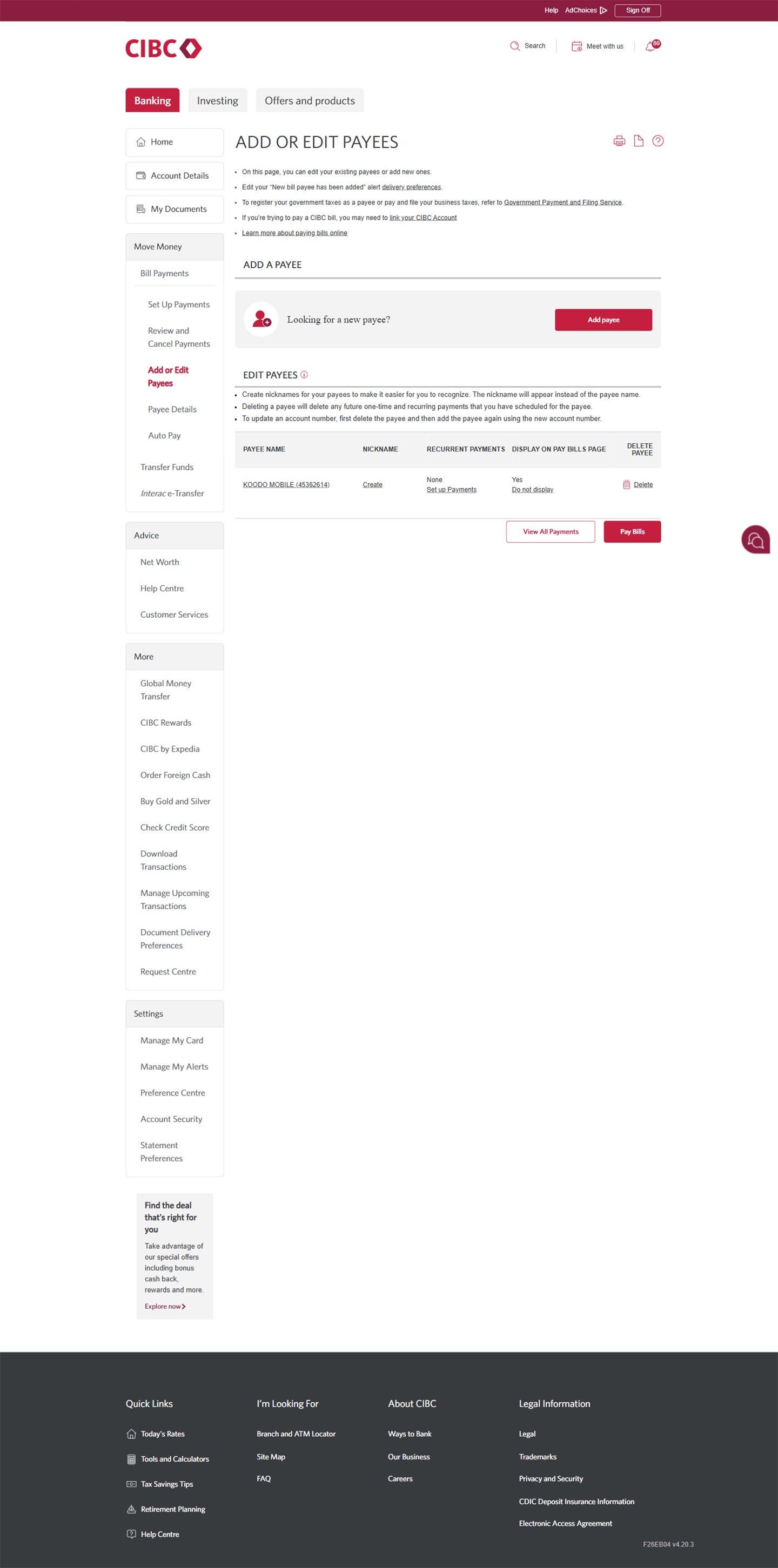
Demo screen 4: CIBC Online Banking add or edit payees. A pulsing animation highlights the "Add payee" button.
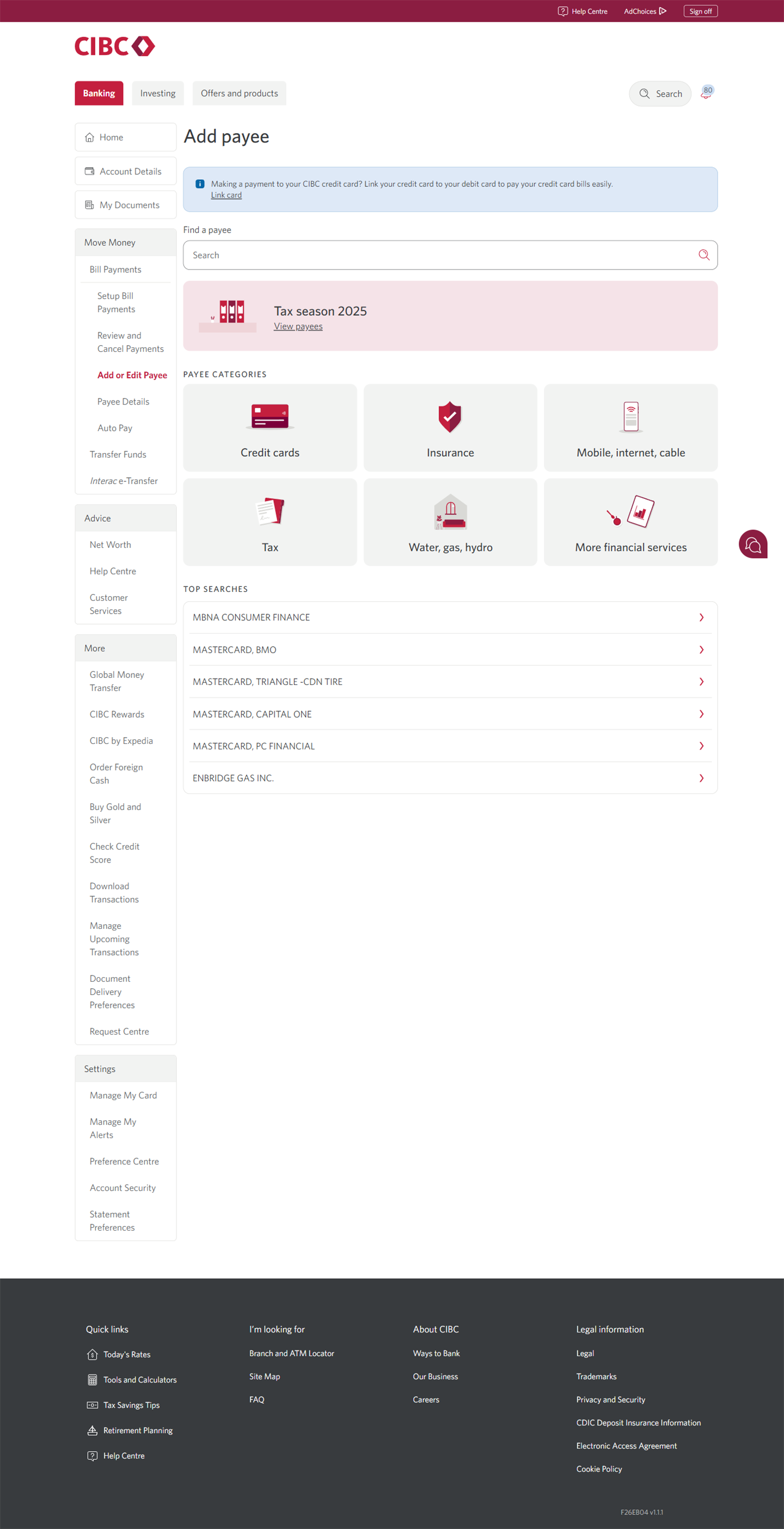
Demo screen 5: CIBC Online Banking add or edit payees. A pulsing animation highlights the search field.
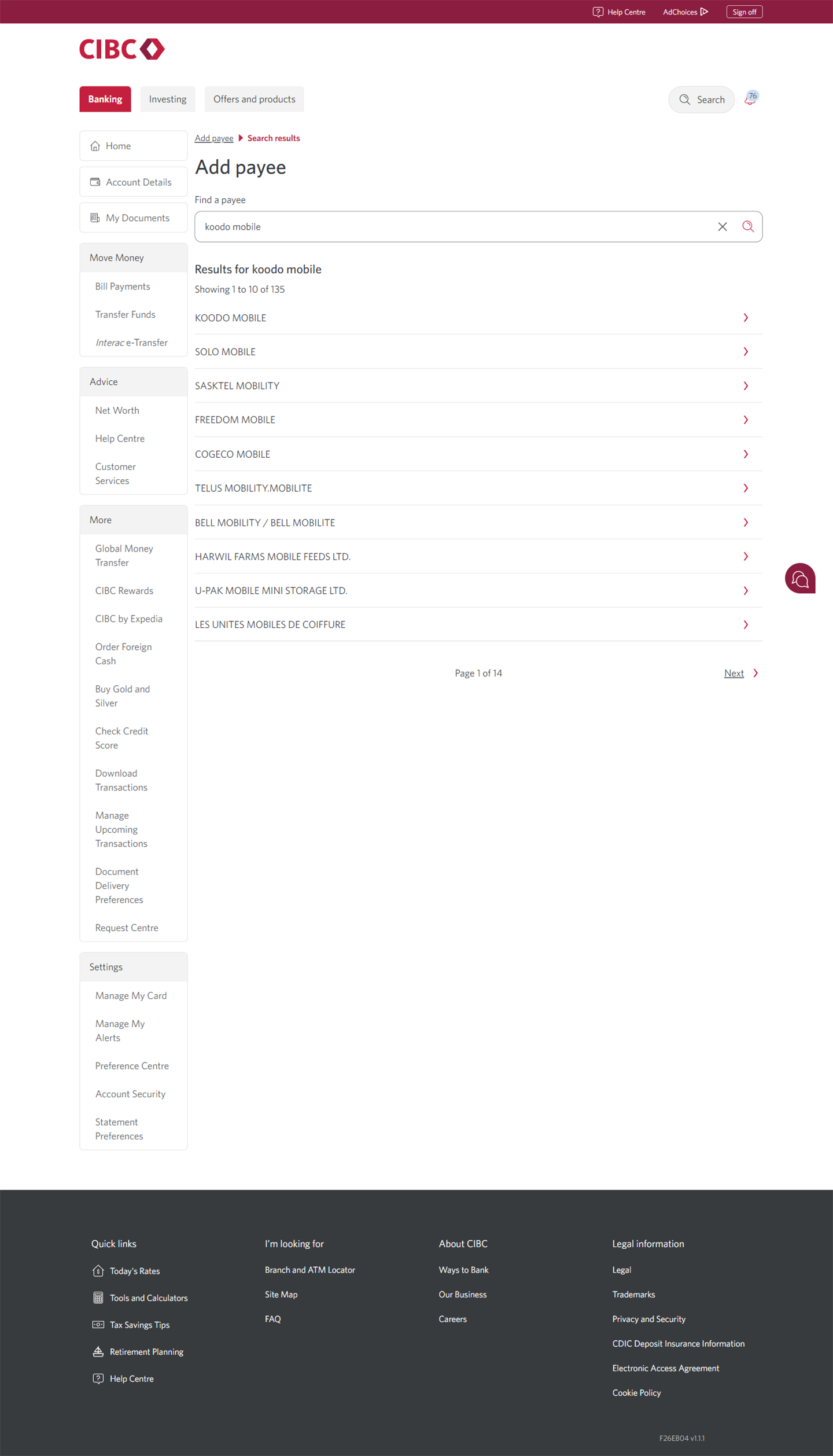
Demo screen 6: CIBC Online Banking add or edit payees. A pulsing animation highlights the chevron button for Koodo mobile link.
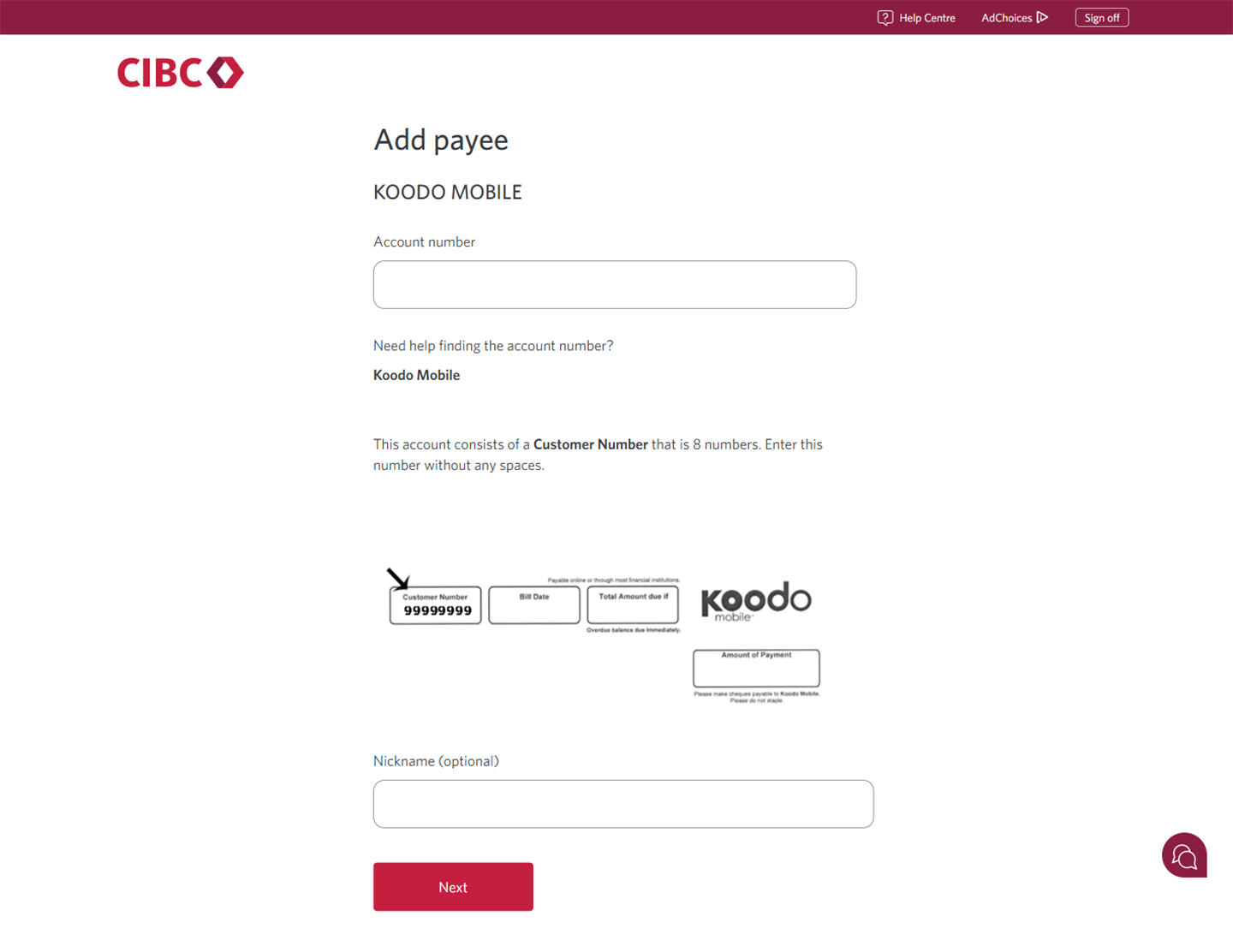
Demo screen 7: CIBC Online Banking add or edit payees. A pulsing animation highlights the next button.
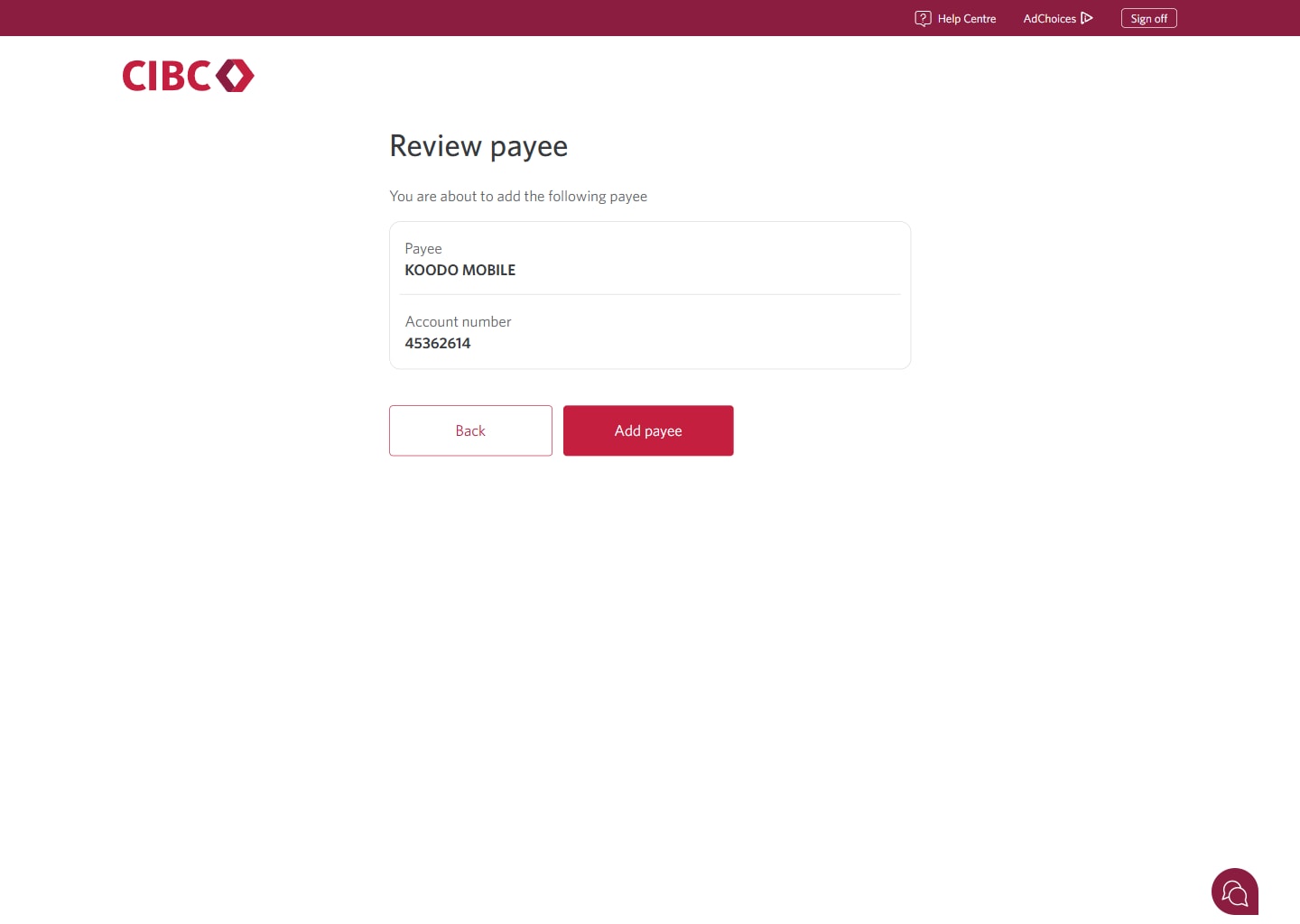
Demo screen 8: CIBC Online Banking review payee. A pulsing animation highlights the "Add payee" button.
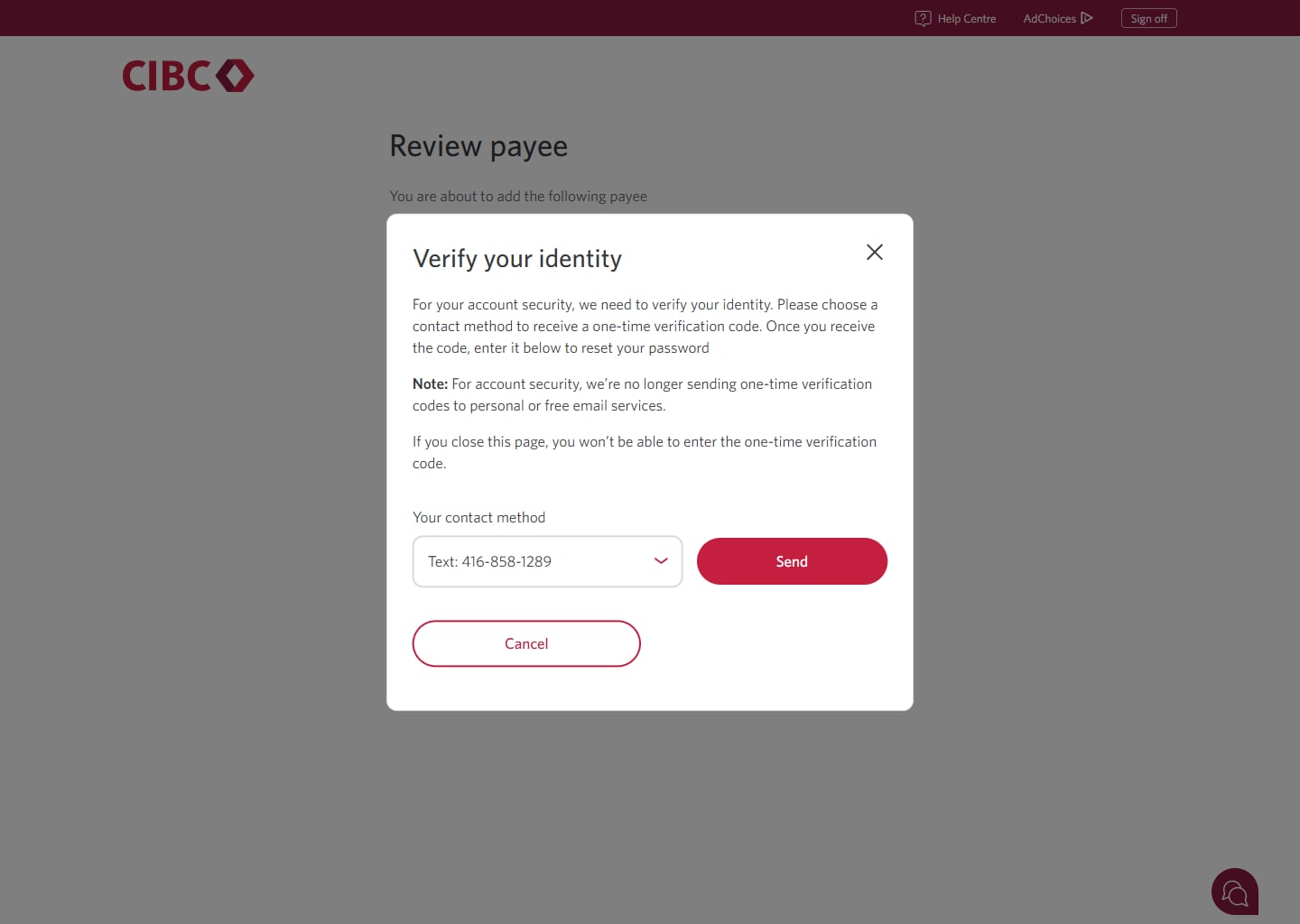
Demo screen 9: CIBC Online Banking verify your identity. A pulsing animation highlights the "Send" button.
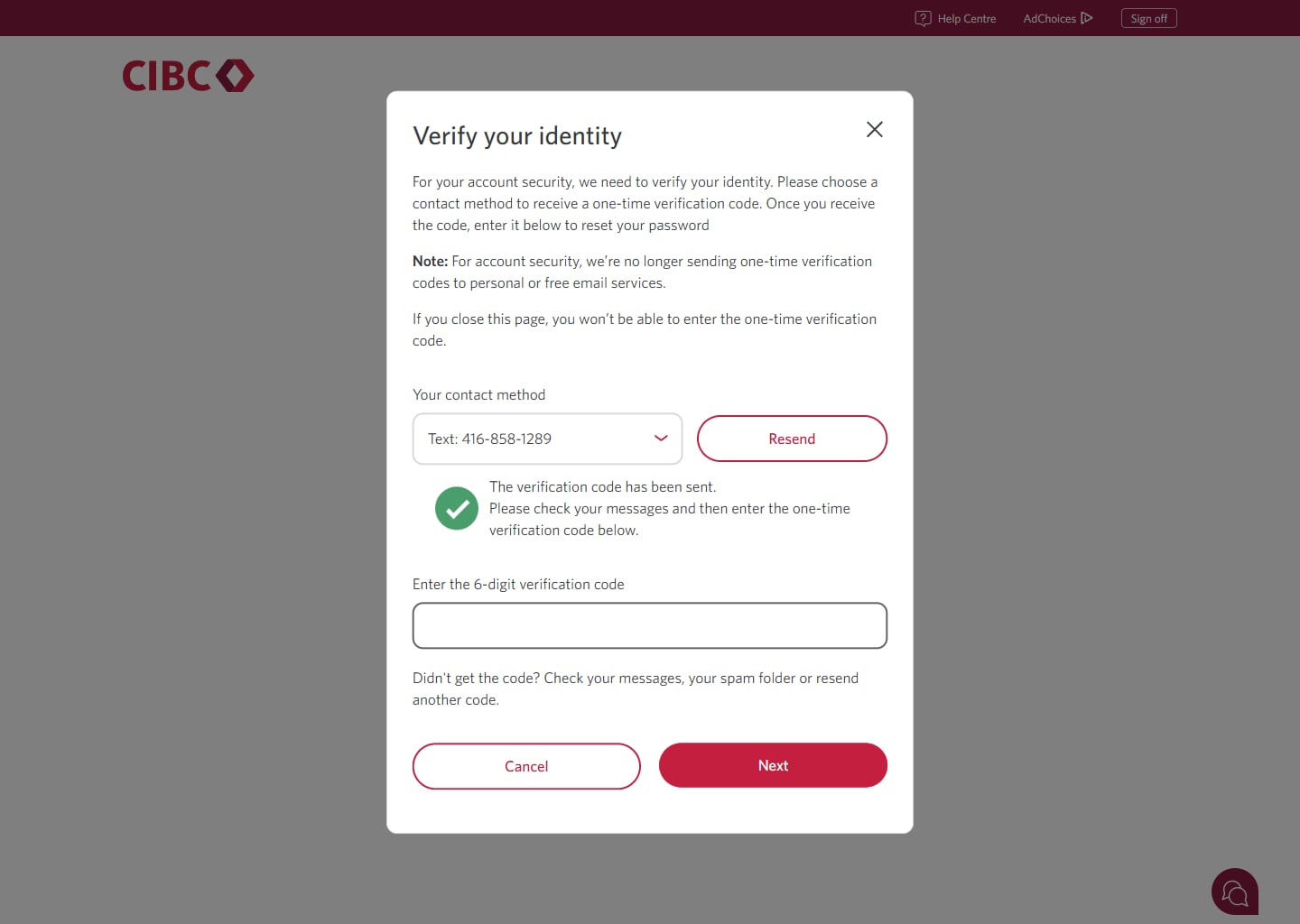
Demo screen 10: CIBC Online Banking verify your identity. A pulsing animation highlights the "Next" button.
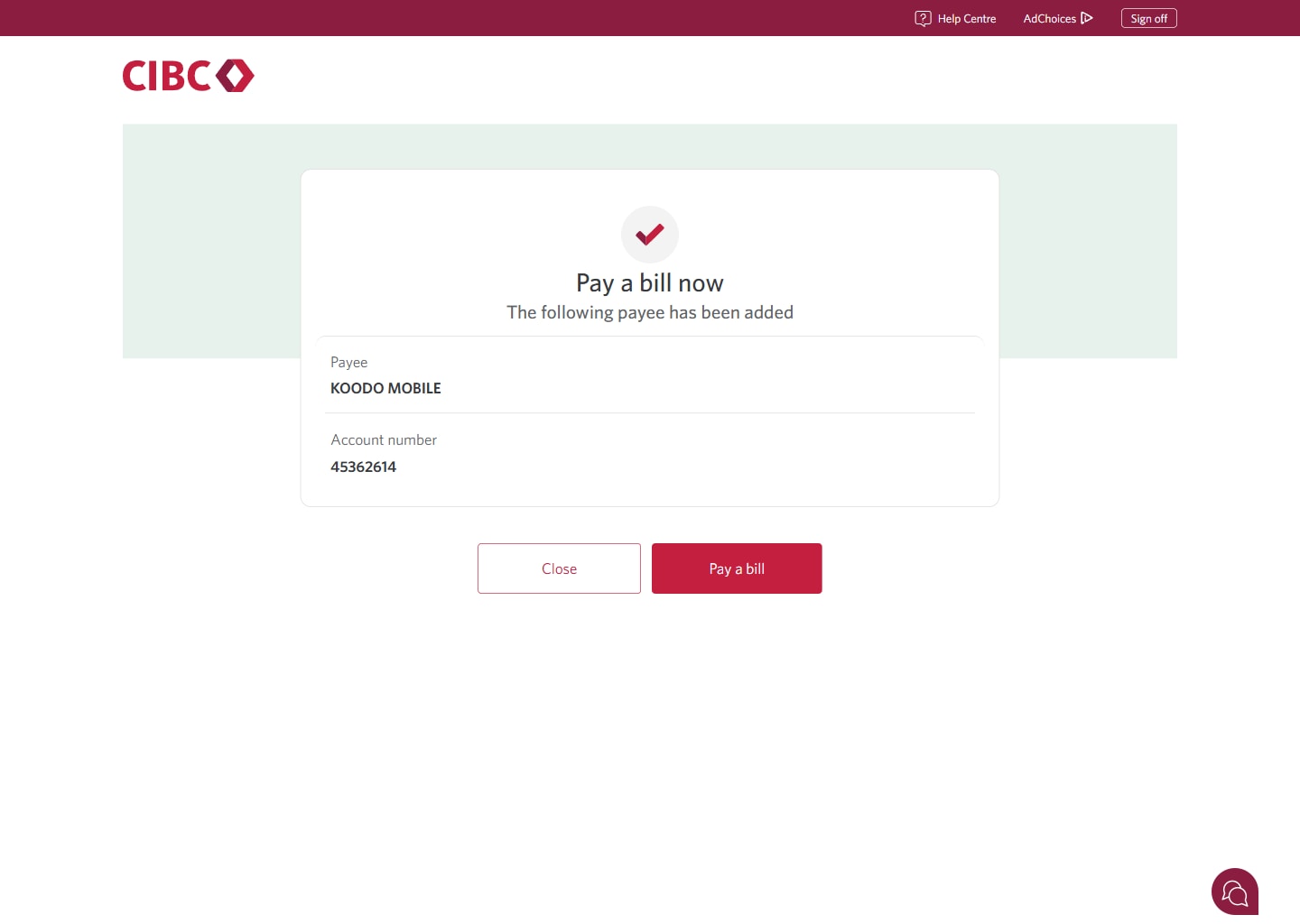
Demo screen 11: CIBC Online Banking Pay a bill now. A pulsing animation highlights the "Pay a bill" button.
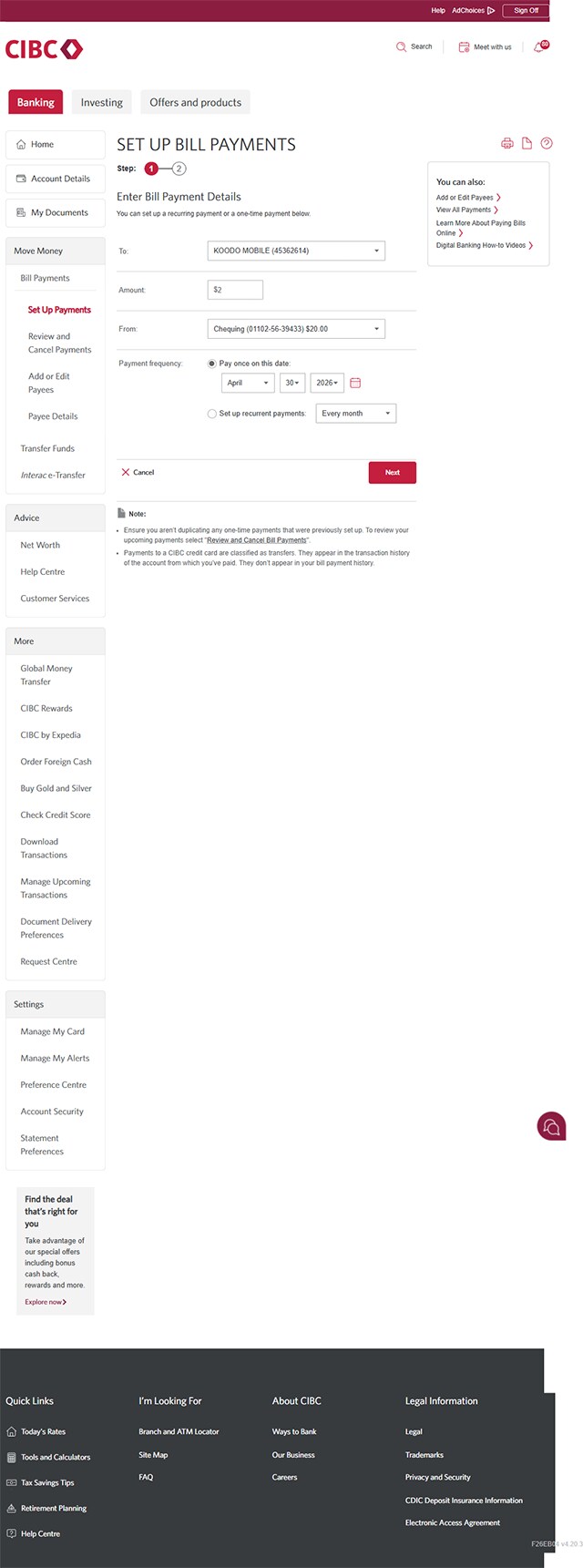
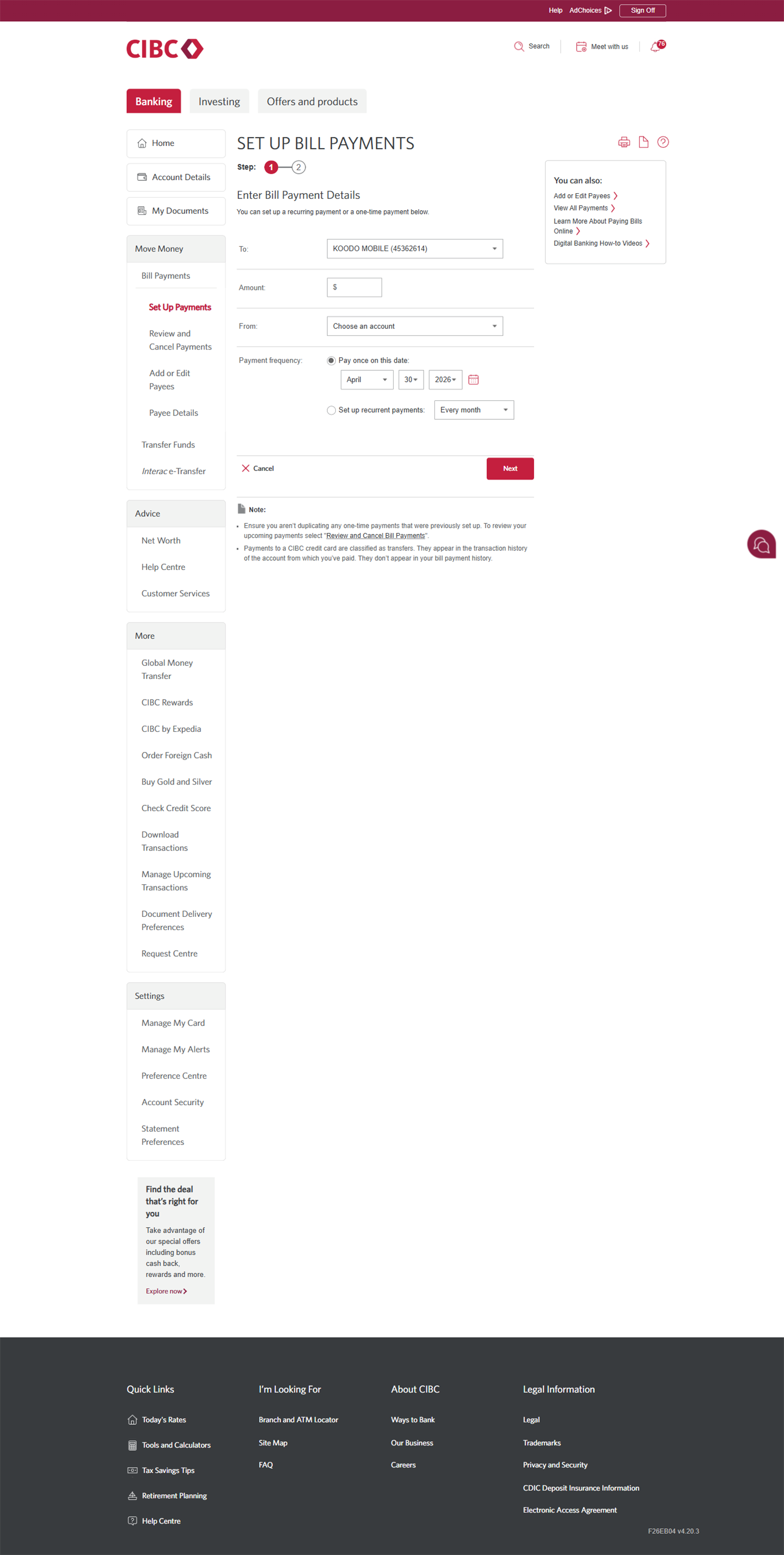
Demo screen 12: CIBC Online Banking set up bill payments page. A pulsing animation highlights the amount field.
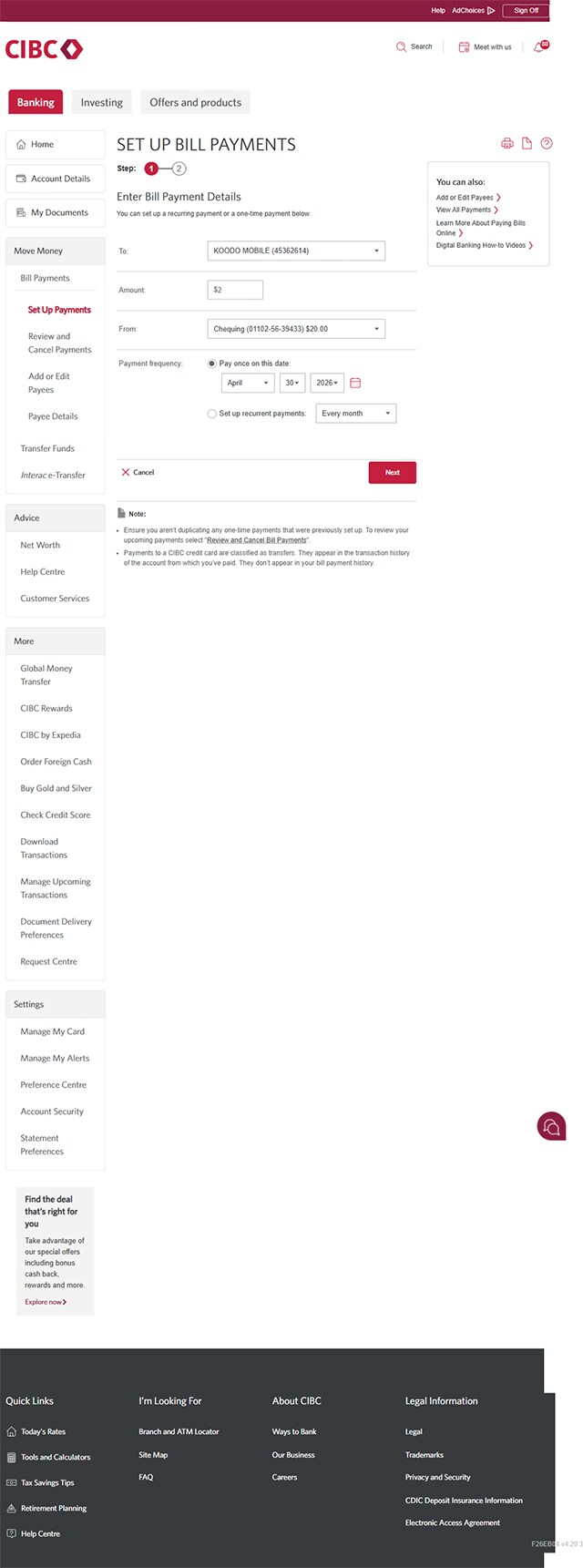
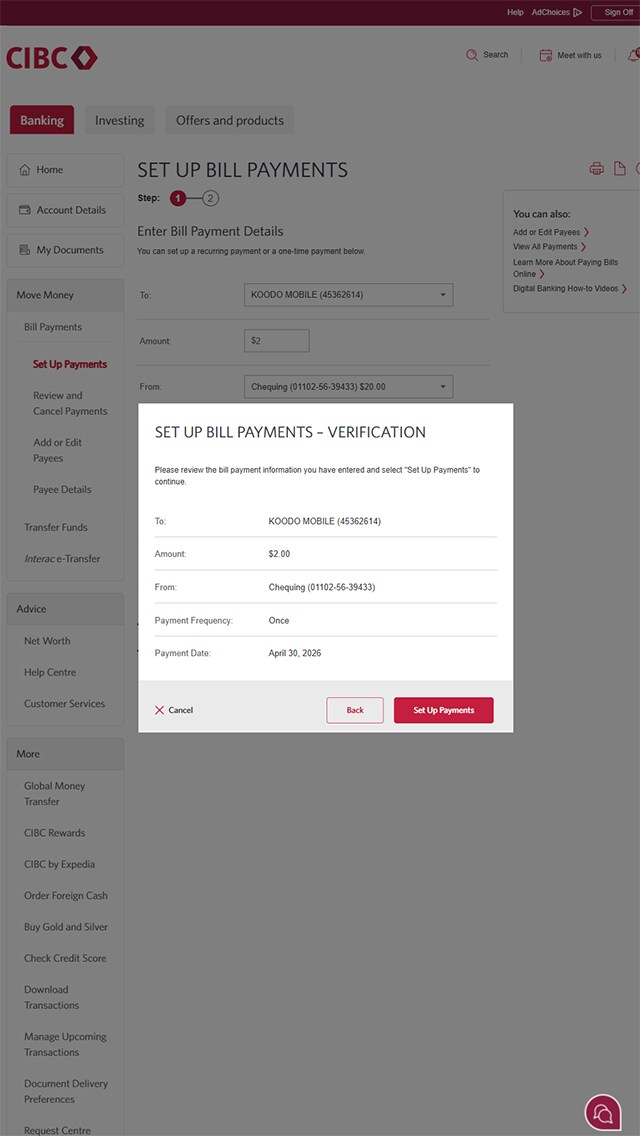
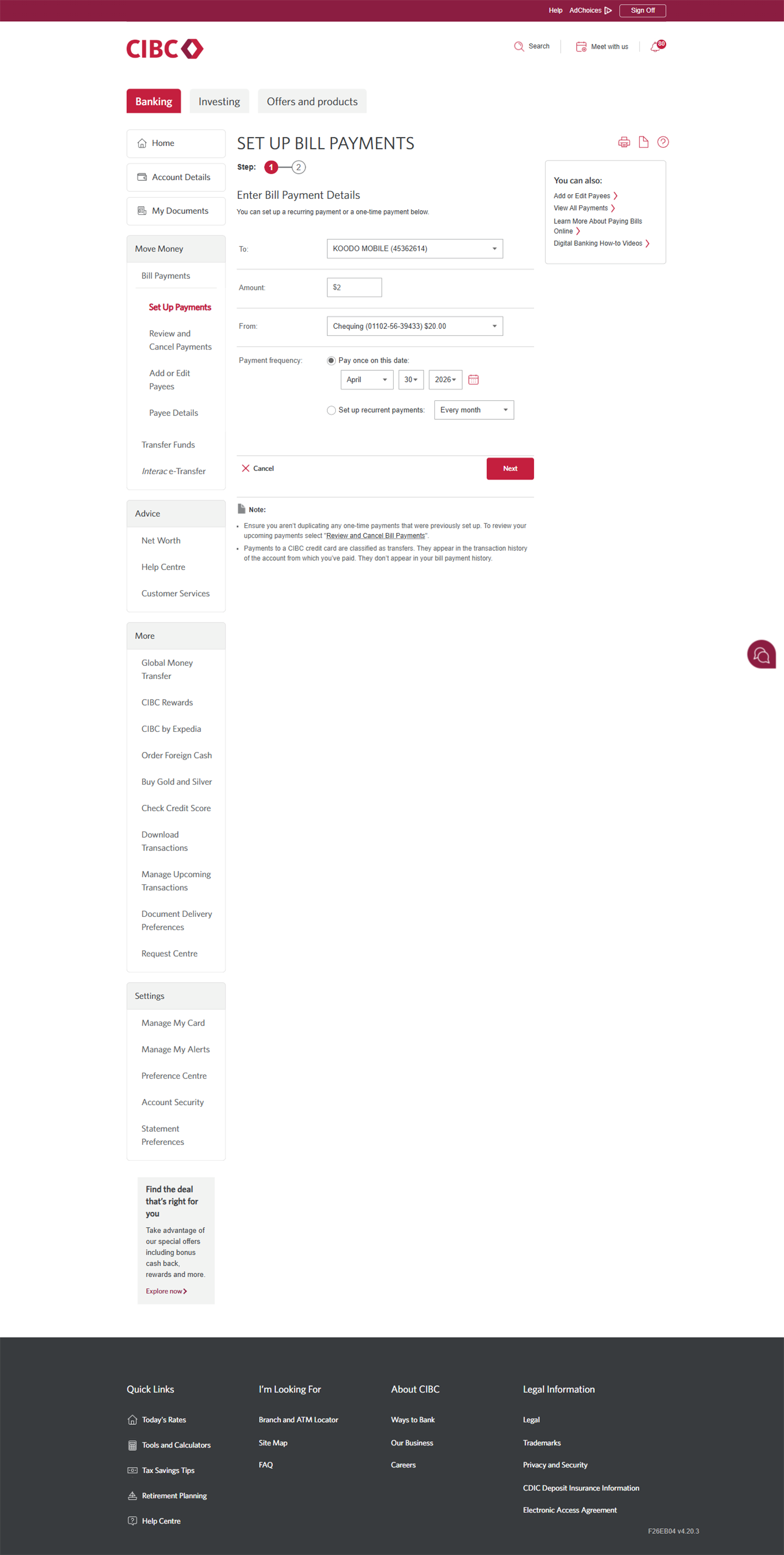
Demo screen 13: CIBC Online Banking pay bills page. A pulsing animation highlights the calendar button.
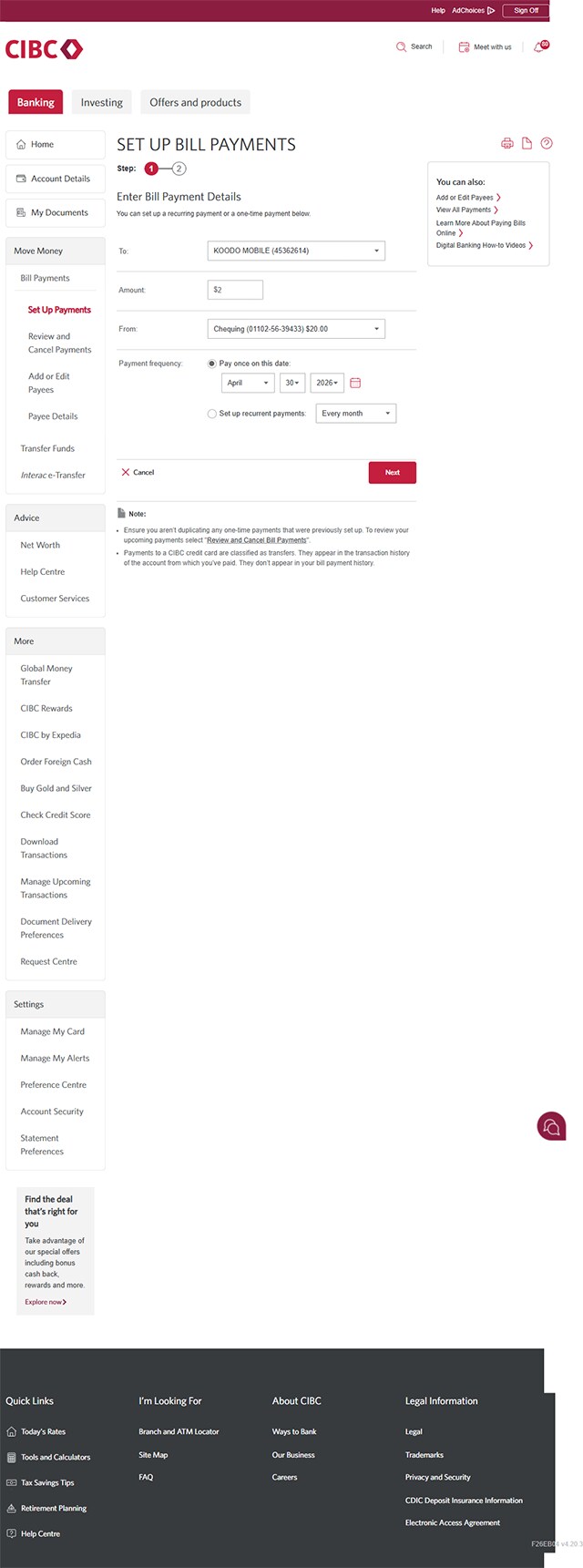
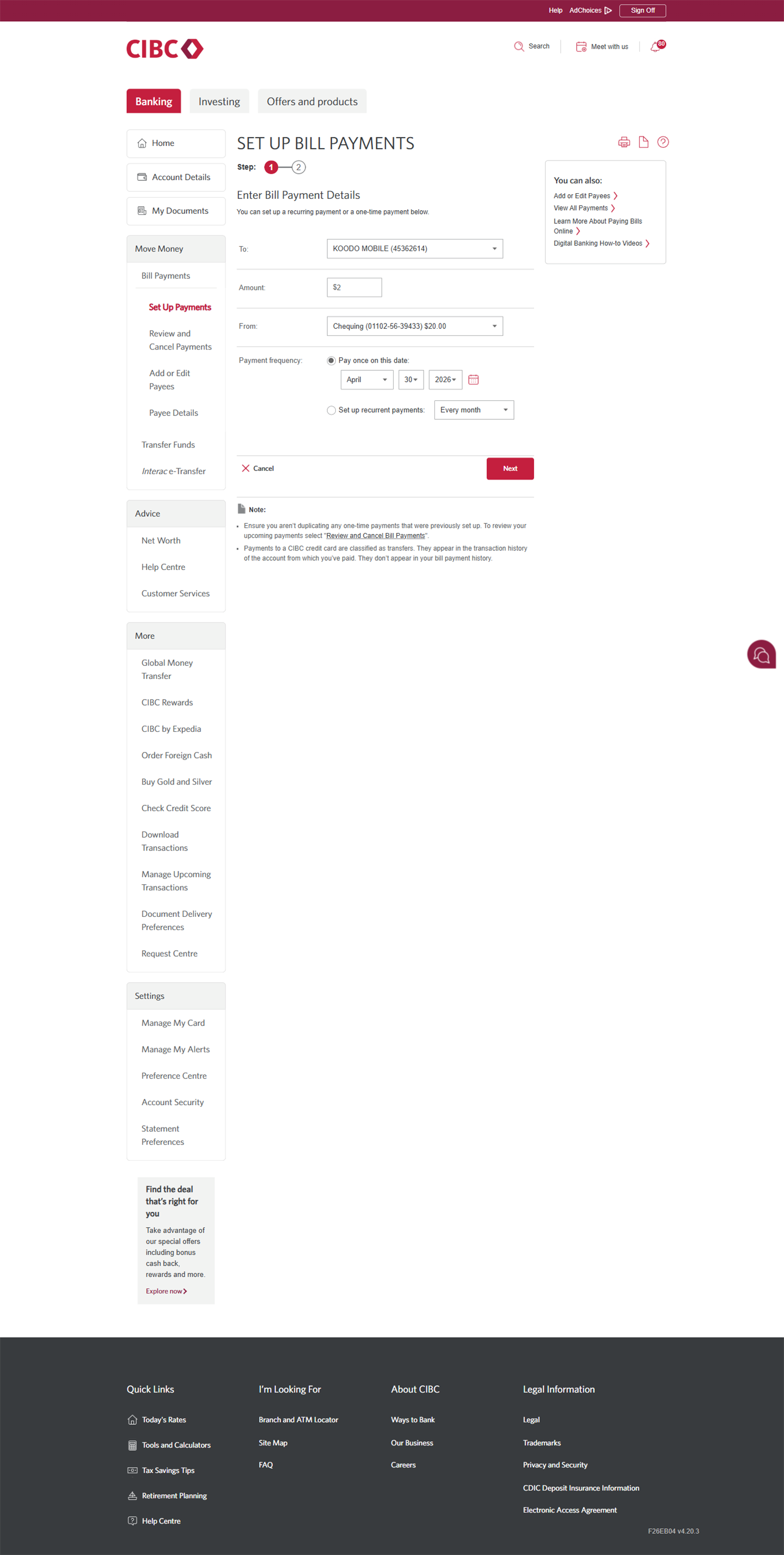
Demo screen 14: CIBC Online Banking pay bills page. A pulsing animation highlights the "Next" button.
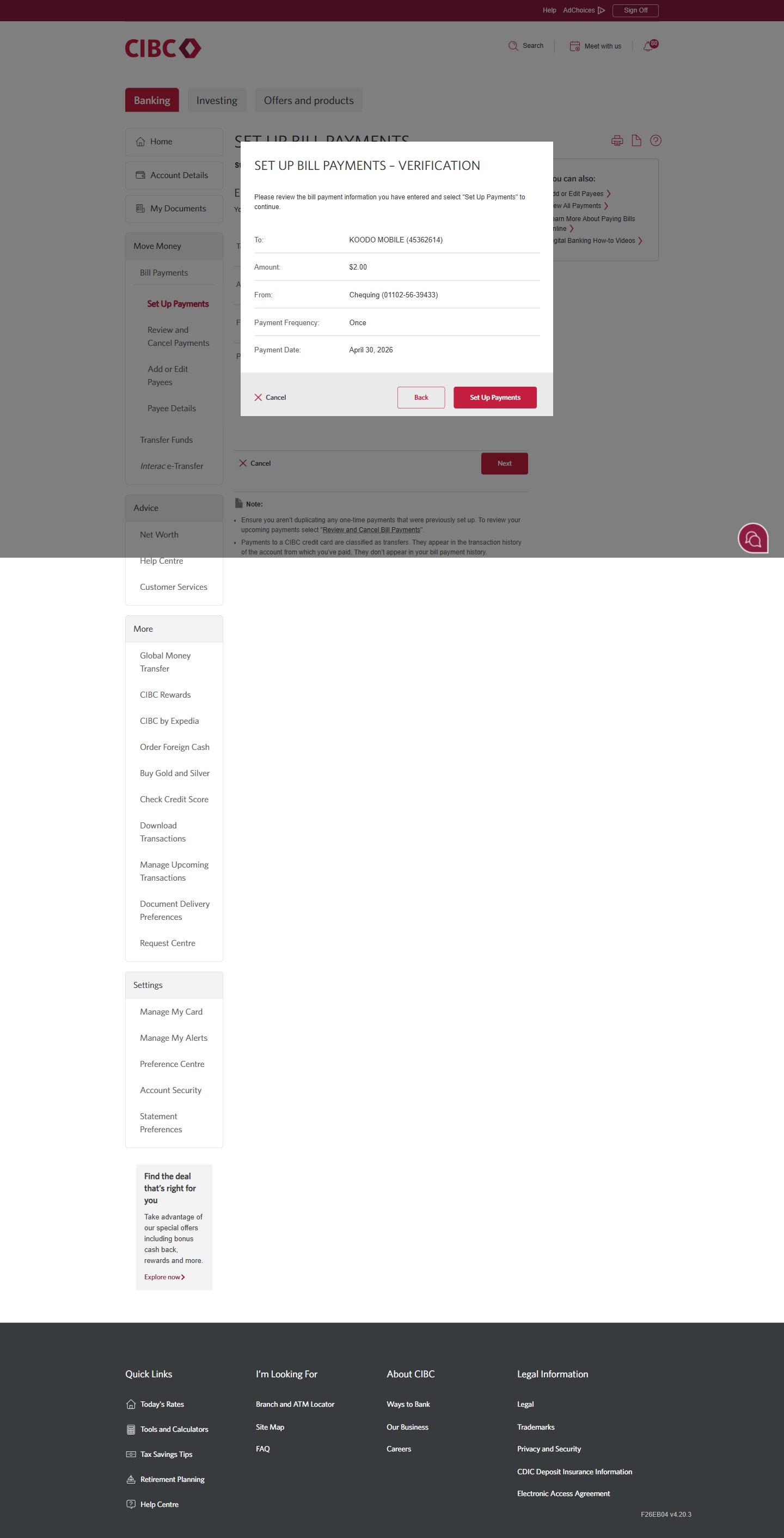
Demo screen 15: CIBC Online Banking pay bills page. A pulsing animation highlights the "Set Up Payments" button.
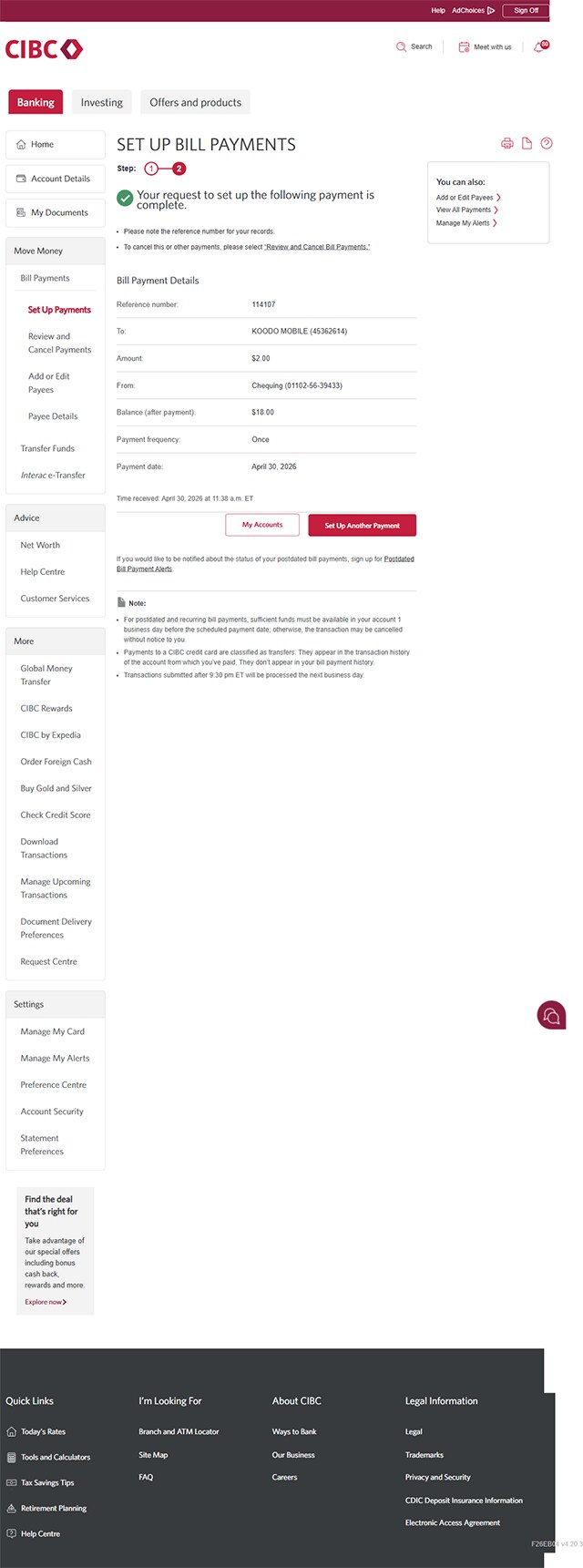
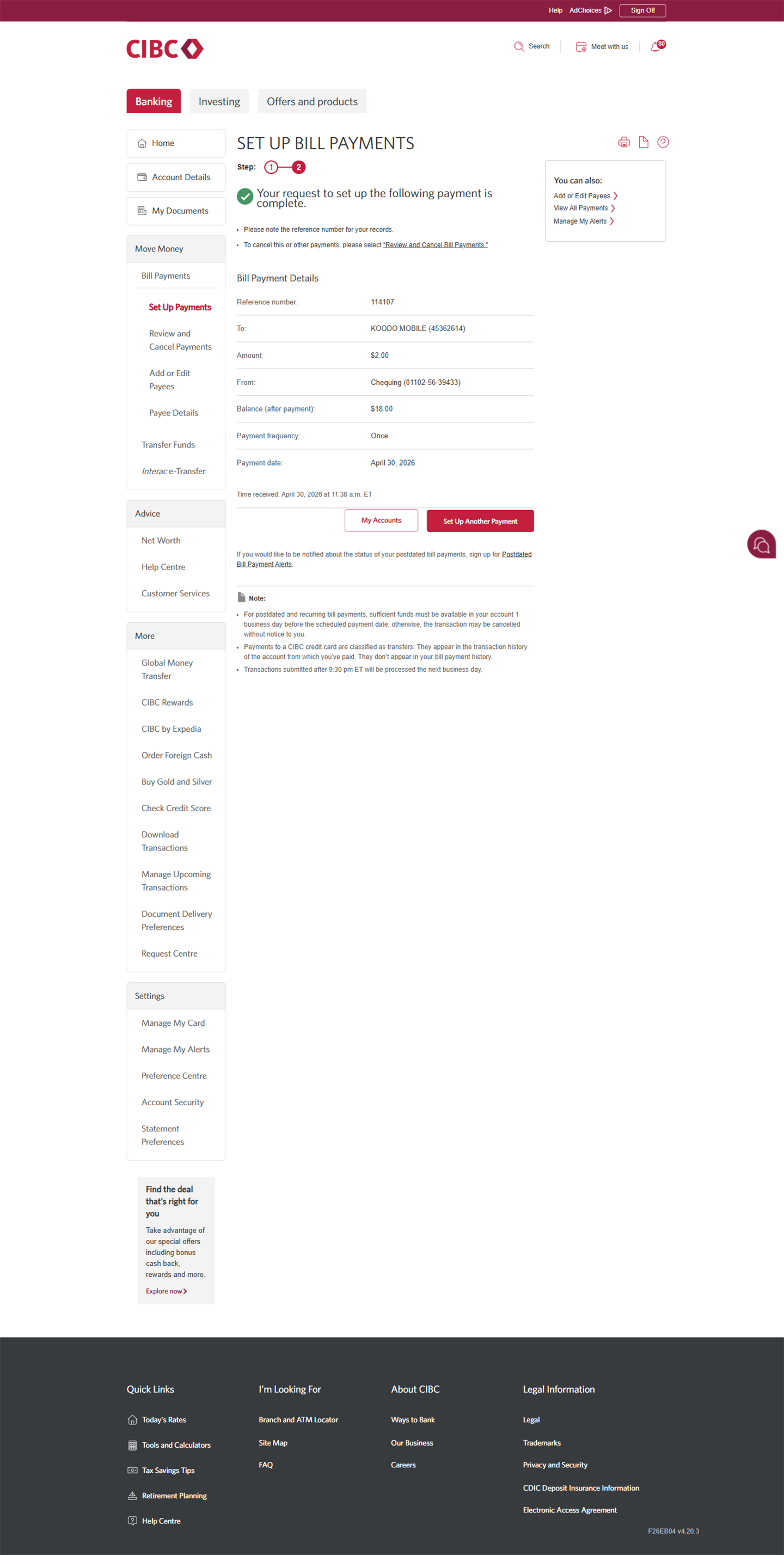
Demo screen 16: CIBC Online Banking pay bills confirmation page. No pulsing animation.
Your progress 1 of

Step 1 : Let's get started on your web browser

Select the "Sign on" button in the demo to continue.

Step 2 : Select "Bill Payments"

From the CIBC Online Banking homepage, go to the "Move Money" menu and select "Bill Payments".

Step 3 : Add a new payee

To add a new payment recipient for Bill Payments, select "Add or Edit Payees".

Step 4 : Select "Add payee"

Select the "Add payee" button to continue.

Step 5 : Search for a payee

Go to the search field and enter the name of the payee.

Step 6 : Select the payee you want to add

Once you find the correct payee from the dropdown options, select it to continue. For this demo, we'll add the payee "Koodo mobile".

Step 7 : Enter your account number

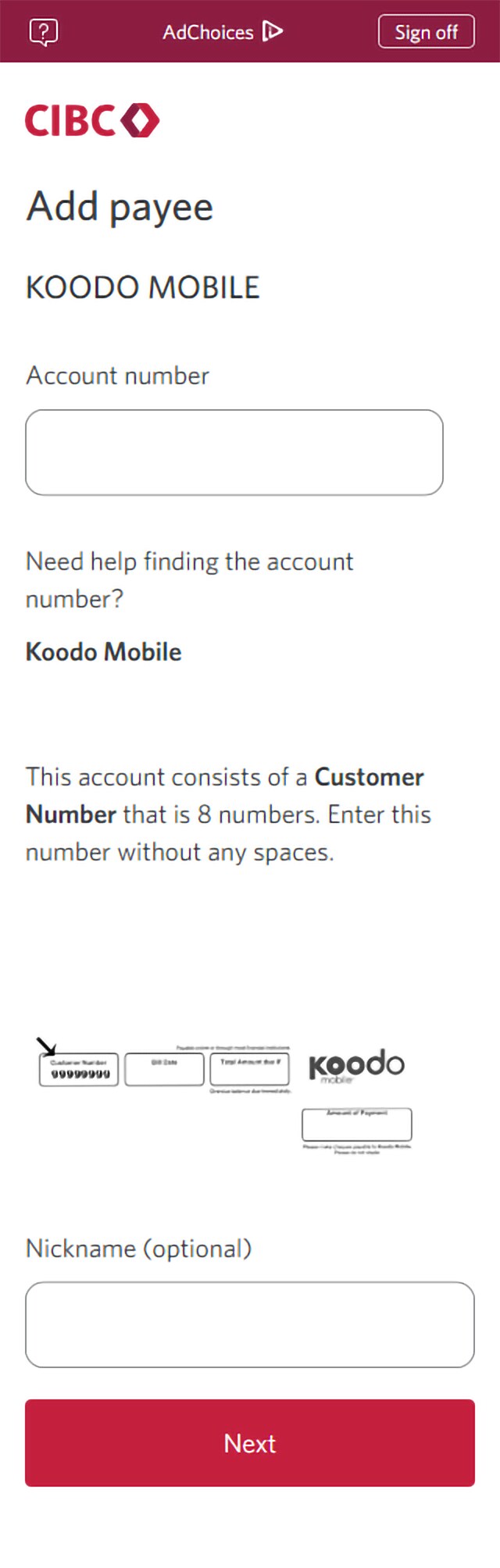
In the field provided, enter your account number associated with the payee. For this demo, you would enter the Koodo customer number.

Once you've entered the information, select "Next" to continue.

Step 8 : Review payee information

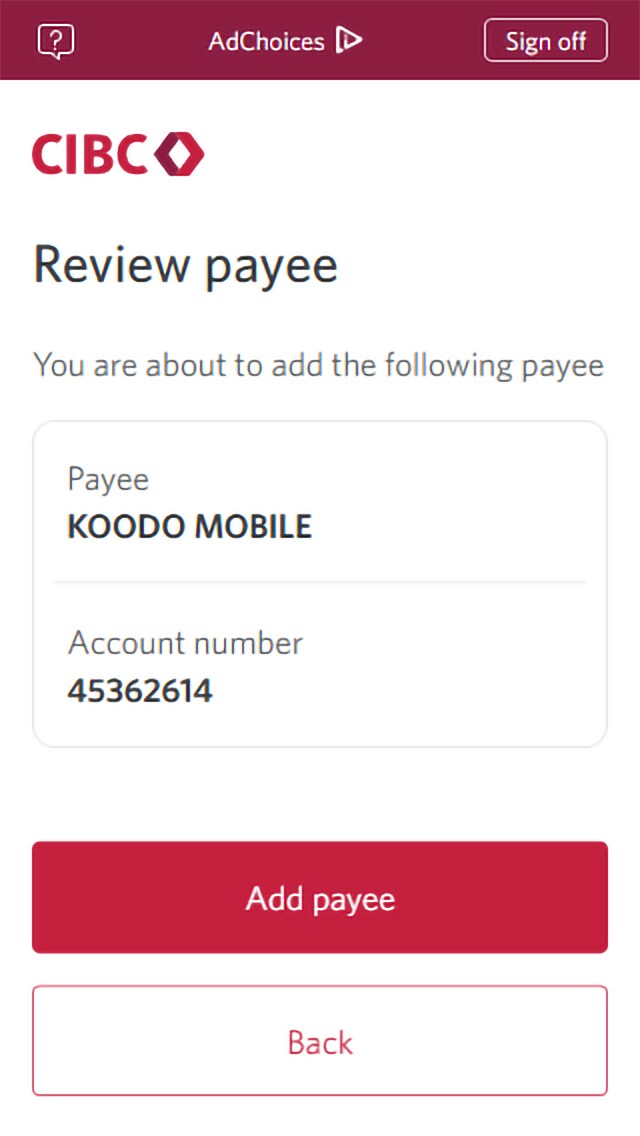
Review the information for the payee you want to add. Once you've confirmed the information is correct, select the "Add payee" button.

Step 9 : Verify your identity

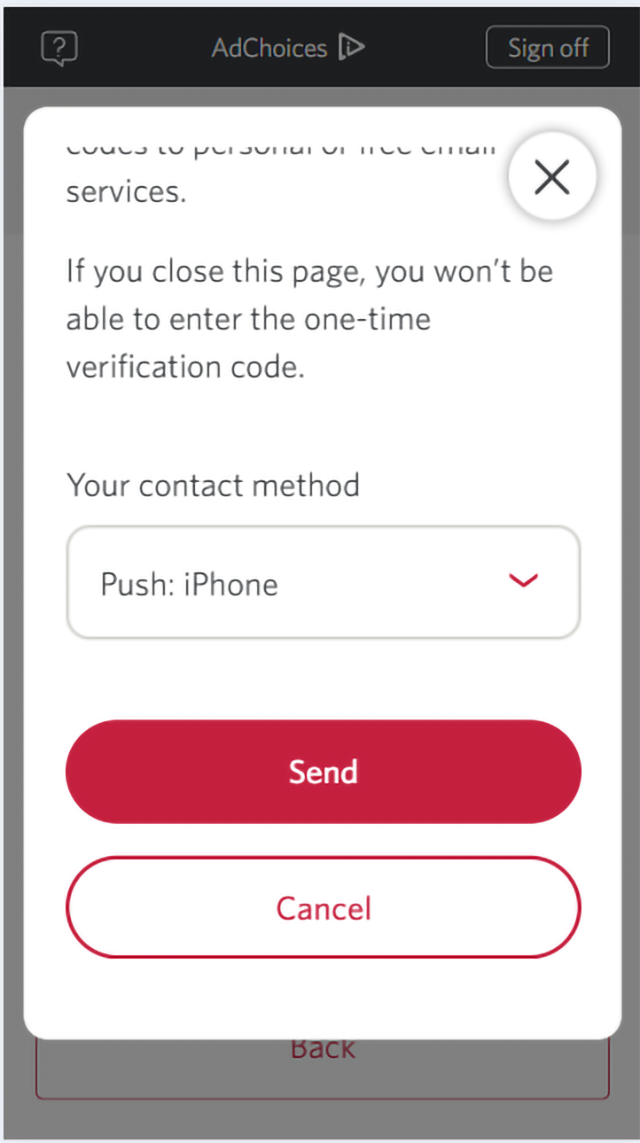
For account security, you'll be asked to enter a one-time verification code.

You can choose to receive the code by phone call or text message. Use the dropdown menu to select your preferred contact method. For this demo, we've chosen to receive the verification code by text.

When you're ready, select the "Send" button.

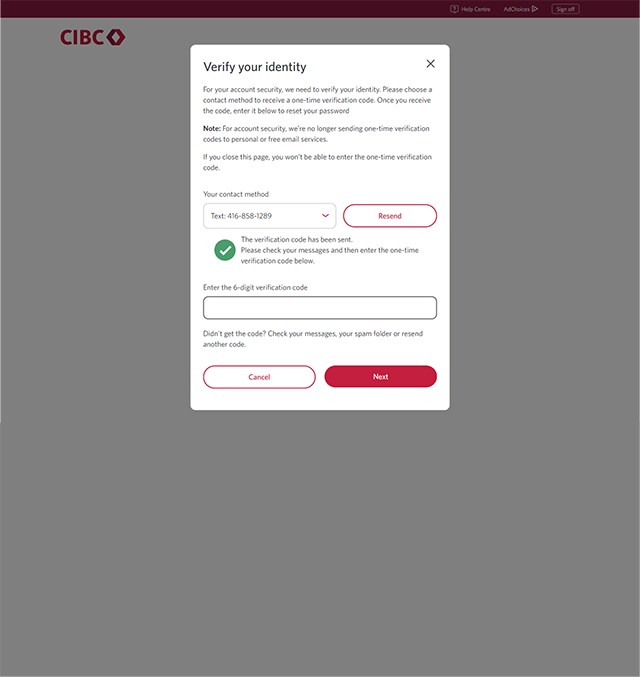
Step 10 : Enter the verification code

Once you've received the verification code, enter it on the field provided and select "Next".

Step 11 : Pay a bill

An on-screen message will confirm that the payee was successfully added.

Select "Pay a Bill" to continue with bill payment.

Step 12 : Enter the amount you want to pay

Use the field provided to enter the amount you want to pay toward your bill.

Step 13 : Select an account and set a payment date

First, select the account you want to pay the bill from.

Next, select a date to pay the bill. The default payment frequency is today’s date with non-recurring payments. To choose a different date for your bill payment, select the calendar icon.

Step 14 : Select "Next"

When you've finished entering the details of your payment, select "Next" to continue.

Step 15 : Review the details of your bill payment

Once you've verified the details are correct, select the "Set Up Payments" button to proceed.

Step 16 : Great job!

You've successfully added a payee and made a bill payment in CIBC Online Banking.
Demo screen 1: CIBC homepage. A pulsing animation highlights the "Sign on" button.
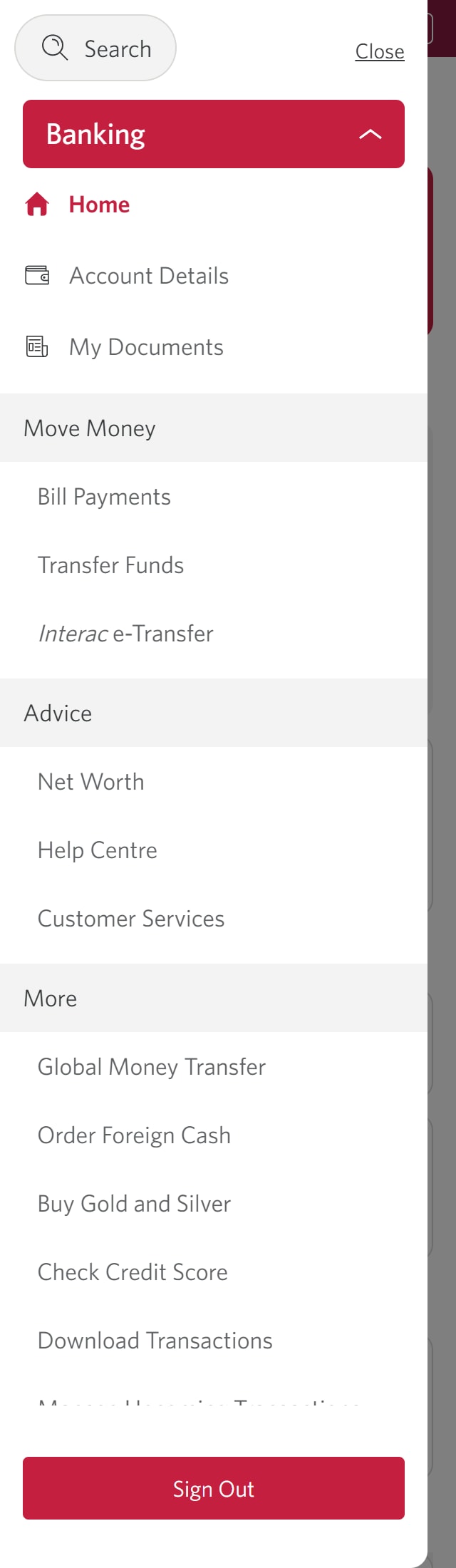
Demo screen 2: CIBC Online Banking homepage. A pulsing animation highlights the "More options" menu.
Demo screen 3: CIBC Online Banking homepage. A pulsing animation highlights the "Bill Payments" link.
Demo screen 4: CIBC Online Banking pay bills page. A pulsing animation highlights the "Add or Edit Payees" link.
Demo screen 5: CIBC Online Banking add or edit payees. A pulsing animation highlights the "Add payee" button.
Demo screen 6: CIBC Online Banking add or edit payees. A pulsing animation highlights the search field.
Demo screen 7: CIBC Online Banking add or edit payees. A pulsing animation highlights the chevron button for Koodo mobile link.
Demo screen 8: CIBC Online Banking add or edit payees. A pulsing animation highlights the next button.
Demo screen 9: CIBC Online Banking review payee. A pulsing animation highlights the "Add payee" button.
Demo screen 10: CIBC Online Banking verify your identity. A pulsing animation highlights the "Send" button.
Demo screen 11: CIBC Online Banking verify your identity. A pulsing animation highlights the "Next" button.
Demo screen 12: CIBC Online Banking Pay a bill now. A pulsing animation highlights the "Pay a bill" button.
Demo screen 13: CIBC Online Banking set up bill payments page. A pulsing animation highlights the amount field.
Demo screen 14: CIBC Online Banking pay bills page. A pulsing animation highlights the calendar button.
Demo screen 15: CIBC Online Banking pay bills page. A pulsing animation highlights the "Next" button.
Demo screen 16: CIBC Online Banking pay bills page. A pulsing animation highlights the "Set Up Payments" button.
Demo screen 17: CIBC Online Banking pay bills confirmation page. No pulsing animation.
Your progress 1 of

Step 1 : Let's get started on your web browser

Select the "Sign on" button in the demo to continue.

Step 2 : Select the three-line menu icon to open the navigation bar

On the CIBC Online Banking homepage, find and select the three-line menu icon to open a navigation bar with more options.

Step 3 : Select "Bill Payments"

From the "Move Money" menu on the navigation bar, select "Bill Payments".

Step 4 : Add a new payee

To add a new payment recipient for Bill Payments, select "Add or Edit Payees".

Step 5 : Select "Add payee"

Select the "Add payee" button to continue.

Step 6 : Search for a payee

Go to the search field and enter the name of the payee.

Step 7 : Select the payee you want to add

Once you find the correct payee from the dropdown options, select it to continue. For this demo, we'll add the payee "Koodo mobile".

Step 8 : Enter your account number

In the field provided, enter your account number associated with the payee. For this demo, you would enter the Koodo customer number.

Once you've entered the information, select "Next" to continue.

Step 9 : Review payee information

Review the information for the payee you want to add. Once you've confirmed the information is correct, select the "Add payee" button.

Step 10 : Verify your identity

For account security, you'll be asked to enter a one-time verification code.

You can choose to receive the code by phone call or text message. Use the dropdown menu to select your preferred contact method. For this demo, we've chosen to receive the verification code by text.

When you're ready, select the "Send" button.

Step 11 : Enter the verification code

Once you've received the verification code, enter it on the field provided and select "Next".

Step 12 : Pay a bill

An on-screen message will confirm that the payee was successfully added.

Select "Pay a Bill" to continue with bill payment.

Step 13 : Enter the amount you want to pay

Use the field provided to enter the amount you want to pay toward your bill.

Step 14 : Select an account and set a payment date

First, select the account you want to pay the bill from.

Next, select a date to pay the bill. The default payment frequency is today’s date with non-recurring payments. To choose a different date for your bill payment, select the calendar icon.

Step 15 : Select "Next"

When you've finished entering the details of your payment, select "Next" to continue.

Step 16 : Review the details of your bill payment

Once you've verified the details are correct, select the "Set Up Payments" button to proceed.

Step 17 : Great job!

You've successfully added a payee and made a bill payment in CIBC Online Banking.
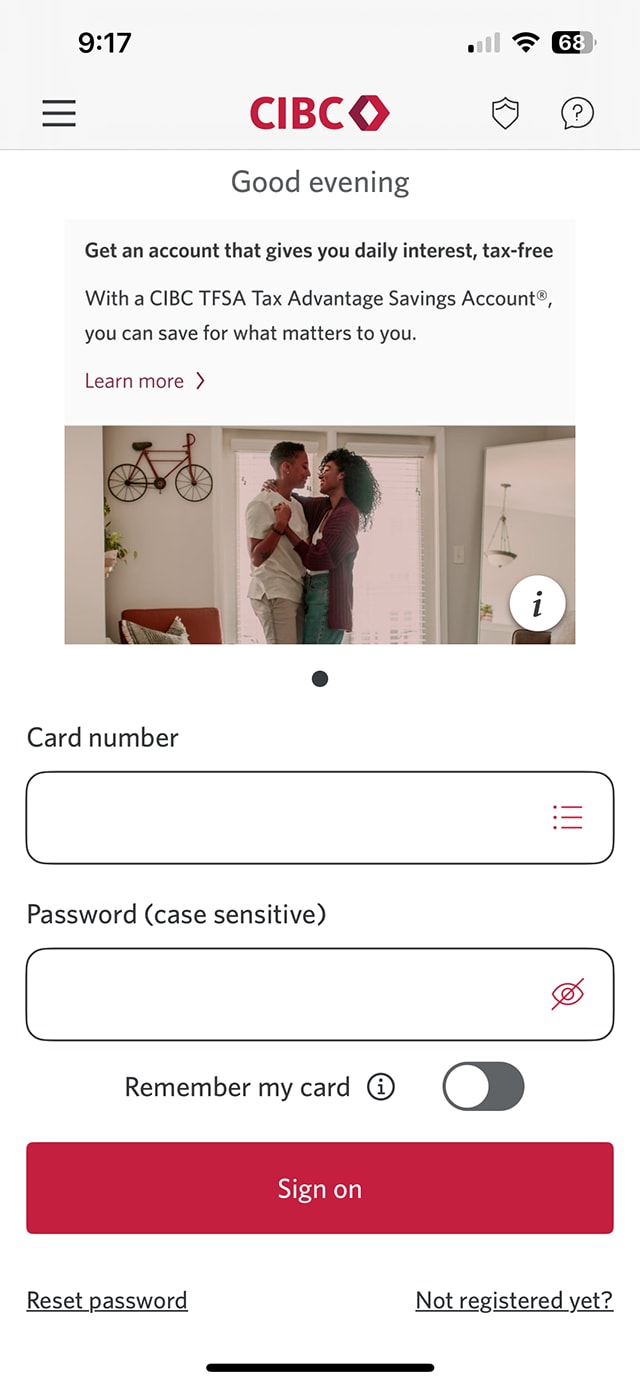
Demo screen 1: CIBC Mobile Banking App sign on screen. A pulsing animation highlights the "Sign on" button.
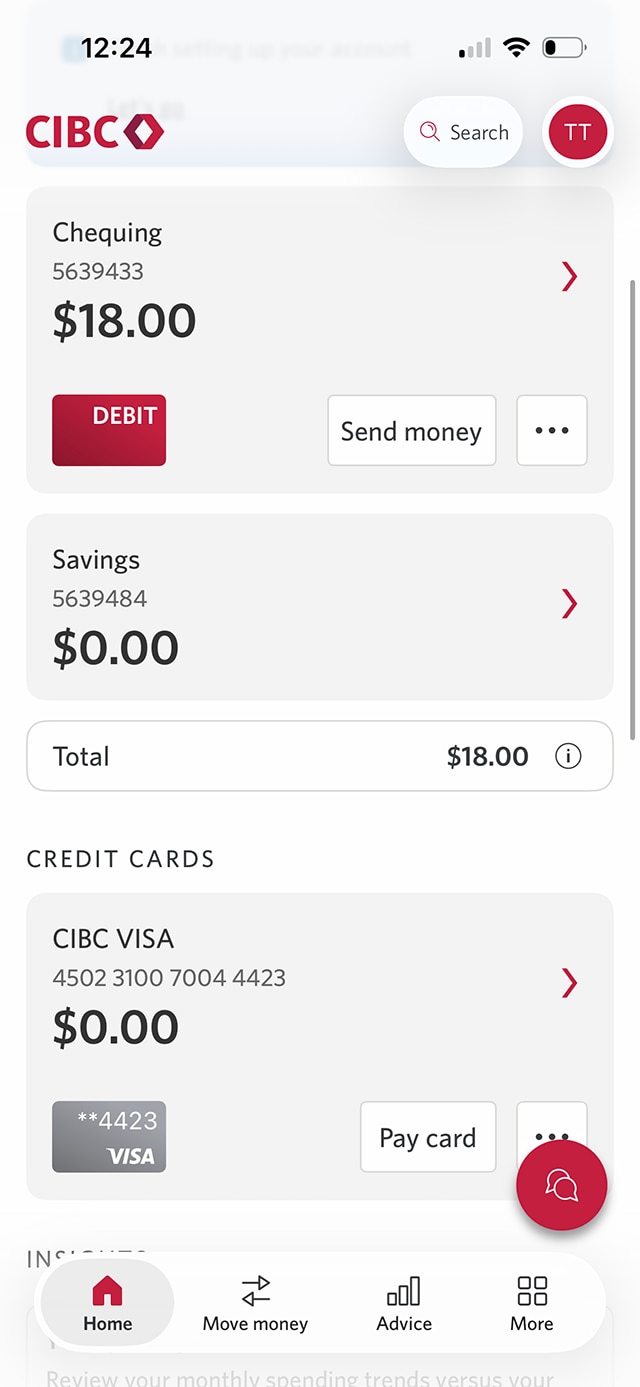
Demo screen 2: CIBC Mobile Banking App homepage. A pulsing animation highlights the more potions button.
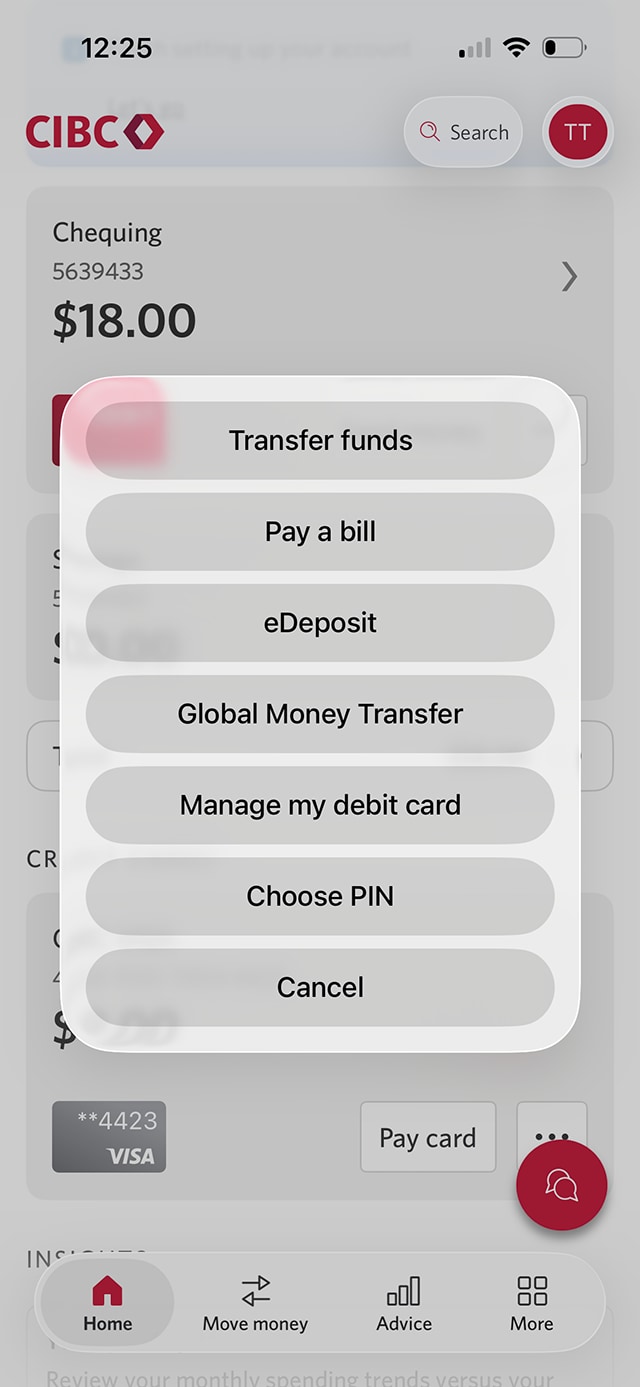
Demo screen 3: CIBC Mobile Banking App three-dot menu modal A pulsing animation highlights the "Pay a bill" button.
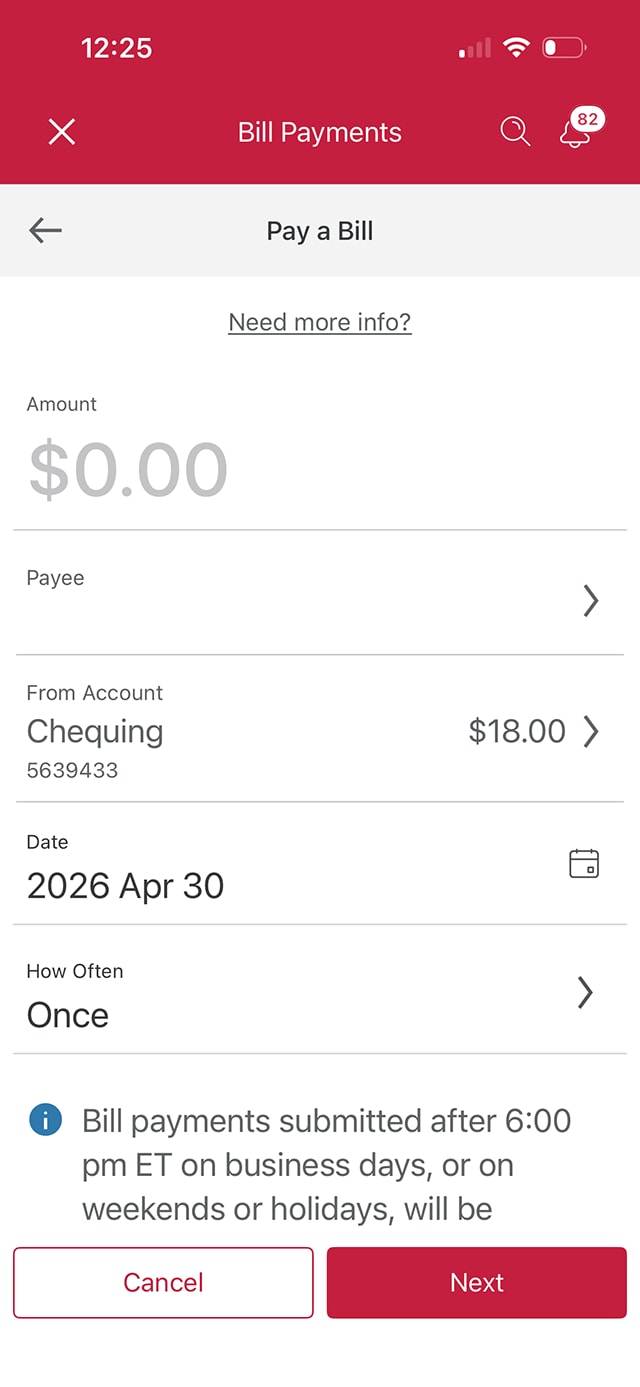
Demo screen 4: CIBC Mobile Banking App Bill Payments menu. A pulsing animation highlights the "Payee" button.
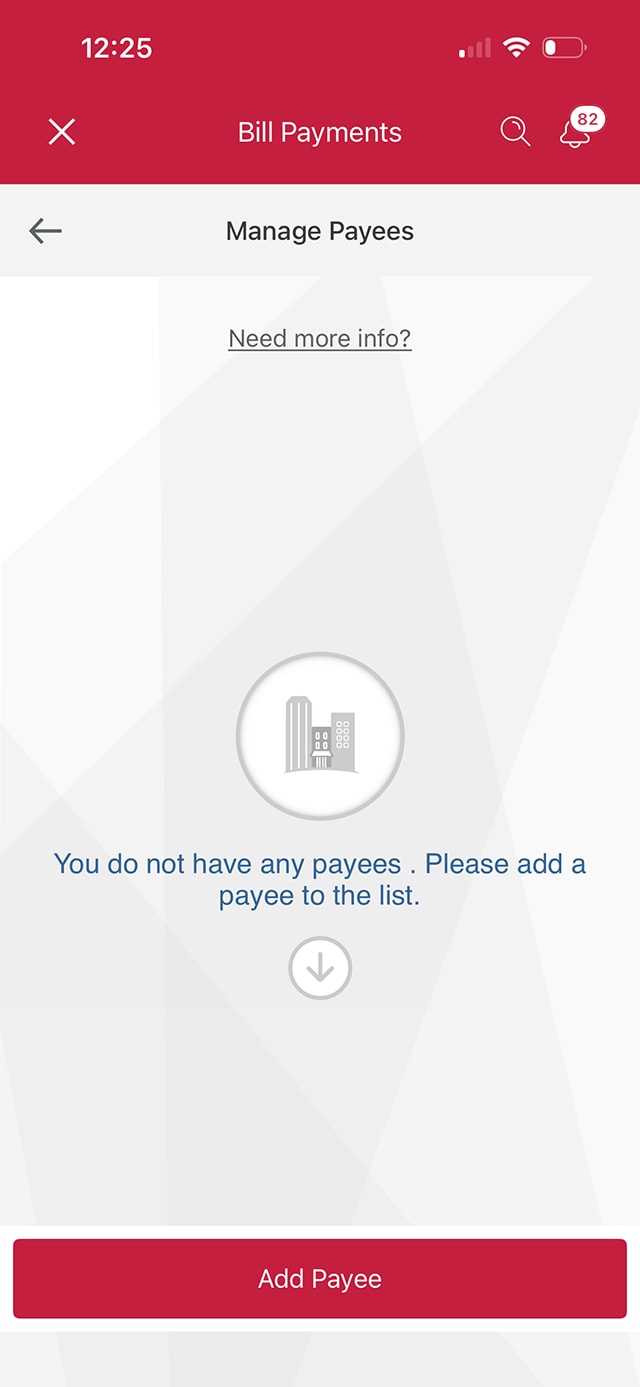
Demo screen 5: CIBC Mobile Banking App Manage payees page. A pulsing animation highlights the "Add payee" button.
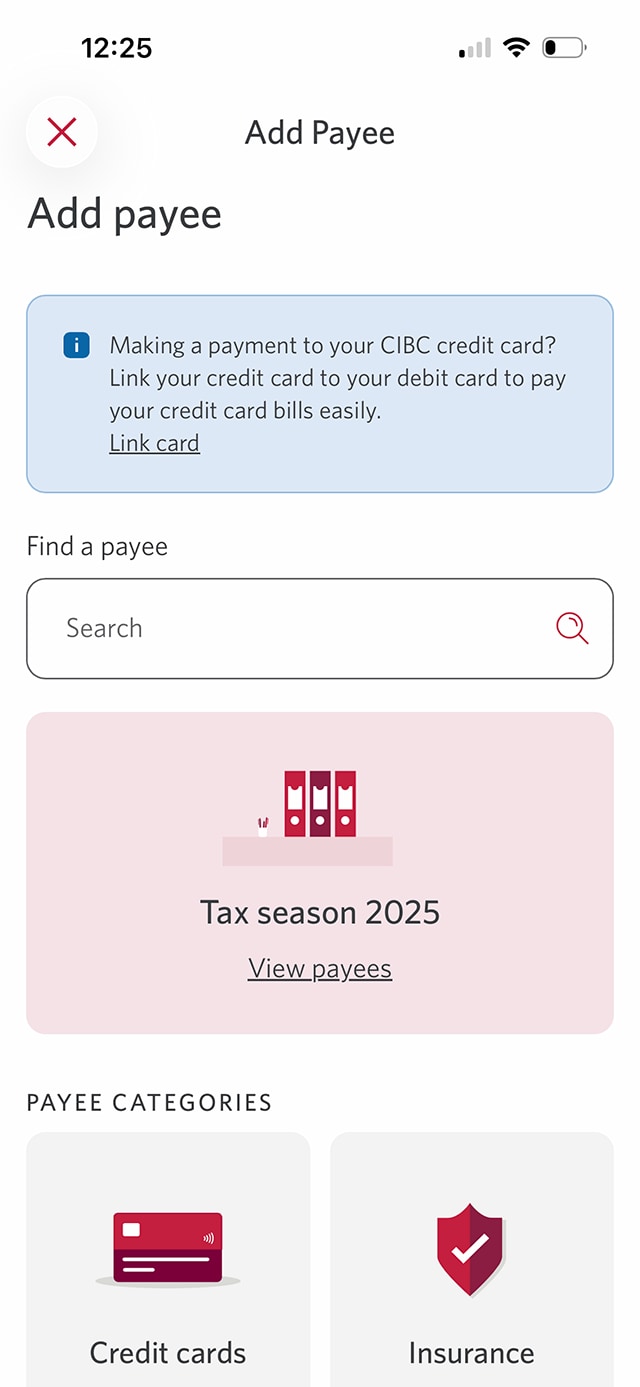
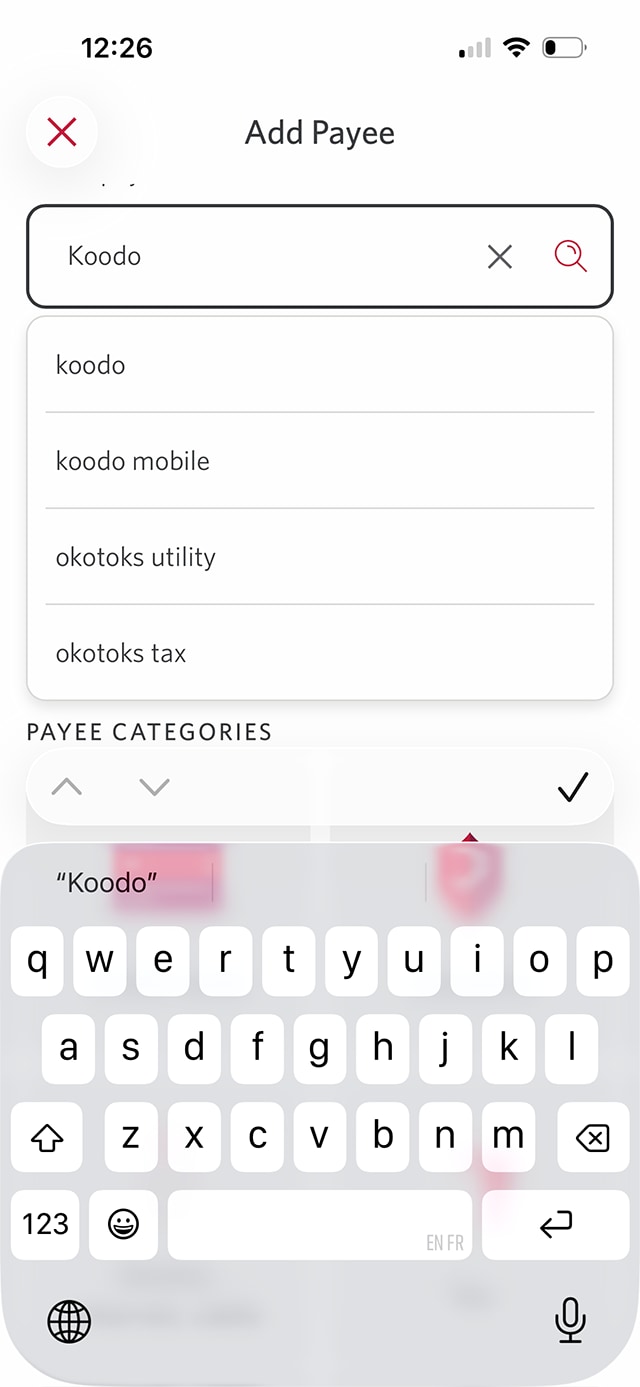
Demo screen 6: CIBC Mobile Banking App Add payee page. A pulsing animation highlights the search field.
Demo screen 7: CIBC Mobile Banking App Add payee page. A pulsing animation highlights the "Koodo" option.
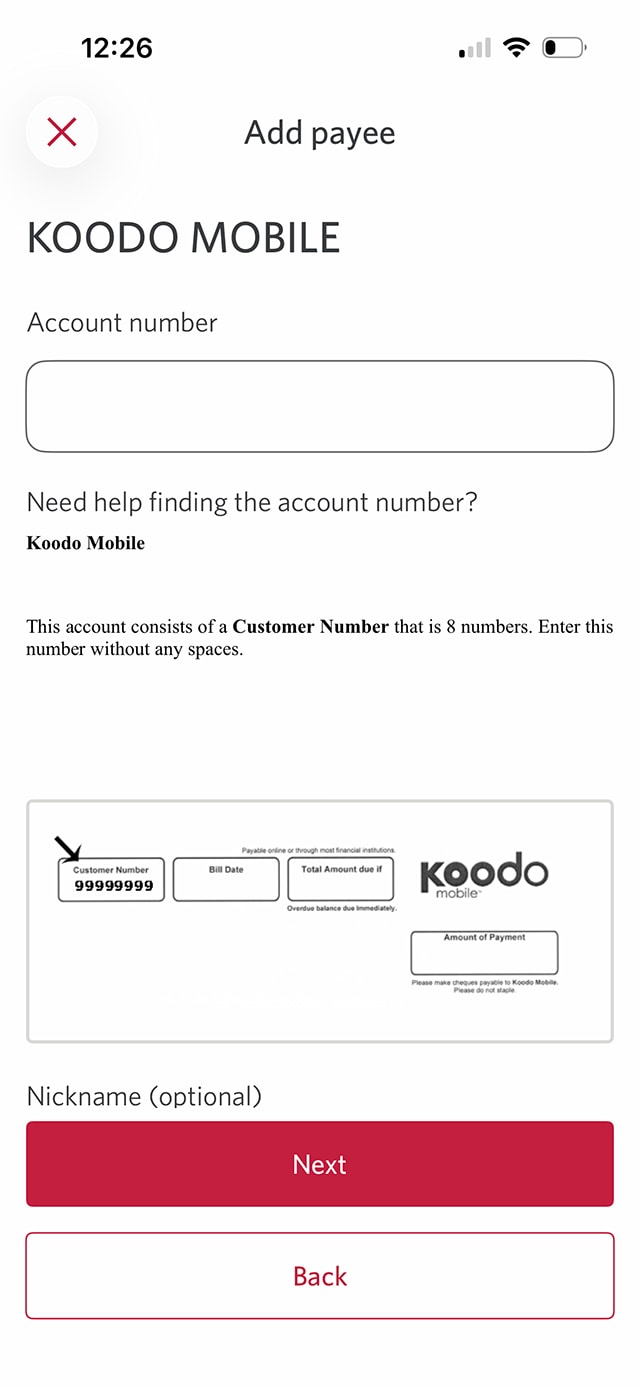
Demo screen 8: CIBC Mobile Banking App Add payee page A pulsing animation highlights the next button.
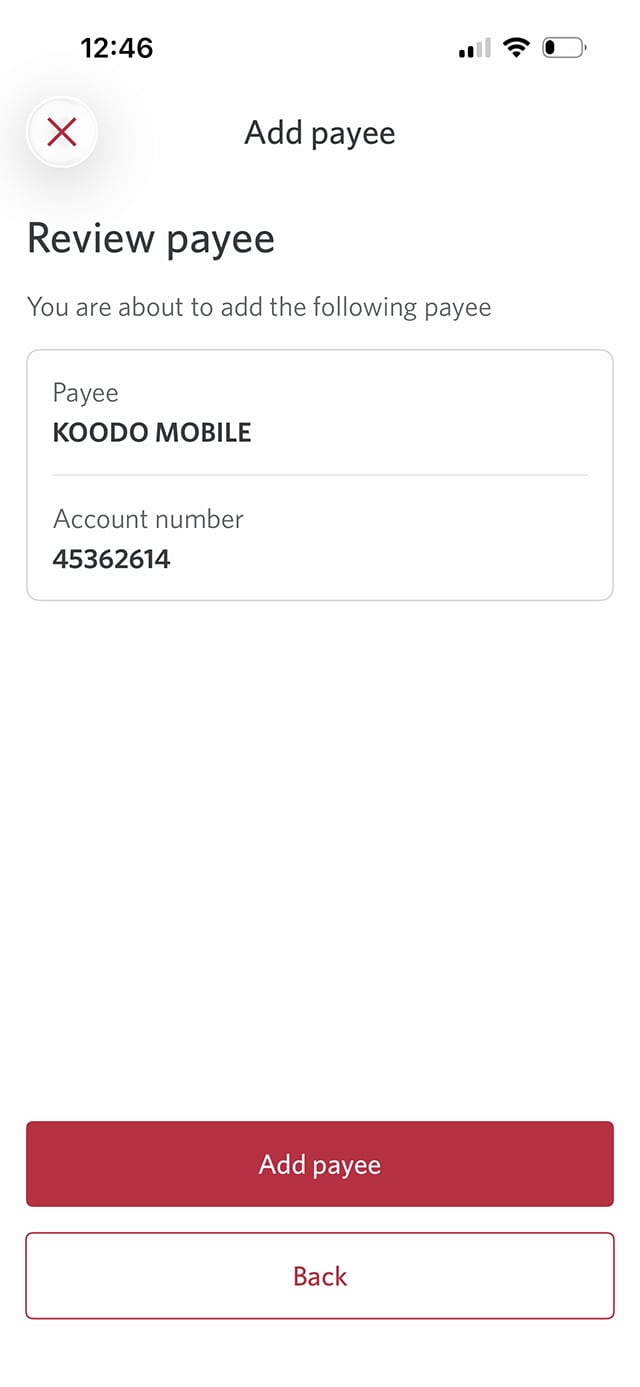
Demo screen 9: CIBC Mobile Banking App review payee. A pulsing animation highlights the "Add payee" button.
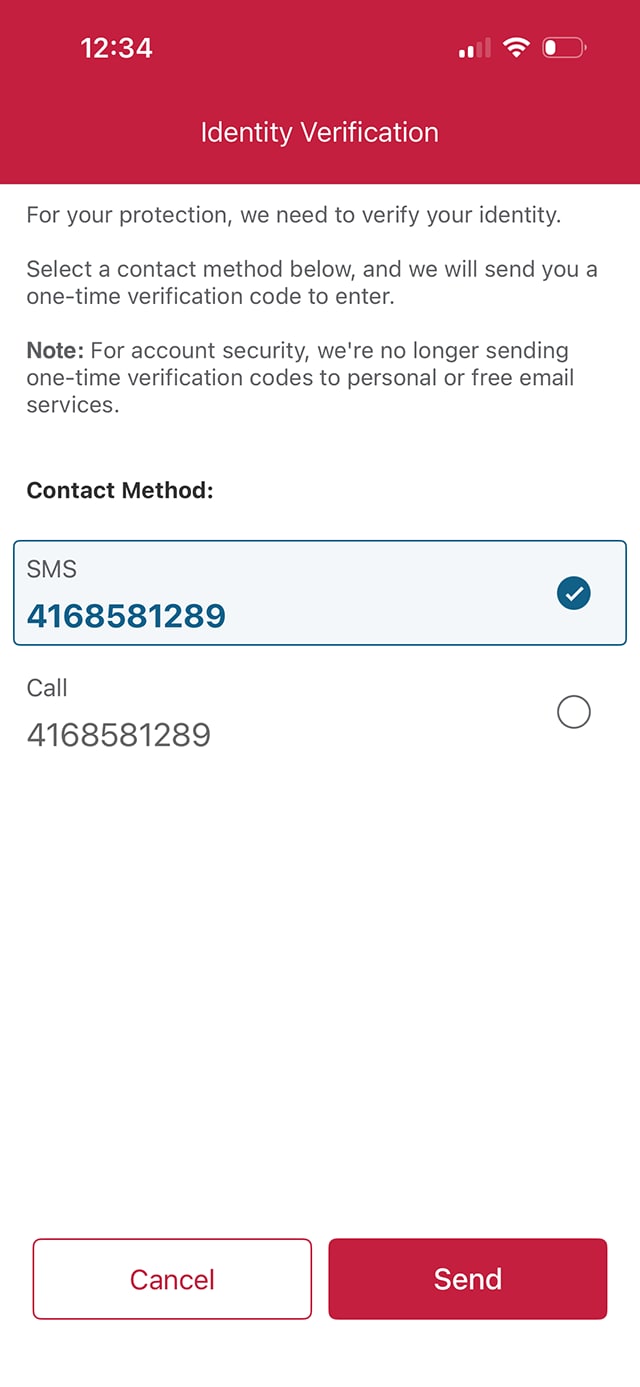
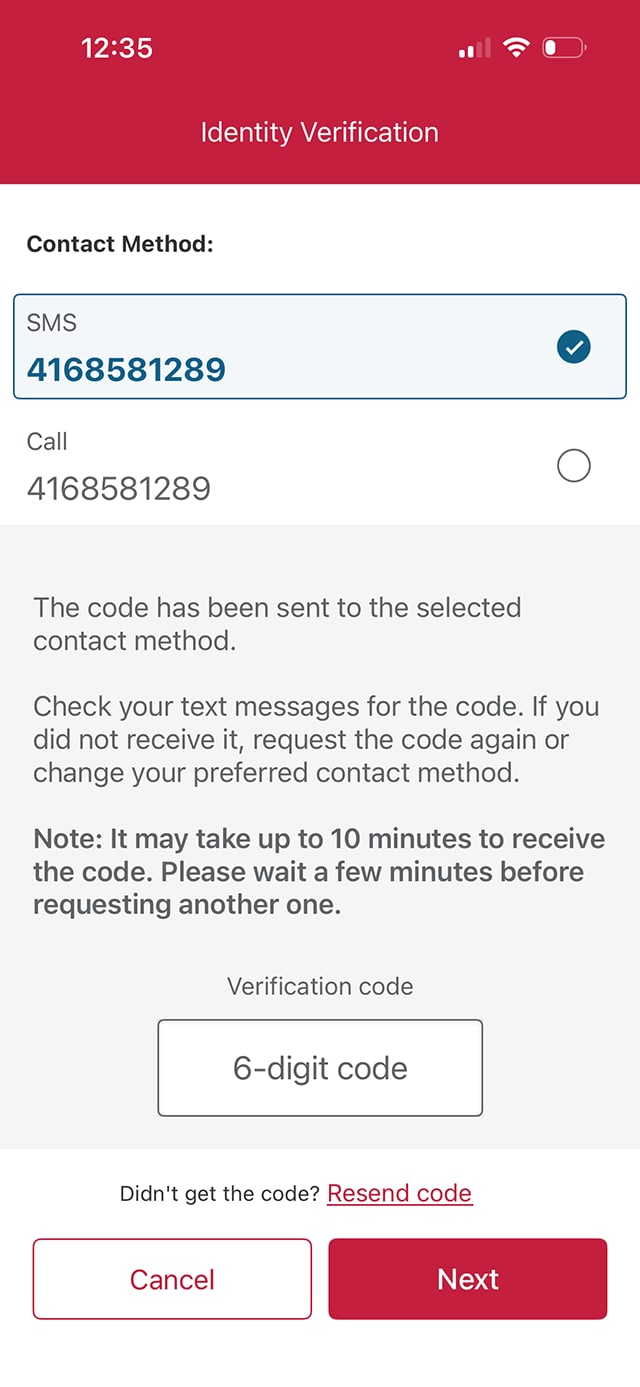
Demo screen 10: CIBC Mobile Banking App identity verification. A pulsing animation highlights the "Send" button.
Demo screen 11: CIBC Mobile Banking App Identity verification. A pulsing animation highlights the "Next" button.
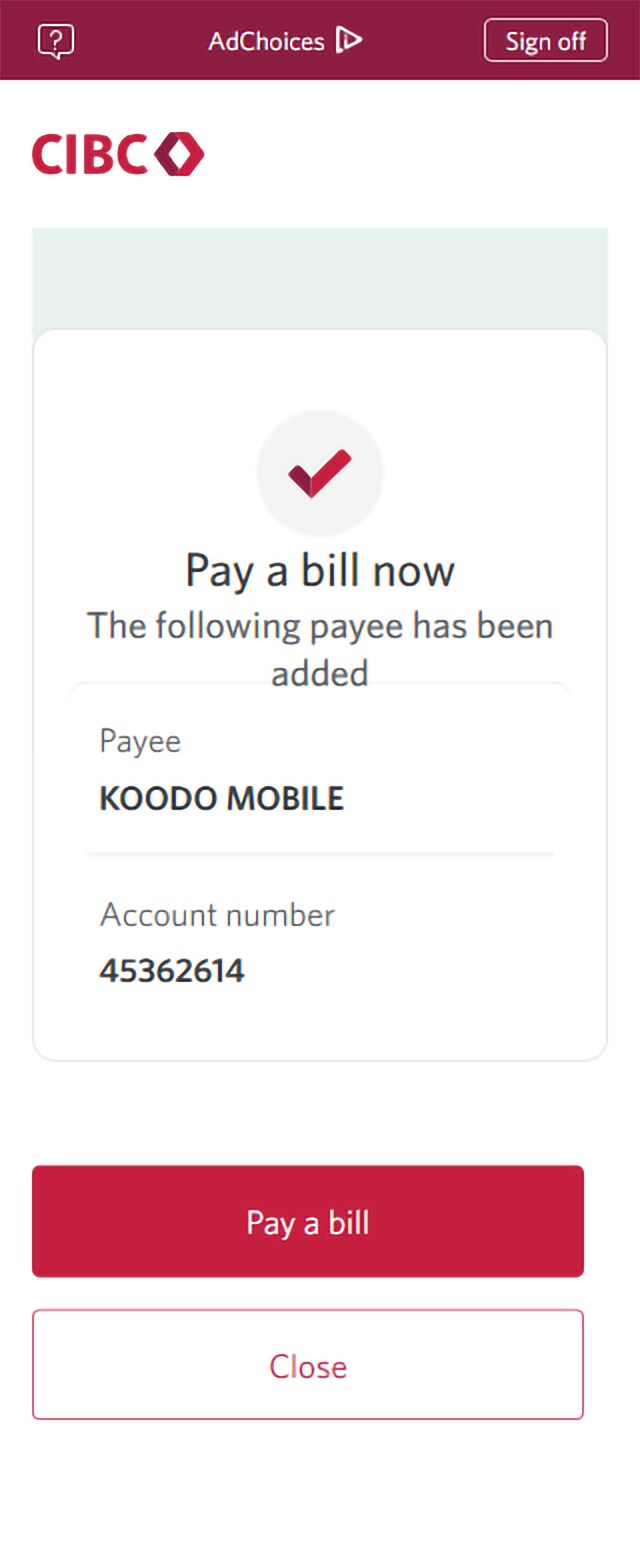
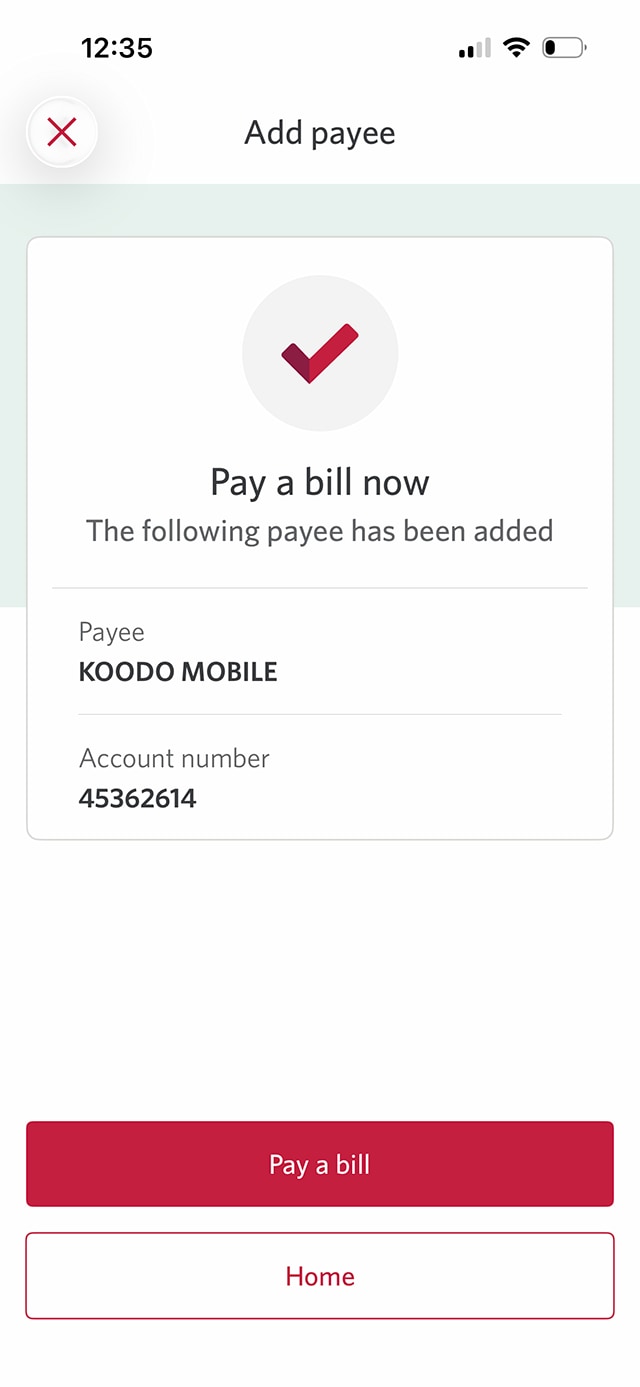
Demo screen 12: CIBC Mobile Banking App pay a bill now. A pulsing animation highlights the "Pay a bill" button.
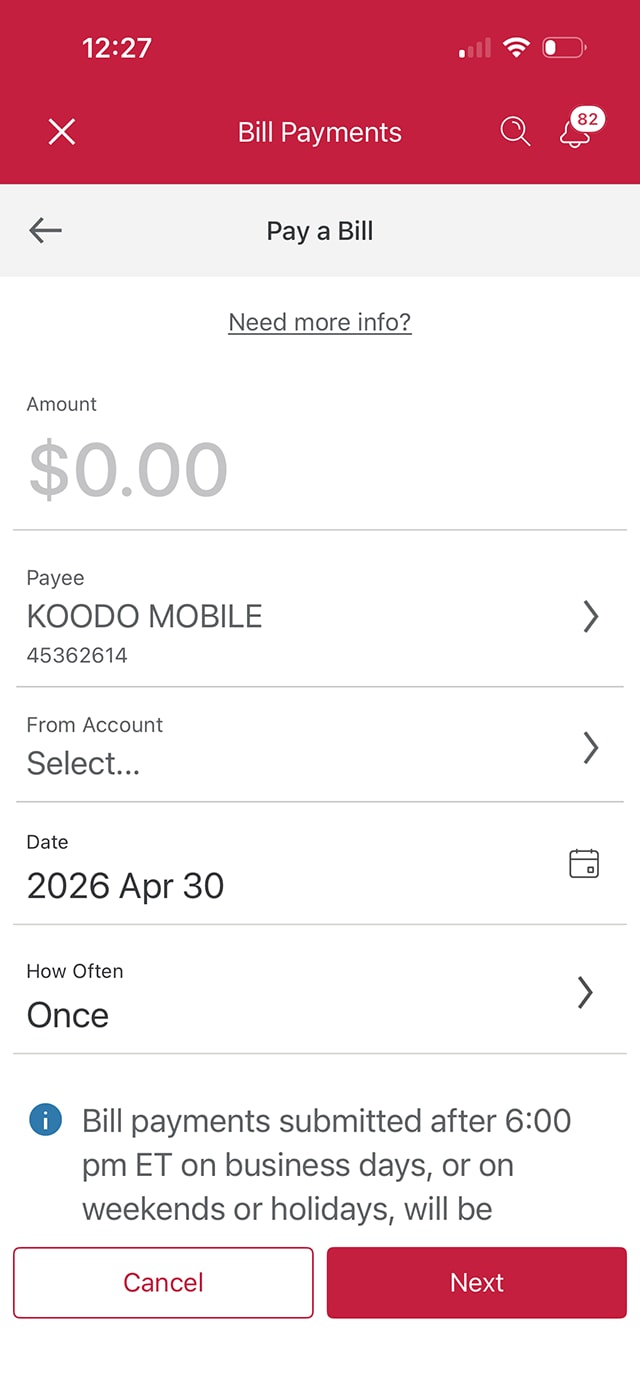
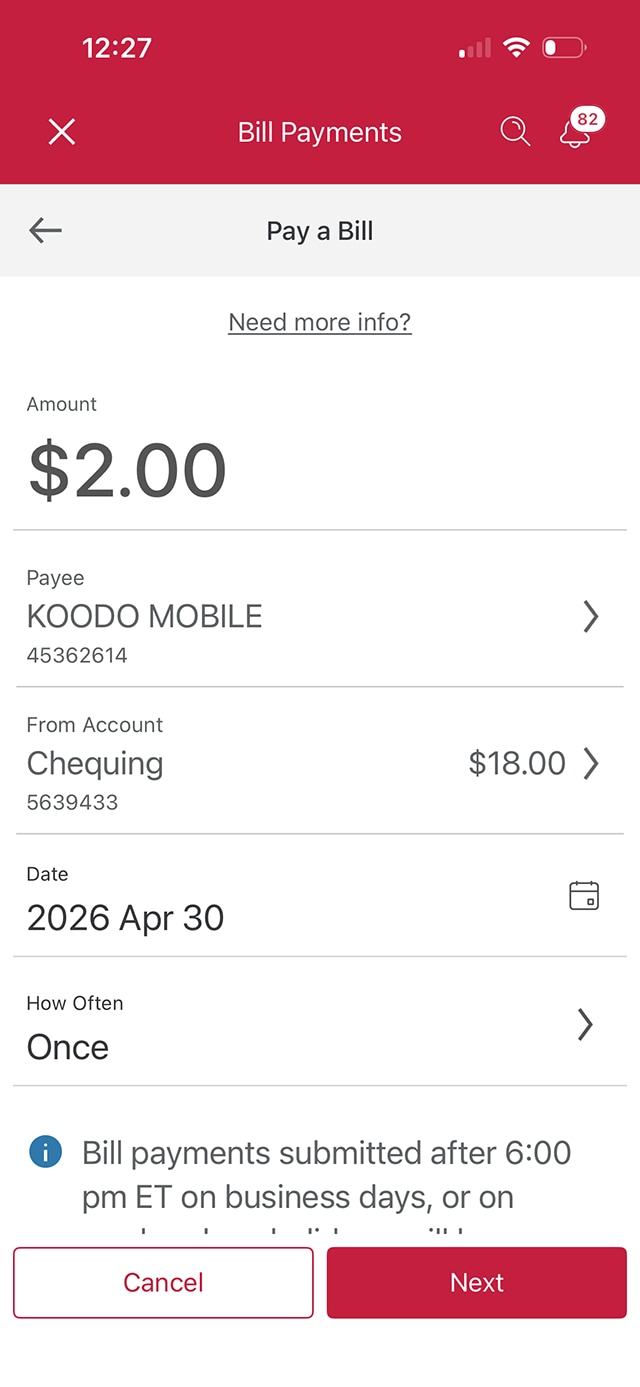
Demo screen 13: CIBC Mobile Banking App bill payments. A pulsing animation highlights the Amount field.
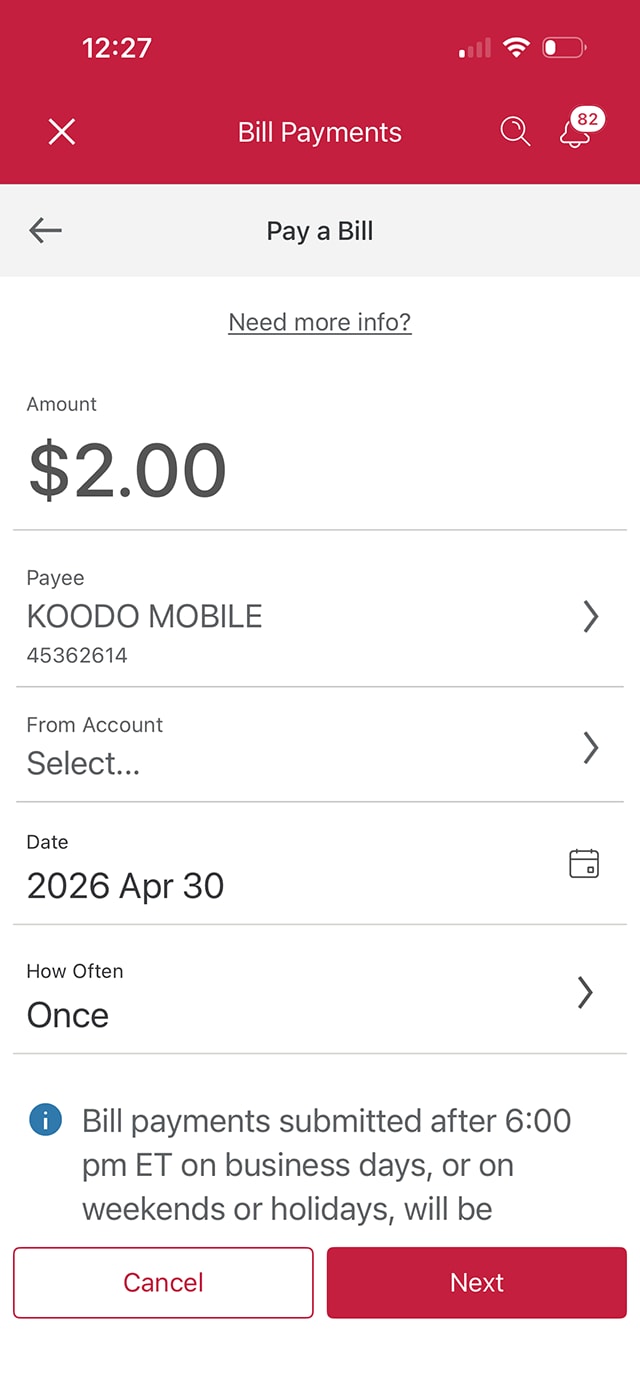
Demo screen 14: CIBC Mobile Banking pay a bill. A pulsing animation highlights the "From account" button.
Demo screen 15: CIBC Mobile Banking App pay a bill. A pulsing animation highlights the calendar button.
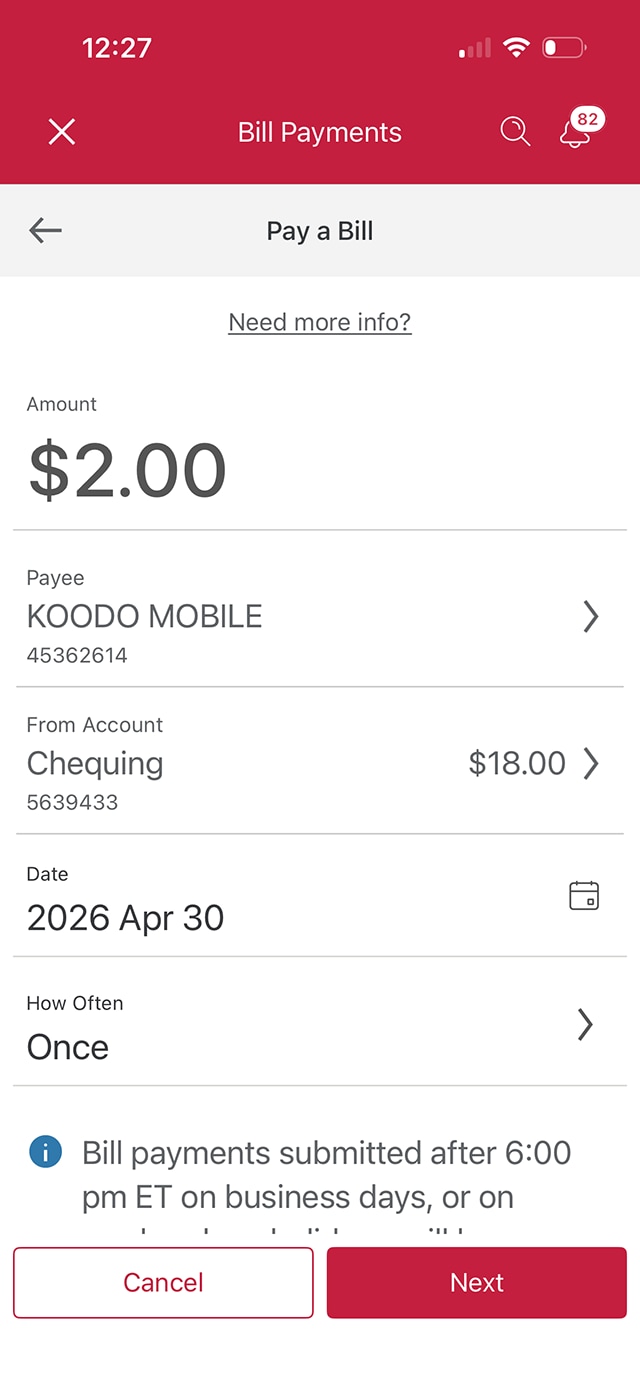
Demo screen 16: CIBC Mobile Banking App pay a bill. A pulsing animation highlights the "Next" button.
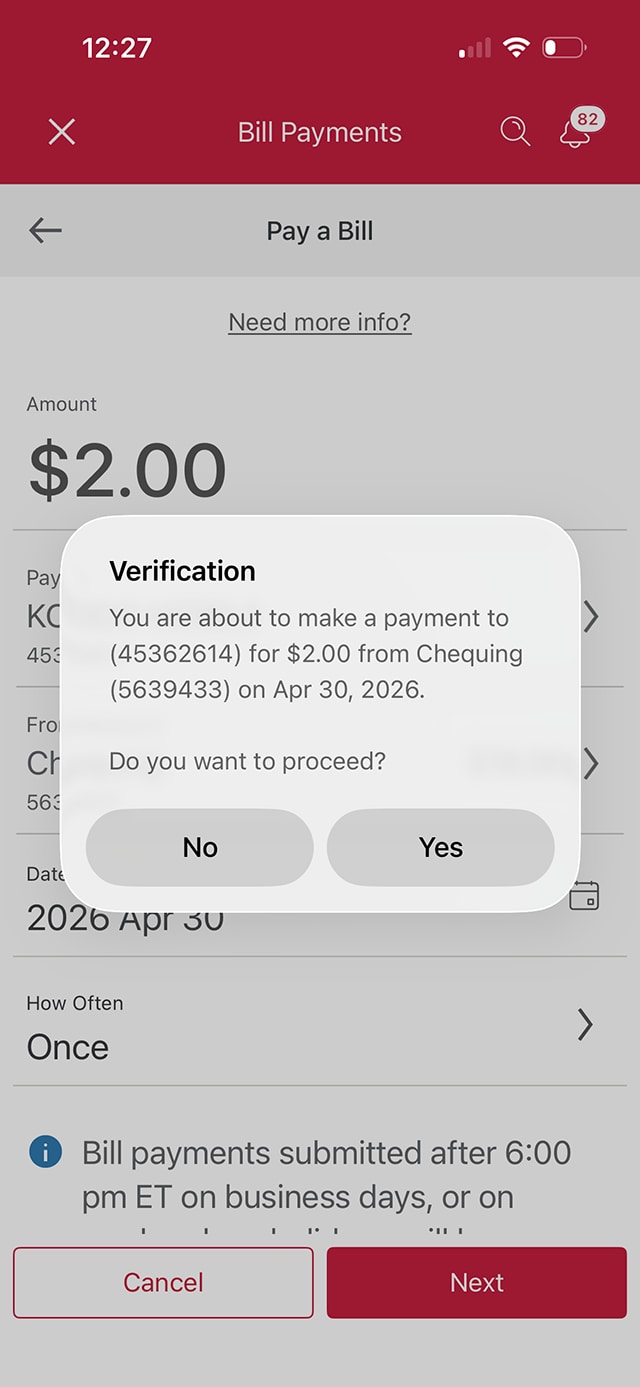
Demo screen 17: CIBC Mobile Banking App pay a bill verification. A pulsing animation highlights the "Yes" button.
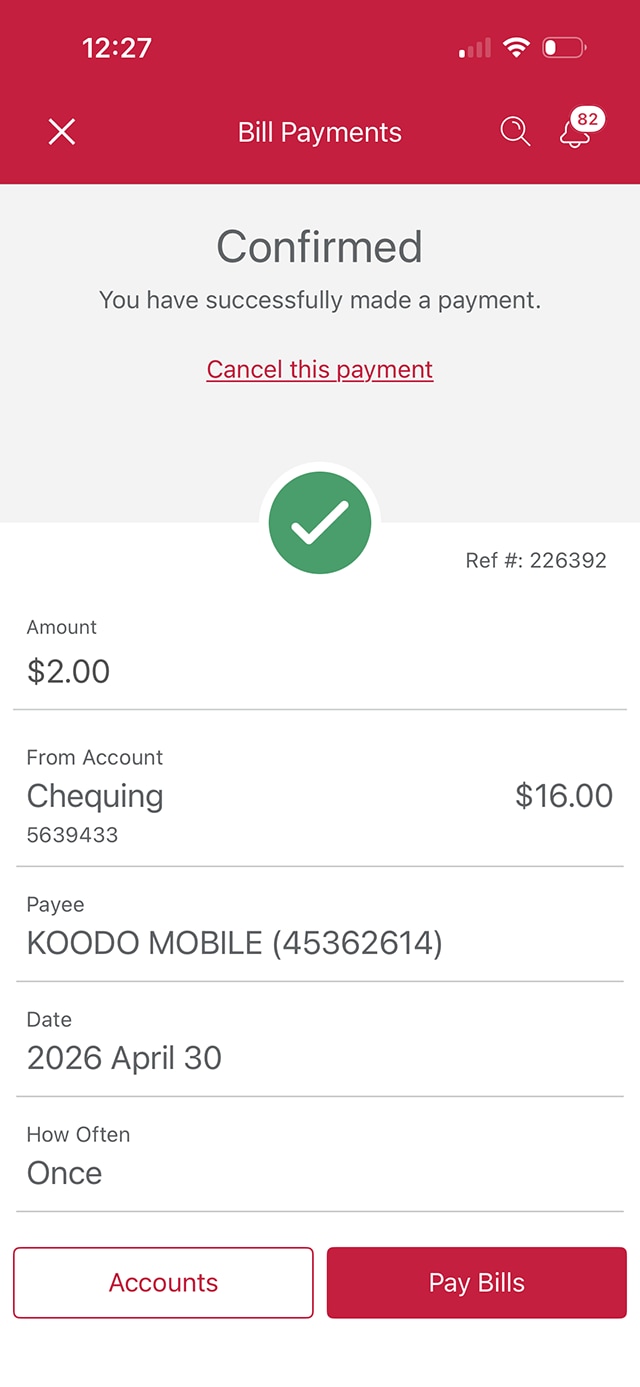
Demo screen 18: CIBC Mobile Banking App pay a bill confirmation. No pulsing animation.
Your progress 1 of

Step 1 : Let's get started on the mobile app

Select the "Sign on" button in the demo to continue.

Step 2 : Select the three-dot menu

On the CIBC Mobile Banking homepage, select the three-dot menu.

Step 3 : Select "Pay a bill"

From the menu options provided, select "Pay a bill".

Step 4 : Add a new payee

To add a new payee, go to the "Payee" field box and select the chevron icon.

Step 5 : Select "Add payee"

Select the "Add payee" button to continue.

Step 6 : Search for a payee

Go to the search field and enter the name of the payee.

Step 7 : Select the payee you want to add

Once you find the correct payee from the dropdown options, select the checkmark icon to continue. For this demo, we'll select "Koodo Mobile".

Step 8 : Enter your account number

In the field provided, enter your account number associated with the payee. For this demo, you would enter the Koodo Mobile account number.

Once you've entered the account number, select "Next" to continue.

Step 9 : Review payee information

Review the information for the payee you want to add. Once you've confirmed the information is correct, select the "Add payee" button.

Step 10 : Verify your identity

For account security, you'll be asked to enter a one-time verification code.

Choose your preferred contact method by selecting either phone call or text message. For this demo, we've chosen to receive the verification code by text.

When you're ready, select the "Send" button.

Step 11 : Enter the verification code

Once you've received the verification code, enter it on the field provided and select "Next".

Step 12 : Pay a bill

An on-screen message will confirm the payee was successfully added. Select "Pay a Bill" to continue with bill payment.

Step 13 : Enter the amount you want to pay

Use the field provided to enter the amount you want to pay toward your bill.

Step 14 : Select an account to make the bill payment from

Select the chevron to open your account options and choose the account you want to make the bill payment from.

Step 15 : Select a payment date

The default payment frequency is today’s date, with non-recurring payments. To choose a different date for your bill payment, select the calendar icon.

Step 16 : Select "Next"

When you've finished entering the details of your payment, select "Next" to continue.

Step 17 : Review the details of your bill payment

Once you've verified the details are correct, select the "Yes" button to proceed.

Step 18 : Great job!

You've successfully added a payee and made a bill payment on the CIBC Mobile Banking App.

Want an overview of all the steps?

For full instructions on how to pay a bill, check out the step-by-step process all in one place.

Make payments your way

Pay bills anywhere

Easily pay bills online or in-app. Sign on with your debit card number, add a payee, enter the amount and pick a date — funds come directly from your account.

Automate your payments

Stay on top of due dates and bank stress-free. Provide the merchant with your debit card details to set up recurring payments for bills, subscriptions and more.

Pre-authorized debit

Set up pre-authorized debit for payments like rent, insurance or loans — provide your account details once and never miss a due date.
Recommended digital banking demos

How to manage your credit card

Start demo on how to manage your credit card.

How to transfer money between your accounts

Start demo on how to transfer money between your accounts.

How to register for eStatements

Start demo on how to register for eStatements.

How to understand credit card payments

Start demo on how to pay credit card bills online.

Get started

CIBC Online Banking®

Discover digital banking features that can help you bank easily online.
CIBC Mobile Banking® App

Stay connected to your finances on your mobile device, no matter where you are.