
Digital banking tutorials

How to transfer money between your accounts
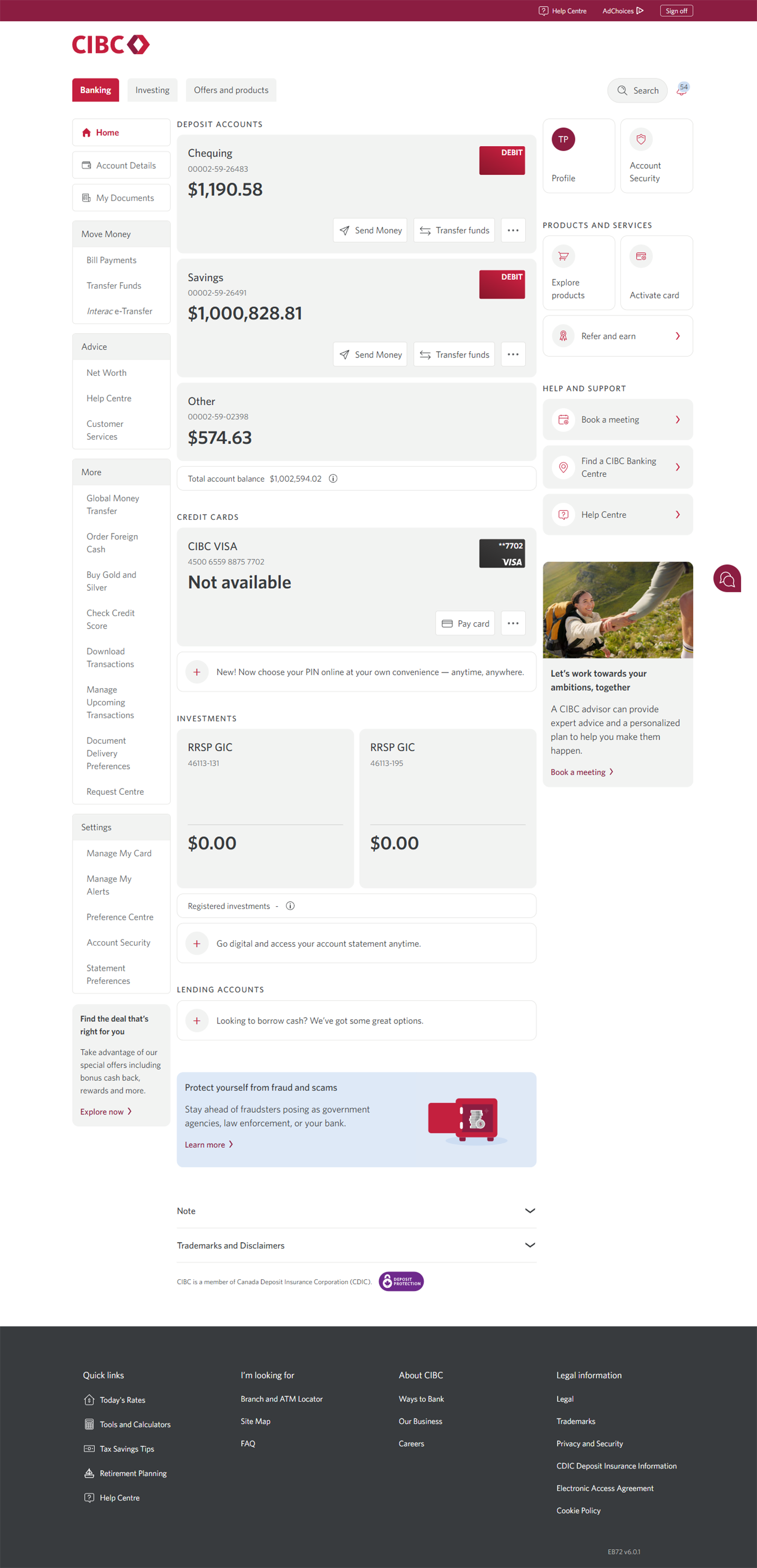
Learn how to use online banking to securely transfer money between your accounts.
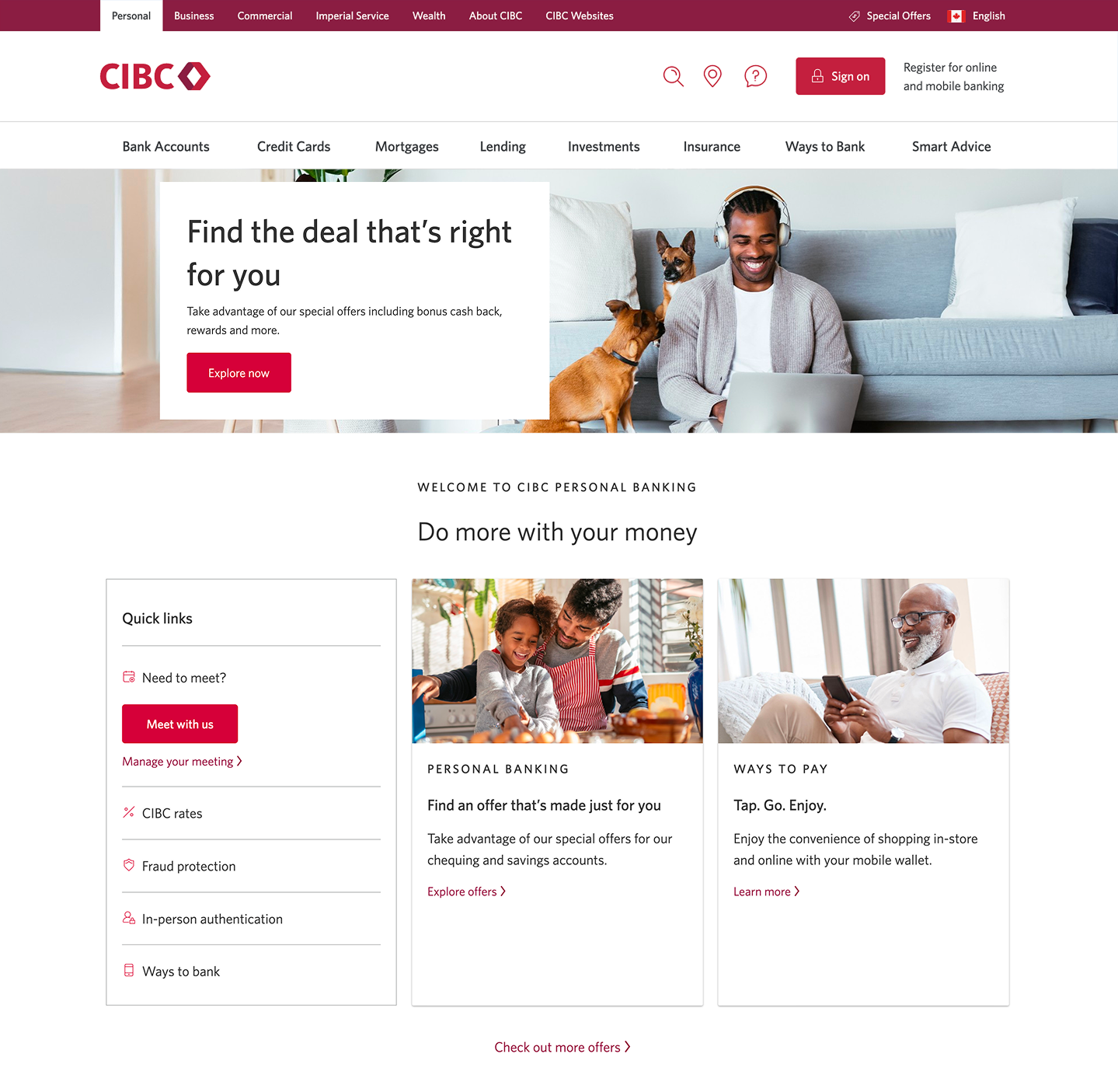
Demo screen 1: CIBC homepage. A pulsing animation highlights the "Sign on" button.
Demo screen 2: CIBC Online Banking home page. A pulsing animation highlights the "Transfer Funds" link.
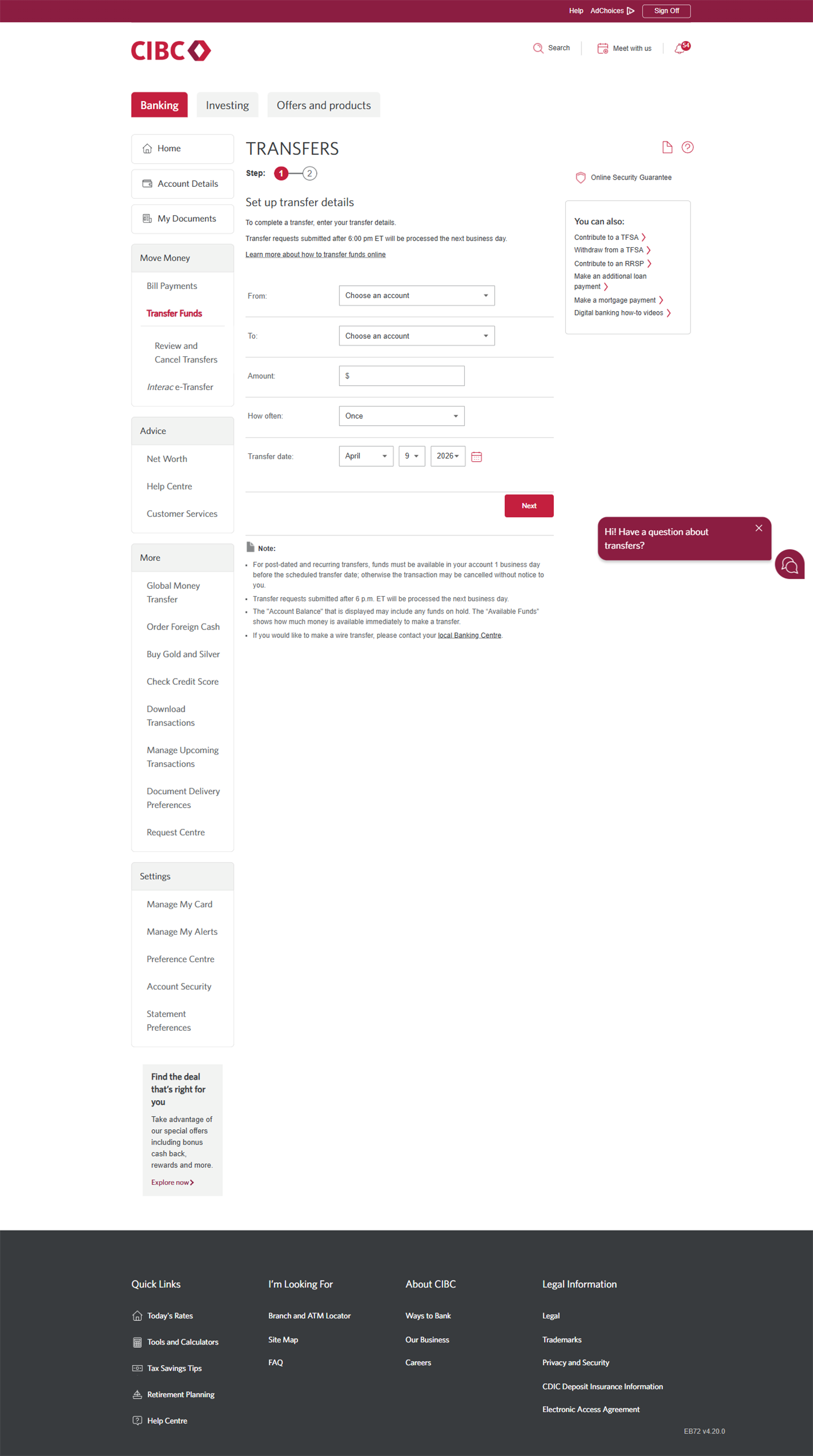
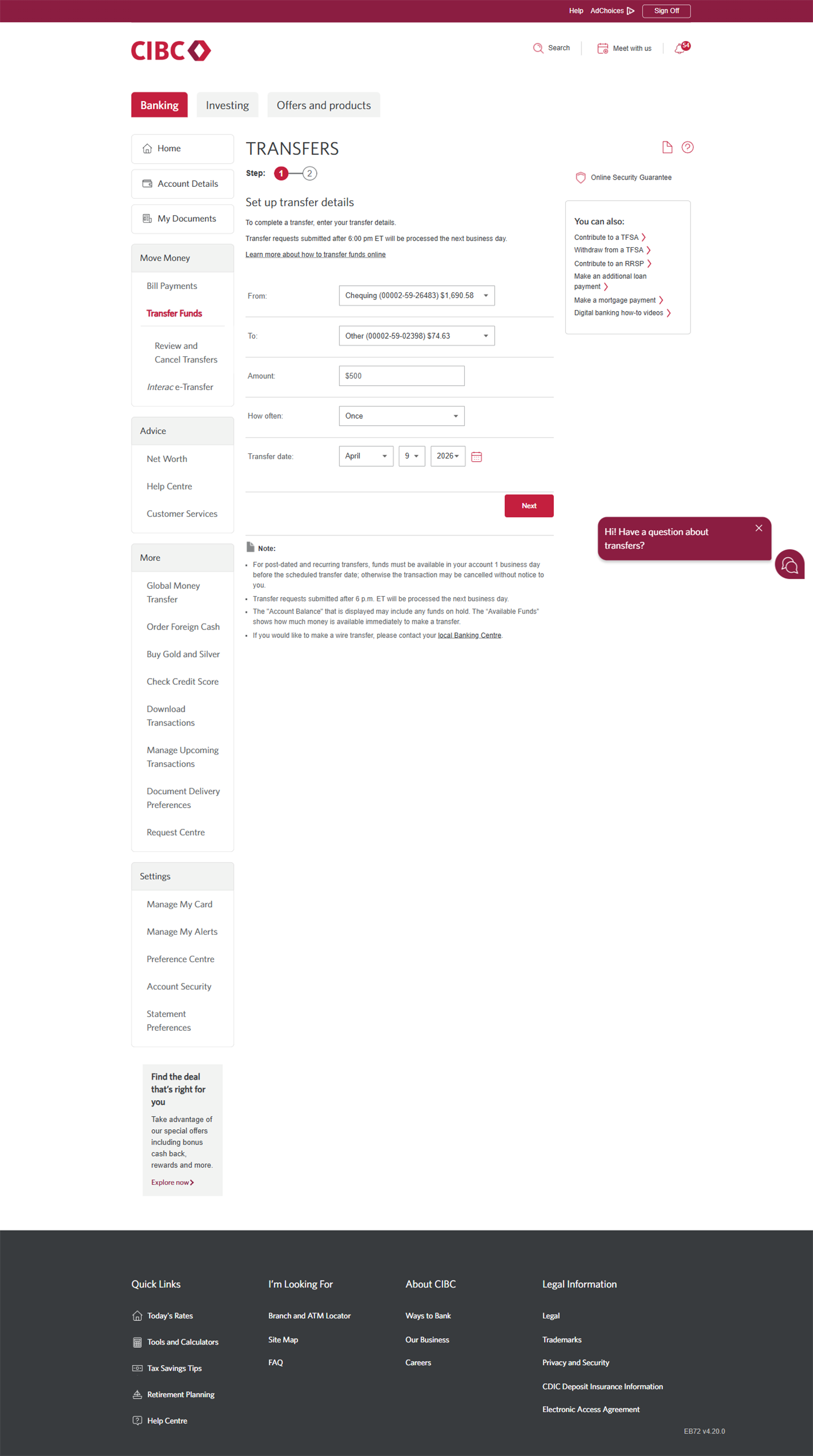
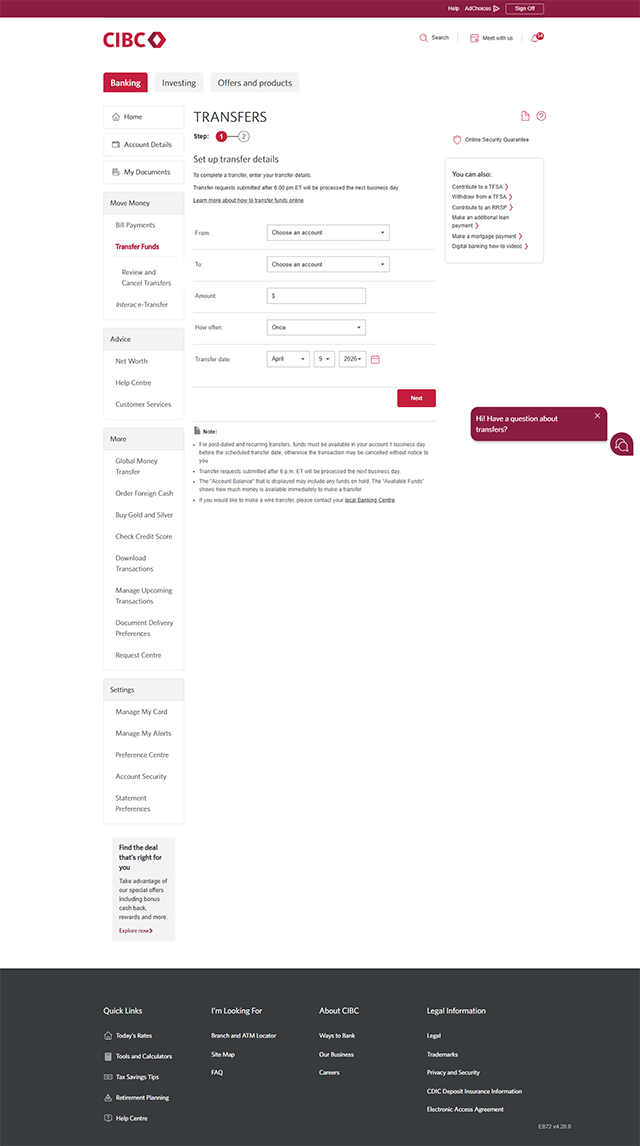
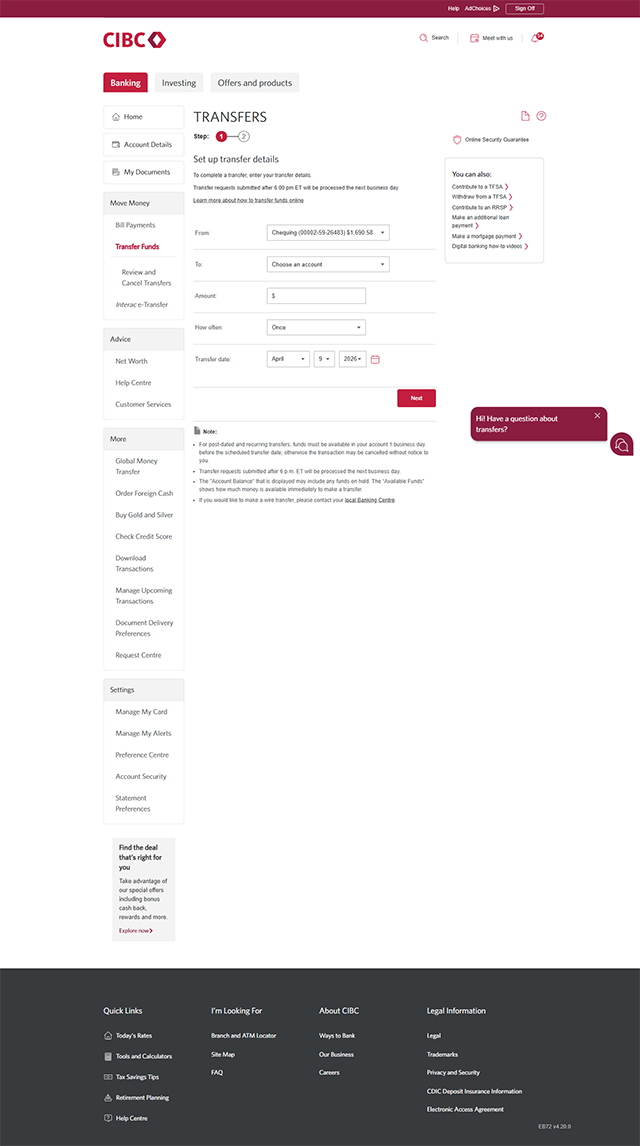
Demo screen 3: CIBC Online Banking transfers page. A pulsing animation highlights the "From: Choose an Account" combo box.
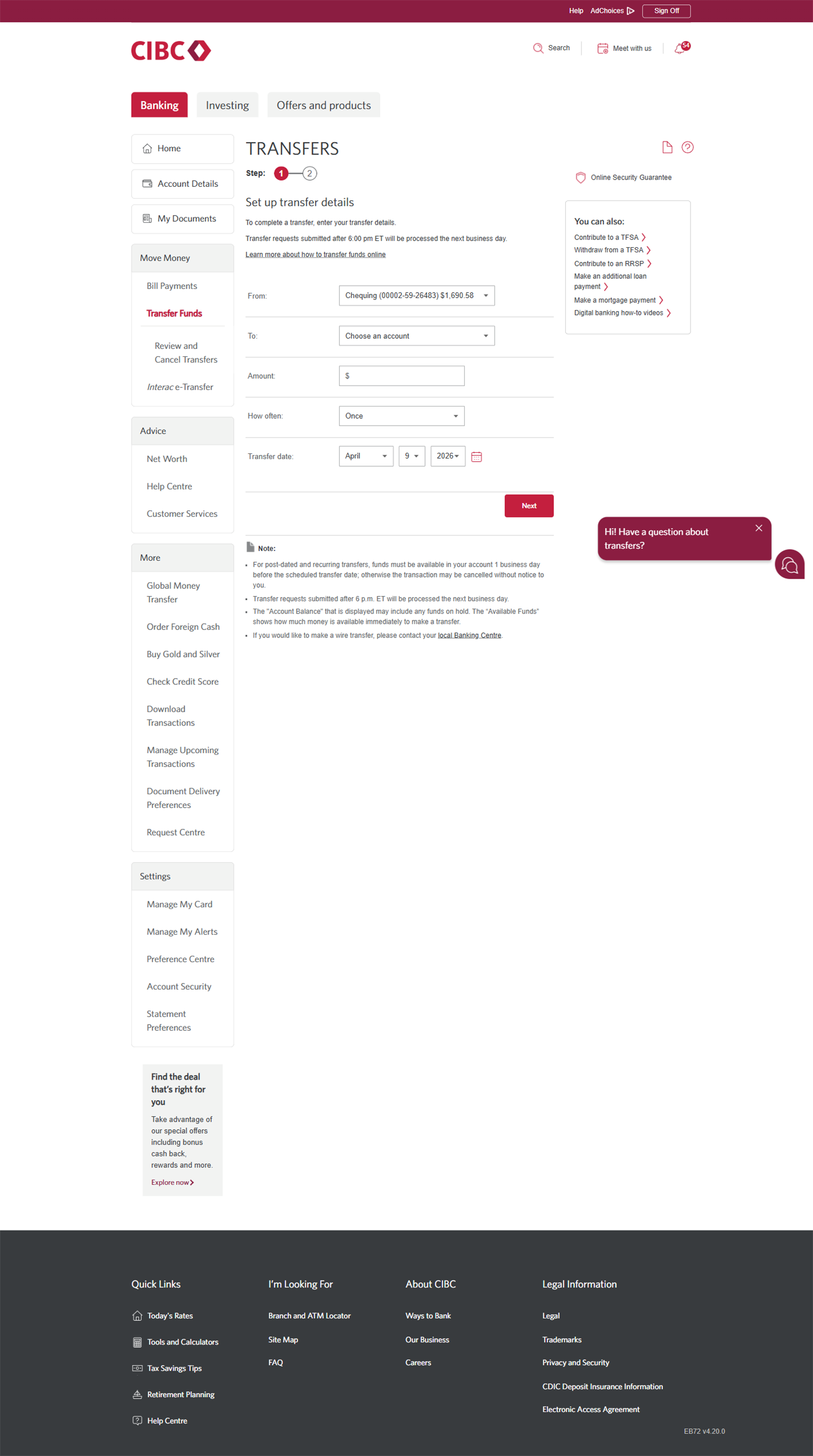
Demo screen 4: CIBC Online Banking transfers page. A pulsing animation highlights the "To: Choose an Account" combo box.
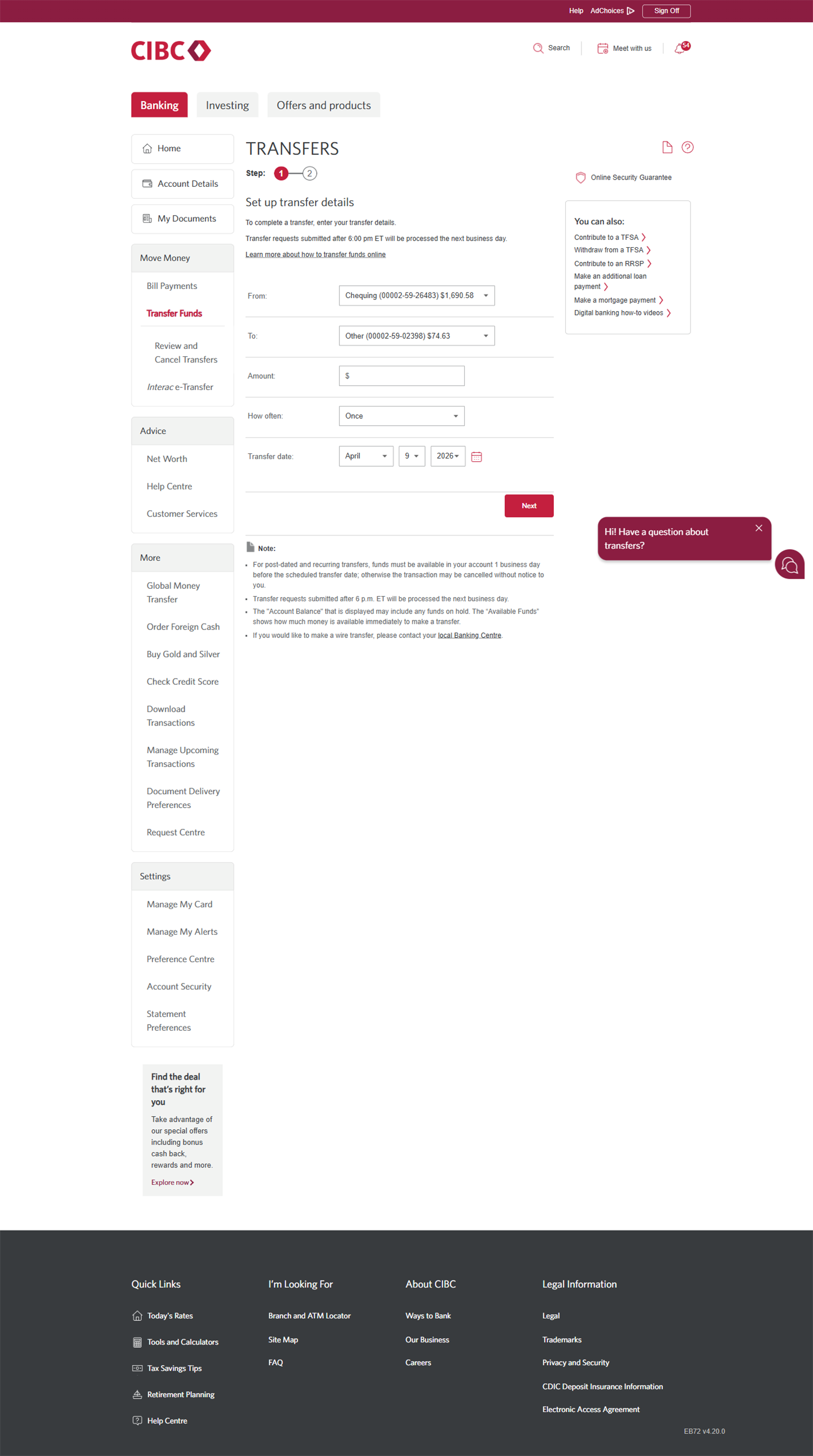
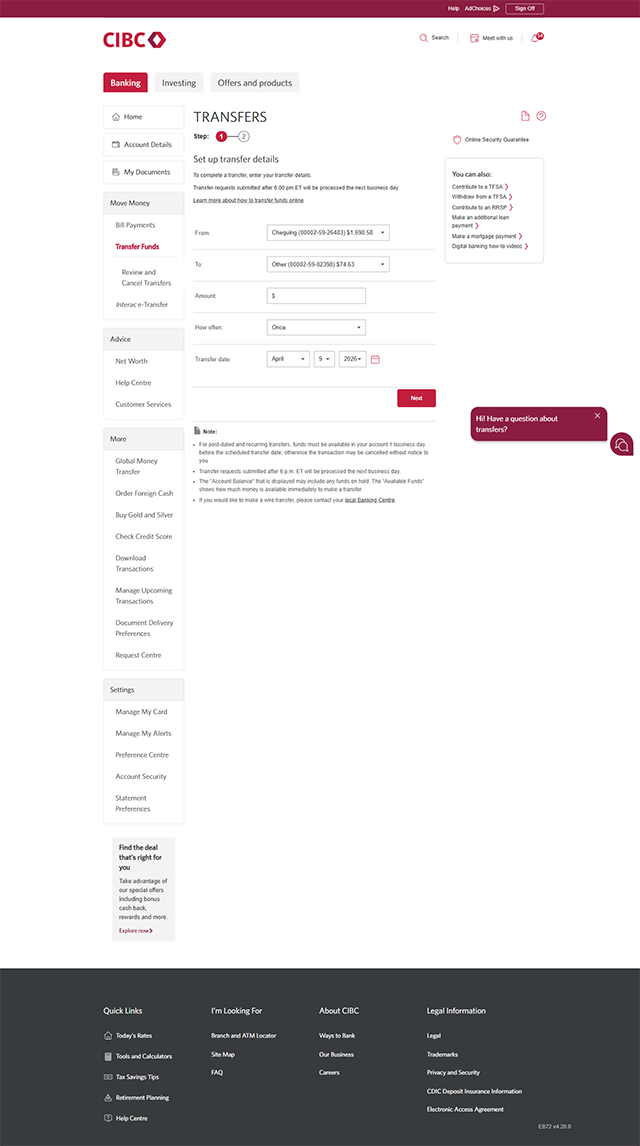
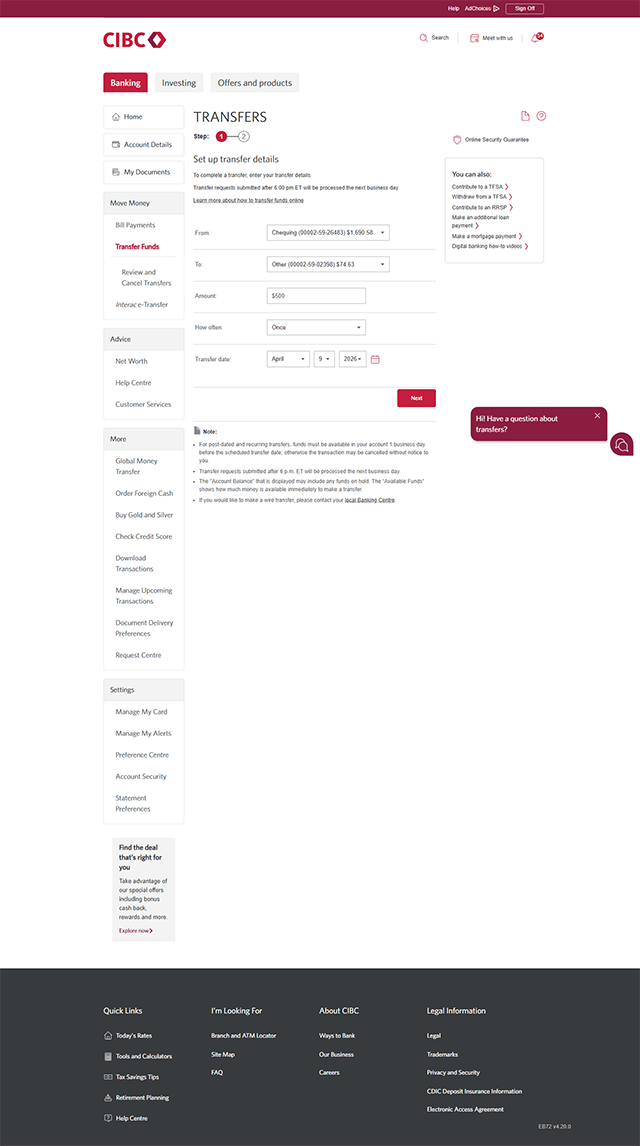
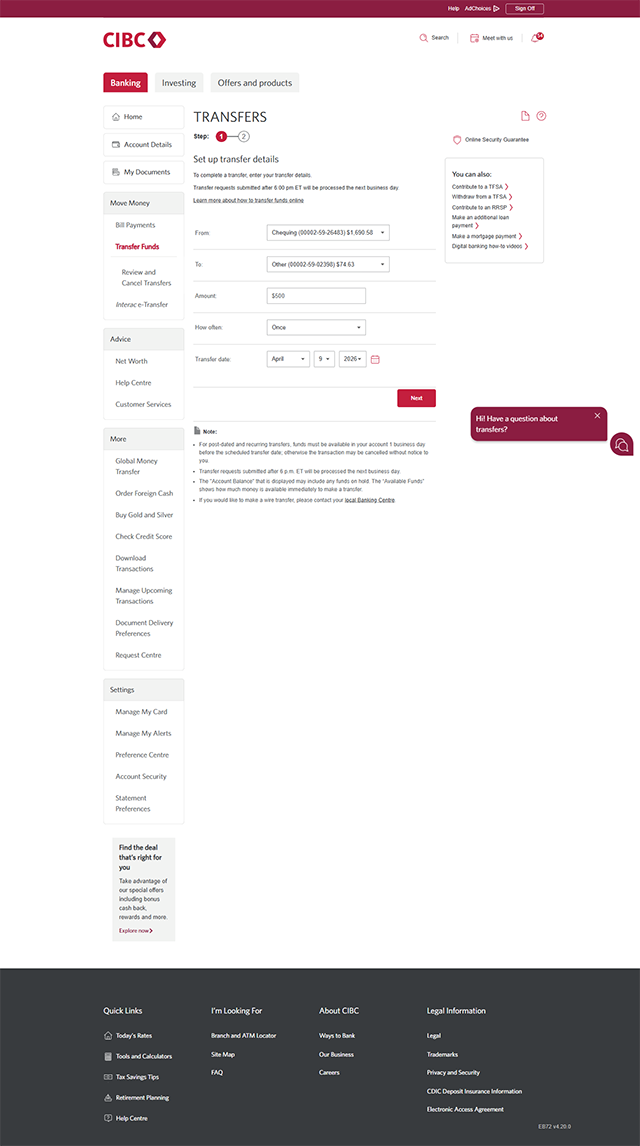
Demo screen 5: CIBC Online Banking transfers page. A pulsing animation highlights the "Amount" field.
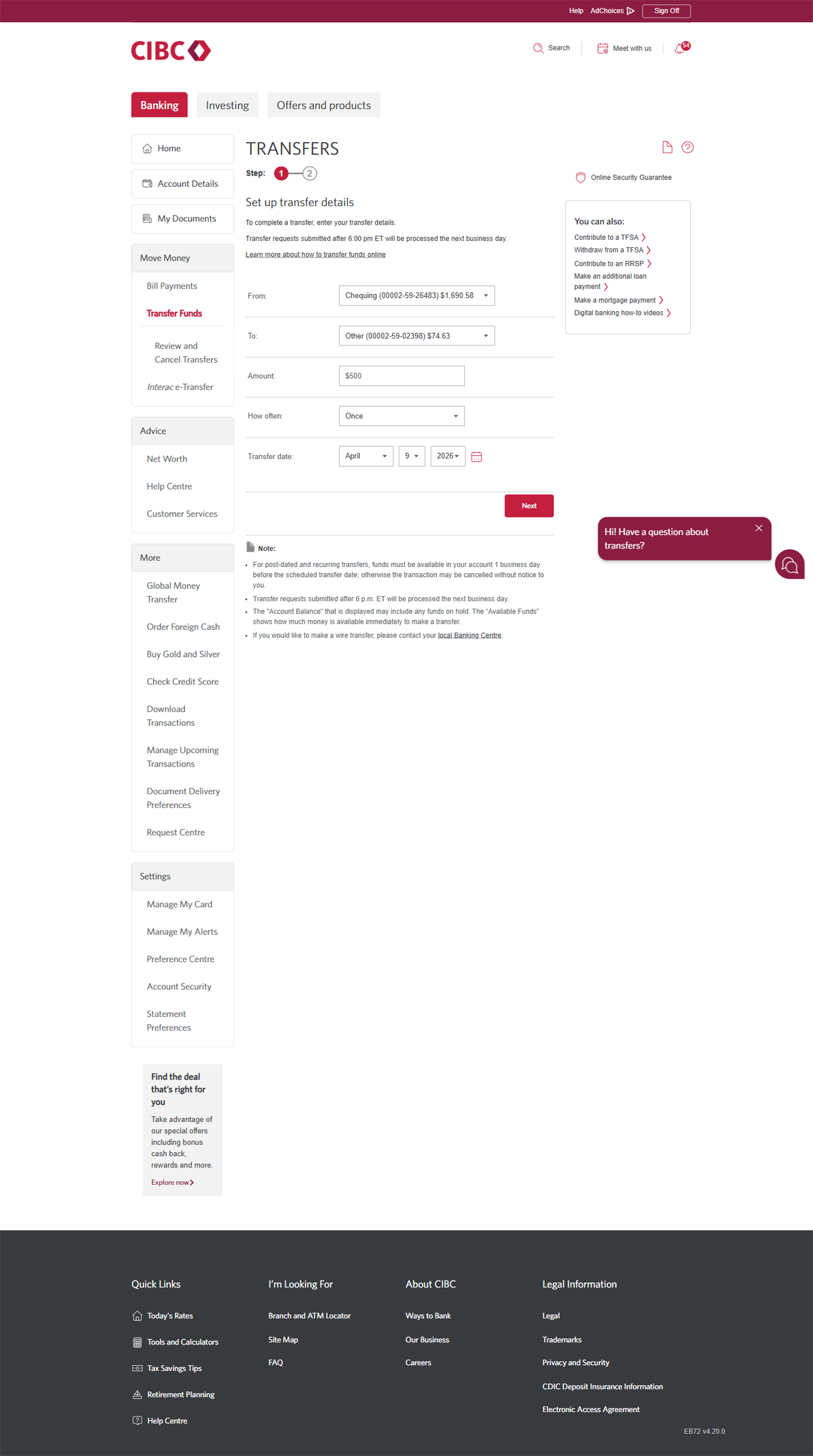
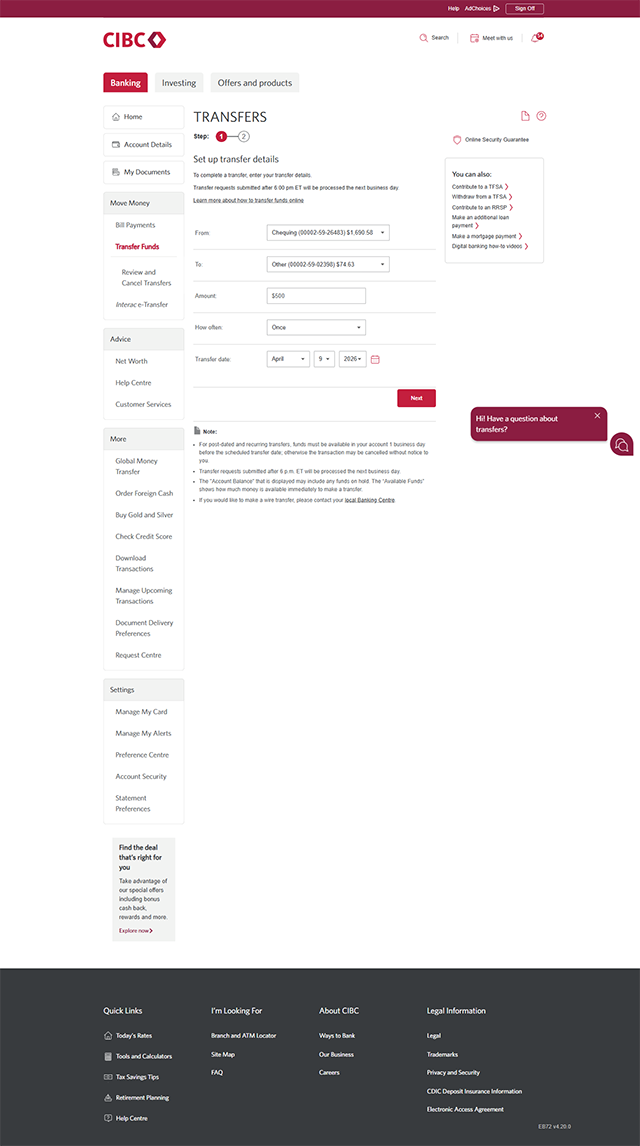
Demo screen 6: CIBC Online Banking transfers page. A pulsing animation highlights the "How often" combo box.
Demo screen 7: CIBC Online Banking transfers page. A pulsing animation highlights the "Transfer date" calendar button.
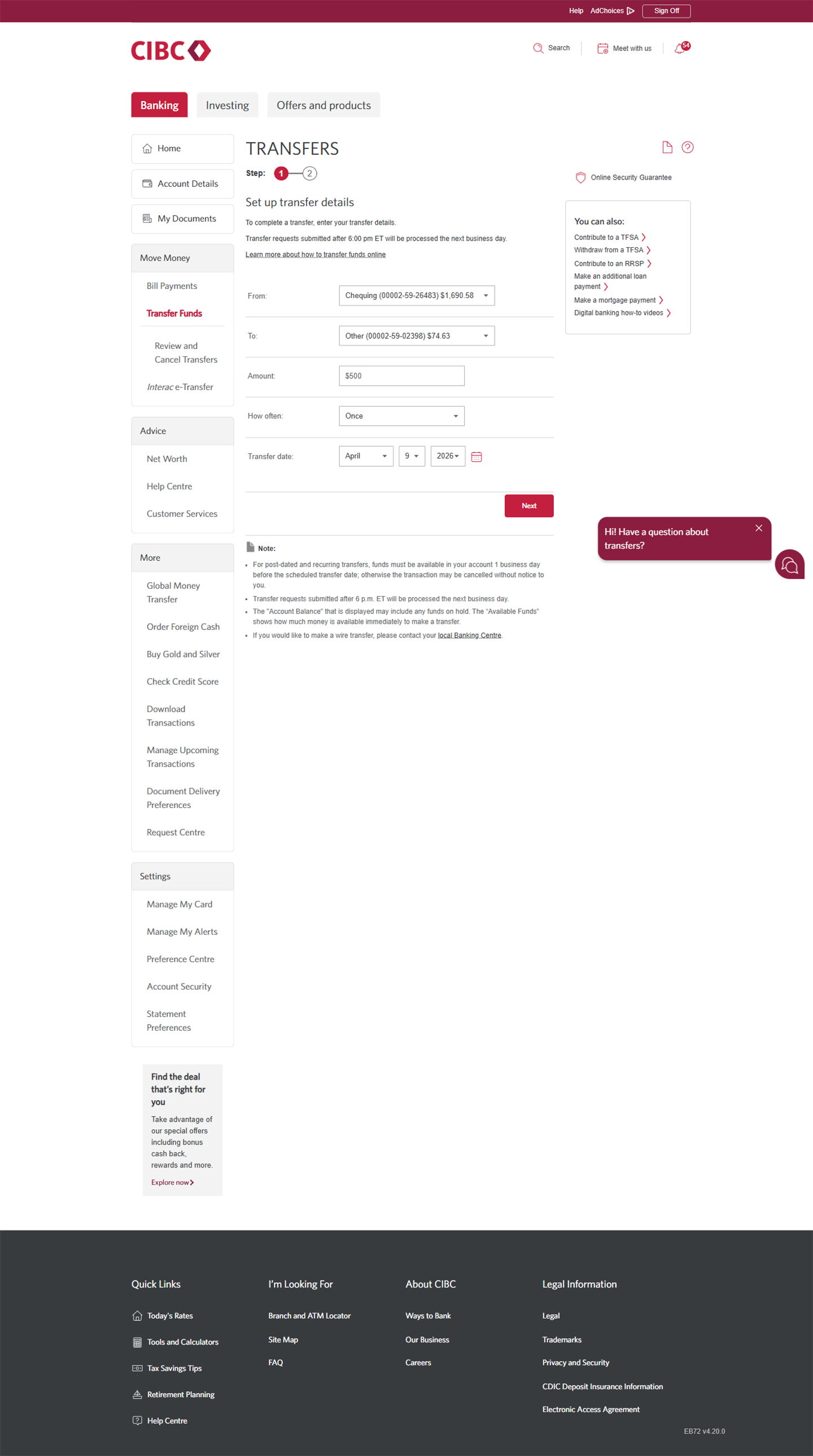
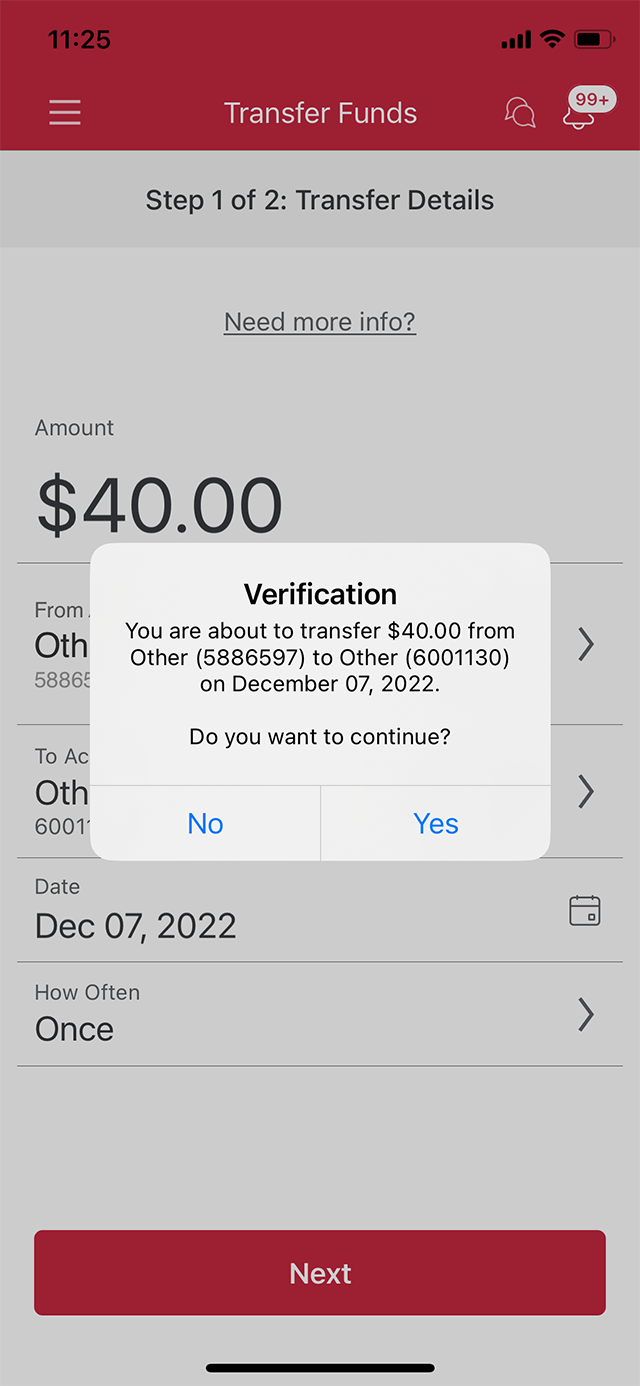
Demo screen 8: CIBC Online Banking transfers page. A pulsing animation highlights the "Next" button.
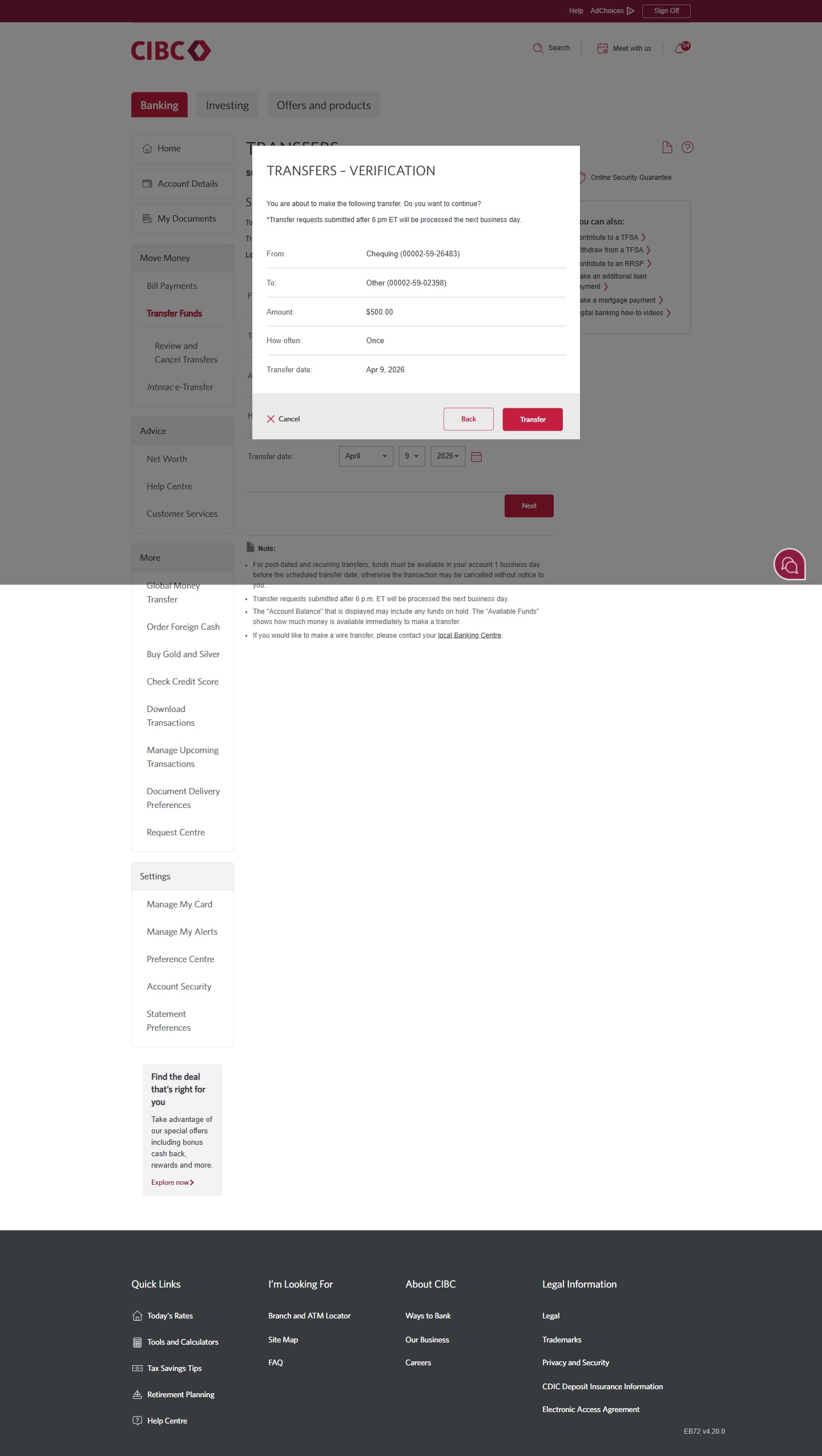
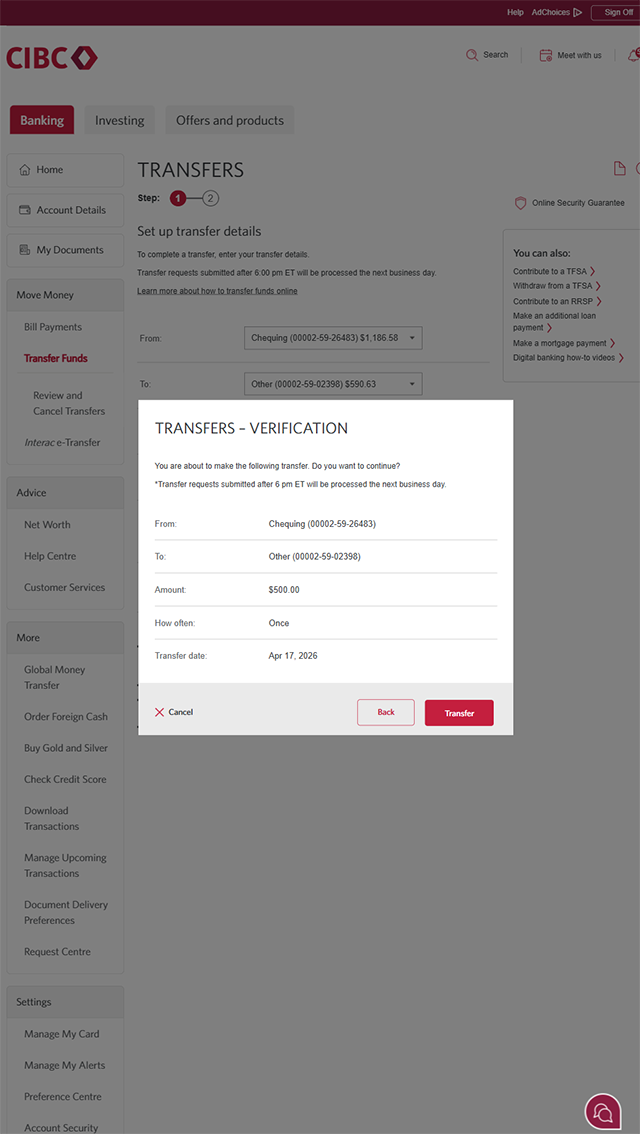
Demo screen 9: CIBC Online Banking transfer verification page. A pulsing animation highlights the "Transfer" button.
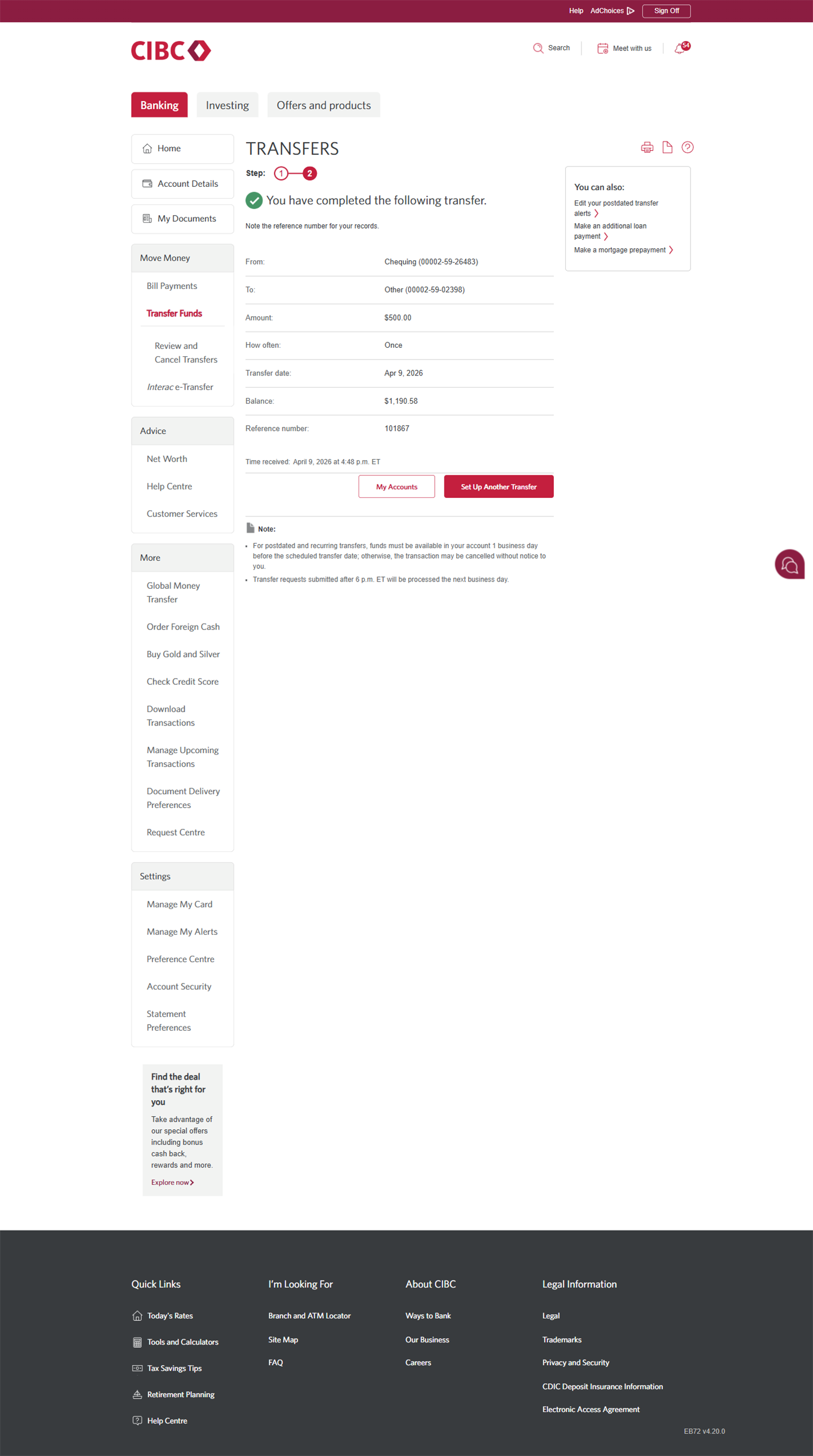
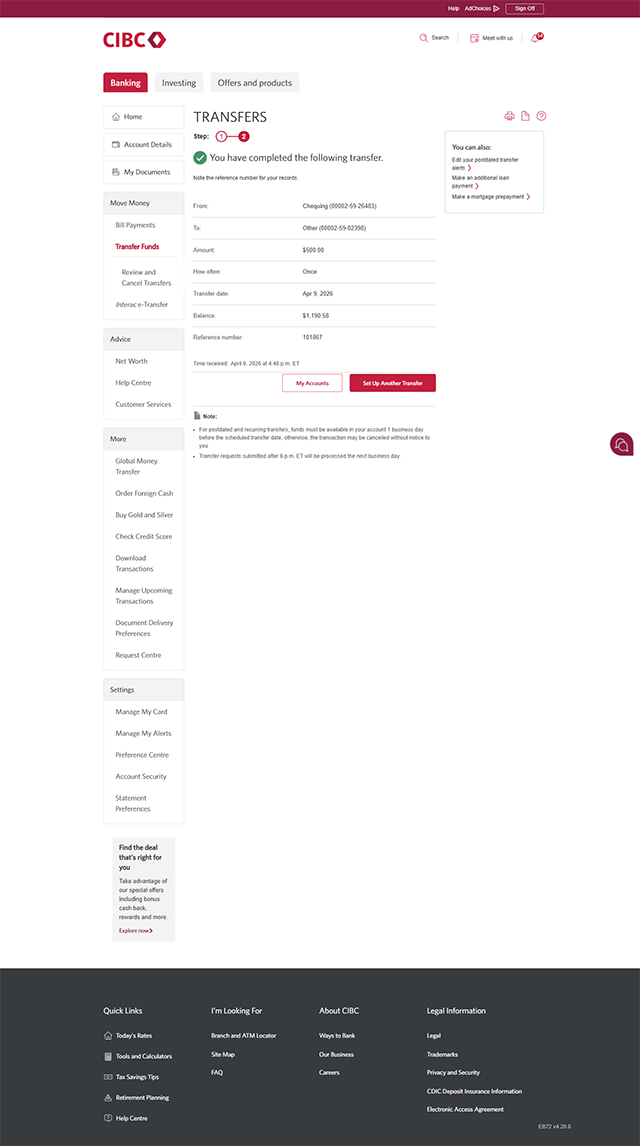
Demo screen 10: CIBC Online Banking transfer completion page. No pulsing animation.
Your progress 1 of

Step 1 : Let's get started on your web browser

Select the "Sign on" button in the demo to continue.

Step 2 : Select "Transfer Funds"

On your CIBC Online Banking homepage, go to the "Move Money" menu and select "Transfer Funds".

Step 3 : Select an account to transfer money from

Choose the account you want to transfer money from using the dropdown menu options.

Step 4 : Select an account to transfer money to

Choose the account you want to transfer money to using the dropdown menu options.

Step 5 : Enter the transfer amount

Use the "Amount" field to enter the amount of money you would like to transfer from one account to the other.

Step 6 : Choose how often you want the transfer to happen

Select how often you want the money to be transferred using the dropdown menu options. Follow the process to set up recurring transfers.

Step 7 : Select a date for your transfer

Use the dropdown menu options or calendar icon to select the date for when you want the money to be transferred. Follow this process for future dated transfers.

Step 8 : Select "Next"

When you've finished filling out the form, select the "Next" button to proceed.

Step 9 : Verify your transfer

Review the details of your transfer and once you're ready, select the "Transfer" button to proceed.

Step 10 : Great job!

You've successfully transferred money from one account to the other through Online Banking.

There will be a message on the page confirming that the transfer was completed.
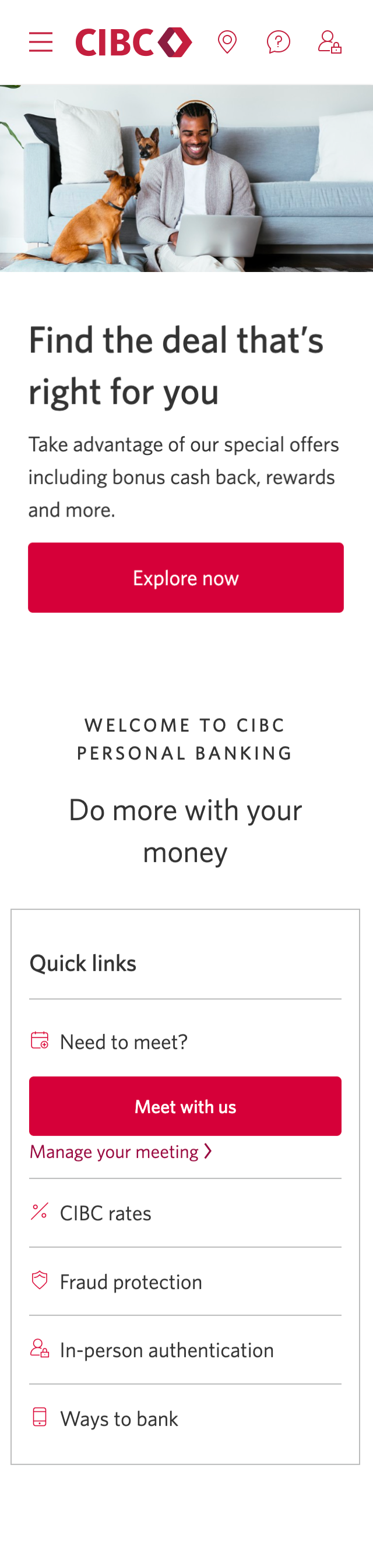
Demo screen 1: CIBC homepage. A pulsing animation highlights the "Sign on" button.
Demo screen 2: CIBC Online Banking homepage. A pulsing animation highlights the "More options" menu.
Demo screen 3: CIBC Online Banking overlay menu. A pulsing animation highlights the "Transfer funds" link.
Demo screen 4: CIBC Online Banking transfers page. A pulsing animation highlights the "From: Choose an Account" combo box.
Demo screen 5: CIBC Online Banking transfers page. A pulsing animation highlights the "To: Choose an Account" combo box.
Demo screen 6: CIBC Online Banking transfers page. A pulsing animation highlights the "Amount" field.
Demo screen 7: CIBC Online Banking transfers page. A pulsing animation highlights the "How often" combo box.
Demo screen 8: CIBC Online Banking transfers page. A pulsing animation highlights the "Transfer date" calendar button.
Demo screen 9: CIBC Online Banking transfers page. A pulsing animation highlights the "Next" button.
Demo screen 10: CIBC Online Banking transfer verification page. A pulsing animation highlights the "Transfer" button.
Demo screen 11: CIBC Online Banking transfer completion page. No pulsing animation.
Your progress 1 of

Step 1 : Let's get started on your web browser

Select the "Sign on" button in the demo to continue.

Step 2 : Select the three-line menu icon to open more options

On the CIBC Online Banking homepage, find and select the three-line menu icon to open an overlay menu with more options.

Step 3 : Select "Transfer Funds"

From the menu options, select "Transfer funds".

Step 4 : Select an account to transfer money from

Choose the account you want to transfer money from using the dropdown menu options.

Step 5 : Select an account to transfer money to

Choose the account you want to transfer money to using the dropdown menu options.

Step 6 : Enter the transfer amount

Use the "Amount" field to enter the amount of money you would like to transfer from one account to the other.

Step 7 : Choose how often you want the transfer to happen

Select how often you want the money to be transferred using the dropdown menu options. Follow the process to set up recurring transfers.

Step 8 : Select a date for your transfer

Use the dropdown menu options or calendar icon to select the date for when you want the money to be transferred. Follow this process for future dated transfers.

Step 9 : Select "Next"

When you've finished filling out the form, select the "Next" button to proceed.

Step 10 : Verify your transfer

Review the details of your transfer and once you're ready, select the "Transfer" button to proceed.

Step 11 : Great job!

You've successfully transferred money from one account to the other through Online Banking.

There will be a message on the page confirming that the transfer was completed.

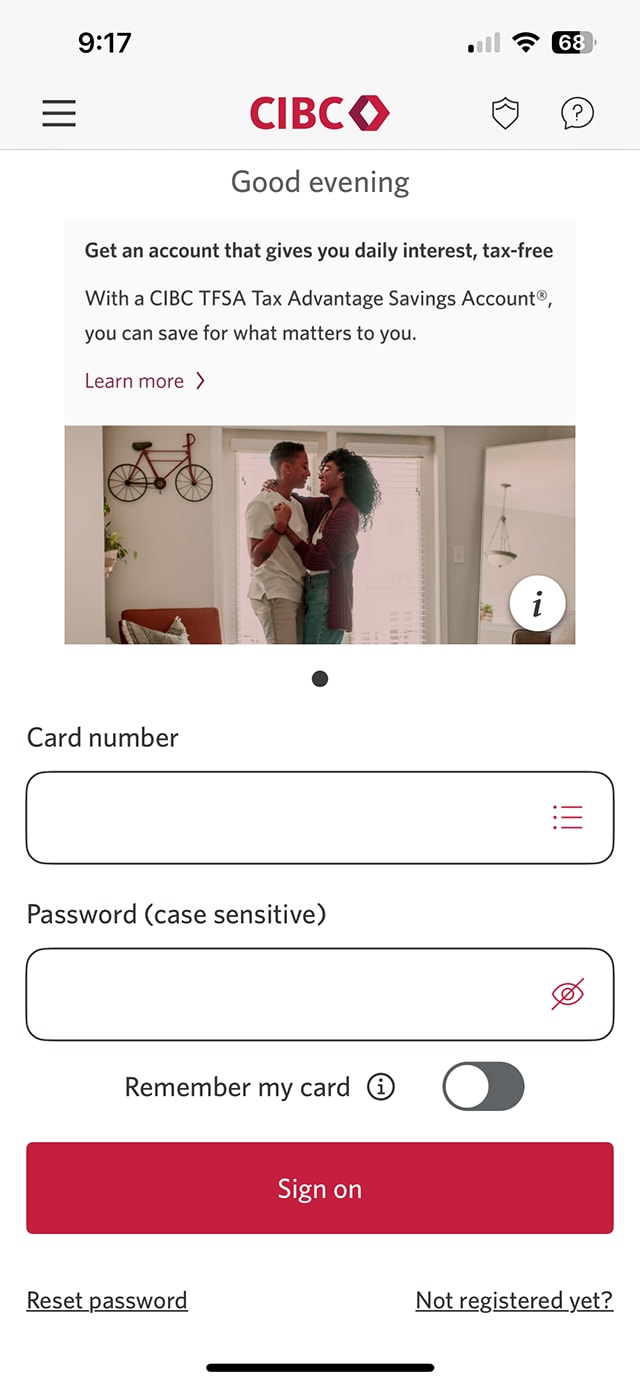
Demo screen 1: CIBC Mobile Banking App sign-on screen. A pulsing animation highlights the "Sign on" button.
Demo screen 2: CIBC Mobile Banking App homepage. A pulsing animation highlights the "Move money" tab.
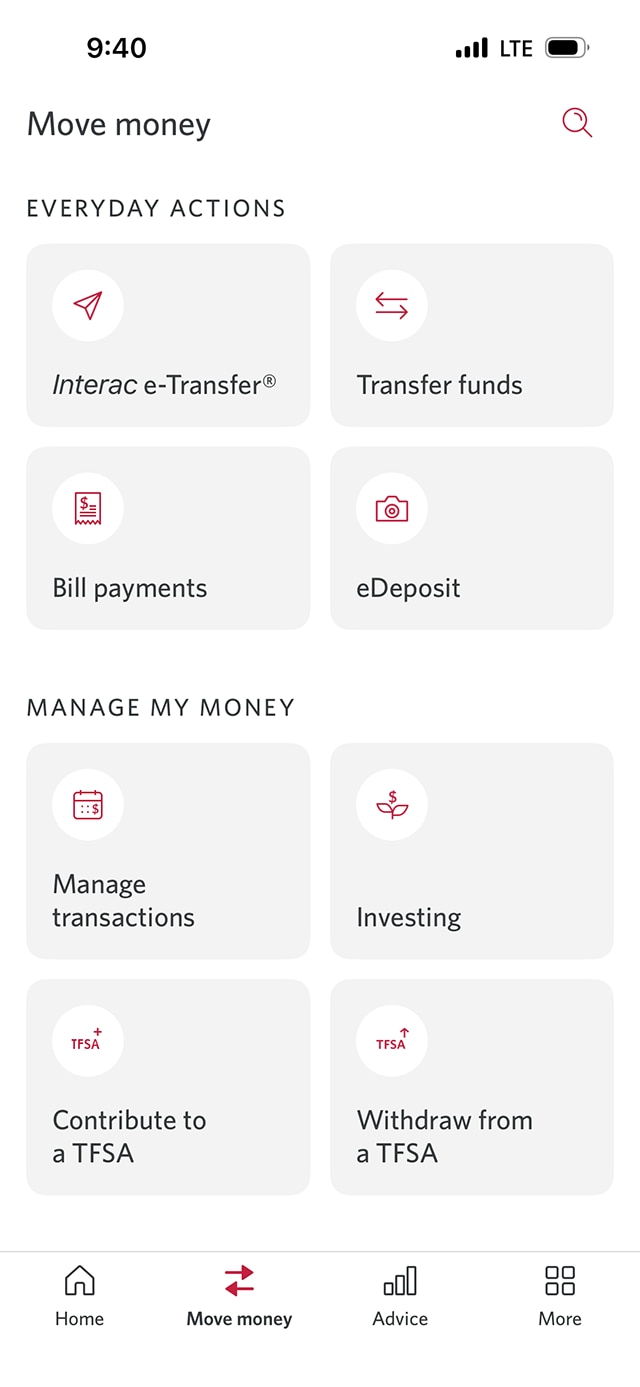
Demo screen 3: CIBC Mobile Banking App everyday actions menu. A pulsing animation highlights the "Transfer funds" button.
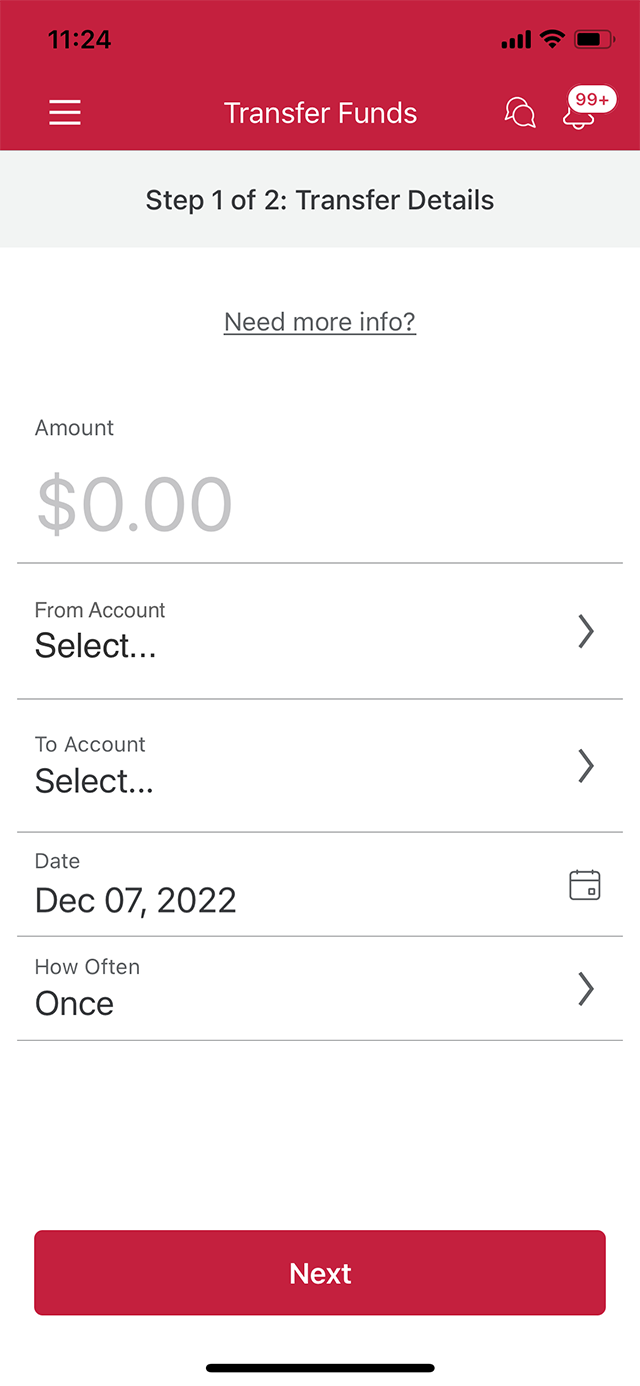
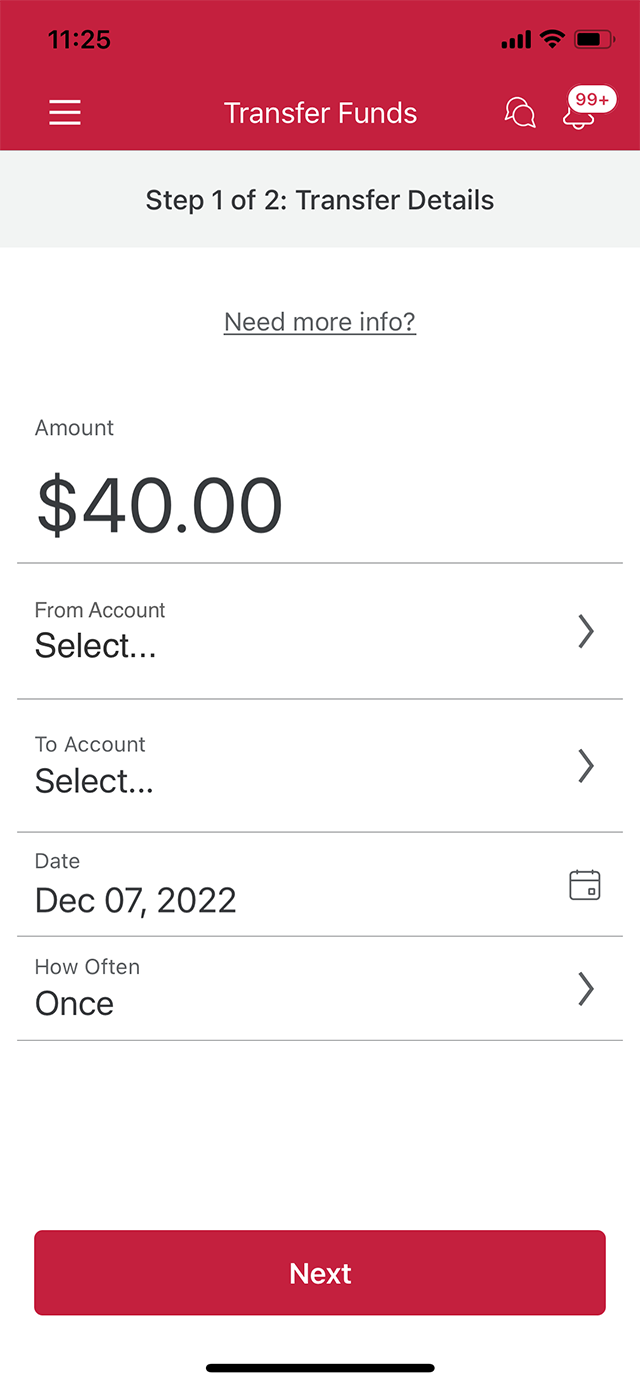
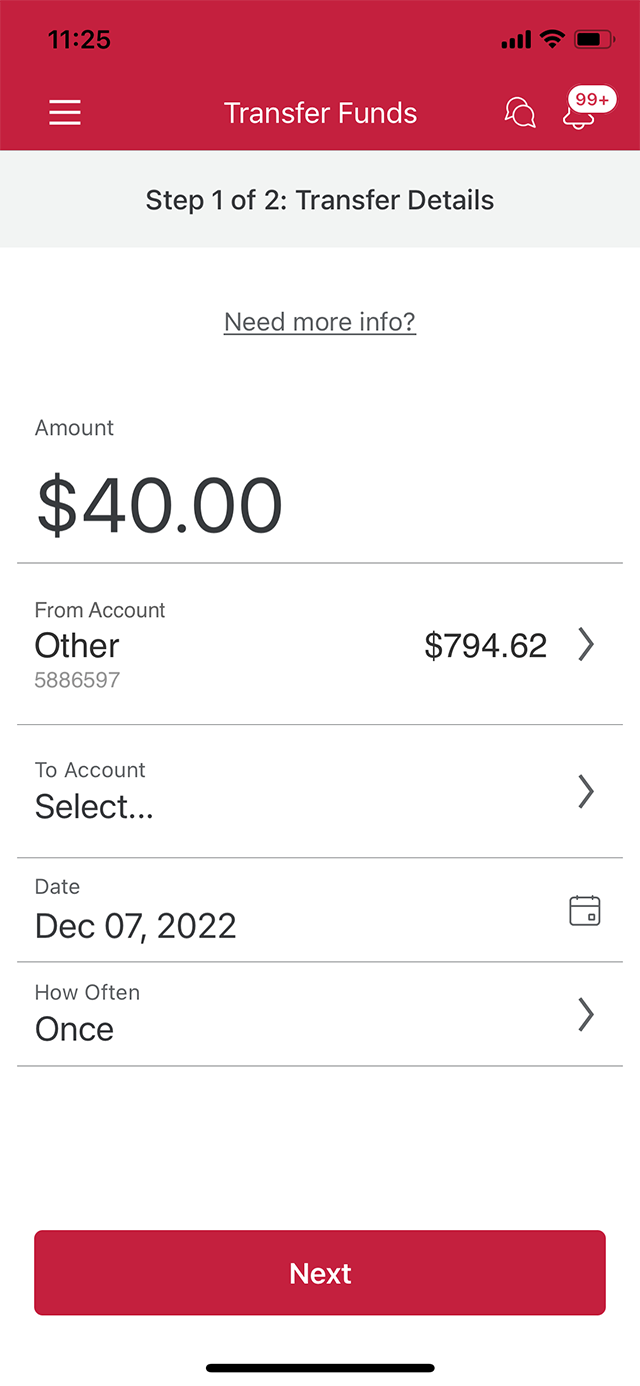
Demo screen 4: CIBC Mobile Banking App transfer details page. A pulsing animation highlights the "Amount" field.
Demo screen 5: CIBC Mobile Banking App transfer details page. A pulsing animation highlights the "From account" button.
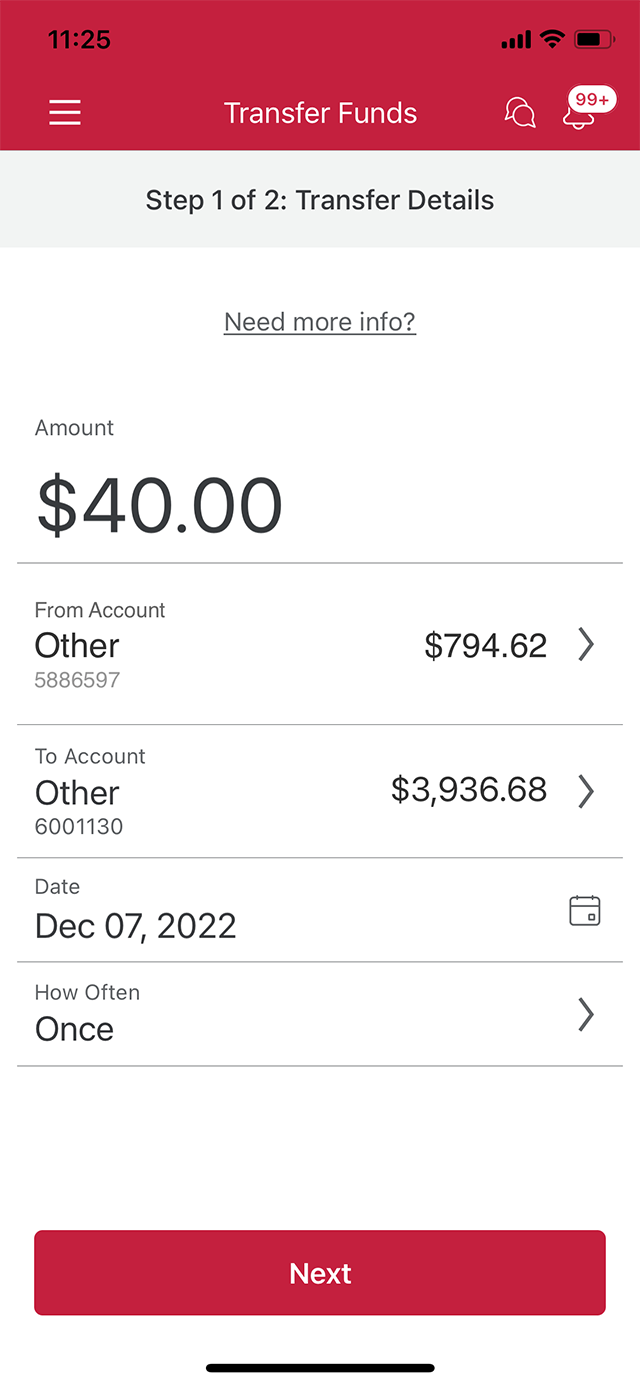
Demo screen 6: CIBC Mobile Banking App transfer details page. A pulsing animation highlights the "To account" button.
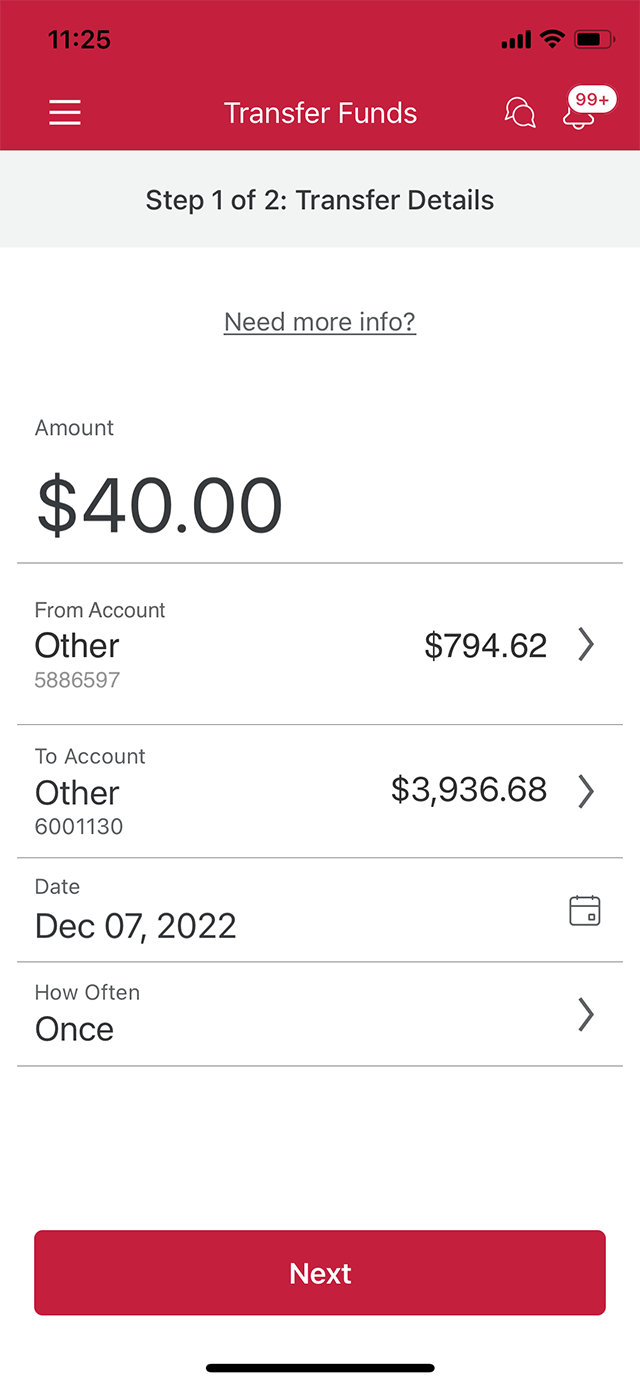
Demo screen 7: CIBC Mobile Banking App transfers page. A pulsing animation highlights the calendar button.
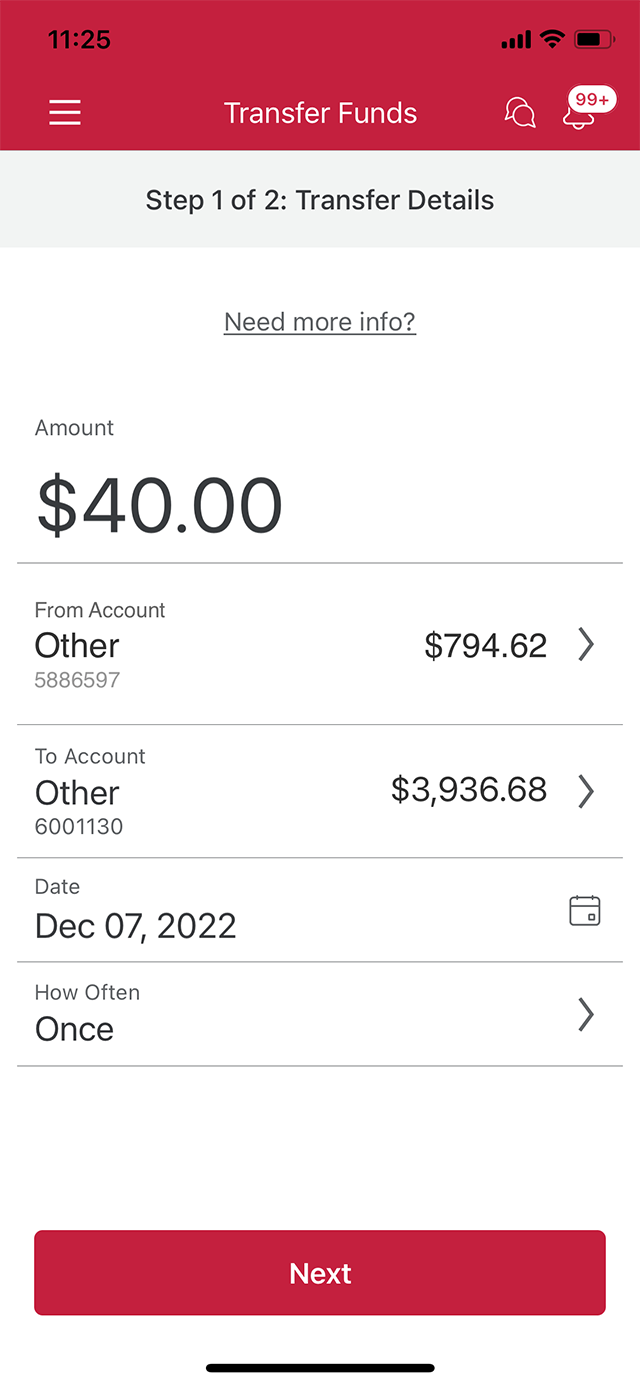
Demo screen 8: CIBC Mobile Banking App transfers page. A pulsing animation highlights the "How often" button.
Demo screen 9: CIBC Mobile Banking App transfers page. A pulsing animation highlights the "Next" button.
Demo screen 10: CIBC Mobile Banking App transfer verification page. A pulsing animation highlights the "Yes" button.
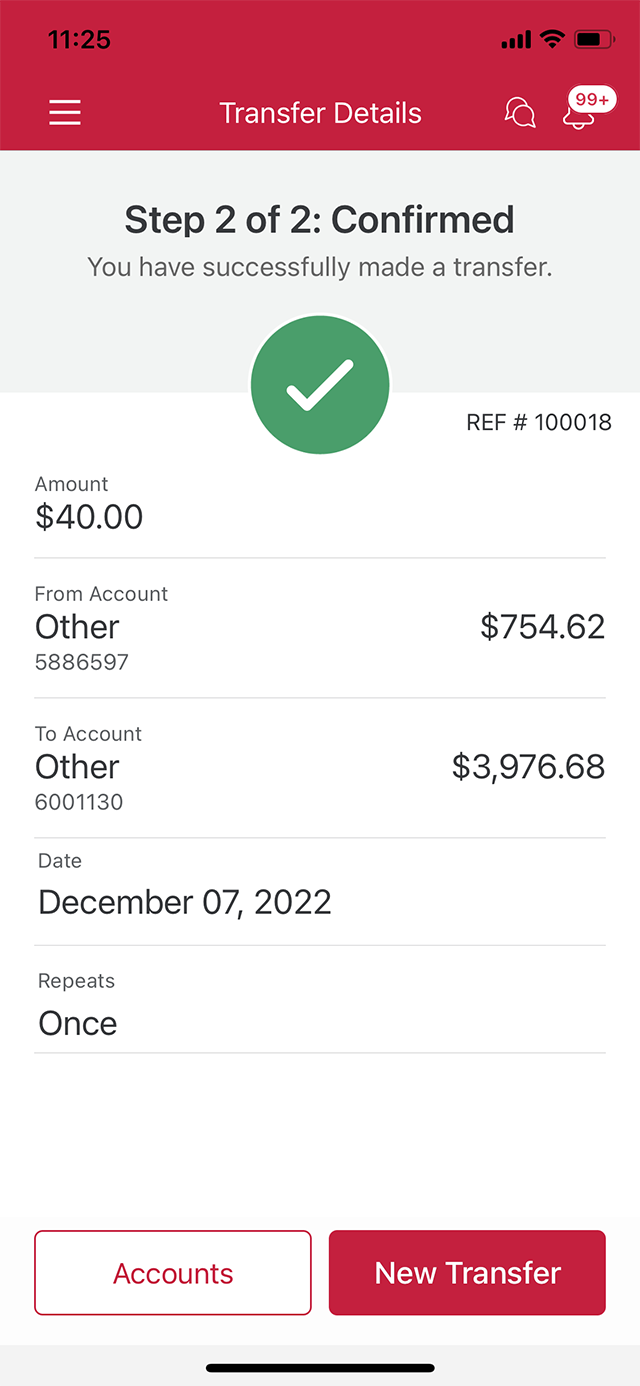
Demo screen 11: CIBC Mobile Banking App transfer confirmation page. No pulsing animation.
Your progress 1 of

Step 1 : Let's get started on the mobile app

Select the "Sign on" button in the demo to continue.

Step 2 : Select "Move money"

On your CIBC Mobile Banking App homepage, go to the menu bar and select "Move Money".

Step 3 : Select "Transfer funds"

In the "Everyday Actions" menu, select "Transfer funds".

Step 4 : Enter an amount

Use the empty field to enter the amount of money you would like to transfer from one account to another.

Step 5 : Select an account to transfer money from

Choose the account you want to transfer money from using the dropdown menu options.

Step 6 : Select an account to transfer money to

Choose the account you want to transfer money to using the dropdown menu options.

Step 7 : Select a date for your transfer

The current date will be the default date of the transfer. Select the calendar icon if you'd like to schedule a future date for your transfer.

Step 8 : Select how often you want the transfer to happen

Select the "How Often" menu to choose how often you want the money to be transferred. The process will be repeated for future dated transfers.

Step 9 : Select "Next"

When you've finished entering your money transfer details, select the "Next" button.

Step 10 : Review your transfer

Review the details of your money transfer, detailed in the pop-up window. Once you're ready, select the "Yes" button to continue.

Step 11 : Great job!

You've successfully transferred money from one account to the other using the mobile app.

There will be a message on the page confirming that the transfer was completed.

Want an overview of all the steps?

For full instructions on how to transfer money between your accounts, check out the step-by-step process all in one place.

Ways to fund your account

Direct deposit

Get paid faster — no need to visit a branch or wait for cheques to arrive.

  • Enjoy the convenience of same-day access to your money with no holds applied
  • Set up once and receive ongoing payments automatically
  • Perfect for payroll, government benefits and pensions

CIBC e-Deposit

Deposit cheques anytime using the CIBC Mobile Banking App just snap a picture with your phone and send.

  • Deposit cheques quickly and securely with your phone
  • Deposit up to $250,000 CAD per cheque
  • Works with CAD cheques, bank drafts, certified cheques and money orders

Recommended digital banking demos

How to send an Interac e-Transfer® payment

Start demo on how to send an Interac® e-Transfer payment.

How to deposit a cheque with eDeposit

Start demo on how to deposit a cheque with eDeposit.

How to stop an Interac e-Transfer® payment

Start demo on how to stop an Interac® e-Transfer payment.

Get started

CIBC Online Banking®

Discover digital banking features that can help you bank easily online.
CIBC Mobile Banking® App

Stay connected to your finances on your mobile device, no matter where you are.