

How to stop an Interac e-Transfer® payment
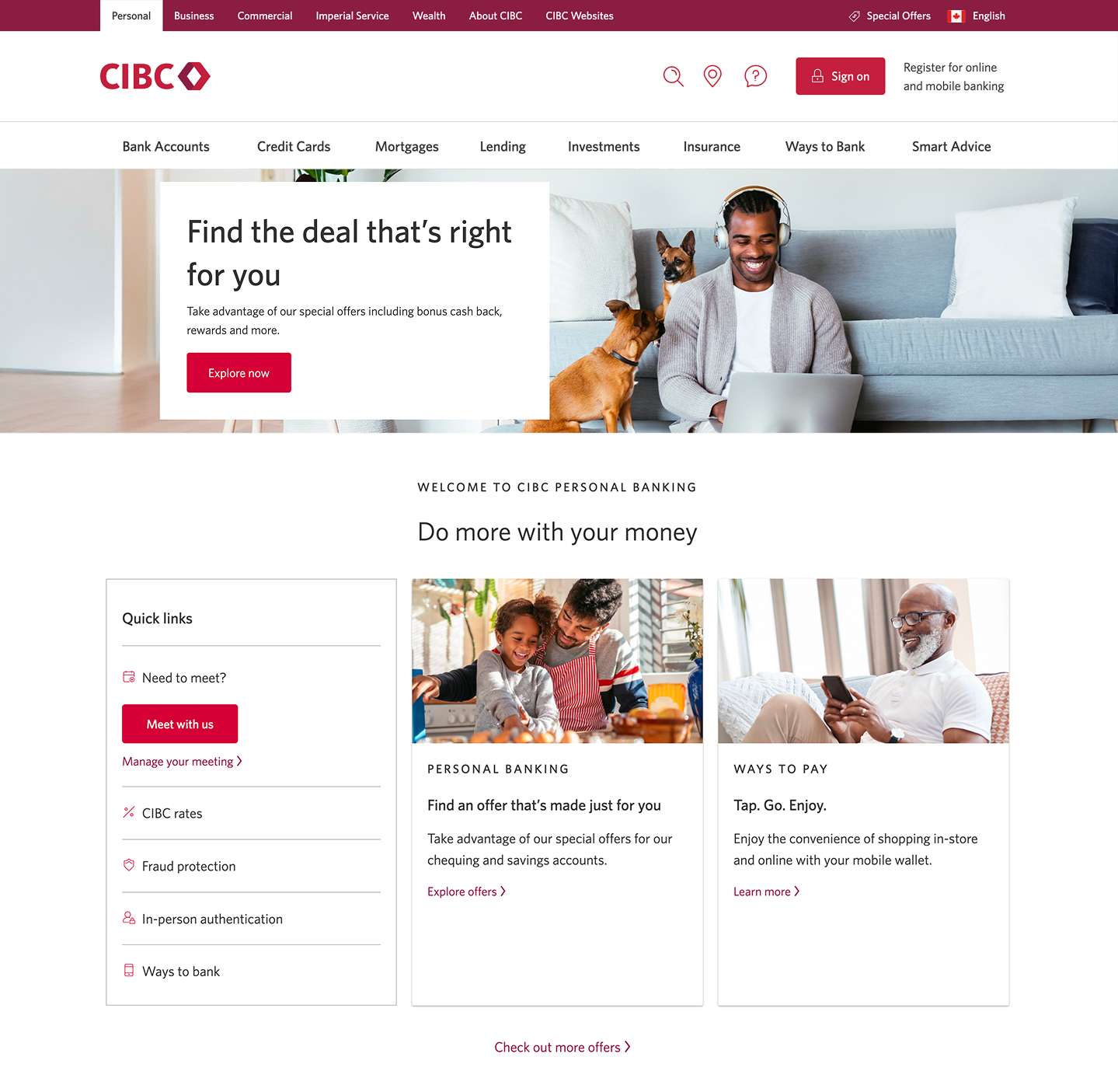
Step 1 : Let's get started on your web browser
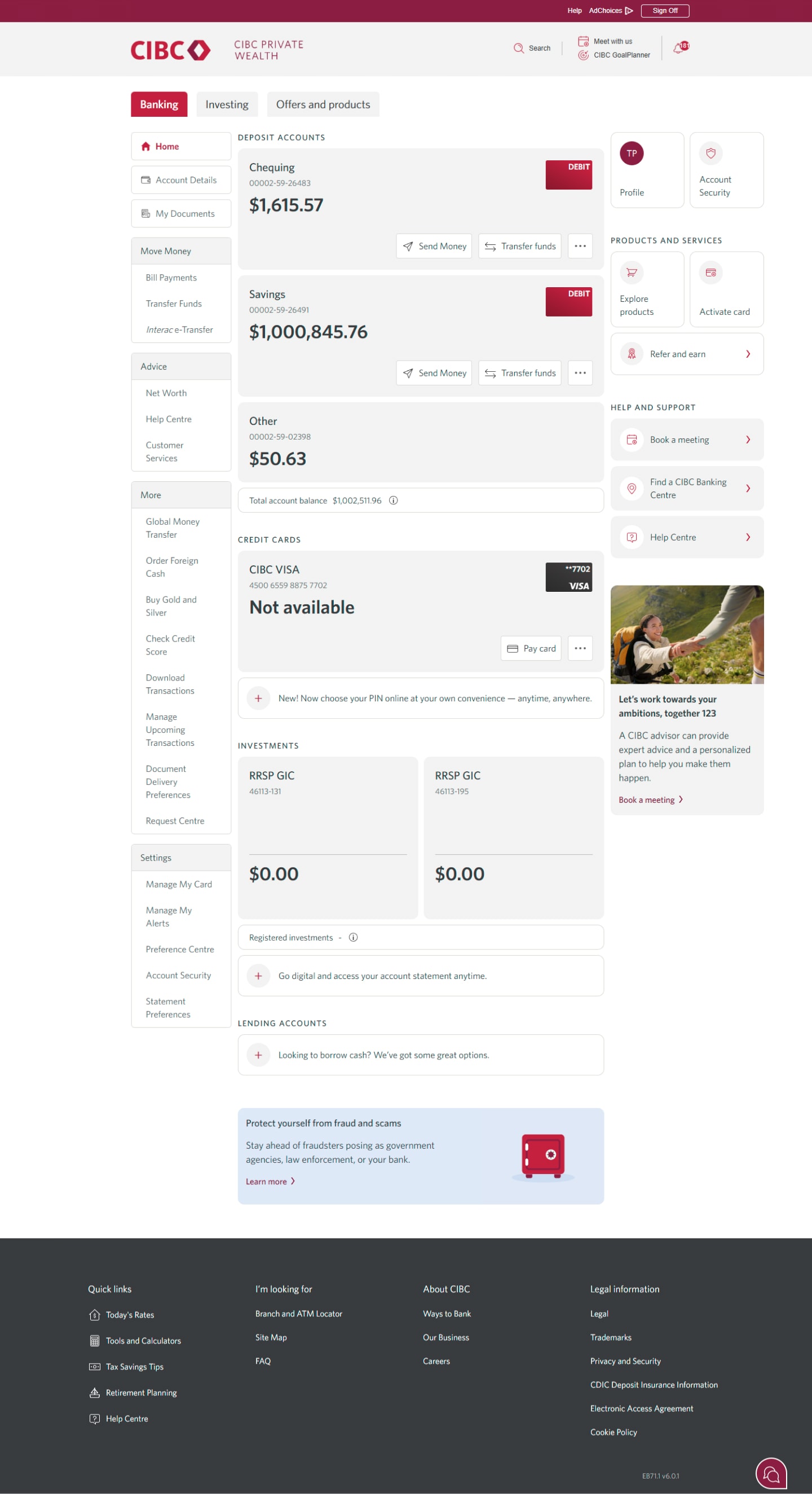
Step 2 : Find the Interac e-Transfer link
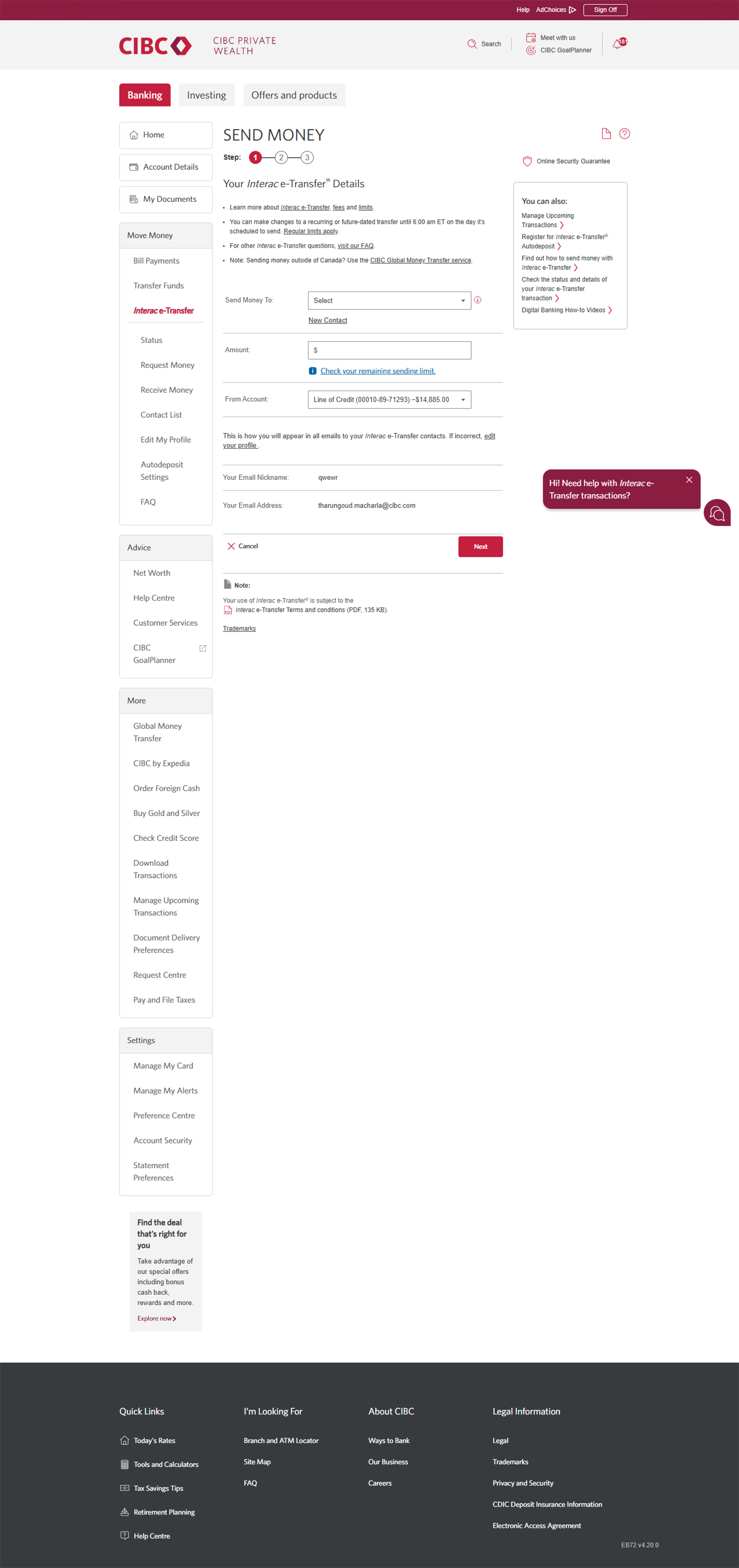
Step 3 : Find the "Status" link
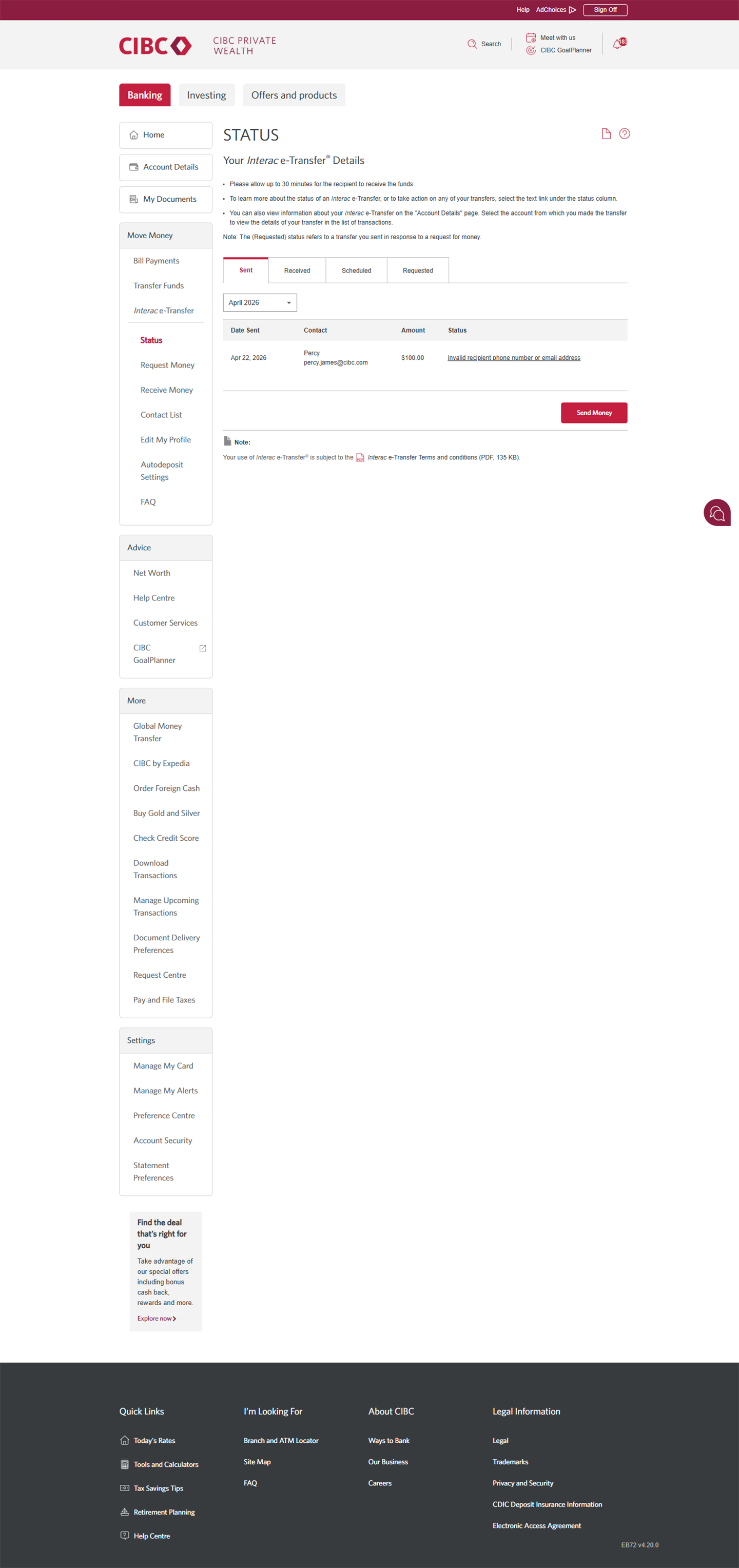
Step 4 : Find the transfer you'd like to stop
From the list of transactions, find the Interac e-Transfer payment you'd like to stop. Select the hyperlinked description on the "Status" column to reclaim the funds.
Keep in mind that you can only follow this process to stop a transfer that's been sent but not yet claimed.
You may be charged a fee of $3.50 for stopping a pending Interac e-Transfer payment.
Step 5 : Choose the option to reclaim your funds
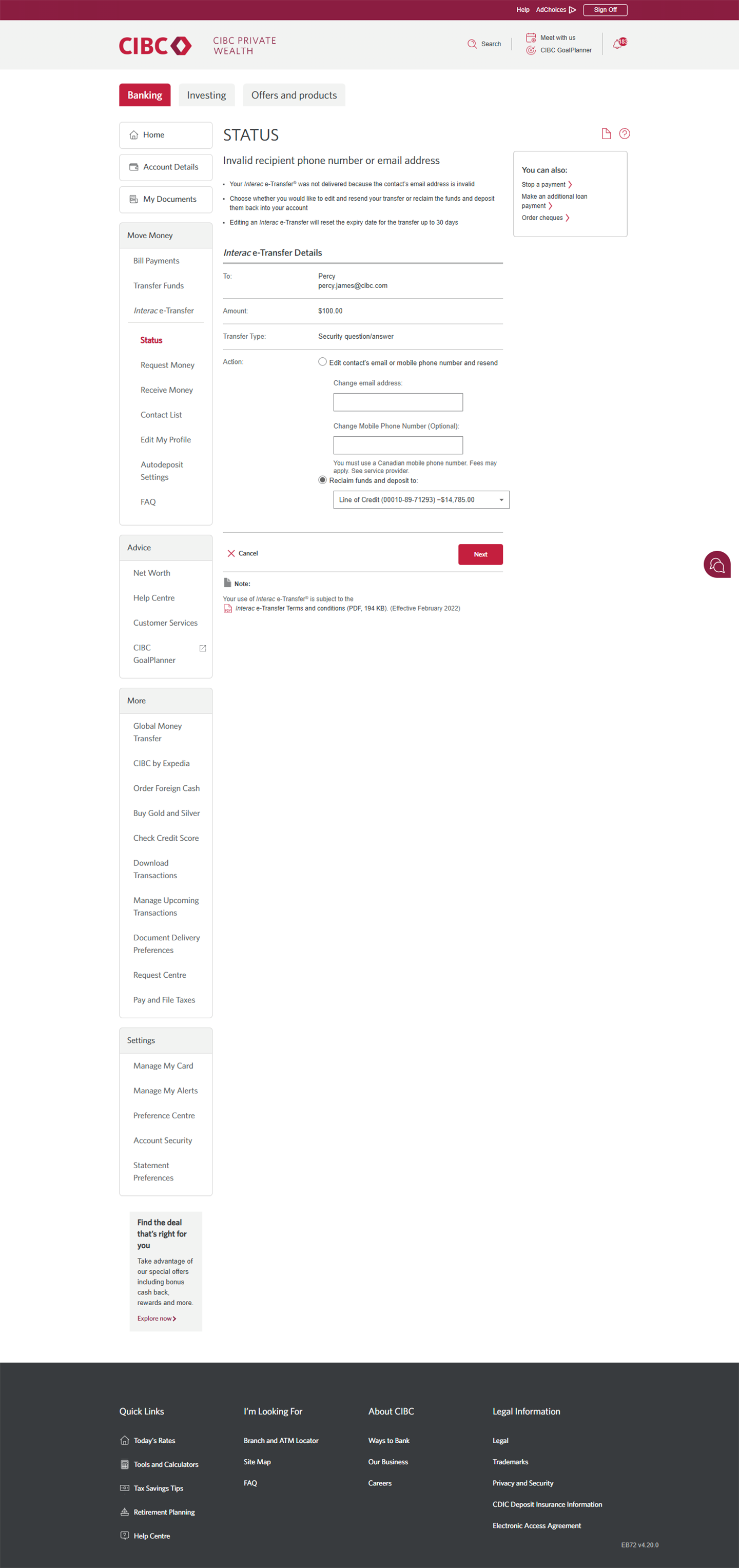
From the available actions, select "Reclaim funds and deposit to". Use the dropdown menu to specify which of your accounts you'd like the reclaimed money to go to.
Once you've chosen which account to deposit to, select the "Next" button to continue.
Step 6 : Review and confirm the details
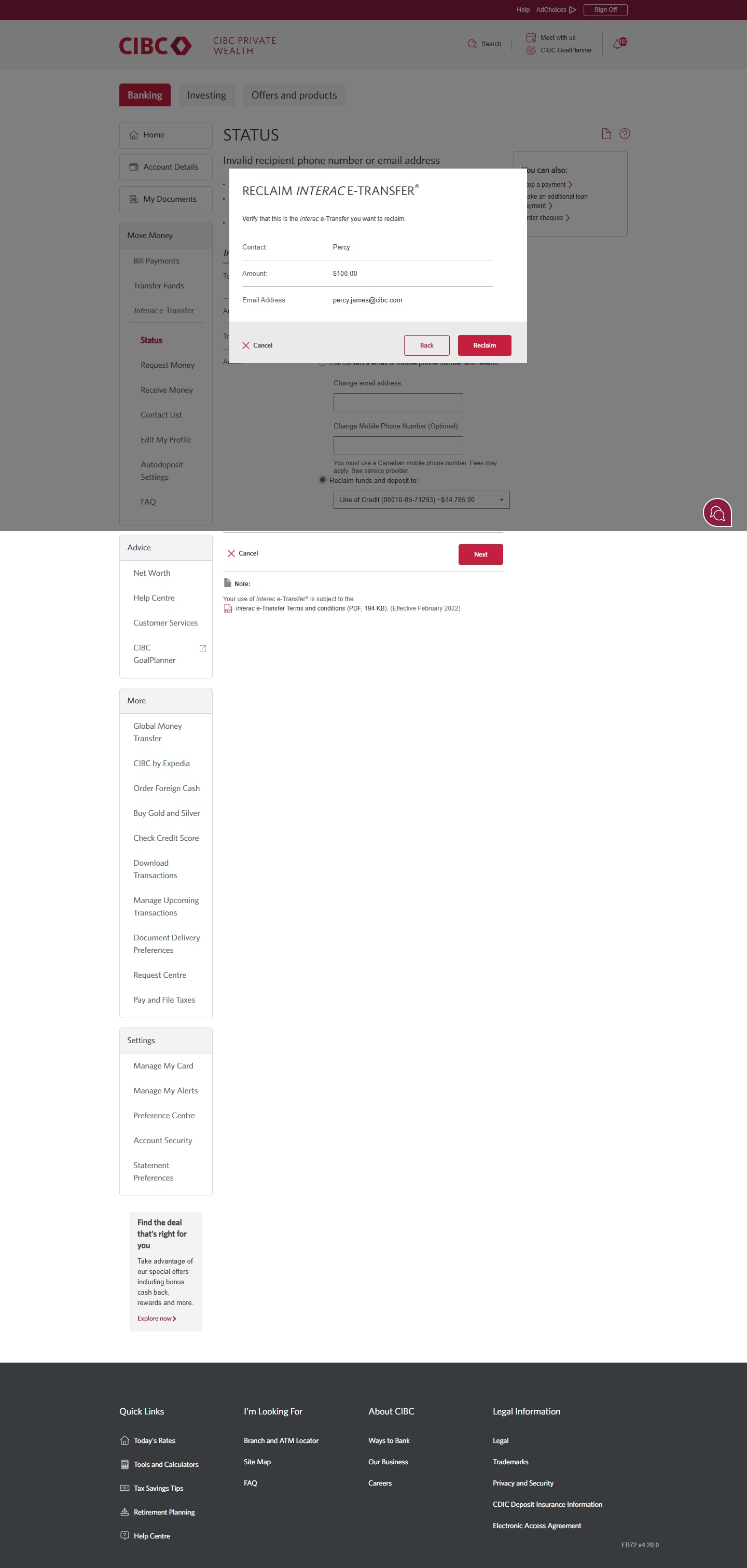
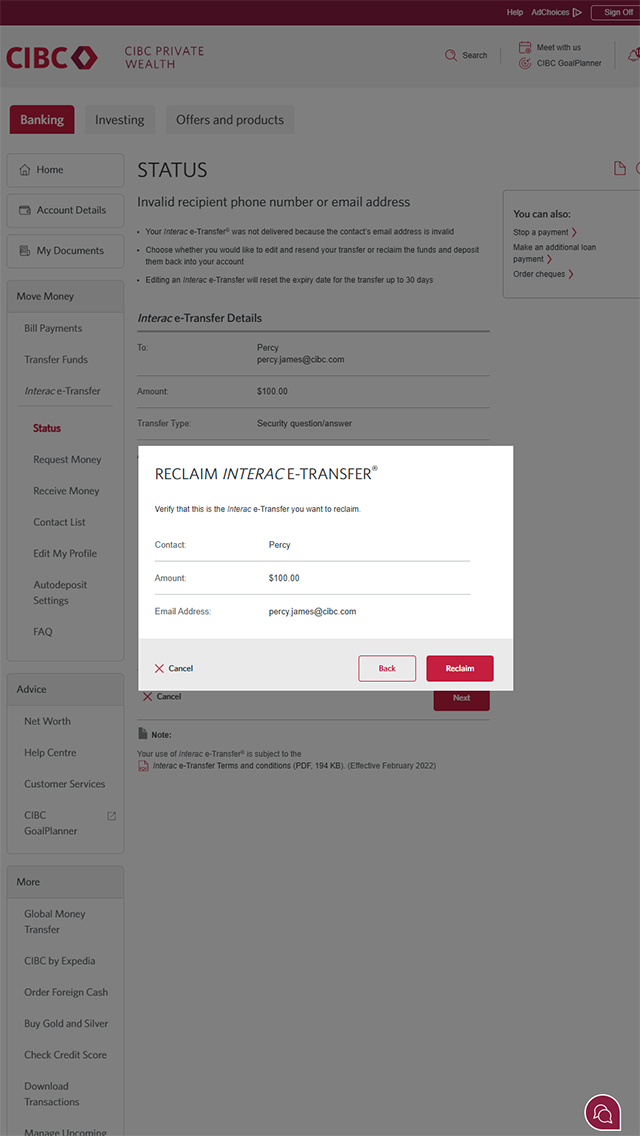
There will be a message on-screen asking you to confirm you'd like to reclaim your funds.
Review the details of the transfer you're stopping, and when you're ready, select the "Reclaim" button to confirm.
Step 7 : Great job!
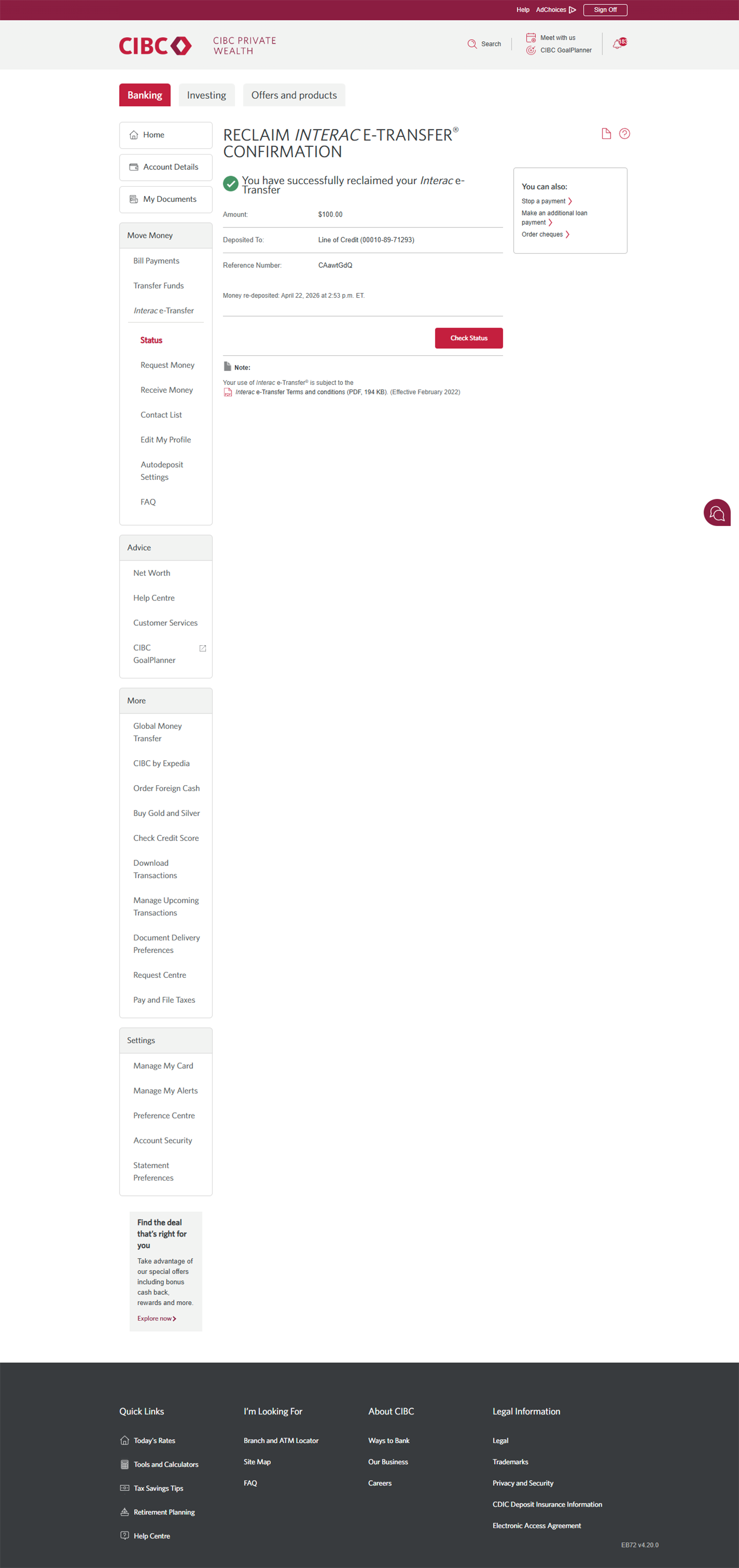
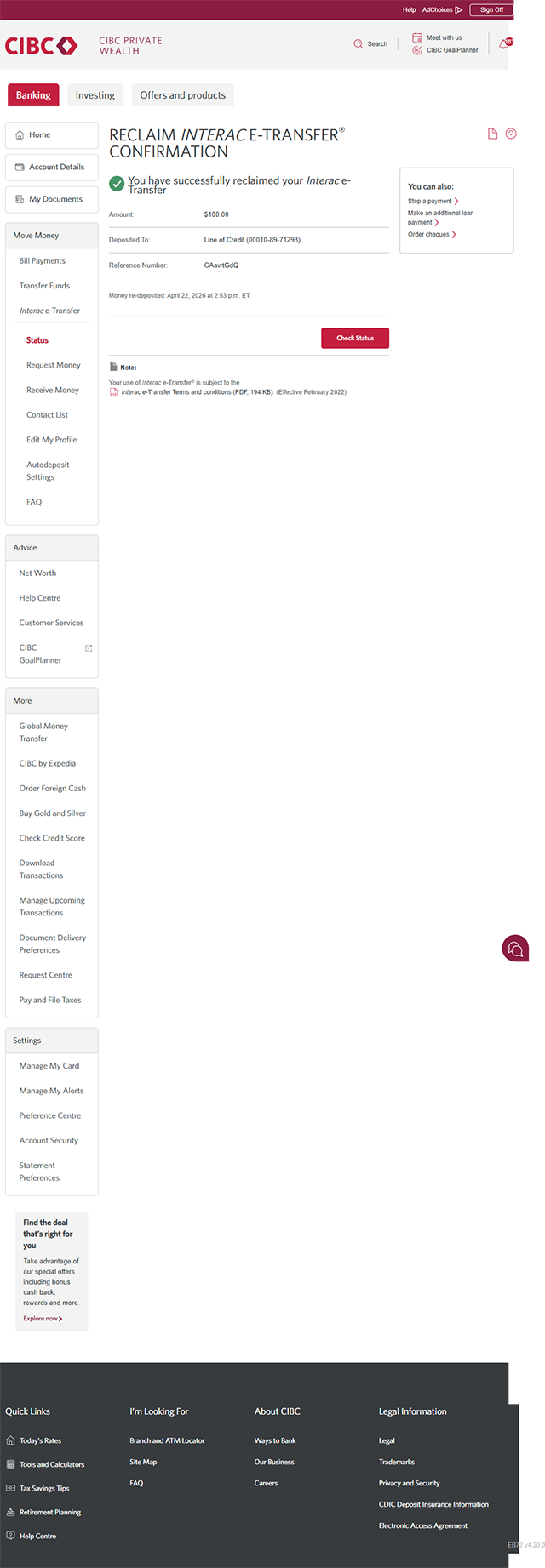
You've successfully stopped an Interac e-Transfer payment and reclaimed the funds to your account.
There will be a message on-screen confirming the transaction has been cancelled and the funds reclaimed.

Step 1 : Let's get started on your web browser
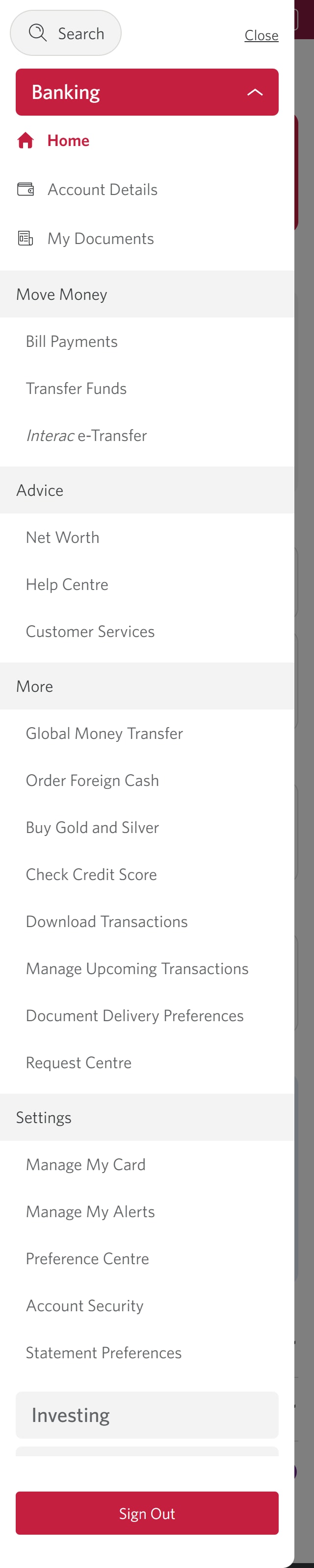
Step 2 : Select the three-line menu icon to open the navigation bar
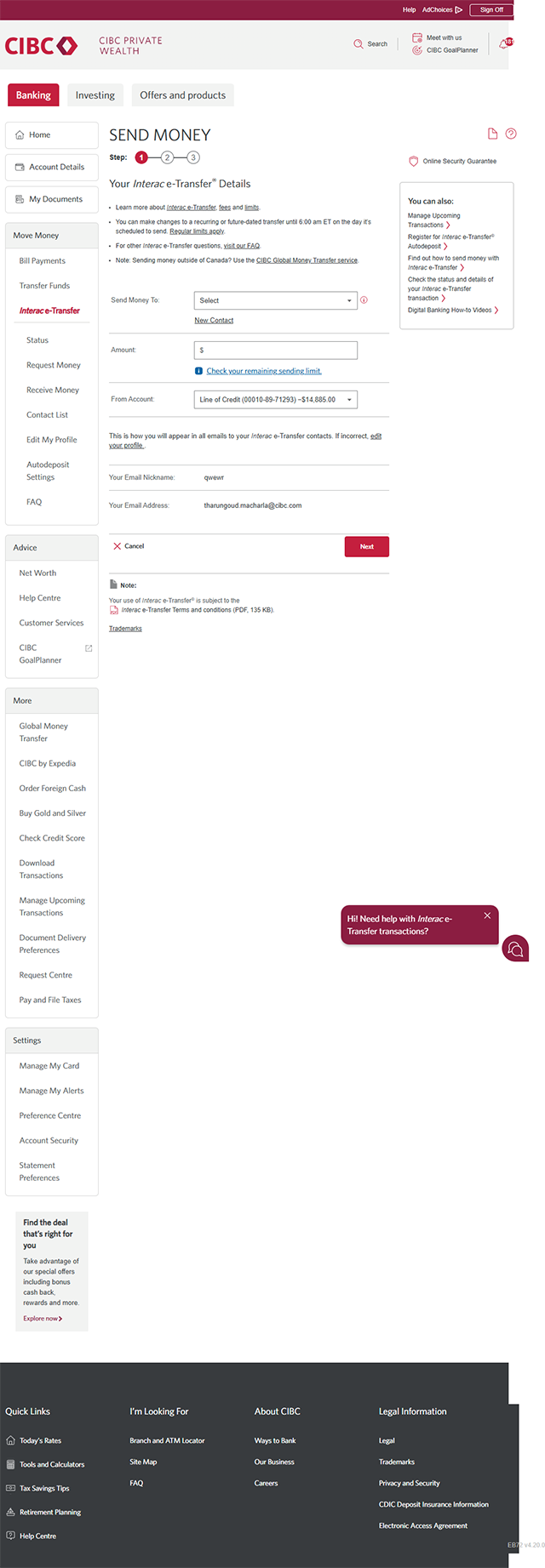
Step 3 : Select "Interac e-Transfer"
Step 4 : Find the "Status" link
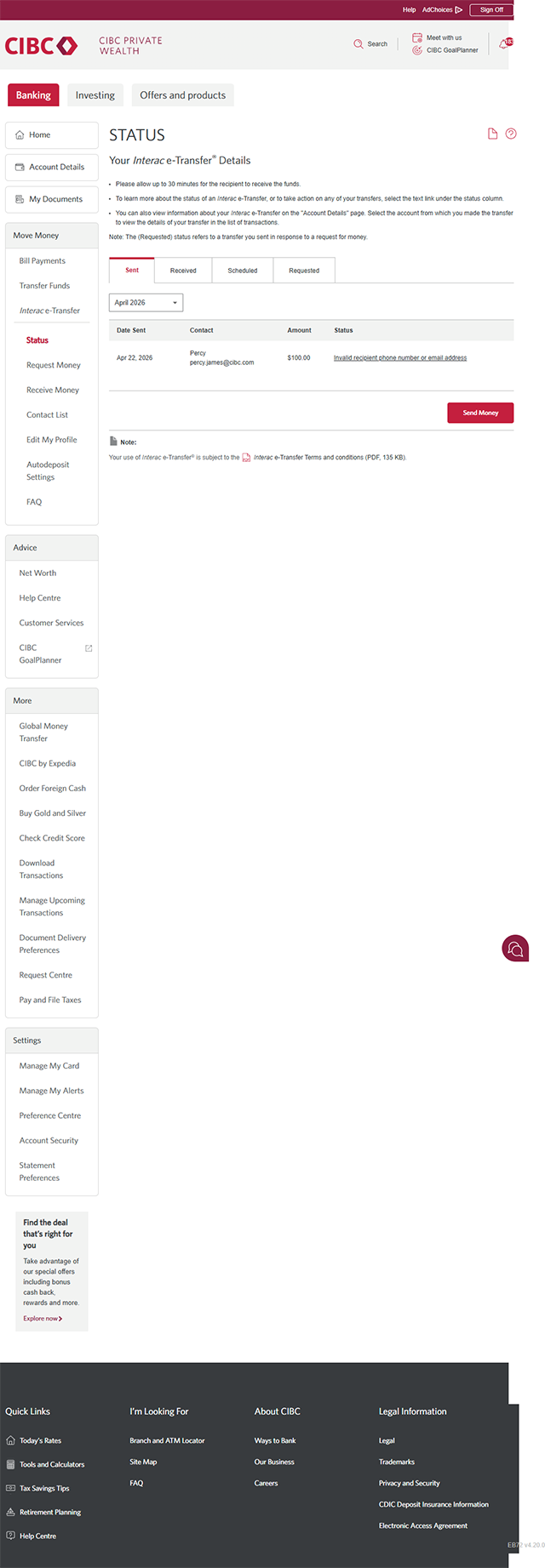
Step 5 : Find the transfer you'd like to stop
From the list of transactions, find the Interac e-Transfer payment you'd like to stop. Select the hyperlinked description on the "Status" column to reclaim the funds.
Keep in mind that you can only follow this process to stop a transfer that's been sent but not yet claimed.
You may be charged a fee of $3.50 for stopping a pending Interac e-Transfer payment.
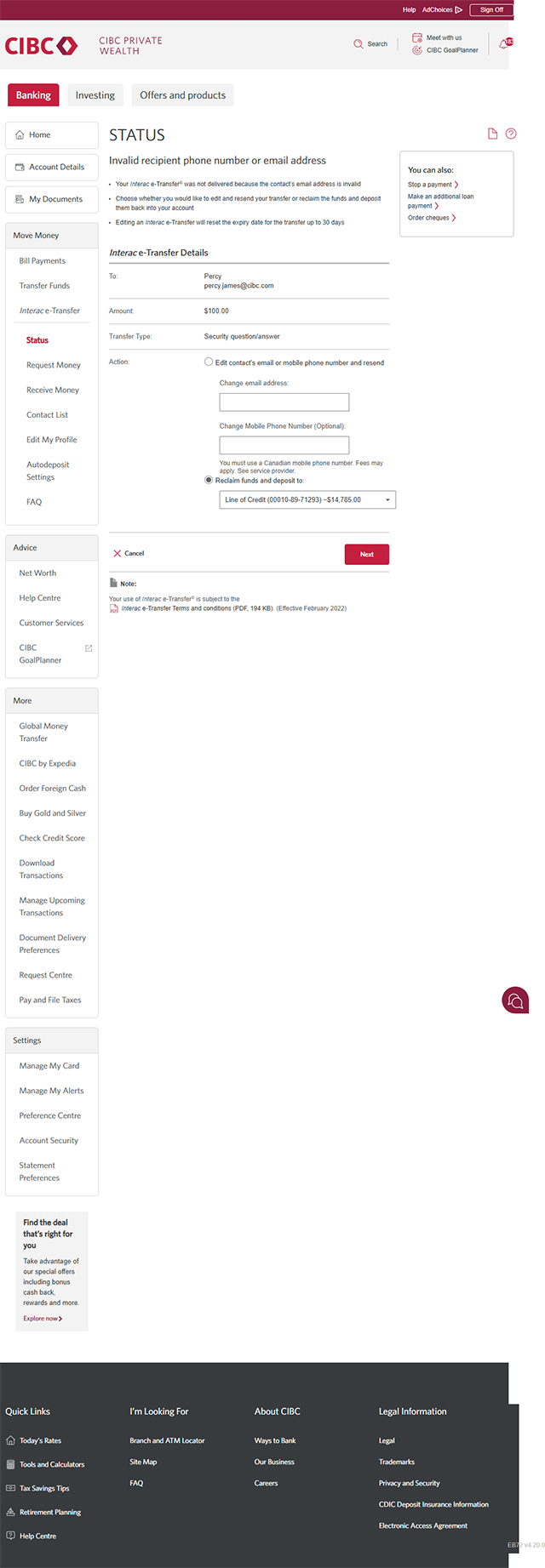
Step 6 : Choose the option to reclaim your funds
From the available actions, select "Reclaim funds and deposit to". Use the dropdown menu to specify which of your accounts you'd like the reclaimed money to go to.
Once you've chosen which account to deposit to, select the "Next" button to continue.
Step 7 : Review and confirm the details
There will be a message on-screen asking you to confirm you'd like to reclaim your funds.
Review the details of the transfer you're stopping, and when you're ready, select the "Reclaim" button to confirm.
Step 8 : Great job!
You've successfully stopped an Interac e-Transfer payment and reclaimed the funds to your account.
There will be a message on-screen confirming the transaction has been cancelled and the funds reclaimed.
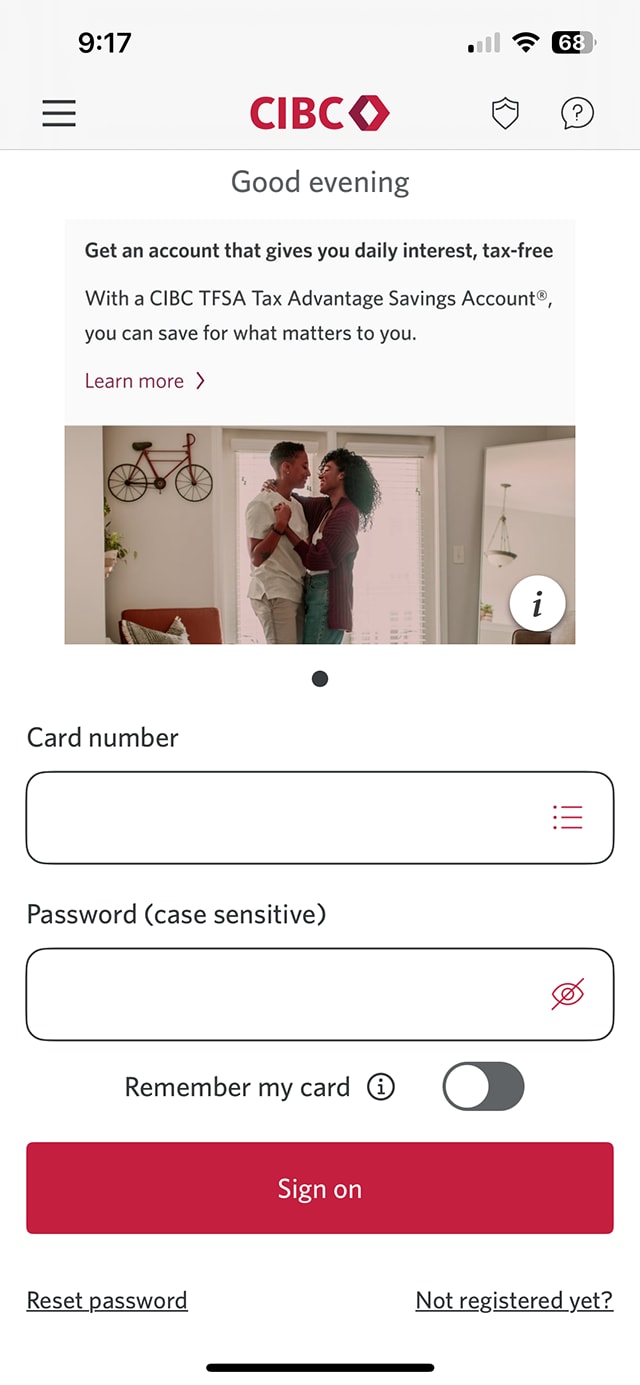
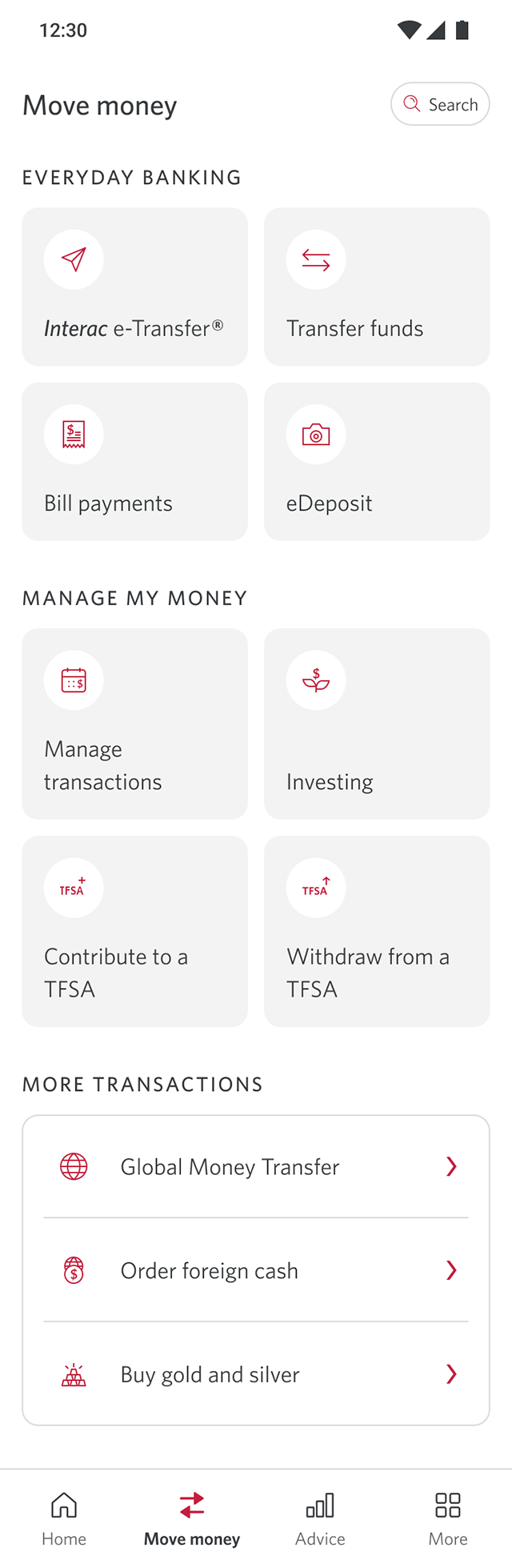
Step 1 : Let's get started on the mobile app
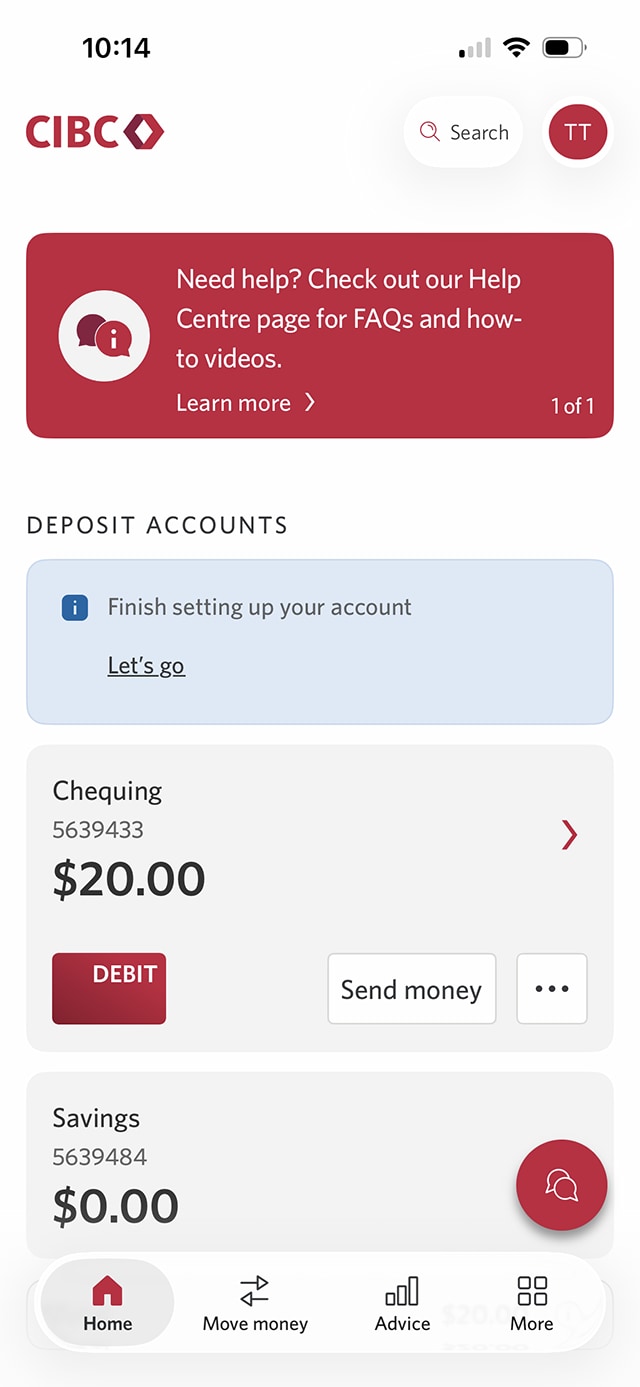
Step 2 : Select "Move Money"
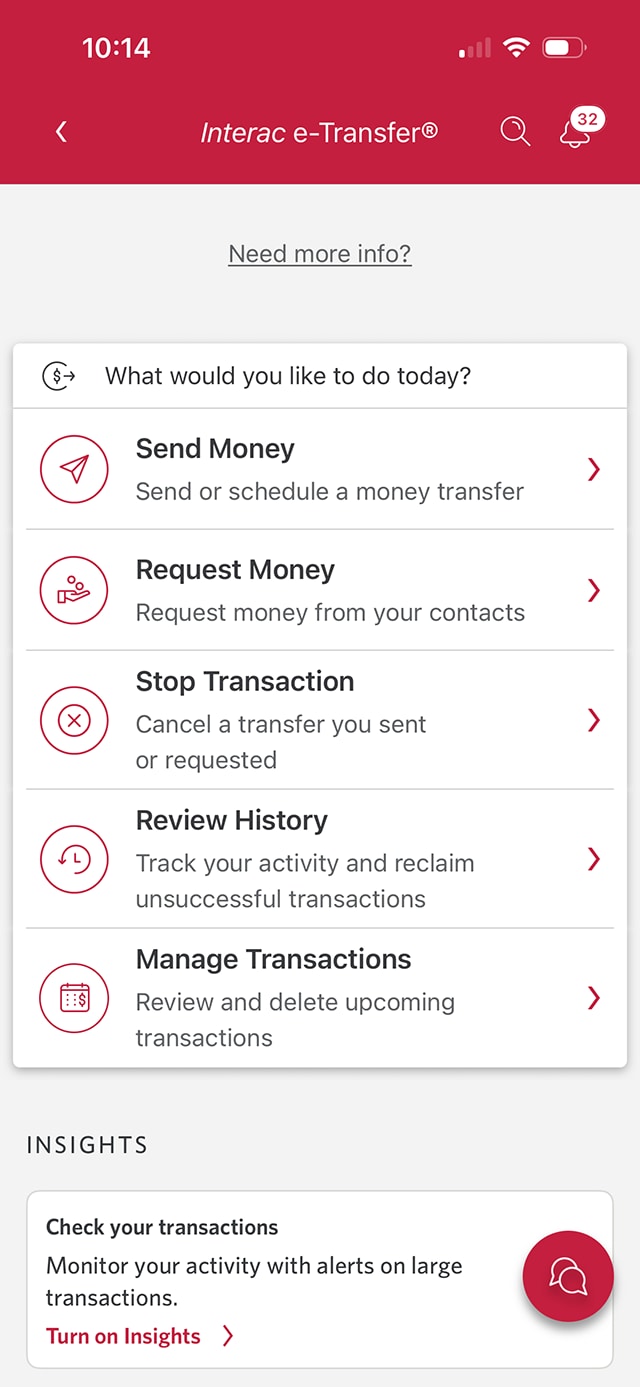
Step 3 : Select "Interac e-Transfer"
Step 4 : Select "Review History"
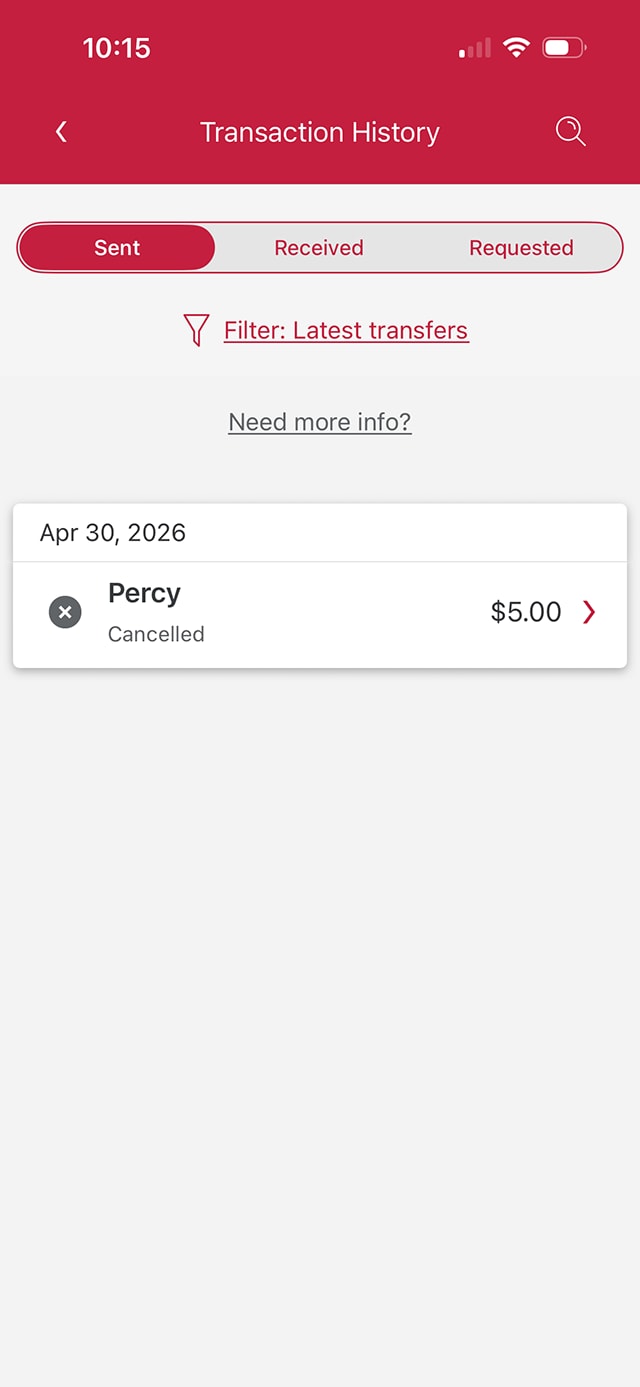
Step 5 : Review more details for the transfer you'd like to stop
In the list of transfers, find the specific transfer you'd like to stop and reclaim.
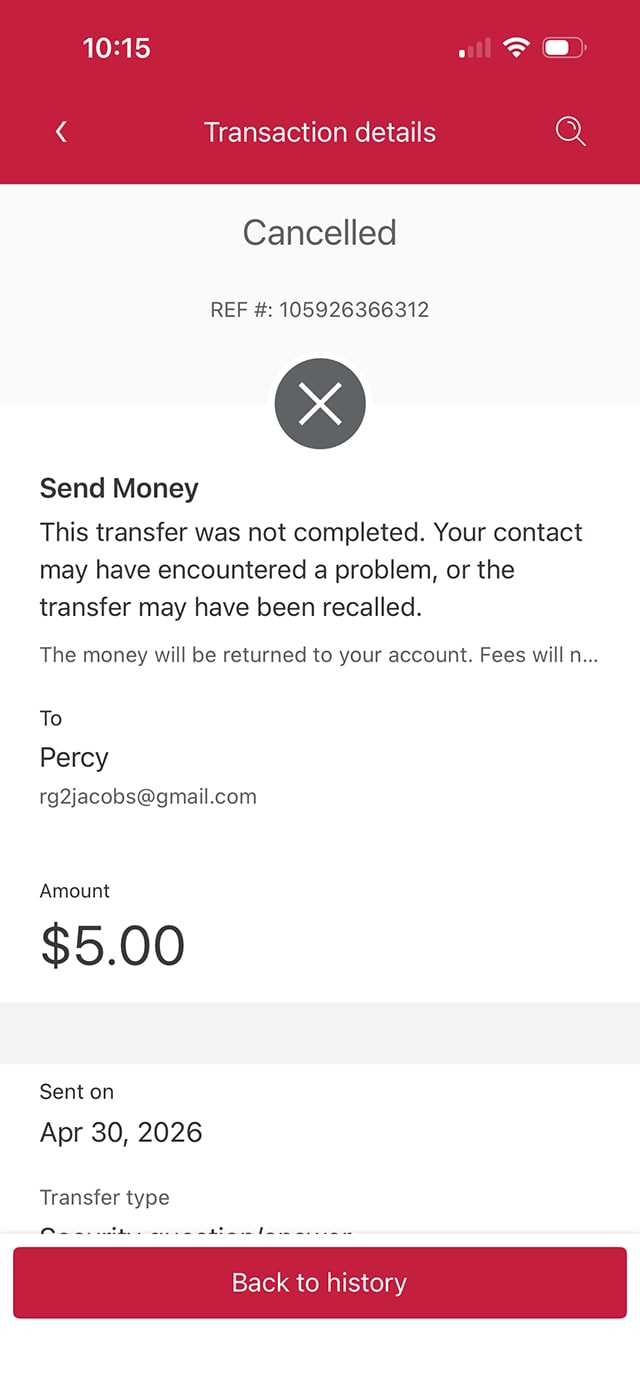
If the recipient of the transfer has chosen not to accept your funds, the transfer may already display as "cancelled" in the list. In that case, you won't need to do anything further — the transfer has already been stopped.
If the transfer isn't displaying as "cancelled", select the chevron icon. You'll next be provided with options to stop the transfer and reclaim the funds.
Keep in mind that you can only follow this process to stop a transfer that's been sent but not yet claimed.
You may be charged a fee of $3.50 for stopping a pending Interac e-Transfer payment.
Step 6 : Great job!
Want an overview of all the steps?
For full instructions on how to stop an Interac e-Transfer payment, check out the step-by-step process all in one place.
Recommended digital banking demos

How to send an Interac e-Transfer payment
How to register for Interac e-Transfer Autodeposit
Start demo on how to register for Interac e-Transfer Autodeposit.

How to lock or unlock your credit card

How to set up alerts for account activity
Get started
CIBC Online Banking®
Discover digital banking features that can help you bank easily online.
CIBC Mobile Banking® App
Stay connected to your finances on your mobile device, no matter where you are.

