

Register for Interac e-Transfer® Autodeposit
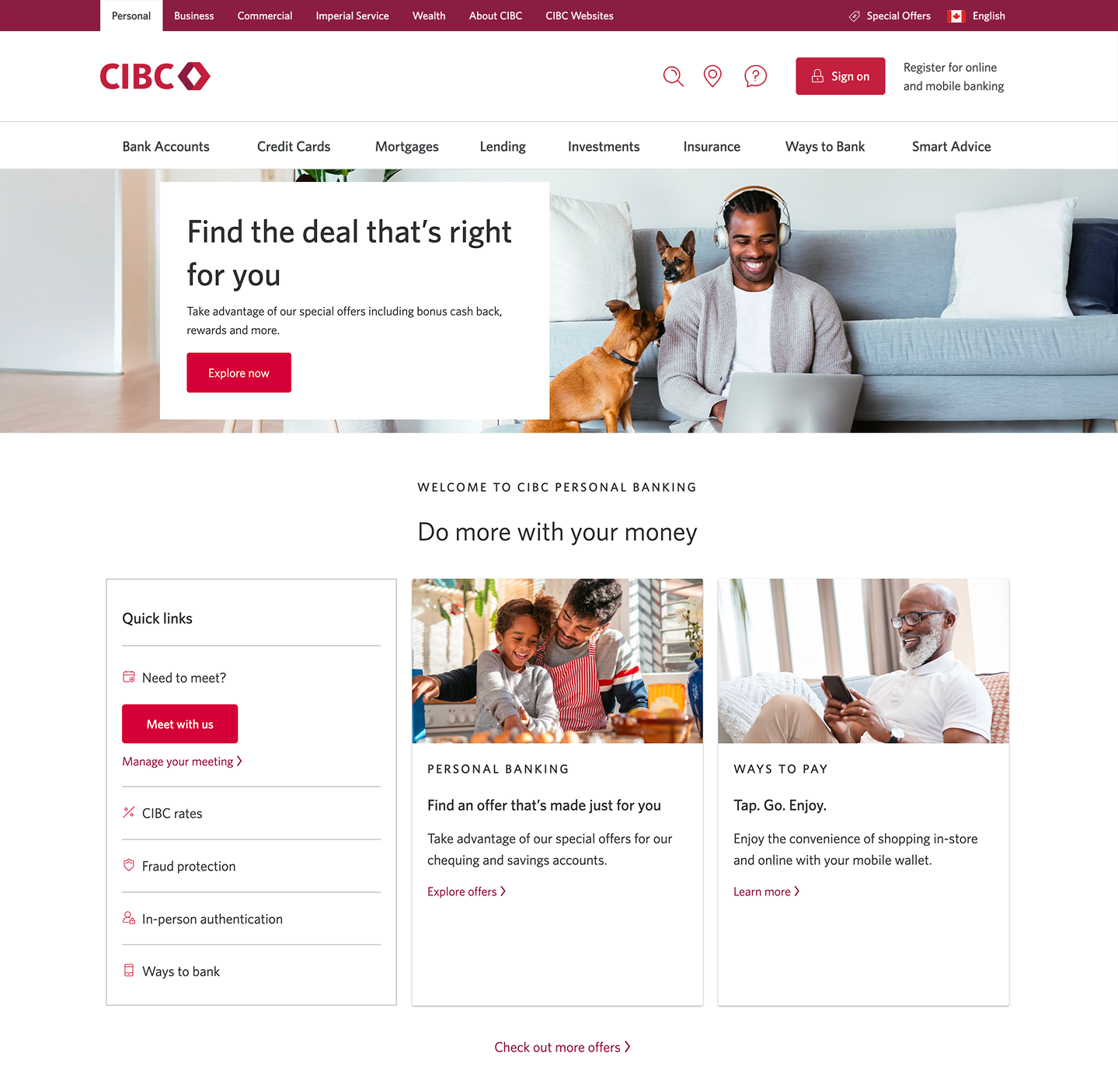
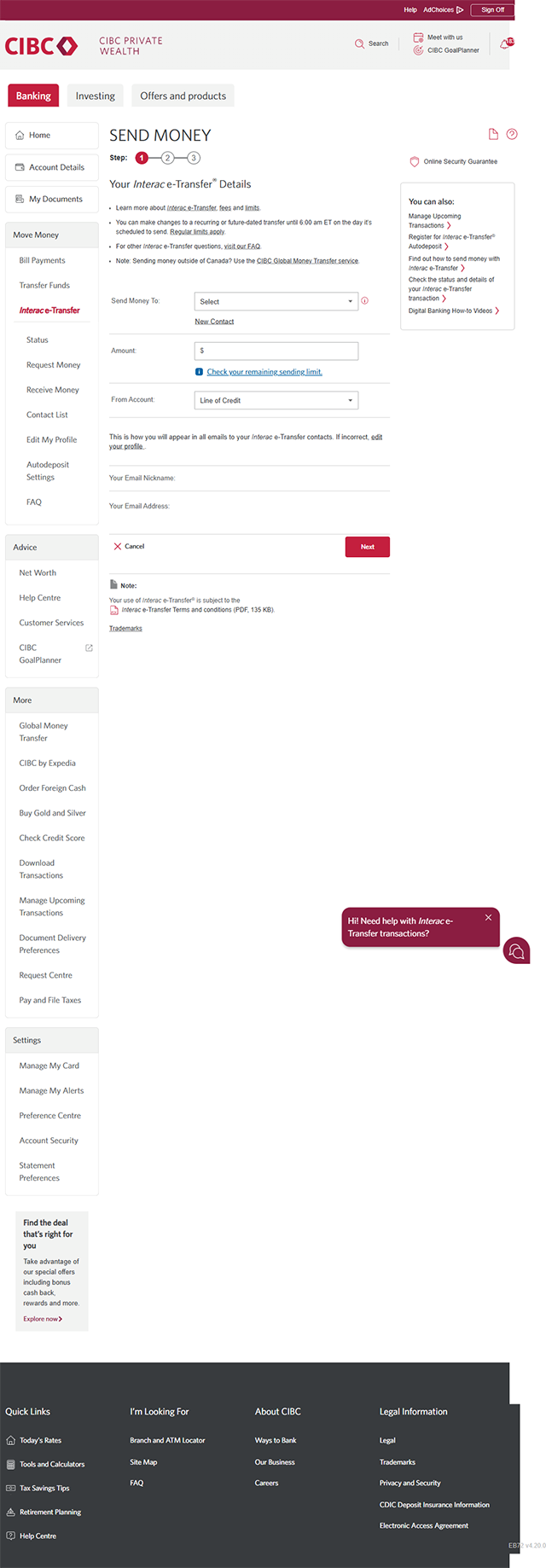
Step 1 : Let's get started on your web browser
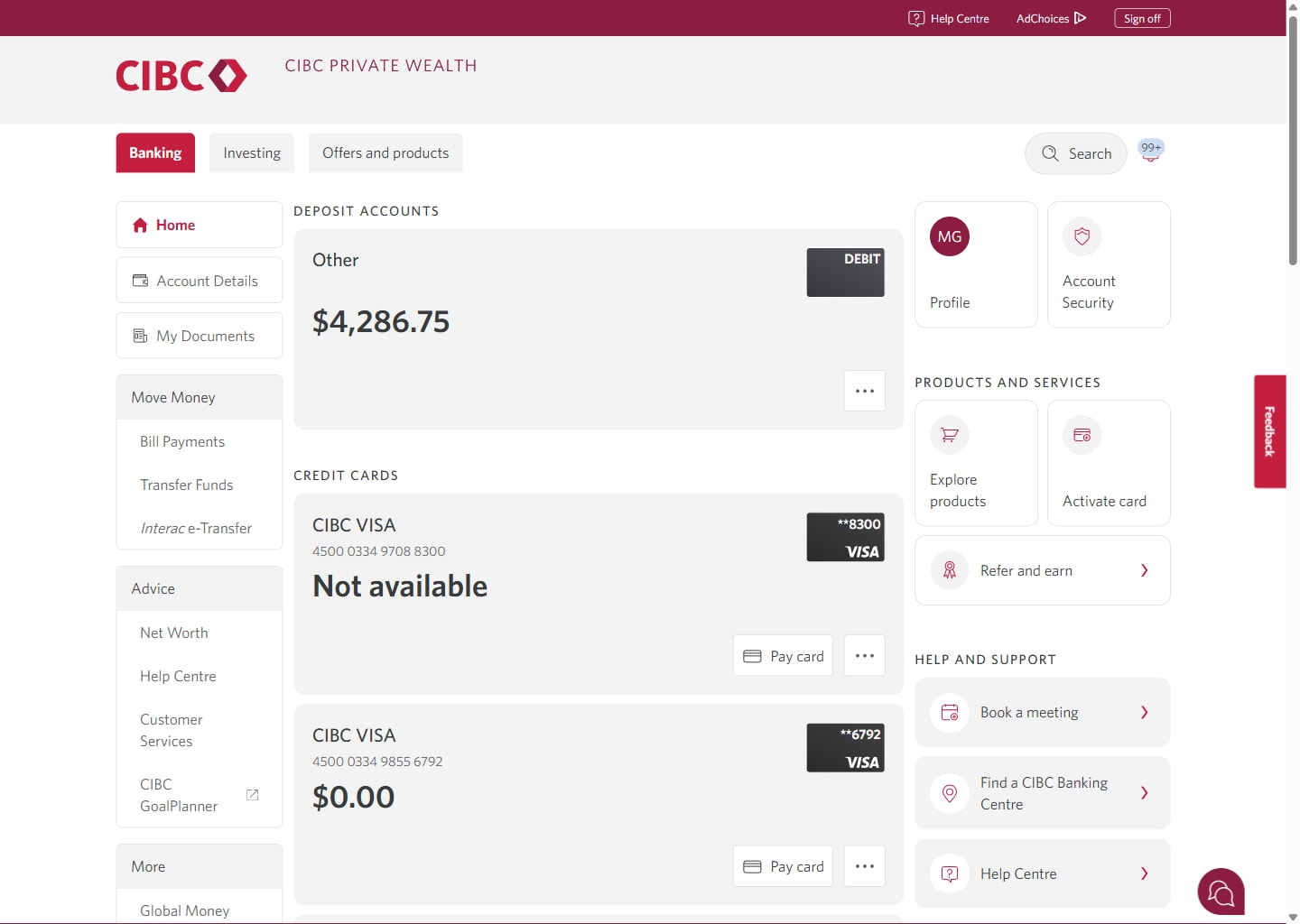
Step 2 : Select "Interac e-Transfer"
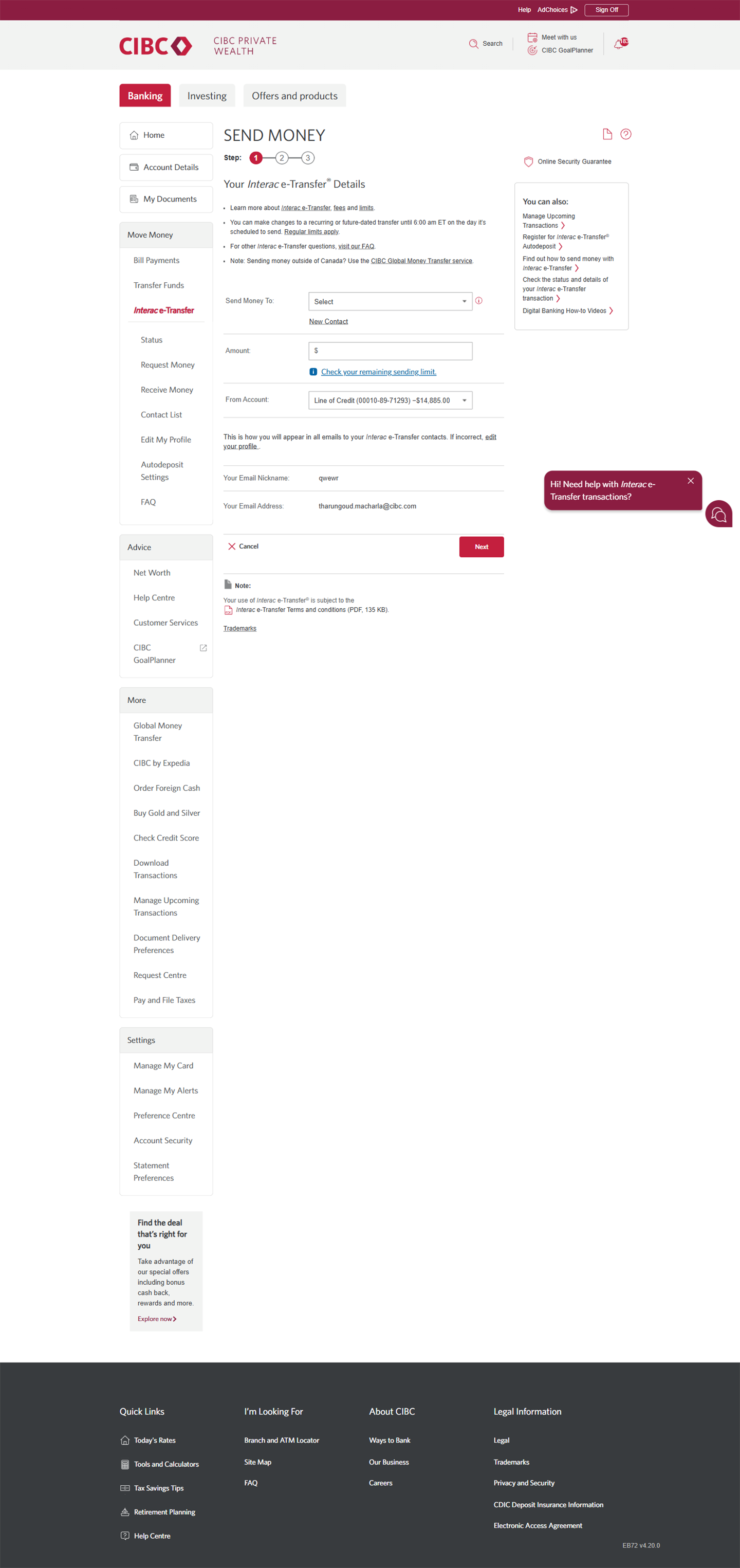
Step 3 : Select "Autodeposit Settings"
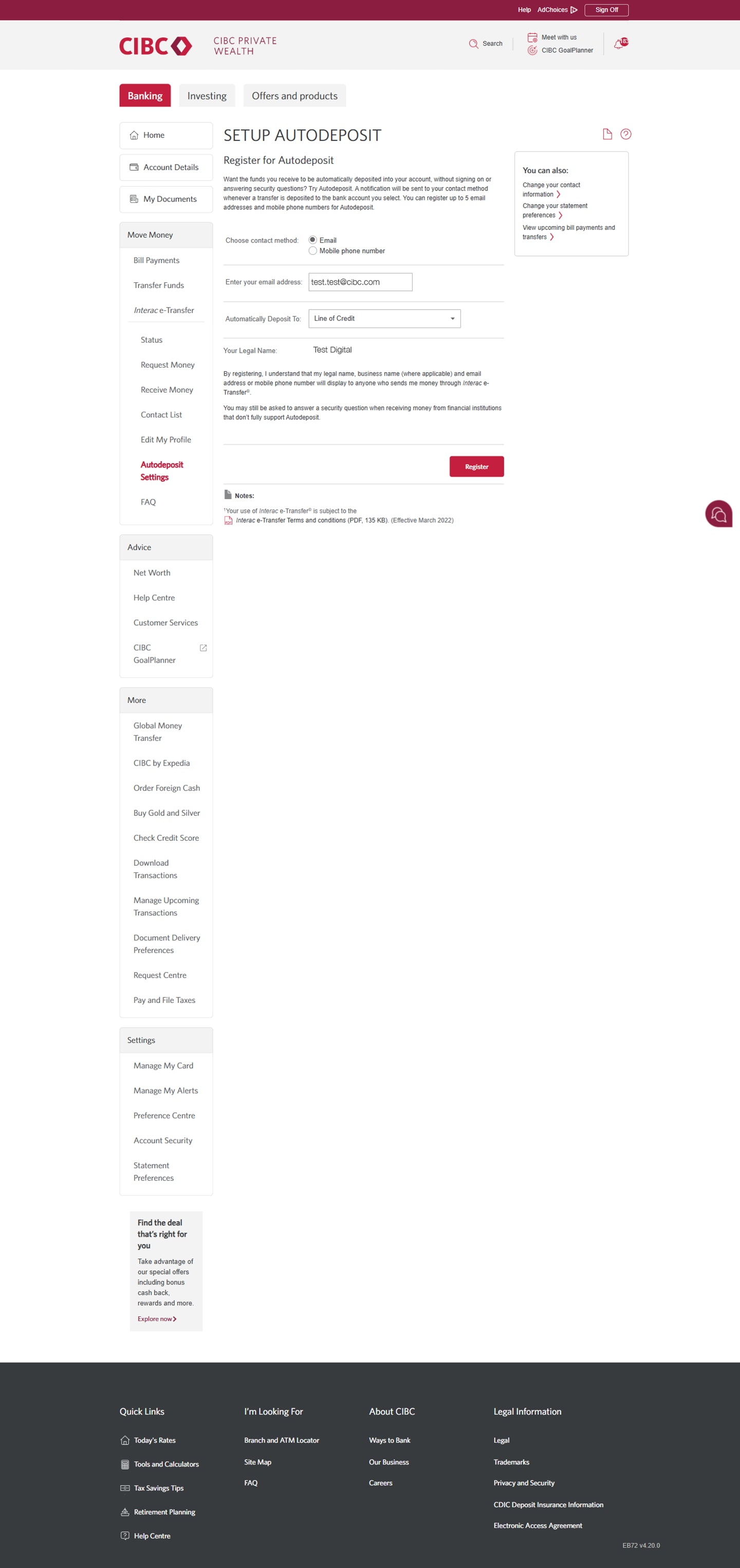
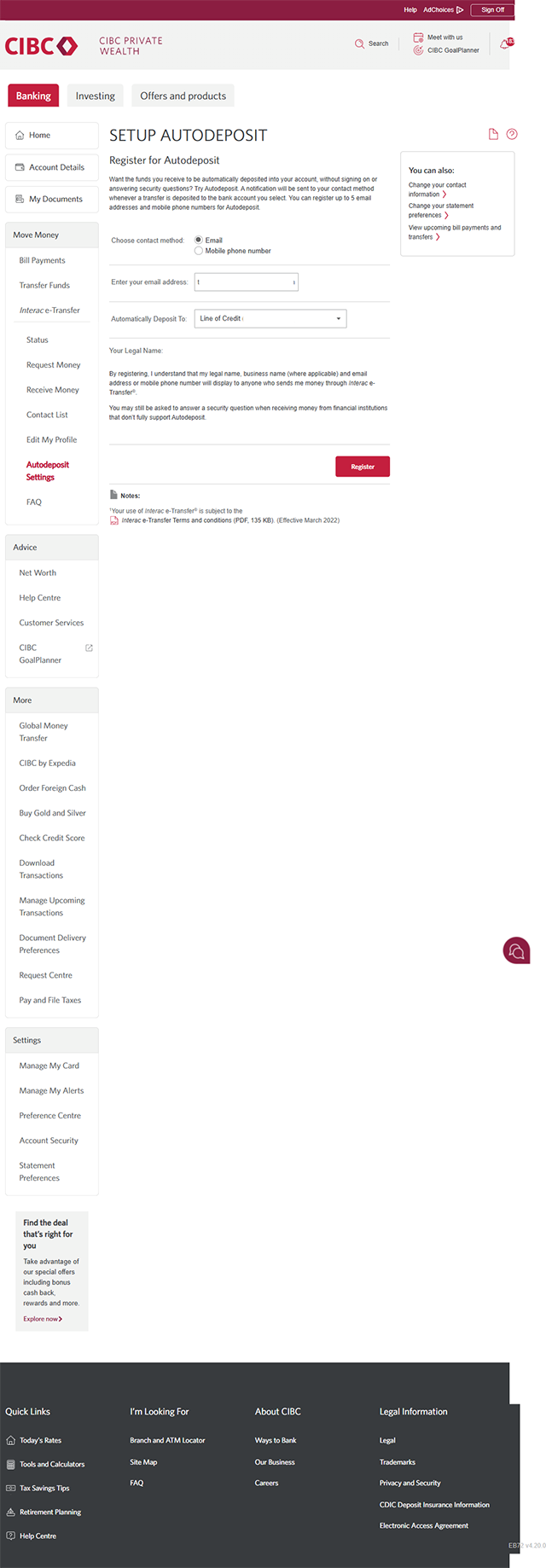
Step 4 : Register for Autodeposit
Select a preferred contact method for how you want to be notified of Interac e-Transfer deposits.
For this demo, we selected "email" and will enter an email address in the field provided.
Next, use the dropdown menu to select the account you want your Interac e-Transfer deposits to be automatically deposited to.
When you've finished entering your contact and account details, select the "Register" button.
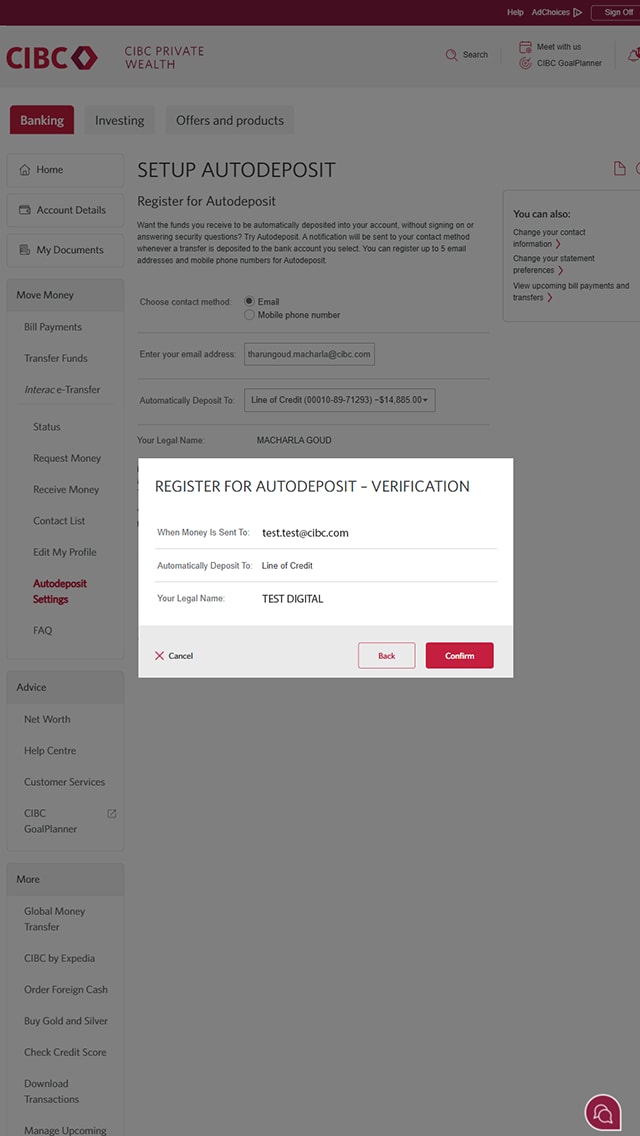
Step 5 : Review your Autodeposit details
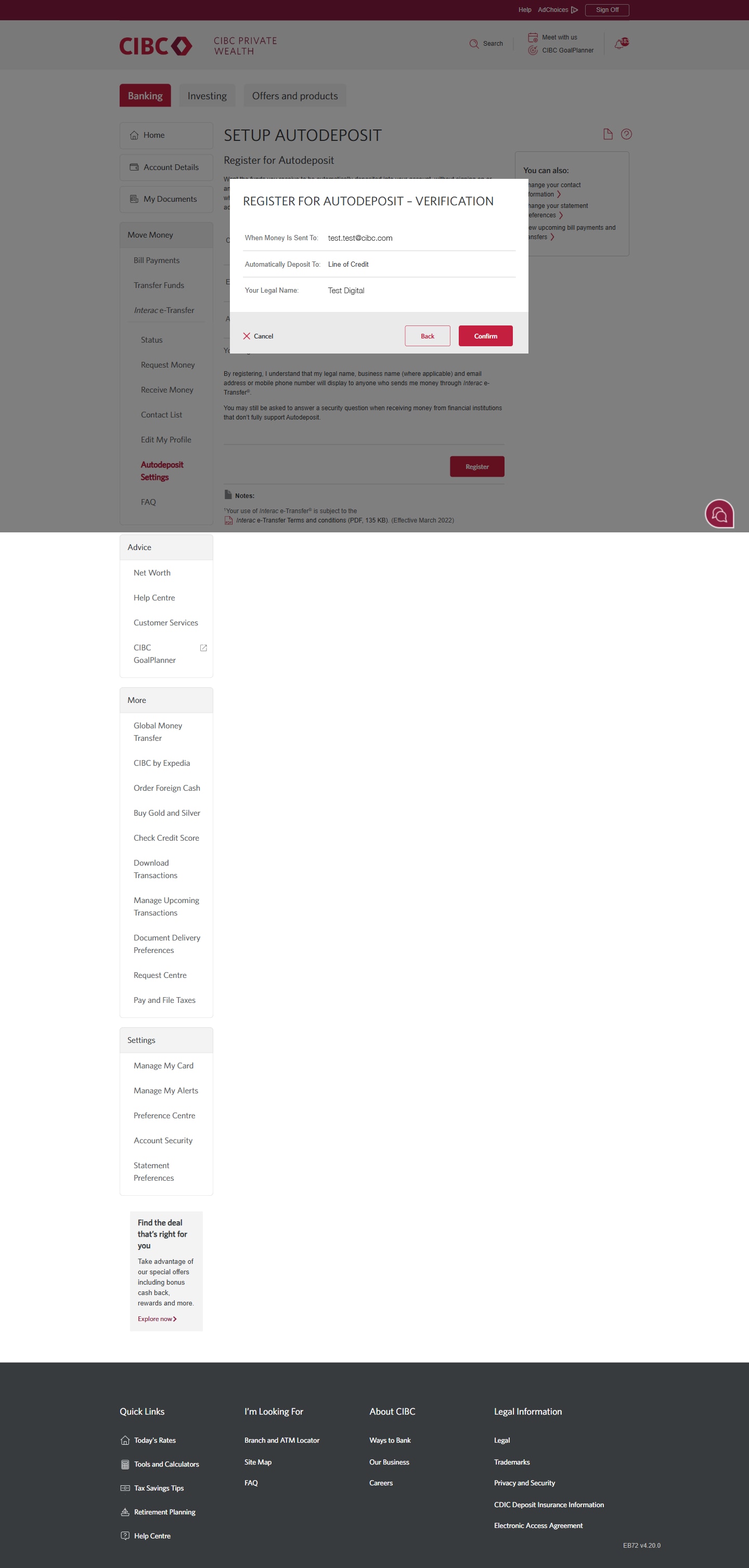
You'll be asked to verify the details of your Interac e-Transfer Autodeposit settings.
Once you've confirmed the details are correct, select the "Confirm" button.
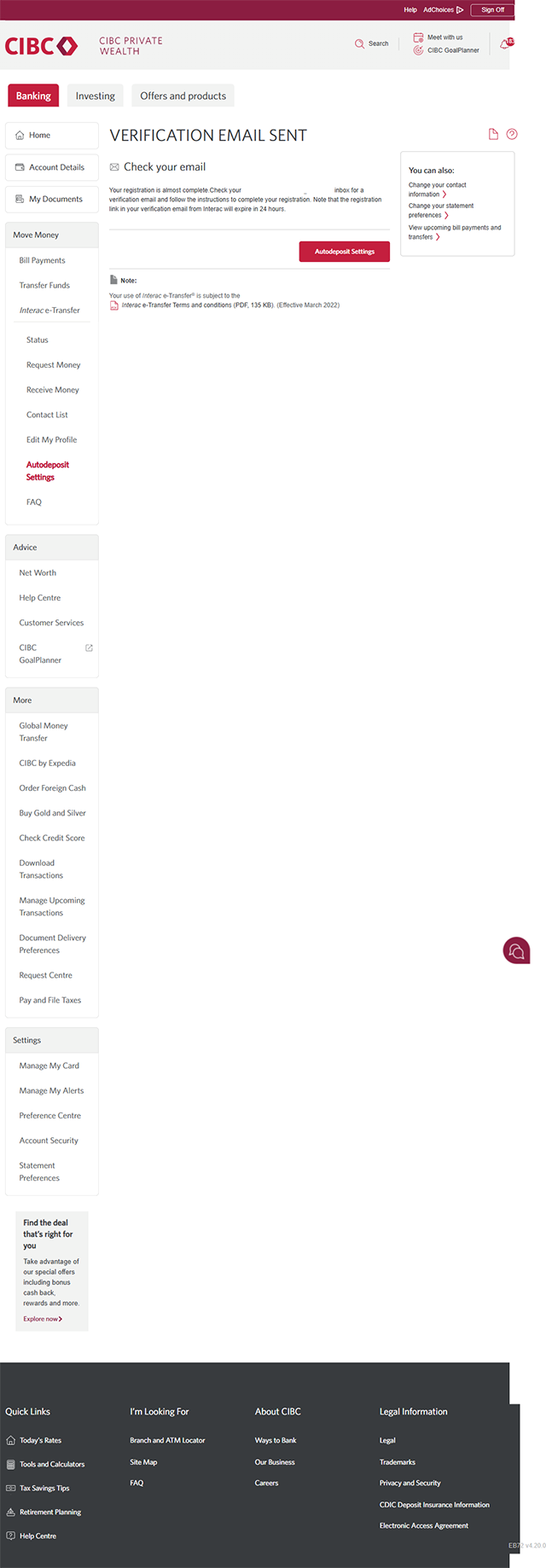
Step 6 : Great job!
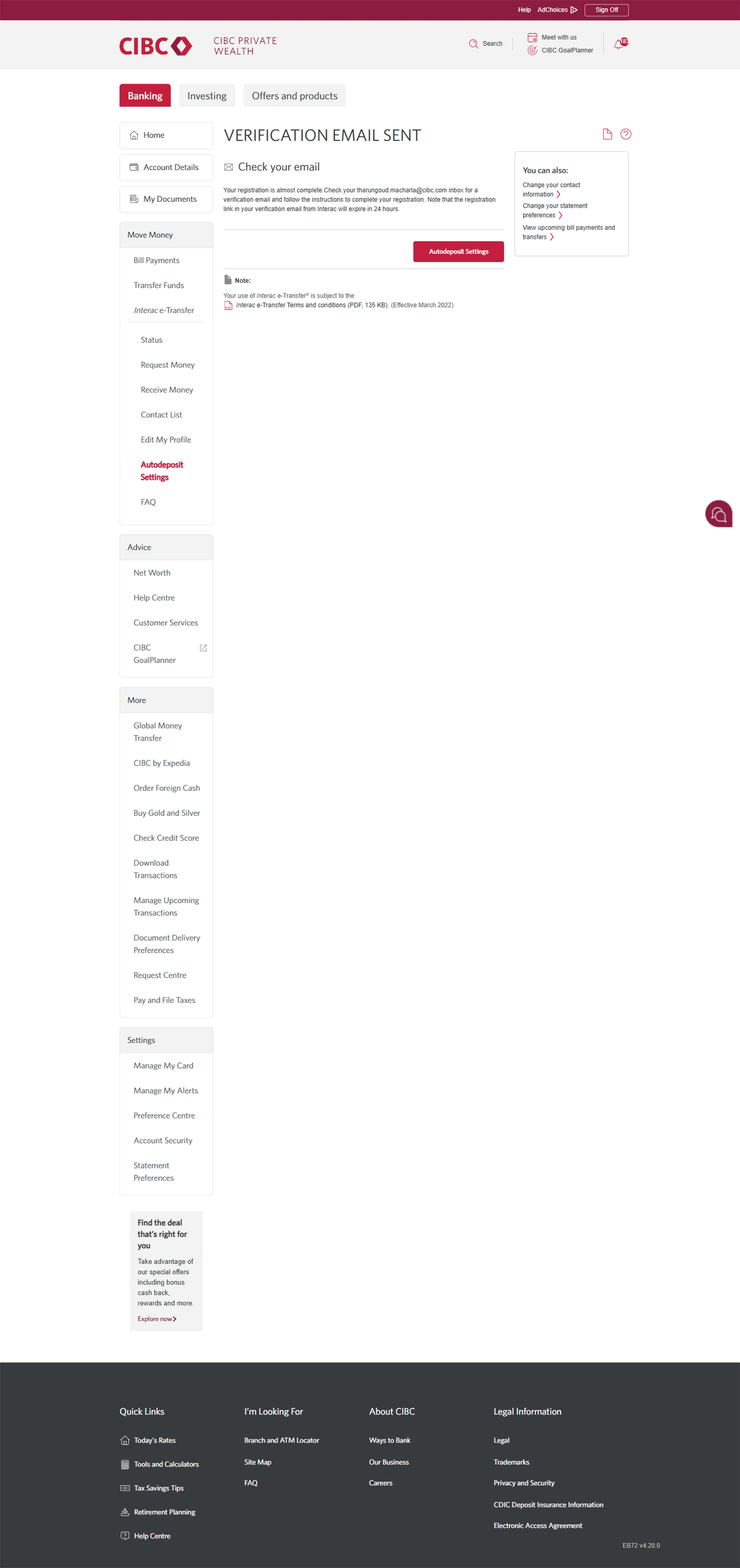
You've successfully registered for Interac e-Transfer Autodeposit on CIBC Online Banking.
A verification email will be sent to the email address you used to register for Autodeposit.
To complete the registration process, check your email and follow the instructions.
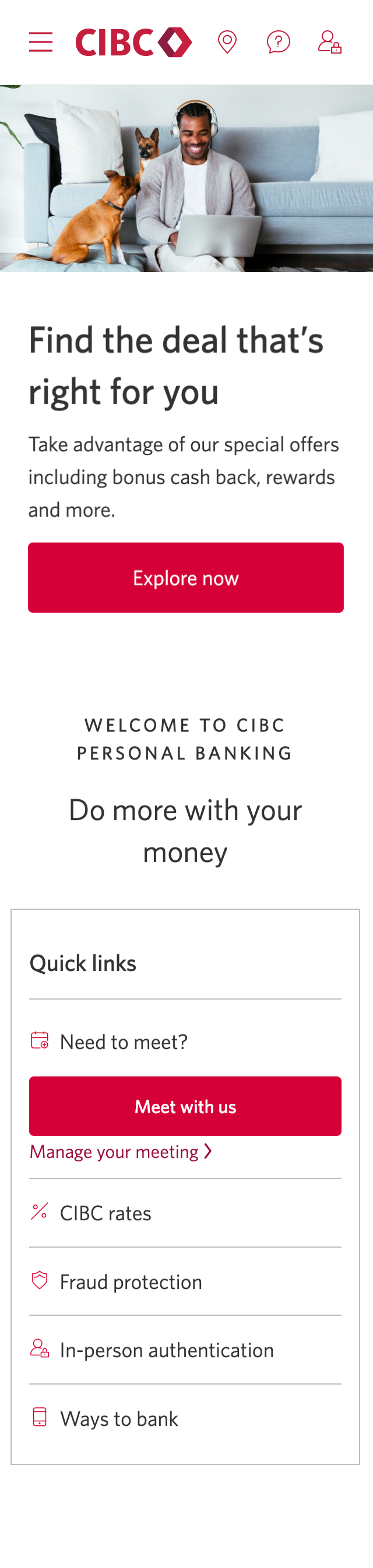

Step 1 : Let's get started on your web browser
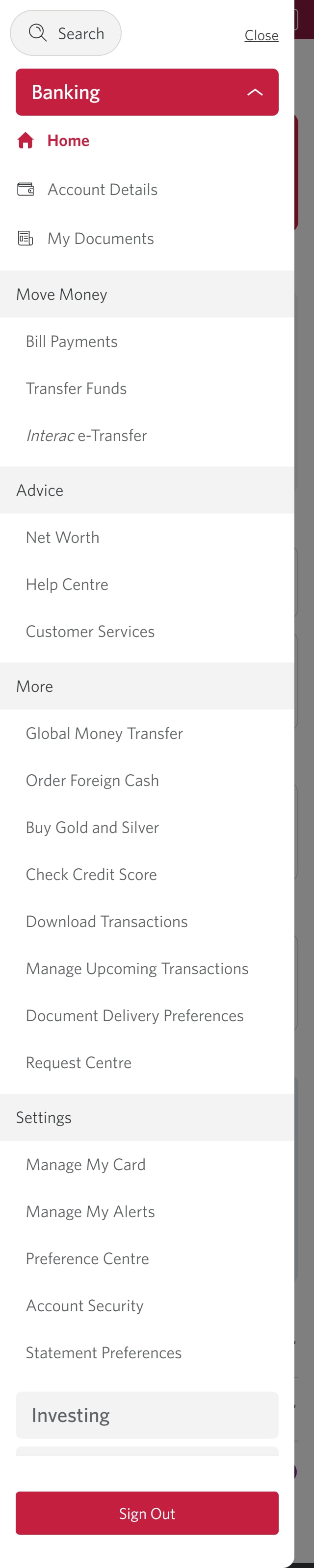
Step 2 : Select the three-line menu icon to open the navigation bar
Step 3 : Select "Interac e-Transfer"
Step 4 : Select "Autodeposit Settings"
Step 5 : Register for Autodeposit
Select a preferred contact method for how you want to be notified of Interac e-Transfer deposits.
For this demo, we selected "email" and will enter an email address in the field provided.
Next, use the dropdown menu to select the account you want your Interac e-Transfer deposits to be automatically deposited to.
When you've finished entering your contact and account details, select the "Register" button.
Step 6 : Review your Autodeposit details
You'll be asked to verify the details of your Interac e-Transfer Autodeposit settings.
Once you've confirmed the details are correct, select the "Confirm" button.
Step 7 : Great job!
You've successfully registered for Interac e-Transfer Autodeposit on CIBC Online Banking.
A verification email will be sent to the email address you used to register for Autodeposit.
To complete the registration process, check your email and follow the instructions.
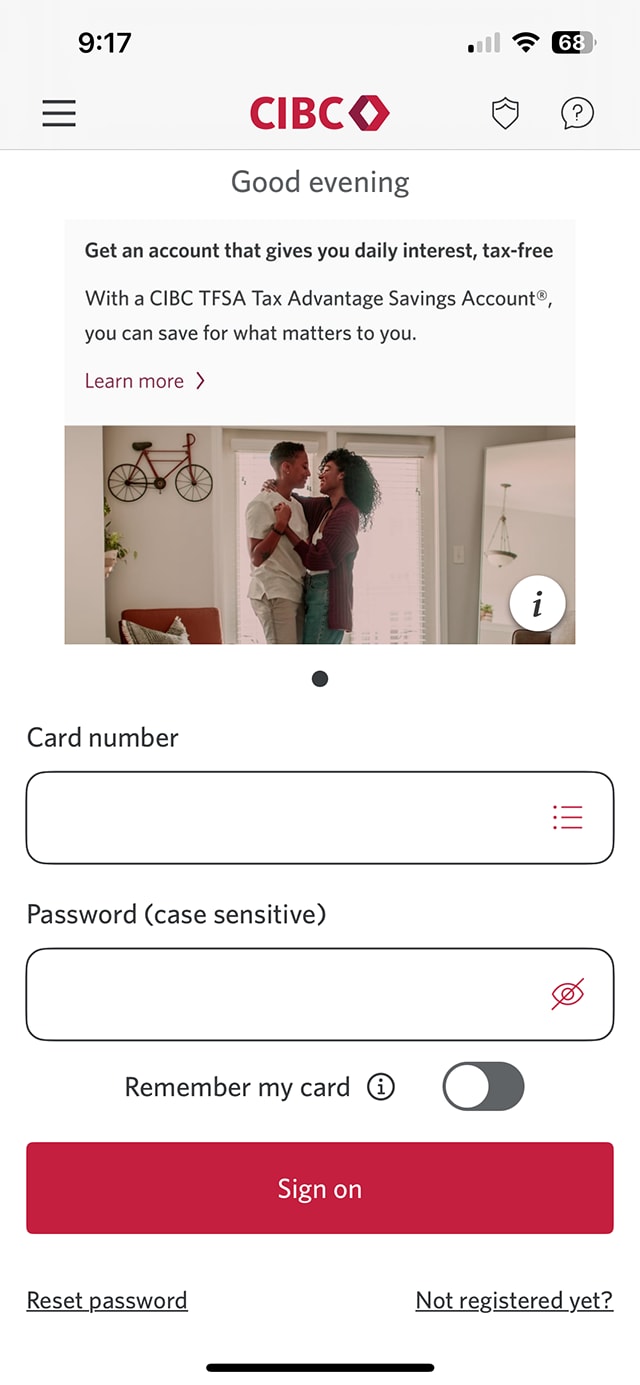
Step 1 : Let's get started on the mobile app
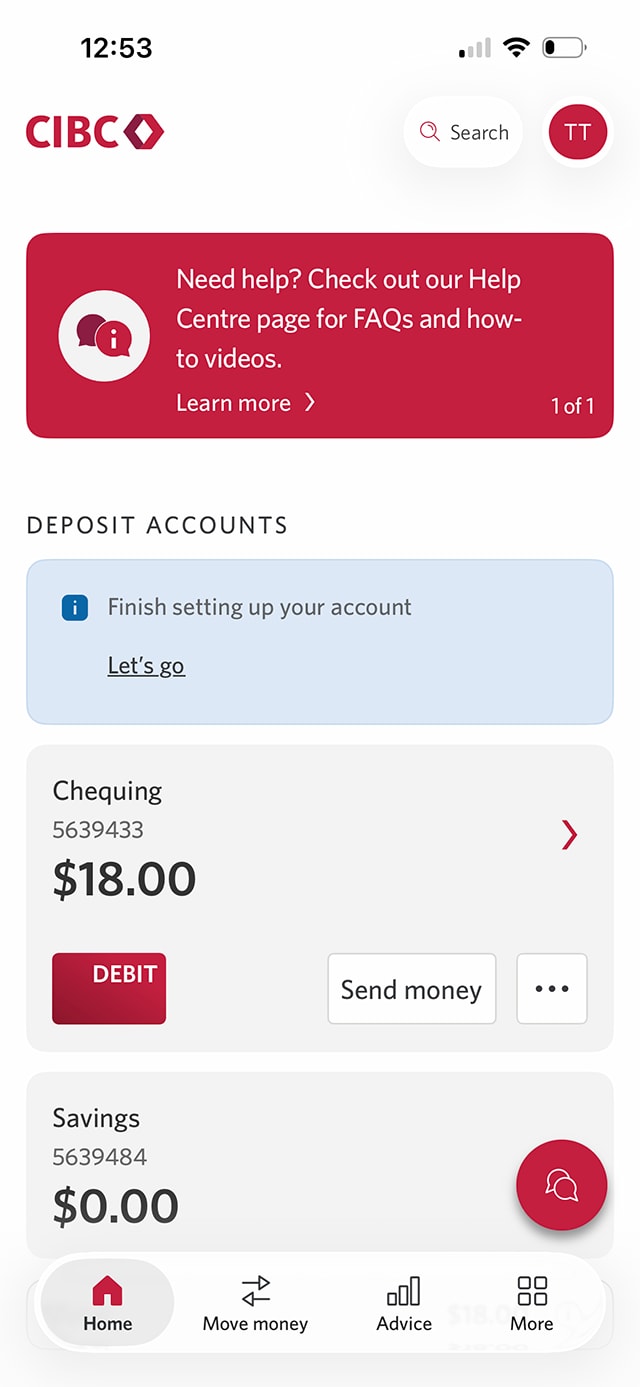
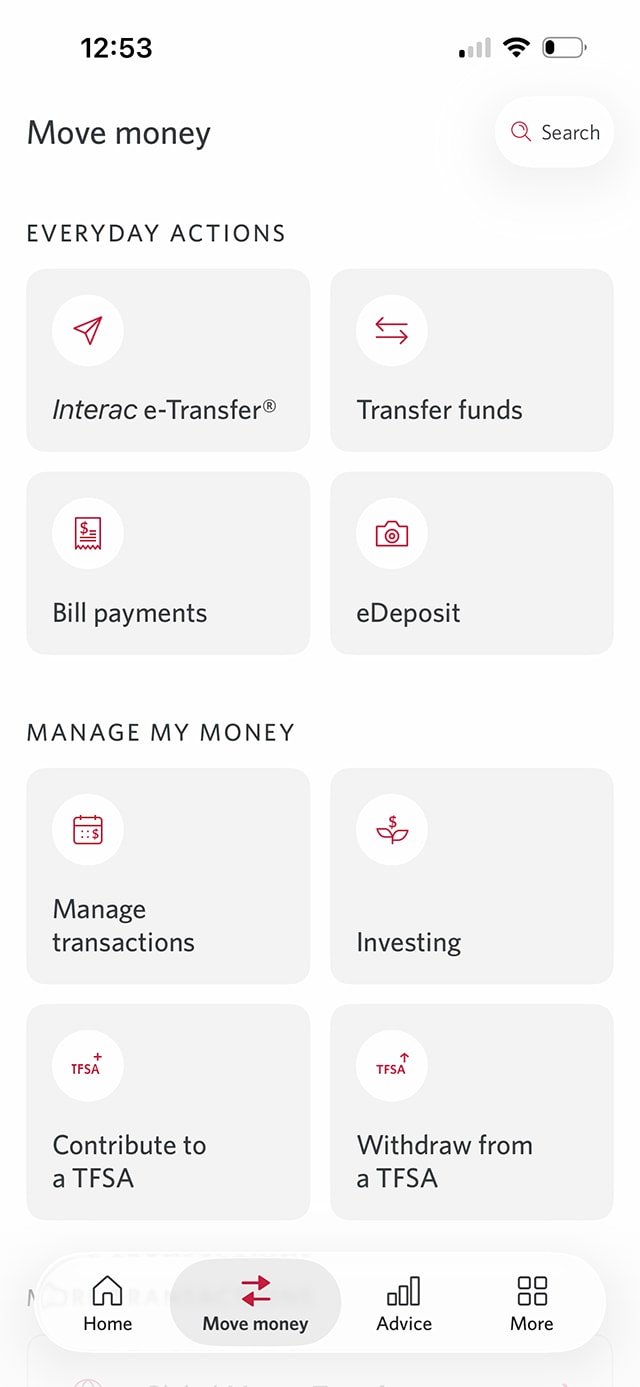
Step 2 : Select "Move money"
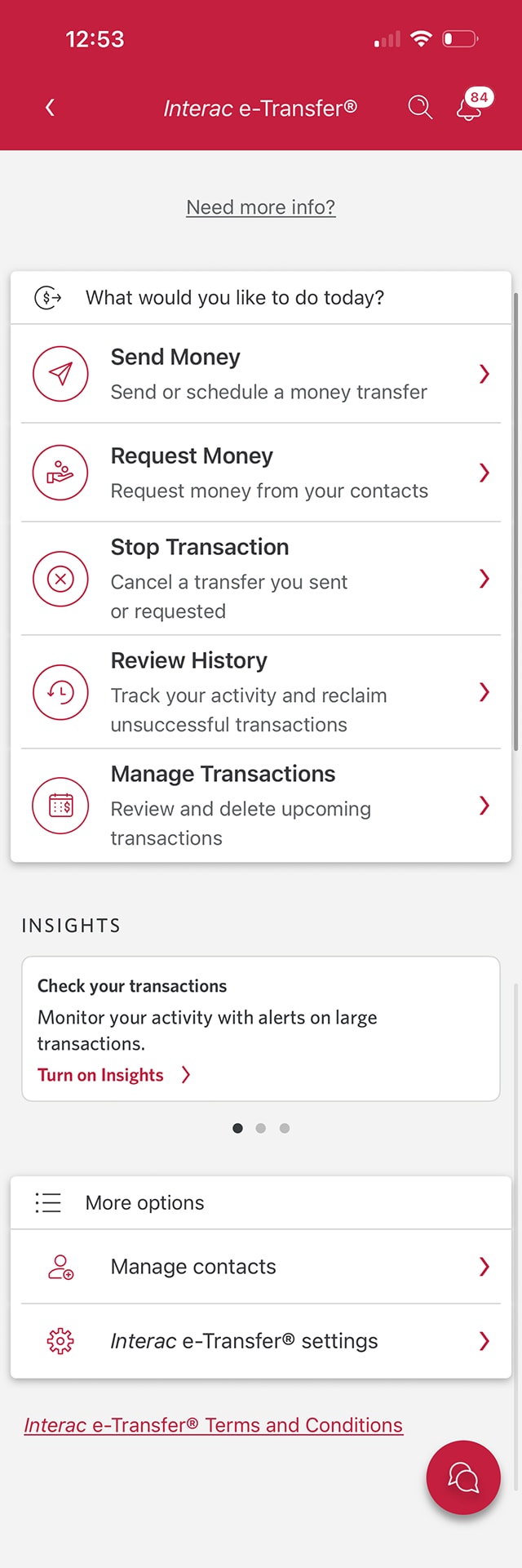
Step 3 : Select "Interac e-Transfer"
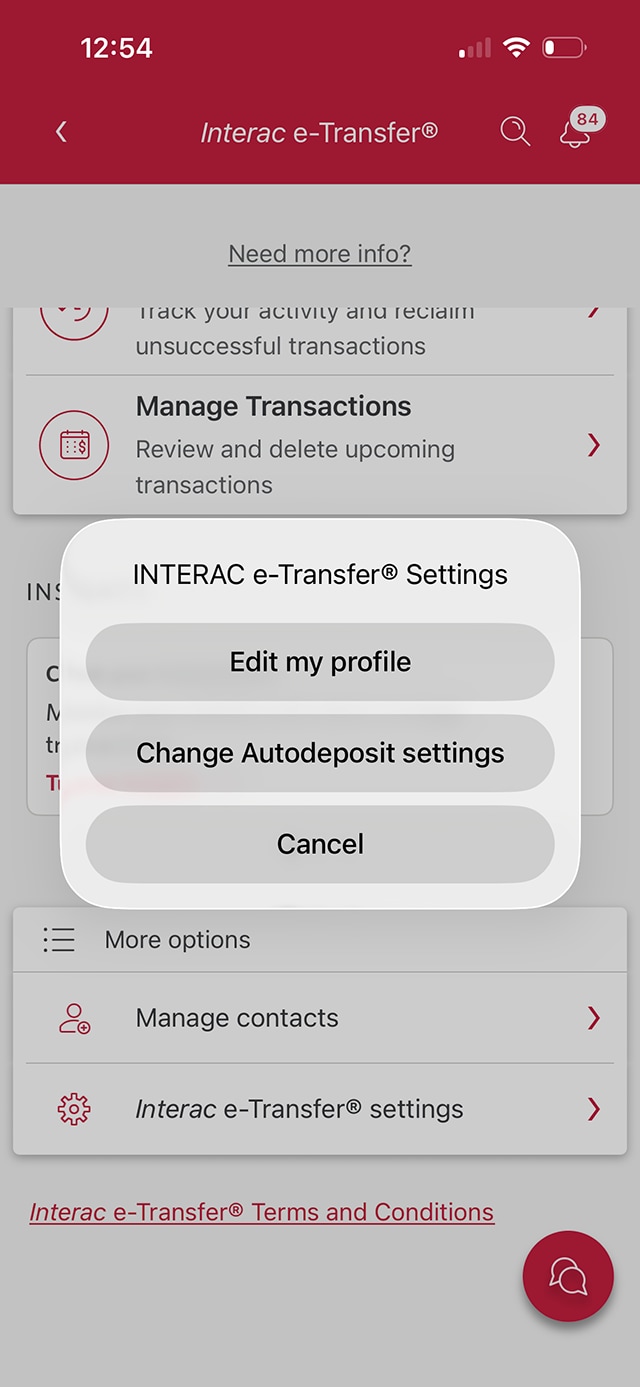
Step 4 : Select "Interac e-Transfer settings"
Step 5 : Select "Change Autodeposit settings"
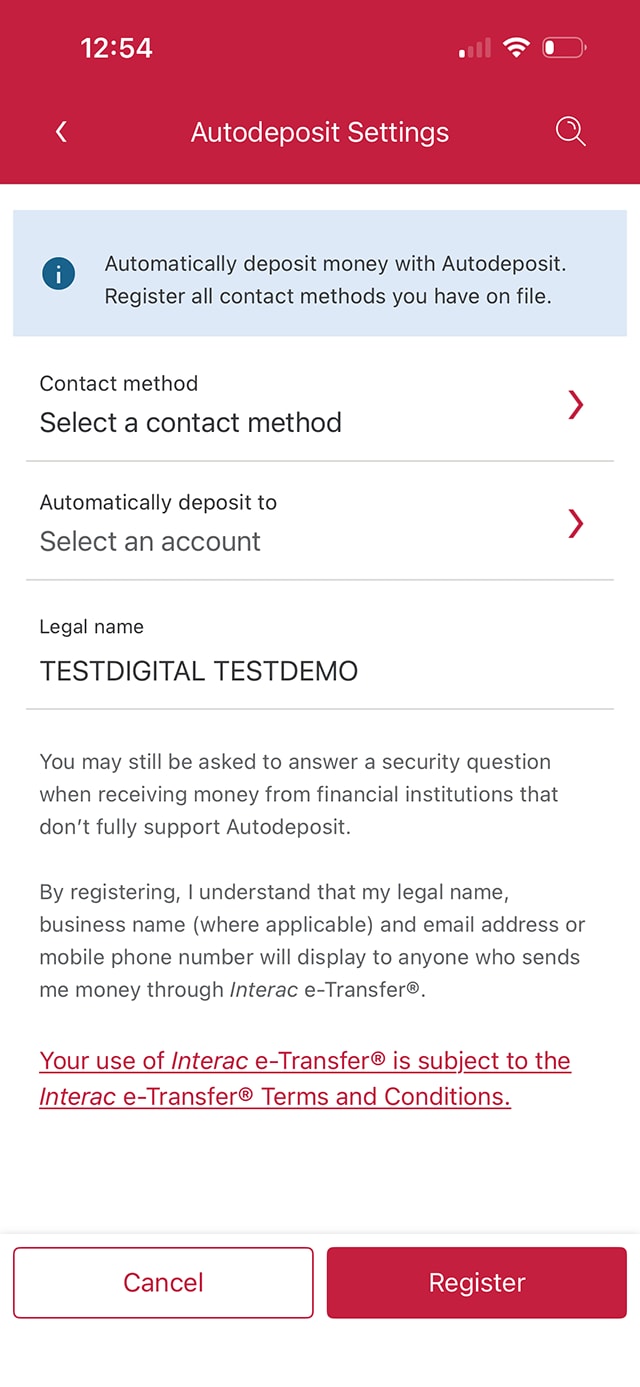
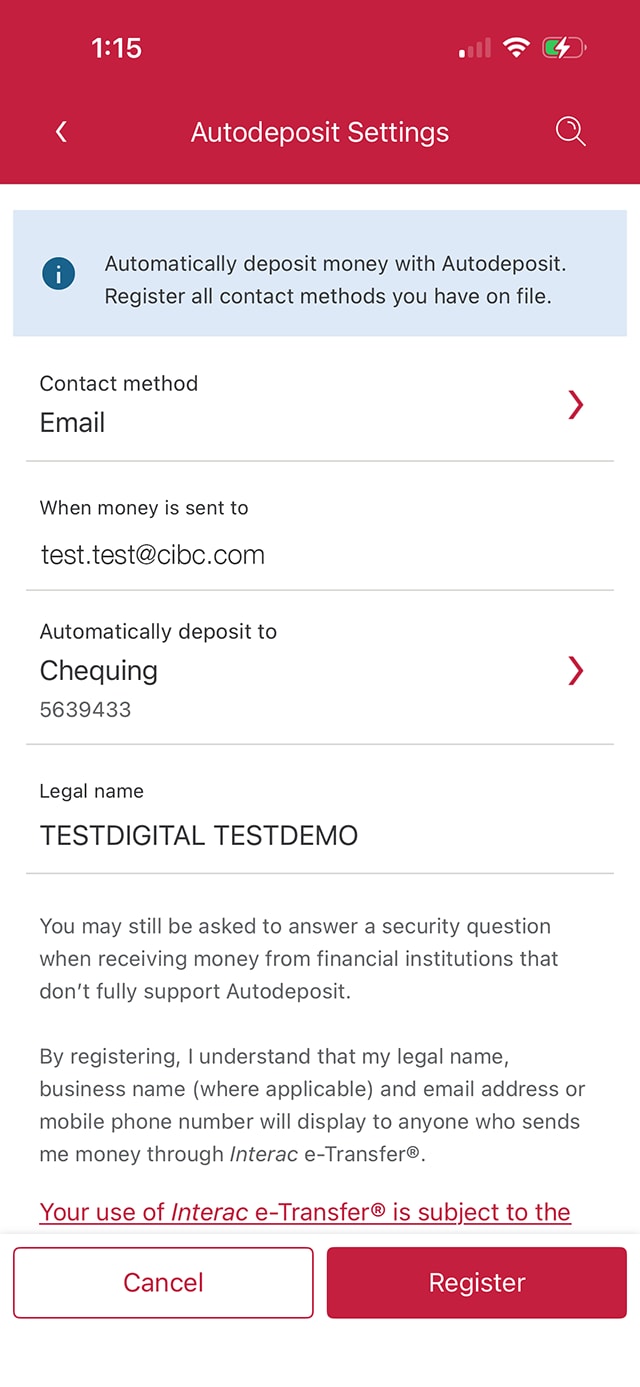
Step 6 : Register for Autodeposit
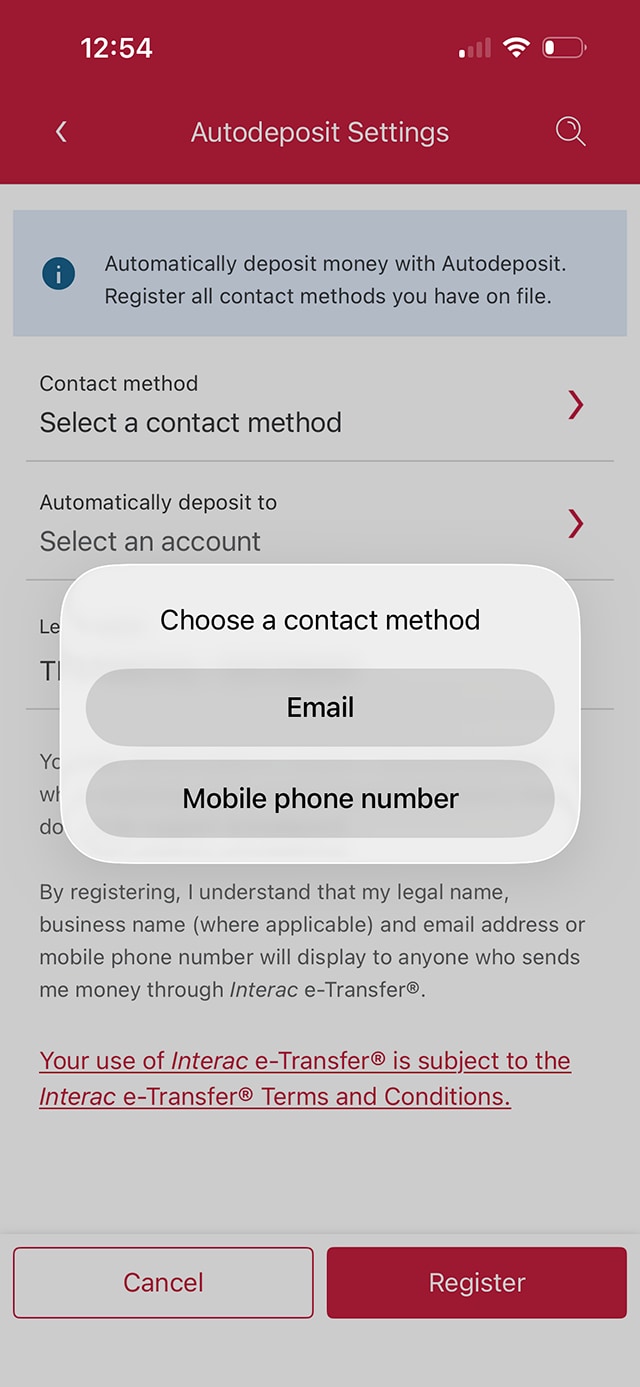
Step 7 : Select your preferred contact method
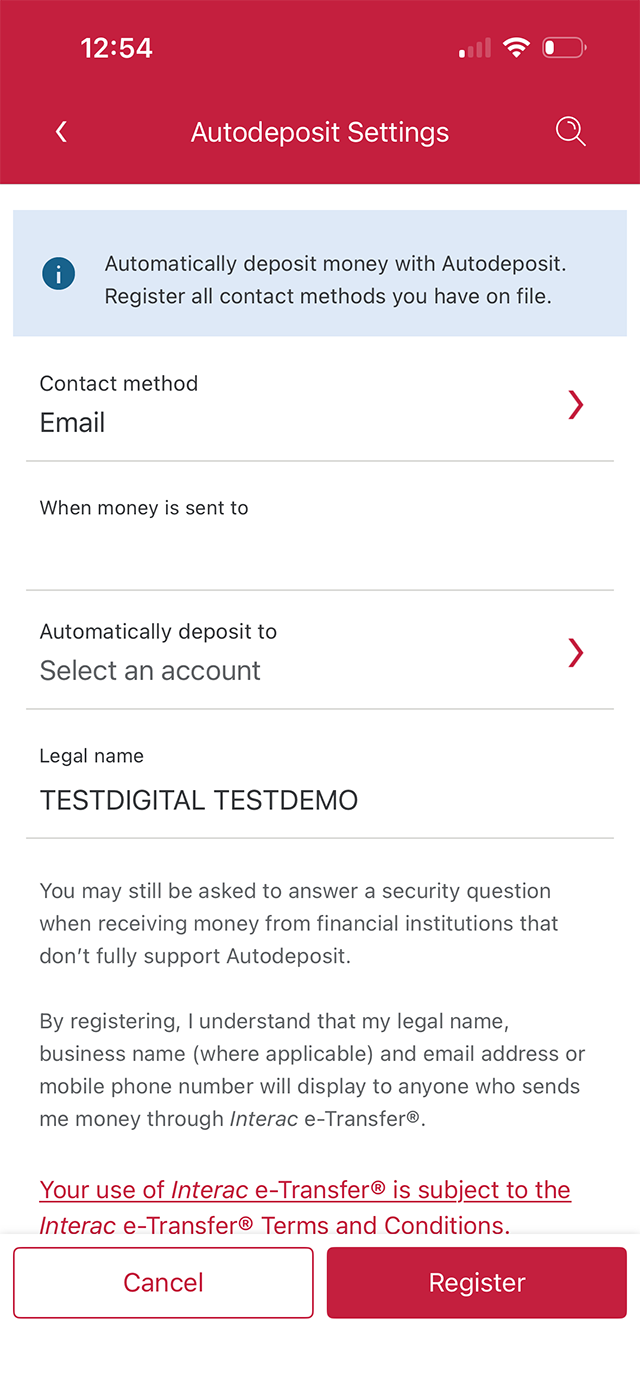
Step 8 : Enter your email address
Use the field provided to enter your email address.
Then, select the chevron for "Automatically deposit to". In the next step, you'll be able to select the account you'd like the money deposited to.
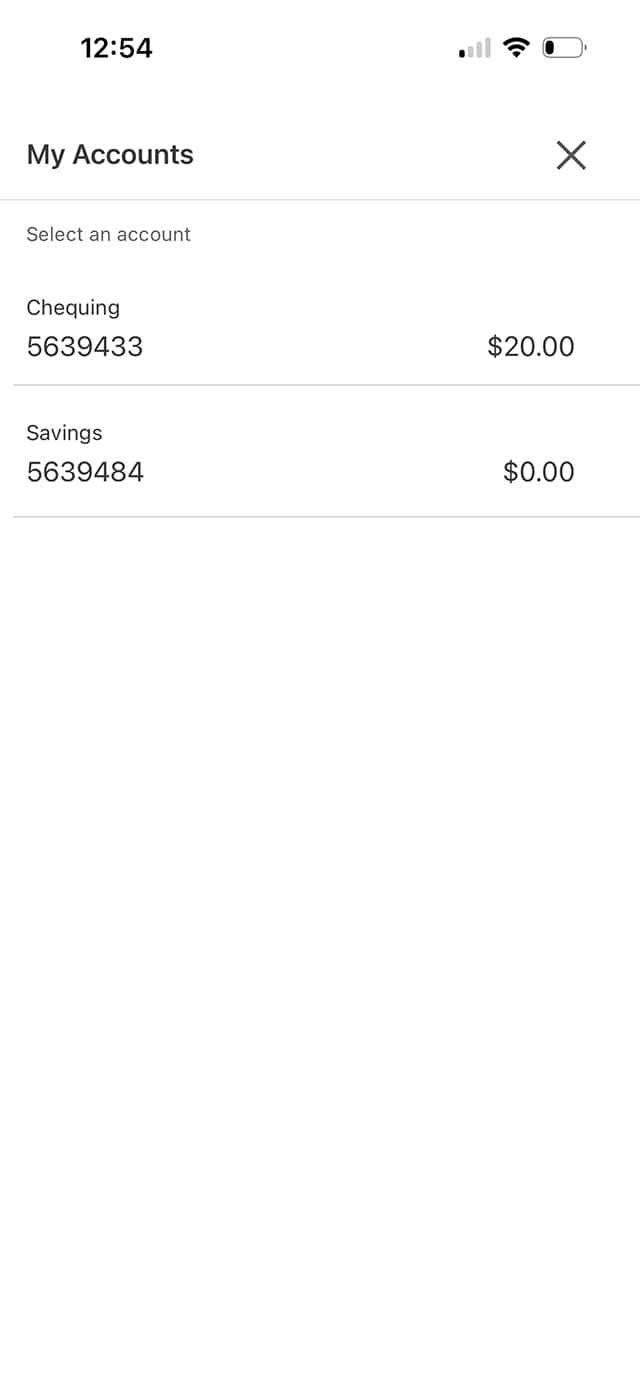
Step 9 : Select an account
From your list of accounts, select which account you want your Interac e-Transfer deposits to be automatically deposited to.
When you're finished, select the "X" to return to the previous page.
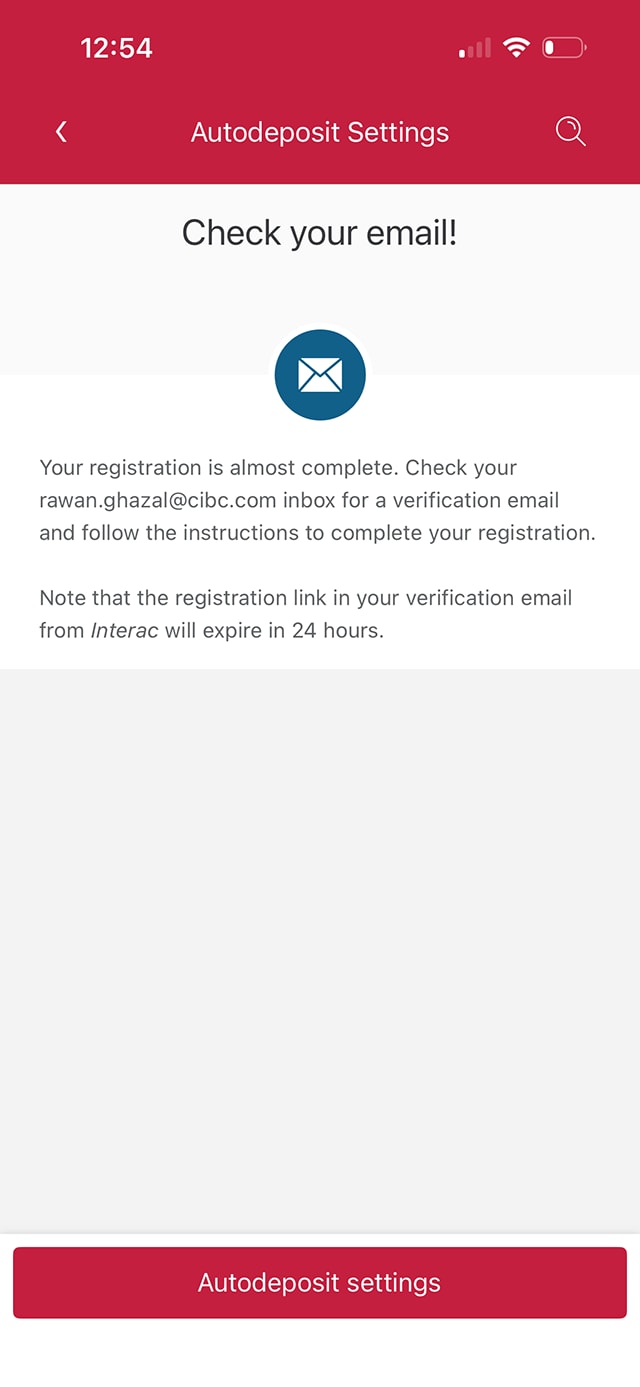
Step 10 : Complete your registration for Autodeposit
Step 11 : Great job!
You've successfully registered for Interac e-Transfer Autodeposit on the CIBC Mobile Banking App.
A verification email will be sent to the email address you used to register for Autodeposit.
To complete the registration process, check your email and follow the instructions.
Want an overview of all the steps?
For full instructions on how to register for Interac e-Transfer® Autodeposit, check out the step-by-step process all in one place.
Recommended digital banking demos

How to send an Interac e-Transfer payment
How to stop an Interac e-Transfer payment
How to transfer money between accounts

How to register for CIBC Online and Mobile Banking
Start demo on how to register for CIBC Online and Mobile banking.
Get started

CIBC Online Banking®
Discover digital banking features that can help you bank easily online.
CIBC Mobile Banking® App
Stay connected to your finances on your mobile device, no matter where you are.

