

How to lock or unlock your credit card
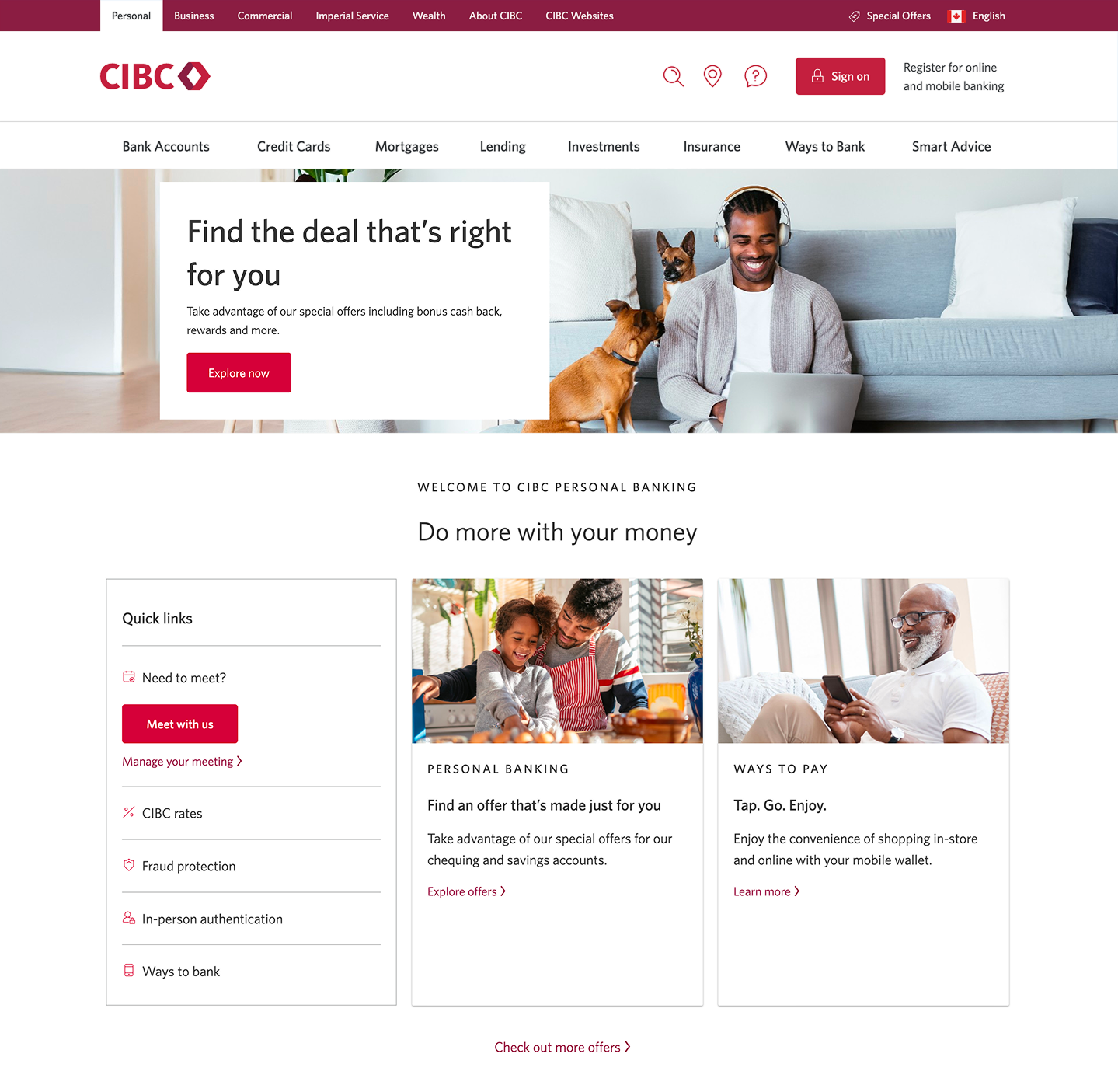
Step 1 : Let's get started on your web browser
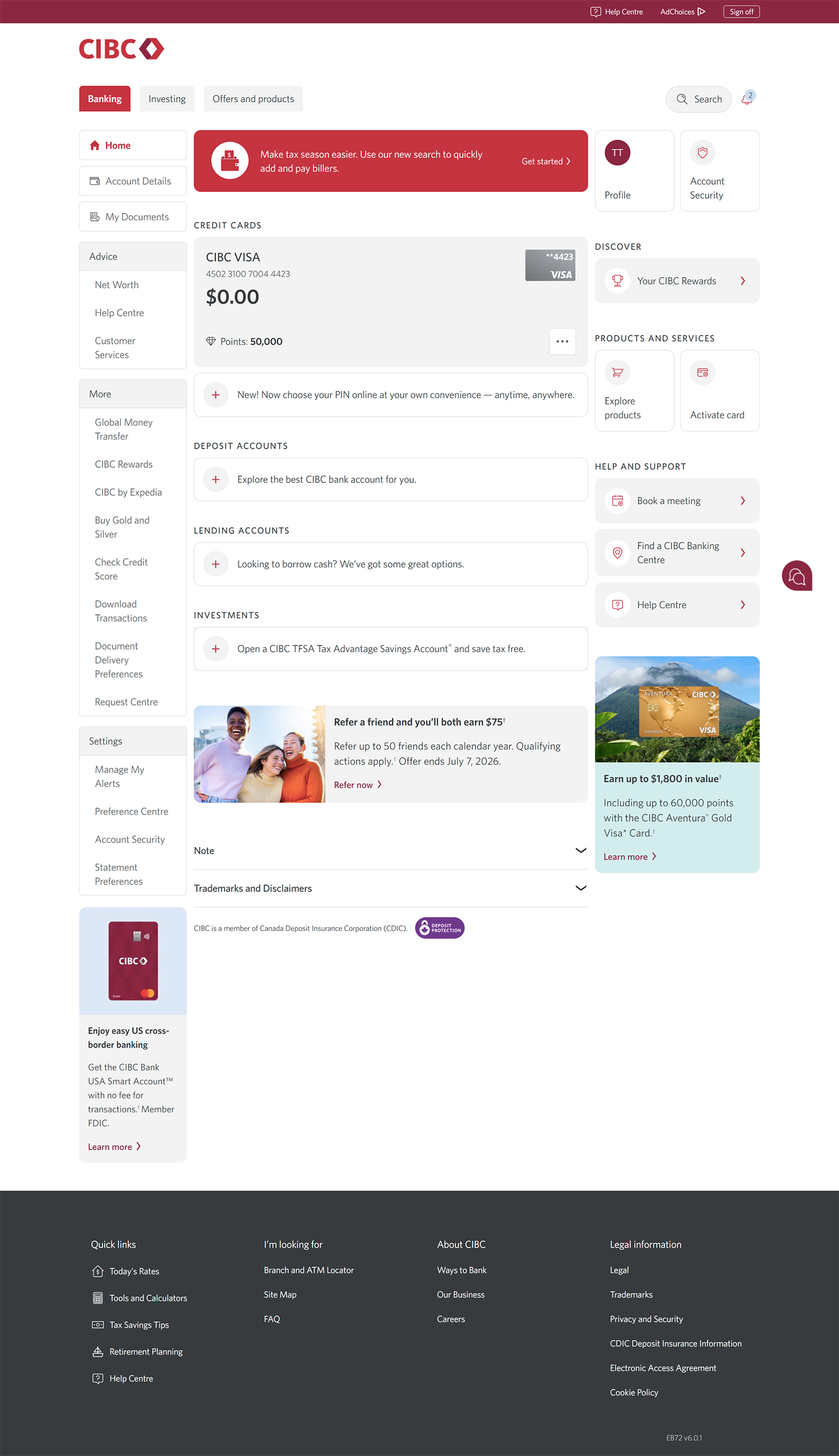
Step 2 : Choose which card to lock or unlock
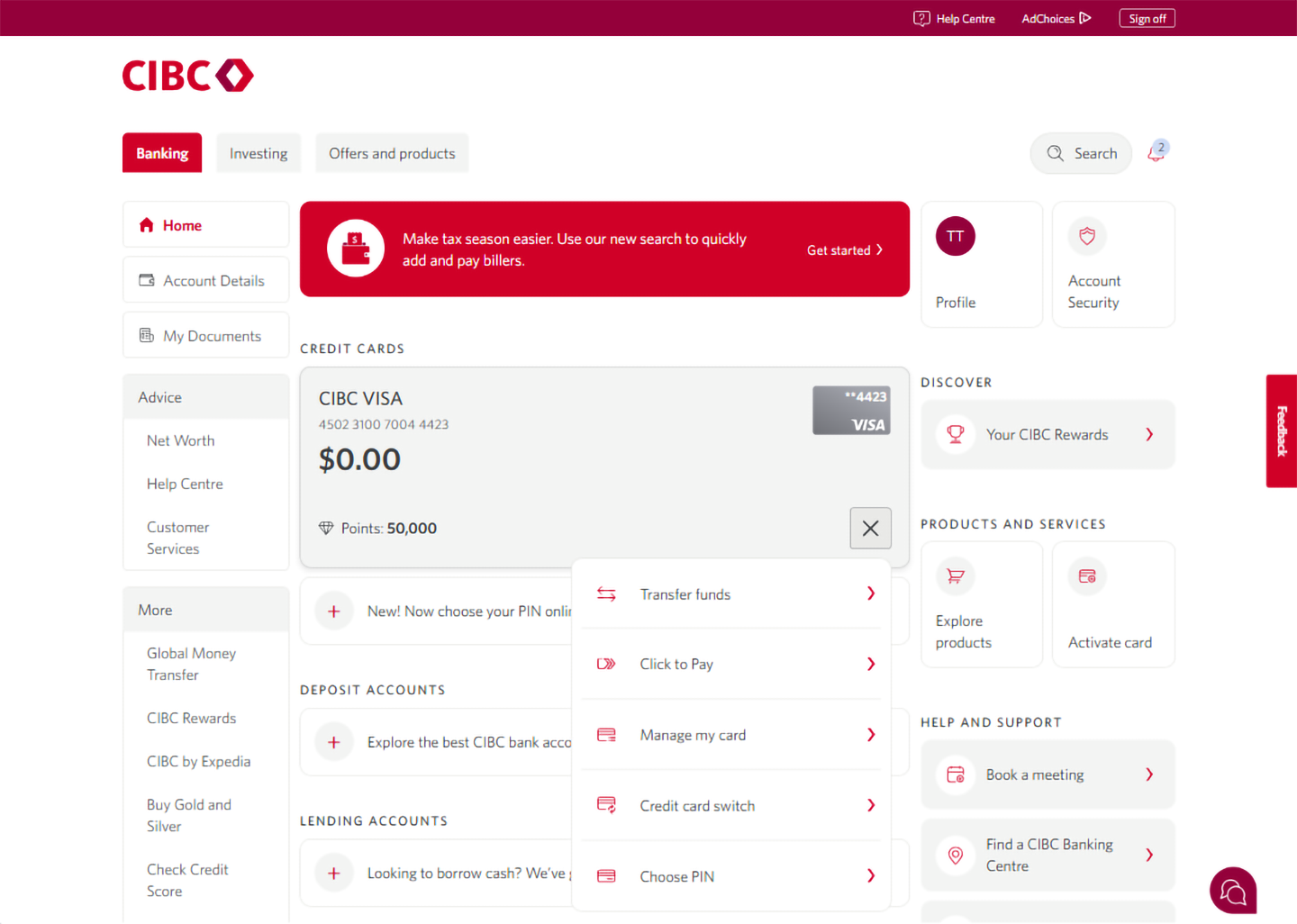
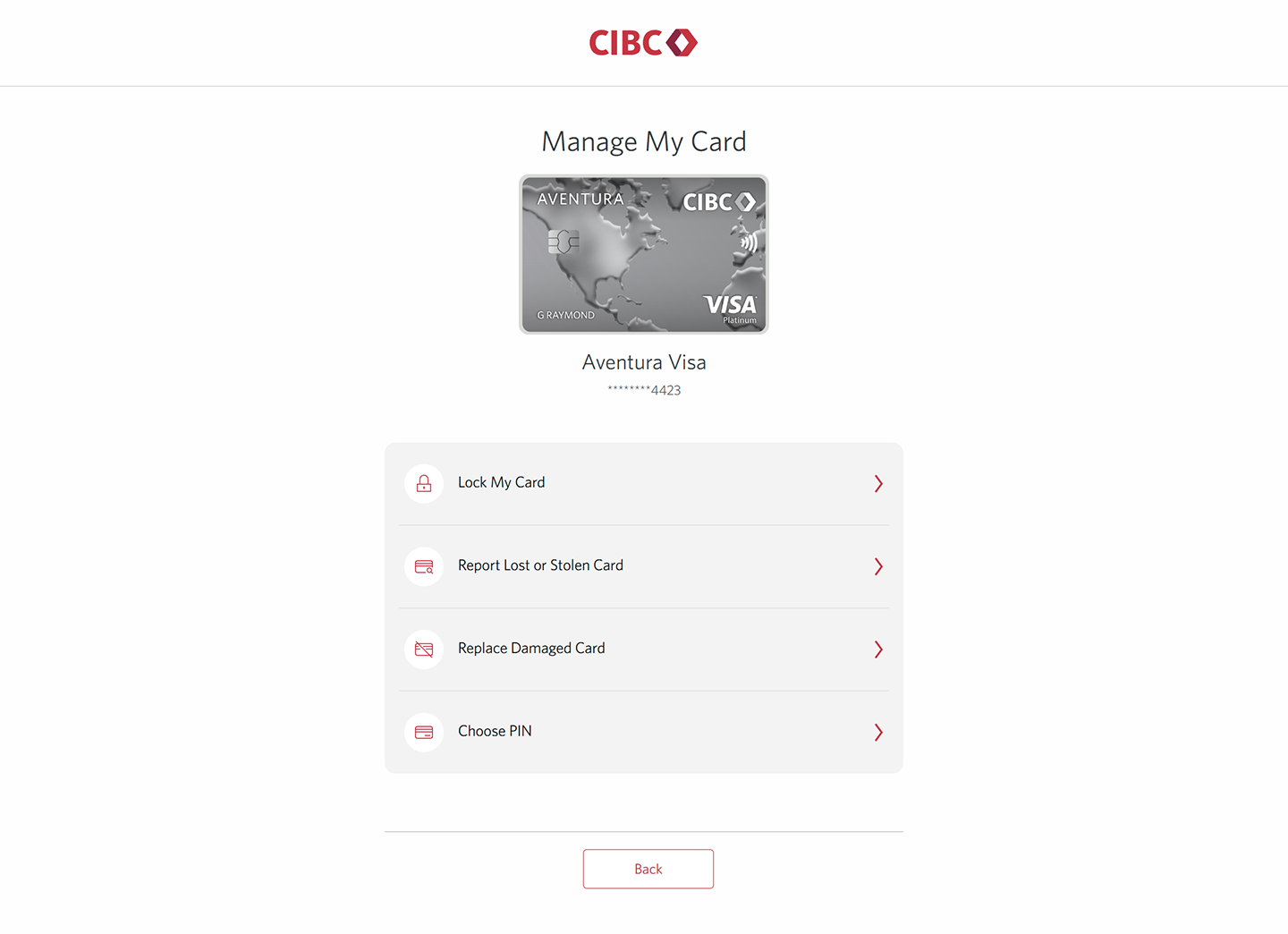
Step 3 : Manage your card
Step 4 : Lock your card
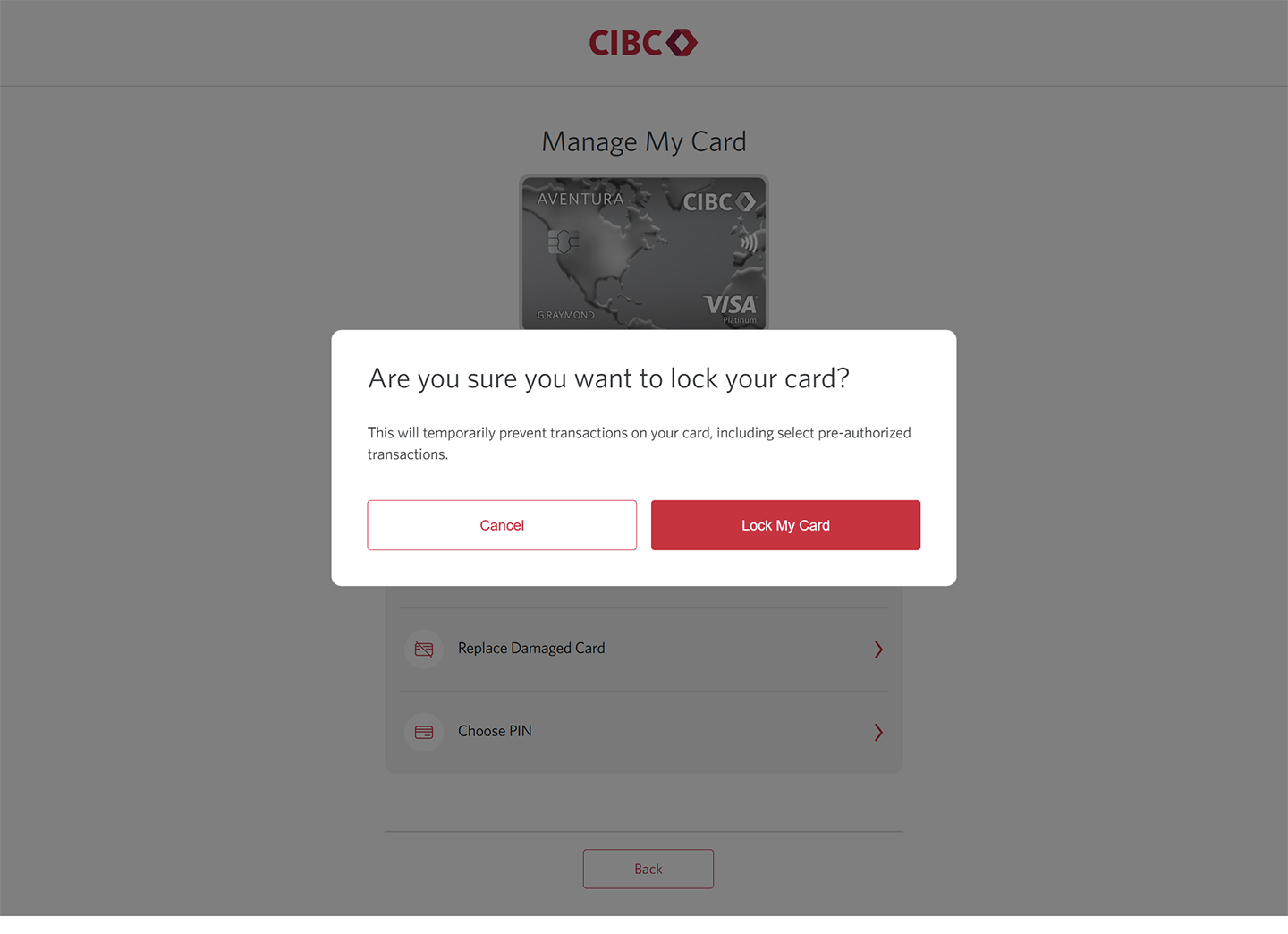
On the specific Manage My Card page for the credit card you chose, select "Lock My Card" from the menu.
If your card is already locked and you'd like to unlock it, go to step 7 of this demo.
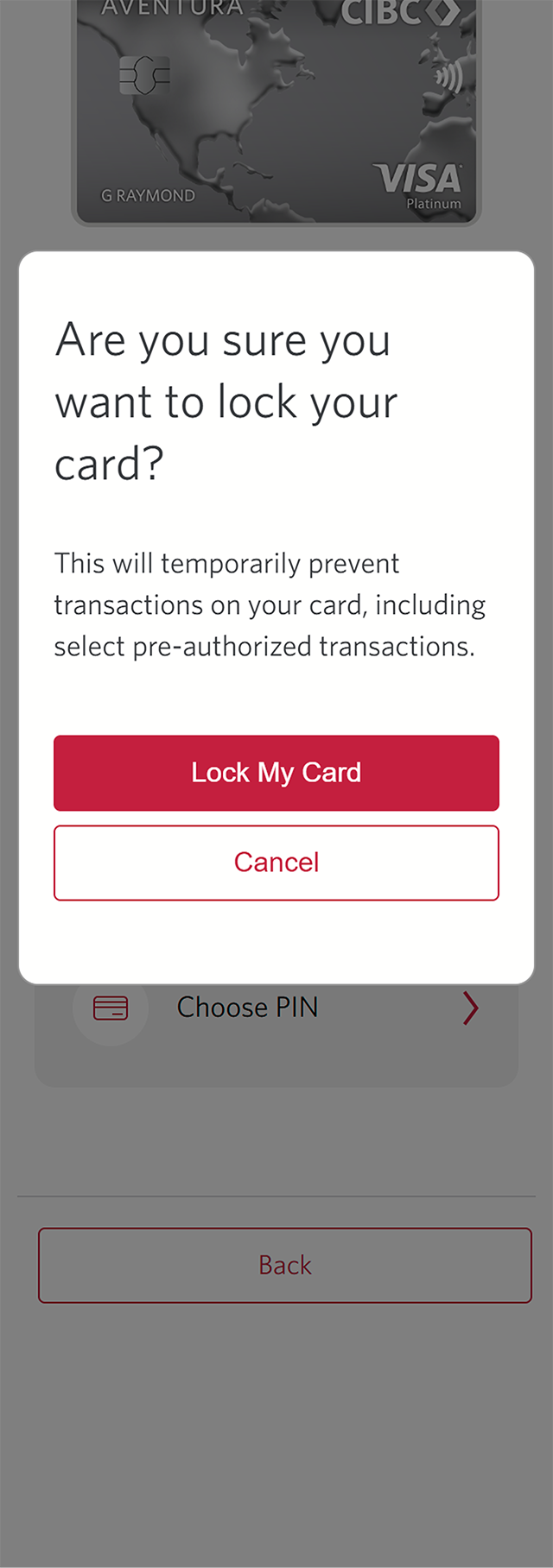
Step 5 : Confirm before locking your card
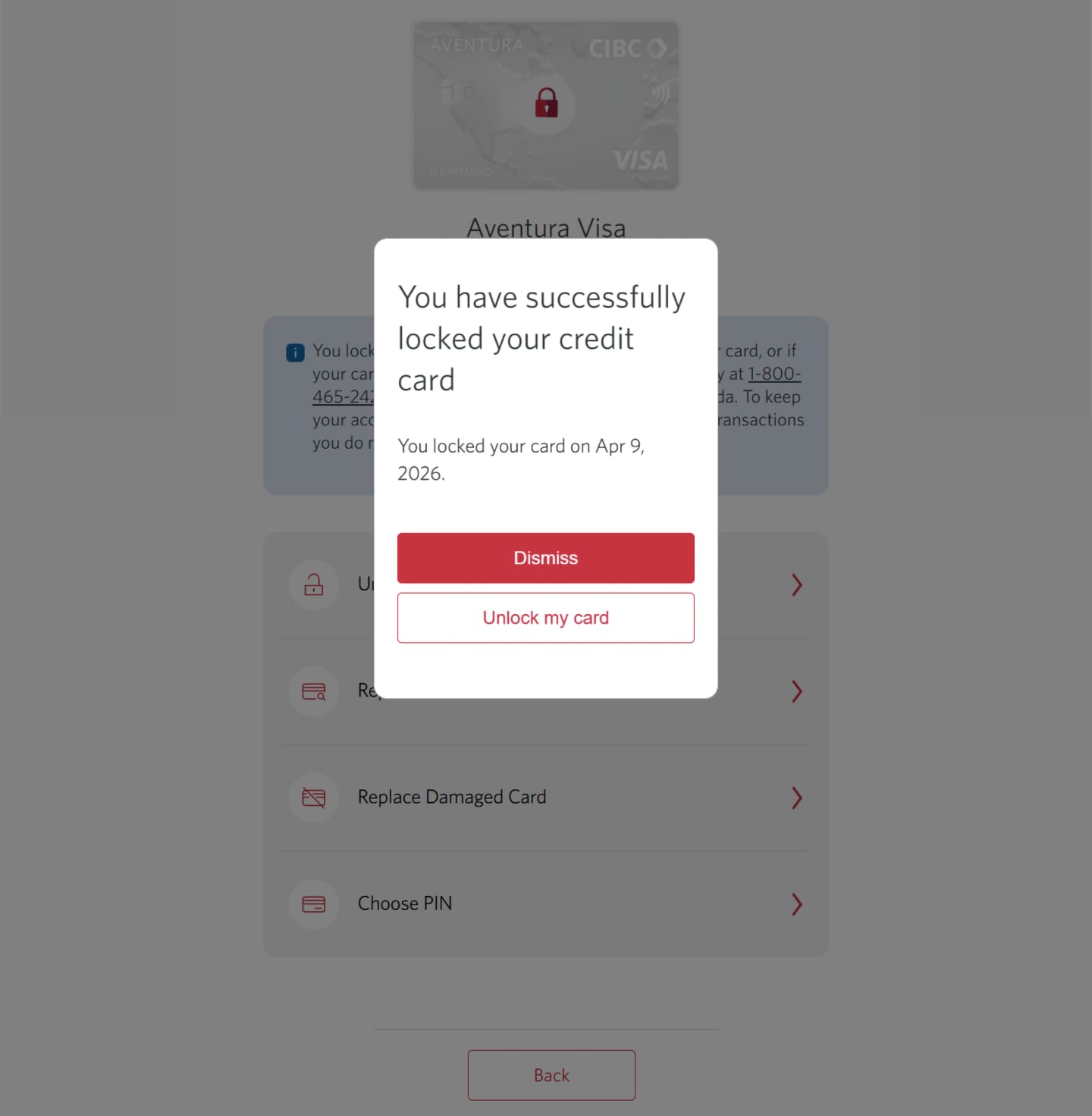
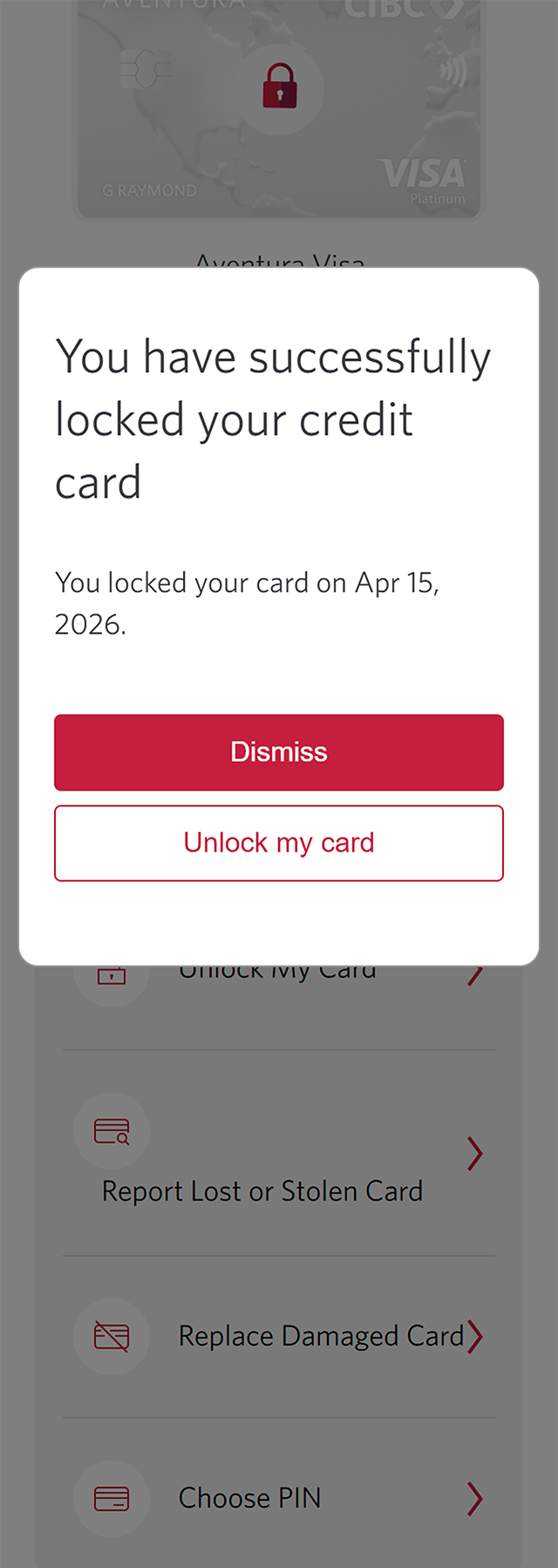
Step 6 : Your card is now locked
Close the confirmation message by selecting the "Dismiss" button. Your card is now locked.
To unlock your card, proceed to the next step of this demo.
Step 7 : Unlock your card from the CIBC Online Banking homepage
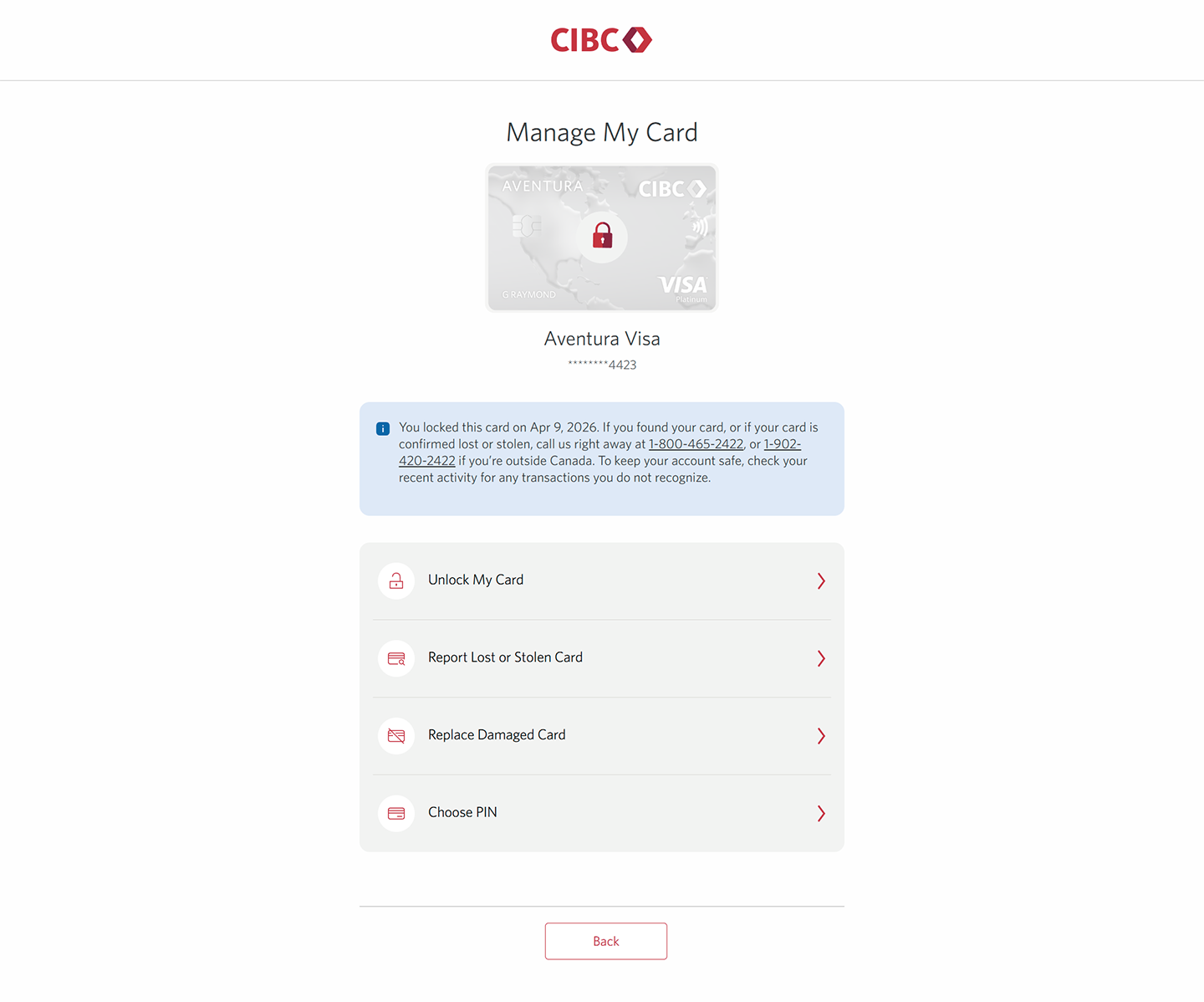
To unlock your card, return to the CIBC Online Banking homepage and select the three-dot menu for the card you want to unlock. This will open the same dropdown menu from steps 2 to 3. Select "Manage my card" from the dropdown options to get to the Manage My Card page.
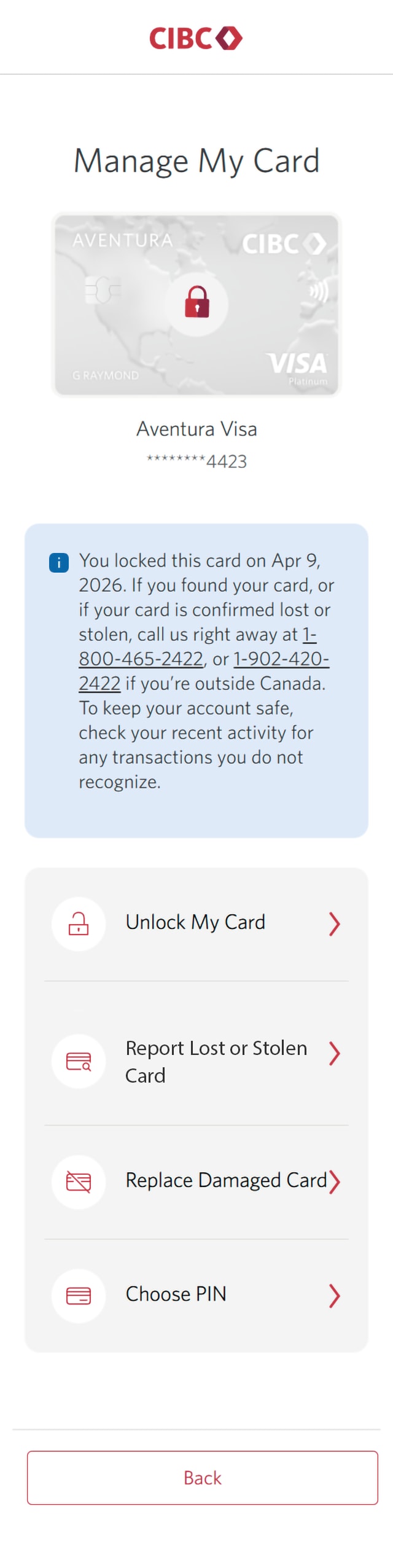
Once you're on the Manage My Card page, select the "Unlock My Card" option from the list of actions for the specified card.
Step 8 : Verify your identity
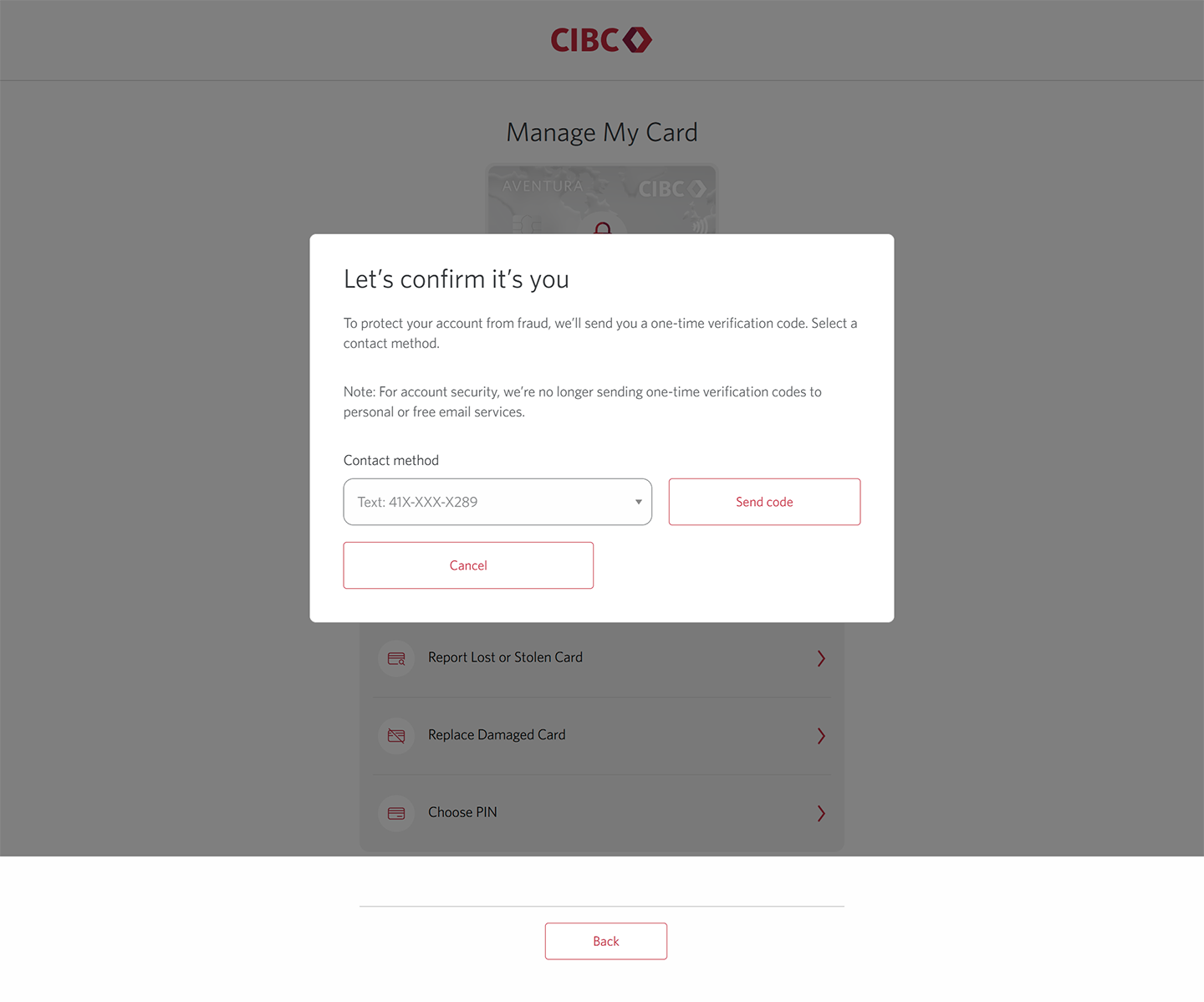
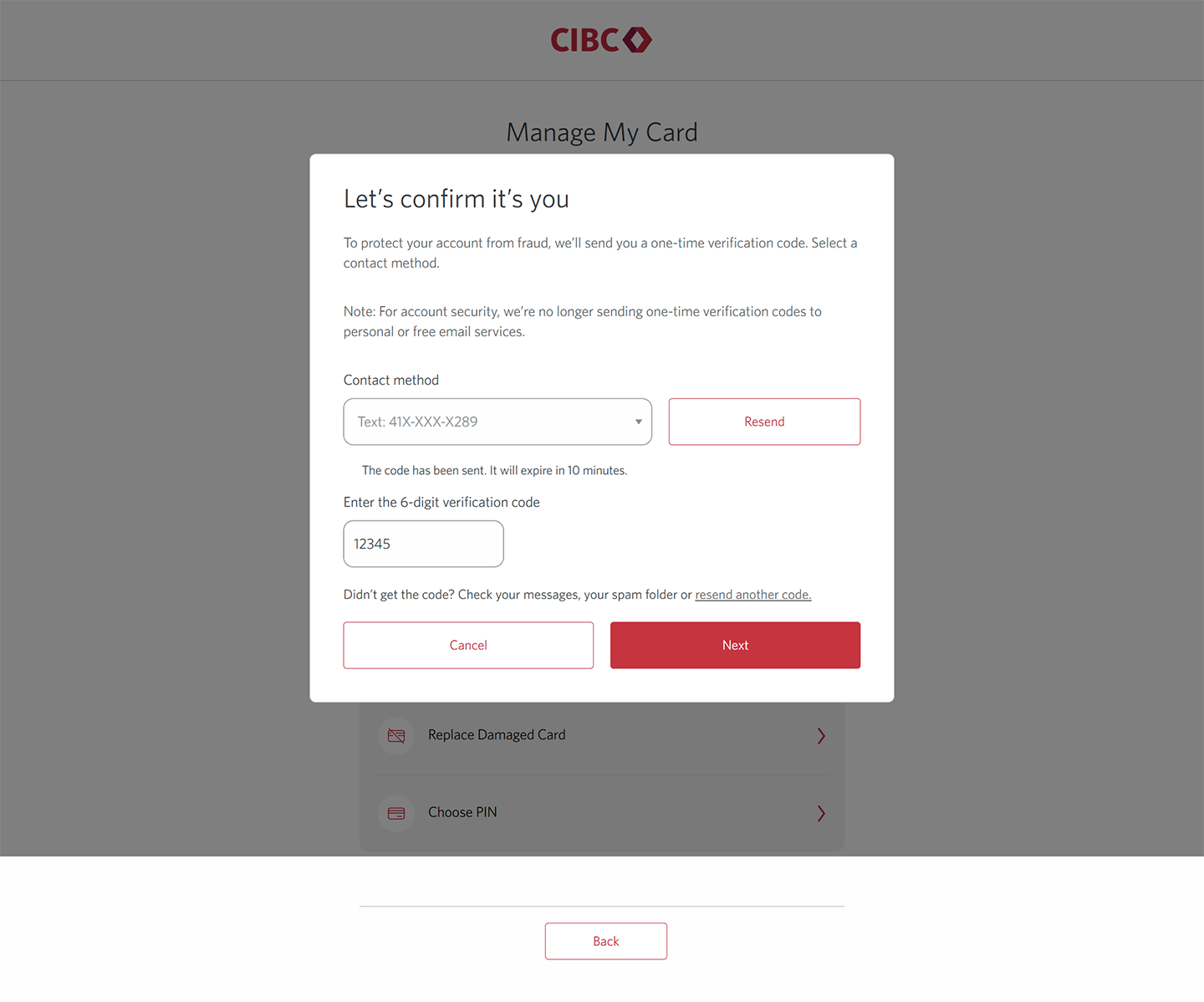
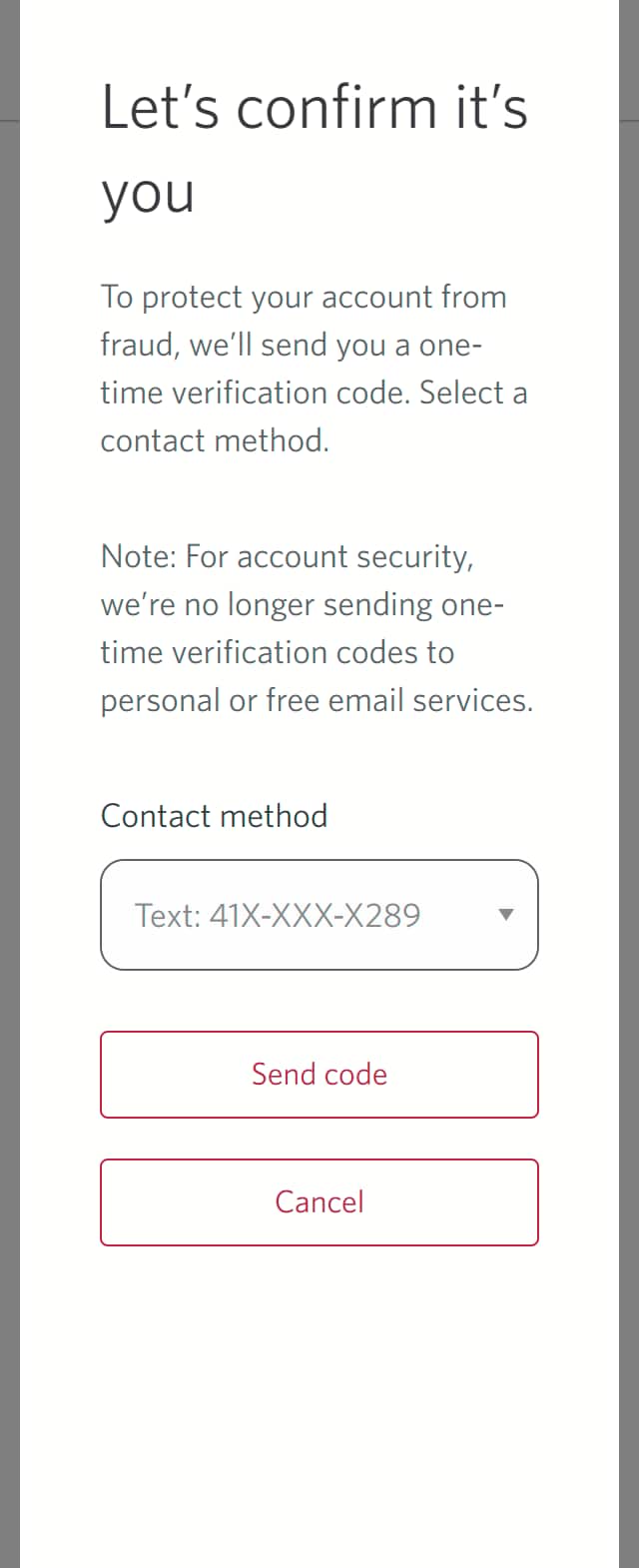
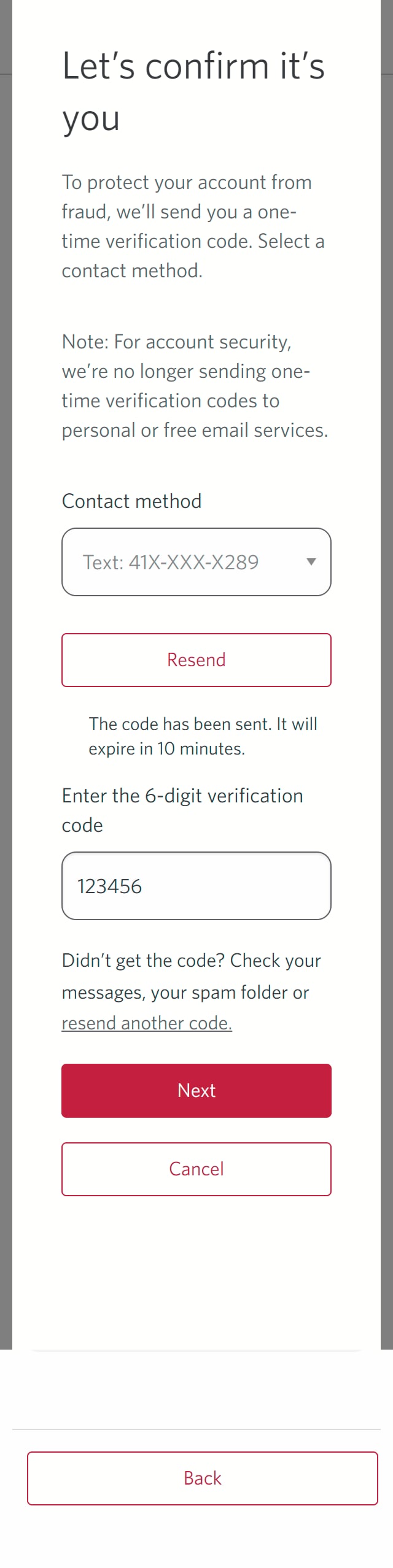
You may be prompted to confirm your identity with a one-time verification code.
From the dropdown menu for "Contact method", choose your preferred method to receive the code and select the "Send code" button.
If you aren't prompted to enter a code, go to the next step.
Step 9 : Enter your verification code
Once the code has been sent, there will be a field to enter it.
Enter the verification code and select the "Next" button.
Step 10 : Great job!
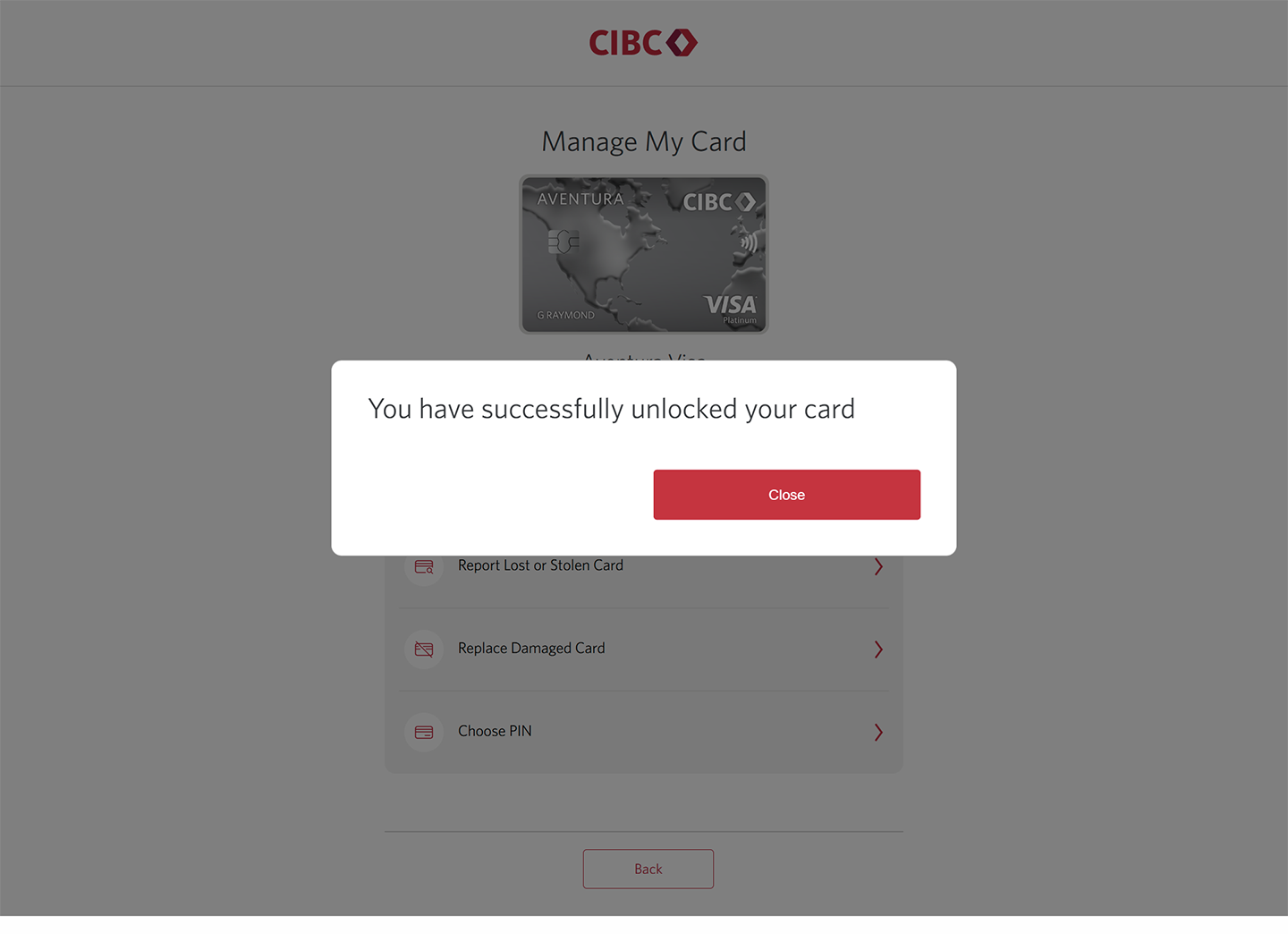
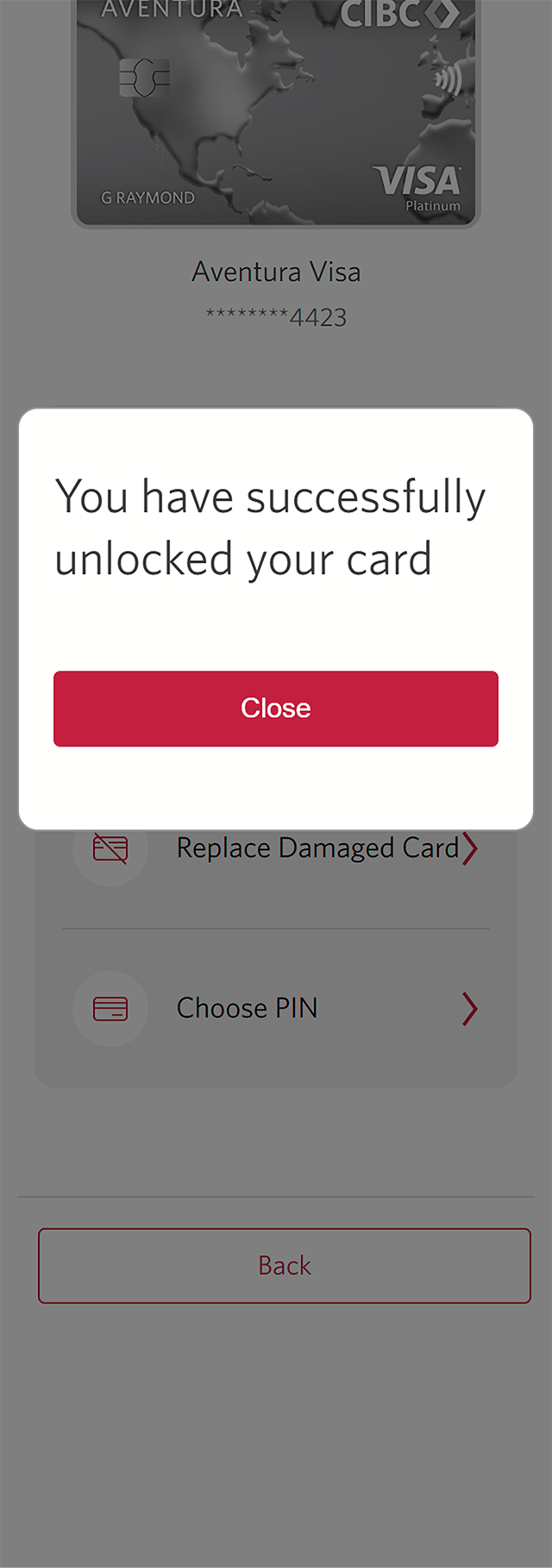
You've successfully unlocked your card. Dismiss the confirmation message by selecting the "Close" button.
On the CIBC Online Banking homepage, your card's three-dot menu starts the process for both locking and unlocking your card, depending on whether it's locked or unlocked at the time.
To lock your card again, go back to step 1 of this demo.
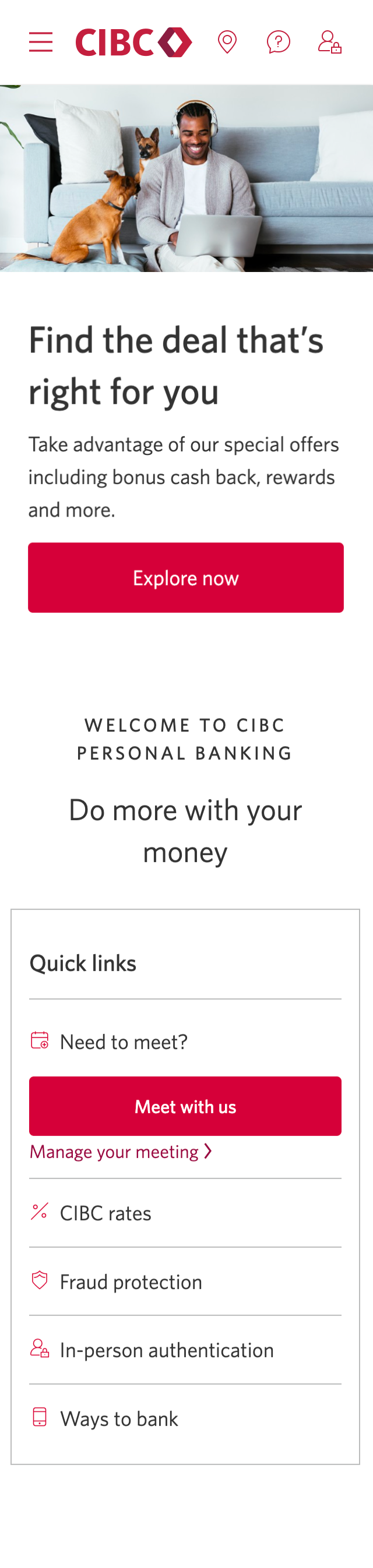


Step 1 : Let's get started on your web browser
Step 2 : Choose which card to lock or unlock
Step 3 : Manage your card
Step 4 : Lock your card
On the specific Manage My Card page for the credit card you chose, select "Lock My Card" from the menu.
If your card is already locked and you'd like to unlock it, go to step 7 of this demo.
Step 5 : Confirm before locking your card
Step 6 : Your card is now locked
Close the confirmation message by selecting the "Dismiss" button. Your card is now locked.
To unlock your card, proceed to the next step of this demo.
Step 7 : Unlock your card from the CIBC Online Banking homepage
To unlock your card, return to the CIBC Online Banking homepage and select the three-dot menu for the card you want to unlock. This will open the same dropdown menu from steps 2 to 3. Select "Manage my card" from the dropdown options to get to the Manage My Card page.
Once you're on the Manage My Card page, select the "Unlock My Card" option from the list of actions for the specified card.
Step 8 : Verify your identity
You may be prompted to confirm your identity with a one-time verification code.
From the dropdown menu for "Contact method", choose your preferred method to receive the code and select the "Send code" button.
If you aren't prompted to enter a code, go to the next step.
Step 9 : Enter your verification code
Once the code has been sent, there will be a field to enter it.
Enter the verification code and select the "Next" button.
Step 10 : Great job!
You've successfully unlocked your card. Dismiss the confirmation message by selecting the "Close" button.
On the CIBC Online Banking homepage, your card's three-dot menu starts the process for both locking and unlocking your card, depending on whether it's locked or unlocked at the time.
To lock your card again, go back to step 1 of this demo.
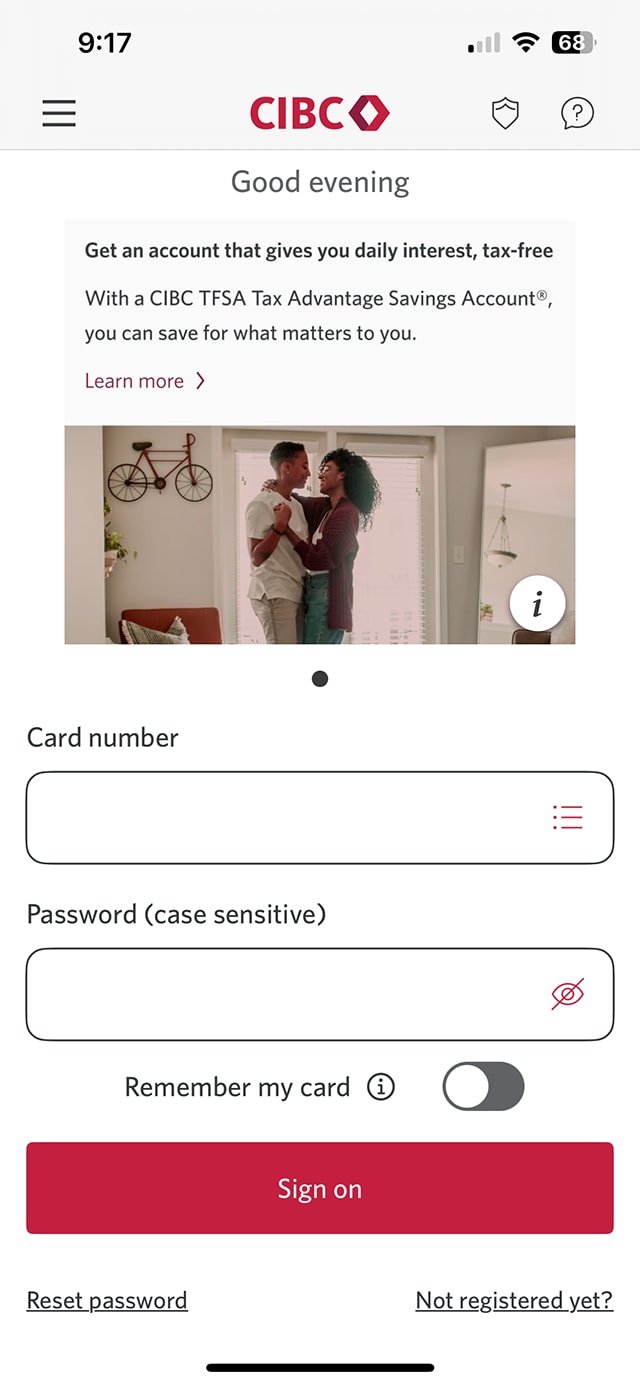
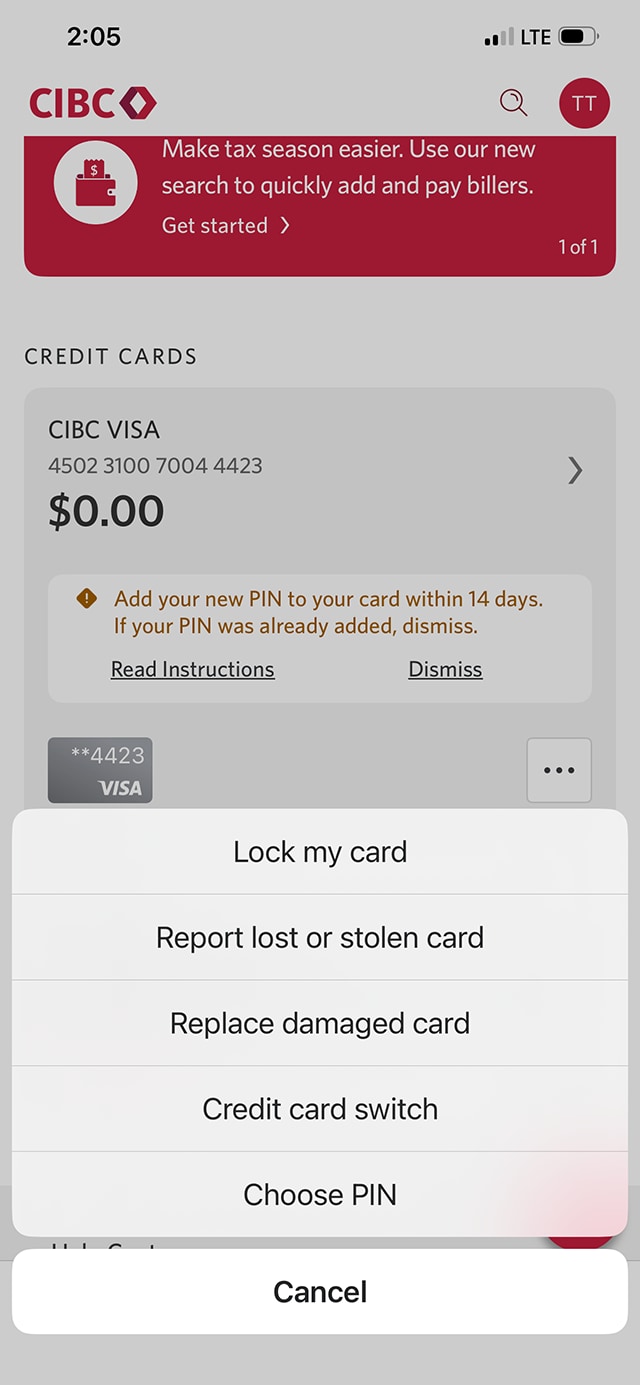
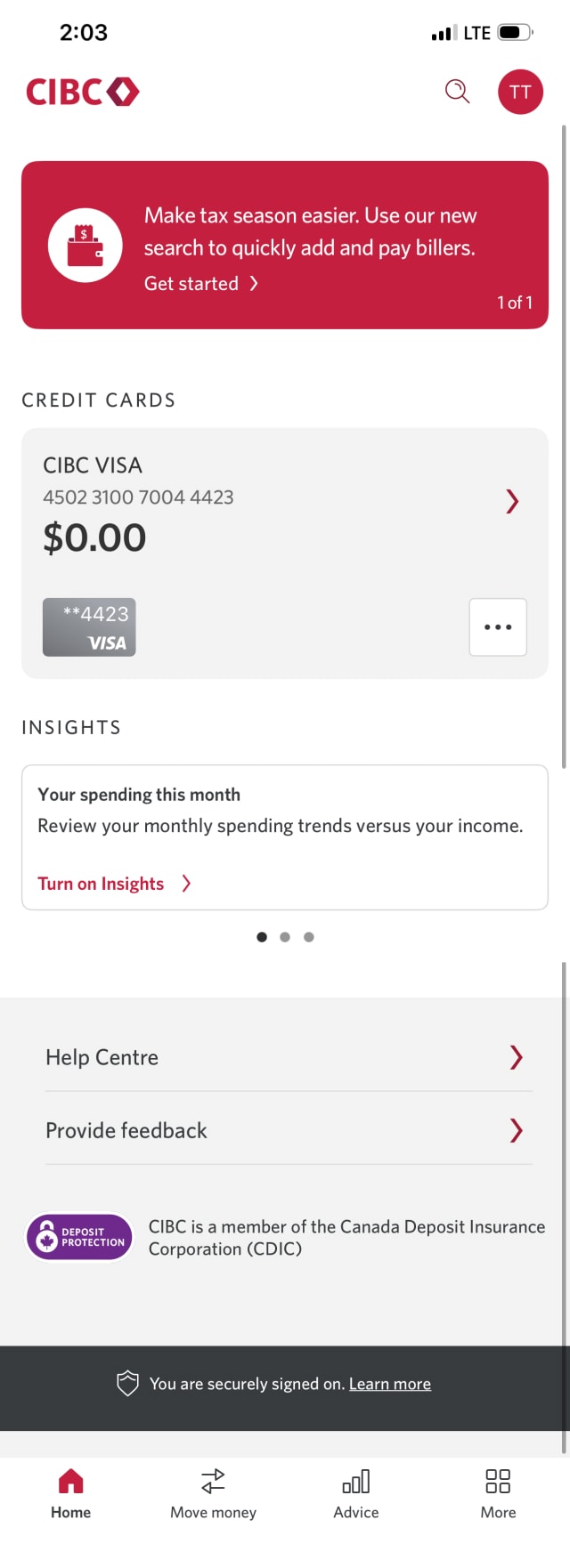
Step 1 : Let's get started on the mobile app
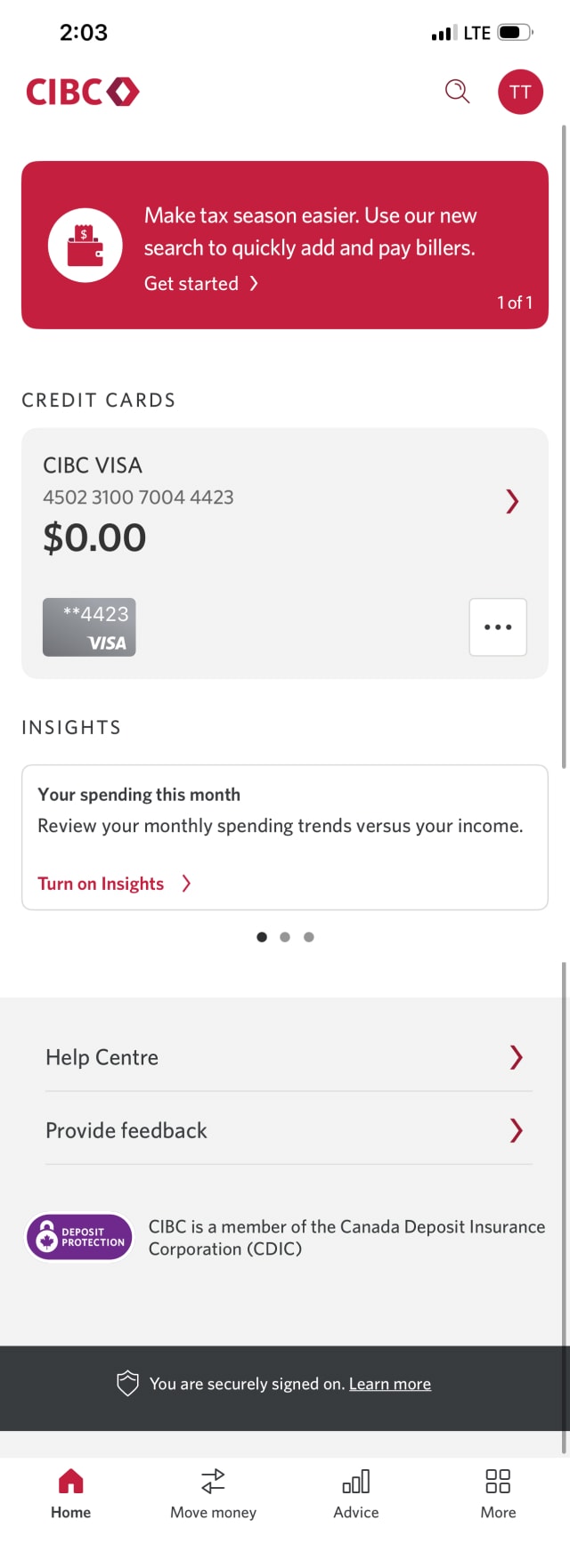
Step 2 : Choose which card to lock or unlock
Step 3 : Lock your card
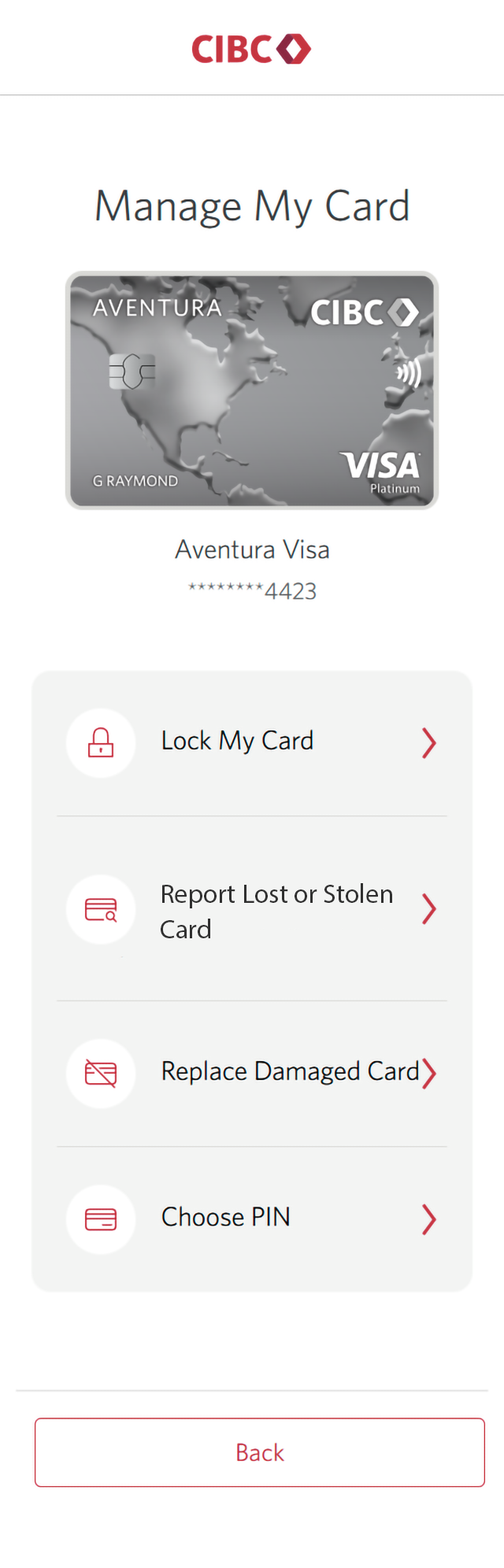
On the menu overlay that opens, select "Lock my card" from the menu.
If your card is already locked and you'd like to unlock it, there will be an option to unlock your card instead of locking it. To unlock your card, go to step 5 of this demo.
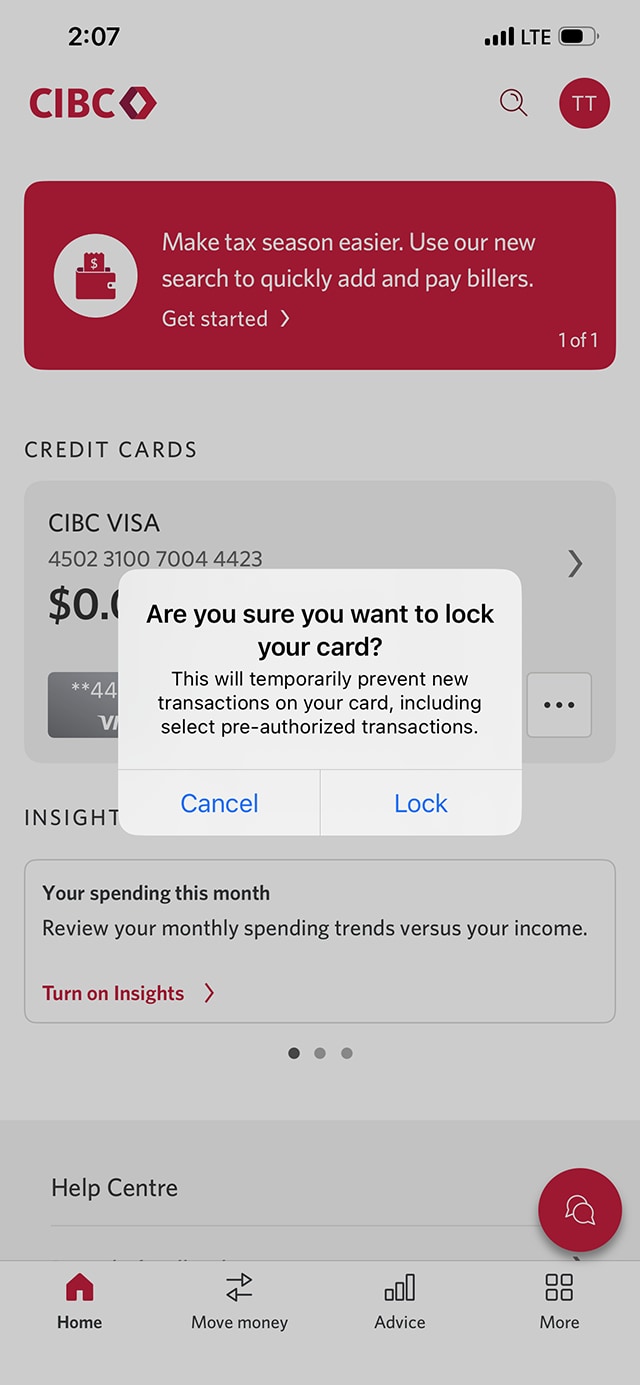
Step 4 : Confirm before locking your card
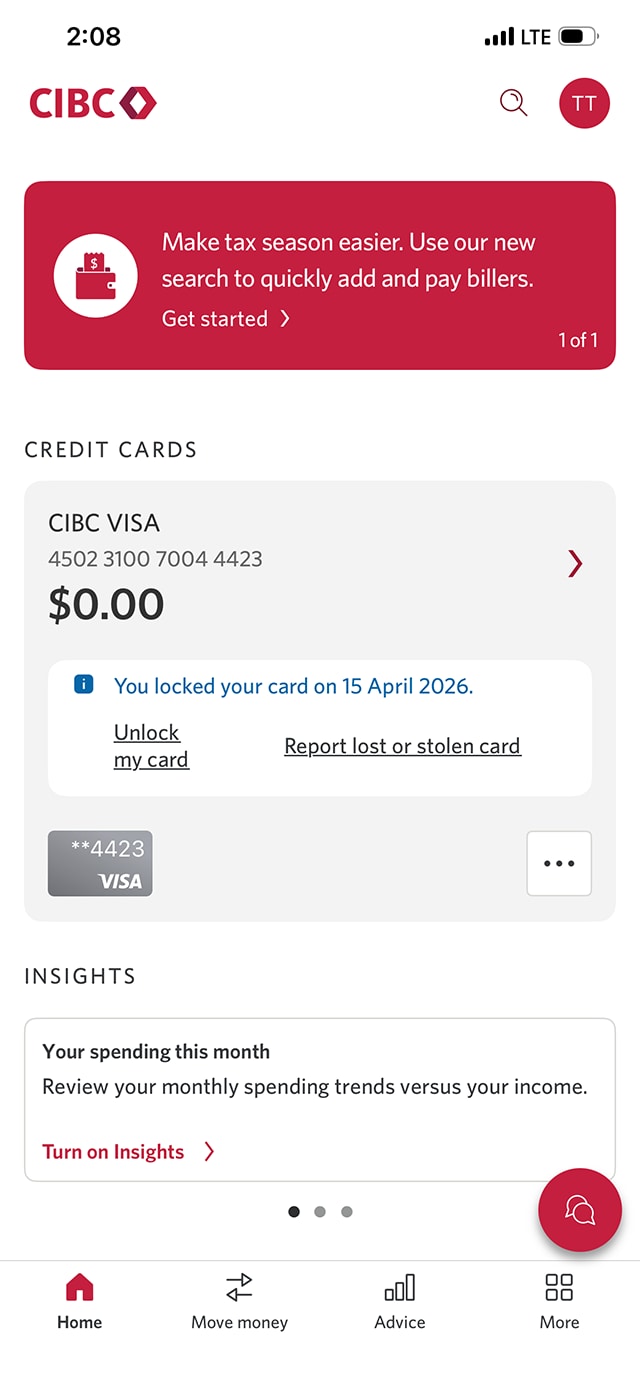
Step 5 : Your card is now locked
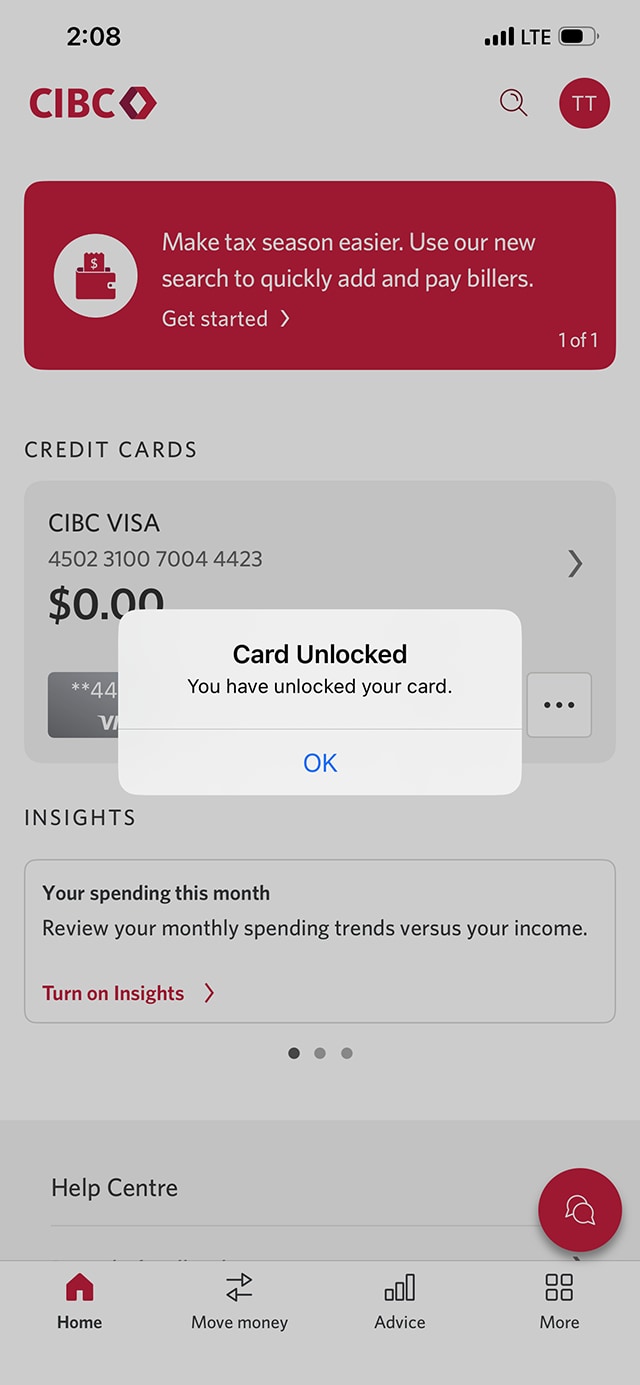
Once your card is locked, there will be a confirmation message on the CIBC Mobile Banking App homepage stating "You locked your card" with the date. There will also be a link on the confirmation message allowing you to unlock your card.
To unlock your card, select the "Unlock my card" link.
If your card was already locked and you're coming to this step from the start of the demo, you won't have a confirmation message, but you can instead select the three-dot menu on the card you'd like to unlock.
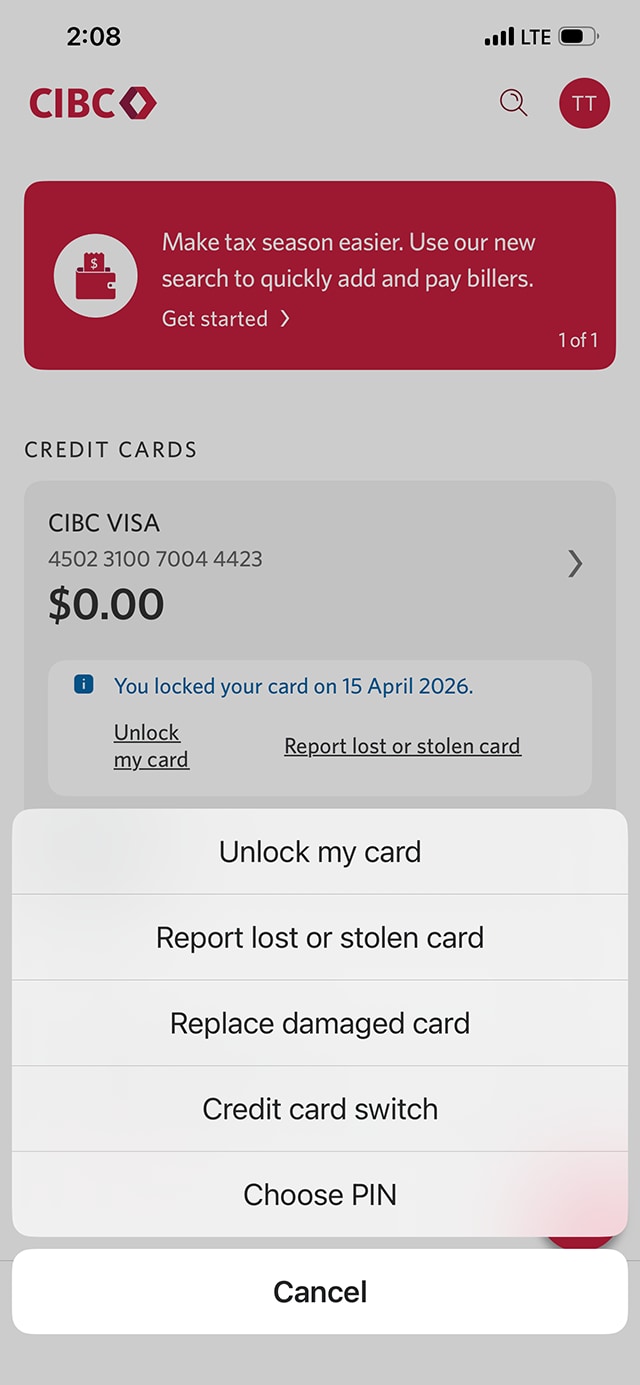
Step 6 : Unlock your card
On the menu overlay that opens, select "Unlock my card" from the menu.
If your card is already unlocked and you'd like to lock it, go back to step 3 of this demo.
Step 7 : Verify your identity if prompted
You'll get a confirmation message saying your card has been unlocked.
However, before receiving this message, you might be prompted to confirm your identity with a one-time verification code.
If this happens, open the dropdown menu for your preferred contact method, choose how you'd like to receive the code and select the "Send code" button. Enter the code when you receive it and select the "Next" button; you should then receive the confirmation message shown.
Once you've got the confirmation message, select "OK" to finish the process.
Step 8 : Great job!
You've successfully unlocked your card. Dismiss the confirmation message by selecting the "Close" button.
On the CIBC Mobile Banking app homepage, your card's three-dot menu starts the process for both locking and unlocking your card, depending on whether it's locked or unlocked at the time.
To lock your card again, go back to step 2 of this demo.
Want an overview of all the steps?
For full instructions on how to lock or unlock your card, check out the step-by-step process all in one place.
What to expect when locking your card
When should you lock your card?
When you’ve misplaced your card, you should lock it to prevent unauthorized transactions while searching for the card.
What can you still do with a locked card?
You won’t be able to use the card for new transactions, but you’ll still be able to access your account information through CIBC Online Banking, the mobile app and CIBC ATMs. You’ll also be able to manage and redeem points associated with your credit card.
Recommended digital banking demos

How to replace a lost or stolen credit card
How to manage your credit card

How to set up alerts
How to troubleshoot declined credit card transactions
Start demo on how to troubleshoot declined credit card transactions.
Get started
CIBC Online Banking®
Discover digital banking features that can help you bank easily online.
CIBC Mobile Banking® App
Stay connected to your finances on your mobile device, no matter where you are.

