
Digital banking tutorials

How to Replace a Lost or Stolen Credit Card

Learn how to replace your lost or stolen card on CIBC Online Banking® or the CIBC Mobile Banking® App.
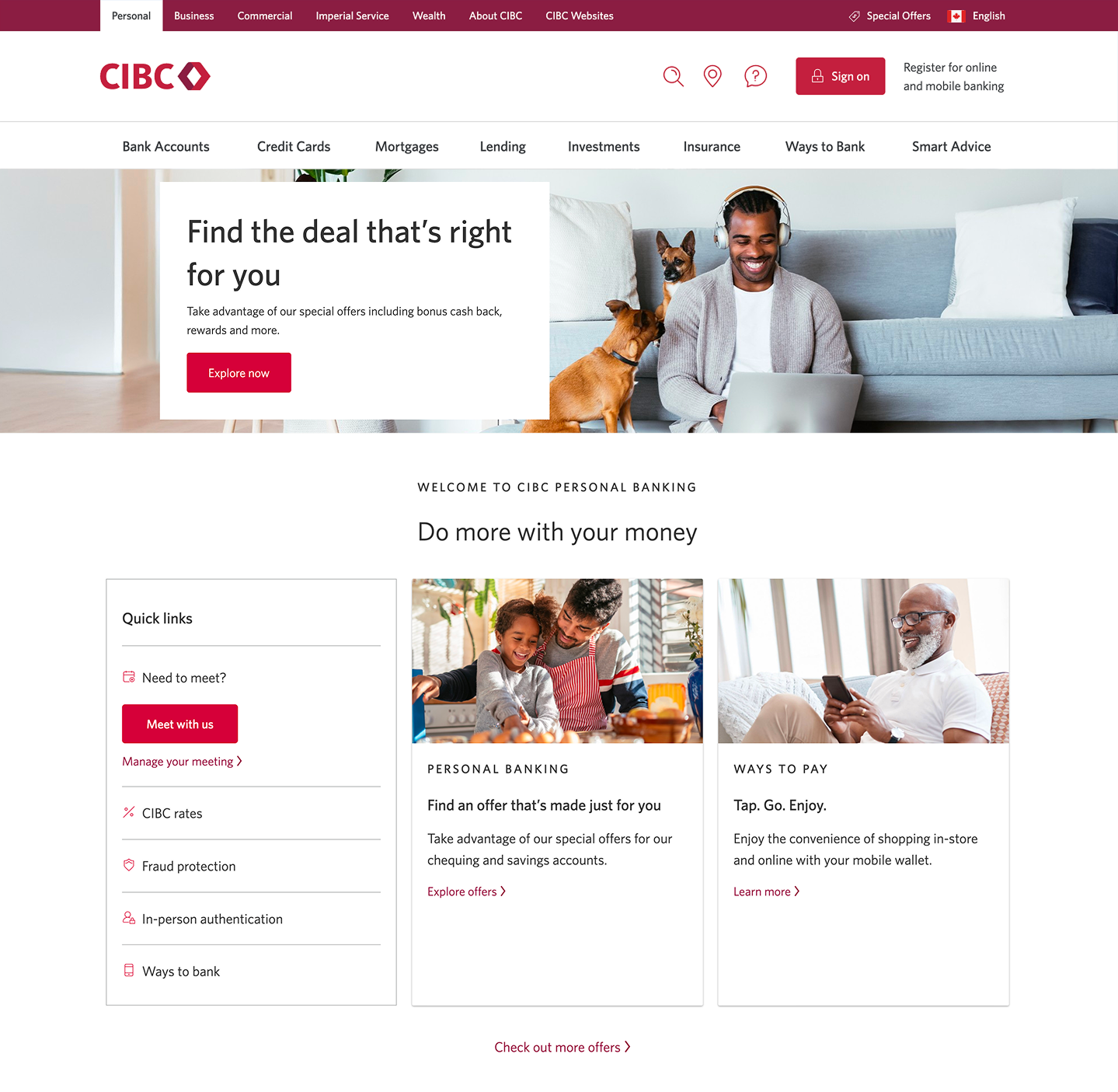
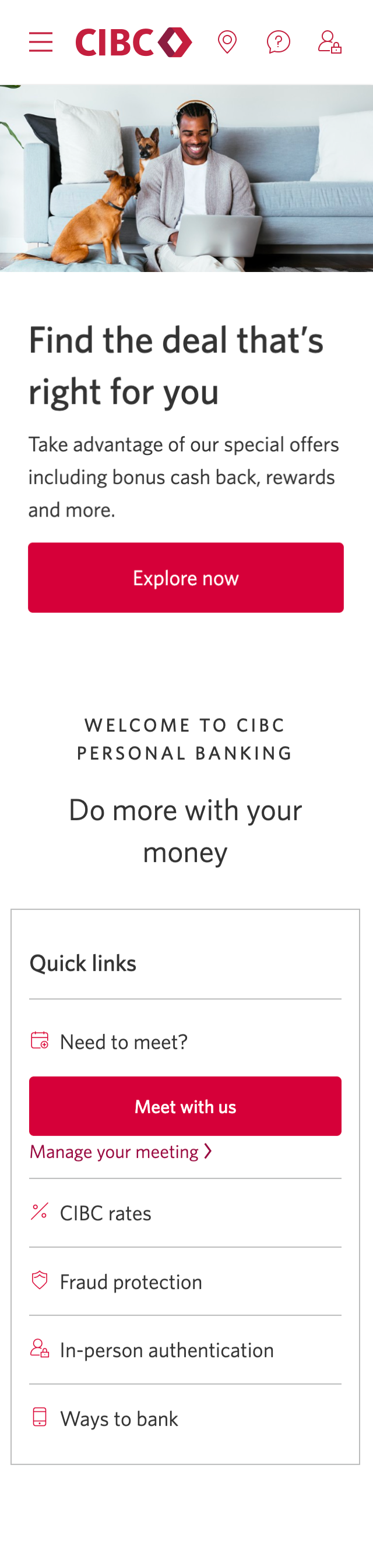
Demo screen 1: CIBC homepage. A pulsing animation highlights the "Sign on" button.
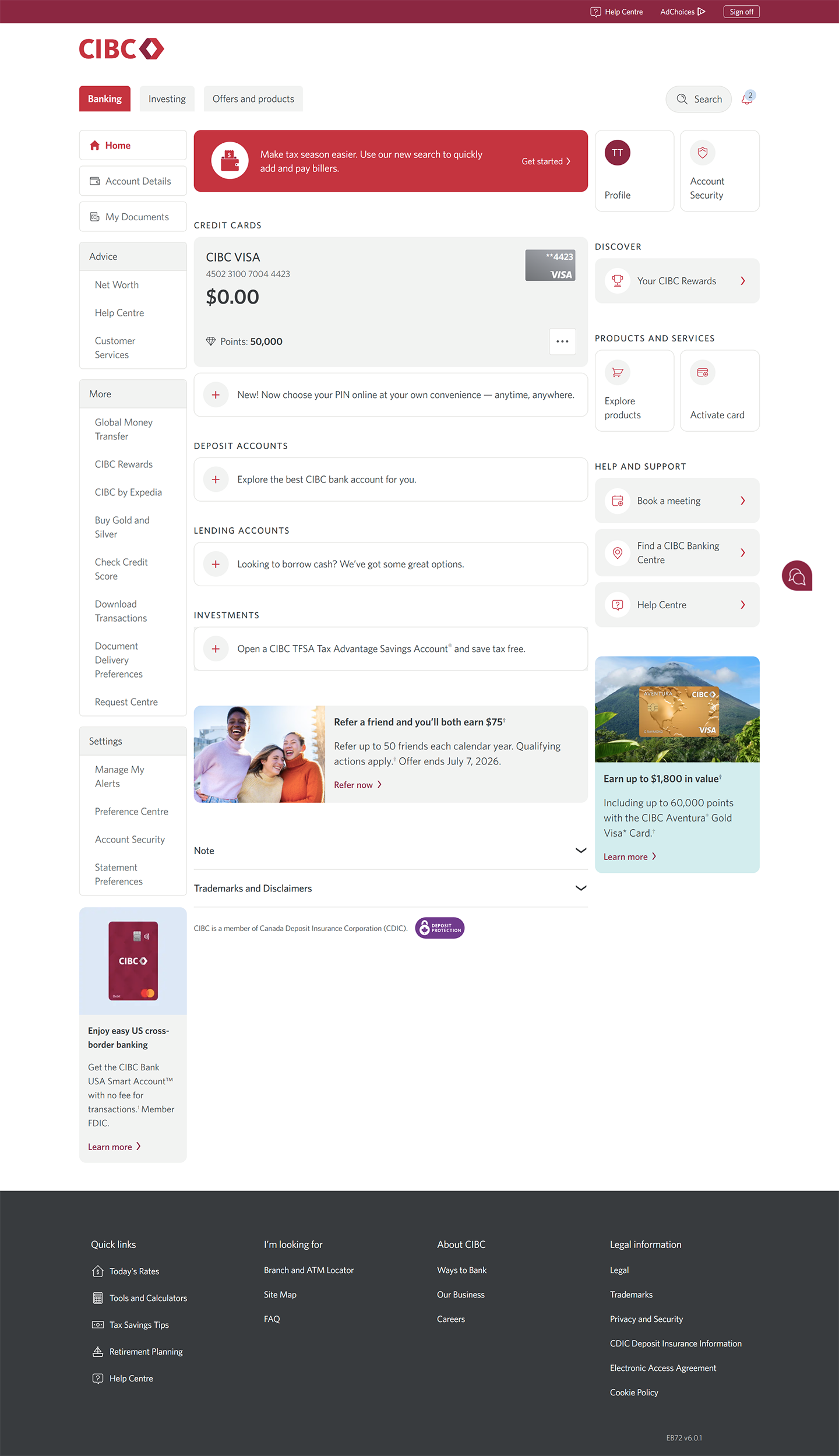
Demo screen 2: CIBC Online Banking homepage. A pulsing animation highlights the "More options" button for a card.
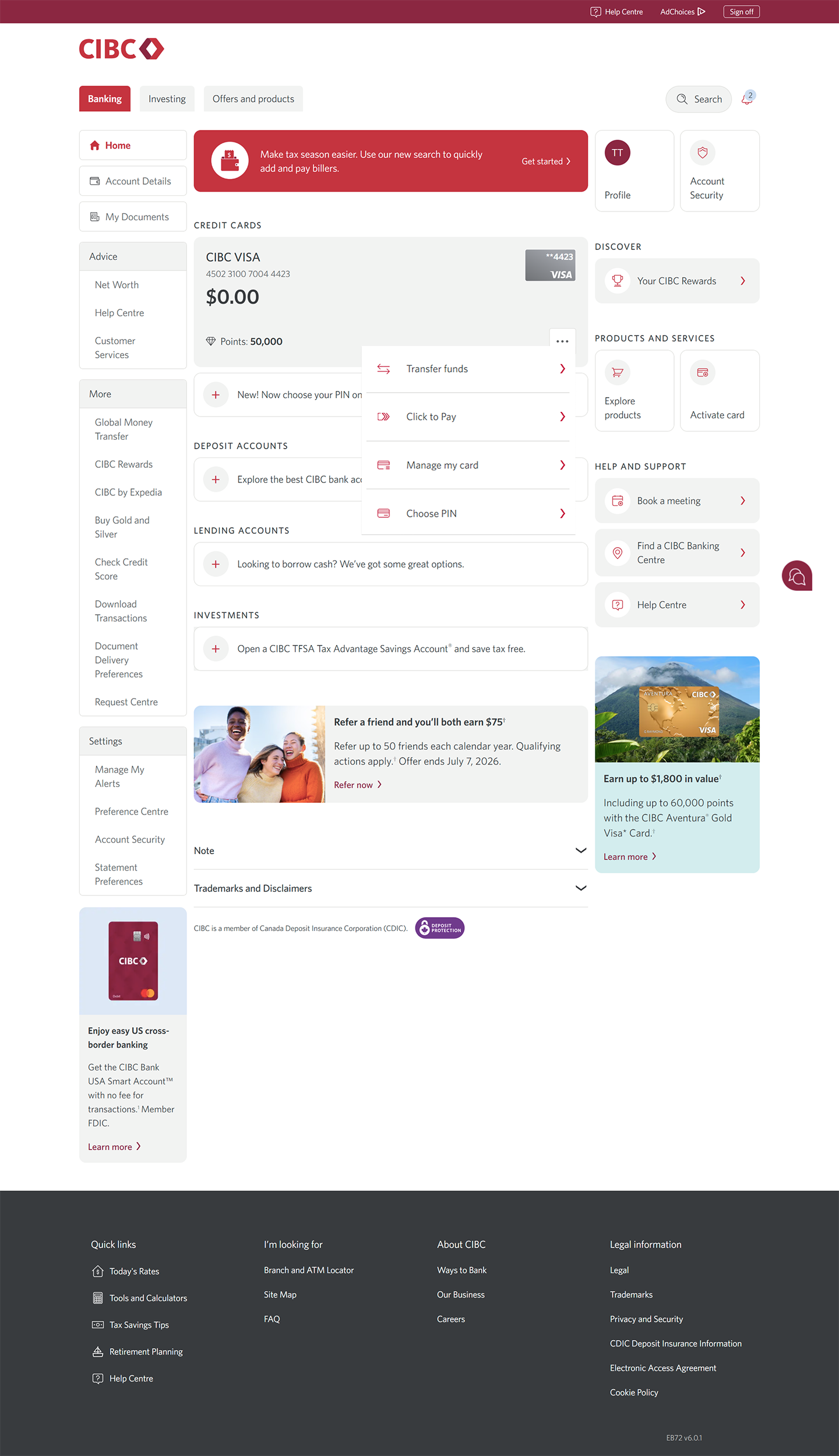
Demo screen 3: CIBC Online Banking homepage. A pulsing animation highlights the "Manage my card" link.
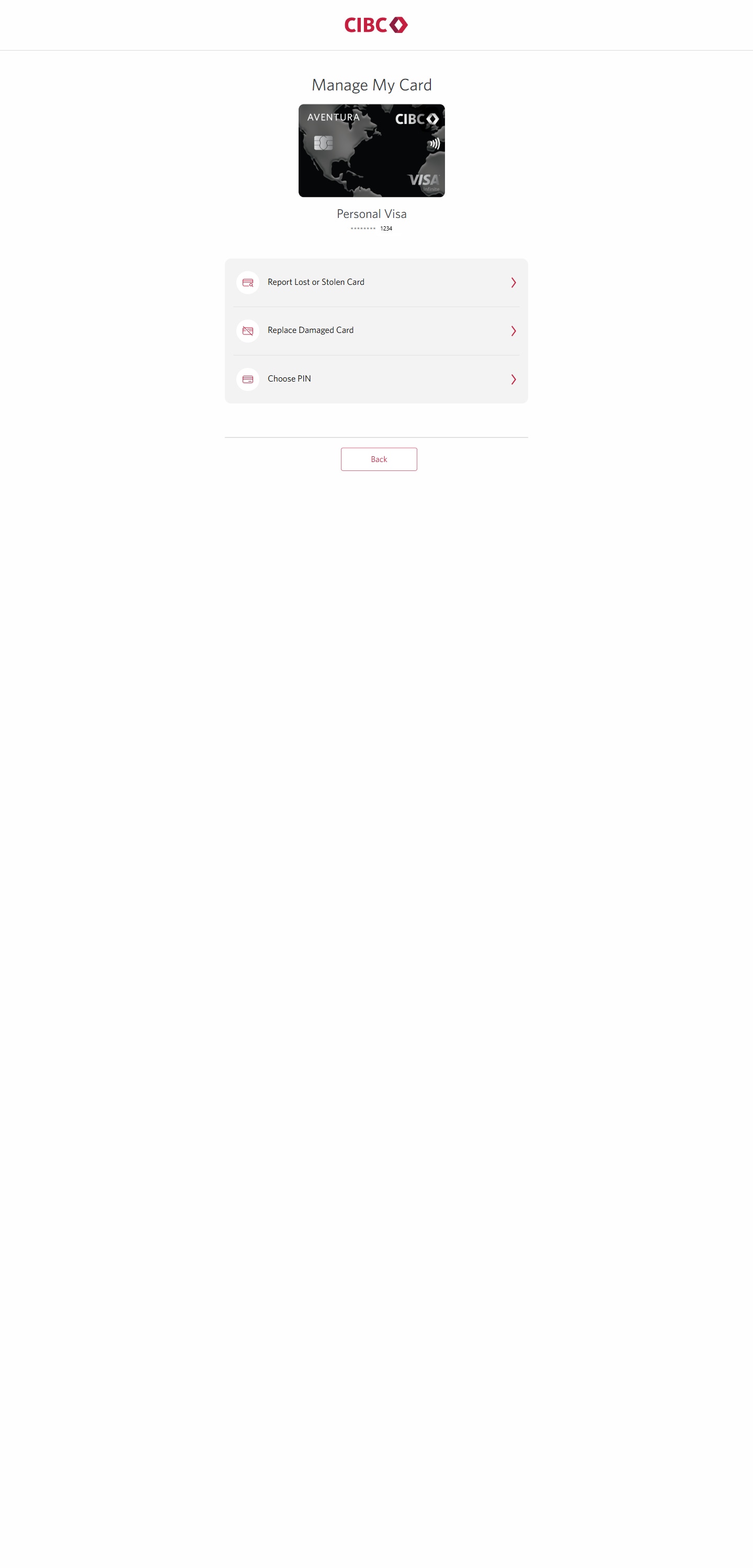
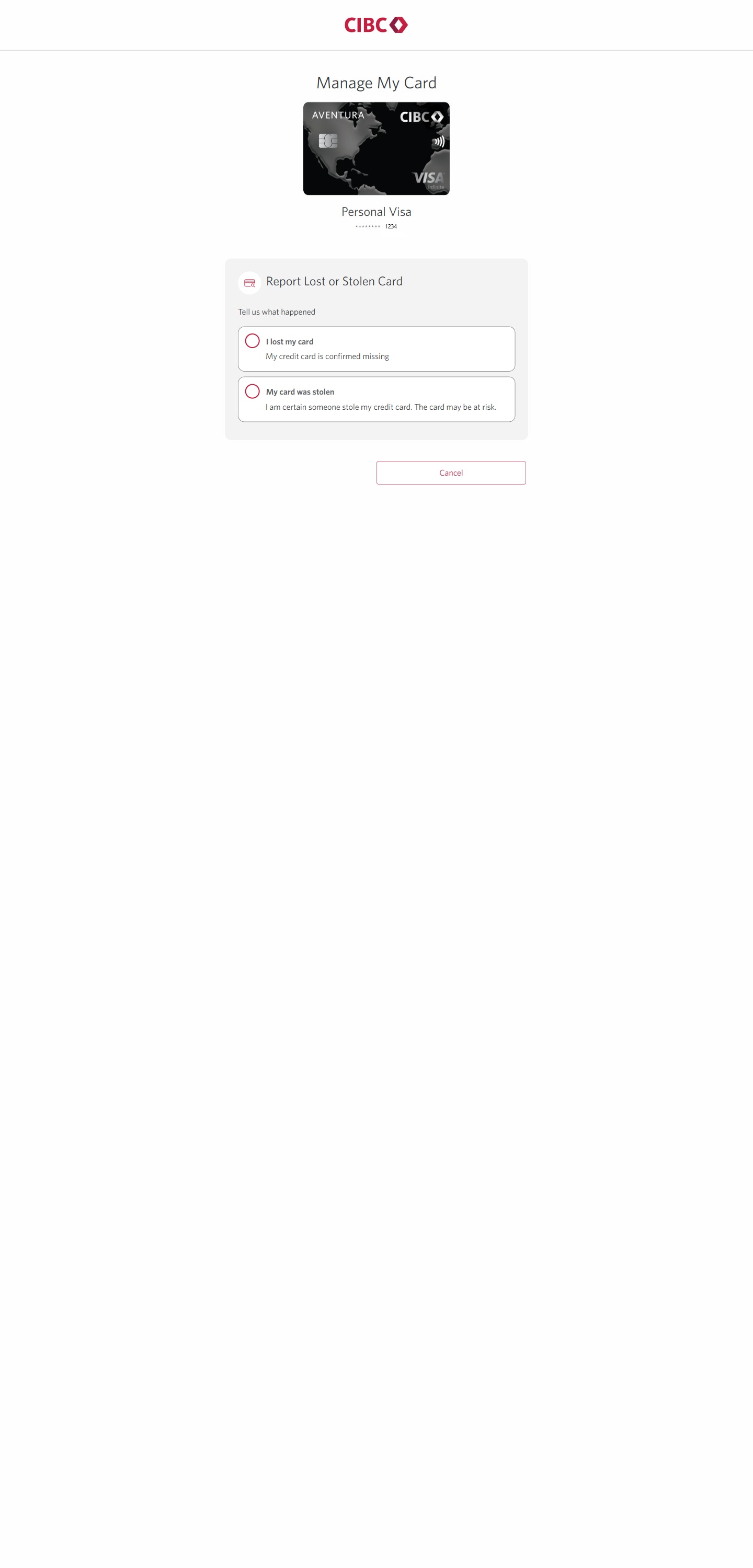
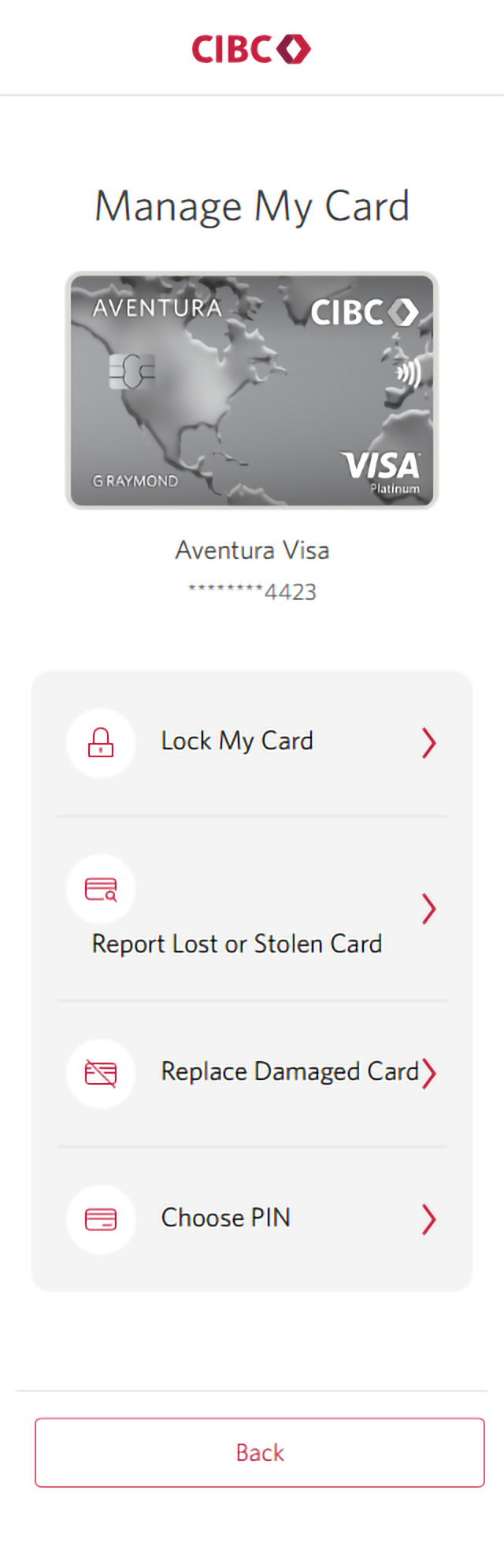
Demo screen 4: Manage My Card page. A pulsing animation highlights the "Report Lost or Stolen Card" button.
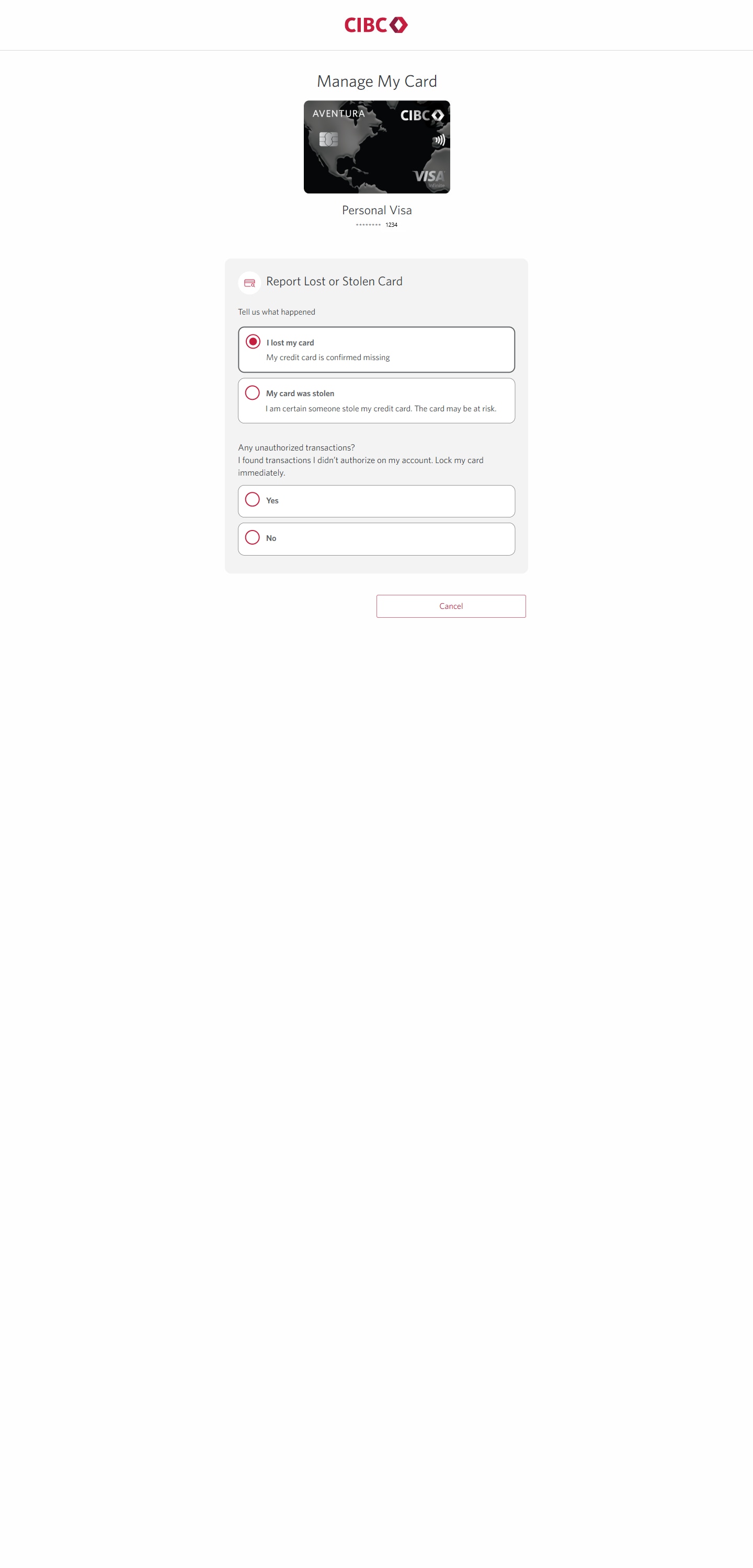
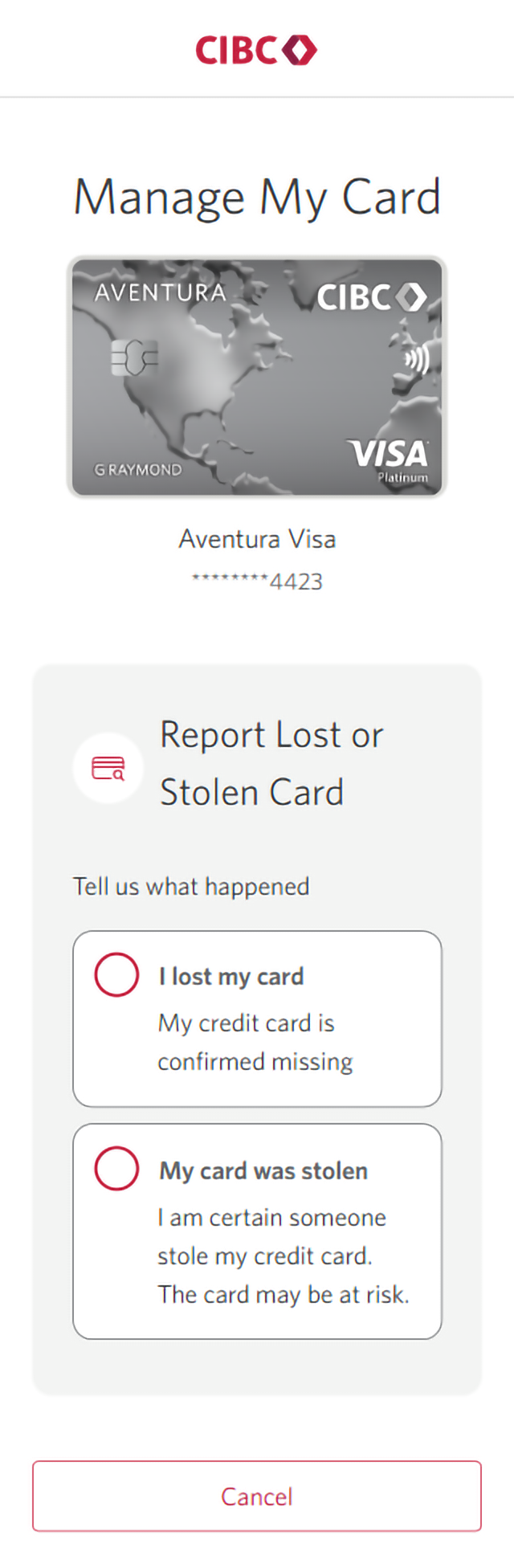
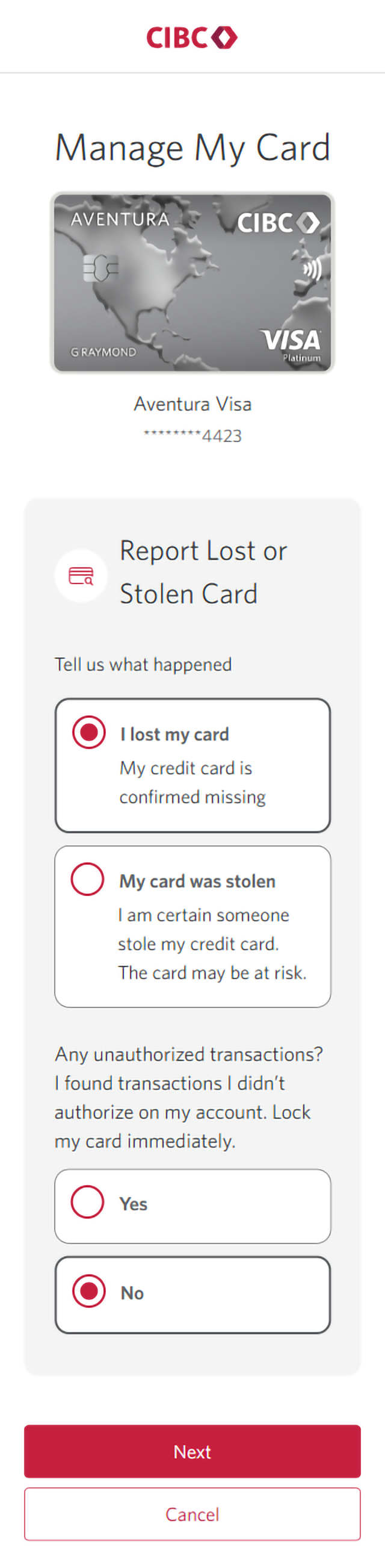
Demo screen 5: Manage my card page with "I lost my card" and "My card was stolen" options. A pulsing animation highlights the "I lost my card" radio button.
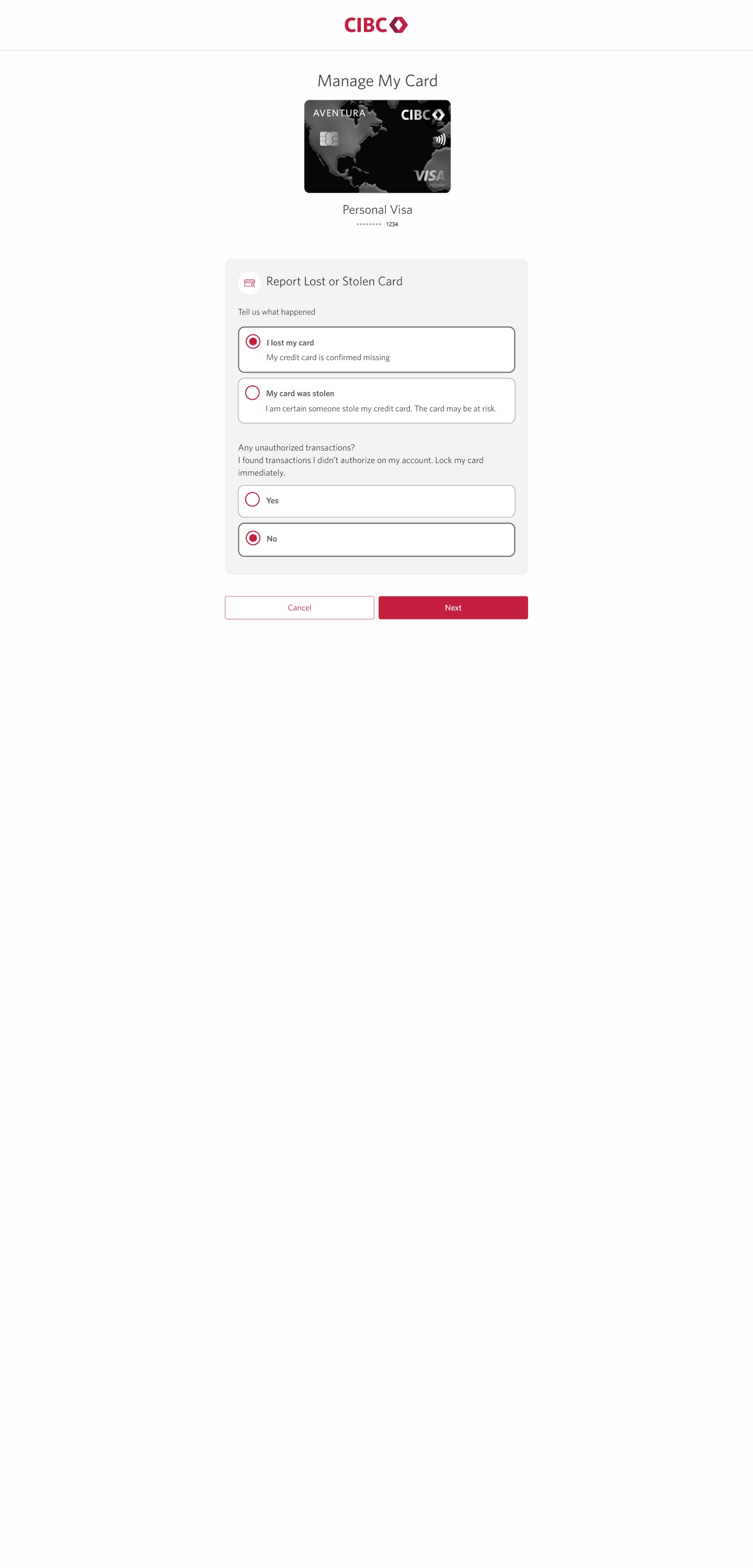
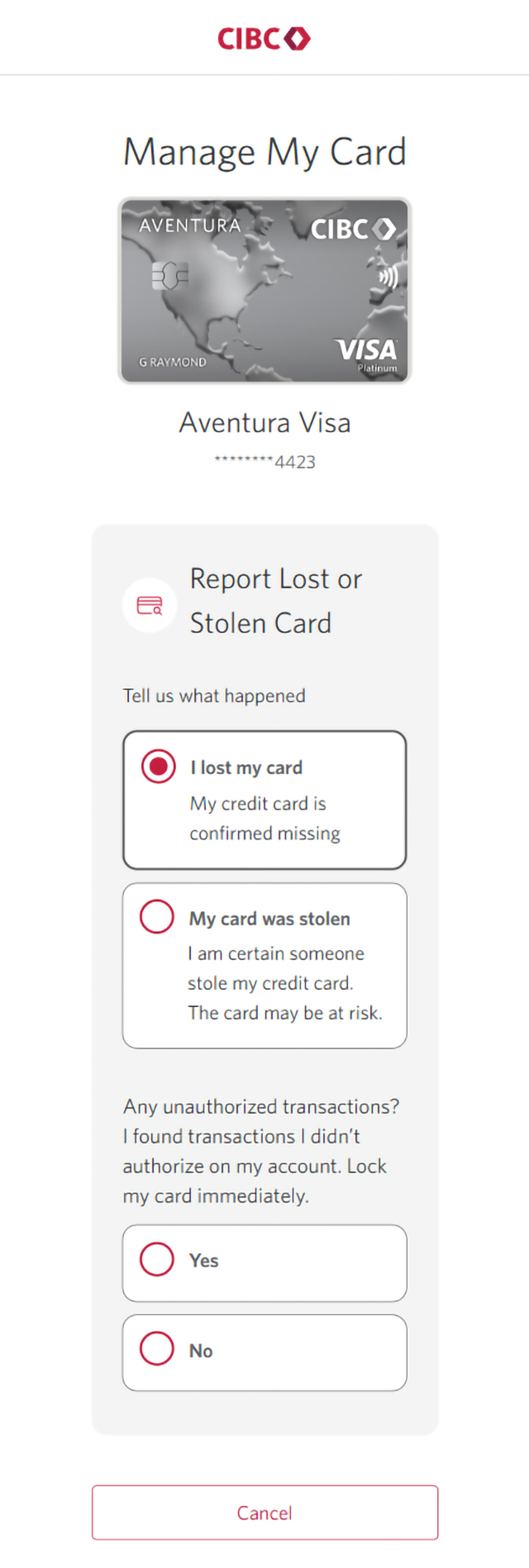
Demo screen 6: Manage my card page with "Any unauthorized transactions?" radio buttons. A pulsing animation highlights the "No" radio button.
Demo screen 7: Manage my card page with "Any unauthorized transactions?" radio buttons. A pulsing animation highlights the "Next" button.
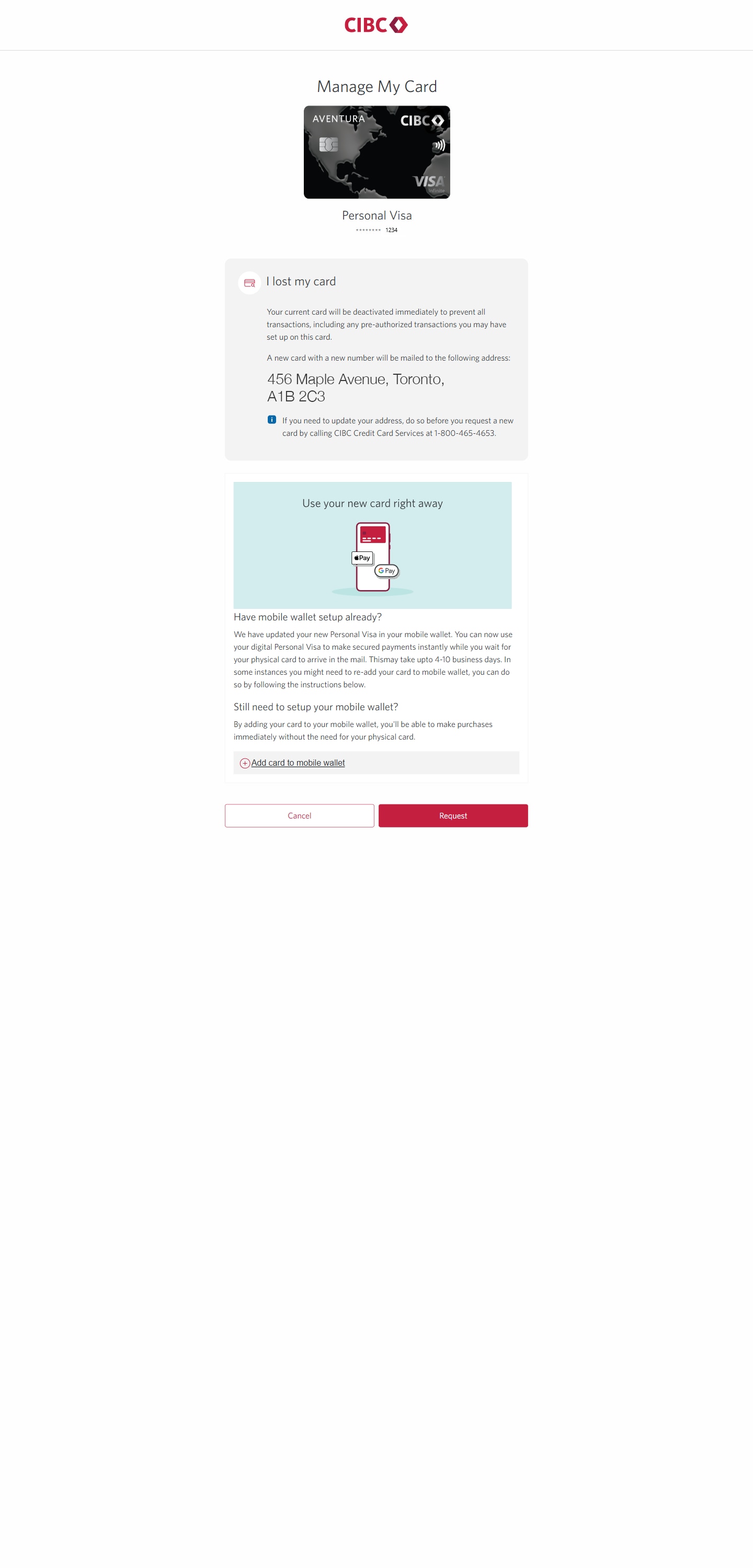
Demo screen 8: Pre-confirmation page. A pulsing animation highlights the "Request" button.
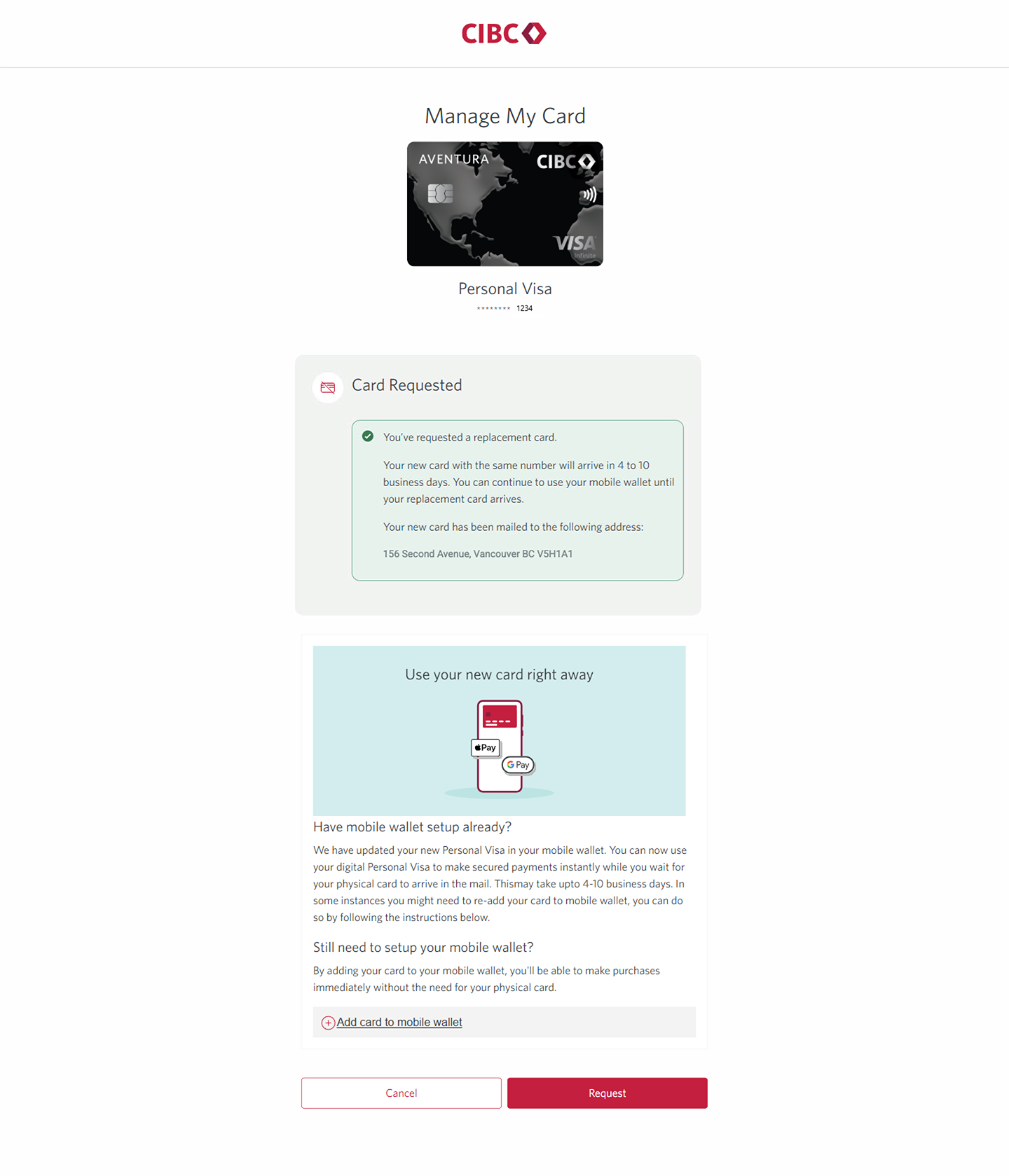
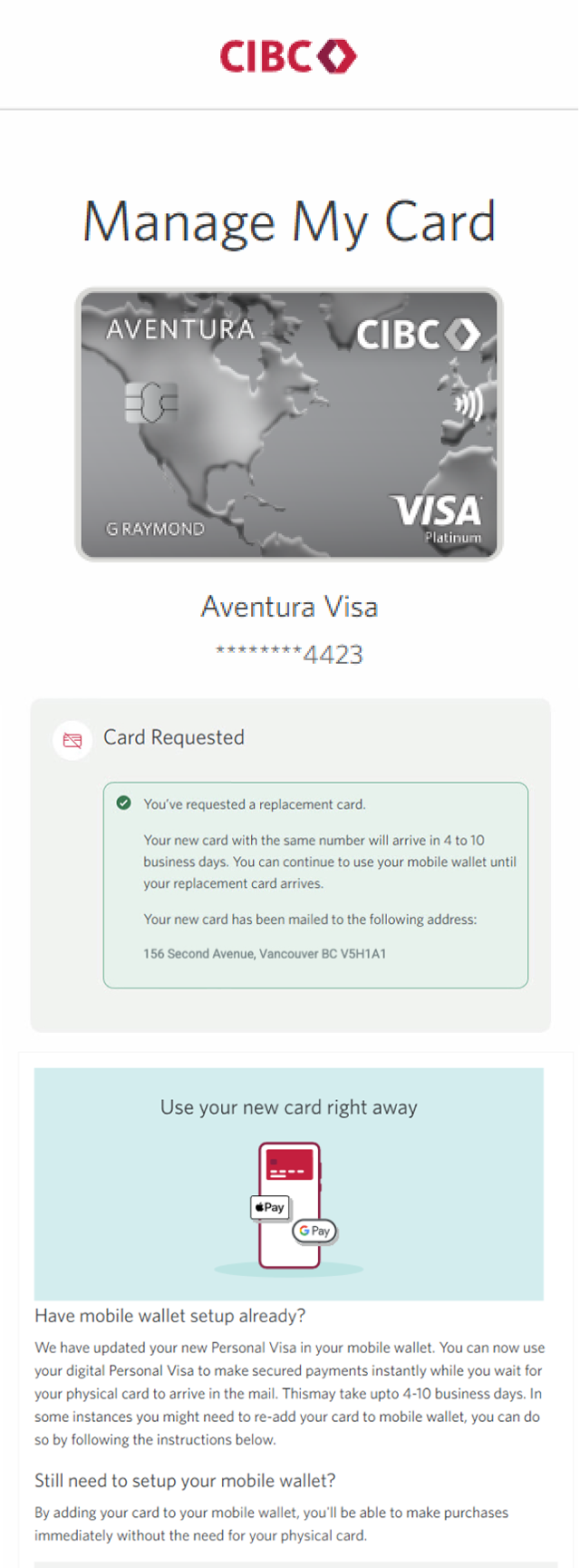
Demo screen 9: Confirmation page with message stating card has been replaced. No pulsing animation.
Your progress 1 of

Step 1 : Let's get started on your web browser

Select the "Sign on" button in the demo to continue.

Step 2 : Find the card you need to report lost or stolen

From the CIBC Online Banking homepage, find the credit card you'd like to replace, or report lost or stolen. Select the three-dot menu to open the dropdown menu for that card.

Step 3 : Go to "Manage my card"

On the dropdown menu that opens, select "Manage my card" from the options.

Step 4 : Report your lost or stolen credit card

On the Manage My Card page, select "Report Lost or Stolen Card" from the options.

Step 5 : Select the option that applies to you

From the "Tell us what happened" menu, select the option that best fits your situation — either "I lost my card" or "My card was stolen."

Step 6 : Report any unauthorized transactions

You'll be asked whether you found unauthorized transactions on your account. Regardless of what you select, your card will be locked immediately.

For this demo, we'll select "No".

However, if you do notice any unauthorized transactions on your card or statement, select "Yes" and follow the instructions to dispute the charge(s).

Step 7 : Confirm your selection

Once you've selected one of the Yes or No options for unauthorized transactions, select the "Next" button to continue.

Step 8 : Confirm your details before requesting a new card

On the confirmation screen, there will be a message indicating which address your new card will be sent to. If the address is correct, select the "Request" button.

You'll also have the ability to add the new card to your mobile wallet so you can use it right away, while you wait for your physical card to arrive.

Step 9 : Great job!
You've successfully replaced your lost or stolen credit card.
Demo screen 1: CIBC homepage. A pulsing animation highlights the "Sign on" button.
Demo screen 2: CIBC Online Banking homepage. A pulsing animation highlights the "More options" button for a card.
Demo screen 3: CIBC Online Banking homepage. A pulsing animation highlights the "Manage my card" link.
Demo screen 4: Manage My Card page. A pulsing animation highlights the "Report Lost or Stolen Card" button.
Demo screen 5: Manage my card page with "I lost my card" and "My card was stolen" options. A pulsing animation highlights the "I lost my card" radio button.
Demo screen 6: Manage my card page with "Any unauthorized transactions?" radio buttons. A pulsing animation highlights the "No" radio button.
Demo screen 7: Manage my card page with "Any unauthorized transactions?" radio buttons. A pulsing animation highlights the "Next" button.
Demo screen 8: Pre-confirmation page. A pulsing animation highlights the "Request" button.
Demo screen 9: Confirmation page with message stating card has been replaced. No pulsing animation.
Your progress 1 of

Step 1 : Let's get started on your web browser

Select the "Sign on" button in the demo to continue.

Step 2 : Find the card you need to report lost or stolen

From the CIBC Online Banking homepage, find the credit card you'd like to replace, or report lost or stolen. Select the three-dot menu to open the dropdown menu for that card.

Step 3 : Go to "Manage my card"

On the dropdown menu that opens, select "Manage my card" from the options.

Step 4 : Report your lost or stolen credit card

On the Manage My Card page, select "Report Lost or Stolen Card" from the options.

Step 5 : Select the option that applies to you

From the "Tell us what happened" menu, select the option that best fits your situation — either "I lost my card" or "My card was stolen."

Step 6 : Report any unauthorized transactions

You'll be asked whether you found unauthorized transactions on your account. Regardless of what you select, your card will be locked immediately.

For this demo, we'll select "No".

However, if you do notice any unauthorized transactions on your card or statement, select "Yes" and follow the instructions to dispute the charge(s).

Step 7 : Confirm your selection

Once you've selected one of the Yes or No options for unauthorized transactions, select the "Next" button to continue.

Step 8 : Confirm your details before requesting a new card

On the confirmation screen, there will be a message indicating which address your new card will be sent to. If the address is correct, select the "Request" button.

You'll also have the ability to add the new card to your mobile wallet so you can use it right away, while you wait for your physical card to arrive.

Step 9 : Great job!

You've successfully replaced your lost or stolen credit card.
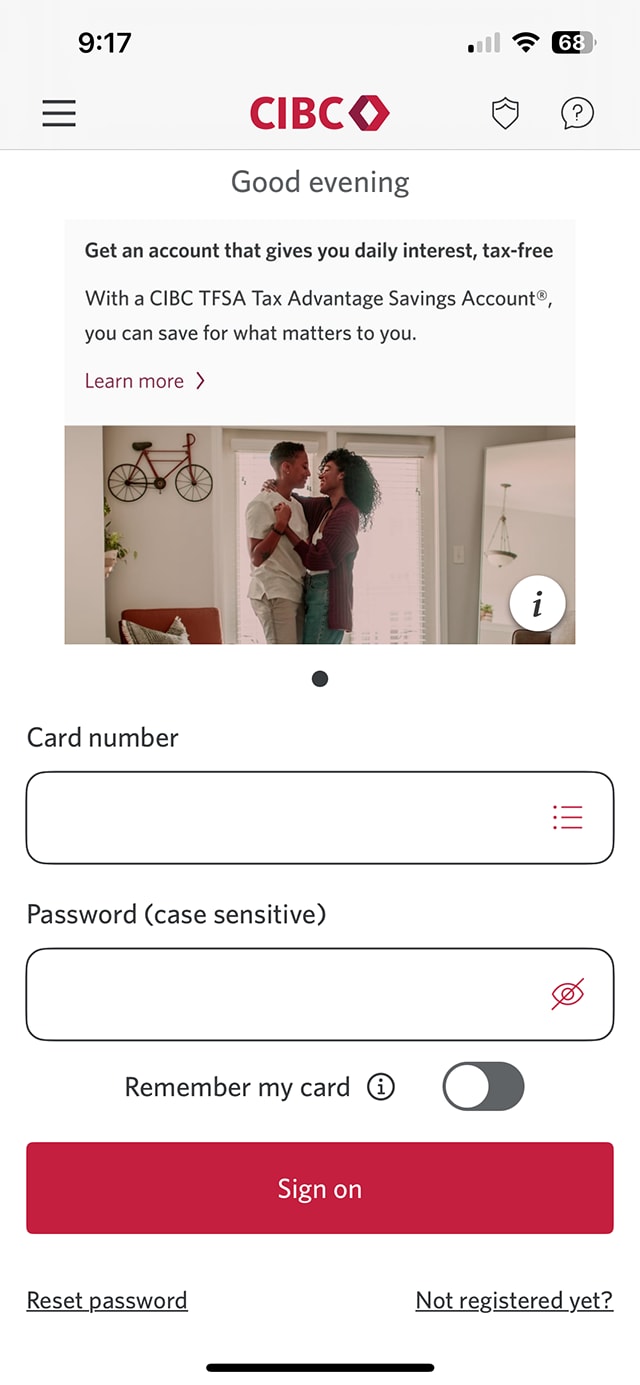
Demo screen 1: CIBC Mobile Banking App sign on screen. A pulsing animation highlights the "Sign on" button.
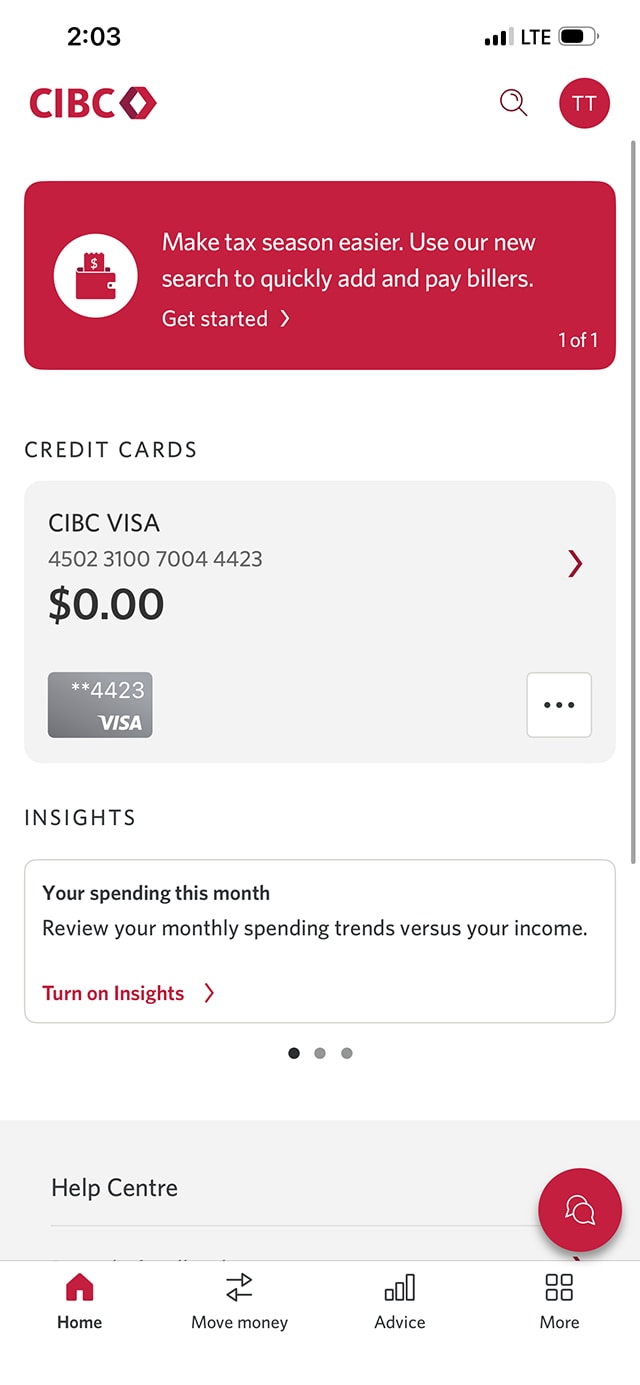
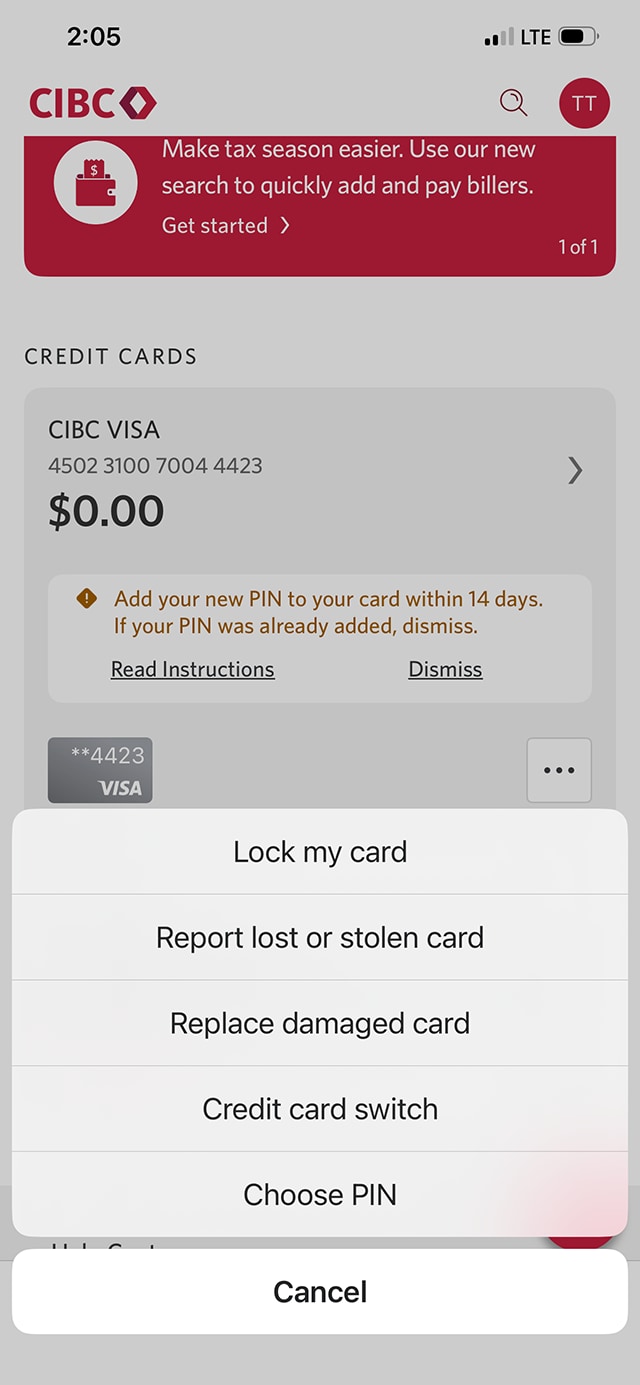
Demo screen 2: CIBC Mobile Banking App homepage. A pulsing animation highlights the "More options" button for a credit card.
Demo screen 3: CIBC Mobile Banking App homepage. A pulsing animation highlights the "Report lost or stolen card" button on a menu.
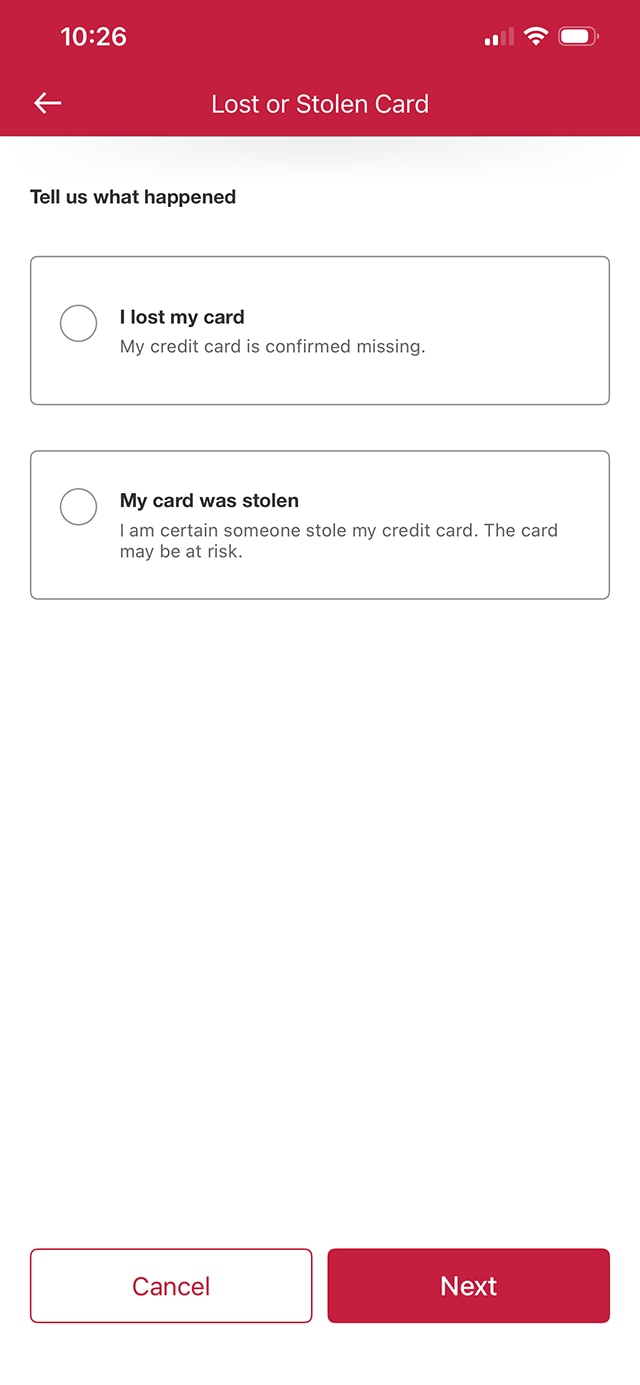
Demo screen 4: Lost or stolen card page with "I lost my card" and "My card was stolen" options. A pulsing animation highlights the "I lost my card" radio button.
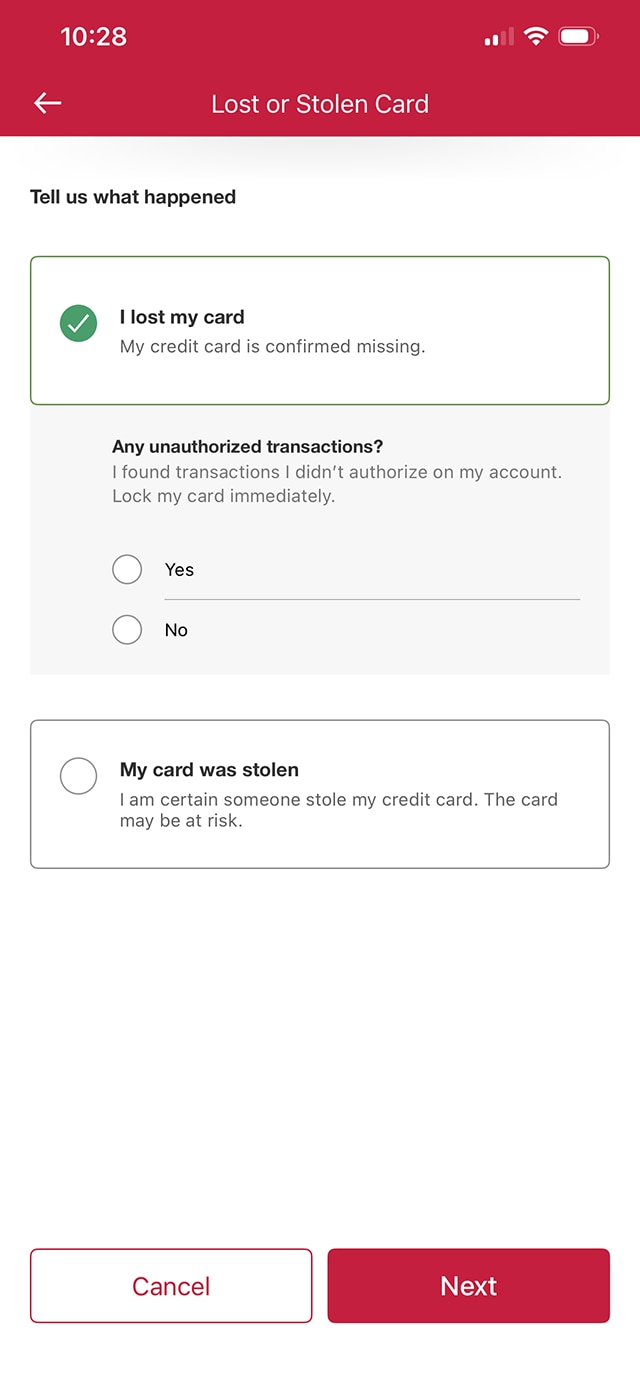
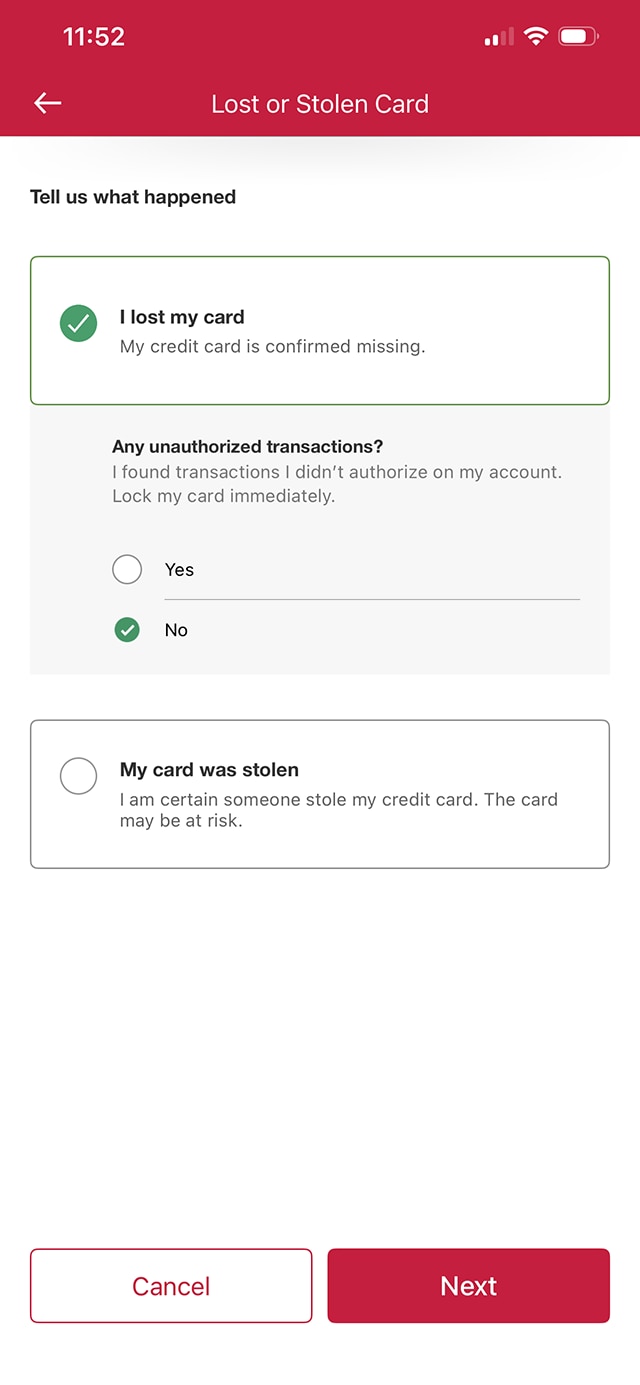
Demo screen 5: Manage my card page with "Any unauthorized transactions?" radio buttons. A pulsing animation highlights the radio buttons for "Yes" and "No".
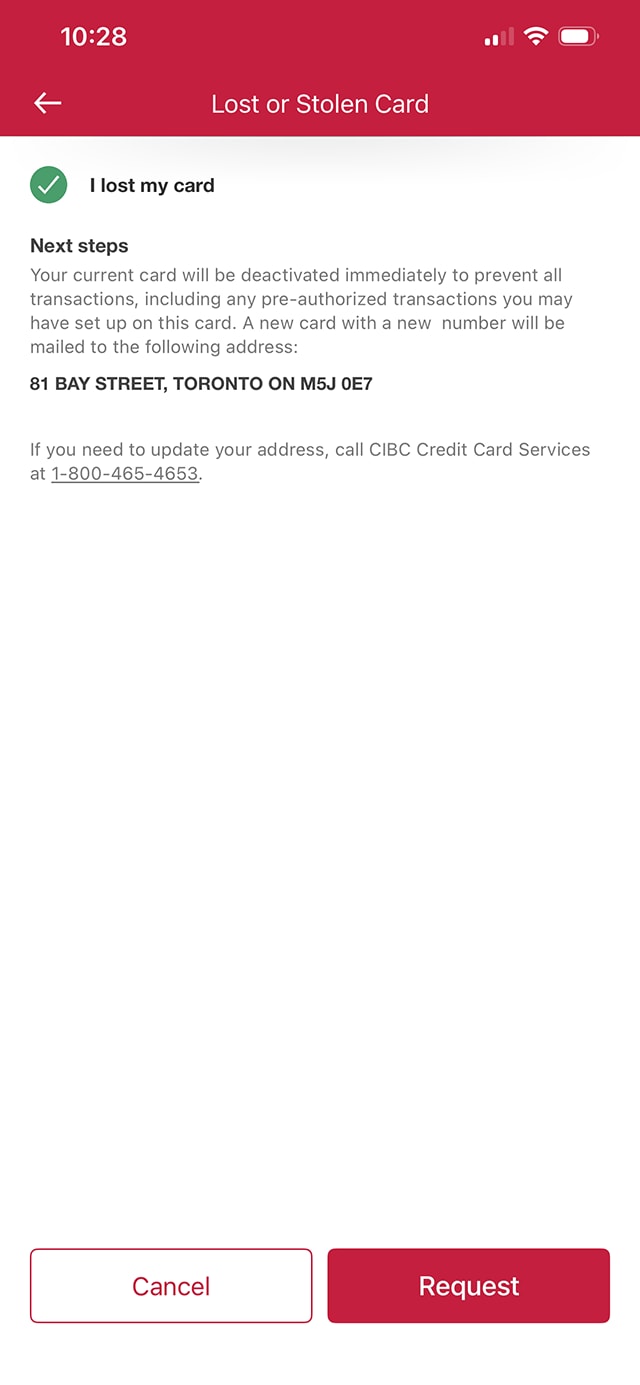
Demo screen 6: Manage my card page with "Any unauthorized transactions?" radio buttons. A pulsing animation highlights the "Next" button.
Demo screen 7: Pre-confirmation page. A pulsing animation highlights the "Request" button.
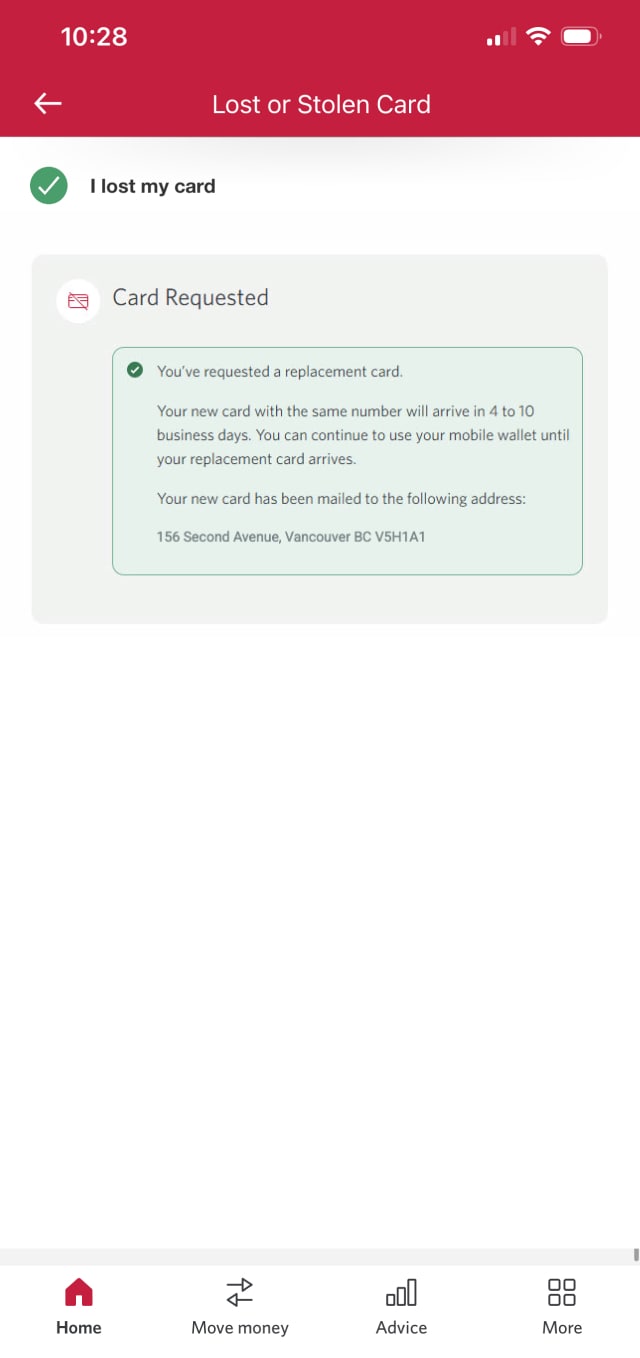
Demo screen 8: CIBC Mobile Banking App homepage. No pulsing animation.
Your progress 1 of

Step 1 : Let's get started on the mobile app

Select the "Sign on" button in the demo to continue.

Step 2 : Find the card you need to report lost or stolen

From the CIBC Mobile Banking App homepage, find the credit card you'd like to replace, or report lost or stolen. Select the three-dot menu to open the menu options for that card.

Step 3 : Select "Report lost or stolen card"

On the dropdown menu that opens, select "Report lost or stolen card" from the options.

Step 4 : Select the option that applies to you

From the "Tell us what happened" menu, select the option that best fits your situation — either "I lost my card" or "My card was stolen."

Step 5 : Report any unauthorized transactions

You'll be asked whether you found unauthorized transactions on your account. Regardless of what you select, your card will be locked immediately.

For this demo, we'll select "No".

However, if you do notice any unauthorized transactions on your card or statement, select "Yes" and follow the instructions to dispute the charge(s).

Step 6 : Confirm your selection

Once you've selected one of the options, select the "Next" button to continue.

Step 7 : Confirm your details before requesting a new card

On the confirmation screen, there will be a message indicating which address your new card will be sent to. If the address is correct, select the "Request" button.

Step 8 : Great job!

You've successfully replaced your lost or stolen credit card.

Want an overview of all the steps?

For full instructions on how to replace a lost or stolen credit card, check out the step-by-step process all in one place.

What to expect when reporting a lost or stolen card

Steps to take if your credit card has been stolen

  1. File a police report
  2. Call and inform the credit bureaus
  3. Keep written records
  4. Destroy associated cards and cheques

What happens after you report your card lost or stolen?

Your current card will be deactivated immediately to prevent new transactions. A new card with a new number will also be mailed to the address on file.
Recommended digital banking demos

How to lock or unlock your credit card

Start demo on how to lock or unlock your credit card.

How to dispute a credit card transaction

Start demo on how to dispute a credit card transaction.

How to reset your password

Start demo on how to reset your password.

How to set up alerts for account activity

Start demo on how to set up alerts for account activity.

Get started

CIBC Online Banking®

Discover digital banking features that can help you bank easily online.
CIBC Mobile Banking® App

Stay connected to your finances on your mobile device, no matter where you are.