
Digital banking tutorials

How to set up alerts for account activity
Learn how to set up alerts and customize the account activity you want to monitor. Stay on top of your account security by tracking important transactions.
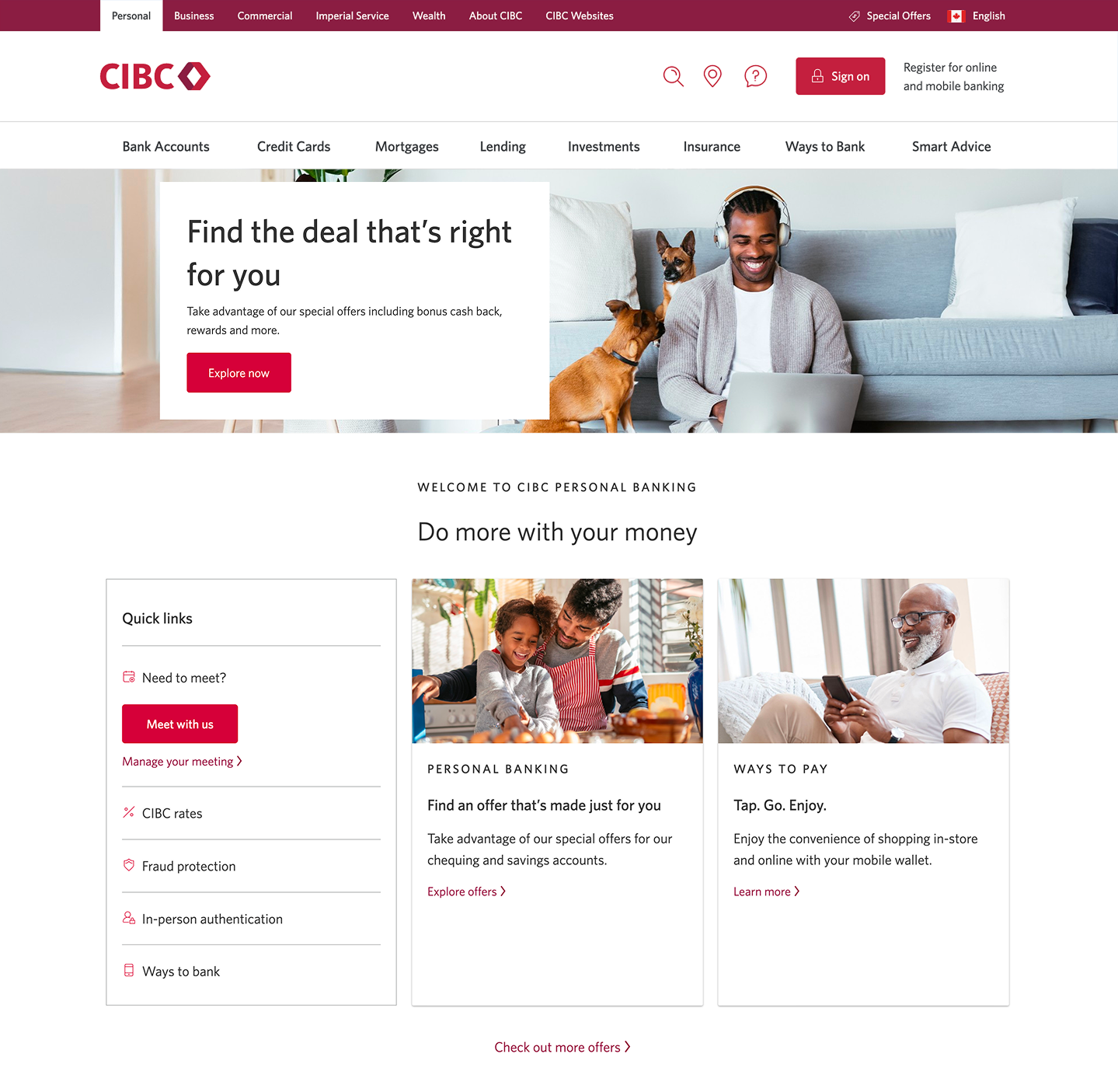
Demo screen 1: CIBC homepage. A pulsing animation highlights the "Sign on" button.
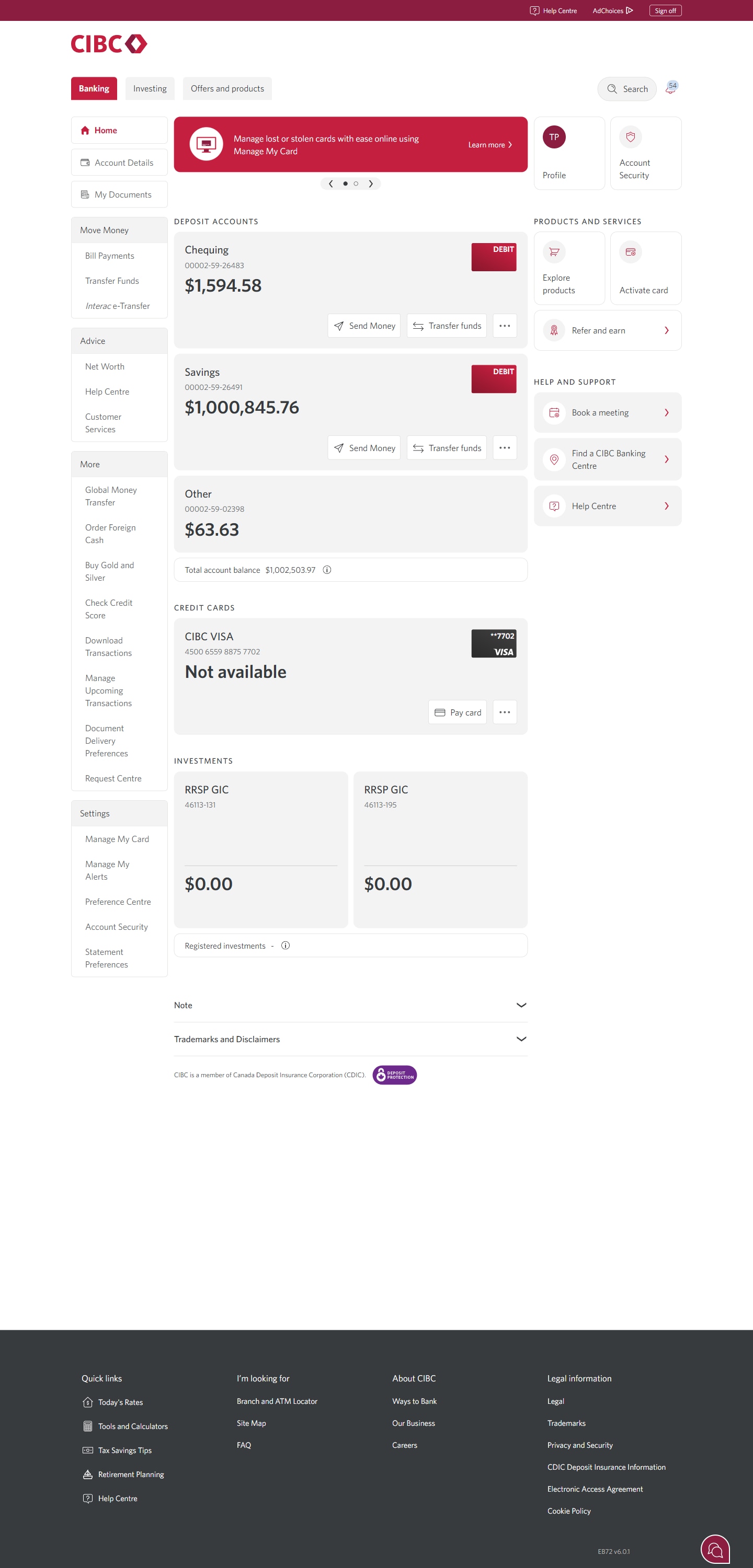
Demo screen 2: CIBC Online Banking homepage. A pulsing animation highlights the "Manage My Alerts" link.
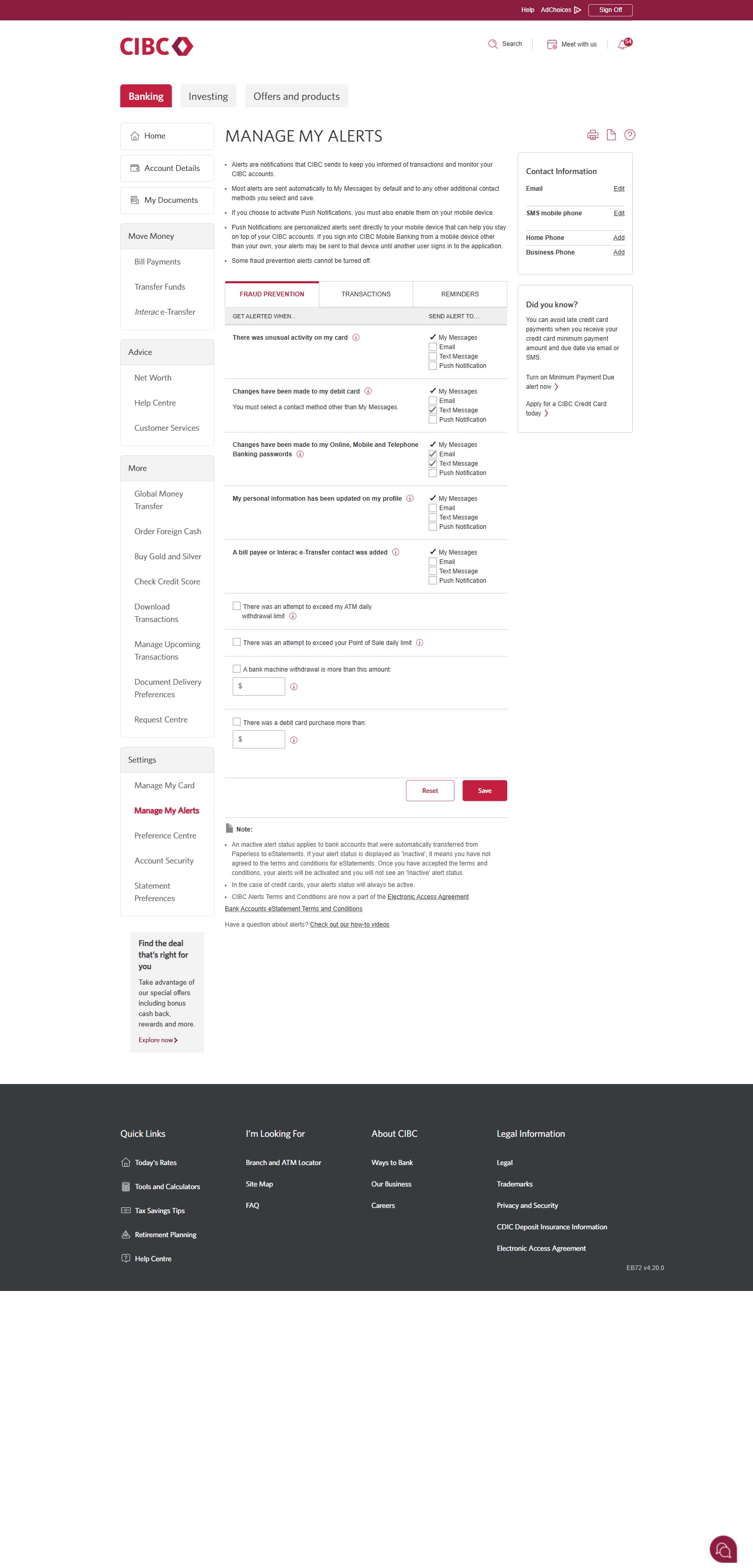
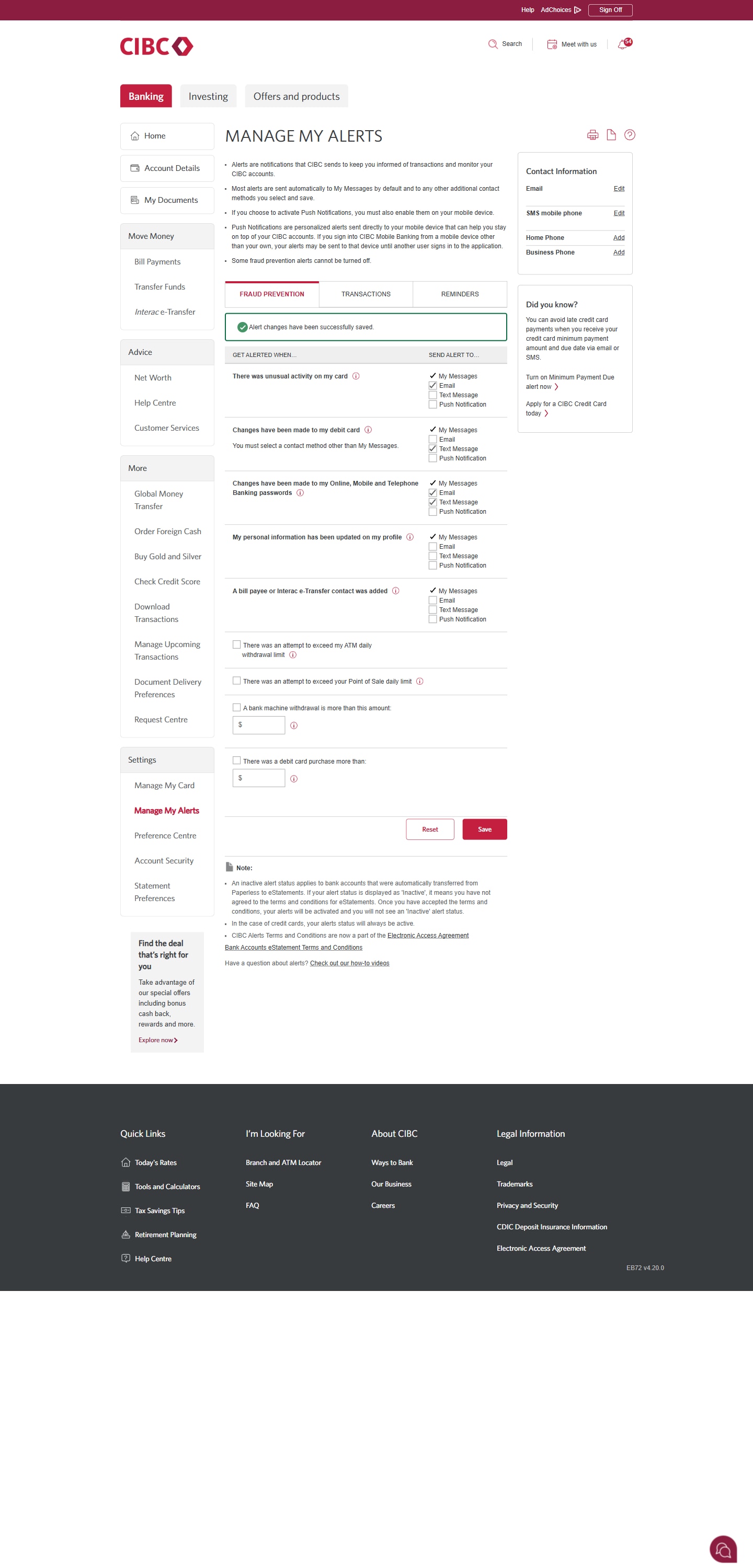
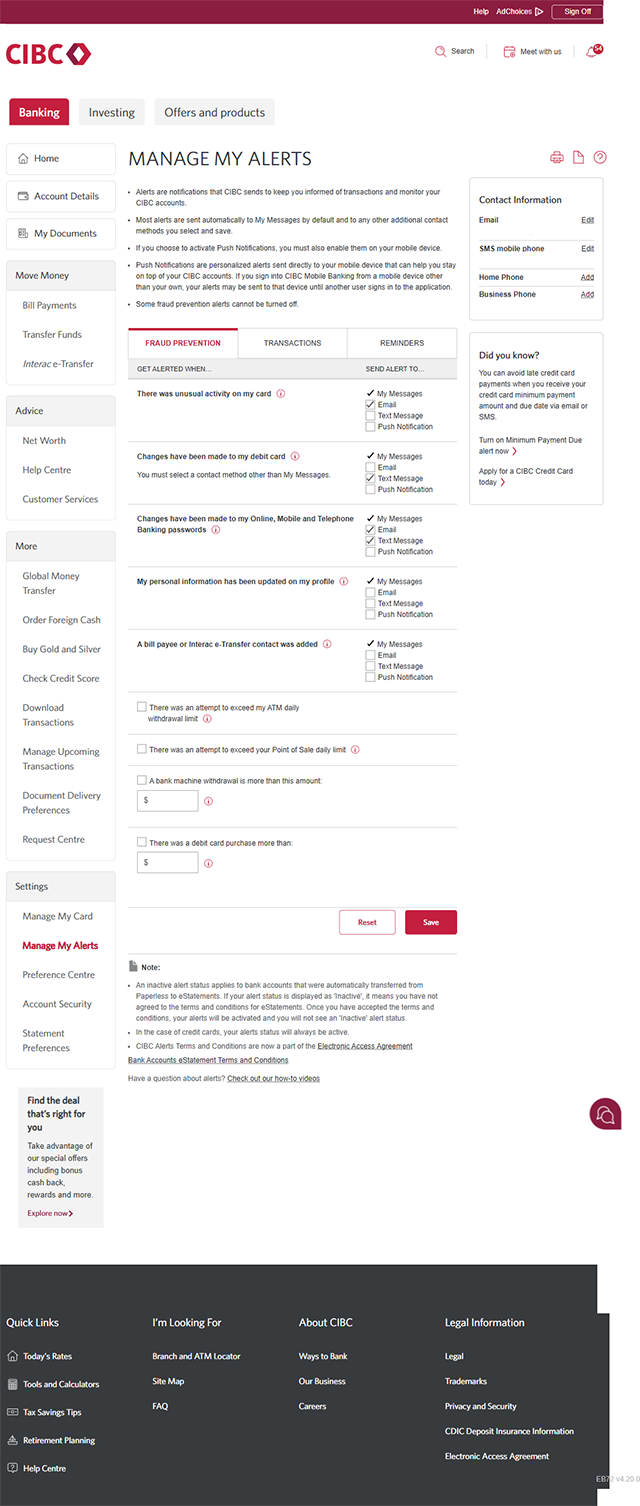
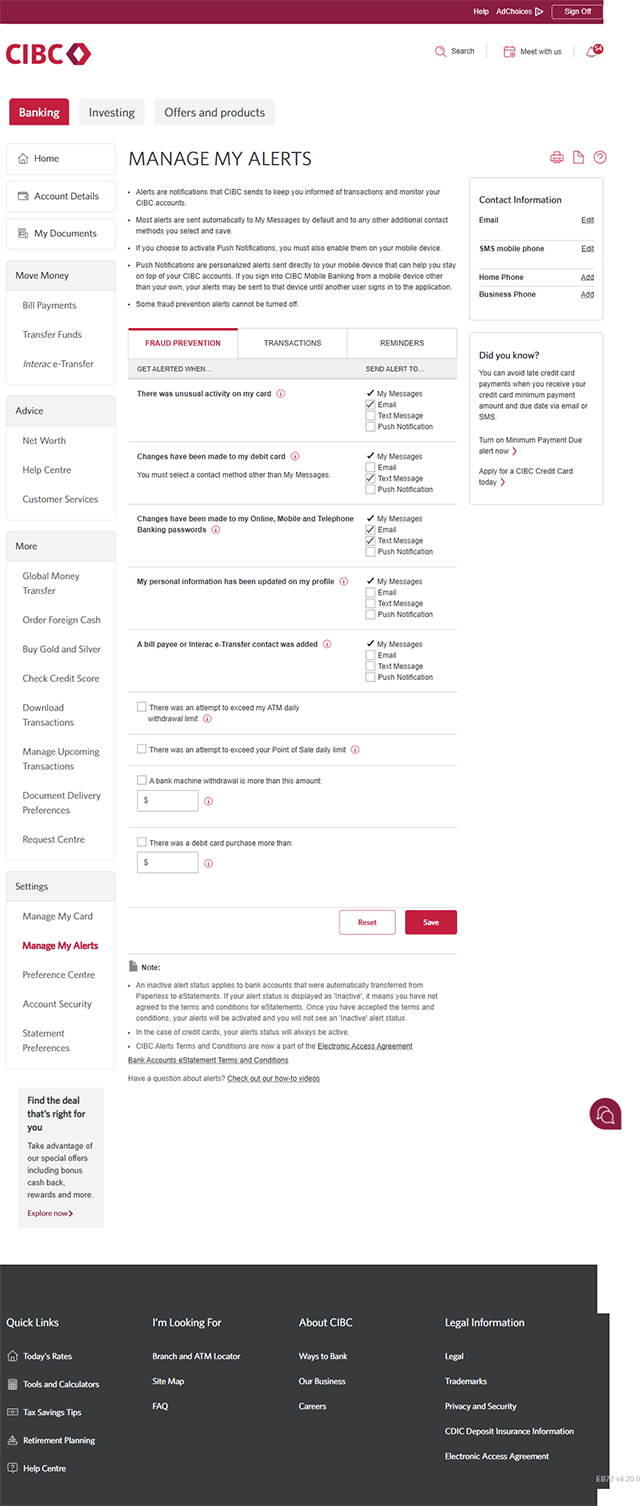
Demo screen 3: Manage My Alerts page. A pulsing animation highlights the "Fraud Prevention" tab.
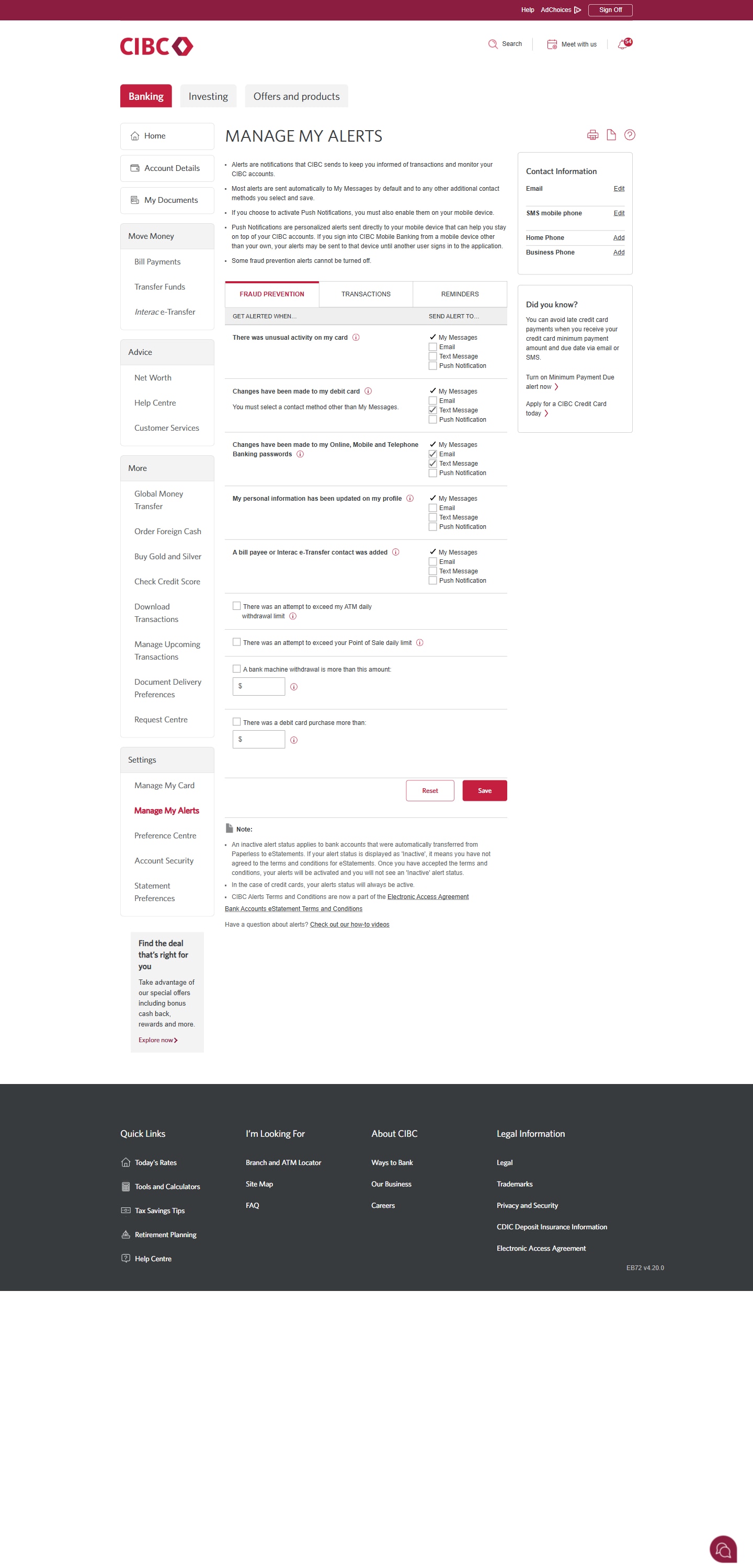
Demo screen 4: Manage My Alerts page. A pulsing animation highlights the "Save" button within the "Fraud Prevention" tab section.
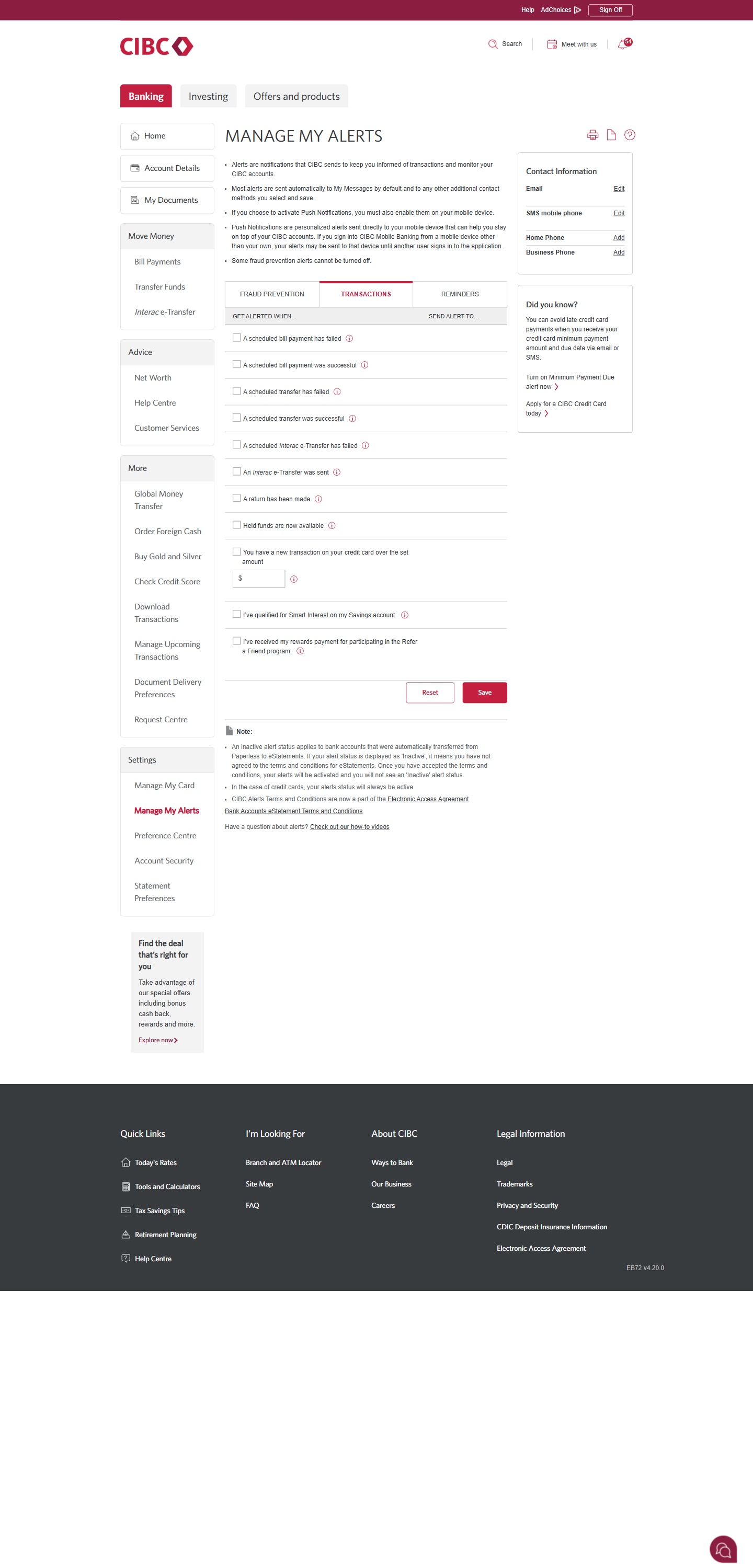
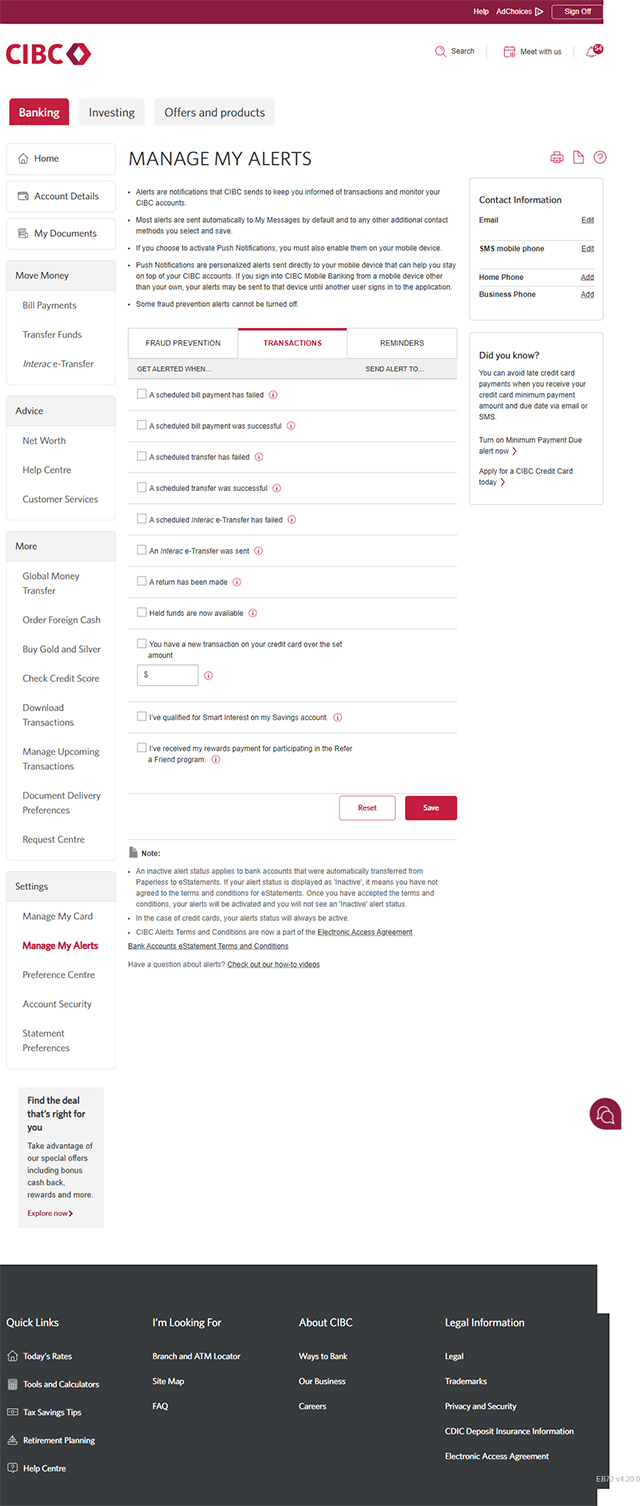
Demo screen 5: Manage My Alerts page. A pulsing animation highlights the "Transactions" tab.
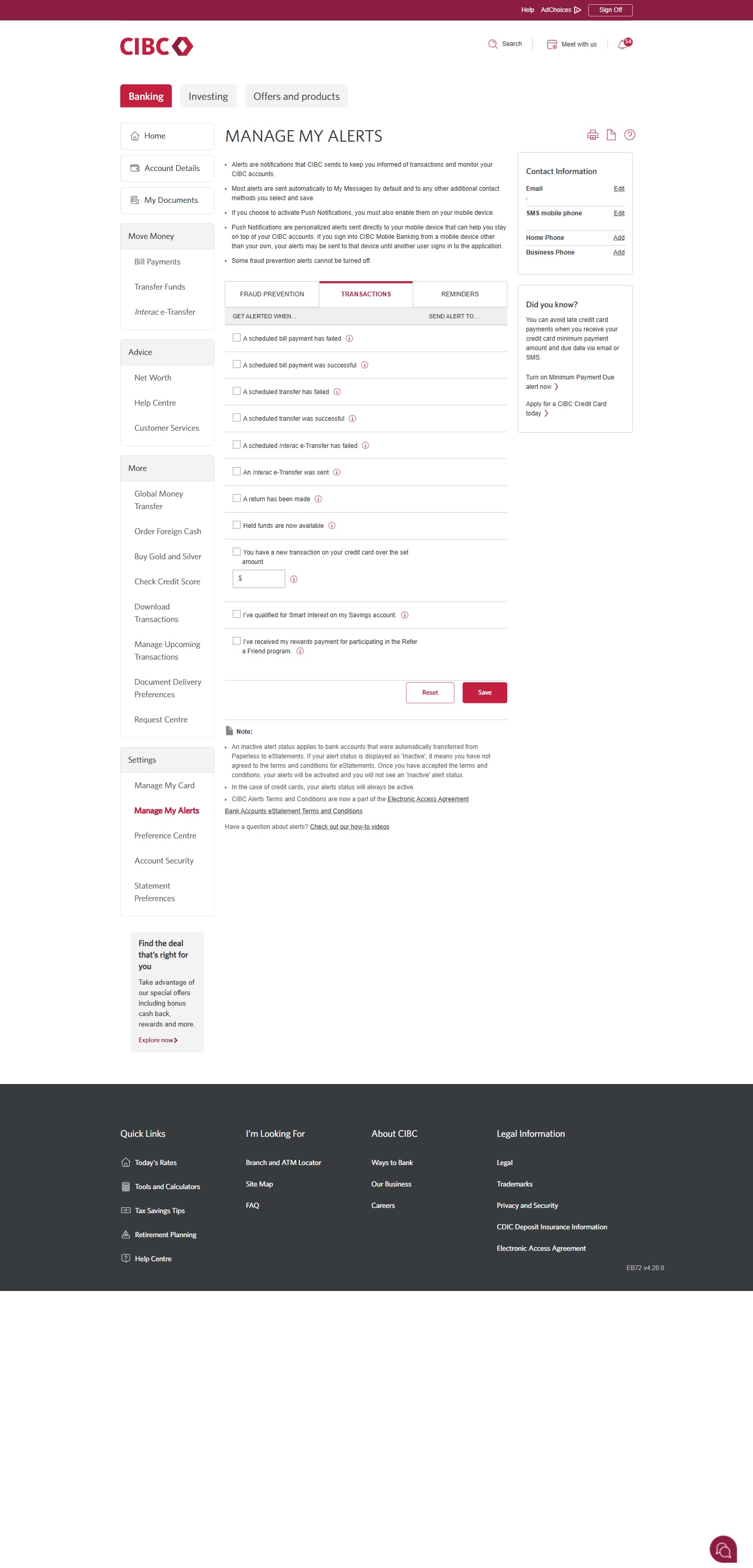
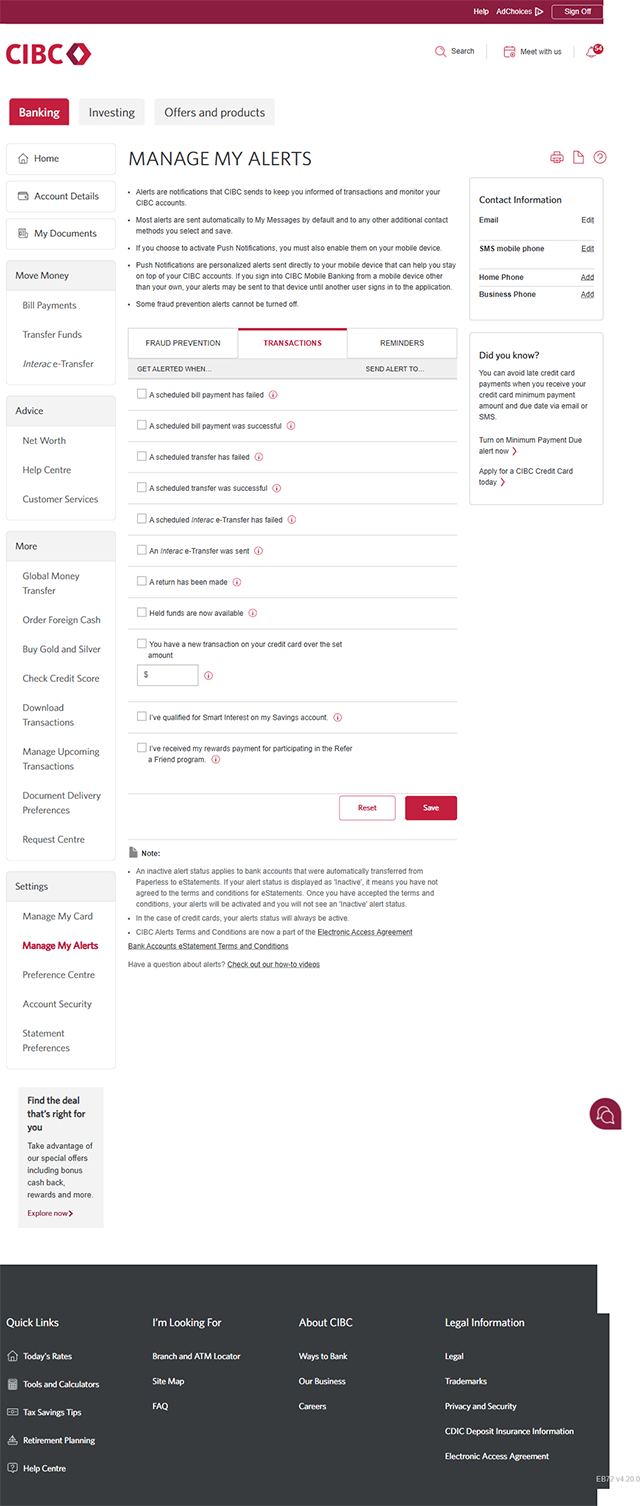
Demo screen 6: Manage My Alerts page. A pulsing animation highlights the "Save" button within the "Transactions" tab section.
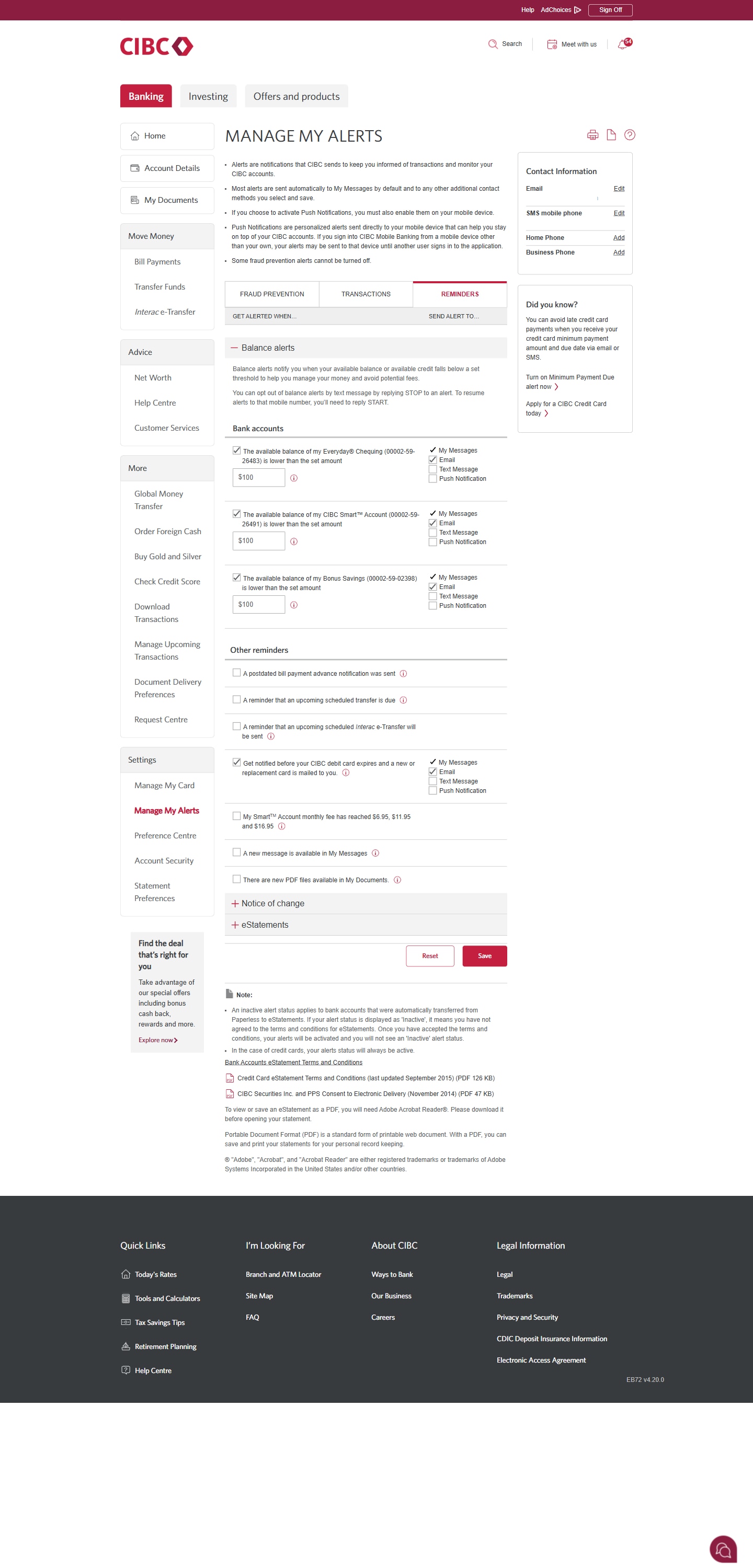
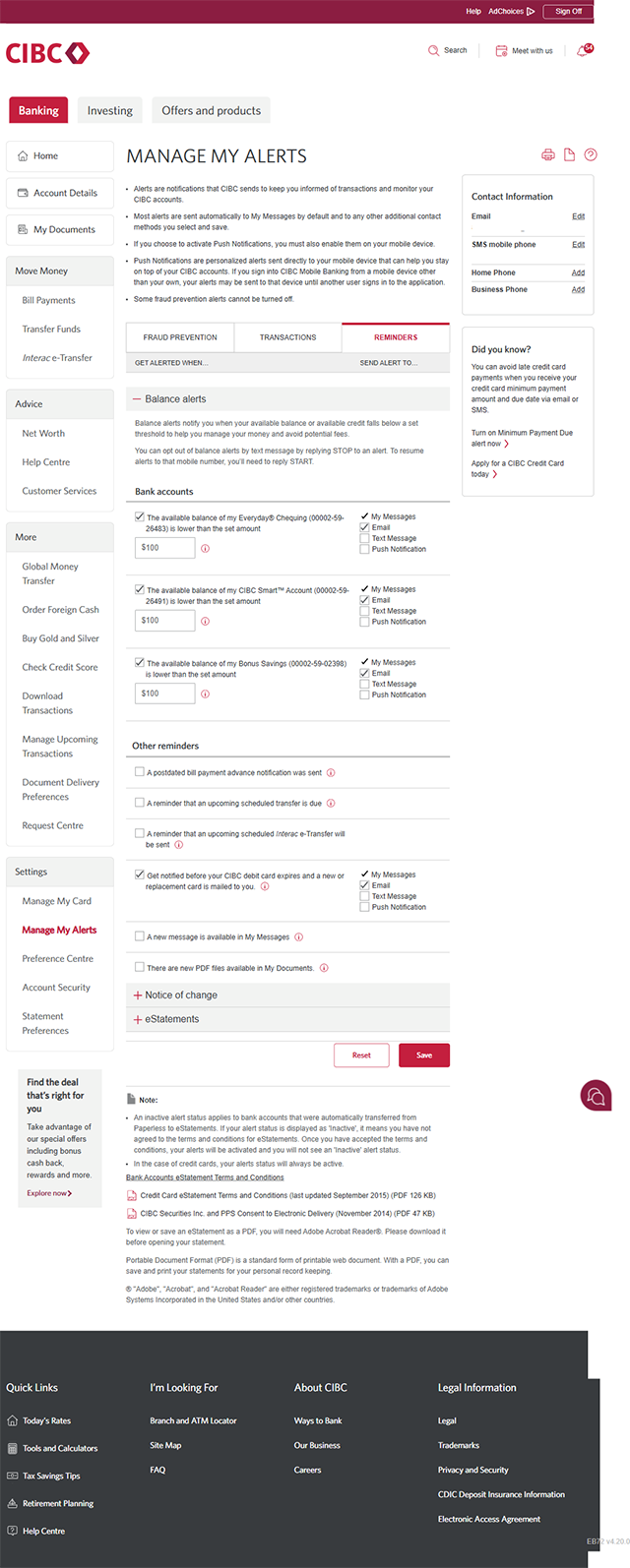
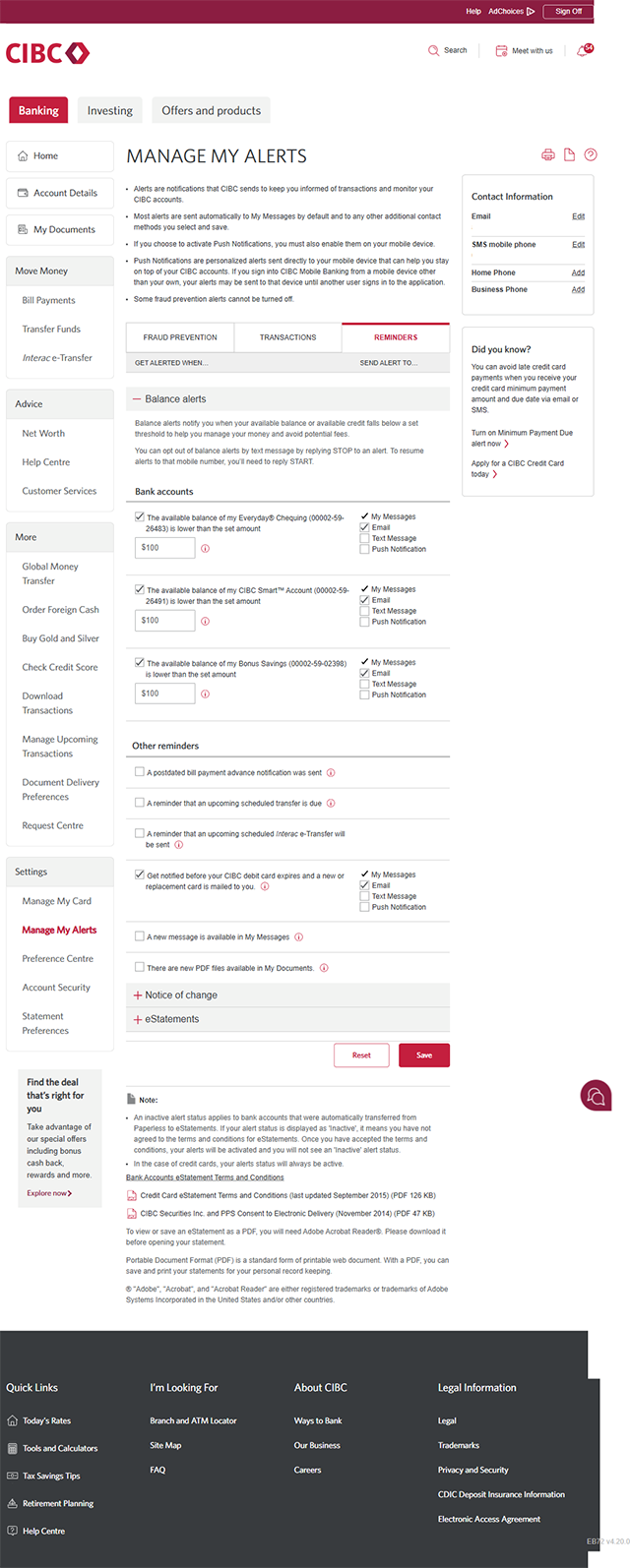
Demo screen 7: Manage My Alerts page. A pulsing animation highlights the "Reminders" tab.
Demo screen 8: Manage My Alerts page. A pulsing animation highlights the "Save" button within the "Reminders" tab section.
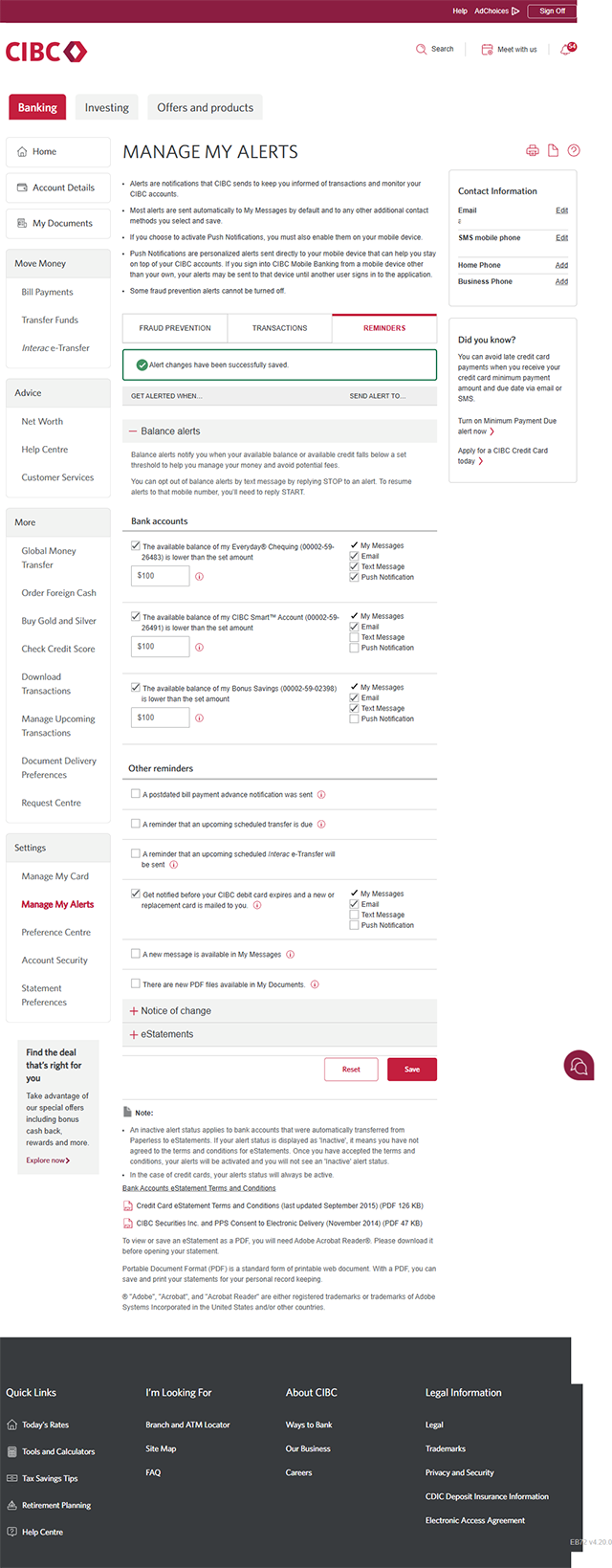
Demo screen 9: Manage My Alerts page. An on-screen message indicatDemo screen 9: Manage My Alerts page. An on-screen message indicates that alert changes have been successfully saved.es that alert changes have been successfully saved.
Your progress 1 of

Step 1 : Let's get started on your web browser

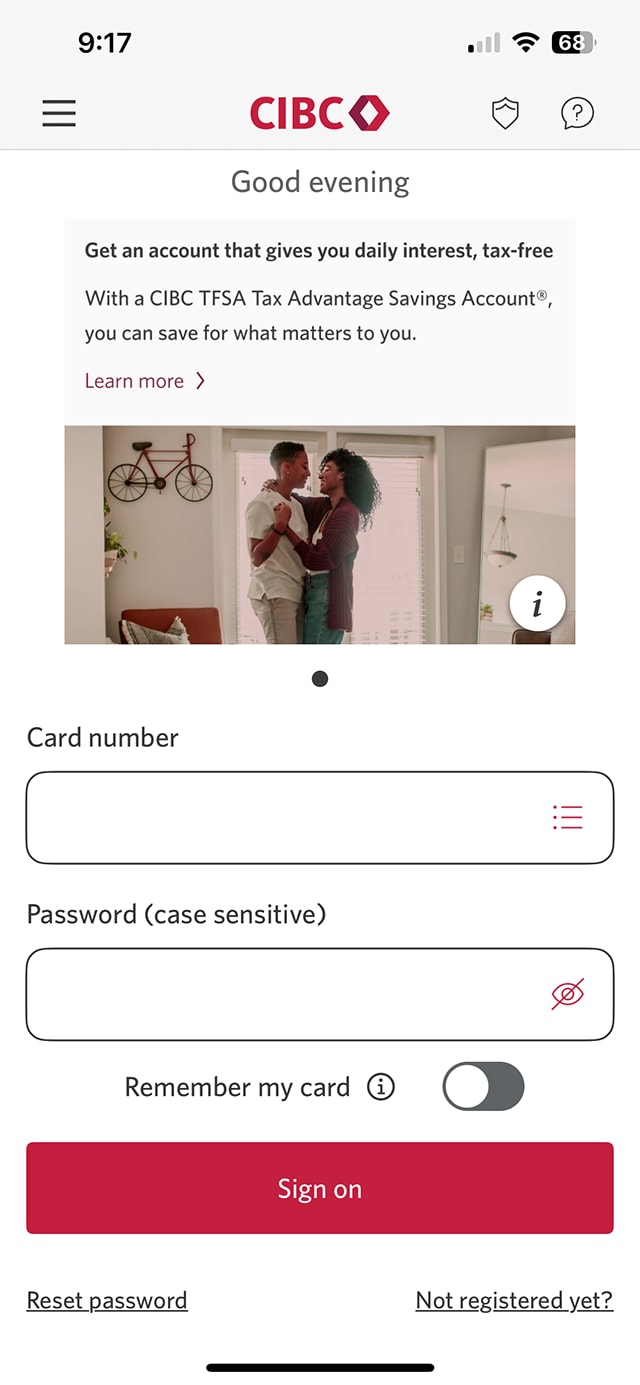
Select the "Sign on" button in the demo to continue.

Step 2 : Navigate to the alert settings

On the CIBC Online Banking® homepage, go to the "Settings" menu and select "Manage My Alerts".

Step 3 : Customize your fraud alerts

From the Manage My Alerts page, select the "Fraud Prevention" tab and review the available alerts.

To be notified for a specific alert, select how you want to receive the alert — email, text message, push notification. 

Keep in mind that all alerts are also sent to the Communication Hub by default.

Step 4 : Save your selections

Once you've chosen your preferred fraud alerts, select the "Save" button at the end of the page section.

Step 5 : Customize your transaction alerts

While still on the Manage My Alerts page, select the "Transactions" tab to be notified for additional alerts.

Select which transaction alerts you'd like to receive notifications for, and choose your preferred contact method for each alert you've selected.

Step 6 : Save your selections

Once you've chosen your preferred transaction alerts, select the "Save" button at the end of the page section.

Step 7 : Customize your reminders

Select the "Reminders" tab and choose which reminders you'd like to receive. Choose your preferred contact method for the reminder notifications.

Step 8 : Save your selections

Once you've chosen your preferred reminders, select the "Save" button at the end of the page section.

Step 9 : Great job!

You've successfully saved your alert settings.

There will be a message on the Manage My Alerts page confirming your alert changes have been updated.

Demo screen 1: CIBC homepage. A pulsing animation highlights the "Sign on" button.
Demo screen 2: CIBC Online Banking homepage. A pulsing animation highlights the "More options" menu.
Demo screen 3: CIBC Online Banking homepage. A pulsing animation highlights the "Manage My Alerts" link.
Demo screen 4: Manage My Alerts page. A pulsing animation highlights the "Fraud Prevention" tab.
Demo screen 5: Manage My Alerts page. A pulsing animation highlights the "Save" button within the "Fraud Prevention" tab section.
Demo screen 6: Manage My Alerts page. A pulsing animation highlights the "Transactions" tab.
Demo screen 7: Manage My Alerts page. A pulsing animation highlights the "Save" button within the "Transactions" tab section.
Demo screen 8: Manage My Alerts page. A pulsing animation highlights the "Reminders" tab.
Demo screen 9: Manage My Alerts page. A pulsing animation highlights the "Save" button within the "Reminders" tab section.
Demo screen 10: Manage My Alerts page. An on-screen message indicates that alert changes have been successfully saved.
Your progress 1 of

Step 1 : Let's get started on your web browser

Select the "Sign on" button in the demo to continue.

Step 2 : Select the three-line menu icon to open the navigation bar

On the CIBC Online Banking homepage, find and select the three-line menu icon to open a navigation bar with more options.

Step 3 : Navigate to the alert settings

Go to the "Settings" section of the menu and select "Manage My Alerts".

Step 4 : Customize your fraud alerts

From the Manage My Alerts page, select the "Fraud Prevention" tab and review the available alerts.

To be notified for a specific alert, select how you want to receive the alert — email, text message, push notification.

Keep in mind that all alerts are also sent to the Communication Hub by default.

Step 5 : Save your selections

Once you've chosen your preferred fraud alerts, select the "Save" button at the end of the page section.

Step 6 : Customize your transaction alerts

While still on the Manage My Alerts page, select the "Transactions" tab to be notified for additional alerts.

Select which transaction alerts you'd like to receive notifications for, and choose your preferred contact method for each alert you've selected.

Step 7 : Save your selections

Once you've chosen your preferred transaction alerts, select the "Save" button at the end of the page section.

Step 8 : Customize your reminders

Select the "Reminders" tab and choose which reminders you'd like to receive. Choose your preferred contact method for the reminder notifications.

Step 9 : Save your selections

Once you've chosen your preferred reminders, select the "Save" button at the end of the page section.

Step 10 : Great job!

You've successfully saved your alert settings.

There will be a message on the Manage My Alerts page confirming your alert changes have been updated.


Demo screen 1: CIBC Mobile Banking App sign on screen. A pulsing animation highlights the "Sign on" button.
Demo screen 2: CIBC Mobile Banking App homepage. A pulsing animation highlights the "More" tab.
Demo screen 3: CIBC Mobile Banking App options. A pulsing animation highlights the "Settings and security" button.
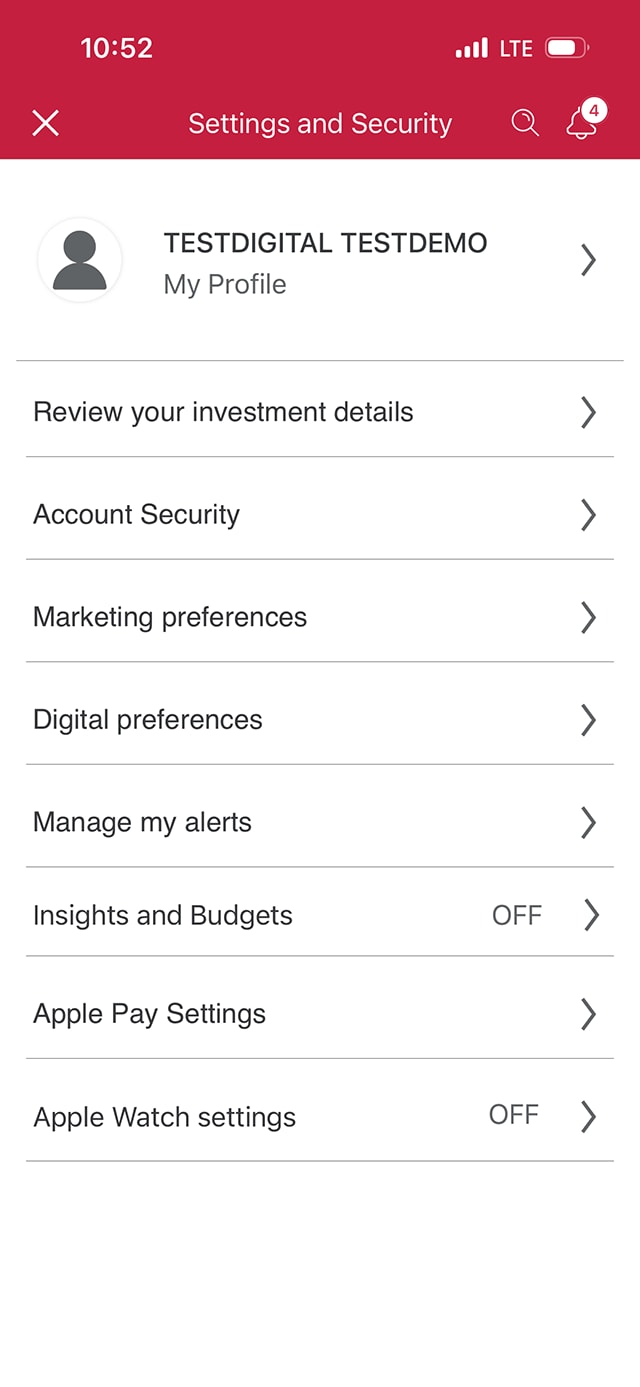
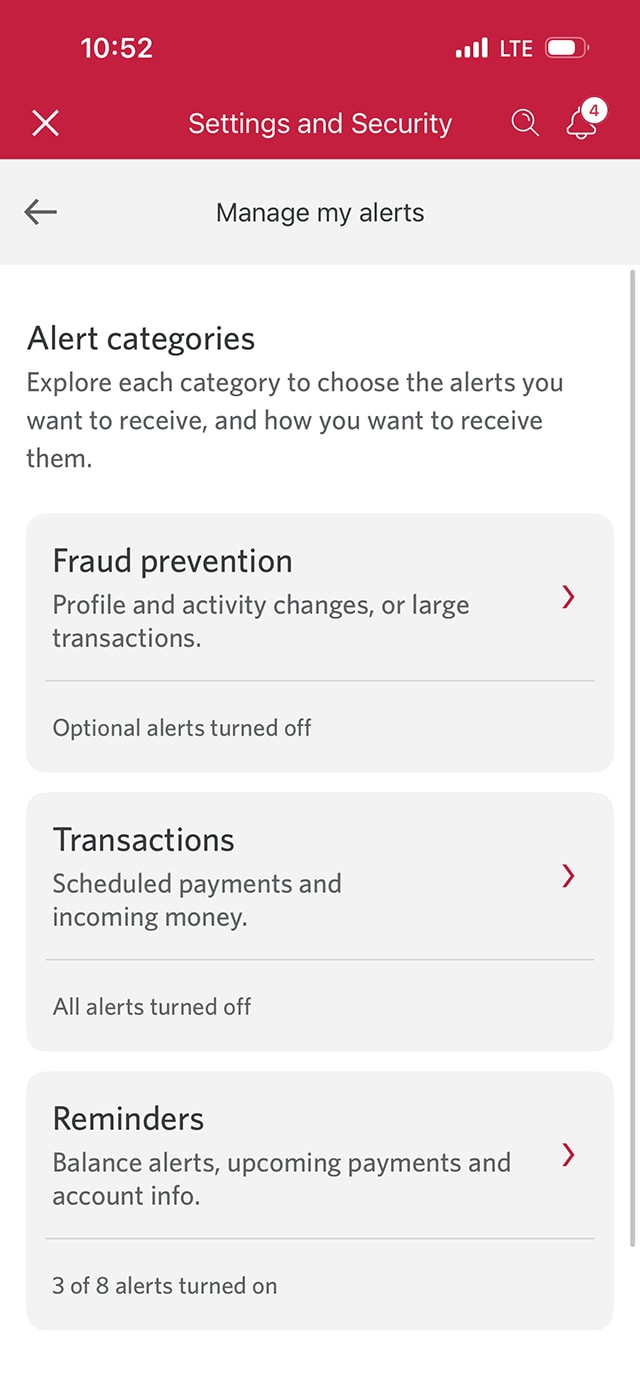
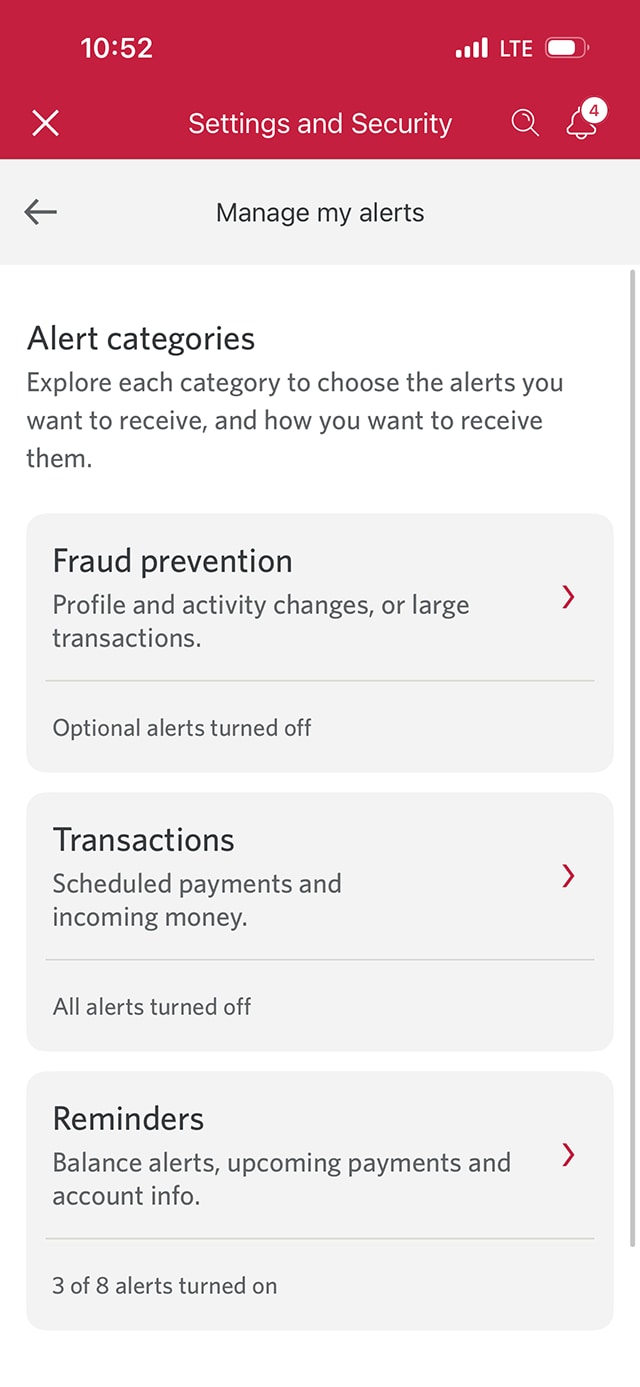
Demo screen 4: Settings and security page. A pulsing animation highlights the "Manage my alerts" button.
Demo screen 5: Manage my alerts page. A pulsing animation highlights the "Fraud prevention" button.
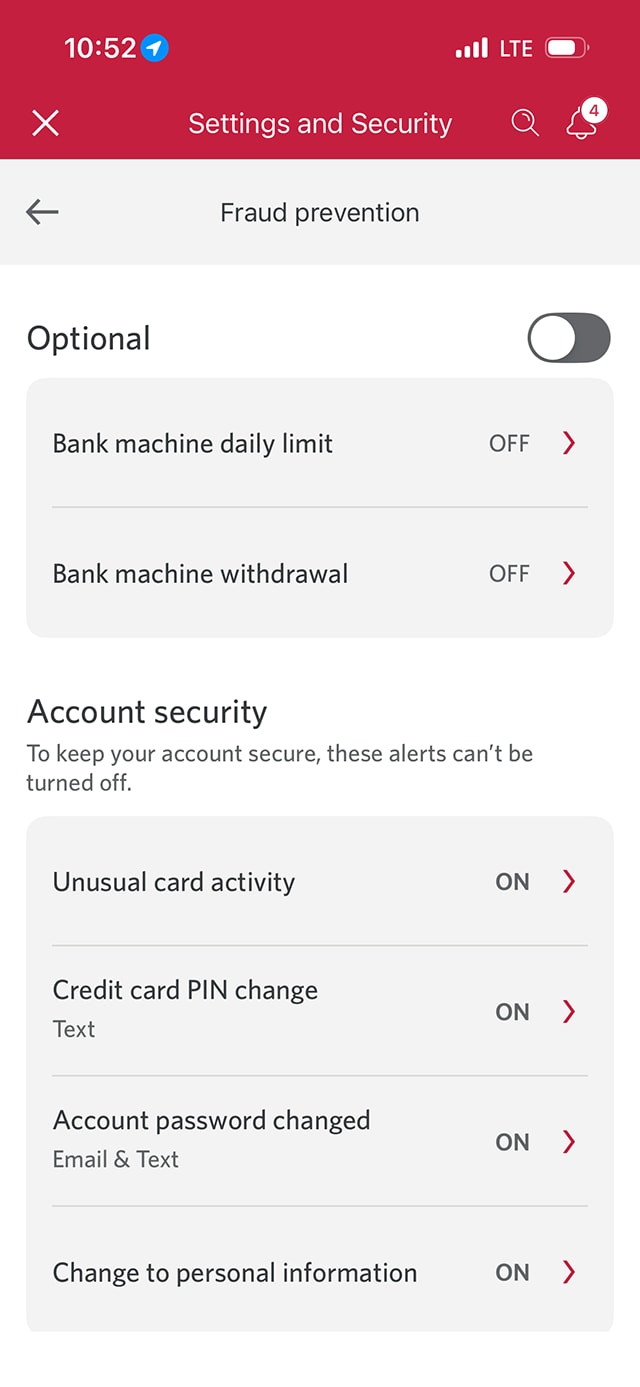
Demo screen 6: Fraud prevention page. A pulsing animation highlights the optional toggle button to turn alerts on or off.
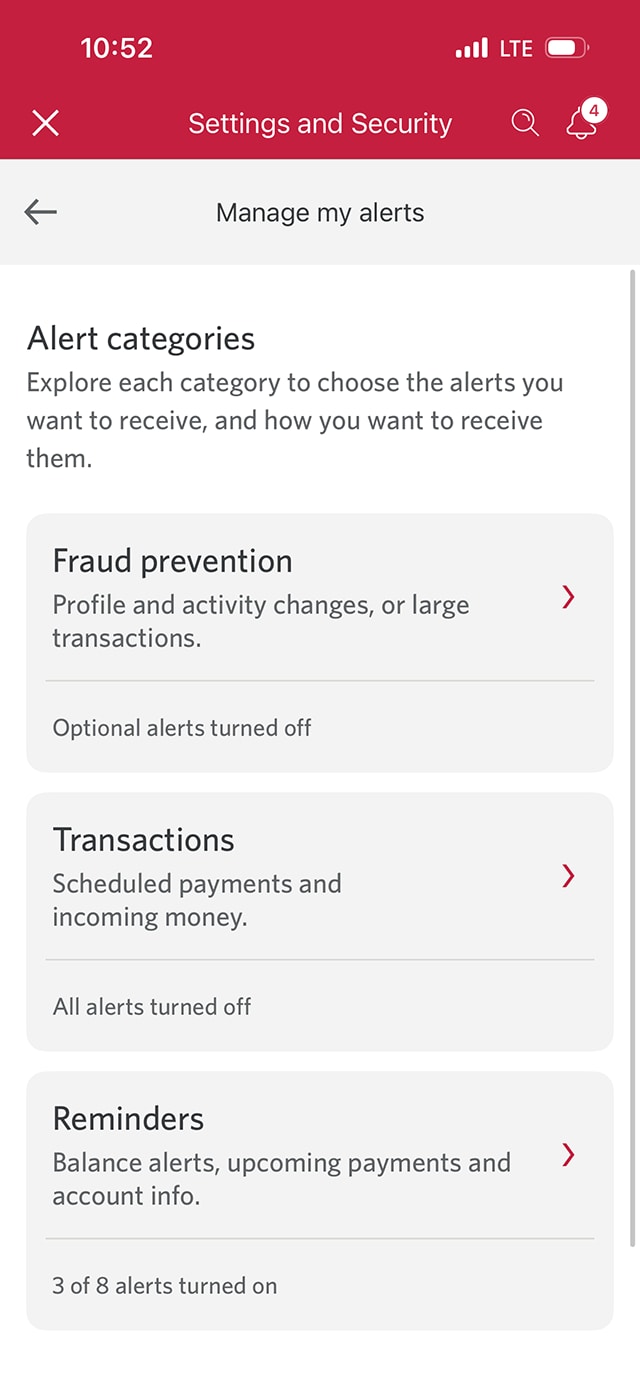
Demo screen 7: Fraud prevention page. A pulsing animation highlights the "back" button.
Demo screen 8: Manage my alerts page. A pulsing animation highlights the "Transactions" button.
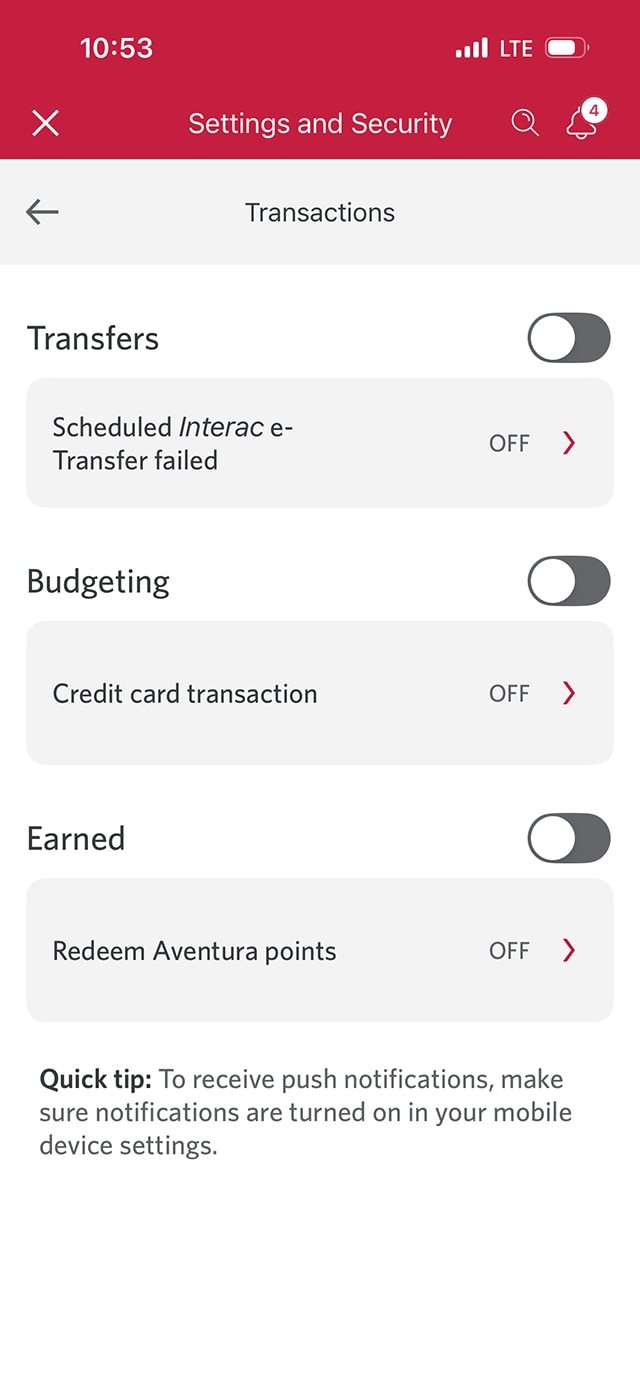
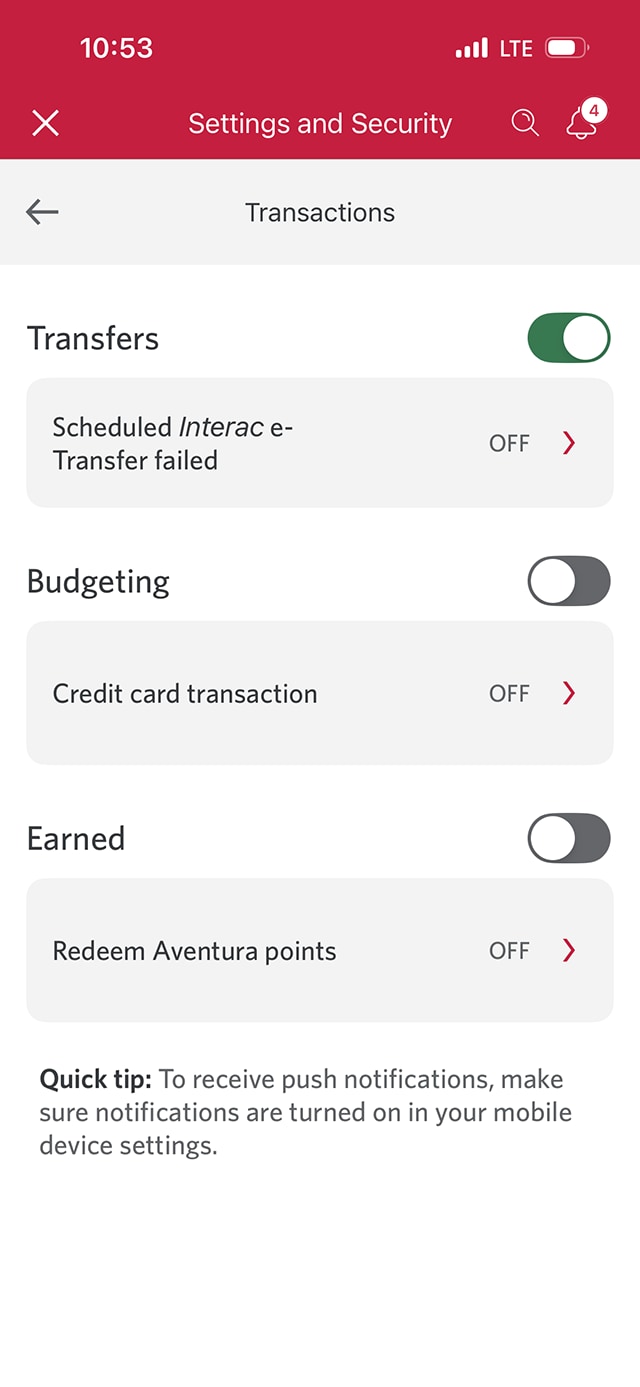
Demo screen 9: Transactions page. A pulsing animation highlights the transfers toggle button to turn alerts on or off.
Demo screen 10: Transactions page. A pulsing animation highlights the "back" button.
Demo screen 11: Manage my alerts page. A pulsing animation highlights the "Reminders" button.
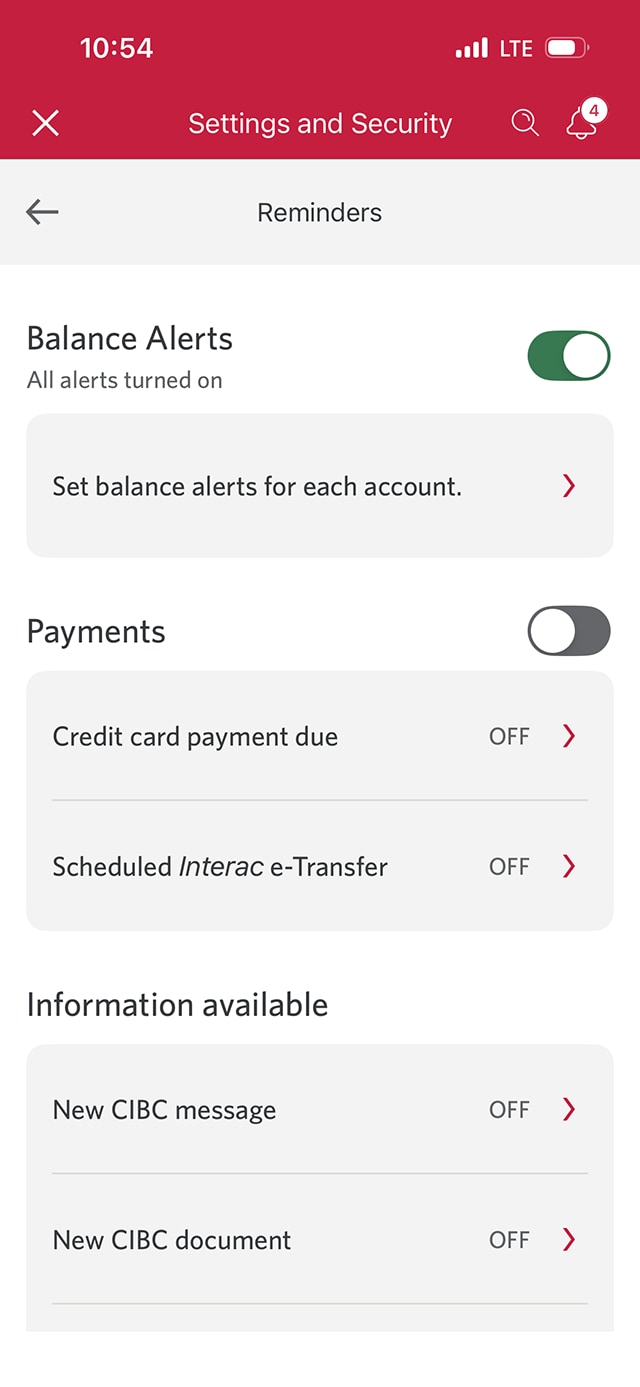
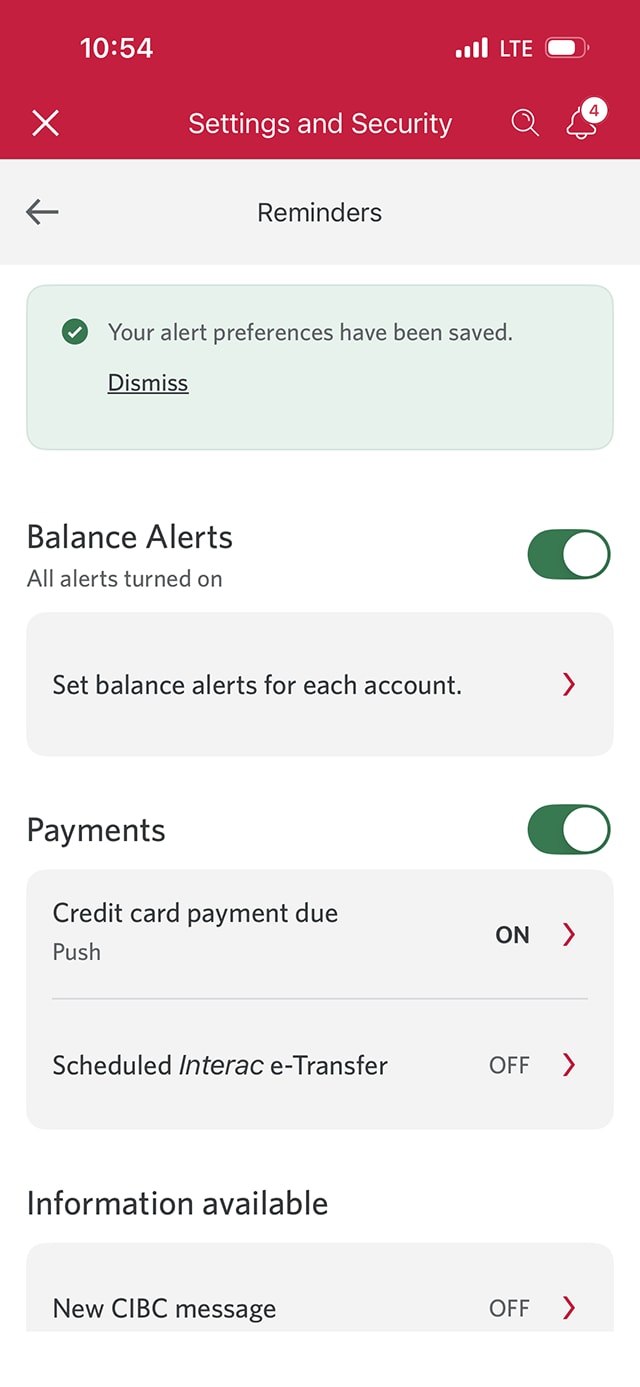
Demo screen 12: Reminders page. A pulsing animation highlights the Balance alerts toggle button to enable or disable reminders.
Demo screen 13: Reminders page with confirmation message. No pulsing animation.
Your progress 1 of

Step 1 : Let's get started on the mobile app

Select the "Sign on" button in the demo to continue.

Step 2 : Find the toolbar navigation to select "More"

On the CIBC Mobile Banking® App homepage, navigate to the toolbar at the end of the page and select the "More" icon.

Step 3 : Find the "Settings and security" option

Go to "Support and resources" and select "Settings and security".

Step 4 : Choose "Manage my alerts" from the menu options

From the menu, select "Manage my alerts".

Step 5 : Review optional fraud alerts

On the Manage my alerts page, select "Fraud prevention" to review and control which fraud alerts you receive. 

To keep your account secure, some alerts can't be turned off.

Step 6 : Turn optional fraud alerts on or off

On the Fraud prevention page, select the toggle to enable or disable optional fraud alerts.

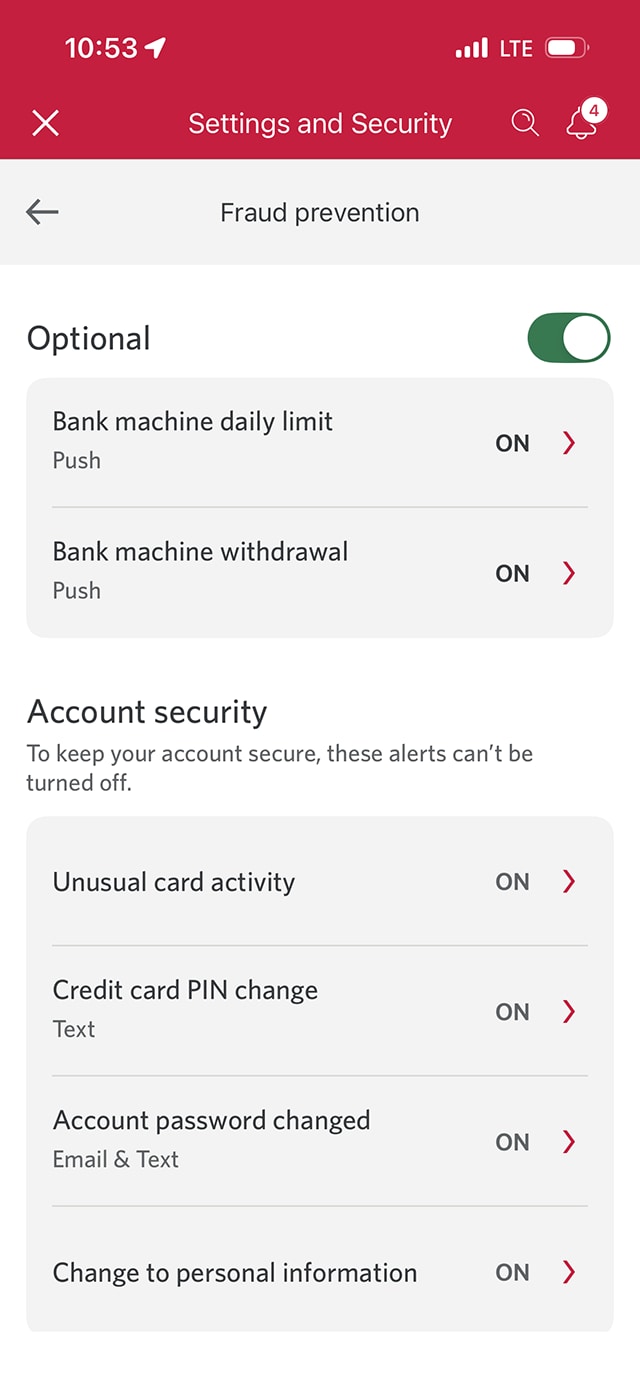
Step 7 : Confirm you've turned on optional fraud alerts

When you've turned on fraud alerts, the toggle will indicate that they're enabled. 

Use the back arrow on the Fraud prevention page to go back to the Manage my alerts page.

Step 8 : Go back to the Manage my alerts menu to set up more alerts

From the Manage my alerts page, select the "Transactions" option from the menu.

Step 9 : Turn transaction alerts on or off

On the Transactions page, review the available alerts and select the toggle for the alerts you'd like to enable.

Step 10 : Confirm you've turned on transaction alerts

When you've turned on transaction alerts, the related toggles will indicate that they're enabled.

Use the back arrow on the Transactions page to go back to the Manage my alerts page.

Step 11 : Review optional reminders

From the Manage my alerts, select the "Reminders" option from the menu.

Step 12 : Turn reminders on or off

On the Reminders page, you can choose different preferred contact methods for each reminder you enable.

For example, select "Credit card payment due." You'll be able to select the toggle for your preferred contact method, such as push notifications.

The toggles on the Reminders page will indicate which ones you've enabled.

Step 13 : Great job!

You've successfully saved your alert settings. 

There will be a message on-screen confirming your alert preferences have been updated.

Want an overview of all the steps?

For full instructions on how to set up alerts, check out the step-by-step process all in one place.

Manage your money with these real-time alerts

Balance alerts

Get notified whenever the available balance or credit in your personal account1 reaches a set threshold, so you can avoid running low on funds.

Learn more about CIBC balance alerts.

Credit card transaction alerts

Stay on top of your purchases. Get information on your credit card activity in real time without having to sign on.

Learn more about credit card transaction alerts.

CIBC Smart Balance Alert

Forgot about that payment? We’ll send you a text message so you can avoid a non-sufficient funds (NSF) fee and a declined payment.2, 3 Carrier charges may apply.

Learn more about CIBC Smart Balance Alerts.

Fraud prevention alerts

Stay informed about transactional and profile activity by setting optional alerts through online banking. Notifications can be sent via text, email and push notification.

Recommended digital banking demos

How to set up push notifications

Start demo on how to set up push notifications.

How to update your contact information

Start demo on how to update your contact information.

How to manage your credit card

Start demo on how to manage your credit card.

How to dispute a credit card transaction

Start demo on how to dispute a credit card transaction.

Get started

CIBC Online Banking®

Discover digital banking features that can help you bank easily online.
CIBC Mobile Banking® App

Stay connected to your finances on your mobile device, no matter where you are.