

How to dispute a credit card transaction
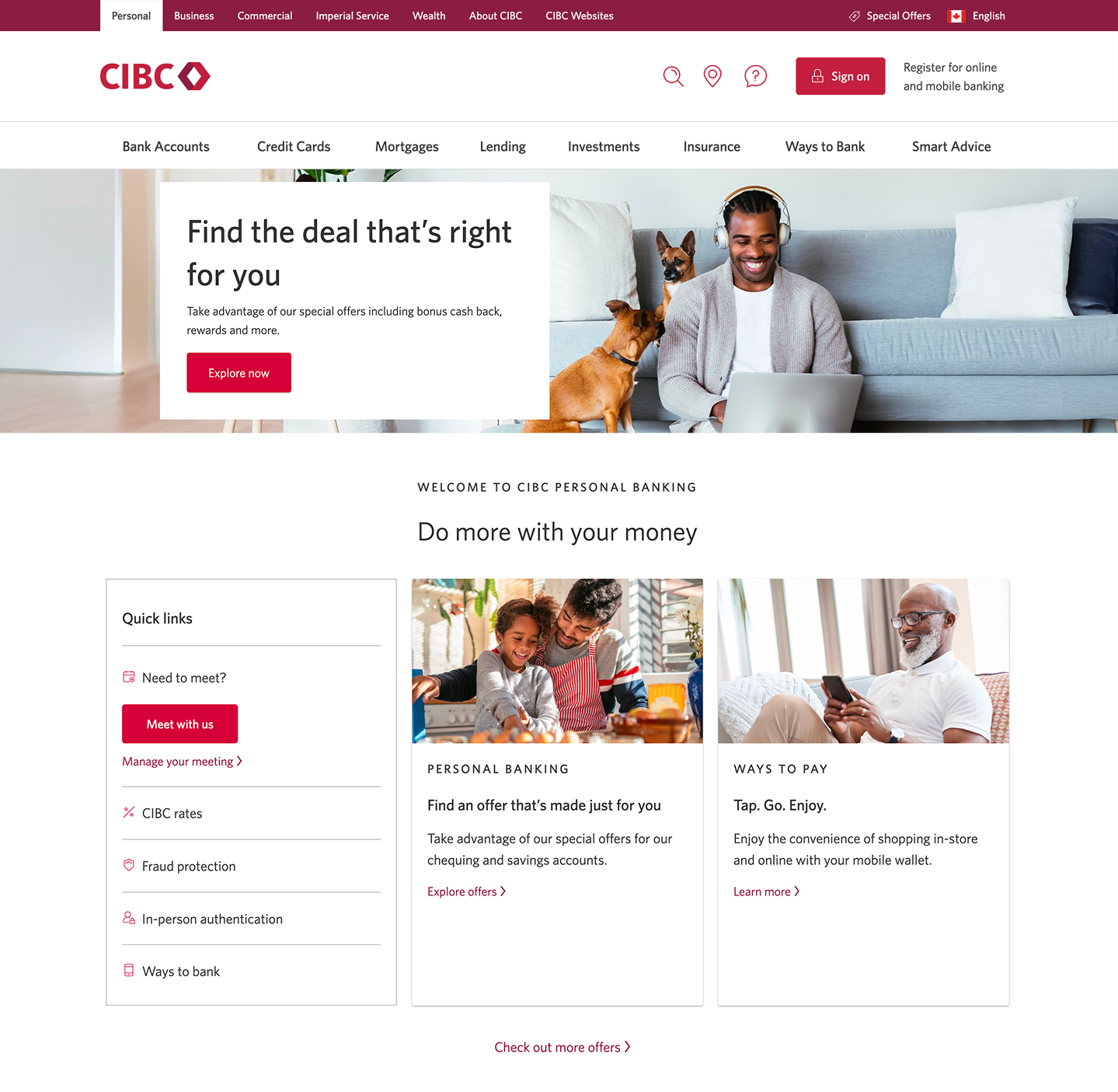



Step 1 : Let's get started on your web browser
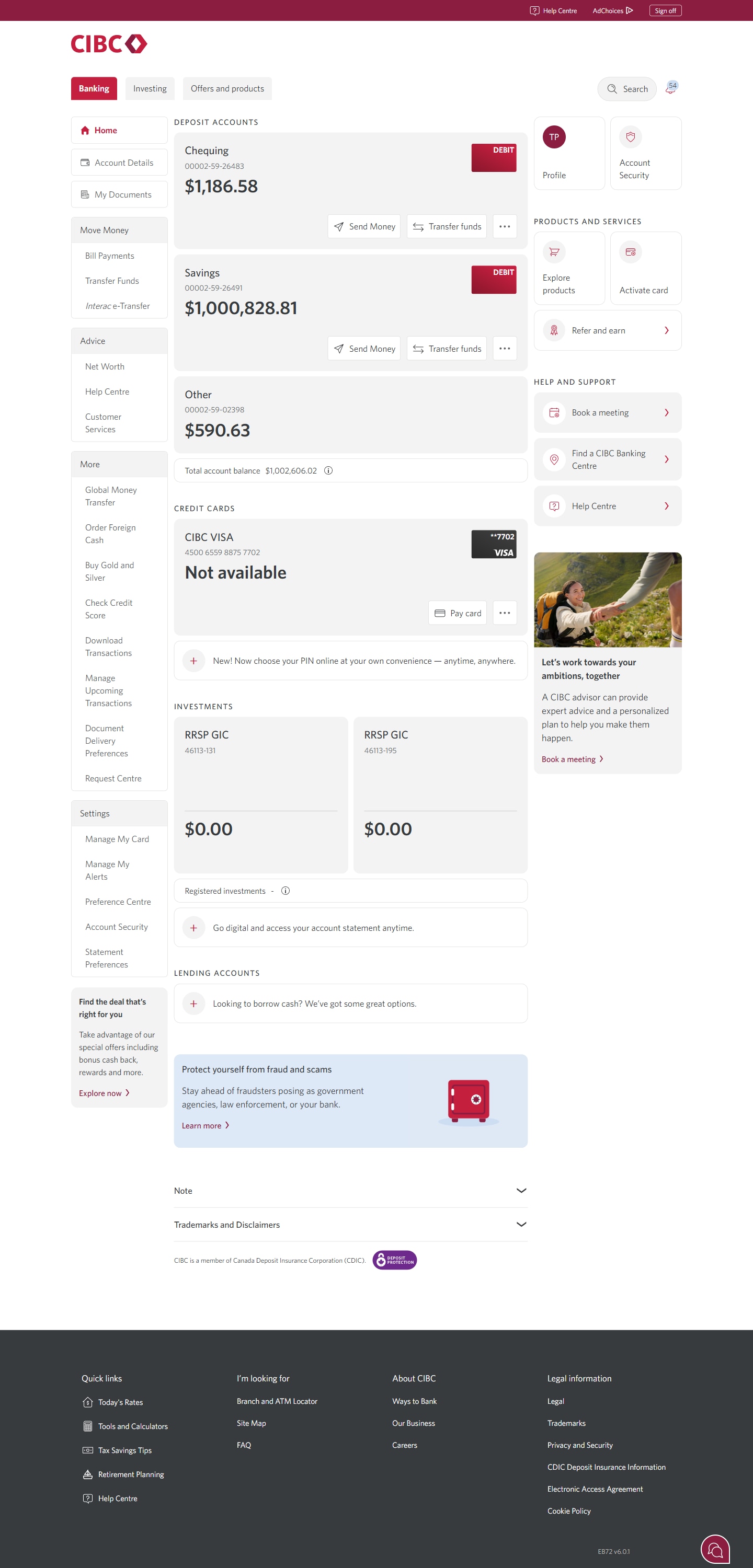
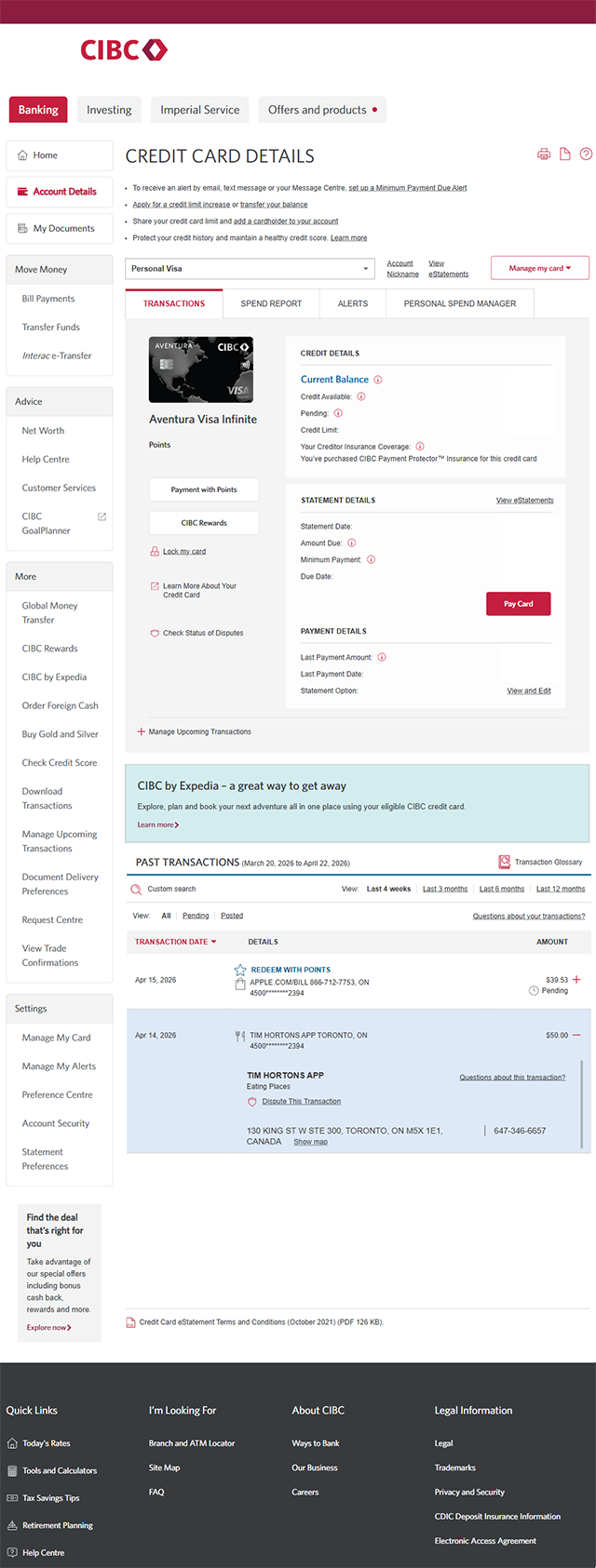
Step 2 : Select a credit card to view the transaction history
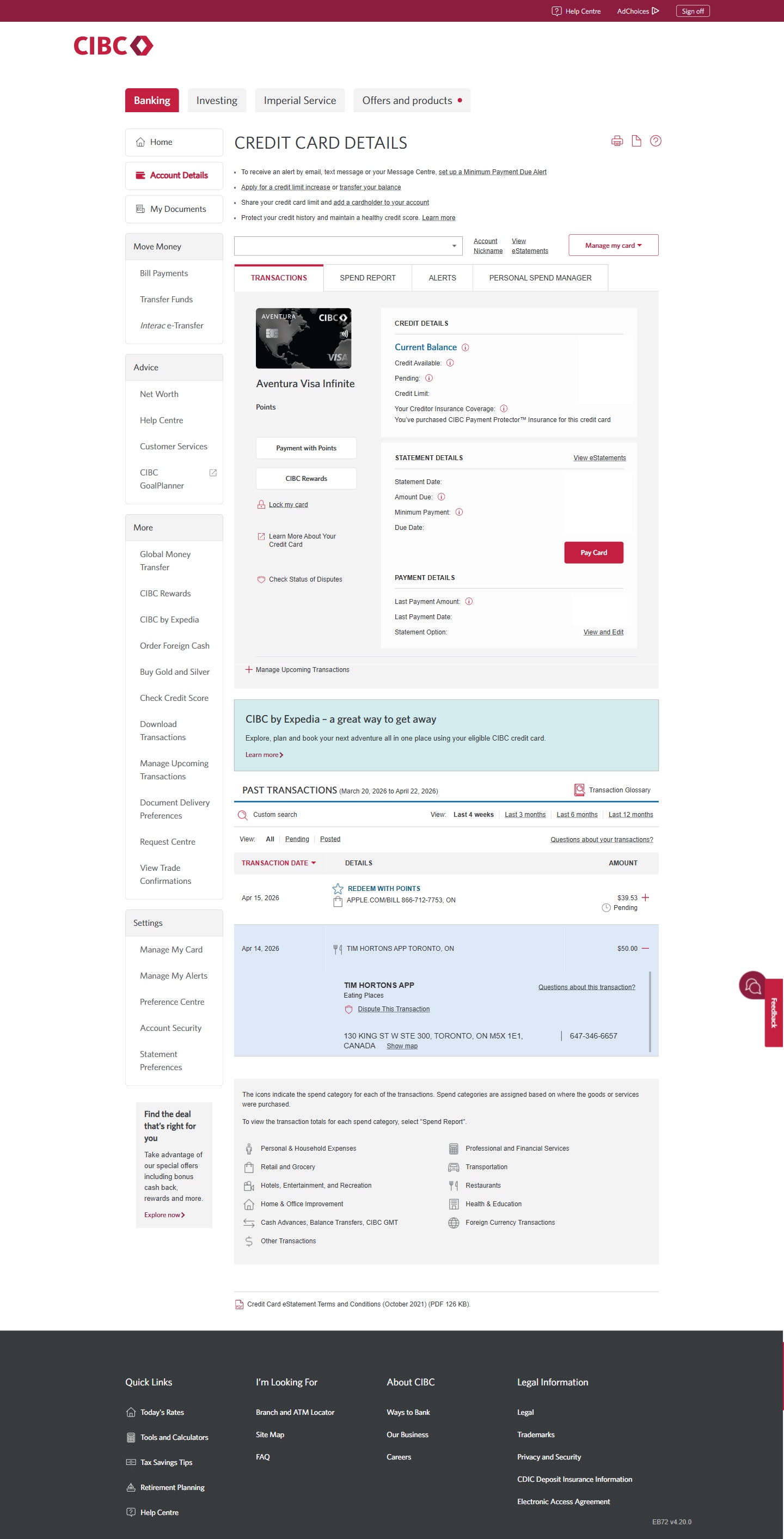
Step 3 : Select the transaction you want to dispute
To find a specific transaction, select the magnifying glass icon and search your Past Transactions by keyword, the transaction type or the date.
When you select each transaction, you can also review more information, such as the address and phone number relating to the charge.
Once you've found the transaction you want to dispute, select the link for "Dispute This Transaction".
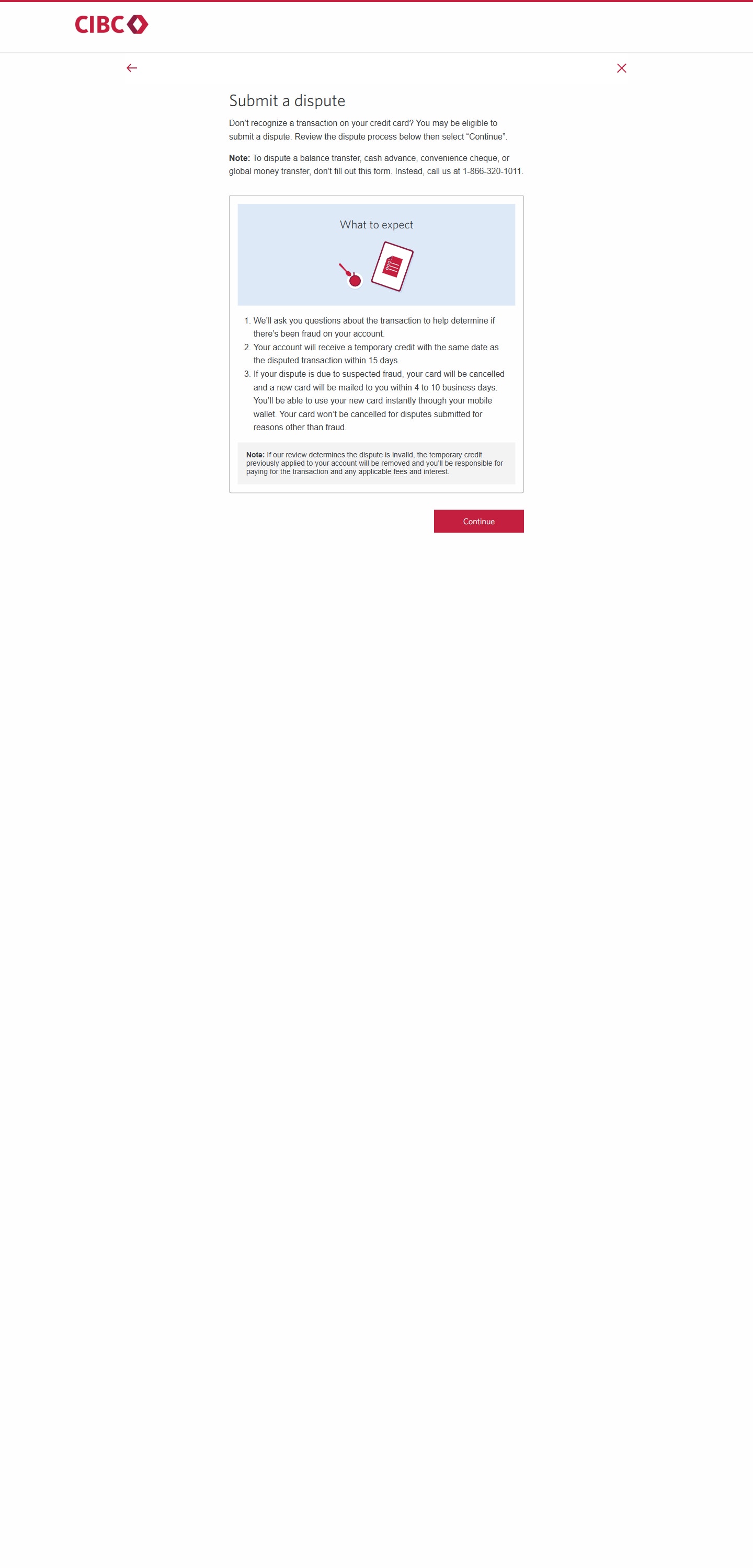
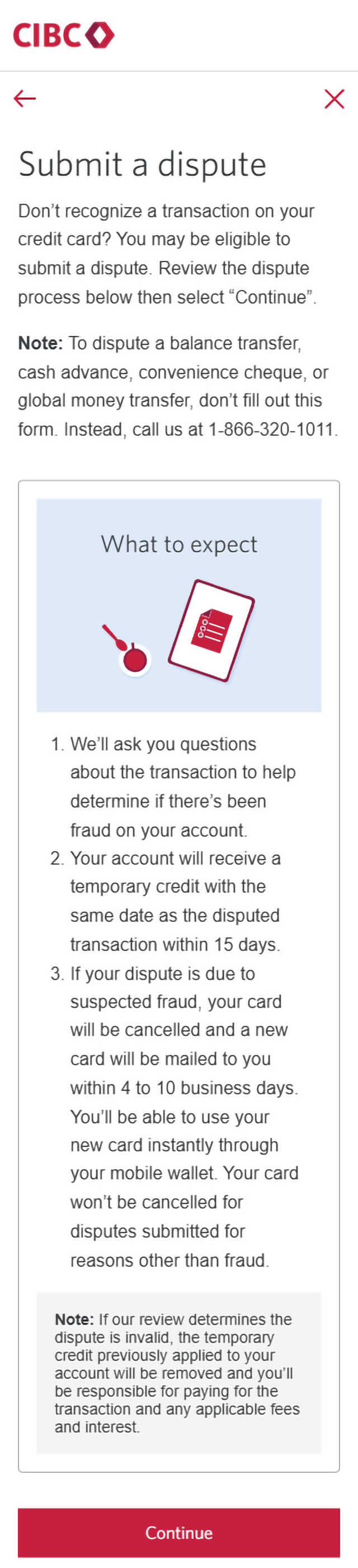
Step 4 : Submit a dispute
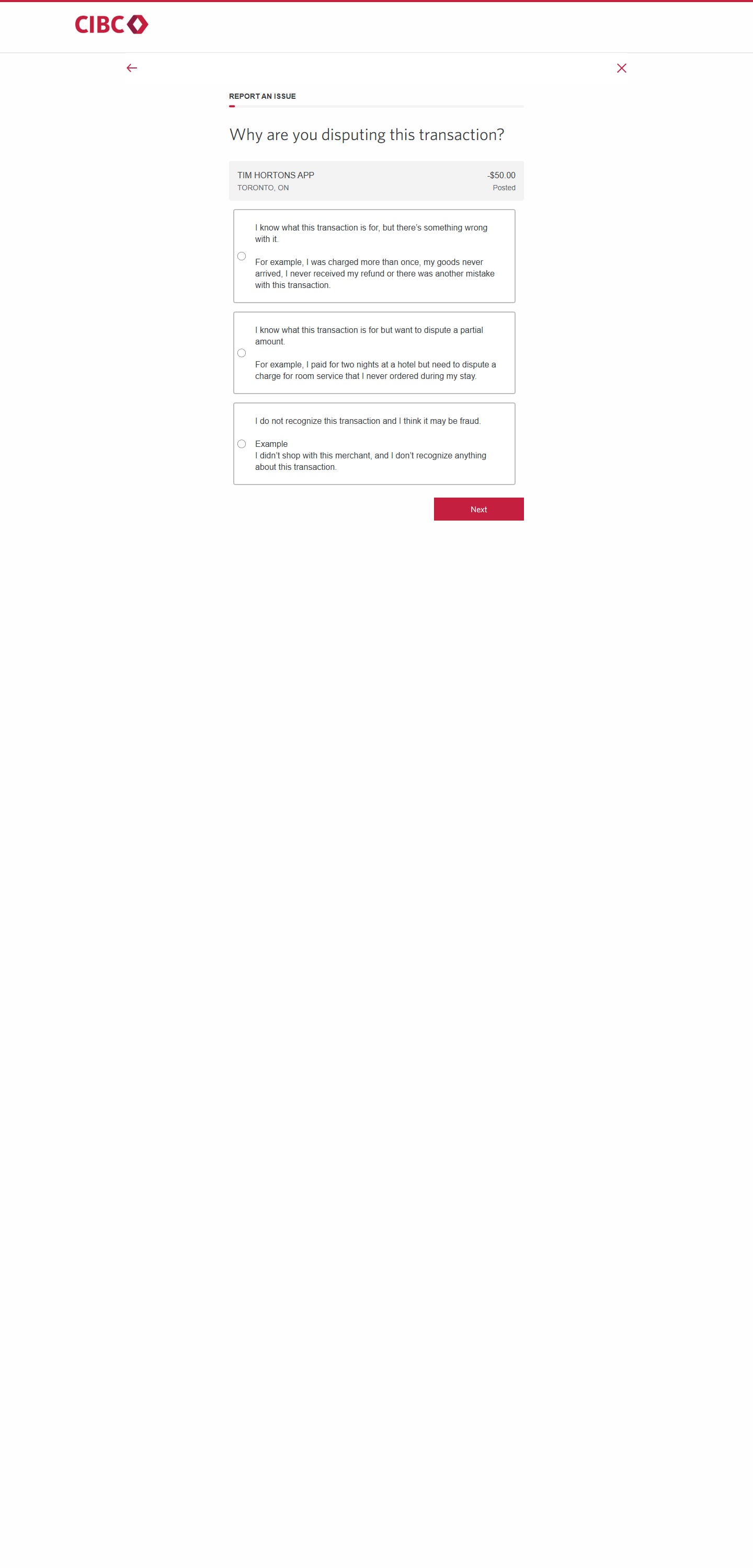
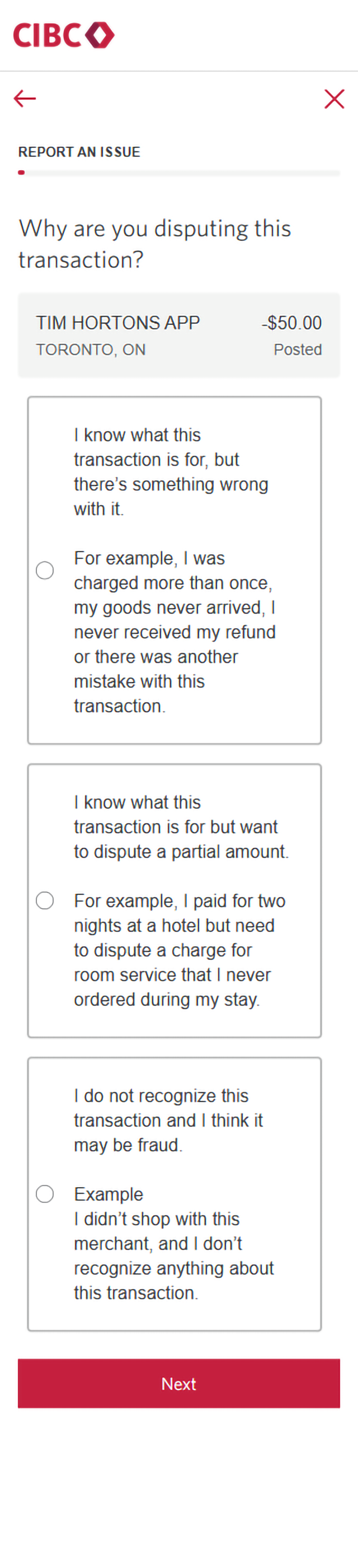
Step 5 : Choose why you're disputing the transaction
From the list of options, select the reason why you're disputing the transaction. For this demo, we'll be selecting "I do not recognize this transaction and think it may be fraud".
If your dispute is due to suspected fraud, your card will be cancelled and a new card will be mailed to you within 4 to 10 business days.
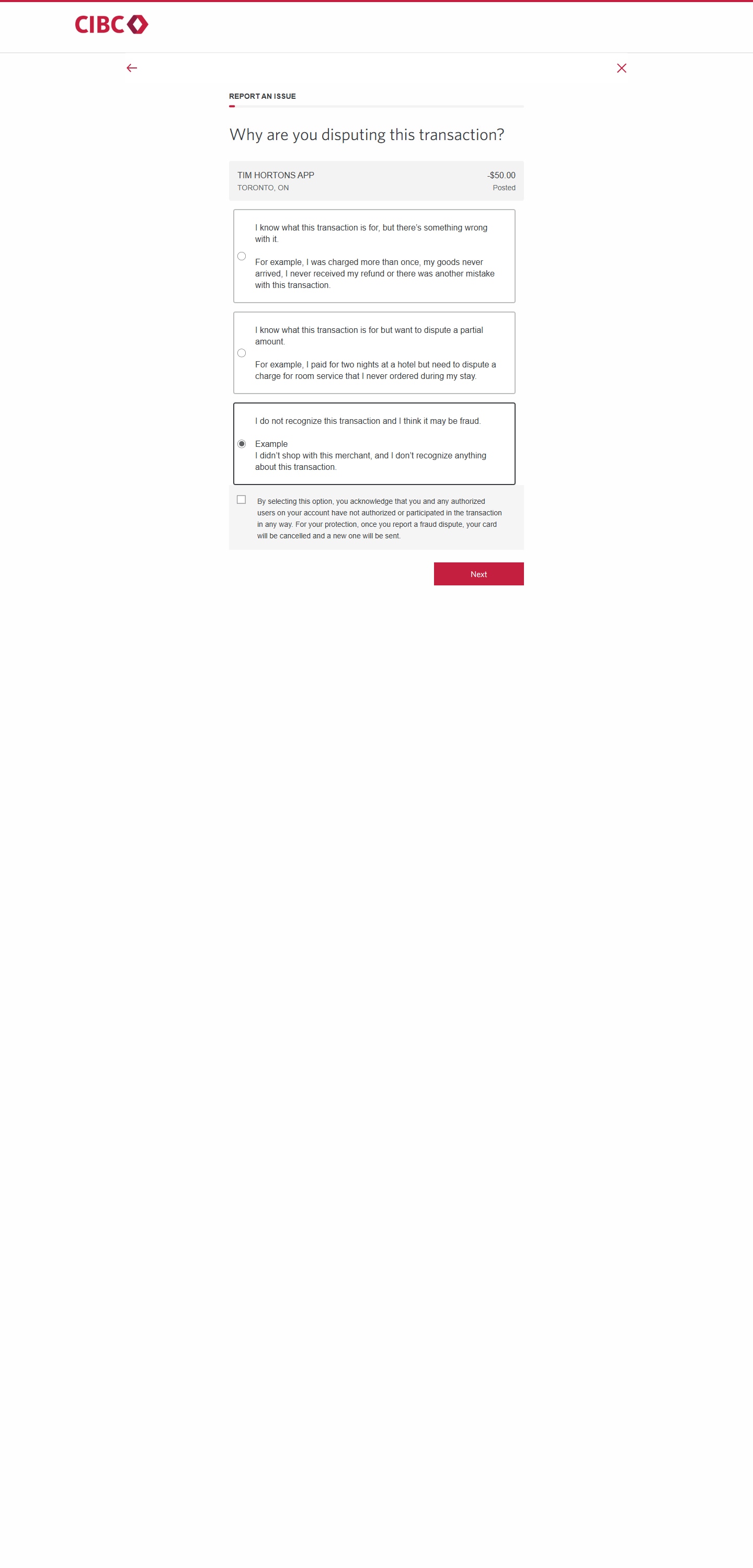
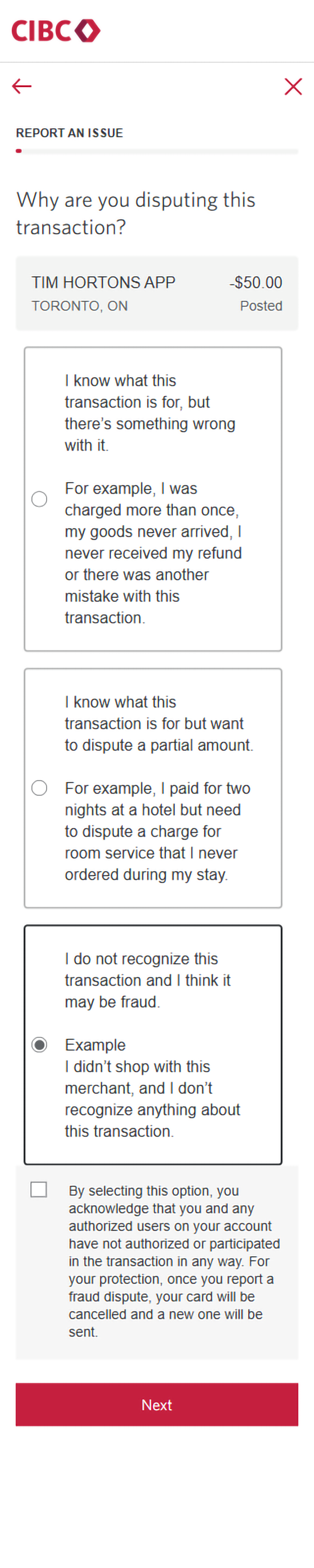
Step 6 : Acknowledge that you haven't authorized the transaction you're disputing
Select the checkbox to acknowledge that you, and any authorized users on your account, haven't authorized the transaction.
For your protection, once you report a fraud dispute, your card will be cancelled and a new one will be sent.
After checking the acknowledgement box, select the "Next" button to continue.
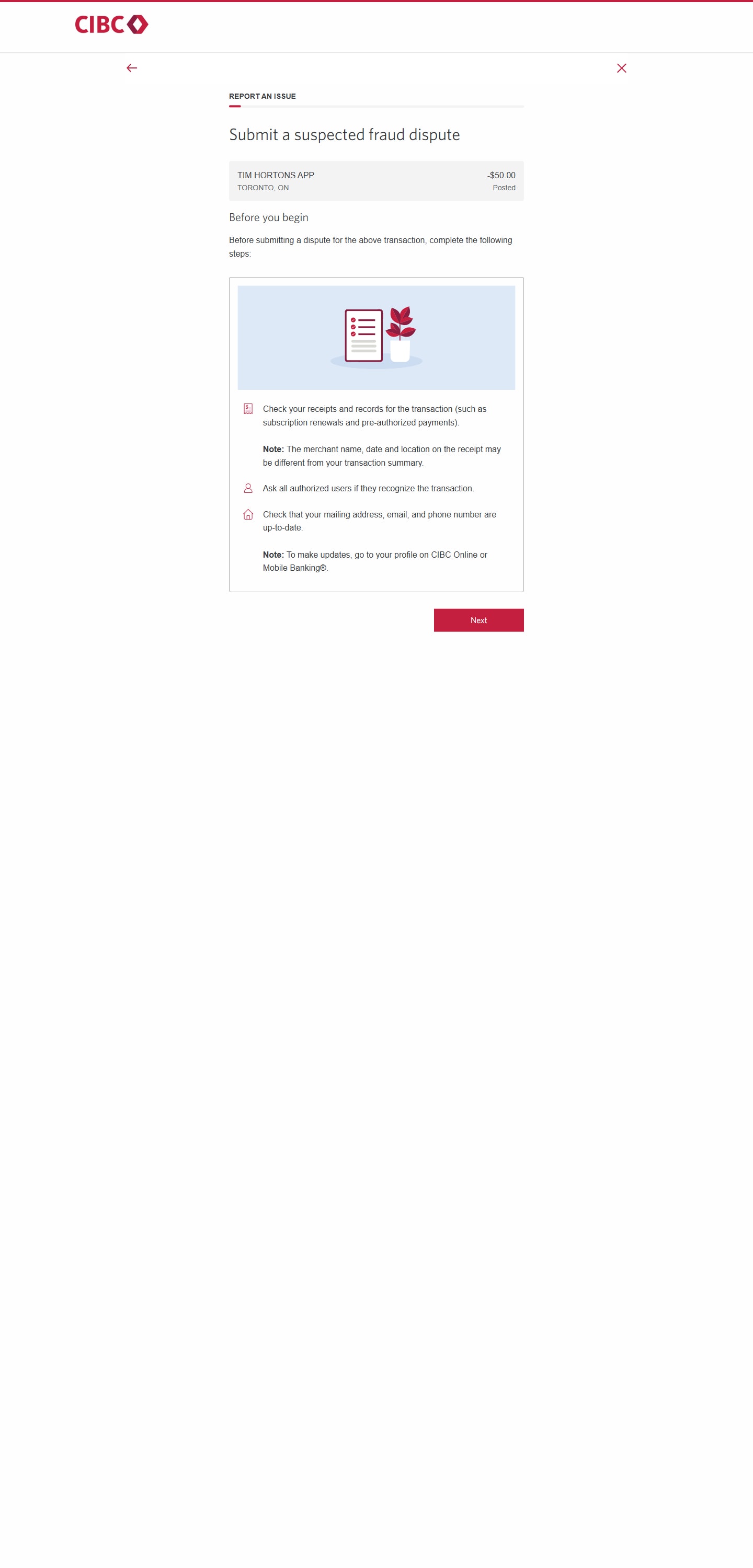
Step 7 : Check your records
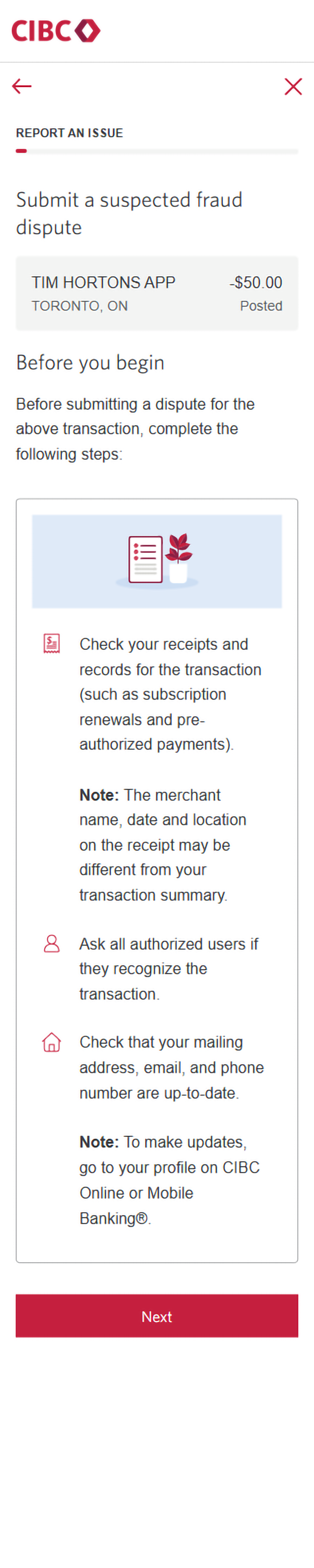
Before submitting a credit card transaction dispute, complete the following steps:
- Check your receipts and records for the transactions (such as subscription renewals and pre-authorized payments)
Note: The merchant name, date and location on the receipt may be different from your transaction summary.
- Ask all authorized users if they recognize the transaction
- Check that your mailing address, email and phone number are up to date on CIBC Online Banking
Once you have completed these steps, select the "Next" button to continue.
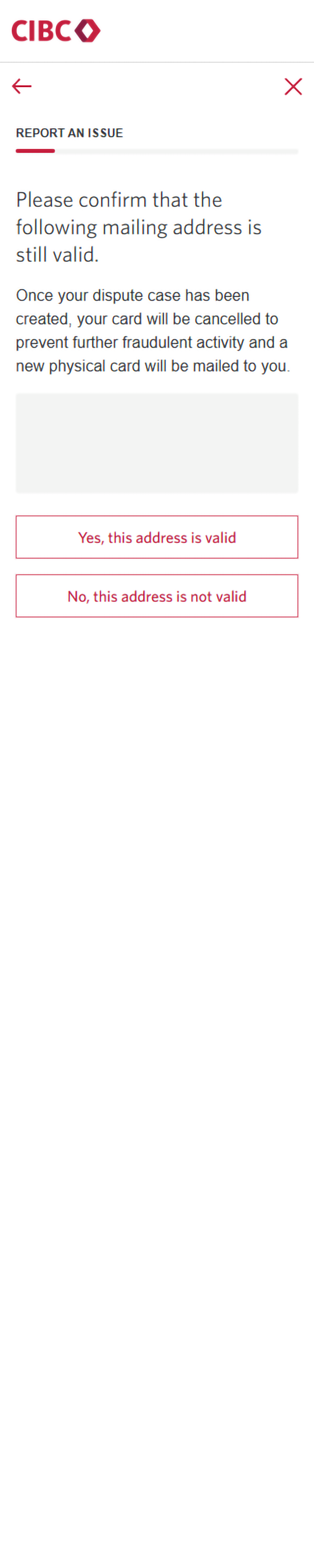
Step 8 : Confirm that your mailing address is valid
The mailing address associated with your account will be on-screen. Once your dispute case has been created, your credit card will be cancelled to prevent further fraudulent activity and a new card will be mailed to this address.
If the mailing address is correct, select "Yes, this address is valid".
If the mailing address isn't correct, select "No, this address is not valid" and follow the steps to update your account information.
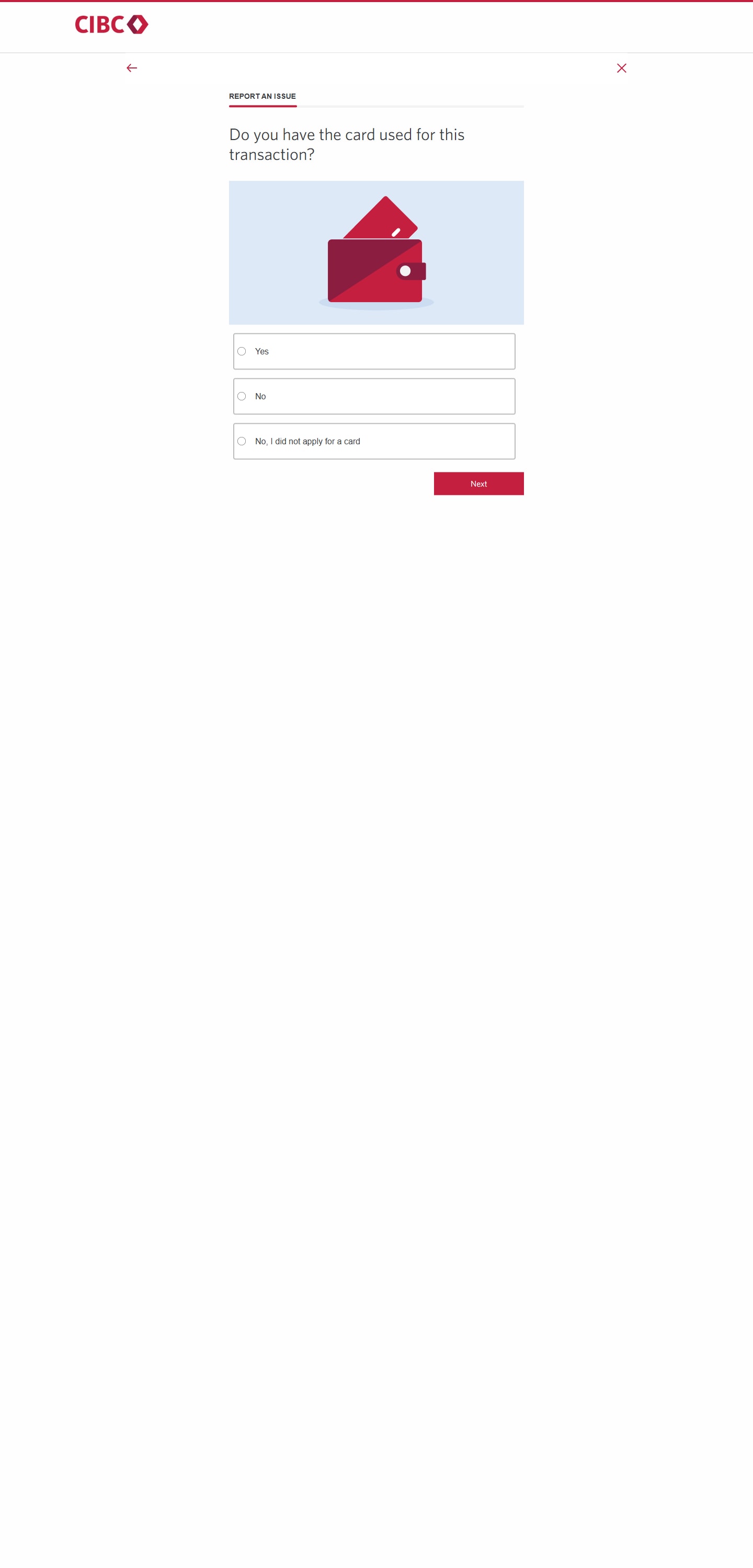
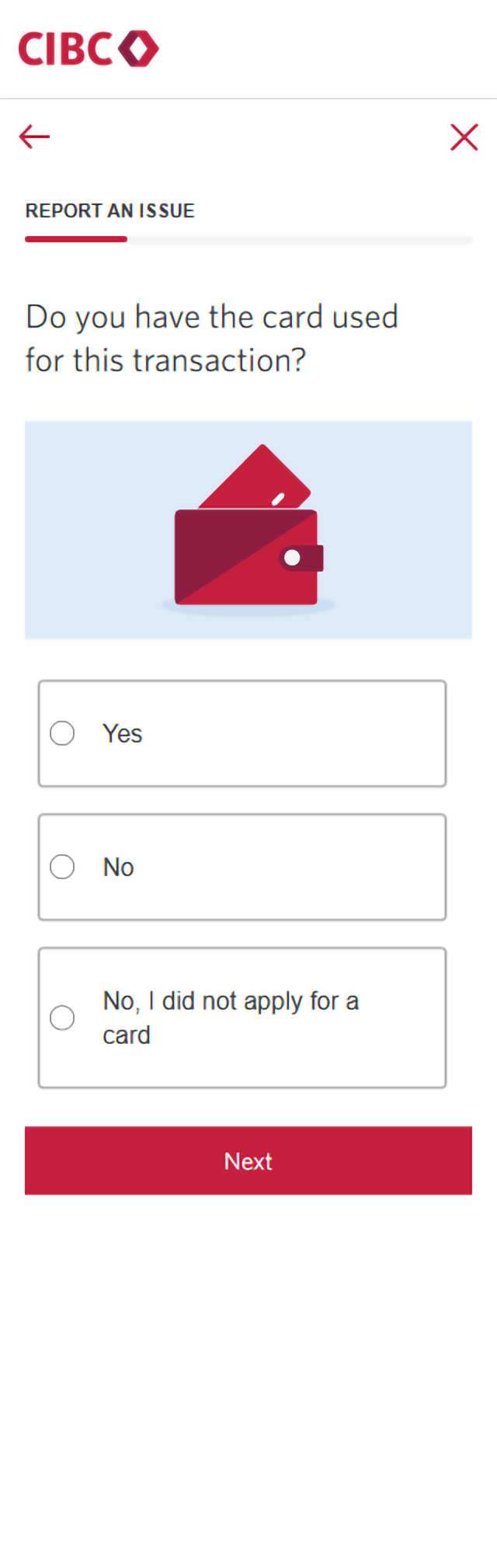
Step 9 : Confirm whether you have the card used for this transaction
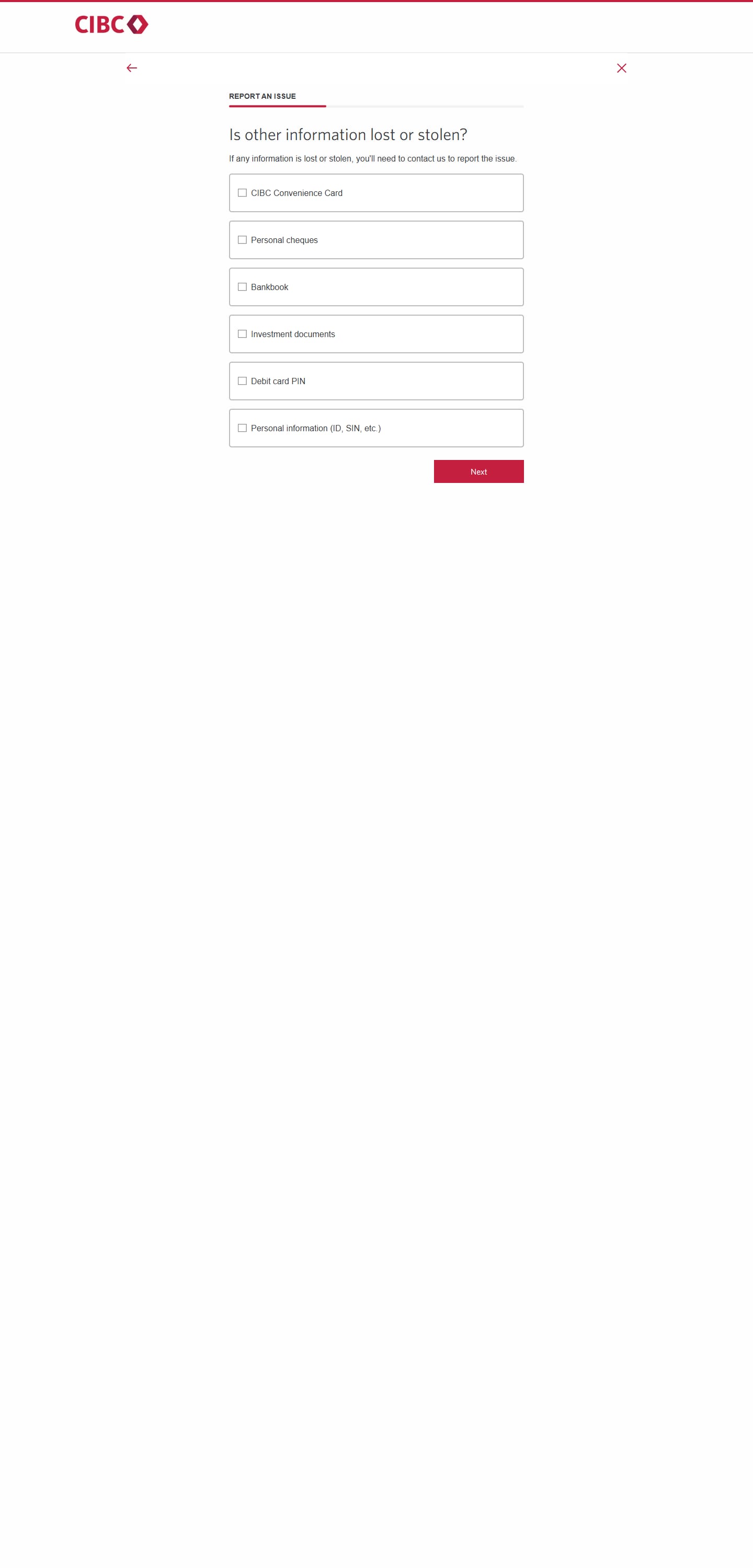
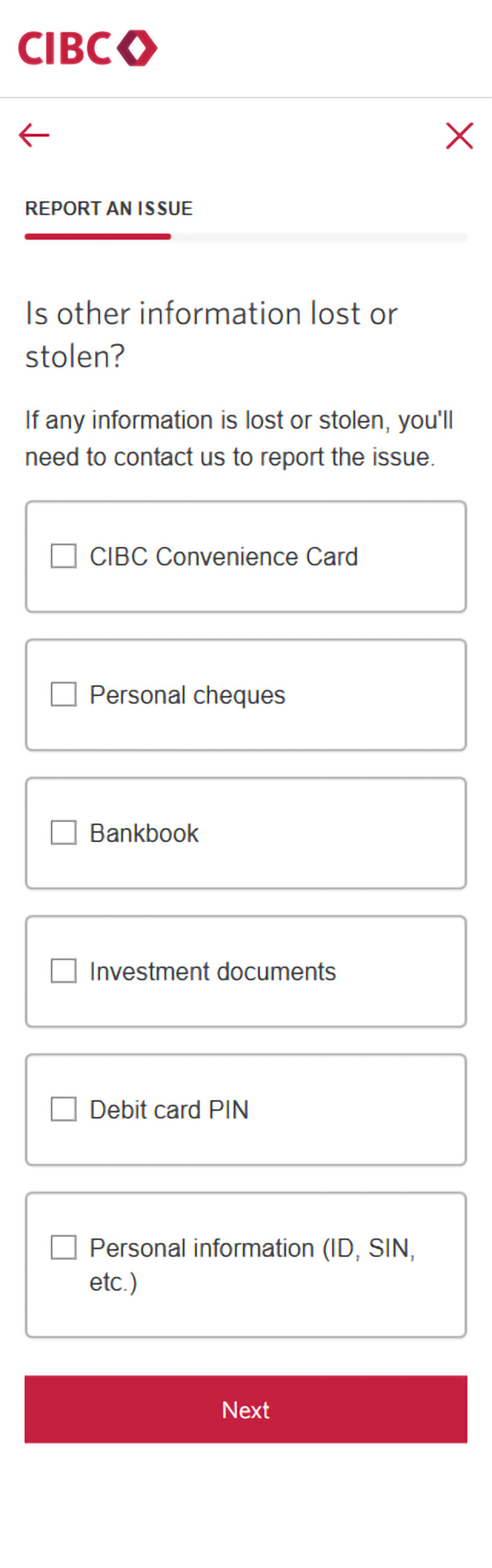
Step 10 : Confirm whether any information is lost or stolen
Select each checkbox for any items or information that you know were lost or stolen.
When you're finished, select the "Next" button to continue.
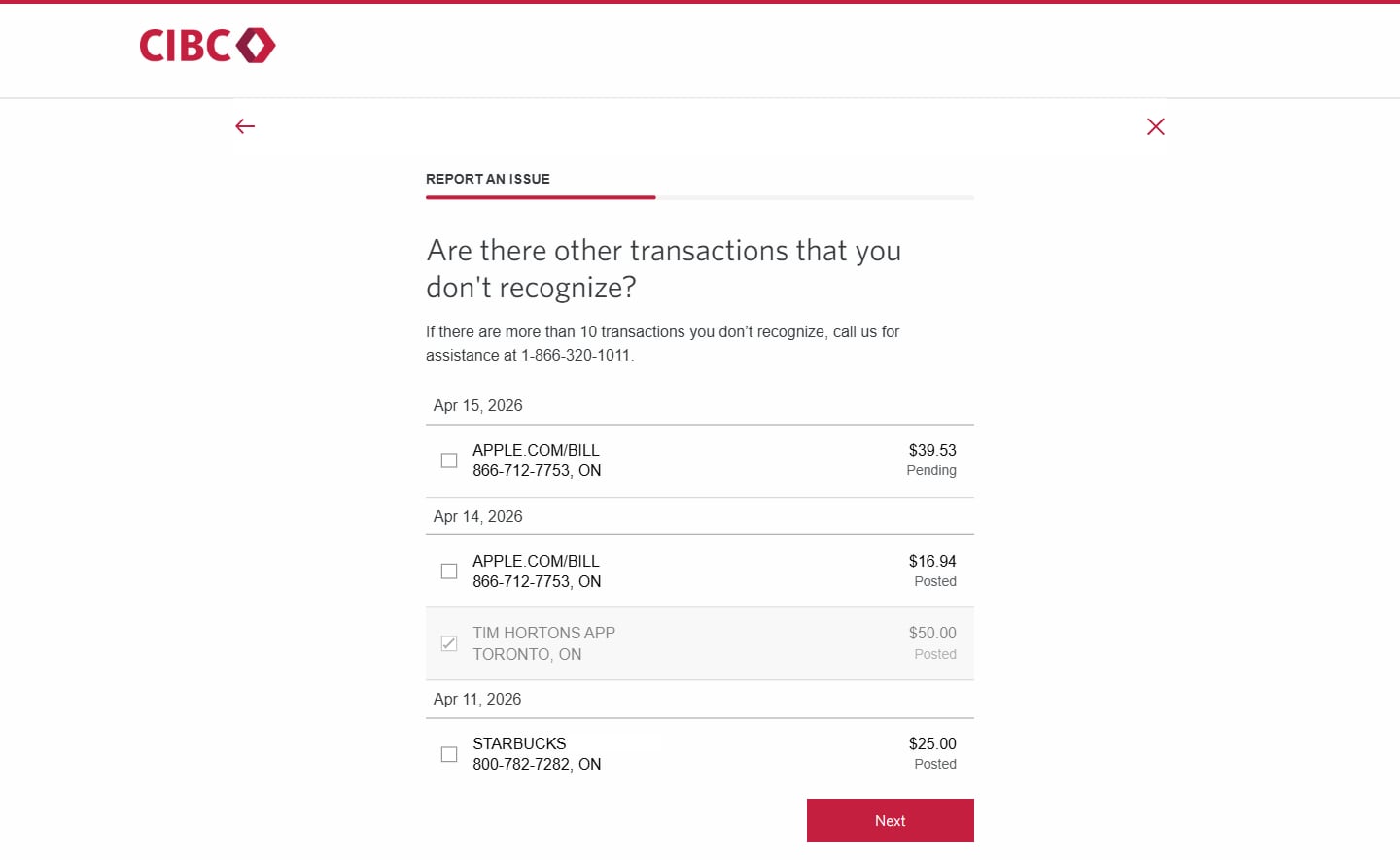
Step 11 : Review additional transactions
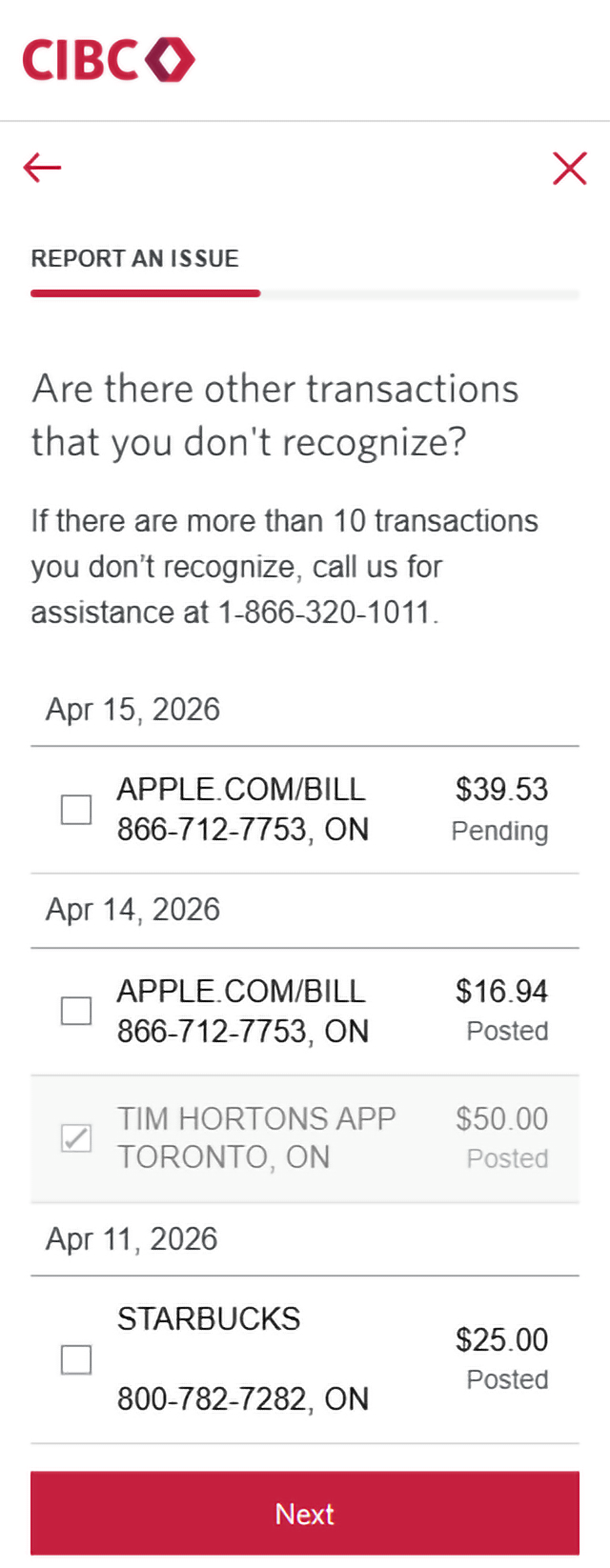
You'll be provided with several more credit card transactions that occurred on dates before and after your disputed transaction. Select any transactions that you don't recognize.
If there are more than 10 transactions you don't recognize, call CIBC for help at 1-866-320-1011.
Once you've reviewed the transactions, select the "Next" button to continue.
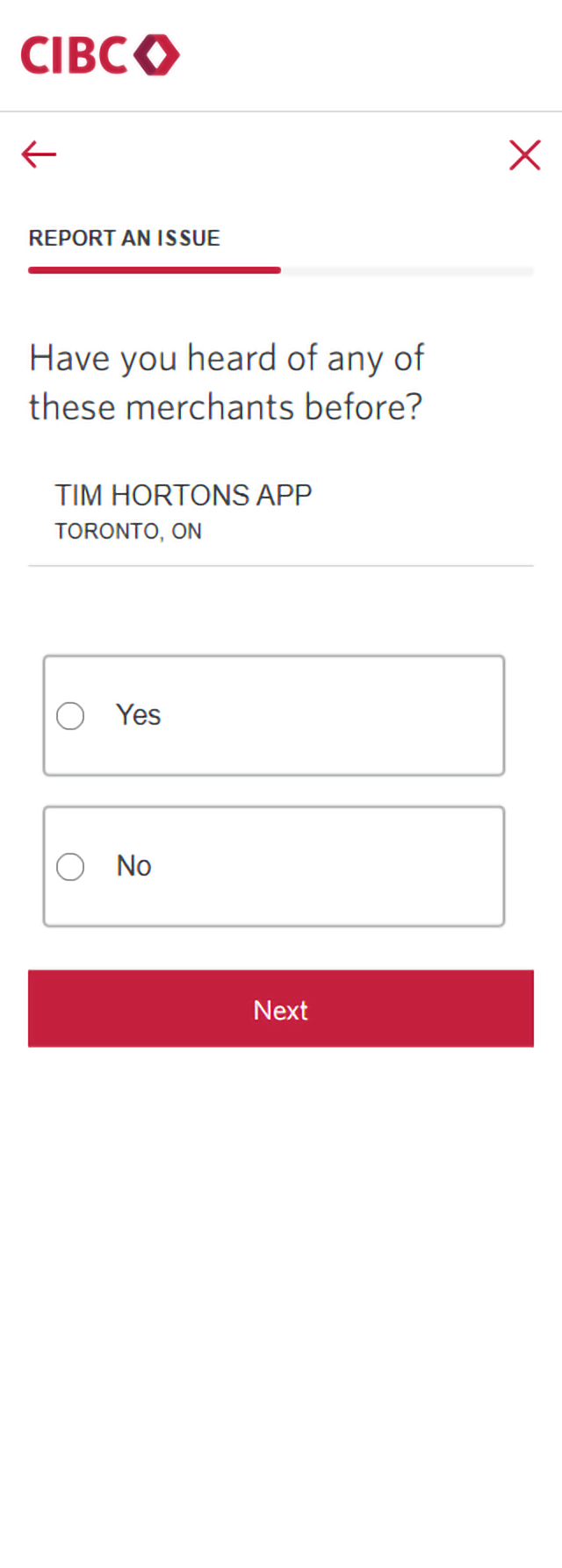
Step 12 : Confirm whether you've heard of the merchants before
Your disputed transaction, plus any transactions you don't recognized, will be detailed on-screen.
Have you heard of any of the merchants before? Answer "Yes" or "No", then select "Next" to continue.
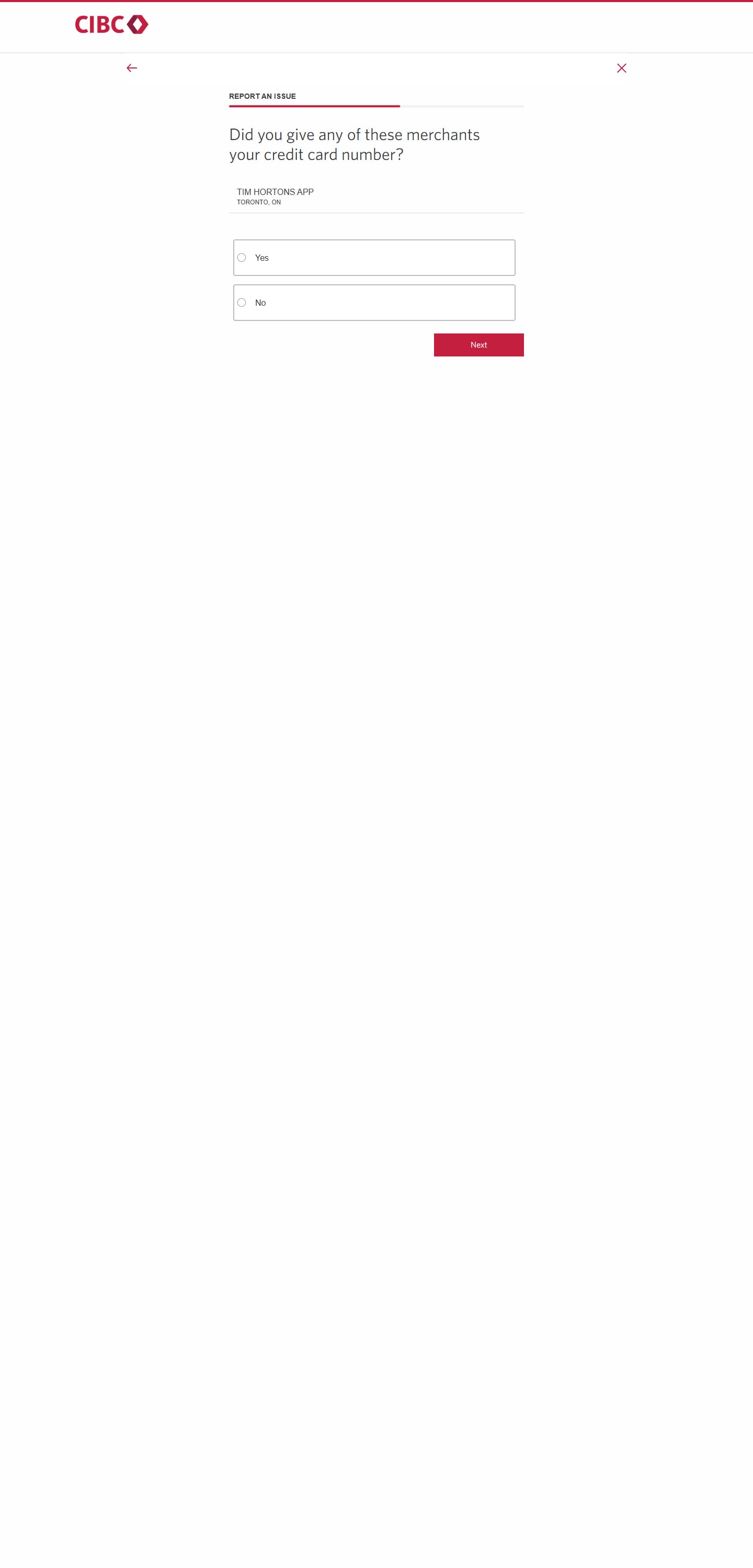
Step 13 : Confirm if you gave the merchants your credit card information
Your disputed transaction, plus any transactions you don't recognize, will be detailed on-screen.
Did you give the merchants your credit card information? Answer "Yes" or "No" and then select "Next" to continue.
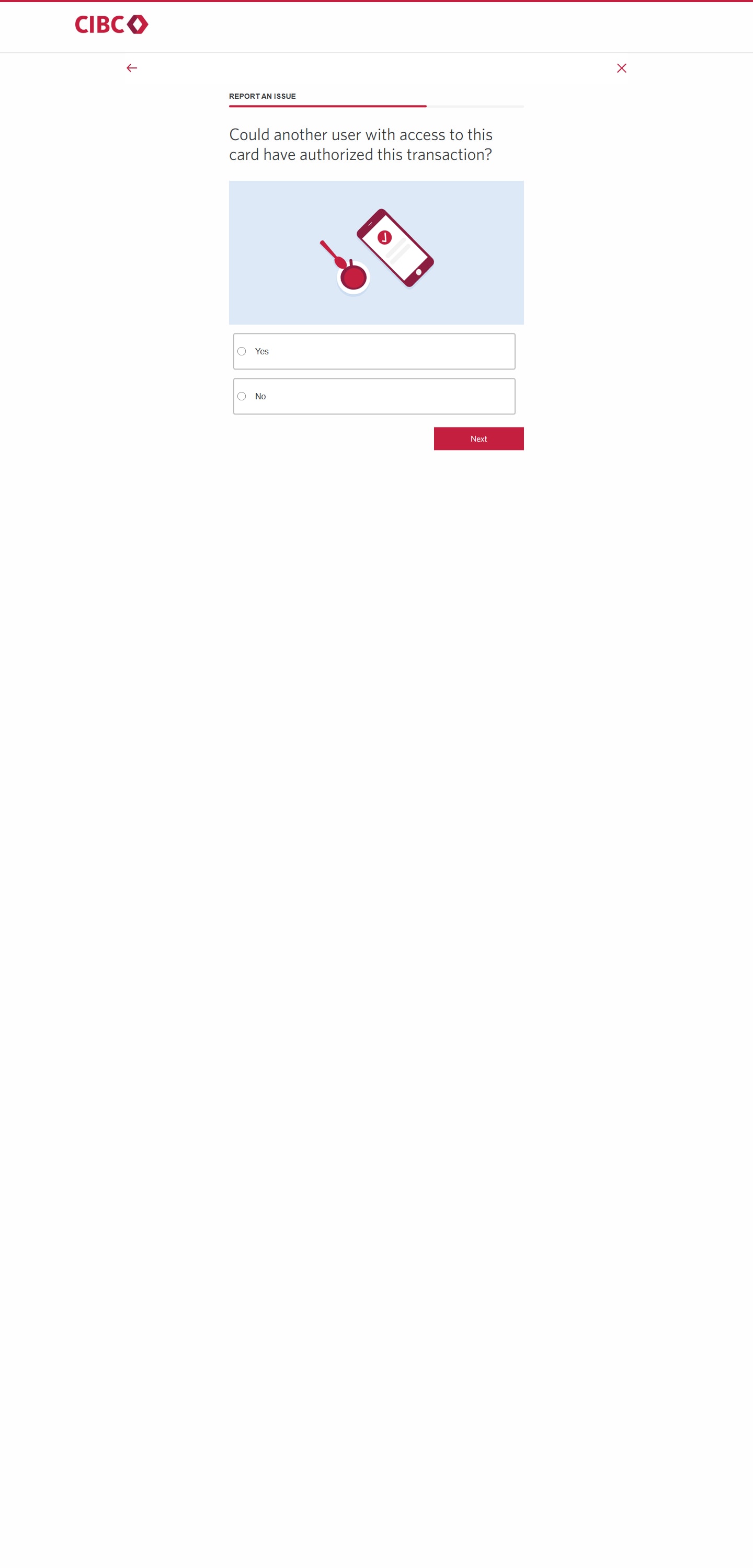
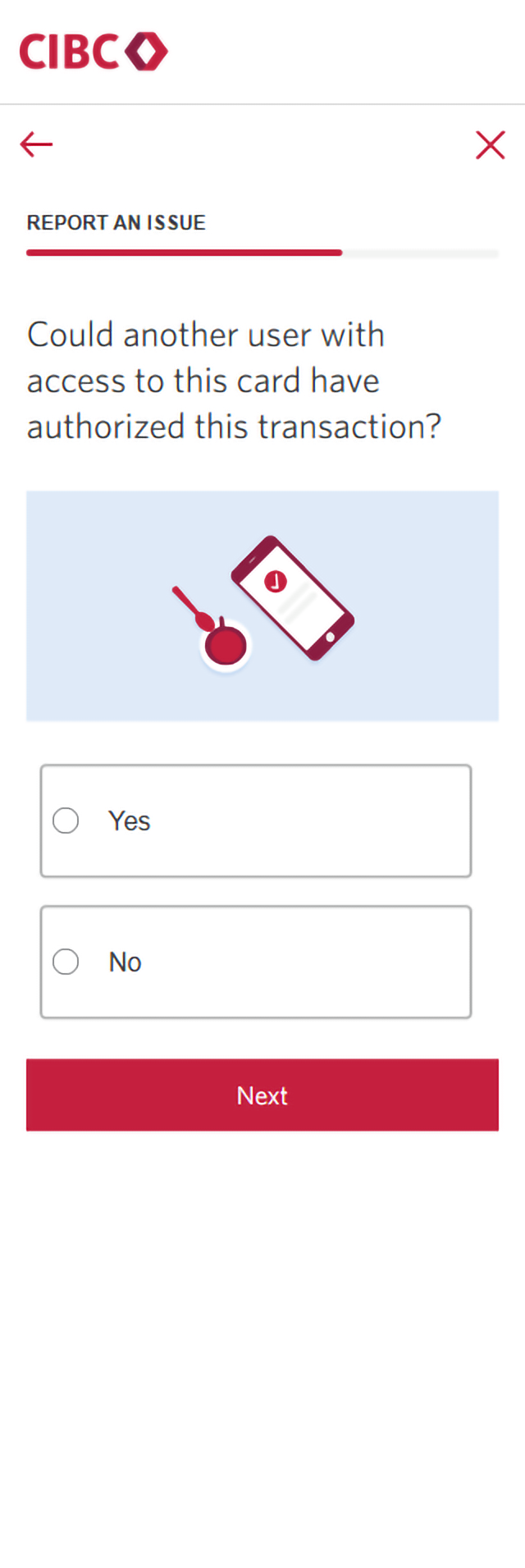
Step 14 : Confirm if another user with access to your credit card could have authorized the transactions
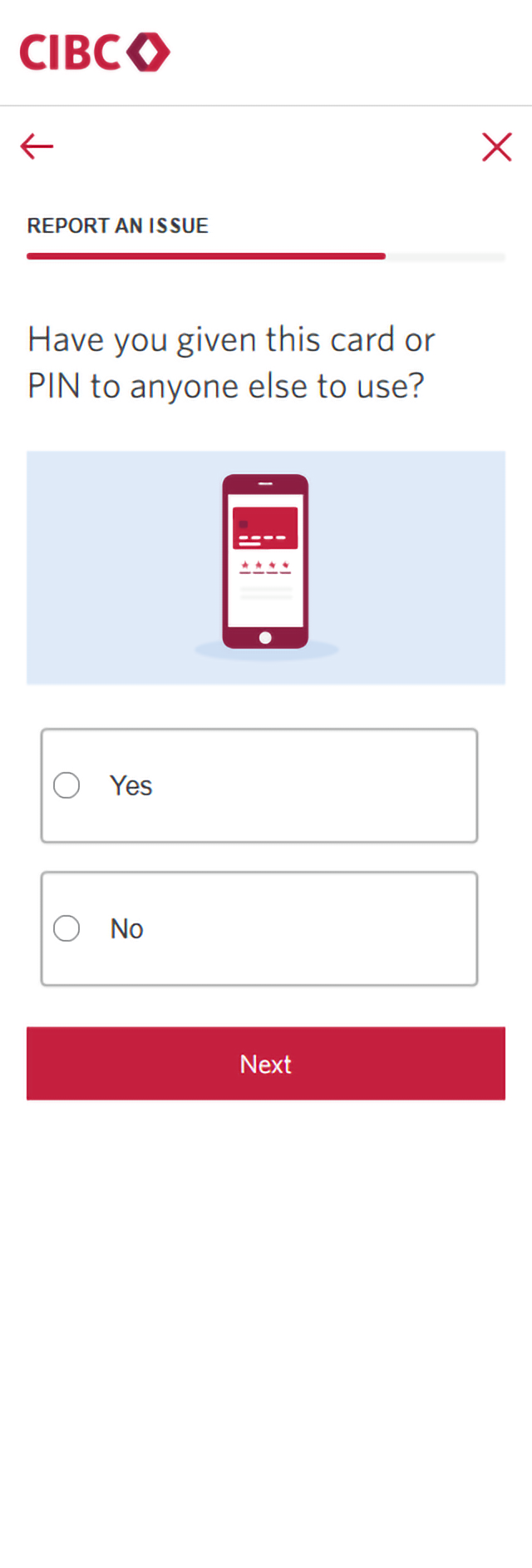
Step 15 : Confirm if you gave the credit card or PIN to anyone else to use
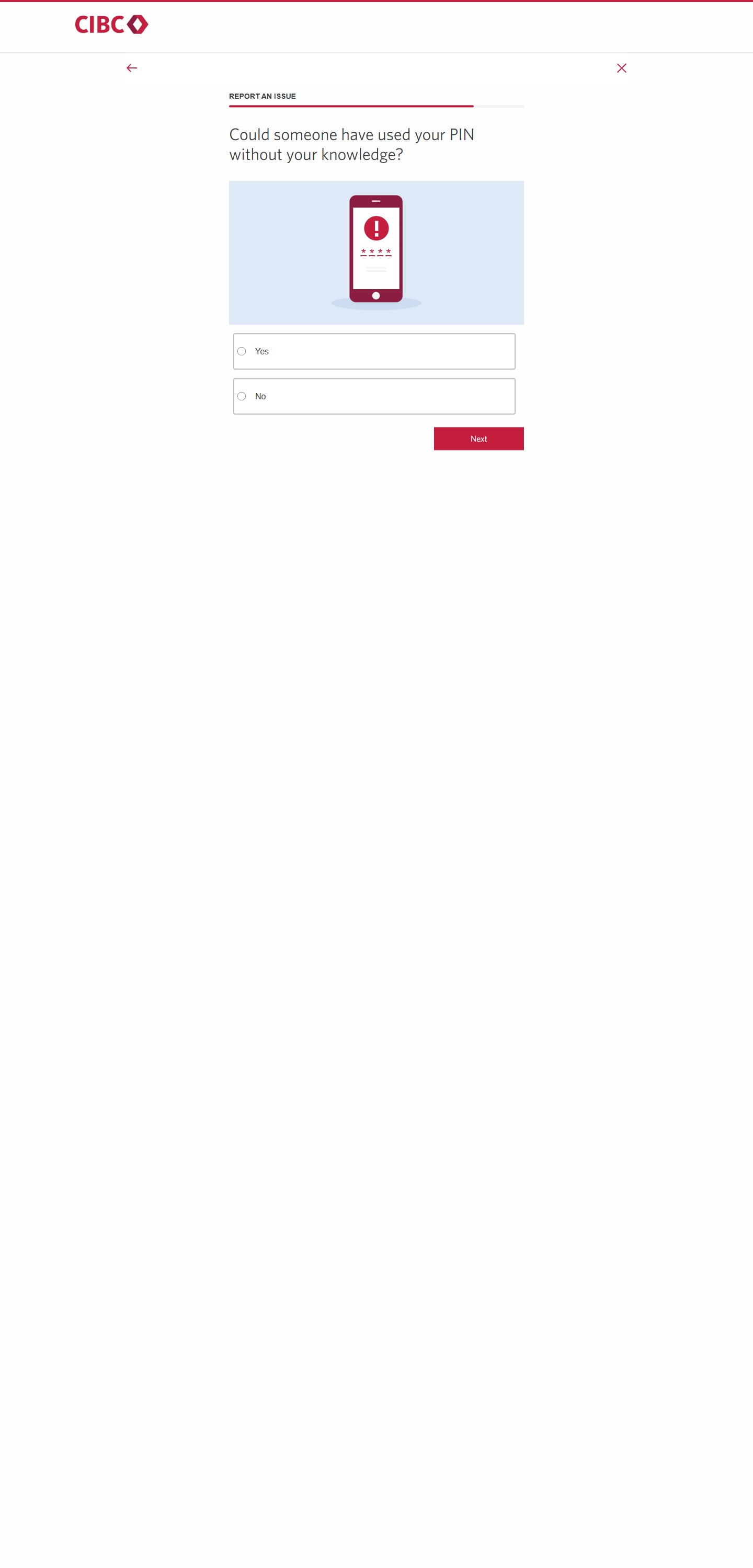
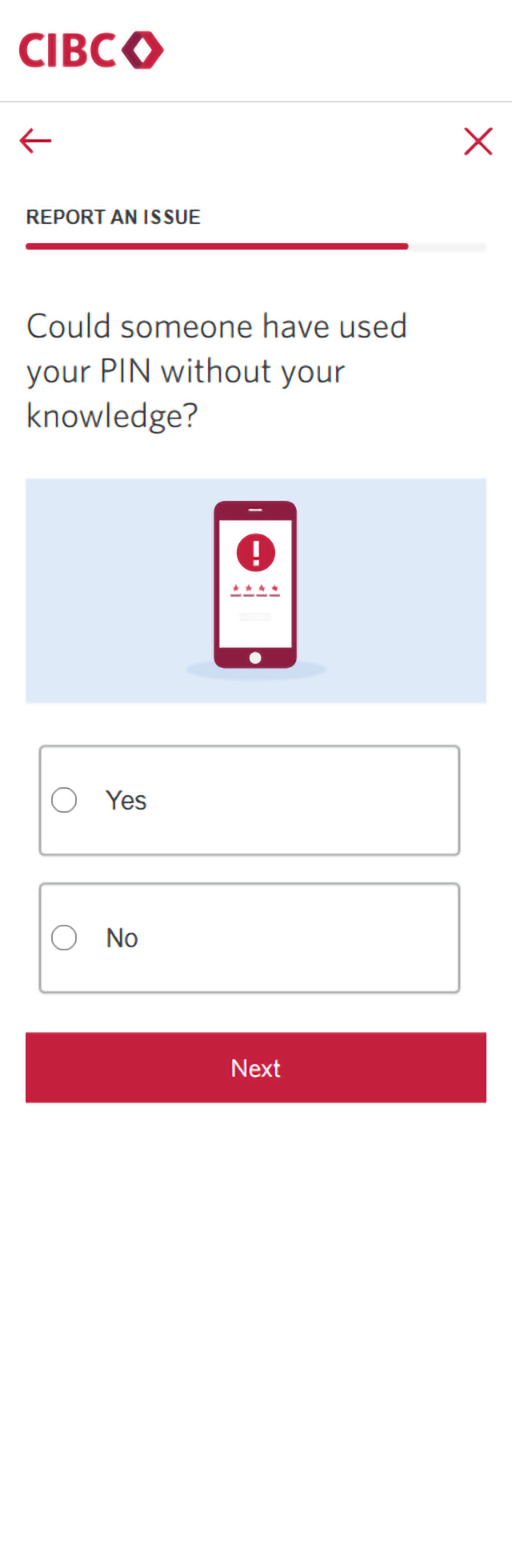
Step 16 : Confirm if someone could have used your PIN without your knowledge
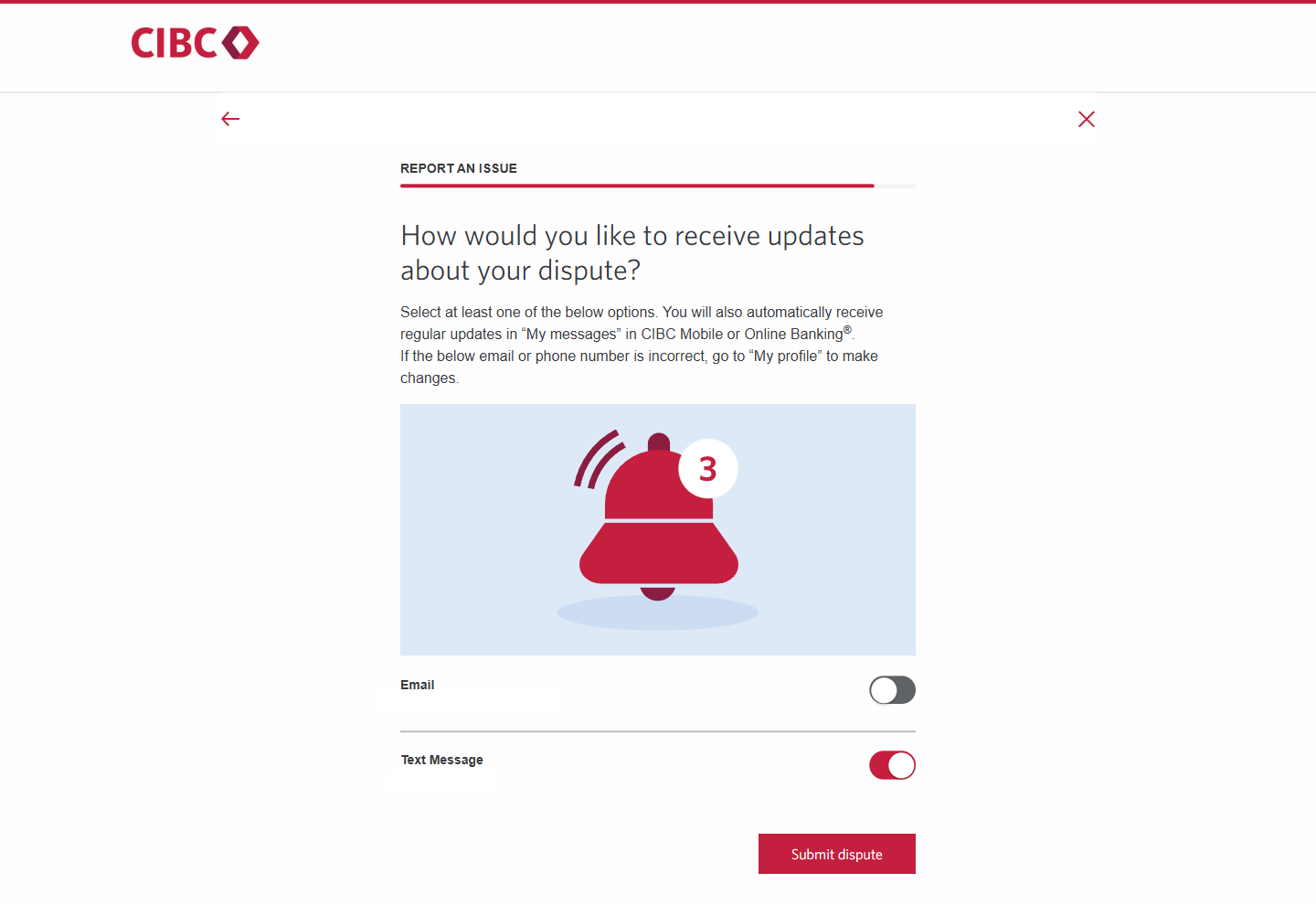
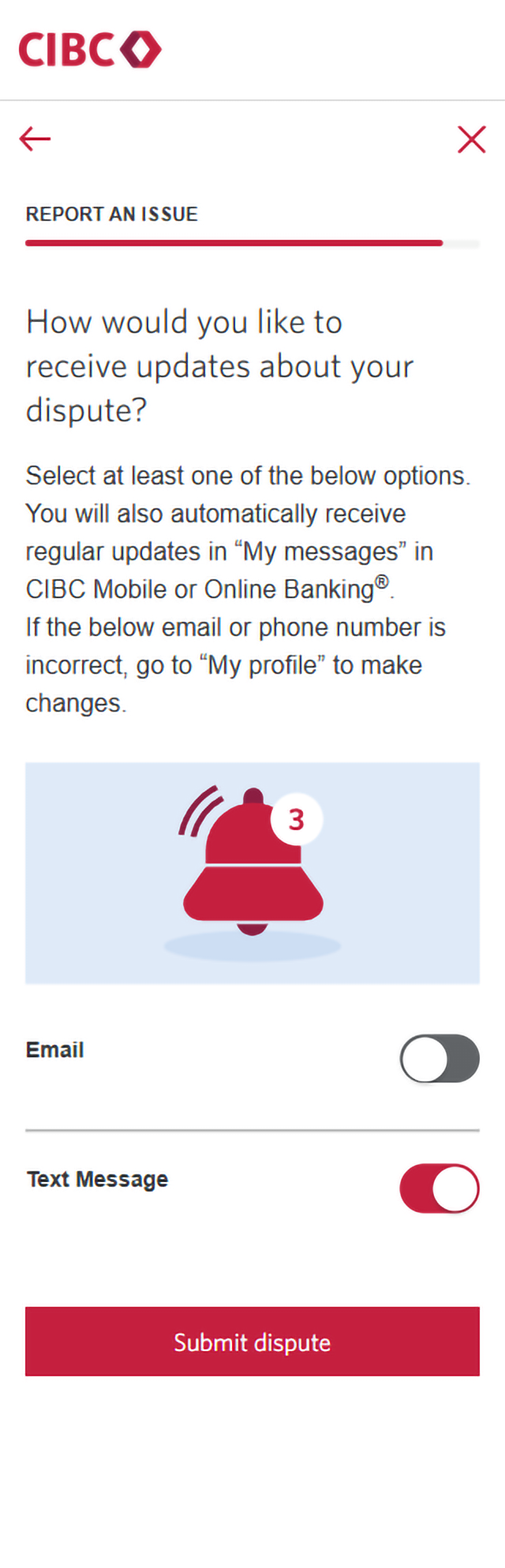
Step 17 : Choose how you'd like to receive updates about your dispute
Select whether you want to receive updates about your credit card transaction dispute by email or text message.
When you're ready, select the "Submit dispute" button to proceed.
Step 18 : Great job!
You've successfully submitted a credit card transaction dispute on CIBC Online Banking.
This form is only meant for disputing credit card transactions. If you want to dispute a balance transfer, cash advance, convenience cheque or CIBC Global Money Transfer™, call us at 1-866-320-1011.


Step 1 : Let's get started on your web browser
Step 2 : Select a credit card to view the transaction history
Step 3 : Select the transaction you want to dispute
To find a specific transaction, select the magnifying glass icon and search your Past Transactions by keyword, the transaction type or the date.
When you select each transaction, you can also review more information, such as the address and phone number relating to the charge.
Once you've found the transaction you want to dispute, select the link for "Dispute This Transaction".
Step 4 : Submit a dispute
Step 5 : Choose why you're disputing the transaction
From the list of options, select the reason why you're disputing the transaction. For this demo, we'll be selecting "I do not recognize this transaction and think it may be fraud".
If your dispute is due to suspected fraud, your card will be cancelled and a new card will be mailed to you within 4 to 10 business days.
Step 6 : Acknowledge that you haven't authorized the transaction you're disputing
Select the checkbox to acknowledge that you, and any authorized users on your account, haven't authorized the transaction.
For your protection, once you report a fraud dispute, your card will be cancelled and a new one will be sent.
After checking the acknowledgement box, select the "Next" button to continue.
Step 7 : Check your records
Before submitting a credit card transaction dispute, complete the following steps:
- Check your receipts and records for the transactions (such as subscription renewals and pre-authorized payments)
Note: The merchant name, date and location on the receipt may be different from your transaction summary.
- Ask all authorized users if they recognize the transaction
- Check that your mailing address, email and phone number are up to date on CIBC Online Banking
Once you have completed these steps, select the "Next" button to continue.
Step 8 : Confirm that your mailing address is valid
The mailing address associated with your account will be on-screen. Once your dispute case has been created, your credit card will be cancelled to prevent further fraudulent activity and a new card will be mailed to this address.
If the mailing address is correct, select "Yes, this address is valid".
If the mailing address isn't correct, select "No, this address is not valid" and follow the steps to update your account information.
Step 9 : Confirm whether you have the card used for this transaction
Step 10 : Confirm whether any information is lost or stolen
Select each checkbox for any items or information that you know were lost or stolen.
When you're finished, select the "Next" button to continue.
Step 11 : Review additional transactions
You'll be provided with several more credit card transactions that occurred on dates before and after your disputed transaction. Select any transactions that you don't recognize.
If there are more than 10 transactions you don't recognize, call CIBC for help at 1-866-320-1011.
Once you've reviewed the transactions, select the "Next" button to continue.
Step 12 : Confirm whether you've heard of the merchants before
Your disputed transaction, plus any transactions you don't recognized, will be detailed on-screen.
Have you heard of any of the merchants before? Answer "Yes" or "No", then select "Next" to continue.
Step 13 : Confirm if you gave the merchants your credit card information
Your disputed transaction, plus any transactions you don't recognize, will be detailed on-screen.
Did you give the merchants your credit card information? Answer "Yes" or "No" and then select "Next" to continue.
Step 14 : Confirm if another user with access to your credit card could have authorized the transactions
Step 15 : Confirm if you gave the credit card or PIN to anyone else to use
Step 16 : Confirm if someone could have used your PIN without your knowledge
Step 17 : Choose how you'd like to receive updates about your dispute
Select whether you want to receive updates about your credit card transaction dispute by email or text message.
When you're ready, select the "Submit dispute" button to proceed.
Step 18 : Great job!
You've successfully submitted a credit card transaction dispute on CIBC Online Banking.
This form is only meant for disputing credit card transactions. If you want to dispute a balance transfer, cash advance, convenience cheque or CIBC Global Money Transfer™, call us at 1-866-320-1011.
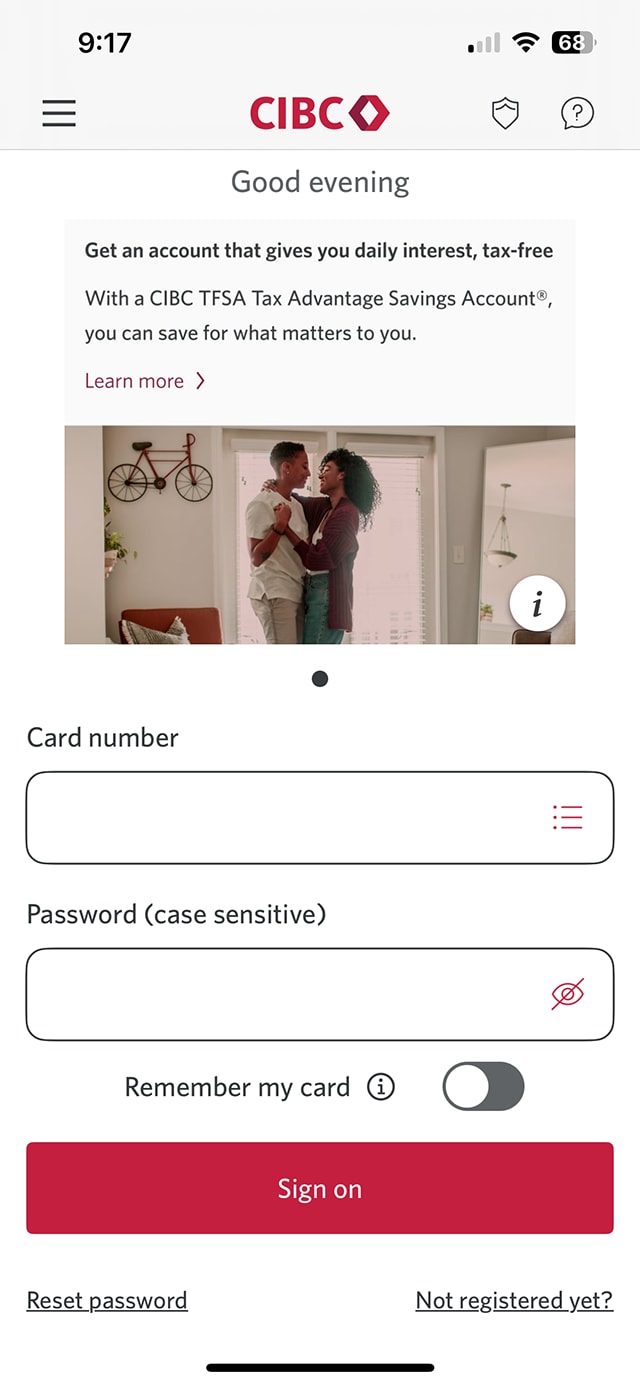






Step 1 : Let's get started on the mobile app
Step 2 : Select a credit card to view the transaction history
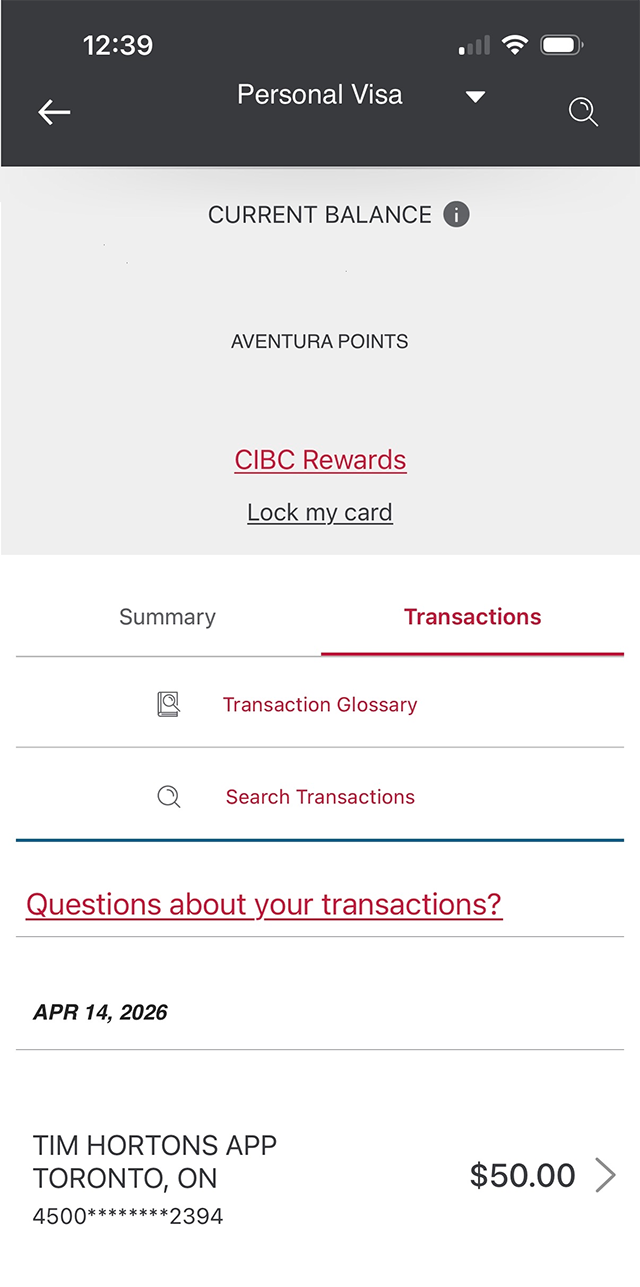
Step 3 : Select "Transactions"
Step 4 : Search your transaction history
To find a specific transaction, select the magnifying glass icon and search by keyword, the transaction type or the date.
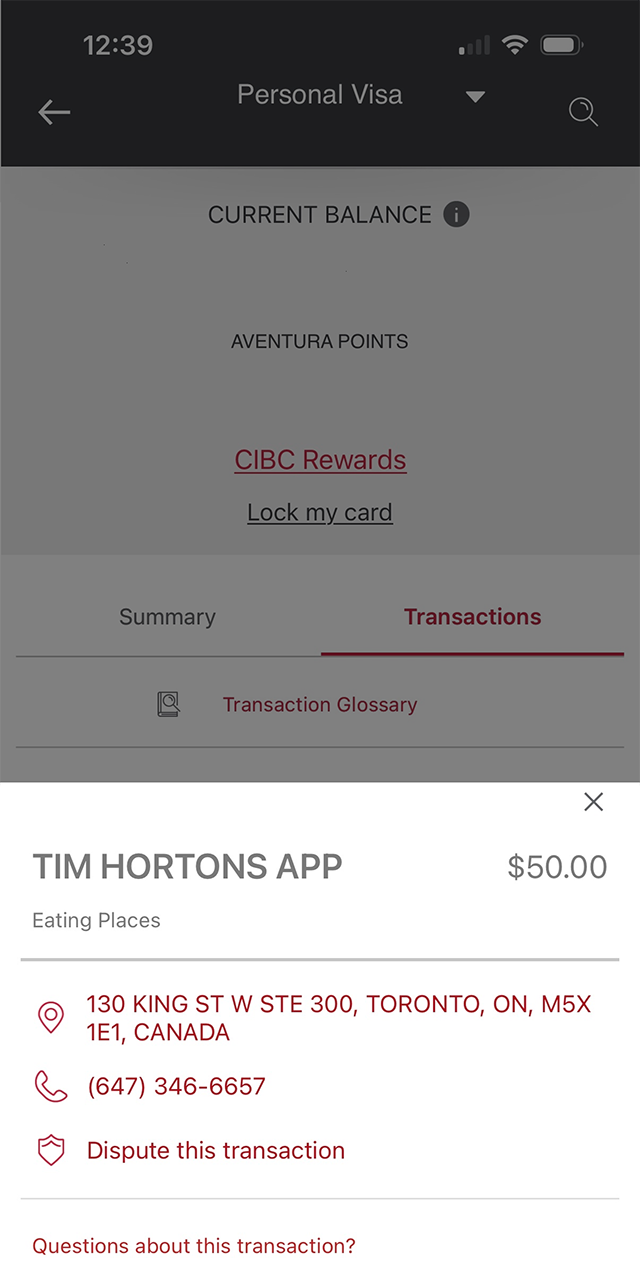
When you select each transaction, you can also review more information, such as the address and phone number relating to the charge.
Step 5 : Dispute the transaction
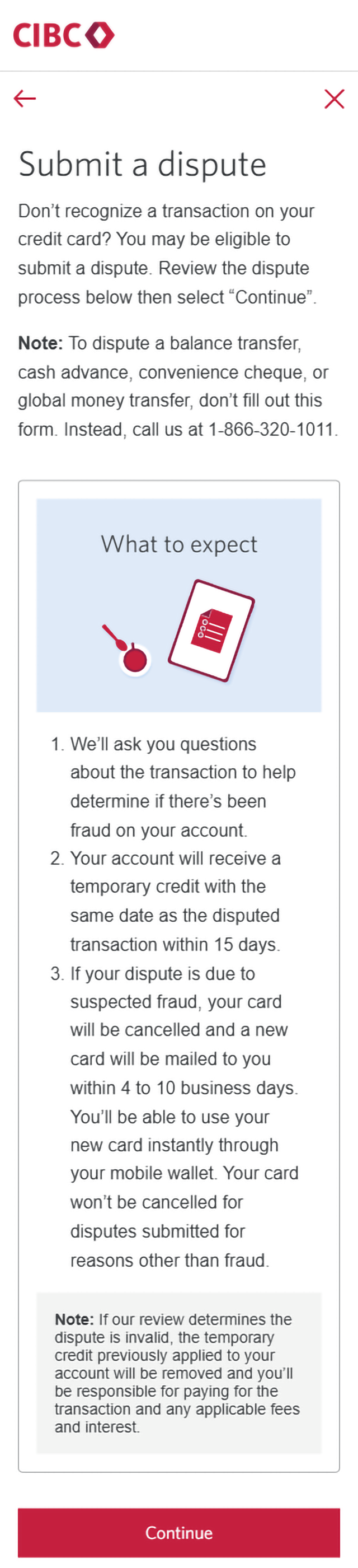
Step 6 : Submit a dispute
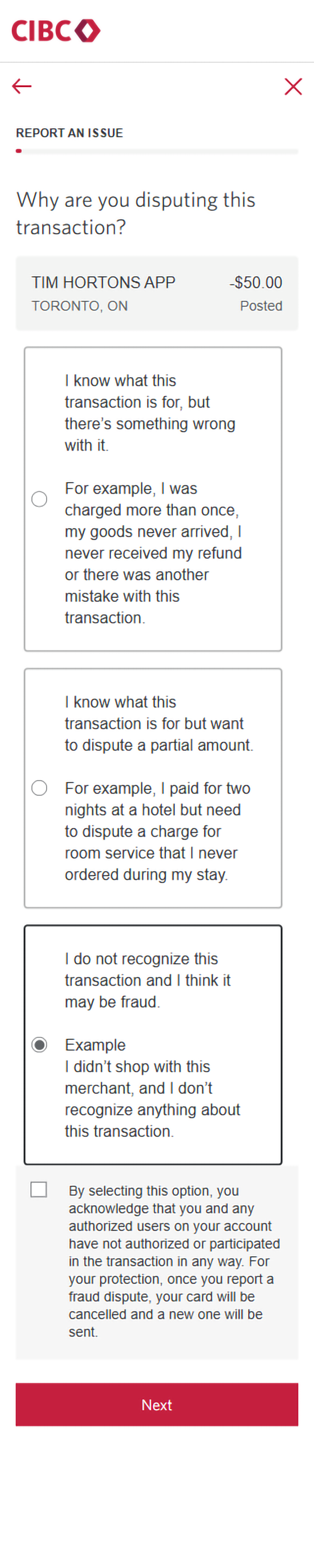
Step 7 : Choose why you're disputing the transaction
From the list of options, select the reason why you're disputing the transaction. For this demo, we'll be selecting "I do not recognize this transaction and think it may be fraud".
If your dispute is due to suspected fraud, your card will be cancelled and a new card will be mailed to you within 4 to 10 business days.
Next, select the checkbox to acknowledge that you, and any authorized users on your account, haven't authorized the transaction. After checking the acknowledgement box, select the "Next" button.
Step 8 : Check your records
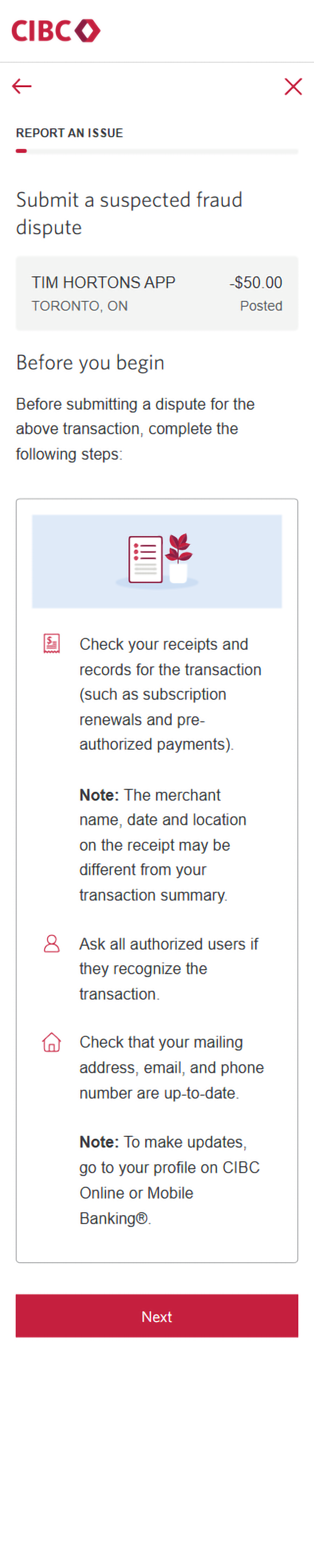
Before submitting a credit card transaction dispute, complete the following steps:
- Check your receipts and records for the transactions (such as subscription renewals and pre-authorized payments)
Note: The merchant name, date and location on the receipt may be different from your transaction summary.
- Ask all authorized users if they recognize the transaction
- Check that your mailing address, email, and phone number are up to date on the CIBC Mobile Banking App
Once you've completed these steps, select the "Next" button to continue.
Step 9 : Confirm that your mailing address is valid
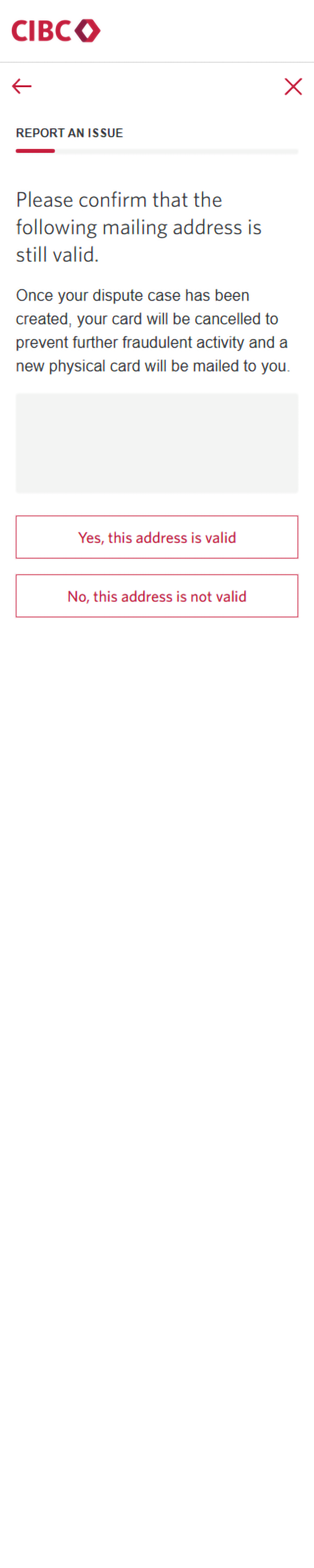
The mailing address associated with your account will be on-screen. Once your dispute case has been created, your credit card will be cancelled to prevent further fraudulent activity and a new card will be mailed to this address.
If the mailing address is correct, select "Yes, this address is valid".
If the mailing address isn't correct, select "No, this address is not valid" and follow the steps to update your account information.
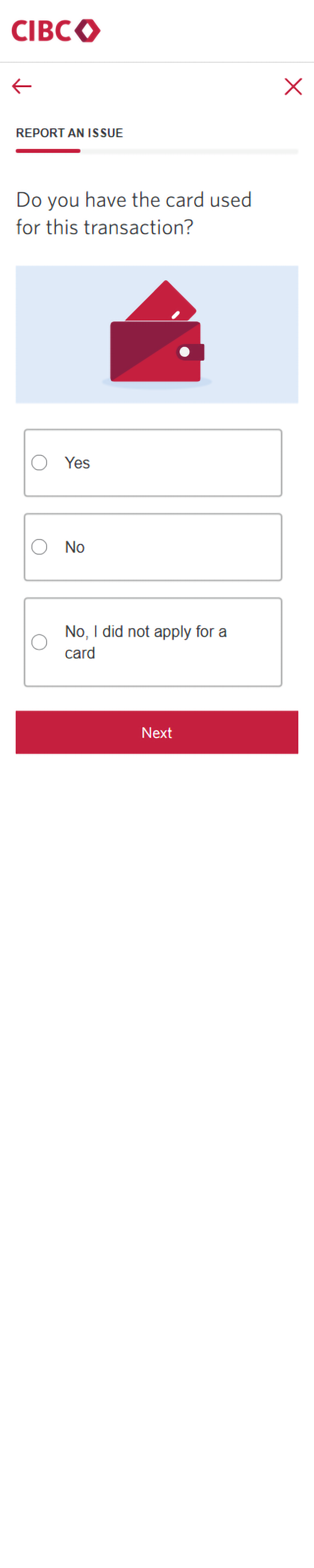
Step 10 : Confirm whether you have the card used for this transaction
Step 11 : Confirm whether any information is lost or stolen
Select each checkbox for any items or information you know were lost or stolen.
When you're finished, select the "Next" button to continue.
Step 12 : Review additional transactions
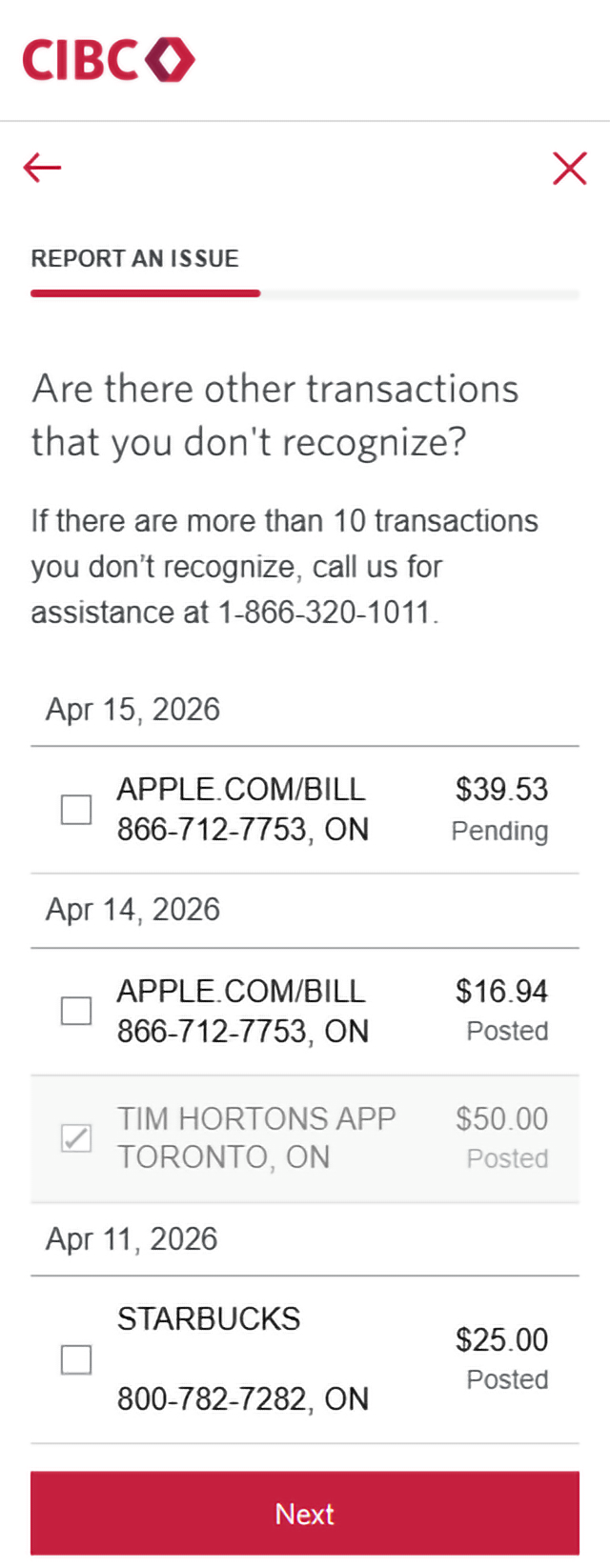
You'll be provided with several more credit card transactions that occurred on dates before and after your disputed transaction. Select any transactions that you don't recognize.
If there are more than 10 transactions you don't recognize, call CIBC for help at 1-866-320-1011.
Once you've reviewed the transactions, select the "Next" button to continue.
Step 13 : Confirm whether you've heard of the merchants before
Your disputed transaction, plus any transactions you don't recognize, will be detailed on-screen.
Have you heard of any of the merchants before? Answer "Yes" or "No", and then select "Next" to continue.
Step 14 : Confirm if you gave the merchants your credit card information
Your disputed transaction, plus any transactions you don't recognize, will be detailed on-screen.
Did you give the merchants your credit card information? Answer "Yes" or "No", then select "Next" to continue.
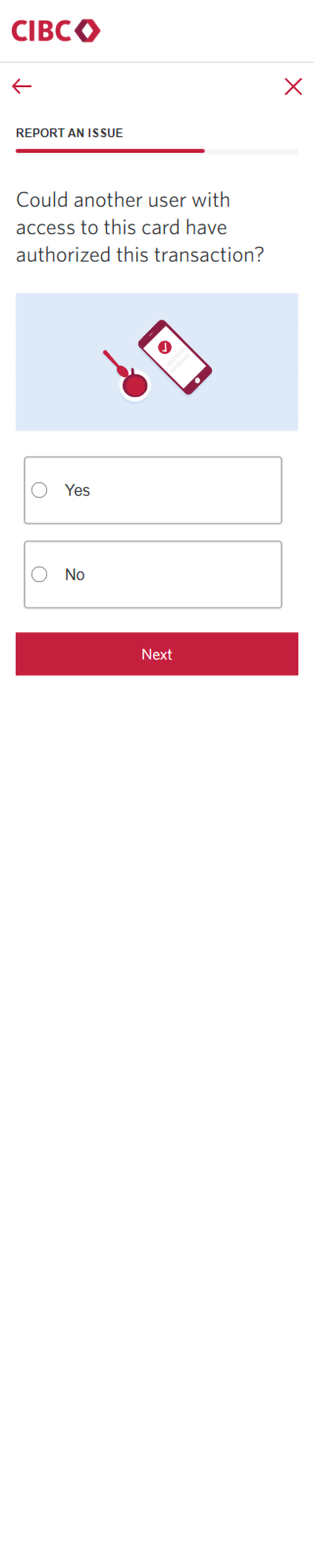
Step 15 : Confirm if another user with access to your credit card could have authorized the transactions
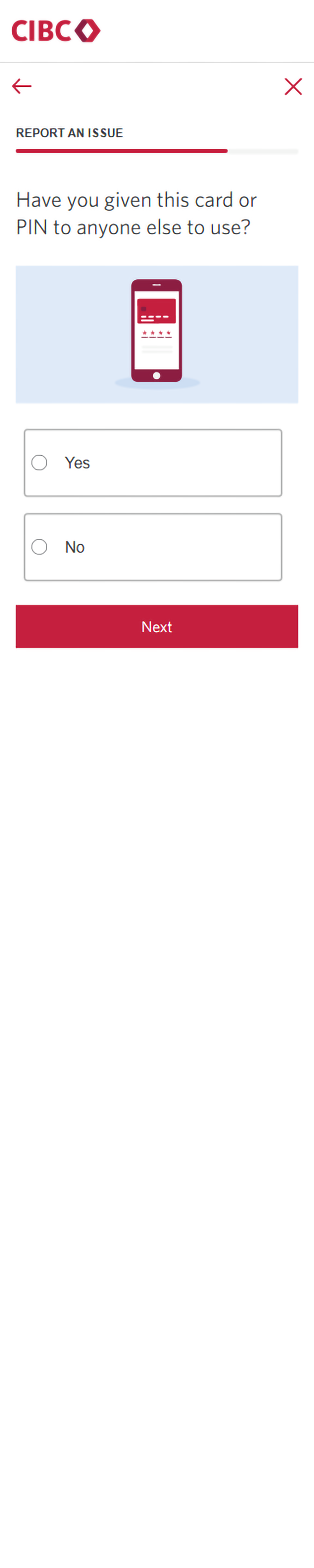
Step 16 : Confirm if you gave the credit card or PIN to anyone else to use
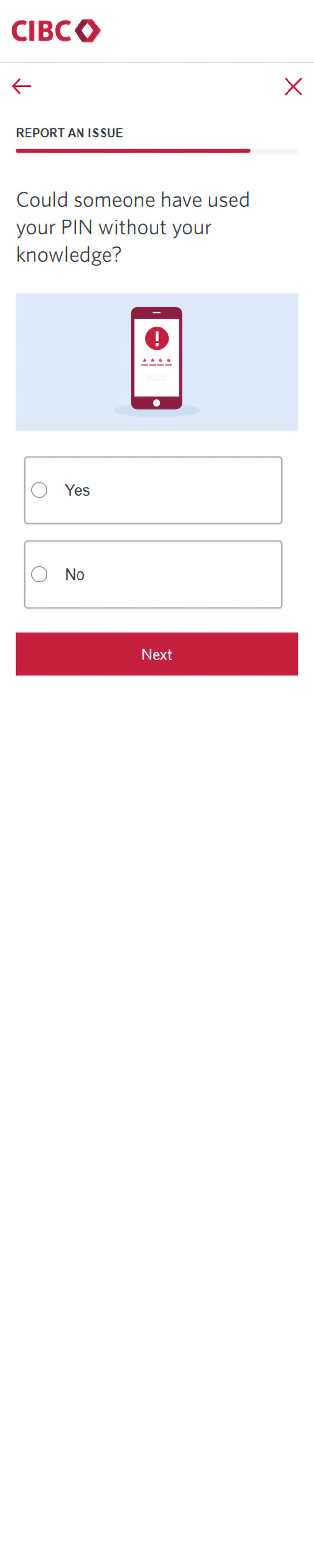
Step 17 : Confirm if someone could have used your PIN without your knowledge
Step 18 : Choose how you'd like to receive updates about your dispute
Select whether you want to receive updates about your credit card transaction dispute by email or text message.
When you're ready, select the "Submit dispute" button to proceed.
Step 19 : Great job!
You've successfully submitted a credit card transaction dispute on the CIBC Mobile Banking App.
This form is only meant for disputing credit card transactions. If you want to dispute a balance transfer, cash advance, convenience cheque or CIBC Global Money Transfer™, call us at 1-866-320-1011.
Want an overview of all the steps?
For full instructions on how to dispute a credit card transaction, check out the step-by-step process all in one place.
What’s the difference between a fraud and non-fraud dispute?
Fraud dispute
A fraud dispute is when you don’t recognize anything about a transaction and believe your debit card information has been compromised.
For example: You notice an airline transaction, but neither you nor any joint account holders have made any recent purchases with that airline. You may suspect that your card information was stolen and used to make this purchase.
Non-fraud dispute
A non-fraud dispute is when you recognize a transaction and know what it’s for, but you have an issue with it and haven’t been able to resolve the issue with the merchant.
For example: You were charged the wrong amount for a transaction; you haven’t received an expected refund or credit; or you never received your online purchase order.
Recommended digital banking demos

How to set up alerts for account activity

How to manage your credit card

How to reset your password
How to lock and unlock your credit card
Get started
CIBC Online Banking®
Discover digital banking features that can help you bank easily online.
CIBC Mobile Banking® App
Stay connected to your finances on your mobile device, no matter where you are.

