
Digital banking tutorials

How to update your contact information
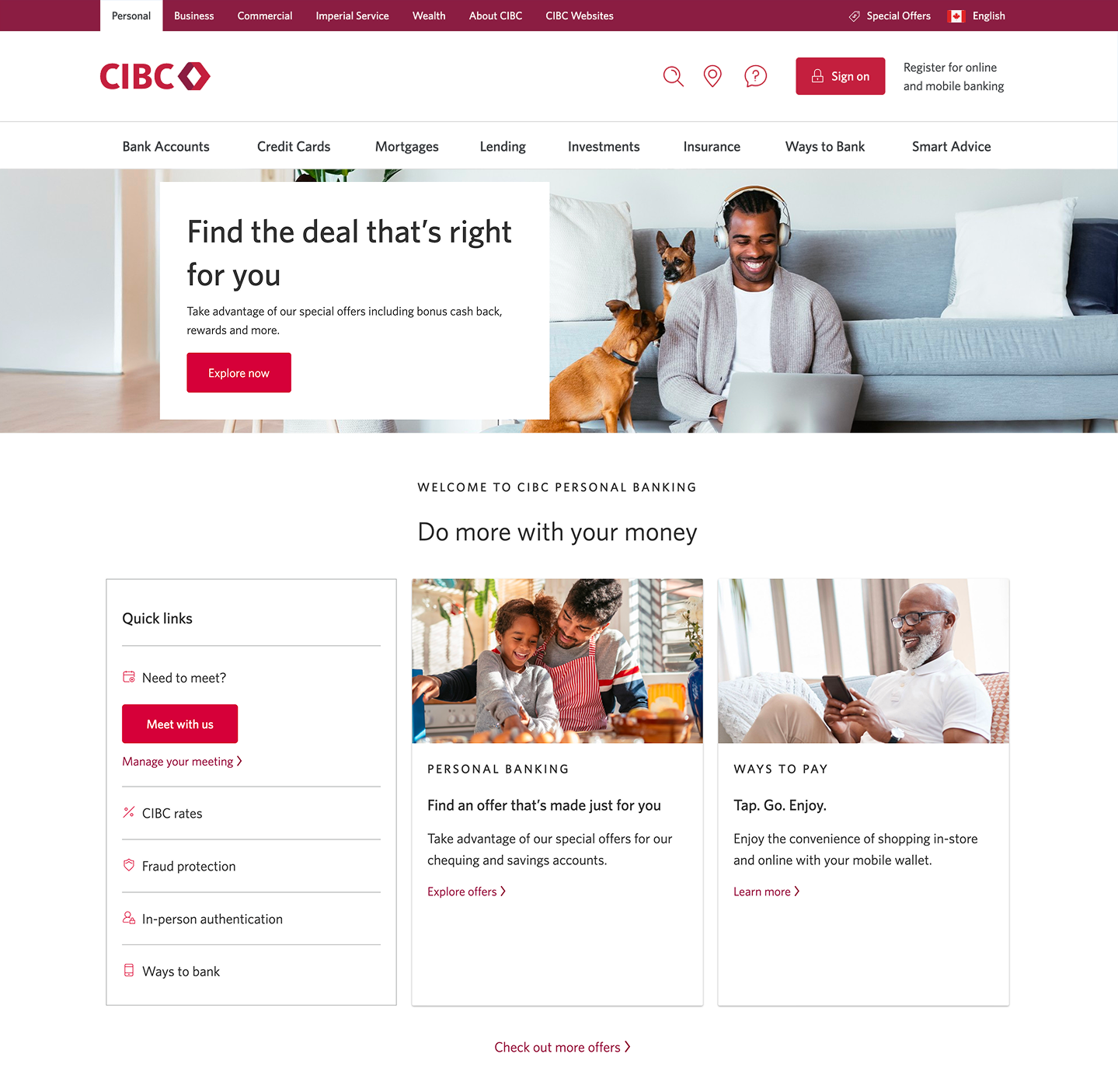
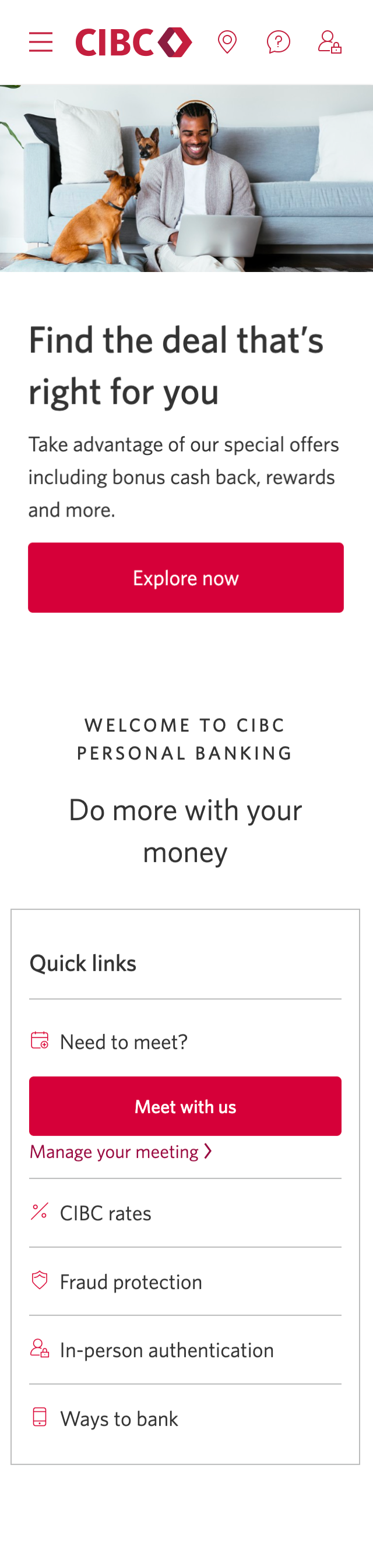
Demo screen 1: CIBC homepage. A pulsing animation highlights the "Sign on" button.
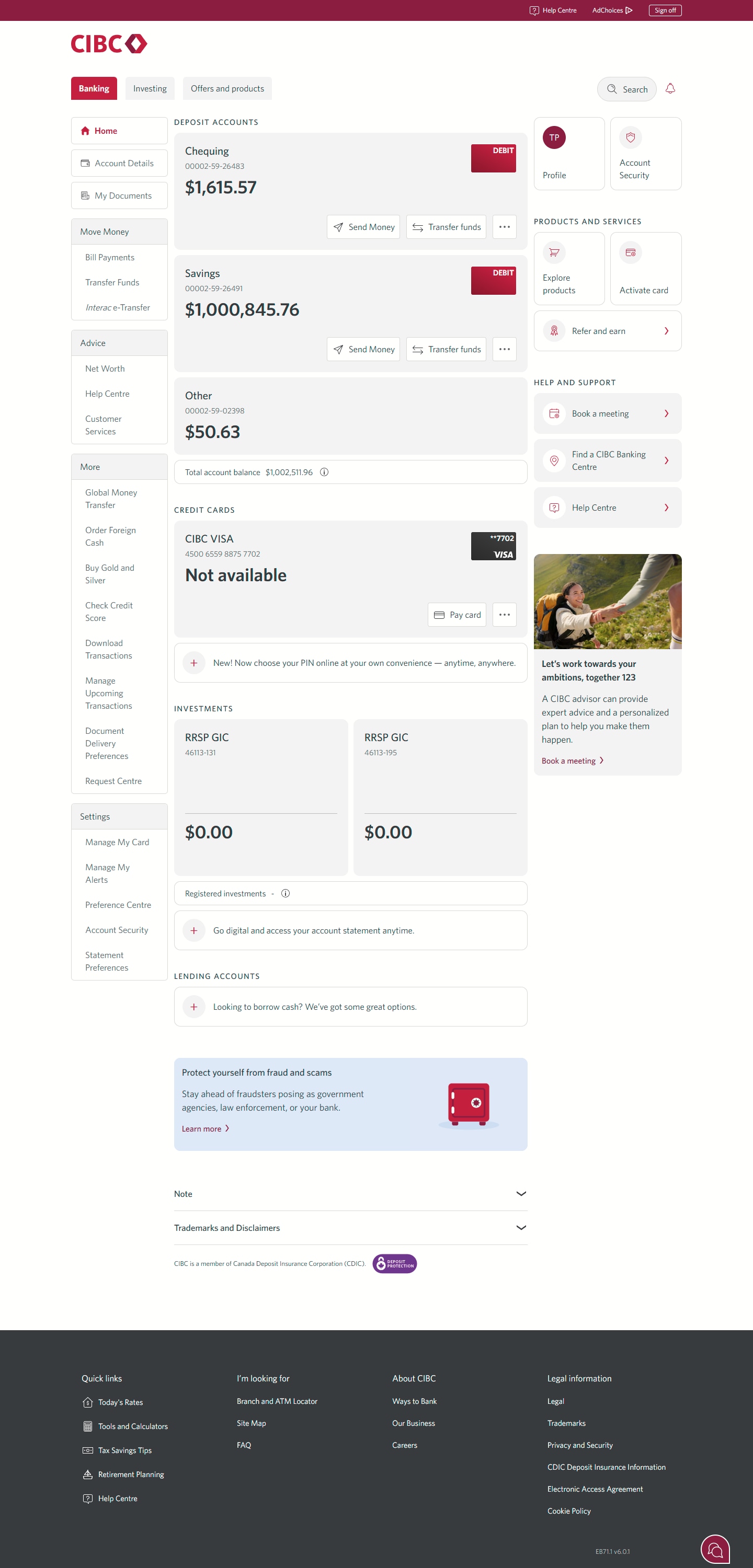
Demo screen 2: CIBC homepage. A pulsing animation highlights the "Profile" link.
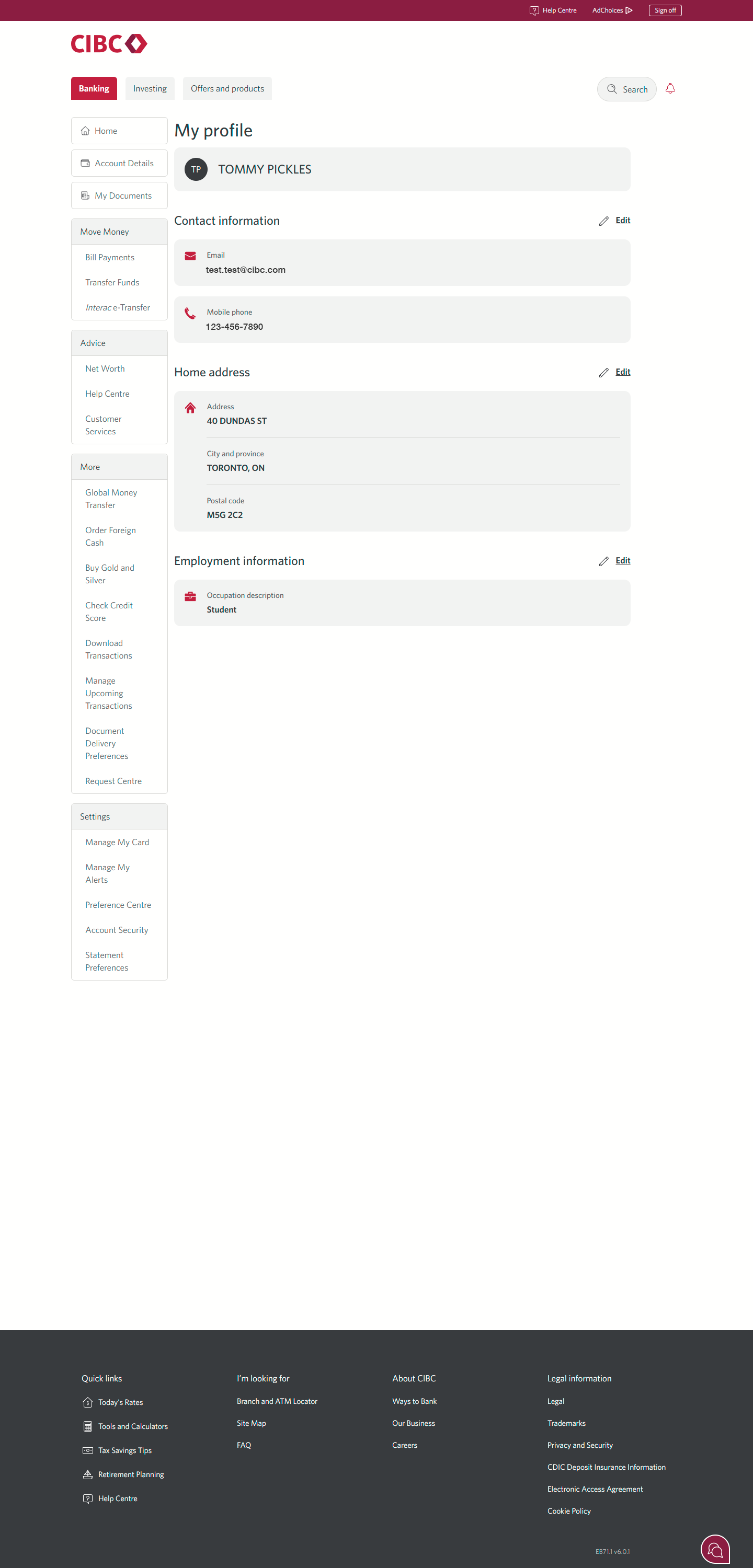
Demo screen 3: My profile page. A pulsing animation highlights the "Edit" link next to "Contact information".
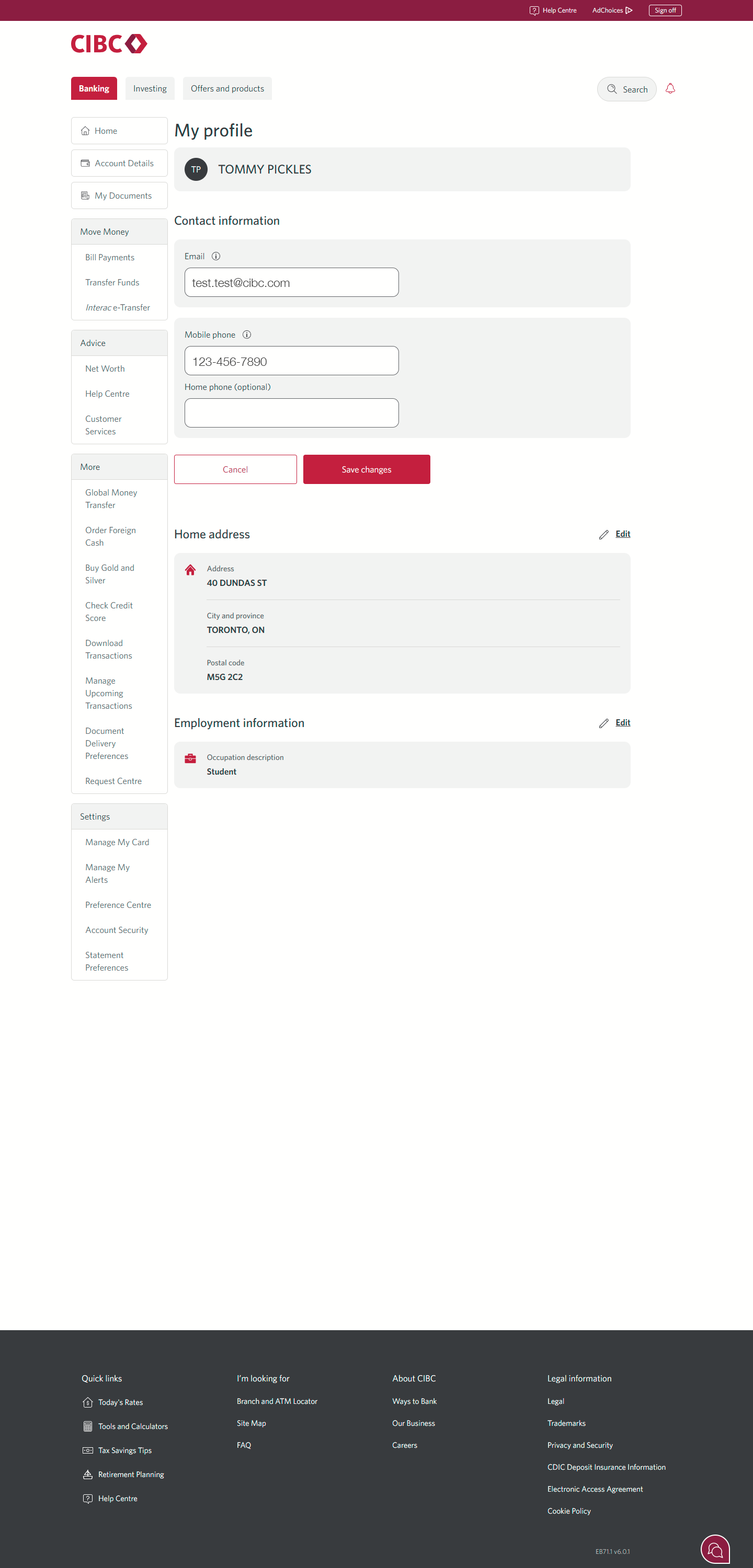
Demo screen 4: My profile page. A pulsing animation highlights the "Save changes" button for contact information.
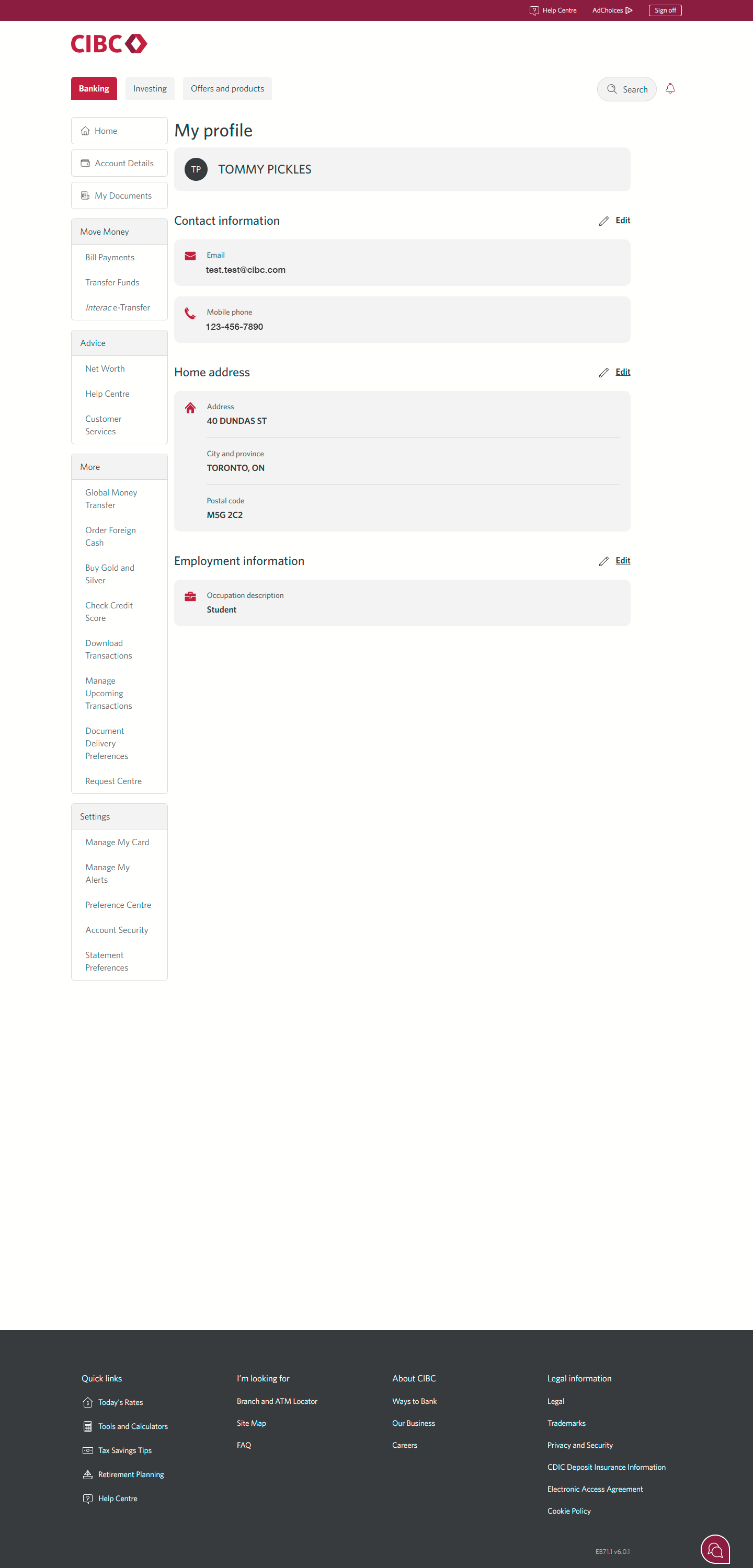
Demo screen 5: My profile page. A pulsing animation highlights the "Edit" link next to "Home address".
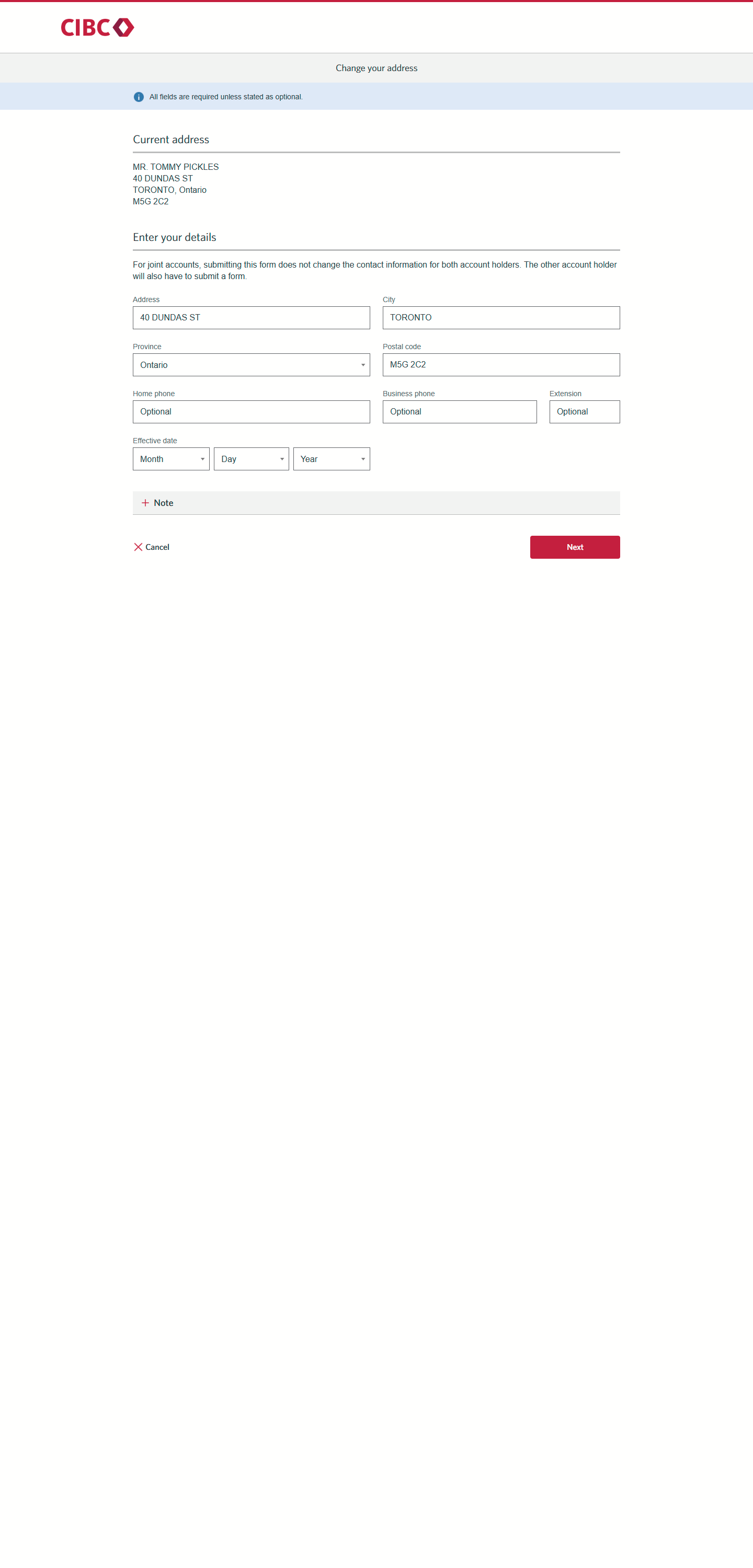
Demo screen 6: My profile page. A pulsing animation highlights the "Next" button for home address.
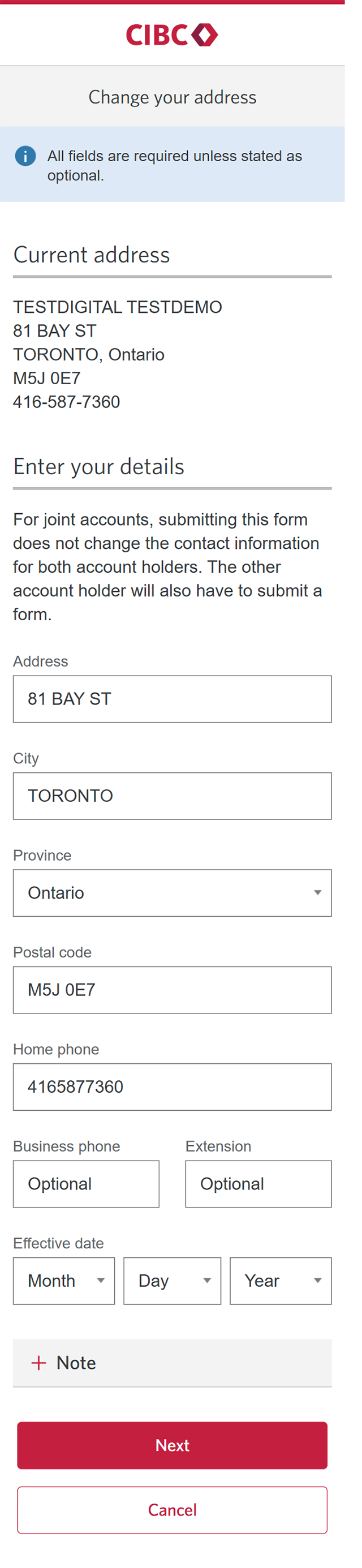
Demo screen 7: "Change your address" screen with entry fields. No pulsing animation.
Your progress 1 of

Step 1 : Let's get started on your web browser

Select the "Sign on" button in the demo to continue.

Step 2 : Find the "Profile" option

From the CIBC Online Banking homepage, find and select "Profile".

Step 3 : Edit your personal information

Find the "Contact information" section and select the "Edit" link to update your email or phone number.

Step 4 : Save your changes

Once you've updated your personal information, select the "Save changes" button to save your profile changes.

Step 5 : Edit your home address

Find the "Home address" section and select the "Edit" link to update your primary address.

Step 6 : Save your changes

Once you've updated your home address, select the "Next" button to save your profile changes.

Step 7 : Great job!

You've successfully updated your contact information.
Demo screen 1: CIBC homepage. A pulsing animation highlights the "Sign on" button.
Demo screen 2: CIBC homepage. A pulsing animation highlights the "Profile" link.
Demo screen 3: My profile page. A pulsing animation highlights the "Edit" link next to "Contact information".
Demo screen 4: My profile page. A pulsing animation highlights the "Save changes" button for contact information.
Demo screen 5: My profile page. A pulsing animation highlights the "Edit" link next to "Home address".
Demo screen 6: My profile page. A pulsing animation highlights the "Next" button for home address.
Demo screen 7: "Change your address" screen with entry fields. No pulsing animation.
Your progress 1 of

Step 1 : Let's get started on your web browser

Select the "Sign on" button in the demo to continue.

Step 2 : Find the "Profile" option

From the CIBC Online Banking homepage, find and select "Profile".

Step 3 : Edit your personal information

Find the "Contact information" section and select the "Edit" link to update your email or phone number.

Step 4 : Save your changes

Once you've updated your personal information, select the "Save changes" button to save your profile changes.

Step 5 : Edit your home address

Find the "Home address" section and select the "Edit" link to update your primary address.

Step 6 : Save your changes

Once you've updated your home address, select the "Next" button to save your profile changes.

Step 7 : Great job!

You've successfully updated your contact information.
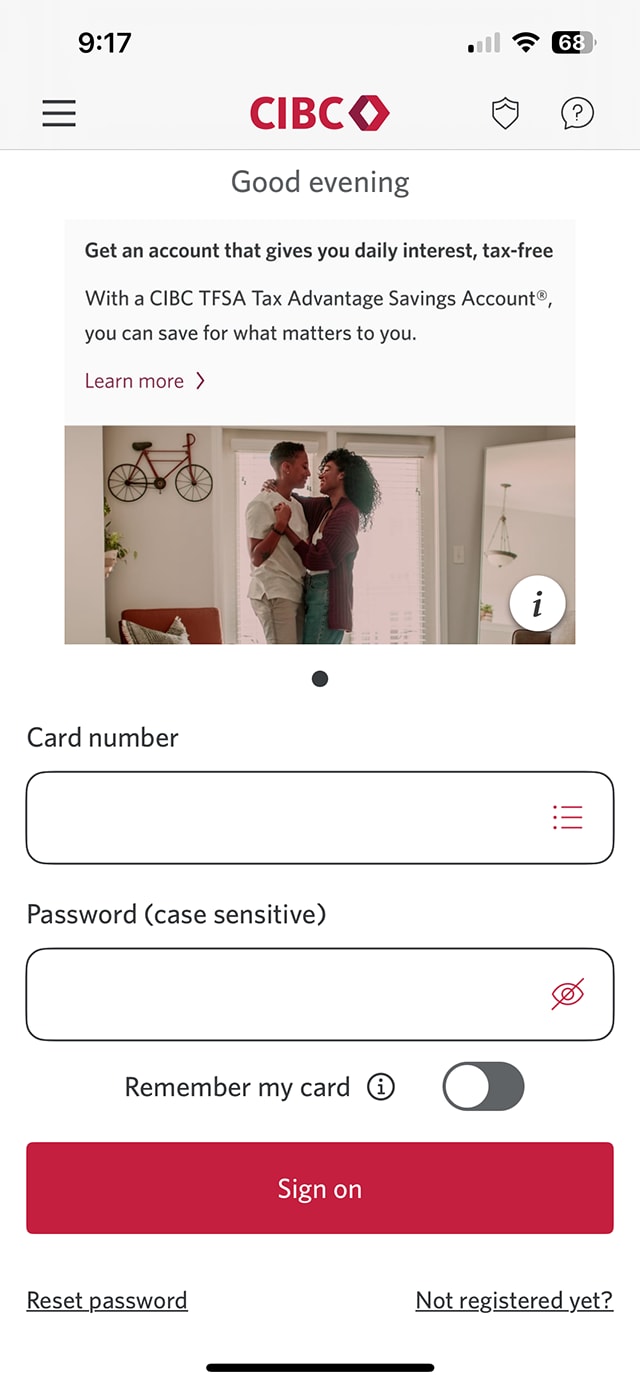
Demo screen 1: CIBC Mobile Banking App sign on screen. A pulsing animation highlights the "Sign on" button.
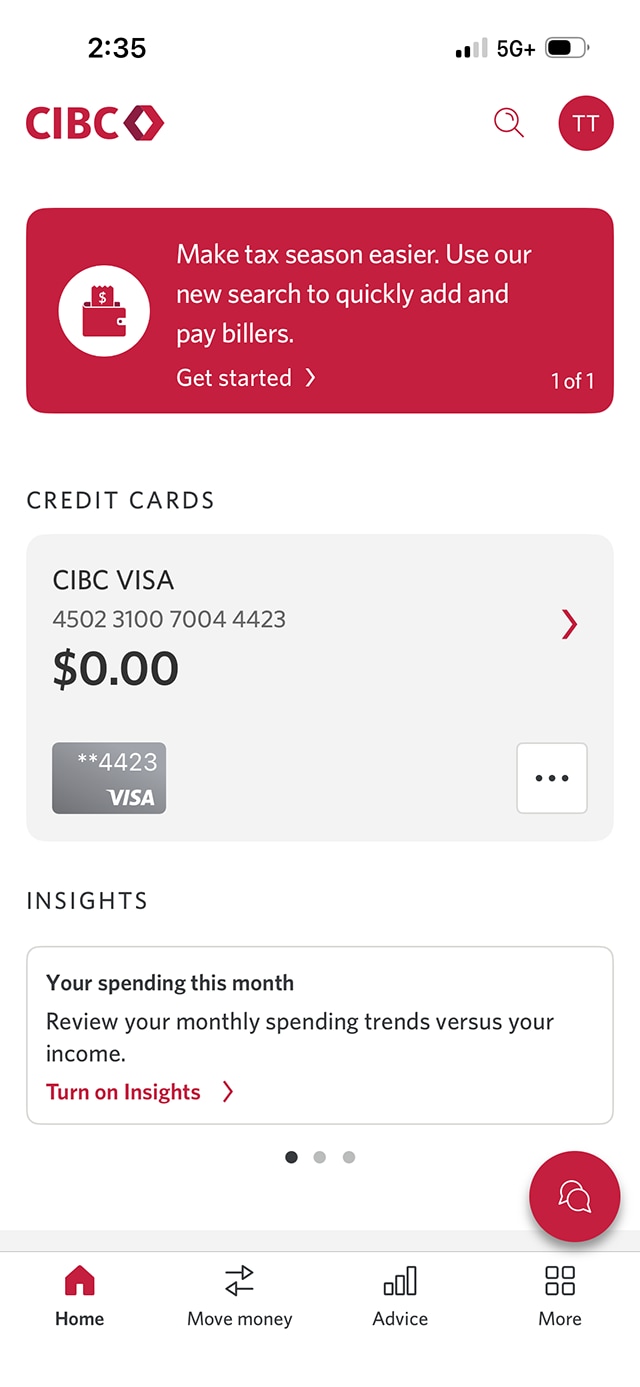
Demo screen 2: CIBC Mobile Banking App homepage. A pulsing animation highlights the profile button with user initials.
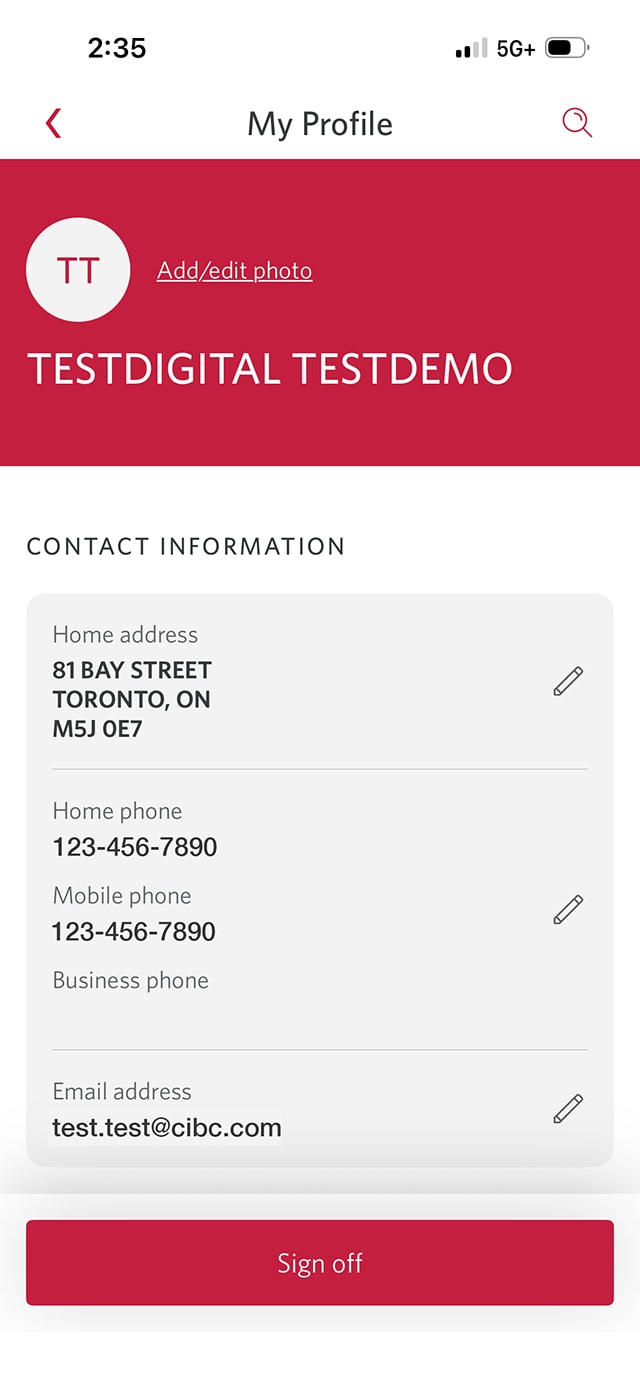
Demo screen 3: My profile page. A pulsing animation highlights the edit button next to the phone numbers.
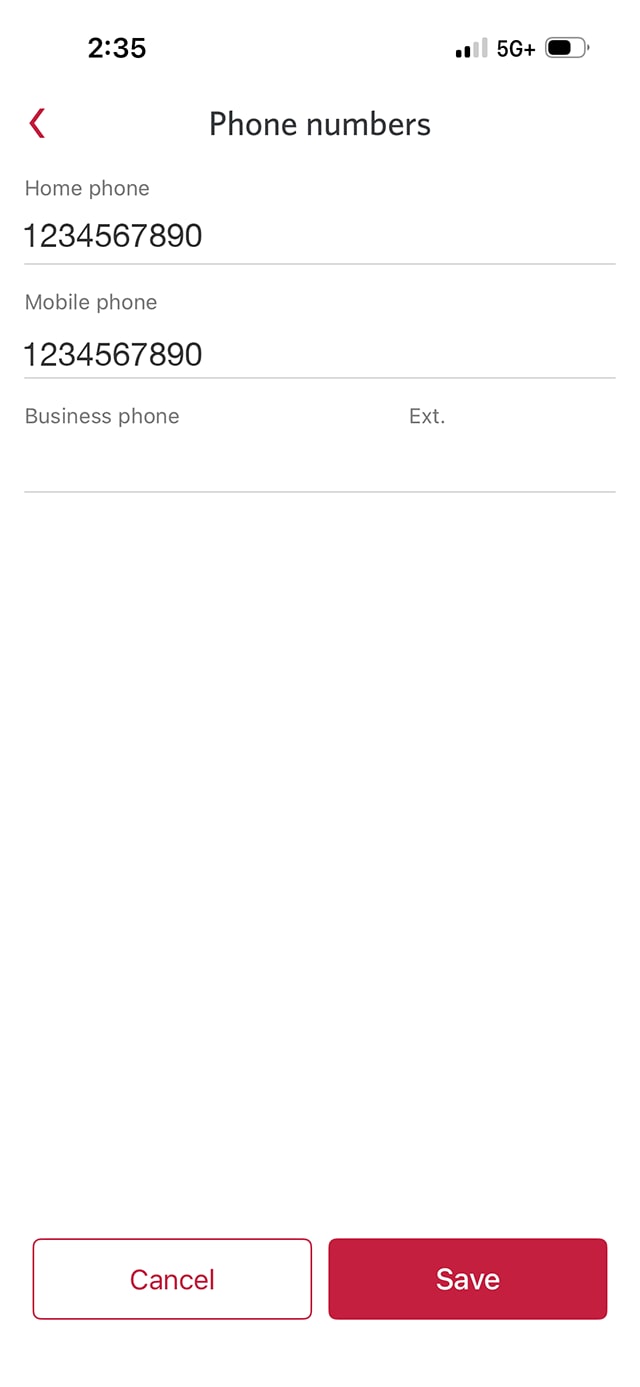
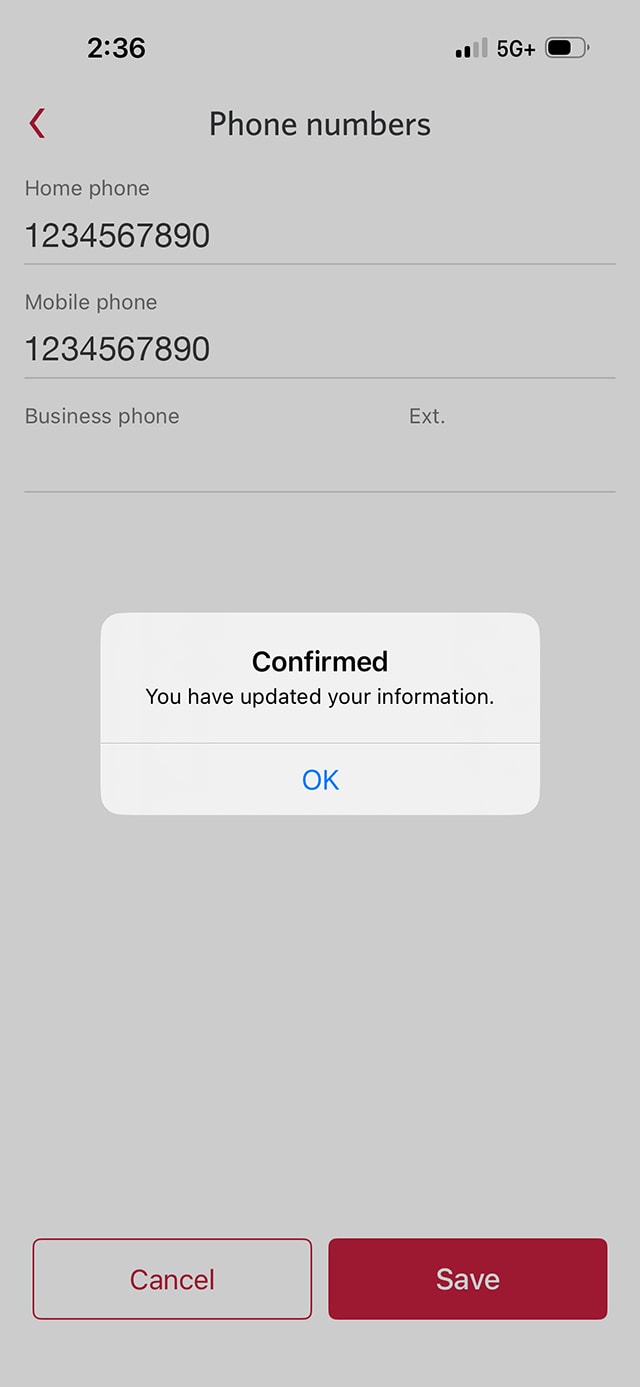
Demo screen 4: Phone numbers screen. A pulsing animation highlights the "Save" button.
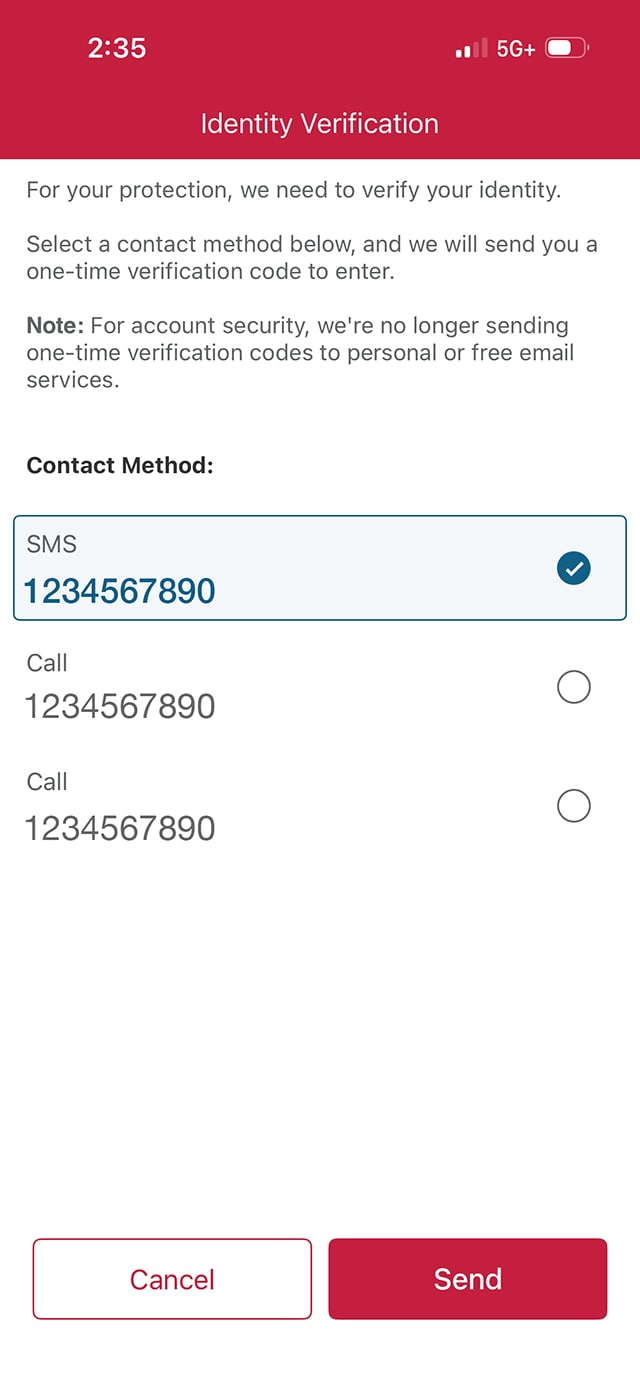
Demo screen 5: Identity verification page. A pulsing animation highlights the "Send" button.
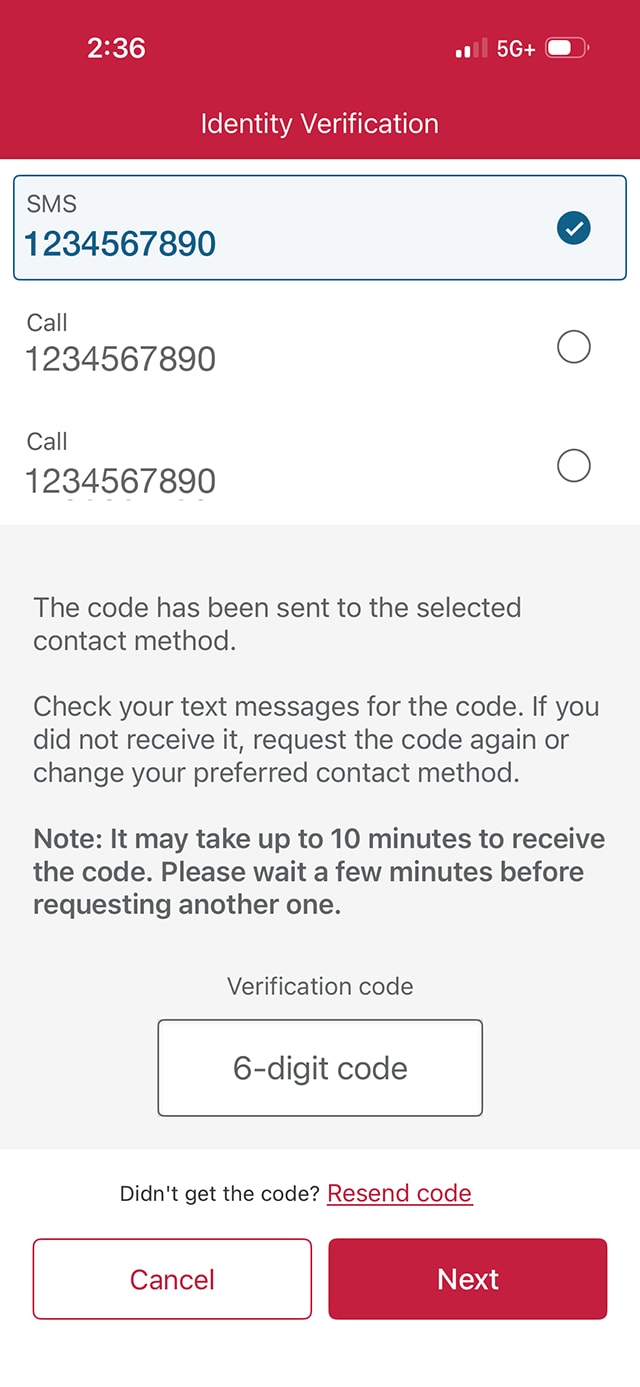
Demo screen 6: Identity verification page. A pulsing animation highlights the "Next" button.
Demo screen 7: "Phone numbers" screen with entry fields. No pulsing animation.
Your progress 1 of

Step 1 : Let's get started on the mobile app

Select the "Sign on" button in the demo to continue.

Step 2 : Select your profile icon

On the CIBC Mobile Banking App homepage, select the profile icon that has your initials.

Step 3 : Edit your personal information

Find the "Contact information" section and select the pencil icon to update your phone number or email. There will be a pencil icon for each item you can edit.

Step 4 : Find the phone number you'd like to update

Once you've found the phone number you'd like to update, replace it with the new phone number and select the "Save" button.

Step 5 : Verify your identity

You'll be prompted to confirm your identity with a one-time verification code.

Choose your preferred contact method to receive the code and select the "Send" button.

Step 6 : Enter the code

When you receive the verification code, enter it in the field provided and select the "Next" button.

Step 7 : Great job!

You've successfully updated your phone number.

To update your home address, go back to step 3 and repeat the same instructions for your home address instead.

Want an overview of all the steps?

For full instructions on how to update your contact information, check out the step-by-step process all in one place.

Your privacy matters to us

Protecting your personal information

We take reasonable steps to protect your personal information from unauthorized use, sharing, loss or theft, and we audit our security measures and assess that they remain effective and appropriate.

How we keep your accounts safe

We use contracts and other measures with our service providers to maintain the confidentiality and security of your information and prevent it from being used for any other purpose other than that for which it was intended.
Recommended digital banking demos

How to review and confirm your information

Start demo on how to review and confirm your information.

How to set up alerts for account activity

Start demo on how to set up alerts for account activity.

How to use CIBC Online Banking®

Start demo on how to use CIBC Online Banking®.

How to understand and use CIBC Rewards

Start demo on how to understand and use CIBC Rewards.

Get started

CIBC Online Banking®

Discover digital banking features that can help you bank easily online.
CIBC Mobile Banking® App

Stay connected to your finances on your mobile device, no matter where you are.