

How to understand and use CIBC Rewards
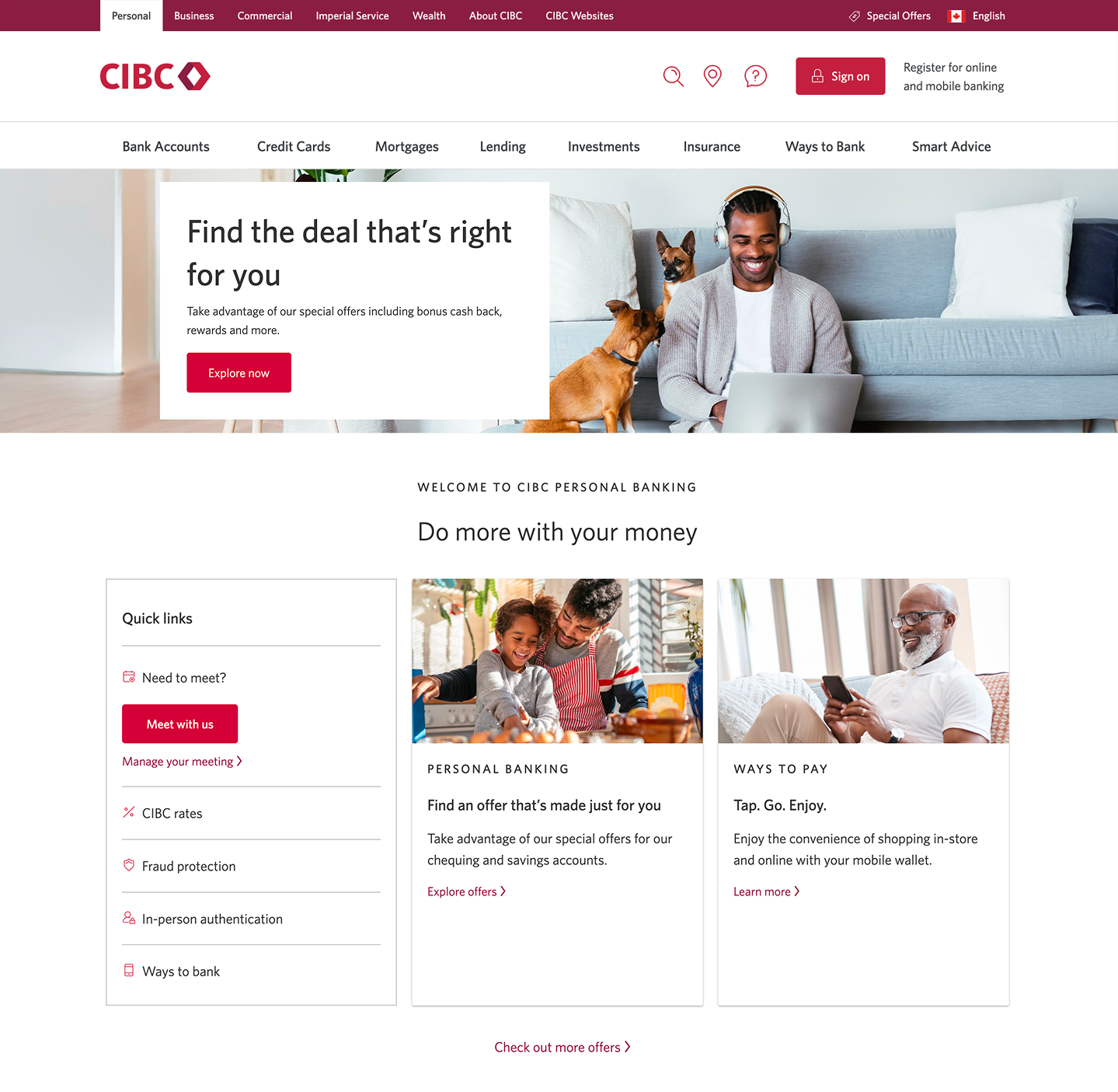
Step 1 : Let's get started on your web browser
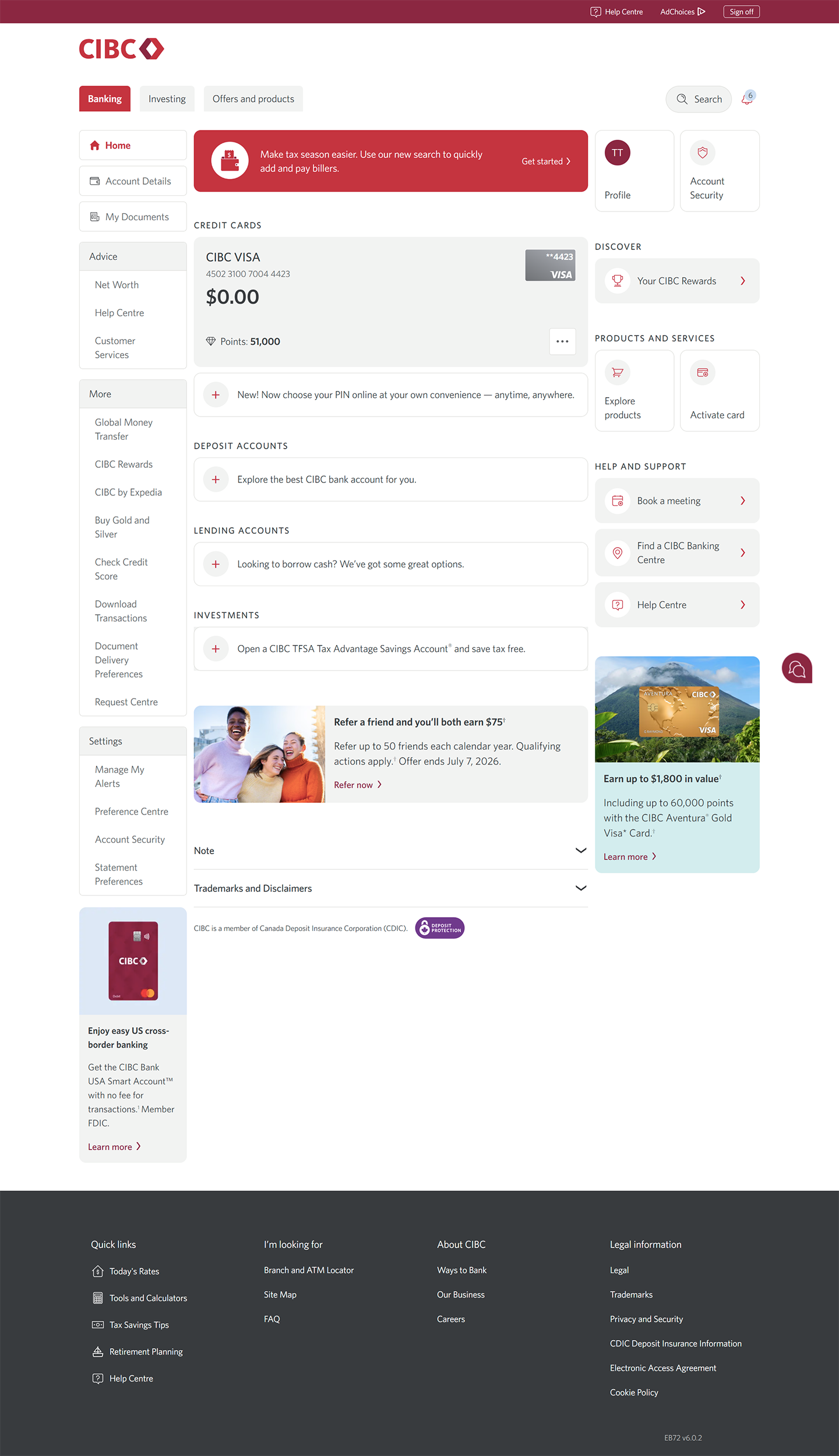
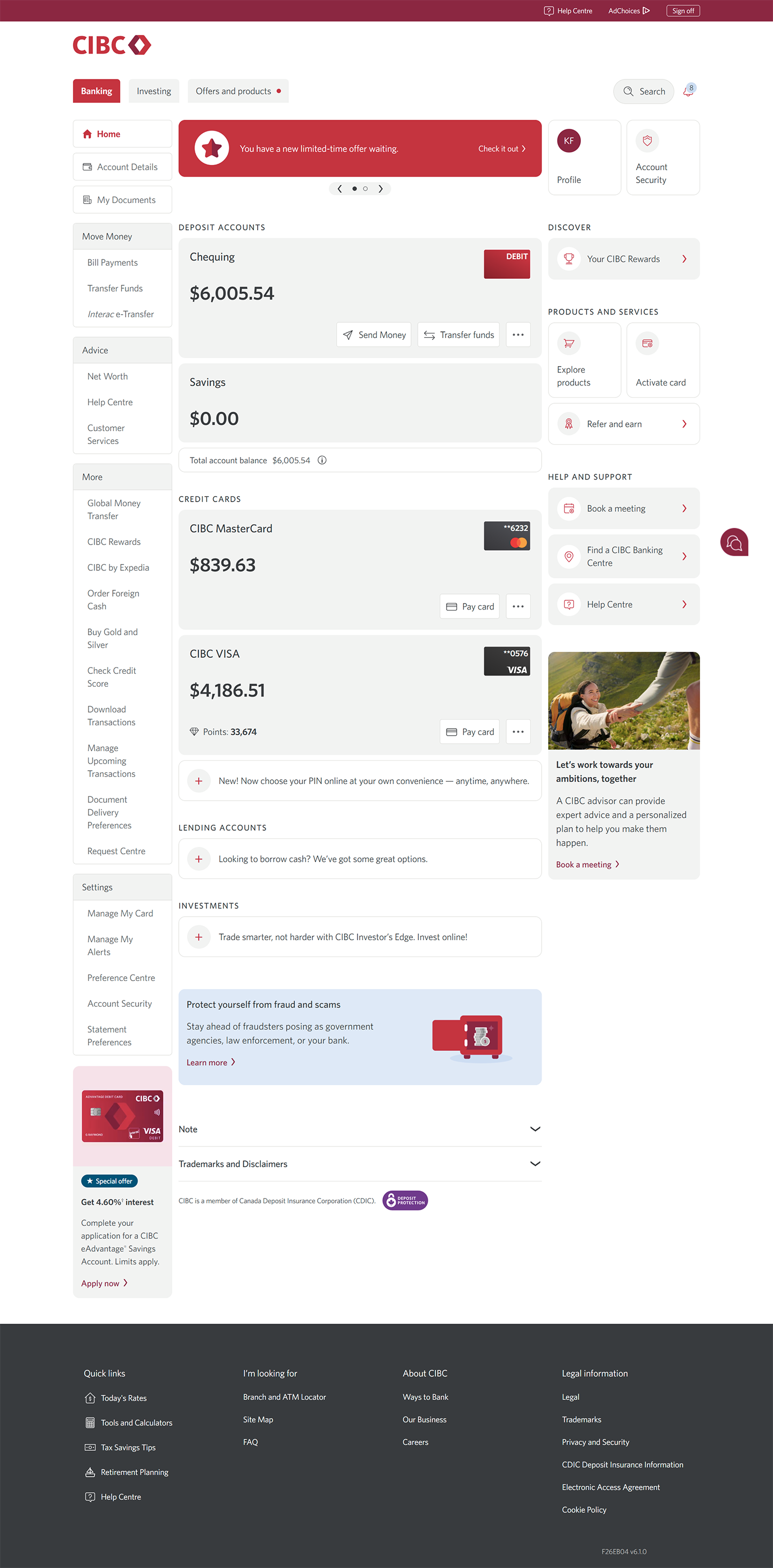
Step 2 : Select "Your CIBC Rewards"
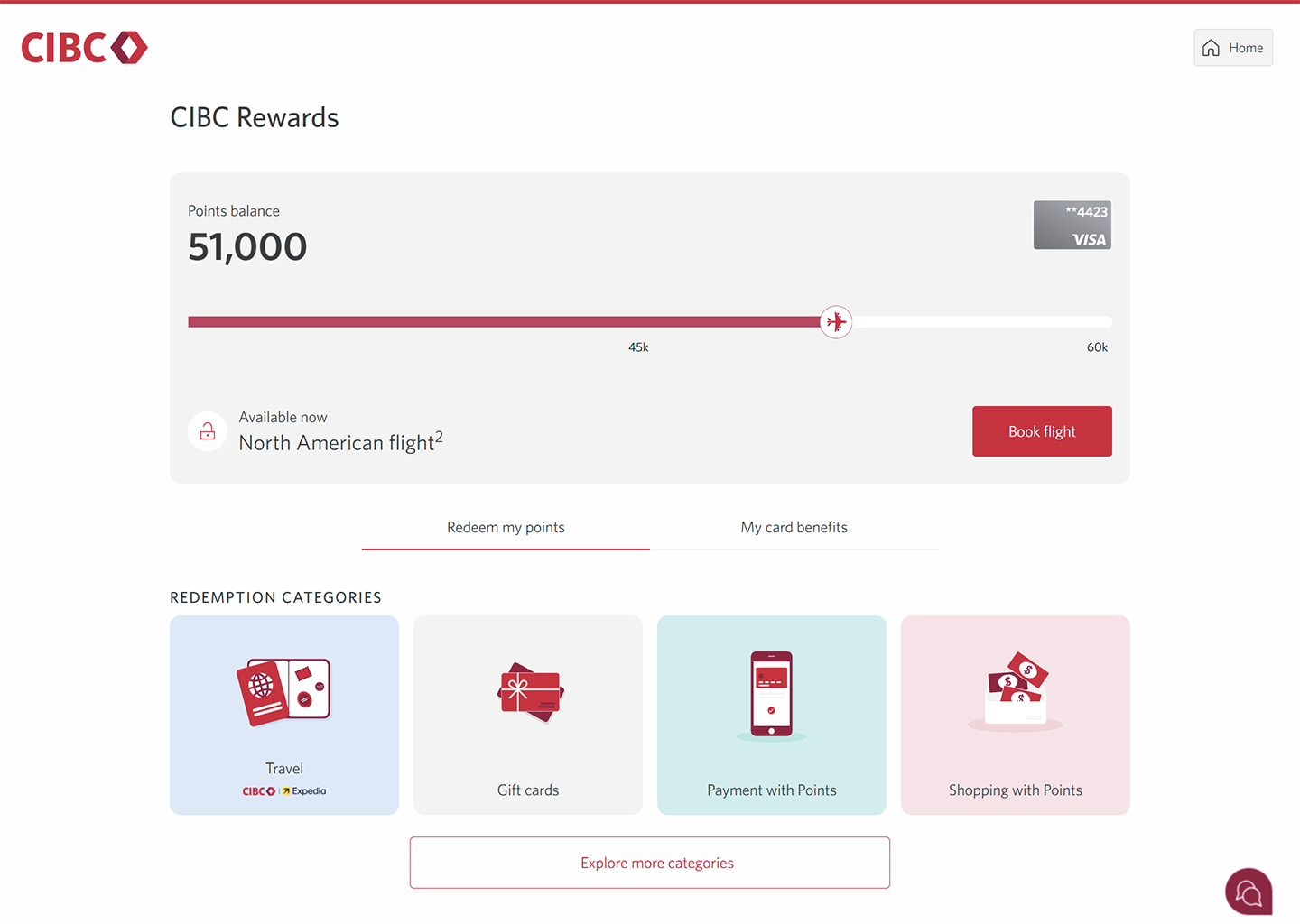
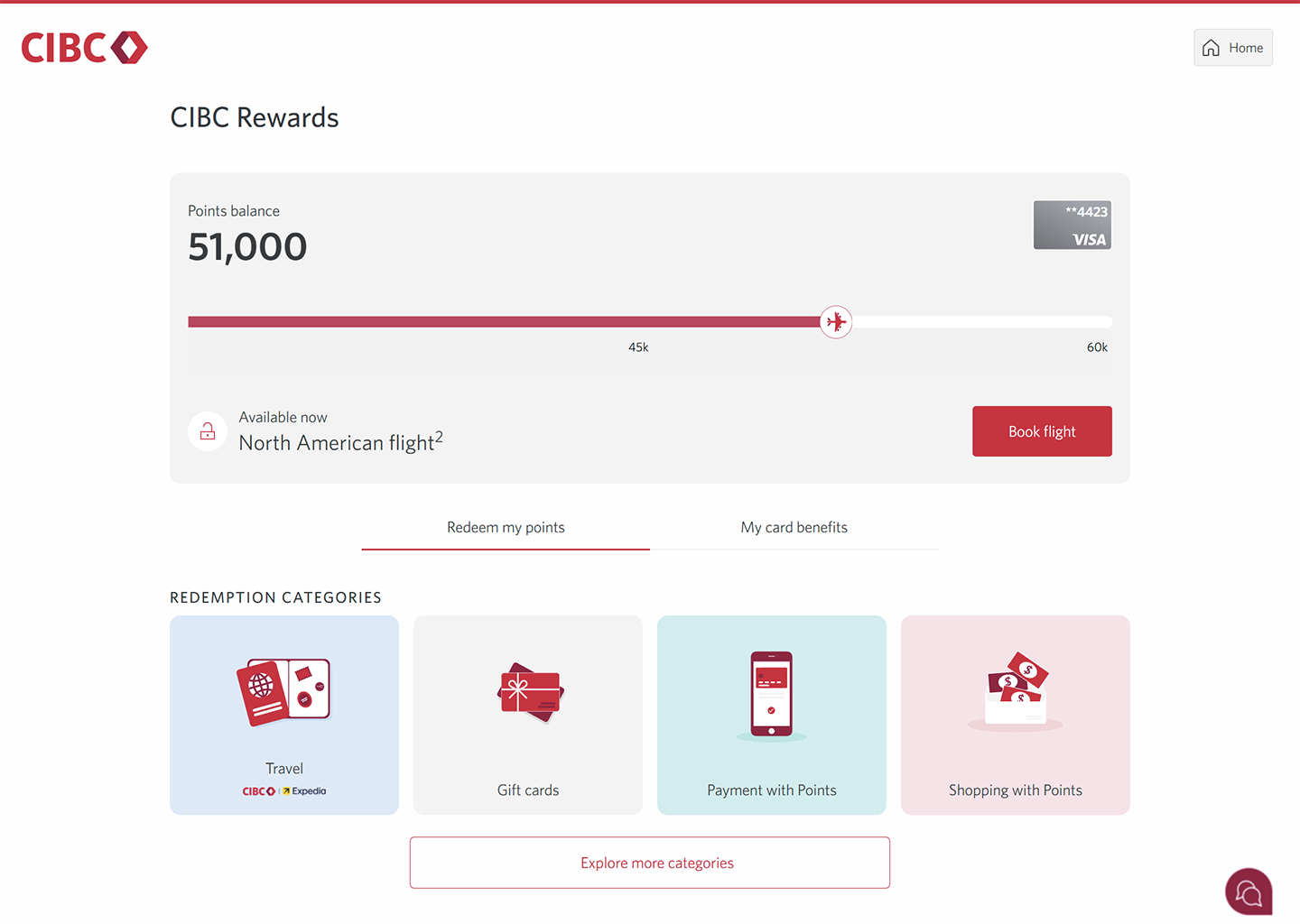
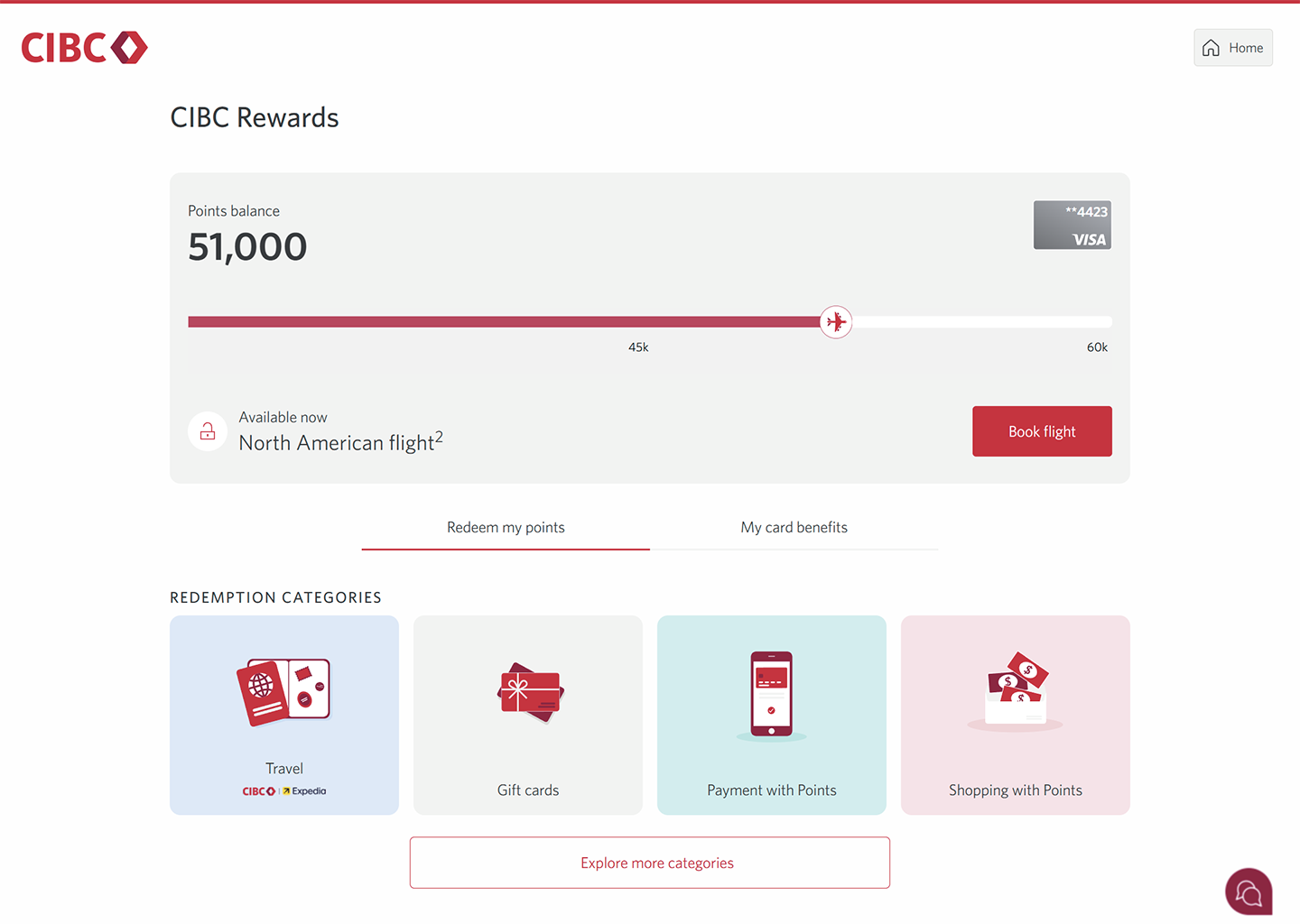
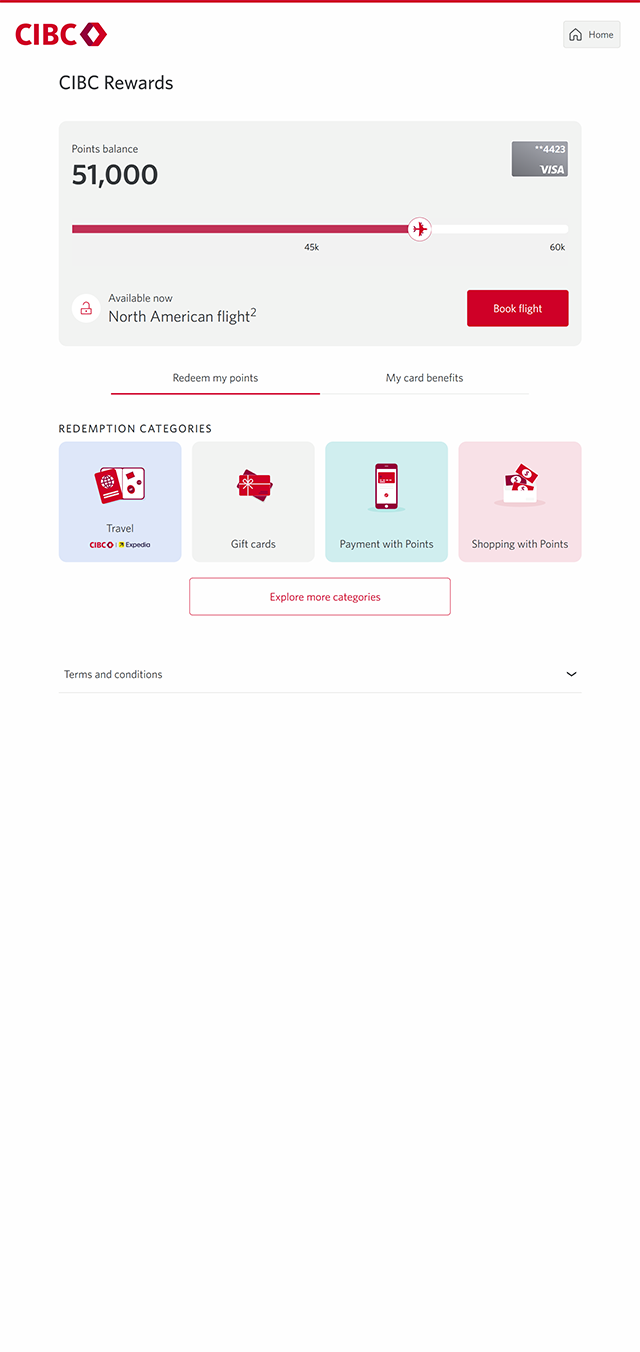
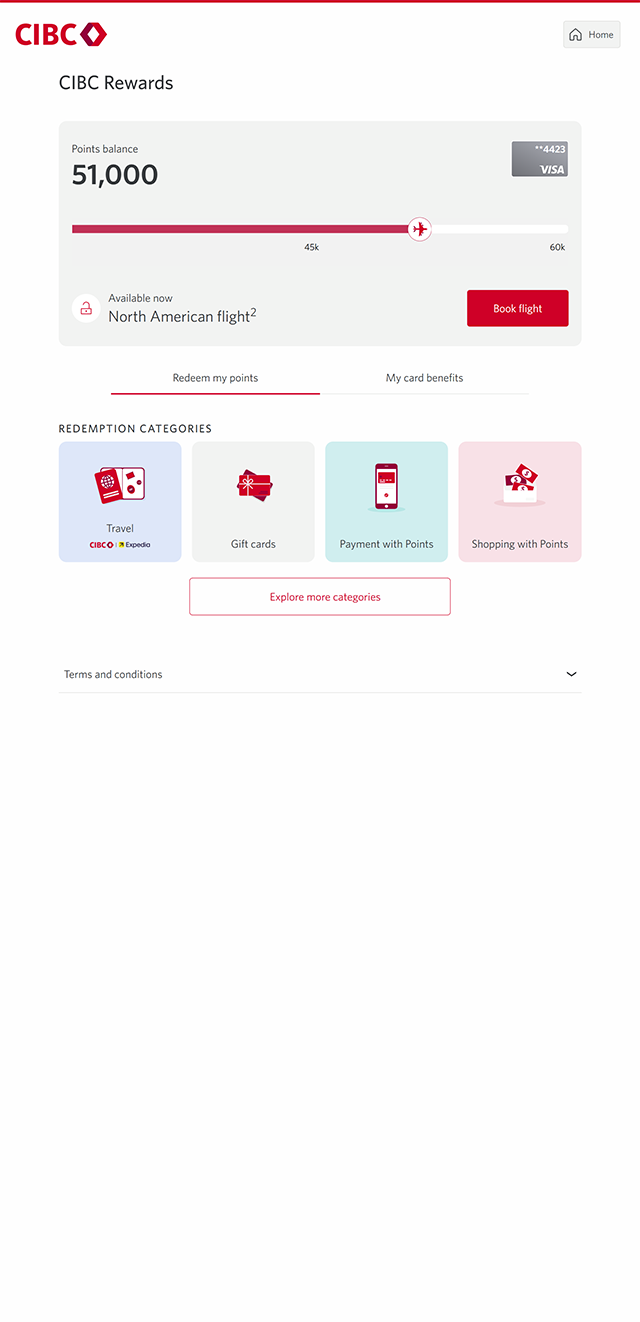
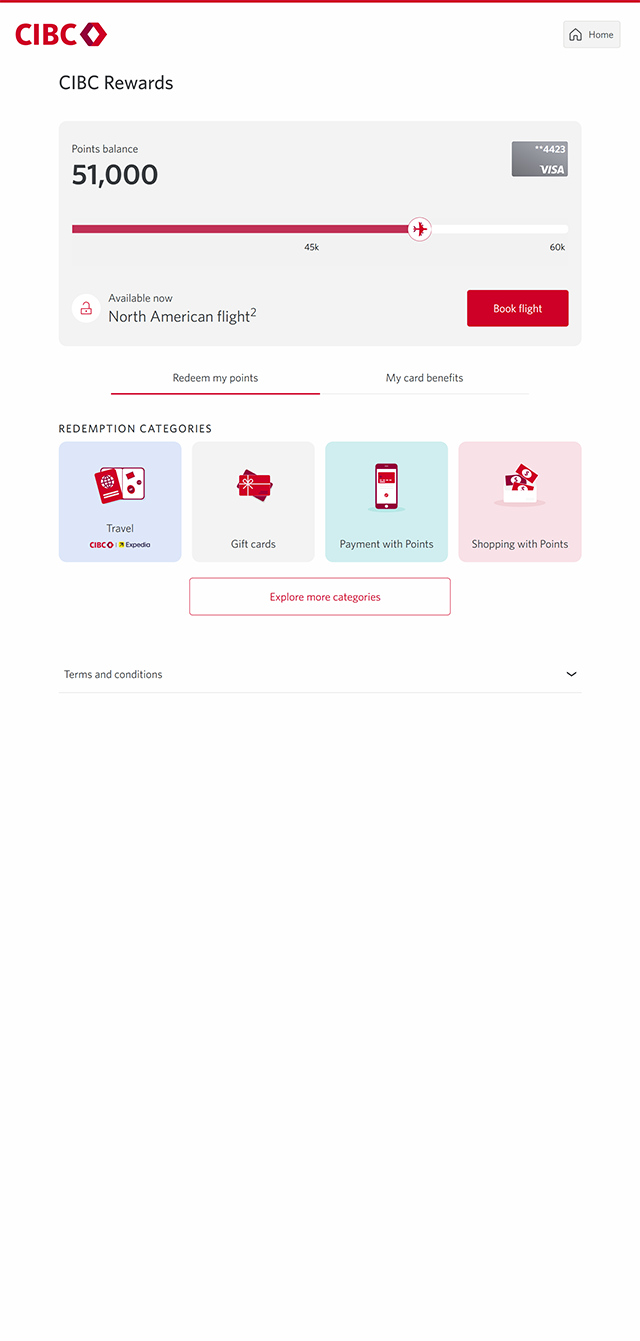
With CIBC Rewards, you can redeem points for travel, purchase gift cards and make payments to your credit cards.
On the CIBC Online Banking homepage, select the link for "Your CIBC Rewards".
Step 3 : Select "Travel"
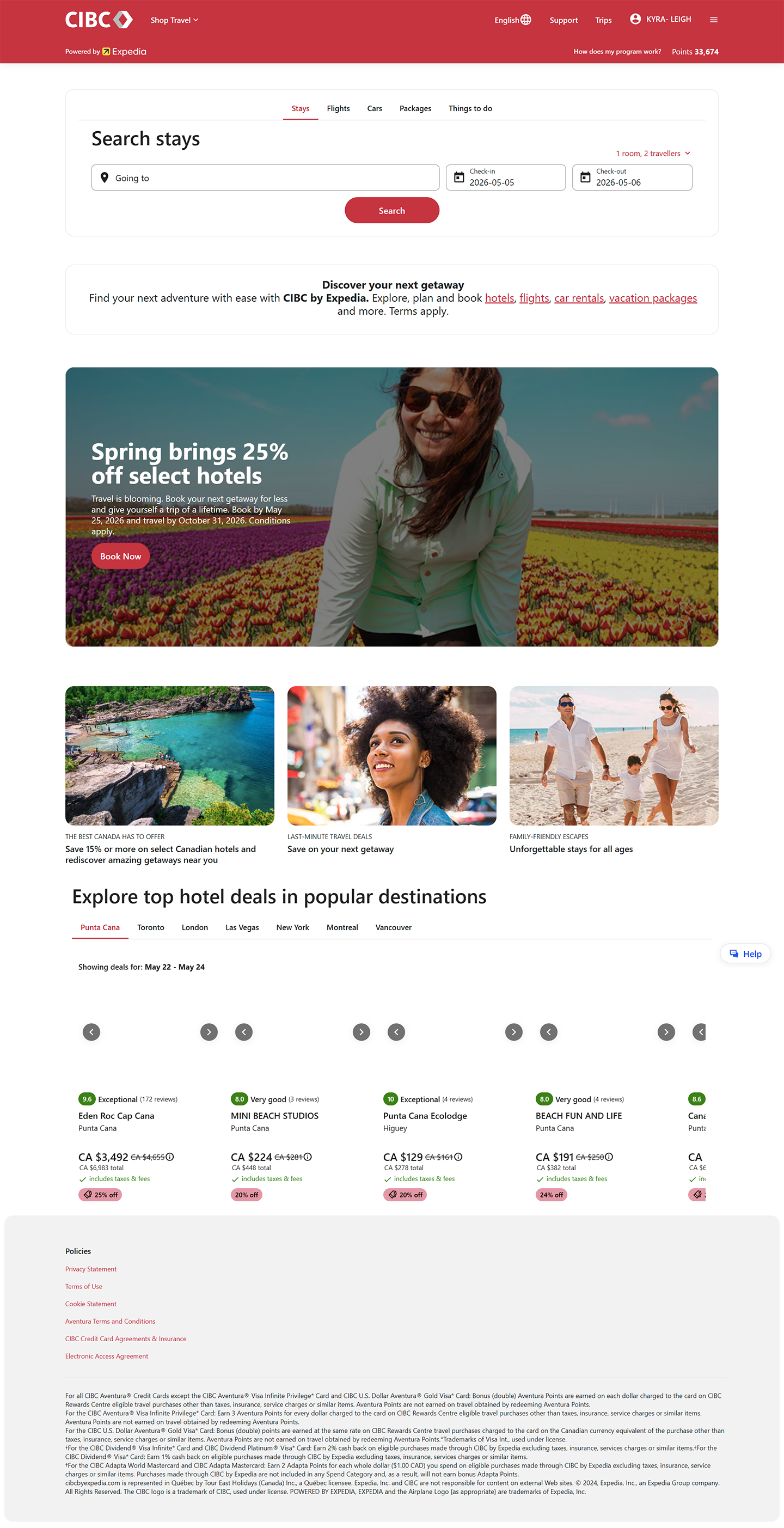
Step 4 : Explore how you can redeem CIBC Rewards for travel
On the Travel page, you can use your points to book stays, flights, car rentals and packages for your next trip. You can also search for activities and get information on things to do.
This page will open in a new tab, so to return to the Rewards overview page, close this tab. For the purpose of this demo, we'll select the "Search stays" field and then return to the overview page.
Step 5 : Select "Gift cards"
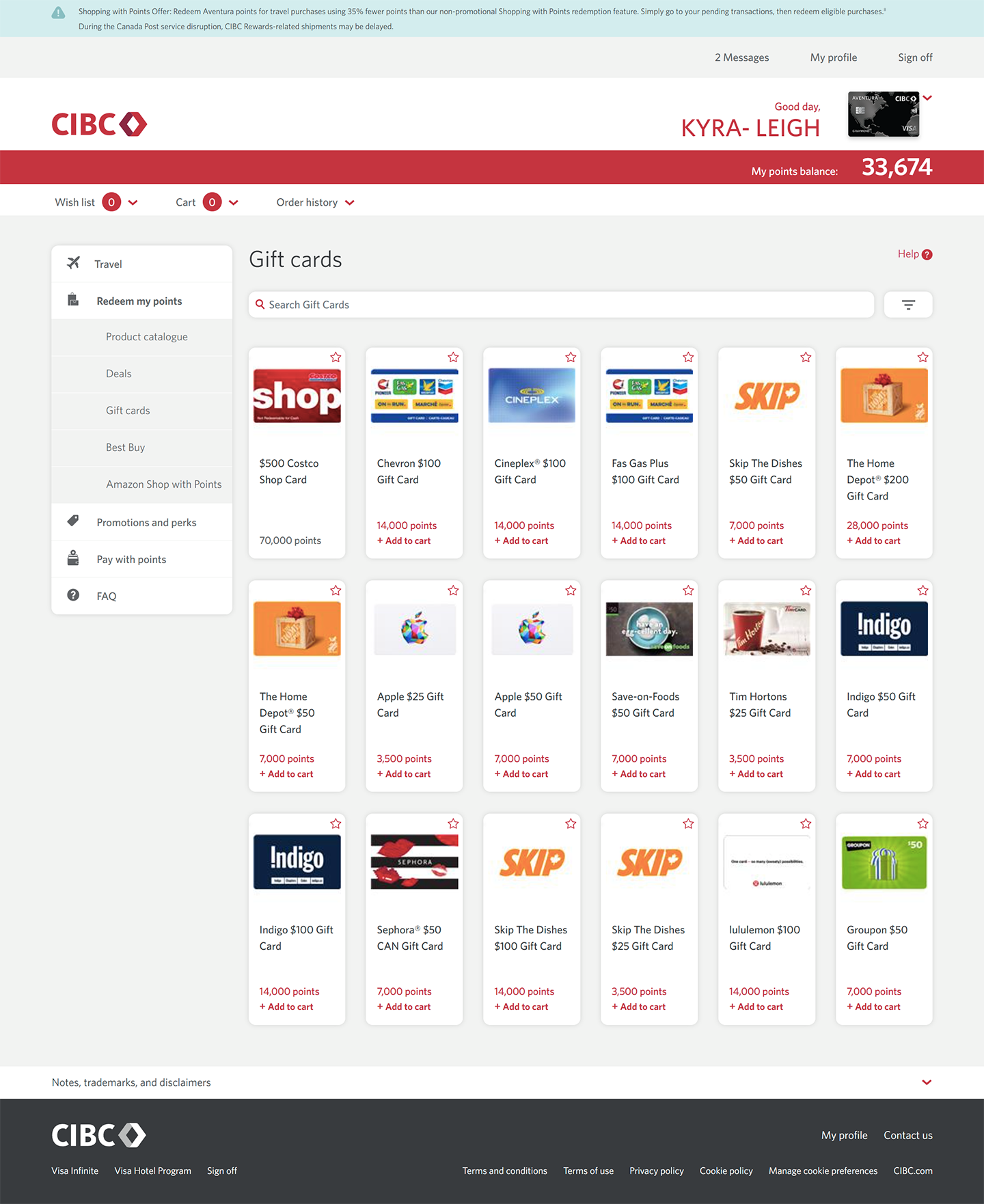
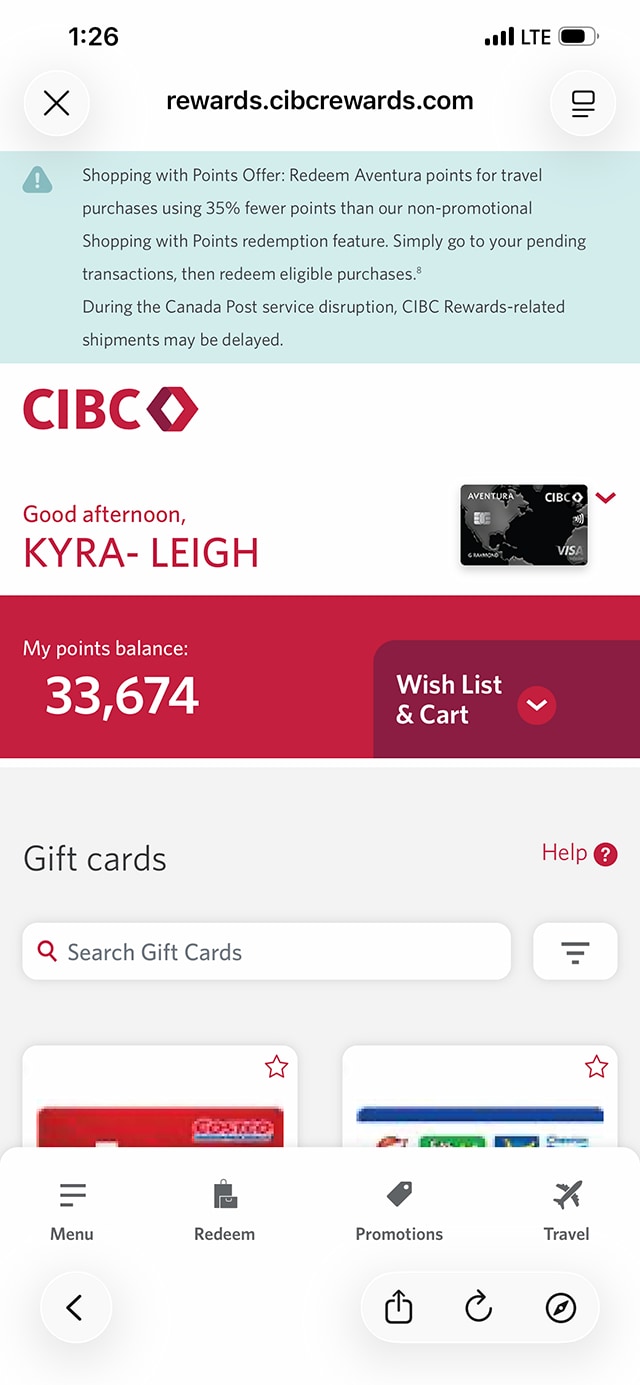
Step 6 : Explore how you can redeem CIBC Rewards for gift cards
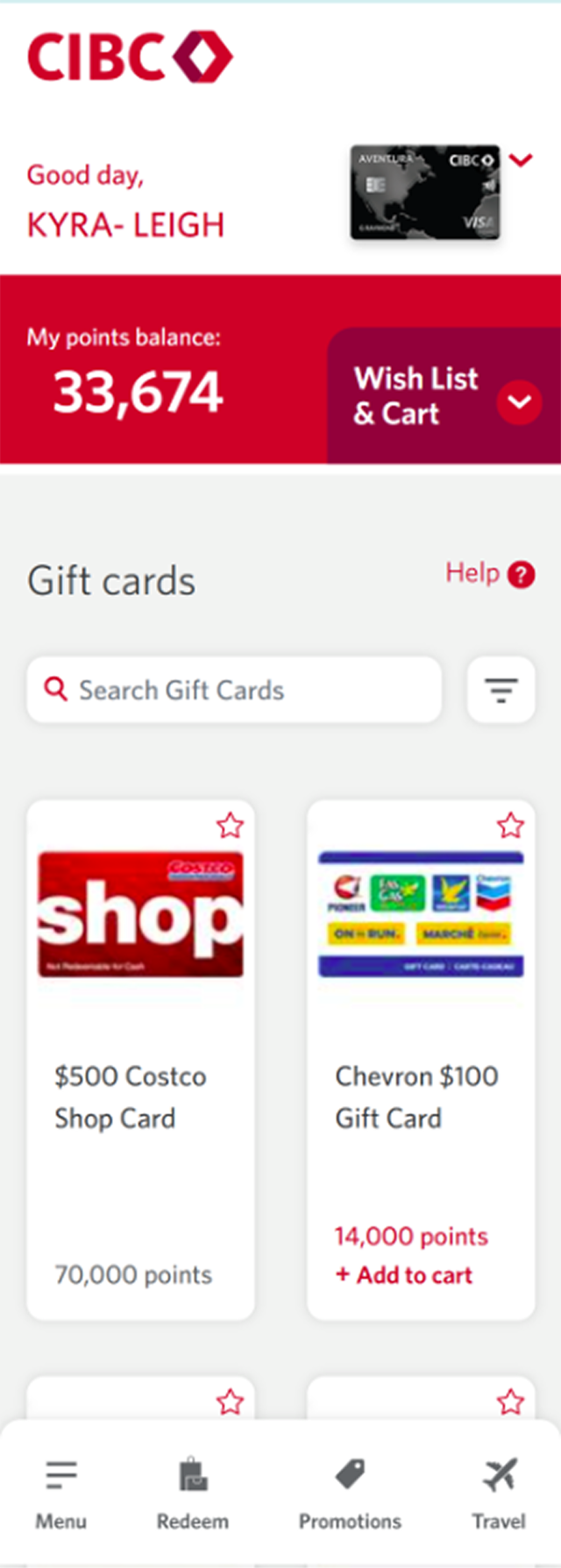
You can shop for gift cards from a variety of merchants including stores, cinemas, gas stations and many more.
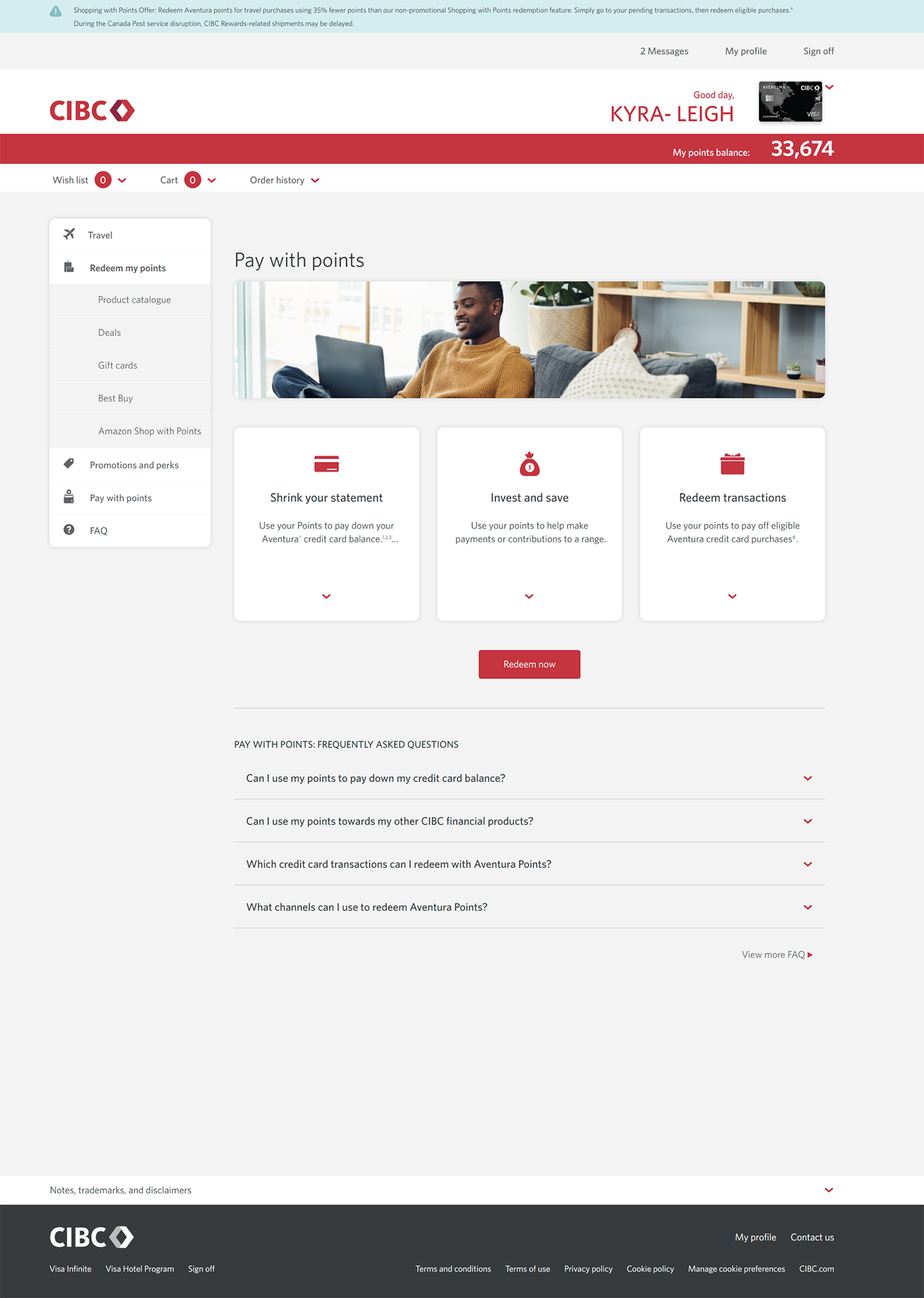
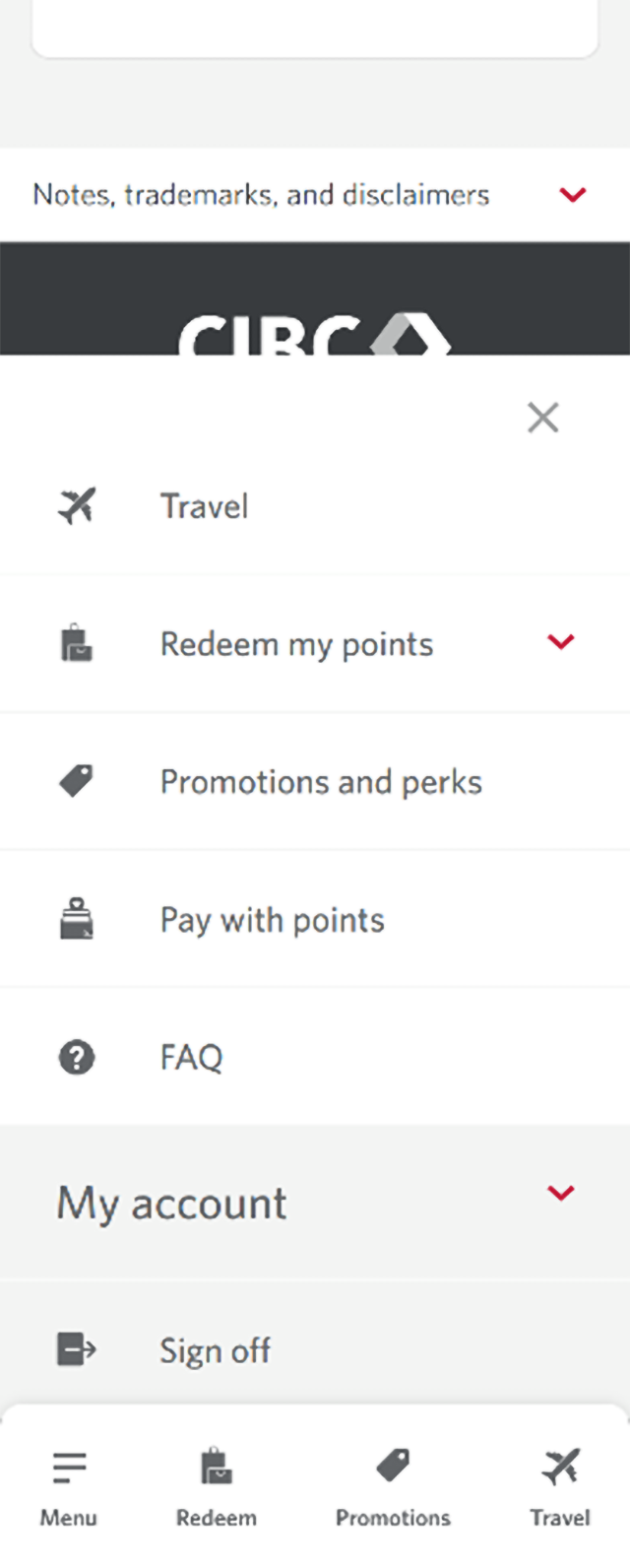
When you're ready to redeem your points, go to the menu bar and select "Pay with my points".
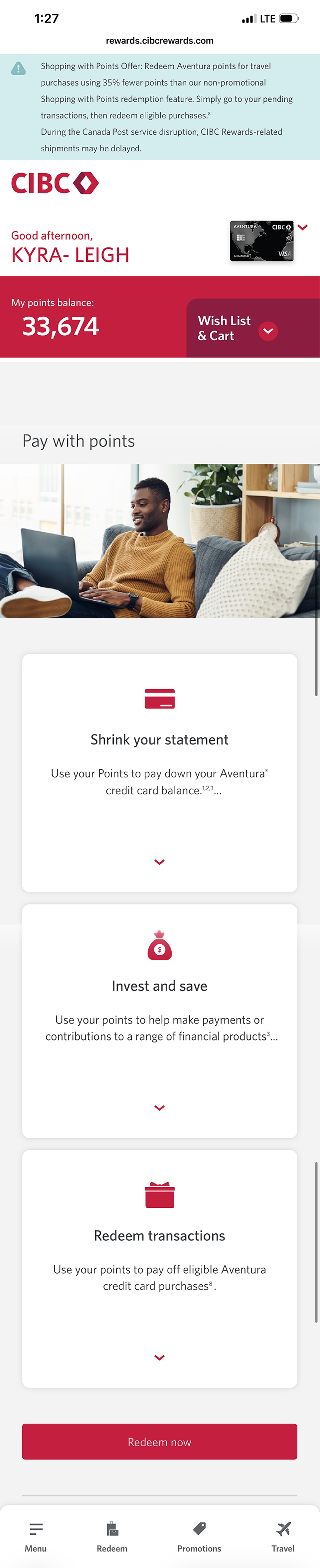
Step 7 : Use points to pay a credit card account balance
You can use your points to pay account balances on the credit card you use to collect CIBC Rewards, make contributions to investments, and pay off eligible credit card purchases.
For this demo, we'll pay down the account balance of a credit card. Select the "Redeem now" button to continue.
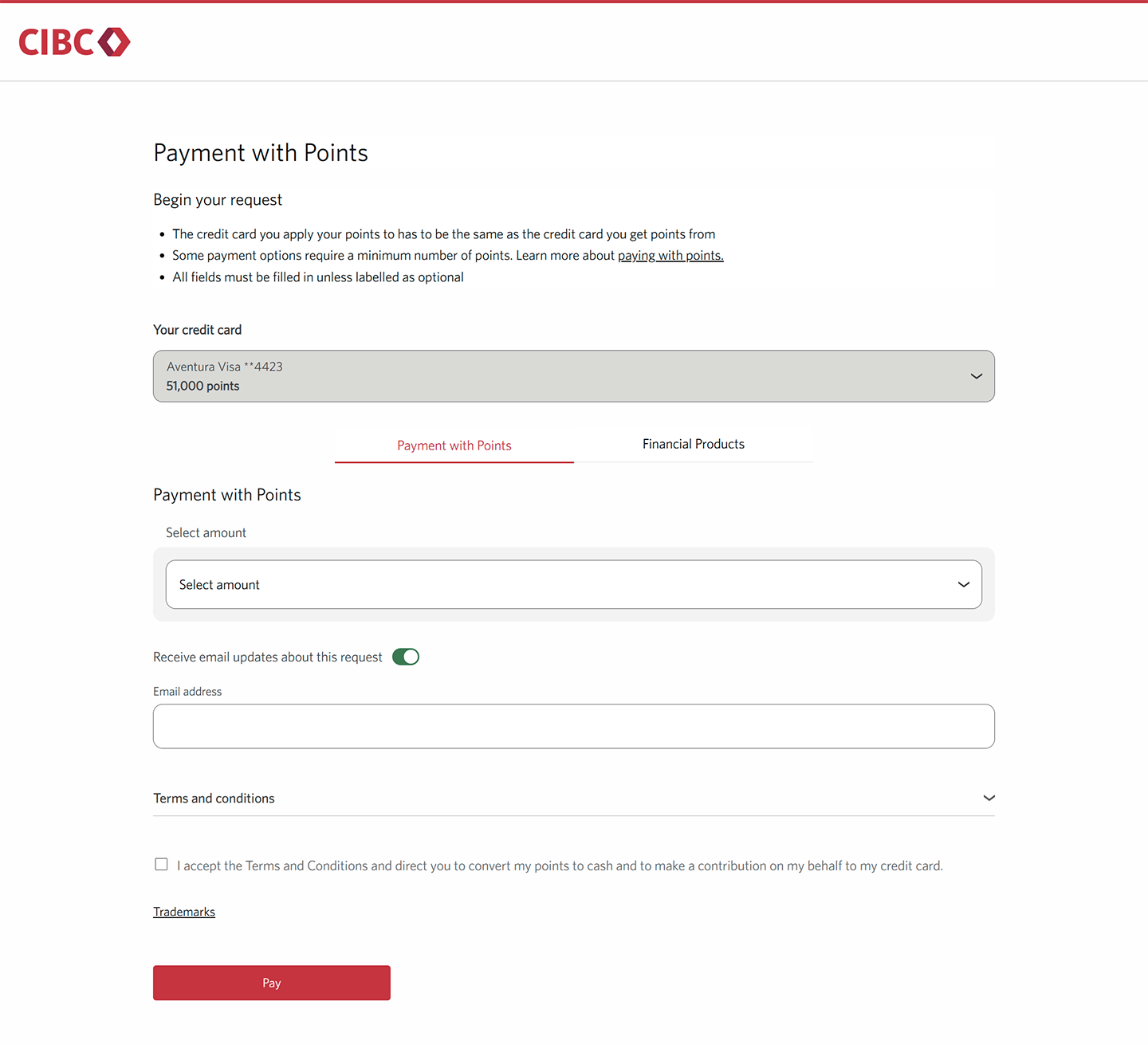
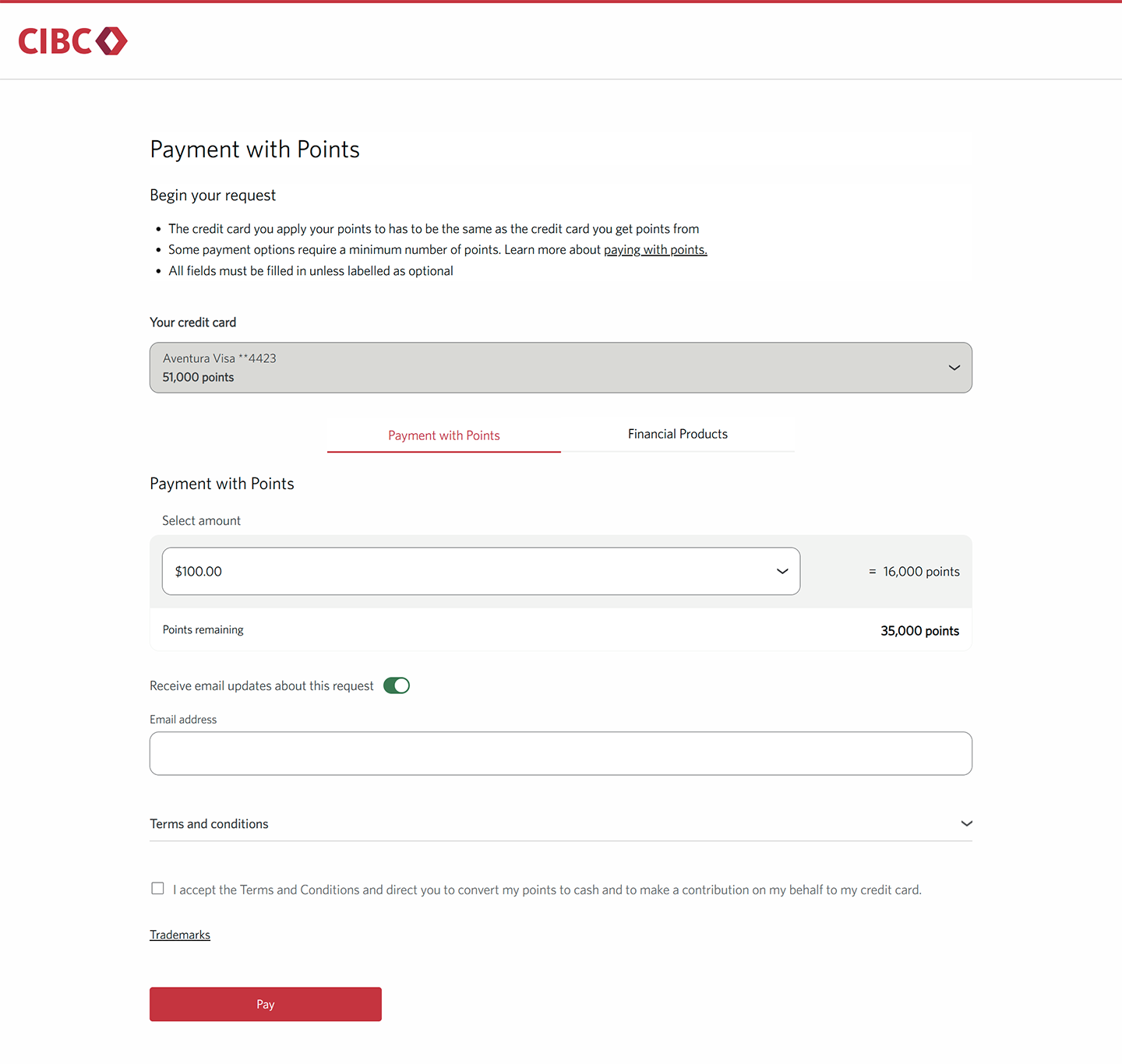
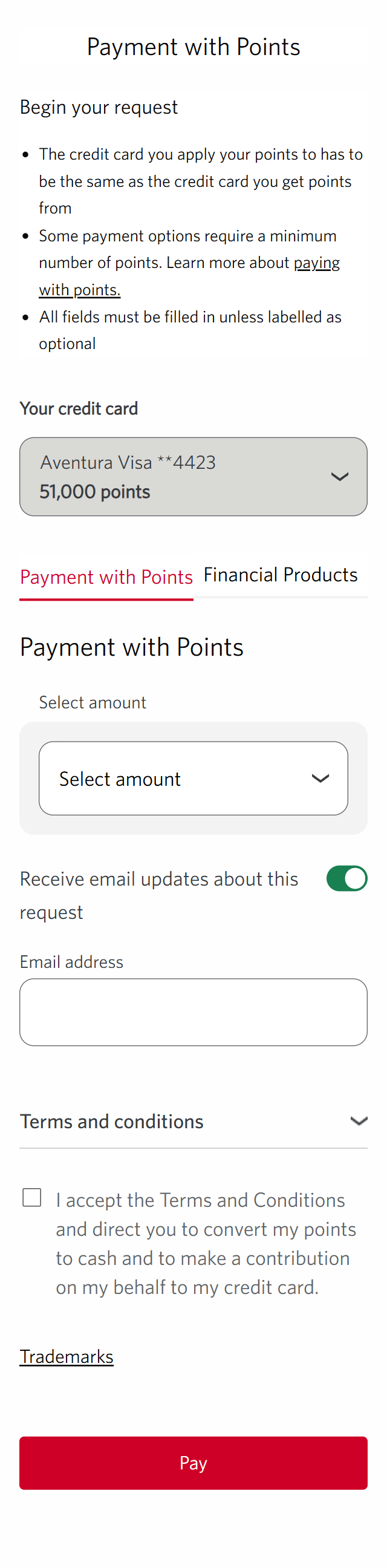
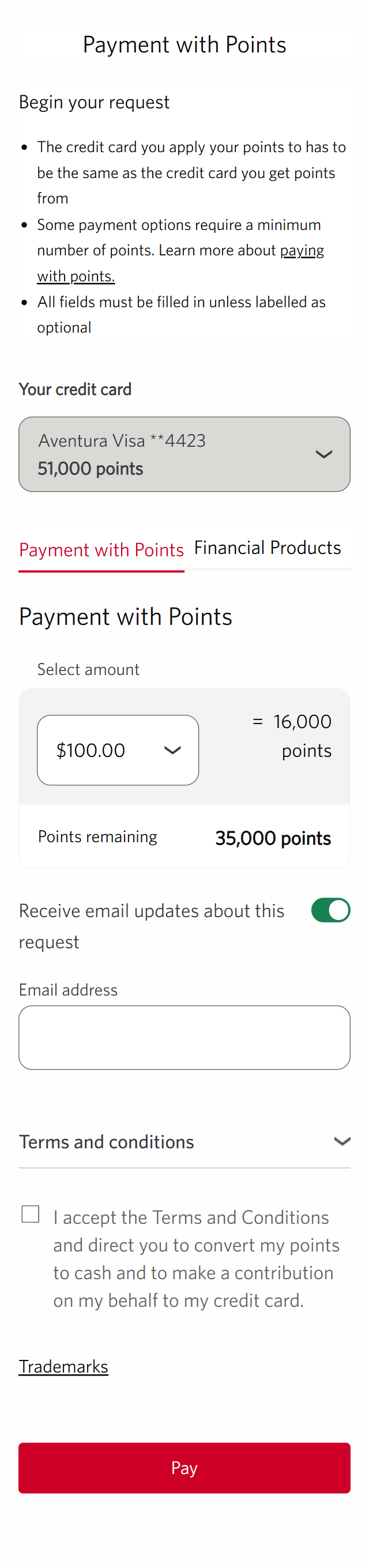
Step 8 : Select the amount of points you want to redeem
Step 9 : Enter your email address and accept the terms and conditions
Use the field provided to enter your email address.
Next, select the checkbox to confirm the following: "I accept the Terms and Conditions and direct you to convert my points into cash and make a contribution on my behalf to my credit card".
Once you've checked the box, select the "Pay" button. You'll be prompted to confirm the transaction request to make a payment toward the balance of your credit card.
Confirm the request and you'll be taken back to the CIBC Rewards page.
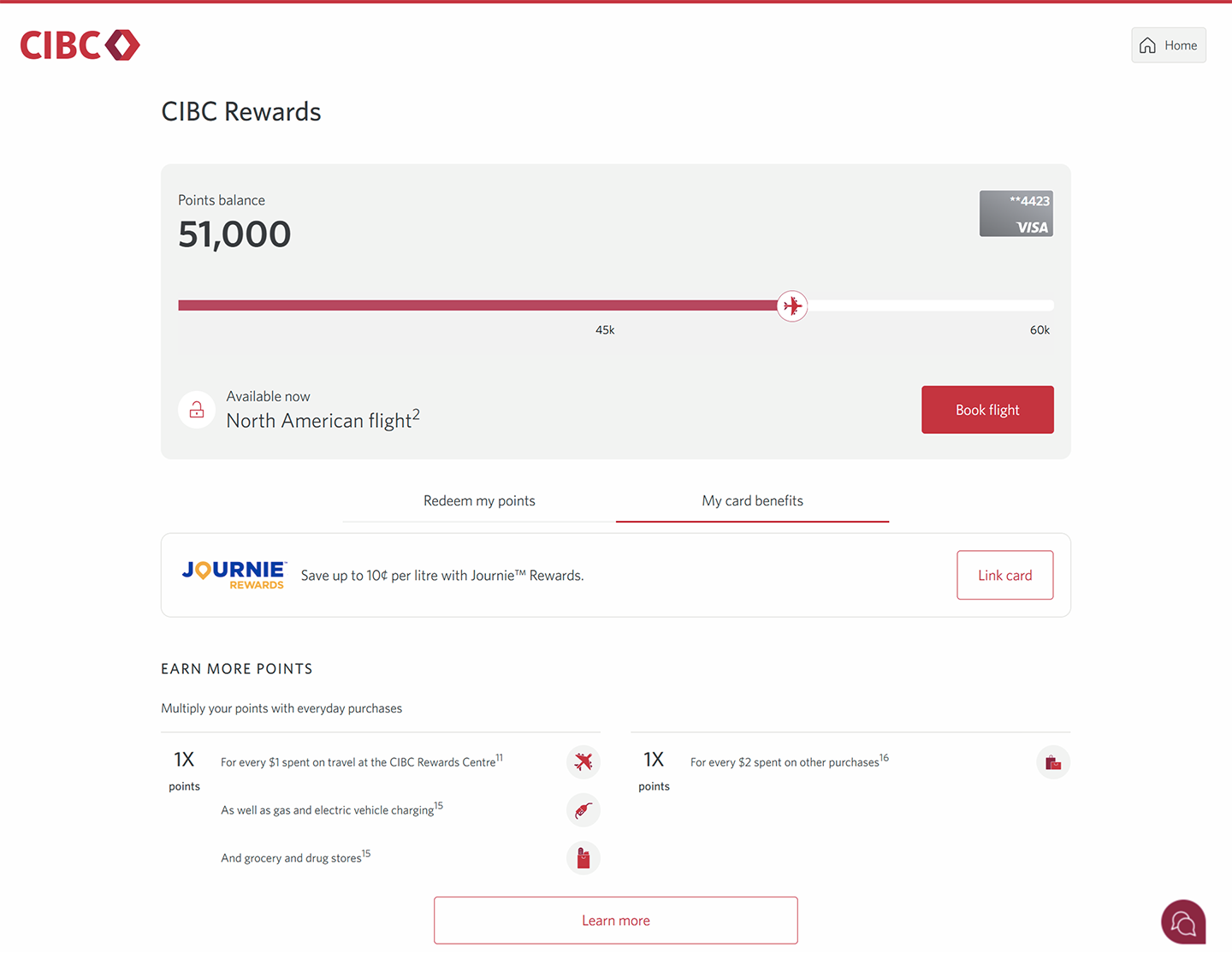
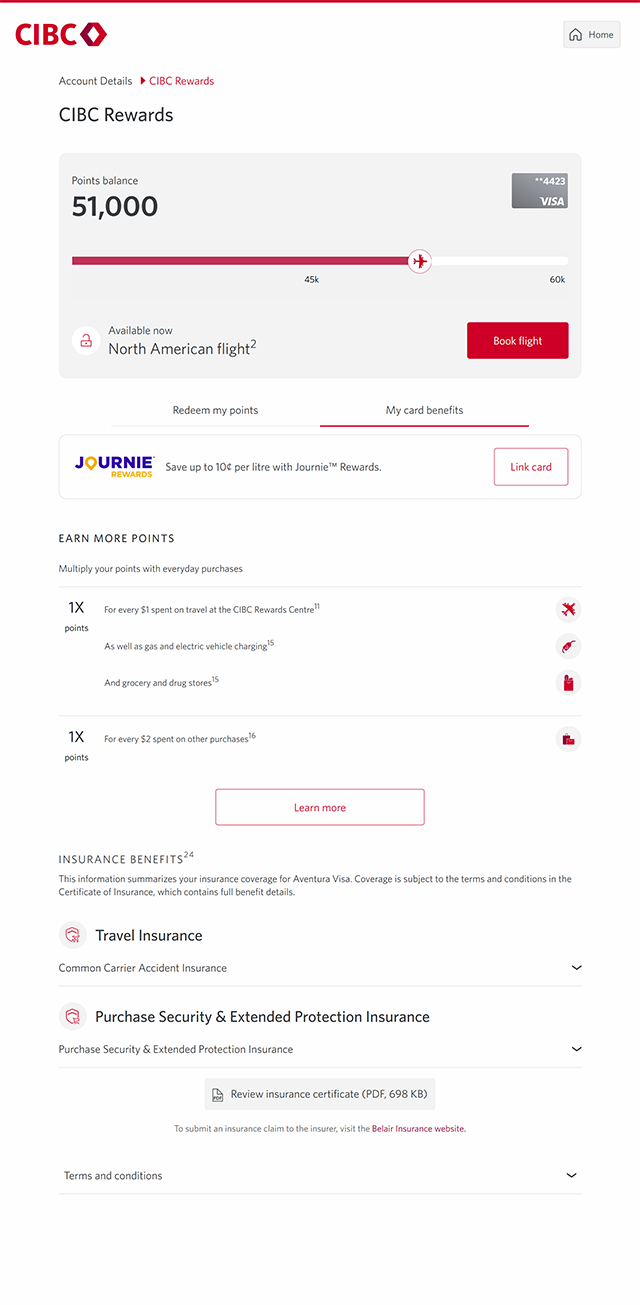
Step 10 : Select "My card benefits"
Step 11 : Explore My card benefits
In the My card benefits tab, you can learn about your card benefits and ways you can earn more points.
When you're ready, select the "Home" icon to return to the CIBC homepage.
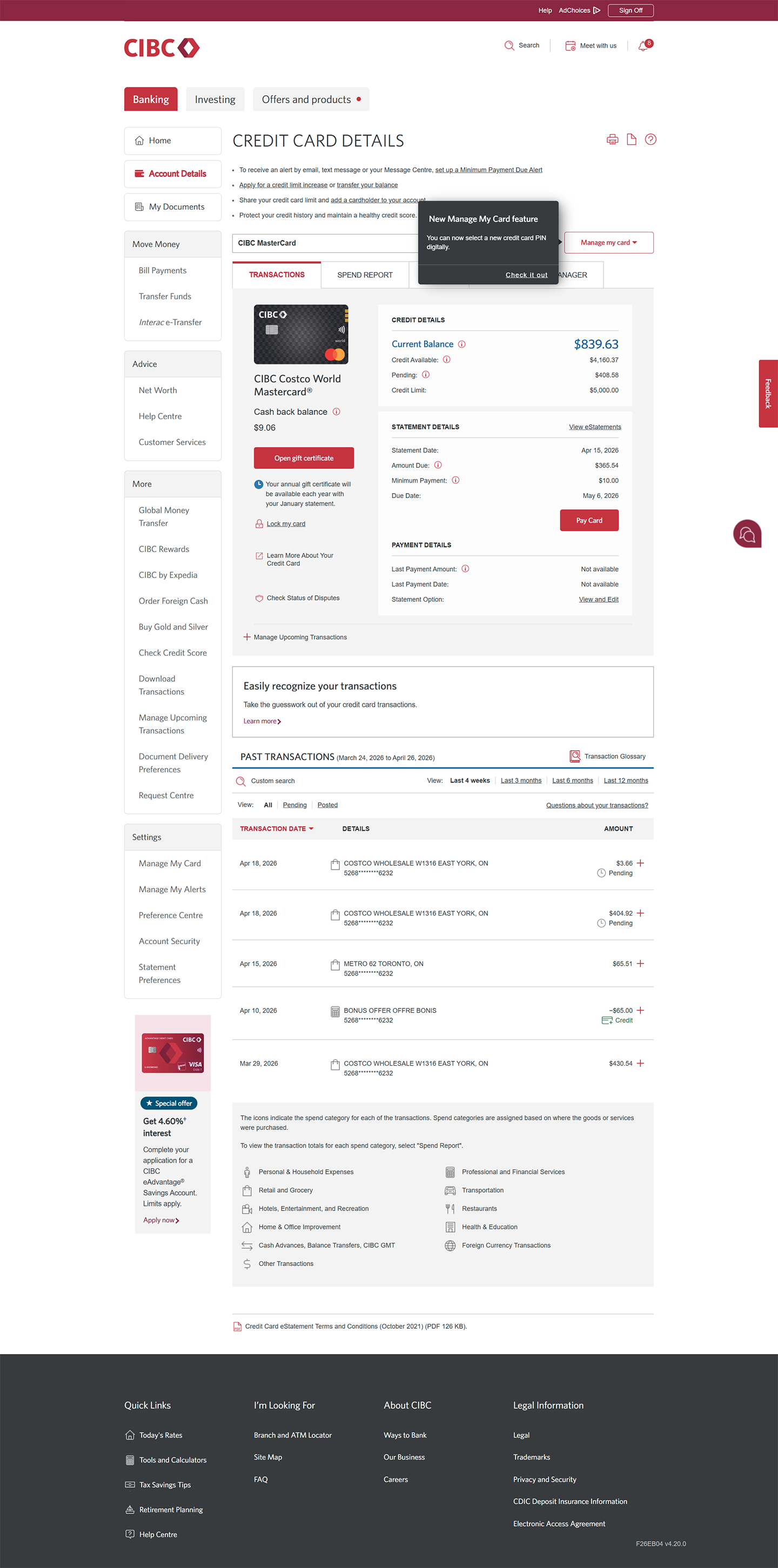
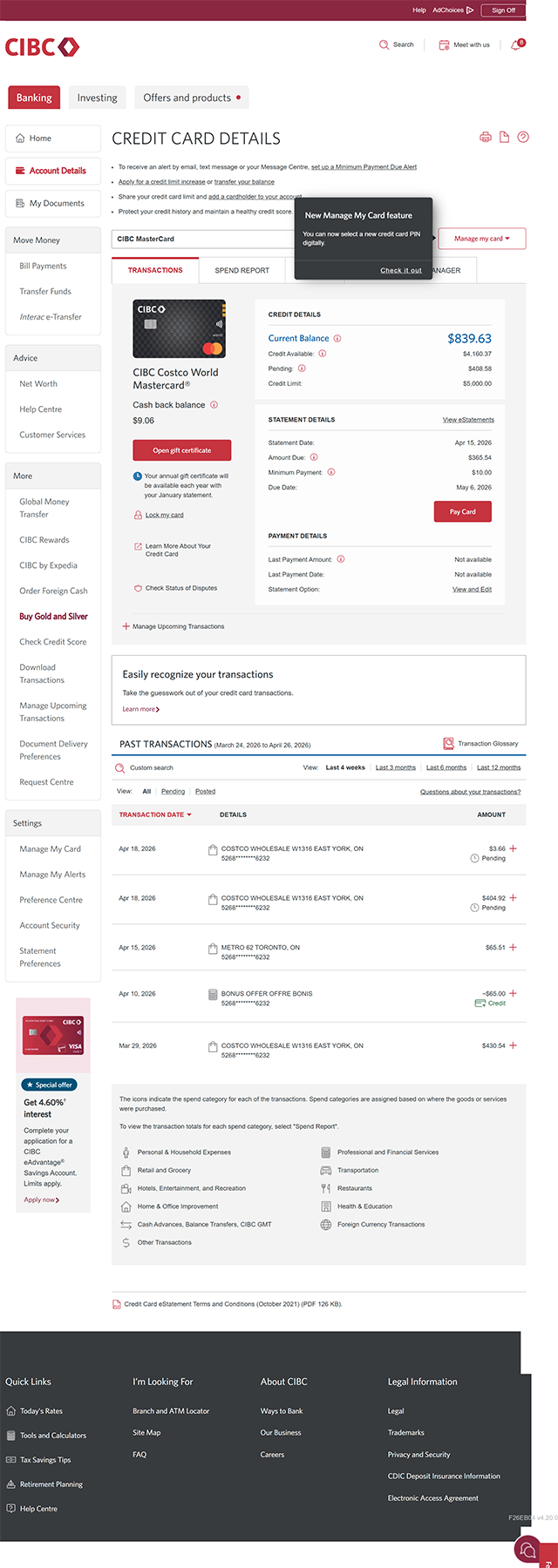
Step 12 : Select the CIBC Costco World Mastercard® account
Step 13 : Explore CIBC Costco World Mastercard Rewards
Step 14 : Great job!
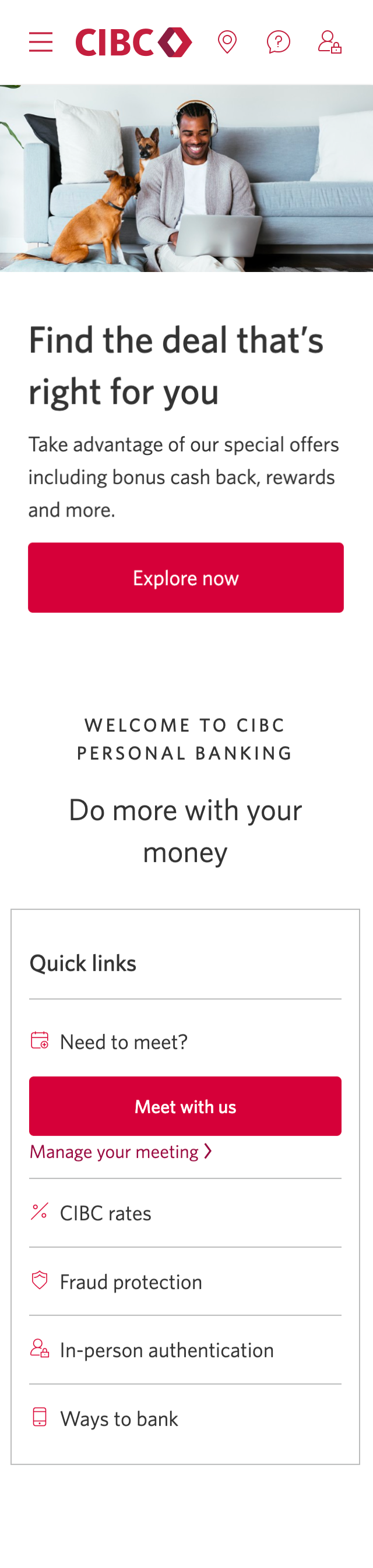




Step 1 : Let's get started on your web browser
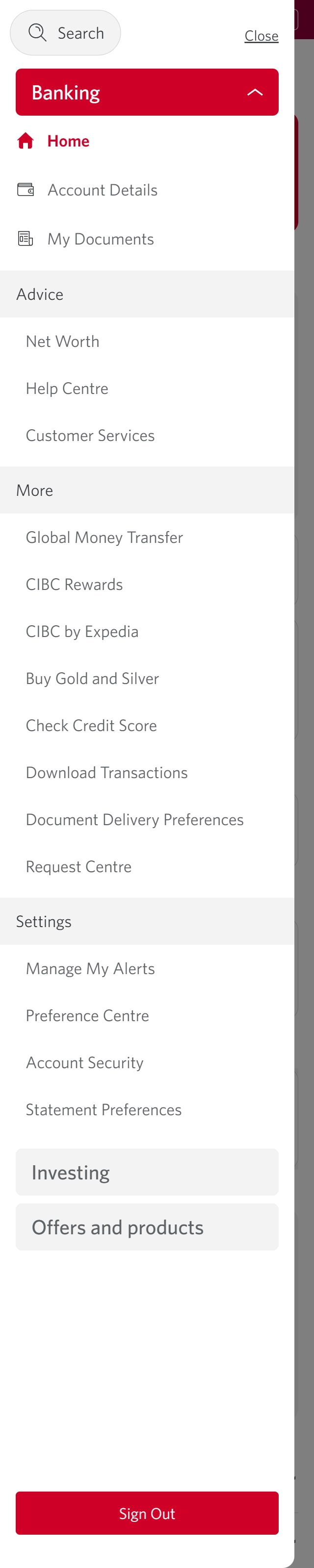
Step 2 : Select the three-line menu icon to open the navigation bar
Step 3 : Select "Your CIBC Rewards"
With CIBC Rewards, you can redeem points for travel, purchase gift cards and make payments to your credit cards.
Go to the "More" section of the menu and select the "CIBC Rewards" link.
Step 4 : Select "Travel"
Step 5 : Explore how you can redeem CIBC Rewards for travel
On the Travel page, you can use your points to book stays, flights, car rentals and packages for your next trip. You can also search for activities and get information on things to do.
This page will open in a new tab, so to return to the Rewards overview page, close this tab. For the purpose of this demo, we'll select the "Search stays" field and then return to the overview page.
Step 6 : Select "Gift cards"
Step 7 : Find the menu with more options on the navigation bar
Step 8 : Explore how you can redeem CIBC Rewards for gift cards
You can shop for gift cards from a variety of merchants including stores, cinemas, gas stations and many more.
When you're ready to redeem your points, select "Pay with my points".
Step 9 : Use points to pay a credit card account balance
You can use your points to pay account balances on the credit card you use to collect CIBC Rewards, make contributions to investments, and pay off eligible credit card purchases.
For this demo, we'll pay down the account balance of a credit card. Select the "Redeem now" button to continue.
Step 10 : Select the amount of points you want to redeem
Step 11 : Enter your email address and accept the terms and conditions
Use the field provided to enter your email address.
Next, select the checkbox to confirm the following: "I accept the Terms and Conditions and direct you to convert my points into cash and make a contribution on my behalf to my credit card".
Once you've checked the box, select the "Pay" button. You'll be prompted to confirm the transaction request to make a payment toward the balance of your credit card.
Confirm the request and you'll be taken back to the CIBC Rewards page.
Step 12 : Select "My card benefits"
Step 13 : Explore My card benefits
In the My card benefits tab, you can learn about your card benefits and ways you can earn more points.
When you're ready, select the "Home" icon to return to the CIBC homepage.
Step 14 : Select the CIBC Costco World Mastercard® account
Step 15 : Explore CIBC Costco World Mastercard Rewards
Step 16 : Great job!
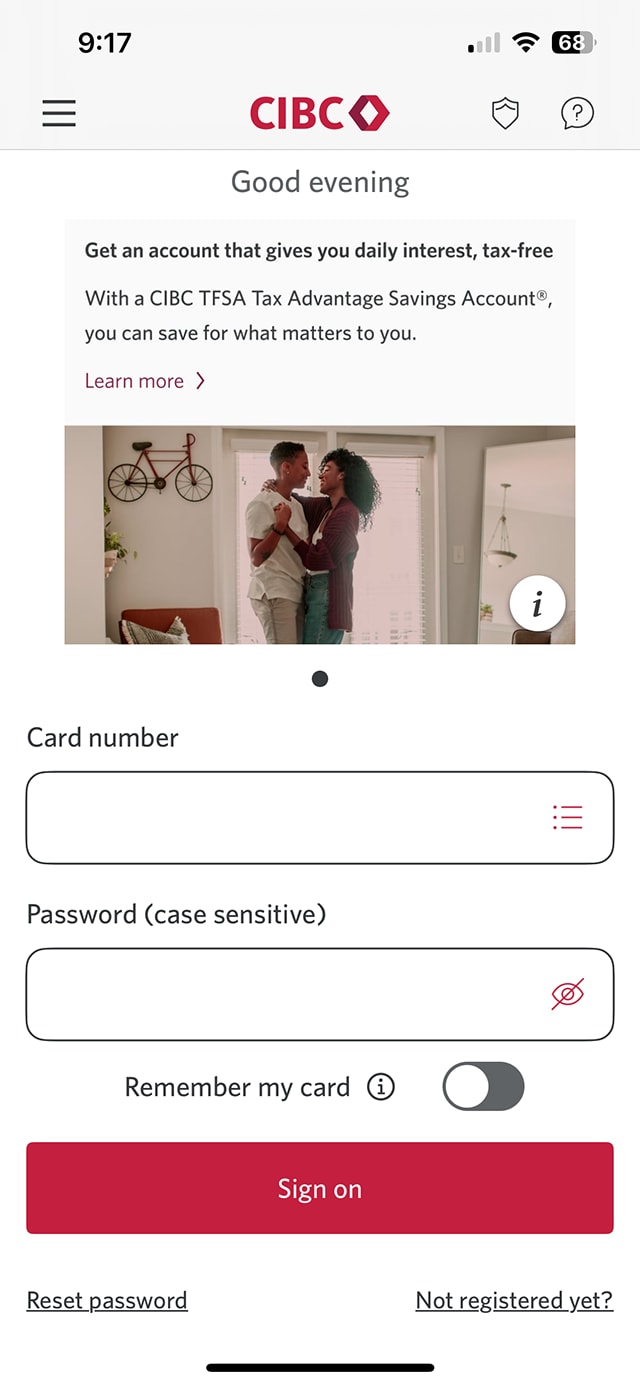
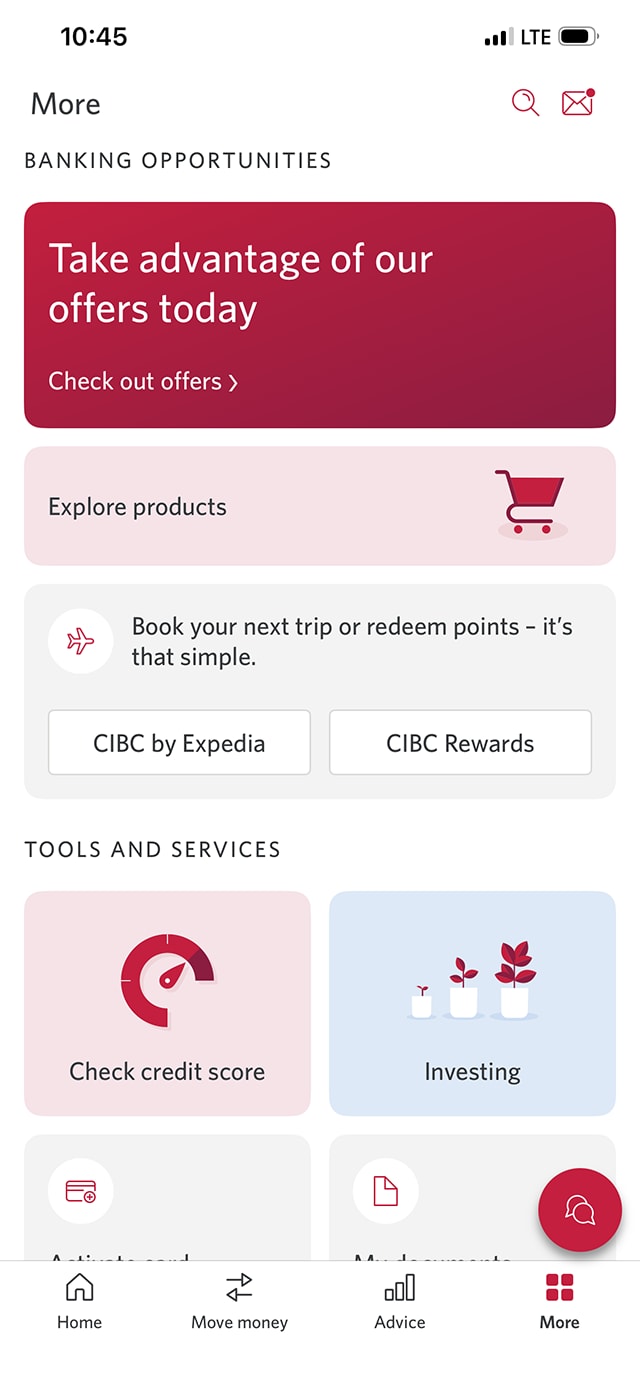
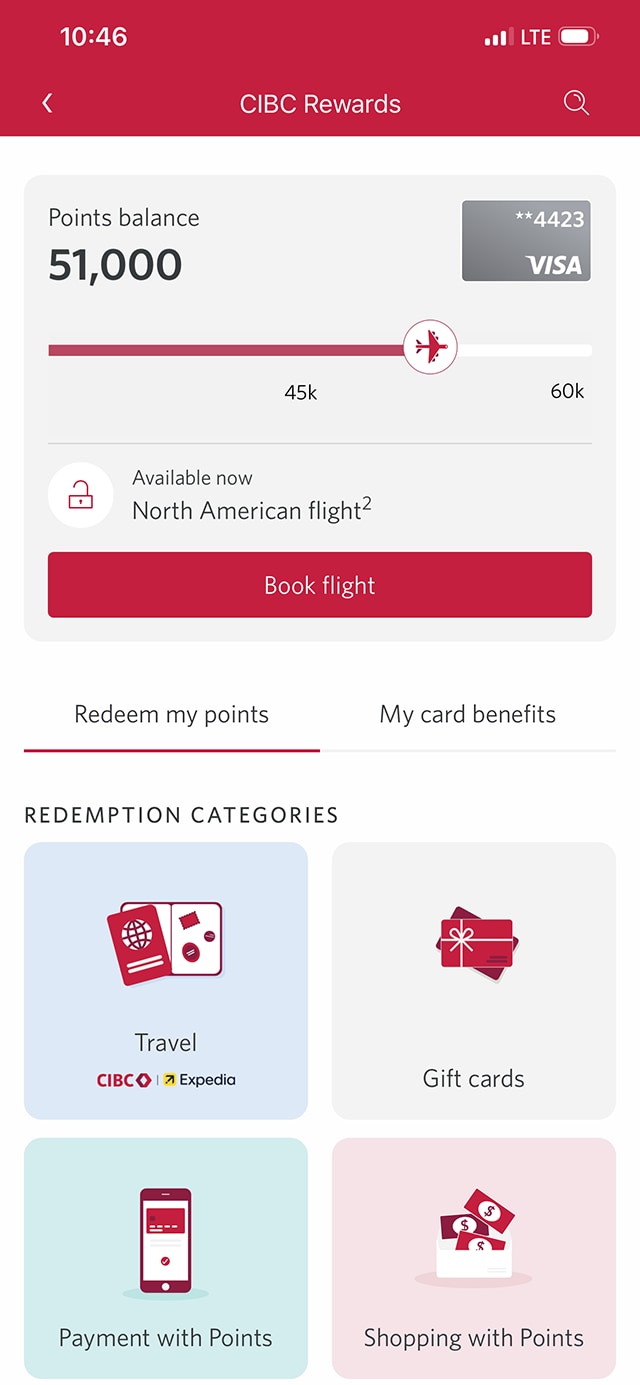
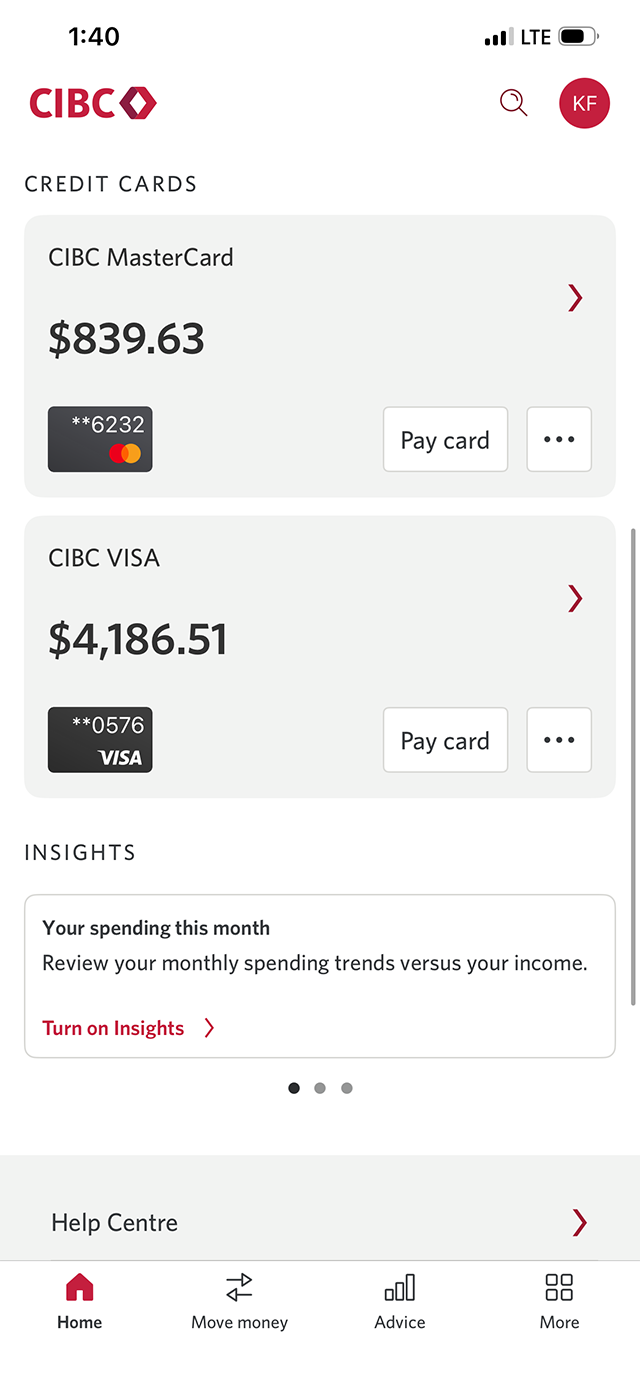
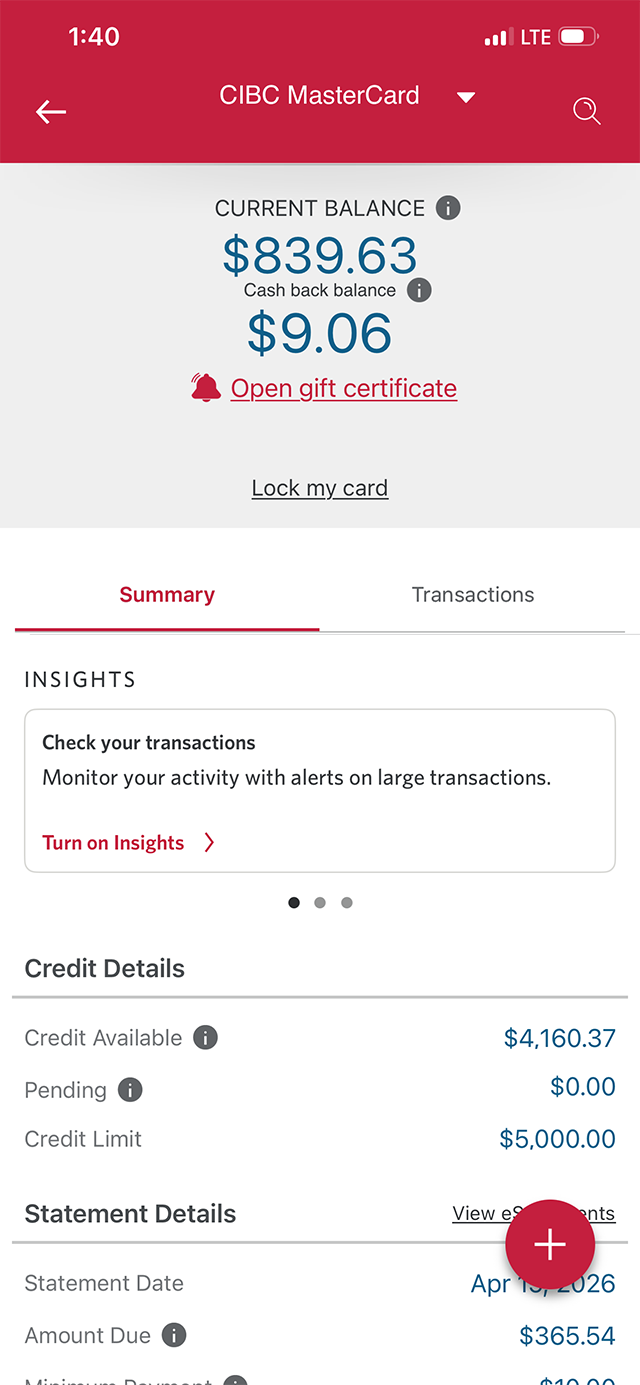
Step 1 : Let's get started on the mobile app
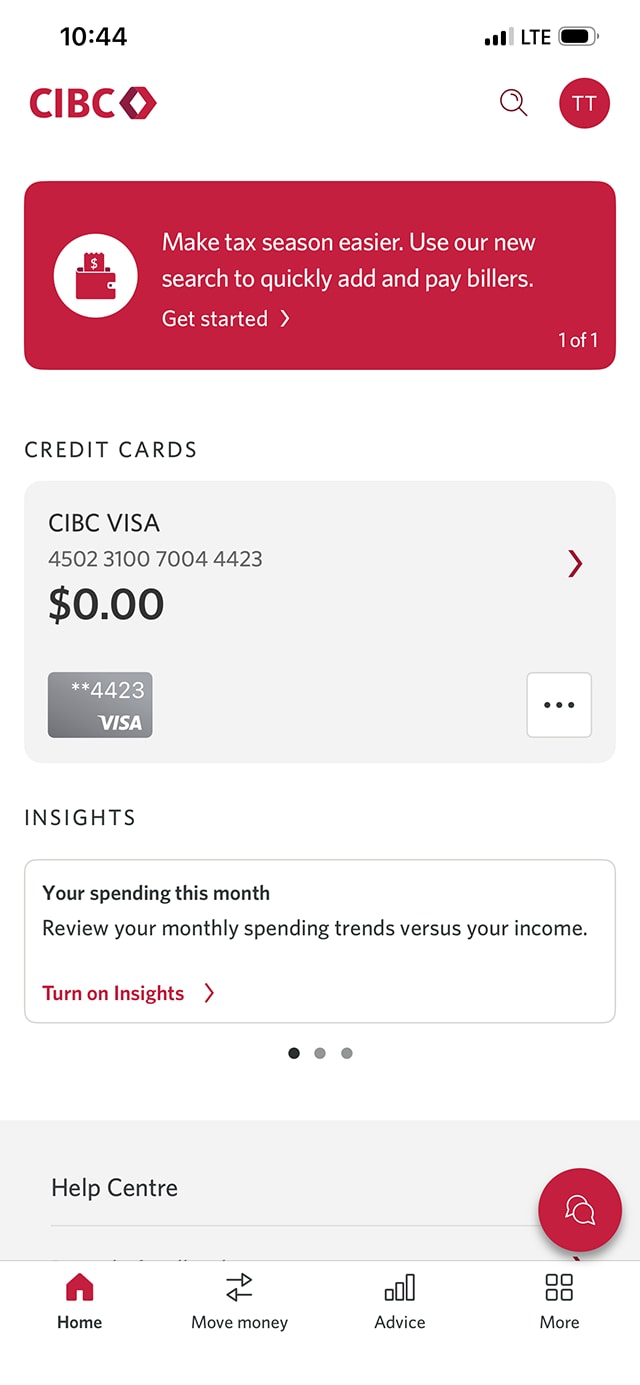
Step 2 : Select the "More" menu
Step 3 : Select "CIBC Rewards"
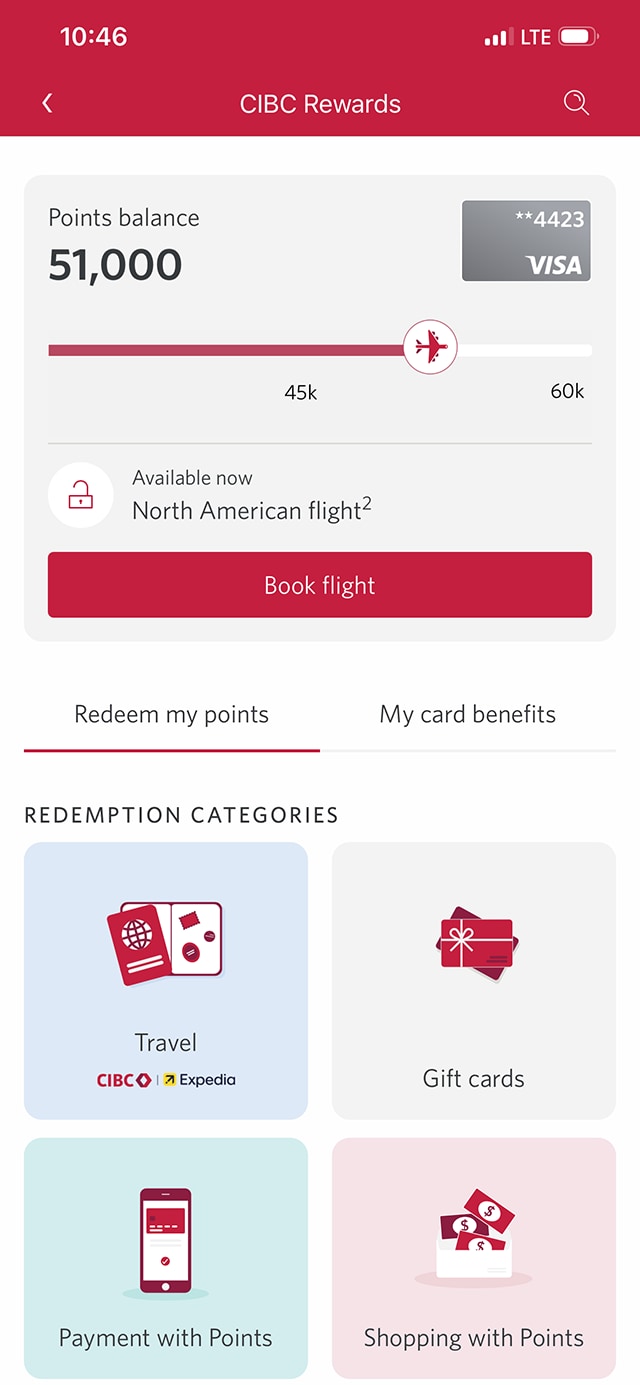
From the More menu options, select the "CIBC Rewards" button.
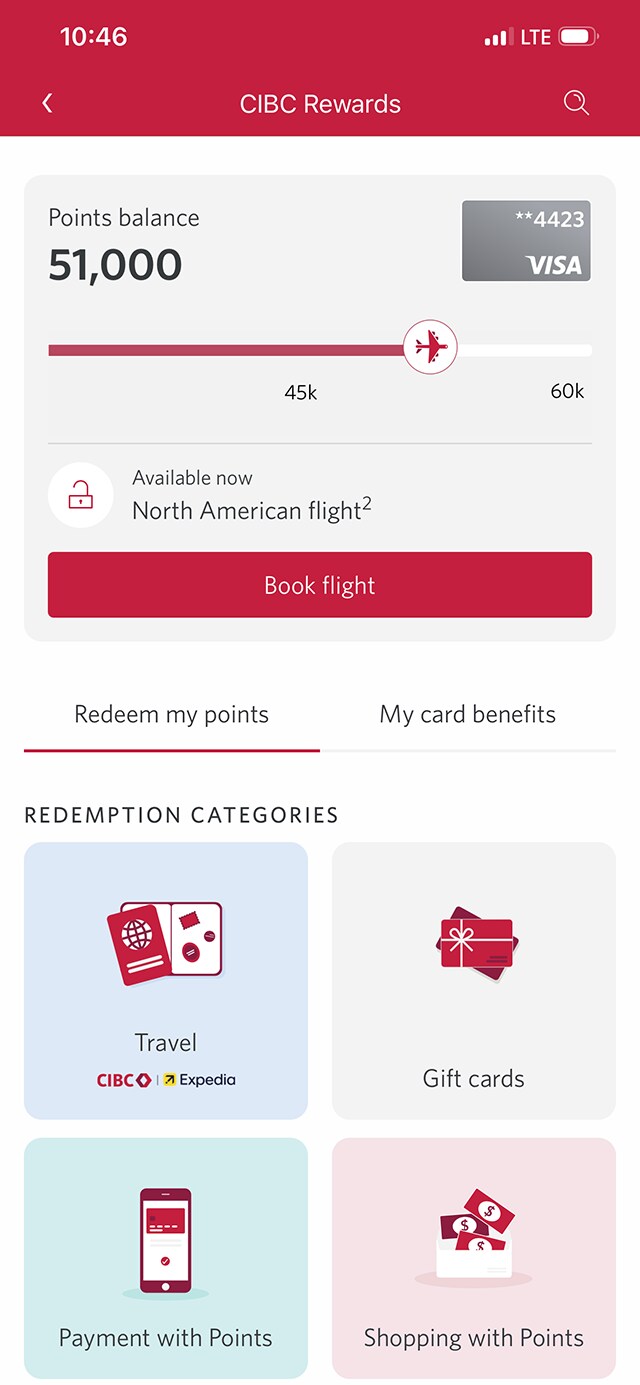
With CIBC Rewards, you can redeem points for travel, purchase gift cards and make payments to your credit cards.
Step 4 : Select "Travel"
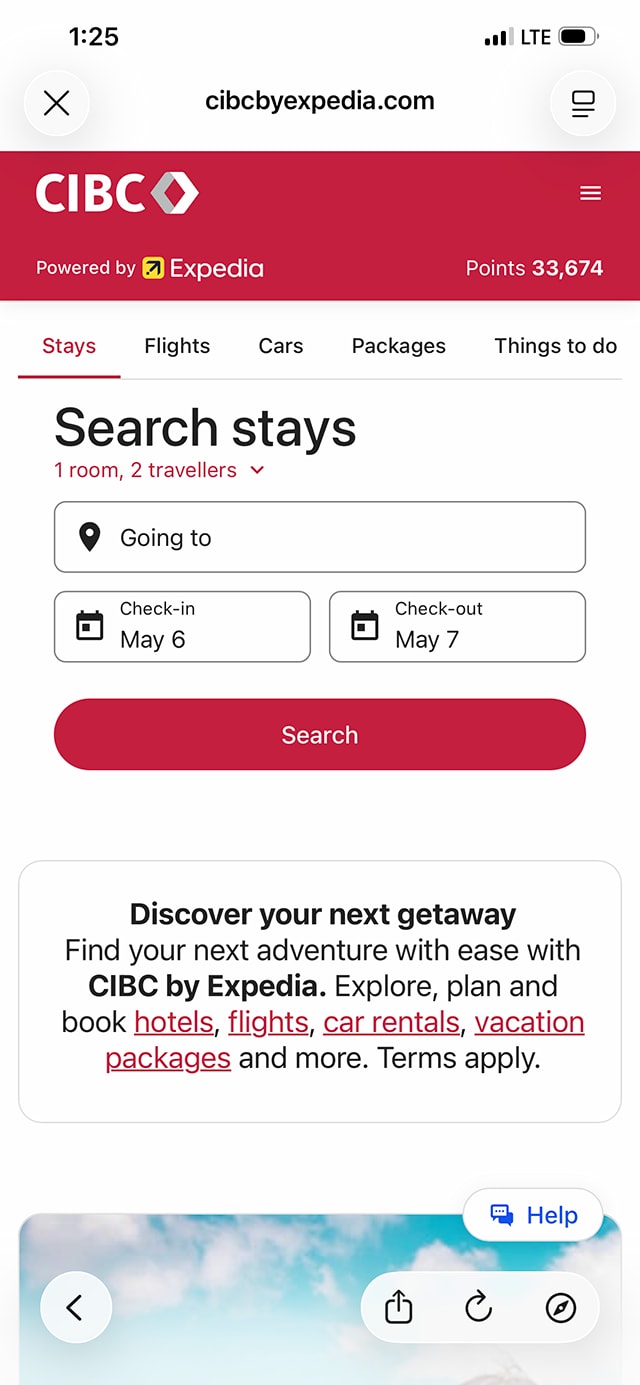
Step 5 : Explore how you can redeem CIBC Rewards for travel
On the Travel page, you can use your points to book stays, flights, car rentals and packages for your next trip. You can also search for activities and get information on things to do.
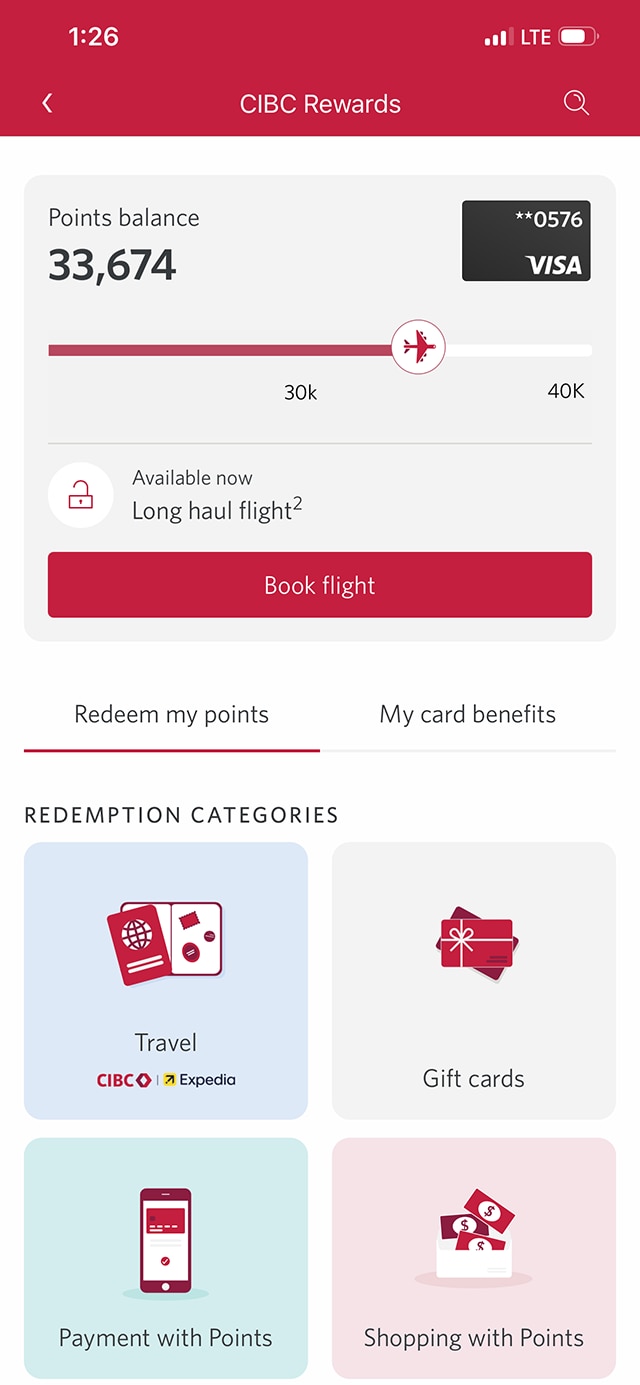
This page will open in a new window. To return to the Rewards overview page, select the "X" to close the window.
Step 6 : Select "Gift cards"
Step 7 : Explore how you can redeem CIBC Rewards for gift cards
You can shop for gift cards from a variety of merchants including stores, cinemas, gas stations and many more.
When you're finished exploring the page, select the "X" to close the window and return to the Rewards overview page.
Step 8 : Use points to pay a credit card account balance
You can use your points to pay account balances on the credit card you use to collect Rewards, make contributions to investments and pay off eligible credit card purchases.
For this demo, we'll pay down the account balance of a credit card.
When you return to the CIBC Rewards page, go to the redemption categories and select "Payment with points".
Step 9 : Select "Redeem now"
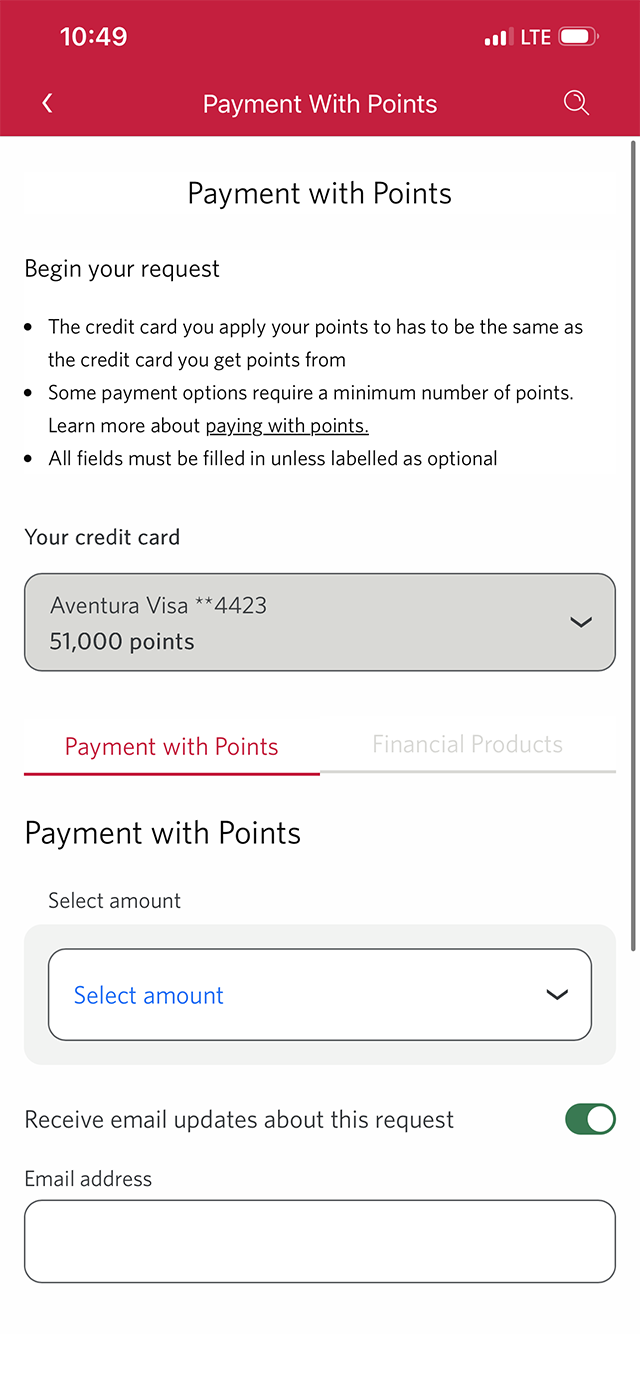
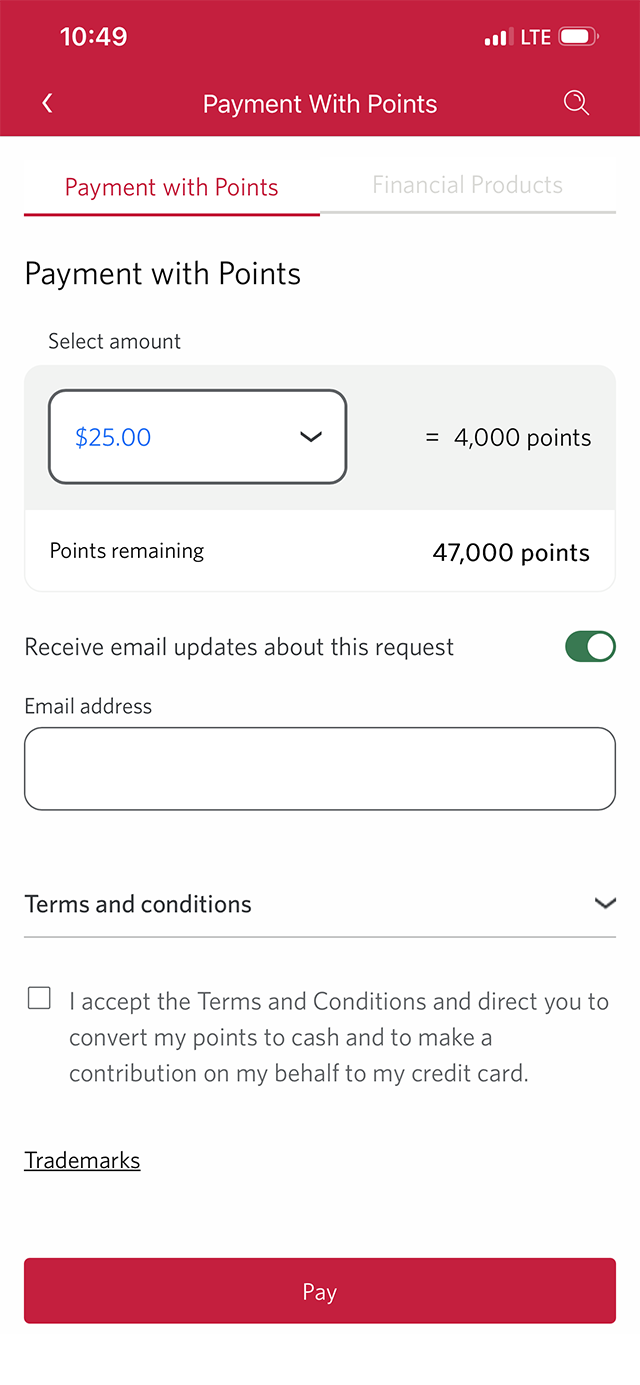
Step 10 : Select the amount of points you want to redeem
Step 11 : Enter your email address and accept the terms and conditions
Use the field provided to enter your email address.
Next, select the checkbox to confirm: "I accept the Terms and Conditions and direct you to convert my points into cash and make a contribution on my behalf to my credit card".
When you're ready, select the "Pay" button to proceed.
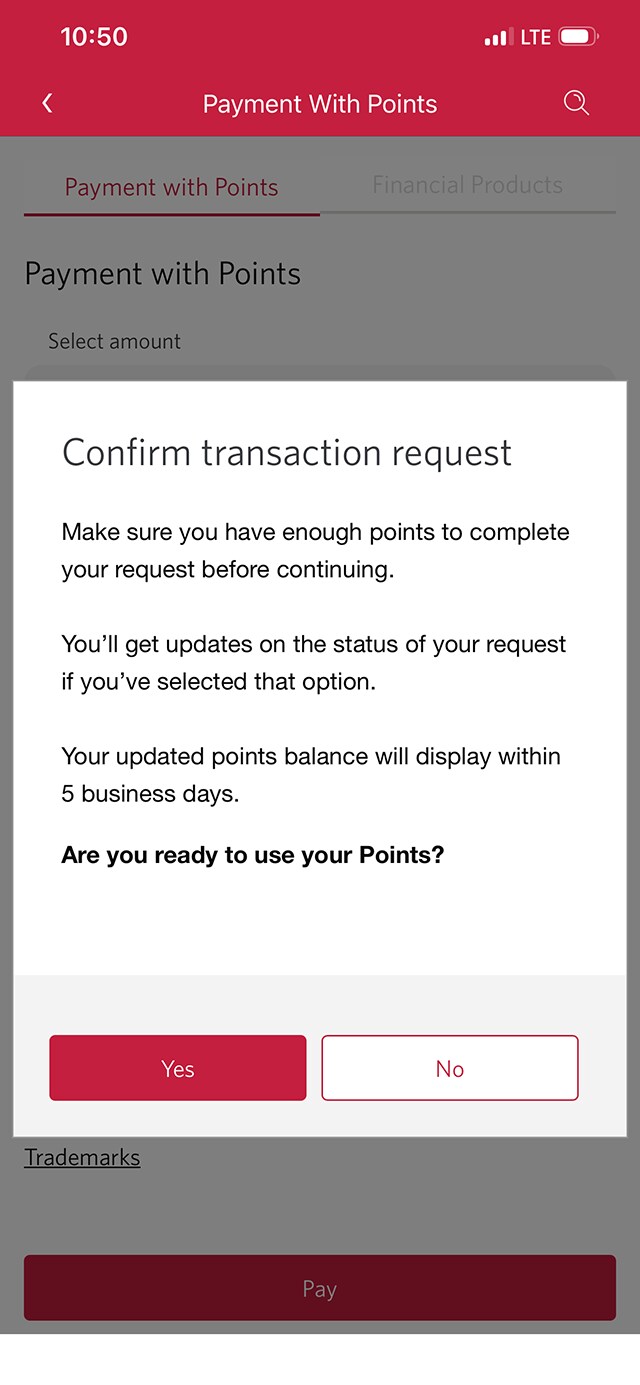
Step 12 : Confirm your transaction request
You'll be prompted to confirm your transaction request to make the payment toward the balance of your credit card.
If you want to use your points, select the "Yes" button. After you confirm the transaction, you'll return to the CIBC Rewards page.
Step 13 : Select "My card benefits"
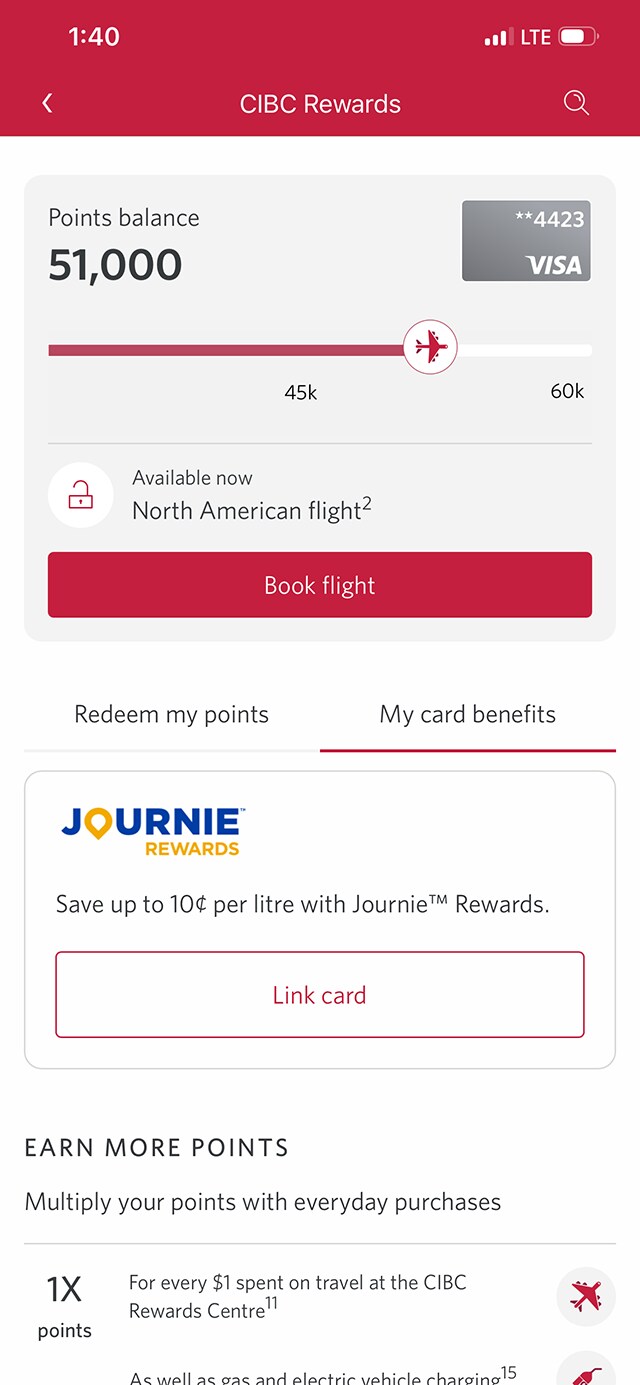
Step 14 : Explore My card benefits
In the My card benefits tab, you can learn about your card benefits and ways you can earn more points.
When you're ready, select the back arrow to return to the CIBC Mobile Banking App homepage.
Step 15 : Select the CIBC Costco World Mastercard® account
Step 16 : Explore CIBC Costco World Mastercard® Rewards
Step 17 : Great job!
Want an overview of all the steps?
For full instructions on how to understand and use CIBC Rewards, check out the step-by-step process all in one place.
Try our credit card rewards calculators
Recommended digital banking demos

How to set up alerts

How to manage your credit card

How to register for CIBC Online and Mobile Banking
Start demo on how to register for CIBC Online and Mobile Banking.

How to understand credit card payments
Get started
CIBC Online Banking®
Discover digital banking features that can help you bank easily online.
CIBC Mobile Banking® App
Stay connected to your finances on your mobile device, no matter where you are.

