
Digital banking tutorials

How to make credit card payments online
Paying your credit card on time helps you manage debt and avoid fees. Learn how to make a payment towards your CIBC credit card and stay in good standing.
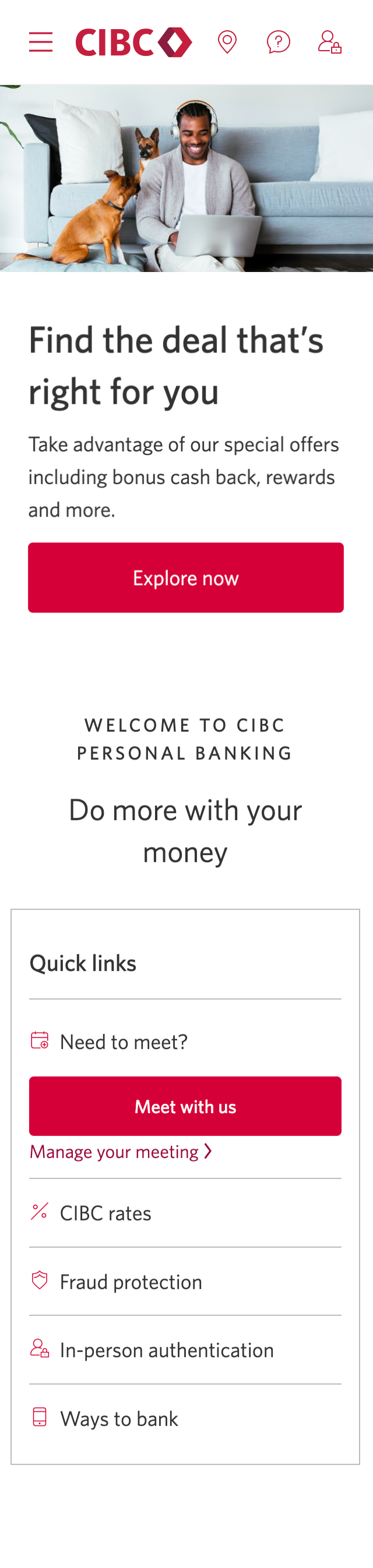
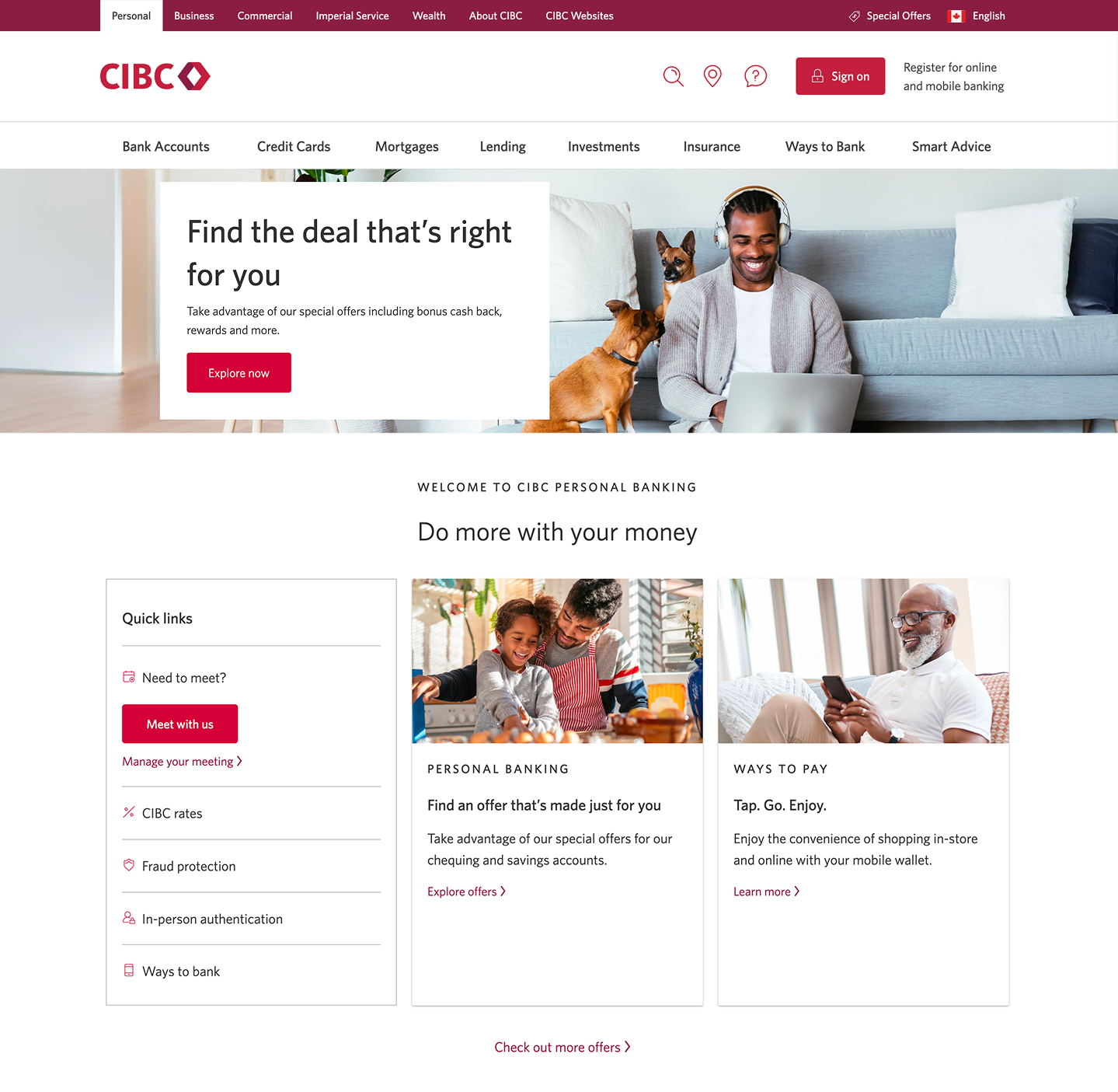
Demo screen 1: CIBC homepage. A pulsing animation highlights the "Sign on" button.
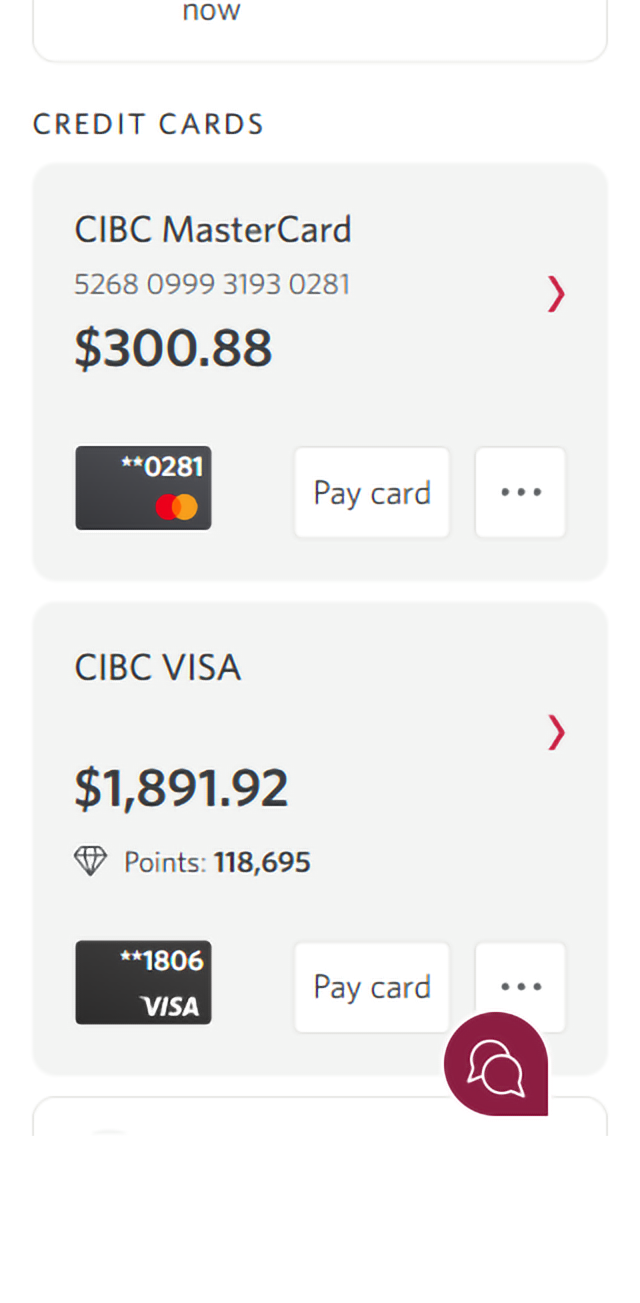
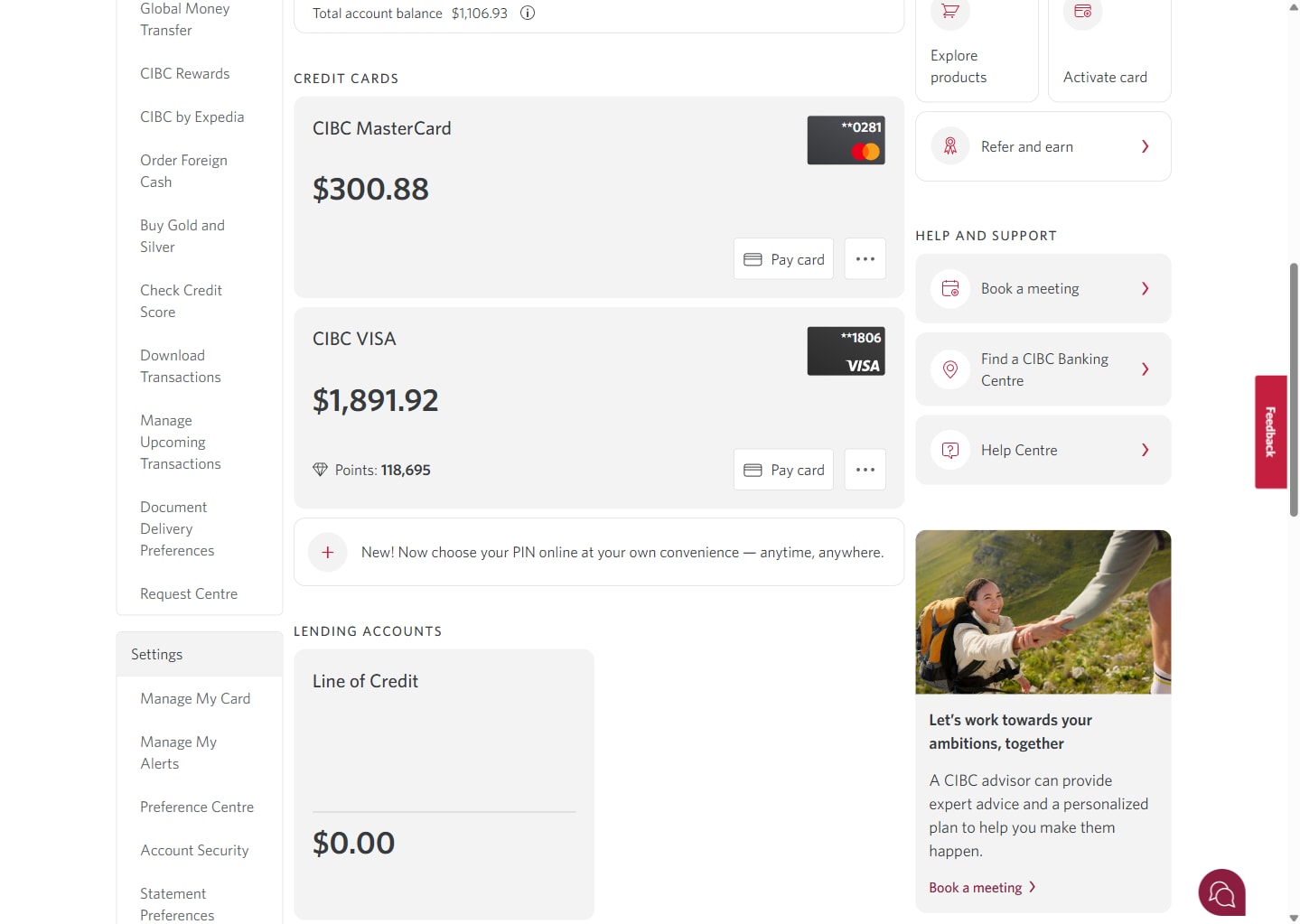
Demo screen 2: CIBC Online banking homepage. A pulsing animation highlights the "Pay card" button.
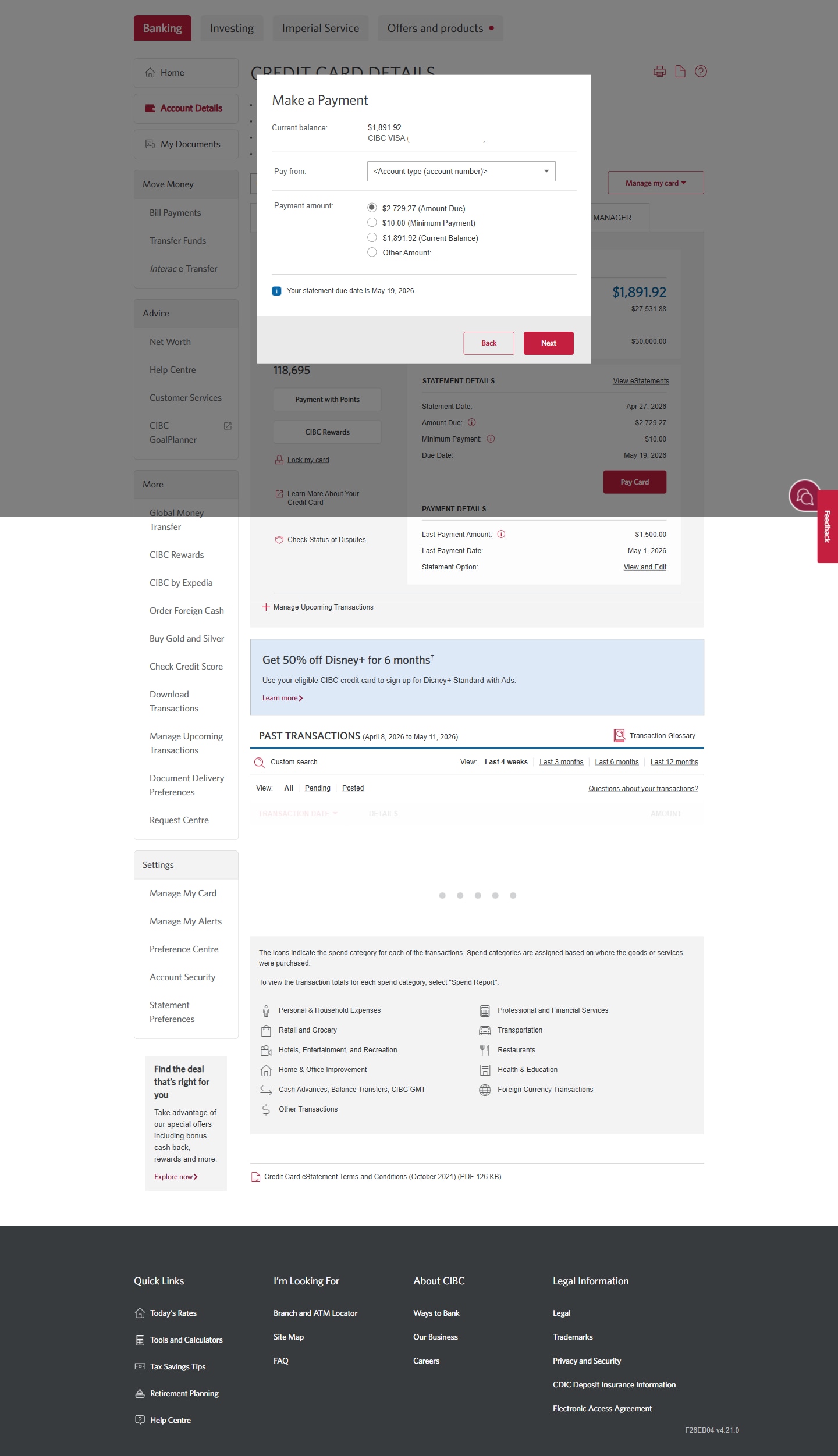
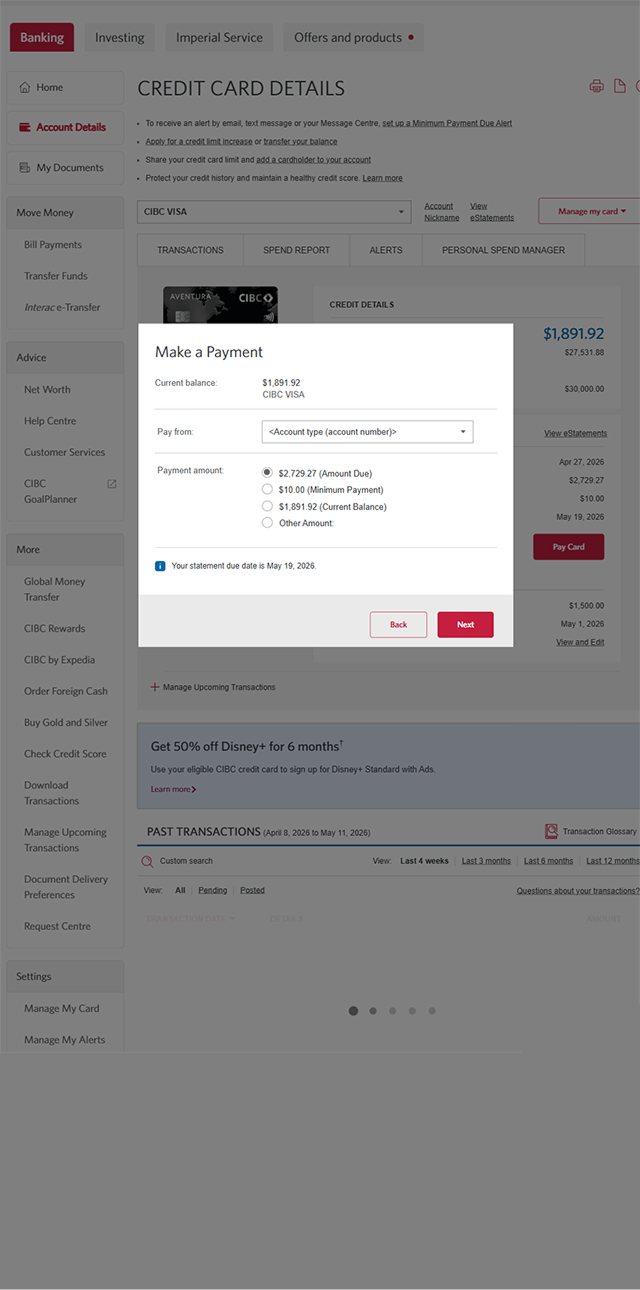
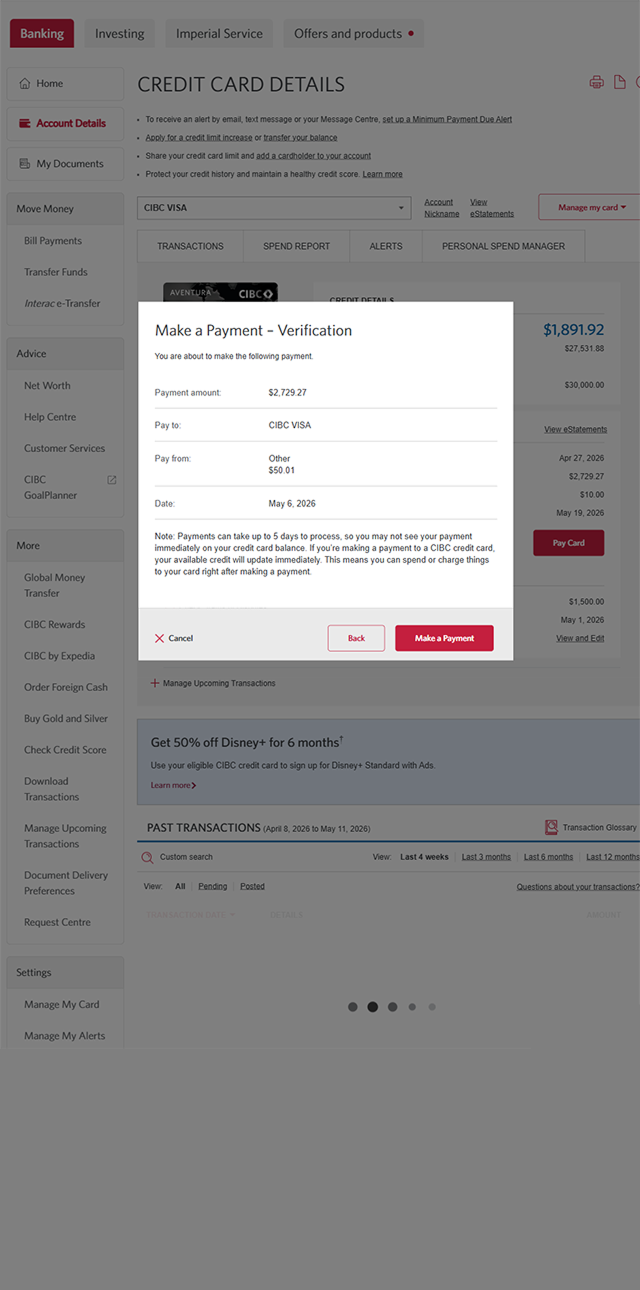
Demo screen 3: CIBC Online banking homepage, make a payment modal. A pulsing animation highlights the "Pay from" dropdown menu.
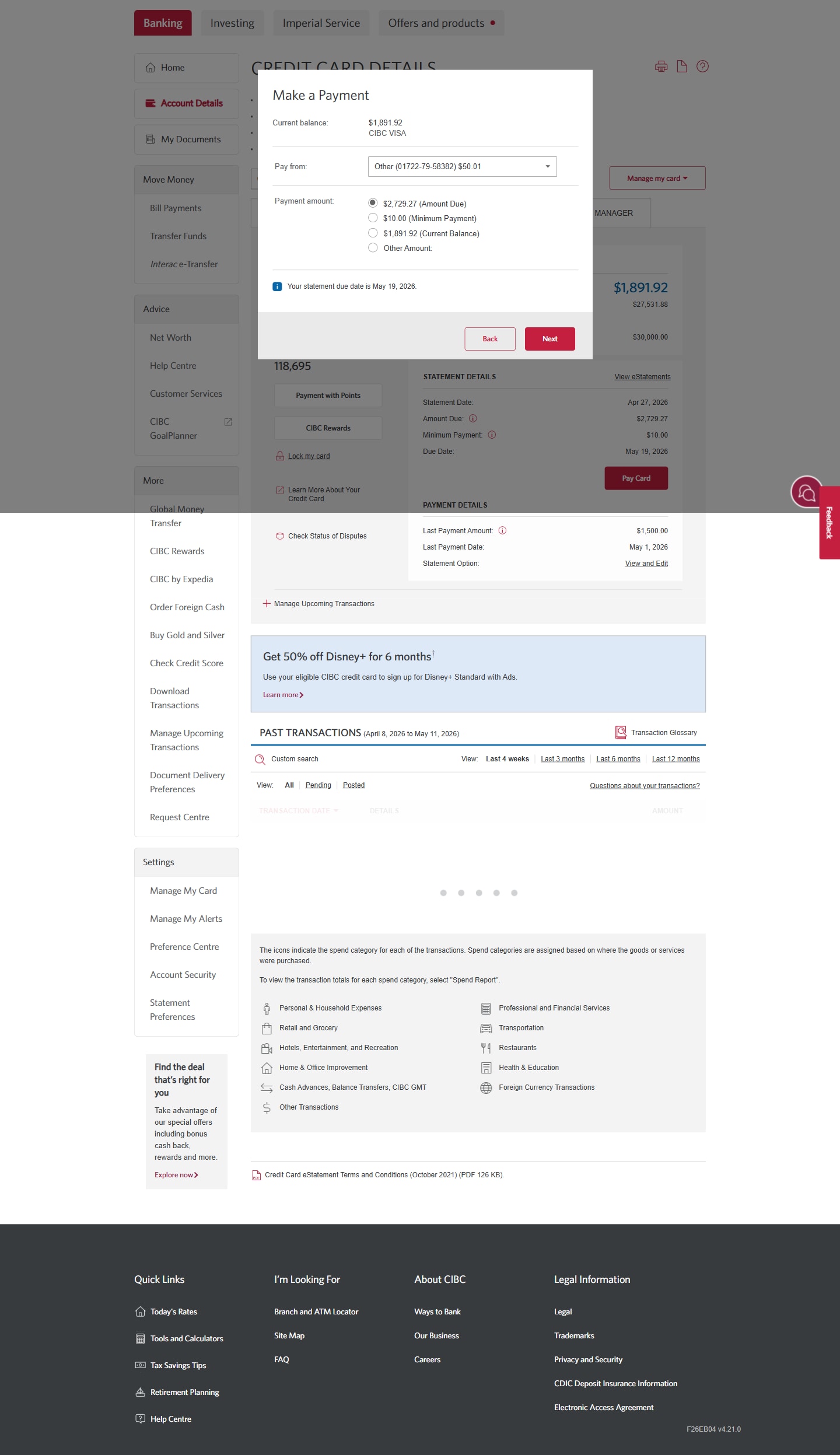
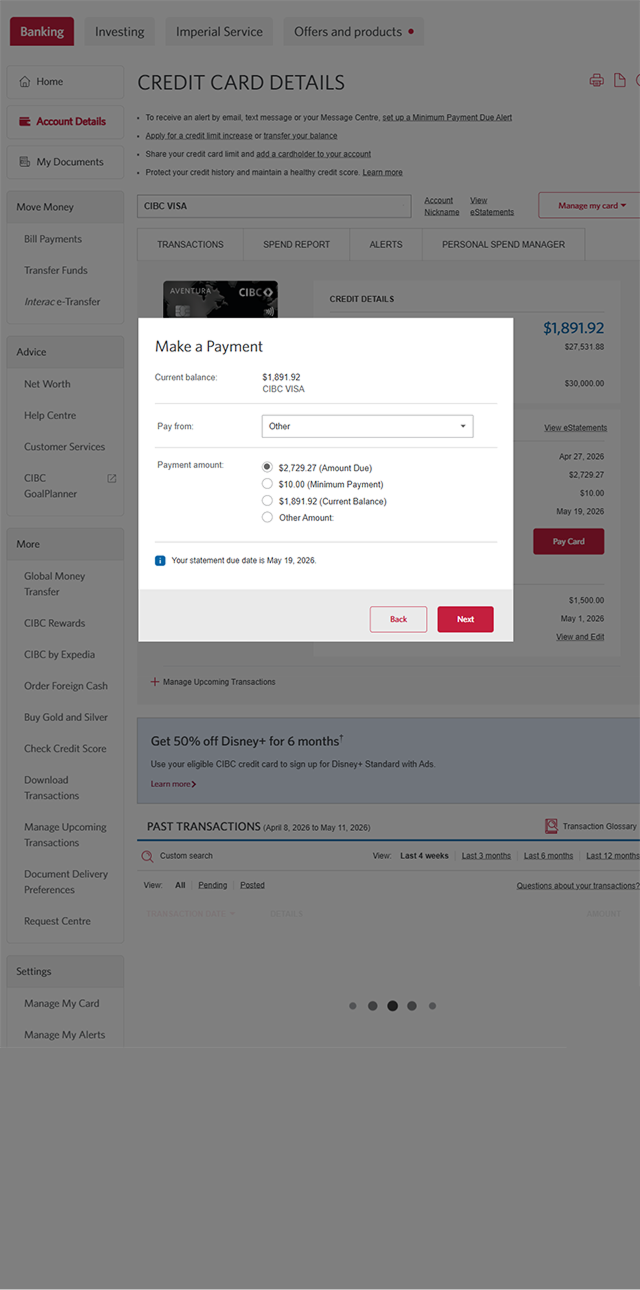
Demo screen 4: CIBC Online banking homepage, make a payment modal. A pulsing animation highlights the "Next" button.
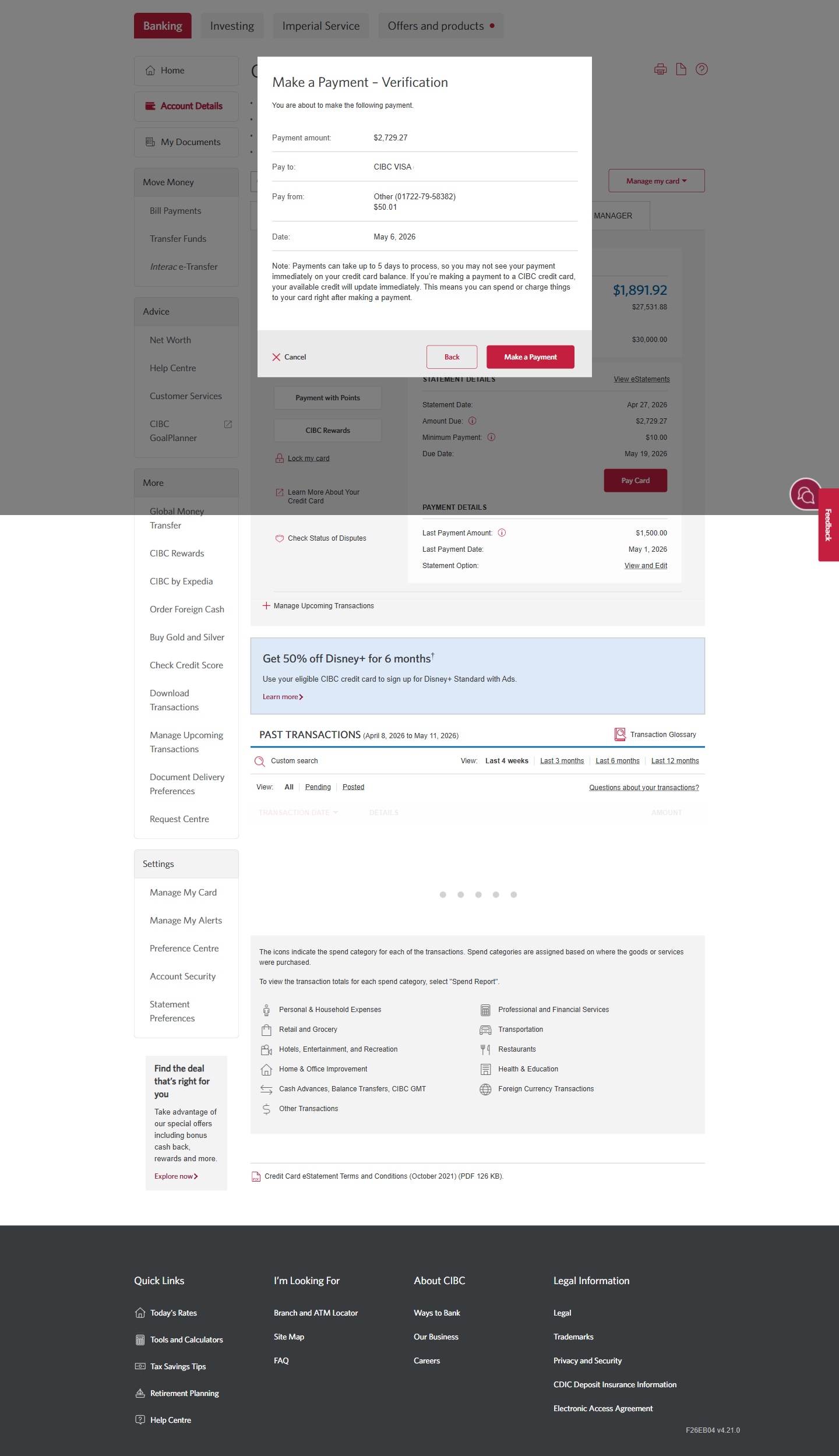
Demo screen 5: CIBC Online banking homepage. A pulsing animation highlights the "Make a payment" button.
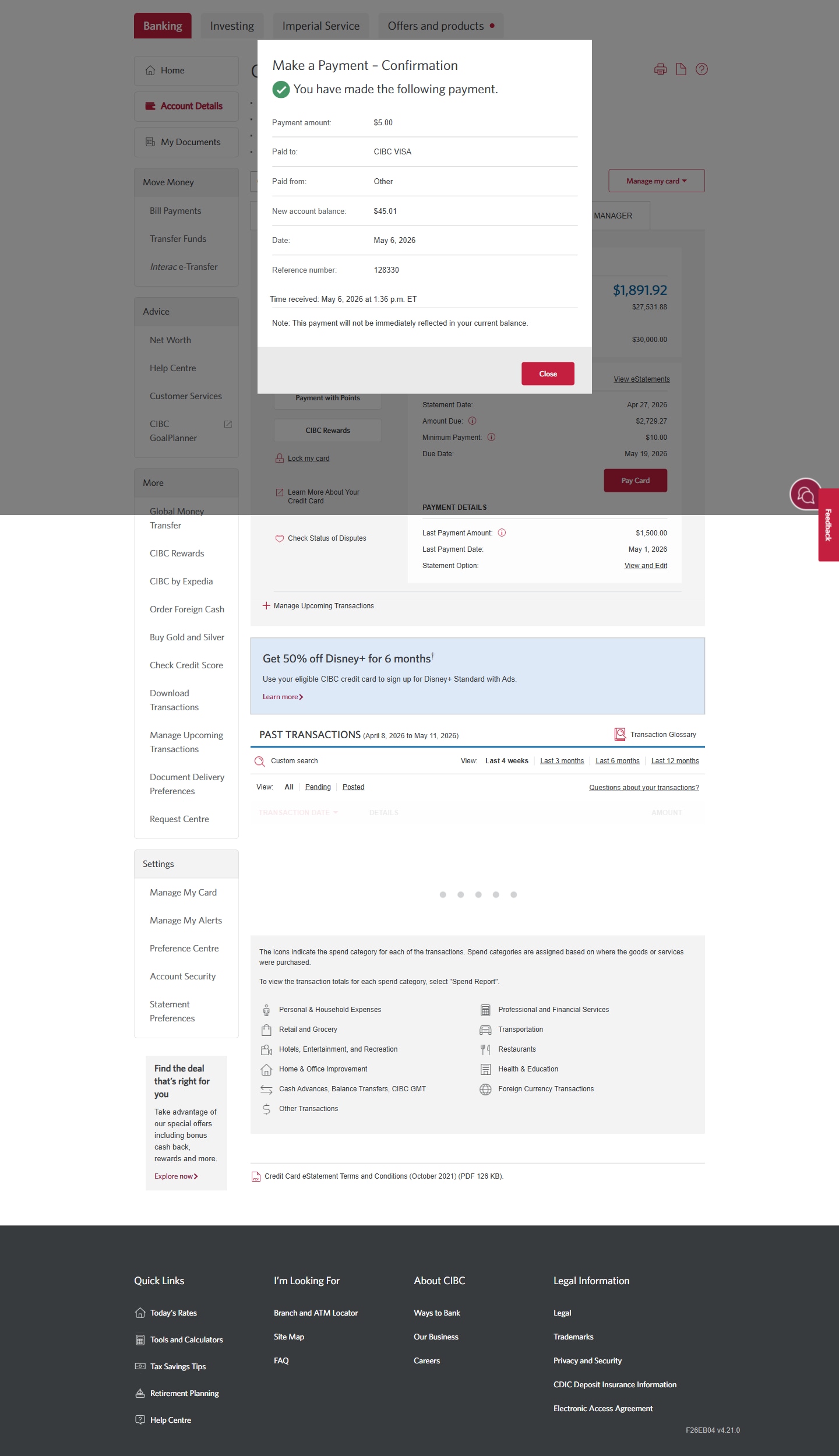
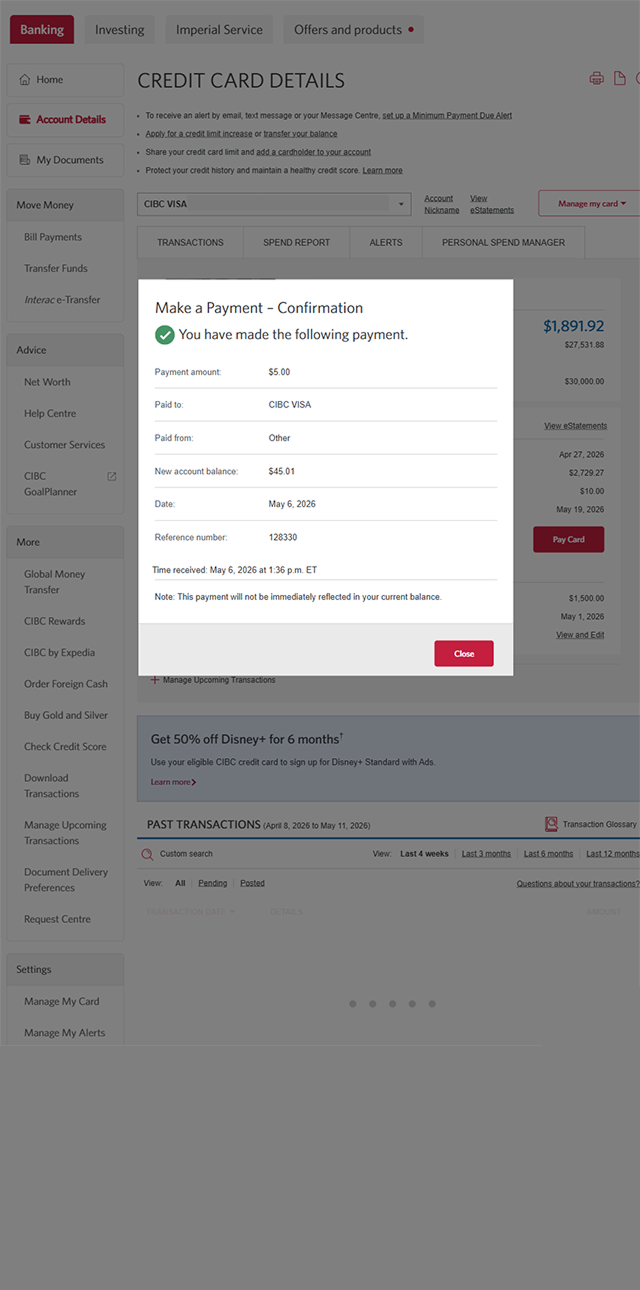
Demo screen 6: CIBC Online banking homepage, payment confirmation. No pulsing animation.
Your progress 1 of

Step 1 : Let's get started on your web browser

In this demo, you'll learn how to understand how credit card payments work.

Select the "Sign on" button in the demo to continue.

Step 2 : Select "Pay card"

On the CIBC Online Banking® homepage, go to the credit card account you want to make a payment for and select "Pay card".

If your credit card isn't currently linked to a deposit account, you'll be guided through the steps to link your card before you can proceed with your payment. 

This ensures you can easily transfer funds from your deposit account to your credit card account.

Step 3 : Select an account to pay your credit card from

Use the dropdown menu to select the account the credit card payment will be made from.

Step 4 : Select an amount to pay

From the options provided, select how much your credit card payment will be. For further details about payment options, refer to your credit card statement or cardholder agreement. 

Once you're ready to make a payment, select the "Next" button.

Step 5 : Verify your payment details

Review the details of your credit card payment. Once verified, select "Make a Payment" to continue.

Step 6 : Great job!

You've successfully made a credit card payment. An on-screen message will confirm your payment was made.
Demo screen 1: CIBC homepage. A pulsing animation highlights the "Sign on" button.
Demo screen 2: CIBC Online banking homepage. A pulsing animation highlights the "Pay card" button.
Demo screen 3: CIBC Online banking homepage, make a payment modal. A pulsing animation highlights the "Pay from" dropdown menu.
Demo screen 4: CIBC Online banking homepage, make a payment modal. A pulsing animation highlights the "Next" button.
Demo screen 5: CIBC Online banking homepage. A pulsing animation highlights the "Make a payment" button.
Demo screen 6: CIBC Online banking homepage, payment confirmation. No pulsing animation.
Your progress 1 of

Step 1 : Let's get started on your web browser

In this demo, you'll learn how to understand how credit card payments work.

Select the "Sign on" button in the demo to continue.

Step 2 : Select "Pay card"

On the CIBC Online Banking® homepage, go to the credit card account you want to make a payment for and select "Pay card".

If your credit card isn't currently linked to a deposit account, you'll be guided through the steps to link your card before you can proceed with your payment. 

This ensures you can easily transfer funds from your deposit account to your credit card account.

Step 3 : Select an account to pay your credit card from

Use the dropdown menu to select the account the credit card payment will be made from.

Step 4 : Select an amount to pay

From the options provided, select how much your credit card payment will be. For further details about payment options, refer to your credit card statement or cardholder agreement.

Once you're ready to make a payment, select the "Next" button.

Step 5 : Verify your payment details

Review the details of your credit card payment. Once verified, select "Make a Payment" to continue.

Step 6 : Great job!

You've successfully made a credit card payment. An on-screen message will confirm your payment was made.
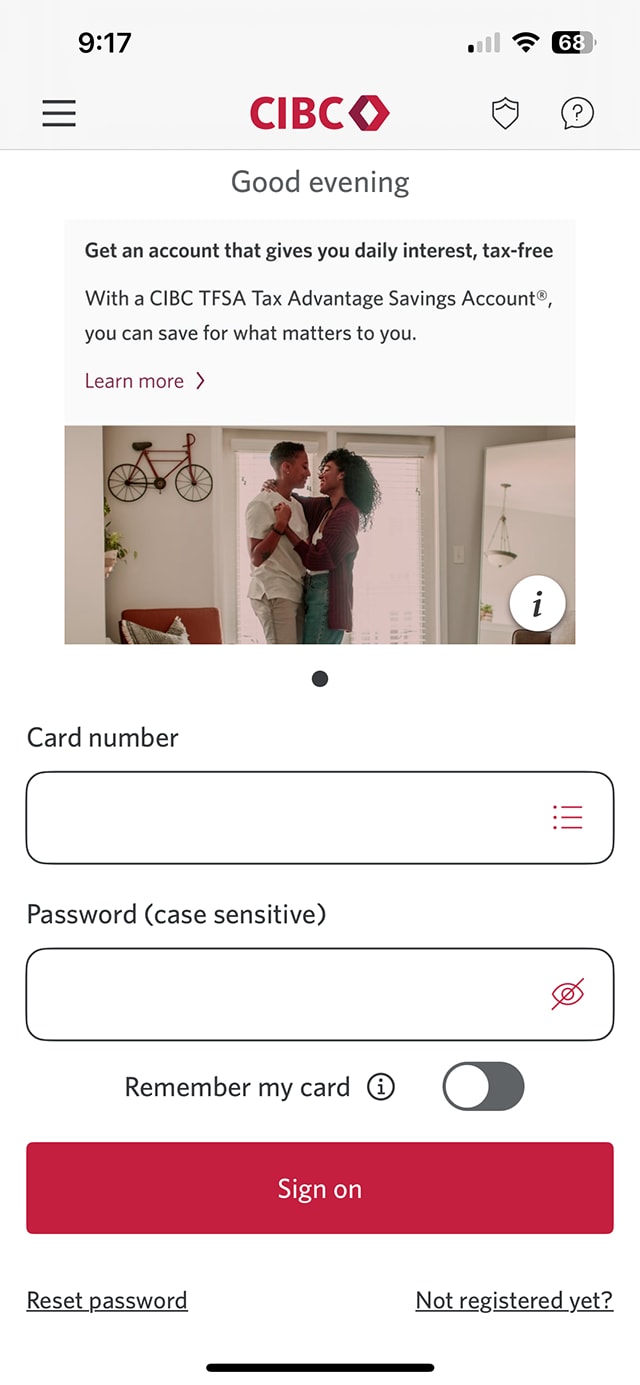
Demo screen 1: CIBC Mobile Banking App sign on screen. A pulsing animation highlights the "Sign on" button.
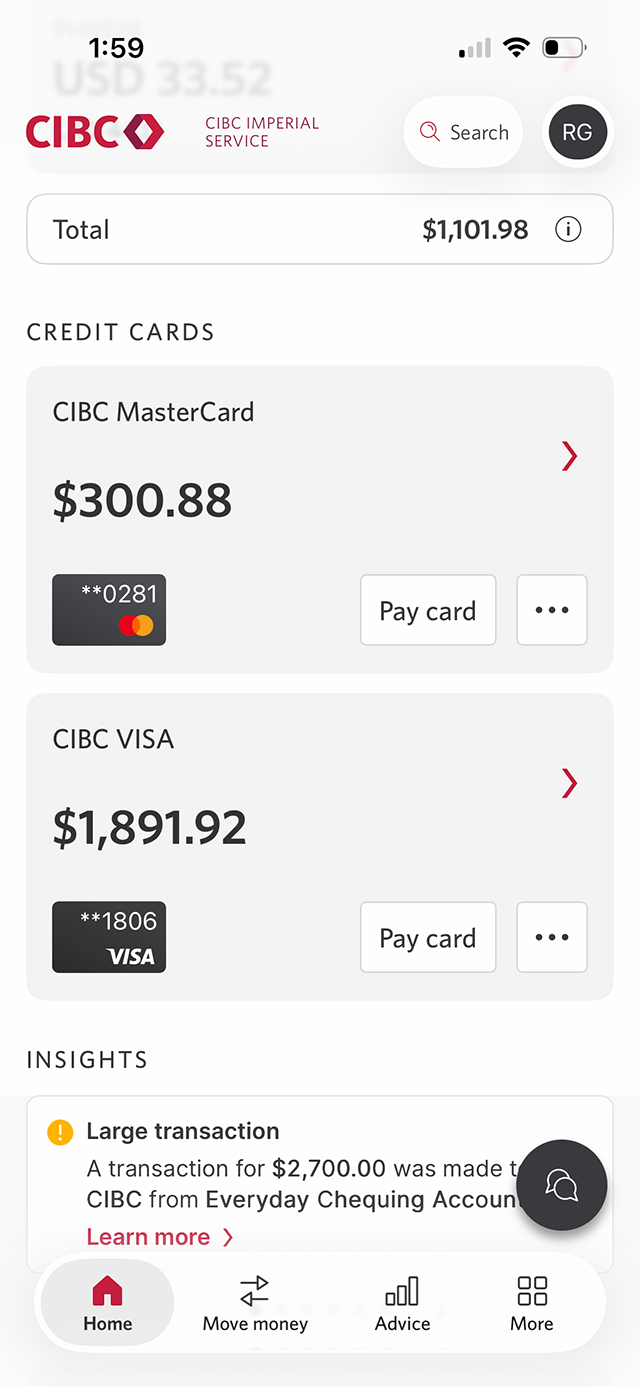
Demo screen 2: CIBC Mobile Banking App homepage. A pulsing animation highlights the "Pay card" button.
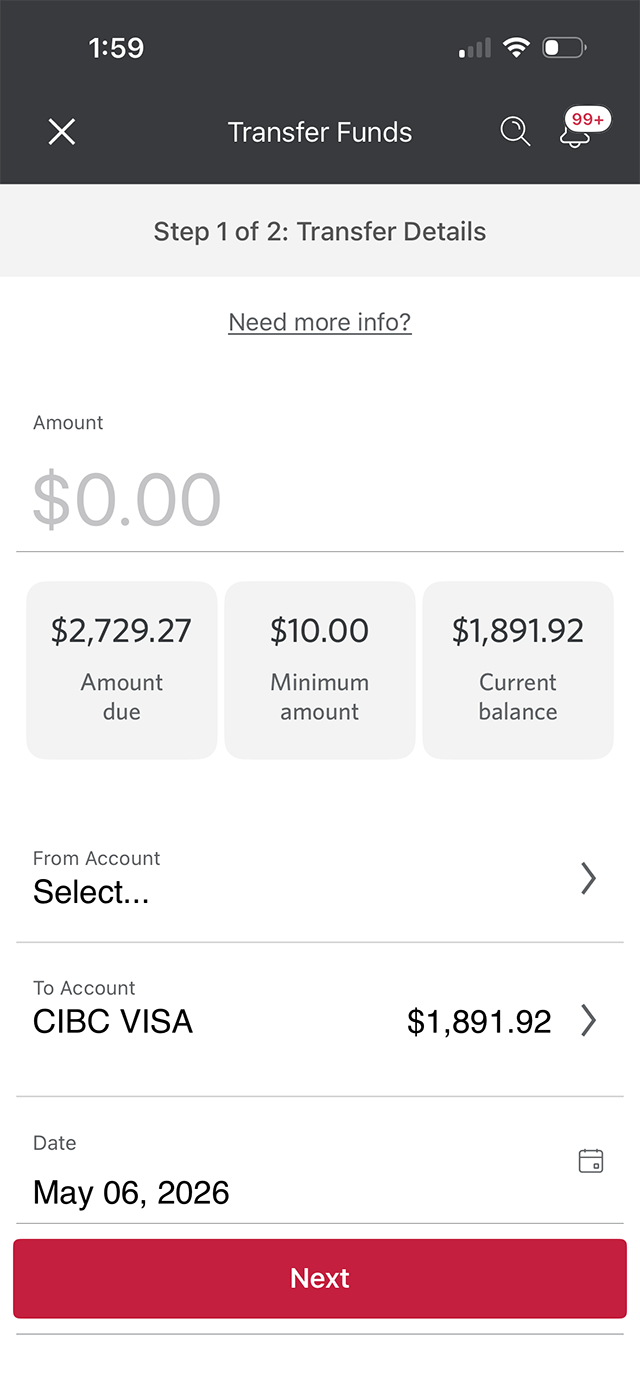
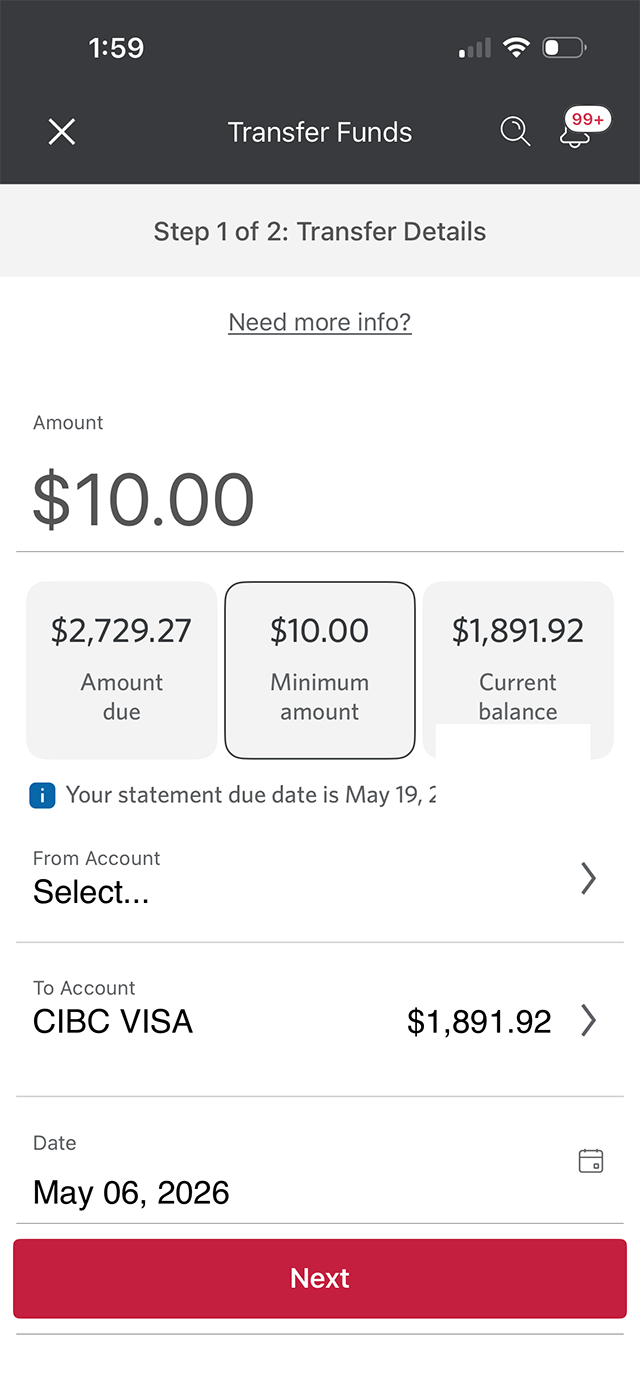
Demo screen 3: CIBC Mobile Banking App transfer funds. A pulsing animation highlights the minimum amount button.
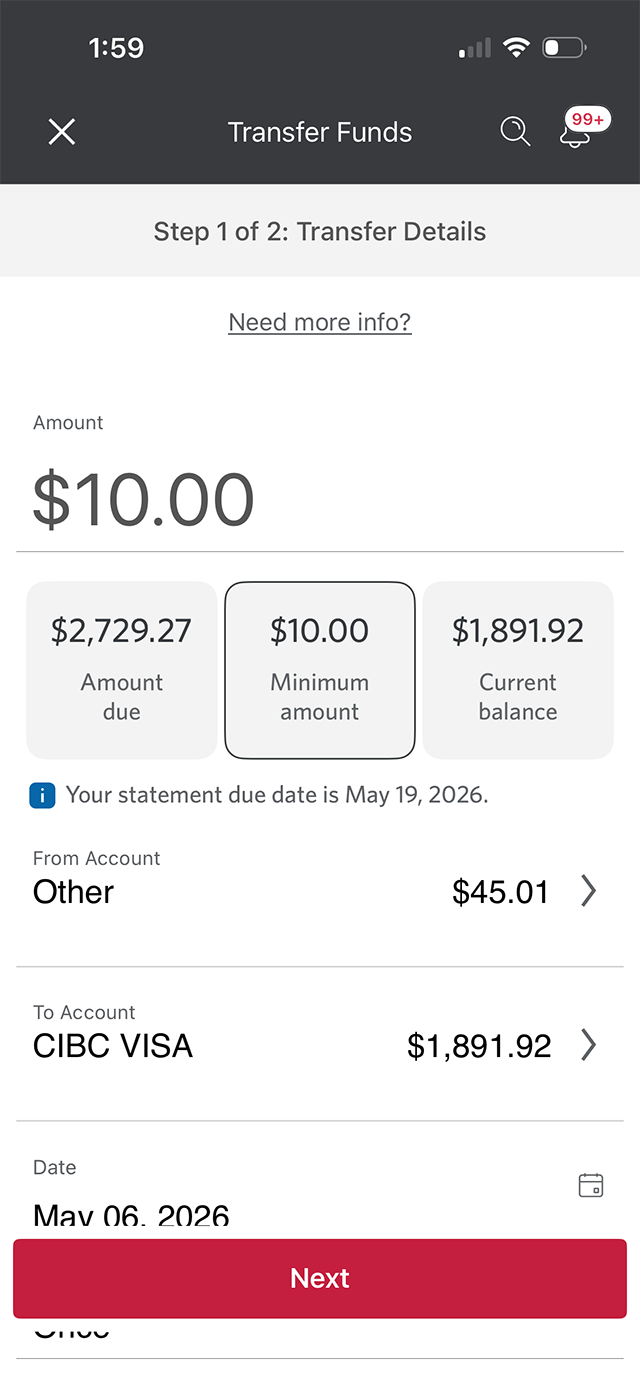
Demo screen 4: CIBC Mobile Banking App transfer funds. A pulsing animation highlights the "From account" button.
Demo screen 5: CIBC Mobile Banking App transfer funds. A pulsing animation highlights the "Next" button.
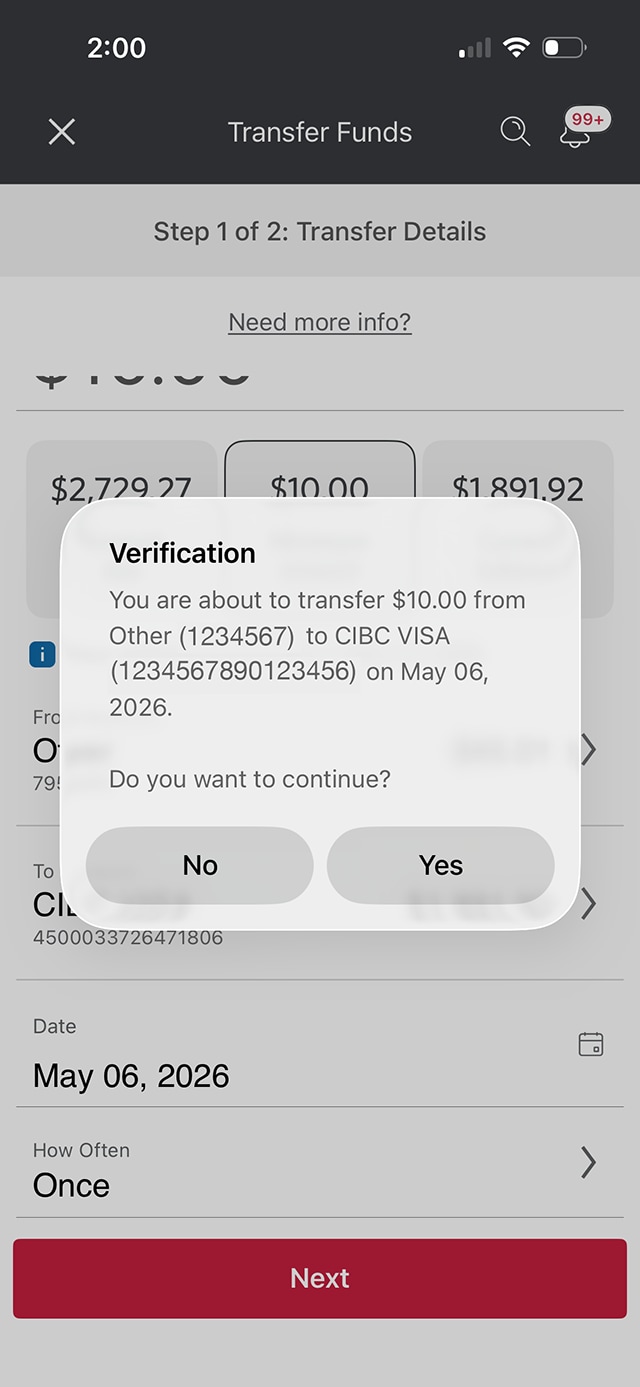
Demo screen 6: CIBC Mobile Banking App transfer funds verification. A pulsing animation highlights the "Yes" button.
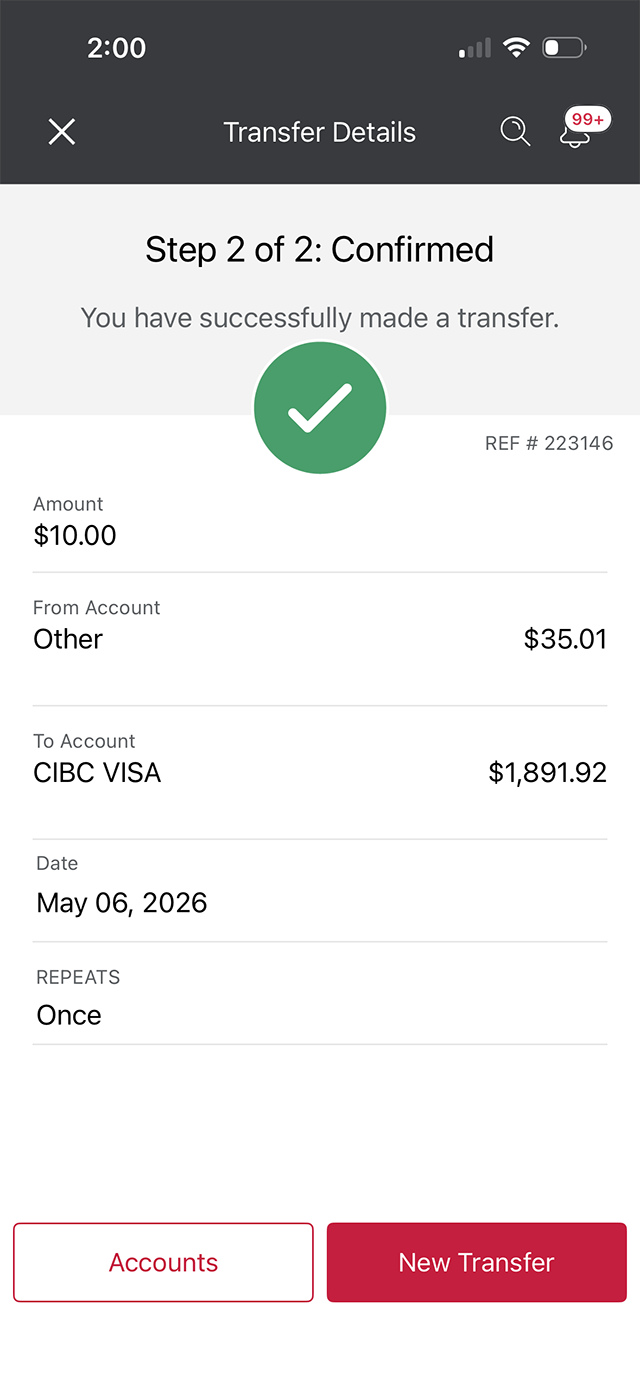
Demo screen 7: CIBC Mobile Banking App transfer funds confirmation. No pulsing animation.
Your progress 1 of

Step 1 : Let's get started on the mobile app

In this demo, you'll learn how to understand how credit card payments work.

Select the "Sign on" button in the demo to continue. 

Step 2 : Select "Pay card"

On the CIBC Mobile Banking App® homepage, go to the credit card account you want to make a payment for and select "Pay card".

If your credit card isn't currently linked to a deposit account, you'll be guided through the steps to link your card before you can proceed with your payment.

This ensures you can easily transfer funds from your deposit account to your credit card account. 

Step 3 : Select an amount to pay

From the options provided, select how much your credit card payment will be. For further details about payment options, refer to your credit card statement or cardholder agreement.

Step 4 : Choose an account to pay your credit card from

Select the chevron to choose an account from the menu options.

Step 5 : Select "Next"

Once you're ready to make a payment, select the "Next" button. 

Step 6 : Verify your payment details

Review the details of your credit card payment. Once verified, select "Yes" if you want to continue with the payment. 

Step 7 : Great job!

You've successfully made a credit card payment. An on-screen message will confirm the payment was made.

Want an overview of all the steps?

For full instructions on how to understand credit card payments, check out the step-by-step process all in one place.

Recommended digital banking demos

How to replace a lost or stolen card

Start demo on how to replace a lost or stolen card.

How to lock or unlock your credit card

Start demo on how to lock or unlock your credit card.

How to manage your credit card

Start demo on how to manage your credit card.

How to understand and use CIBC Rewards

Start demo on how to understand and use CIBC Rewards.

Get started

CIBC Online Banking®

Discover digital banking features that can help you bank easily online.
CIBC Mobile Banking® App

Stay connected to your finances on your mobile device, no matter where you are.