

How to troubleshoot declined credit card transactions
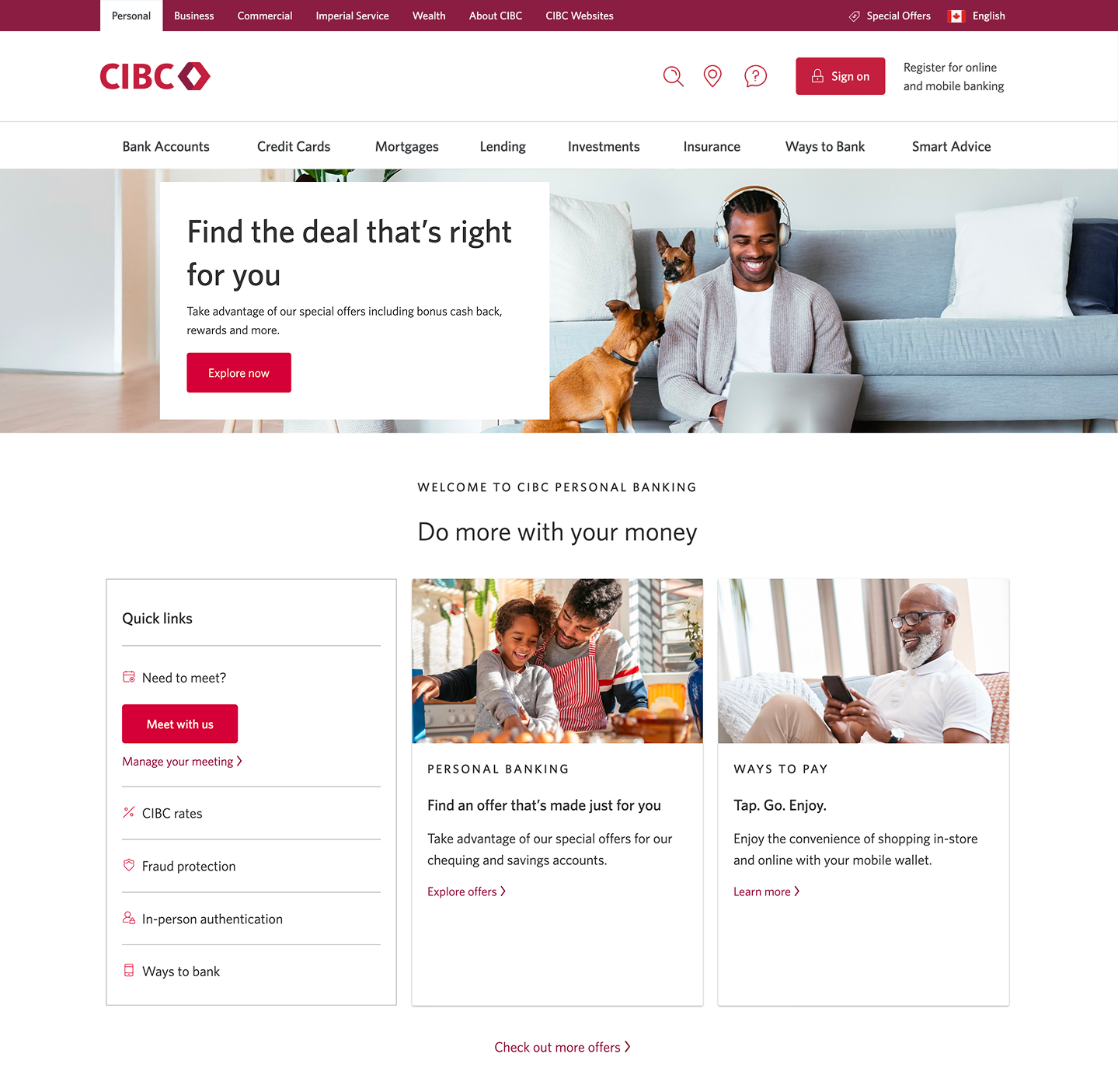
Step 1 : Let's get started on your web browser
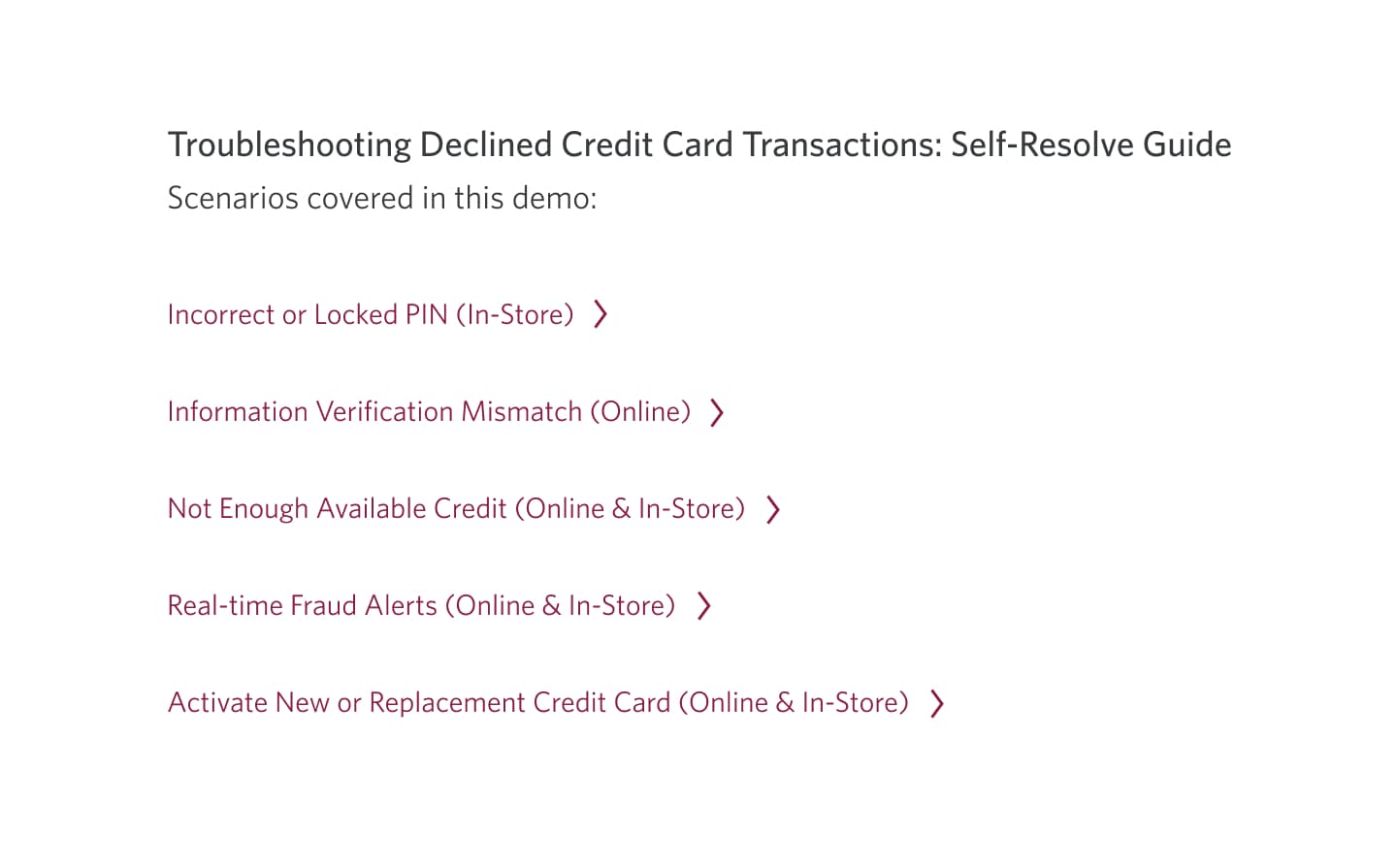
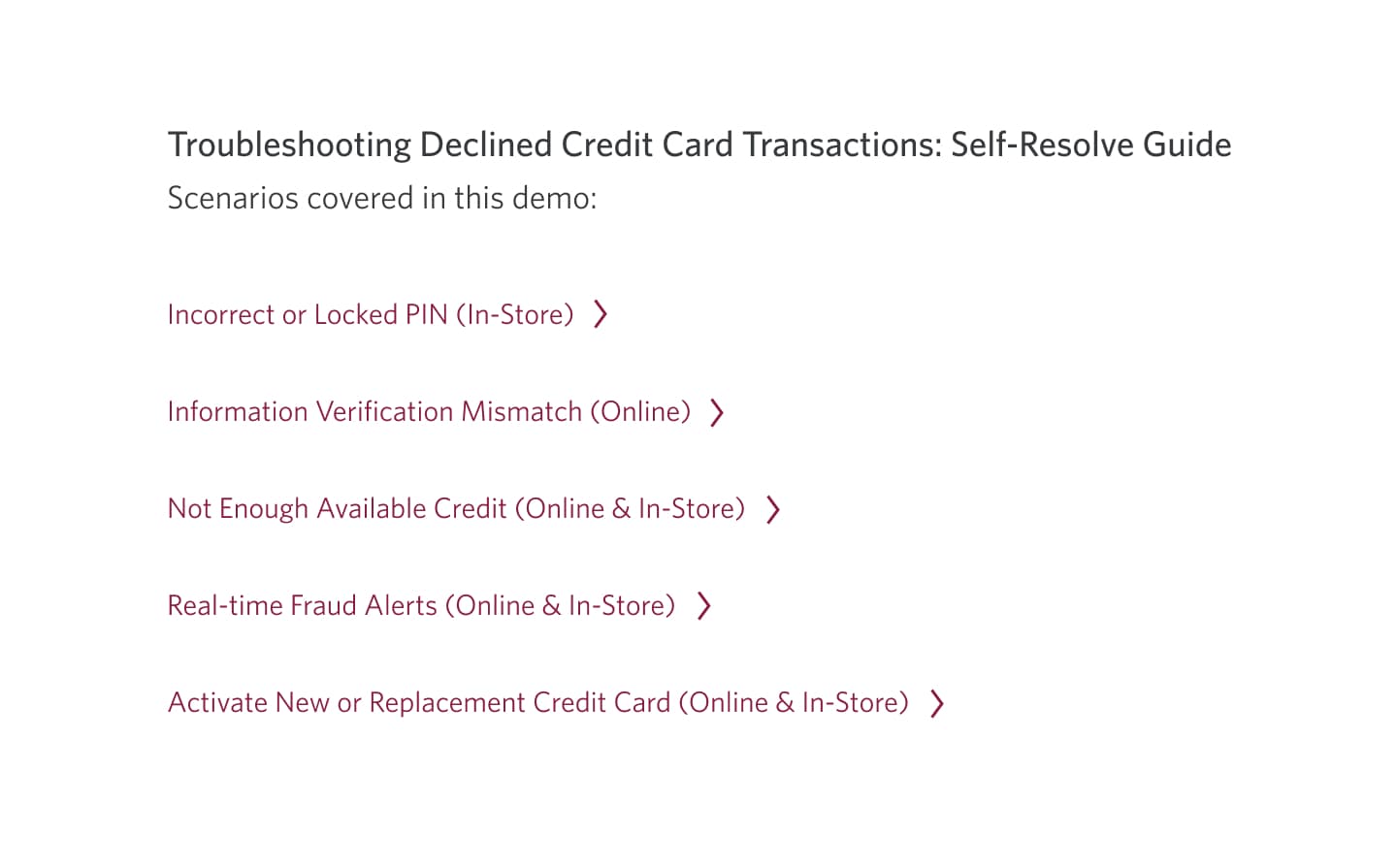
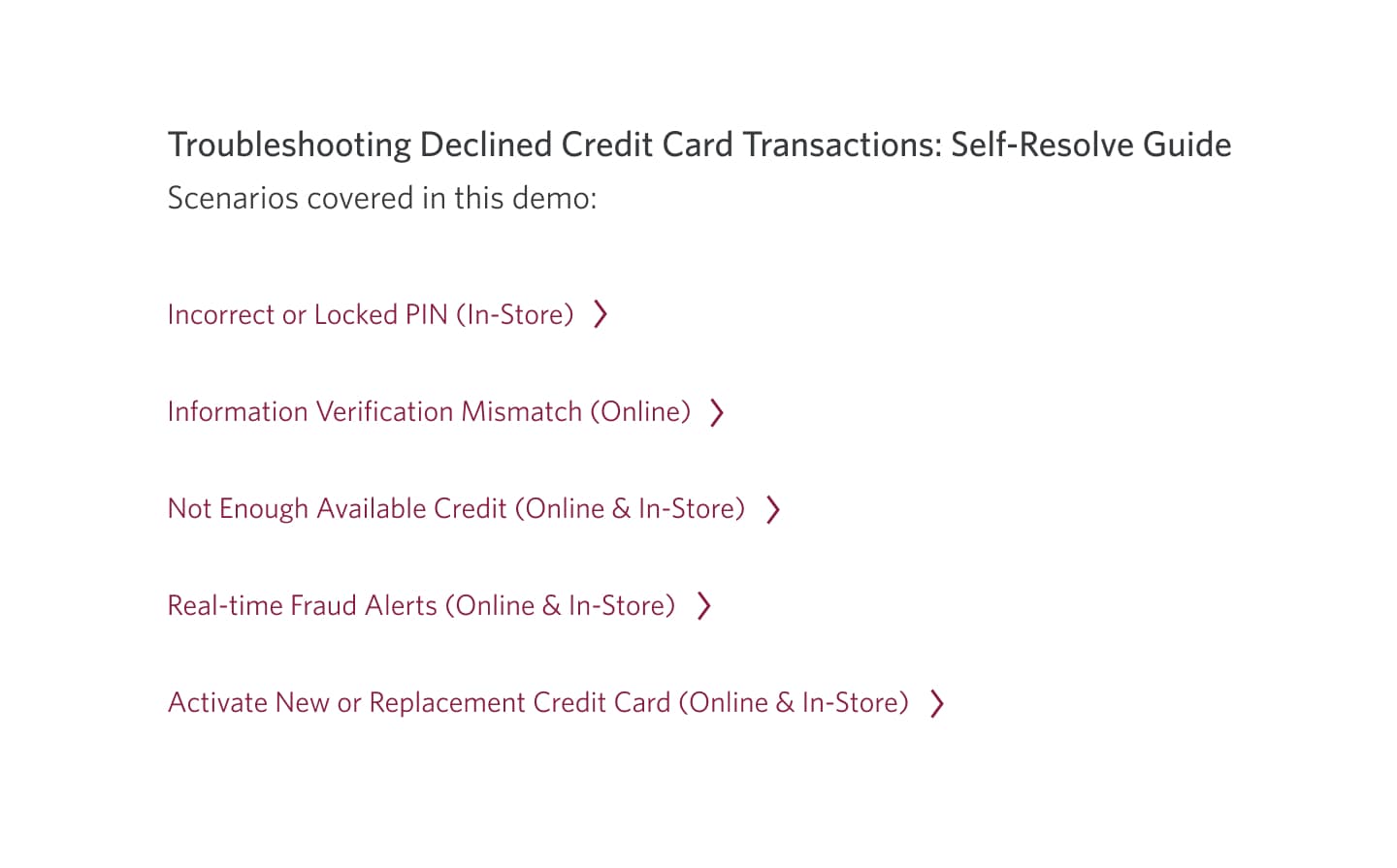
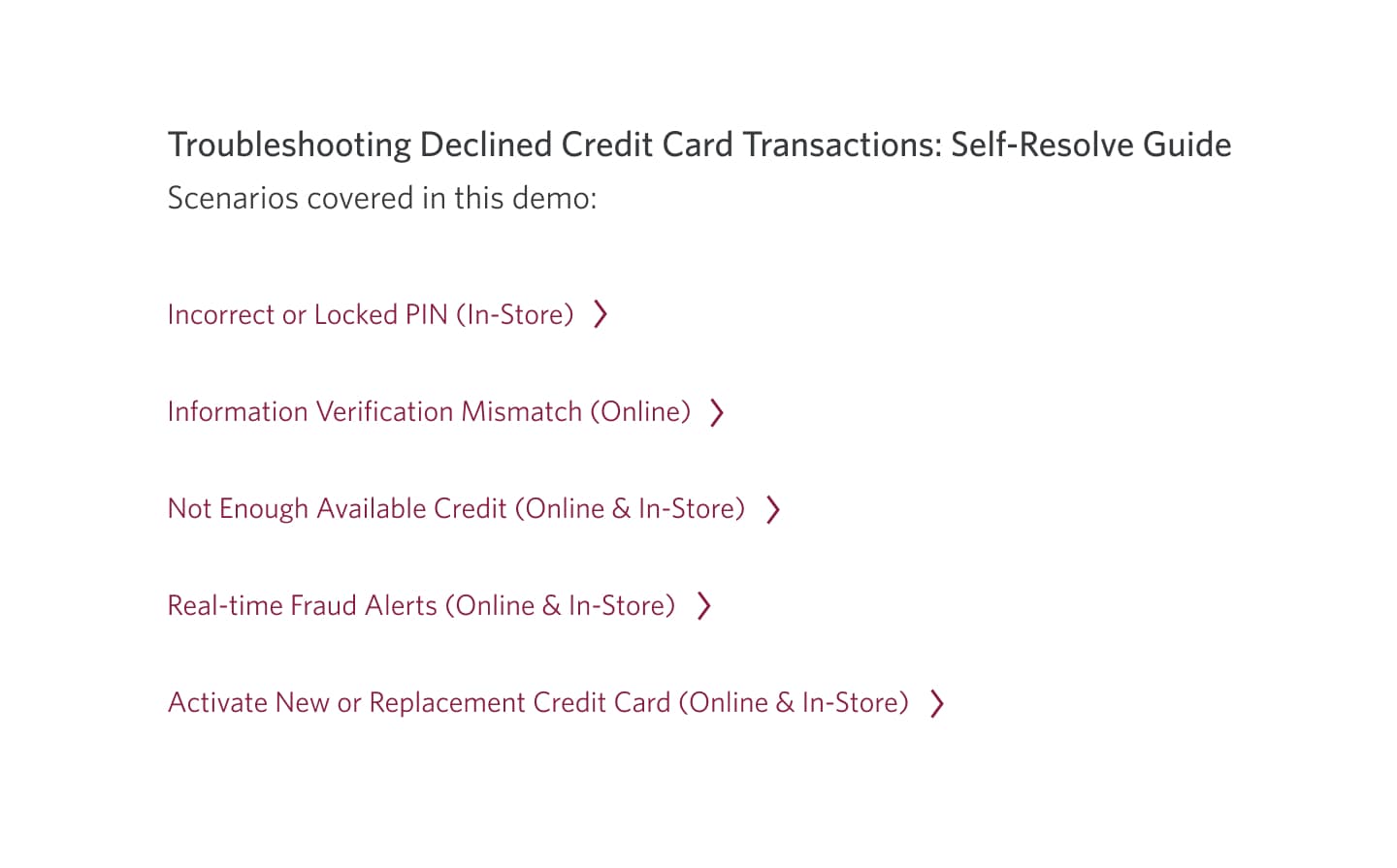
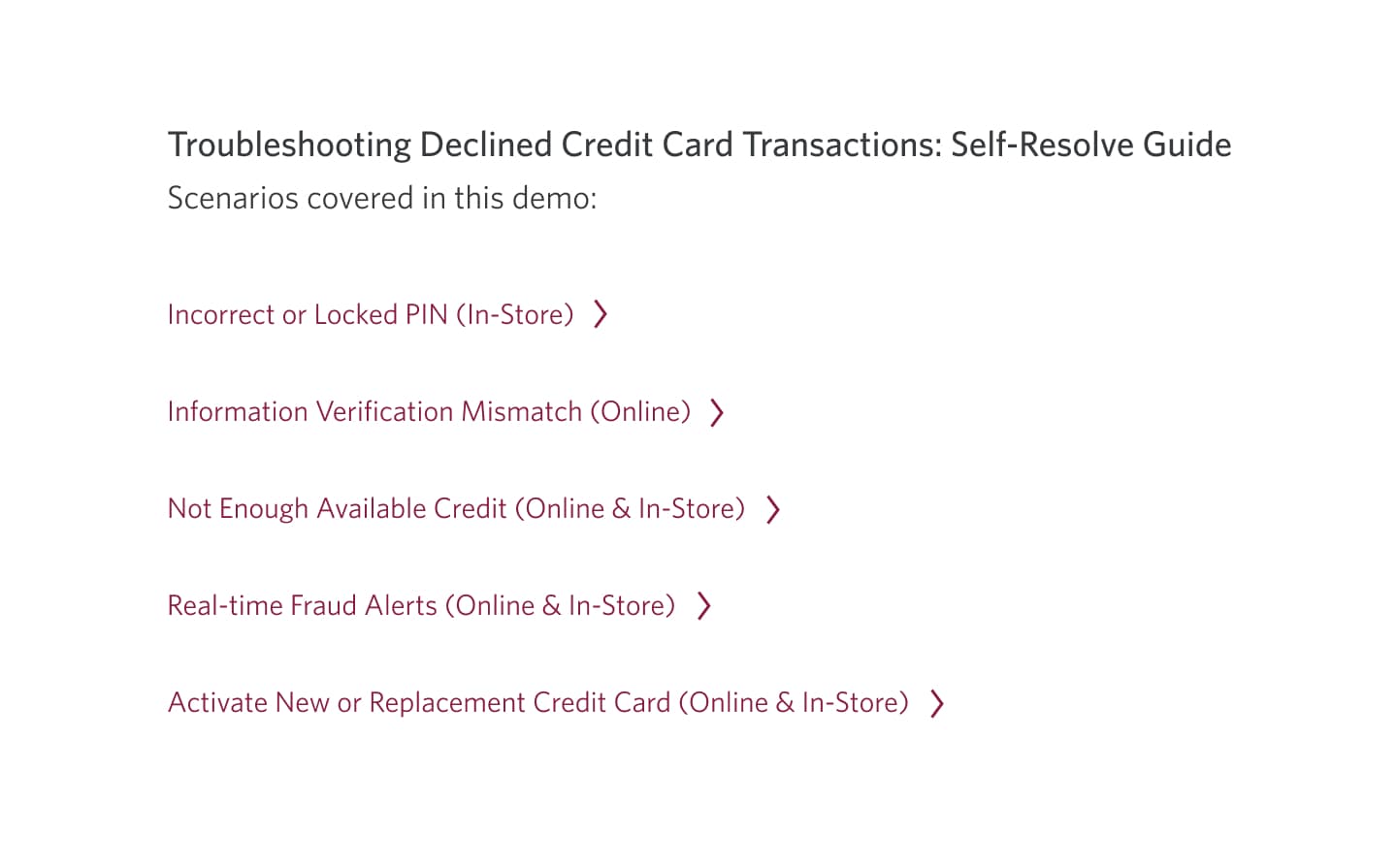
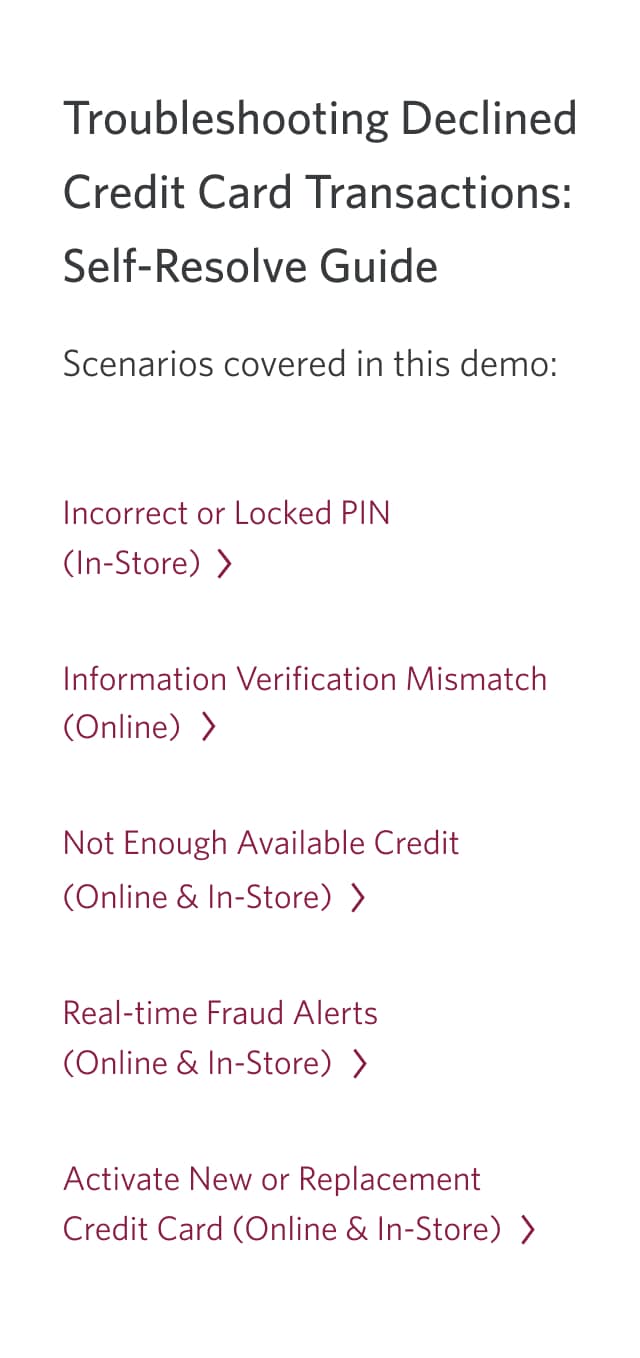
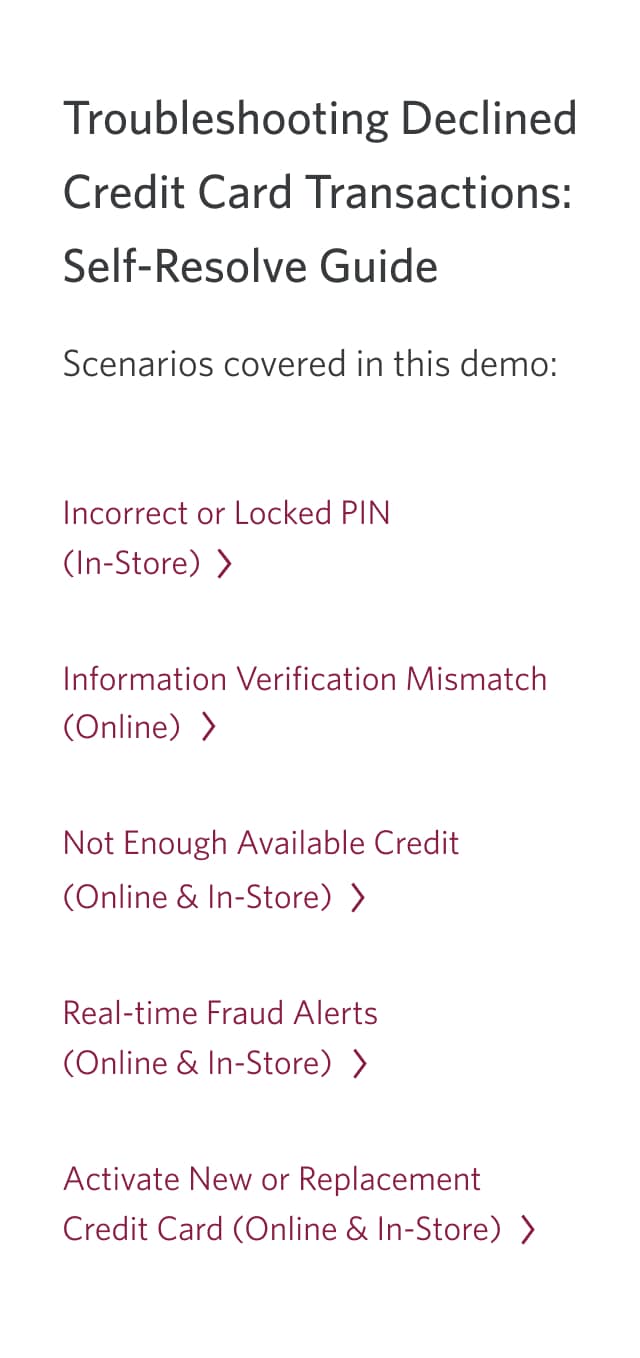
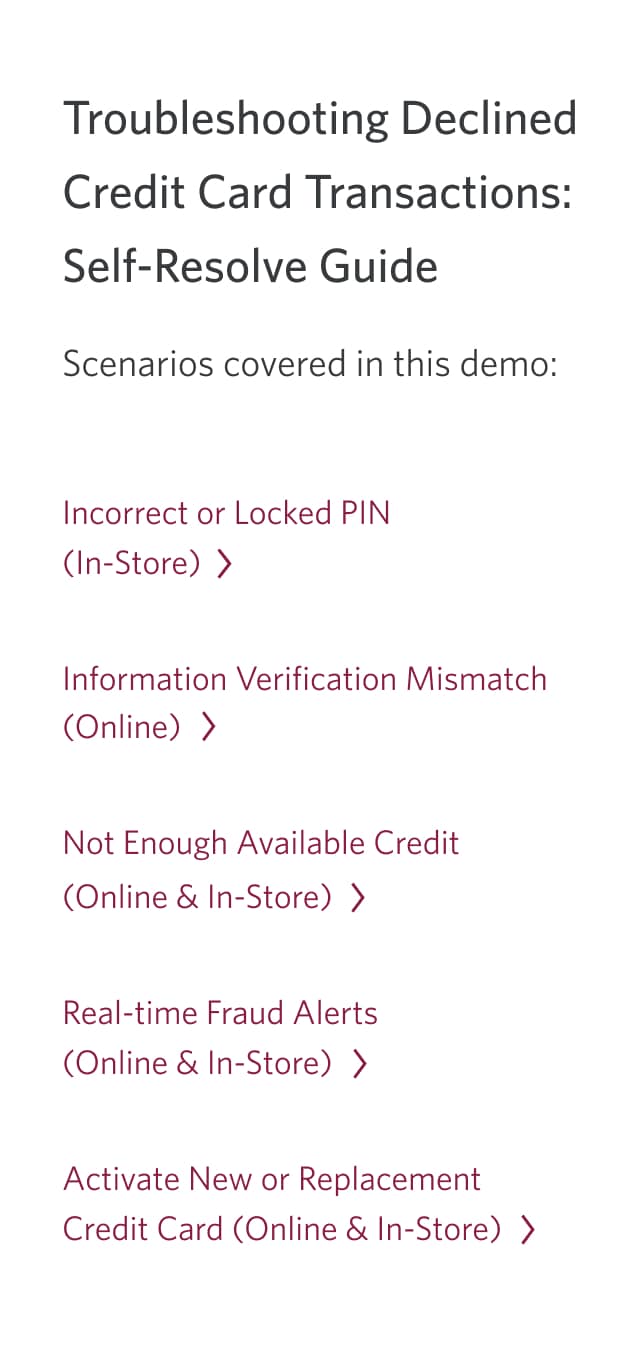
Step 2 : Review the scenarios covered in this demo
For help with an incorrect or locked PIN, go to step 3.
For help with an information verification mismatch, go to step 11.
To learn what to do when you don't have enough available credit, go to step 15.
To learn about real-time fraud alerts, go to step 18.
To learn about activating a new or replacement credit card, go to step 20.
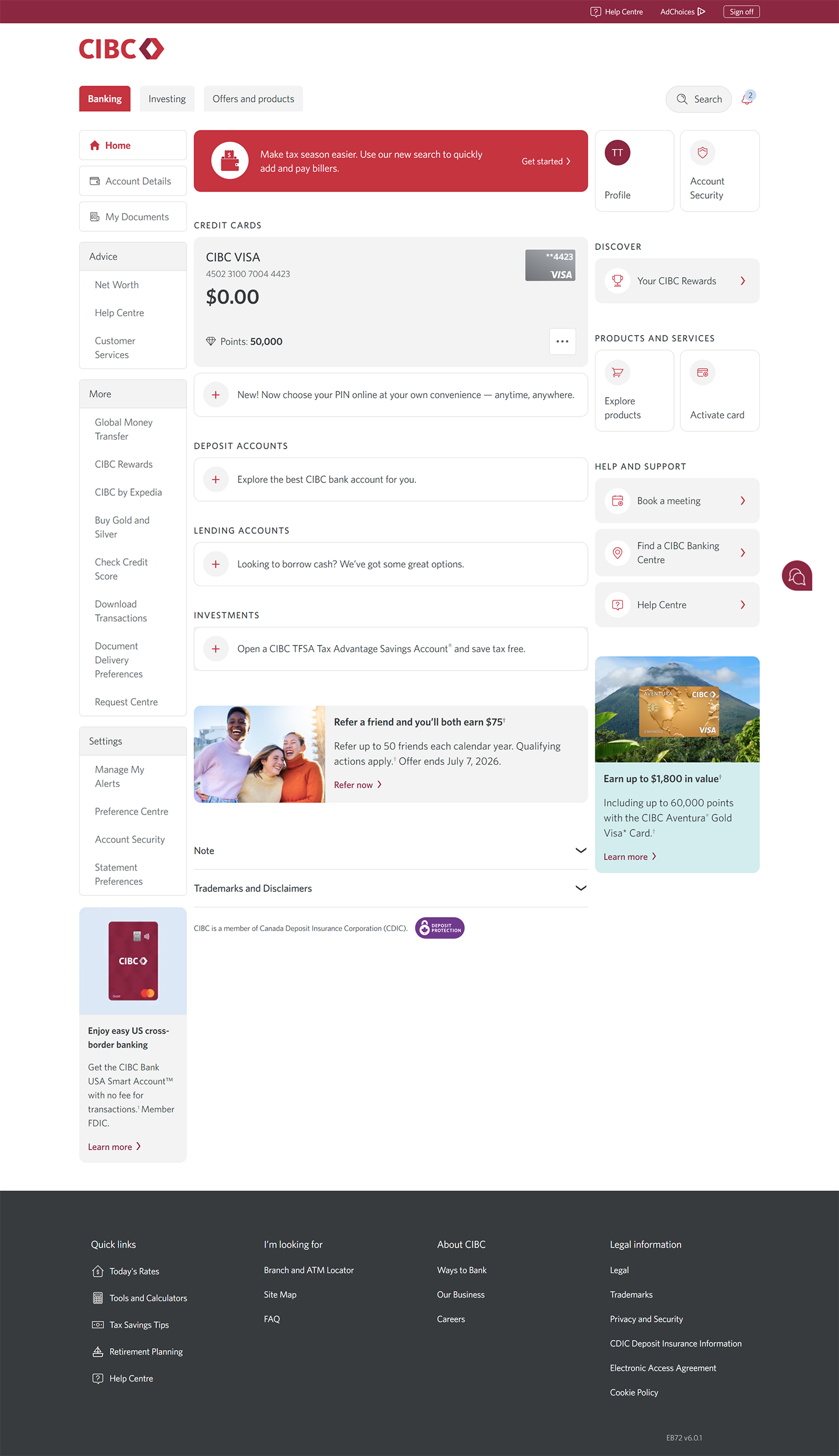
Step 3 : Select which card you'd like to troubleshoot for declined transactions
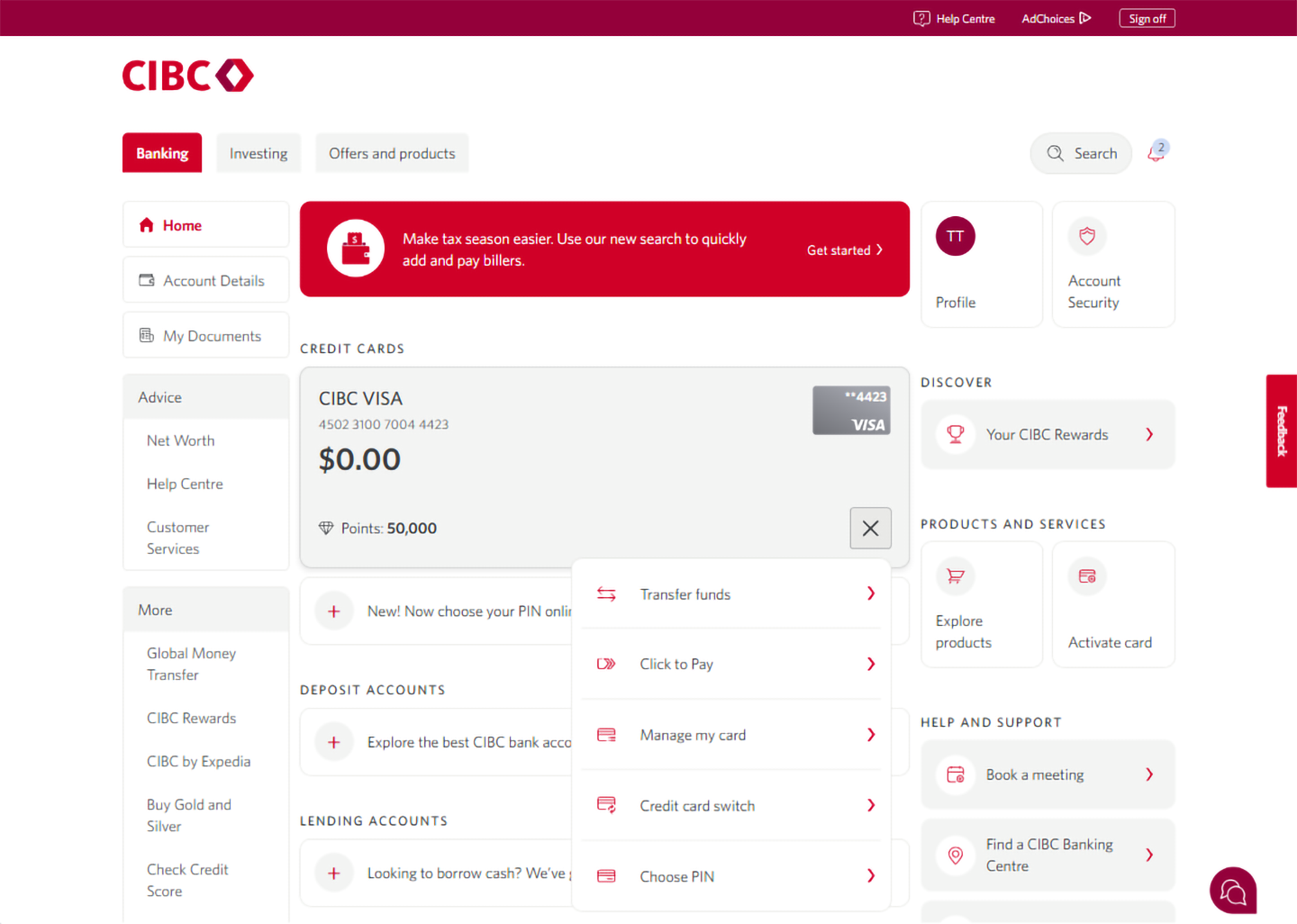
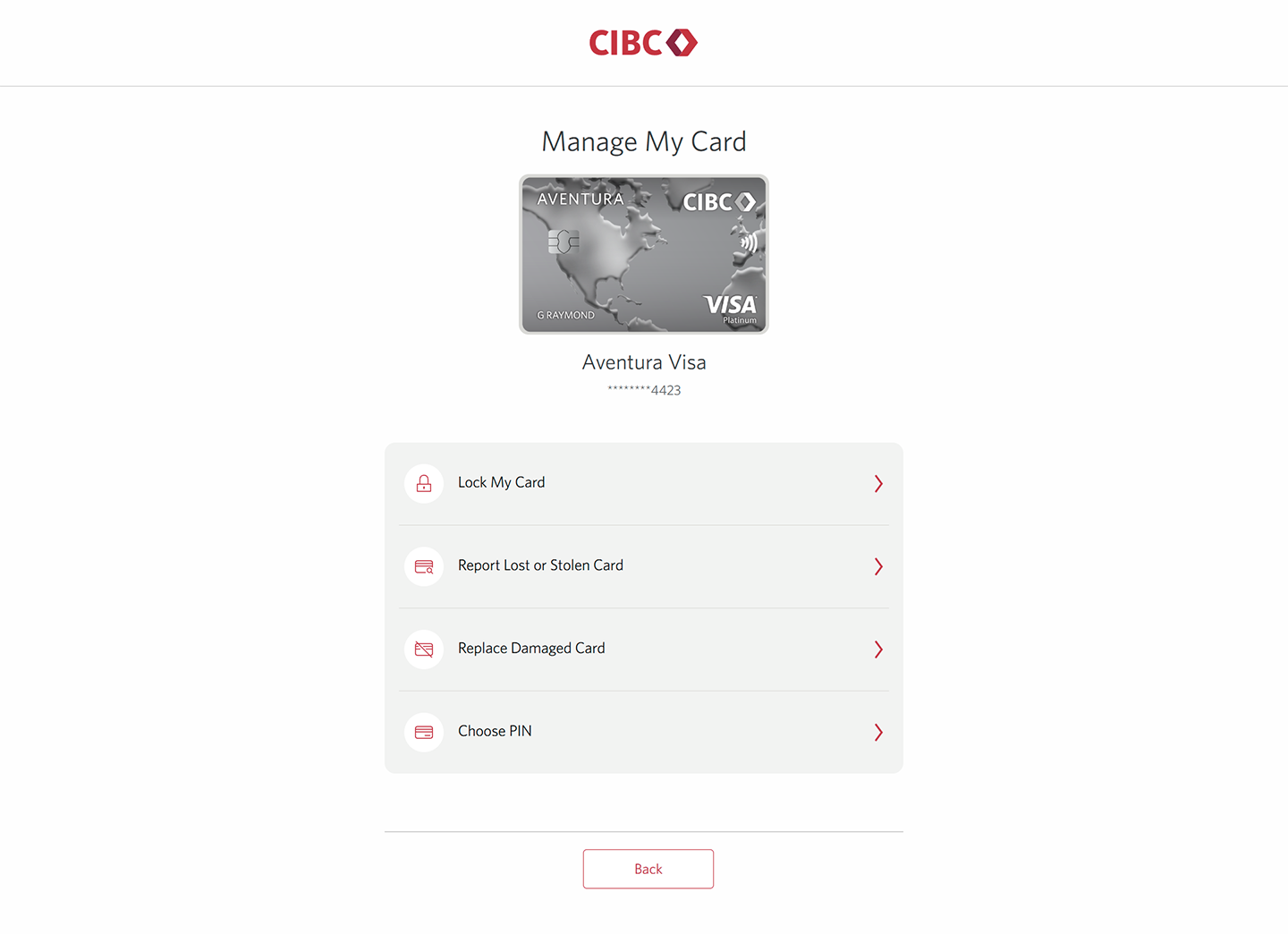
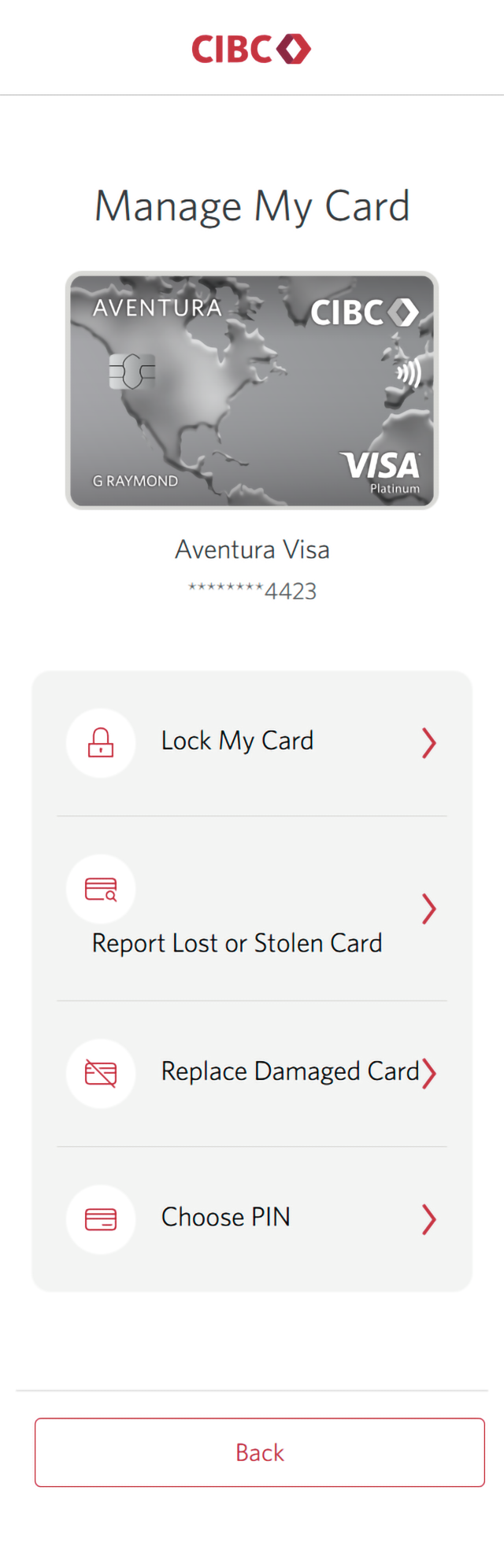
Step 4 : Go to "Manage my card"
Step 5 : Learn how to update your PIN
First, we'll explore how to choose a new PIN for your card. Updating your PIN may help resolve issues with declined transactions.
On the Manage My Card page for the credit card you chose, select "Choose PIN" from the menu.
Step 6 : Enter a 4-digit PIN
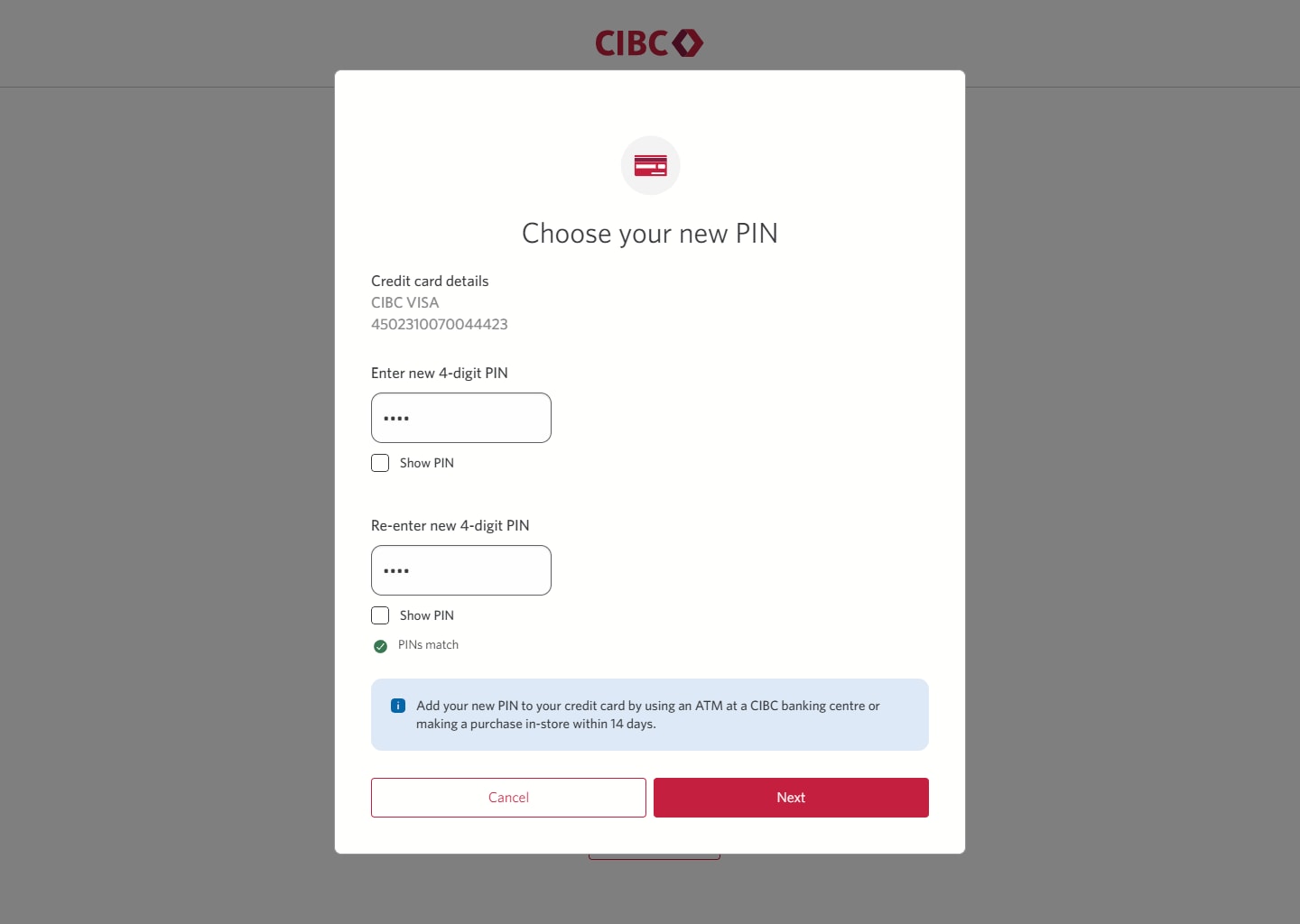
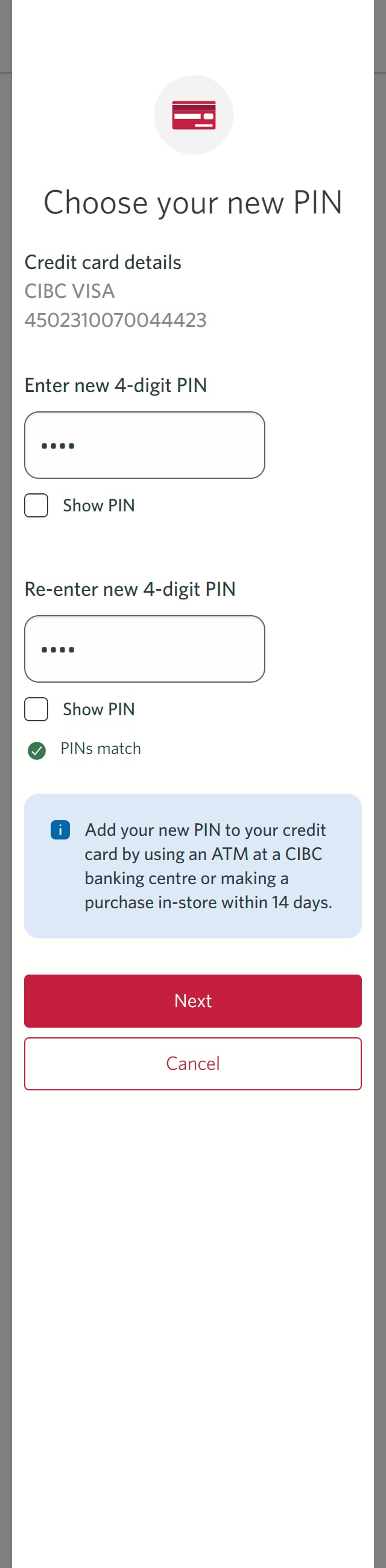
On the dialog box, enter a new 4-digit PIN.
Then, enter the PIN a second time to ensure both PIN entries match. Once you're done, select the "Next" button.
Step 7 : Verify your identity
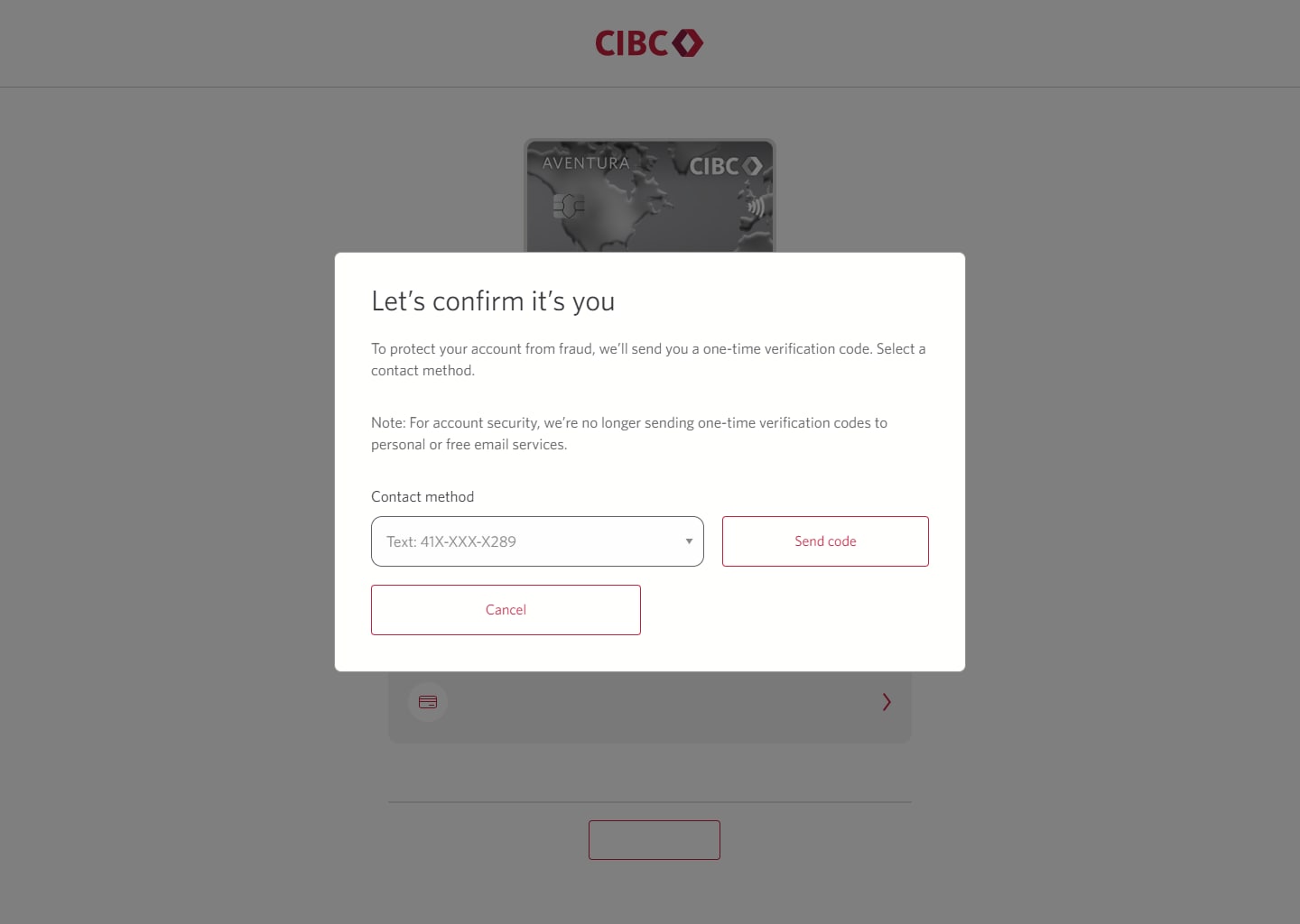
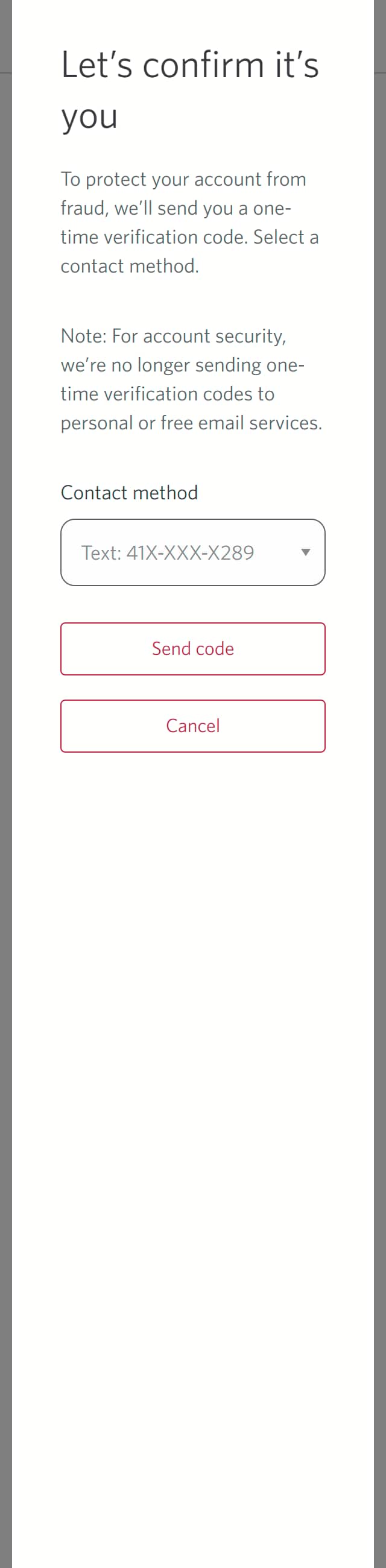
You may be prompted to confirm your identity with a one-time verification code.
From the dropdown menu for "Contact method", choose your preferred method to receive the code and select the "Send code" button.
If you aren't prompted to enter a code, go to the next step.
Step 8 : Enter your verification code
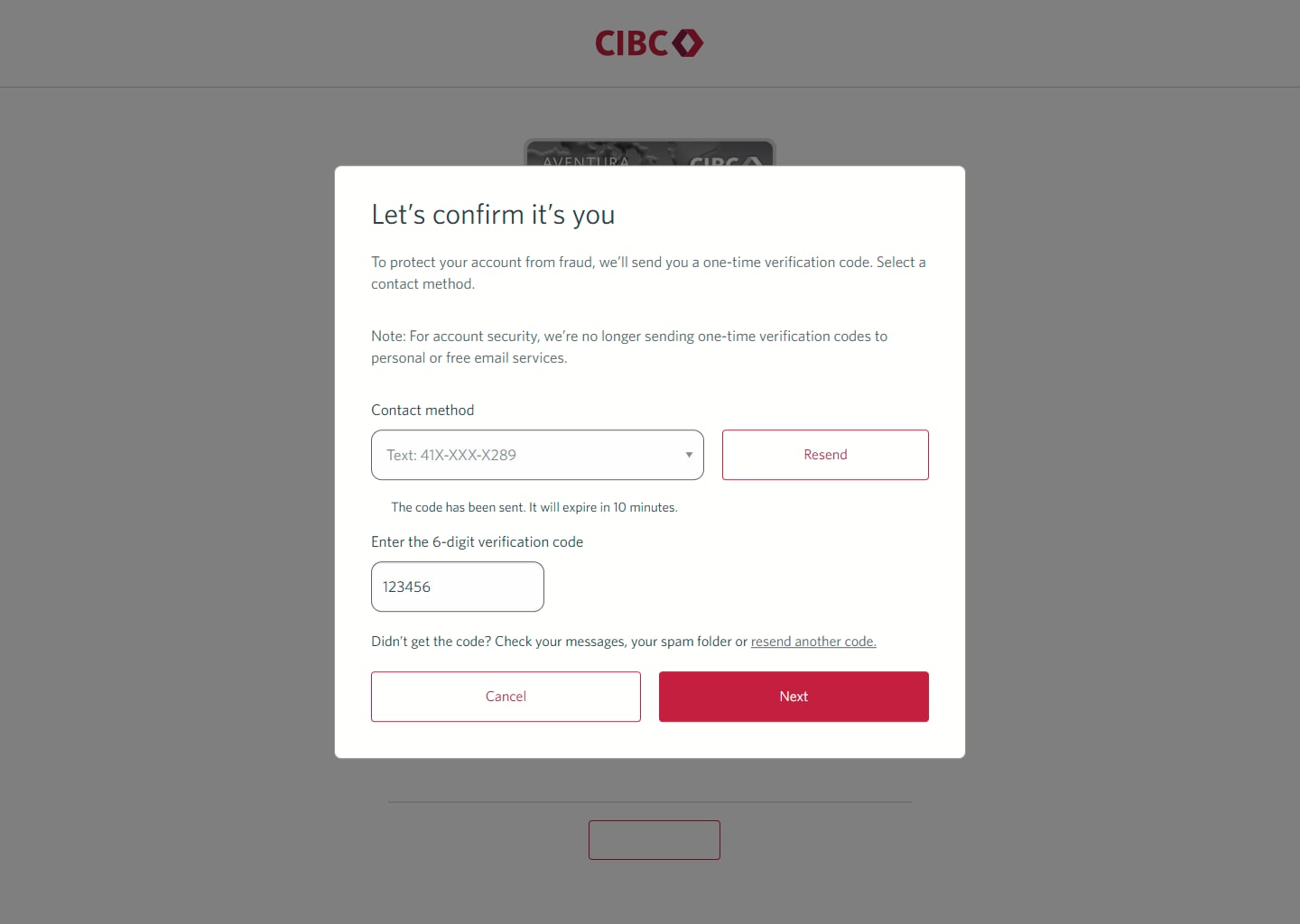
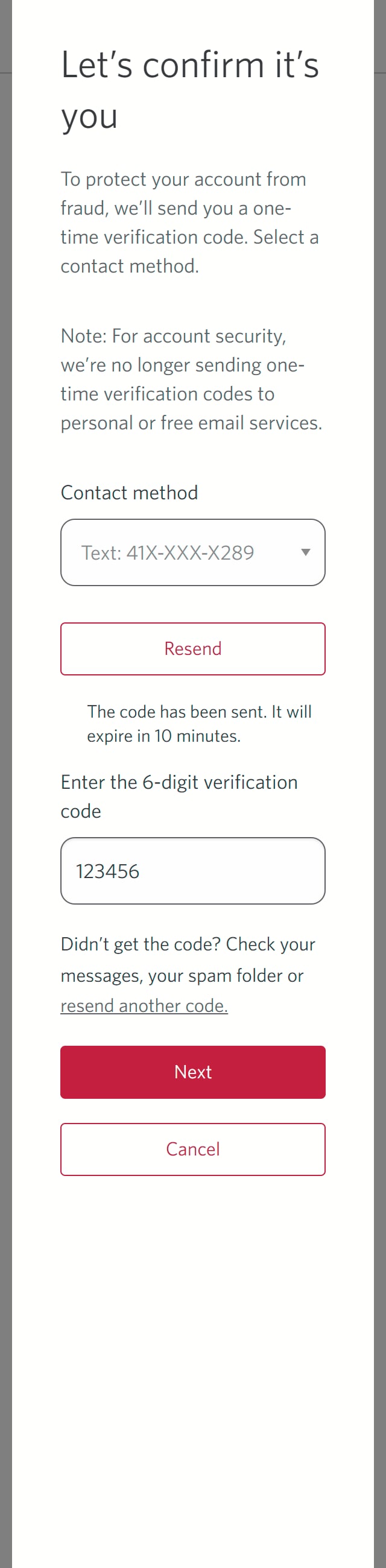
Once the code has been sent to you, there will be a field to enter it.
Enter the verification code and select the "Next" button.
Step 9 : Validate your PIN with your card in-person
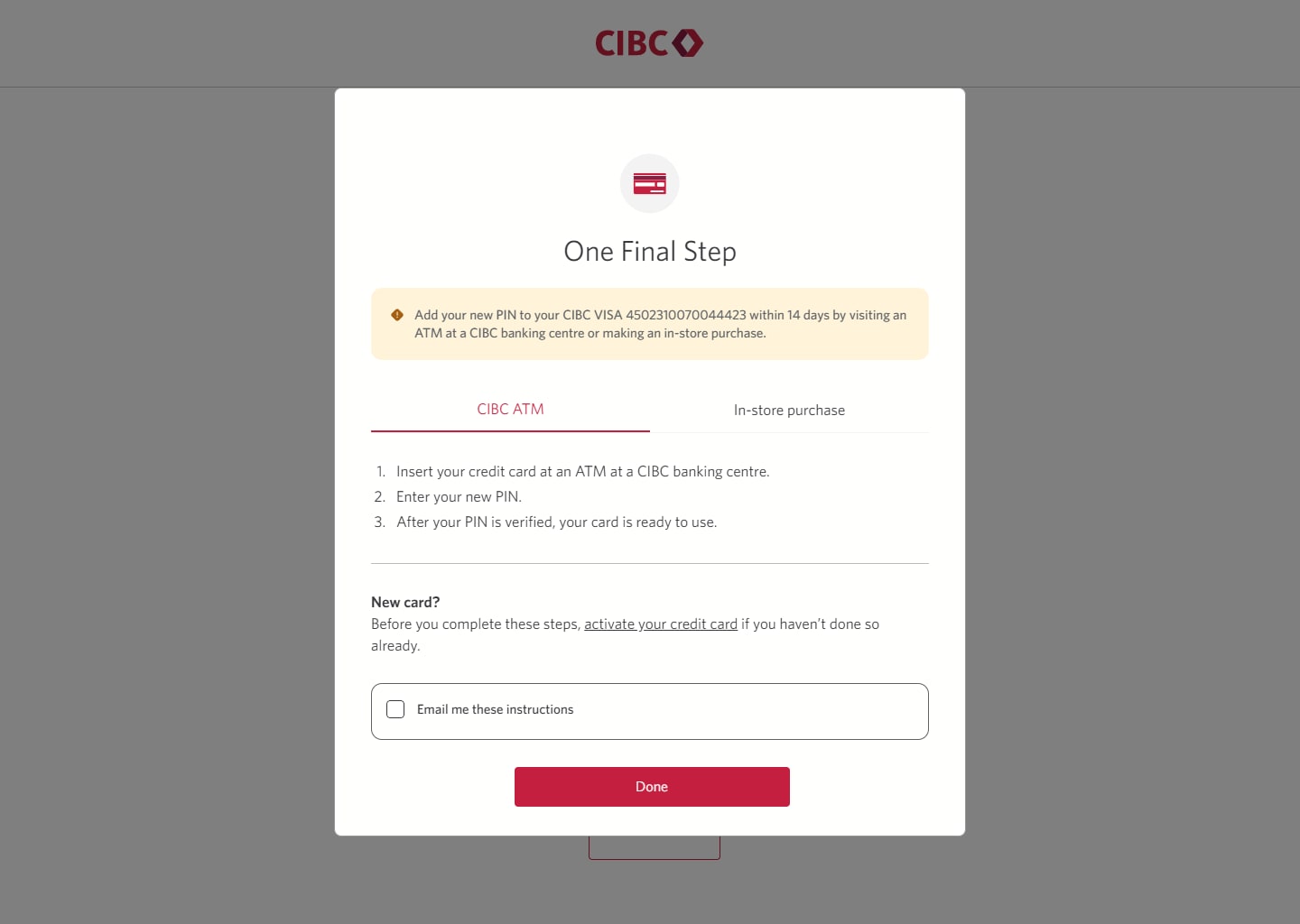
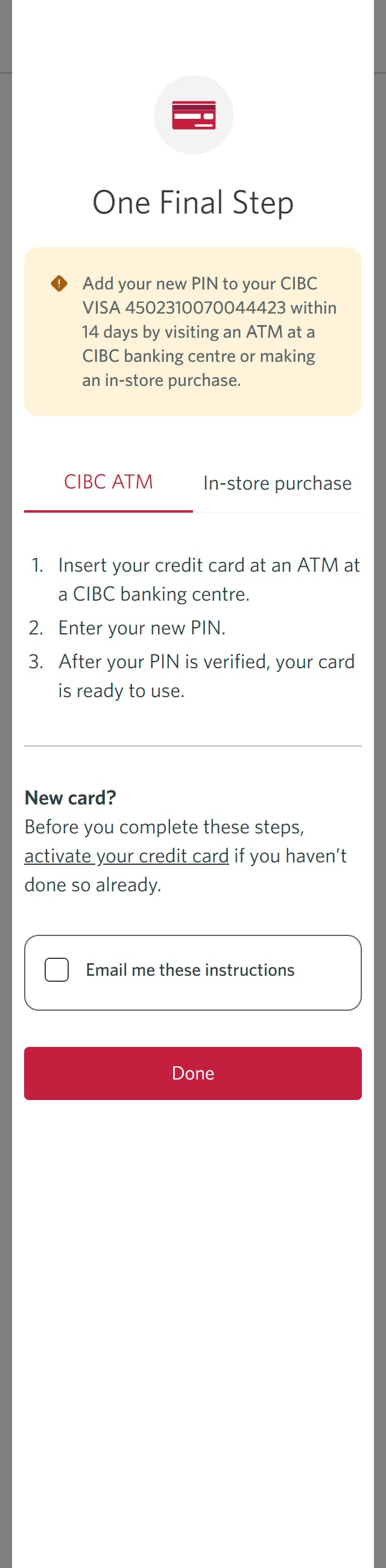
Once you've provided the verification code to confirm your PIN, you'll also need to verify it in-person.
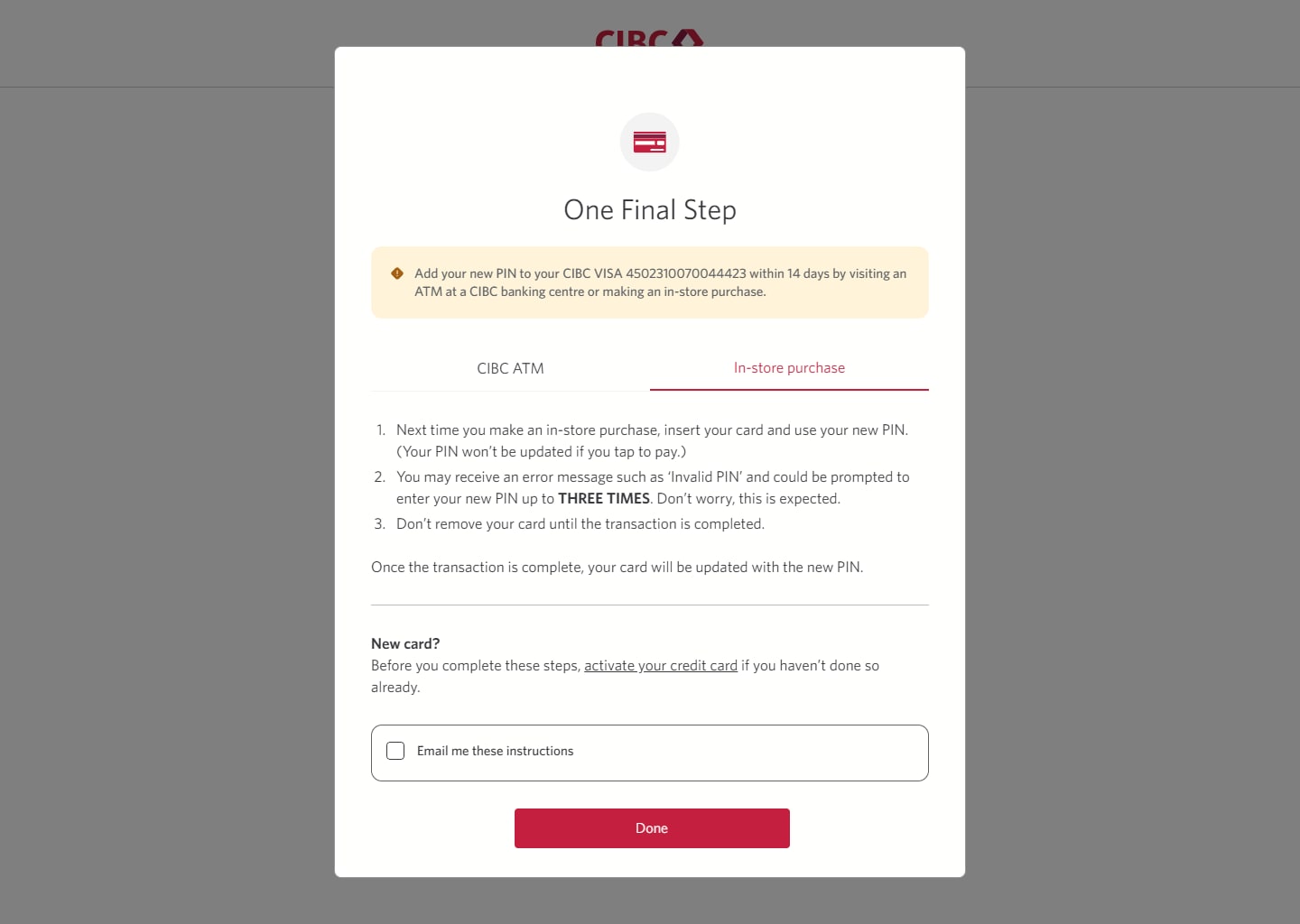
Within 14 days of saving this new PIN, visit a CIBC ATM or complete an in-store purchase using the PIN to ensure the PIN is validated and saved.
Review the instructions for how to validate your PIN at a CIBC ATM. When you're finished, select the "In-store purchase" tab.
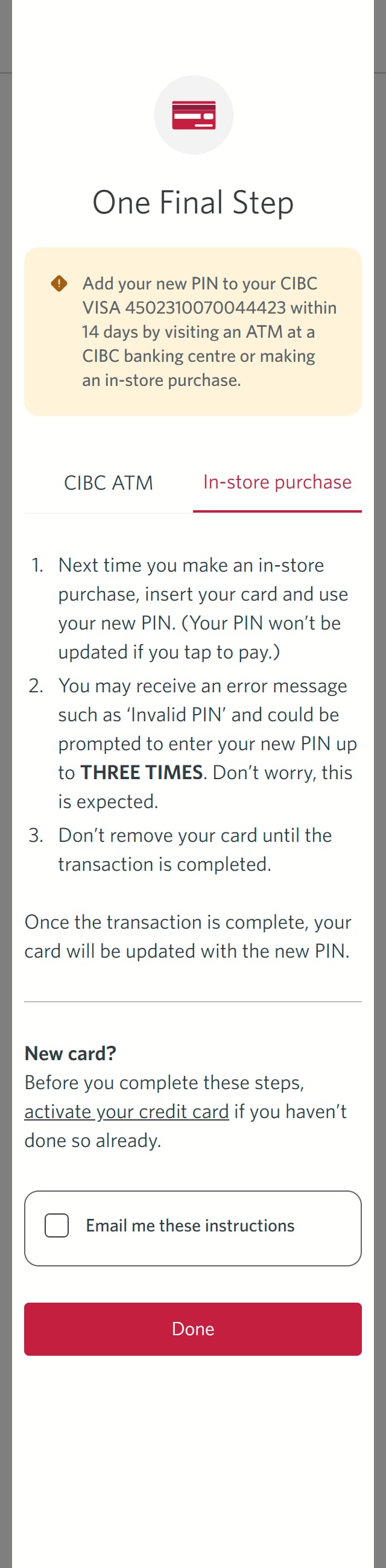
Step 10 : Find out how to validate your PIN in-store
Step 11 : Learn what to do if you have an information verification mismatch
Step 12 : Go to "Profile"
Step 13 : Edit your personal information
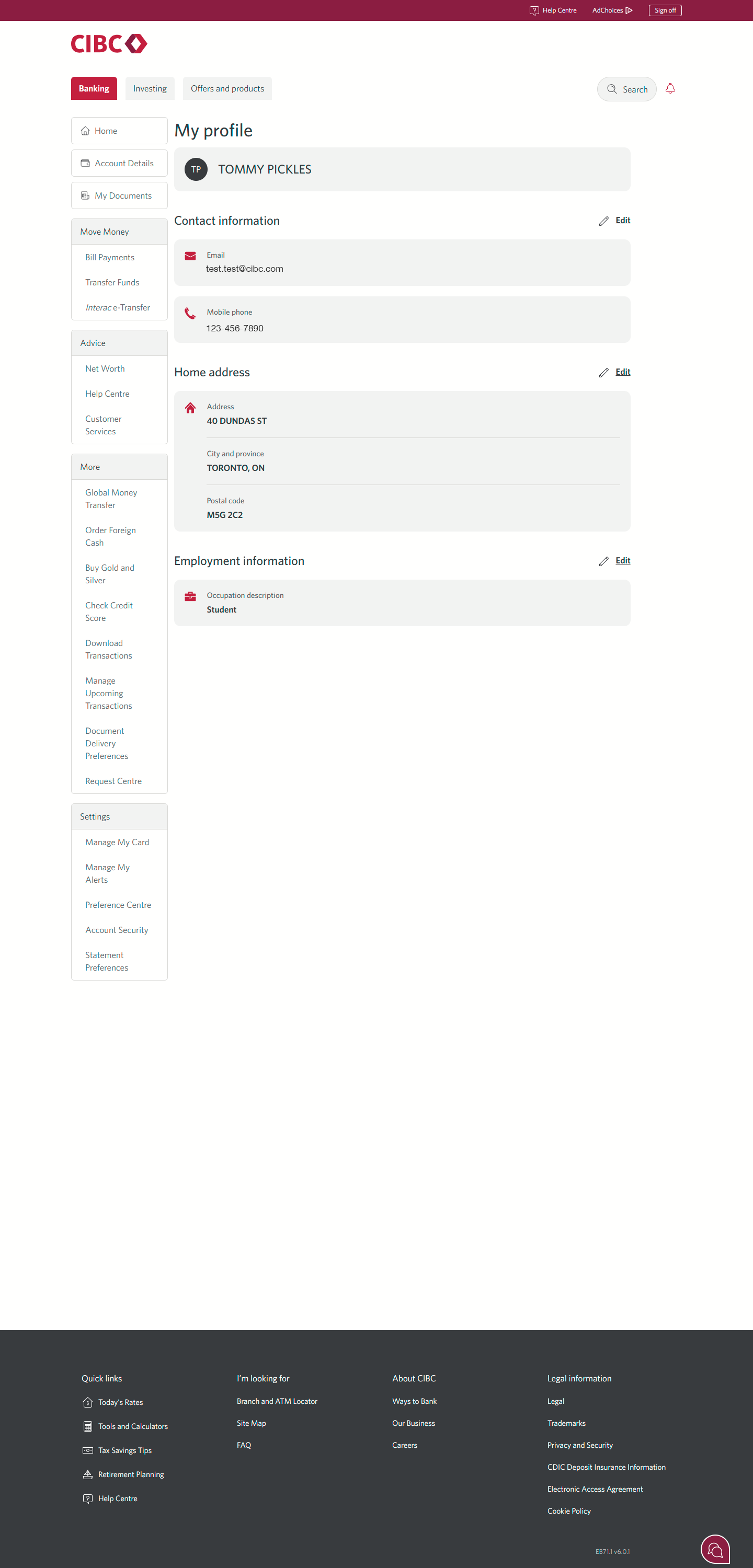
To help resolve the declined transaction, review your name, home address (billing address) and phone number. Check to ensure all the information you entered for your online purchase matches what we have on file at CIBC.
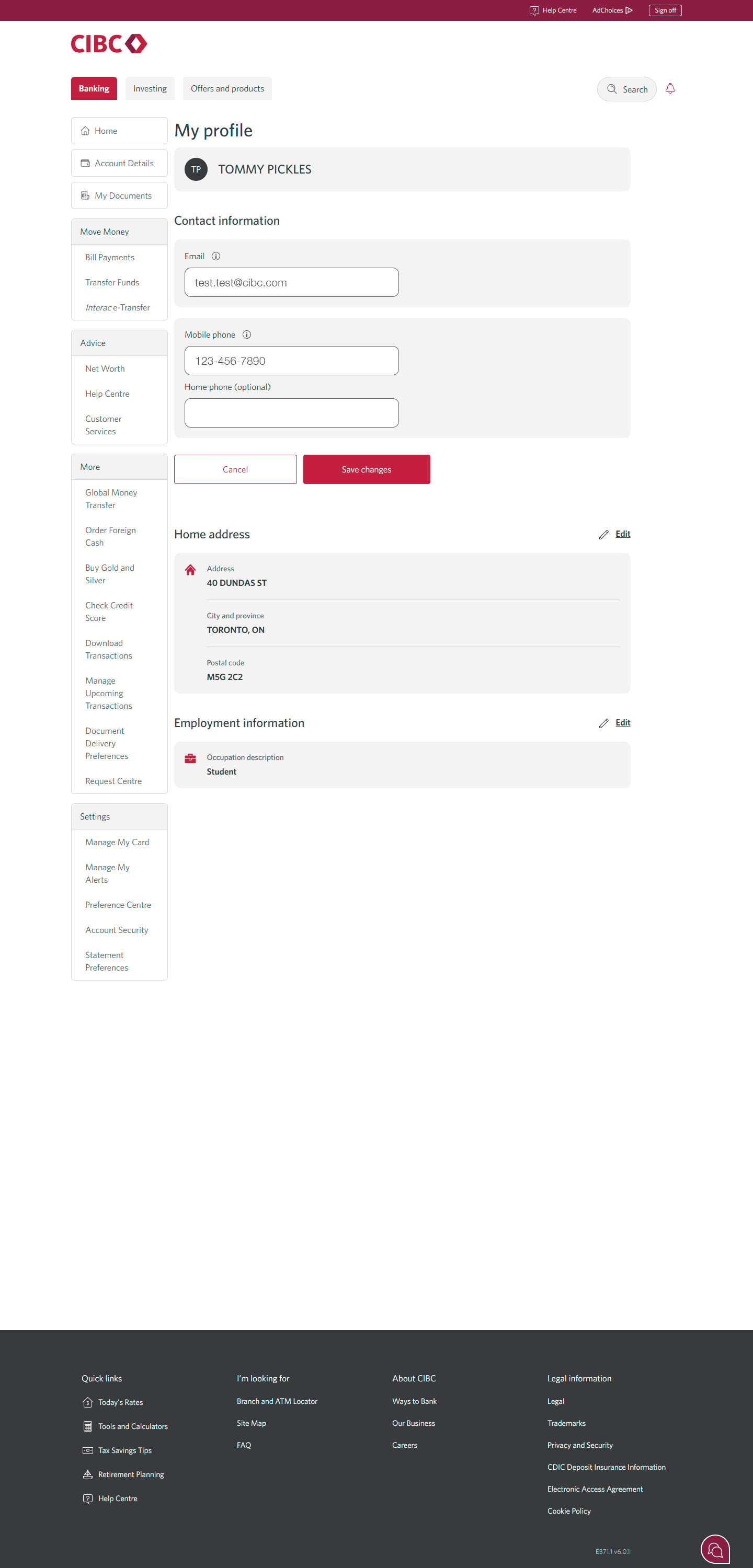
To update these details, find the "Contact information" section and select the "Edit" link to update your information.
You can also try updating your billing address or phone number with the merchant directly.
Step 14 : Save your changes
Once you've updated your personal information, select the "Save changes" button to save your profile changes.
If your issue still isn't resolved after taking these steps, check to ensure your credit card number, expiration date, CVV and the name found on your card are entered exactly as they appear for your online purchase. Accurate card details help prevent declined transactions.
Step 15 : Learn what to do if you don't have enough available credit
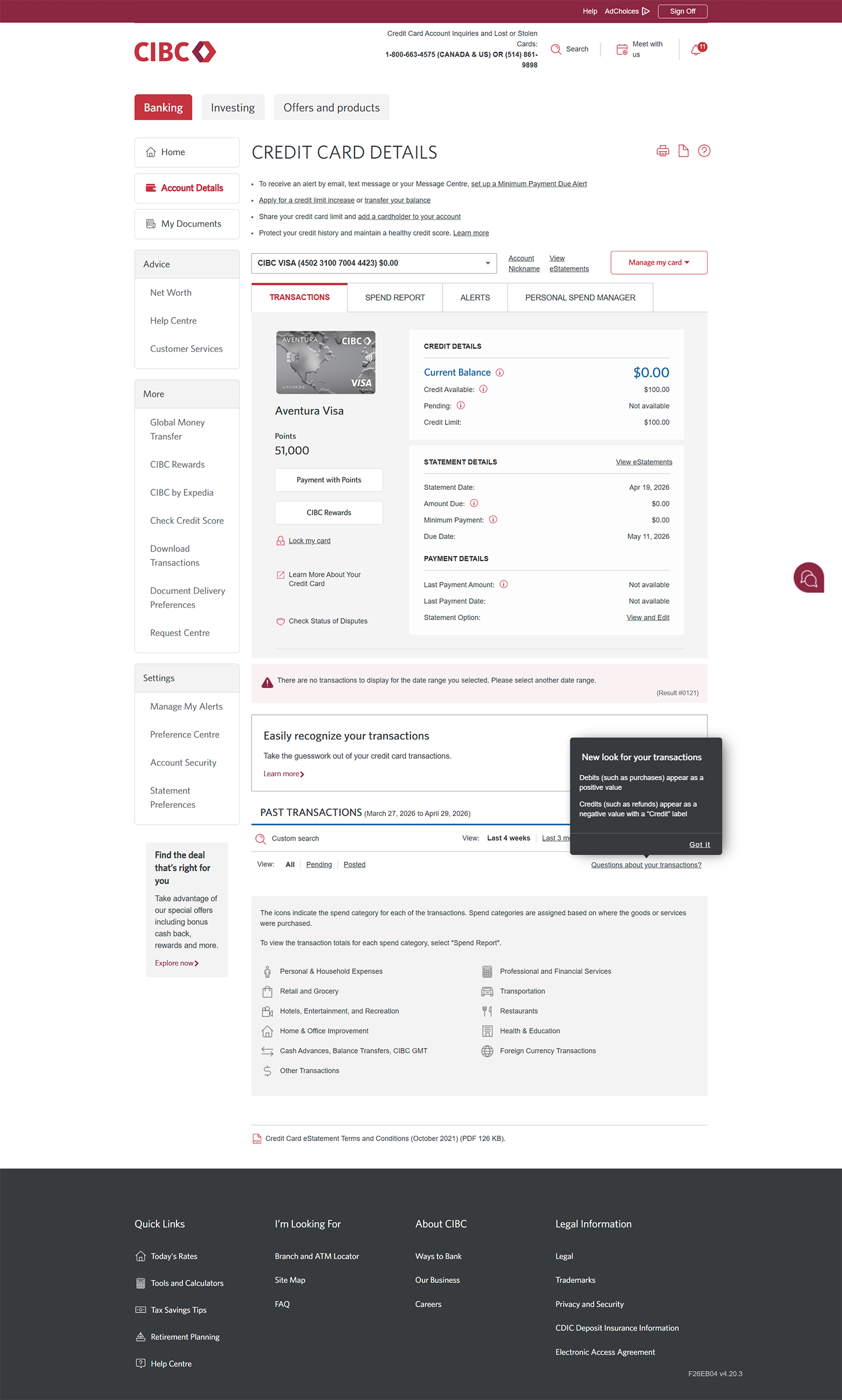
Step 16 : Choose which card to check available credit for
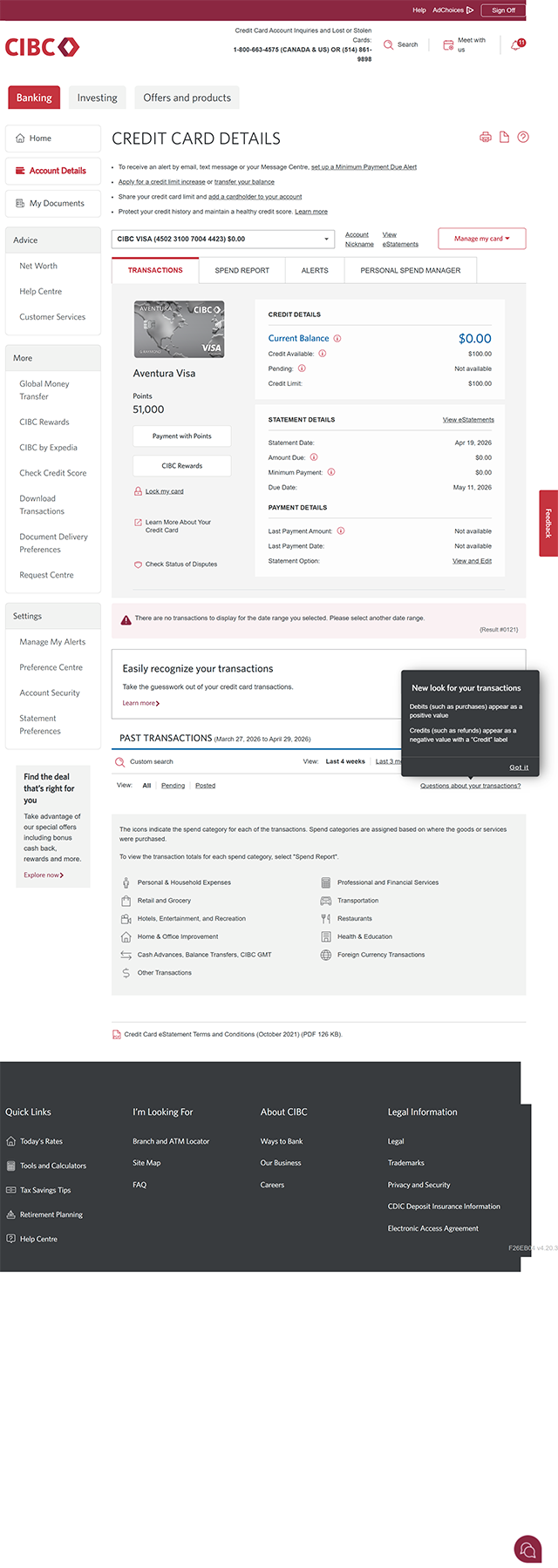
Step 17 : Review the available credit amount
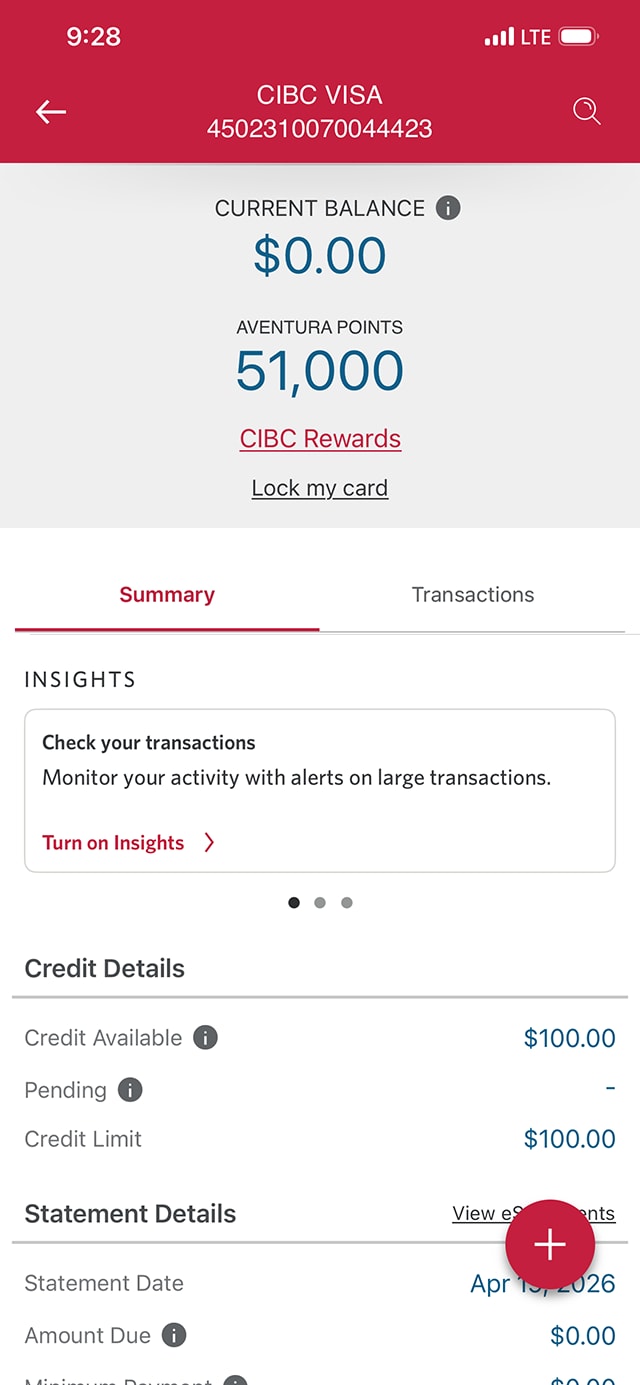
Within the "Transactions" tab, check the "Credit Available" in the credit details to ensure you have enough credit to complete your purchase.
If your credit card doesn't have enough available credit for a purchase, you can make a payment from your CIBC deposit account to increase your available credit.
Transactions can only be completed if your credit card account is in good standing.
Step 18 : Learn about real-time fraud alerts
Step 19 : Understand how real-time fraud alerts work
You may receive a fraud alert from CIBC by text message (short code: 242-225) to verify a transaction. If you receive a text like this, review the transaction details carefully.
If you recognize the transaction and reply "Y" for "Yes", the transaction will proceed, and your account will stay secure.
If you don't recognize the transaction and reply "N" for "No", you'll receive instructions on how to dispute the transaction.
CIBC will never ask for sensitive account information via text message. Don't provide this information to anyone asking for it over text; they may be trying to gain unauthorized access to your accounts.
Step 20 : Learn how to activate a new or replacement credit card
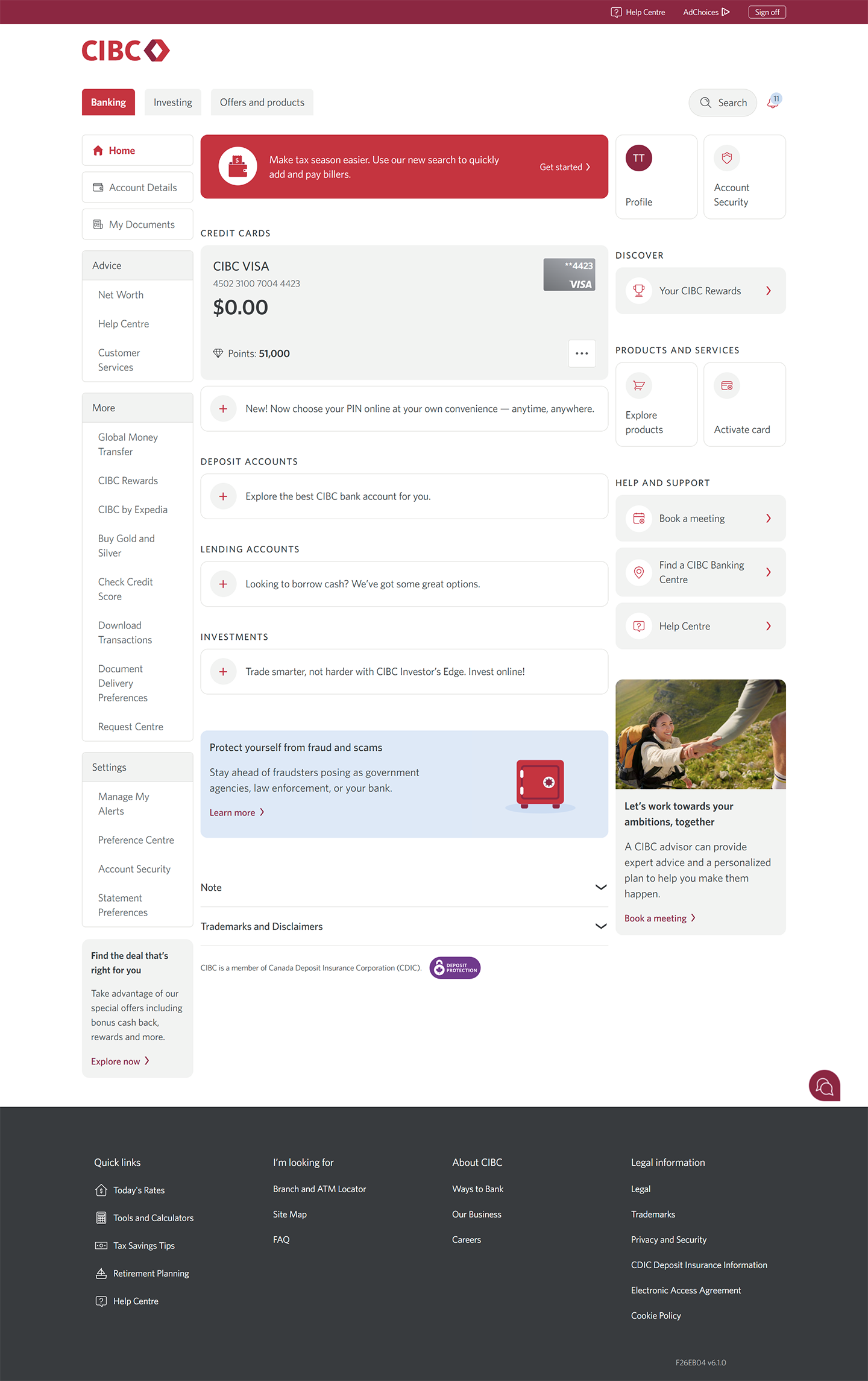
Step 21 : Find the "Activate card" option
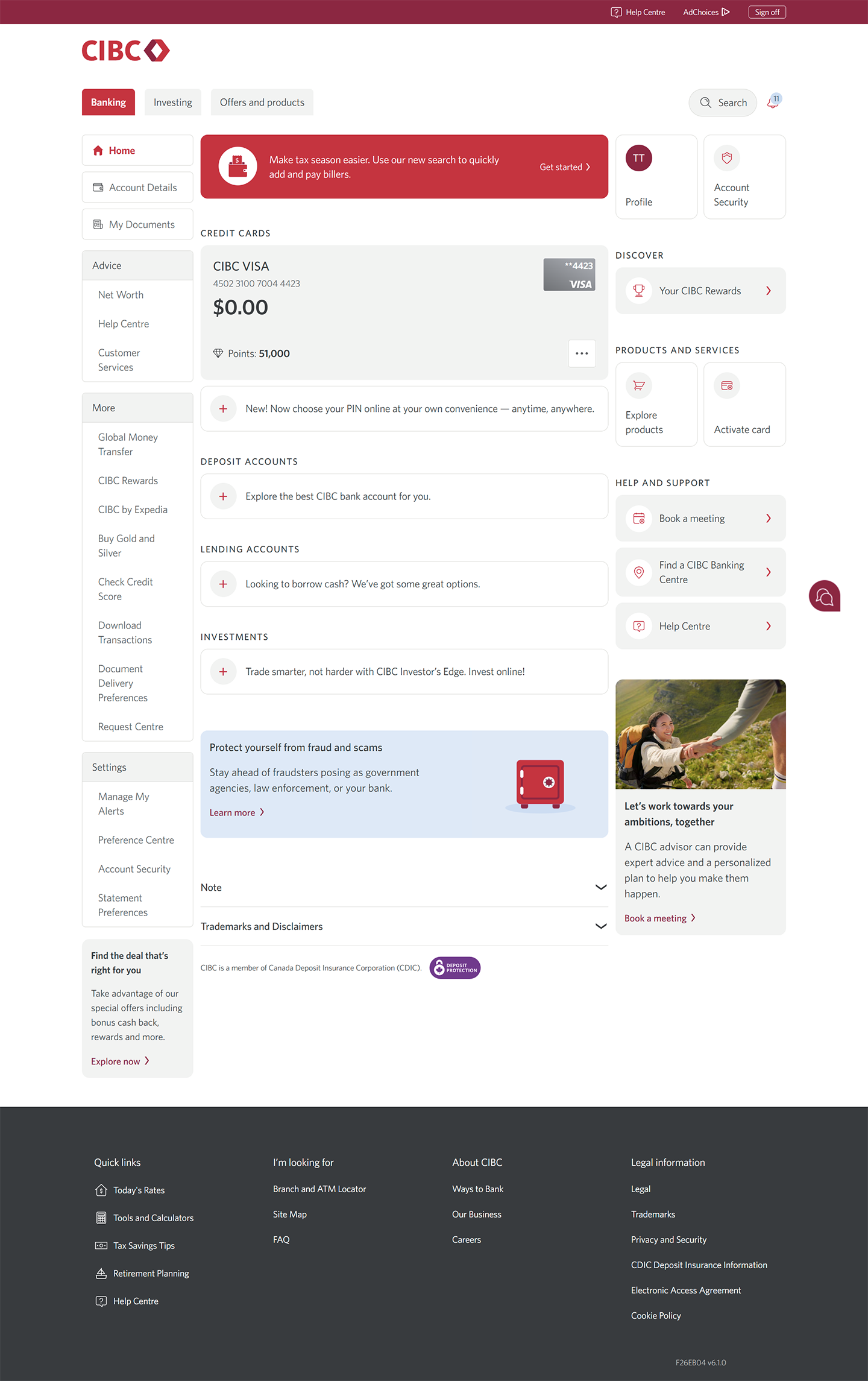
Another reason for a declined credit card transaction could be that your new or replacement credit card isn't activated yet.
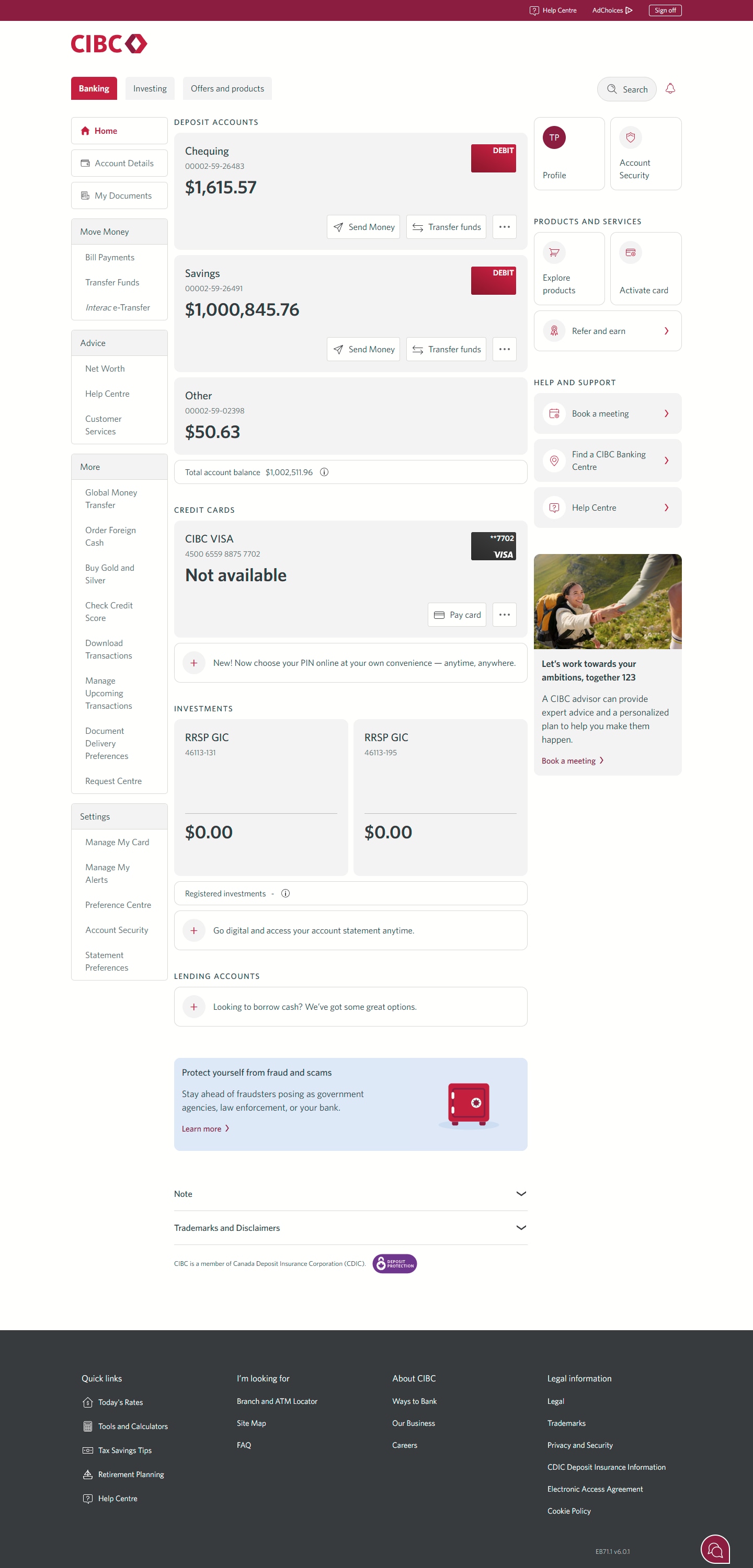
From the CIBC Online Banking homepage, find and select "Activate card".
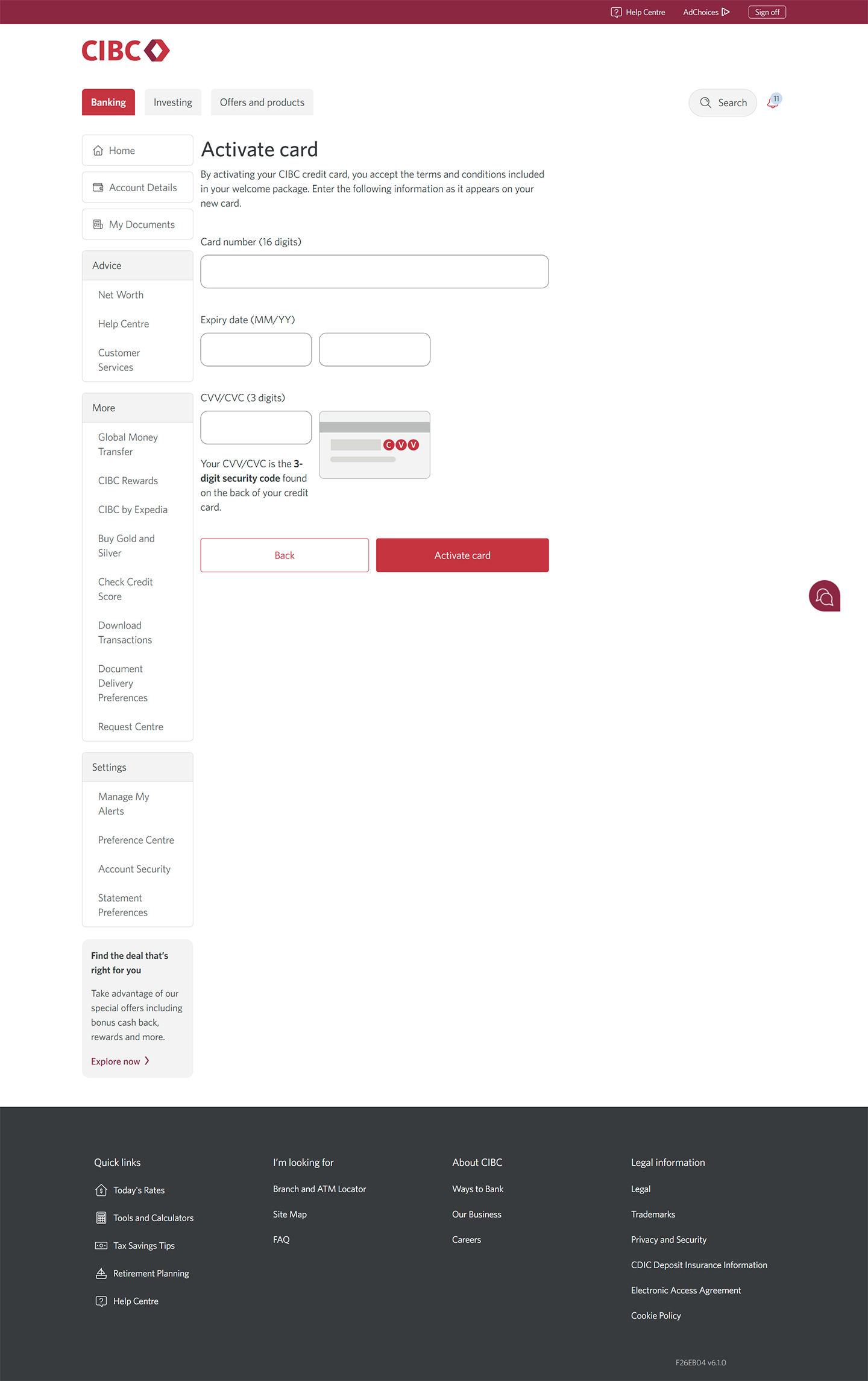
Step 22 : Enter your card details
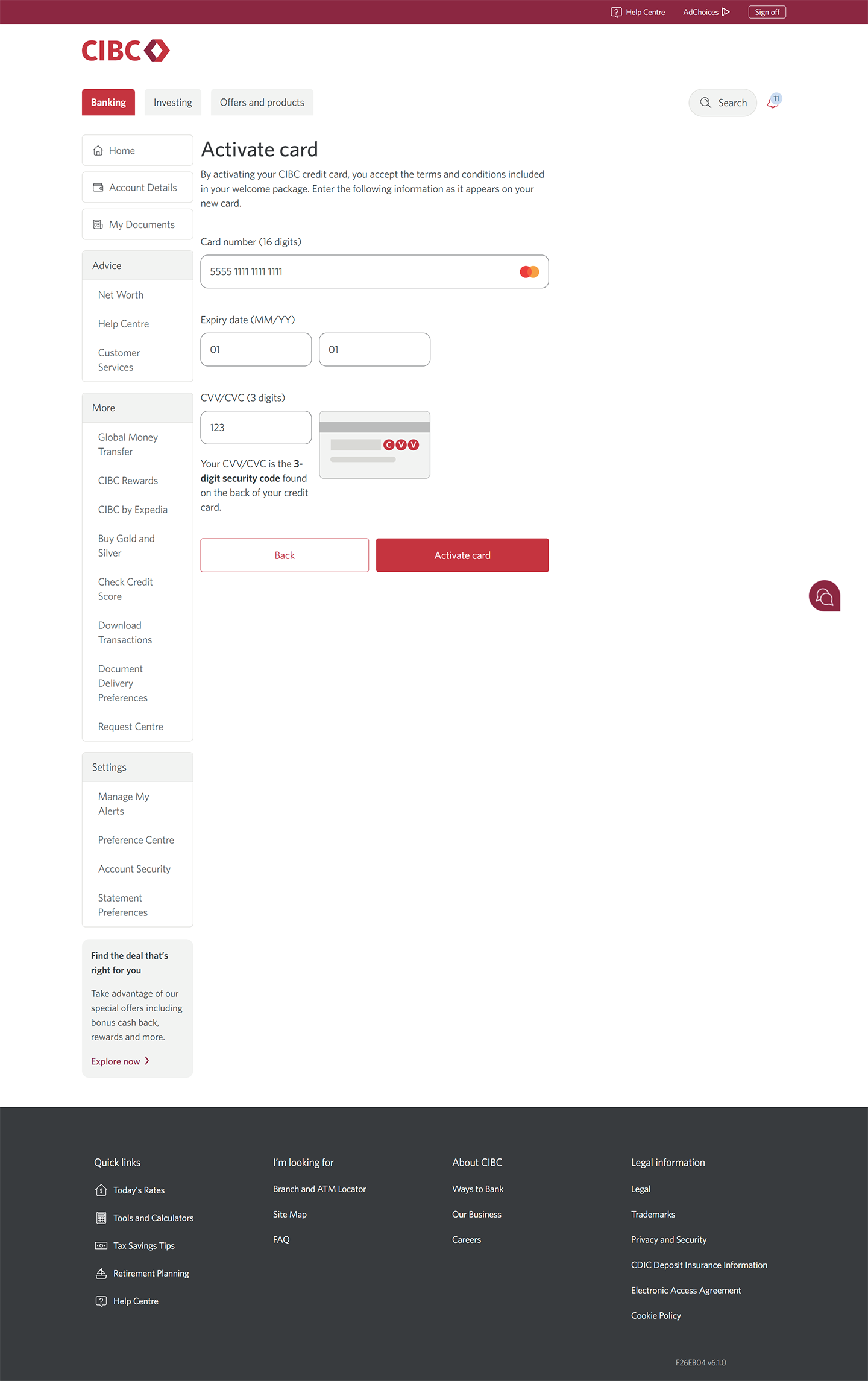
On the Activate card page, enter the credit card details of the card you'd like to activate.
If you recently got a new CIBC credit card, activating it online may resolve issues with declined transactions.
Step 23 : Select the "Activate card" button
Step 24 : Great job!










Step 1 : Let's get started on your web browser
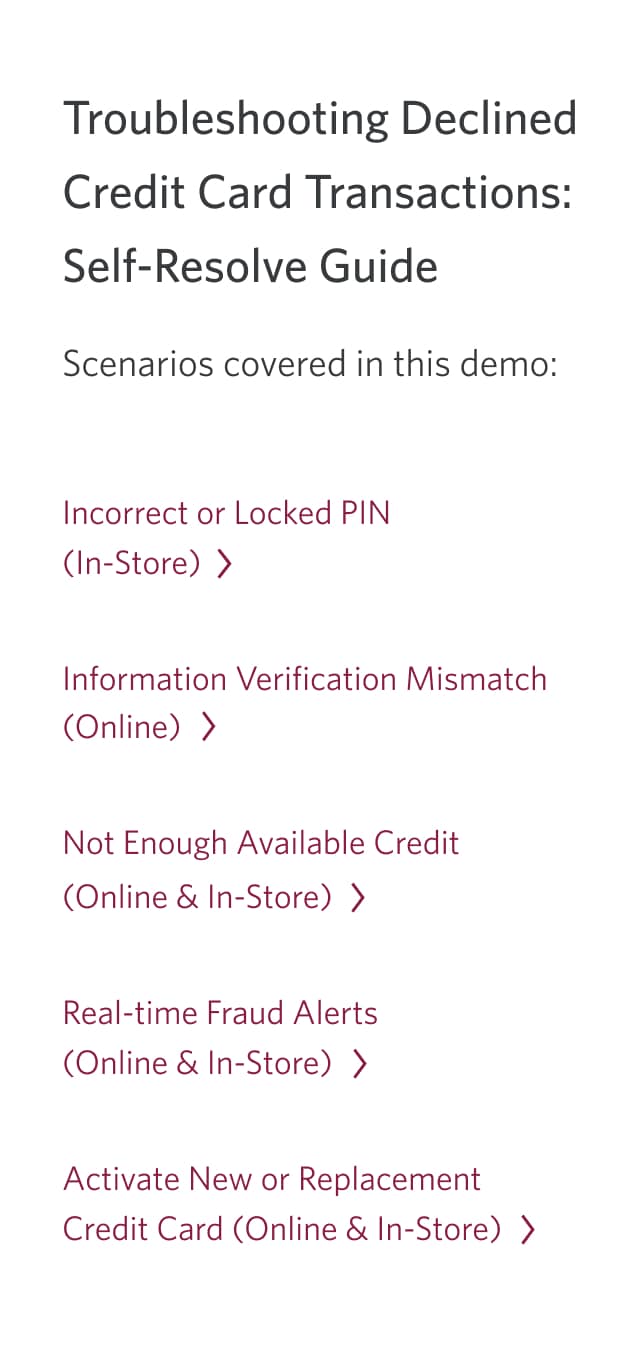
Step 2 : Review the scenarios covered in this demo
For help with an incorrect or locked PIN, go to step 3.
For help with an information verification mismatch, go to step 11.
To learn what to do when you don't have enough available credit, go to step 15.
To learn about real-time fraud alerts, go to step 18.
To learn about activating a new or replacement credit card, go to step 20.
Step 3 : Select which card you'd like to troubleshoot for declined transactions
Step 4 : Go to "Manage my card"
Step 5 : Learn how to update your PIN
First, we'll explore how to choose a new PIN for your card. Updating your PIN may help resolve issues with declined transactions.
On the Manage My Card page for the credit card you chose, select "Choose PIN" from the menu.
Step 6 : Enter a 4-digit PIN
On the dialog box, enter a new 4-digit PIN.
Then, enter the PIN a second time to ensure both PIN entries match. Once you're done, select the "Next" button.
Step 7 : Verify your identity
You may be prompted to confirm your identity with a one-time verification code.
From the dropdown menu for "Contact method", choose your preferred method to receive the code and select the "Send code" button.
If you aren't prompted to enter a code, go to the next step.
Step 8 : Enter your verification code
Once the code has been sent to you, there will be a field to enter it.
Enter the verification code and select the "Next" button.
Step 9 : Validate your PIN with your card in-person
Once you've provided the verification code to confirm your PIN, you'll also need to verify it in-person.
Within 14 days of saving this new PIN, visit a CIBC ATM or complete an in-store purchase using the PIN to ensure the PIN is validated and saved.
Review the instructions for how to validate your PIN at a CIBC ATM. When you're finished, select the "In-store purchase" tab.
Step 10 : Find out how to validate your PIN in-store
Step 11 : Learn what to do if you have an information verification mismatch
Step 12 : Go to "Profile"
Step 13 : Edit your personal information
To help resolve the declined transaction, review your name, home address (billing address) and phone number. Check to ensure all the information you entered for your online purchase matches what we have on file at CIBC.
To update these details, find the "Contact information" section and select the "Edit" link to update your information.
You can also try updating your billing address or phone number with the merchant directly.
Step 14 : Save your changes
Once you've updated your personal information, select the "Save changes" button to save your profile changes.
If your issue still isn't resolved after taking these steps, check to ensure your credit card number, expiration date, CVV and the name found on your card are entered exactly as they appear for your online purchase. Accurate card details help prevent declined transactions.
Step 15 : Learn what to do if you don't have enough available credit
Step 16 : Choose which card to check available credit for
Step 17 : Review the available credit amount
Within the "Transactions" tab, check the "Credit Available" in the credit details to ensure you have enough credit to complete your purchase.
If your credit card doesn't have enough available credit for a purchase, you can make a payment from your CIBC deposit account to increase your available credit.
Transactions can only be completed if your credit card account is in good standing.
Step 18 : Learn about real-time fraud alerts
Step 19 : Understand how real-time fraud alerts work
You may receive a fraud alert from CIBC by text message (short code: 242-225) to verify a transaction. If you receive a text like this, review the transaction details carefully.
If you recognize the transaction and reply "Y" for "Yes", the transaction will proceed, and your account will stay secure.
If you don't recognize the transaction and reply "N" for "No", you'll receive instructions on how to dispute the transaction.
CIBC will never ask for sensitive account information via text message. Don't provide this information to anyone asking for it over text; they may be trying to gain unauthorized access to your accounts.
Step 20 : Learn how to activate a new or replacement credit card
Step 21 : Find the "Activate card" option
Another reason for a declined credit card transaction could be that your new or replacement credit card isn't activated yet.
From the CIBC Online Banking homepage, find and select "Activate card".
Step 22 : Enter your card details
On the Activate card page, enter the credit card details of the card you'd like to activate.
If you recently got a new CIBC credit card, activating it online may resolve issues with declined transactions.
Step 23 : Select the "Activate card" button
Step 24 : Great job!
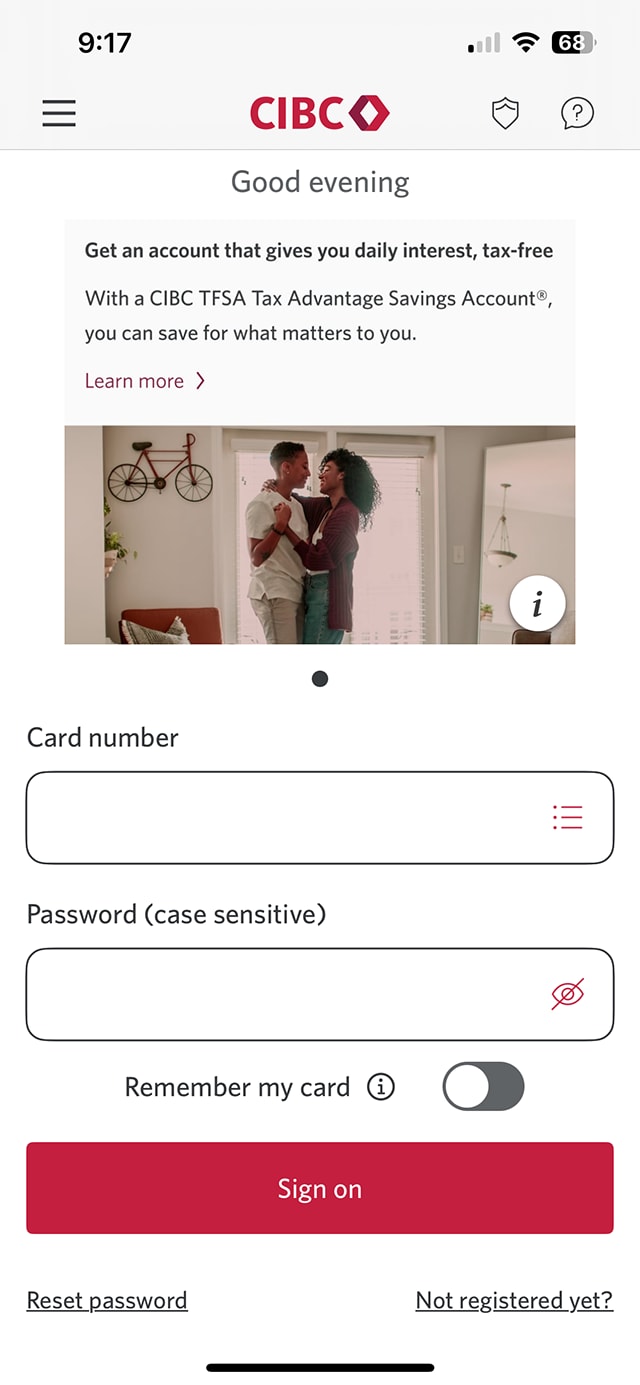
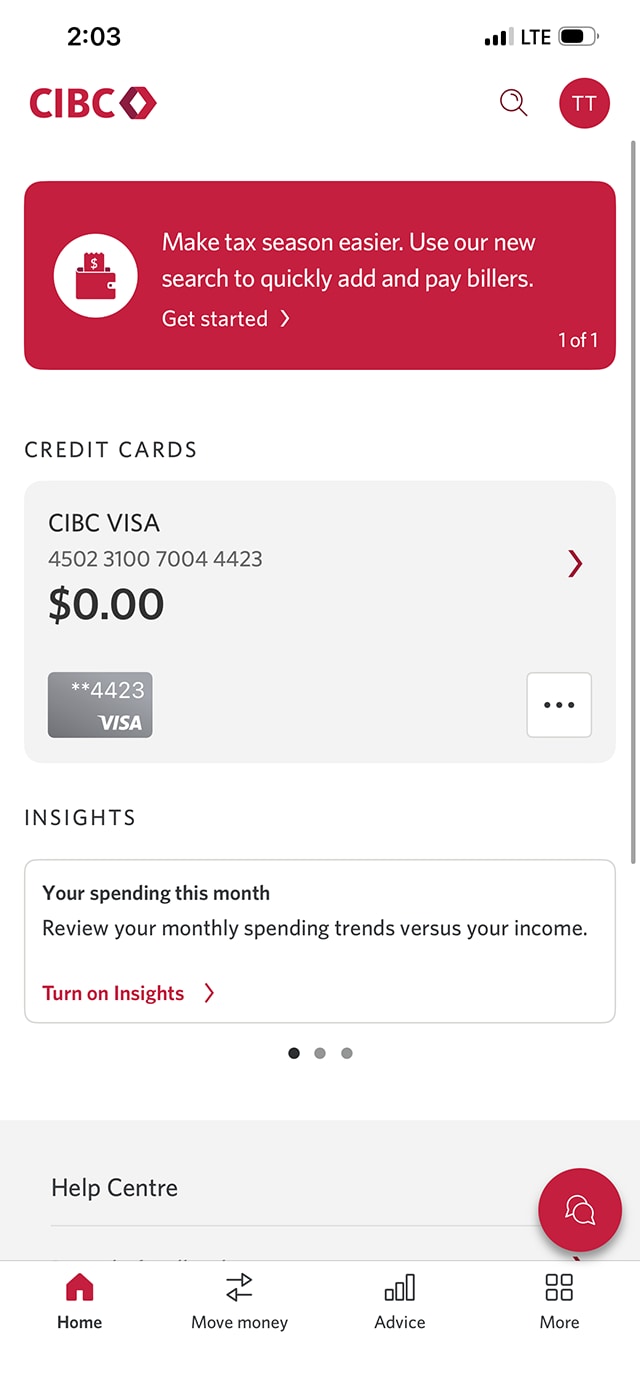

Step 1 : Let's get started on the mobile app
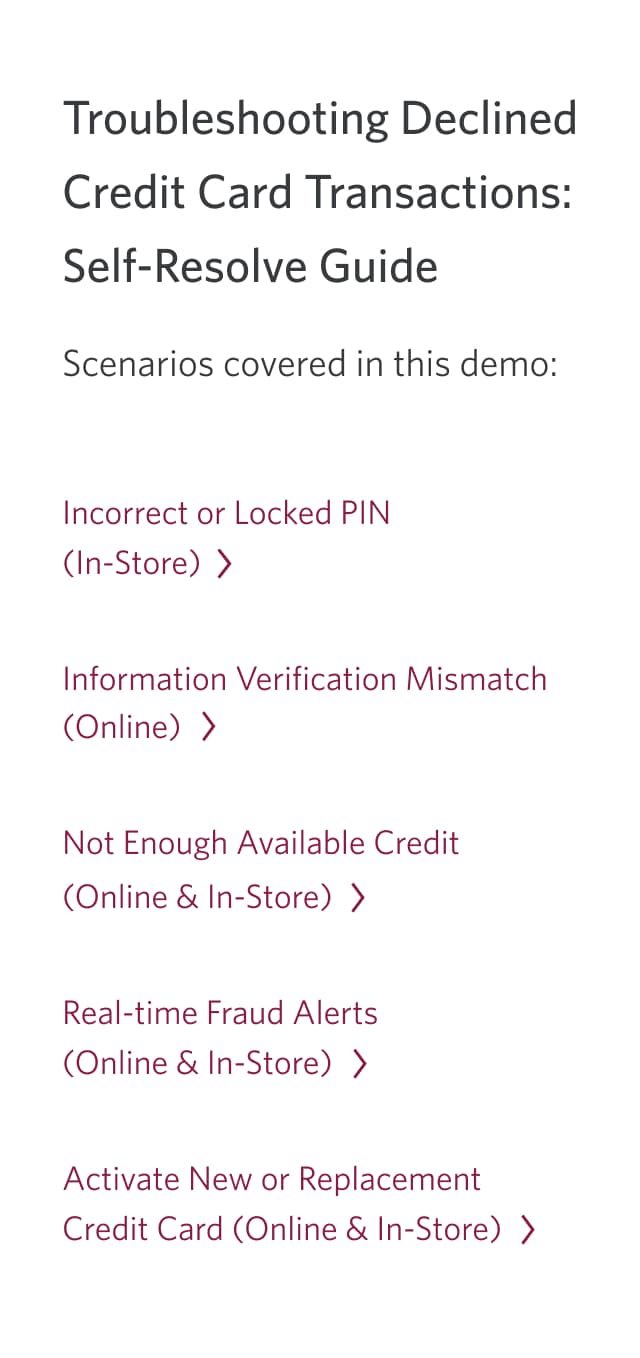
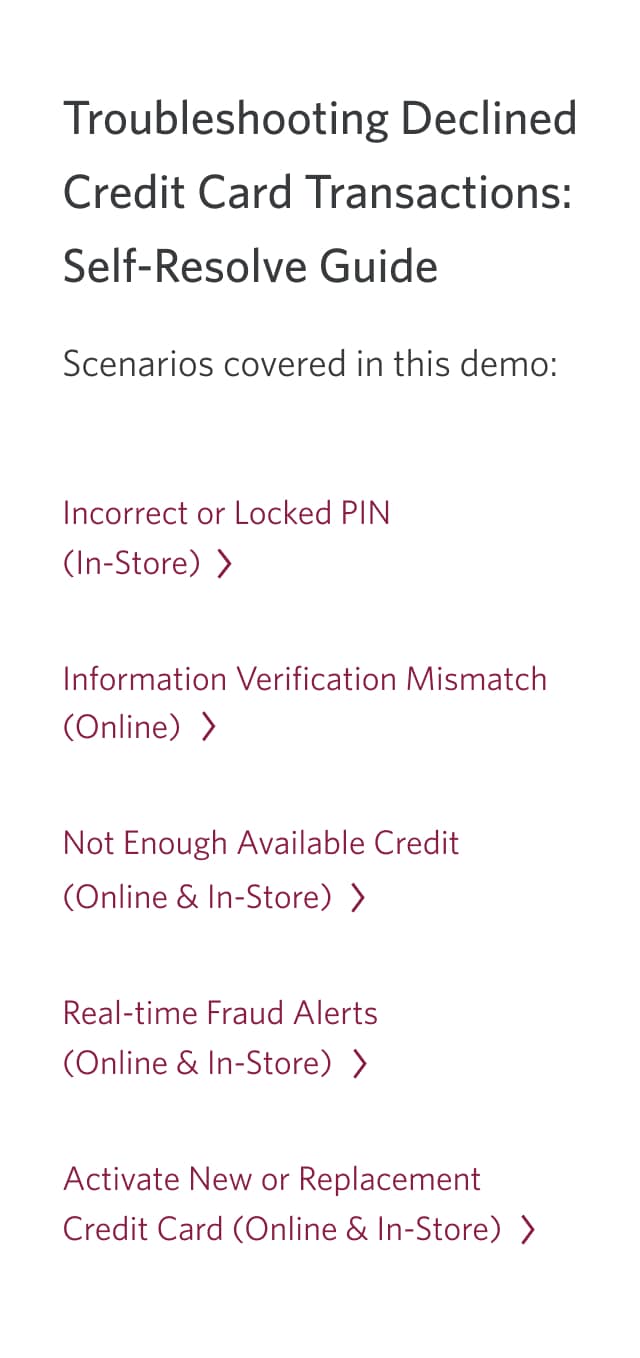
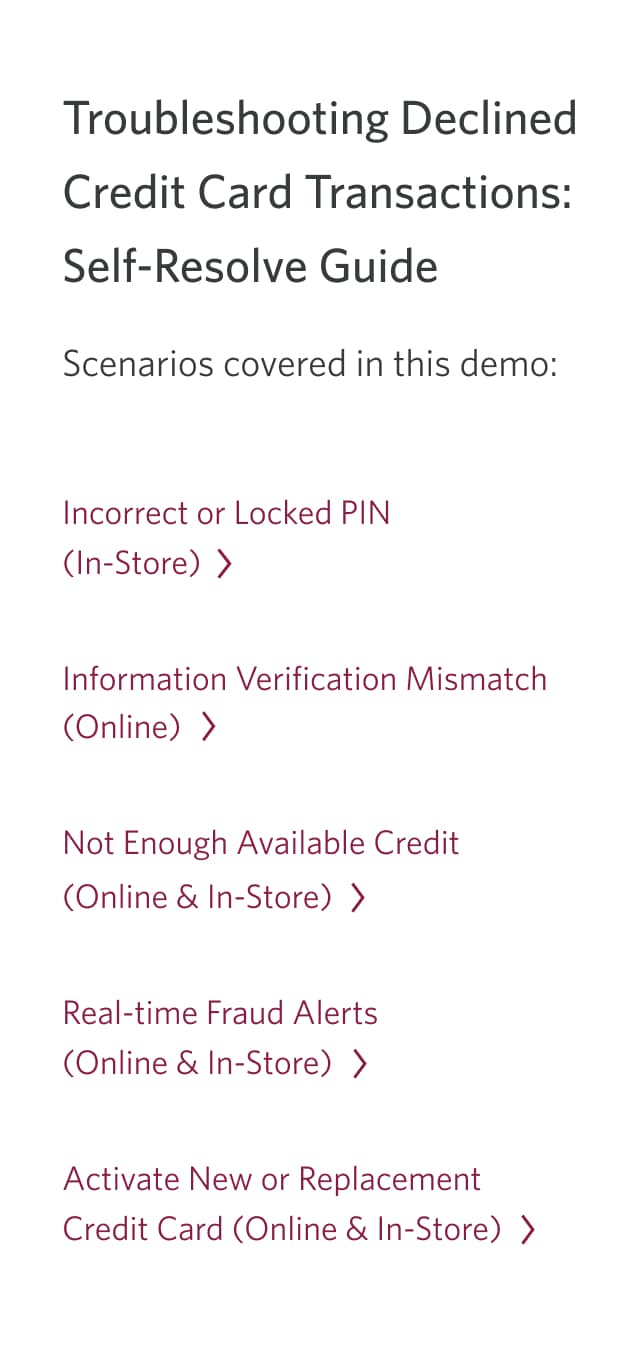
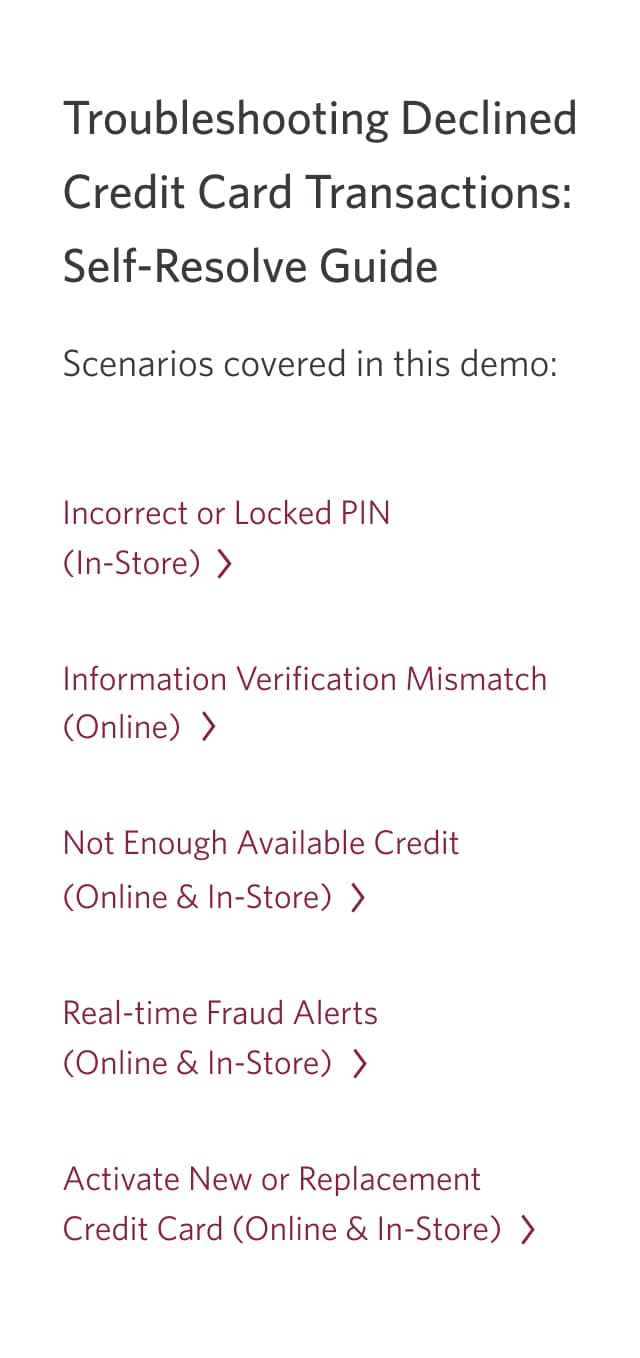
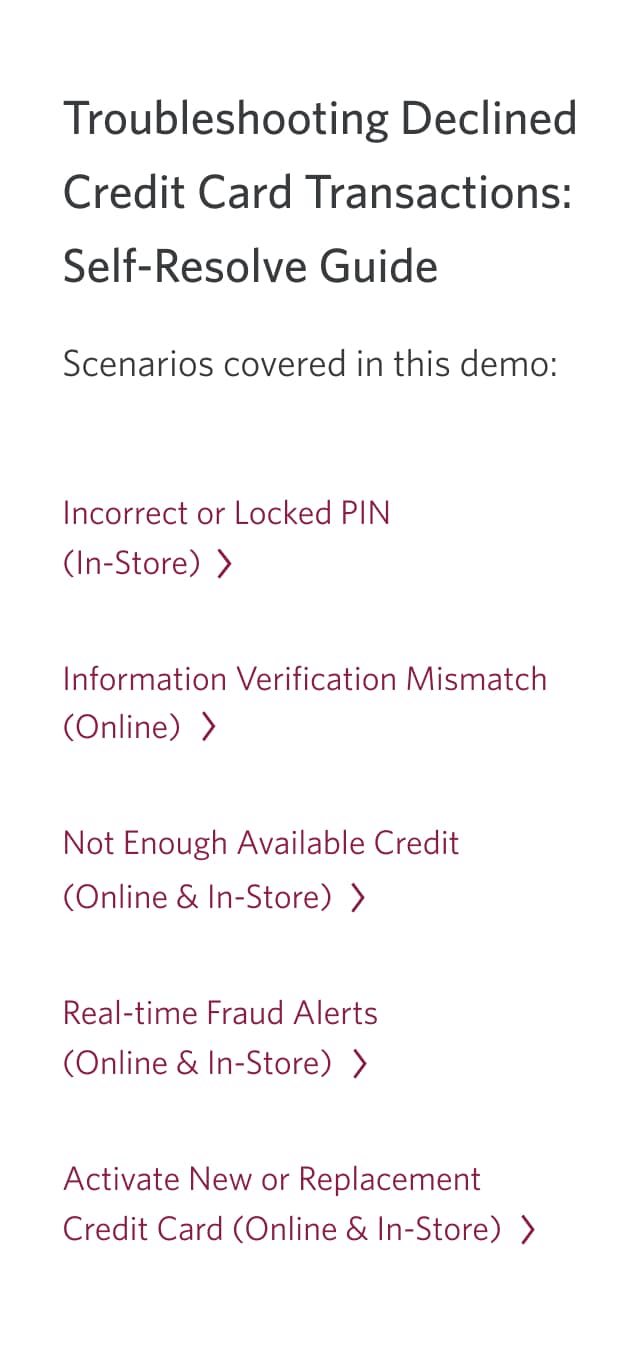
Step 2 : Review the scenarios covered in this demo
For help with an incorrect or locked PIN, go to step 3.
For help with an information verification mismatch, go to step 8.
To learn what to do when you don't have enough available credit, go to step 13.
To learn about real-time fraud alerts, go to step 16.
To learn about activating a new or replacement credit card, go to step 18.
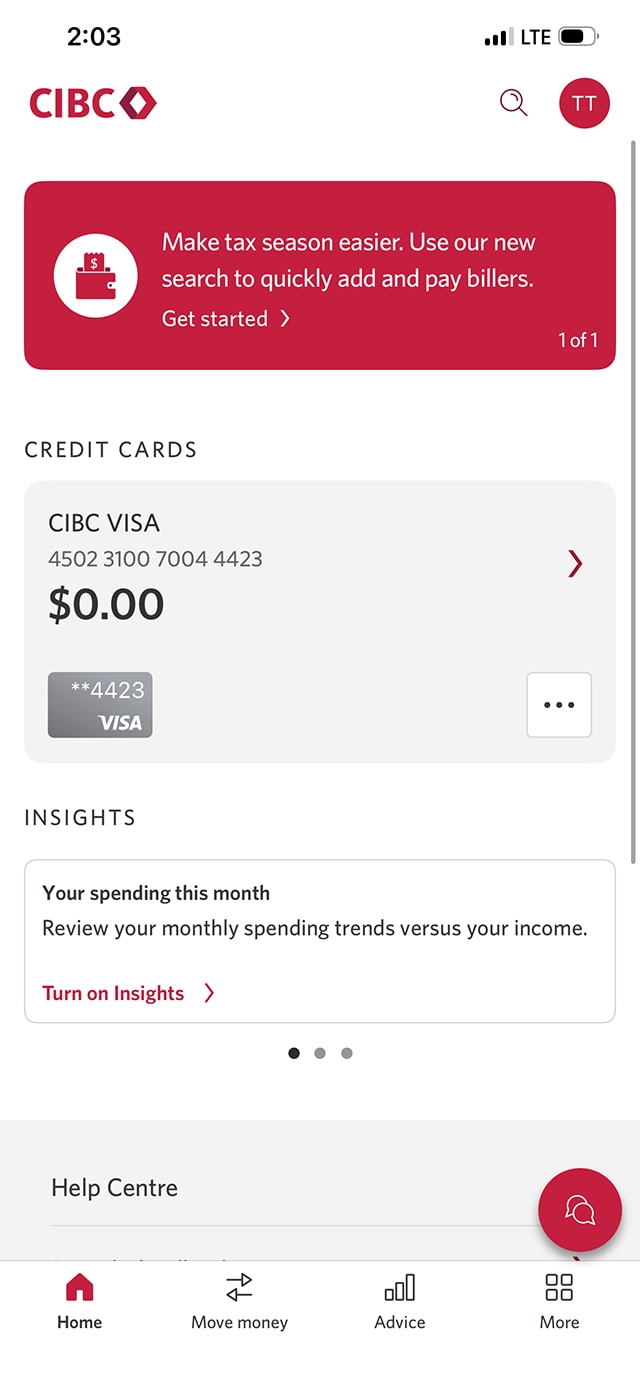
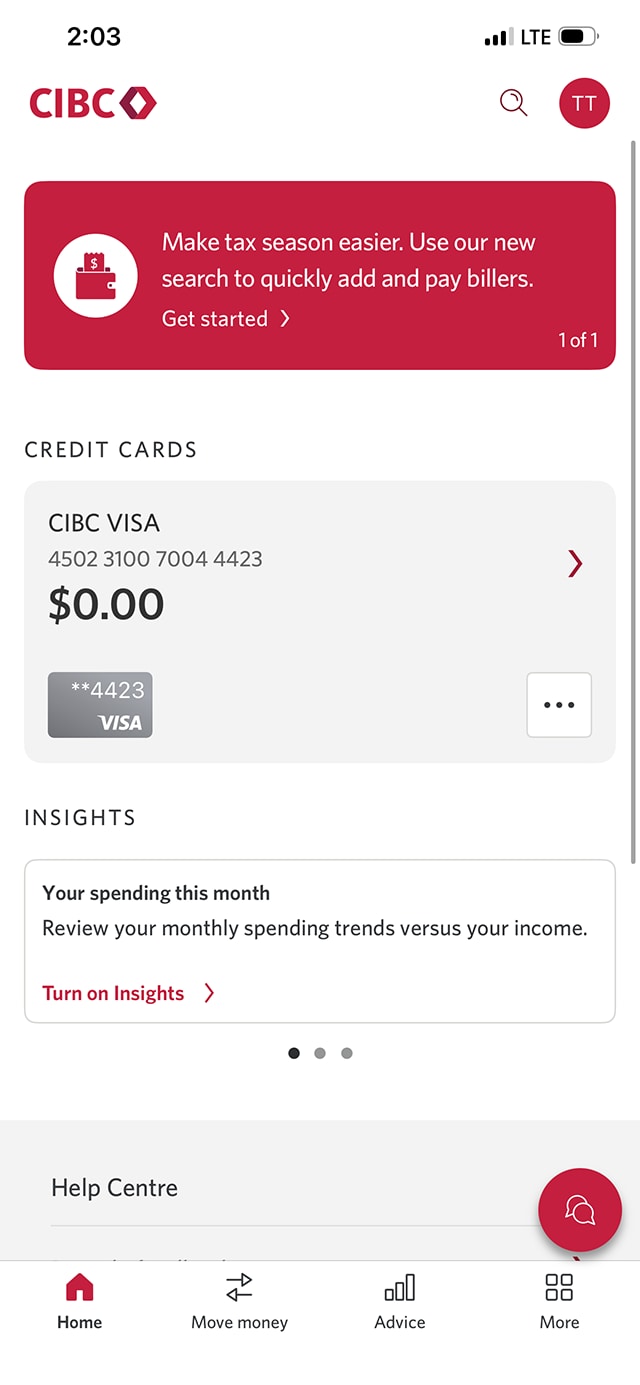
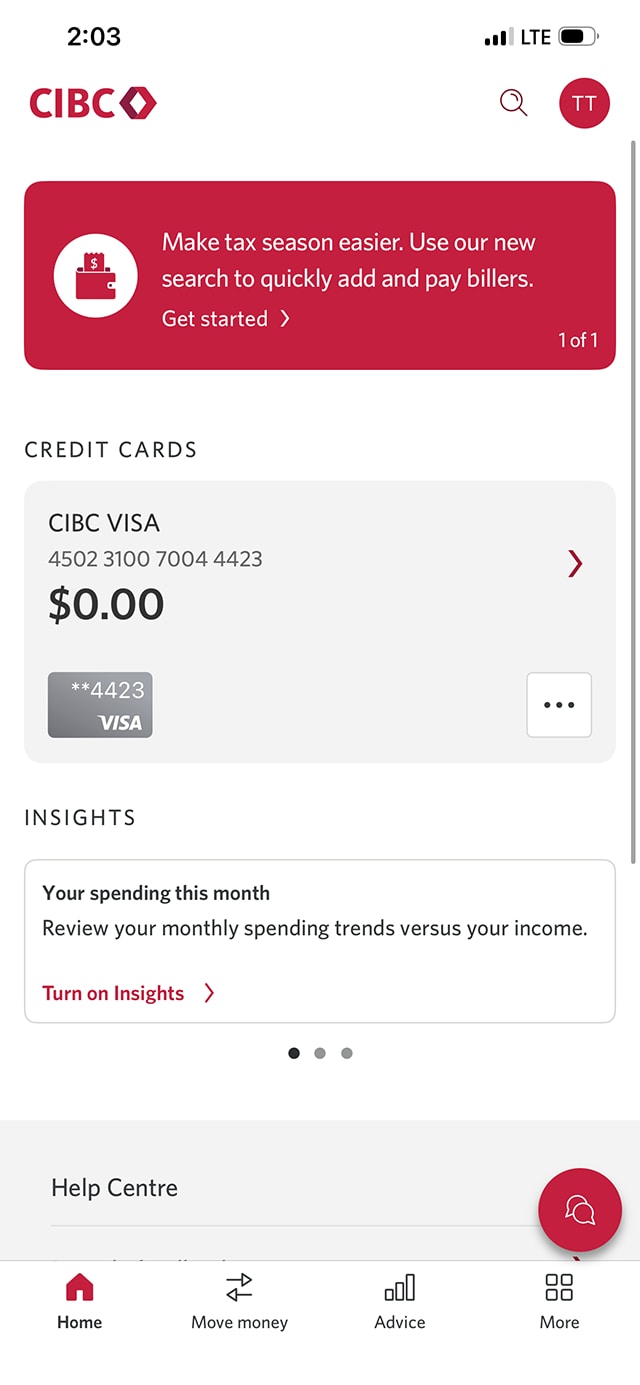
Step 3 : Select a card you'd like to troubleshoot for declined transactions
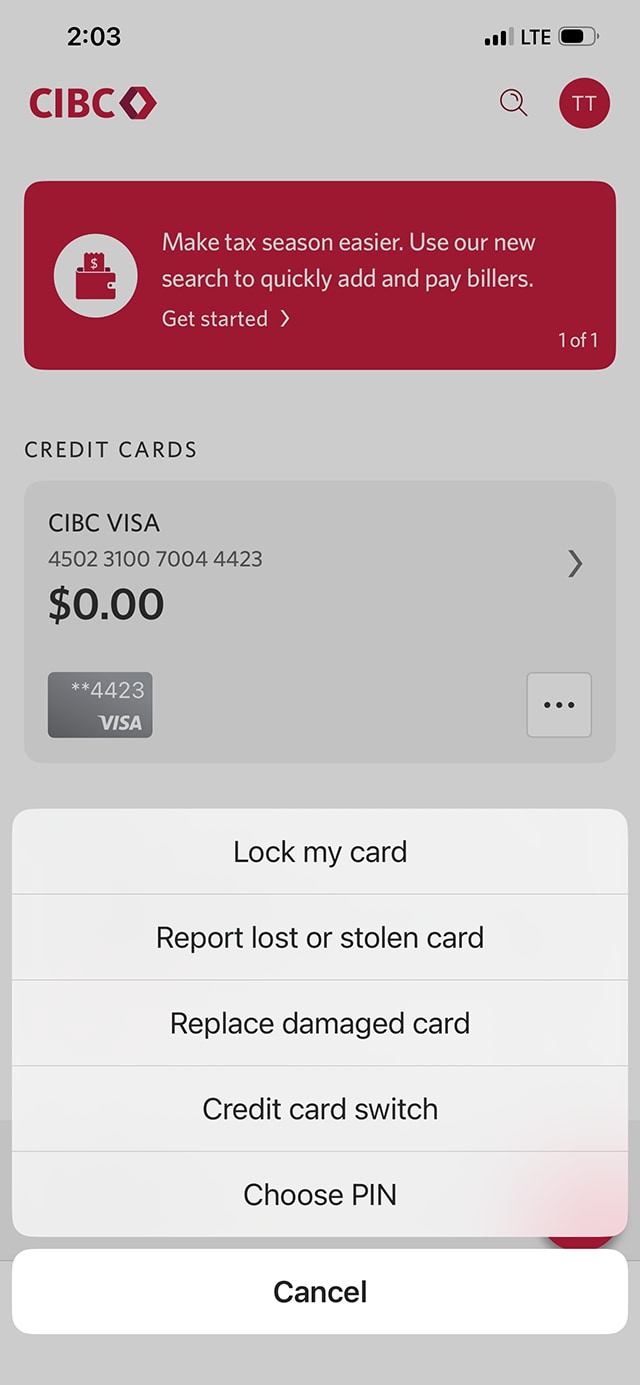
Step 4 : Learn how to update your PIN
First, we'll explore how to choose a new PIN for your card. Updating your PIN may help resolve issues with declined transactions.
On the Manage My Card page for the credit card you chose, select "Choose PIN" from the menu.
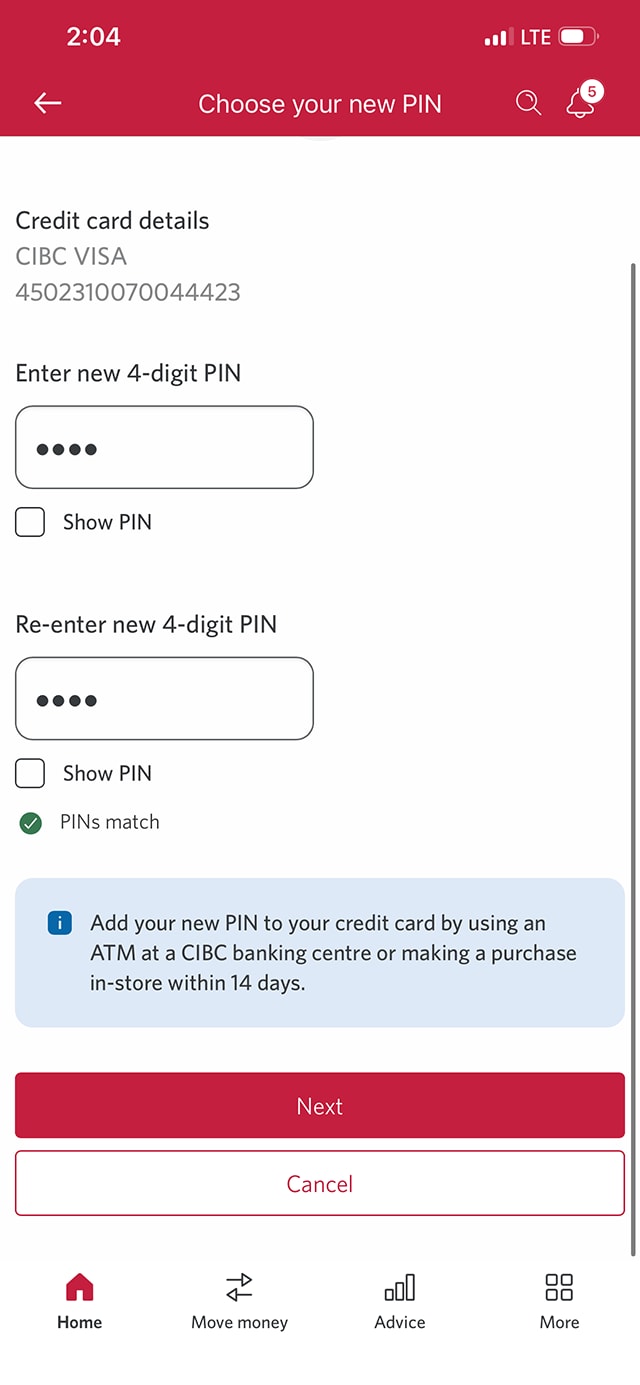
Step 5 : Enter a 4-digit PIN and verify your identity if prompted
On the dialog box, enter a new 4-digit PIN.
Then, enter the PIN a second time to ensure both PIN entries match. Once you're done, select the "Next" button.
After selecting "Next", you may be prompted to confirm your identity with a one-time verification code.
If that happens, choose your preferred method to receive the code from the dropdown menu for "Contact method". Then, select the "Send code" button. Once you receive the code, enter it in the field provided and select the "Next" button on-screen.
If you aren't prompted to enter a code, you'll be taken right to a screen with information about validating your PIN in-store.
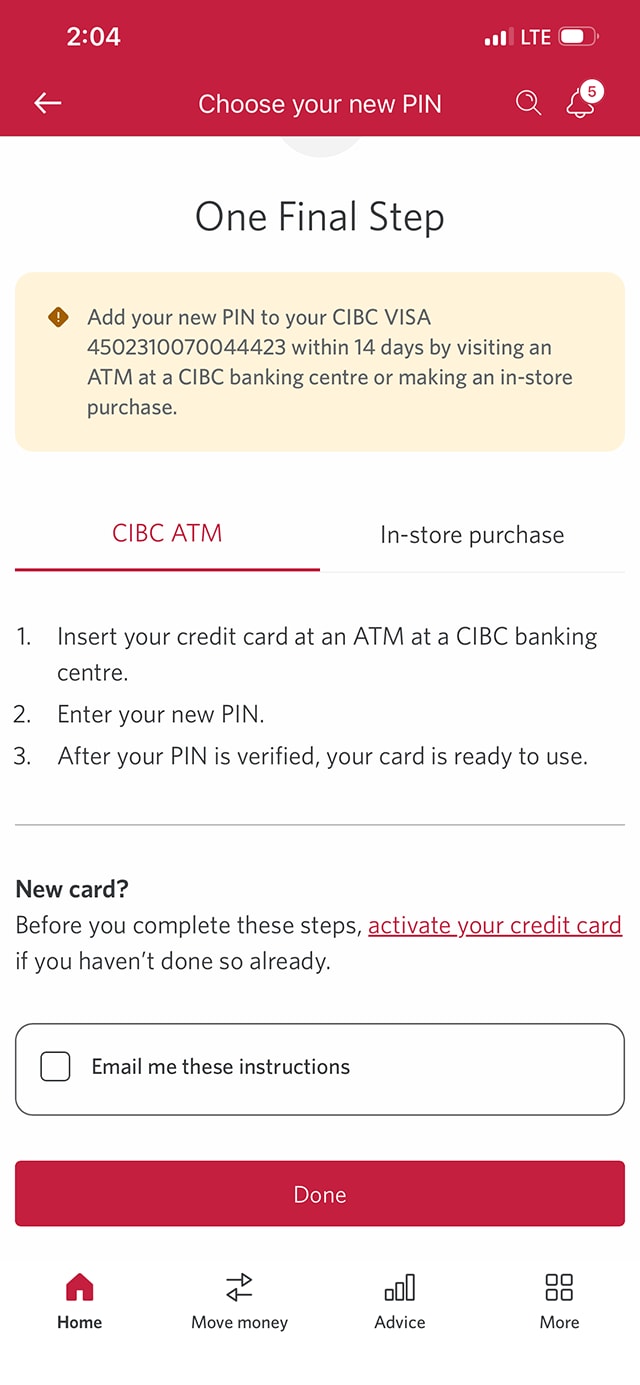
Step 6 : Validate your PIN with your card in-person
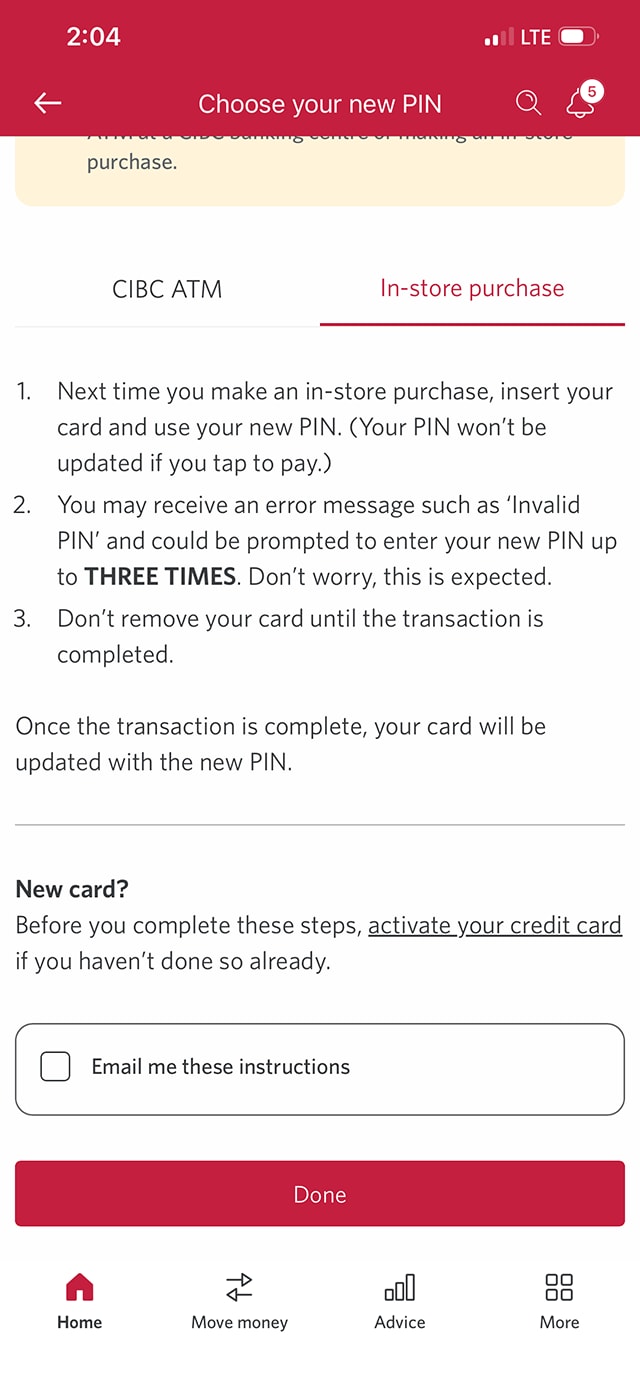
Within 14 days of saving this new PIN, you'll need to visit a CIBC ATM in person or complete an in-store purchase to ensure the PIN is validated and saved.
Review the instructions for how to validate your PIN at a CIBC ATM. When you're finished, select the "In-store purchase" tab.
Step 7 : Find out how to validate your PIN in-store
Step 8 : Learn what to do if you have an information verification mismatch
Step 9 : Go to "Profile"
Step 10 : Edit your personal information
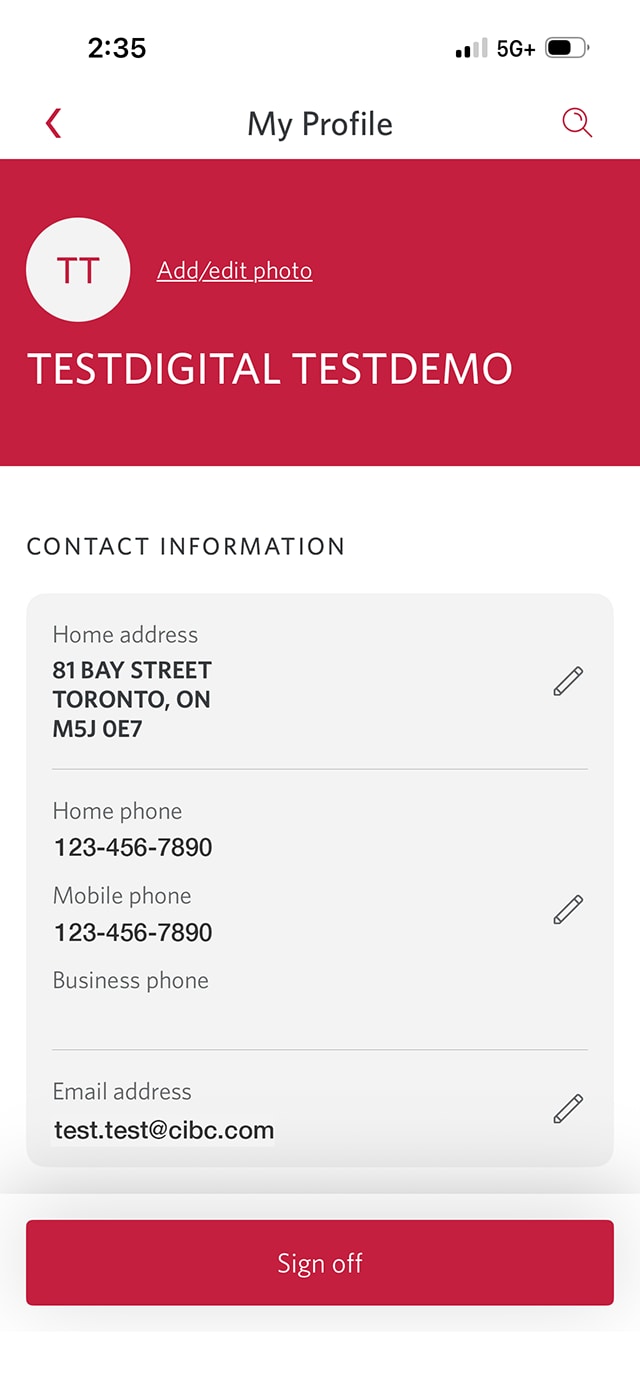
To help resolve the declined transaction, review your name, home address (billing address) and phone number to ensure the information you entered for your online purchase matches what we have on file at CIBC.
To update this information, find the "Contact information" section and select the pencil icon to update your information.
You can also try updating your billing address or phone number with the merchant directly.
Step 11 : Verify your identity
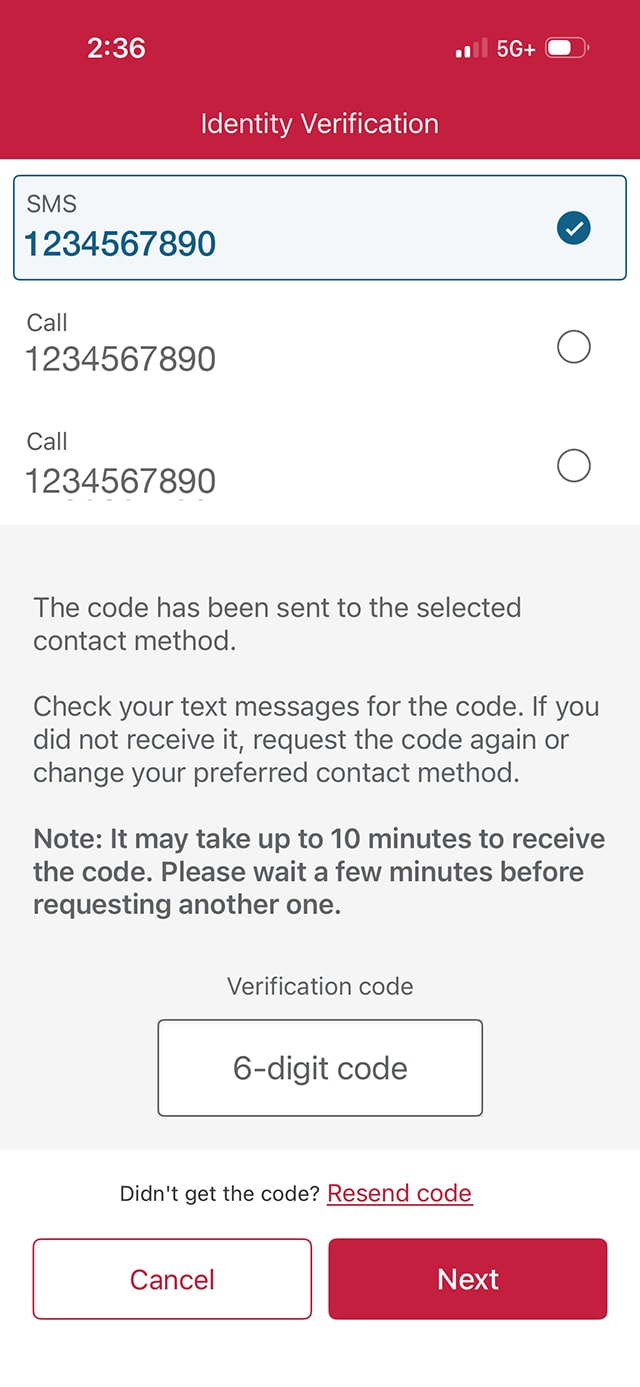
You may be prompted to confirm your identity with a one-time verification code.
From the options available, choose the contact method and phone number you'd like the code sent to. Then, select the "Send code" button.
Once the verification code has been sent to you, there will be a field to enter it.
Enter the code and select the "Next" button.
Step 12 : Confirm your changes have been saved
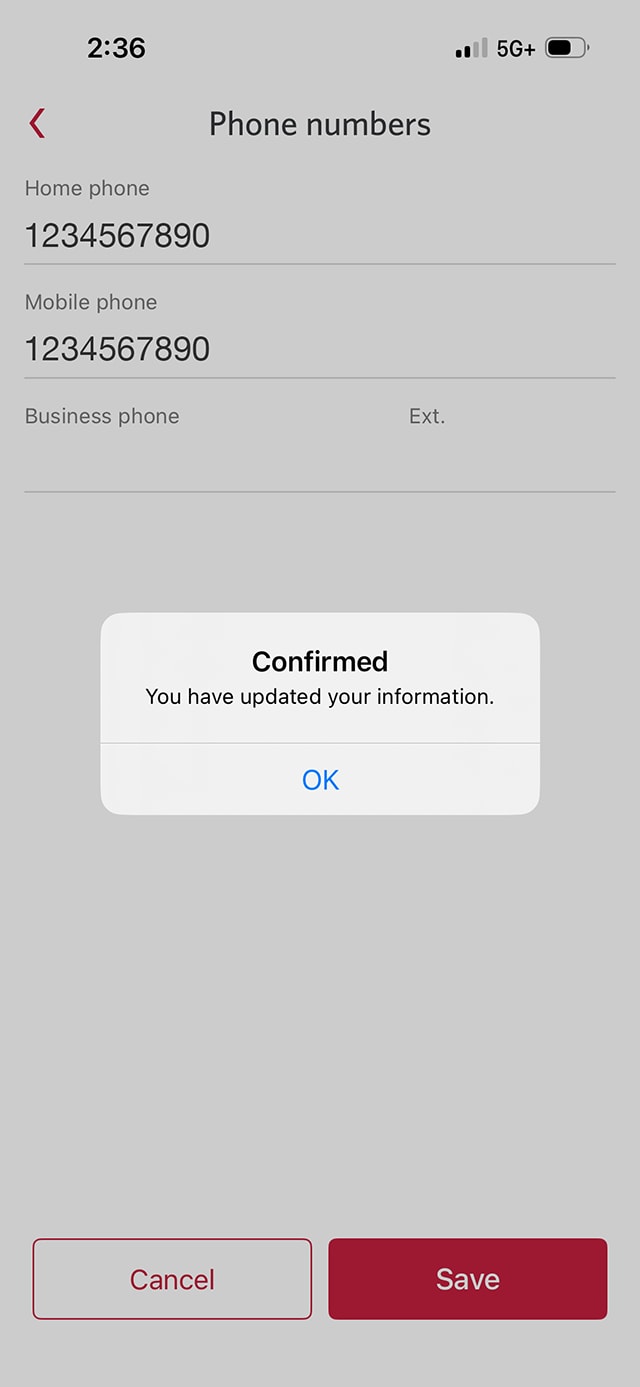
Once you've updated your personal information and the verification code has been entered, there will be a message on-screen confirming you've updated your information. Select "OK" to confirm your changes have been saved.
If your issue still isn't resolved after taking these steps, check to ensure your credit card number, expiration date, CVV and the name found on your card are entered exactly as they appear for your online purchase. Accurate card details help prevent declined transactions.
Step 13 : Learn what to do if you don't have enough available credit
Step 14 : Choose which card to check available credit for
Step 15 : Review the available credit amount
In the credit details for the card you selected, check the "Credit Available" amount to ensure you have enough credit to complete your purchase.
If your credit card doesn't have enough available credit for a purchase, you can make a payment from your CIBC deposit account to increase your available credit.
Transactions can only be completed if your credit card account is in good standing.
Step 16 : Learn about real-time fraud alerts
Step 17 : Understand how real-time fraud alerts work
You may receive a fraud alert from CIBC by text message (short code: 242-225) to verify a transaction. If you receive a text like this, review the transaction details carefully.
If you recognize the transaction and reply "Y" for "Yes", the transaction will proceed, and your account will stay secure.
If you don't recognize the transaction and reply "N" for "No", you'll receive instructions on how to dispute the transaction.
CIBC will never ask for sensitive account information via text message. Don't provide this information to anyone asking for it over text; they may be trying to gain unauthorized access to your accounts.
Step 18 : Learn how to activate a new or replacement credit card
Step 19 : Find the additional options for your card
Another reason for a declined credit card transaction could be that your new or replacement credit card isn't activated yet.
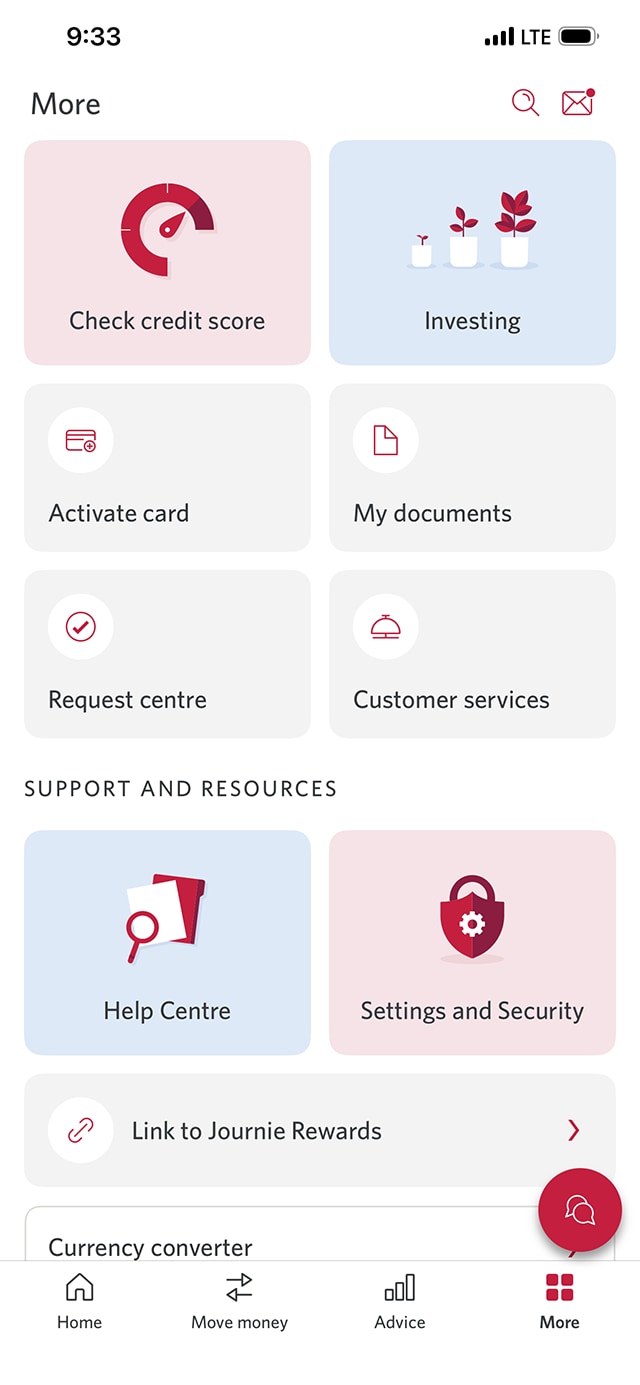
From the CIBC Mobile Banking App homepage, go to the menu bar and select "More".
Step 20 : Find the "Activate card" option
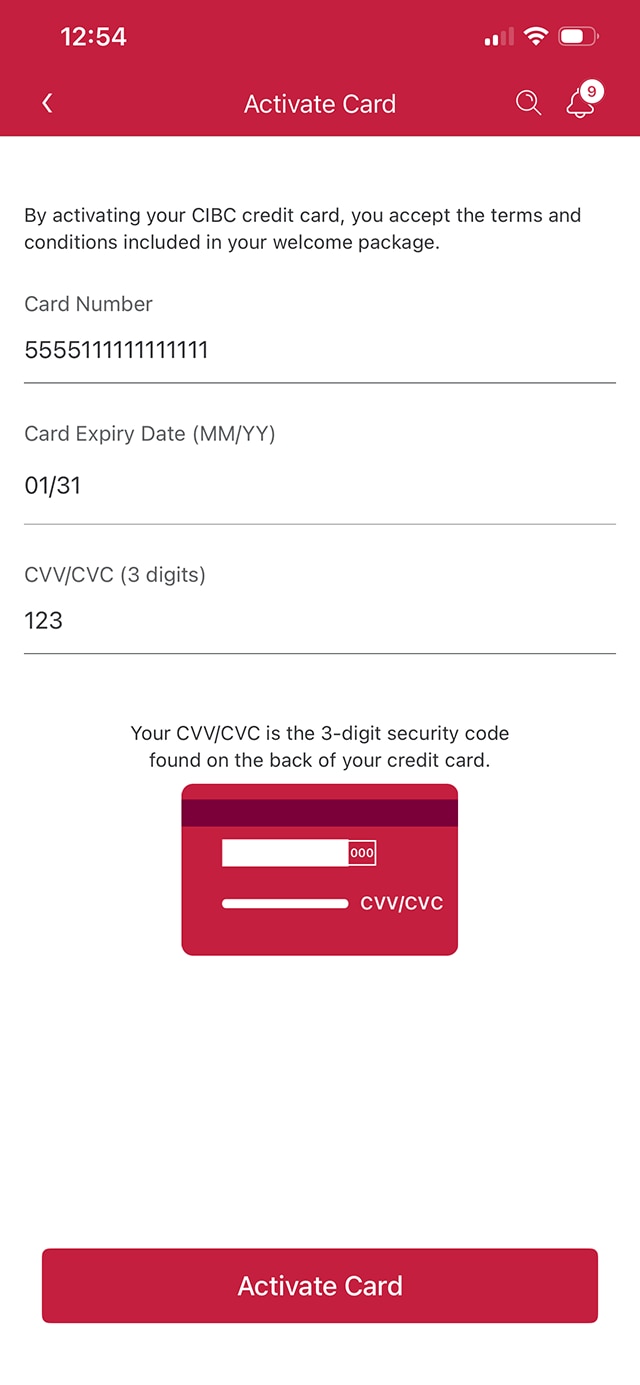
Step 21 : Enter your card details
On the Activate card page, enter the credit card details of the card you'd like to activate. When you're finished, select the "Activate Card" button to complete the process.
If you recently got a new CIBC credit card, activating it online may resolve issues with declined transactions.
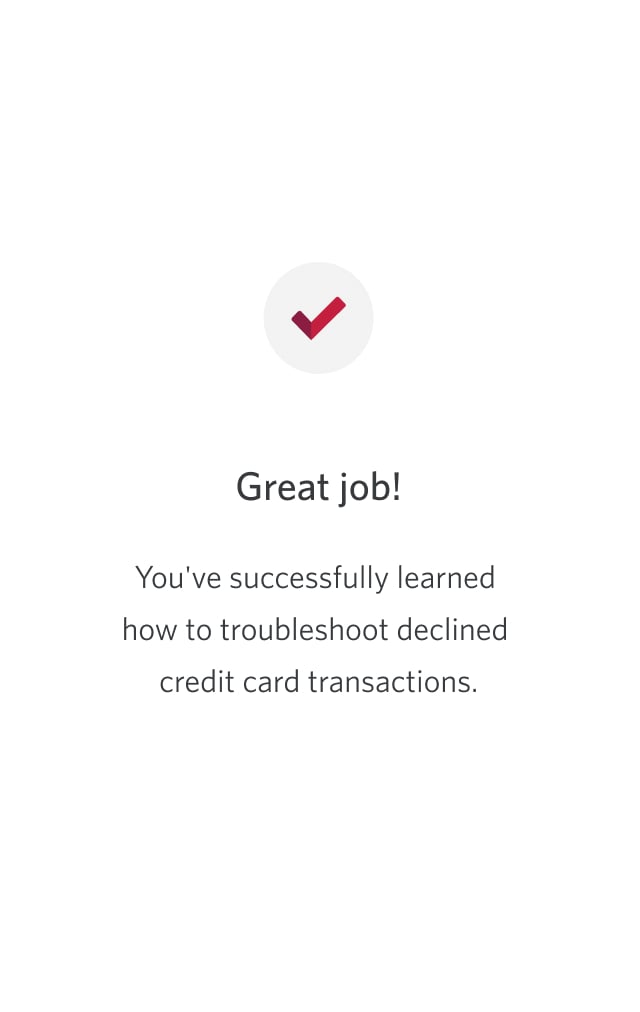
Step 22 : Great job!
Want an overview of all the steps?
For full instructions on how to troubleshoot declined credit card transactions, check out the step-by-step process all in one place.
Common reasons for declined credit card transactions
Incorrect or locked PIN
If you enter the wrong PIN multiple times or your PIN is locked, your transaction may be declined at the point of sale.
Real-time fraud alerts
Our fraud monitoring system may decline online or in-store transactions that seem suspicious or out of your normal spending pattern.
Information verification mismatch
Online purchases may be declined if the information you provide, such as your address or card details, doesn’t match the information we have on file.
Activate new or replacement credit card
If you’re using a new or replacement credit card, ensure it’s activated before making purchases online or in-store.
Not enough available credit or overlimit
Your online or in-store transaction can be declined if you don’t have enough available credit or have exceeded your card’s limit.
Expired credit card
Your online or in-store transactions may be declined if your card has passed its expiry date.
Recommended digital banking demos

How to manage your credit card
How to lock or unlock your credit card
How to replace a lost or stolen credit card

How to set up alerts for account activity
Get started
CIBC Online Banking®
Discover digital banking features that can help you bank easily online.
CIBC Mobile Banking® App
Stay connected to your finances on your mobile device, no matter where you are.

