
Digital banking tutorials

How to register for eStatements
Learn how to register for eStatements for your bank accounts, credit cards and more, so you can check your statements anytime and from anywhere.
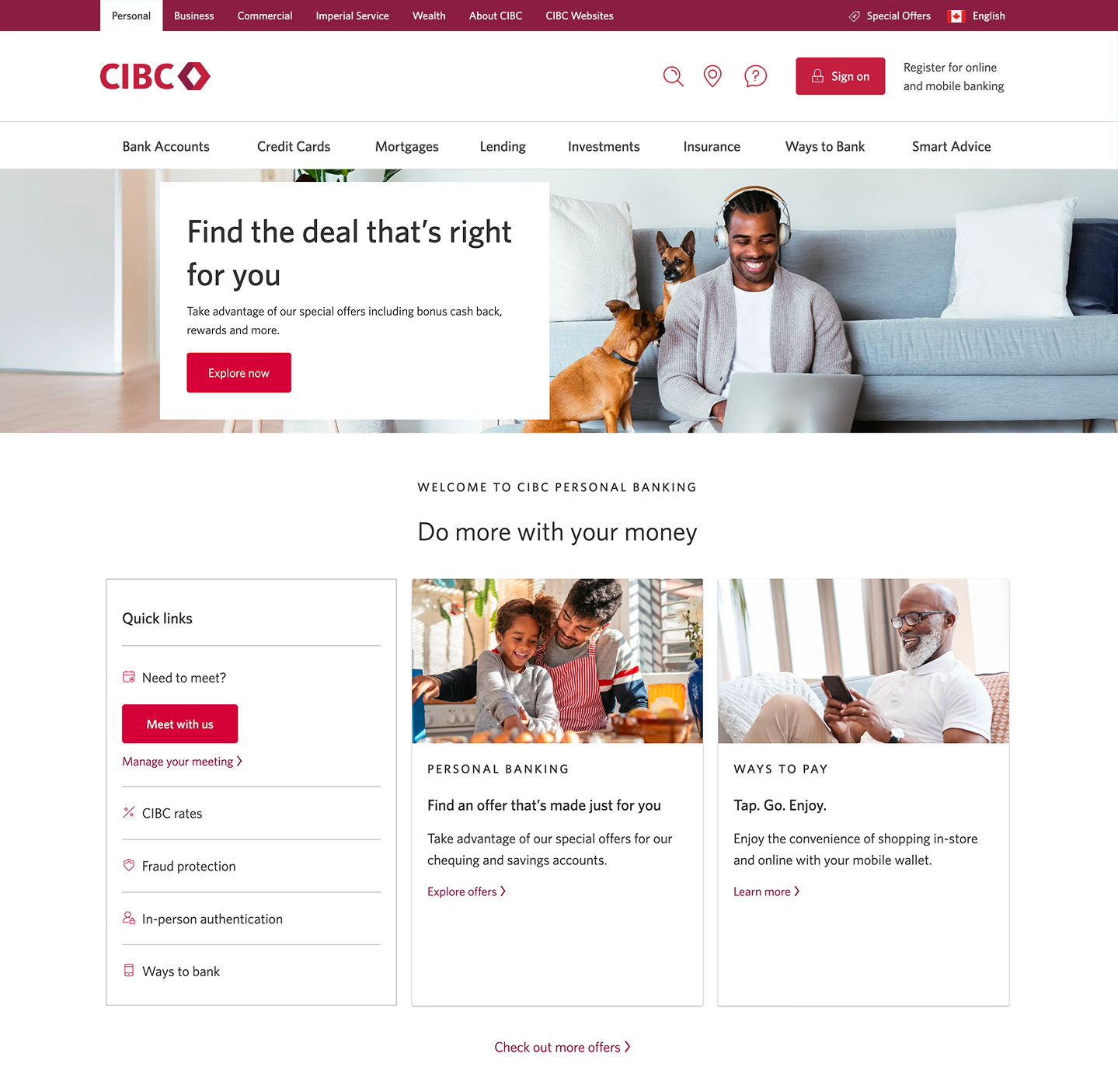
Demo screen 1: CIBC homepage. A pulsing animation highlights the "Sign on" button.
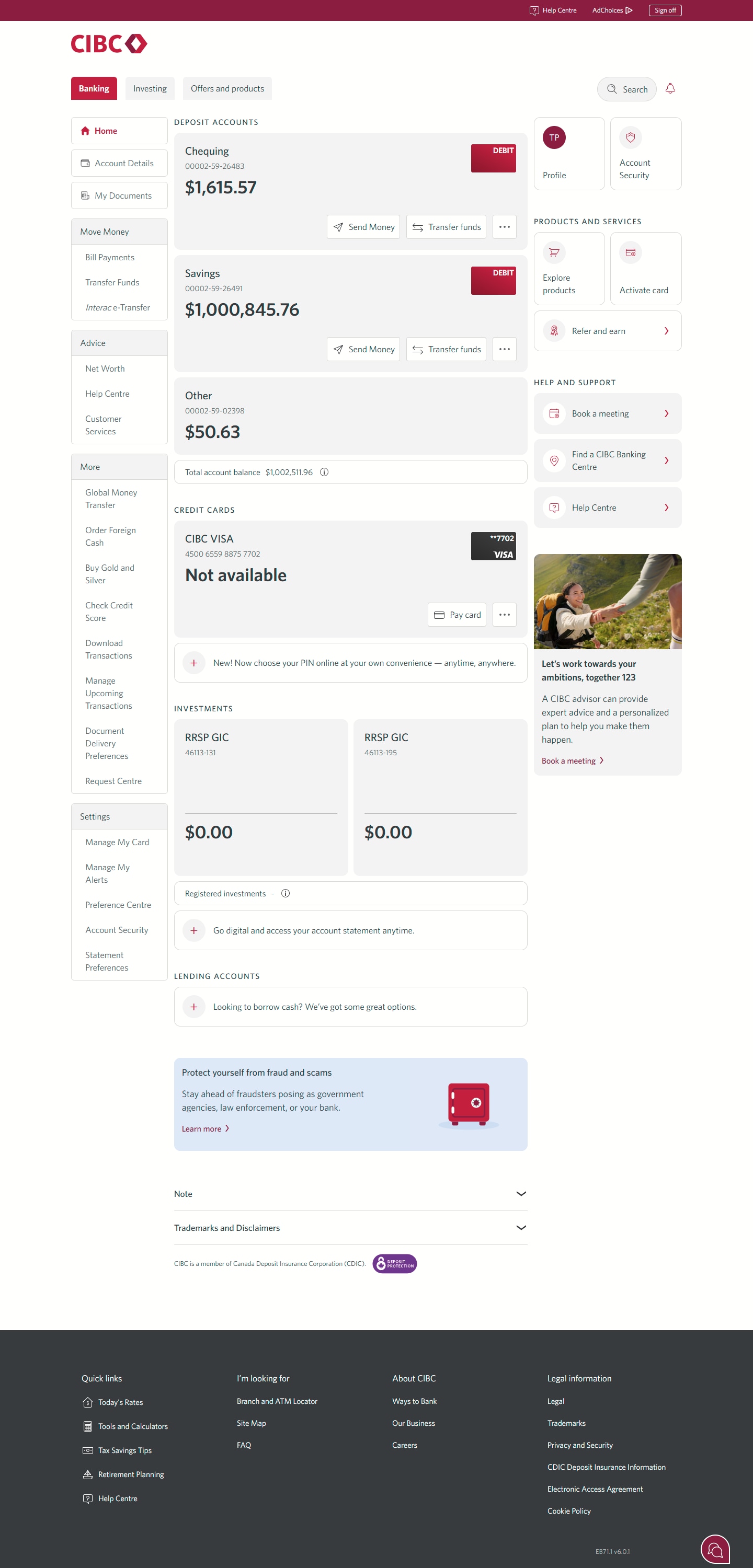
Demo screen 2: CIBC Online Banking homepage. A pulsing animation highlights the "Document Delivery Preferences" link.
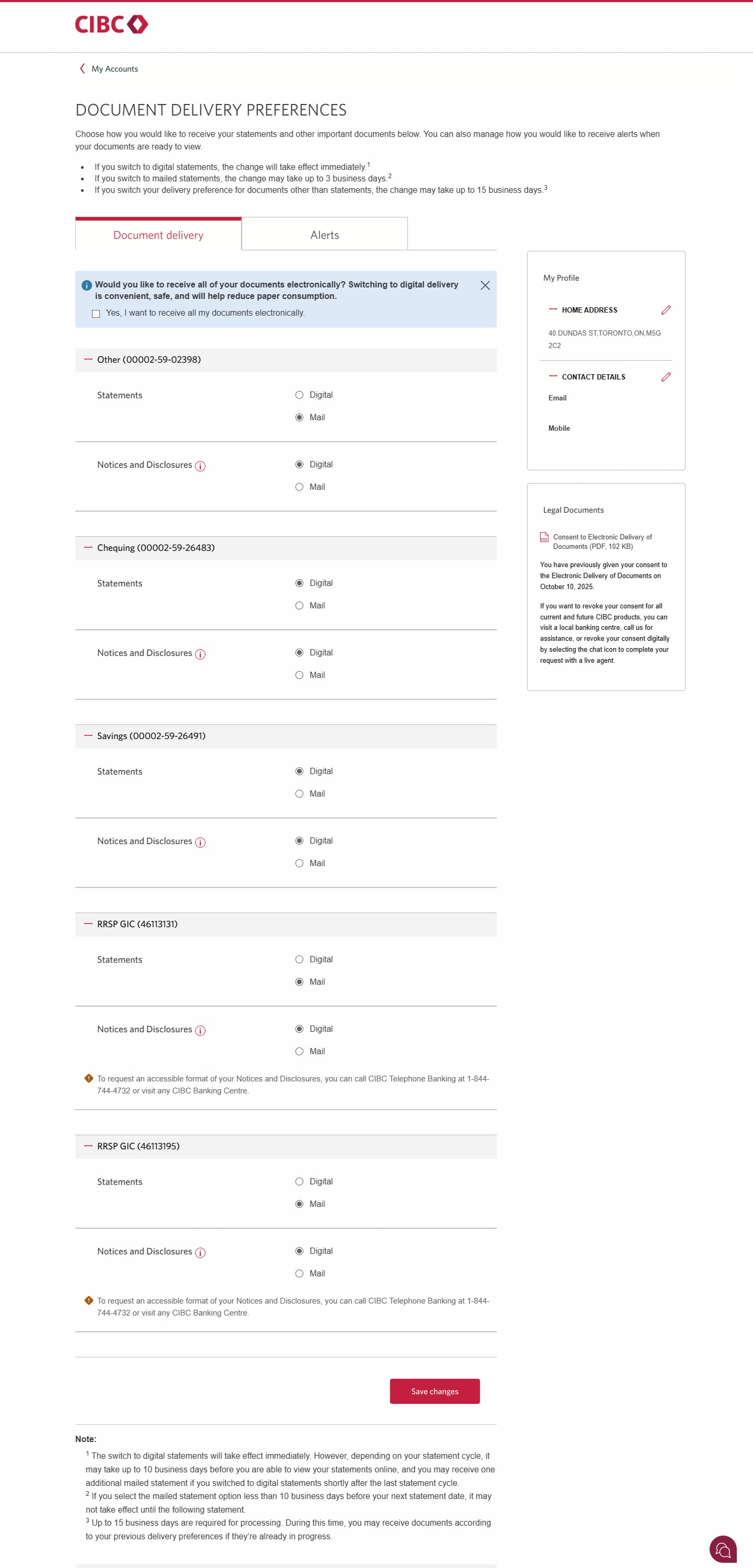
Demo screen 3: Document Delivery Preferences page to choose statement type. Pulsing animation on "Save Changes" button.
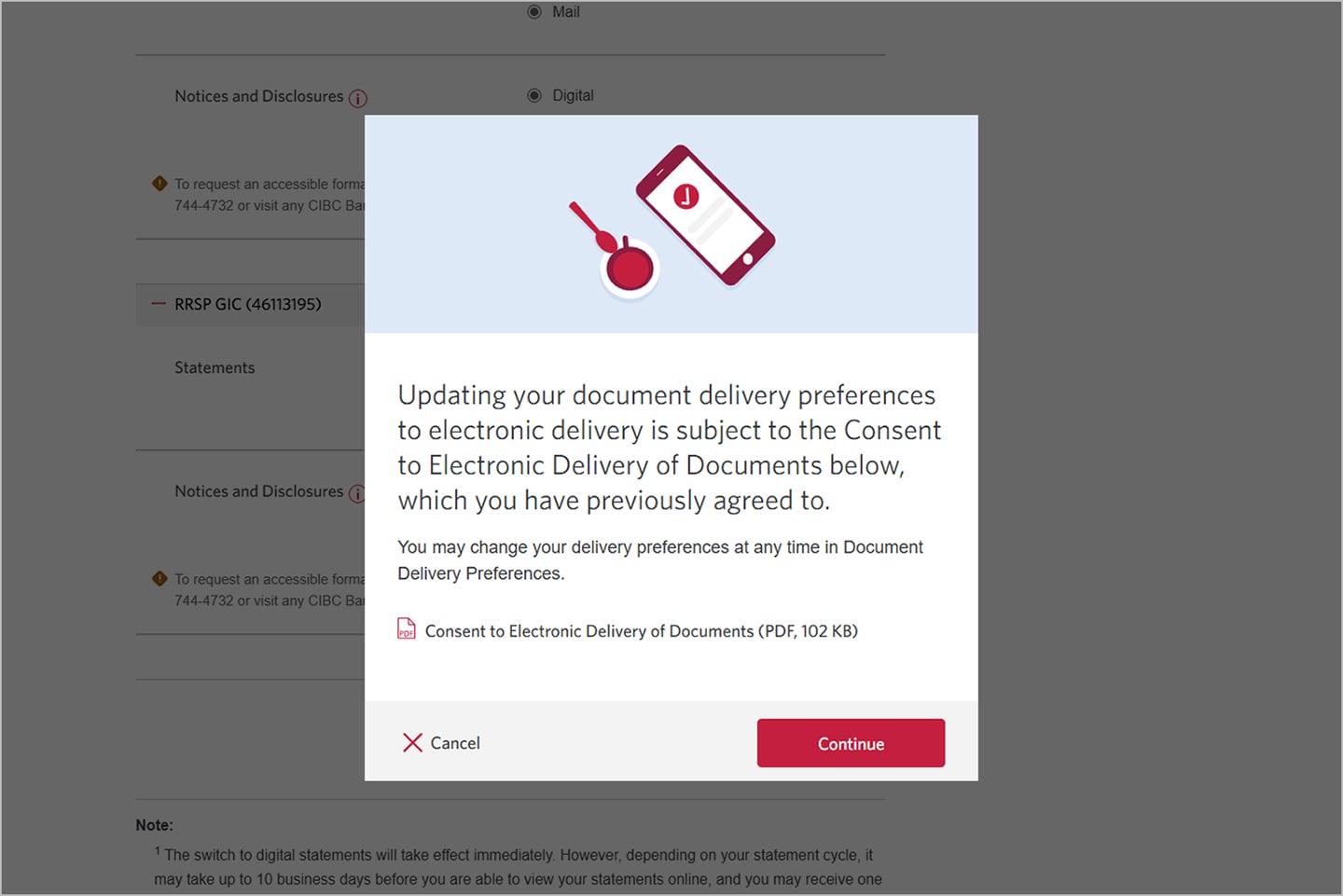
Demo screen 4 has a modal with PDF: Consent to Electronic Delivery of Documents. Pulsing animation on the "Continue" button.
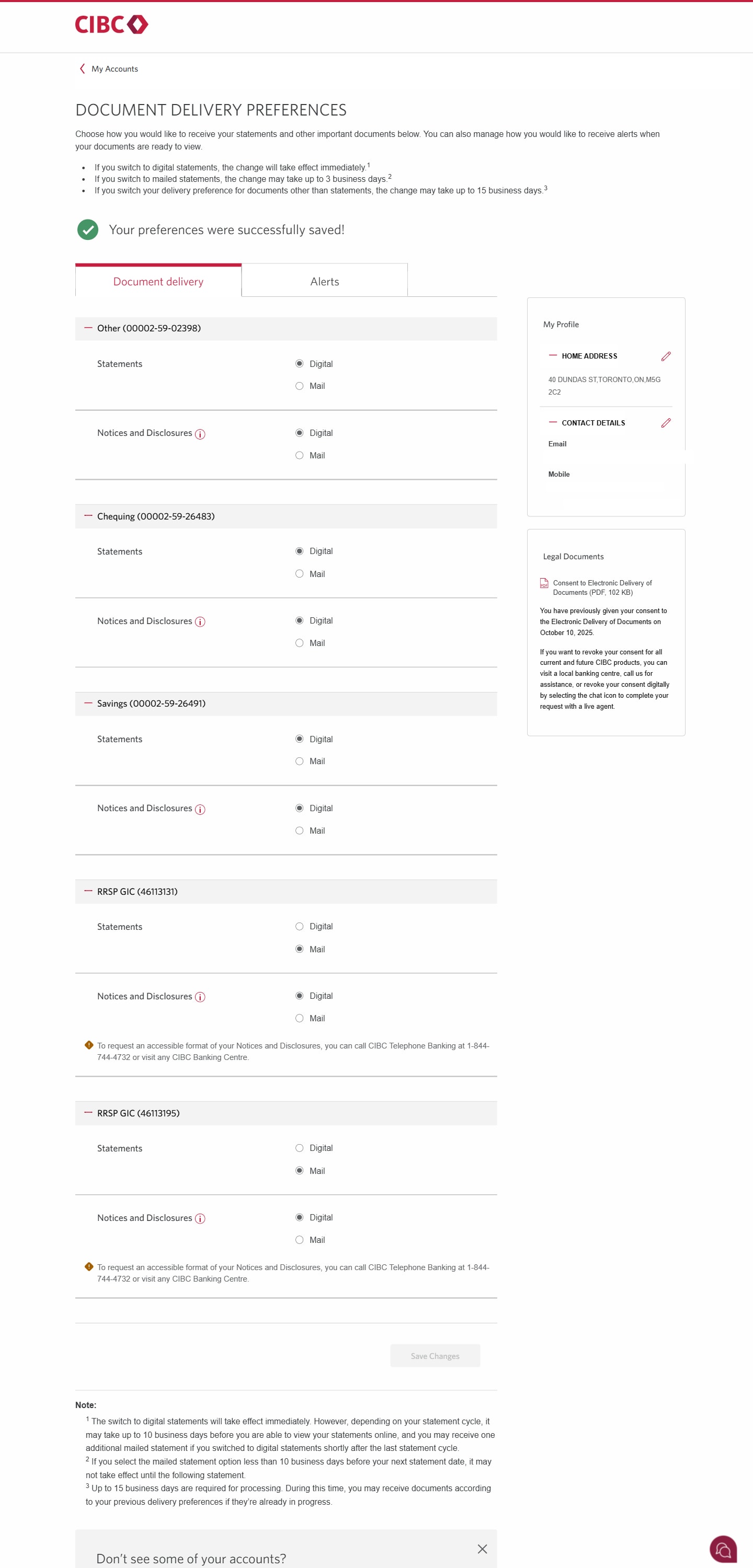
Demo screen 5: Document Delivery Preferences page with a note stating preferences were successfully saved. No pulsing animation.
Your progress 1 of

Step 1 : Let's get started on your web browser

Select the "Sign on" button in the demo to continue.

Step 2 : Find your statement preferences

On the CIBC Online Banking homepage, go to the "Settings" menu and select "Document Delivery Preferences".

Step 3 : Select the "Digital" option and save your changes

Once you're on the Document Delivery Preferences page, you'll need to find the account you'd like to switch to eStatements.

When you've found the account, select "Digital" instead of "Mail" to change your statement preferences.

After you've chosen the "Digital" option, select the "Save Changes" button at the end of the page.

Step 4 : Provide your consent to receive eStatements

Review the Consent to Electronic Delivery of Documents, and when you’re ready, select "Continue".

Step 5 : Great job!

You've successfully registered for eStatements. There will be a message on the Document Delivery Preferences page confirming your statement preferences have changed.
Demo screen 1: CIBC homepage. A pulsing animation highlights the "Sign on" button.
Demo screen 2: CIBC Online Banking homepage. A pulsing animation highlights the "More options" menu.
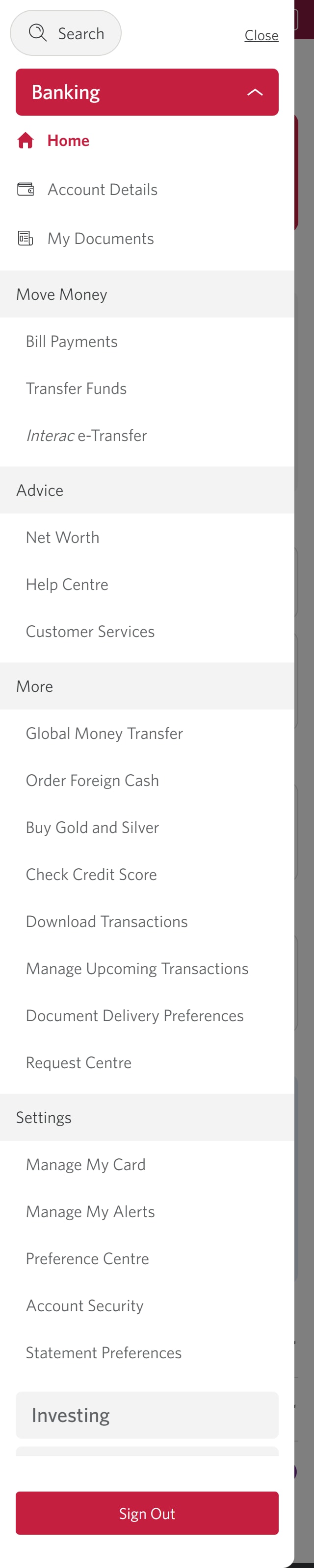
Demo screen 3: CIBC Online Banking navigation sidebar. A pulsing animation highlights the "Document Delivery Preferences" link.
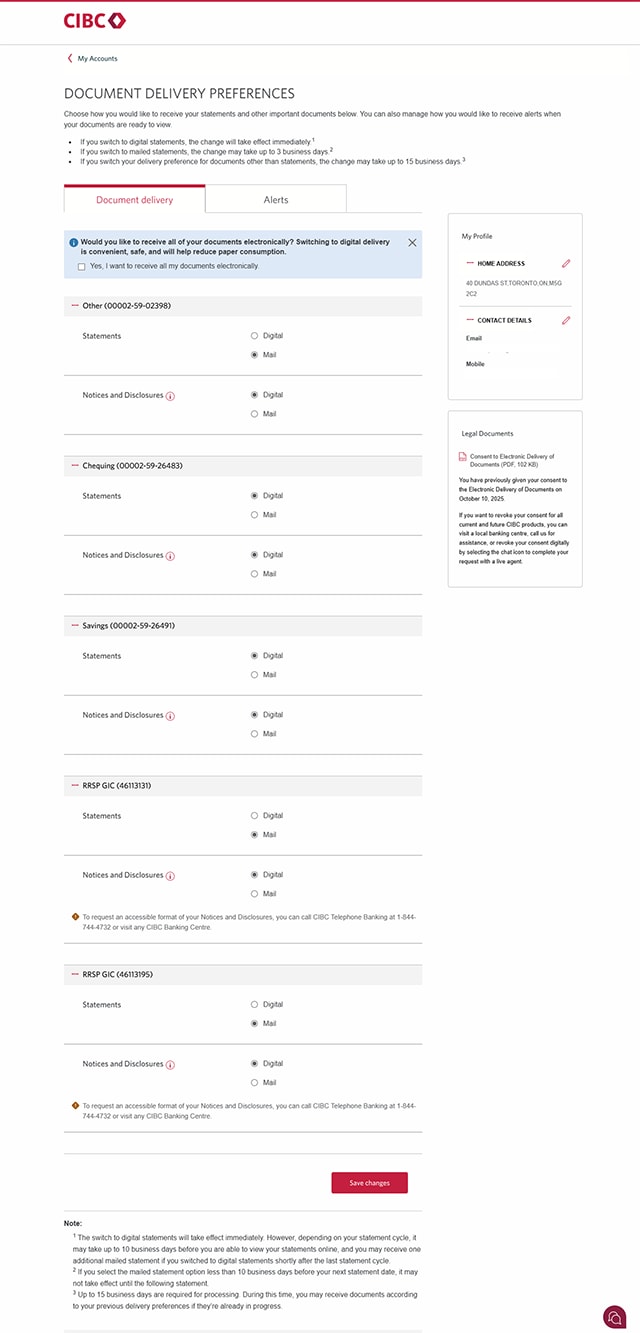
Demo screen 4: Document Delivery Preferences page to choose statement type. Pulsing animation on "Save Changes" button.
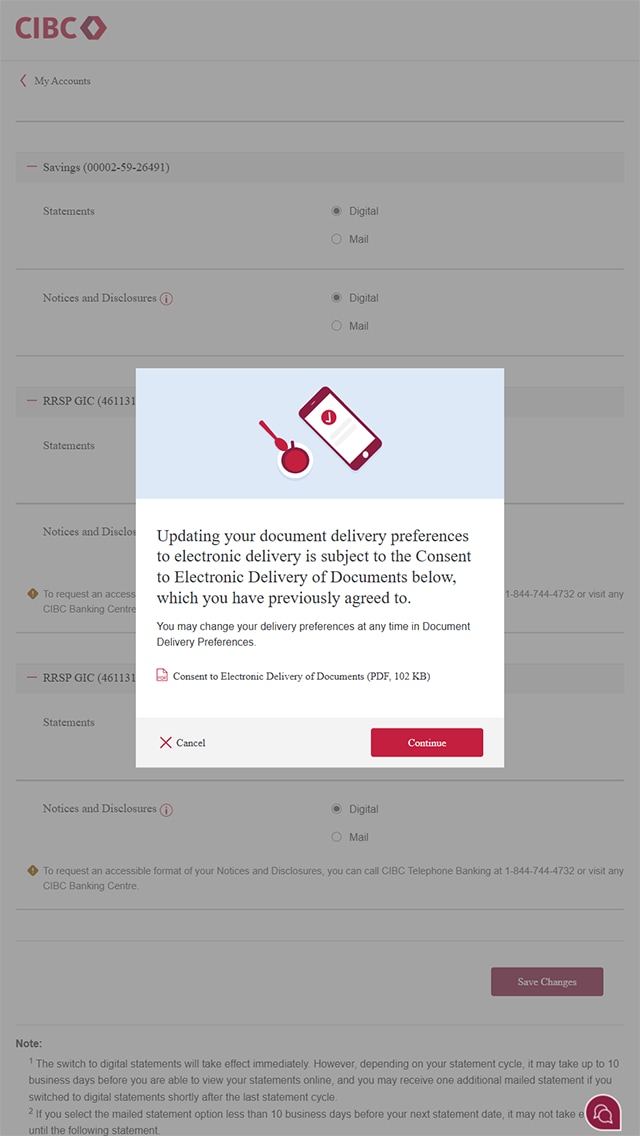
Demo screen 5 has a modal with PDF: Consent to Electronic Delivery of Documents. Pulsing animation on the "Continue" button.
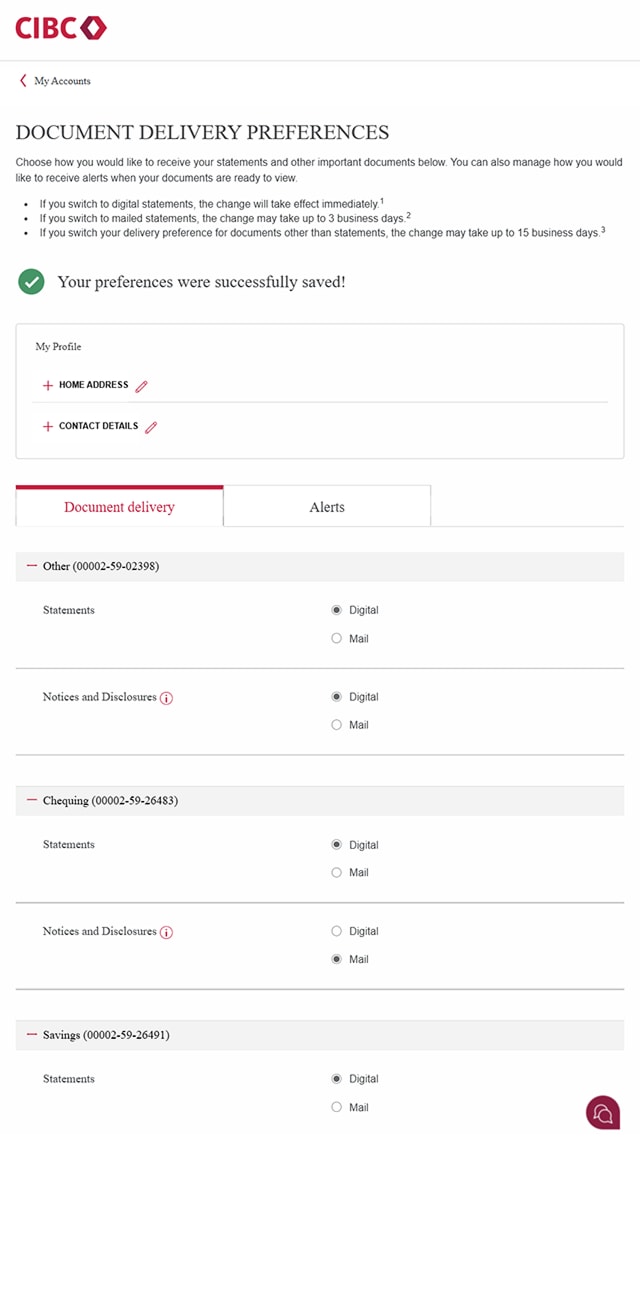
Demo screen 6: Document Delivery Preferences page with a note stating preferences were successfully saved. No pulsing animation.
Your progress 1 of

Step 1 : Let's get started on your web browser

Select the "Sign on" button in the demo to continue.

Step 2 : Select the three-line menu icon to open the navigation bar

On the CIBC Online Banking homepage, find and select the three-line menu icon to open a navigation bar with more options.

Step 3 : Find your statement preferences

Go to the "Settings" section of the menu and select "Document Delivery Preferences".

Step 4 : Select the "Digital" option and save your changes

Once you're on the Document Delivery Preferences page, you'll need to find the account you'd like to switch to eStatements.

When you've found the account, select "Digital" instead of "Mail" to change your statement preferences.

After you've chosen the "Digital" option, select the "Save Changes" button at the end of the page.

Step 5 : Provide your consent to receive eStatements

Review the Consent to Electronic Delivery of Documents, and when you’re ready, select "Continue".

Step 6 : Great job!

You've successfully registered for eStatements. There will be a message on the Document Delivery Preferences page confirming your statement preferences have changed.
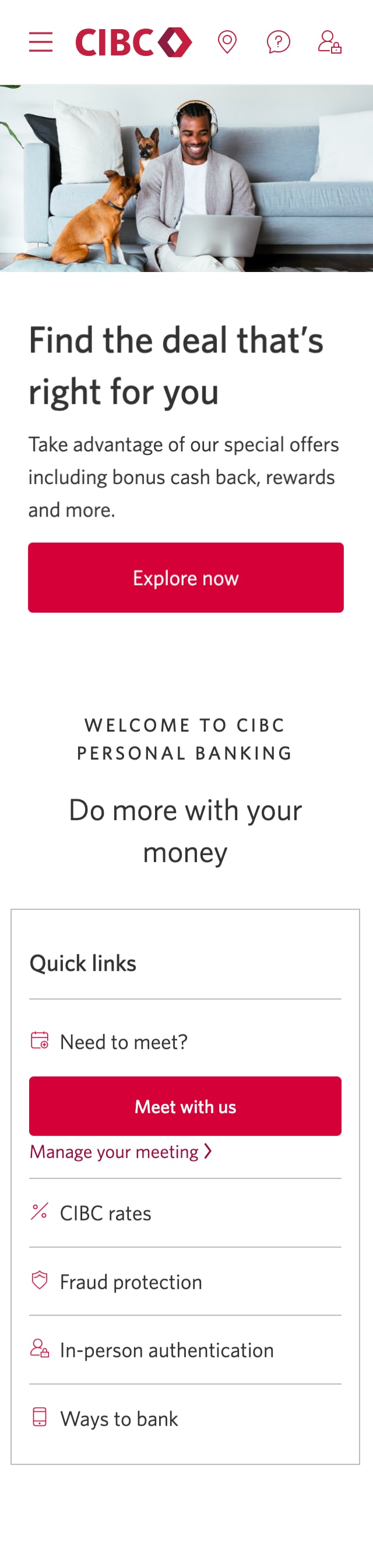
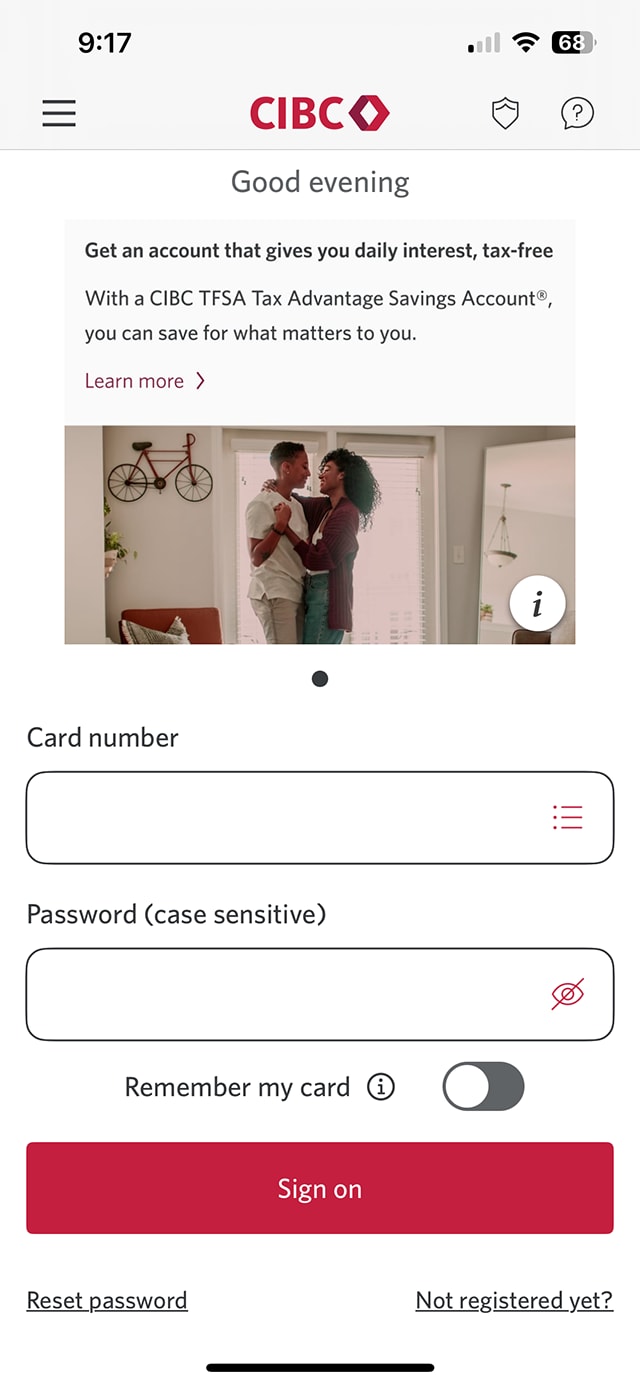
Demo screen 1: CIBC Mobile Banking App sign on screen. A pulsing animation highlights the "Sign on" button.
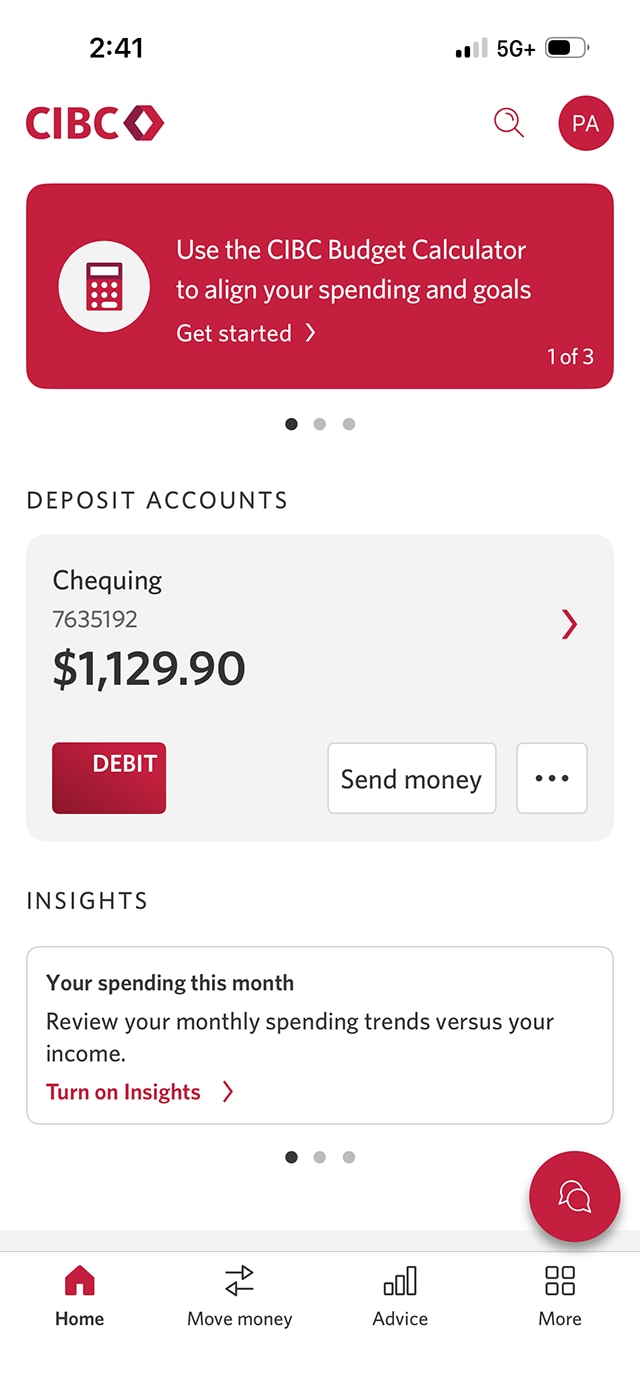
Demo screen 2: CIBC Mobile Banking App homepage. A pulsing animation highlights the "More" tab.
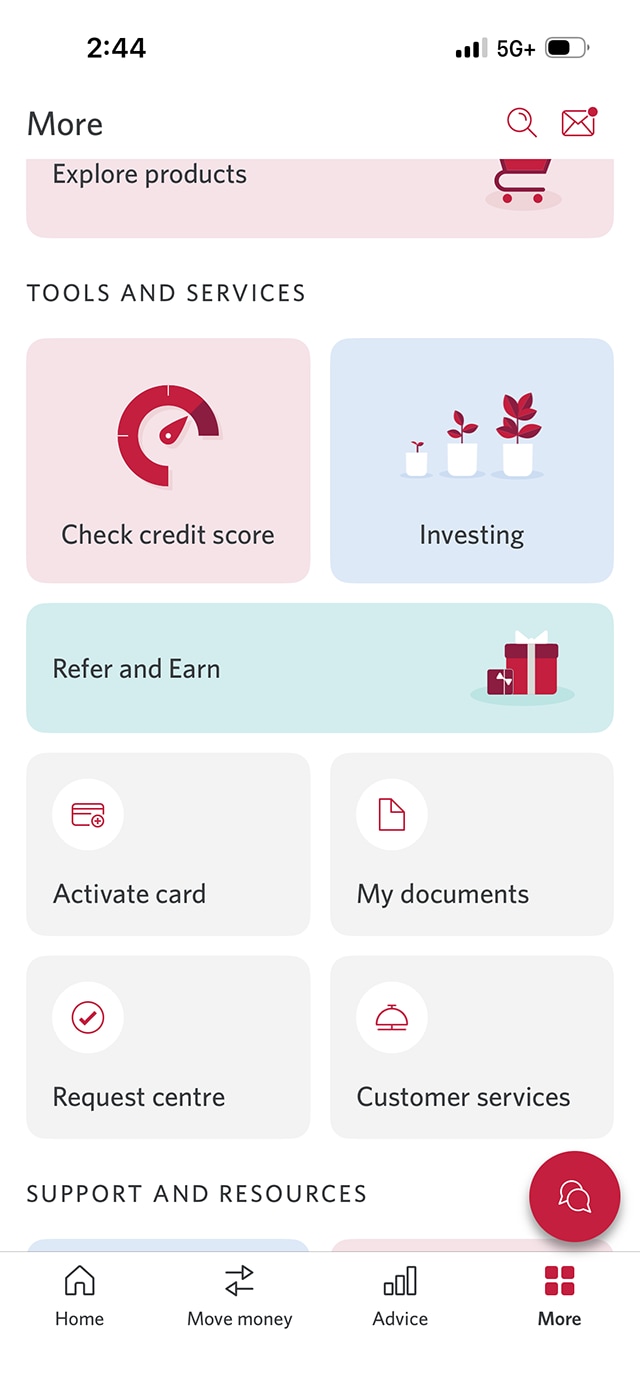
Demo screen 3: "More" page. A pulsing animation highlights the "Customer services" button.
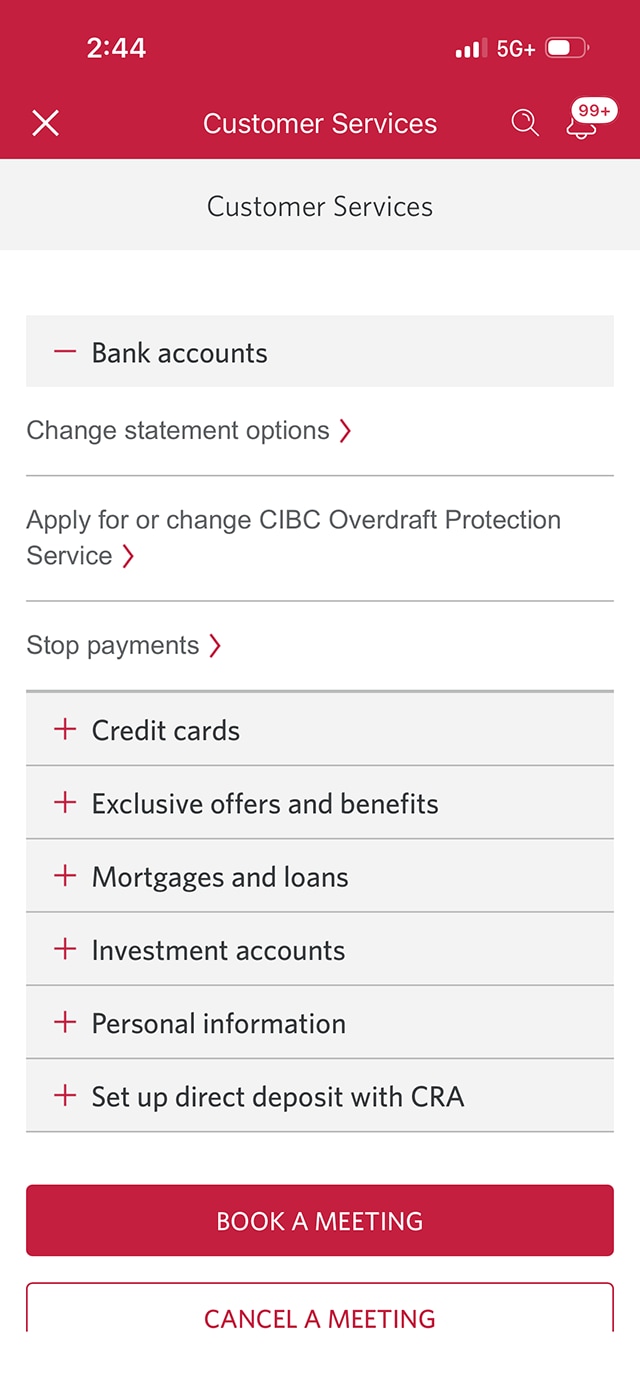
Demo screen 4: "Customer Services" page. A pulsing animation highlights the "Change statement options" link.
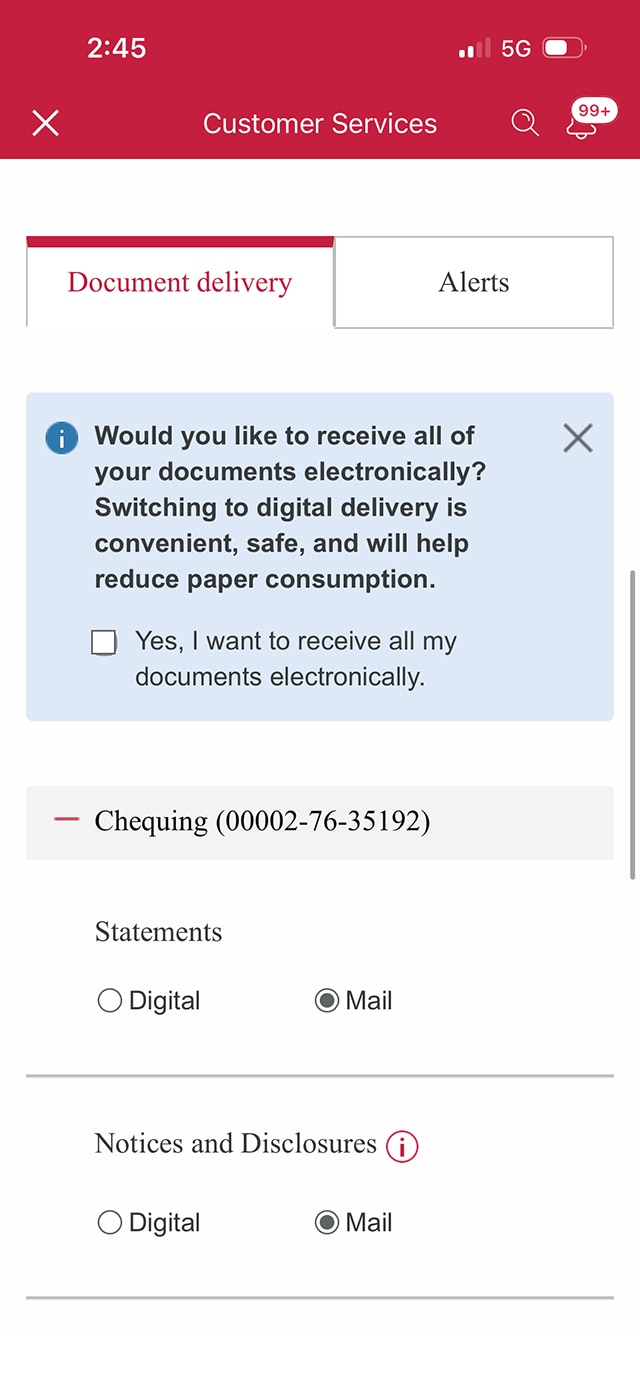
Demo screen 5: "Document delivery" tab on the Customer Services page. A pulsing animation highlights the "Yes, I want to receive all my documents electronically" checkbox.
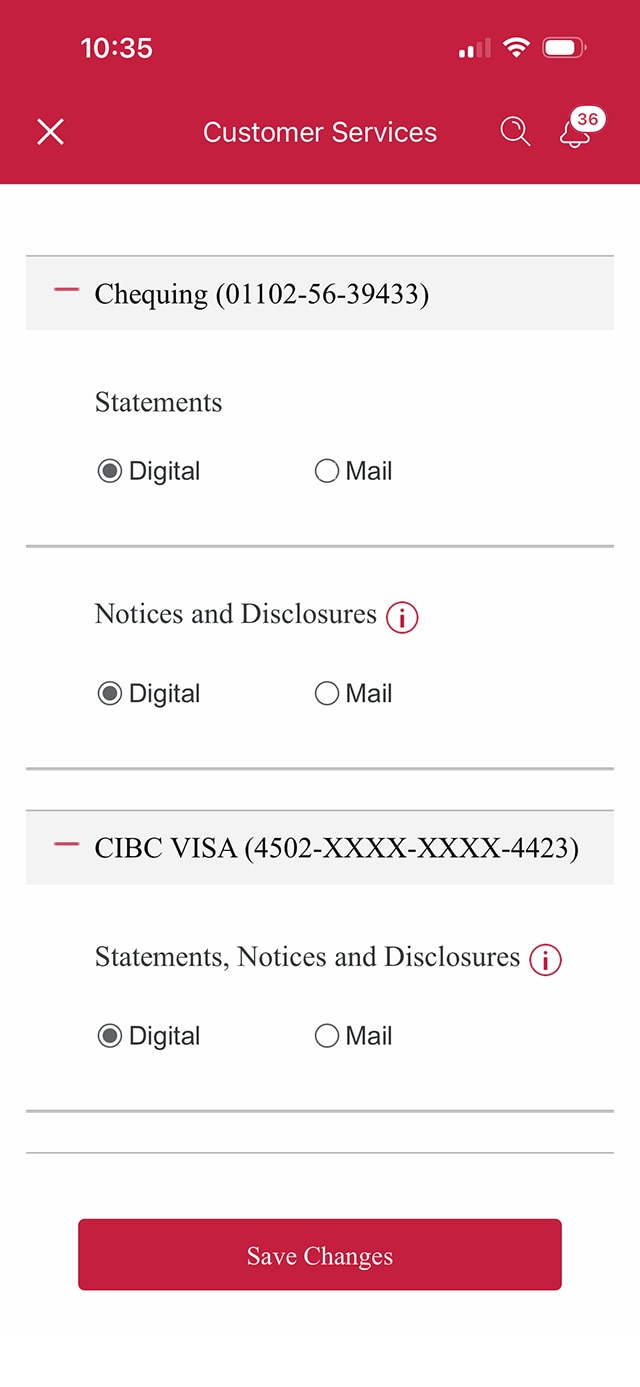
Demo screen 5: "Document delivery" tab on the Customer Services page. A pulsing animation highlights the "Save Changes" button.
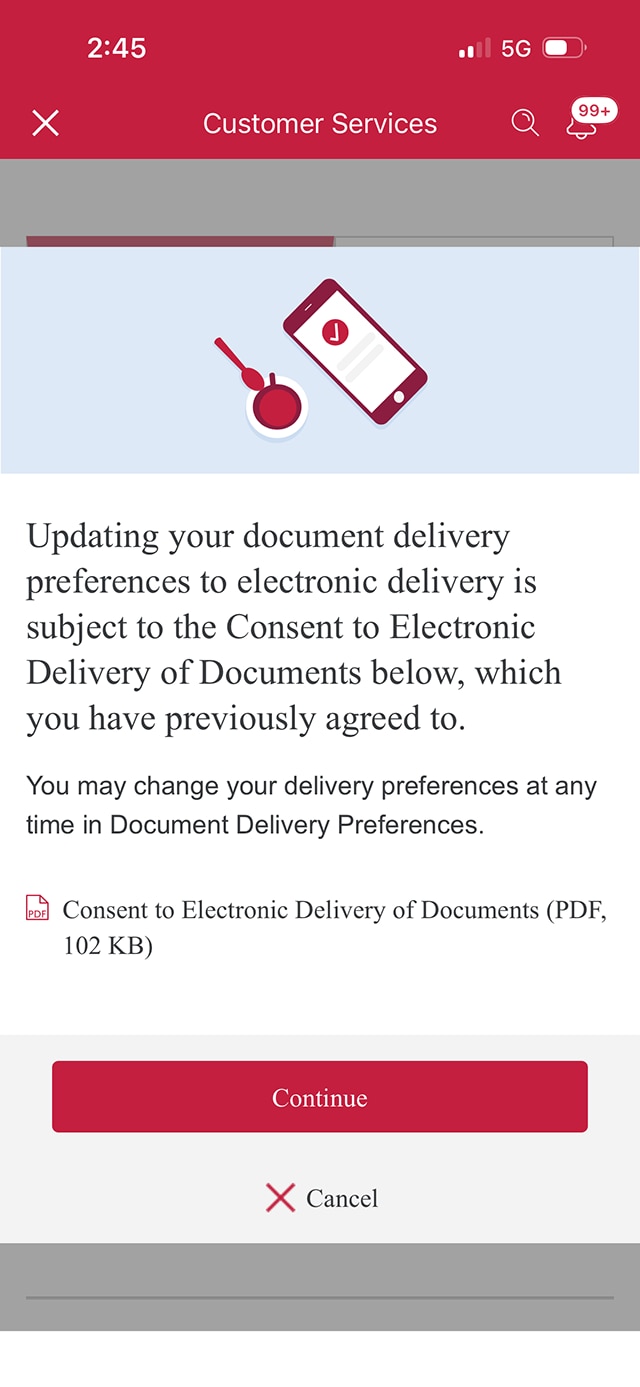
Demo screen 7 has a modal with PDF: Consent to Electronic Delivery of Documents. Pulsing animation on the "Continue" button.
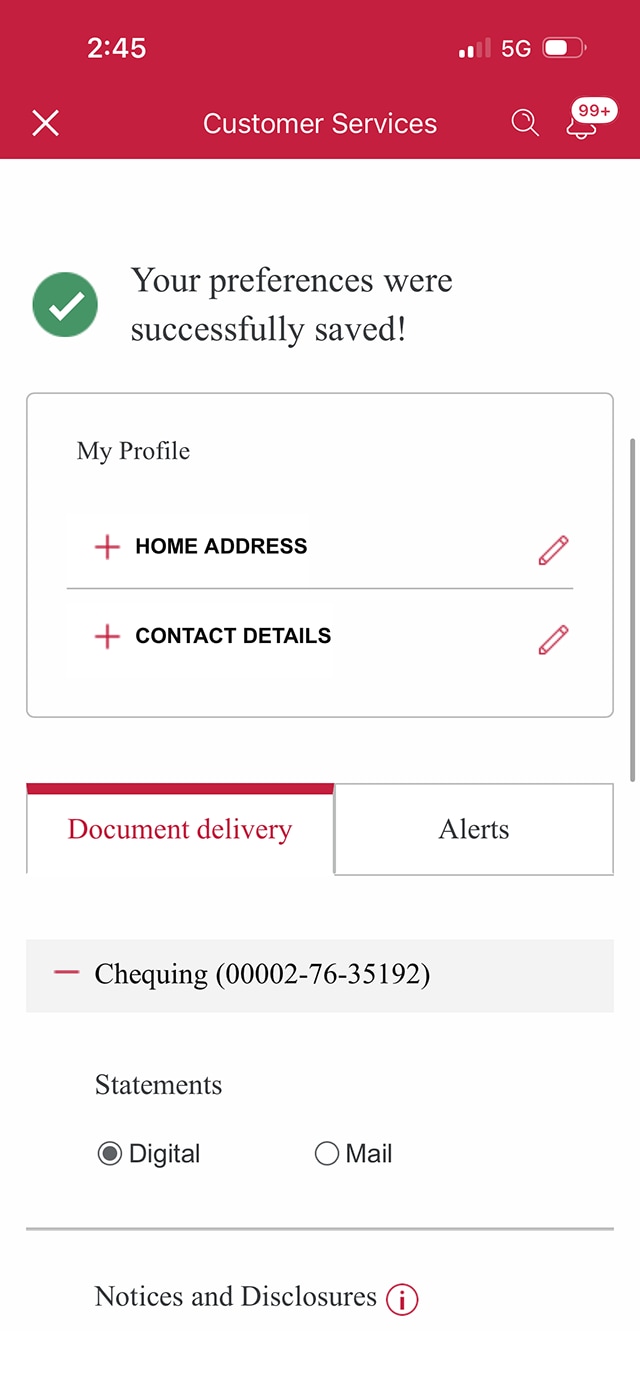
Demo screen 8: Customer Services page with a note stating preferences were successfully saved. No pulsing animation.
Your progress 1 of

Step 1 : Let's get started on the mobile app

Select the "Sign on" button in the demo to continue.

Step 2 : Go to the "More" option on the toolbar

From the toolbar, select the "More" option to open additional options.

Step 3 : Find the "Customer services" option on the page

From the menu options, select "Customer services."

Step 4 : Select "Bank accounts", followed by "Change statement options"

Select the "Bank accounts" shutter. Once the shutter opens with additional options, select "Change statement options."

Step 5 : Find the account you'd like to switch to eStatements

Within the "Document Delivery" tab on the Customer Services page, find the account you want to switch to eStatements. Next, select the account to open more options.

For the "Statements" options, select "Digital" instead of "Mail".

You'll also be prompted on-screen to receive all of your documents electronically. To do so, review the on-screen message and select the checkbox for "Yes, I want to receive all my documents electronically."

Step 6 : Save your changes

Once you've updated your preferences, select the "Save Changes" button at the end of the page.

Step 7 : Provide your consent to receive eStatements

Review the Consent to Electronic Delivery of Documents, and when you’re ready, select "Continue".

Step 8 : Great job!

You've successfully registered for eStatements. There will be a message on the Customer Services page confirming your statement preferences have changed.

Want an overview of all the steps?

For full instructions on how to register for eStatements, check out the step-by-step process all in one place.

Why make the switch to eStatements?

Always available

Review up to 7 years of your credit card and bank account eStatements online and on your mobile device.

Super convenient

Save and print your statements, or download them to use with your personal finance software.

Less clutter

Breathe easier with no more paper statements to file or shred. You’ll also help the environment.
Recommended digital banking demos

How to find and understand your eStatements

Start demo on how to find and understand your eStatements.

How to pay a bill with CIBC Online or Mobile Banking

Start demo on how to pay a bill with CIBC Online or Mobile Banking.

How to set up push notifications

Start demo on how to set up push notifications.

Get started

CIBC Online Banking®

Discover digital banking features that can help you bank easily online.
CIBC Mobile Banking® App

Stay connected to your finances on your mobile device, no matter where you are.