
Digital banking tutorials

How to send a CIBC Global Money Transfer

Learn how to add a recipient and send money worldwide with a Global Money Transfer on CIBC Online Banking® or the CIBC Mobile Banking App®.
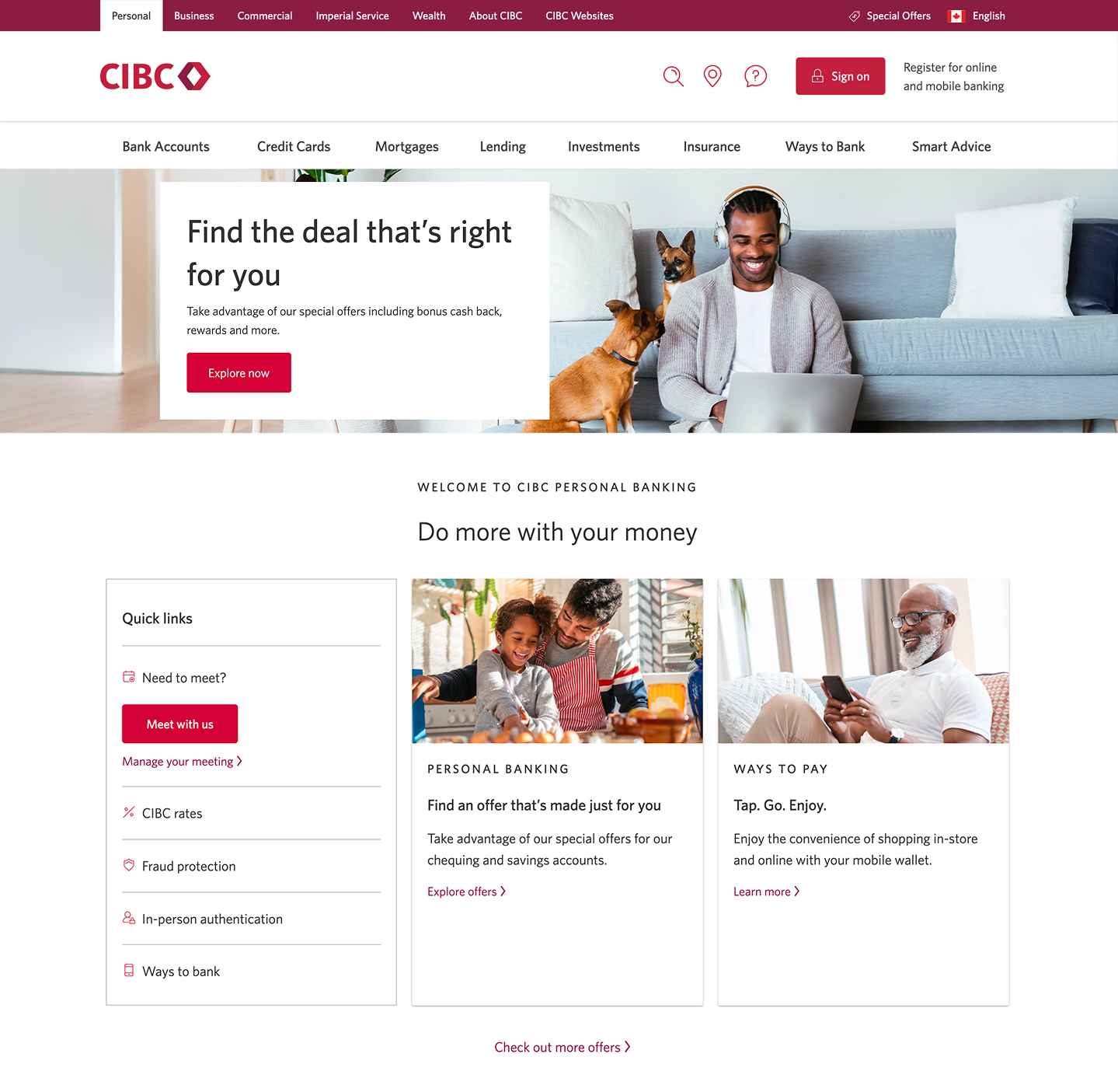
Demo screen 1: CIBC Online Banking sign on page. A pulsing animation highlights the "Sign on" button.
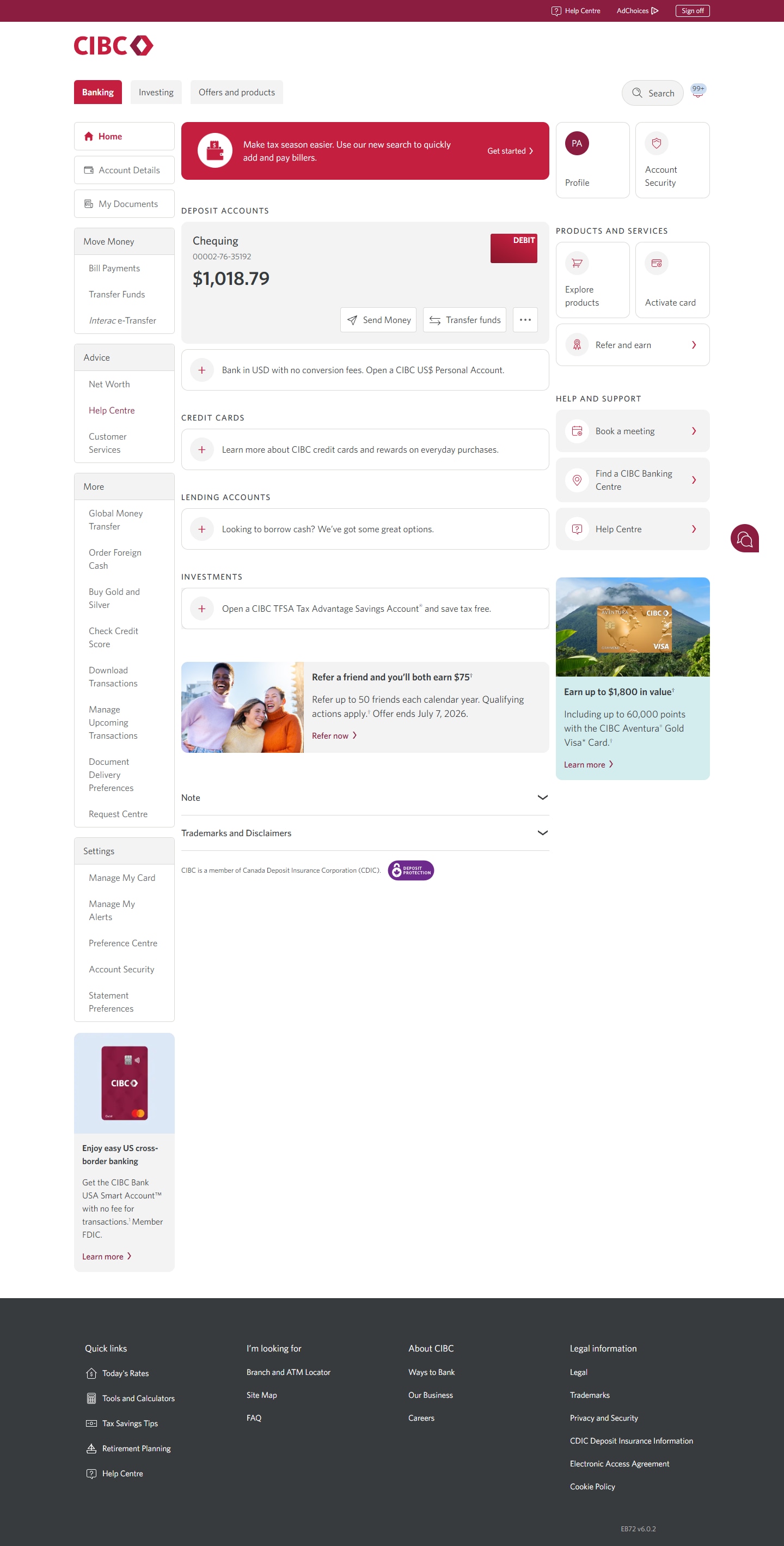
Demo screen 2: CIBC Online Banking home page. A pulsing animation highlights the "Global Money Transfer" link.
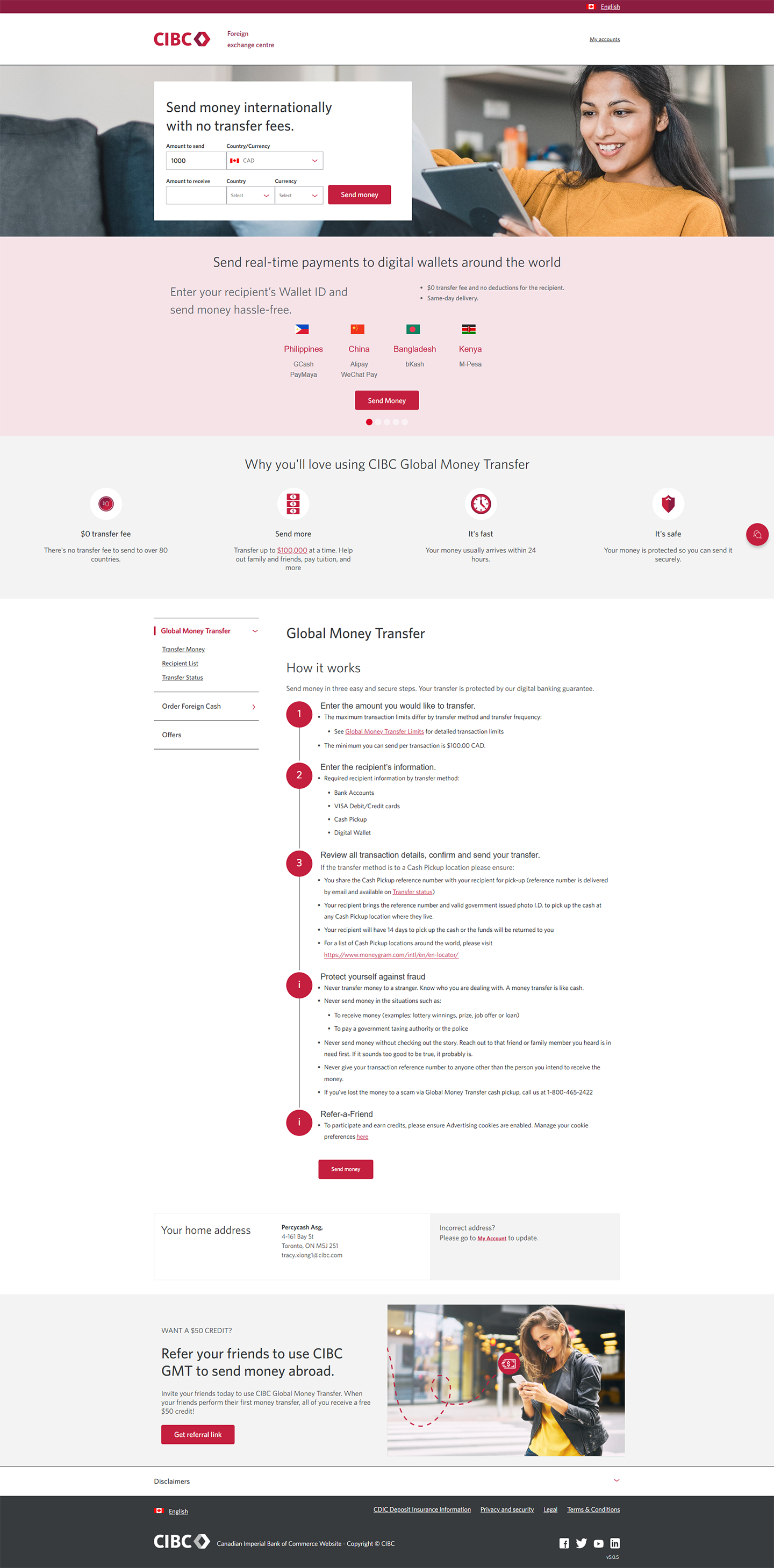
Demo screen 3: CIBC foreign exchange centre. A pulsing animation highlights the "Send money" button.
Demo screen 4: CIBC Global Money Transfer. A pulsing animation highlights the "Add new recipient" button.
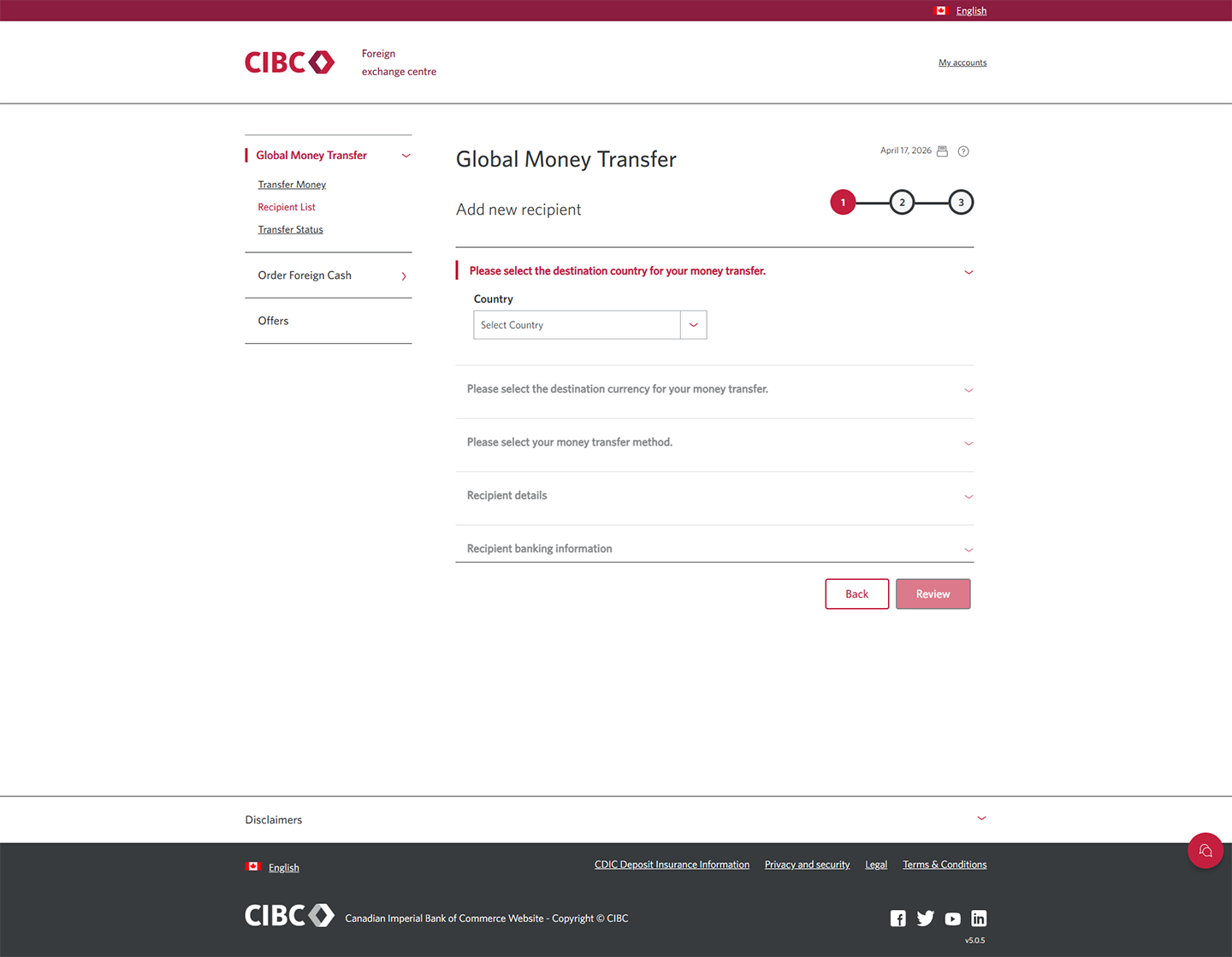
Demo screen 5: CIBC Global Money Transfer step 1. A pulsing animation highlights the "Country" combo box
Demo screen 6: CIBC Global Money Transfer step 1. A pulsing animation highlights the "Destination currency" combo box
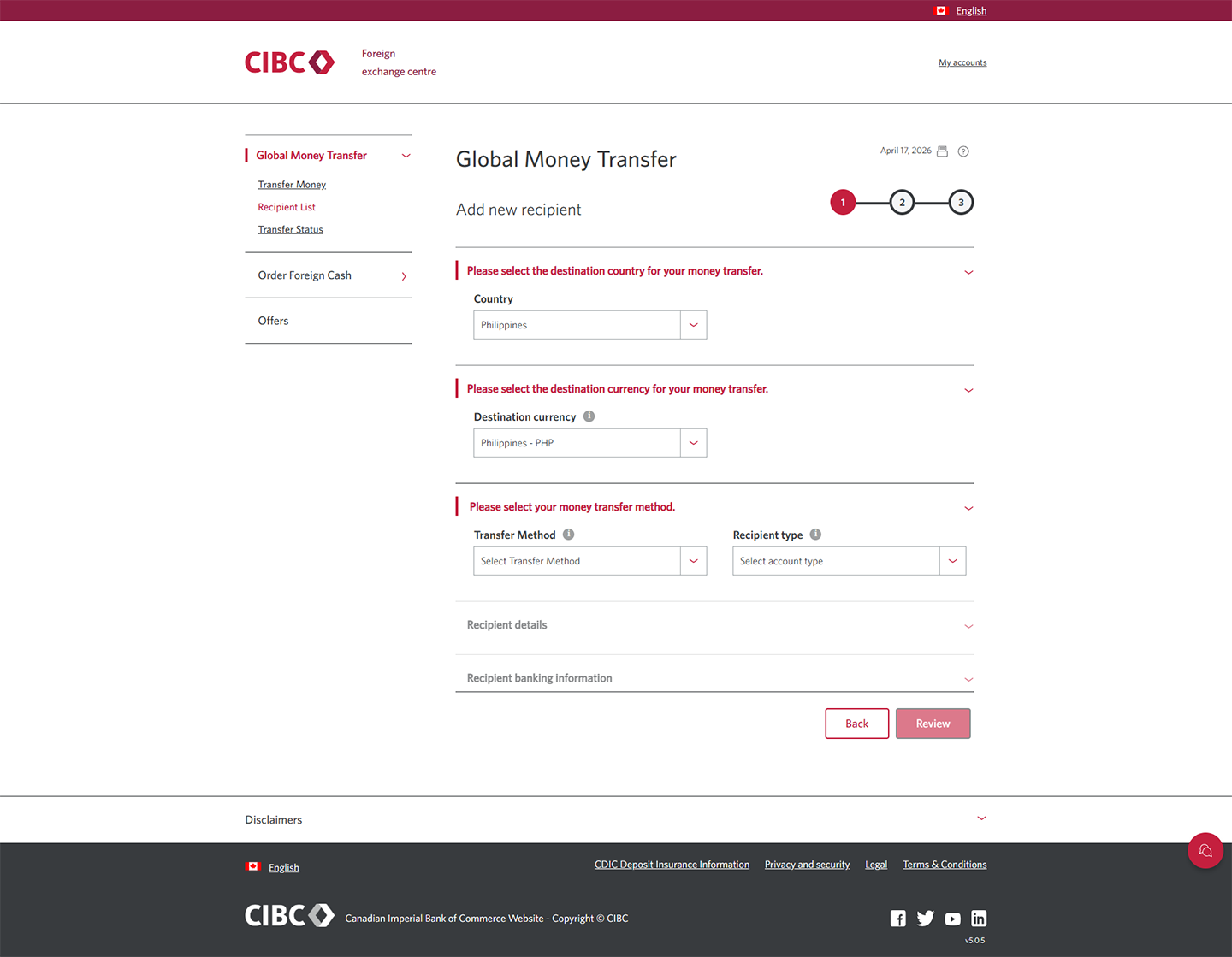
Demo screen 7: CIBC Global Money Transfer step 1. A pulsing animation highlights the "Transfer method" combo box.
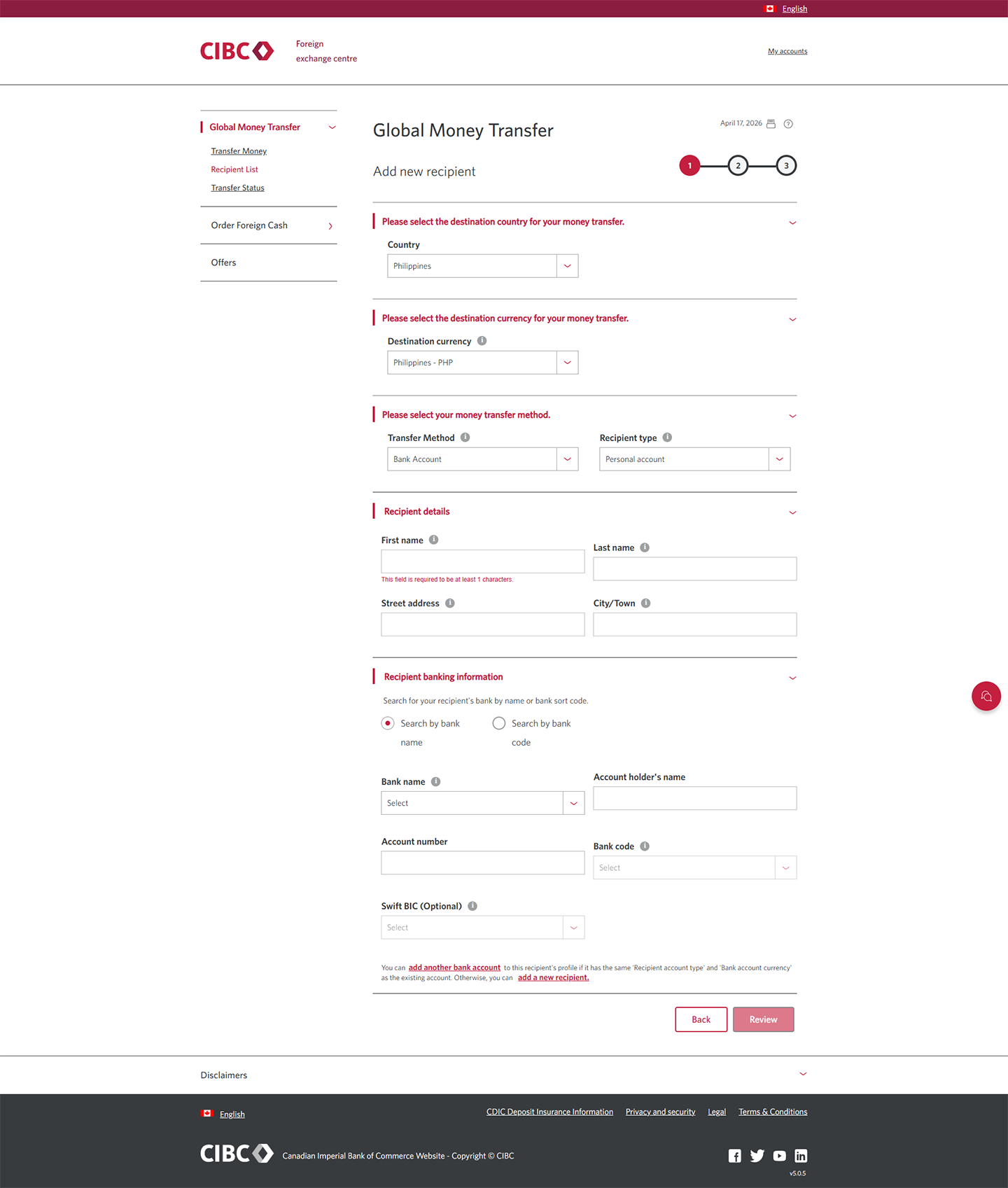
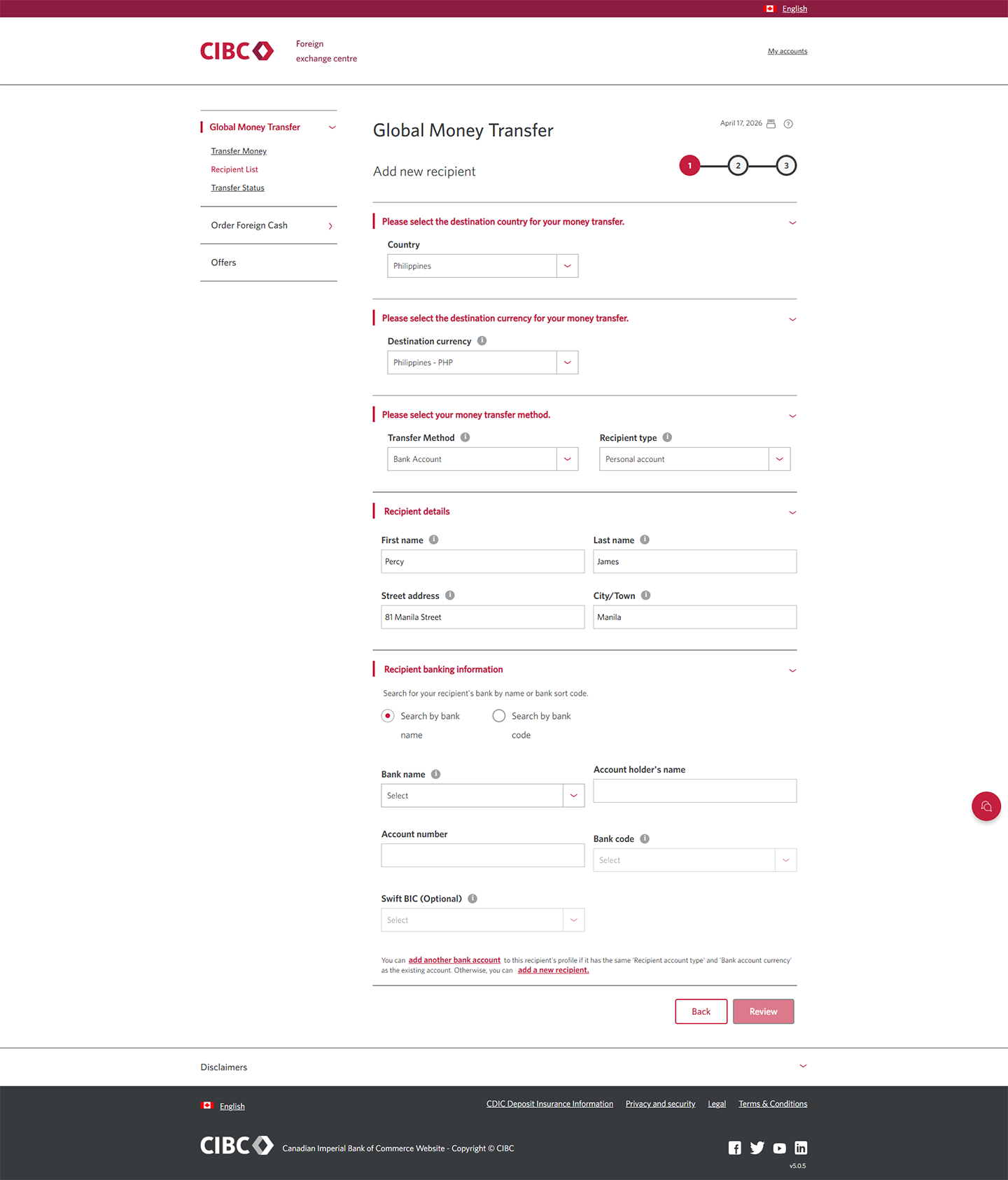
Demo screen 8: CIBC Global Money Transfer step 1. A pulsing animation highlights the "First name" field, under recipient details.
Demo screen 9: CIBC Global Money Transfer step 1. A pulsing animation highlights the "Search by bank code" radio button.
Demo screen 10: CIBC Global Money Transfer step 1. A pulsing animation highlights the "Search" button.
Demo screen 11: CIBC Global Money Transfer step 1. A pulsing animation highlights the "Review" button.
Demo screen 12: CIBC Global Money Transfer step 2. A pulsing animation highlights the "Confirm" button.
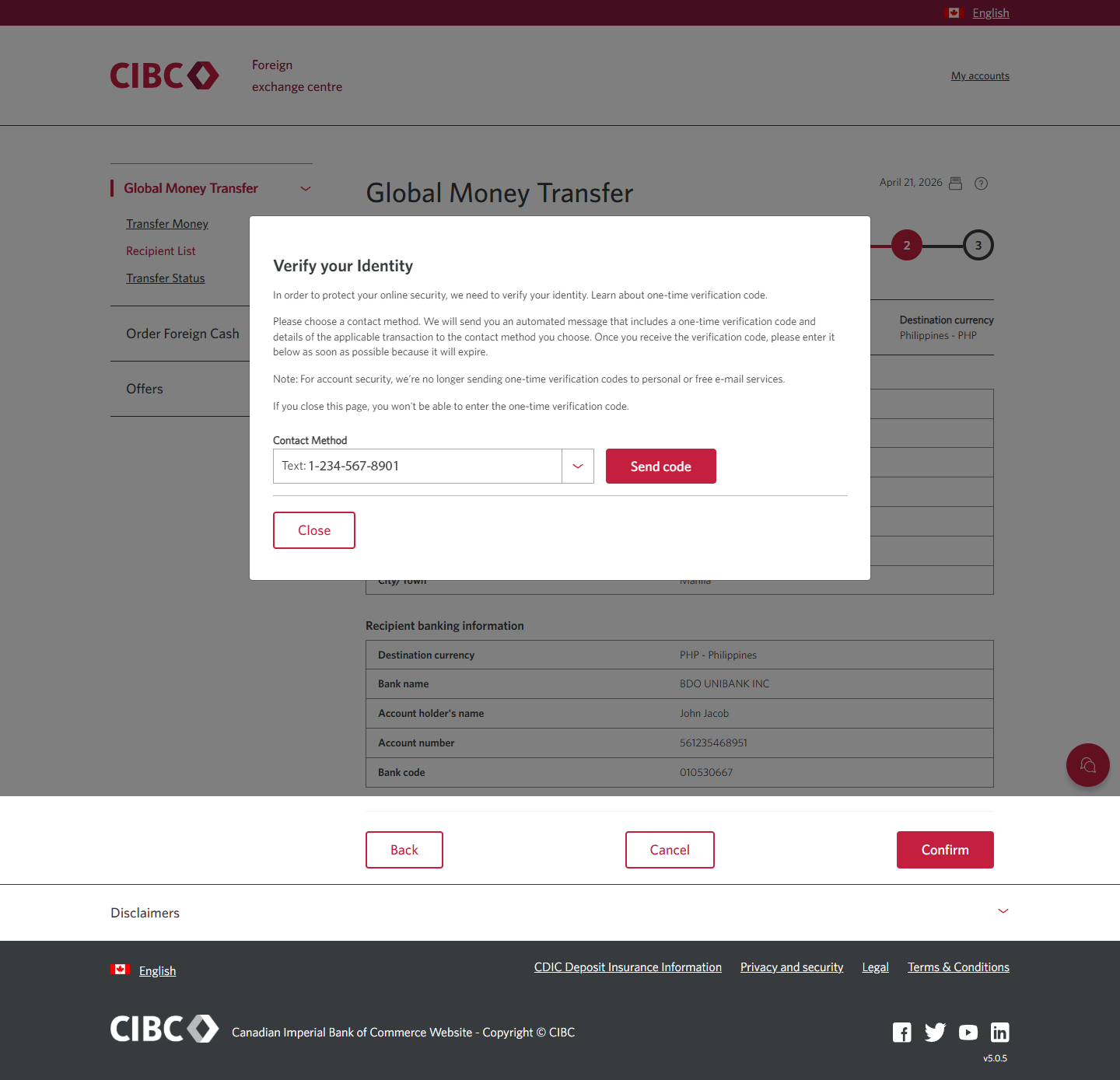
Demo screen 13: CIBC Global Money Transfer step 2. A pulsing animation highlights the send code button.
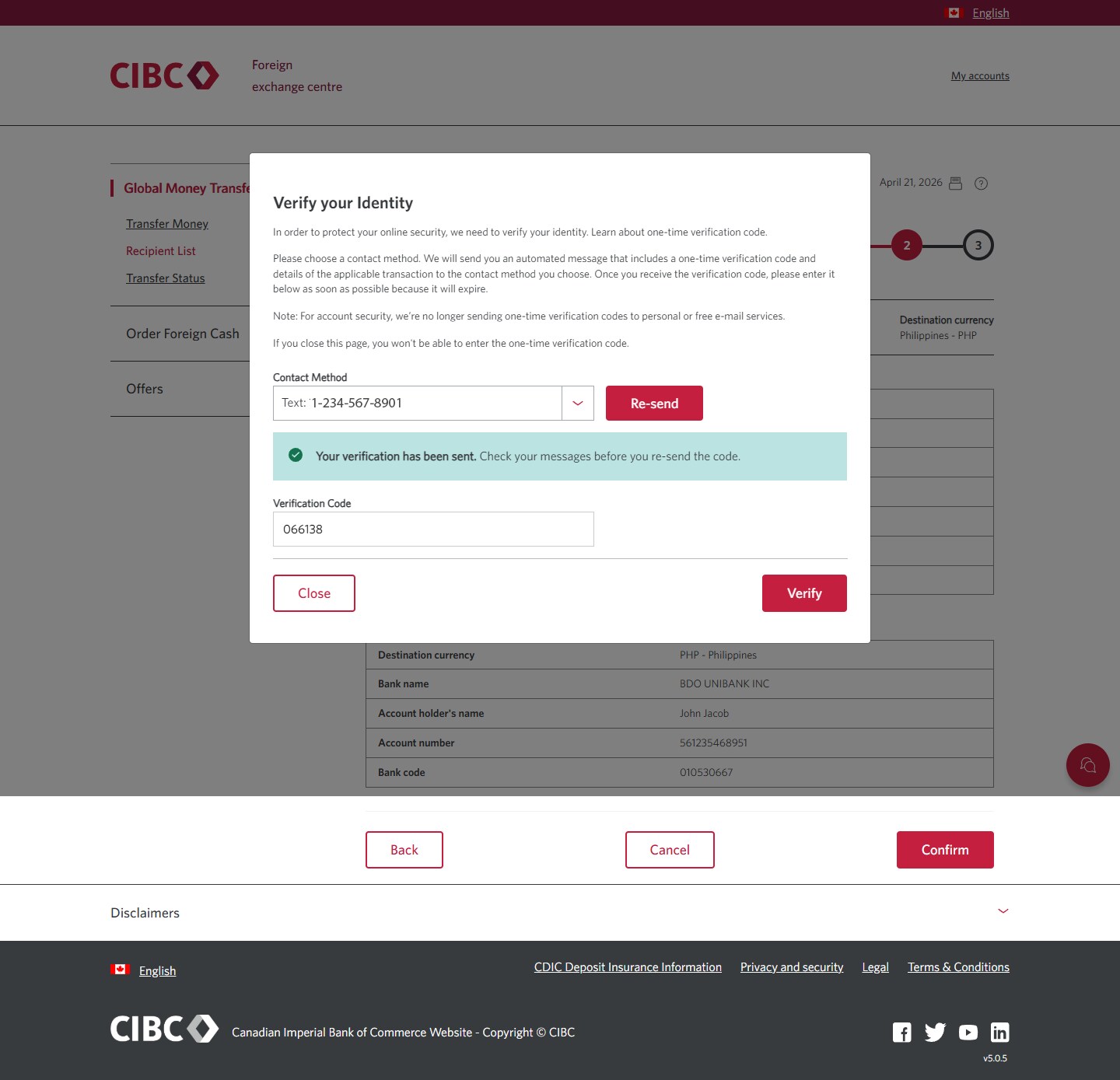
Demo screen 14: CIBC Global Money Transfer step 2. A pulsing animation highlights the "Verify" button.
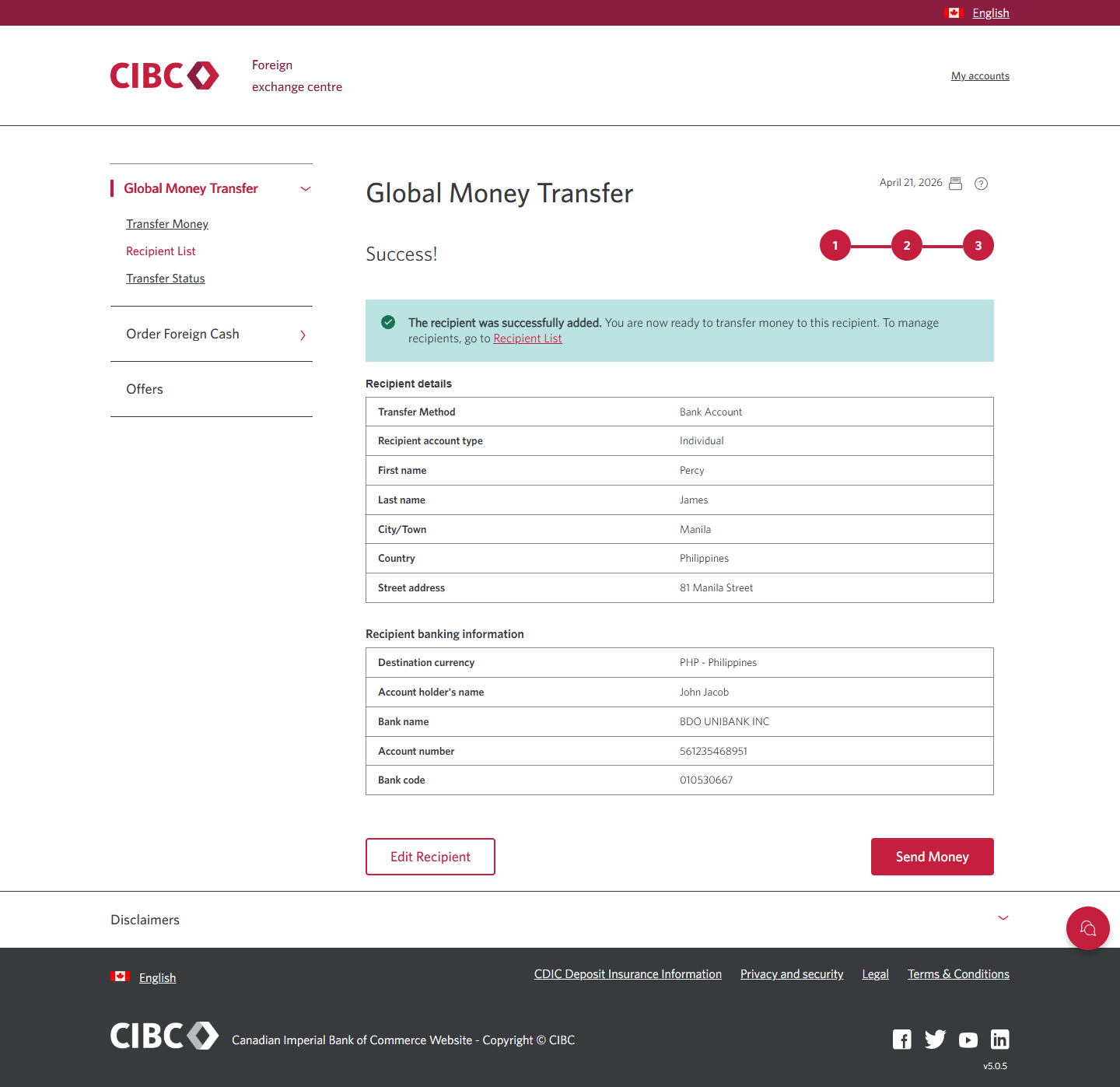
Demo screen 15: CIBC Global Money Transfer step 3. A pulsing animation highlights the "Send Money" button.
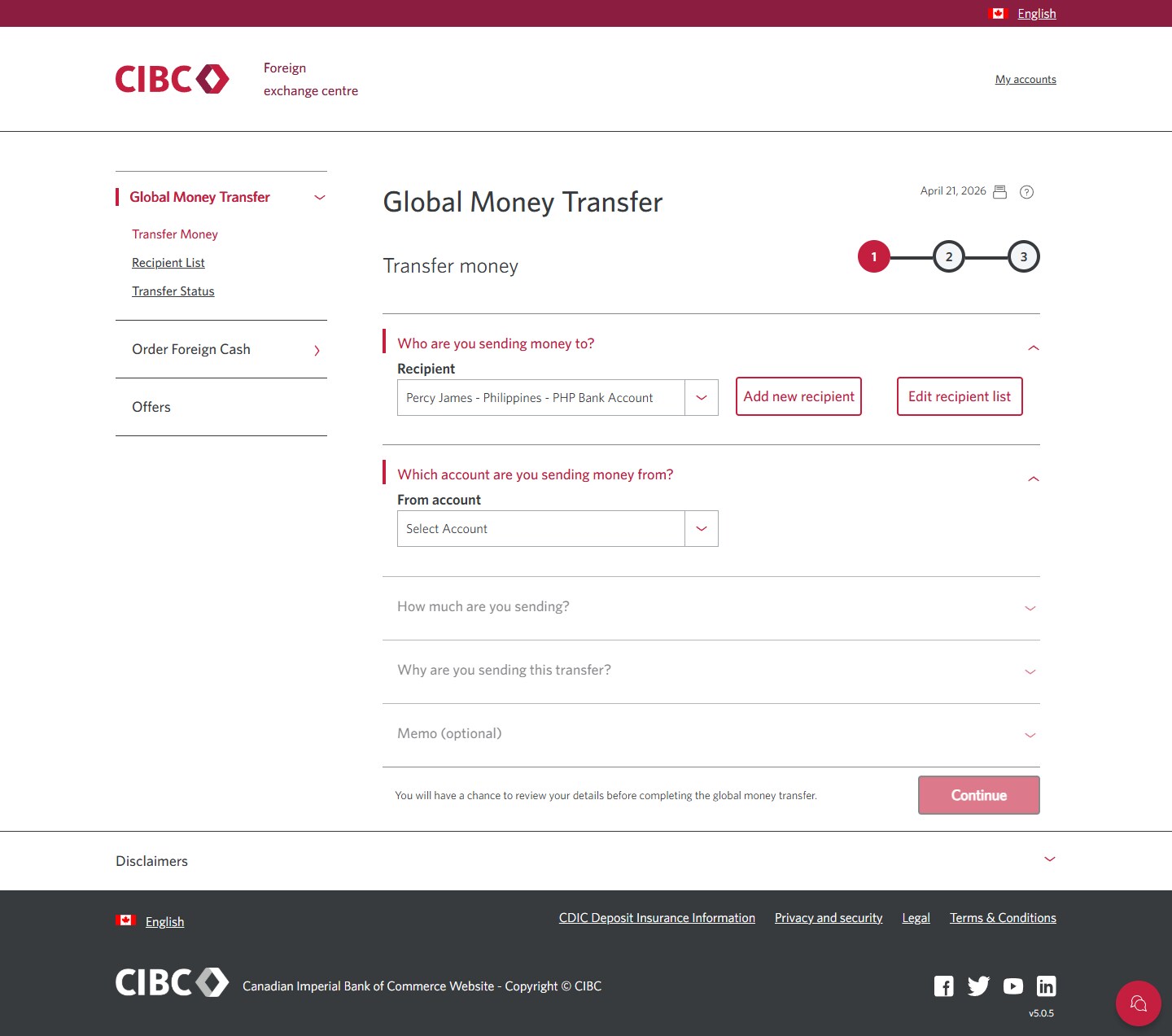
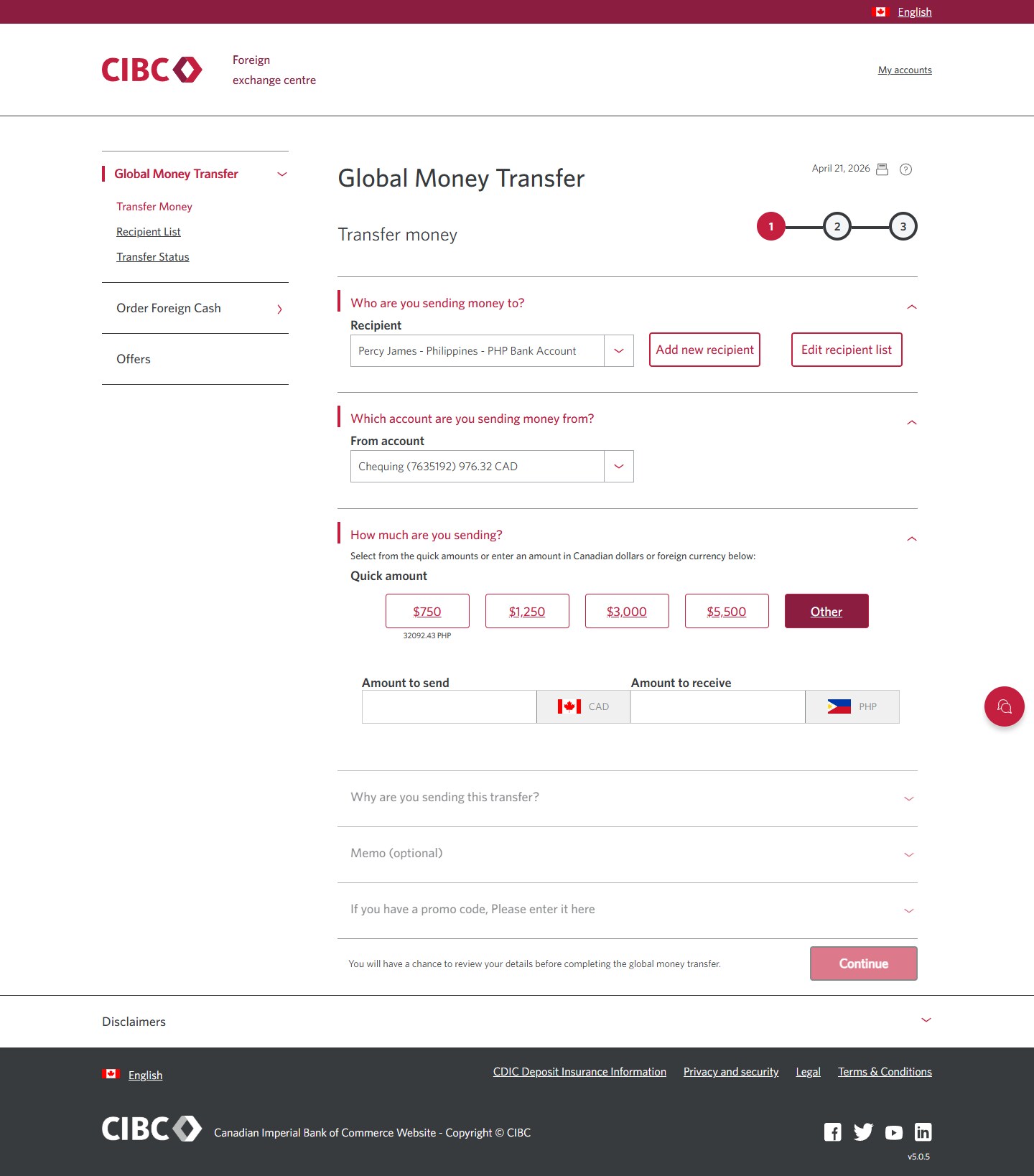
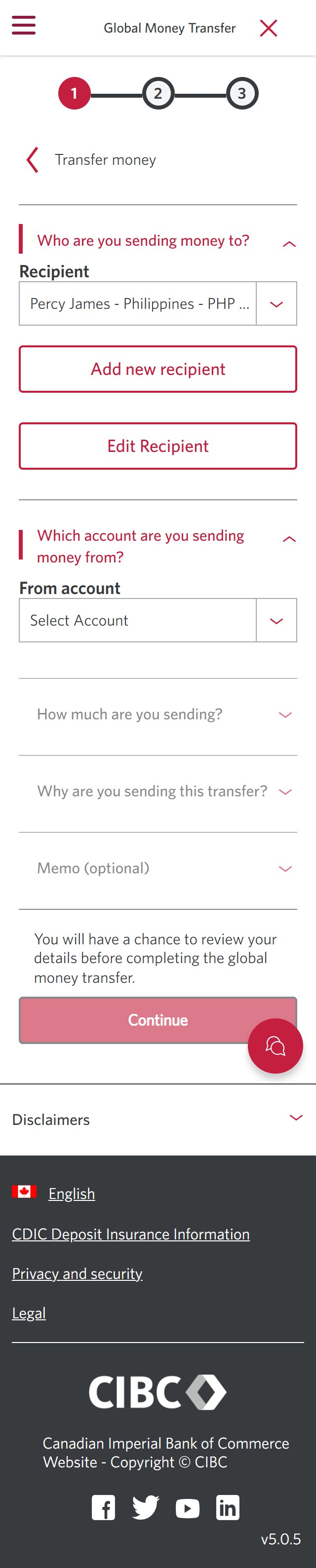
Demo screen 16: CIBC Global Money Transfer, transfer money step 1. A pulsing animation highlights the "Select Account" dropdown menu.
Demo screen 17: CIBC Global Money Transfer, transfer money step 1. A pulsing animation highlights the "Other" button.
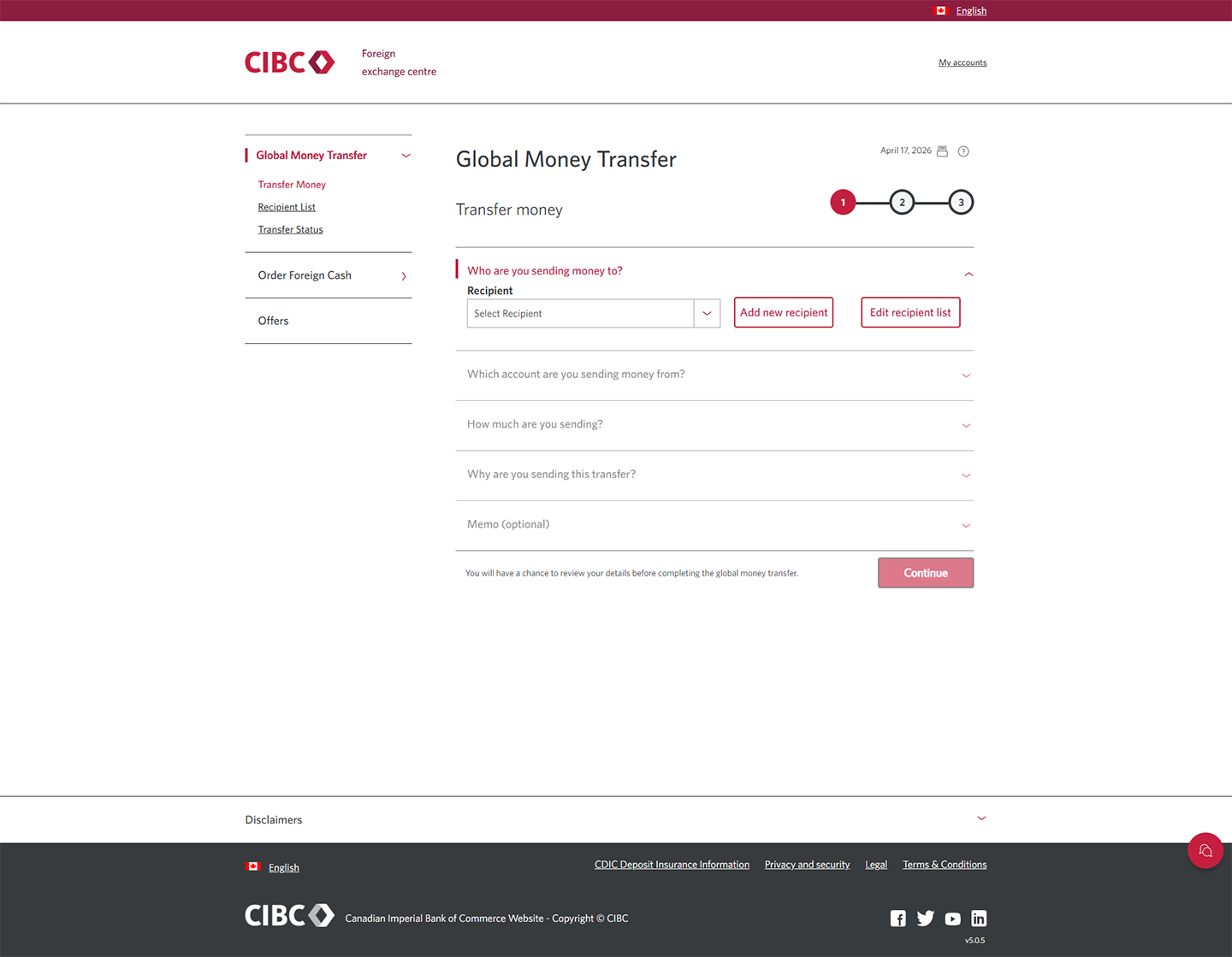
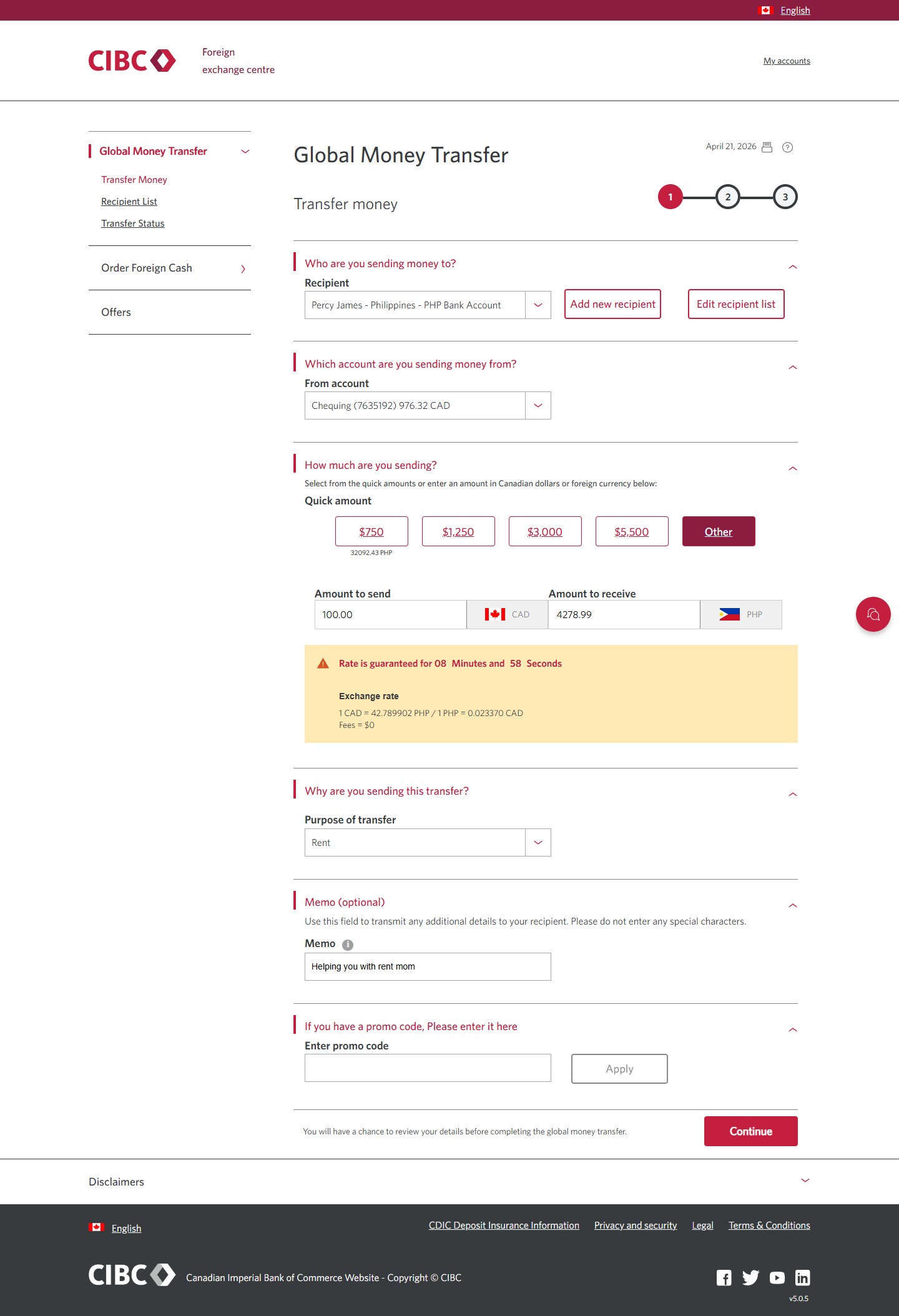
Demo screen 18: CIBC Global Money Transfer, transfer money step 1. A pulsing animation highlights the "Continue" button.
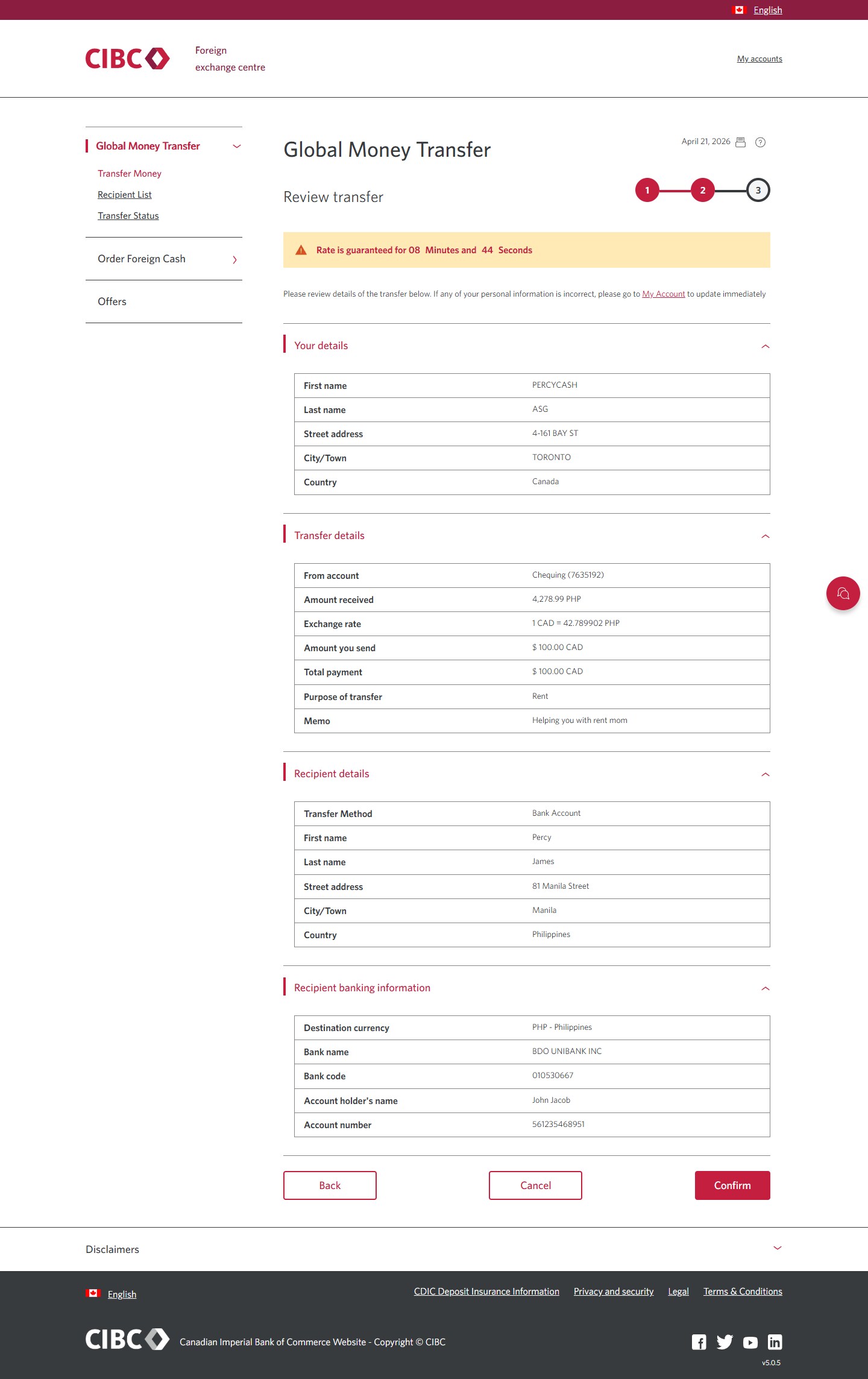
Demo screen 19: CIBC Global Money Transfer, transfer money step 2. A pulsing animation highlights the "Confirm" button.
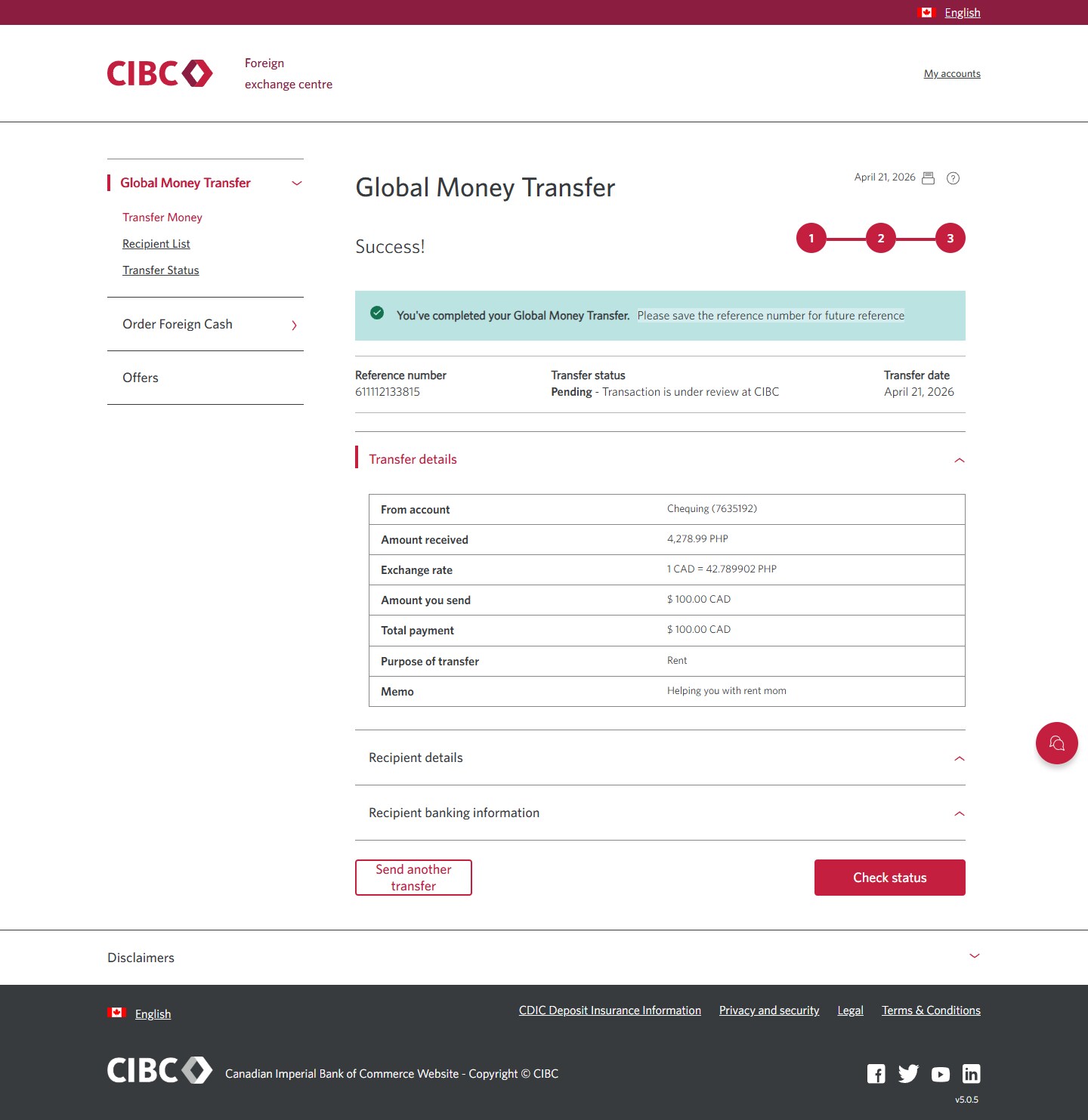
Demo screen 20: CIBC Global Money Transfer, transfer money step 3 confirmation page. No pulsing animation.
Your progress 1 of

Step 1 : Let's get started on your web browser

Select the "Sign on" button in the demo to continue.

Step 2 : Select "Global Money Transfer"

On the CIBC Online Banking homepage, go to the "More" menu and select "Global Money Transfer".

Step 3 : Select "Send money"

Once you're on the CIBC Foreign exchange centre homepage, select the "Send Money" button.

Step 4 : Add a new recipient

To send money to a new recipient, select the "Add new recipient" button.

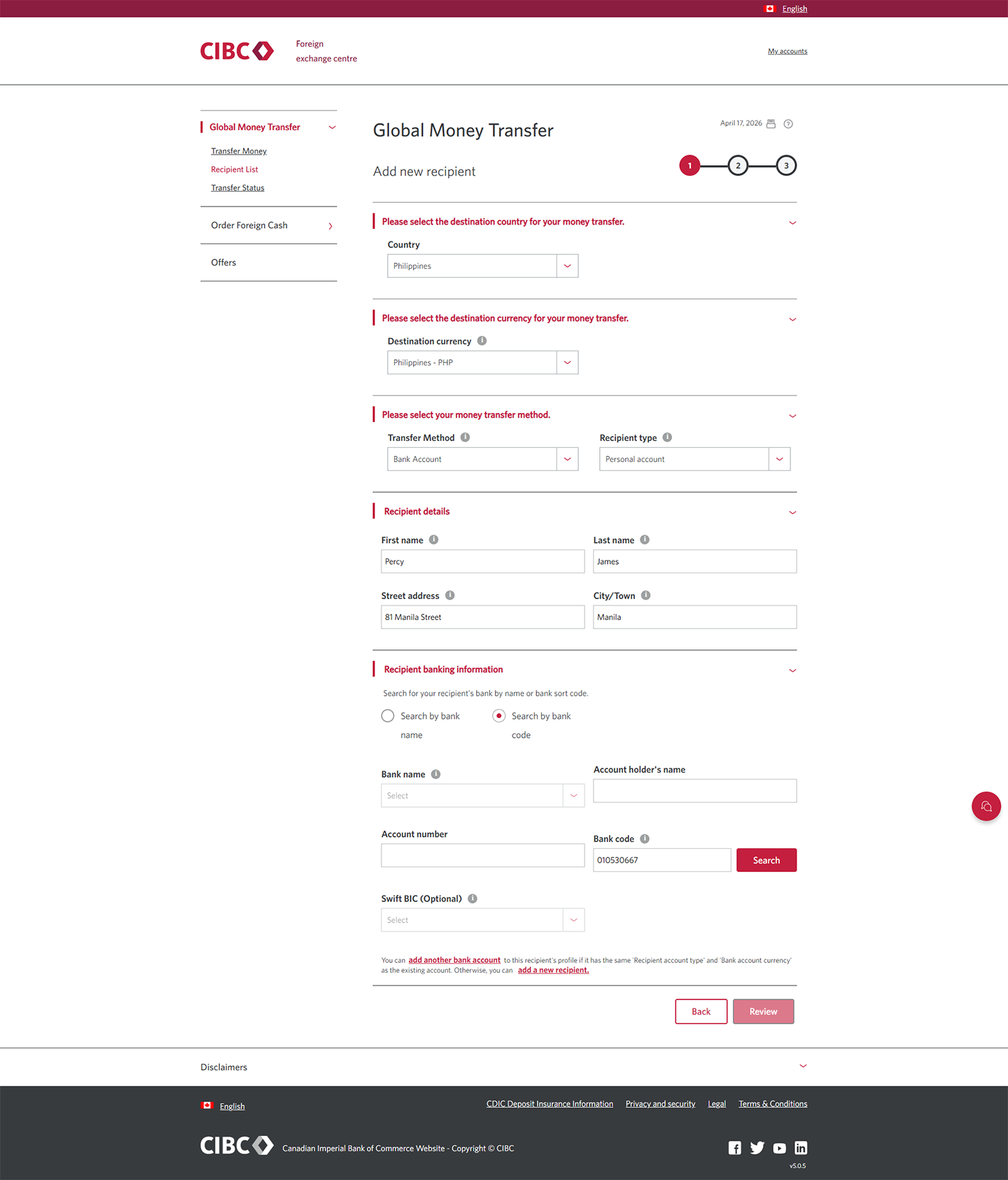
Step 5 : Select the country you're sending money to

From the dropdown menu options, select the destination country for your CIBC Global Money Transfer.

Step 6 : Select the destination currency

Once you've selected a destination country, the currency is automatically populated.

If you wish to change the currency type, use the dropdown menu and select an alternative from the "Destination currency" options.

Step 7 : Select your money transfer method

Go to the "Transfer Method" dropdown menu and select an option for how you want the money to be sent. For this demo, we selected "Bank Account" deposit. 

Next, use the "Recipient type" dropdown menu to make a selection. In this example, we selected "Personal account".

Step 8 : Enter the recipient's details

Use the form provided to enter the recipient's name, street address and city or town.

Step 9 : Search for the recipient's bank information

To find the recipient's bank details for the transfer, you can search by either a bank name or by bank code.

For this demo, we'll be searching by bank code. Select "Search by bank code" to continue.

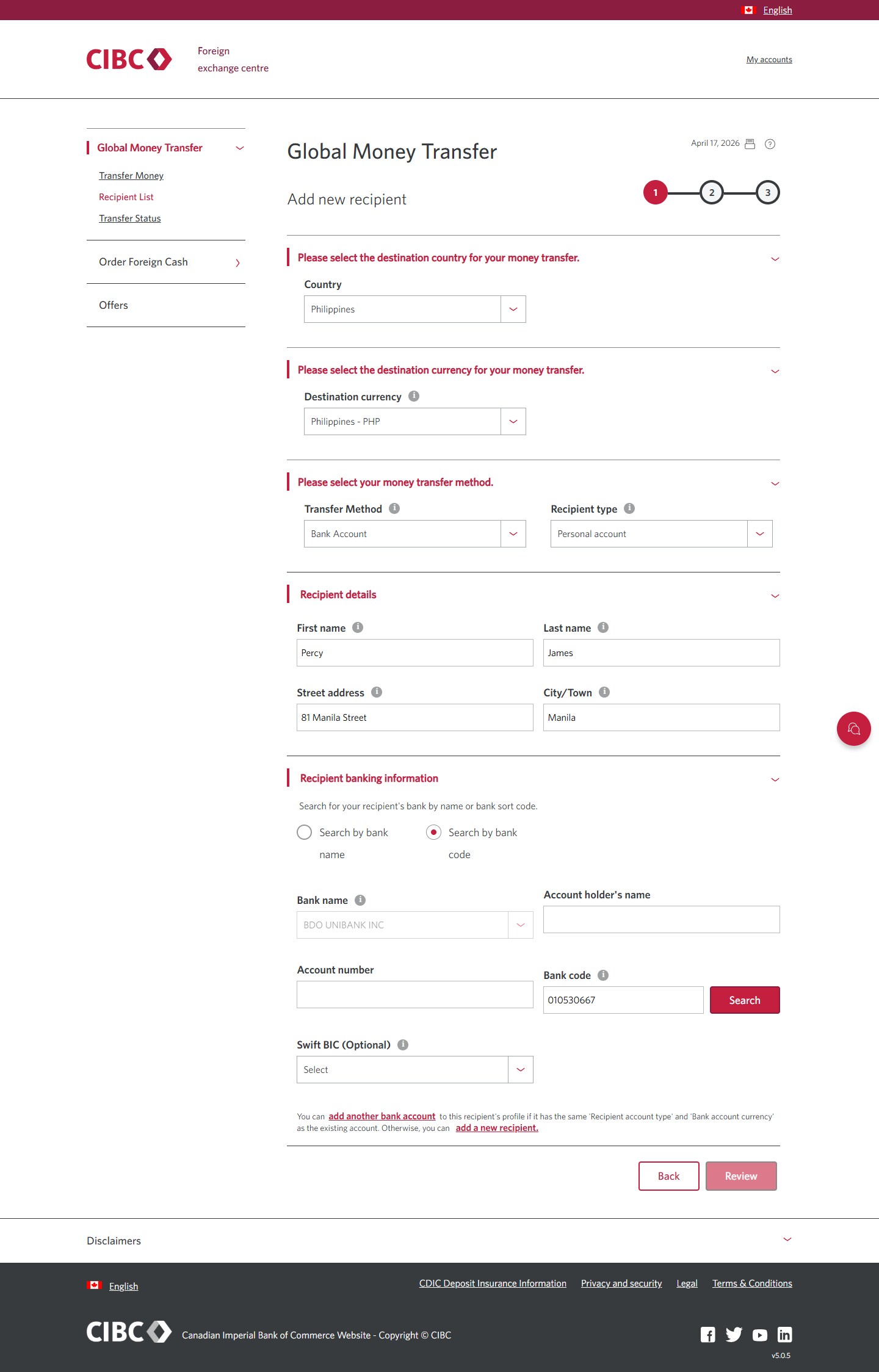
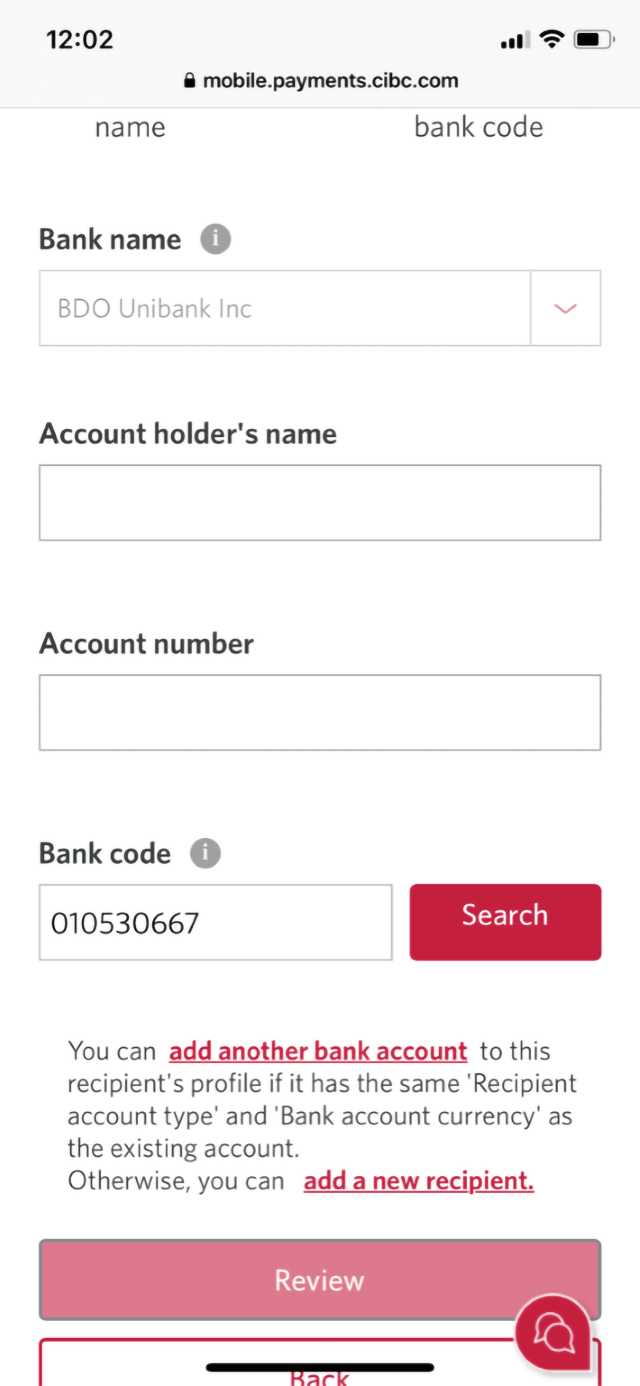
Step 10 : Enter the bank code

Use the field provided and enter your recipient's bank code. Once you've entered the code, select the "Search" button.

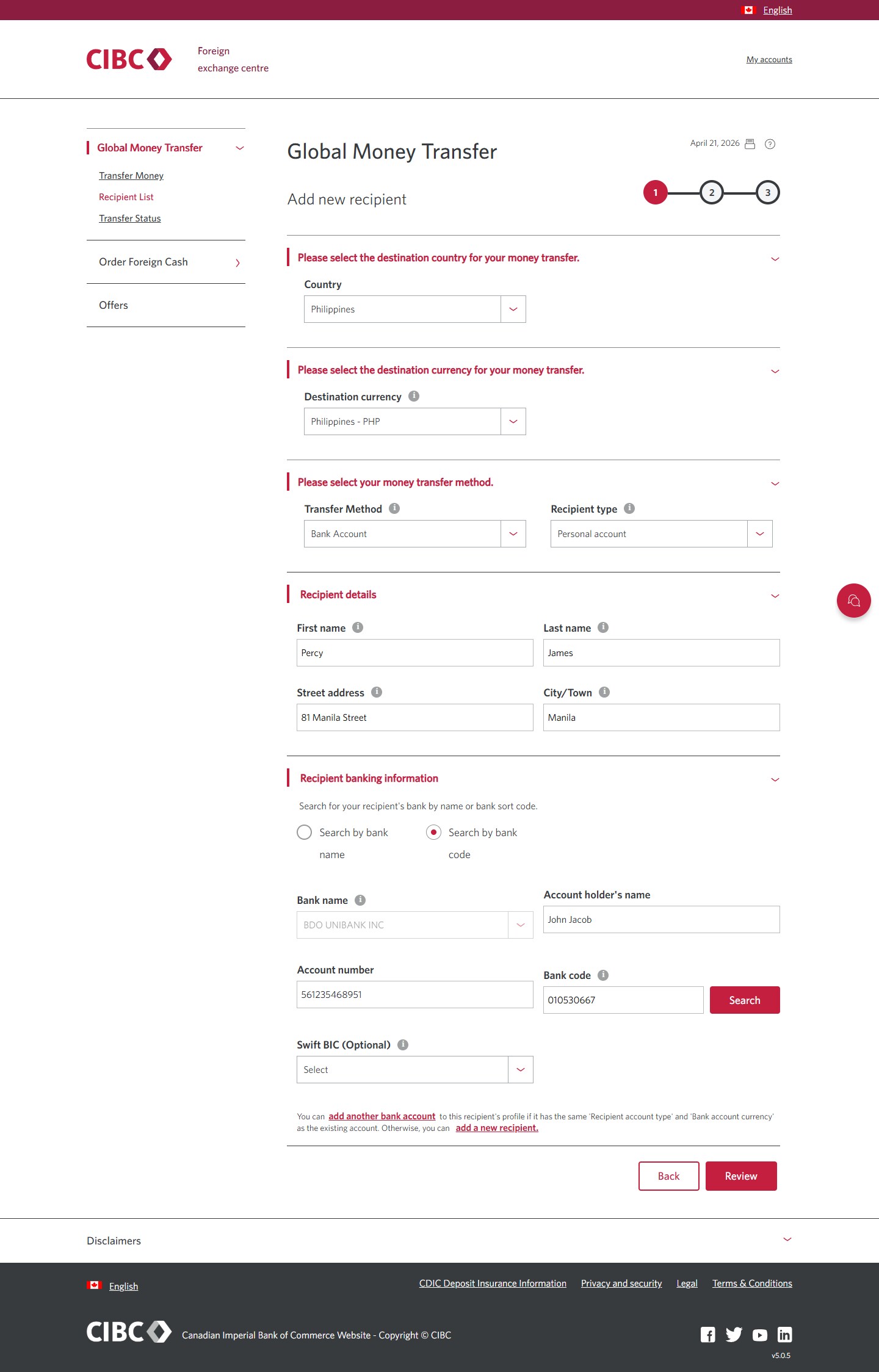
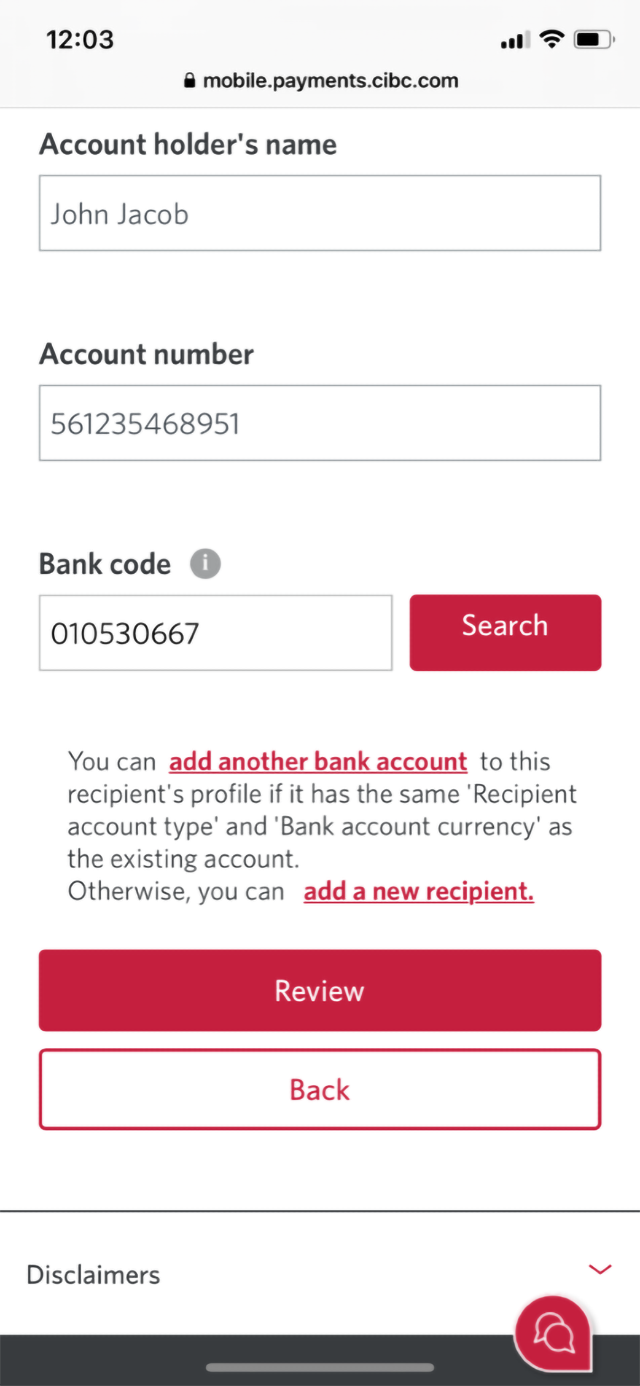
Step 11 : Enter the remaining account details

After you searched by bank code, the bank name will be populated in the form.

Complete the form by entering the remaining details, including the account holder's name and the account number.

Select the "Review" button to continue. 

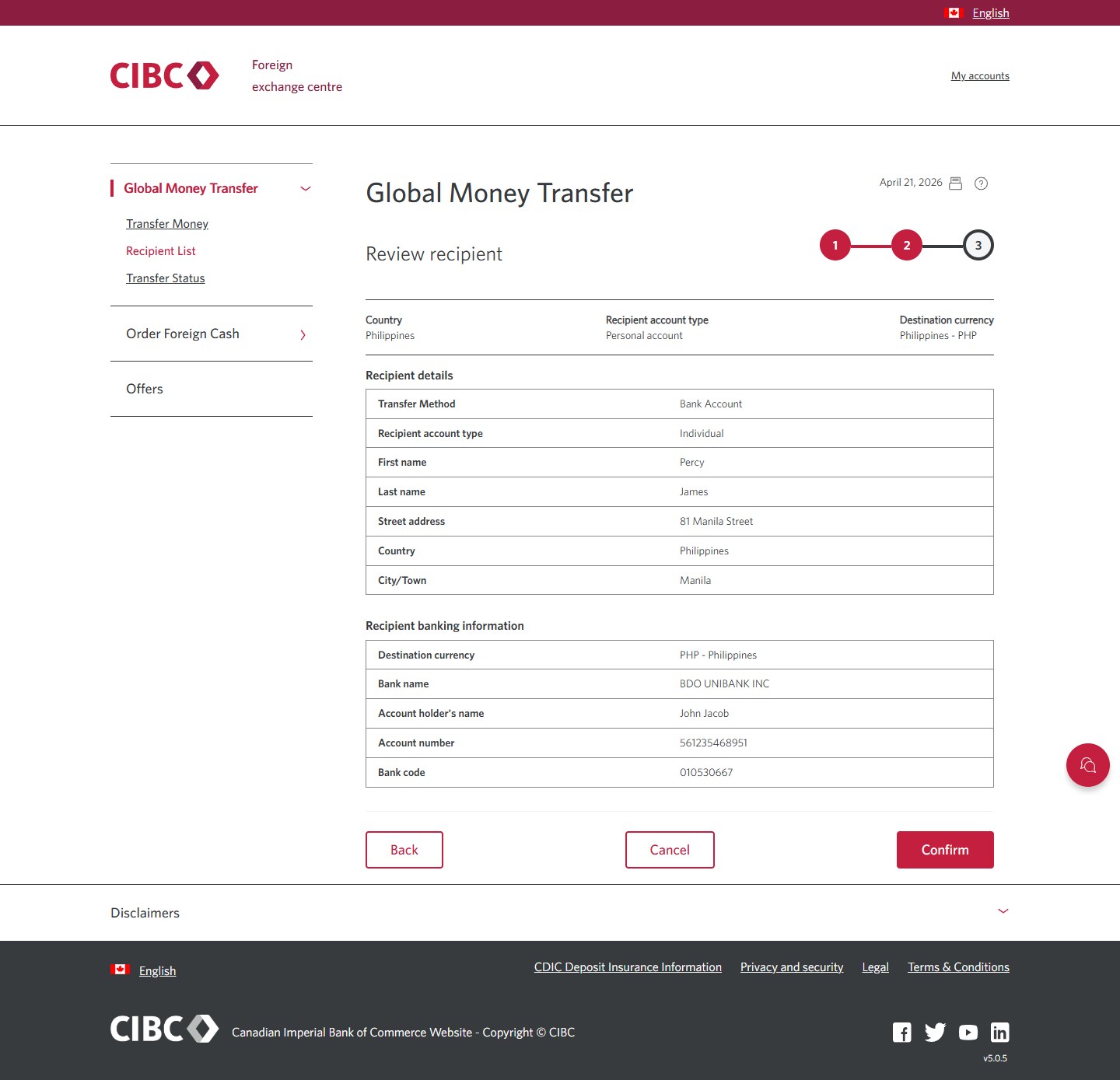
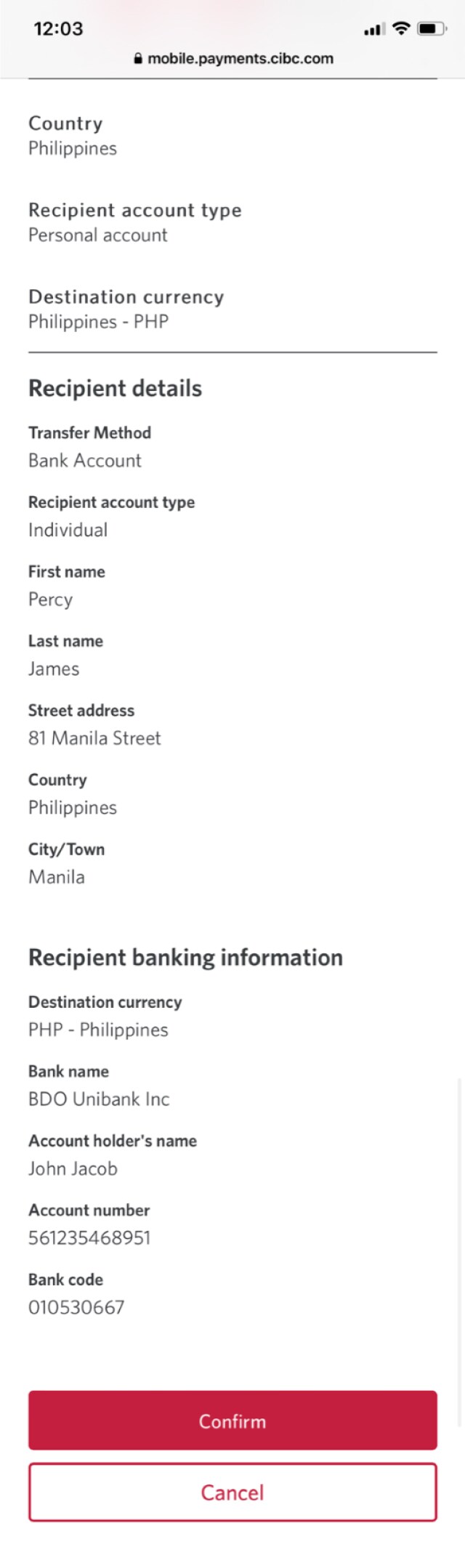
Step 12 : Review the recipient's details

Review the details of the recipient you will be sending money to. Once you've confirmed the details are correct, select the "Confirm" button.

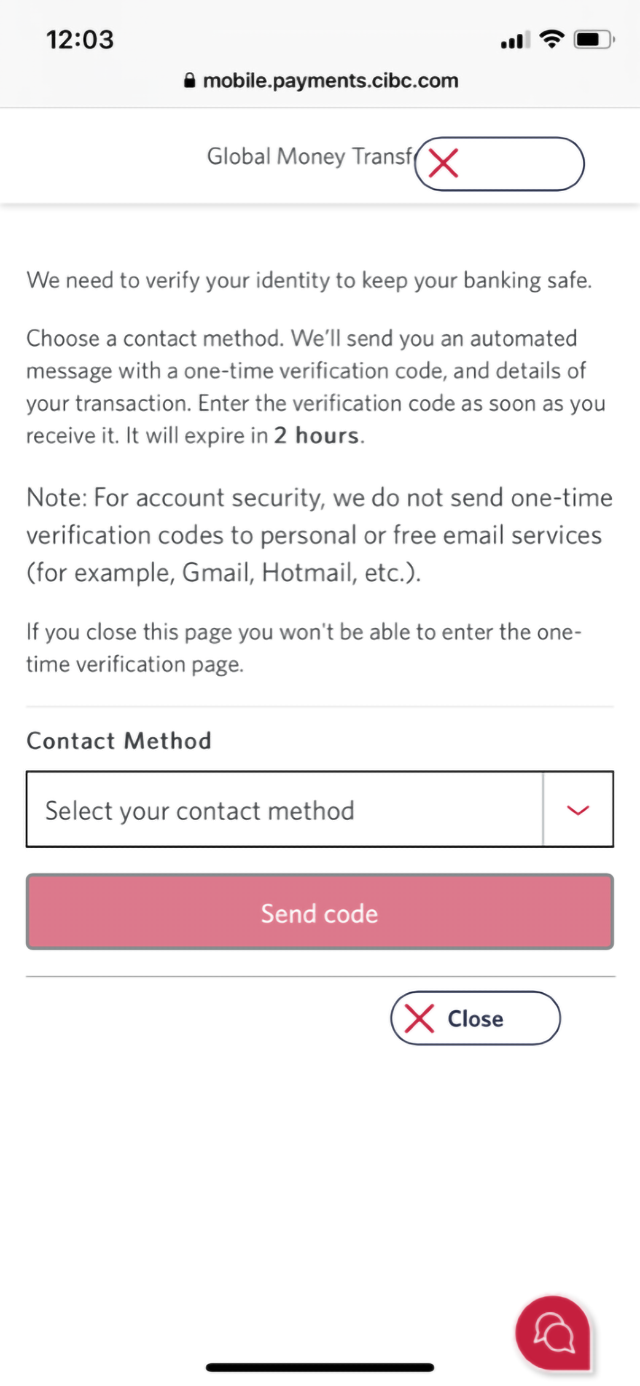
Step 13 : Verify your identity

For your security, you'll be sent a one-time verification code to confirm your identity.

Use the dropdown menu to choose a contact method and then select "Send code".

Step 14 : Enter your one-time verification code

Depending on your chosen contact method, you'll receive either a phone call or a text message with the one-time verification code.

Once you've received the code, enter it and select the "Verify" button.

Step 15 : Send money

An on-screen message will indicate that the recipient was successfully added. You can now send a CIBC Global Money Transfer. 

Select the "Send Money" button to proceed.

Step 16 : Select an account to send money from

The recipient will be automatically populated. Use the dropdown menu and select an account you want to send the recipient money from.

If you need to change the recipient's details, select "Edit recipient list".

Step 17 : Enter the amount of your transfer

Choose the amount of money you want to send, either from the quick amount options or by selecting the "Other" button.

After you've selected the amount, the exchange rate will be provided.

Step 18 : Complete the form

Enter the remaining details of your transfer, including:

  • Purpose of transfer
  • Memo (optional)
  • Promo code (if available)

When you're ready, select the "Continue" button.

Step 19 : Review your transfer

Review the details of your CIBC Global Money Transfer and select the "Confirm" button to continue.

Step 20 : Great job!

You've just successfully completed a CIBC Global Money Transfer.
Demo screen 1: CIBC Online Banking sign on page. A pulsing animation highlights the "Sign on" button.
Demo screen 2: CIBC Online Banking homepage. A pulsing animation highlights the "More options" menu.
Demo screen 3: CIBC Online Banking navigation sidebar. A pulsing animation highlights the "Global Money Transfer" link.
Demo screen 4: CIBC foreign exchange centre. A pulsing animation highlights the "Send money" button.
Demo screen 5: CIBC Global Money Transfer. A pulsing animation highlights the "Add new recipient" button.
Demo screen 6: CIBC Global Money Transfer step 1. A pulsing animation highlights the "Country" combo box
Demo screen 7: CIBC Global Money Transfer step 1. A pulsing animation highlights the "Destination currency" combo box
Demo screen 8: CIBC Global Money Transfer step 1. A pulsing animation highlights the "Transfer method" combo box.
Demo screen 9: CIBC Global Money Transfer step 1. A pulsing animation highlights the "First name" field, under recipient details.
Demo screen 10: CIBC Global Money Transfer step 1. A pulsing animation highlights the "Search by bank code" radio button.
Demo screen 11: CIBC Global Money Transfer step 1. A pulsing animation highlights the "Search" button.
Demo screen 12: CIBC Global Money Transfer step 1. A pulsing animation highlights the "Review" button.
Demo screen 13: CIBC Global Money Transfer step 2. A pulsing animation highlights the "Confirm" button.
Demo screen 14: CIBC Global Money Transfer step 2. A pulsing animation highlights the send code button.
Demo screen 15: CIBC Global Money Transfer step 2. A pulsing animation highlights the "Verify" button.
Demo screen 16: CIBC Global Money Transfer step 3. A pulsing animation highlights the "Send Money" button.
Demo screen 17: CIBC Global Money Transfer, transfer money step 1. A pulsing animation highlights the "Select Account" dropdown menu.
Demo screen 18: CIBC Global Money Transfer, transfer money step 1. A pulsing animation highlights the "Other" button.
Demo screen 19: CIBC Global Money Transfer, transfer money step 1. A pulsing animation highlights the "Continue" button.
Demo screen 20: CIBC Global Money Transfer, transfer money step 2. A pulsing animation highlights the "Confirm" button.
Demo screen 21: CIBC Global Money Transfer, transfer money step 3 confirmation page. No pulsing animation.
Your progress 1 of

Step 1 : Let's get started on your web browser

Select the "Sign on" button in the demo to continue.

Step 2 : Select the three-line menu icon to open the navigation bar

On the CIBC Online Banking homepage, find and select the three-line menu icon to open a navigation bar with more options.

Step 3 : Select "Global Money Transfer"

Go to the "More" section of the menu and select "Global Money Transfer".

Step 4 : Select "Send money"

Once you're on the CIBC Foreign exchange centre homepage, select the "Send Money" button.

Step 5 : Add a new recipient

To send money to a new recipient, select the "Add new recipient" button.

Step 6 : Select the country you're sending money to

From the dropdown menu options, select the destination country for your CIBC Global Money Transfer.

Step 7 : Select the destination currency

Once you've selected a destination country, the currency is automatically populated.

If you wish to change the currency type, use the dropdown menu and select an alternative from the "Destination currency" options.

Step 8 : Select your money transfer method

Go to the "Transfer Method" dropdown menu and select an option for how you want the money to be sent. For this demo, we selected "Bank Account" deposit. 

Next, use the "Recipient type" dropdown menu to make a selection. In this example, we selected "Personal account".

Step 9 : Enter the recipient's details

Use the form provided to enter the recipient's name, street address and city or town.

Step 10 : Search for the recipient's bank information

To find the recipient's bank details for the transfer, you can search by either a bank name or by bank code.

For this demo, we'll be searching by bank code. Select "Search by bank code" to continue.

Step 11 : Enter the bank code

Use the field provided and enter your recipient's bank code. Once you've entered the code, select the "Search" button.

Step 12 : Enter the remaining account details

After you searched by bank code, the bank name will be populated in the form.

Complete the form by entering the remaining details, including the account holder's name and the account number.

Select the "Review" button to continue.

Step 13 : Review the recipient's details

Review the details of the recipient you will be sending money to. Once you've confirmed the details are correct, select the "Confirm" button. 

Step 14 : Verify your identity

For your security, you'll be sent a one-time verification code to confirm your identity.

Use the dropdown menu to choose a contact method and then select "Send code".

Step 15 : Enter your one-time verification code

Depending on your chosen contact method, you'll receive either a phone call or a text message with the one-time verification code.

Once you've received the code, enter it and select the "Verify" button.

Step 16 : Send money

An on-screen message, will indicate that the recipient was successfully added. You can now send a CIBC Global Money Transfer.

Select the "Send Money" button to proceed.

Step 17 : Select an account to send money from

The recipient will be automatically populated. Use the dropdown menu and select an account you want to send the recipient money from.

If you need to change the recipient's details, select "Edit recipient list".

Step 18 : Enter the amount of your transfer

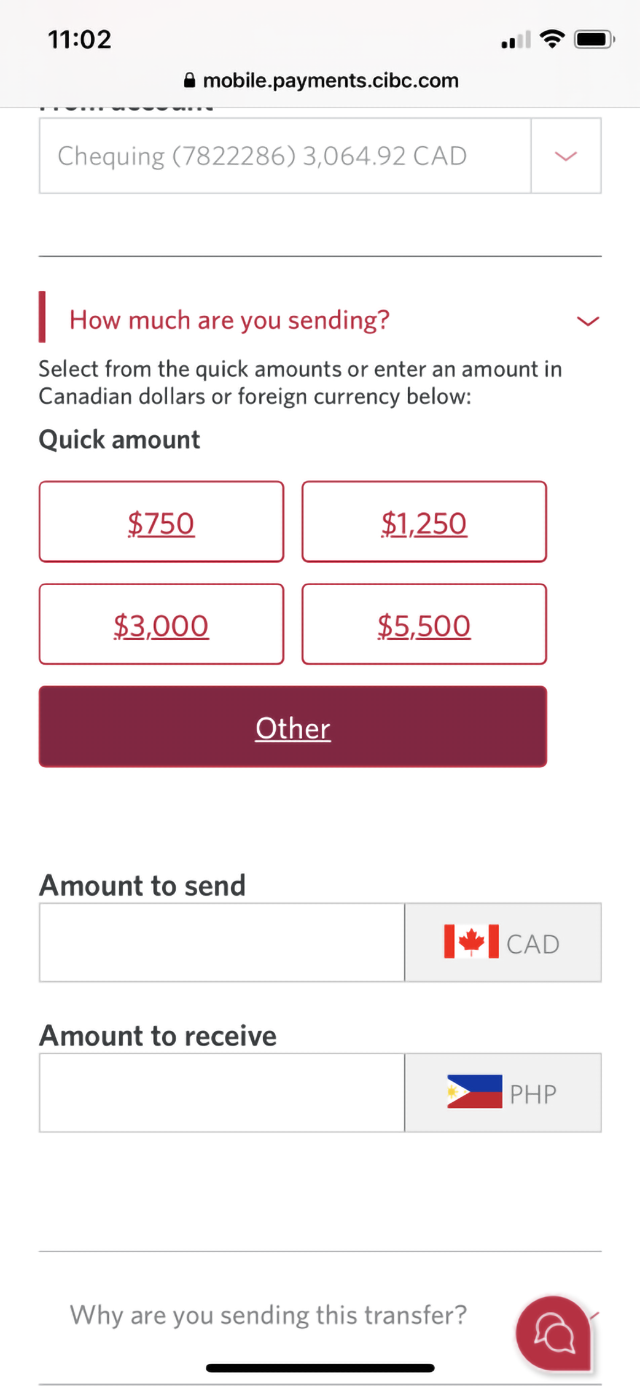
Choose the amount of money you want to send, either from the quick amount options or by selecting the "Other" button. 

After you've selected the amount, the exchange rate will be provided.

Step 19 : Complete the form

Enter the remaining details of your transfer, including:

  • Purpose of transfer
  • Memo (optional)
  • Promo code (if available)

When you're ready, select the "Continue" button.

Step 20 : Review your transfer

Review the details of your CIBC Global Money Transfer and select the "Confirm" button to continue.

Step 21 : Great job!
You've just successfully completed a CIBC Global Money Transfer.
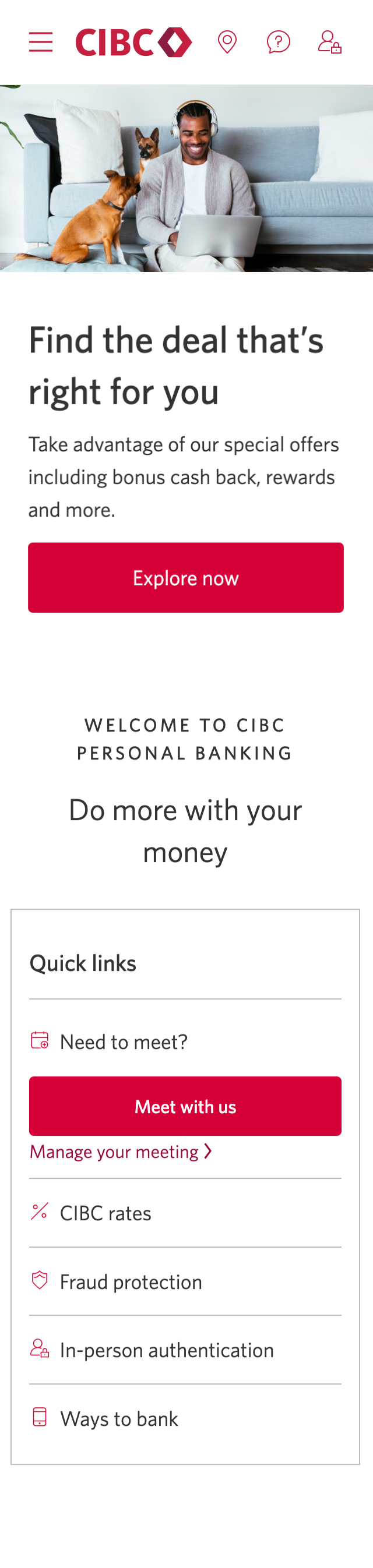
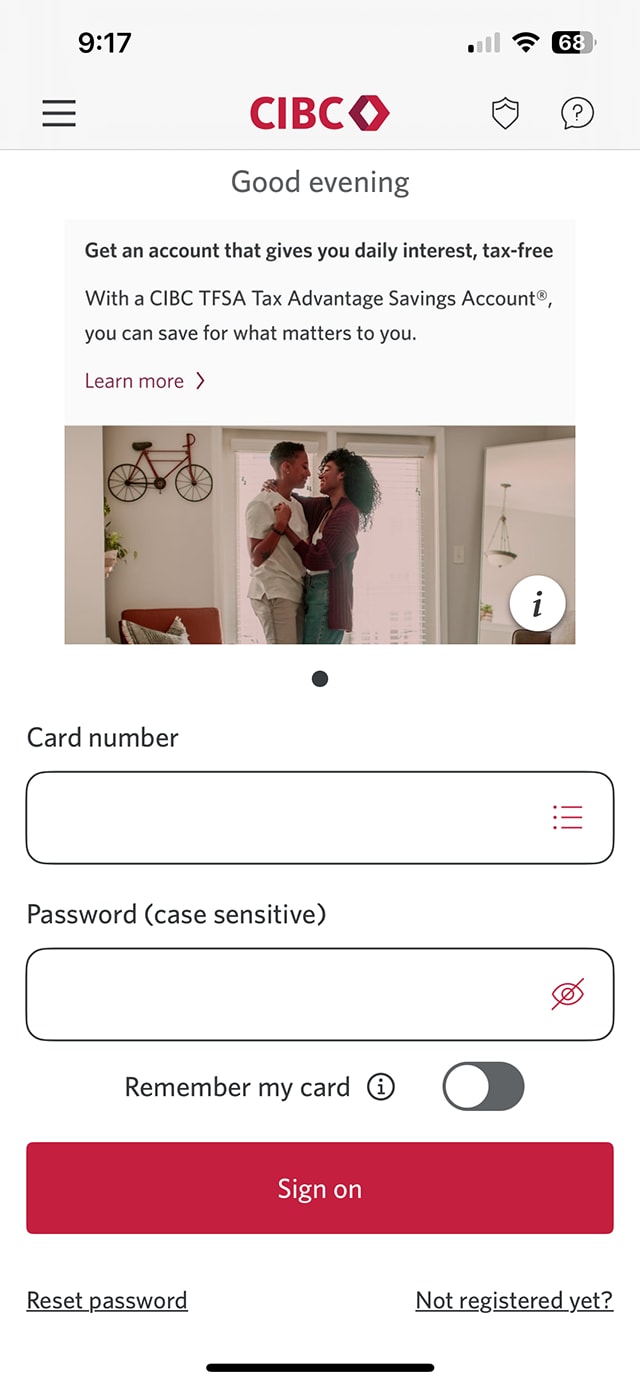
Demo screen 1: CIBC Mobile Banking App sign on screen. A pulsing animation highlights the "Sign on" Button
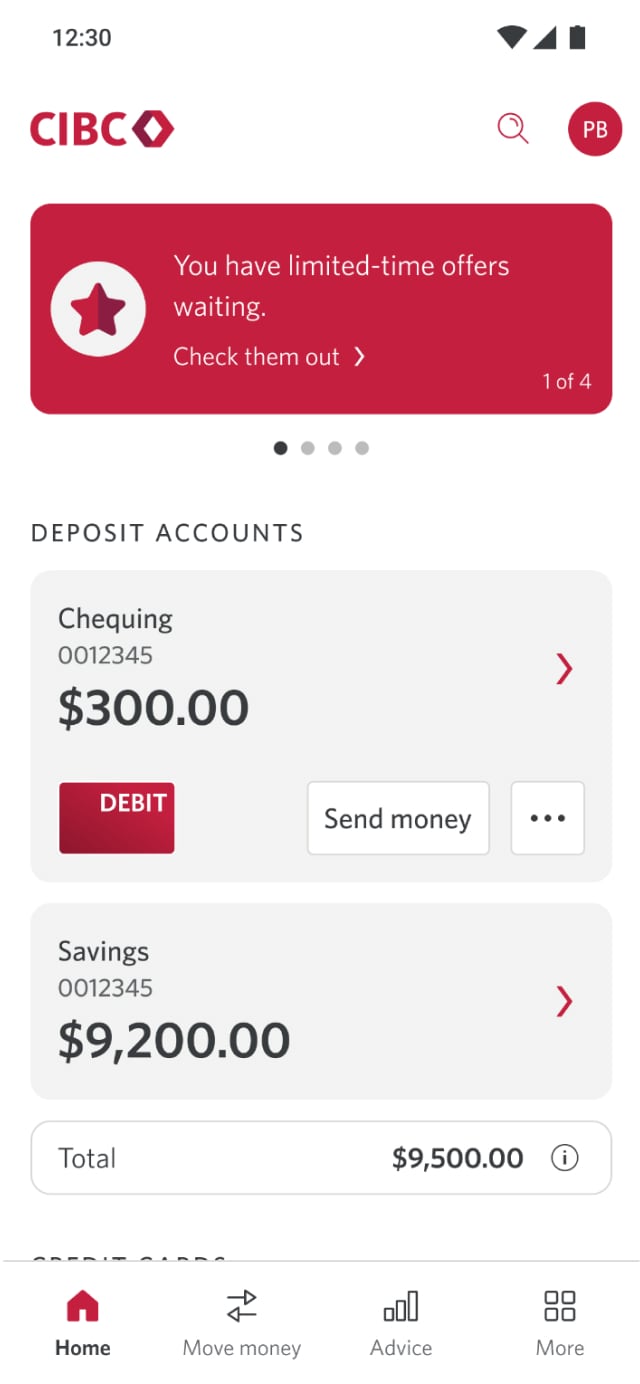
Demo screen 2: CIBC Mobile Banking App homepage. A pulsing animation highlights the "Move money" Link.
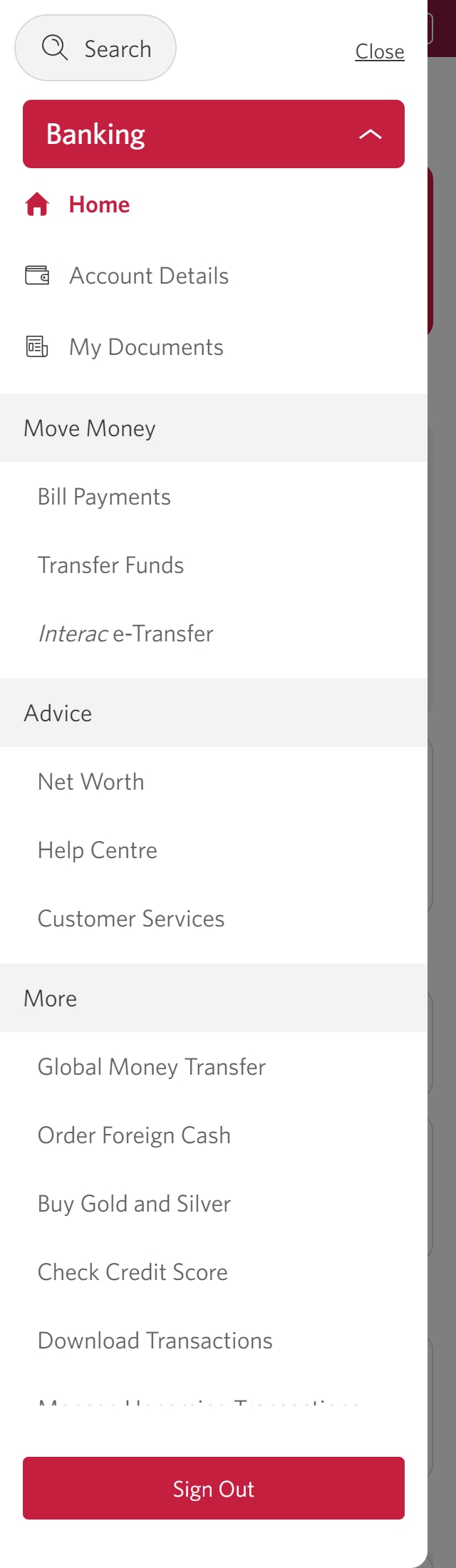
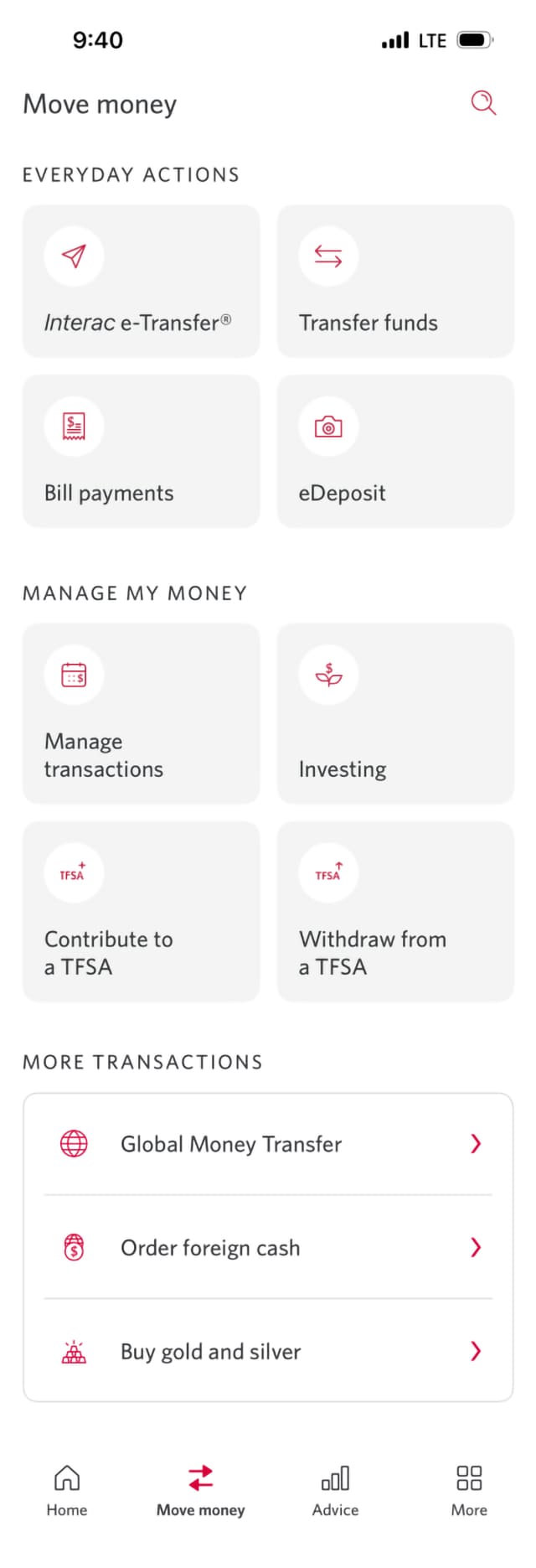
Demo screen 3: CIBC Mobile Banking App . A pulsing animation highlights the "Global Money Transfer" Link.
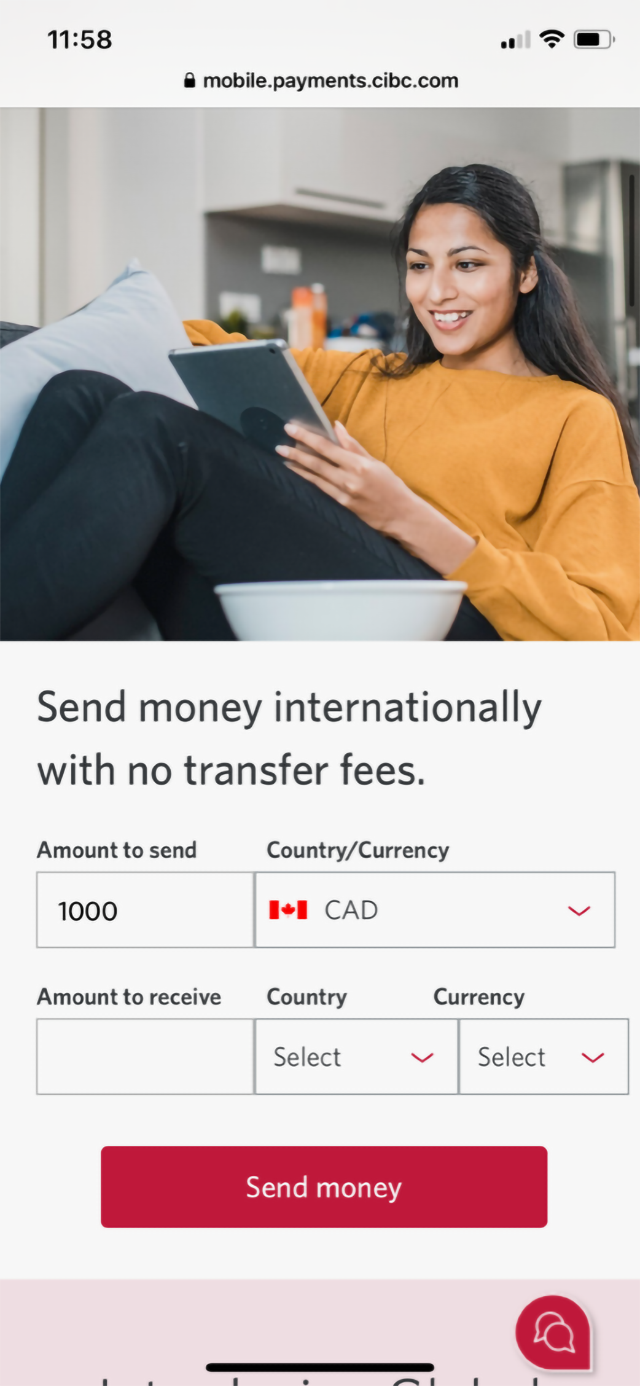
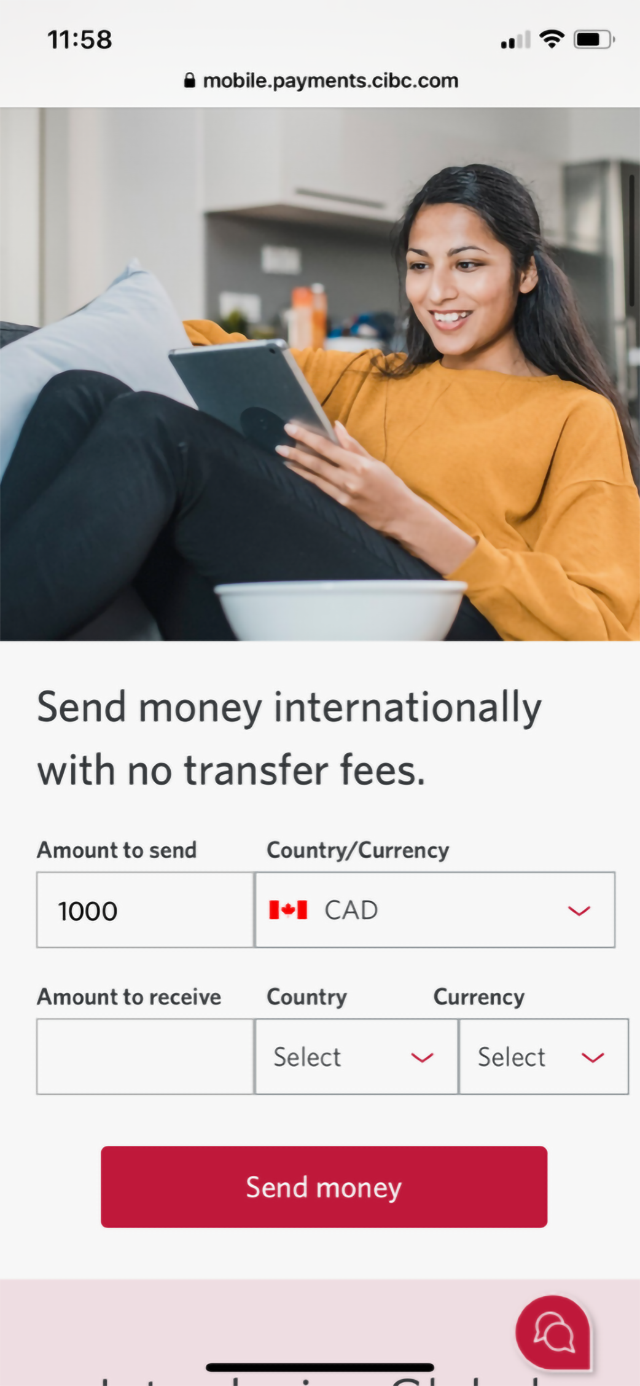
Demo screen 4: CIBC Mobile Banking App. A pulsing animation highlights the "Send money" button.
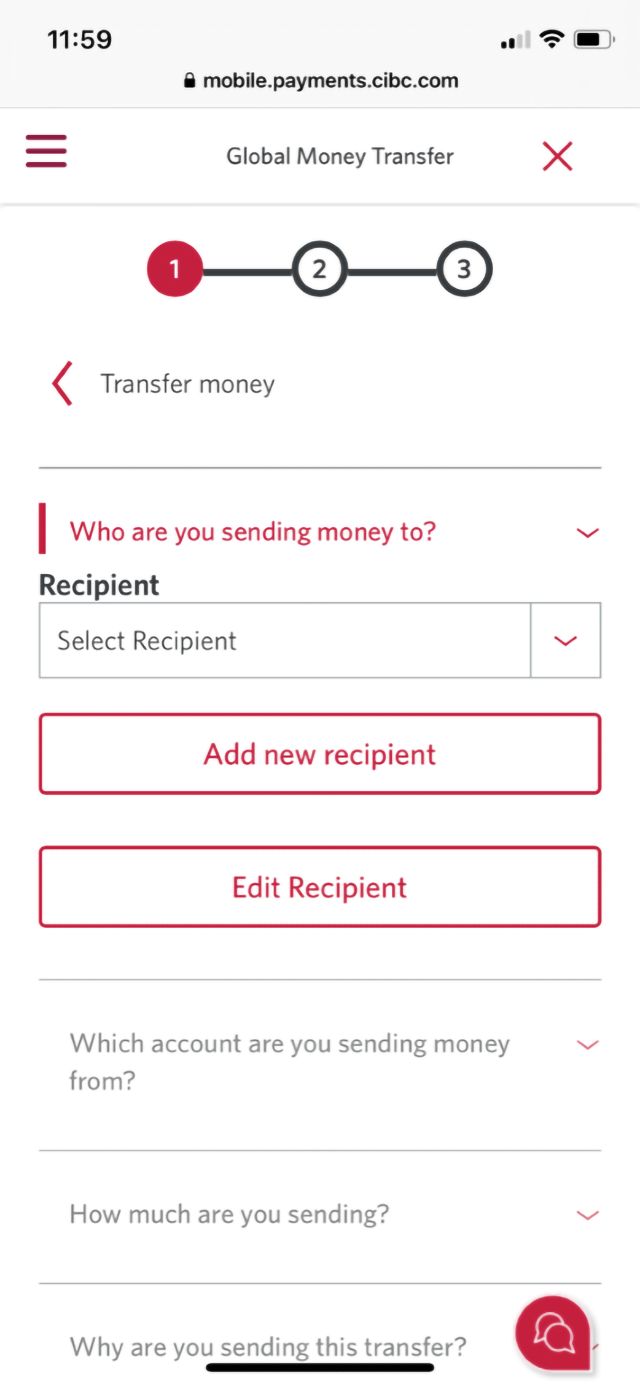
Demo screen 5: CIBC Mobile Banking App. A pulsing animation highlights the "Add new recipient" button.
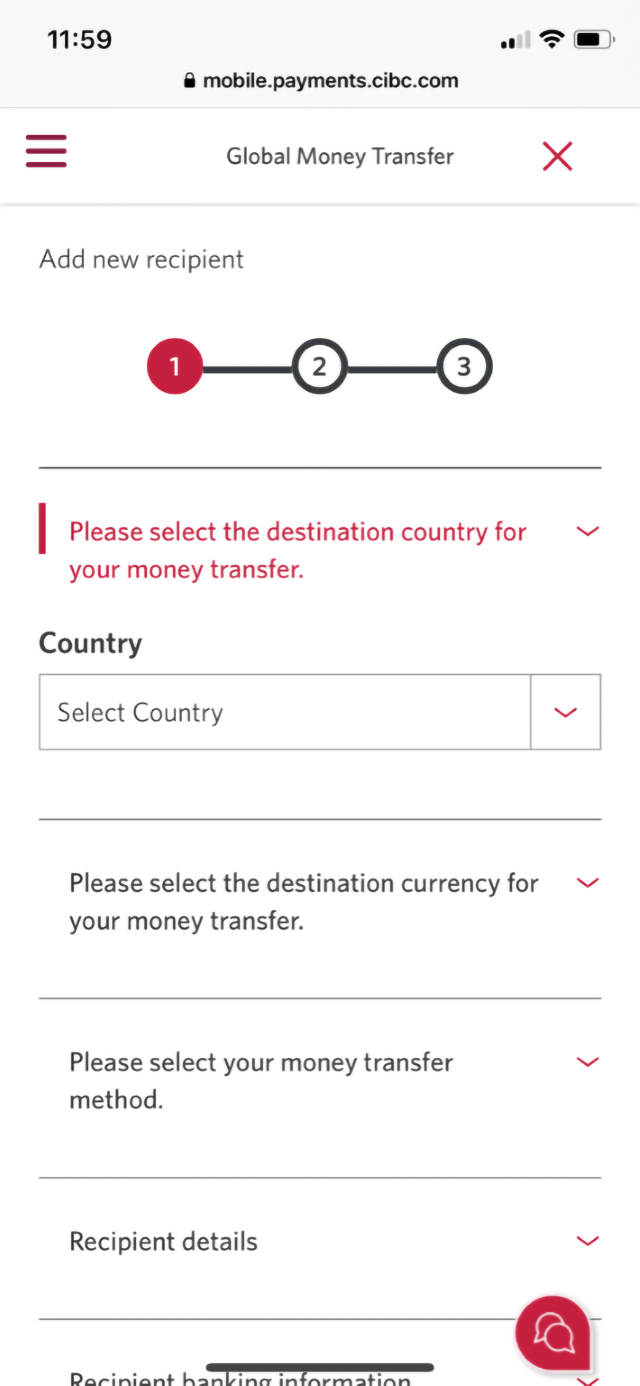
Demo screen 6: CIBC Mobile Banking App. A pulsing animation highlights the "Select Country" dropdown menu.
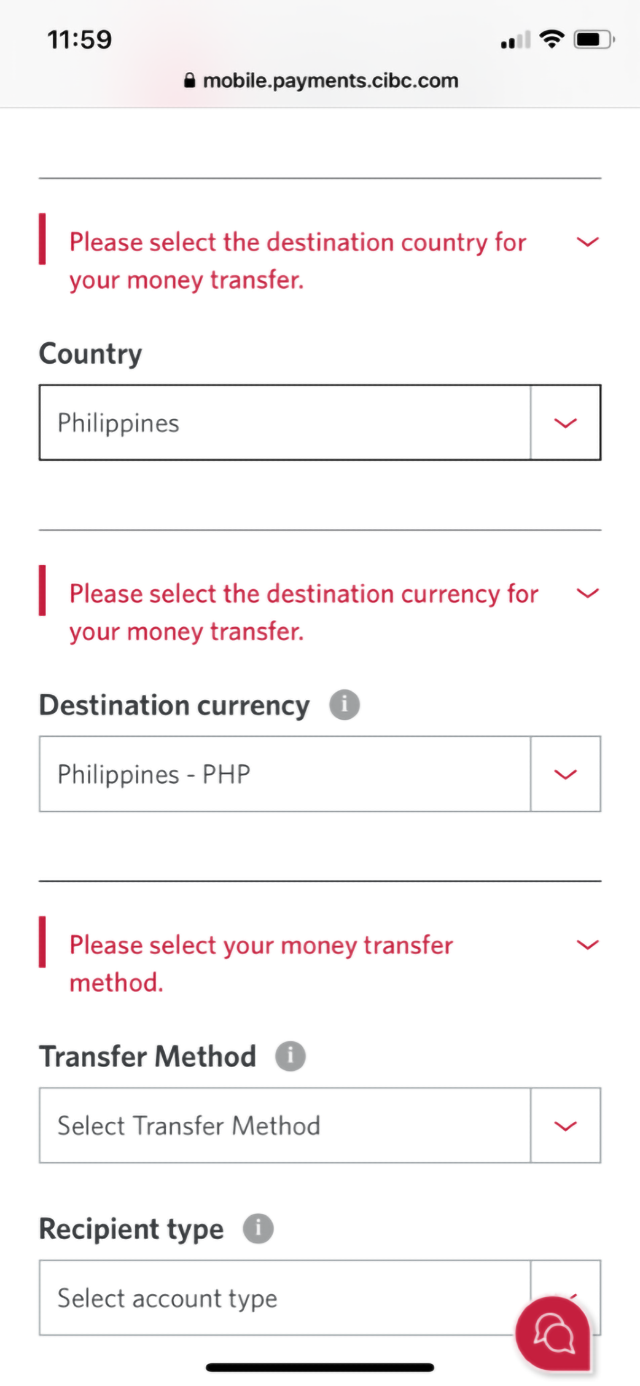
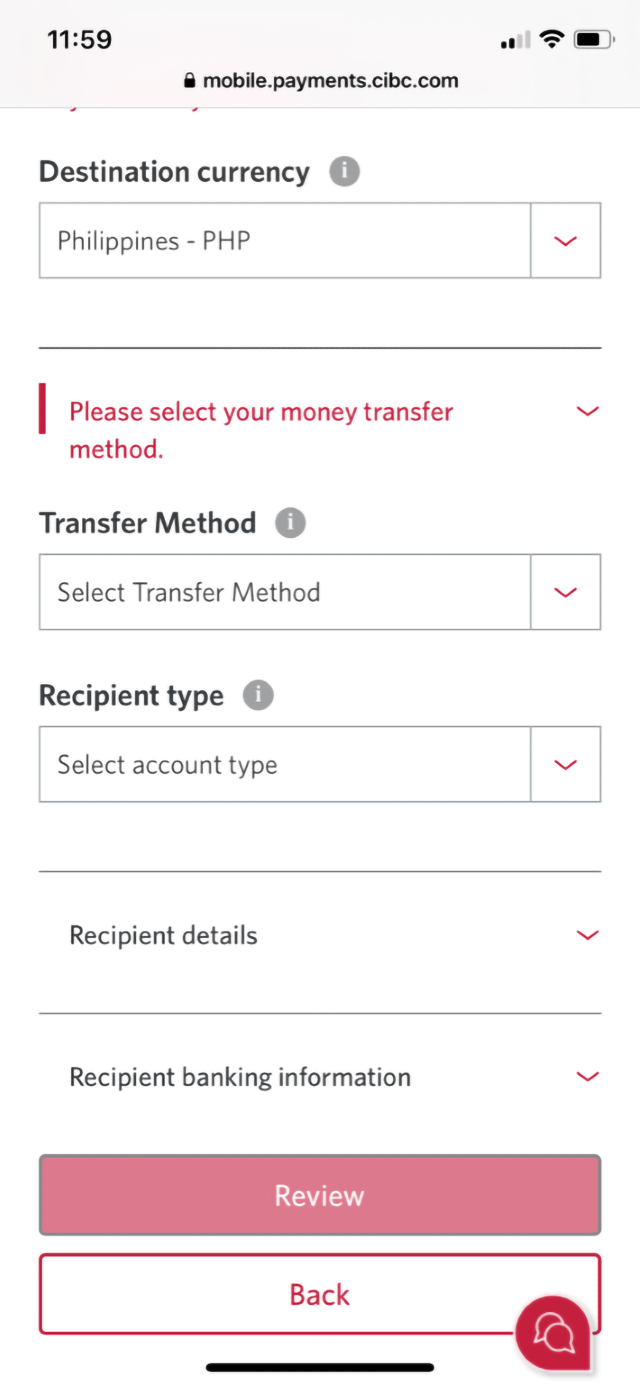
Demo screen 7: CIBC Mobile Banking App. A pulsing animation highlights the "Destination currency" dropdown menu.
Demo screen 8: CIBC Mobile Banking App. A pulsing animation highlights the "Transfer Method" dropdown menu.
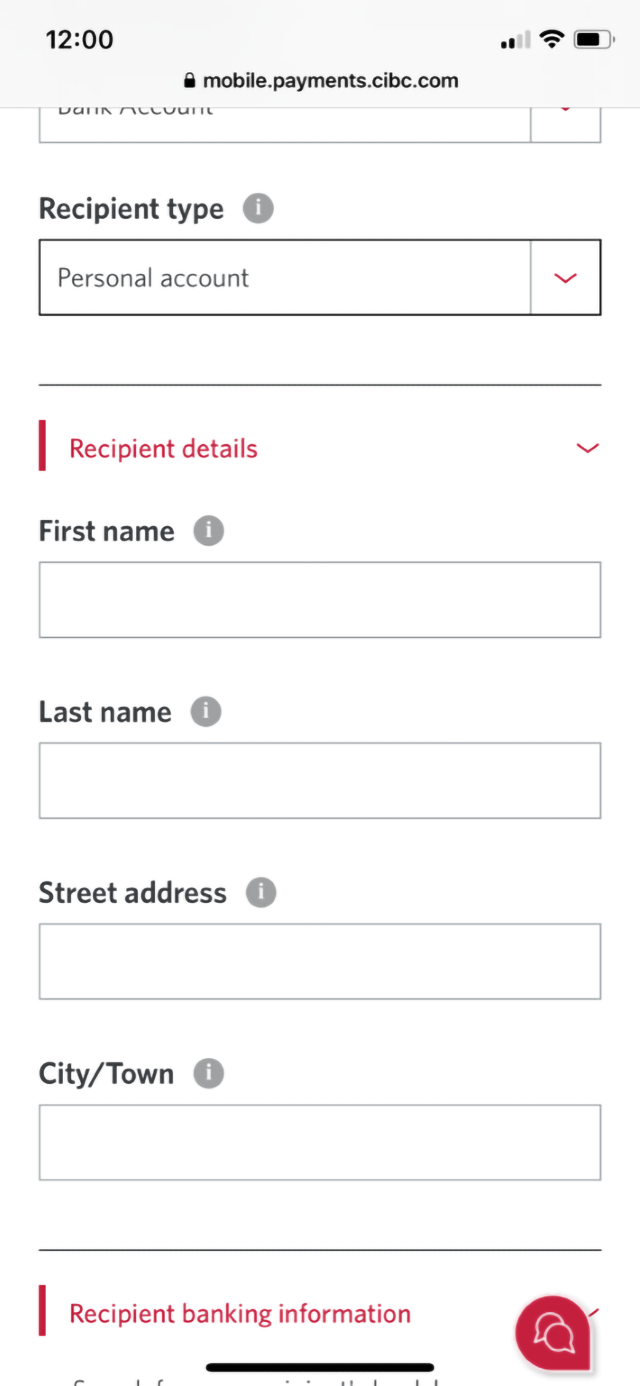
Demo screen 9: CIBC Mobile Banking App. A pulsing animation highlights "Recipient details".
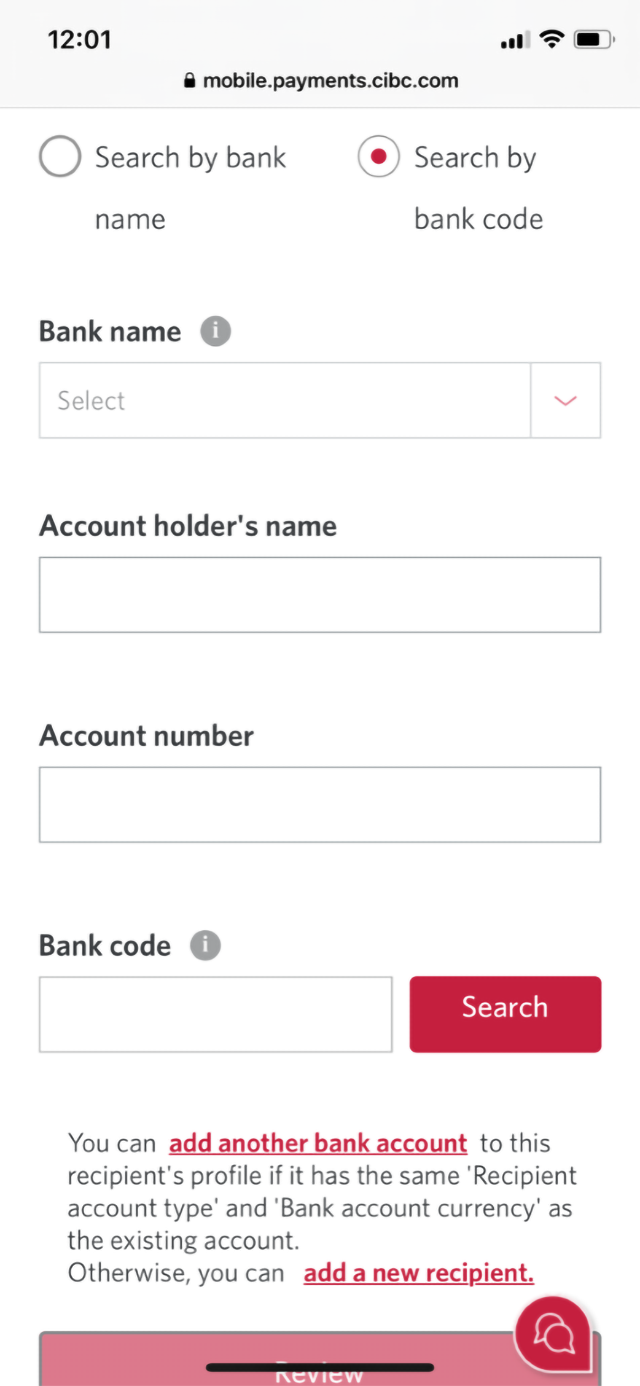
Demo screen 10: CIBC Mobile Banking App. A pulsing animation highlights "Search by bank code".
Demo screen 11: CIBC Mobile Banking App. A pulsing animation highlights the "Search" button.
Demo screen 12: CIBC Mobile Banking App. A pulsing animation highlights the "Bank code" field.
Demo screen 13: CIBC Mobile Banking App. A pulsing animation highlights the "Review" button
Demo screen 14: CIBC Mobile Banking App. A pulsing animation highlights the "Confirm" button
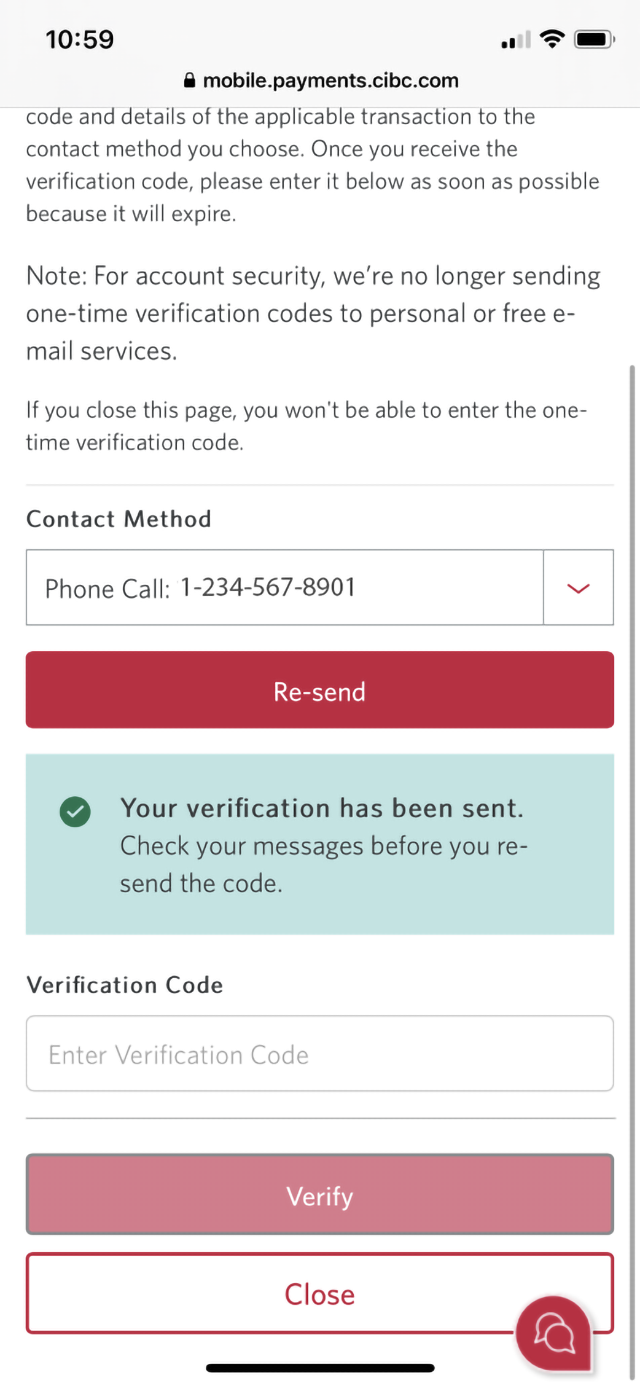
Demo screen 15: CIBC Mobile Banking App. A pulsing animation highlights the "Contact method" dropdown menu.
Demo screen 16: CIBC Mobile Banking App. A pulsing animation highlights the "Verification Code" field.
Demo screen 17: CIBC Mobile Banking App. A pulsing animation highlights the "Send Money" button.
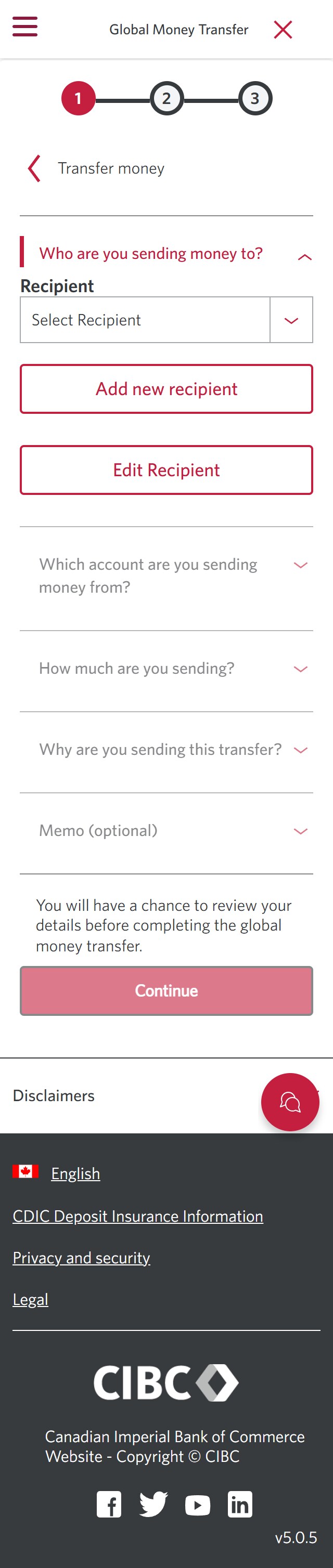
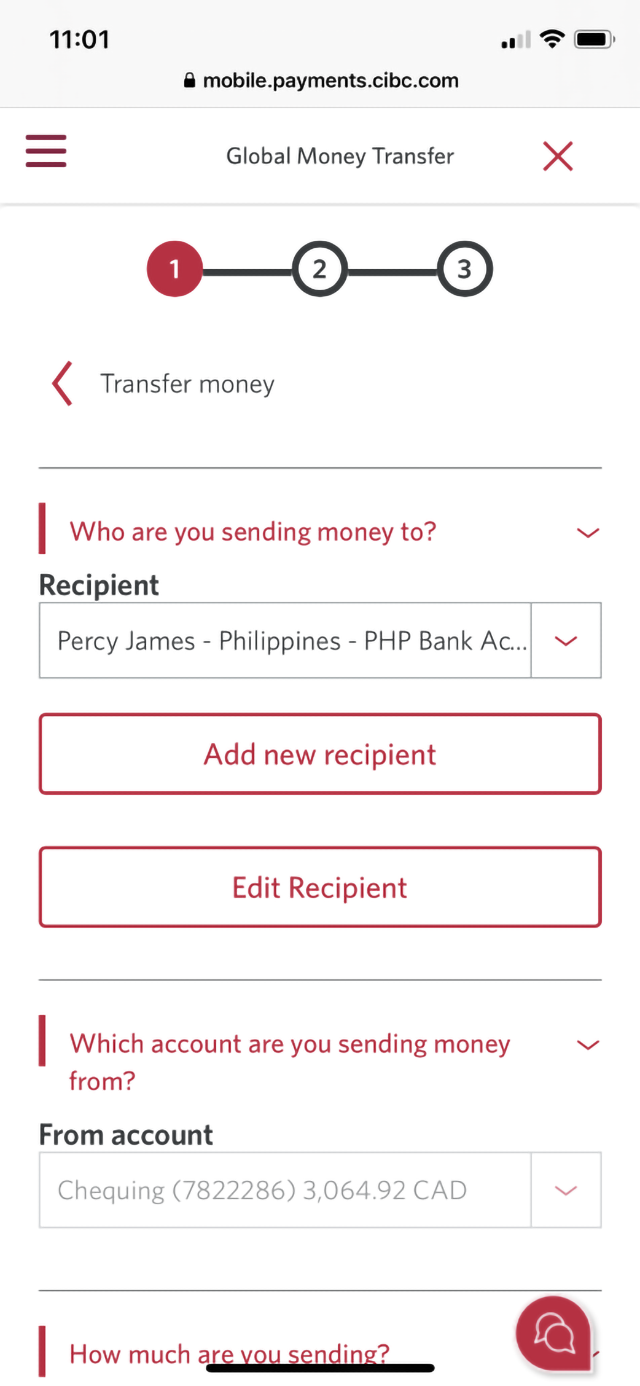
Demo screen 18: CIBC Mobile Banking App global money transfer step 1. A pulsing animation highlights the "From account" dropdown menu.
Demo screen 19: CIBC Mobile Banking App global money transfer step 1. A pulsing animation highlights the "Other" button.
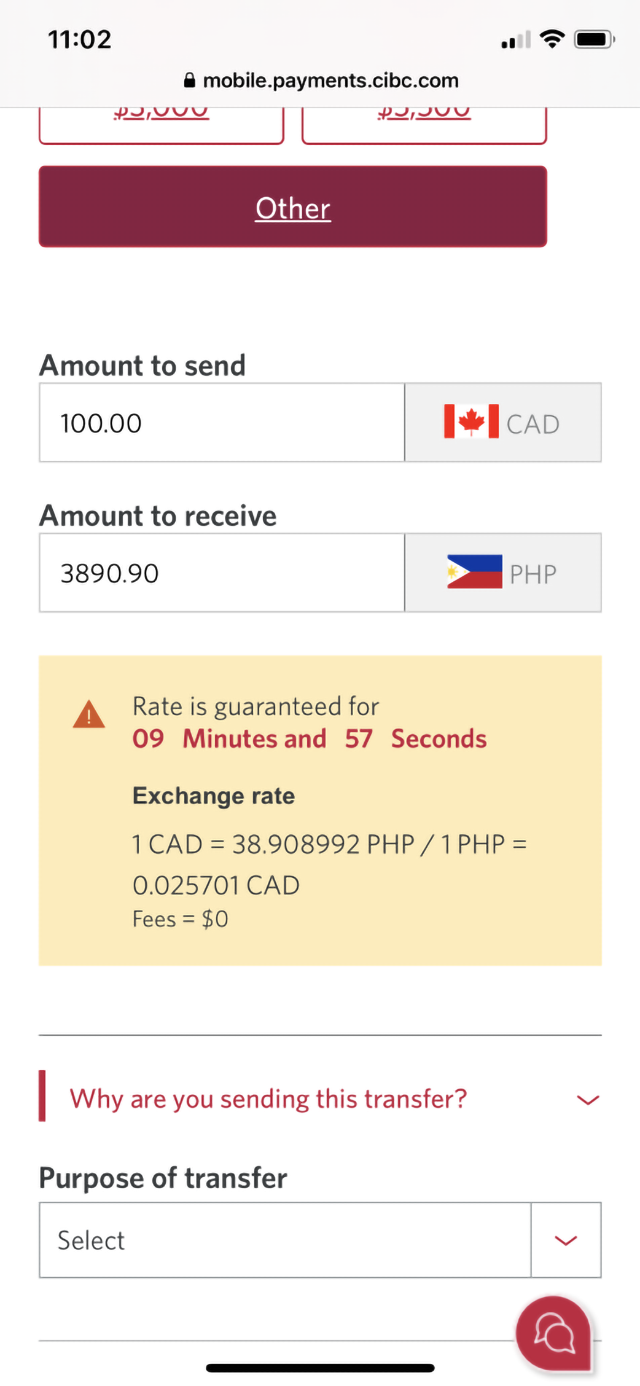
Demo screen 20: CIBC Mobile Banking App global money transfer step 1. A pulsing animation highlights the exchange rate.
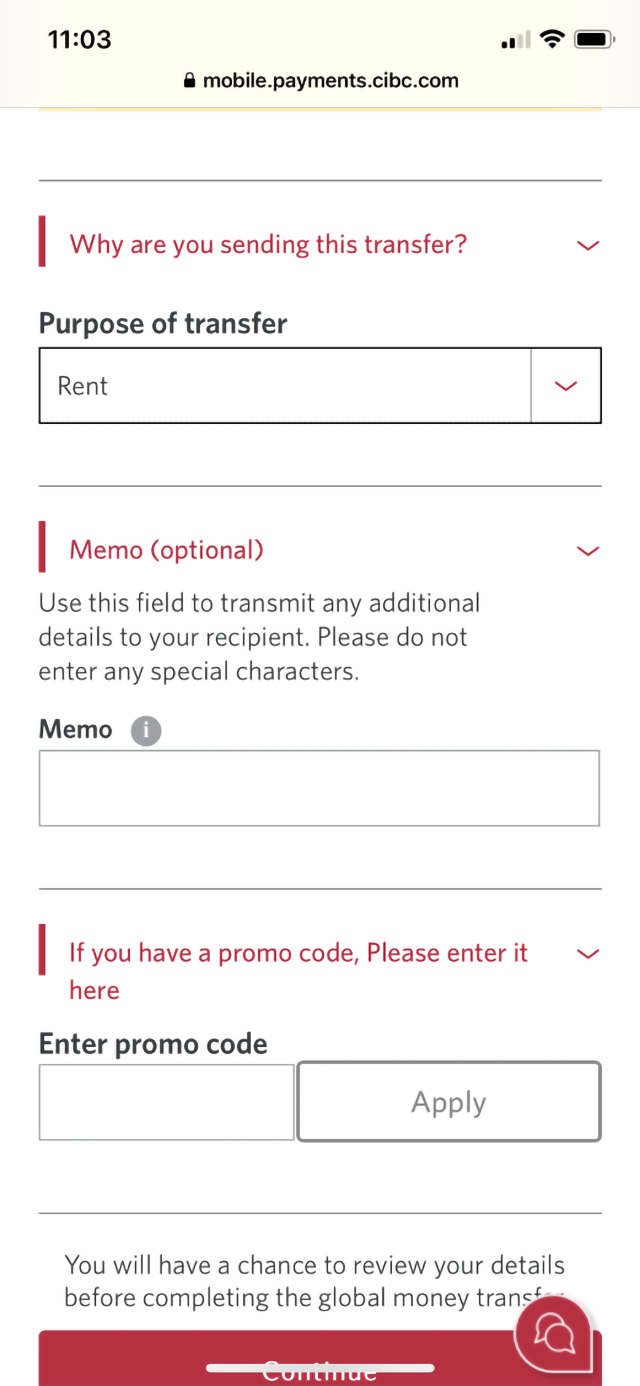
Demo screen 21: CIBC Mobile Banking App global money transfer step 1. A pulsing animation highlights the "Purpose of transfer" dropdown menu.
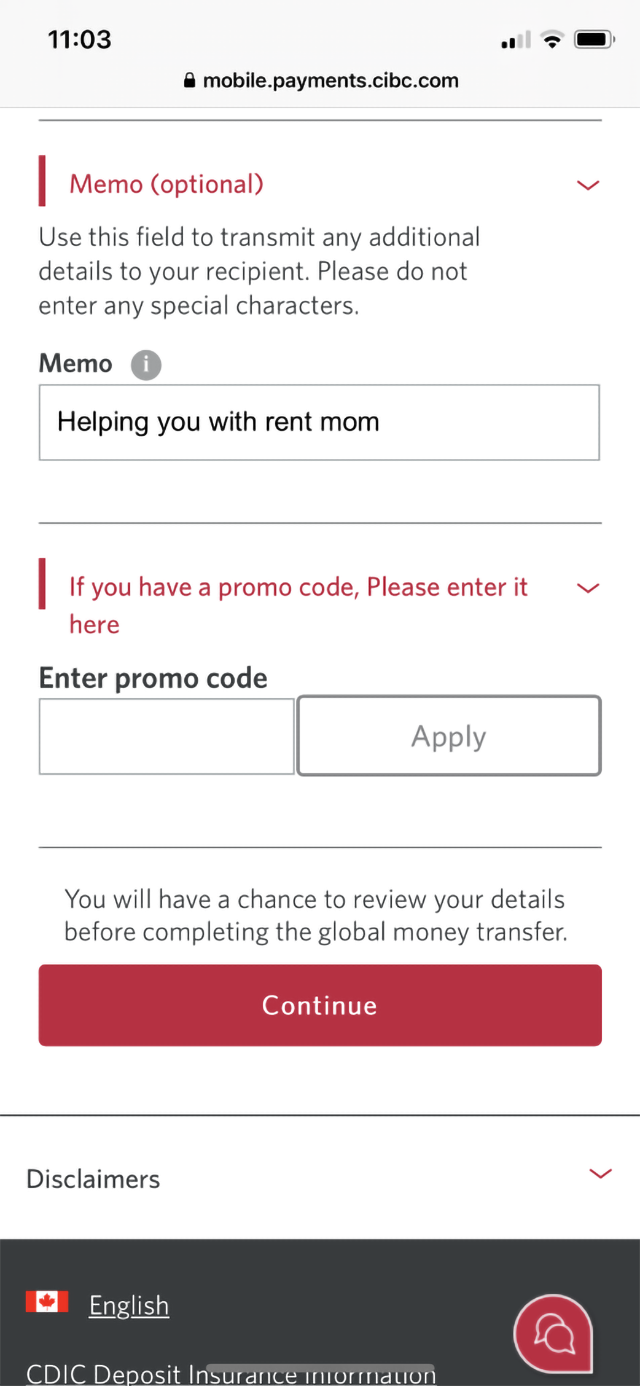
Demo screen 22: CIBC Mobile Banking App global money transfer step 1. A pulsing animation highlights the "Continue" button.
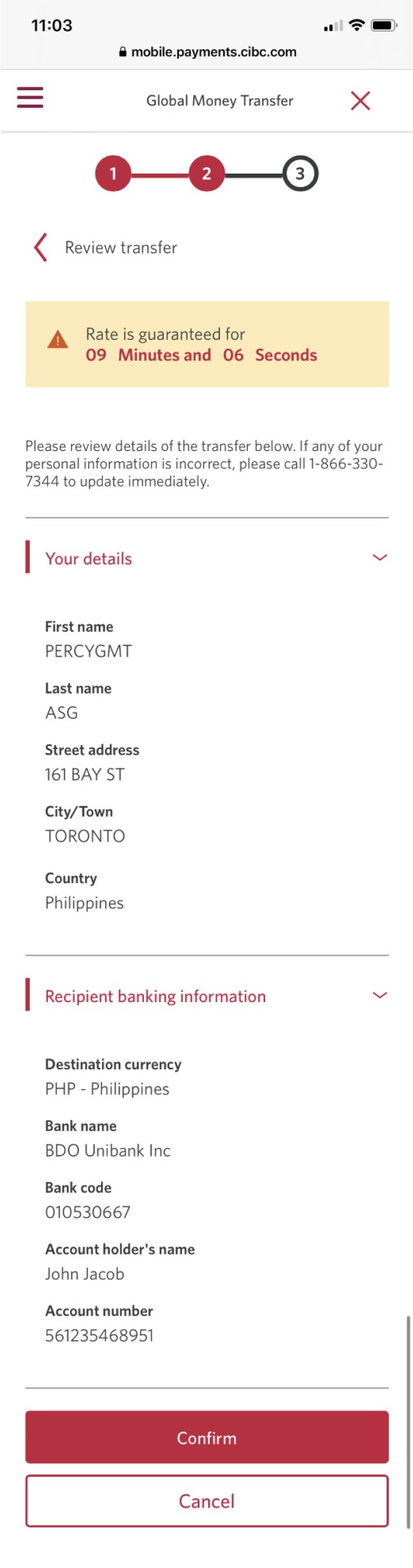
Demo screen 23: CIBC Mobile Banking App global money transfer step 1. A pulsing animation highlights the "Confirm" button.
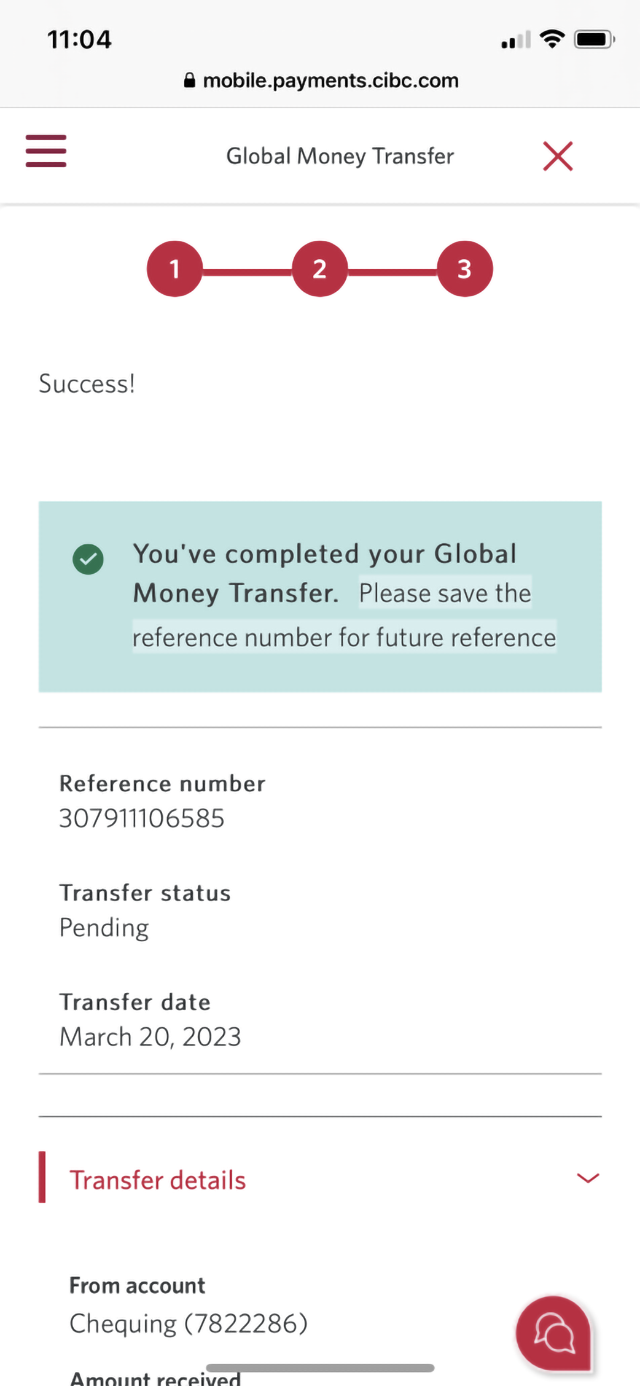
Demo screen 24: CIBC Mobile Banking App global money transfer step 3, confirmation page. No pulsing animation.
Your progress 1 of

Step 1 : Let's get started on the mobile app

Select the "Sign on" button in the demo to continue.

Step 2 : Select "Move money"

On the CIBC mobile app homepage, go to the menu bar and select "Move money".

Step 3 : Select "Global Money Transfer"

Go to the "More Transactions" menu and select "Global Money Transfer".

Step 4 : Select "Send money"

Select the "Send money" button to continue.

Step 5 : Add a new recipient

To send money to a new recipient, select the "Add new recipient" button.

Step 6 : Select the country you're sending money to

From the dropdown menu options, select the destination country for your CIBC Global Money Transfer.

Step 7 : Select the destination currency

Once you've selected a destination country, the currency is automatically populated.

If you wish to change the currency type, use the dropdown menu to select an alternative from the "Destination currency" options.

Step 8 : Select your money transfer method

Go to the "Transfer Method" dropdown menu and select an option for how you want the money to be sent. For this demo, we selected "Bank Account" deposit.

Next, use the "Recipient type" dropdown menu to make a selection. In this demo, we selected "Personal account".

Step 9 : Enter the recipient's details

Use the form provided and enter the recipient's name, street address and city or town.

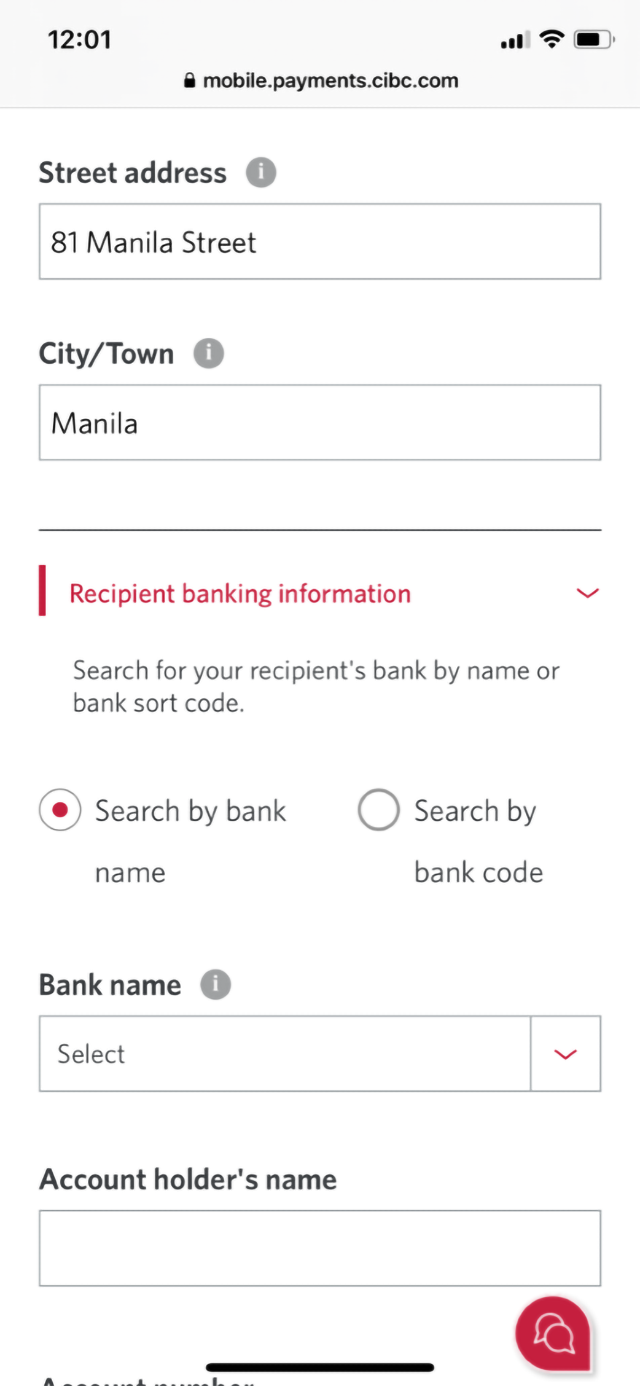
Step 10 : Search for the recipient's bank information

To find the recipient's bank details, you can search either by a bank name or bank code

For this demo, we'll be searching by bank code. Select "Search by bank code" to continue.

Step 11 : Enter the bank code

Use the field provided and enter your recipient's bank code.

Once you've entered the code, select the "Search" button.

Step 12 : Enter the remaining account details

After you've searched by bank code, the bank name will be populated in the form.

Complete the form by entering the remaining details, including the account holder's name and the account number.

Step 13 : Select "Review"

After you've finished entering the account details, select the "Review" button to continue.

Step 14 : Review the recipient's details

Review the details of the recipient you'll be sending money to.

Once you've confirmed the details are correct, select the "Confirm" button.

Step 15 : Verify your identity

For your security, you'll be sent a one-time verification code to confirm your identity.

Use the dropdown menu to choose a contact method and select "Send code".

Step 16 : Enter your one-time verification code

Depending on your chosen contact method, you'll receive either a phone call or a text message with the one-time verification code.

Once you've received the code, enter it and select the "Verify" button.

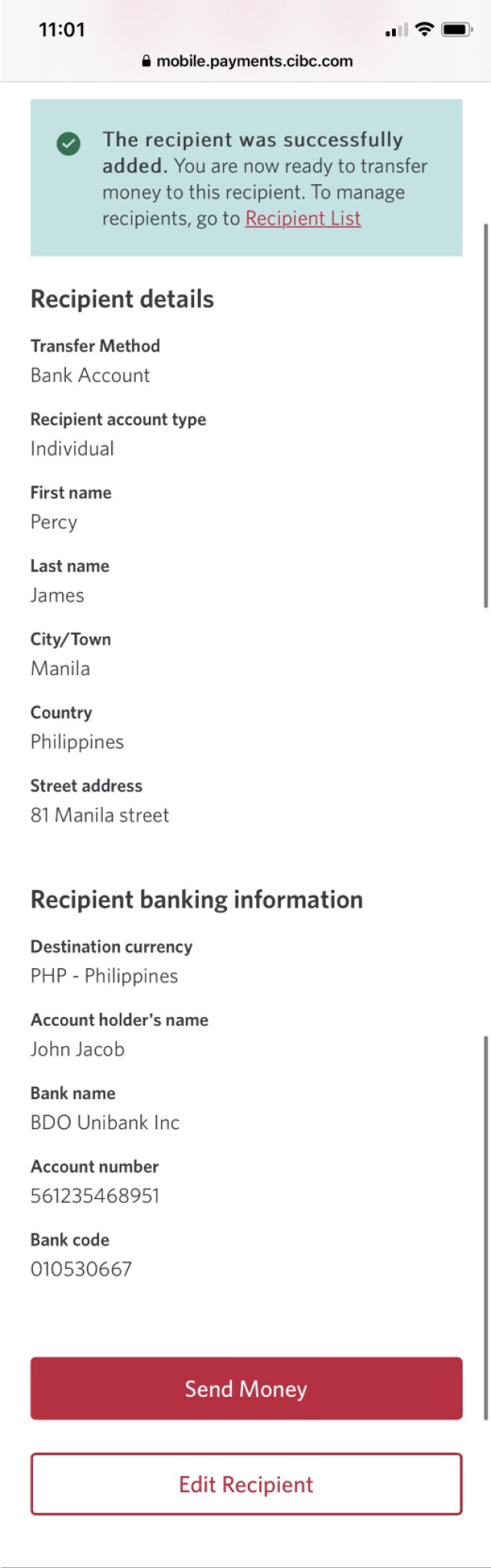
Step 17 : Send money

An on-screen message will indicate that the recipient was successfully added. You can now send a CIBC Global Money Transfer.

Select the "Send Money" button to continue.

Step 18 : Select an account to send money from

The recipient will be automatically populated. Use the dropdown menu and select an account you want to send the recipient money from.

If you need to change the recipient's details, select "Edit recipient".

Step 19 : Enter the amount of your transfer

Choose the amount of money you want to send, either from the quick amount options or by selecting the "Other" button.

Step 20 : Review the exchange rate

After you've selected the amount of your transfer, the exchange rate information will be detailed on-screen.

Step 21 : Complete the form

Enter the remaining details of your transfer, including:

  • Purpose of transfer
  • Memo (optional)
  • Promo code (if available)

Step 22 : Select "Continue"

Once you've finished entering the details of your transfer, select the "Continue" button.

Step 23 : Review your transfer

Review the details of your CIBC Global Money Transfer and select the "Confirm" button to continue.

Step 24 : Great job!

You've successfully completed a CIBC Global Money Transfer on the CIBC Mobile Banking App.

Want an overview of all the steps?

For full instructions on how to how to send a CIBC Global Money Transfer, check out the step-by-step process all in one place.

Recommended digital banking demos

How to order foreign currency

Start demo on how to order foreign currency.

How to transfer money between accounts

Start demo on how to transfer money between accounts.

How to send an Interac e-Transfer® payment

Start demo on how to send an Interac e-Transfer® payment.

How to use the CIBC Mobile Banking App

Start demo on how to use the CIBC Mobile Banking.

Get started

CIBC Online Banking®

Discover digital banking features that can help you bank easily online.
CIBC Mobile Banking® App

Stay connected to your finances on your mobile device, no matter where you are.