
Digital banking tutorials

How to order foreign currency
Learn how to order foreign currency using CIBC Online Banking® or the CIBC Mobile Banking App® to save time and make vacation planning easy.
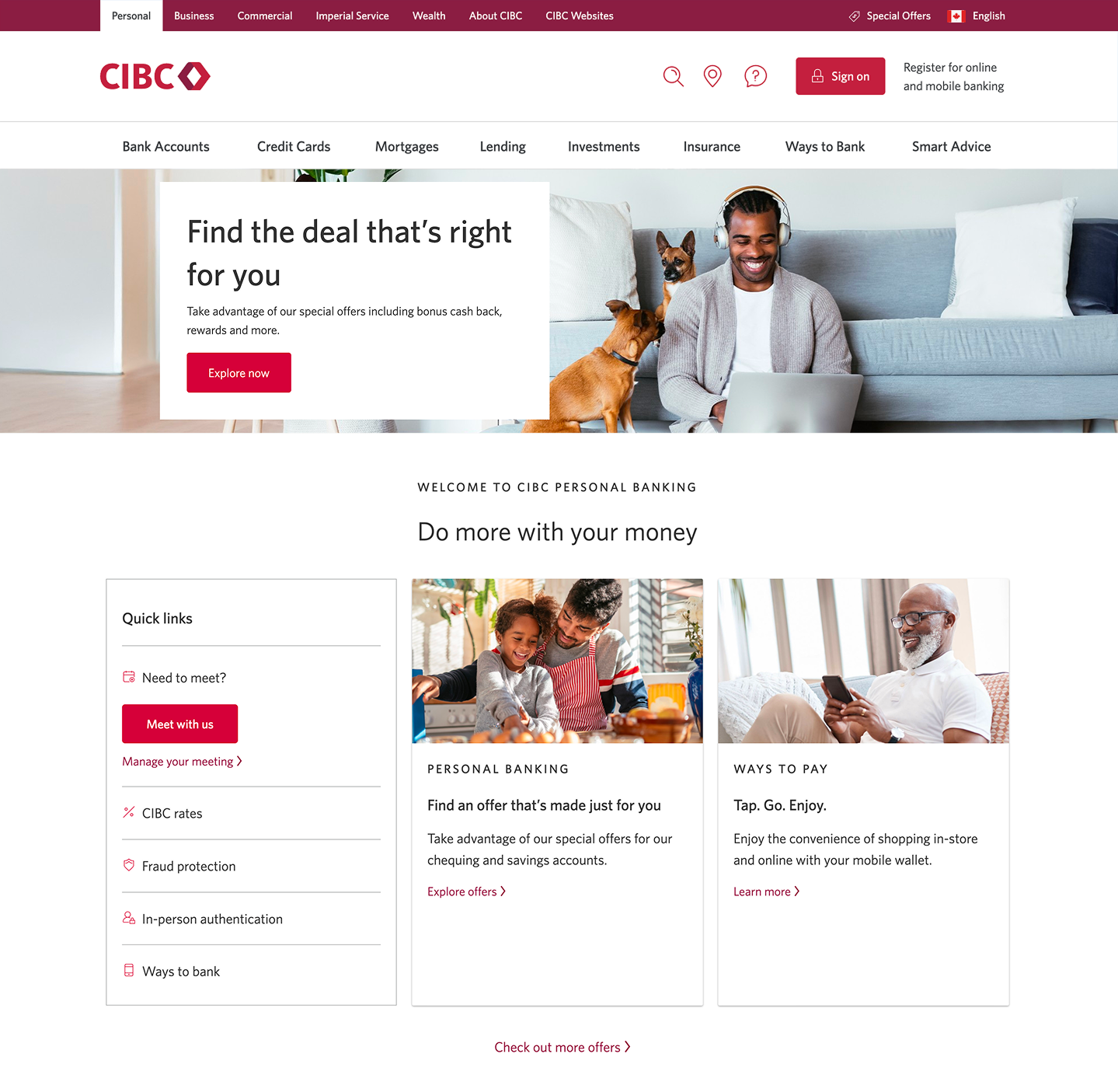
Demo screen 1: CIBC homepage. A pulsing animation highlights the "Sign on" button.
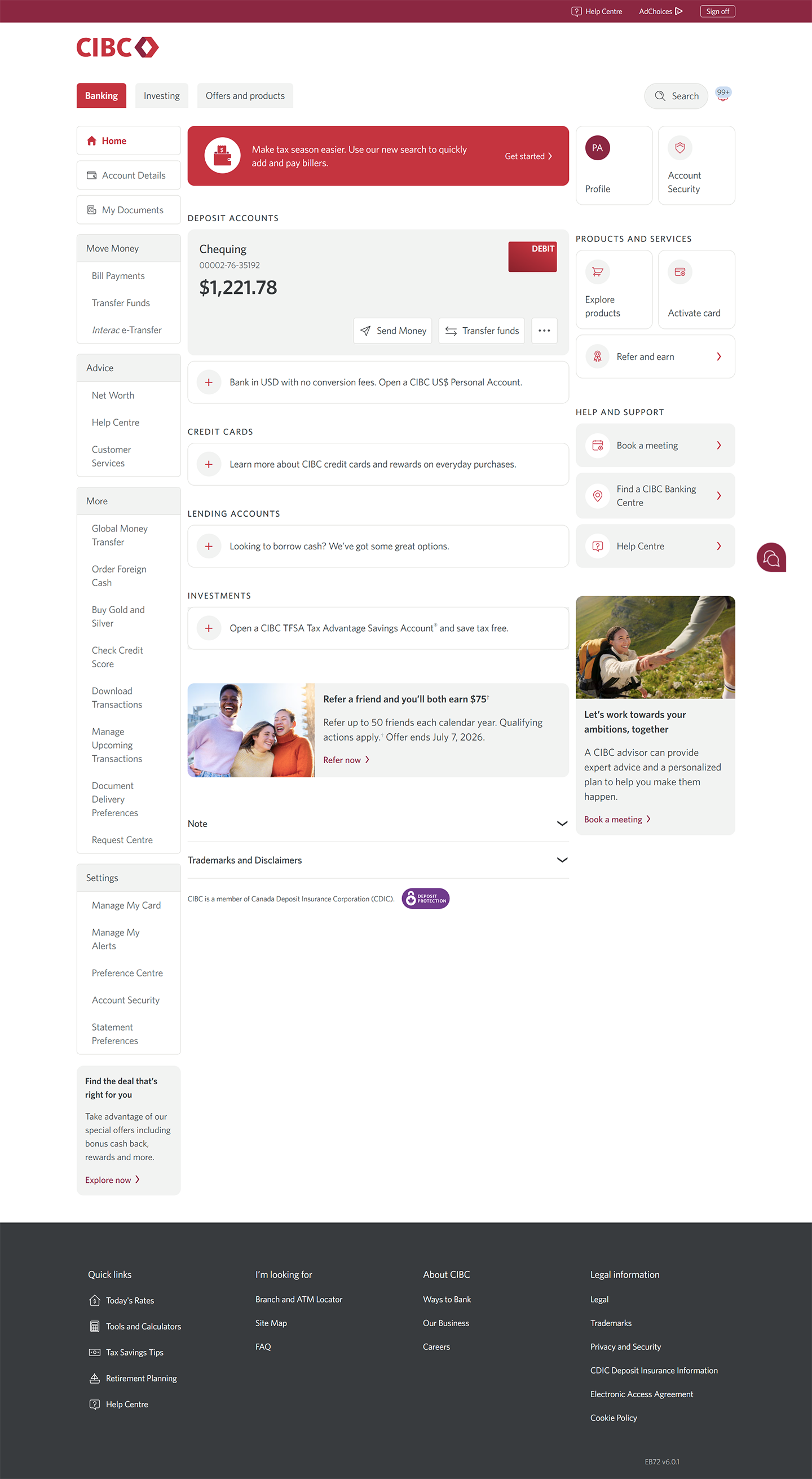
Demo screen 2: CIBC Online Banking homepage. A pulsing animation highlights the "Order Foreign Cash" link.
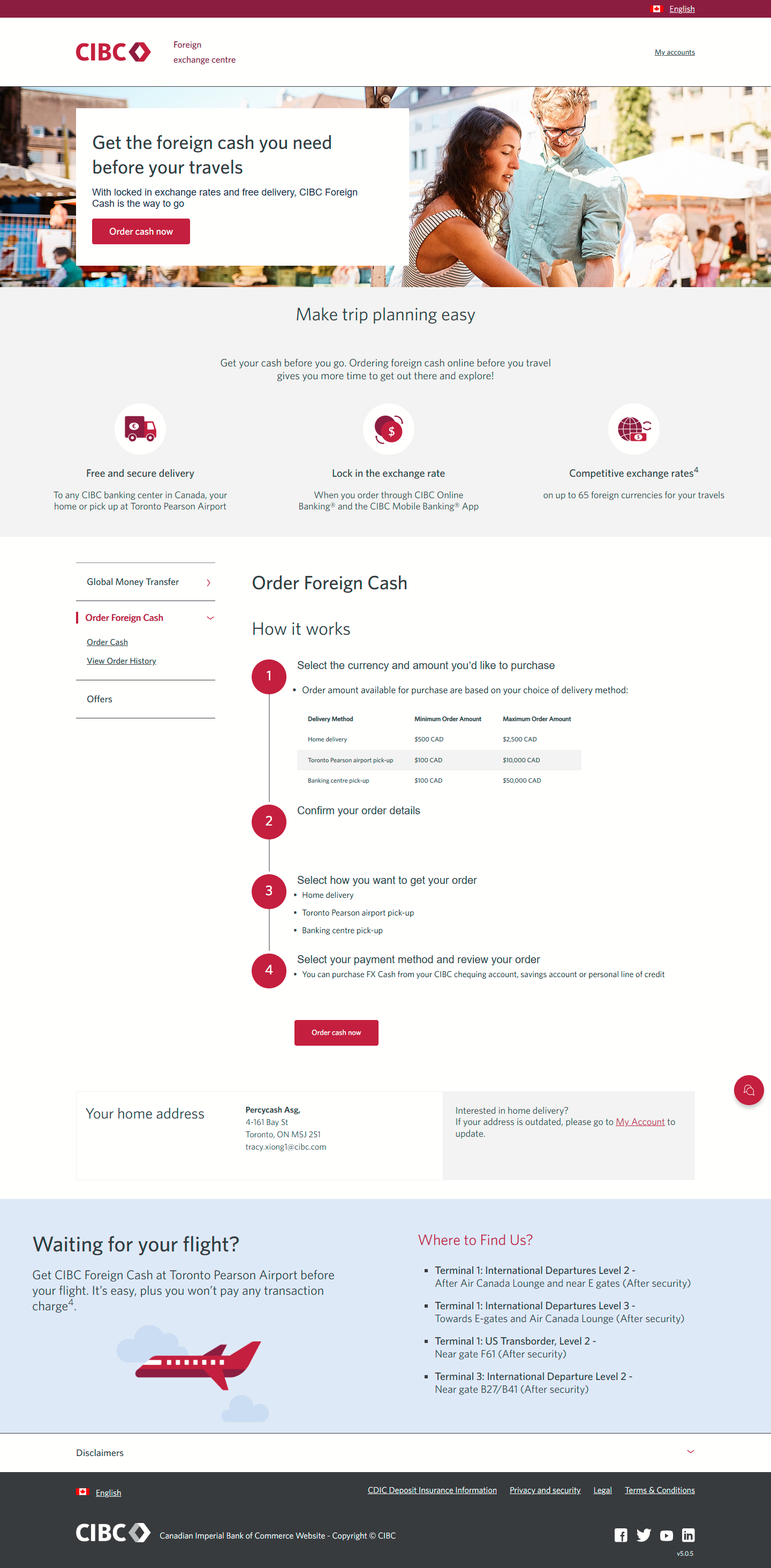
Demo screen 3: CIBC Foreign exchange centre homepage. A pulsing animation highlights the "Order cash now" button.
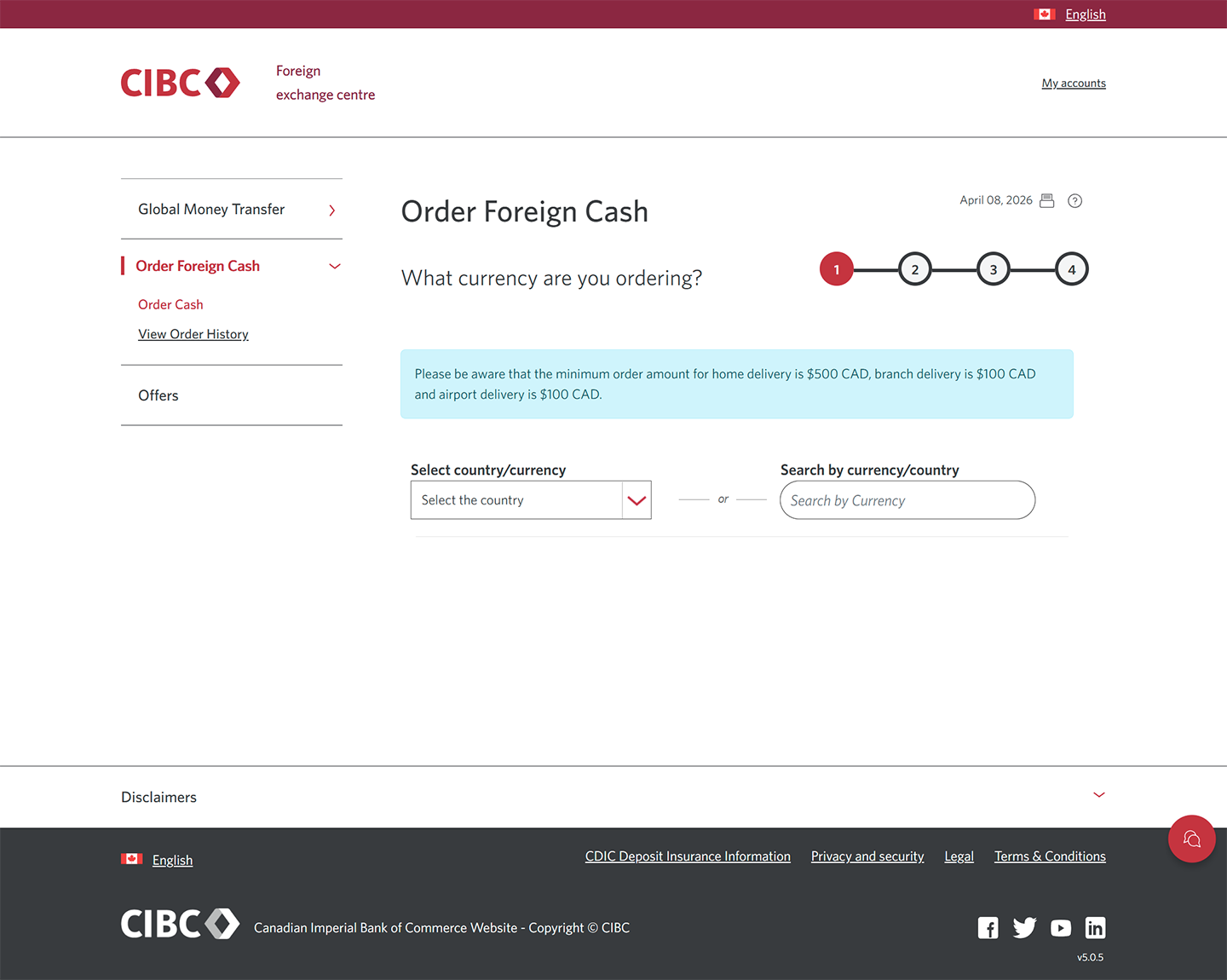
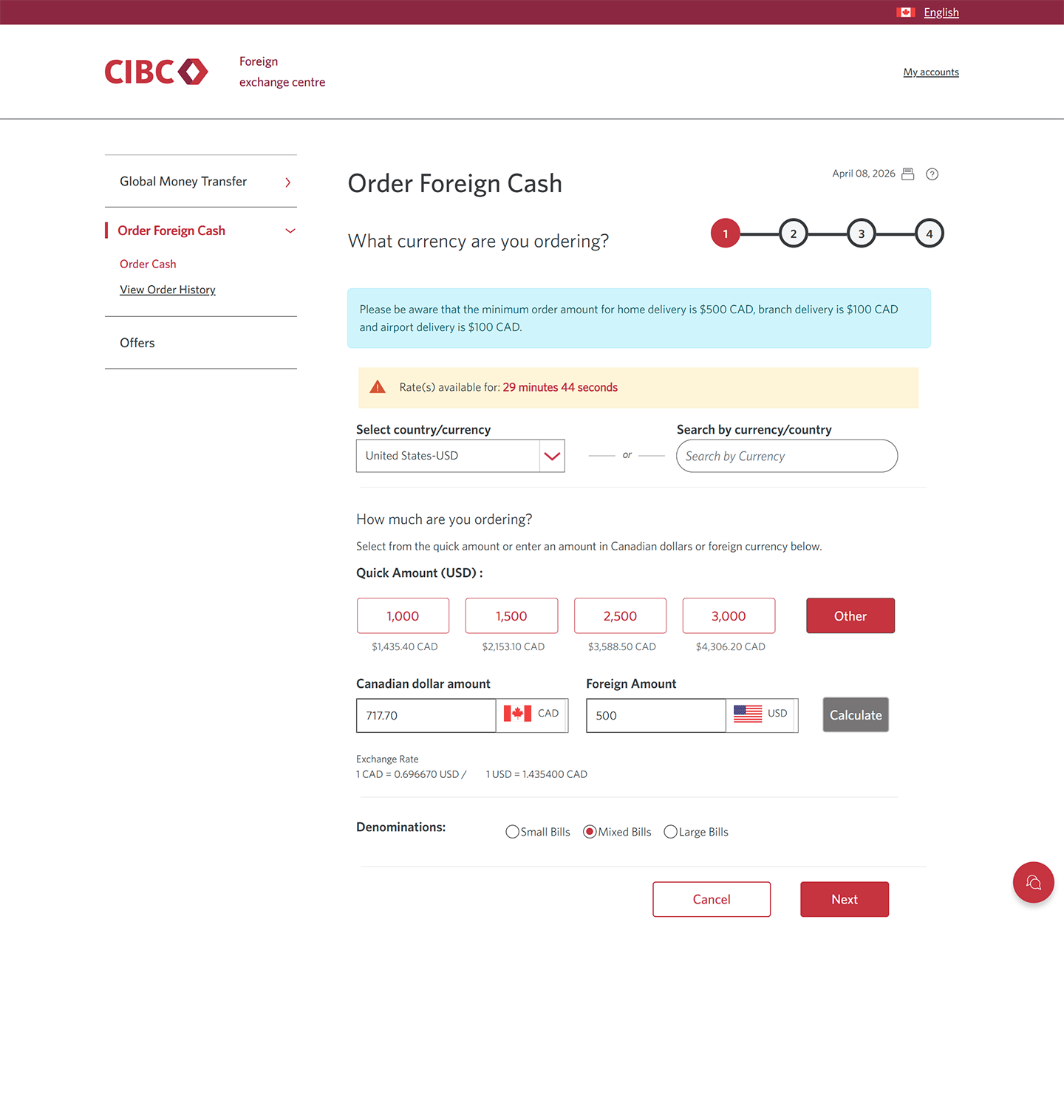
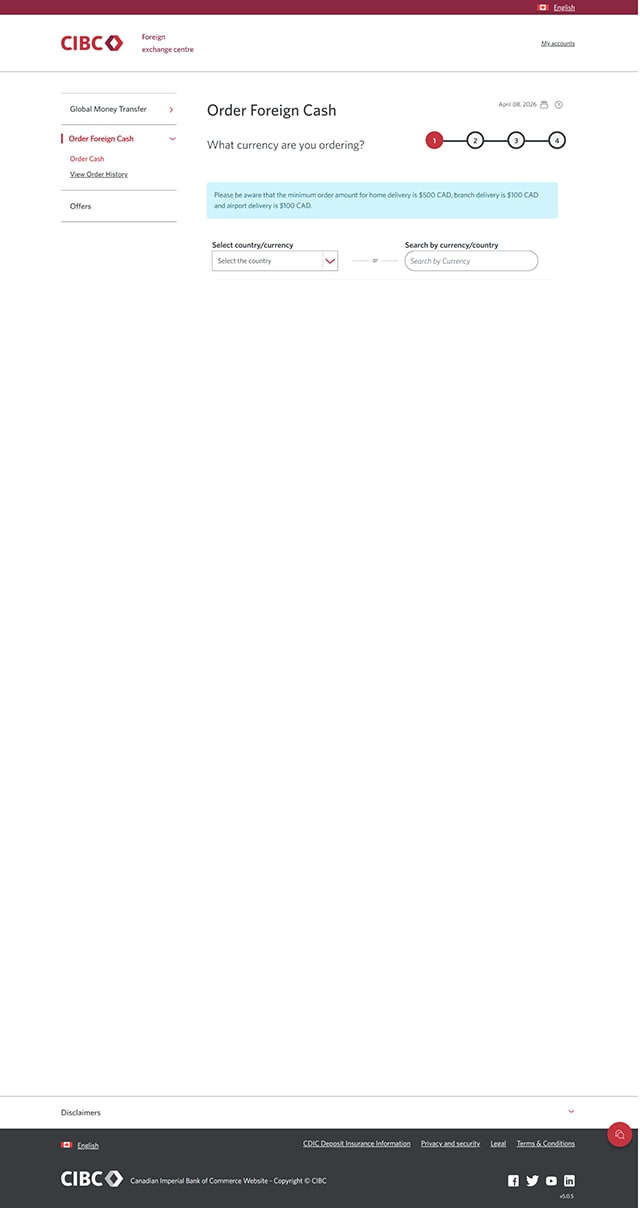
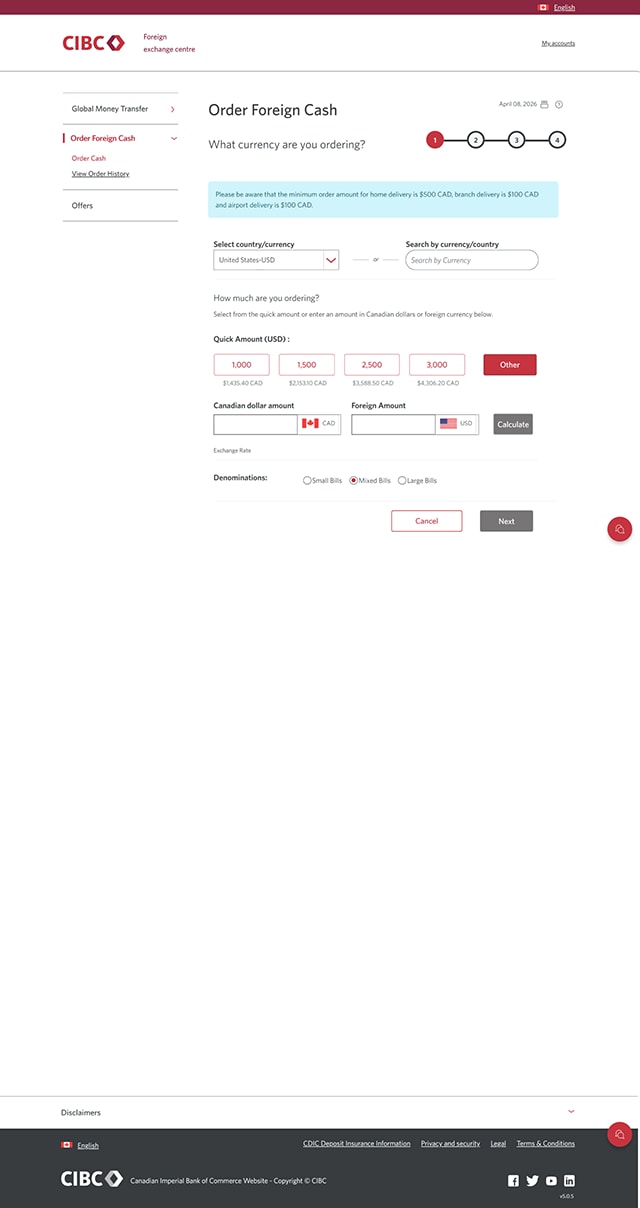
Demo screen 4: CIBC Foreign exchange centre order page. A pulsing animation highlights the "Select country/currency" combo box.
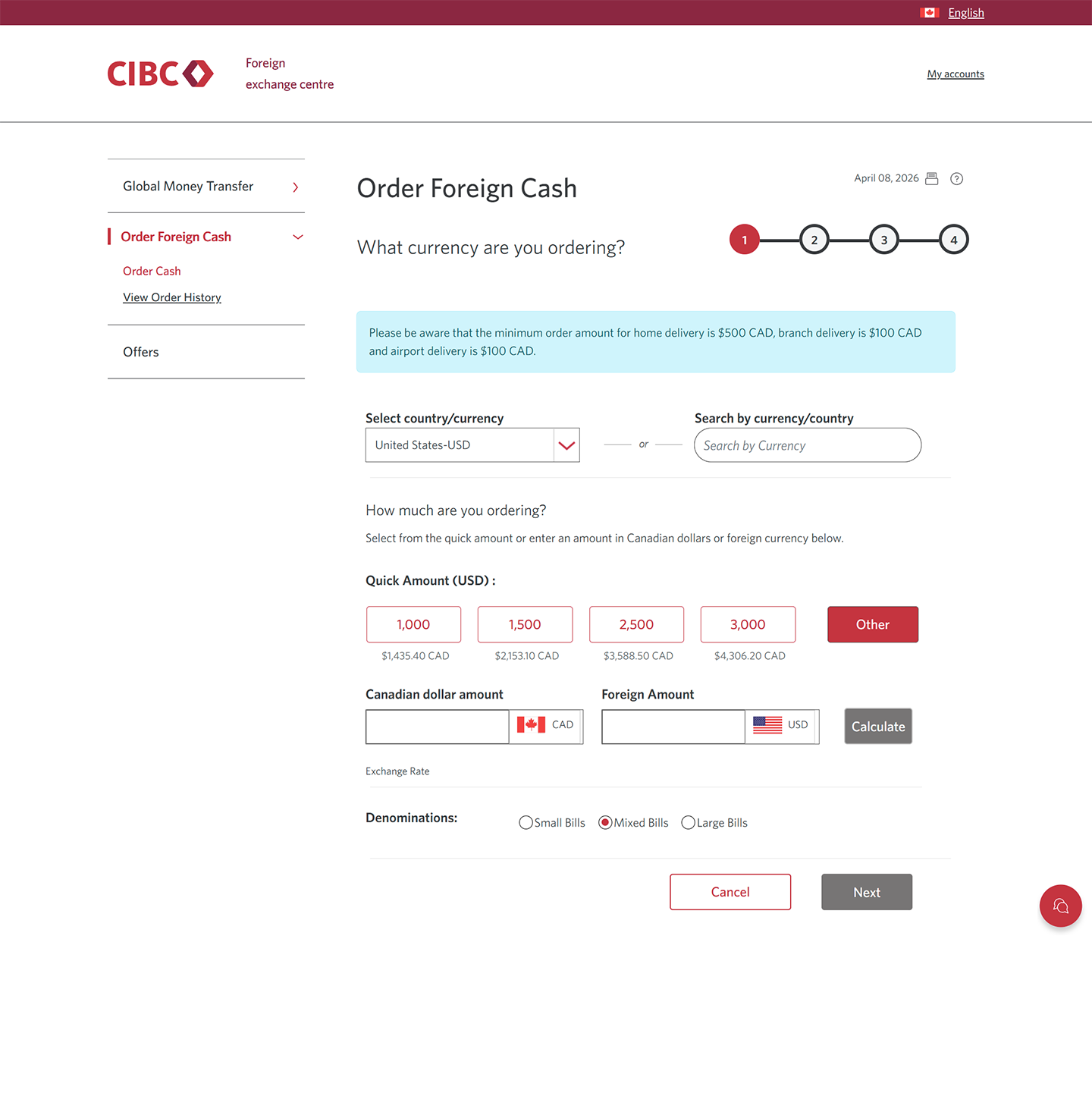
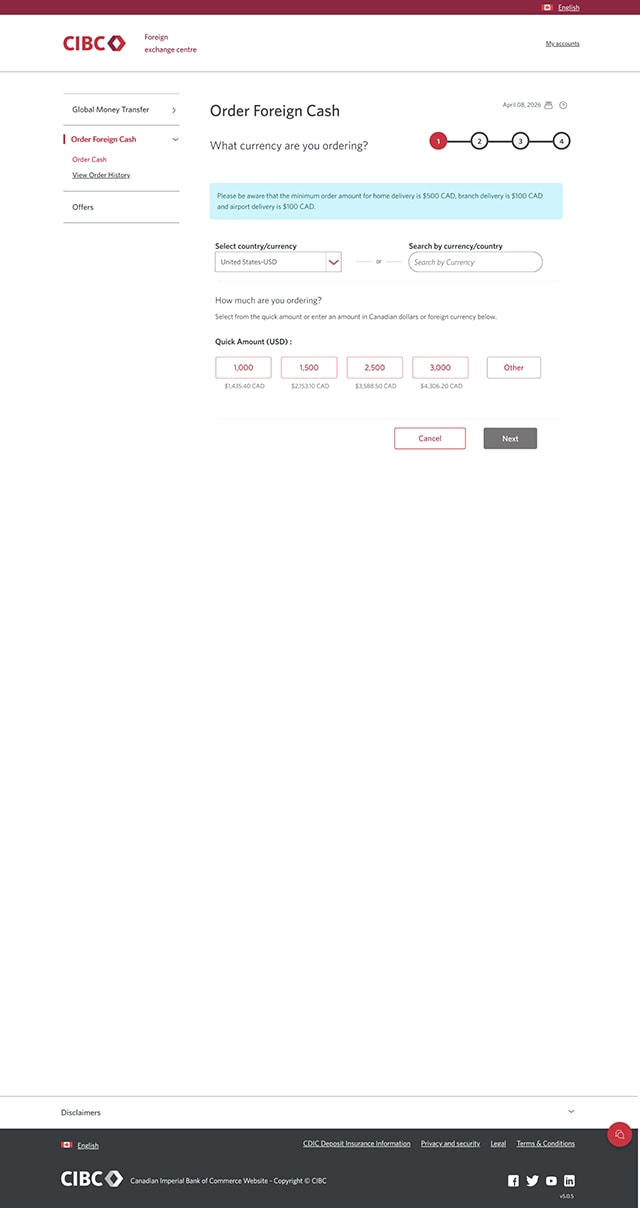
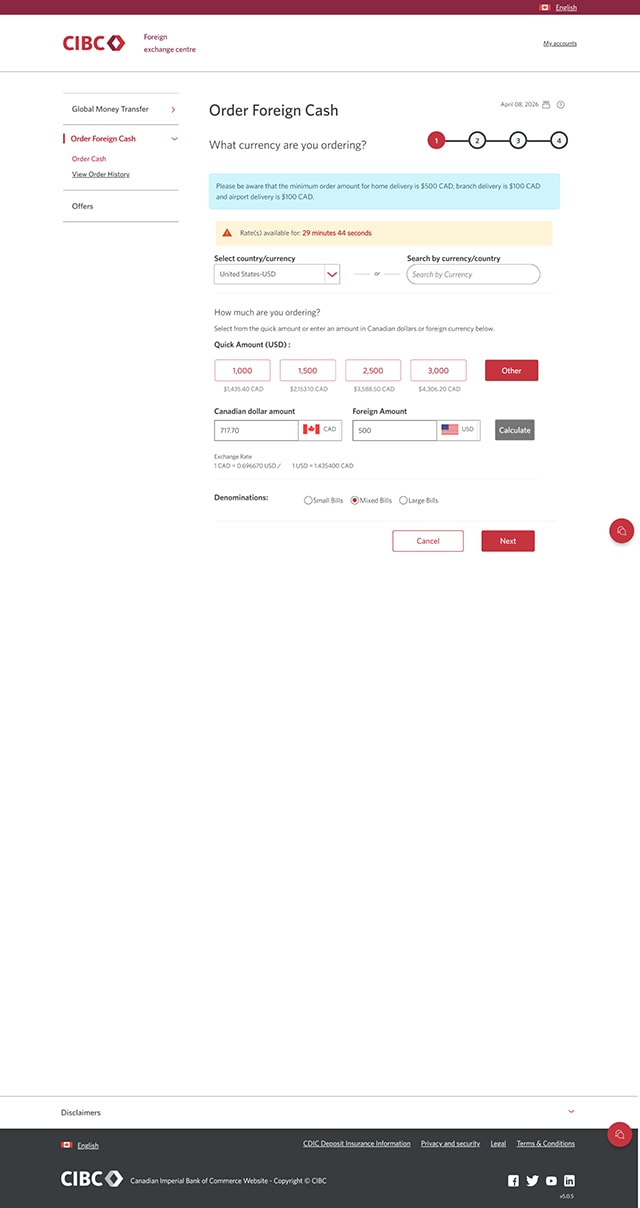
Demo screen 5: CIBC Foreign exchange centre order page. A pulsing animation highlights the "Other" button.
Demo screen 6: CIBC Foreign exchange centre order page. A pulsing animation highlights the "Mixed bills" radio button.
Demo screen 7: CIBC Foreign exchange centre order page. A pulsing animation highlights the "Next" button.
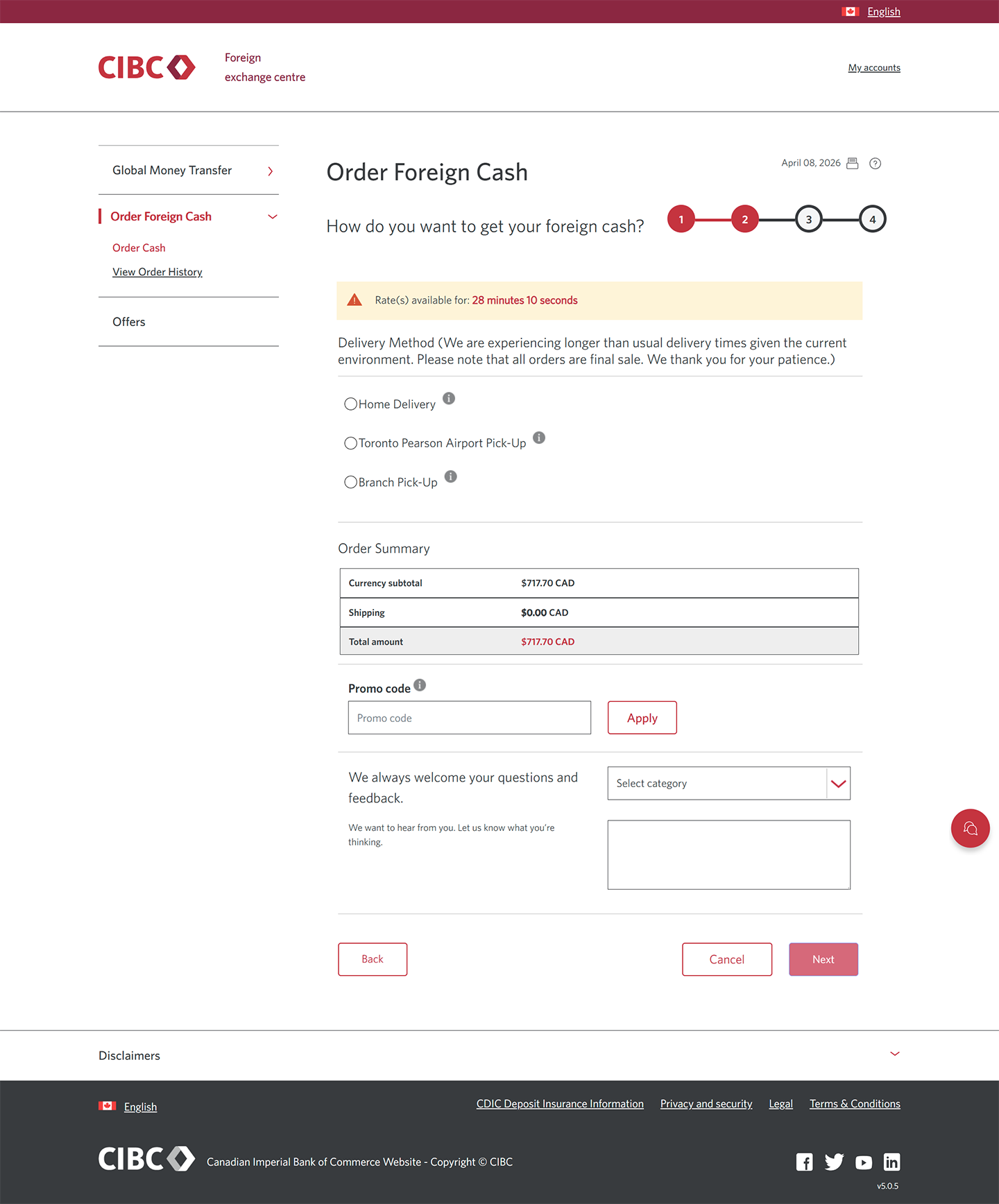
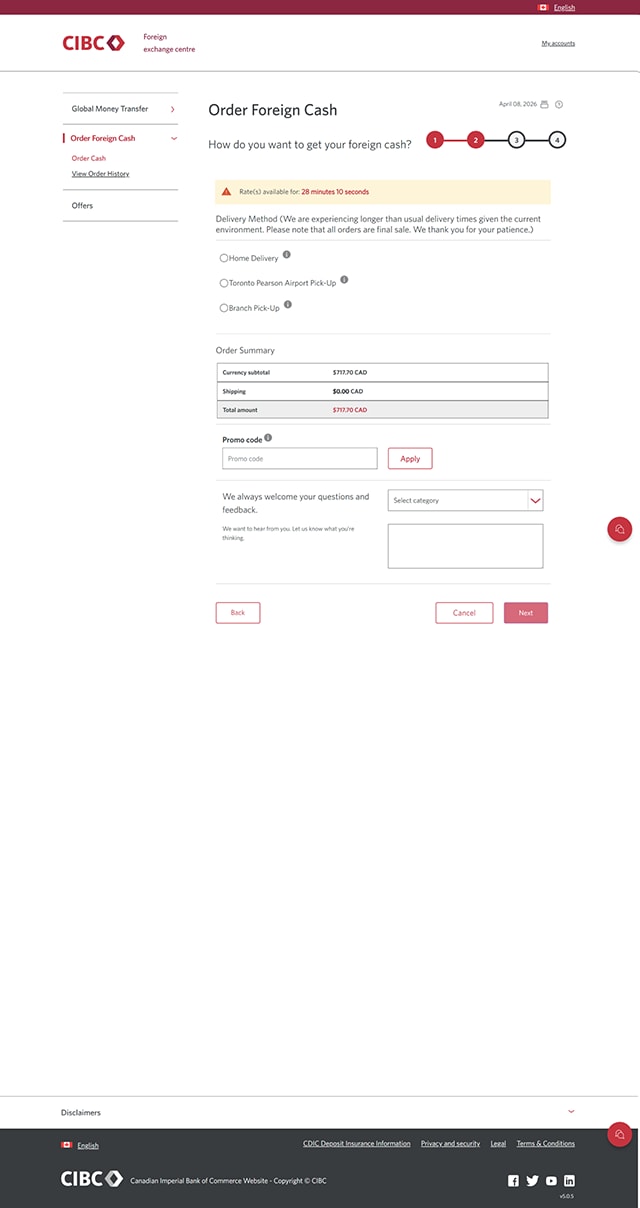
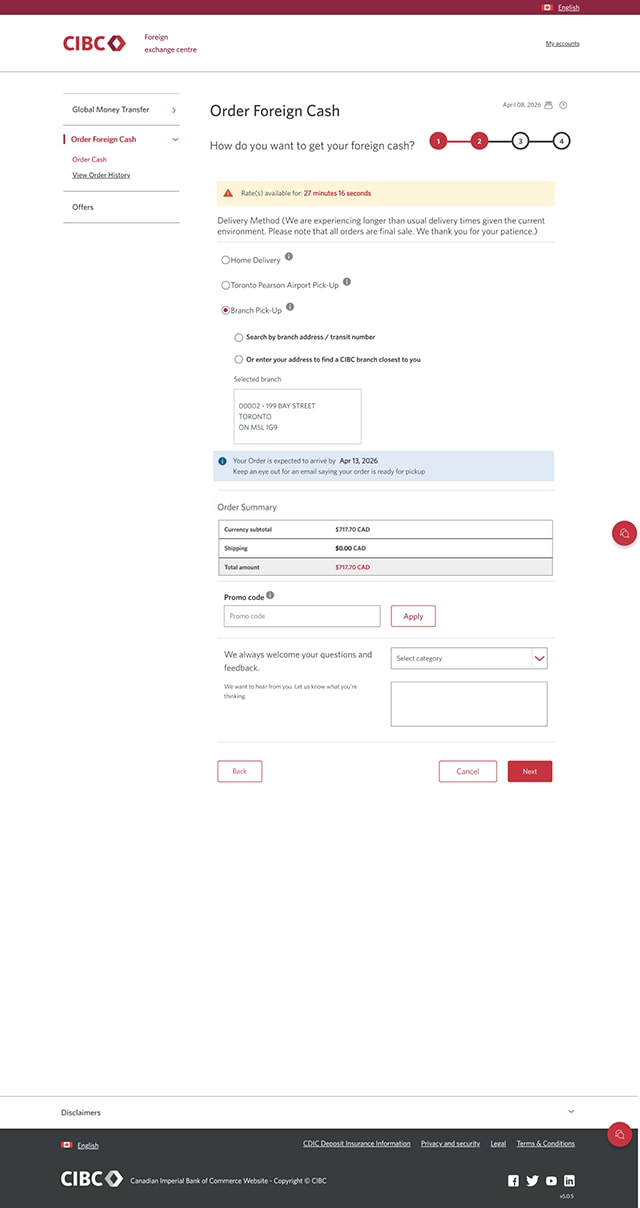
Demo screen 8: CIBC foreign exchange centre order page. A pulsing animation highlights the "Branch Pick-Up" radio button.
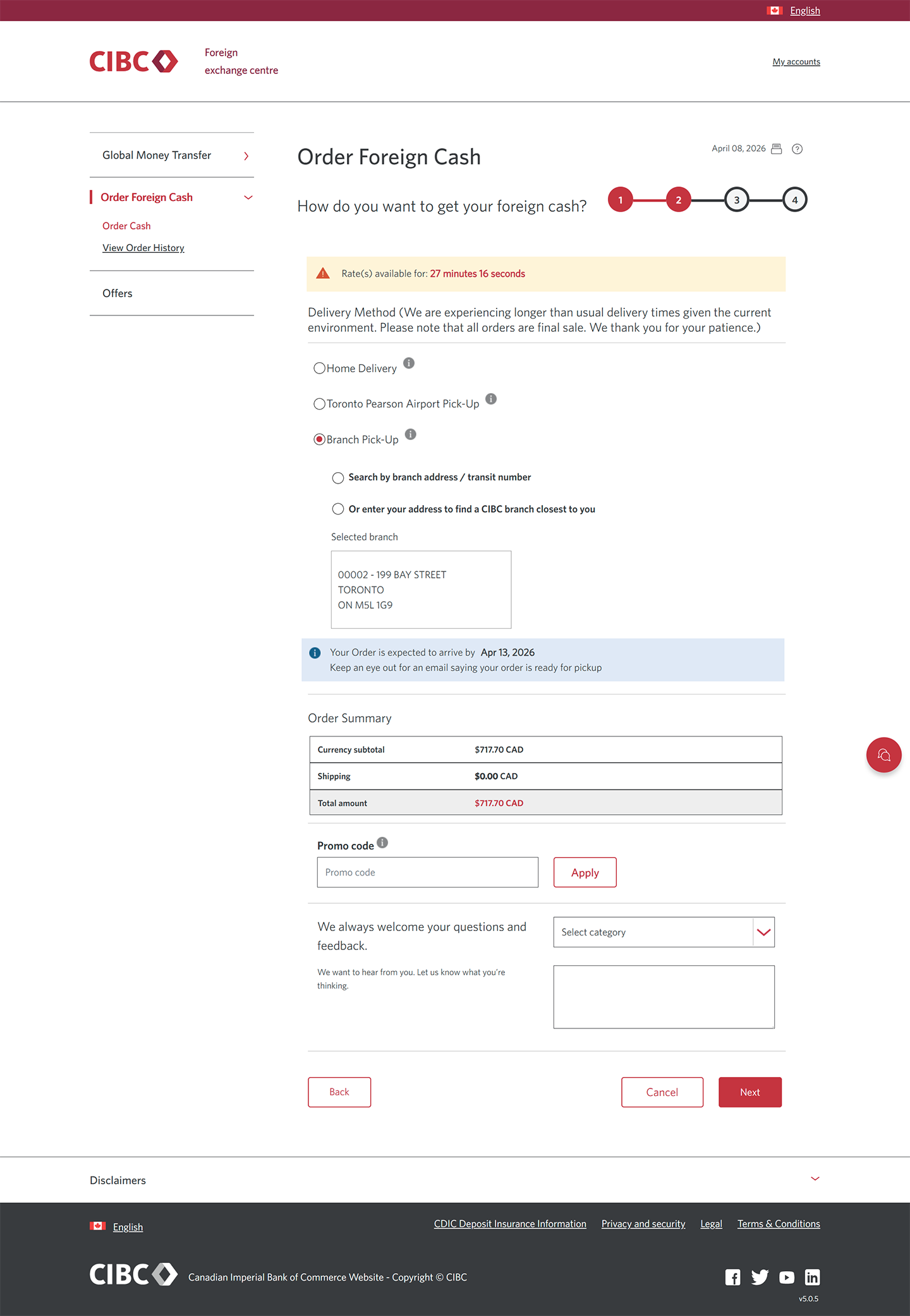
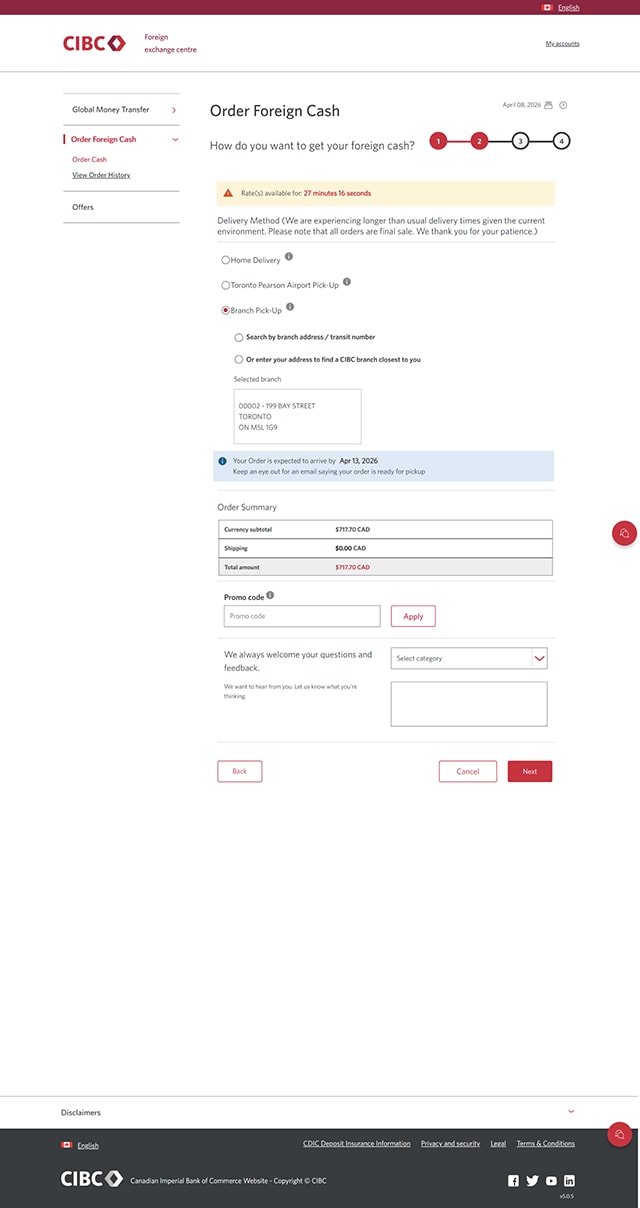
Demo screen 9: CIBC Foreign exchange centre order page. A pulsing animation highlights "Or enter your address to find a CIBC branch closest to you" radio button.
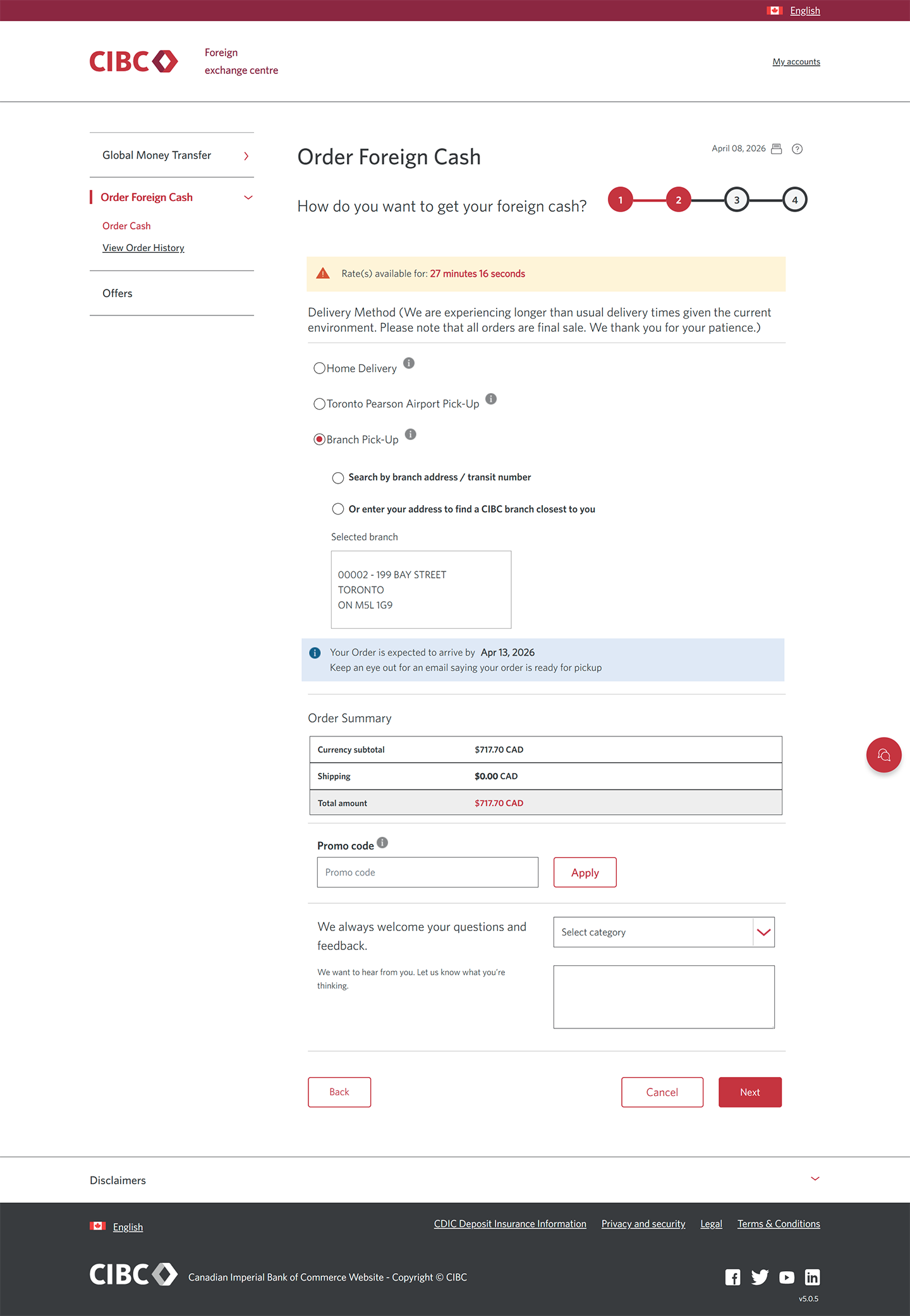
Demo screen 10: CIBC Foreign exchange centre order page. A pulsing animation highlights the "Next" button.
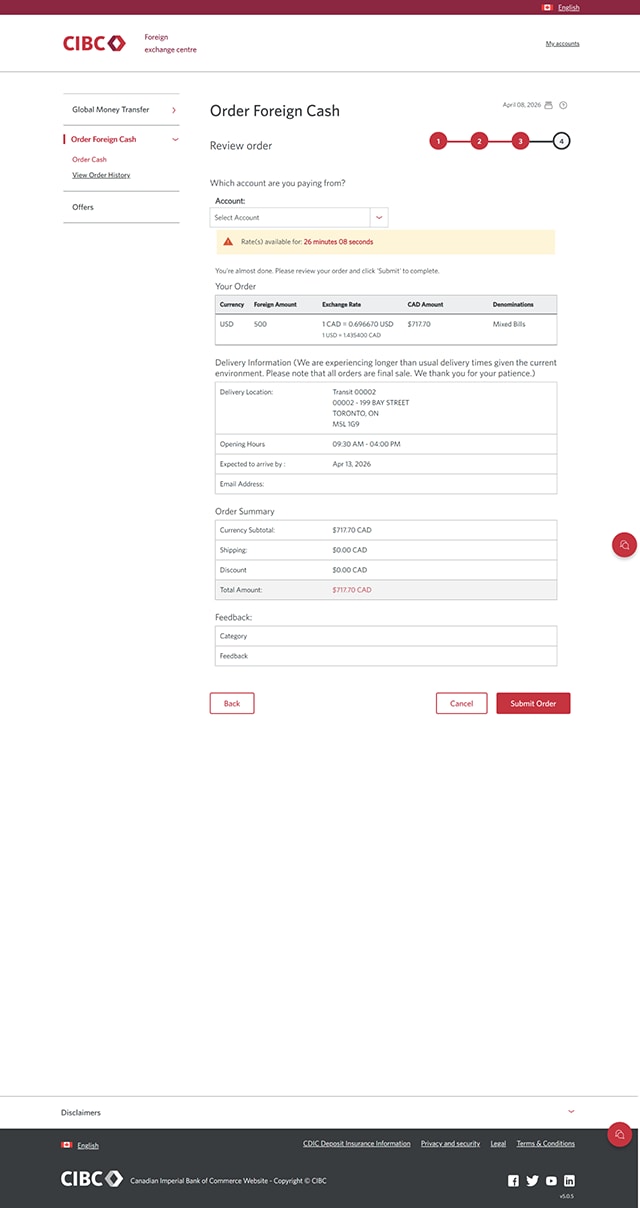
Demo screen 11: CIBC Foreign exchange centre order page. A pulsing animation highlights the "Select Account" dropdown menu.
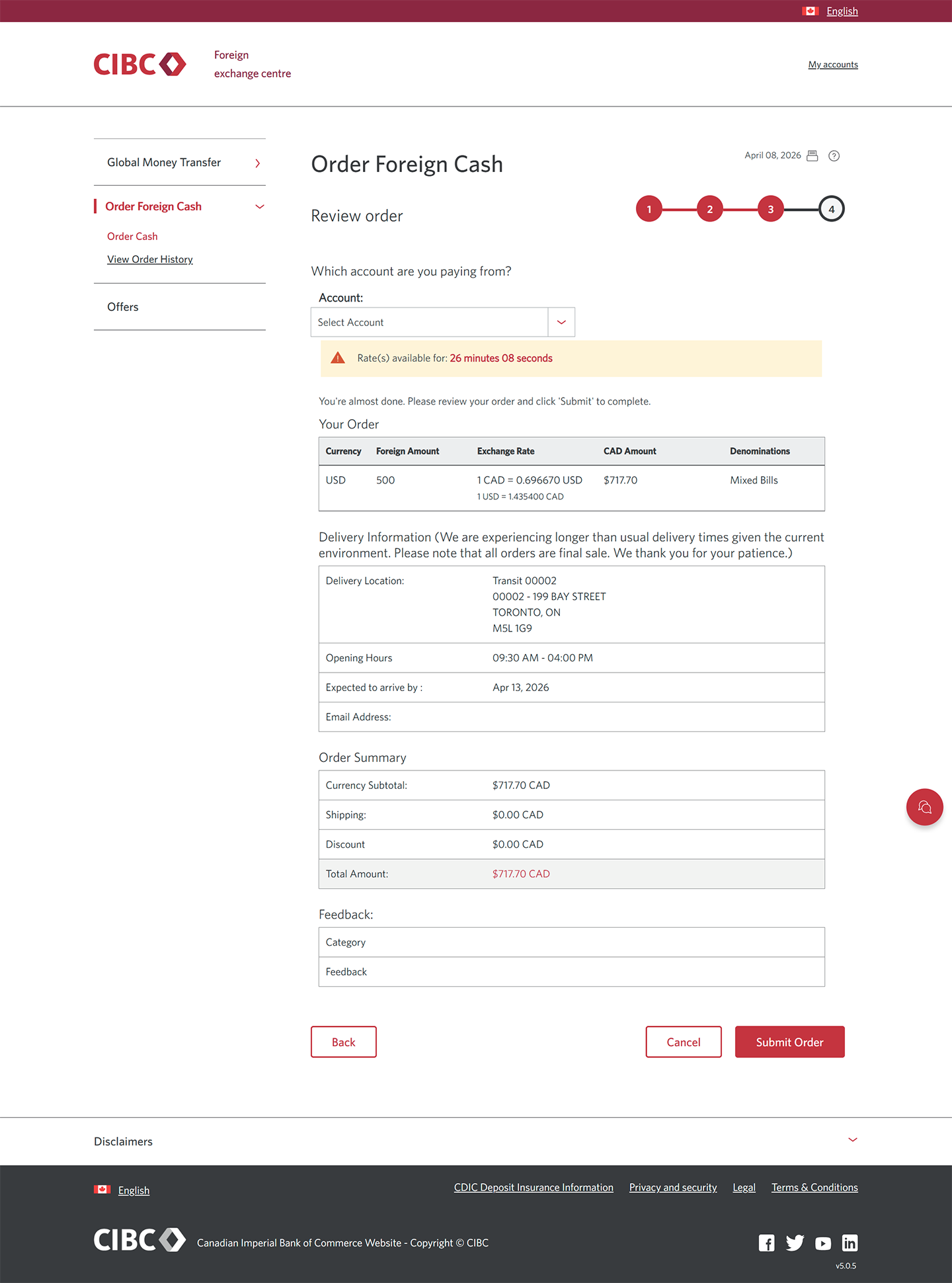
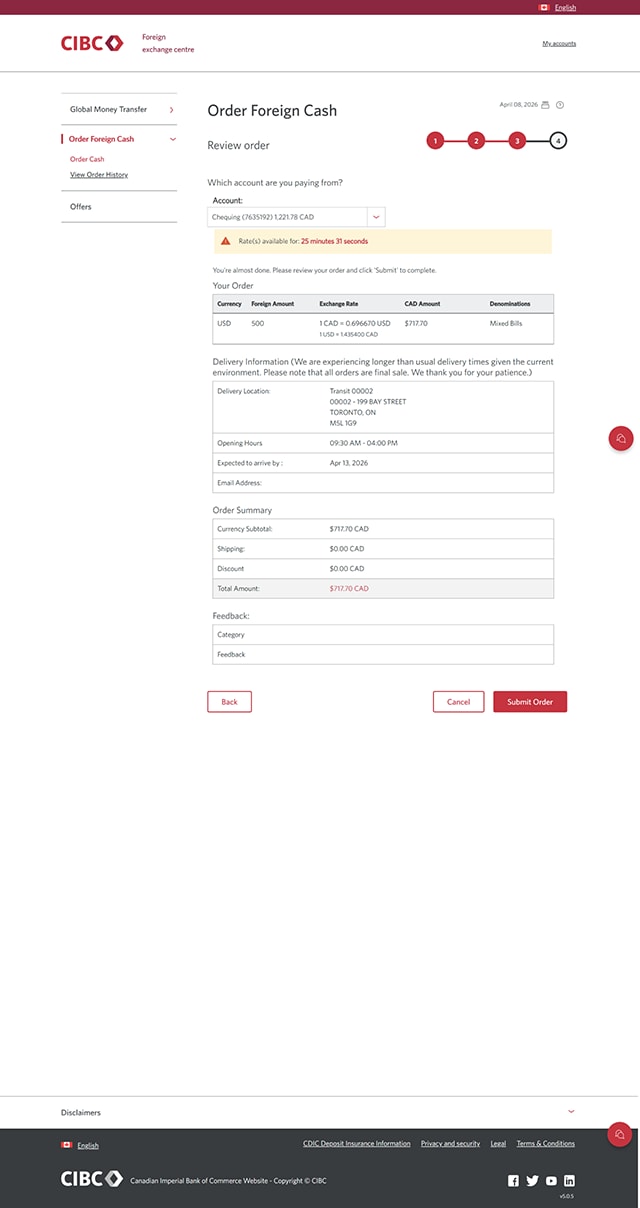
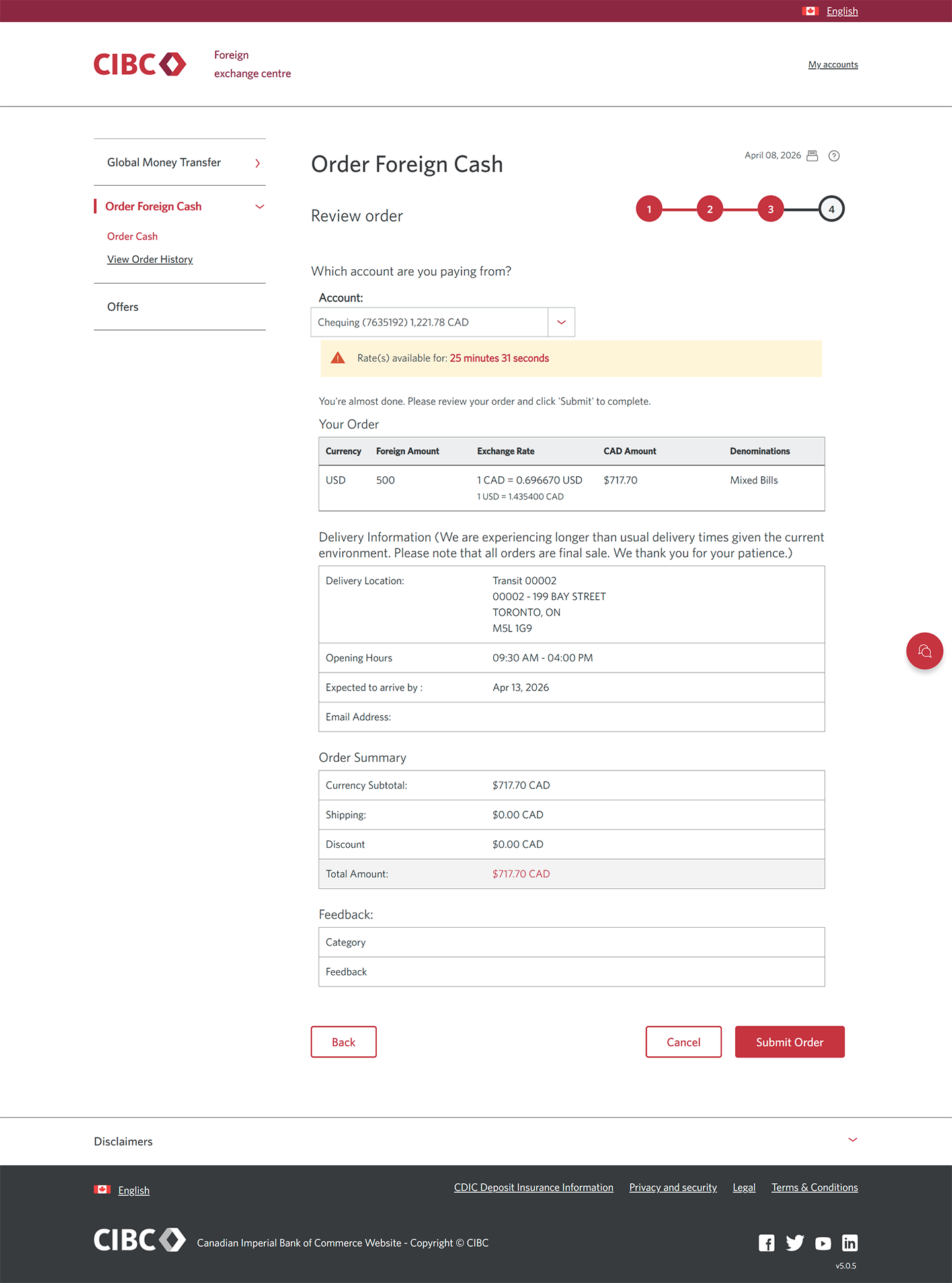
Demo screen 12: CIBC foreign exchange centre order review page. A pulsing animation highlights the "Submit Order" button.
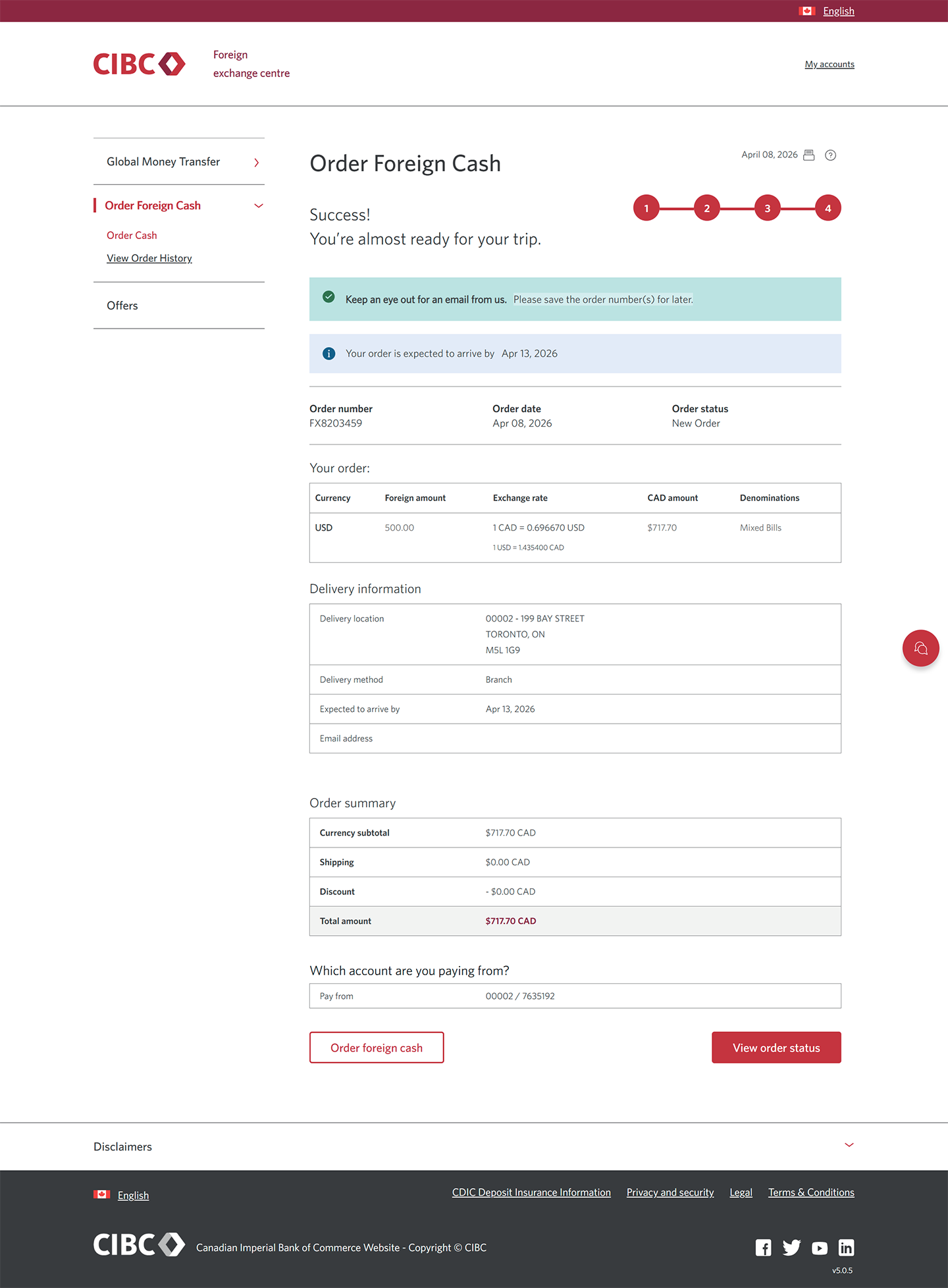
Demo screen 13: CIBC foreign exchange centre order submitted page. No pulsing animation.
Your progress 1 of

Step 1 : Let's get started on your web browser

Select the "Sign on" button in the demo to continue.

Step 2 : Select "Order Foreign Cash"

On the CIBC Online Banking homepage, go to the "More" menu and select "Order Foreign Cash".

Step 3 : Select "Order cash now"

On the CIBC Foreign exchange centre homepage, select the "Order cash now" button.

Step 4 : Select the type of currency you want to order

Explore different options for currency in the dropdown menu or use the search bar to search by currency/country.

Step 5 : Select an amount

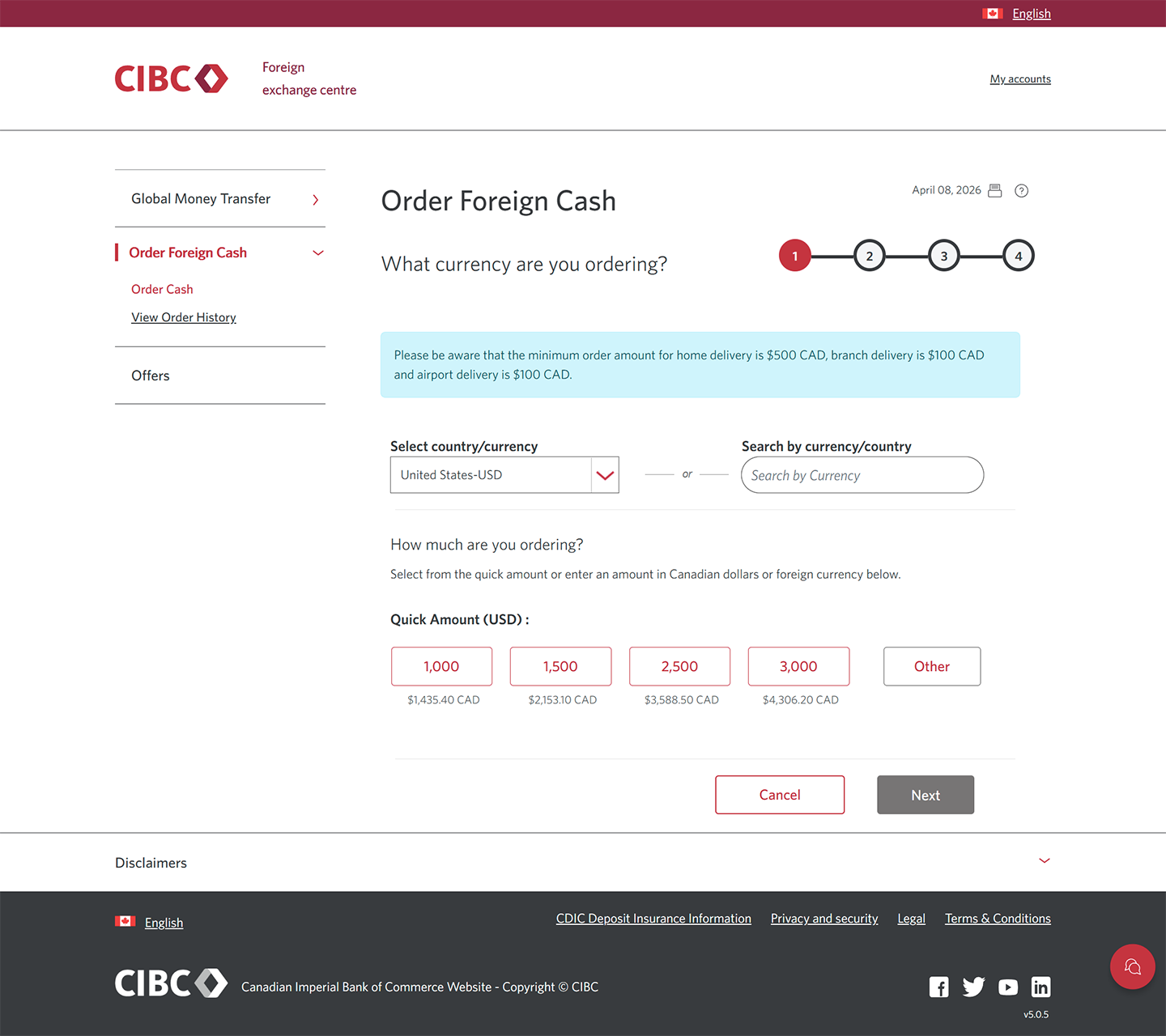
Choose the amount of foreign currency you would like to order from the quick amount options provided or select the “Other” button.

If you choose another amount, you must select the “calculate” button to calculate the exchange rate.

Step 6 : Select the denomination of bills

From the options provided, choose the denomination of bills you want to receive for your foreign currency order.

Step 7 : Select "Next"

Review your foreign cash order details. When you're ready, select the “next” button to continue.

Step 8 : Select the delivery method

Choose how you want to receive your foreign currency order from the pickup or delivery options provided.

For this demo, the option for "Branch Pick-Up" will be selected.

Step 9 : Choose a CIBC branch to pick up your foreign currency

To select a CIBC branch location, search using the branch address or transit number, or enter your own address to find the branch location that's closest to you.

Step 10 : Select "Next"

Review your pick-up details. When you're ready, select the "Next" button to proceed.

Step 11 : Select an account

Use the dropdown menu and select an account to debit the funds for your foreign currency order.

Step 12 : Review your foreign currency order

Once you've confirmed that your order details are correct, select the “Submit Order” button to complete your request.

Step 13 : Great job!

You've successfully ordered foreign currency using CIBC Online Banking.

The submission confirmation page will include an expected delivery date for your foreign currency.

Demo screen 1: CIBC homepage. A pulsing animation highlights the "Sign on" button.
Demo screen 2: CIBC Online Banking homepage. A pulsing animation highlights the "More options" menu.
Demo screen 3: CIBC Online Banking homepage. A pulsing animation highlights the "Order Foreign Cash" link.
Demo screen 4: CIBC Foreign exchange centre homepage. A pulsing animation highlights the "Order cash now" button.
Demo screen 5: CIBC Foreign exchange centre order page. A pulsing animation highlights the "Select country/currency" combo box.
Demo screen 6: CIBC Foreign exchange centre order page. A pulsing animation highlights the "Other" button.
Demo screen 7: CIBC Foreign exchange centre order page. A pulsing animation highlights the "Mixed bills" radio button.
Demo screen 8: CIBC Foreign exchange centre order page. A pulsing animation highlights the "Next" button.
Demo screen 9: CIBC foreign exchange centre order page. A pulsing animation highlights the "Branch Pick-Up" radio button.
Demo screen 10: CIBC Foreign exchange centre order page. A pulsing animation highlights "Or enter your address to find a CIBC branch closest to you" radio button.
Demo screen 11: CIBC Foreign exchange centre order page. A pulsing animation highlights the "Next" button.
Demo screen 12: CIBC Foreign exchange centre order page. A pulsing animation highlights the "Select Account" dropdown menu.
Demo screen 13: CIBC foreign exchange centre order review page. A pulsing animation highlights the "Submit Order" button.
Demo screen 14: CIBC foreign exchange centre order submitted page. No pulsing animation.
Your progress 1 of

Step 1 : Let's get started on your web browser

Select the "Sign on" button in the demo to continue.

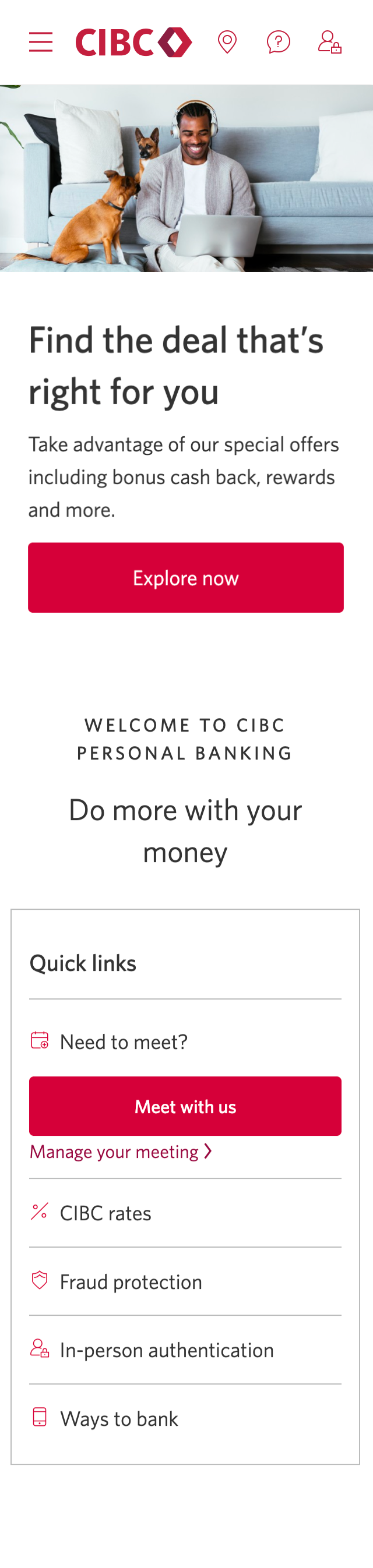
Step 2 : Select the three-line menu icon to open the navigation bar

On the CIBC Online Banking homepage, find and select the three-line menu icon to open a navigation bar with more options.

Step 3 : Select "Order Foreign Cash"

Go to the "More" section of the menu and select "Order Foreign Cash".

Step 4 : Select "Order cash now"

On the CIBC Foreign exchange centre homepage, select the "Order cash now" button.

Step 5 : Select the type of currency you want to order

Explore different options for currency in the dropdown menu or use the search bar to search by currency/country.

Step 6 : Select an amount

Choose the amount of foreign currency you would like to order from the quick amount options provided or select the “Other” button.

If you choose another amount, you must select the “calculate” button to calculate the exchange rate.

Step 7 : Select the denomination of bills

From the options provided, choose the denomination of bills you want to receive for your foreign currency order.

Step 8 : Select "Next"

Review your foreign cash order details. When you're ready, select the “next” button to continue.

Step 9 : Select the delivery method

Choose how you want to receive your foreign currency order from the pickup or delivery options provided.

For this demo, the option for "Branch Pick-Up" will be selected.

Step 10 : Choose a CIBC branch to pick up your foreign currency

To select a CIBC branch location, search using the branch address or transit number, or enter your own address to find the branch location that's closest to you.

Step 11 : Select "Next"

Review your pick-up details. When you're ready, select the "Next" button to proceed.

Step 12 : Select an account

Use the dropdown menu and select an account to debit the funds for your foreign currency order.

Step 13 : Review your foreign currency order

Once you've confirmed that your order details are correct, select the “Submit Order” button to complete your request.

Step 14 : Great job!

You've successfully ordered foreign currency using CIBC Online Banking.

The submission confirmation page will include an expected delivery date for your foreign currency.
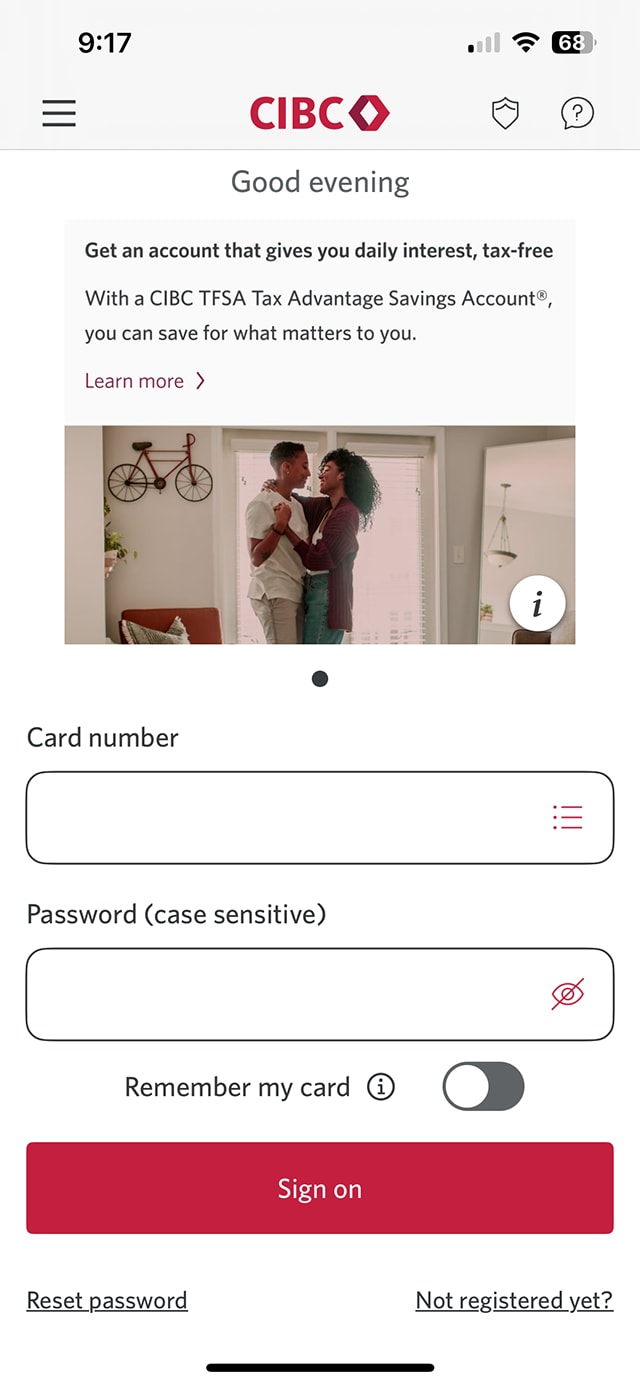
Demo screen 1: CIBC Mobile Banking App sign on screen. A pulsing animation highlights the "Sign on" button.
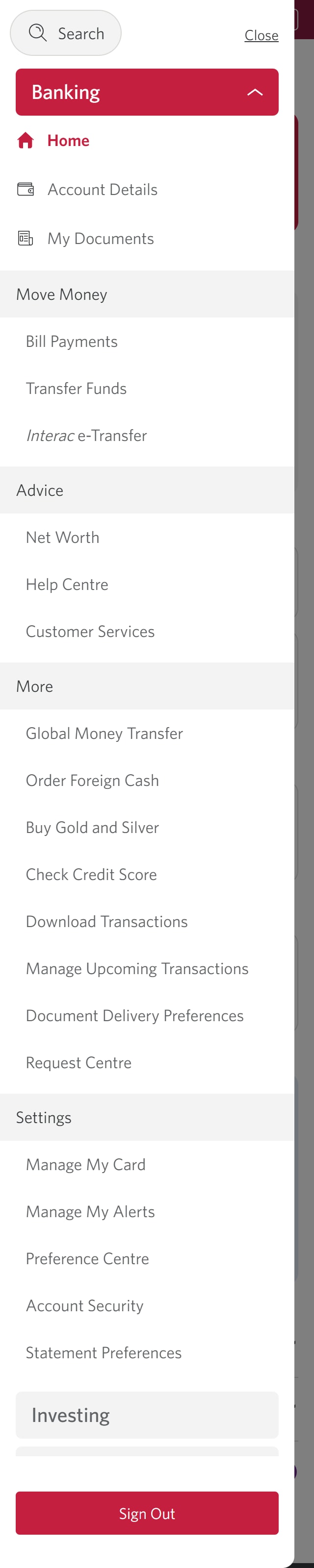
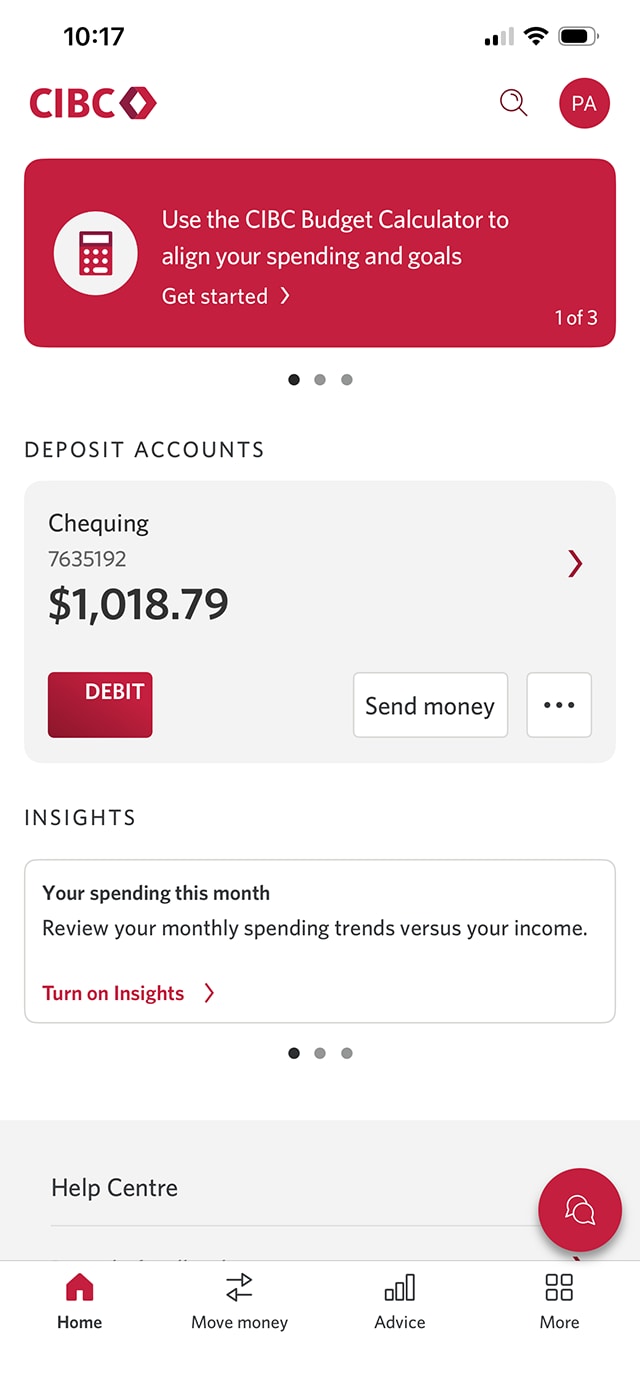
Demo screen 2: CIBC Mobile Banking App home page. A pulsing animation highlights the "Move money" tab.
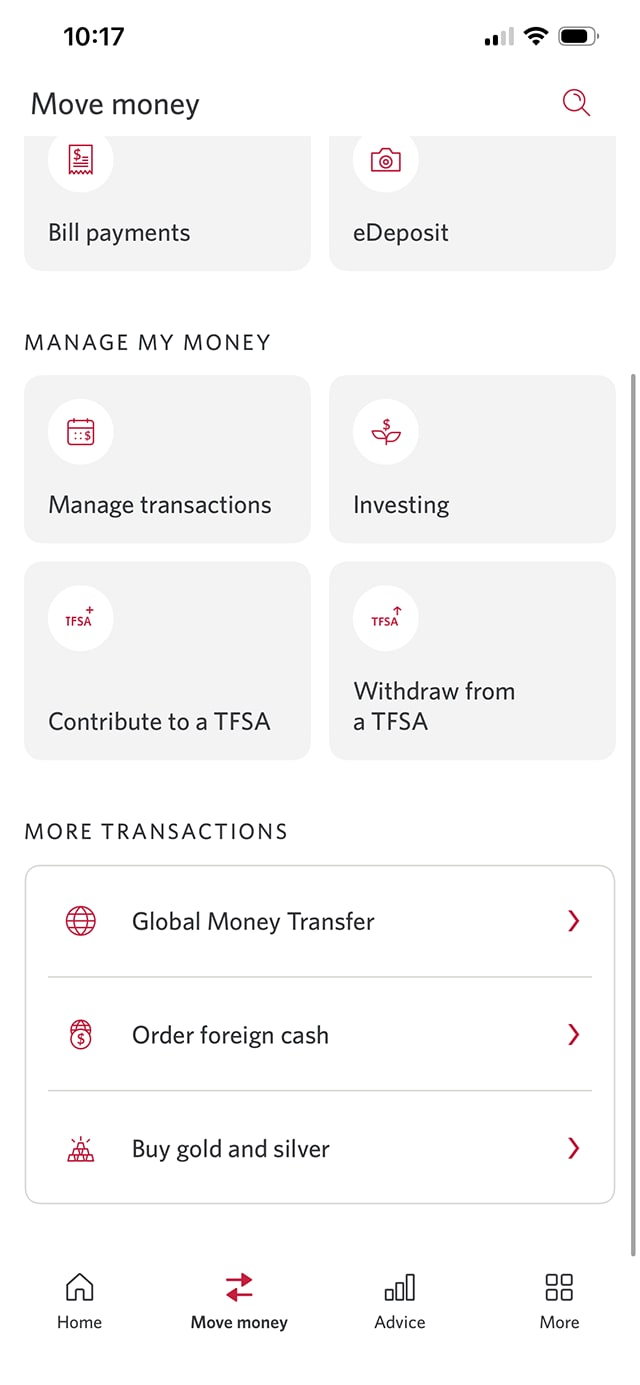
Demo screen 3: CIBC Mobile Banking App move money menu. A pulsing animation highlights the "Order foreign cash" button.
Demo screen 4: CIBC Mobile Banking App order foreign cash action. A pulsing animation highlights the "Order cash now" button.
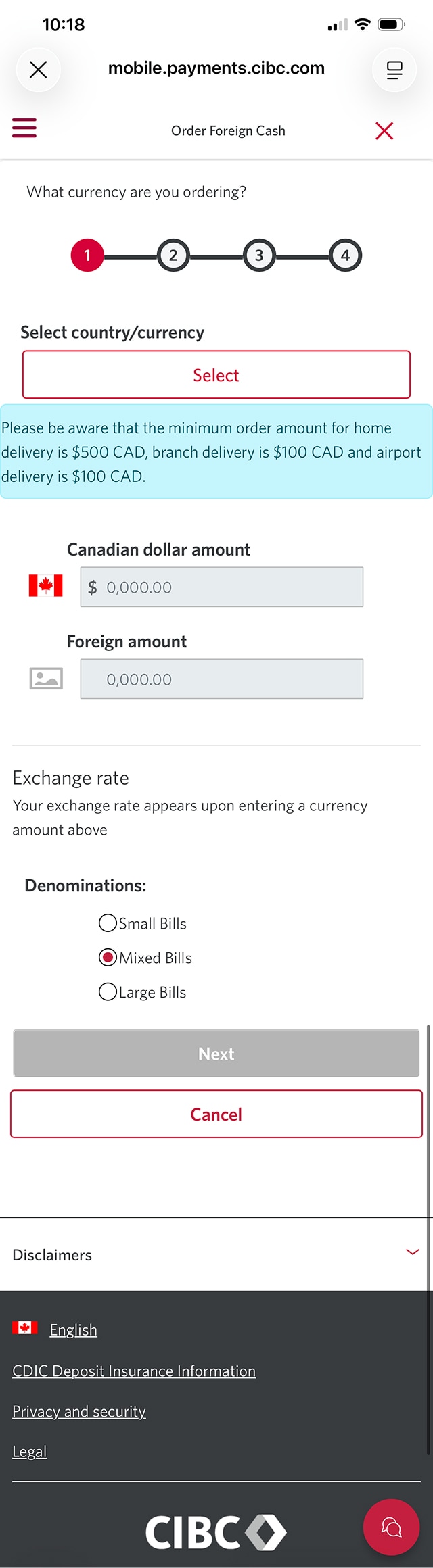
Demo screen 5: CIBC Mobile Banking App order foreign cash details. A pulsing animation highlights the "Select" button for Select country/currency.
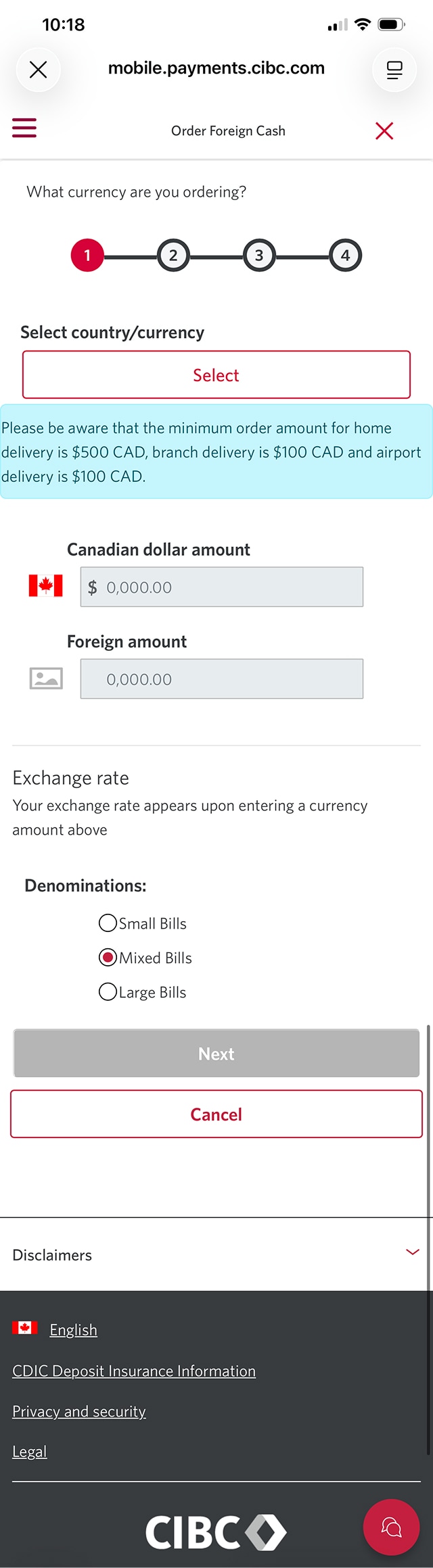
Demo screen 6: CIBC Mobile Banking App order foreign cash details. A pulsing animation highlights the "Next" button.
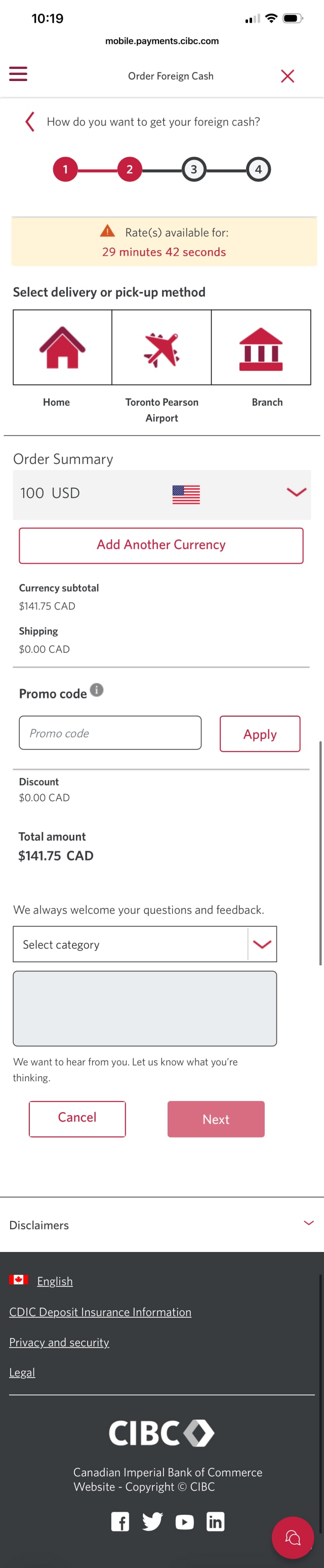
Demo screen 7: CIBC Mobile Banking App order foreign cash delivery options. A pulsing animation highlights "Branch" to select a delivery or pick-up method.
Demo screen 8: CIBC Mobile Banking App order foreign cash delivery options. A pulsing animation highlights "Search by branch address or transit number" radio button.
Demo screen 9: CIBC Mobile Banking App order foreign cash delivery options. A pulsing animation highlights the "Next" button.
Demo screen 10: CIBC Mobile Banking App order foreign cash. A pulsing animation highlights the select an "Account" dropdown menu.
Demo screen 11: CIBC Mobile Banking App order foreign cash confirmation page. A pulsing animation highlights the "Submit Order" button.
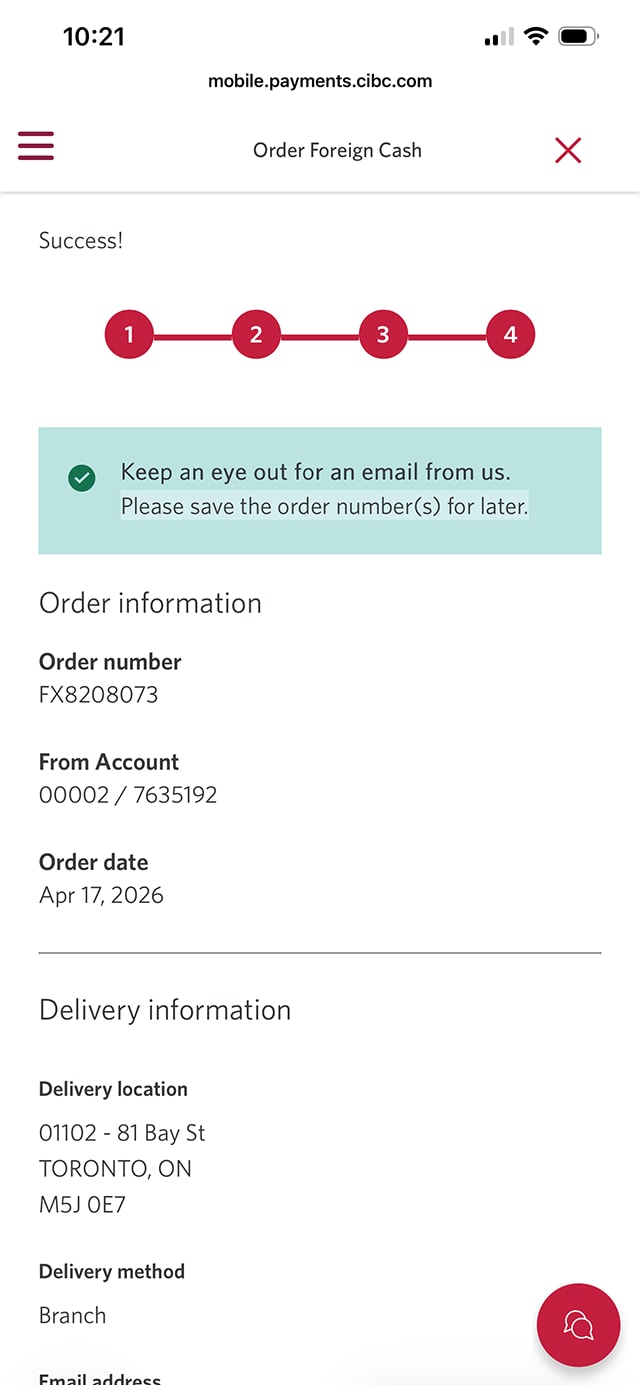
Demo screen 12: CIBC Mobile Banking App order foreign cash confirmation page. No pulsing animation.
Your progress 1 of

Step 1 : Let's get started on the mobile app

Select the "Sign on" button in the demo to continue. 

Step 2 : Select "Move money"

On the CIBC Mobile App homepage, go to the menu bar and select "Move money".

Step 3 : Select "Order foreign cash"

Go to the "More Transactions" menu and select "Order foreign cash".

Step 4 : Select "Order cash now"

Select the "Order cash now" button to proceed.

Step 5 : Select the type of currency you want to order

Explore different options for currency or use the search bar to search by currency or country.

Step 6 : Select the denomination of bills

Choose the denomination of bills you want to receive for your foreign currency order from the options provided.

When you're ready, select the "Next" button to continue.

Step 7 : Select the delivery method

Choose how you want to receive your foreign currency order from the pick up or delivery options provided.

For this demo, the option for "Branch Pick-Up" will be selected.

Step 8 : Choose a CIBC branch to pick up your foreign currency

To select a CIBC branch location, choose either "Search by branch address or transit number" or "Enter your own address to find the CIBC branch location that's closest to you".

Step 9 : Select "Next"

After you've chosen a pick-up location, select the "Next" button to continue.

Step 10 : Select an account

Use the dropdown menu and select an account to debit the funds for your foreign currency order.

Step 11 : Review your foreign currency order

Once you've confirmed that your order details are correct, select the “Submit Order” button to complete your request.

Step 12 : Great job!

You've successfully ordered foreign currency using the CIBC Mobile Banking App.

The submission confirmation page will include an expected delivery date for your foreign currency.

Want an overview of all the steps?

For full instructions on how to order foreign currency, check out the step-by-step process all in one place.

Which delivery option is best for me

CIBC Banking Centre

  • No delivery fee
  • Receive the estimated delivery date at the time of purchase
  • Choose your closest banking centre
  • You'll get an email when your order is ready for pickup

Home delivery

  • No delivery fee
  • Receive the estimated delivery date at the time of purchase
  • Securely delivered by Canada Post
  • If you're not home, your package will be held at the nearest Canada Post office
  • Maximum order value is $2,500 CAD

Recommended digital banking demos

How to add a card to your mobile wallet

Start demo on how to dd a card to your mobile wallet.

How to understand and use CIBC Rewards

Start demo on how to understand and use CIBC Rewards

How to use CIBC Online Banking®

Start demo on how to use CIBC Online Banking®

How to use the CIBC Mobile Banking App®

Start demo on how to use the CIBC Mobile Banking App®

Get started
CIBC Online Banking®

Discover digital banking features that can help you bank easily online.
CIBC Mobile Banking® App

Stay connected to your finances on your mobile device, no matter where you are.